Inactiving tasks

A great new feature in MS PROJECT 2010 is Inactive task command. In previous versions if you had a task which you decided not to do (because you didn’t have resources, or simply you just didn’t need it) you had to delete it. And when you deleted a task it was gone forever. Now you don’t have to delete it but you can just make it inactive. This feature gives you a possibility of making inactive task active again if you change your mind. You can also see all the inactive tasks for a project review.

Here is an example:

image

I have five tasks:

Task 1 has a 3-day duration, Task 2 has a 5-day duration and can start when Task 1 is finished, Task 3 has a 2-day duration and can start when Task 2 is finished, Task 4 has a 1-day duration and can start when Task 3 is finished and Task 5 has a 2-day duration and can start when Task 2 is finished.

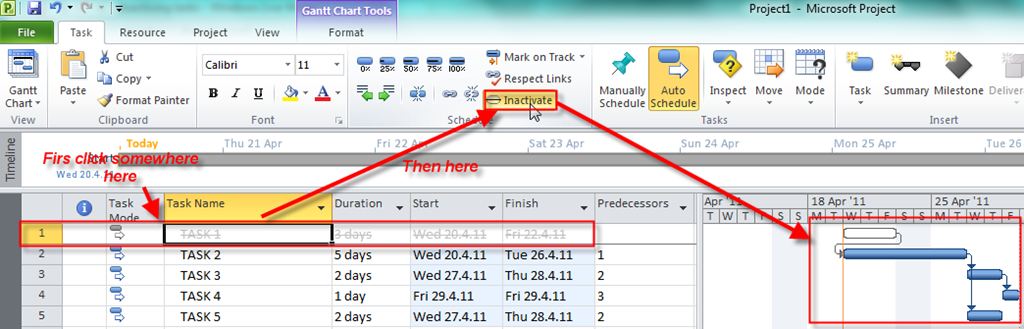
First I will make Task 1 inactive:

image

You can see that Tasks 2, 3, 4, and 5 are rescheduled to start on 20.04.2010 (start date of Task 1). This happened because Task 1 is no more active, and Task 2 has no predecessor, so it can start as the first task of the project when the project starts.

Now I will leave Task 1 active but I will make Task 2 inactive (Btw, if you want to make a task active again just click on Inactive button):

image

You can see that Task 1 remains as it was, but Tasks 3,4, and 5 are rescheduled to start on 20.04.2010 (start date of the project). This happened because Task 2 is no more active. Task 2 had Task 1 as predecessor but when I made it inactive Task 3 and Task 5 did not change their predecessor to Task 1 automatically. You must make Task 1 as a predecessor of Task 3 and Task 5 by your own:

image

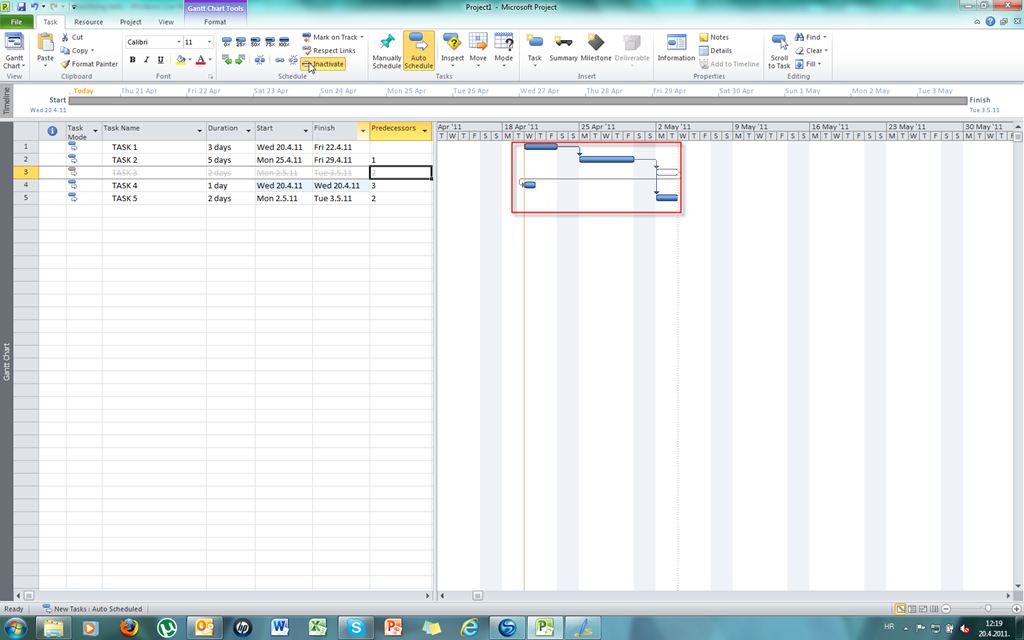
Now I will leave Task 2 active but I will make Task 3 inactive:

image

You can see that Task 4 is rescheduled to start on 20.04.2010 (start date of the project). This happened because Task 3 was only predecessor of Task 4. So again, if you want to make Task 2 as a predecessor of Task 4, do it manually.

Finally I will make Task 4 and Task 5 inactive (respectively):

image

image

Since Task 4 and Task 5 are not predecessors to any task they are just inactive and nothing happens to the other tasks.

Regards,

Posted in Microsoft PRoject 2010, MS PROJECT 2010, PRoject Management | Tagged , , | 2 Comments

Assigning and removing resource to tasks–BUG


In this blog I will show you a bug that I found when removing resource from the task

First, I will add two resources to the Project:

Primjer 1 22.04.2011

Then I will add two tasks to the Project with same duration –> 2 days:

Primjer 2 22.04.2011

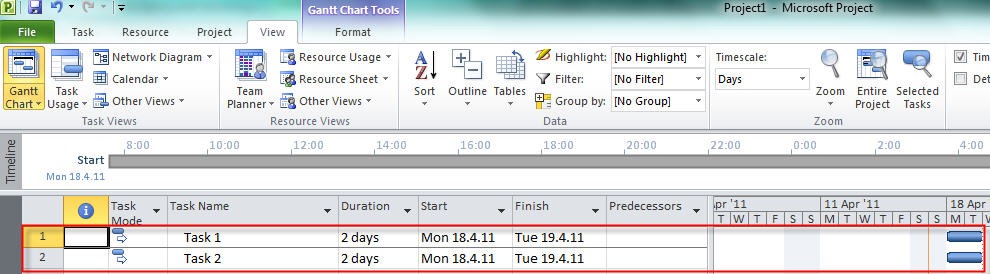
Now, on the View tab, in the Split View I will click Details and I will get Task form in the lower part of the screen:

Primjer 3 22.04.2011

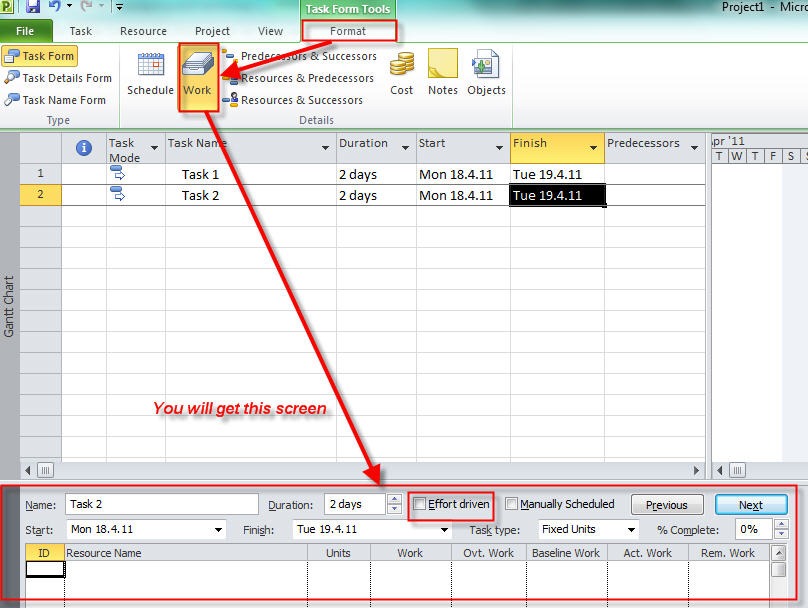
I will click anywhere in the Task Form and I will choose Work in the format Tab:

Primjer 4 22.04.2011

For the bug it is irrelevant whether the task is effort driven or not

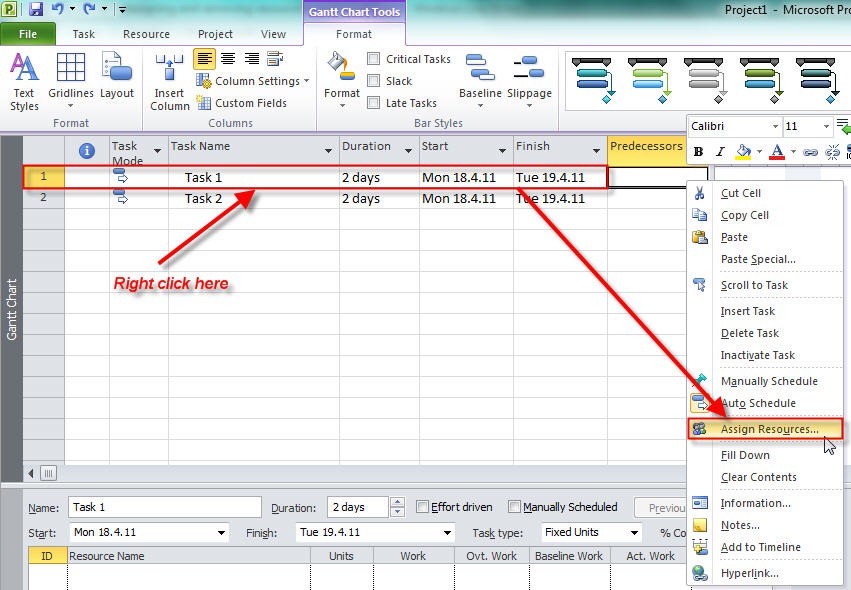
Now, I will assign John and Mary to the Task 1 and Task 2:

Primjer 5 20.04.2011

Primjer 6 20.04.2011

O.K. Now I will, for example, remove John from the Task 2:

Primjer 7 20.04.2011

You can see that John has disappeared from the Task Form. But I decided to use the action button and to choose: “Increase total work because the task requires more person-hours. Keep duration constant” or “Increase the hours that resources work per day. Keep duration and work the same”.

Primjer 8 20.04.2011

After that you will get:

Primjer 9 20.04.2011

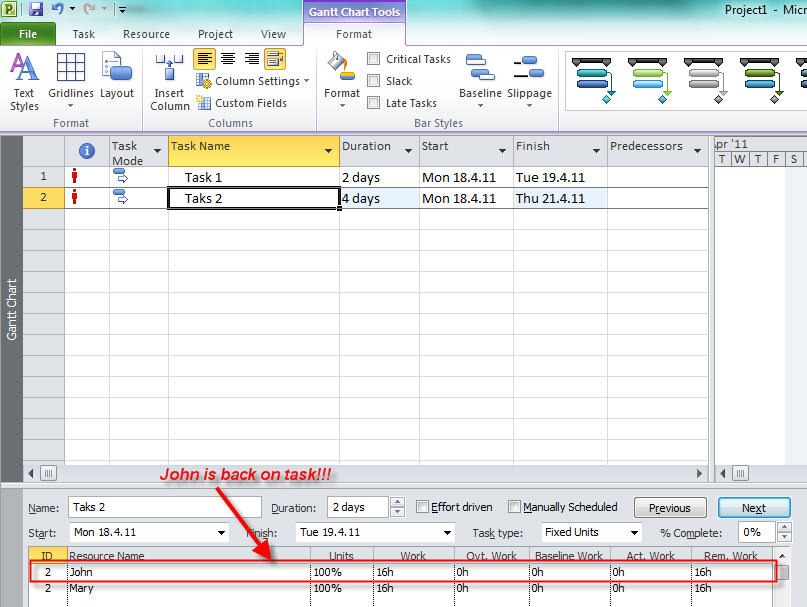
And John is back again. This is a bug. But it is only so called: “Display bug”. John is actually removed from the task but he is displayed in the Task form. I will remove him by clicking on Previous and then Next button.

When I click on the Previous button I will have cursor moved on the Task 1 and John and Mary displayed on the Task form (assigned to the Task 1):

Primjer 10 20.04.2011

When I click on the Next button I will have cursor moved on the Task 2 again and only Mary displayed on the Task form (assigned to the Task 2):

Primjer 11 20.04.2011 

This was just one example of bug when removing resource from the task. There are several more occasions when this type of bug appears. So, be careful when you remove resource from tasks.

Regards,

Posted in Microsoft PRoject 2010, MS PROJECT 2010, PMI, PRoject Management | Tagged , , | 2 Comments

Constraints and deadline in MS PROJECT

In this post I will write about constraints

There are three types of constraints:

  1. Flexible constraints. This is a default type of constraint in MS PROJECT. It means that a task can start As Soon As Possible
  2. Semi-flexible constraints. A task must begin or end no later than the defined date
  3. Inflexible constraint. A task must begin or end on a certain date.

Flexible
As Soon As Possible
Project will schedule a task to  occur as soon as it can occur.  This is the default constraint type applied to all new tasks when scheduling from the project start date. There is no constraint date for an ASAP constraint.

As Late As Possible
Project will schedule a task tooccur as late as it can occur. This  is the default constraint type applied to all new tasks when scheduling from the project finish date. There is no constraint date for an ALAP constraint.

Semi-flexible
Start No Earlier Than
Project will schedule a task to start on or after the constraint date that you specify. Use this  constraint type to ensure that a task will not start before a specific date.

Start No Later Than
Project will schedule a task to start on or before the constraint date that you specify. Use this constraint type to ensure that a task will not start after a specificdate.

Finish No Earlier Than
Project will schedule a task to finish on or after the constraint date that you specify. Use this constraint type to ensure that a task will not finish before a  specific date.

Finish No Later Than
Project will schedule a task to finish on or before the constraint date that you specify. Use this constraint type to ensure that a  task will not finish after a specific date.

Inflexible
Must Start On
Project will schedule a task to start on the constraint date that you specify. Use this constraint type to ensure that a task will start on an exact date.

Must Finish On
Project will schedule a task to finish on the constraint date that you specify. Use this constraint type to ensure that a task will finish on an exact date.

Which type to choose? Well, the best approach is to use Flexible constraint.

This type of constraint lets MS PROJECT to schedule task with only one limitation and that is, predecessor and successor relationship. In previous picture you can see that TASK 2 will start immediately after TASK 1 ends.

If you use semi-flexible constraint like, for example, Start no Earlier Than, task will start no earlier than date you have entered in the Constraint date field, but it can start later than this date if its predecessor ends later than given date.


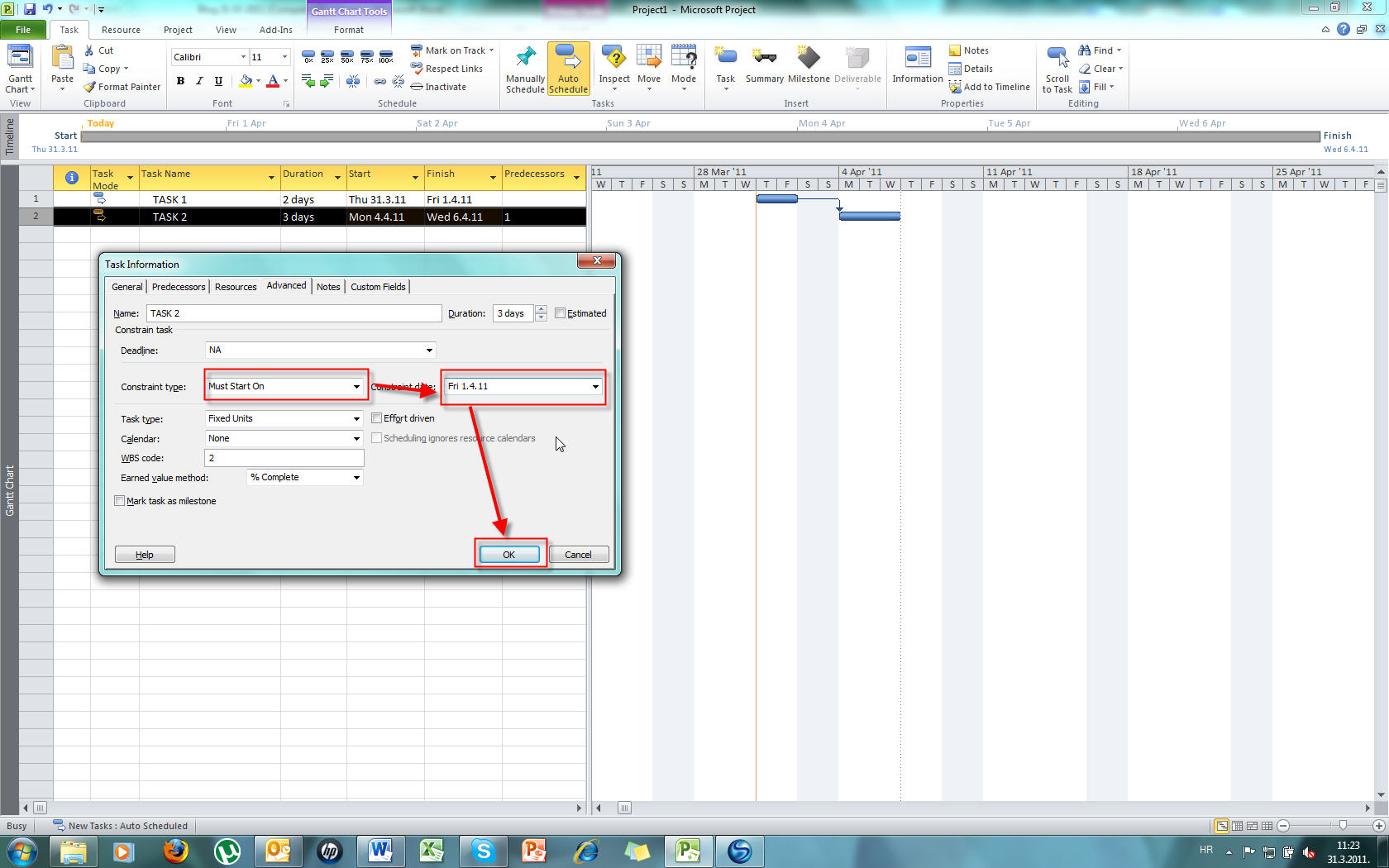
If you use inflexible constraint like, for example, Must start on, task will start on specific date (no prior and no later than given date). In my next example I have TASK 1 which will start on 31.03.2011 and finish on 01.04.2011 (2 day duration), and its successor TASK 2
which will start on 04.04.2011 and finish on 06.04.2011 (3 day duration). Now I
will put the inflexible constraint Must Start On and the constraint date will be 01.04.2011 (see the picture below):

When I click on OK button I get this:

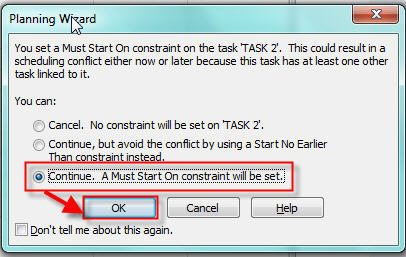
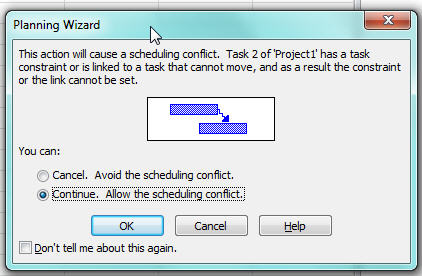
This is a warning screen. It asks you: “What do you want to do?”
If you choose: “Cancel. No constraint will be set on ‘TASK 2’” you are actually cancelling the whole thing
If you choose: “Continue, but avoid the conflict using a Start No Earlier Than constraint instead” the constraint will be changed from Inflexible->Must Start On to Semi-flexible-Start No Earlier than
If you choose: “Continue. A Must Star On constraint will be set.” You will get (from my example) this:


If you choose: “Cancel. Avoid the scheduling conflict” you are actually cancelling the whole thing
If you choose: “Continue. Allow the scheduling conflict” you will get negative slack (see
the picture below):

For a Task you can enter duration, start or finish date:


If you enter a Duration (and only duration) you are setting flexible constraint->As soon as possible (when scheduling from the project start date). If you enter a Start date you are applying a Start No Earlier constraint. If you enter a Finish date you are applying a Finish No Earlier constraint.
If you know that your task has a deadline one common mistake is to put inflexible constraint -> must finish on. Suppose that you have a task with 1 day duration and the deadline is 01.04.2011. If you put Must finish on constraint with 01.04.2011 you are increasing the risk for this task. Why? Because you are telling MS PROJECT that this task MUST finish on that date and NOT BEFORE.  What if your required resource is sick?Better approach is to let MS PROJECT to handle start date with As Soon As possible constraint and put the deadline information about the task.

Here is the example: We have the TASK with 3 day duration:

We have the deadline for this task and it is 05.04.2011.
We will put it here:


And we will get the Deadline indicator in our Gantt diagram:


See you!

Posted in Microsoft PRoject 2010, MS PROJECT 2010, PMI, PRoject Management | 22 Comments

Scheduling problems in MS PROJECT 2010 – Part 2.

Today I will write about scheduling problems when you put the start and the end date
for tasks into MS PROJECT. I WILL NOT write about constraints and limitation with this method (for example about flexible and hard constraints and why this is not the best approach). I will just show you how duration is affected when you put those dates into MS PROJECT.
In MS Project 2010 you can choose between two types of scheduling: Manually or Automatic schedule. If you choose Manually you will have the whole control over the scheduling and you will not get the whole power of MS Project 2010. For my examples I’ve choose Automatic scheduling mode and it is shown on picture below:
Next we will set up daily, weekly and monthly working time:
And then:
We have told MS Project that regular working time will be Monday – Friday from 08:00 AM until 16:00 PM, 8 hours without lunch break.
Now we will set up our standard calendar:
1. Select Project TAB
2. Click on Change Working Time
3. On The For Calendar choose: Standard (Project) Calendar
4. Click on Work Weeks
5. Select Default
6. Click on Details
7. Select days: Monday – Friday
8. Choose: Set day(s) to these specific work times
9. Type 08:00 in From field and 16:00 in To field
10. On the same form click OK button
11.
On the Change working time click OK button
Now you can enter two tasks: Task 1 with start on 22.3.11 and end on 22.03.11, and Task 2 with start on 22.3.11 and end on 23.03.11

What do I get? Task 1 has duration of 0,5 days, and Task 2 duration of 1 day. WHY?
Well it is easy to explain. When I put the same date for start and finish date for Task 1 I said: “I want my task to last 4 working hours”. WHY? Because I put in calendar options (from 08:00 till 12:00) that they will be a 4 hour job. And I also said that duration for one day is 8 hours. WHERE? See picture below:
So MS PROJECT calculates duration in formula 4 working hours / 8 hours per day in scheduling options = 0,5 days
For Task 2 I said that it will start on 22.3.11 and it will end on 23.3.11. Working time will be from 08:00 till 12:00 (4 hours), so it will be 2 days X 4 hours = 8 hours
And because the day duration lasts 8 hours (see picture above) MS PROJECT calculates duration in formula  8 working hours / 8 hours per day in scheduling options = 1 day
Now, suppose that in my calendar I choose the working time from Monday till Friday from 08:00 – 15:00 (7 working hours) and I put the same start and end date for Task 1 and Task 2 as I put before. Duration of Task 1 and Task 2 will be:
Task 1 has duration of 0,88 days, and Task 2 duration of 1,75 day.
Now, you know the duration formula, don’t you?
Duration of one day means 8 hours. We will work 7 hours on Task 1 (because we put that in the calendar; from 08:00 till 15:00). 7 working hours / 8 hours per day in scheduling options = 0,88 days.
For Task 2 we will work 7 hours on 22.03.11 and 7 hours on 23.03.11 so it means we will spend 14 hours in total. And 14 working hours / 8 hours per day in scheduling options = 1,75 days.
Now, suppose that in my calendar I choose the working time from Monday till Friday from 08:00 – 17:00 (9 working hours). Duration of Task 1 and Task 2 will be:

Task 1 has duration of 1 day, and Task 2 duration of 2,13 day. Duration of one day means 8 hours. We will work
8 hours on Task 1 (because we put that in the calendar; from 08:00 till 17:00). Something is wrong, isn’t it? From 08:00 till 17:00 is 9 hours and not 8. Well,  yes it is. But you cannot work more than 8 hours per day if start and end date are the same because in scheduling options you said that you will have 8 hours
per day. So 8 working hours / 8 hours in scheduling options = 1 day.
For Task  2 we will work 9 hours on 22.03.11 and 8 hours on 23.03.11 so it means we will spend 17 hours in total. And 17 working hours / 8 hours in scheduling options = 2,13 days. You may ask yourself: “WHAT IS
WRONG NOW!??”.
Well, nothing is wrong. That is the way MS PROJECT works. If your start date is different from end date, MS PROJECT will respect working hours from calendar (in our example it is 9 hours / day) for first, second, third etc day EXCEPT last day (end date) which will last 8 hours (hours per day from scheduling options).
See you

So MS PROJECT calculates duration in formula 4 working hours / 8 hours per day in scheduling options = 0,5 days
For Task 2 I said that it will start on 22.3.11 and it will end on 23.3.11. Working time will be from 08:00 till 12:00 (4 hours), so it will be 2 days X 4 hours = 8 hours
And because the day duration lasts 8 hours (see picture above) MS PROJECT calculates duration in formula 8 working hours / 8 hours per day in scheduling options = 1 day
Now, suppose that in my calendar I choose the working time from Monday till Friday from 08:00 – 15:00 (7 working hours) and I put the same start and end date for Task 1 and Task 2 as I put before. Duration of Task 1 and Task 2 will be:
Task 1 has duration of 0,88 days, and Task 2 duration of 1,75 day. Now, you know the duration formula, don’t you? Duration of one day means 8 hours.
We will work 7 hours
on Task 1 (because we put that in the calendar; from 08:00 till 15:00). 7 working hours / 8 hours per day in scheduling options = 0,88 days.
For Task 2 we will work 7 hours on 22.03.11 and 7 hours on 23.03.11 so it means we will spend 14 hours in total. And 14 working hours / 8 hours per day in scheduling options = 1,75 days.
Now, suppose that in my calendar I choose the working time from Monday till Friday from 08:00 – 17:00 (9 working hours). Duration of Task 1 and Task 2 will be:

Task 1 has duration of 1 day, and Task 2 duration of 2,13 day.
Duration of one day means 8 hours. We will work 8 hours on Task 1 (because
we put that in the calendar; from 08:00 till 17:00).
Something is wrong, isn’t it? From 08:00 till 17:00 is 9 hours and not 8. Well, yes it is. But you cannot work more than 8 hours per day if start and end date are the same because in
scheduling options you said that you will have 8 hours per day. So 8 working hours / 8 hours in scheduling options = 1 day.
For Task 2 we will work 9 hours on 22.03.11 and 8 hours on 23.03.11 so it means we will spend 17 hours in total. And 17 working hours / 8 hours in scheduling options = 2,13 days. You may ask yourself: “WHAT IS WRONG NOW!??”. Well, nothing is wrong. That is the way MS PROJECT works. If your start date is different from end date, MS PROJECT will respect working hours from calendar (in our example it is 9 hours / day) for first, second, third etc day EXCEPT last day (end date) which will last 8 hours (hours per day from scheduling options).

See you …..

Posted in Microsoft PRoject 2010, MS PROJECT 2010, PMI, PRoject Management | 4 Comments

MS Project 2010 – Let’s start

Hi,

Let’s Go! How will you start MS PROJECT 2010?

You will see this:

  1. The Quick Access toolbar is an area of the interface where you can put your favorite commands (like undo, save, redo etc.)
  2. The Tab group focus area of Project together (like file, task, resource,
    project
    etc)
  3. The Group is a collection of related commands under one tab (like schedule group under task tab where you can find commands like link tasks, unlink tasks, indent tasks etc)
  4. Command is a specific action which is performed when you choose it (like cut, copy, paste, etc)
  5. The View Label is placed along the left edge of the active view. Because MS Project has many views, it is a very helpful reminder of “where you are” i.e. what active view you are using at the moment
  6. With the View shortcuts you can easily and quickly switch between some of the views in MS project (like gant chart, task usage, team planner and resource sheet)
  7. The Zoom slider zooms the active view in or out
  8. The Status bar displays some details like the scheduling of new task, filters applied etc.)

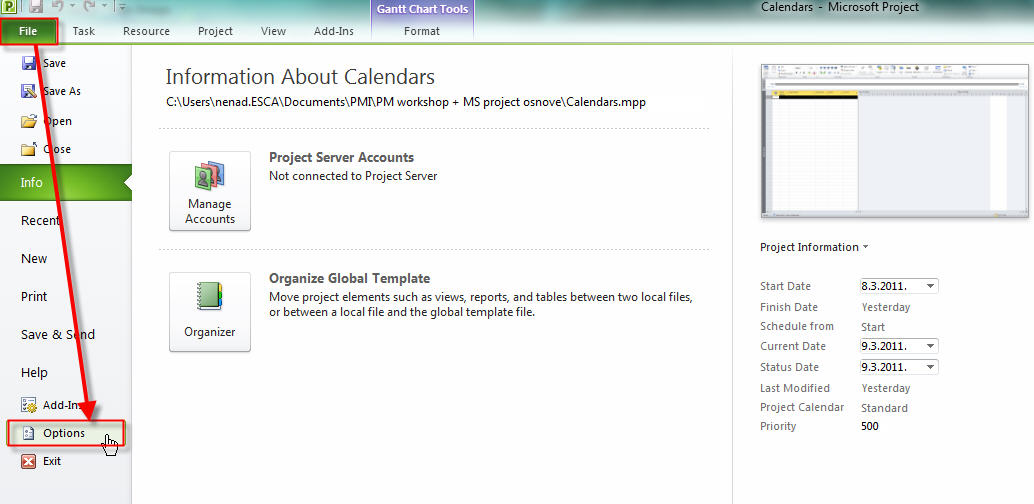
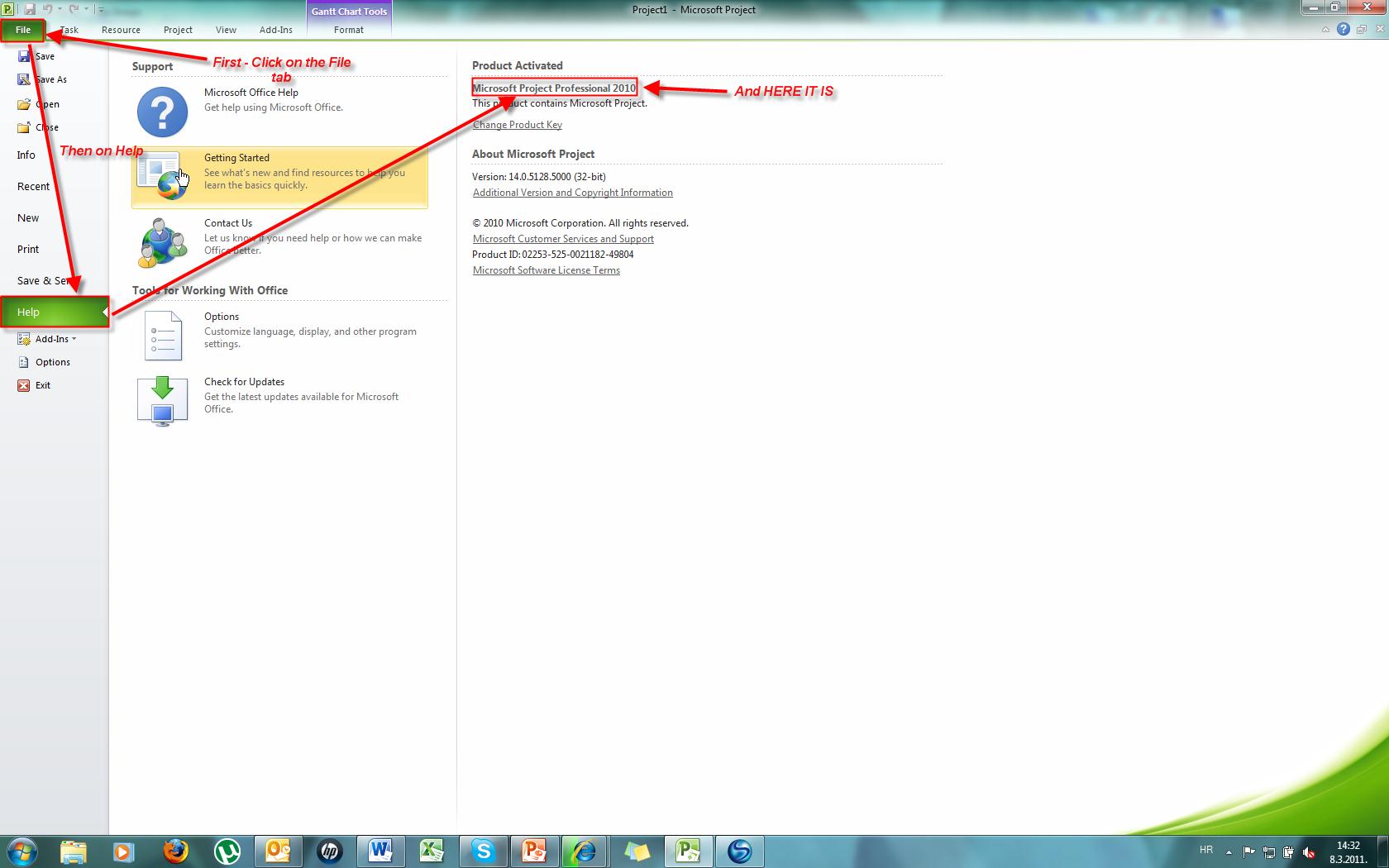
If you are using any of the Office 2010 applications you are familiar with the term Backstage view. You can get there easily. Just click on the File tab. If you
don’t know which version of MS project you have you can find it here:

I decided to show you how the MS Project works with the example of one simple project. The project will be: “Home, sweet home” and it major goal (objective) is to build a house.

What we have to do first is write the project information in MS project. We will do it like this:

You can put the project information here:

Other informationabout the project you can put here:

You can choose between two constraints: Start date (you want your project to start at
specific date) or Finish date (you want your project to finish at specific date), but NOT BOTH.

Finally, you should save your project. You will do it like this:

Next time we will start with scheduling.

See you!

Posted in Microsoft PRoject 2010, MS PROJECT 2010, PMI, PRoject Management | 2 Comments

Project Management and MS Project 2010 – 09.02.2011

Hi,
Before I start my explanation on how MS Project 2010 works I have to tell you some more things about Project itself, as well as some things you should pay attention to in your projects. In many books and articles you can find something called “ the triple constraint” or “the project triangle”.

It says that each and every problem has tree constraints: Time, Costs (or Resources) and Features (or Scope). This is somewhat true. Every project also has other constraints like quality, communication, risks, etc. Some constraints can be fully tracked with MS Project (like time, costs, and resources), some can be partially tracked (like risks and communication), and some cannot be tracked at all (like quality, and change request approval).
So, you must have other tools and techniques besides MS Project to track and
manage Project.

Every project is undertaken for some reason, whether it is for a bigger profit,
better position in marketplace, saving the earth or just for the fun of it
(like: “I want to  build  and live in the biggest house in my town). Regardless
of why a project is undertaken, you must know that project sponsor and your
customer will have requirements and expectations. Many people think that those
two words have the same meaning. Well, it is the biggest mistake you can make
and it can cause the project failure.

Requirements are customer’s wishes which he or she  will tell you! For example: “We want a new ERP system with modules: purchase, sale, invoicing, marketing, production, human resources, fixed assets etc.” To get the requirements you have to ask: “What do you need?”. Very simple, isn’t it?

On the other hand, expectations are unstated wishes! Your customer can have a requirement like this: “I want a new ERP system with (by the others) vendor ledger!” and the expectation that one person will be able to record 10.000 vendor invoices in one hour. To get the expectations you have to ask: “We have all your requirements! What exactly do
you expect from this project? What is your measure of success?”.

When you get the customer expectation you must make a decision: “TO GO OR NOT TO GO!” also called “GO – NO GO” decision. If you know that your customer’s expectation
is unreachable no matter what you do, DO NOT START THE PROJECT. If you do, you
will get unsatisfied customer even if you fulfill all the requirements.  YOU will be the one responsible for the project failure. And after all, this is unethical Project Management because you have started the Project for which you knew that it wouldn’t be successfully
completed, and that you would end up having unsatisfied customer.

And for the end of this post one joke from the internet. Project phases:

Enthusiasm, Confusion, Loosing Illusions, Nerves breakdown, Panic, Looking for “the Pedro”, punishing the innocent team members, Looking for trade-off, Giving the reward
to the people who have never been involved in the project.

See you.

Posted in Microsoft PRoject 2010, MS PROJECT 2010, PMI, PRoject Management | 1 Comment

Project Management and MS Project 2010

Hi,
I decided to write a blog about Microsoft Project 2010. What is the purpose of this blog?
Simply, to explain how the MS Project 2010 really works in conjunction with Project Management.
What is Microsoft Project? Dumb question, isn’t it? In many books and articles you can read that MS Project is: “Project Management Software!”
Well, it is NOT.
There is no such a thing like “Project Management Software!”
Project Management is: “The application of knowledge, skills, tools, and techniques to project activities to meet project requirements.”
Well, MS Project is a strong and powerful tool and if you use it properly you can save a lot of time with less effort in your project.

If you want to get the most out of MS Project you have to be excellent at two things.
You have to know what the possibilities of MS Project are and how to use them, and you also have to know how to manage projects (Project Management).
OK. What is a Project? “Project is temporary endeavor undertaken to create a unique product, service or result” (PMBOK. 4th edition).

It is temporary (so it must end or it must be terminated) and it is unique. That means that there are no two same projects.
Well, there are a lot of similar projects but not the same. Some of the pieces that can be different are a project team, customer, budget, scope, or something else.
What can you do with MS project? You can put your tasks in it, your schedule, resources, costs (also known as triple constraint), and you can track the progress of your project.
How far will you go with MS Project? Well, it depends. For example, if you do not have access to cost information (about pay rates for your project team) then you will not be able to track costs of your project.

If you don’t have enough information about your resources then you will not be able to track your tasks by assigned resources etc., etc.
Some project managers are “software averse” which means that they hate any kind of software and they prefer using “paper and pencil” during the project.
This method is slow, it makes project communication hard, and you have to use great effort of “writing things down”.
This is a waste of time even if your Project is “on track”. On the other hand, there are “software freaks”.
They are using MS project every day, every hour, every minute and they put everything in it, no matter if it is a part of project or not.
(A friend of mine is a “software freak”, and he even writes a daily weather report in MS project, and MS word. I asked him: “Why are you doing this? Is the weather report important for your project?” The answer was: “Not at all, but, you know, just in case!” “How much time do you spend every day on collecting weather report, and putting that information in MS project?” He says: “Not much. About an hour!!”
What is he doing? He is wasting at least 20 hours per month on collecting and tracking useless information.

So, how far do you go with MS project in your particular project? As far as you get the right results with less effort.
For example, if you don’t know the cost per person (it might be 100$ per hour or 200$, or 500$) don’t put that information in MS project. You will be misguided. Track any information that is important and accurate (reliable).
Next time I’m going to start with MS project from the scratch.

See you.

Posted in Microsoft PRoject 2010, MS PROJECT 2010, PMI, PRoject Management | 4 Comments

About work and cost type of resources and problems when assigning them to the task – PART 2.

In this post I will continue with work and cost type of resources and problems when assigning them to the task.

As I mentioned in my previous blog, there are three types of resources:

  1. Work resource. This type of resource
    includes people and equipment needed to complete the task in a project
  2. Cost resource. This type of resource includes financial cost which does not depend on the duration of task, for example airplane ticket
  3. Material resource. This type of resource, also called consumable, is the resource you need to complete the task in a project, for example bricks, concrete etc.

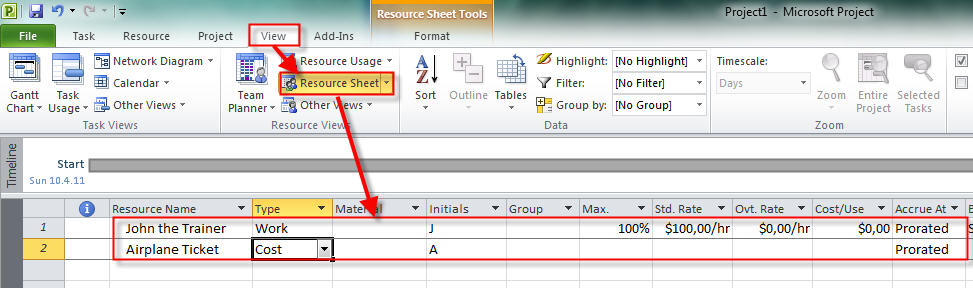
First I will define resources needed for my task.

John the Trainer is Work resource and his standard rate is $100 per hour.
Airplane ticket is Cost resource and it does not have the defined price yet.

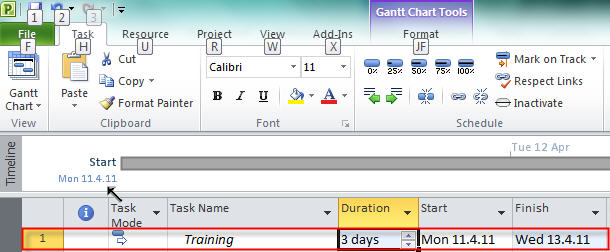
Now I will define task called Training

In the first example I will assign only cost resource to the task.

I assign Airplane ticket to the task and I told the MS project that it costs $1000.

I will now assign John the Trainer to the task.

And I got:

Duration, Start and Finish date are the same, so everything seems O.K

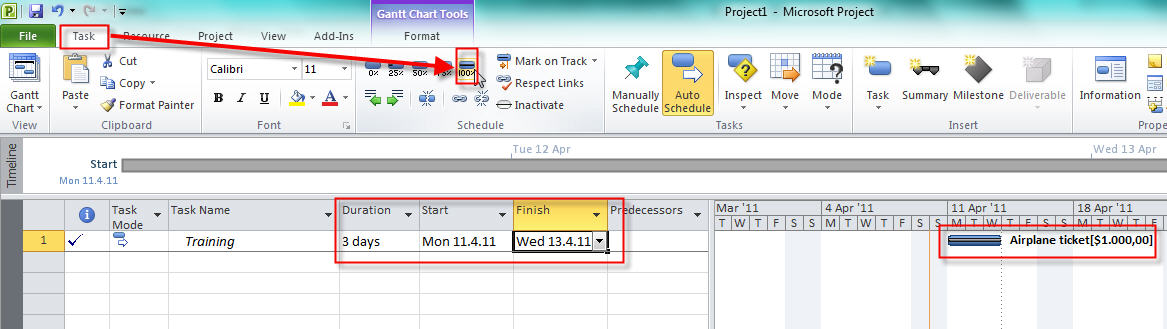
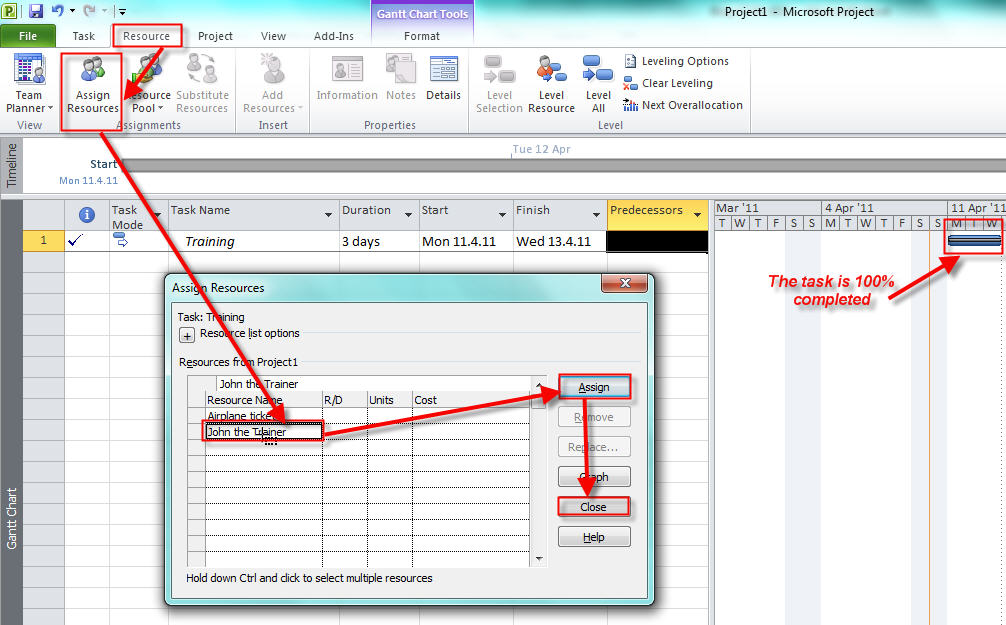
Here is another example. Suppose that I assigned only cost resource (Airplane ticket) to the Task (as it is shown in 3rd picture above). Now I will mark the task as 100% completed.

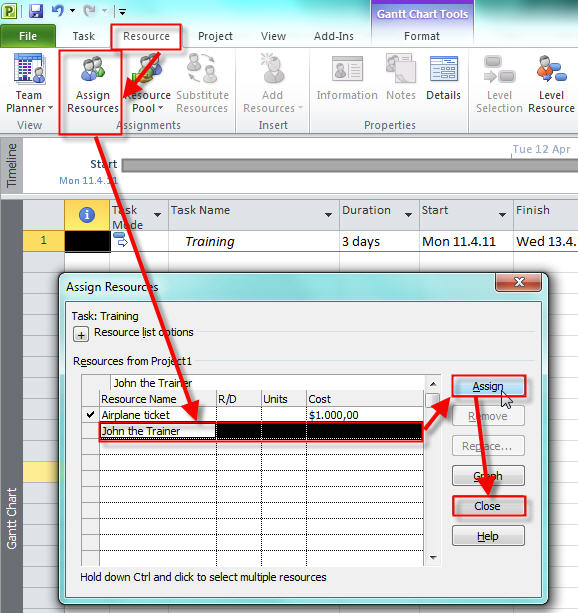
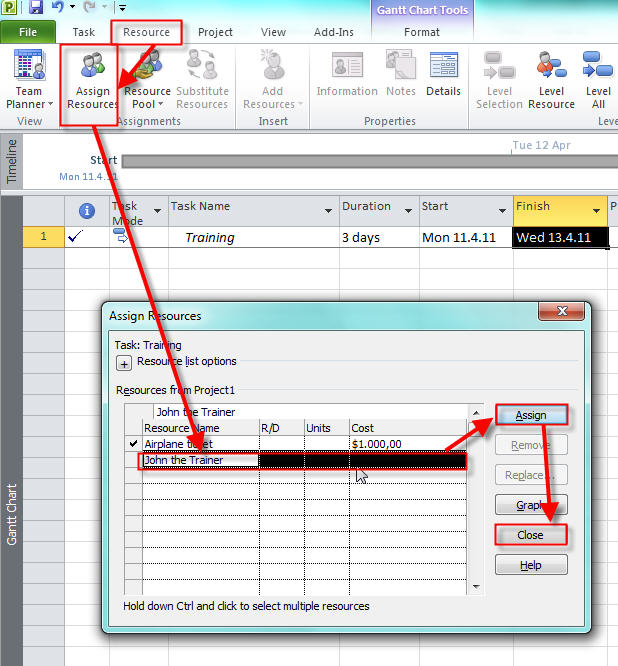
Everything looks fine! But, suppose that you forgot to assign John the Trainer to the task AFTER you marked the task 100% completed. I will assign John now:

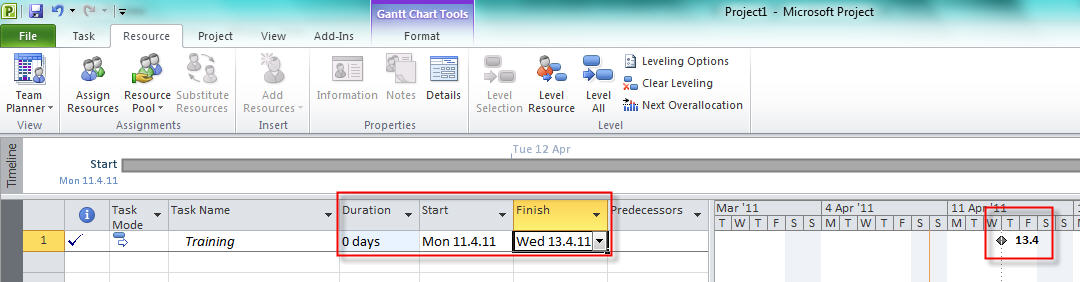
Now look what happens:

Duration is now 0 days (milestone???) with unchanged Start and End date?
It seems like a bug. And you will get the same thing if you assign both resources (Airplane
ticket and John the Trainer) to the task and then, after you mark the task as
100% completed, you remove John the Trainer.

What will happen if you do not have cost resource (airplane ticket) assigned with
the task, and you assign Work resource (John the Trainer) with the task AFTER you
mark the task 100% completed? I will assign John now:

and I will get:

So, obviously the problem is with the cost resource type (in our example the Airplane ticket).

What is the solution? If you have to add or remove work resource to the task after it is completed (25%, 50%, 75%, or 100%) first mark the task as 0% completed, then add or remove the resource to the task and after that mark task as completed again.

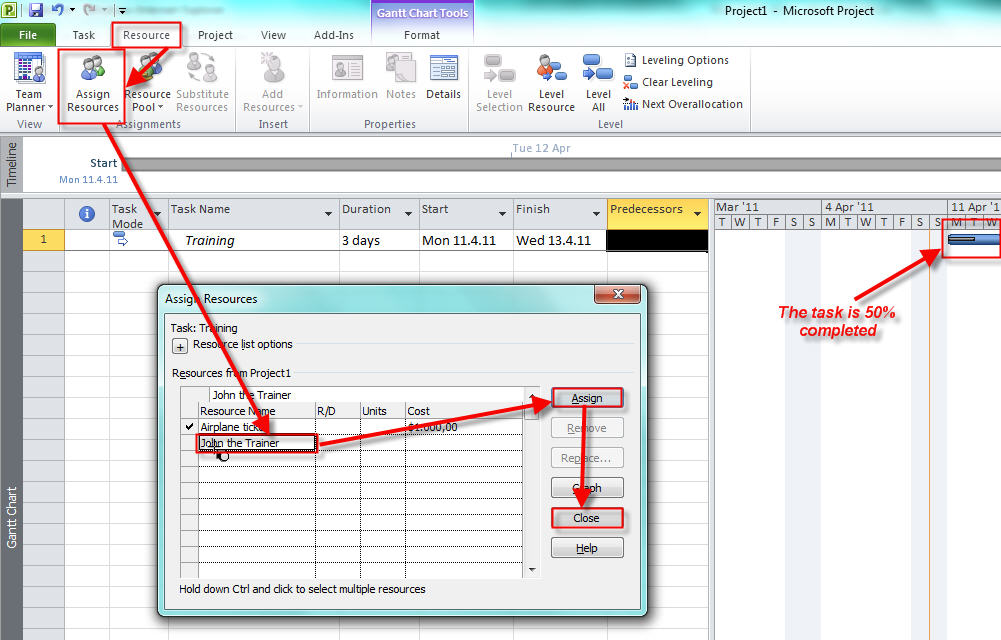
I will show to you what happens if I add Work resource (John the Trainer) with the task AFTER I marked it as 50% completed and I already have work resource assigned to the Task. I will assign John now:

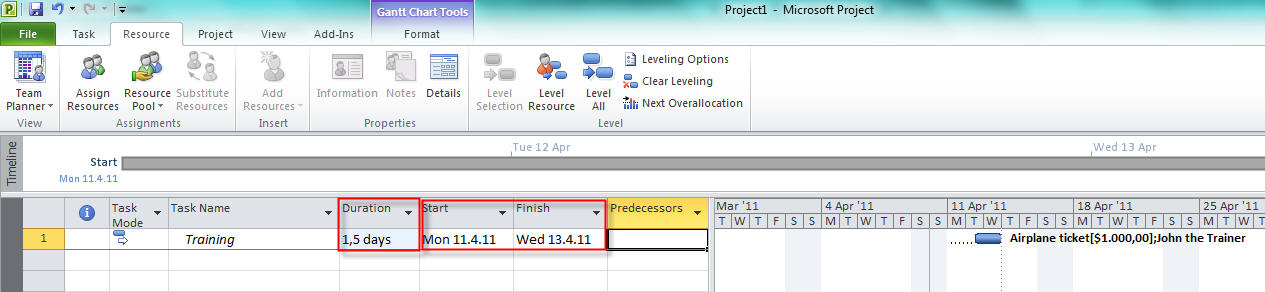
and I will get:

Duration is only 50% of expected (1,5 day instead of 3 days) and this is bug.

So, once again, first mark the task as 0% completed, and then add or remove the resource to the task and after that mark task as completed again.

See you,

Posted in Microsoft PRoject 2010, MS PROJECT 2010, PMI, PRoject Management | 2 Comments