Manually scheduled tasks

Hi,

in MS PROJECT 2010  manually scheduling is a new feature.

You can see how the new added task will be scheduled here:

image

You can change default settings from manually scheduled task to auto scheduled task:

Primjer 2 02.06.2011

and then:

image

If you enter task in auto scheduled mode it will have 1 day duration by default, and start date same as a project start date:

image

The question mark in duration field means that it is estimated time. Now if you enter, for example 2d in duration field, the question mark will gone:
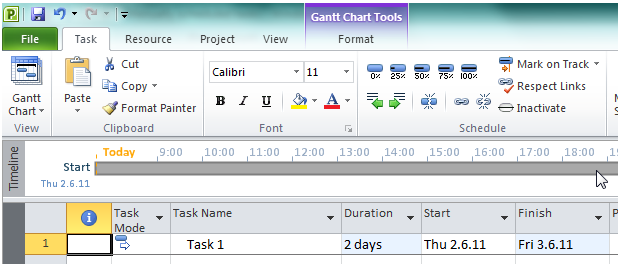
image

If you enter task in manually scheduled mode you will get:

image

The question mark means that you have to enter more information for this task. There is nothing in the graphical part of the Gantt chart for this task.

OK. Now I will enter 1d in duration field:

image

You can see light blue bar in graphical part and that the task will start on a project start date, but start and end date fields are still empty.

Now I will erase 1d in a duration field and put 2.6.11 in start date field:

image

You can see that only start sign is shown in graphical part of the Gantt diagram

Now I will erase 2.6.11 in a start date field and put 3.6.11 in end date field:

image

You can see that only end sign is shown in graphical part of the Gantt diagram

Now I will add 5d in duration field but I will not erase 3.6.11 from the end date field:

image

You can see that the question mark has disappeared, and that a start date is set to 30.05.11 (5 days before entered end day).

If you add manually scheduled task you can write anything in duration, start and end date field like this:

image

OK. I have entered description in duration, start date and end date field. What will happen if I change task mode from manually to automatic scheduled?

image

I will get:

image

As you can see the start date is the start date of the project and duration is the last entered or calculated duration. If I didn’t have anything in duration field ever in manually scheduled task it will have 1 day duration after switching from manually to auto schedule mode.

In my next blog I will write about linking manually and auto scheduled tasks.

See you,
Posted in MICROSOFT PROJECT, Microsoft PRoject 2010, MS PROJECT 2010, PMI, PRoject Management | Tagged , , , | Leave a comment

Assigning Resources to the Recurring Task


Hi,

As I promised I will show you something that I consider as a bug, even though some books say that it is not a bug, but it is “like it is”!?

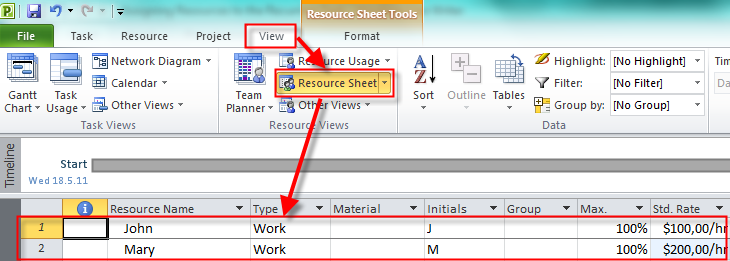
First I will add two resources, John and Mary:

image

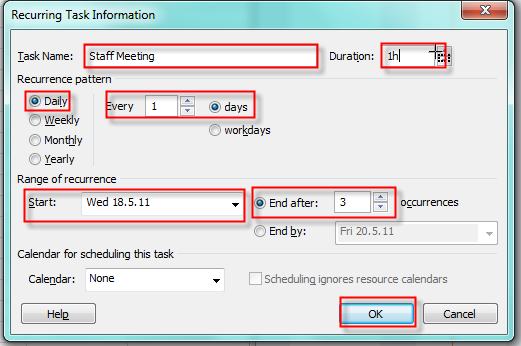
Now I will add Recurring Task: Staff Meeting.

Primjer 2 17.05.2011

image

and I will get:

image

I want to assign both John and Mary to Staff Meeting Task. And I want to assign them for each occurrence with one assignment.

image

and I will get:

image

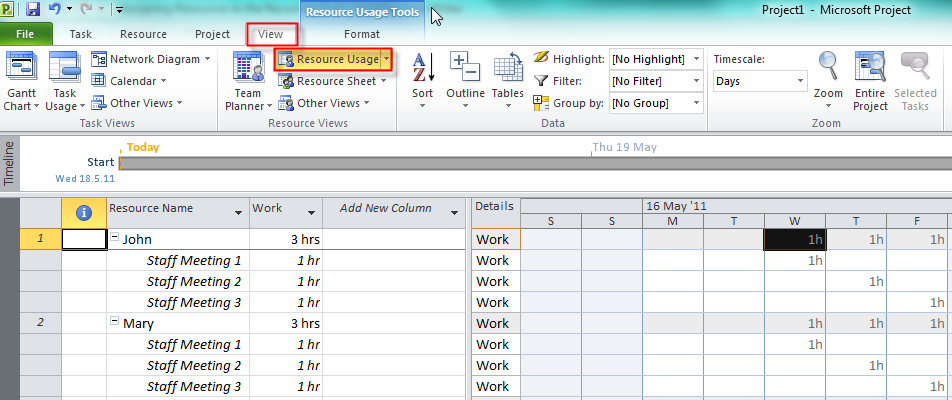
I will now open Resource Usage View:

image

You can see That John and Mary are assigned to the recurring task and they will spend 1 hour per day on the task.

Now I will assign them again but from Gantt Chart View:

image

Now look what I get if I open Resource Usage View:

image

You can see that Staff Meeting is shown ad unassigned task is in the upper part of Resource Usage View, and then again it is assigned to John and Mary. Instead of 1 hour duration it takes 8 hours on first and second day, and one our on the last day.

I consider it a Bug no matter what other books say.

You can avoid that problem by assigning resource like it is shown in my first example, or you can assign resources from Gant Chart for each occurrence separately (which is very convenient way, especially if you have, for example, 83 occurrences and 32 resources, so you will have to make only 83 X 32 = 2656 clicks Smile)

See you,

Posted in Microsoft PRoject 2010, MS PROJECT 2010, PMI, PRoject Management | Tagged , , | 2 Comments

Attaching Project Documentation to MS PROJECT


Hi,

MS Project can (also) serve as Project central repository. If you are not using MS SharePoint, you can attach Project document in a few different ways.

First I will add two tasks to the project:

image

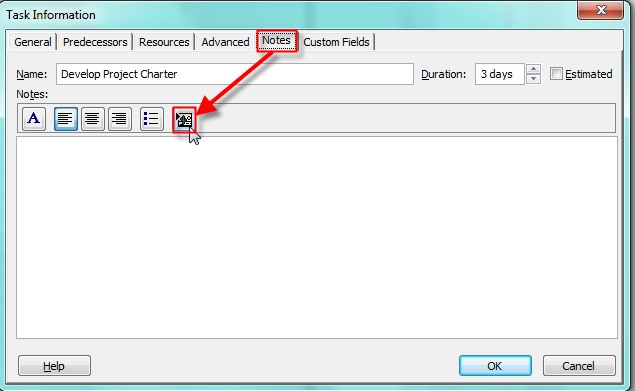
I want to attach Project charter to the Develop Project Charter task. I will double click on the task an I will get:

image

and then

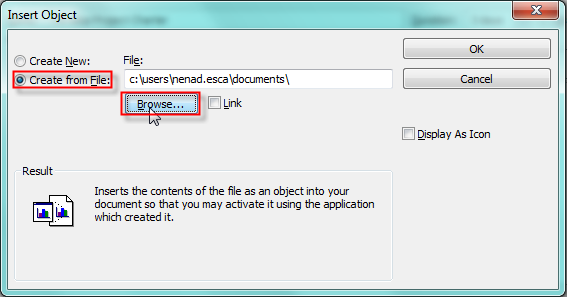
image

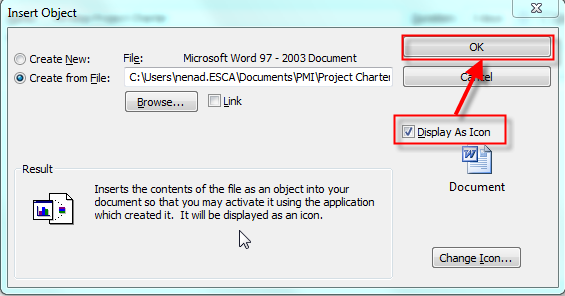
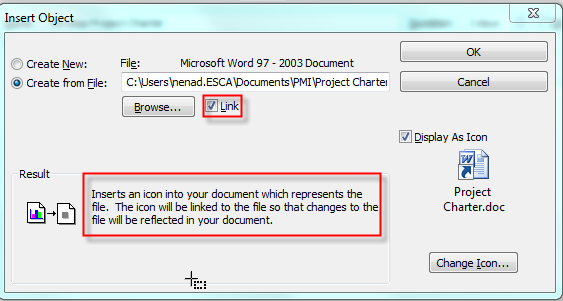
I choose create from file option and I will now find project charter on my computer and add it to the Project.

image

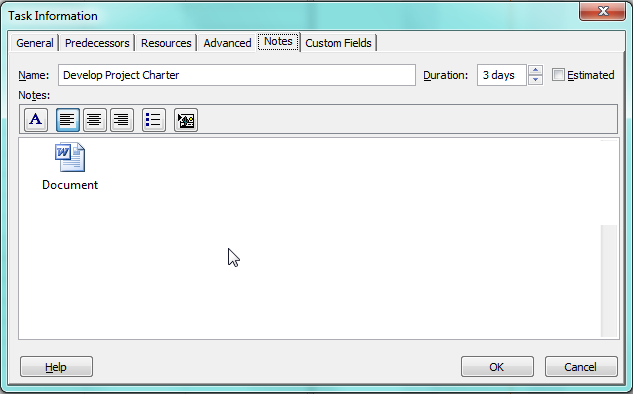
Notice that I choose Display As Icon option, since I don’t want the entire project charter to be copied as it is. So I get:

image

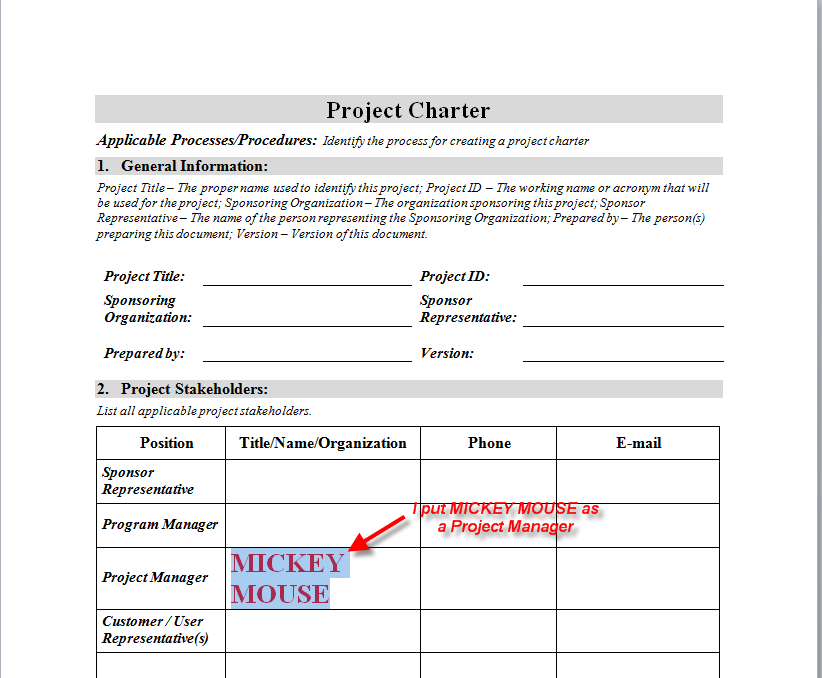
I will double click on the document and MS PROJECT will open it. Now I will change something in a document and I will save it:

image

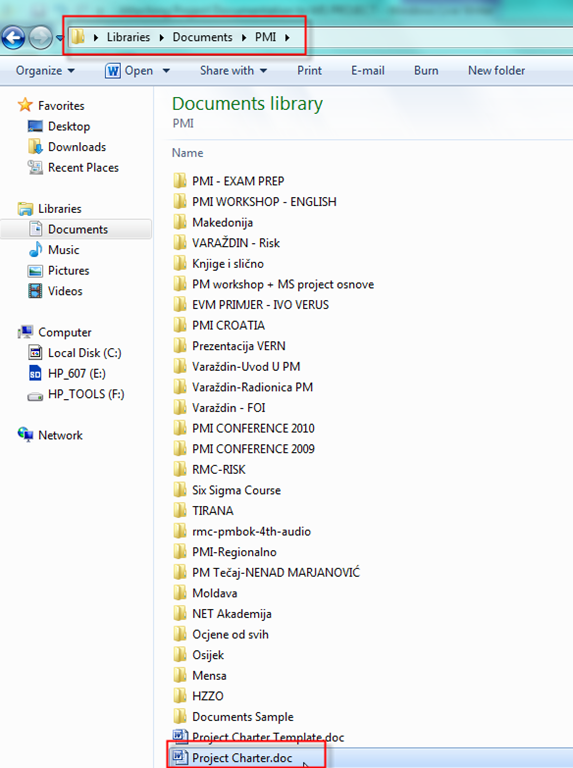
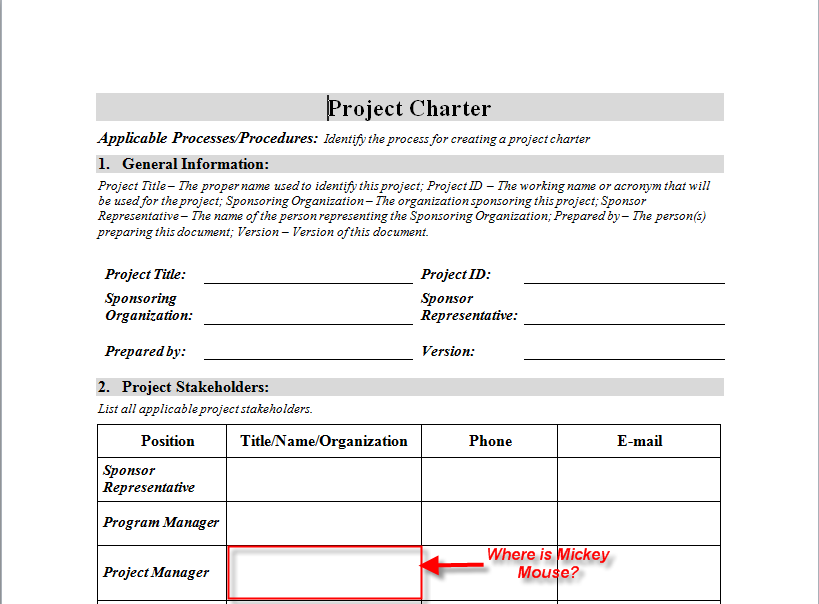
Now I will open this document again through MS project and Mickey Mouse is a project Manager. But if I open the “same” document from my folder (My Documents, or something like that:

image

I will get:

image

As you can see, the document changes through MS Projects are not reflected to original document, so you must be careful, because you actually have two documents (two Project Charters). First is in MS PROJECT and second is in its original destination where we took it from.

If I want only one document I must select Link check button:

image

Now I have Link to the document and it does not matter where I will open it!

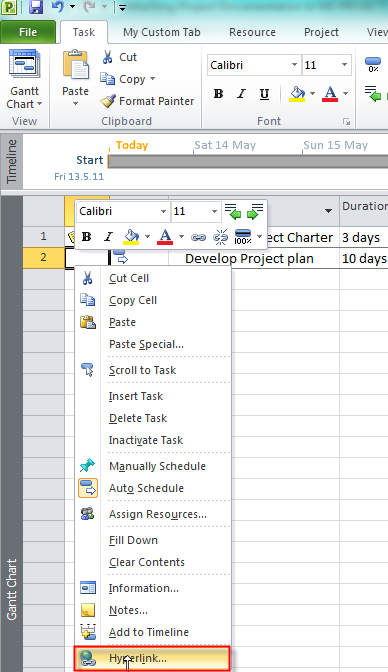
There is another way to link some documents to your project in MS PROJECT. I will right click on the Develop Project Plan task and choose Hyperlink:

image

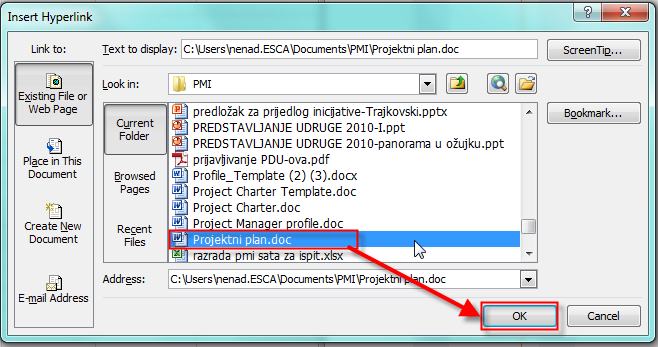
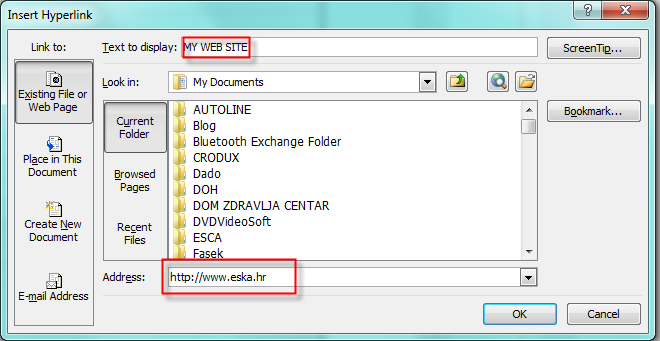
and I will get:

image

and I have a link to the document.

I can have a website as a hyperlink:

image

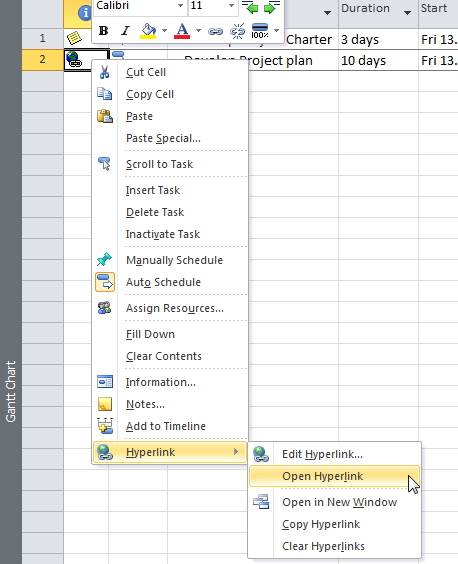
To open a hyperlink right click on the task and choose Open Hyperlink as is shown in the next picture:

image

and the website will be opened.

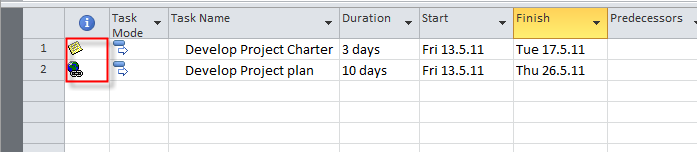
If you have attached document or hyperlink to the task you will see a different icon in the Indicator column:

image


See you!

Posted in Microsoft PRoject 2010, MS PROJECT 2010, PMI, PRoject Management | Tagged , , , | 1 Comment

Adjusting Assignments in The Team Planner View – Part 2.

Hi,

I will show what you should pay attention to when you adjust assignments and reschedule your tasks in the project.

First I will add four tasks to my project and they will be in automatic scheduled mode, and I will schedule them:

image

I will add 3 resources through Resource sheet (John, Paul, and Mary):

image

I will now start the Team Planner View:

image

You can see that John Paul and Mary don’t have any tasks assigned, and that all tasks are scheduled.

I will assign John to the Task 1 and Task 4, Paul to the Task 2, and Mary to Task 3. I will do it using drag and drop function:

image

and I will get:

image

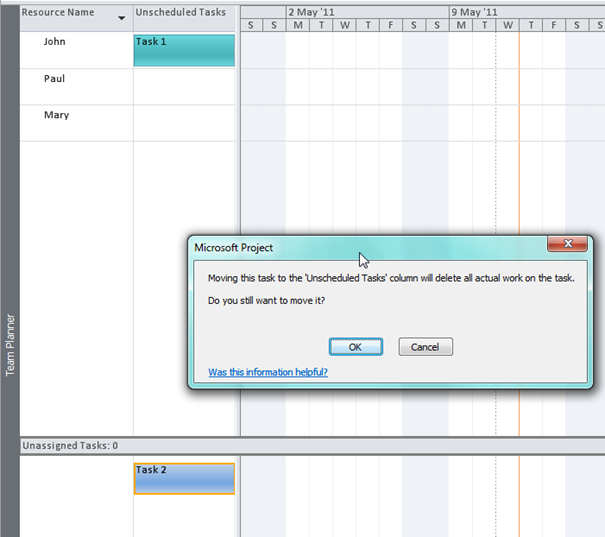
You can see that those Tasks are assigned and scheduled. Now I will drag and drop Task 1 and put it as John’s unscheduled task, and I will get a warning:

image

That means that I will actually delete the work of Task 1 since it is no more scheduled.

The same will happen if I move any scheduled task to the unassigned and unscheduled area (for example, Task 2):

image

Now I will reassign John to Task 1 and Task 4, Paul to Task 2, and Mary to Task 3. And again I will get:

image

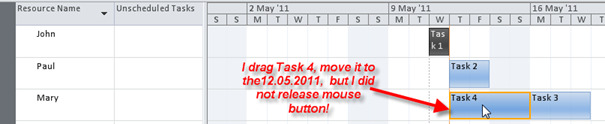
I want to reassign Task 4 to Mary, and I want the Task 4 to begin on 12.05.2011. First I will drag Task 4 and move it to Mary on 12.05.2011. I will get:

image

Now I will release the mouse button, and I will get:

image

You can see that MS PROJECT did not allow me to reschedule Task 4. It only allows me to move the Task from John to Mary, but not to reschedule it EARLIER. If I had tried to move Task 4 from 19.05.2011 to, for example, 20.05.2011, MS PROJECT would have allowed me to do that.

Now, the Task 4 is assigned to Mary, and the start date is 19.05.2011. Now I will try to move it to 12.05.2011, again. I will get:

image

As you can see, I cannot move (or reschedule) this task to an earlier date without breaking the link. After I click the OK button I get:

image

Task 4 stays scheduled as it was.

So, the Team Planner View is very powerful, but you must use it with caution.

See you,

Posted in Microsoft PRoject 2010, MS PROJECT 2010, PMI, PRoject Management | Tagged , , , | Leave a comment

Adjusting Assignments in the Team Planner View

Hi,

I will show you how you can easily adjust assignments and reschedule your tasks in the project.

First I will add four tasks to my project and they will be in manually scheduled mode, and I will not schedule them for the moment:

image

I will add 3 resources through the Resource sheet (John, Paul, and Mary):

image

I will now start the Team Planner View:

image

You can see that John Paul and Mary don’t have any tasks assigned, and that all tasks are unscheduled (because I left them in manually scheduled mode)

I will assign John to the Task 1 , Paul to the Task 2, and Mary to the Task 3. I will get:

image

You can see that those Tasks are assigned but not scheduled. Now I will drag and drop Task 1 and put it to start on Wednesday 11.05.2011:

image

and I will get:

image

You can see that the task is still in manual schedule mode, but it has estimated duration of 1 day.

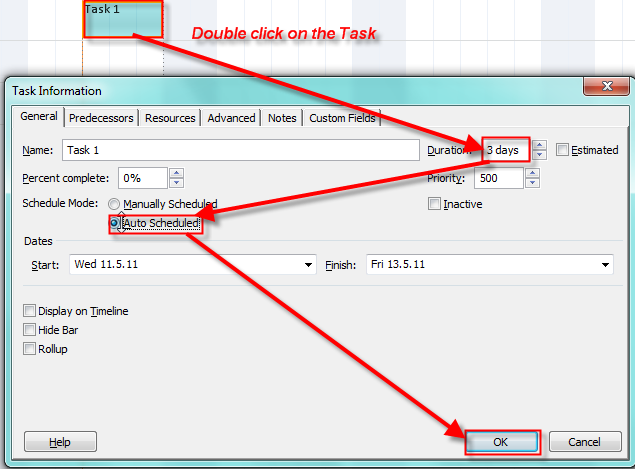
I will now double click on Task 1 and put 3 day duration in the duration field:

image

and I will get:

image

Now John is assigned to the Task 1 and it is scheduled

I will drag and drop Task 2 from Paul to John and put it to start on Wednesday 11.05.2011 as well, and I will change its duration to 3 days (automatic scheduled). After that I will get:

image

You can see that John appears in a red color, and it means he is “over allocated”. Now I will simply drag and drop Task 2 from John to Paul and I will get:

image

You can see that John is not “over allocated” anymore.

Now I will double click on Task 4 and I will set 3 duration days (automatic scheduled):

image

and I will get:

image

You can see that Task 4 is now scheduled but not assigned.

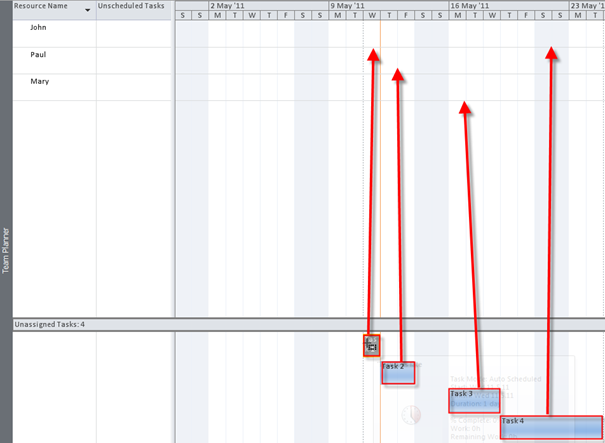
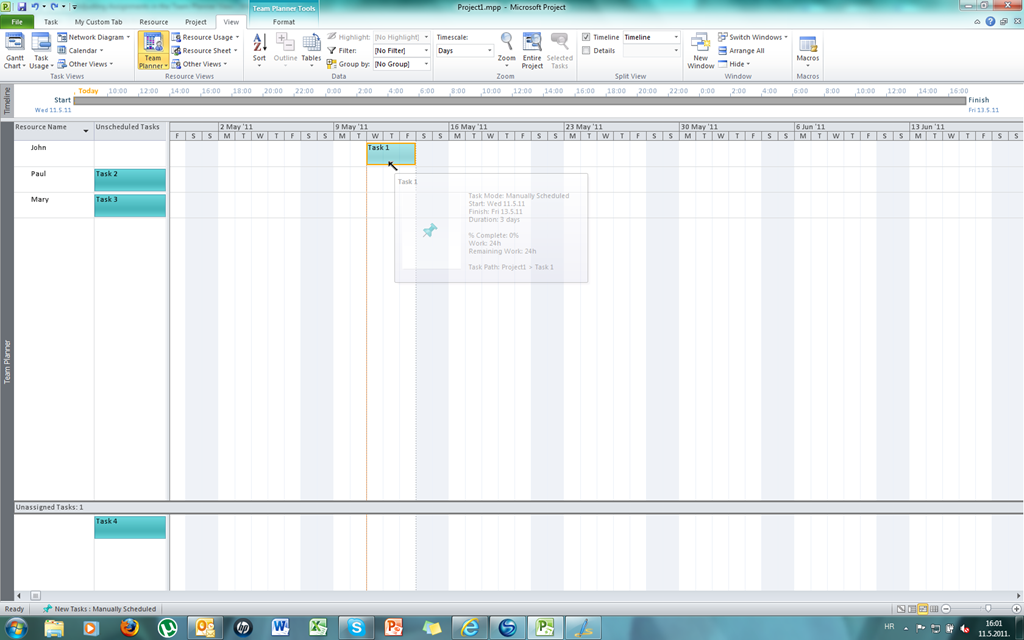
So, generally you can play with Team Planner View to assign and reassign the Task however you want. You must remember that there are 4 areas in Team Planner View:

image

Finally, if you move a scheduled task (assigned or unassigned) to unscheduled area (assigned e.g. to someone) or unassigned you will actually delete actual work on that task. I will move Task 2 from assigned (to Paul) and scheduled (from 11.05.2011 to 13.05.2011) to unassigned and unscheduled area and I will get a warning:

image

And last, but not least, Tem Planner View is available only in MS PROJECT 2010 PROFESSIONAL VERSION!

In my next blog I will make the scenario more complicated because I will make a relationship between the tasks and THEN I will move them around!

See you,

Posted in Microsoft PRoject 2010, MS PROJECT 2010, PMI, PRoject Management | Tagged , , , | Leave a comment

Resolving over allocation in MS PROJECT 2010

Hi,

I have received request for help from one reader of my blog. The request is:

“Hi,
I’m trying to create a new schedule for 1 person. I’d like to find a way to use automatic scheduling that will fill the day and spread the task without spreading it in a crazy way.

For example, if I have a 1 hour recurring meeting every day, and a task that will take 24 hours, I’d like it to schedule the task to finish as soon as possible, with a break down of 7/7/7/3. Instead, it over allocates and does 9/9/9.

Are there any settings I can use to make it limit the allocation to 8 hours per day?

Thanks for your help.”

In this blog I will focus on resolving this particular problem. In the future I will explain problems with over allocation in detail.

I am going to setup the environment exactly the same as this gentleman has.

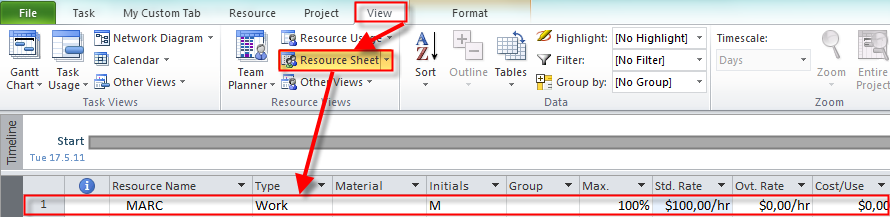
I will add one work resource with name MARC:

image

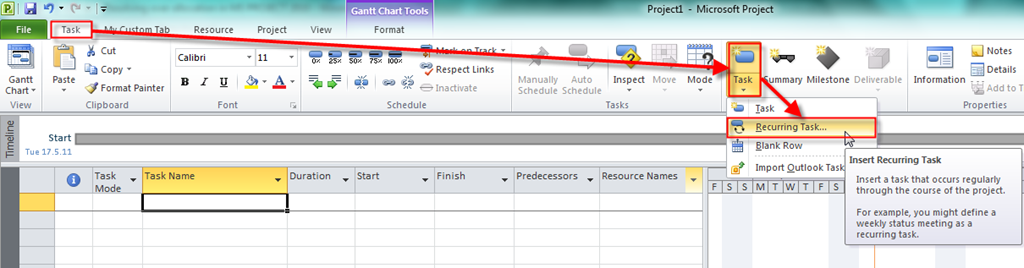
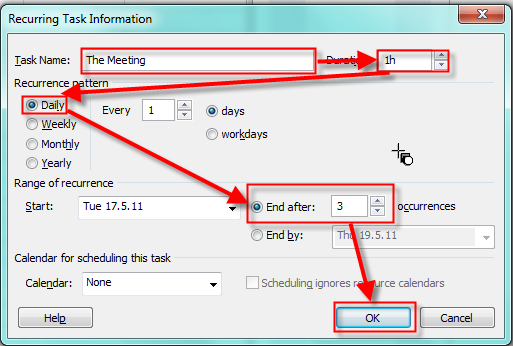
Now I will add a 1-hour recurring meeting:

image

image

and I will get:

image

Now I will add the second Task with a 3 day duration and I will get:

image

And finally I will assign my resource MARC to both tasks:

image

and I will get:

image

Marc is supposed to work 8 hours per day, and since he has a one hour meeting every day he is over allocated, and he will work 9 hours per day.

How can I make Marc to work only 7 hours per day on The Task, an let The Task to last 24 hours (3 days X 8 hours = 24 hours)?

Now I will choose Resource Usage View:

image

The easiest (but not the best) way to resolve over allocation is to insert (in work field): 7 hours per day for The Task at Tuesday, Wednesday, and Thursday, and 3 hours at Friday (see the picture below):

image

Now I will choose the Gantt Chart and you can see that Marc is not over allocated any more:

image

Another way of resolving over allocation for MARC is to add the Assignment Units column in the Resource usage View:

image

and I will get:

image

I want Marc to work 7 hours per day at The Task. If he works 8 hours per The Task it is 100% of Assignment Units. 7 Hours is 87,5 Assignment Units (7/8= 0,875 and it means 87,5%). I will insert 87,5 in the Assignment Units field:

image

and after I press Enter I will get:

image

You can see that I got what I wanted.

Those two types of over allocation resolutions are very simple if you have one resource, one recurring and one simple task, as I have. But if you have a lot of tasks, a lot of resources, and a lot of over allocations it will be almost impossible to resolve those over allocations manually.

I will show you a brief example of how to automatically resolve the over allocation conflict in my example. I will do it for a single resource (MARC).

First I will show the Resource Usage View again:

image

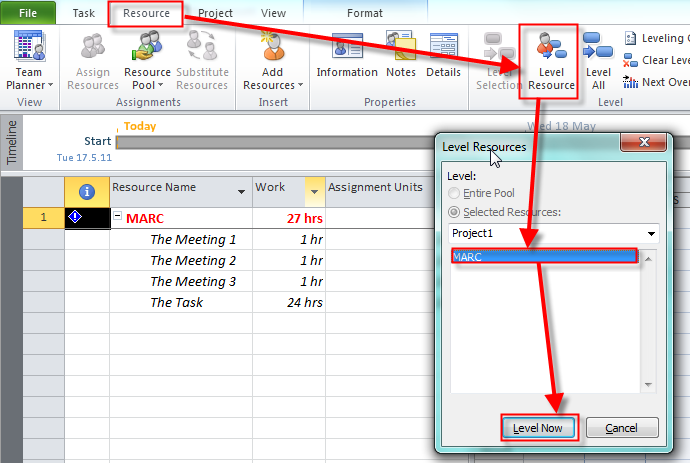
Now I will level single resource (MARC):

image

and I will get:

image

You can see that I got what I wanted.

There are other ways to resolve over allocation for more tasks, or resources, or entire project, but I will write a blog for these methods in a future.

When I was writing this blog I found a bug. But I will write about it next week.

I hope I helped my blog reader who sent me a request for help.

See you,

Posted in Microsoft PRoject 2010, MS PROJECT 2010, PMI, PRoject Management | Tagged , , , | 3 Comments

Task Relationships

There are four different task dependencies (relationships):

Finish to Start (FS): The finish date of predecessor task determines the start date of the successor task

Start to Start (SS): The start date of the predecessor task determines the start date of the successor task

Finish to Finish (FF): The finish date of the predecessor task determines the finish date of the successor task

Start to Finish (SF): The start date of the predecessor task determines the finish date of the successor task

When you link two tasks then the default relationship is Finish to start.

I will now add five tasks and assign a predecessor to Task 2,3,4 and 5 (default: FS):

image

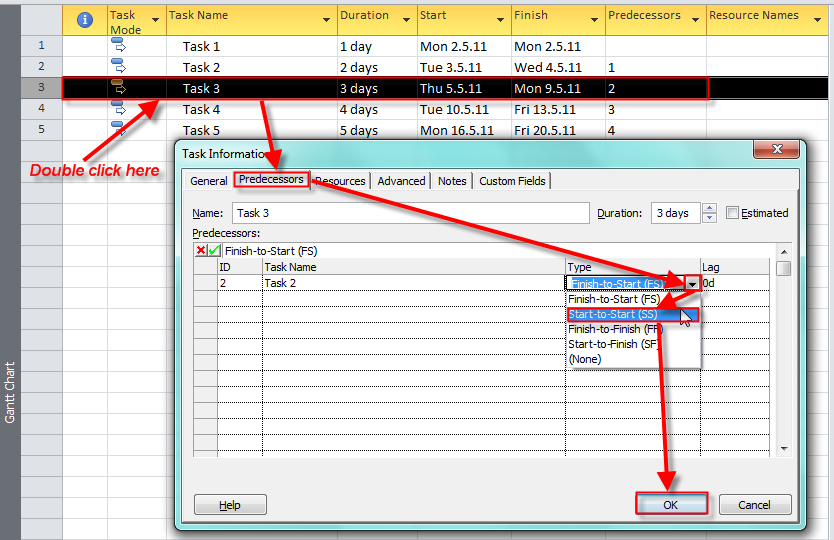
Now I will change the type of relationship between Task 3 and Task 2.

image

and I will get:

image

You can see that the Start Date of Task 3 is now the same as a Start date of Task 2, and the End date of Task 3 changed accordingly. And in the Predecessor field of Task 3 you will find 2SS (which means: Task 3 has Task 2 as predecessor, and the relationship is SS – Start to Start)

Now I will change the relationship between Task 3 and Task 4 in the same way, but I will establish Finish to Finish Relationship instead. And I will get:

image

You can see that the End Date of Task 4 is now the same as the End date of Task 3, and the Start date of Task 4 changed accordingly. And in the Predecessor field of Task 4 you will find 3FF (which means: Task 4 has Task 3 as predecessor, and the relationship is FF – Finish to Finish)

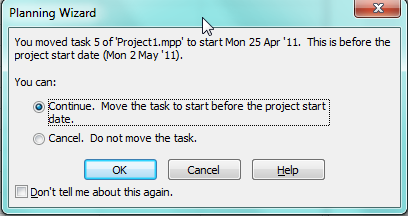
Now I will change the relationship between Task 4 and Task 5 in the same way, but I will establish Start to Finish Relationship instead. Notice that project start date is Monday, 02.05.2011 (this is Start date of Task 1). When I choose Start to Finish relationship and I click the OK button I will get:

image

MS Project warns me that if I choose Start to Finish relationship Task 5 will be moved to start date 25.04.2011 which is earlier than project start date (02.05.2011). This happens because in Start to Finish relationship Start date of Task 4 is Finish date of Task 5. Start date of Task 4 is 02.05.2011 and because Finish date of Task 5 is the same and the duration of the Task 5 is 5 days, Start date of Task 5 must be moved 5 days earlier than 02.05.2011 which is 25.04.2011 and it is before the Project start date (02.05.2011). I will choose OK and I will get:

image


See you,

Posted in Microsoft PRoject 2010, PMI, PRoject Management | Tagged , , , , | 8 Comments

Customizing the Ribbon in MS PROJECT 2010–Part II

In this Blog I will make my own Tab, Groups and Commands.

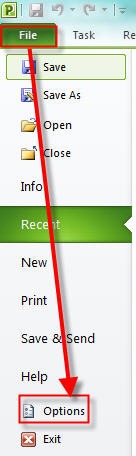
I will go to Backstage view:

Primjer 1 02.05.2011

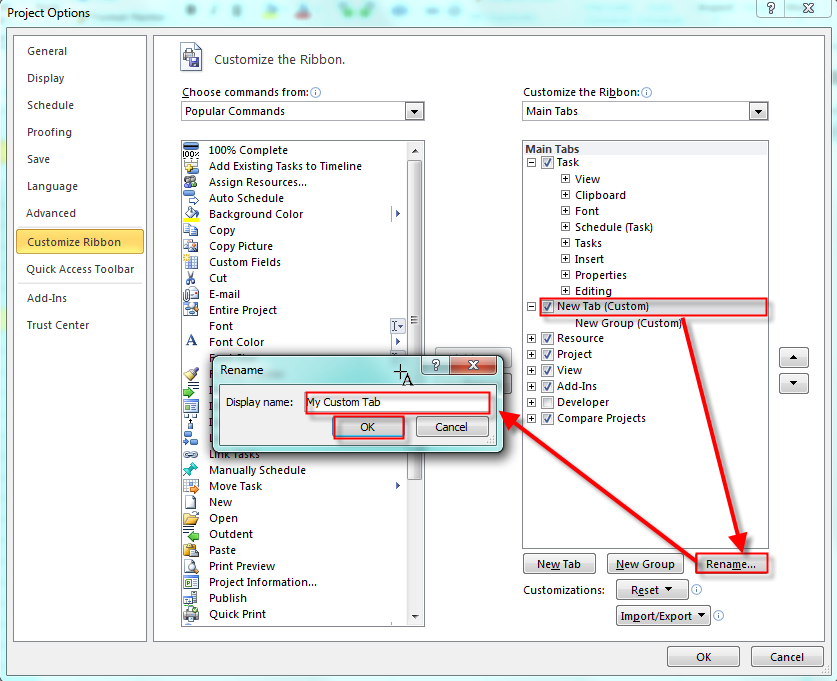
and then:

Primjer 2 02.05.2011


I will add a brand new Tab and I will call it “My Custom Tab”

image

Now I have a new tab. I will rename it:

image

I will add a new group:

image

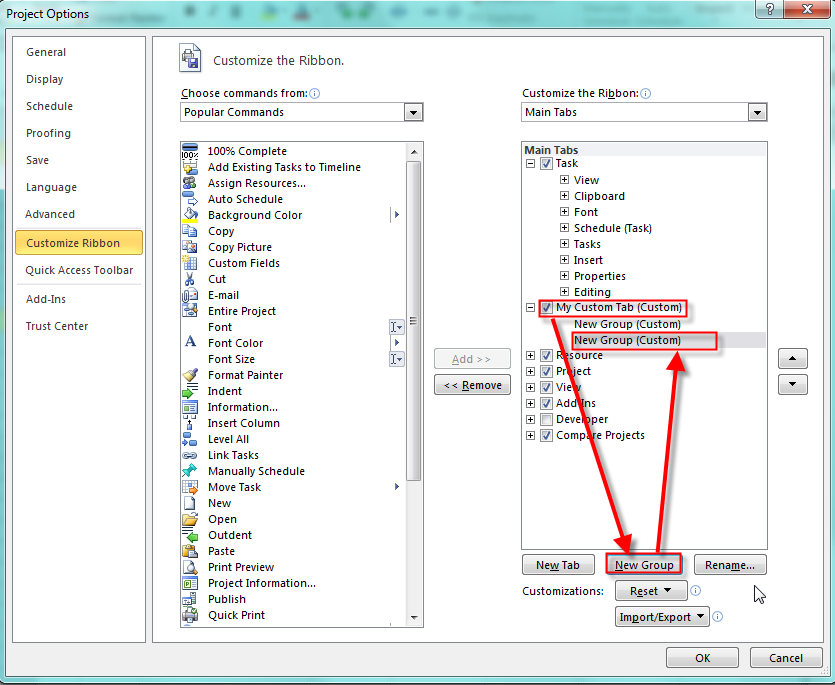
I will select those two new groups and I will rename them. First group will have a “Schedule” name, and second “Resources”. For the “Schedule” group I will choose smiley, and for “Resources” a dollar sign:

image

Finally I will add Gant Chart, Task usage and Task Form to Schedule Group and Resource Sheet, Resource Usage and Resource Name Form. I will show you how to put only one command in one group because it is the same principle for all:

image

When I finish I will get:

image

And when I close this window (I will click on OK button) I will get

image


See you,

Posted in Microsoft PRoject 2010, MS PROJECT 2010, PMI | Tagged , , | Leave a comment

Customizing the Ribbon in MS PROJECT 2010

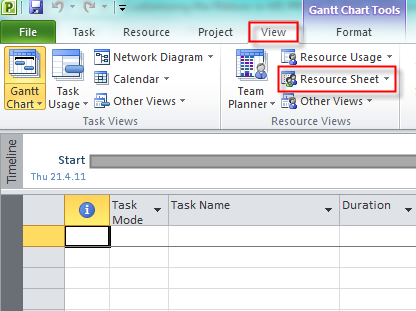
In this blog I will write about customizing the Ribbon. Let me start with an example. If you want to define your resources on a project you can do it on the View Tab:

image

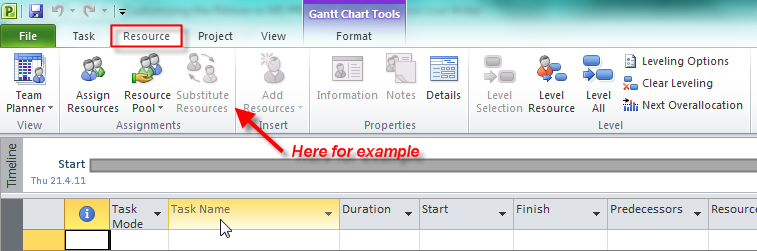
I will prefer that everything about resources stays in resource tab:

image

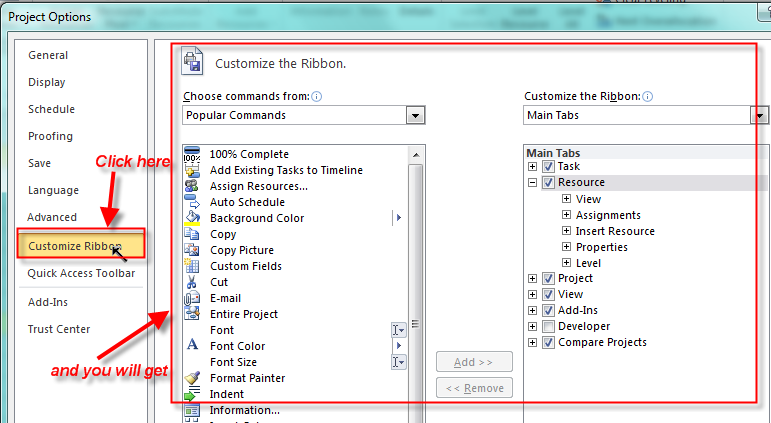
Now I will customize my Ribbon:

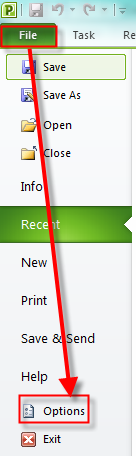
1. I will go to Backstage view:

image

and then:

image

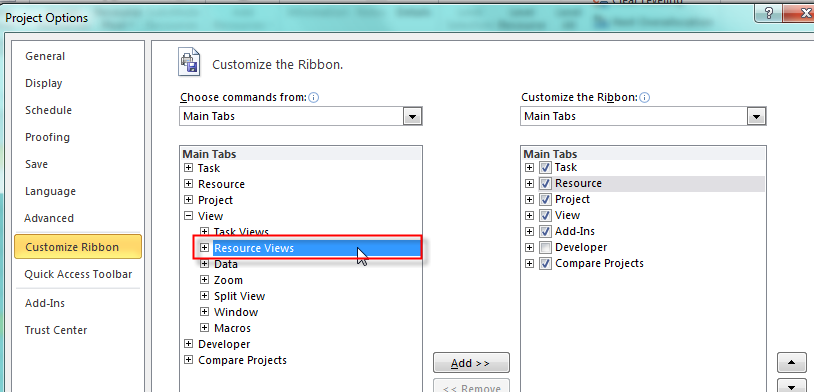
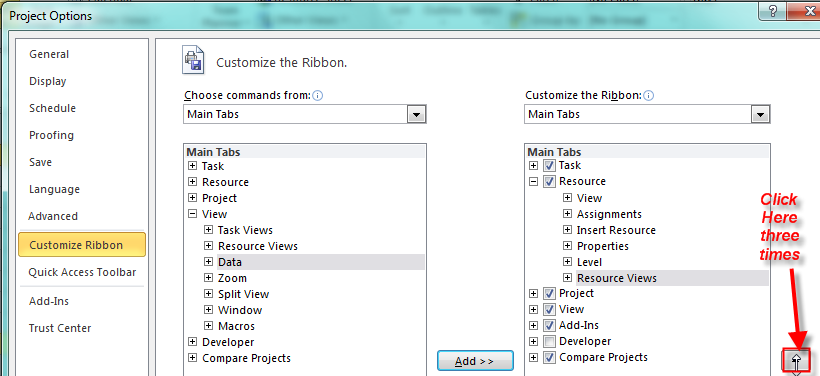
I want the whole Resource group (from the View Tab) to be inserted into Resource Tab. I will choose View group from the left column first:

image

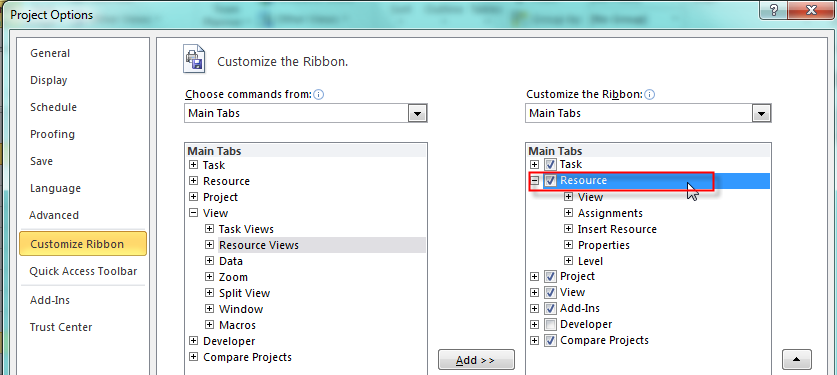
Then I will choose Resource group from the right column (click on the + sign):

image

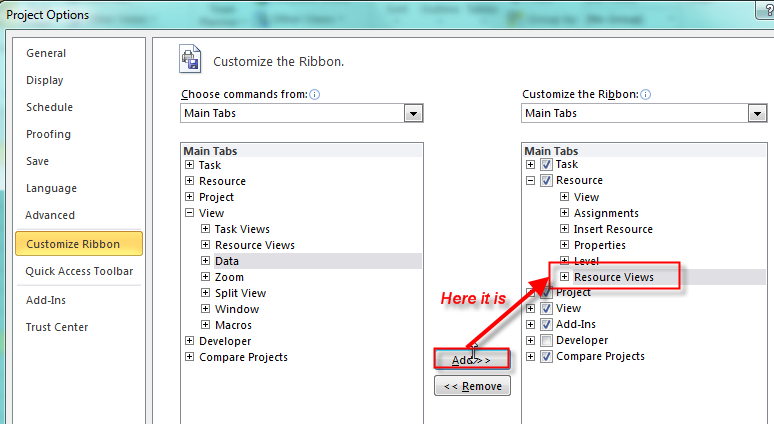
and then I will click on the Add button and I will get:

image

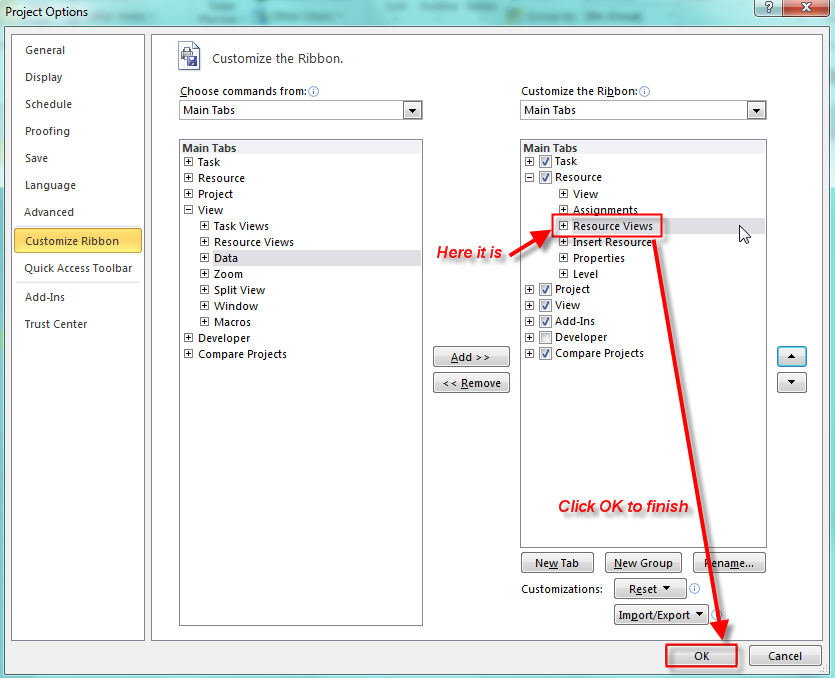
Finally, I want my new group to be placed right behind Insert resource group so I must move newly added group up a few times and place it below Insert Resource group and below Assignment group:

image

and I will get:

image

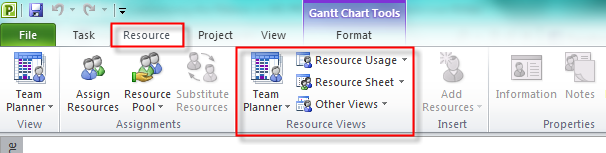
When you click on OK button on the Resource tab you can find just added Resource view Group:

image

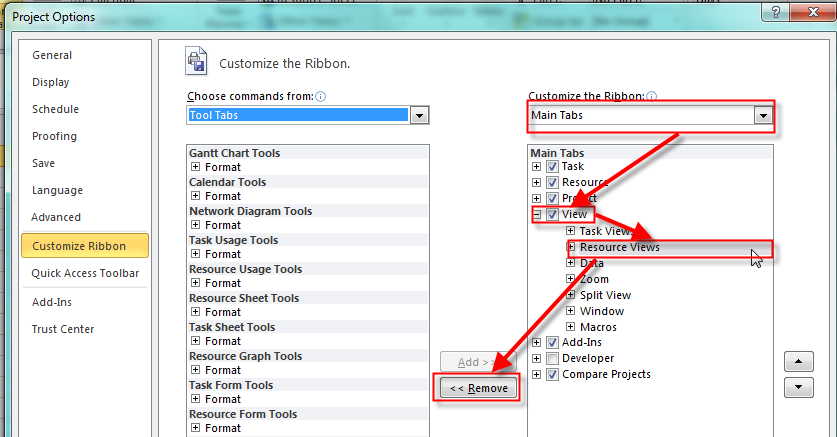
OK. But now I don’t need this group under View Tab, so I will remove it. In the backstage View, under Customize Ribbon choose Main tab in the right column, then under View tab select Resource Views and finally click on remove button and then on OK button:

image

Now, you can see that there is no longer Resource Views group in the View Tab.

OOOOPS! Now click on the Resource Tab again. The Resource Views group has disappeared. And this is bug. You should add it again, and then it will be shown under the Resource Tab.

You can avoid this situation if you do both (adding Resource View group to the Resource tab and removing Resource View group from the View tab) without leaving the Backstage View.

See you,

Posted in MS PROJECT 2010, PMI, PRoject Management | Tagged | Leave a comment

How to split tasks in MS PROJECT 2010

Hi,

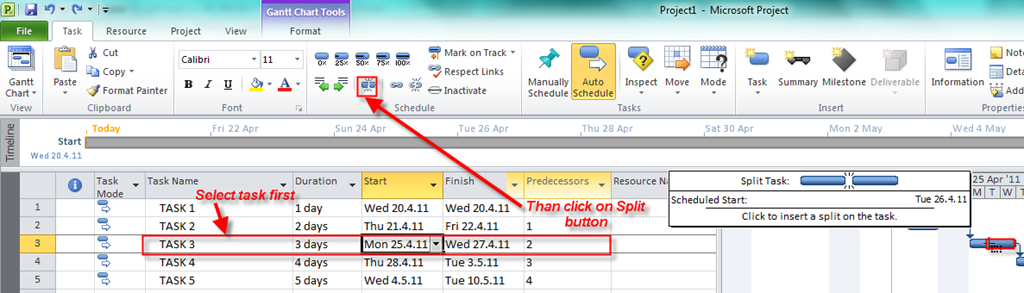
Suppose that you have a project with 5 tasks as is shown in the picture:

image

Task 3 has a 3-day duration, and will start on Monday, 25.04.2011 and finish on Wednesday, 27.04.2011. What if your task can be done in 3 days but it must (for any reason) be scheduled on Monday 25.04.2011 then Thursday 28.04.2011 and finally on Tuesday, 03.05.2011.? You can make three different tasks but this is not a good idea. A better approach is to split the task. Here is how it’s done:

image

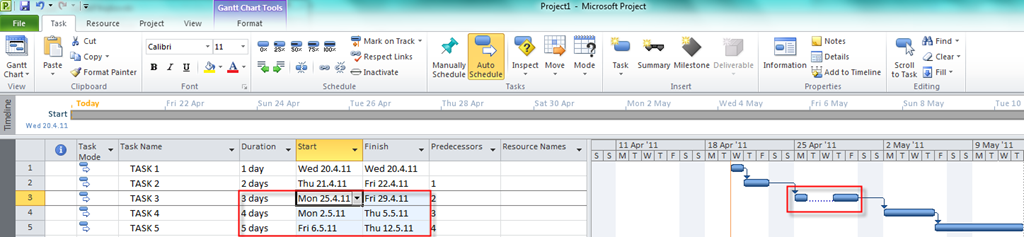
After you click on Split button move the cursor on the Gantt chart and click on Tuesday, 26.04.2011 and drag the task on Thursday 28.04.2011:

image

and you will get:

image

You can see that duration of task 3 is unchanged but the start date and end date was changed for Task 4 and 5 because Task 3 is predecessor of Task 4 and Task 4 is predecessor of Task 5.

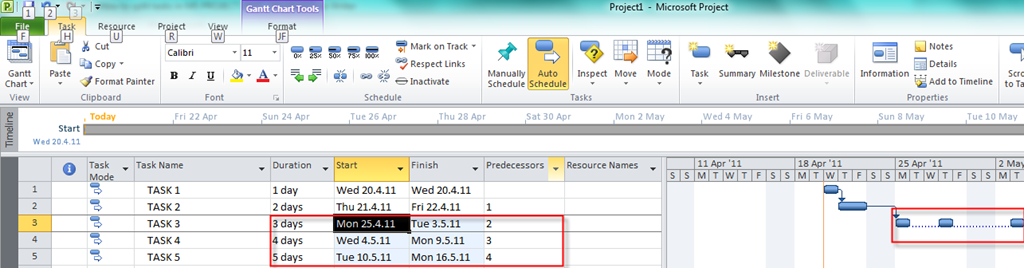
Now I will split the same task so the last day is Tuesday 03.05.2011 and I will get:

image

Again, duration of task 3 is unchanged but the start date and end date was changed for Task 4 and 5 because Task 3 is predecessor of Task 4 and Task 4 is predecessor of Task 5

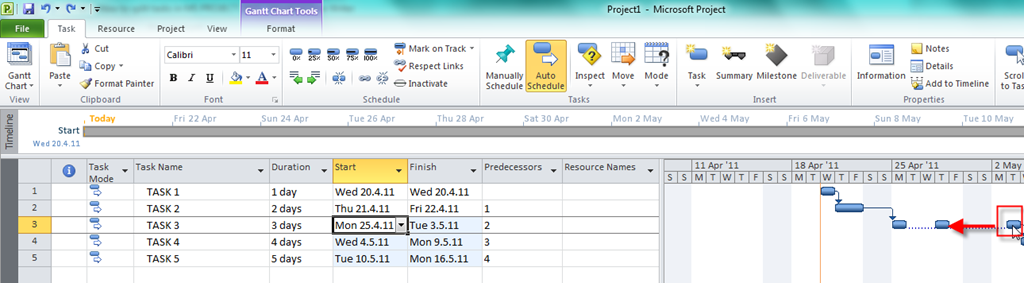
What if you change your mind? You can “resplit” the task in the same way. Click on the split task back until it is connected again (drag from right to the left):

image

And the task is joined again.

Remember that a dotted line does not represent duration. Nothing is happening in the dotted line period. If you want to remove dotted line you can do it like this:

image

and you will get:

image

You can see that a dotted line is removed. This picture on the Gantt chart is little confusing because you have a task with a 3-day duration that will start on Monday 25.04.2011 and finish on Friday 29.04.2011. Without a dotted line you can think that this is an error, so I strongly suggest: Leave a dotted line in your Gantt chart.

See you,

See you,

Posted in Microsoft PRoject 2010, MS PROJECT 2010, PMI, PRoject Management | Tagged , , | 6 Comments