Material Resources in MS PROJECT 2010


Hi,

In this post I will explain how to set up, and assign material resources in MS PROJECT 2010.

First I will add three material resources in Resource Sheet:
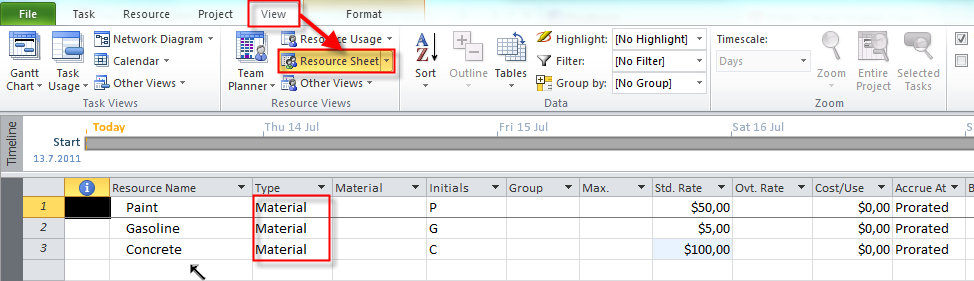
image

Now I will add two Tasks:

image

O.K. Now, I will assign Paint to the Painting the wall task, and Gasoline, and Concrete to the Pouring the concrete Task:

image

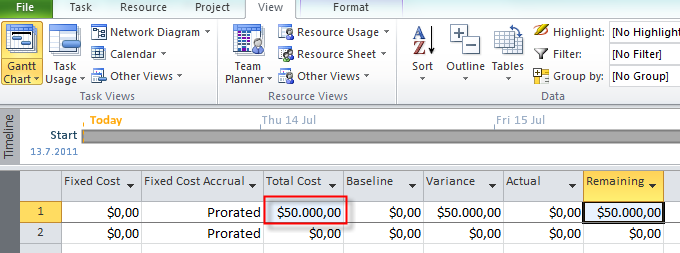
I put 1000 in the Unit field, because I assume that I will need 1000 liters of paint for painting the wall. MS PROJECT 2010 has calculated that the cost is $50.000 (1.000 units X $50 per Unit = $50.000). Remember that this cost remains the same, no matter how long will take you to pain the wall. I will show it to you. First I will choose the Cost table:

image

and I will get:

image

Now I will change duration for task Painting the wall from 3 to 10 days:

image

I will choose the Cost table again, and I will get:

image

The Total Cost remains the same.

O.K. Now, I will assign Gasoline and Concrete to the Task Pouring the concrete:
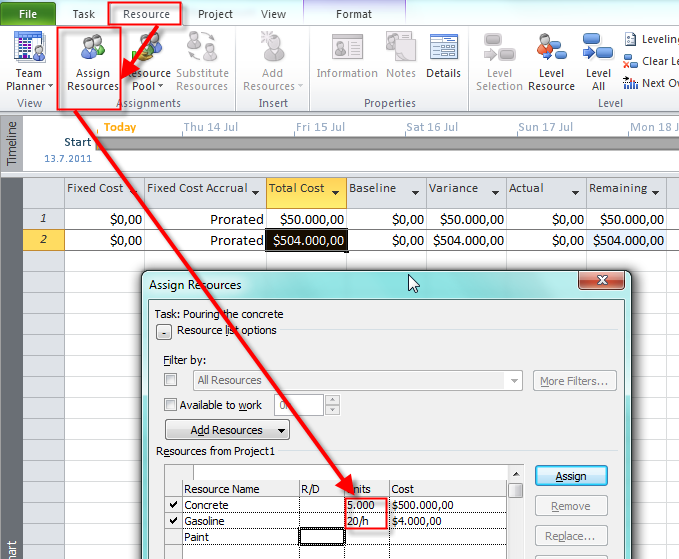
image

I need 5.000 units (tons, liters or whatever) of Concrete and I need 20 liters (or gallons) of Gasoline per hour. MS PROJECT 2010 has calculated that the cost for the Concrete is $500.000 (5.000 units X $100 per Unit = $500.000). For the Gasoline I put in the Unit field 20/h and that means that I will spend 20 liters (or gallons) per hour. MS PROJECT 2010 has calculated that the cost for the Gasoline is $4.000 (20 liters per hour X $5  per Unit  X 5 days X 8 hour per day = 20 X $5 X 5 X 8 = $4.000).

What will happen if I change duration of the task Pouring the concrete from 5 to 10 days? Let’s see.

image

I will choose the Cost table again and I will get:

image

The Total cost is now $508.000. Why? MS PROJECT 2010 has calculated that the cost for the Concrete is $500.000 (5.000 units X $100 / Unit = $500.000), and it does not depend of the Task duration, since I put in the Unit field 5.000.  For the Gasoline I put in the Unit field 20/h and that means that I will spend 20 liters (or gallons) per hour. MS PROJECT 2010 has calculated that the cost for the Gasoline is now  $8.000 (20 lites per hour X $5 per Unit X 10 days X 8 hour per day = 20 X $5 X 10 X 8 = $8.000), and the Total cost for this task is $508.000.

So, if you have a Material resource which doesn’t depends of the Task duration you should put the number in the Unit field when you are assigning Material Resource to the Task.

If have a Material resource which does depends of the Task duration you should put the number in the Unit field and how much do you spend per time (hour, day, week, etc.). This is time depending Material resource.


Bye!

Posted in MICROSOFT PROJECT, Microsoft PRoject 2010, MS PROJECT 2010, PMI, PRoject Management | Tagged , , , , | 3 Comments

Scheduling Summary Tasks Manually in MS PROJECT 2010


Hi,

In one of my previous blogs I wrote about Manual VS Automatic Scheduled Tasks. In this post I will show how can you use Manually scheduled tasks for summary tasks in MS PROJECT 2010.

I will make a scenario. I am in a Project which has 2 phases, and each phase has 3 Tasks. I will put them in a MS PROJECT 2010 and initially they will be Manually scheduled:

image

I will enter Duration for each Task: Task 1 of Phase 1 = 1 day, Task 2 of Phase 1 = 2 days, Task 3 of Phase 1 = 3 days, Task 1 of Phase 2 = 4 days, Task 2 of Phase 2 = 5 days, and Task 3 of Phase 2 = 6 days:

image

Now, I will connect them:

image

Now, suppose that I know all the information for Task 1 and Task 2 of Phase 1, and Task 2 and Task 3 of Phase 2 so I will change their schedule mode from Manually to Automatic:

image

I will get:

image

O.K. I have a plan for Phase 1, and I want it to least 10 days. For Phase 2 I don’t have a clue about duration (for now). I will put 10 days for duration of Phase 1 .

image

Now, I will make Tasks for Each Phase as a Summary Task:

image

and I will get:

image

You can see that Phase 1 stays in Manually scheduled mode, and Phase 2 is switched in Automatic schedule mode. Why? Because I put 10 dayw for Phase 1 and MS PROJECT 2010 assumes that I have planed 10 days duration for that phase. Since I didn’t enter anything in duration field for Phase 2, MS PROJECT 2010 has switched from Manually to Automatic scheduled mode, and in duration field is now 15 days (sum of duration of Task 1 + Task 2 + Task 3 = 4 + 5 + 6 = 15 days for Phase 2).

Now I will put 11 days in duration field for Phase 2 and I will get:

image

You can see that MS PROJECT 2010 has changed Task mode for Phase 2 from Automatic to Manually since I have entered the duration manually.

Let us see the graphical part of the Gant chart.

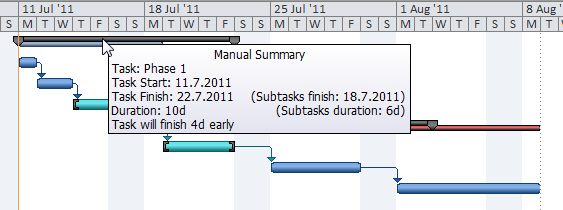
image

If you but mouse pointer on the gray bar for Phase 1 you will get the Summary information like it is shown in the picture above. I have planned 10 days duration for the Phase 1 and MS PROJECT 2010 has calculated that it will last 6 days, so the Phase 1 will be finished 4 days earlier!

image

For the Phase 2 I have planned 11 days duration, and MS PROJECT 2010 has calculated that I will last 15 days, so the Phase 2 will be finished 4 days latter, and that is why the time calculated by MS PROJECT 2010 is represented with RED COLORED BAR for Phase 2 (it means: “YOUR PHASE WILL LAST LONGER THAT YOU HAVE PLANNED”). For the Phase 1 time calculated by MS PROJECT 2010 is represented with BLUE COLORED BAR (it means: “YOUR PHASE WILL LAST SHORTER, OR AS YOU HAVE PLANNED”).

I will now include PROJECT SUMMARY TASK in Gantt chart:

image

and I will get:

image

Note that the PROJECT SUMMARY TASK is ALWAYS in AUTOMATIC SCHEDULE MODE, and it can not be changed!

O.K. Now you know how to Schedule Summary Tasks Manually! But, why should you do this? What I the purpose of this feature? Here is the answer: FOR THE PLANNIG!!! Suppose that your boss  want to allocate 15 days for the summary task. How will you and her/him know if it is, or is not realistic? You should enter this 15 days for the summary task, and than let the MS PROJECT calculate how long will it take for this summary task, and you will know what is more realistic. And you can show to your boss the GAP!!!

See you,

Posted in MICROSOFT PROJECT, Microsoft PRoject 2010, MS PROJECT 2010, PMI, PRoject Management | Tagged , , , , | 4 Comments

Critical path in MS PROJECT 2010–PART 2


Hi,

In this post I will explain how to find The CRITICAL PATH in MS PROJECT 2010

Here is an example from my previous blog:

image

I will put those tasks and durations in MS PROJECT 2010:

image


Now I will connect those tasks:

image

Task B and Task C have Task A as Predecessor, Task D has Task B as Predecessor, Task E and Task F have Task B and Task C as Predecessors, Task G has Task D and Task E as Predecessors, and Task H has Task G as Predecessor.

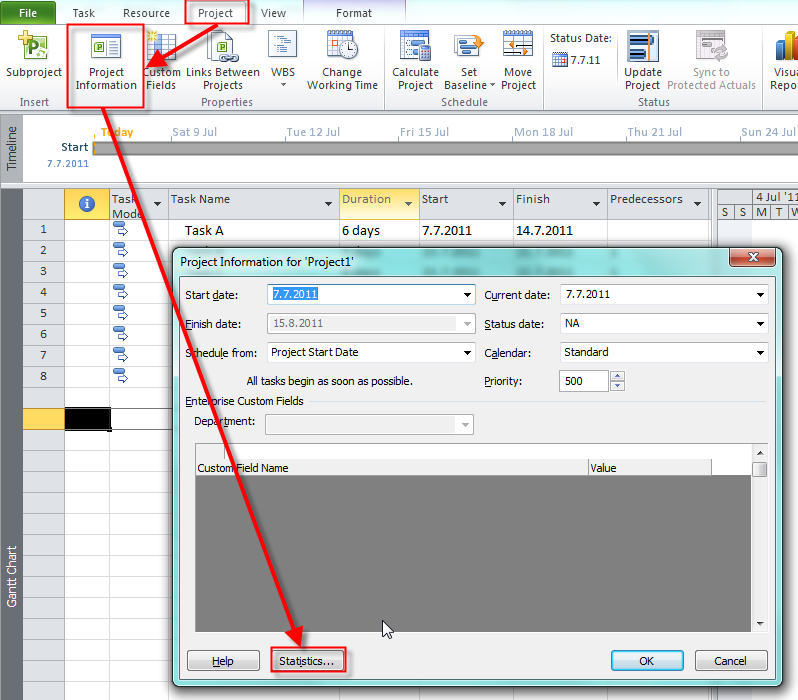
The project should have 28 days duration. I will check it:

image

and I will get:

image

OK!

Where is the Critical Path?

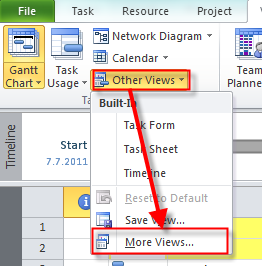
image

and then choose Detail Gantt:

image

I will get:

image

To get better look I will choose Entire Project in the Zoom group:

image

and I will get:

image

Red Tasks are on the Critical Path. Task E has 4 days SLACK (e.g. it can be late 4 days without delaying the whole Project). Task H has 8 days SLACK. Or, Task C + Task E can have totally 4 days SLACK, and Task C + Task F + Task H can have totally 8 days SLACK.

Now, I want to see on the left portion of the screen tasks on the CRITICAL PATH.

image

and I will get:

image¸

Tasks on the Critical Path are yellow now.

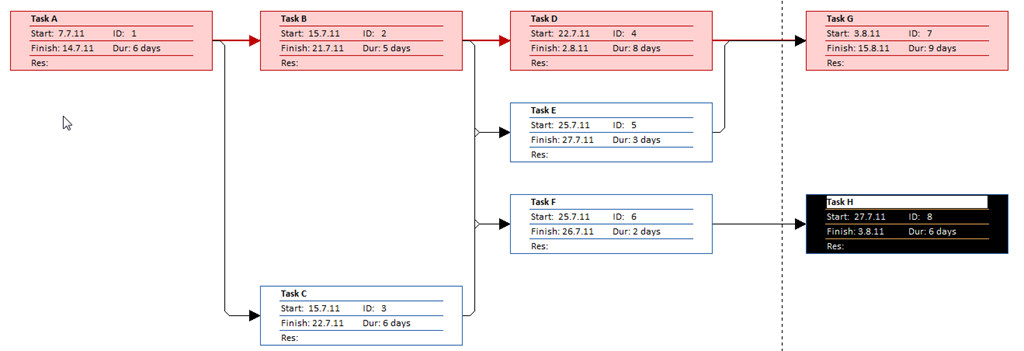
And finally, I will show you how can you get a picture in MS PROJECT 2010 similarly like in my example (first picture in this post).

image

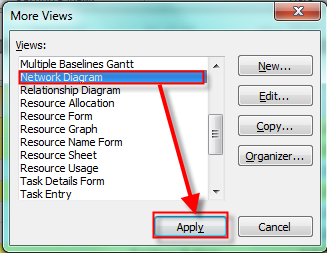
and then I will choose Network Diagram:

image

and I will get:

image

Red boxes represent task on the CRITICAL PATH!

DO NOT FORGET! CRITICAL PATH IS PATH WITH THE LONGEST DURATION, AND TASKS ON THE CRITICAL PATH SHOUD NOT BE LATE! iF THEY DO, THE WHOLE PROJECT WILL BE LATE!


Bye,

Posted in MICROSOFT PROJECT, Microsoft PRoject 2010, MS PROJECT 2010, PMI, PRoject Management | Tagged , , , | 10 Comments

Setting Up Overtime Pay Rates and Assigning Resource Overtime Hours


Hi,

I will explain how can you assign overtime hours and overtime Pay Rate to Resource in MS PROJECT 2010

First I will add TASK 1 with 5 days duration:

image

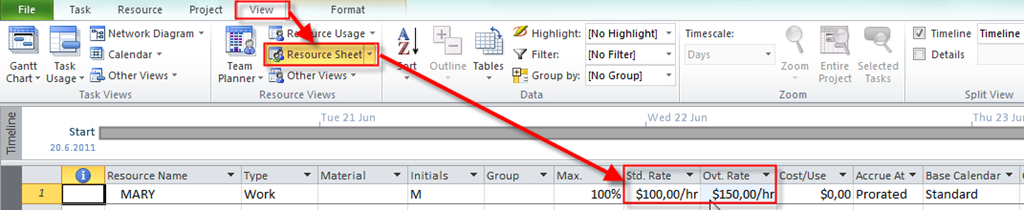
Now I will add Mary as a resource with $100/hour as standard pay rate, and $150 / hour as overtime pay rate:

image

Now I will assign Mary to the TASK 1:

image

You can see $400 in the Cost field (5 days X 8 hours/day X $100 / hour = $4.000)

Now, I will choose the Gant chart view open the Task form ad a detailed view:

image

I will click ANYWHERE in the Task Form and then I will click on the Format Tab, in the Details Group –> WORK:

image

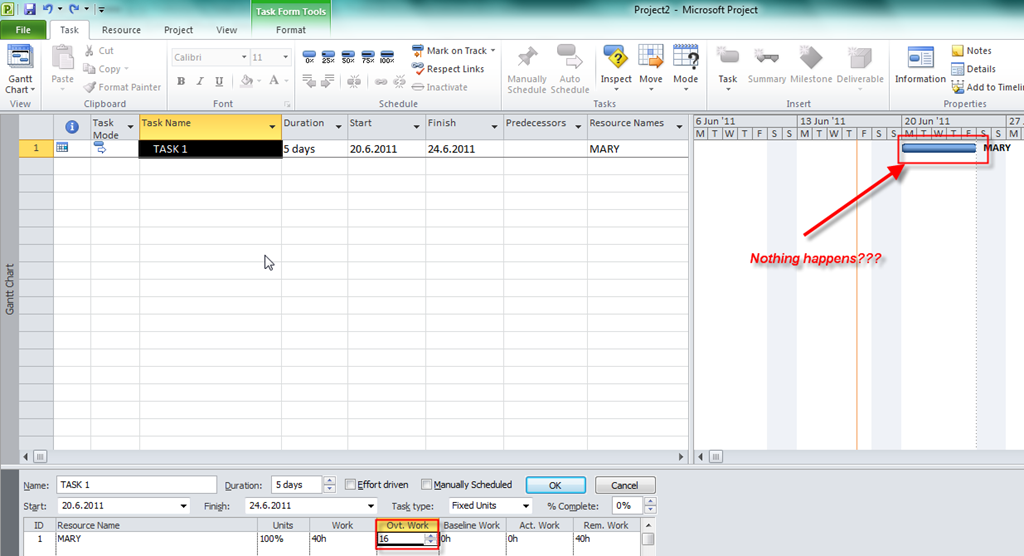
Now I will put 16 hours in the Overtime work field. It means that Mary will work 16 hours overtime:

image

It seems like nothing happened in the Gant chart? I will now click anywhere in the Gantt chart portion of the screen and I will get:

image

You can see that TASK 1 will have only 3 days duration. Why? Well, if you add overtime work on the task the same amount of work will be done but in shorter period.

I will now close the Task form:

image

and I will open the Resource usage sheet:

image

You can see 40 hours that in the Work field. Why? Because initially TASK 1 had 5 days duration (e.g. 40 hours). By adding 16 hours as overtime, TASK 1 will not last 40+16 = 56 hours, but those 40 hours will be done in shorter period.

Why 13.33 hours/day? 40 hours of total work – 16 hours of overtime work is 24 hours. 24 hours divided by 8 hours regular work per day is 3 days. O.K. we have 3 days duration. And Mary will work 8 hours each day (regular work) and (16 hours of total overtime / 3 days) = 5.33 overtime hours per day. So, 8 + 5.33 = 13.33.

Now, I will open the Cost table:

image

And I will get

image

Why? Well, Mary will work 40 hours on the TASK 1. 24 hours is regular work, and 16 hours is overtime work. 24 X $100 (standard rate per hour) = $.2400, 16 X $150 (overtime rate per hour) = $2.400. So, the total cost fore the TASK 1 is $2.400 + $2.400 = $2.800.

Overtime work is complicated, so you should use it with caution!


See you!

Posted in MICROSOFT PROJECT, Microsoft PRoject 2010, MS PROJECT 2010, PMI, PRoject Management | Tagged , , , , | 9 Comments

Setting Up Pay Rates to Apply at Different Times

Hi,

I will explain how can you enter up pay rates for a resource to apply at different times in MS PROJECT 2010

Suppose that you have a Resource with name Mary. Mary is working on your project, and se has 300$ / day. From 23.06.2011 she will has +50% more (e.g 450$/ day)

First I will add two tasks and I will link them:

Now I will add Mary as Resource:

image

I have left Standard Rate $300/day.

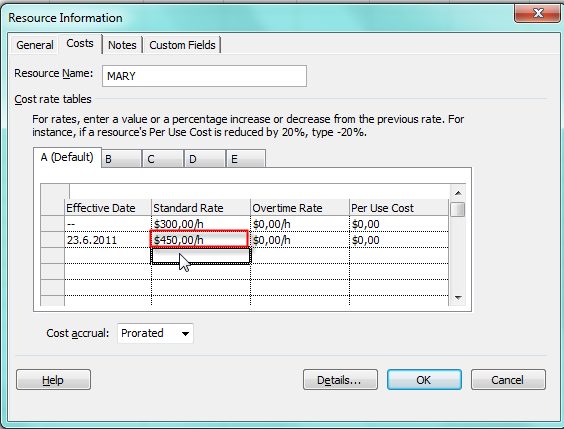
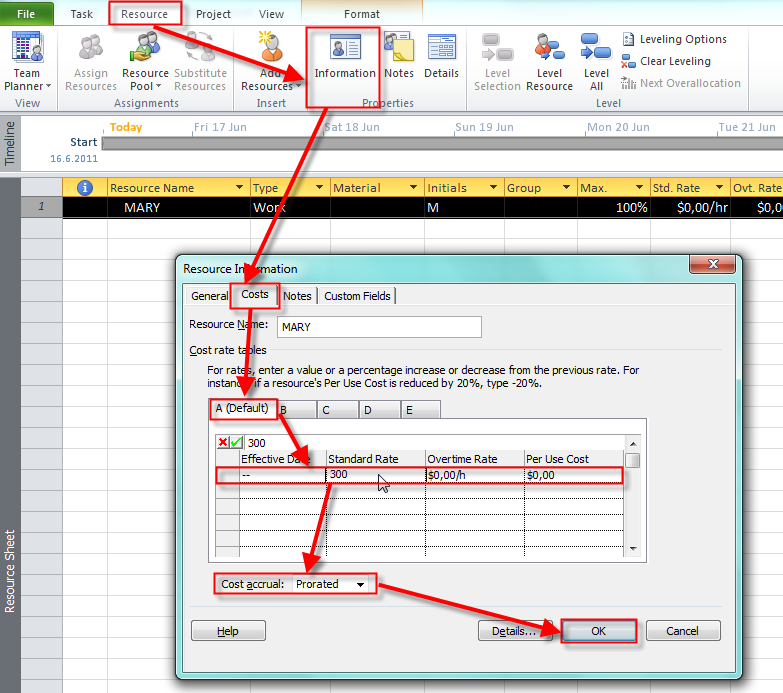
Now I will add two pay rates for Mary.   I will now +50%per day for Mary from 23.06.2011:

image

After I click OK I will get:

image


Now, I will assign Mary to the TASK 1:

image

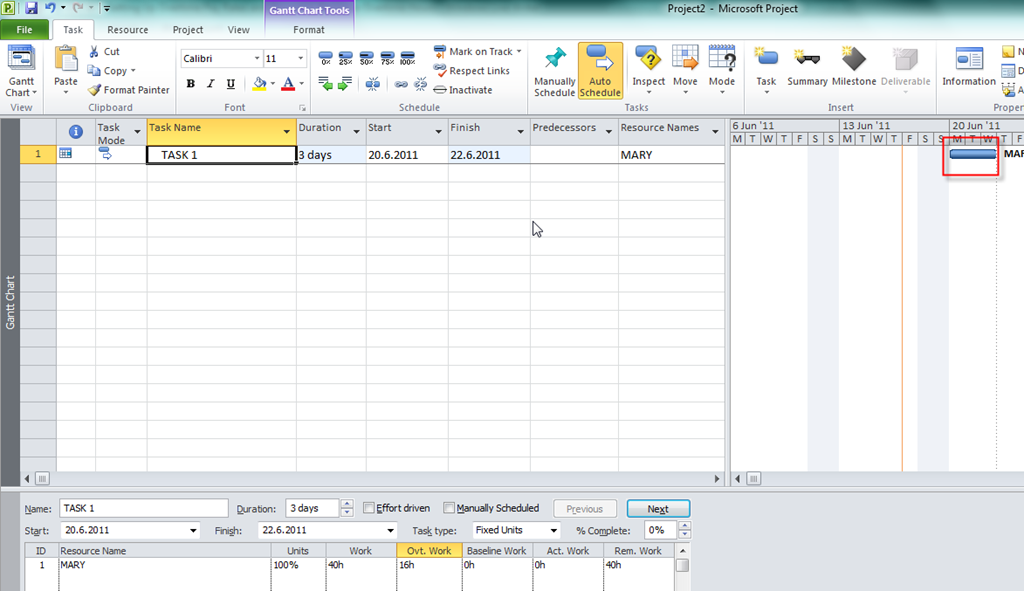
You can see $7.200 in the Cost field. TASK 1 has 3 days duration, and Mary’s pay rate is $300/hour –> 3 days X 8 hours/day X $300 = $7.200

Now, I will assign Mary to the TASK 2:

image

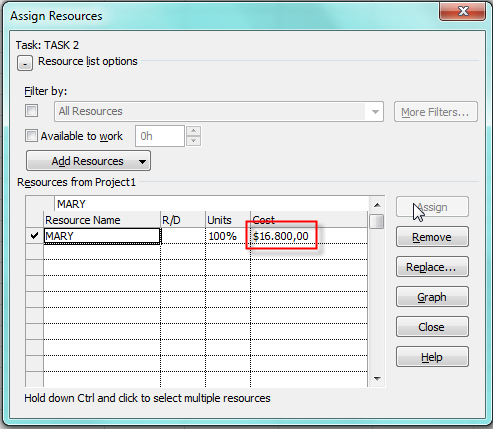
You can see $16.800 in the Cost field. TASK 1 has 5 days duration, and Mary’s pay rate is $300/hour at 22.06.2011 and $450 from 23.06.2011 –> 1 day X 8 hours/day X $300 = $2.400 (22.06.2011) + 4 days X 8 hours/day X $450 (from 23.06.2011) = 14.400. $2.400 + $14.400 = $16.800

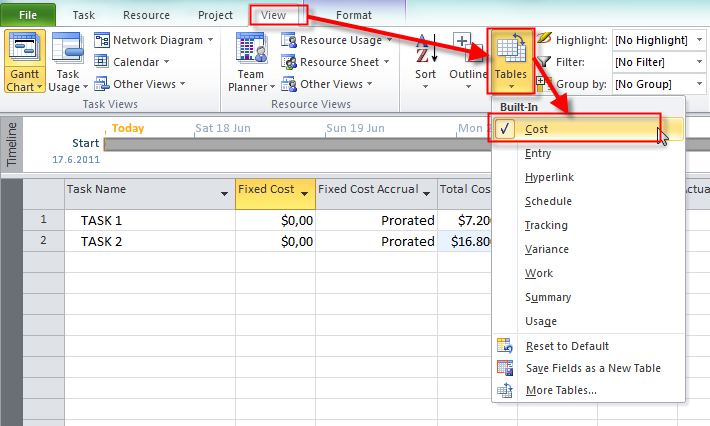
Now, I will choose the Cost Table:

image

and I will get:

image.

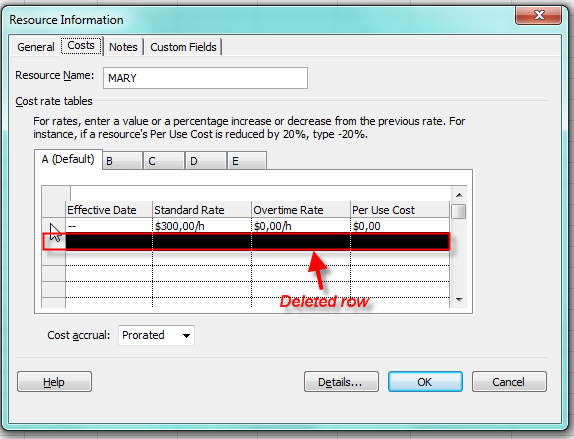
If I delete row from pay rate:

image

I will get in Cost Table:

image

Why? TASK 1 has 3 day duration, and TASK 2 has 5 day duration = 8 days. 8 days X 8 hours / day X $300 / hour = 19.200.

Be very careful when you are adding or deleting pay rate for resurces.


See you!

Posted in MICROSOFT PROJECT, Microsoft PRoject 2010, MS PROJECT 2010, PMI, PRoject Management | Tagged , , , , | 6 Comments

Entering Multiple Pay Rates for a Resource

Hi,

I will explain how can you Enter Multiple Pay Rates for a Resource in MS PROJECT 2010

Suppose that you have a Resource with name Mary. Mary is working on your project as a Project Manager, and as Consultant. She has 300$ / day as a Project Manager and 200$ / day as a consultant.

First I will add two tasks and I will link them:

image

Now I will add Mary as Resource:

image

I have left Standard Rate 0.

Now I will add two pay rates for Mary. First I will add 300$ per day for Project Manager:

image

I will explain terms like: Overtime rate, Per Use cost and Cost Accrual in one of my next blog. For now on leave it as it is.

Now I will add 200$ per day for Consultant:

image

Now, I will assign Mary to the TASK 1:

image

and the TASK 2:

image

You can see that TASK 1 has cost $7.200, and TASK 2 $12.000Why? Well, TABLE A (with $300 / day) is DEFAULT. TASK 1 has 3 days duration. 3 DAYS X 8 hours / day = 24 hours. 24 hours X $300/day (DEFAULT) = $7.200. TASK 2 has 5 days duration. 5 DAYS X 8 hours / day = 40 hours. 40 hours X $300/day (DEFAULT) = $12.000.

OK. No I will apply different cost Rates to Assignments:

For The TASK 1 I will use Mary as a Project Manager with 300$ / day, and because that is default pay rate I have nothing to do. For the TASK 2 I will use Mary as a Consultant with $200 / day.

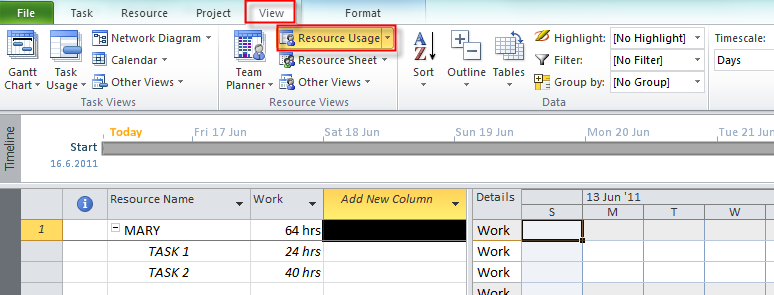
I will switch to Resource Usage View:

image

Now I will choose the Cost Table:

image

and I will get:

image

You can see that TASK 2 has cost = $12.000 which is wrong. I will now change the Cost for the Task 2:

image

and I will get:

image

You can see that TASK 2 has cost = $8.000.  40 hours (for TASK 2) X $200 / day = $8.000. So now, everything is OK.


In my next blog I will set up pay rates for a resource to apply at different times.


See you!

Posted in MICROSOFT PROJECT, Microsoft PRoject 2010, MS PROJECT 2010, PMI, PRoject Management | Tagged , , , , | 1 Comment

Setting Up Resource Availability to Apply at Different Times–Part two

Hi,

In this blog I will demonstrate how can you set up different resource Availability to the same resource in MS PROJECT 2010.

I will repeat “setup” from my previous blog.

First I will add two tasks.

TASK 1 will have 5 days duration and it will start at 16.06.2011 and it will finish at 22.06.2011. TASK 2 will have 10 days duration and it will start at 04.07.2011 and it will finish at 15.07.2011.

image_thumb

Now I will add two resources in the Resource sheet:

image_thumb1

Finally I will Set up different Availability to each resource. I should open Resource table if I want to do that. I will choose RESOURCE 1 and I will make him available from 01.06.2011 to 20.06.2011 with 100% units (availability), and from 21.06.2011 to 30.06.2011 with 50% units (availability):

image_thumb2

That means that RESOURCE 1 will be available only from 01.06.2011 to 30.06.2011 and he will work full time job until 20.06.2011, and part time job (4 hours) from 21.06.2011 to 30.06.2011

Now, I will choose RESOURCE 2 and I will make him available from 01.07.2011 to 10.07.2011 with 50% units (availability), and from 11.07.2011 to 15.07.2011 with 100% units (availability):

image_thumb3

That means that RESOURCE 2 will be available only from 01.07.2011 to 15.06.2011 and he will work part time job (4 hours) from 01.07.2011 to 10.07.2011, and full time job from 11.07.2011 to 20.06.2011.

O.K. Now I will assign RESOURCE 2 to the TASK 1:

image

and I will get:

image

You can see little “RED MAN” in status column. It means that RESOURCE 2 is over allocated. If you open Team planner you will get:

image

RESOURCE 2 is over allocated from  16.06.2011 to 22.06.2011 because he is available from 01.07.2011 to  15.07.2011. If you open Resource usage sheet you will also see that over allocation:

image15

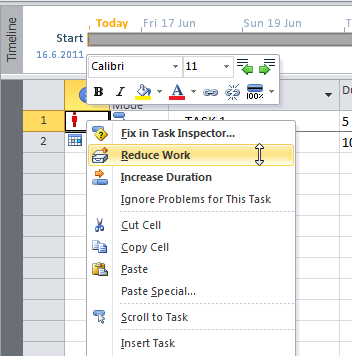
What can I do with over allocation? First I can leave it: “AS IS”. It means that RESOURCE 2 will work 8 hours even it is not available. Or I can right click on status column and I will get:

image21

I will choose Fix in Task Inspector  and I will get:

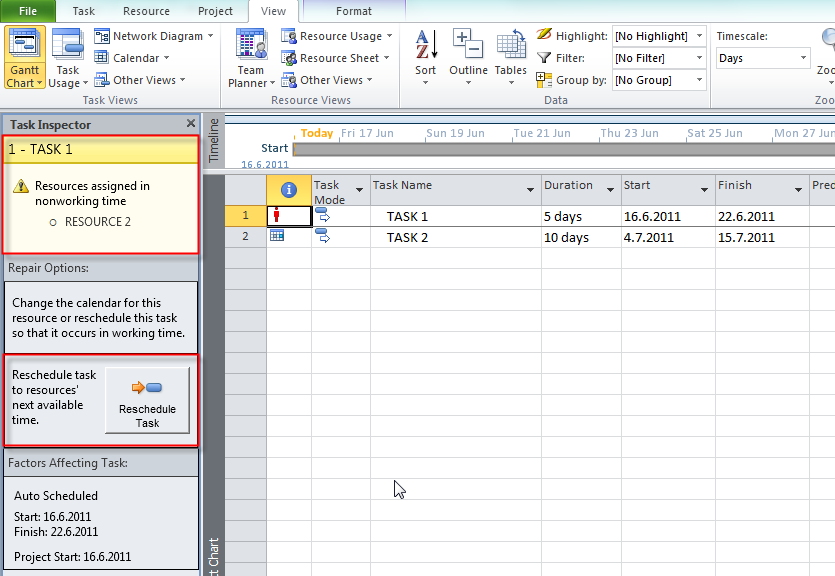
image24

You can see the warning message in the upper left corner of the Task Inspector. It says: “Resource assigned in nonworking time _ PRESOURCE 2”. If you don’t want to leave this over allocation “AS IS” you can only choose “Reschedule Task”. I will do and and I will get:

image27

Something is a little bit strange here, isn’t it? I get Duration = 8 days, Start date = 16.06.2011, and End date = 12.07.2011. Let’s look at the Team Planner View:

image30

Here you can see that RESOURCE 2 will actually start with work at 01.07.2011 and it will finish at 12.07.2011. Why? Because RESOURCE 2 is available from 01.07.2011 to 15.07.2011. We needed initially 5 days for the Task (5 days X 8 hours / day = 40 hours)

Now look at the Resource Usage sheet:

image33

RESURCE 2  is available from 01.07.2011 to 10.07.2011 with 50% units (availability), and from 11.07.2011 to 15.07.2011 with 100% units (availability), remember?

So work schedule for RESOURCE 2 will be:

01.07.2011 –> 4 hours + 04.07.2011 –> 4 hours + 05.07.2011 –> 4 hours + 06.07.2011 –> 4 hours + 07.07.2011 –> 4 hours + 08.07.2011 –> 4 hours + 11.07.2011 –> 8 hours + 12.07.2011 –> 8 hours = 40 hours!

If you were following my example you can try it with TASK “2 and RESOURCE 2.

For the end, be EXTREMELLY CAREFULL when you are using different availability for the resources, because you can get in the trouble if you are not 100% sure what are you doing.

In my next blog I will show how to apply different and multiple pay rates for a Resource


See you!

Posted in MICROSOFT PROJECT, Microsoft PRoject 2010, MS PROJECT 2010, PMI, PRoject Management | Tagged , , , | Leave a comment

Setting Up Resource Availability to Apply at Different Times

Hi,

In this blog I will demonstrate how can you set up different resource Availability to the same  resource in MS  PROJECT  2010.

I will make “set up” for my examples. First I will add two tasks.

TASK 1 will have 5 days duration and it will start at 16.06.2011 and it will finish at 22.06.2011. TASK 2 will have 10 days duration and it will start at 04.07.2011 and it will finish at 15.07.2011.

image

Now I will add two resources in the Resource sheet:

image

Finally I will Set up different Availability to each resource. I should open Resource table if I want to do that. I will choose RESOURCE 1 and I will make him available from 01.06.2011 to 20.06.2011 with 100% units (availability), and from 21.06.2011 to 30.06.2011 with 50% units (availability):

image

That means that RESOURCE 1 will be available only from 01.06.2011 to 30.06.2011 and he will work full time job until 20.06.2011, and part time job (4 hours) from 21.06.2011 to 30.06.2011

Now, I will choose RESOURCE 2 and I will make him available from 01.07.2011 to 10.07.2011 with 50% units (availability), and from 11.07.2011 to 15.07.2011 with 100% units (availability):

image

That means that RESOURCE 2 will be available only from 01.07.2011 to 15.06.2011 and he will work part time job (4 hours) from 01.07.2011 to 10.07.2011, and full time job from 11.07.2011 to 20.06.2011.

O.K. Now I will assign RESOURCE 1 to the TASK 1:

image

and I will get:

image

You can see little “RED MAN” in status column. It means that RESOURCE 1 is over allocated. If you open Team planner you will get:

image

RESOURCE 1 is over allocated at 21.06.2011 and 22.06.2011 because he is available only 4 hour per day (50%). If you open Resource usage sheet you will see over allocation at 21. and 22.06.2011:

image

What can I do with over allocation? First I can leave it: “AS IS”. It means that RESOURCE 1 will work 8 hours even it is not available. Or I can right click on status column and I will get:

image

First I will choose Reduce work and I will get (Open Resource Usage sheet):

image

You can see that the Task Duration remains same (5 days) but it will take less time at 21.06.2011 and 22.06.2011 (4 hours per day), because RESOURCE 1 is only 50% available at those days. That means that TASK 1 requires only 32 HOURS:
16.06.2011 –> 8 hours + 17.06.2011 –> 8 hours + 20.06.2011 –> 8 hours + 21.06.2011 –> 4 hours + 22.06.2011 –> 4 hours = 32 hours


If I choose Increase Duration I will get:

image

or, in Resource Usage View:

image

Task duration is increased for 2 days. Why? Because TASK 1 has initially 5 days duration, and that means 5 days X 8 hours / day = 40 hours. So if I want 40 hours of work and I RESOURCE 1 is available 8 hours / day from 01.06.2011 to 20.06.2011 and 4 hours / day after 20.06.2011 he will work:
16.06.2011 –> 8 hours + 17.06.2011 –> 8 hours + 20.06.2011 –> 8 hours + 21.06.2011 –> 4 hours + 22.06.2011 –> 4 hours + 23.06.2011 –> 4 hours + 24.06.2011 –> 4 hours = 40 hours.

If I choose Fix in Task Inspector I will get:

image

In Task inspector I can pick one of tree options. First two options are explained before, and the third option offers you to assign additional resource.

In my next blog I will show what happens if you try to assign RESOURCE 2  to the TASK 1 (e.g. when resource is totally unavailable).


See you!

Posted in MICROSOFT PROJECT, MS PROJECT 2010, PMI, PRoject Management | Tagged , , , | 6 Comments

MS PROJECT 2010–Tracking Task Progress


Hi,

I will show you how can you track Task progress in MS PROJECT 2010

First I will add a Task with 3 days duration:

image

Now I will save the Baseline (Baseline means “PLAN”)

image

and then:

image

Now I will choose the Variance Table:

image

and I will add the Duration field:

image

O.K. I’ve made a setup. Now I will show you where and how can you put various durations, and effects of those.

I will do it through Update task window:

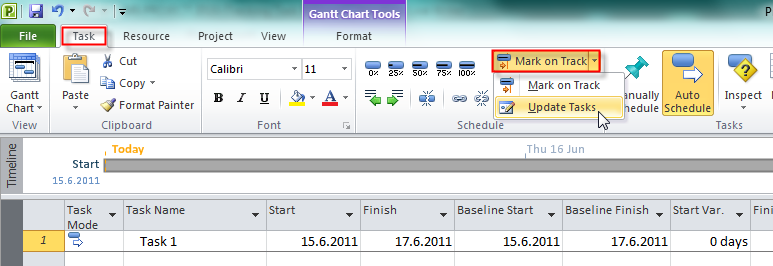
image

In the first example I will put 4 days in Actual duration field and click on the OK button:

image

and I will get:

image

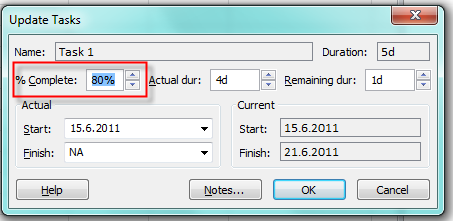
You can see that Finish date is changed, Finish Variance is 1 day (because Actual duration is 4 days instead of planned 3 days),  and that the task is 100% completed.

Now I will put 4d in Actual duration field, and 1d in Remaining duration field:

image

and I will get

image

You can see that Finish date is 21.06.2011, Finish Variance is 2 days, Duration is 5 days, and the task is 80% completed. Why? Because I told that is already spent 4 days, and that I need 1 more day for the task. That means that task will take 4 + 1 = 5 days, and because I already spent 4 days the task is 80% completed (4/5=0,8 –> 80%). Finish Variance is 2 days because in the baseline is 3 days and we need 5 days for the task.

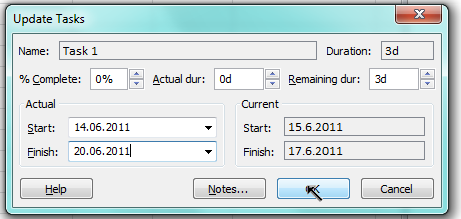
Now I will put 14.06.2011 in the Actual Start field, and 20.06.2011 in the Actual Finish field:

image

and I will get:

image

This is because I tried to start working on the task before project start date. I will choose to continue with that, so I will finally get:

image

You can see that the task is 100% completed, Start Variance is –1 day, Finish Variance is 1 day, and Duration is 5 days. Duration is 5 days because Start date is 14.06.2011 (Tuesday), Finish date is 20.06.2011 (Monday), and we have weekend between. Start Variance = –1d and that means that we have started 1 day EARLIER (minus sign means EARLIER), and Finish Variance = 1d and the means that we have finish LATER (positive number means means LATER). And our task took 2 days more then was planned (Finish Variance – Start Variance = 1 – (-1) = 2)

Now I will put 14.06.2011 in the Actual Start field, and 16.06.2011 in the Actual Finish field:

image

and I will get:

image

You can see that the task is 100% completed, Start Variance is –1 day, Finish Variance is -1 day, and Duration is 3 days (unchanged). Duration is 3 days because Start date is 14.06.2011 (Tuesday), Finish date is 16.06.2011 (Thursday) Start Variance = –1d and that means that we have started 1 day EARLIER, and Finish Variance = –1d and the means that we have finish EARLIER. And our task take exactly 3 days (as was planned)(Finish Variance – Start Variance = -1 – (-1) = 0)

Finally, I will try to confuse MS PROJECT 2010. I will put 50% in %complete field, 4 days in Actual duration field, and 1 day in Remaining duration field:

image

and I will get:

image

You can see that the task is 80% completed (open Update task screen again):

image

and not 50% as I told MS PROJECT 2010. Why? Because Actual duration is 4 days, and Remaining duration is 1 day, the Total Duration is 4+1 = 5 days. And, because we already spent 4 days (Actual duration) the task is 80% completed (4/5=0,8 –> 80%), so MS PROJECT 2010 has overwrites my 50%


See you!

Posted in MICROSOFT PROJECT, Microsoft PRoject 2010, MS PROJECT 2010, PMI, PRoject Management | Tagged , , , | 7 Comments

Linking manually and auto scheduled tasks

Hi,

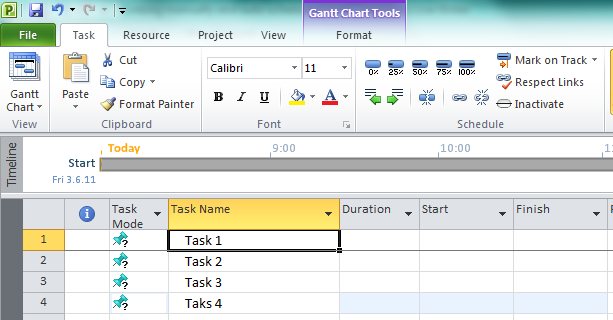
I will show you what happens when you link manually scheduled tasks and auto scheduled tasks in MS PROJECT 2010. First, I will enter four tasks in manually scheduled mode:

image

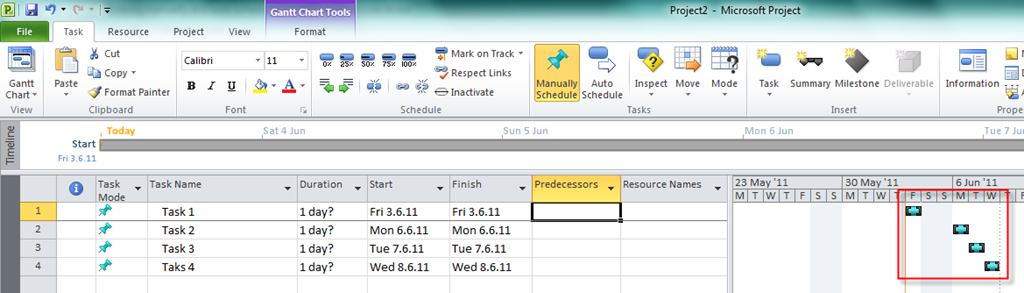
Now I will link them. I will make Task 1 as predecessor of Task 2, Task 2 as predecessor of Task 3, and Task 3 as predecessor of Task 4. I will get:

image

You can see that every task has 1 day duration. Now I will break the links (I will erase predecessor field) and I will get:

image

Duration, Start and End date remains same, but links are broken.

Now I will start all over again. I will put description in all task (in Duration field, and Start and End date field):

image

and I will link them in the same way I did before:

image

You can see that Task 1 and Task 3 has still unknown duration, but they have same start and end date. They have also question mark in Task mode field.

Task 2 and Task 4 has 1d (estimated) duration, and they also have Start and End date set by MS PROJECT 20101. Remarks in Start date and End date fields are overwritten.

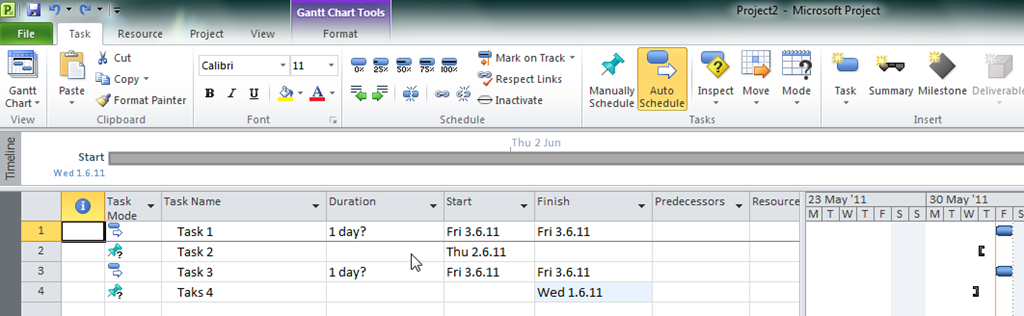
Now I will have 4 Tasks but two of them will be in auto scheduled mode.

image

Task 1 and Task 3 has 1 day duration by default and Start date is same as the project start date. I put 02.06.11 as a Start date for Task 2 (manually scheduled) and 01.06.11 as a End date for Task 4 (manually scheduled). OK. Now I will link them as I did before and I will get:

image

You can see that Start date and End date field are overwritten for manually scheduled tasks and that they have 1 day duration now.

But, what if I really want 02.06.11 as a start date for Task 2? I will enter that date in Start date field and I’ll get:

image

Do you see red line below Start date for Task 2? Put the mouse on that field and you’ll get:

image

Now I will right click on that field and I will get:

image

If I click on Respect Links, MS PROJECT 2010 will overwrite Start date for Task 2:

image

If I click on Fix in Task Inspector instead I will get:

image

From Task Inspector you can choose Respect Links, and you will get the same result as I show you in previous picture or you can select Auto schedule and you will get:

image

Now, the Task 2 is in Auto scheduled mode.

From my point of view, be extremely cautious with  manually scheduled tasks. Use auto schedule mode whenever you can! When you use auto scheduled mode you let the control to MS PROJECT 2010  and you are avoiding unpredictable results.

In my next blog I will show you how can you use manually scheduled task in (from my point of view) best way.


See you,

Posted in MICROSOFT PROJECT, Microsoft PRoject 2010, MS PROJECT 2010, PMI, PRoject Management | Tagged , , | 5 Comments