How to customize choices for Project Requests, Programs and Project using Project Accelerator

Hello,

Project Accelerator has many different choices for Project Request, Programs, and Projects. But, very often, I will need different choices, or even new ones.

And, of course there is a way to customize it.

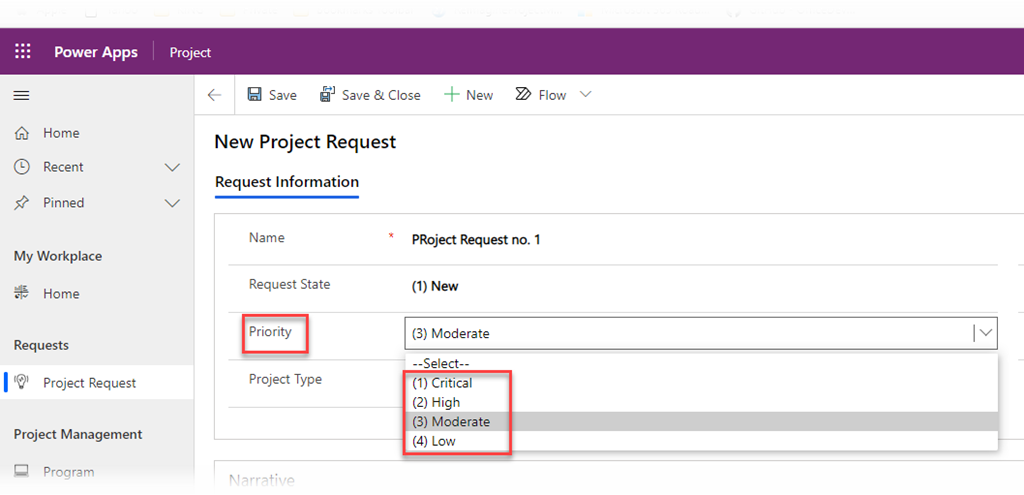
Let me start with a Project Request. I will create a new one:

SNAGHTML2da1be4e

and:

SNAGHTML2da3a994

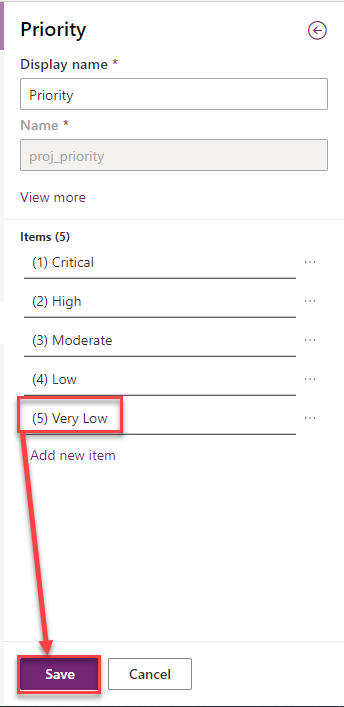
As we can see, for Priority, I have four options, but I need fifth: (5) Very Low.

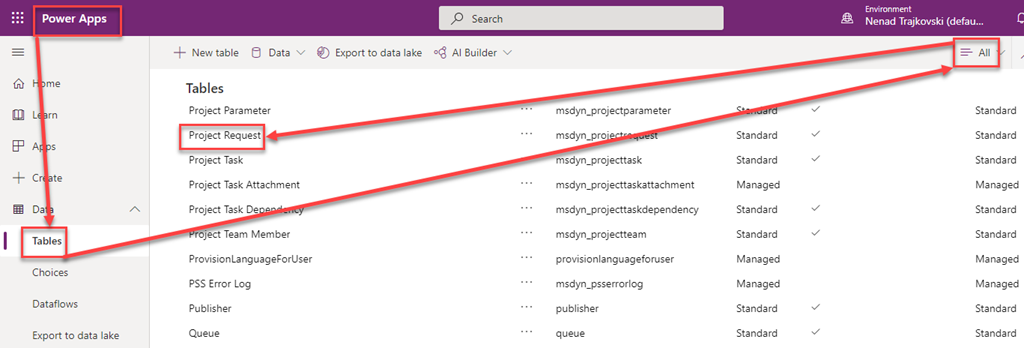
First of all, all those fields, like Name, Request State, Priority are stored in Tables, in Dataverse.

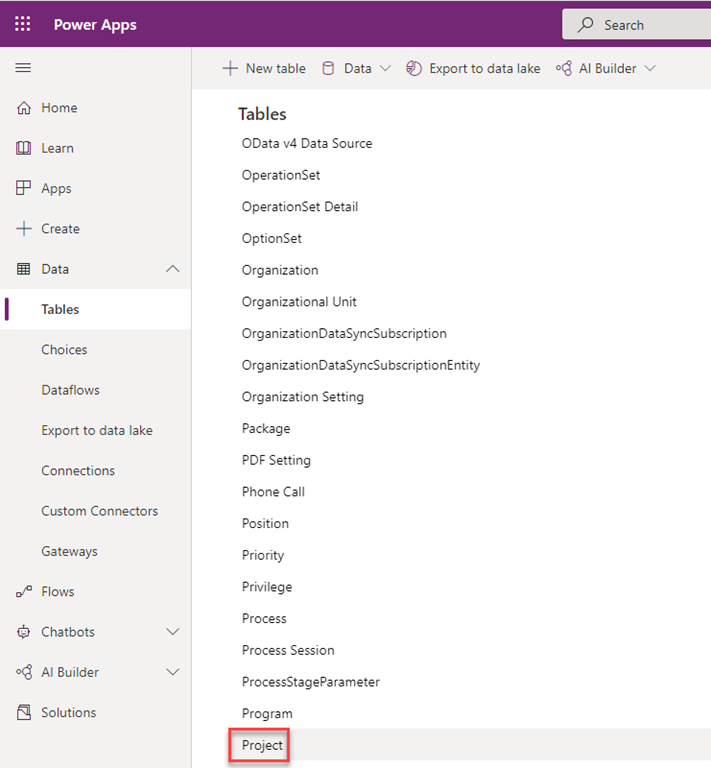
For Project Request, there is a table which can be accessed:

image

and:

image

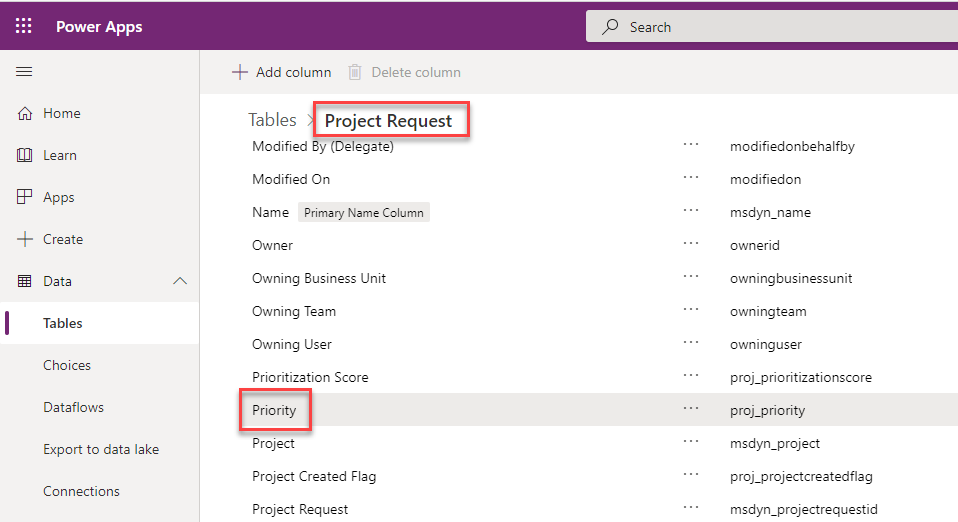
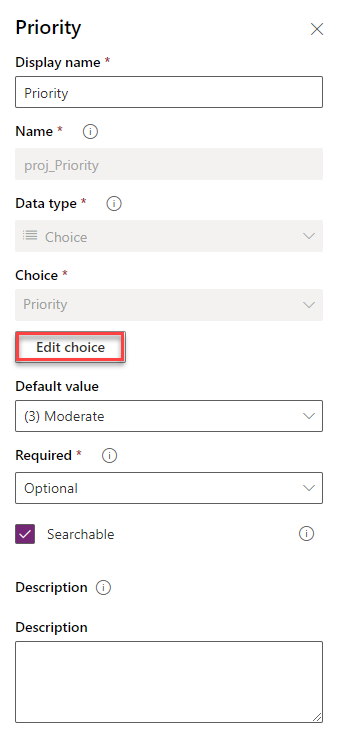
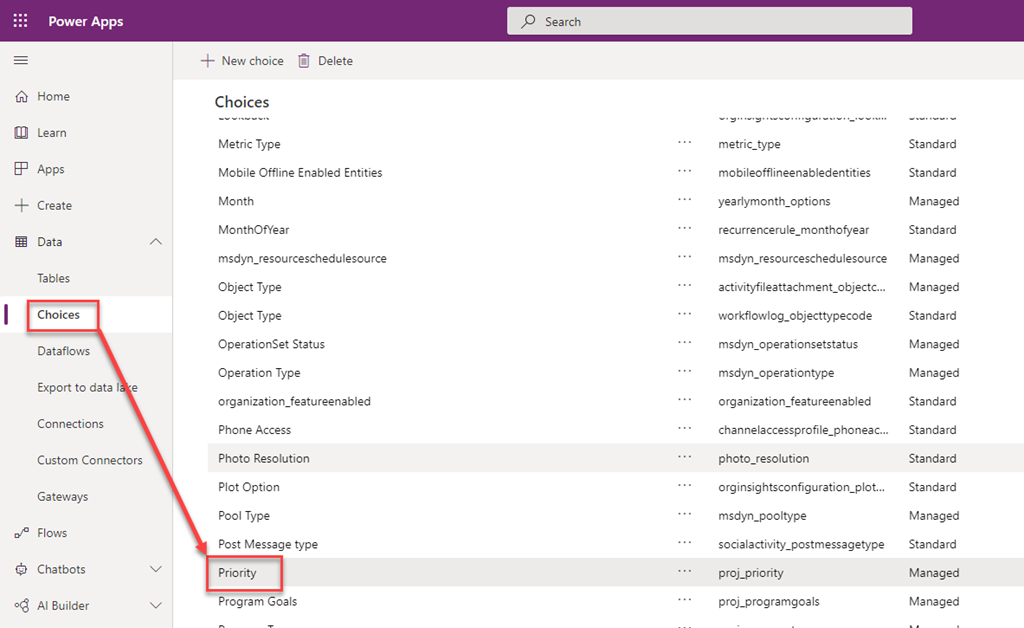
since I want to modify the Priority field, I will choose it and I will follow next steps:

image

and:

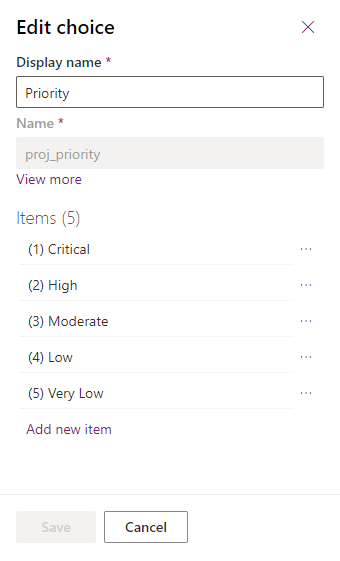
image

and:

image

That is it. Now back to the Project Request:

image

and here it is!

Now let’s look at the Program:

image

and:

image

What? The same value is available in Program as well. Why? Because both tables are using the same field. And I can see all those Choice fields here:

image

and:

image

So I can add, edit or delete them from here, as well.

Finally, the Project!

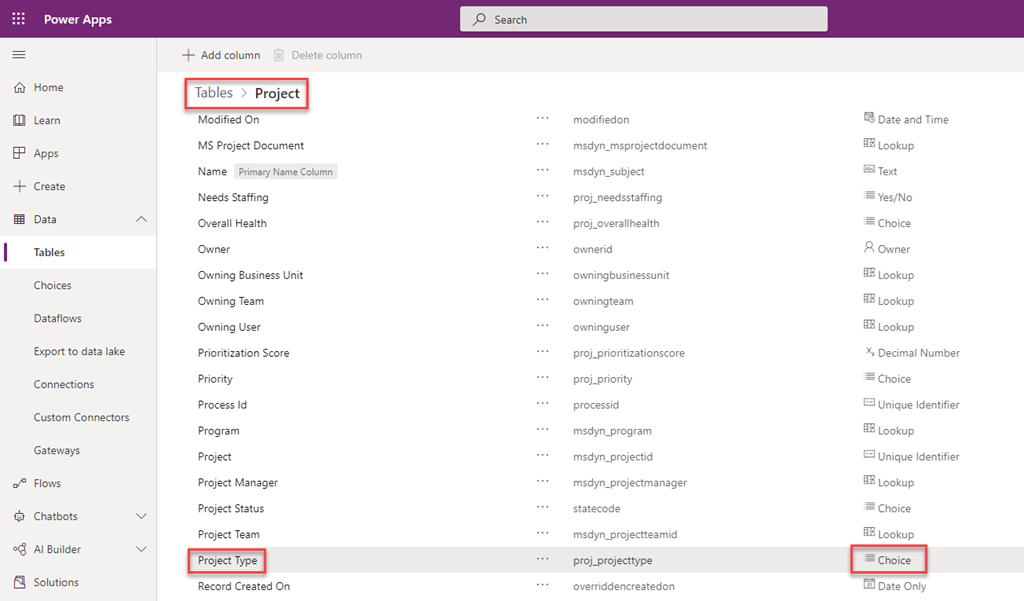
image

and:

image

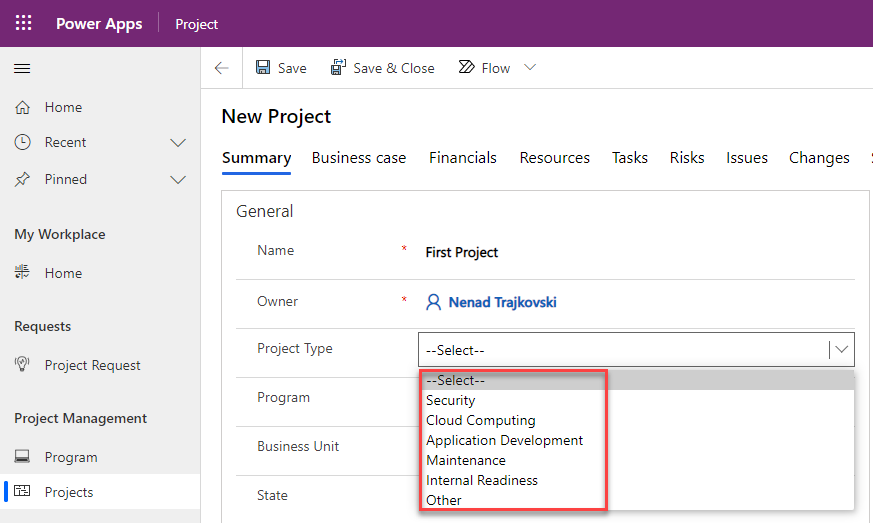
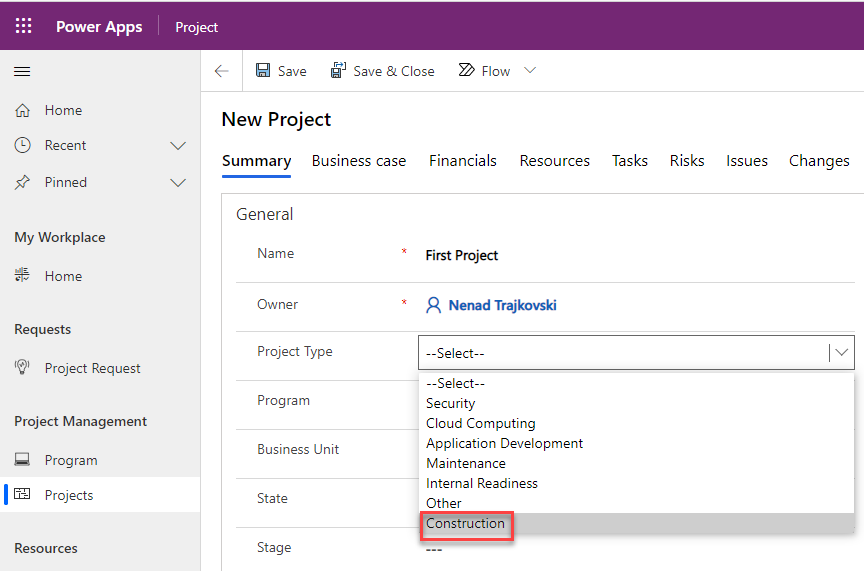
As you can see, for Project Type I can choose, between: Security, Cloud Computing, etc. Now, let’s say that this Project is Construction type. But, I don’t have this option available. No big deal. I will add it.

image

and::

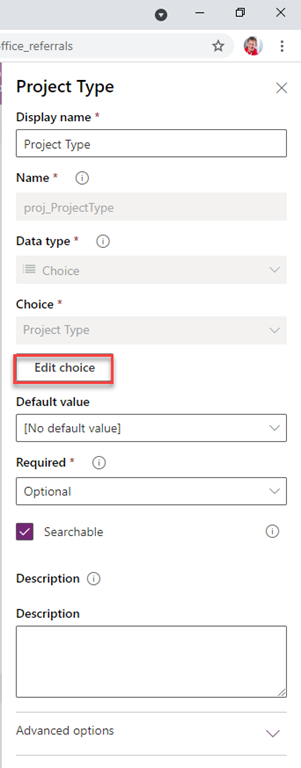
image

and:

image

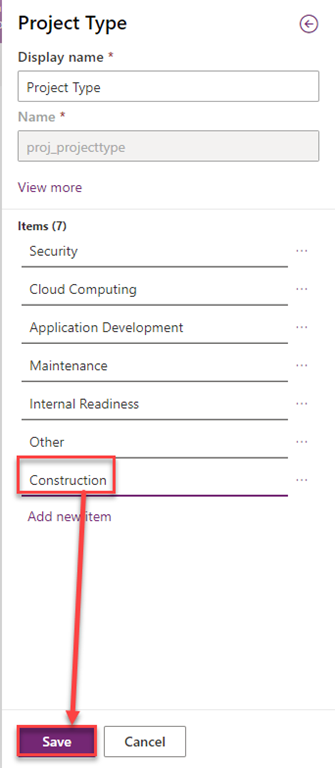
I will add Construction as a choice:

image

and:

image

Now, let’s get back to my Project:

image

Voila! Here it is.

So, as you see, if you have right permissions, you will be able to customize many choice fields for your own purpose

Regards!

Posted in Project for the Web, Project for Web, PRoject Management, Project Online | Tagged | Leave a comment

Programs in Project Accelerator and Microsoft Project for the Web

Hi,

Today I will show you how to create Program for Projects using Project Accelerator and Project for the Web!

But First of all what is Program anyway? According to PMI Project is temporary endeavor undertaken for creating unique Product, Service or Result! On the other hand, Program is a group of related projects managed in a coordinated way to obtain benefits and control not available from managing them individually. Programs may contain elements of work outside of the scope of the discrete projects in the program. So Projects in a Program have to be related!

Let me create Marketing Program:

image

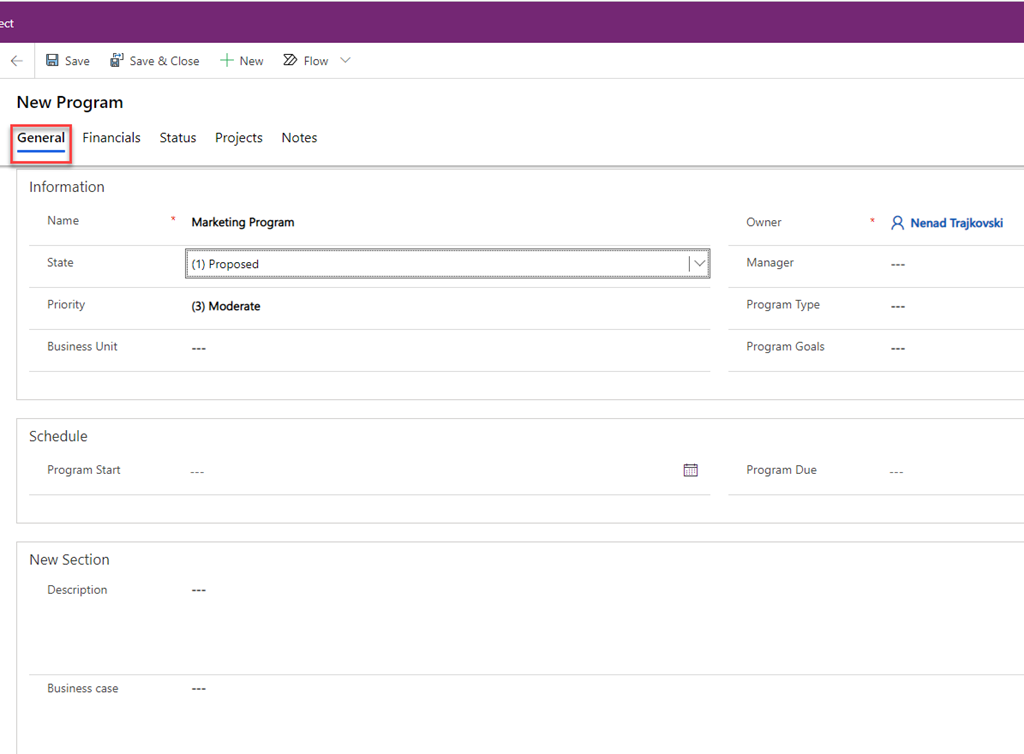
I will get new screen with following fields:

image

  • Name: The Program Name
  • State The Program State. I can select:
    • (1) Proposed
    • (2) Active
    • (3) Closed
    • (4) On Hold
  • Priority: The Program Priority. I can select:
    • (1) Critical
    • (2) High
    • (3) Moderate
    • (4) Low
  • Business Unit: To which Business unit Program below. I can select:
    • IT
    • Product Development
    • Operations
  • Manager: The Program Manager. I can choose from the user list in My Azure Active Directory
  • Program Type: I can
    select:
    • Customer
    • Development
    • Support
    • Enhancement
    • Program
    • Other
  • Program Type: I can select:
    • Customer Satisfaction
    • Grow Business
    • Run Business
    • Transformation
    • Other
  • Program Start: Expected Program Start Date
  • Program Due: Expected Program End Date
  • Description: Program Description
  • Business Case: Here I can type Business Case for the program

So it can look like this:

image

Now, I will choose Financial Tab, and I can edit following fields:
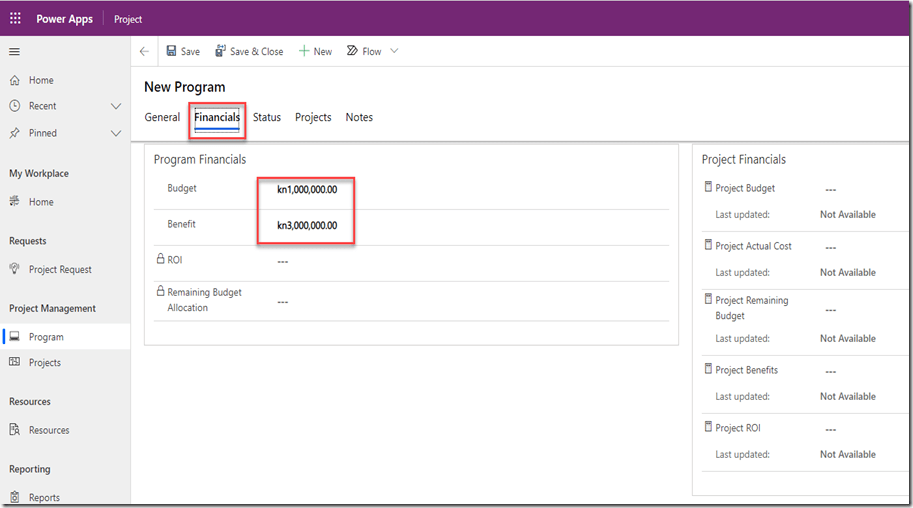
image

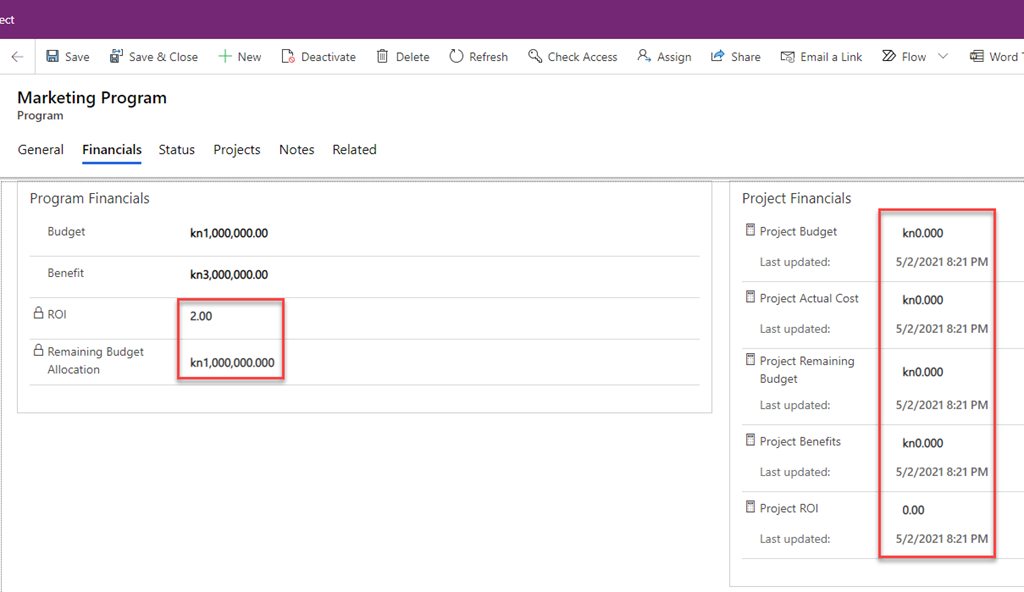
As you can see, I can only put Budget and Benefit amounts, and everything else is going to be calculated, after I save the program. So I will do it, and I will get:
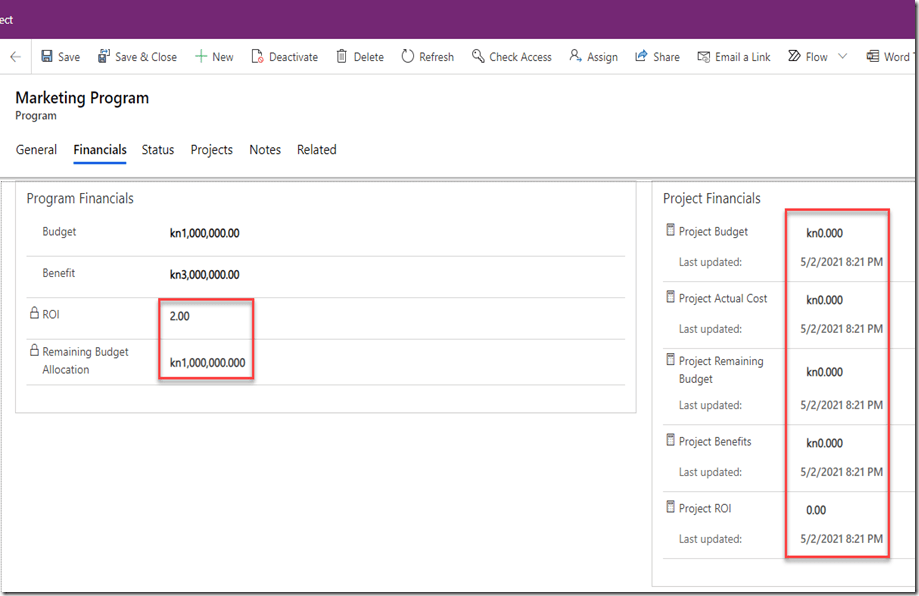
image

As you can see ROI is 2,00, because it is calculate as (Benefit – Budget) / Budget = (3.000.000 – 1.000.000) / 1.000.000 = 2.00, and Remaining Budget Allocation is 1.000.000 because nothing has been spent yet! And if you look at Project Financials you will see that Project Budget, Project Actual Cost, Project Remaining Budget, Project Benefits, and Project ROI is zero, because there is no single Project assigned to the Program yet, and all Last updated fields are the same, and it is 5/2/2021 which is the date when I last saved the Program (for now).

Let me jump to the Status Tab:
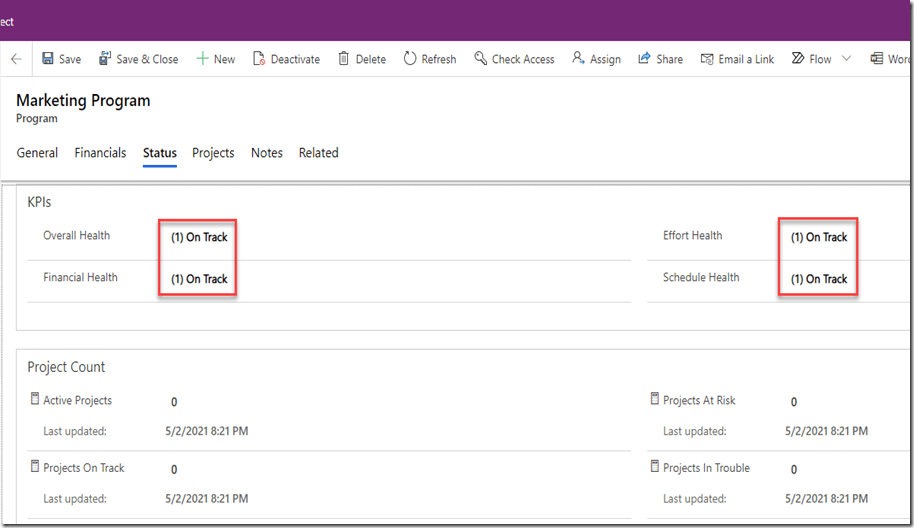
image

I can choose KPIs for Overall Health, Financial Health, Effort Health, and Schedule Health, and choices are:

    • (1) On Track
    • (2) At Risk
    • (3) Off Track

Active Projects, Projects At Risk, Projects On Track and Project in Trouble are zero, again because there is there is no single Project assigned to the Program yet, and all Last updated fields are the same, and it is 5/2/2021 which is the date when I last saved the Program (for now).

Let me jump to the Projects Tab:
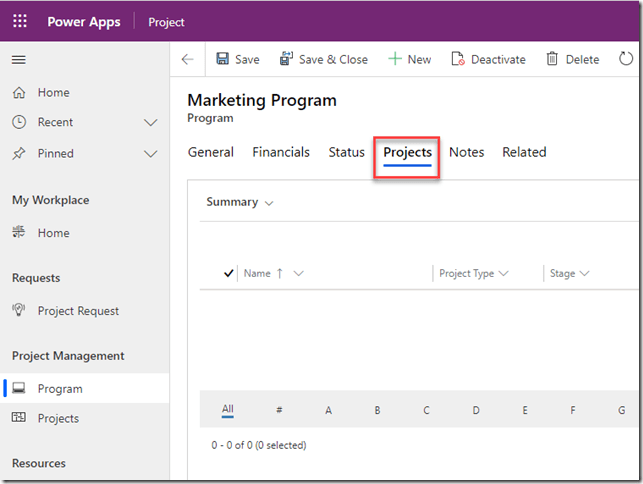
image

As you can see, nothin is displayed here, again because there is there is no single Project assigned to the Program yet. Be aware that I can have a lot of Projects opened / Created, but I can not add them to the specific Program here. Where can I assign them? Well, that is what I am going to show you in my next Blog Post

Finally, the Notes Tab:
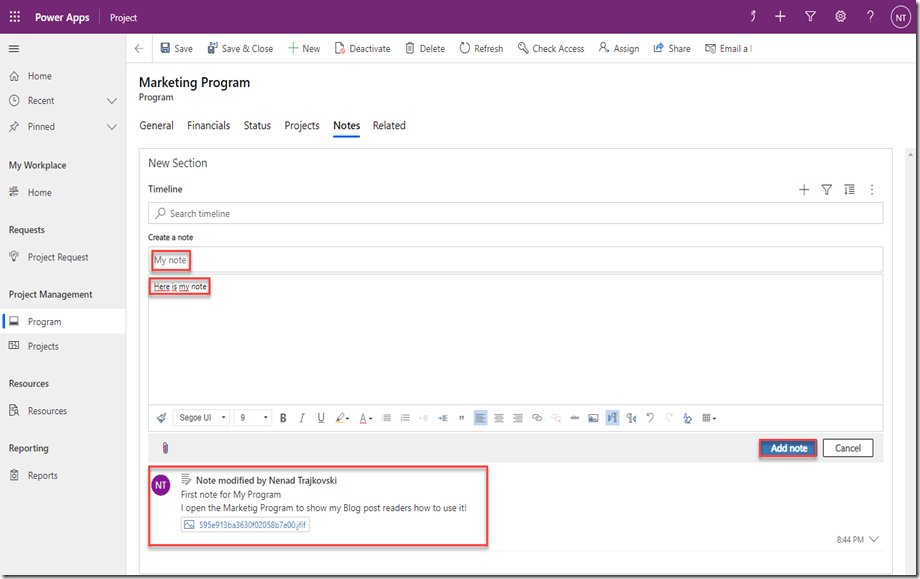
image

When I create a note, I can put the Title (in my example: My note), a note itself (in my example: Here is my note) and if I click on Add note it will be saved. After it is saved you will see it is shown on the screen below:
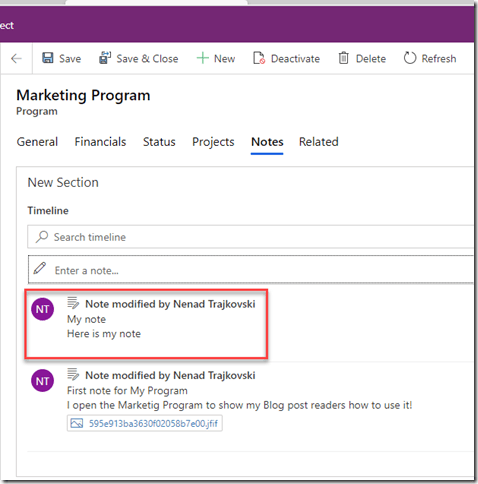
image 

I can also attach a file with my note, ad you can see in my example above.

OK, I created a Program. Now what? Well, wait for my next Blog Post to find out!

Regards!

Posted in Microsoft Project for the Web, PMI, Project for the Web, Project for Web, PRoject Management | Tagged , | Leave a comment

Project Request with Project Accelerator and Microsoft Project for the Web

Hello,

as we all know, in real life we have always many Project Requests, but not all of them are approved (e.g. we are not going to execute each and every of them). The very first step in Project Management is – Project Request. We can do it with Project Accelerator in PowerApps.

image

and:

image

I will enter my Project Request:

image

First of all, I gave a Name for Requested Project. Then, I choose New as a Requested State, and I put Ellen as Requestor for this Project. I put some details, and if I wanted I can put a Business Case.

On the second half of this screen I have:

  • Strategic Alignments – Options are: Extreme, Strong, Moderate, Low, None, and No Rating
  • Lower Cost – Options are: Extreme, Strong, Moderate, Low, None, and No Rating
  • Improve Employee Retention – Options are: Extreme, Strong, Moderate, Low, None, and No Rating
  • Risk – Options are: Extreme, Strong, Moderate, Low, None, and No Rating
  • Budget
  • Benefit
  • Funding Available – Options are: Yes and No
  • Funding Source – Options are: Internal and External

image

I’m done, and I’m going to save this:

image

and I will get:

image

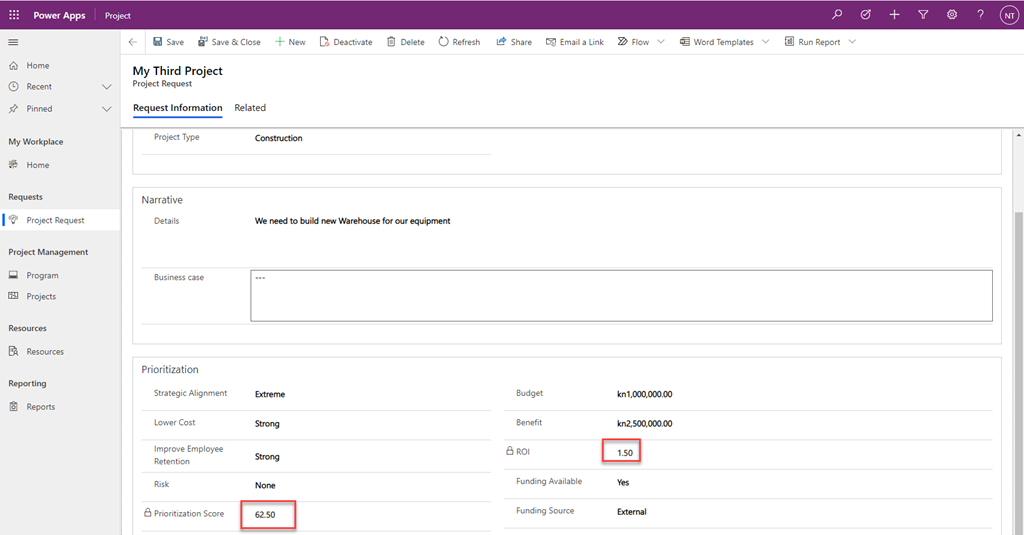
As you can see Prioritization Score, and ROI are calculated fields, so they are visible after saving.

But how did I get Prioritization Score = 62.50? Well, according to Formula:

  • No Rating = 0
  • None = 0
  • Moderate = 50
  • Strong = 75
  • Extreme = 100

Now I have:

  • Strategic Alignment = Extreme = 100
  • Lower Cost = Strong = 75
  • Improve Employee Retention = Strong = 75
  • Risk = None = 0

Prioritization Score = (Strategic Alignment * 0,25) + (Lower Cost * 0,25) + (Improve Employee Retention * 0,25) + (Risk * 0,25) = (100 * 0,25) + (75 * 0,25) + (75 * 0,25) + (0 * 0,25) = 25+ 18,75 + 18,75 + 0 = 62,5

ROI is calculated according to formula: (Benefit – Budget) / Budget = (2.500.000,00 – 1.000.000,00)  / 1.000.000,00  = 1.5

And here it is:

image

Now I will open Microsoft Project for the Web:

image

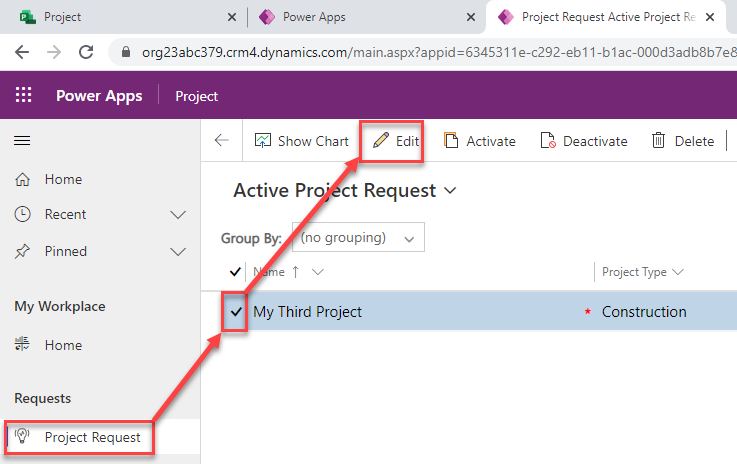
As you can see My Third Project is note here. and that is perfectly normal because it is not Approved yet. It can be also seen in PowerApps:

image

OK! Let’s say that someone decided that this Project is good one, and it should be approved! To do that I follow next steps:

image

and:

image

and here it is:

image

and it is also in Microsoft Project for the Web:

image

Now I can start with building my Schedule, assigning Resources etc.

Be aware that Requested Project is not gone form Project Request Screen in Project Accelerator, after it was approved. So when you will have lot of Project you can distinguish them by filtering:

image

So here I can choose which Project Requests do I want to see.

Final word. This is GREAT! Without Project Request we were able to create Project after it was approved, or if we did it before it was approved, and it was not approved we had to delete it, which was a bad practice.

Posted in MICROSOFT PROJECT, Microsoft Project for the Web, PMI, Project for the Web, Project for Web, PRoject Management | Tagged | Leave a comment

Project Accelerator and Microsoft Project for the Web

Hi,

If you jump at the: GitHub – OfficeDev/Project-Accelerator: An Accelerator solution for Project for the web, you will find detailed instructions for the Project for the Web Accelerator. What is this?

The Project for the web Accelerator applies useful customizations to the Project for the web Power App. The Accelerator can easily be deployed to any environment that has Project for the web already in it. Scenarios included in the Accelerator are…

Project Requests. Create a list of ideas for Projects that include a business case and expected impact. Pro-tip: Create an Approvals flow using Power Automate to convert Project Requests into Projects.

Programs. Create a hierarchy of programs and projects see how work fits into the bigger picture.

Risks and Issues. Manage the surprises that accompany every project. Create and assign risks and issues to minimize impacts to a project’s schedule.

Changes. Use change tracking processes to help understand the history of a project.

Status. Centralize recording of project status to keep stakeholders up-to-date.

This is copied from the link mentioned above.

Let me show you how does it look. First I will create a simple Project using Microsoft Project for the web:

image

If you are familiar with Microsoft Project for the Web app, you already know that it is powerful but yet, a lot of things for proper Project Management is missing. On the other hand if you are using Project Accelerator, you will see that there is much more data needed.

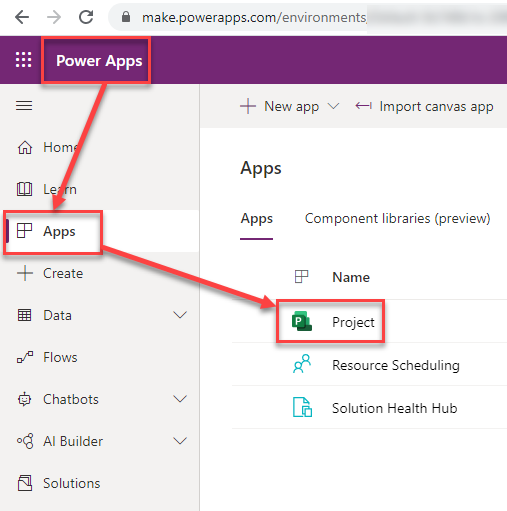
Project Accelerator can be found in PowerApps:

image

and:

image

As you can see there is a lot of stuff here.

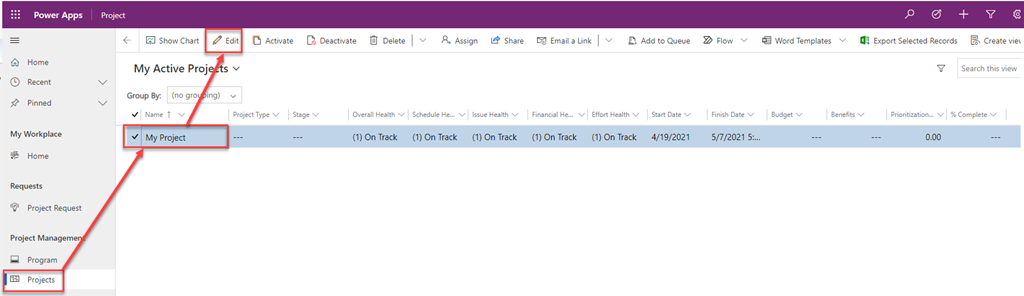
Where is my Project?

image

If I want to edit it, I will get:

image

Wow! That is something! I can do a lot of things. I will show you what and how in my next Posts, so stay tuned!

Regards!

Posted in MICROSOFT PROJECT, Microsoft Project for the Web, Project for the Web, Project for Web, PRoject Management | Tagged | Leave a comment

Notifications with Microsoft Project for the Web

Hi,

new Feature in Microsoft Project for the Web is here – notifications.

Let me show you how it works. First of all I will login to a Project:

image

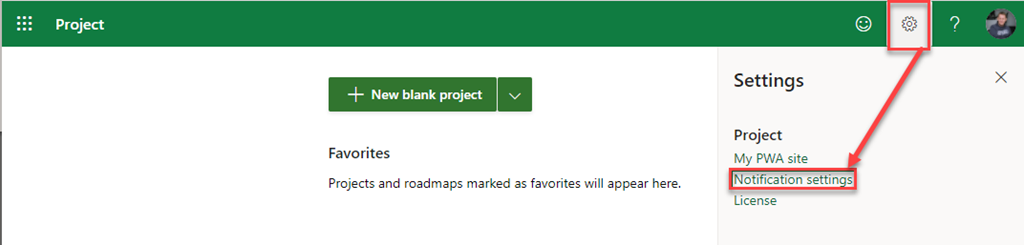
I will set up my preferred settings:

image

So, I will get an email whenever a Task is Assigned to me!

Now I will login as Ellen, I will create a new Project, and assign Task to me:

image

I will jump to my mailbox:

image

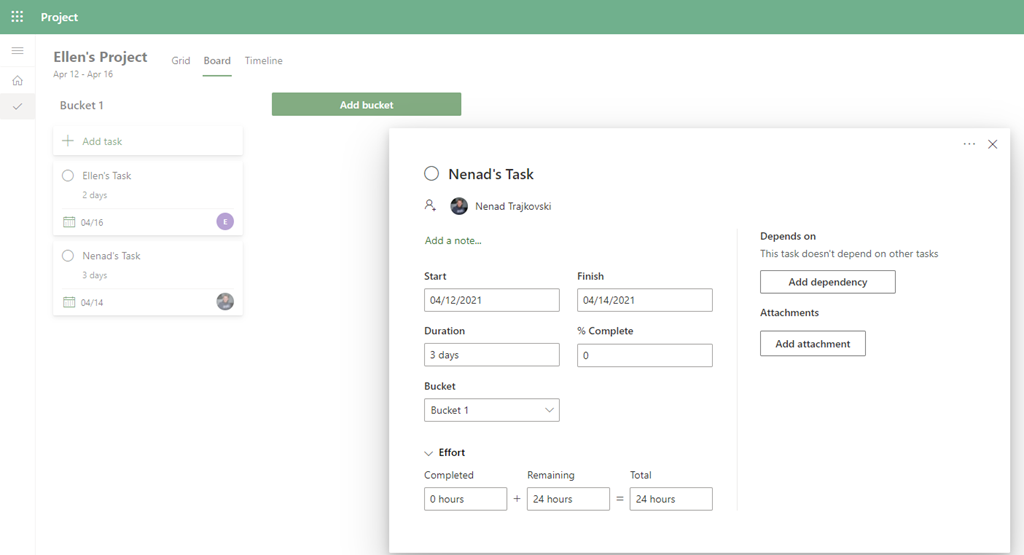
Now, when I click to Nenad’s Task, I will get:

image

Here I can edit Task which is assigned to me (whatever I need).

In my email if I click on Open Project or Ellen’s Project (the Project name) I will get:

image

And that’s it! from my point of view this is great feature, because I do not have to worry if and when someone assign any Task to me, and I don’t have to check on Project frequently, because I will get a mail!

Regards!
Posted in Microsoft Project for the Web, Project for the Web, Project for Web, PRoject Management | Tagged | Leave a comment

Assigning Tasks through buckets in Microsoft Project for the Web

Hi,

today I will show you how to see Task assignments, and how to Assign Tasks automatically using Buckets in Microsoft Project for the Web.

Fist of all I will create a new Project, and some Tasks with some assignments:

image

I will switch to Buckets, following next steps:

image

and I will get:

image

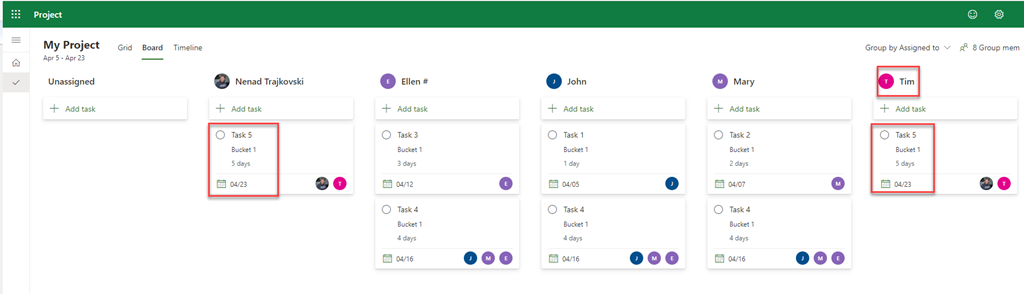
As you can see, here I can see Tasks grouped by assignees. Notice, for example, Task 4. Since Ellen, John, and Mary are assigned to that Task it is show under each of those Resources. So, this does not mean that I have three Tasks with name: Task 4, but it means that it is one Tasks assigned to multiple Resources.

Let’s say that I want to assign Task 5 to myself. The easiest way is to drag and drop this Tasks to the Column with my name, and I will get:

image

But what if I want to assign this Task to Jim, as well? Then I will click on that Task and I will follow next steps:

image

and I will get:

image

As you see Tim’s Column is added and Task 5 is placed in this Column as well.

This is a great thing in Microsoft Project for the Web, because you can see who will work on which Tasks, and also it it easy to assign or reassign Tasks directly to the right person.

Regards!

Posted in Microsoft Project for the Web, Project for the Web, Project for Web, PRoject Management | Tagged | Leave a comment

Can we change a Group in Microsoft Project for the Web?

Hi,

today I will show you how to handle the situation in which you assign wrong Group to the Project, using Microsoft Project for the Web!

First, I will create a simple Project:

image

As you know, resources can be assigned Via Groups, so I will now choose a Group:

image

OK, now I can assign anyone from this Group to any Task:

image

Now, let’s say that you choose wrong Group, and you want to change it for the right one! How can you do it? Well, you can’t!

So what are the options? Of course you do not want to recreate the same Project from the Scratch! What you can do is to copy Project:

image

After this action, you will have a Copy of your Project but without any Group, so you can choose the right one!

Regards!

Posted in Microsoft Project for the Web, PMI, Project for the Web, Project for Web, PRoject Management | Tagged | Leave a comment

What is not copied when you Copy Project in Project for the Web?

Hi,

today I will show you what is happening when you copy a Project in Microsoft Project for the Web!

Let’s say that I have Project like this:

image¸

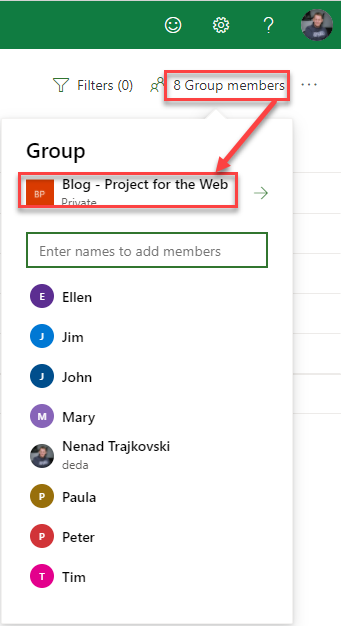
For this particular Project, I am using following Group:

image

I also have attachment in Task 2:

image

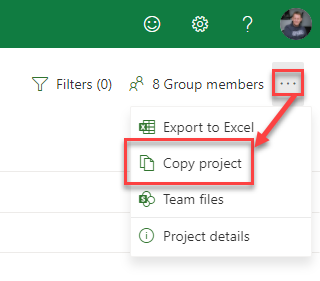
Now, I will going to copy this Project:

image

and I will get:

image

Notice that % Completeness are not copied (e.g. all Tasks are in not started state). As you can see there are no assignees to Tasks. Why? Because there is no group Associated with this copied Project. So, Group is not inherited form the old Project. And last, but not least:

image

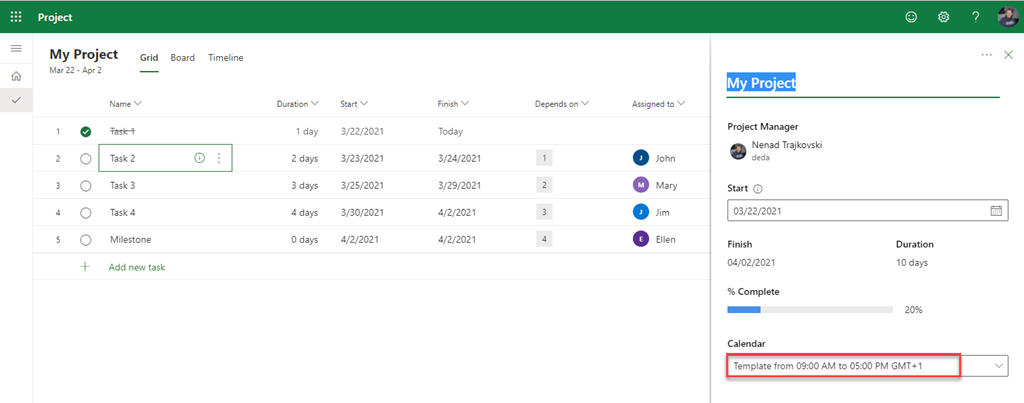
Calendar template is not copied, as well.

To conclude, when you copy a Project follow next steps:

  1. Rename a Project
  2. Assign Calendar Template
  3. Associate the Group for the Project

Regards!

Posted in Microsoft Project for the Web, Project for the Web, Project for Web, PRoject Management | Tagged | Leave a comment

Export Timeline to PDF in Microsoft Project for the Web

Hello,

as you know, Microsoft Project for the Web can be exported to Microsoft Excel (see my Blog Post: (How to export Project for the Web to Excel | Nenad Trajkovski (ntrajkovski.com).

Here is the new option: Export timeline to PDF. It is very easy. First, I will create new Project:

image

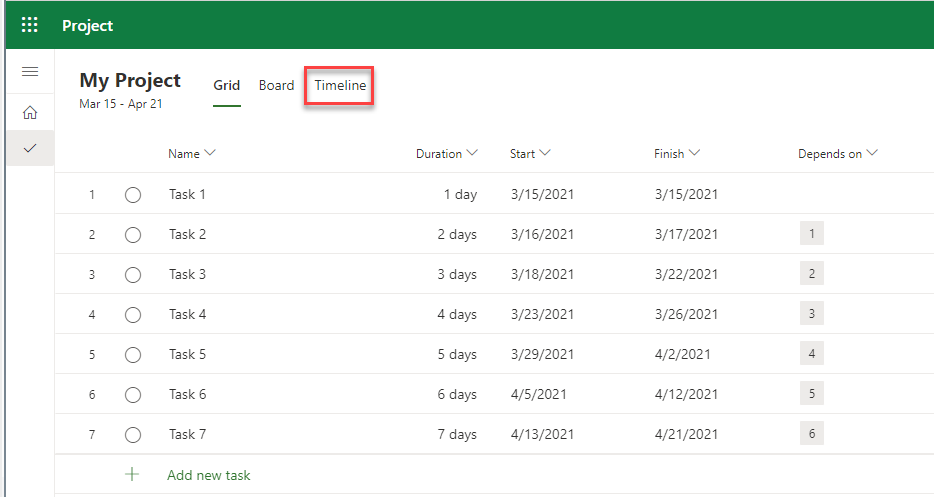
I will choose the Timeline option, and I will get:

image

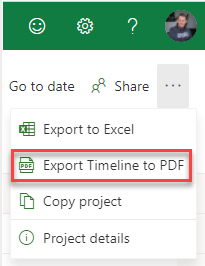
After I click on tree dots, I will get:

image

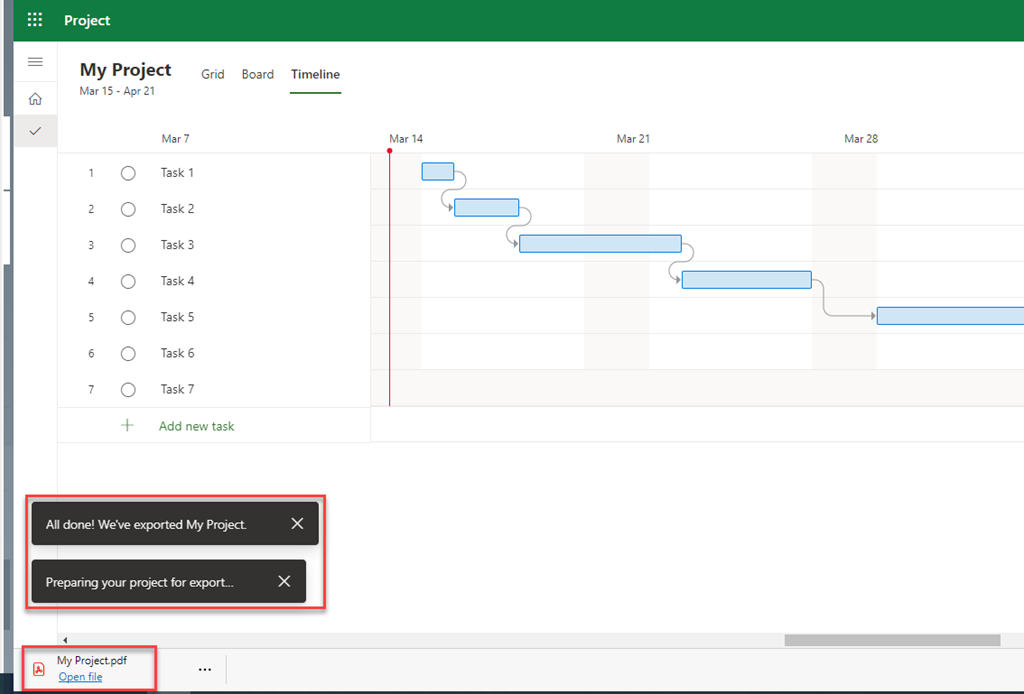
and, finally, I will get:

image

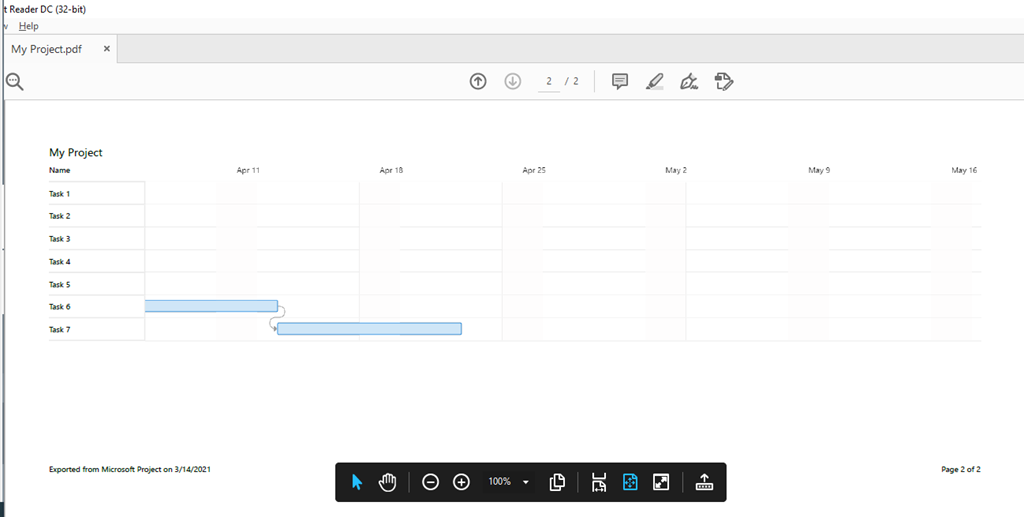
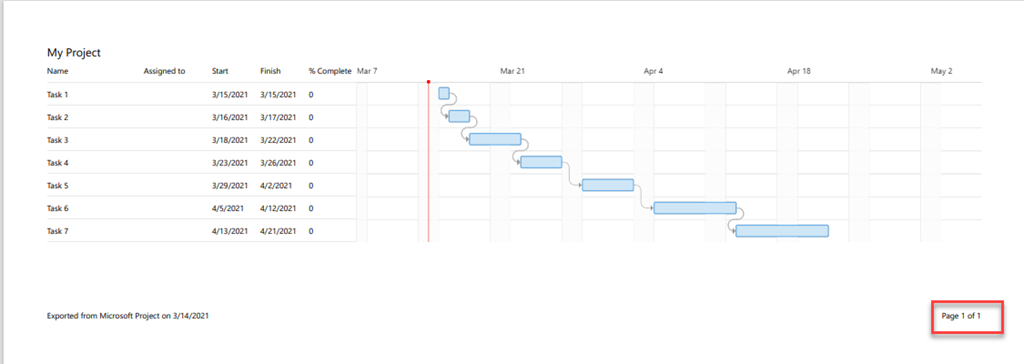
Now, I will open PDF file, and I see, that I have two pages:

image

and:

image

As you can see, on the first page I have Name, Assigned To, Start, Finish % Complete fields, but on the second page I have only Name field and the rest of the Gantt Chart shown. It can be annoying. If I want to see whole Project in one page I should use Zoom:

image

and now, after I export the Project Timeline to the PDF, I will get:

image

Great feature from my point of view.

Regards!

Posted in Microsoft Project for the Web, PMI, Project for the Web, Project for Web, PRoject Management | Tagged | Leave a comment

Projects related to Calendar templates–Project for the Web

Hello,

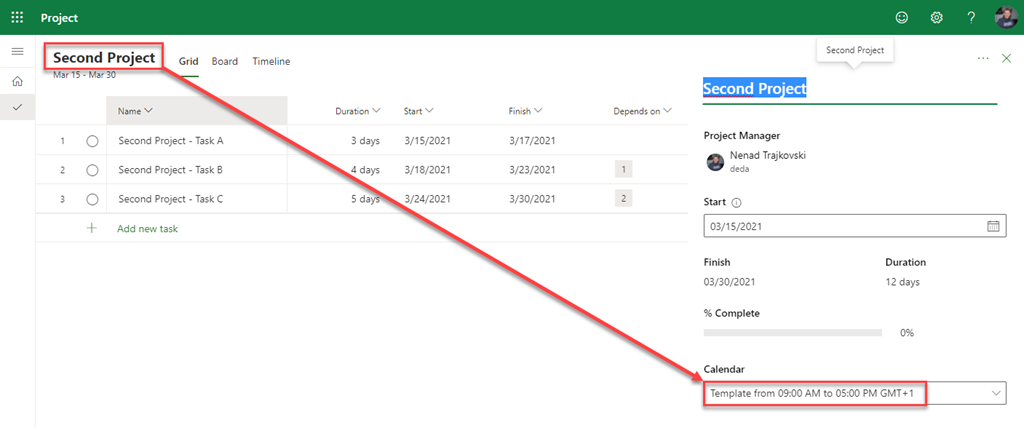
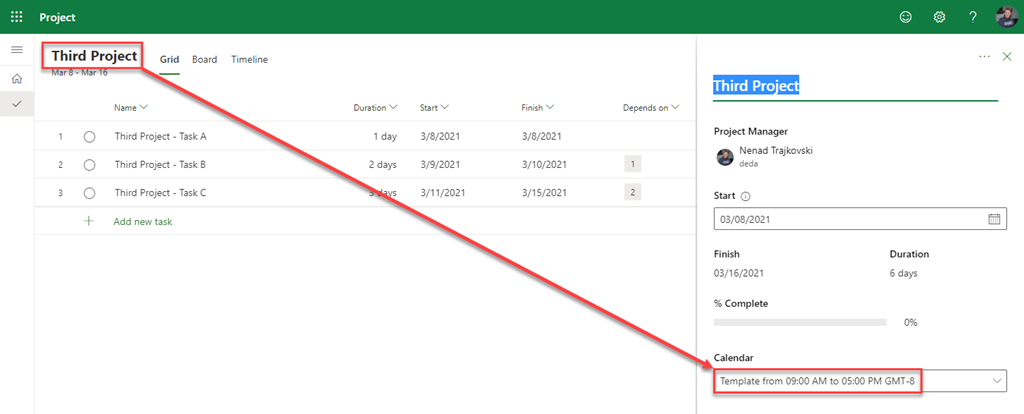
Let’s suppose that I have Projects related to two Calendar Templates:

  • Template from 09:00 AM to 05:00 PM GMT+1
  • Template from 09:00 AM to 05:00 PM GMT-8

I have two Projects related to Template from 09:00 AM to 05:00 PM GMT+1:

image

and:

image

I have another two Project related to Template from 09:00 AM to 05:00 PM GMT-8:

image

and:

image

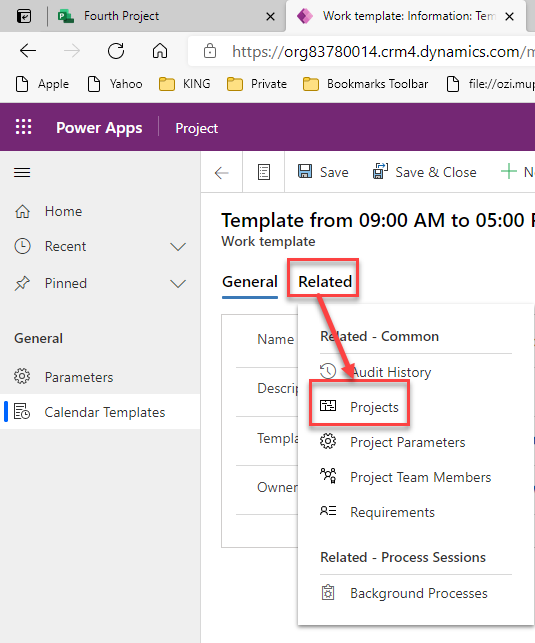
OK. I want to know which Projects are related to each Template. To do that I should follow next steps:

image

and:

image

Now, I will choose:

image

and then:

image

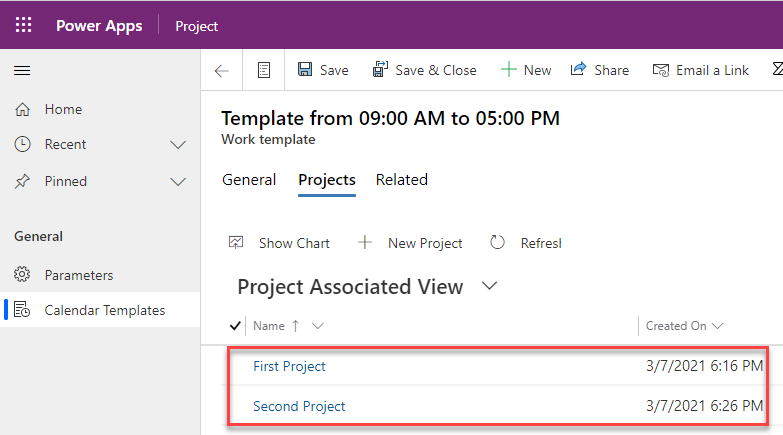
Finally, I will get:

image

So here are all Project related to specific Template, which I choose.

If I choose Template from 09:00 AM to 05:00 PM GMT-8, I will get:

image

To conclude, when I have Projects in different Time zones, this is the way to see all Projects which belongs to specific Time zone.

Hope this helps.

Best Regards!
Posted in Microsoft Project for the Web, Project for the Web | Tagged | Leave a comment