Tracking in MS PROJECT SERVER 2010–Defining Fiscal Periods


Hi,

Every Project has to be tracked. In Microsoft Project Server 2010 you can choose between two approaches:

  • Effort-based: You are collecting time spending on Tasks, or during some period of time
  • Duration-based: You are collecting percent of complete

Since MS Project Server 2010 can be connected with ERP like Microsoft Dynamics NAV,  you can define Fiscal periods. You can use Fiscal Periods for calculate some financial statements, or for any other purpose.  To be honest, I am not using this feature

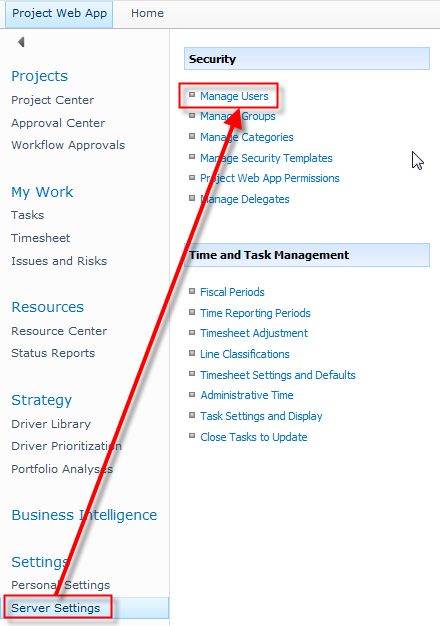
To define Fiscal Periods Log on as an Administrator and then:

image

and then:

image

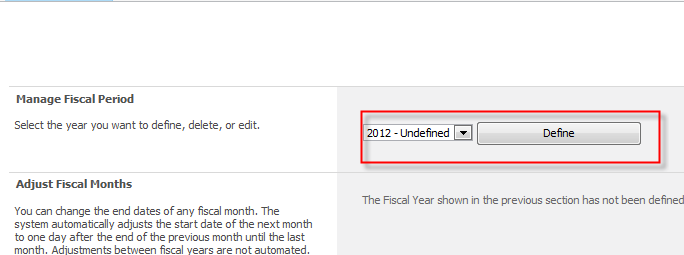
You should choose a Fiscal year first! When you hit the Define button, you will get:

image

  • Define Fiscal Period Start Date: Put the start date of your fiscal year (1/1/2012, or 7/1/2012)
  • Set Fiscal Year Creation Model:
    • 4,5,4 Method: Fiscal quarter starts with 4-week fiscal period, then 5-week fiscal period, than 5-week fiscal period
    • 4,5,4 Method: Fiscal quarter starts with 4-week fiscal period, then 3-week fiscal period, than 5-week fiscal period
    • 5,4,4 Method: Fiscal quarter starts with 5-week fiscal period, then 4-week fiscal period, than 4-week fiscal period
    • 13 Months  Method: Each fiscal period has a four weeks, and since there are 52 weeks in a year, 52/4 = 13
    • Standard calendar year: Each period is set according standard calendar!
    • Prefix: Name Prefix for each period
    • Next Sequence Number: This is an increment!
    • Suffix: Name Suffix for each period

When I hit Create and Save button, I will get:

image

I have 12 Fiscal Periods, one for each month!

In my next Post I will write about Time Reporting Periods!

Regards!

Posted in Uncategorized | Tagged , , , , | 1 Comment

How to manage Delegates in Microsoft Project Server 2010?


Hi,

Suppose, just for example, that I am Microsoft Project Server 2010 Administrator, and that I will be on my holidays next two months! I want to make another user as a Administrator while I’m on my vacation. I can give him/her Administrators permission, or I can give him/her “delegation”, so him/her can act like me!

Be careful! If a user is a team member (with team member permission), when I put him as a delegate, he will have all my permissions (he is actually me)!

First of all I will globally enable user delegation feature!

image

and then:

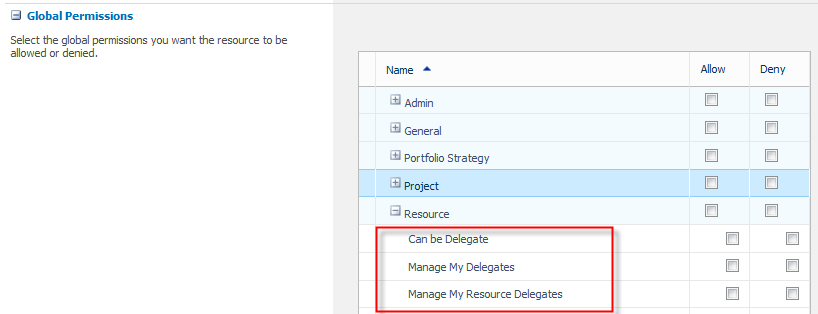
image

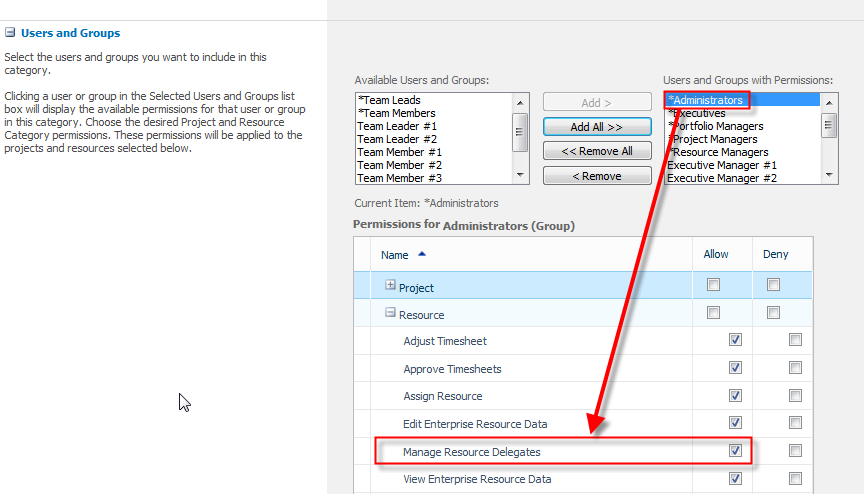
  • Manage Resource Delegates: with this permission you are turning on Delegation feature in PWA
  • Manage My Resource Delegates: with this permission user can set up delegations for other users
  • Manage My Delegates: with this permission user can create delegation for himself
  • Can Be a Delegate:with this permission user can be a delegate for other user, after his delegation is created

OK! That were the Global Permission! But which users can be delegates? There are two ways to set this permissions. If you want give those permissions to the specific user than you should do this:

image

and then:

image

and finally you can give those permissions in a Global Permissions section for that user:

image

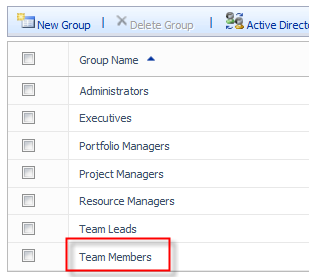
If you want to give those Permissions to the specific Group like, for example, Team Members, you can do that like this:

image

and then:

image

and finally:

image

Is that all? No it is not! Now you should select a Category for users or groups who can have delegates (they will do work on their behalf)!

image

and then:

image

and finally:

image

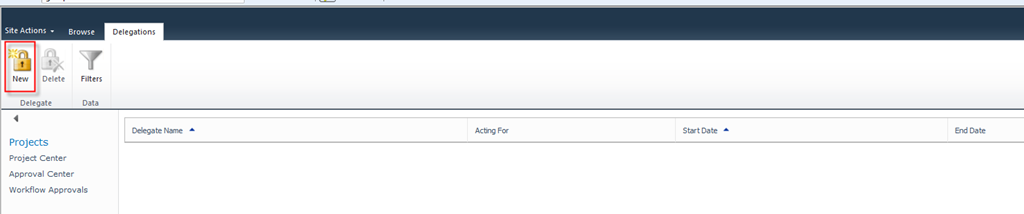
Now we are ready to create a new delegation!

image

and then:

image

and finally:

image

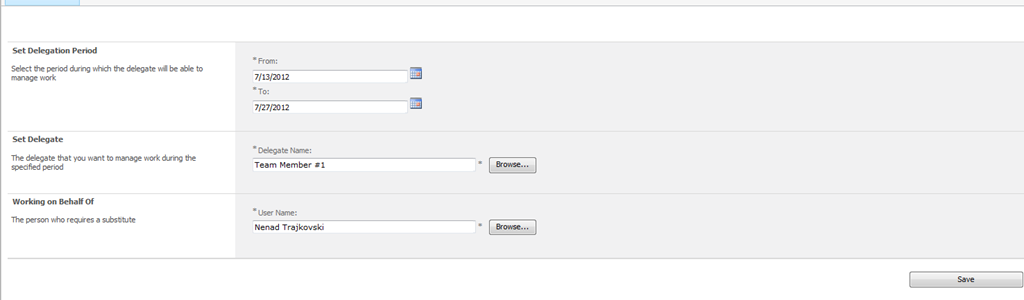
  • From: Start date. User can be delegate from that date
  • To: End date. User can be delegate until  that date
  • Set Delegate: Who will be a delegate
  • Working on Behalf of: Person who requires substitute

Now I can go to my vacation, and a user (name: Team member1) can do my work.

When I log on on the system it looks like:

image

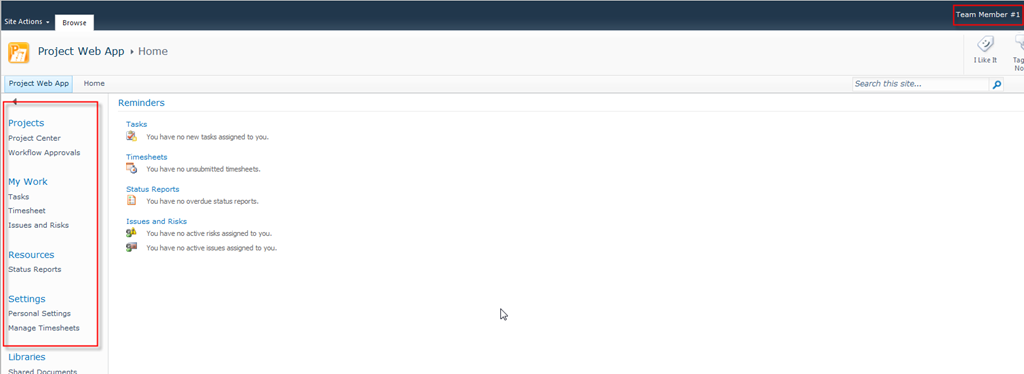
Now I will log on as a Team Member1, and the system looks like:

image

Since this user is Team member he/she doesn’t have, for example, Server Settings permissions! But in next two weeks he will be me (administrator). How?

image

and then:

image

and I will get:

image

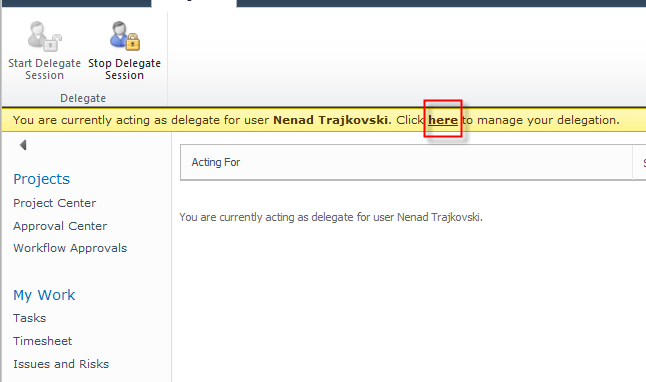
As you can see Team Member1 is acting like me know and he has ALL PERMISSIONS as I have. He is now, in fact, me!

Notice yellow band in the upper part of the screen. It warns you that Team Member is acting like a delegate!

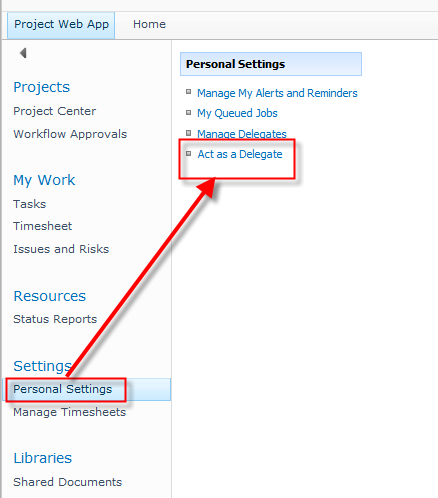
When Team Member1want to be himself again he should do:

image

and then:

image

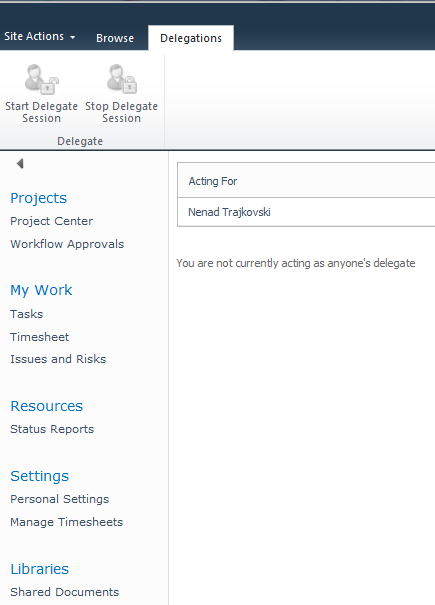
and he will get “his” screen again:

image

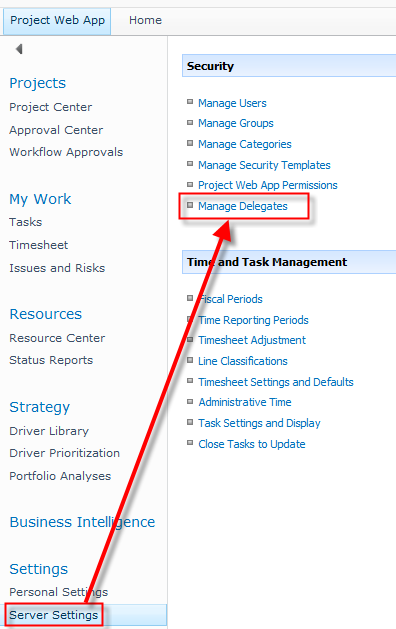
Finally, I will erase Team Member1 as a delegate! I will log on again and then:

image

and then:

image

That is it!

Regards!

Posted in Uncategorized | Tagged , , , , | 2 Comments

Managing User Accounts in MS PROJECT SERVER 2010


Hi,

In this Post I will show you how to create Users in MS PROJECT SERVER 2010, using PWA!

First I want to show you the difference between Users and Resources. When you create Resource in MS PROJECT PROFESSIONAL 2010, PROJECT SERVER 2010 creates User for that Resource. Resource is someone you need to do actual work on your Project (Projects). User can be someone who will use PROJECT SERVER 2010, but who will not work on tasks on projects. For example, you can have Administrator who will administrate your PROJECT SERVER 2010, but who will do no work on any Task on any Project.

How to create users in PWA?

Depends of your permission (Administrator!) you can get Manage Users:

image

and then:

image

and I will get:

image

I will choose myself, and I will double click on my name, so I will get:

image

This is first part of the screen:

This is the firs part of the screen.

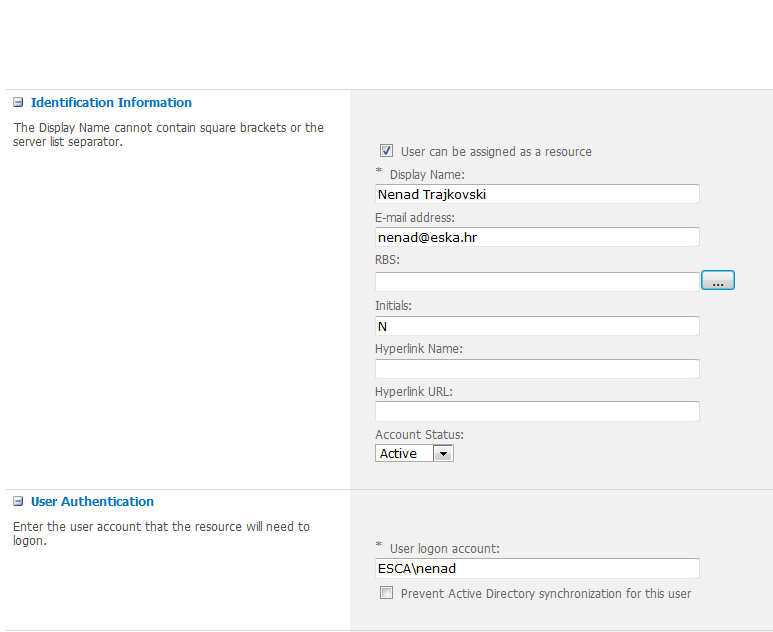
  • User can be assigned as a resource : If you choose that, you will be able to assign tasks to that users. If you don’t choose that you will not see that user as a resource, and you will not be able to assign tasks to that user! NOTICE that when you check this option and save this user, it becomes a Enterprise user for EVER, even if you choose to deselect this option later!
  • Display name: This is User Name
  • E-mail address: This is user e-mail address, and it must be entered because it serves for synchronizing with Exchange Server
  • RBS: Here you can pick up from RBS Lookup Table user’s position in it, or you can leave it blank (if this field is not mandatory)
  • Initials: This is obvious
  • Hyperlink Name: This is name of user’s web site (if one exists), for example, I could put here MS PROJECT BLOG
  • Hyperlink URL: For example, https://ntrajkovski.wordpress.com
  • Account status: Can be Active or Inactive. If it is Inactive user will not be able to logon on the PWA
  • User Authentication: Here you will put user’s logon account, and do you want that this user will be synchronizes with Active Directory

image

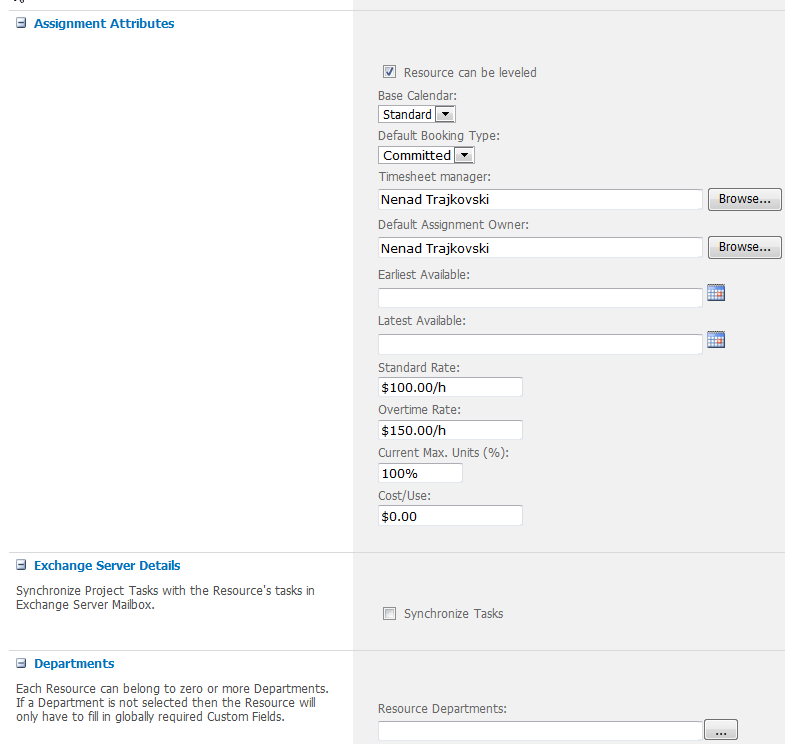
  • Resource can be leveled:If you want that this user can be leveled (e.g. move him around the project and tasks depending of his/her availability, then select this check box
  • Base Calendar: Default is Standard Calendar, but if you have special calendar for user (or group of users), than you can select this specific calendar here
  • Booking Type: It can Committed or Proposed. Committed means – I have this Resource on my project, Proposed means – I want this Resource on my project
  • Earliest available: If the resource is not available to work all of the time, then you put here which is Earliest available date when you can count on it
  • Latest available: If the resource is not available to work all of the time, then you put here which is Latest available date when you can count on it
  • Standard rate: Resource’s standard pay rate
  • Overtime rate: Resource’s overtime pay rate
  • Current Max. Units (%): If the resource is available for full time job, put 100%, and if it is available, for example only half-time, put 50% here
  • Cost/Use: This is also known as a setup fee. For example if you have a plumber, he will charge you $100/hour, but every time he will charge you for $30 for travel expenses (once per task)
  • Synchronize Tasks: Choose this if you want to enable task synchronization wit Microsoft Exchange for user (of course you should set up both Microsoft Exchange and Microsoft Project Server before that
  • Departments: Here you can choose if the Resource belong to any specific department. See my previous posts for Departments

image

  • Resource Custom Fields: Here you will see all Resource Custom Fields which are “connected” with this resource, depending on RBS, and you can choose value from lookup table (if exists) for that fields
  • Security Groups and Security Categories: You are assign each resource to one or more Security groups and Categories. What are they? I had explained that in my pervious posts very briefly

image

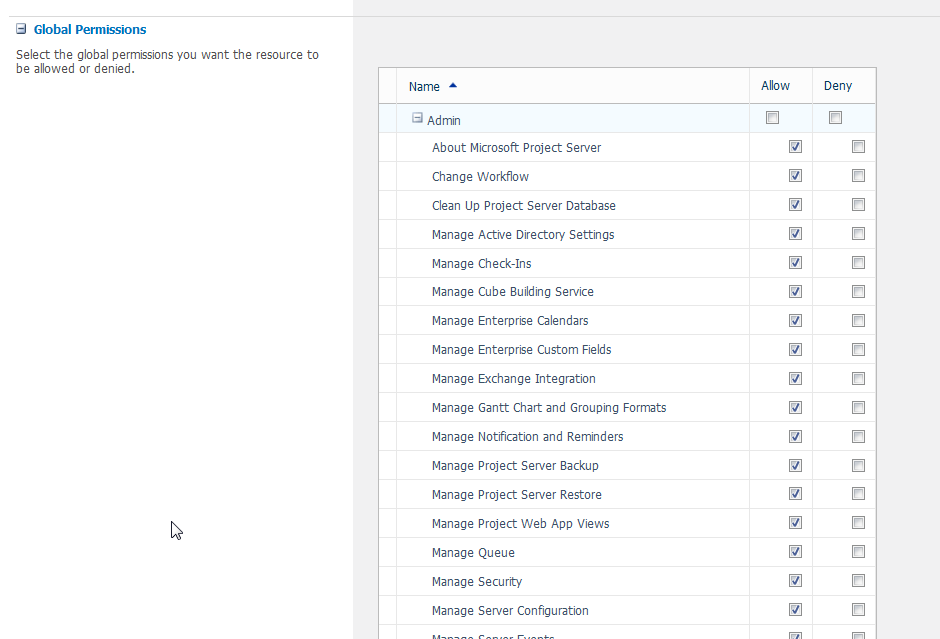
  • Global Permissions: As I said in my previous posts, DO NOT SET UP THOSE for each resource, but rather do that for groups and / or Categories, because you can be very confused later!

image

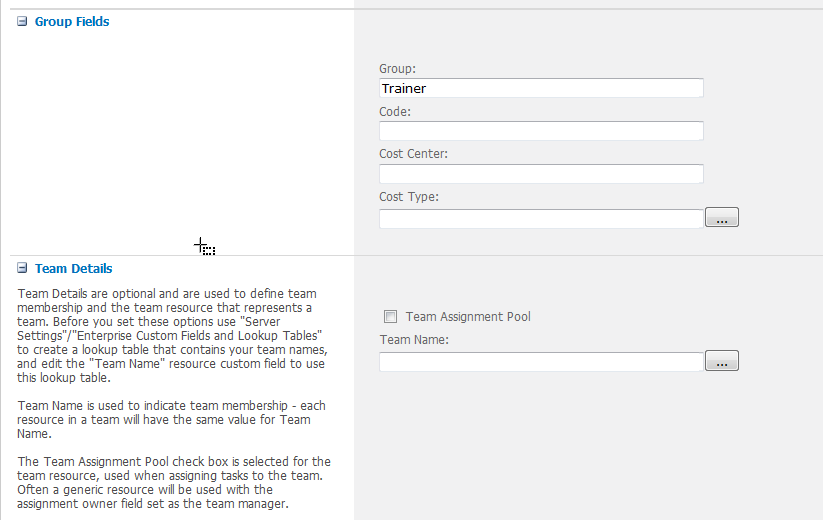
  • Group fields: put here some further information if you want to sort, filter etc. resources by Group, Code, Cost Center or Cost type (custom field)
  • Team: You can choose team to which user belong, so latter you can reassign task from one team member to another
  • Team Assignment Pool: For example, you could create a team resource named Painters to which you assign painting the wall tasks. By assigning this resource to the Painters team and selecting the Team Assignment Pool check box, you enable other users on the Painters team to see any tasks assigned to the Painters resource and to accept the assignments in PWA.

This post is almost identical with one where I have described how to manage Resources in PWA! Yes, I know, but there is a difference between user and resource, and that is the reason for this post!


Regards!
Posted in Uncategorized | Tagged , , , , | 2 Comments

Microsoft Project 2013 – ONLINE in Office 365! Part 2


Hi!

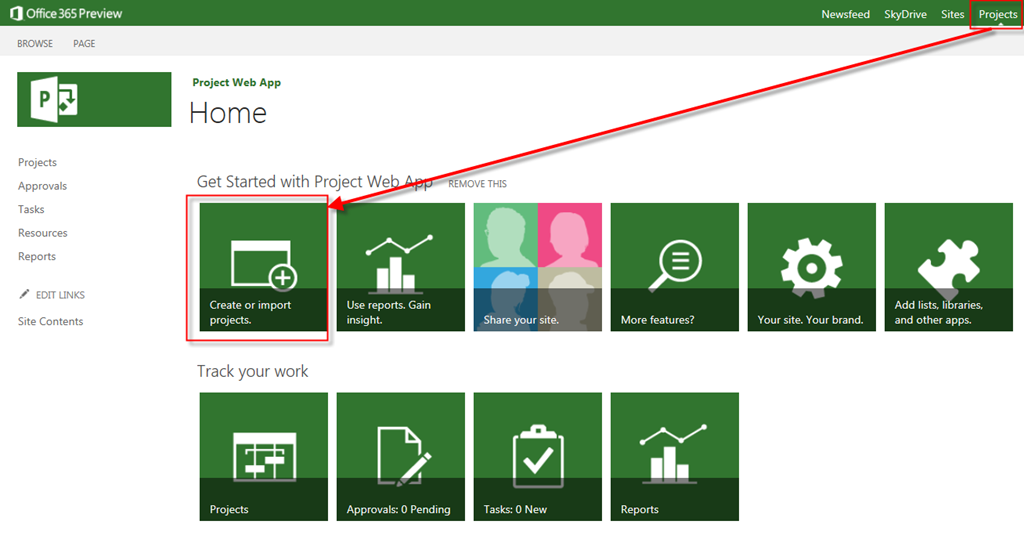
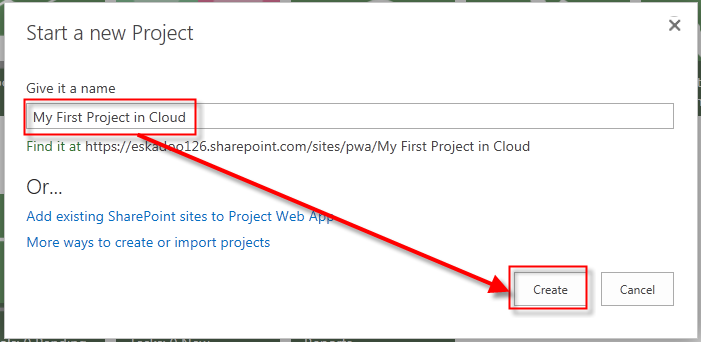
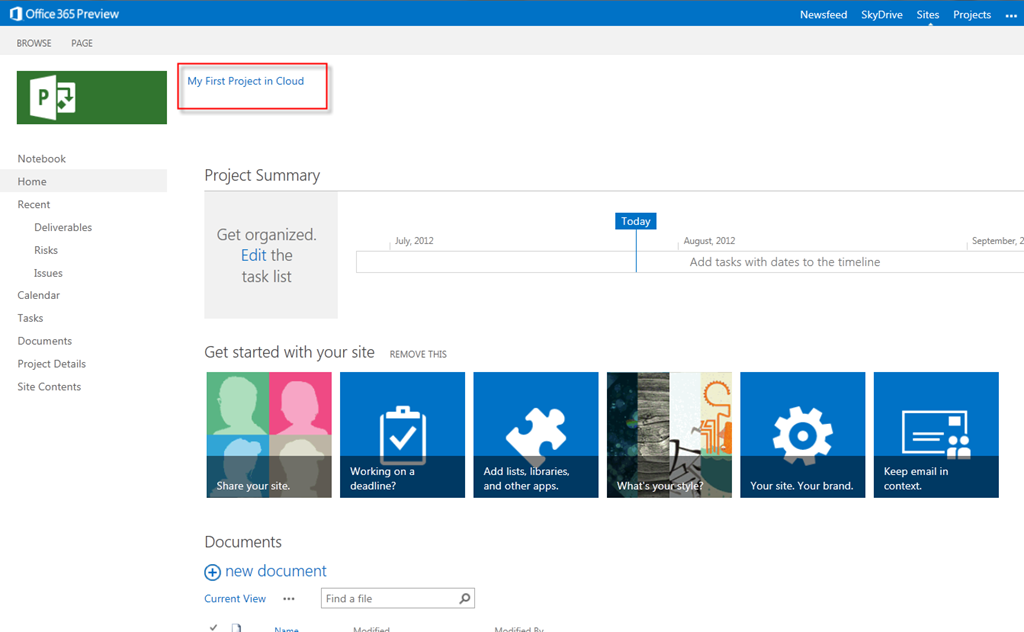
I will show you how to create new Project and save it to the Cloud via Office 365, and Microsoft Project 2013!

I will open my Office 365 Site:

image

and I will get:

image

and then I have to wait few moments:

image


Here it is!

image

Now what? I will add some Tasks!

image

I will get:

image

I am not going to explain each and every Field. This is only to see how you can do it!

After Saving I will get:

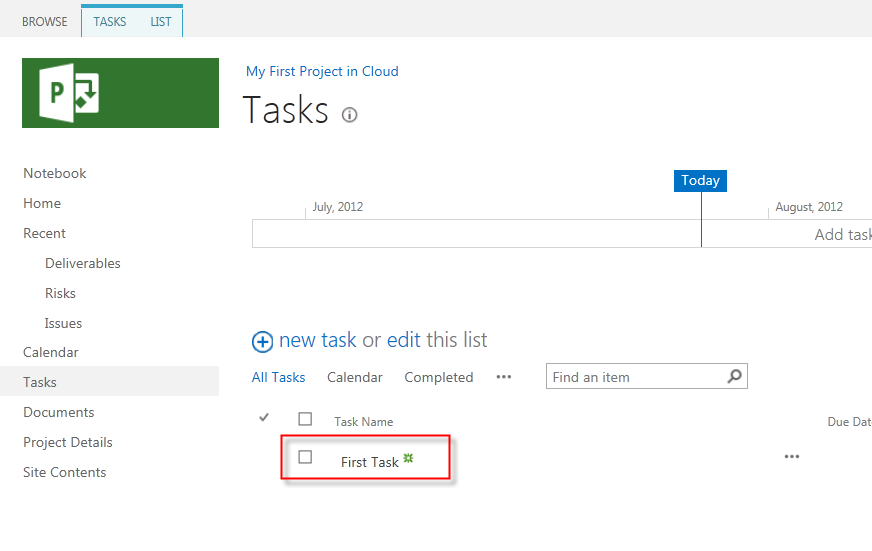
image

OK! How to open this Project in Project Professional 2013?

image

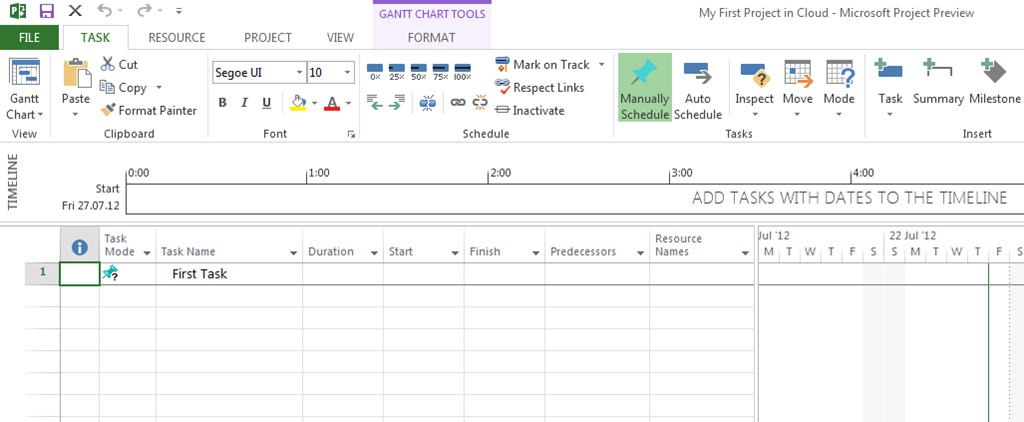
and I will get (after Login):

image

Now, I am going to “rearrange” my Project:

image

and I am going to save this Project:

image

Since I have deleted Firs Task I will get:

image

and I will get:

image

Piece of cake!


Regards!
Posted in MICROSOFT PROJECT, Microsoft Project 2013 - Preview | Tagged , , | 12 Comments

Microsoft Project 2013 – ONLINE in Office 365! Part 1


Hi!

Finally we have Microsoft Project in Office 365. In this post I will show you how is it looks like. I will not cover the installation procedure. For that, read the Microsoft Blogs, and find what you need Smile with tongue out

When I log in I get:

image

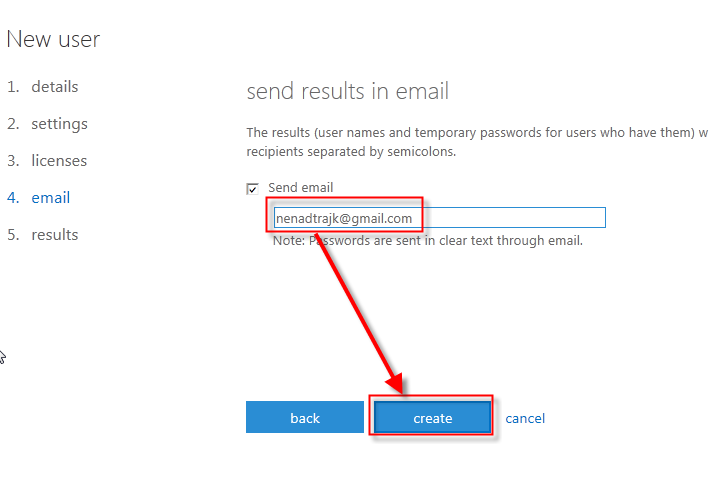
First I will add a brand new user, so he will be able to use Project in office 365!

image

and I will get:

image

next step is:

image

John is living in Croatia, and no, I do not want him to act like an Administrator!

Next step:

image

John is my friend, and I will give him all licenses Smile

Next Step:

image

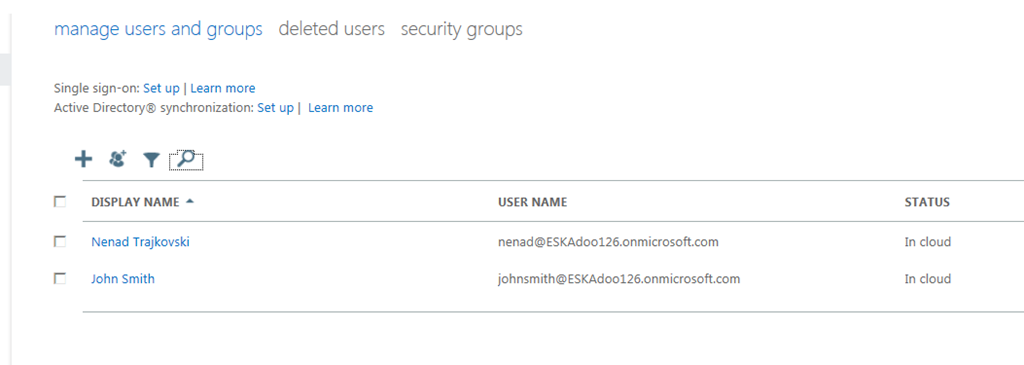
Finally, I will have my new User:

image

Now I am going to check my mail:

image

Johnsmith is created. You do not believe me, do you?

Let us see:

image


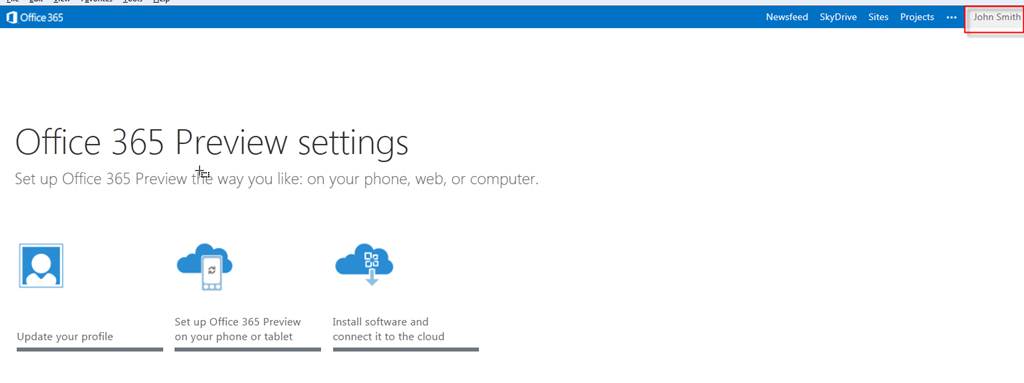
I will login as John Smith now:

image

Now you believe me!

I have log in, as myself again and I am going to show you Administrator page for Project:

image

I will get:

image

You can manage your sites from here.

But how to create new Project? Easy.

First you have to wait for my next Post, and then you have to read it!

Regards!
Posted in Microsoft Project 2013 - Preview, PMI, PRoject Management | Tagged , , | Leave a comment

Microsoft Project 2013-what is new? Part 5


Hi

I will show you one excellent Report in MS PROJECT 2013!

First I will recall Project from my Last Post:

image

I will show you cost Table:

image

Now, I will run new Report, Cost Overview:

image

and I will get:

image

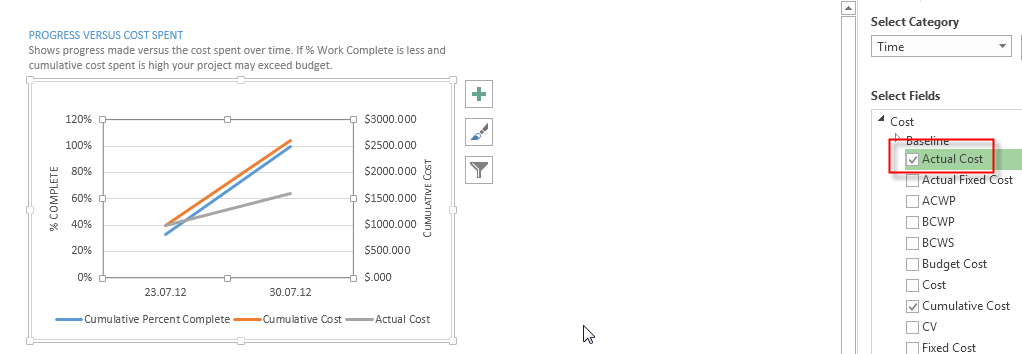
I will Select the Upper Right chart, Progress Versus Cost Spent, and I will do some modifications:

First I have added Actual Cost on the chart.

image

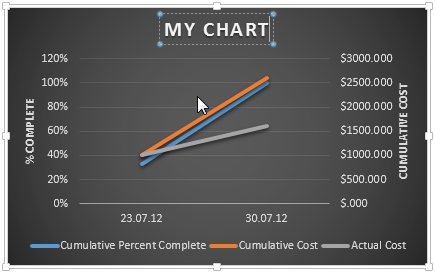
Now I am going to change the Style:

image

and I will get:

image

I will change the Title too:

image

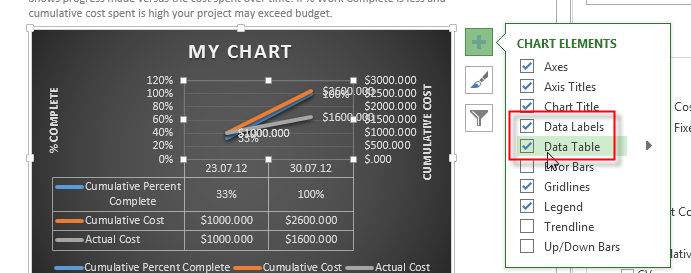
Finally I will add some more data:

image

and I will get:

image

It’s messy! I will spread this picture:

image

It is much better now, isn’t it!

Once again, great job Microsoft!

Regards!
Posted in Uncategorized | 1 Comment

Microsoft Project 2013–what is new? Part 4


Hi,

In Microsoft Project 2013 you can find a great set of new Reports. Because this is still Beta 1, we can expect more Reports in final version.

When I am talking about Reports, I mean that now, you create own own Reports, and you Modify existing Reports as well.

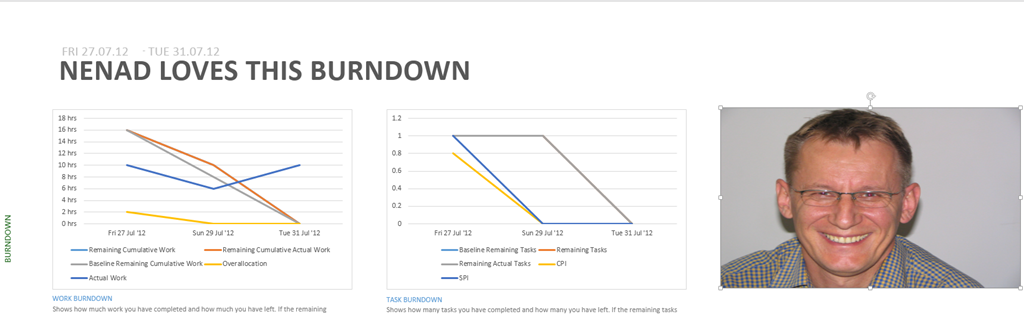
I will show you one new Report, called Burndown. It is very well known Report in agile (Scrum, for instance) methodology!

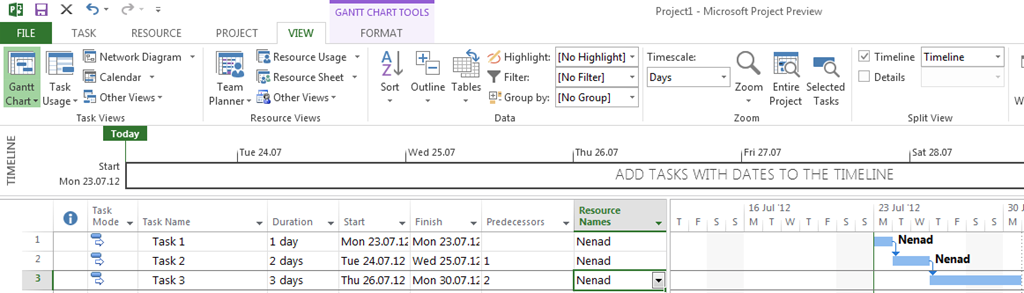
OK. I will create a simple Project first.

Step 1. – I will add two Tasks, and I will link them:

image

Step 2. – I am going to create Resource for my Project:

image

Step 3. – I am going to assign Resource to Tasks:

image

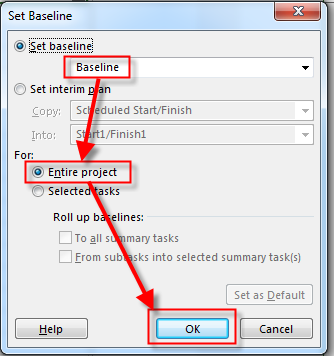
Step 4- I am going to save the Baseline:

image

and:

image

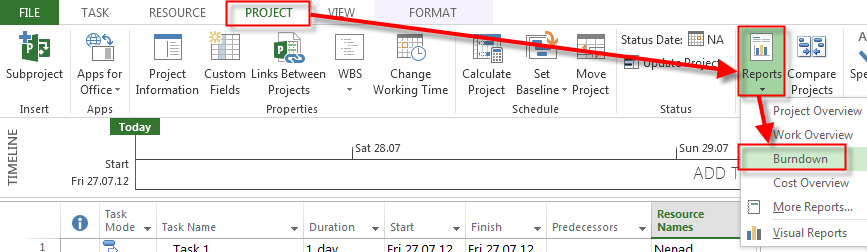
Now I will look at the Burndown Report:

image

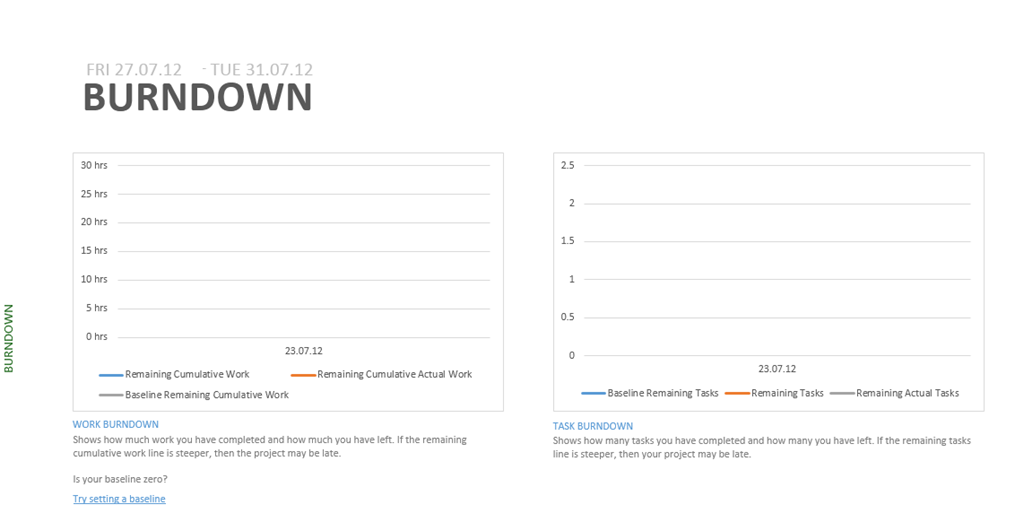
and I will get:

image

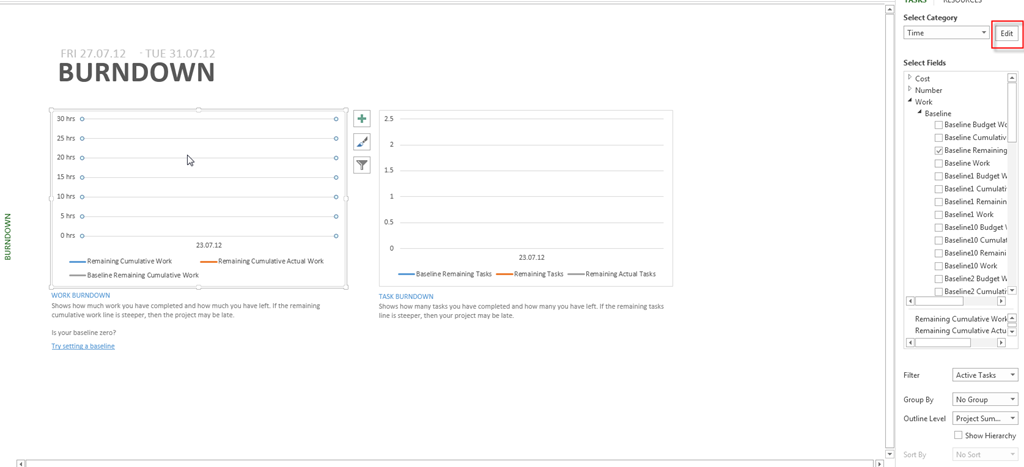
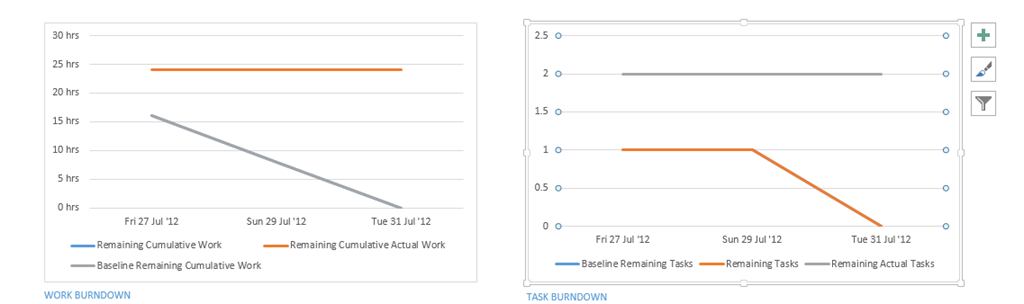
Nothing? This is a Bug? No it is not! I will click on left chart and I will get:

image

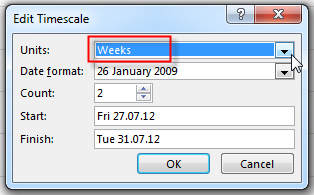
When I click on Edit button I will get:

image

I will change Units from Weeks to Days and I will get:

image

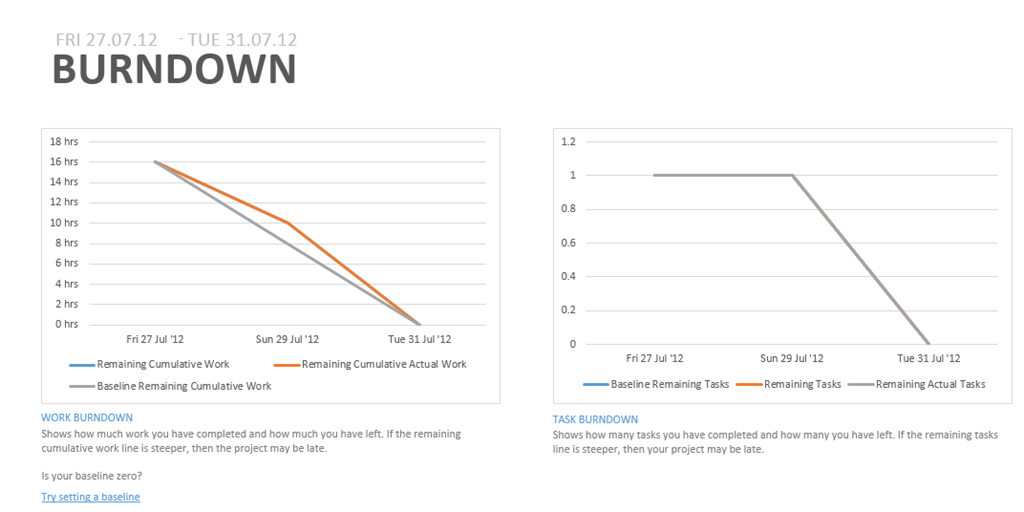
I did the same thing for the Right Chart. Notice that Left chart is about working hours, and right is about Number of Tasks!

Now I will use Task Usage View, and I will put some Actuals:

image

Now the Burndown Report looks like this:

image

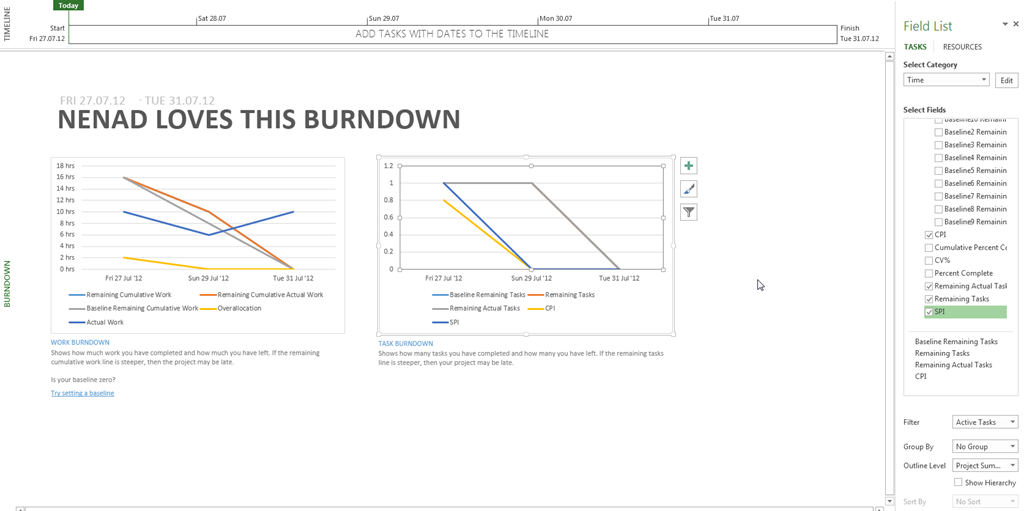
If I want to modify this Report I can select, for example, Right Chart and do some modifications:

image

I have renamed the Report, and I have added some fields.

And because I know that you love me so much I will add my personal picture in that report, just for you:

image

Beautiful Report Engine in MS PROJECT 2013! And this is Beta 1. I am impressed! The old, poor Reports are gone forever!


Regards!

Posted in MICROSOFT PROJECT, Microsoft Project 2013 - Preview | Tagged , , , | 4 Comments

Microsoft Project 2013– what is new? Part 3


Hi,

I will show you a great new feature in MS PROJECT 2013 Task Path.

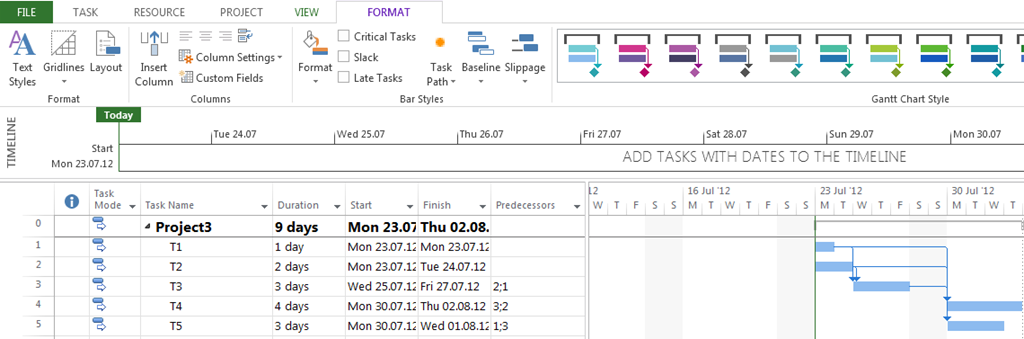
Suppose that I have a simple Project like this:

image

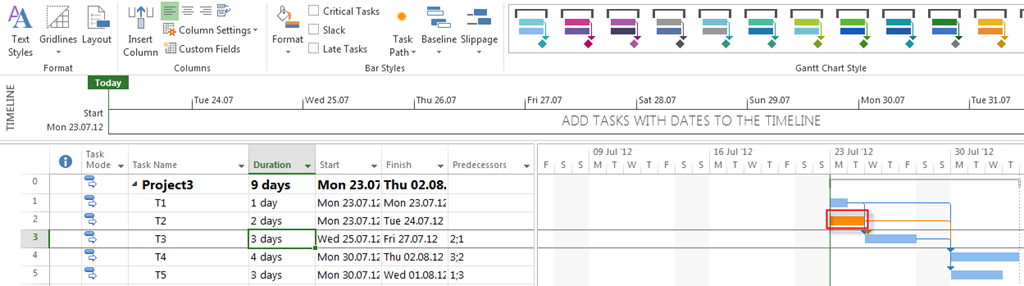
I want to know, for specific Tasks Predecessors, Successors, Driving Predecessors, and Driven Successors. Where is the difference between, for example Predecessors and Driving Predecessors? Simple, Predecessors are all Tasks that Precede to specific Task. Driving Predecessors are Tasks that Precede to the specific Task, and have direct connection with Start Date (e.g, if the Predecessor will be late, the Succesor will be late to – NO SLACK or FLOAT)!

Let me show you how can you see those features:

image

Firs, I will choose, Predecessors option for the T3 Task, and I will get:

image

As you can see Task T3 has Predecessors: T1, and T2!

Now I will turn off this feature, and Turn on Driving Predecessors, and I will get:

image

As you can see, only T2 is highlighted, because if T2 is late, T3 will be late to, but T1 has a lag (1 day)!

The same thing is with successors! Try it!

Regards,

Posted in MICROSOFT PROJECT, Microsoft Project 2013 - Preview | Tagged , , , | 1 Comment

Microsoft Project 2013–what is new? Part 2


Hi,

Summer time folks! Seacoast, swimming, enjoying, and those kind of stuff. So it will be a short one!

In new, MS PROJECT 2013, you can save your project on different locations!

Suppose that I have a Simple Project like this:

image

I am going to save this project:

image

First you can Sync with SharePoint! Great thing! you can choose Existing or New SharePoint site!

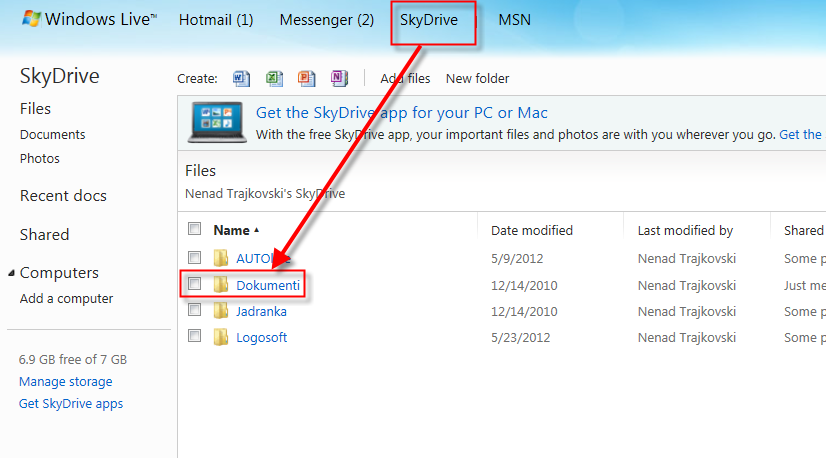
I can save the Project on my Sky Drive, like this:

image

Now I am going to www.live.com and I will sign in:

image

and here it is:

image

And, finally, I can save it on my Computer! And there is nothing new in this feature!

Posted in MICROSOFT PROJECT, Microsoft Project 2013 - Preview | Tagged , | Leave a comment

Microsoft Project 2013–what is new? Part 1

Hi,

as you already know Microsoft ha published new Office 2013 –Preview,  and here is the new Microsoft Project 2013 preview.

Let us look what is new! Remember that that is just a Preview, not the final version! I will write about what I see!

There are huge improvements in this new Version, and I love it already. Frankly I do not love everything, and I will write about that as well!

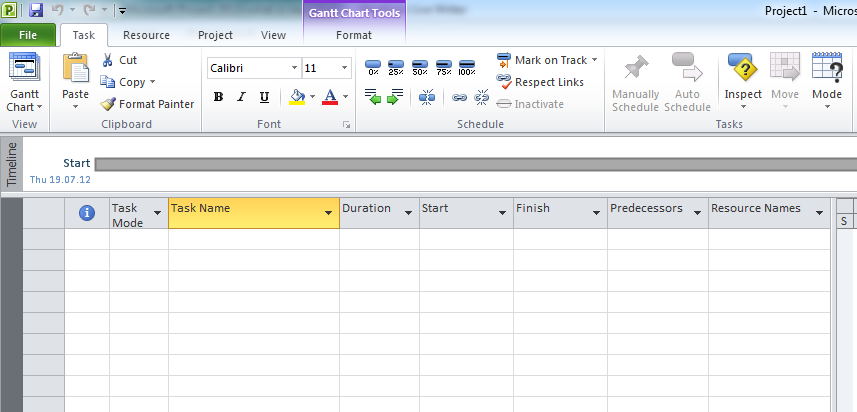
When you open MS PROJCET 2010 you get something like this:

image

As you can see, you have open brand new Project with default View – Gantt Chart.

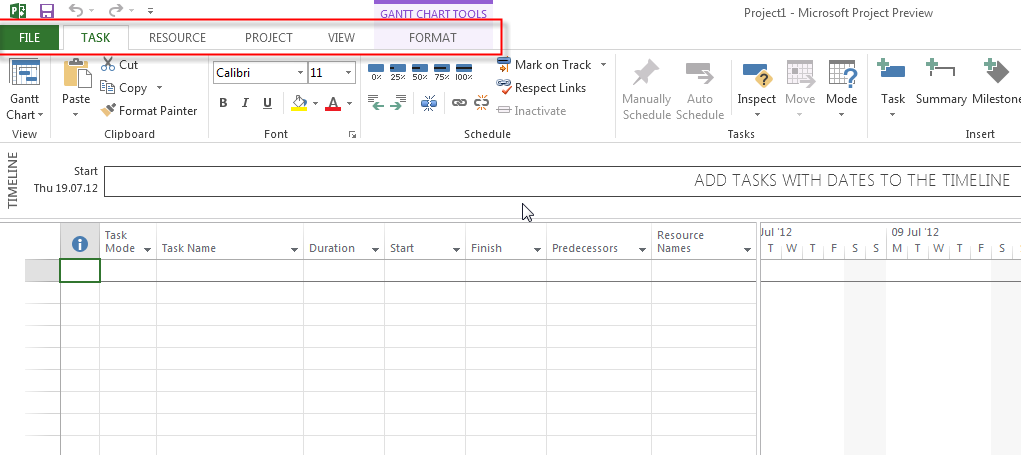
Notice TABS! They are in Upper-Lower case!


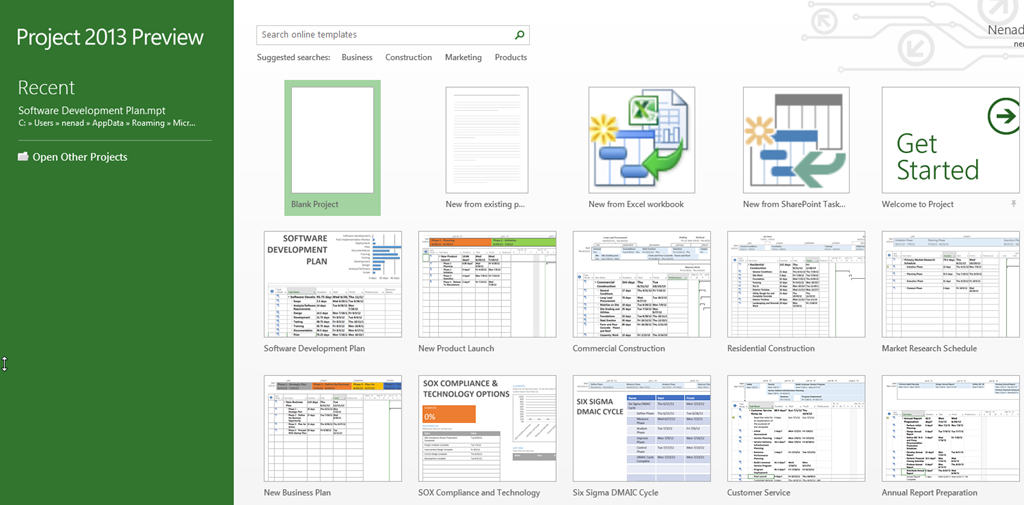
When you open MS PROJECT 2013 (I will not write MS PROJECT 2013-preview any more, because you know that this is only a Preview), you get this:

image

You can choose to open a brand new Blank Project, New from existing Project, and New From SharePoint Task…!

And you have a lot of Templates, so I will open Software Development Plan Template, and I will get:

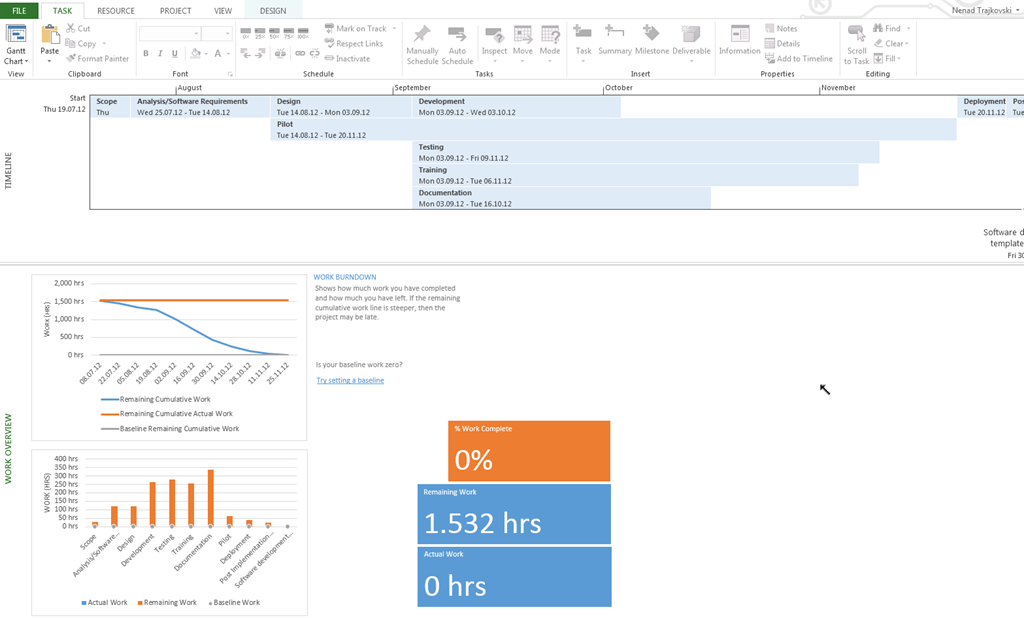
image

and I will get:

image

My first impression is WOW!

You can see that Timeline is much more Readable, and there are a lot of new stuff here (like Work Burndown – do you speak Agile??? Smile) 

I will cover these features in my next Posts!

I will open a Blank Project now:

image

Tabs are in UPER CASE, I do not like it! Contrast is low, and I don’t like it either!

I want to exit my MS PROJECT 2013 now:

image

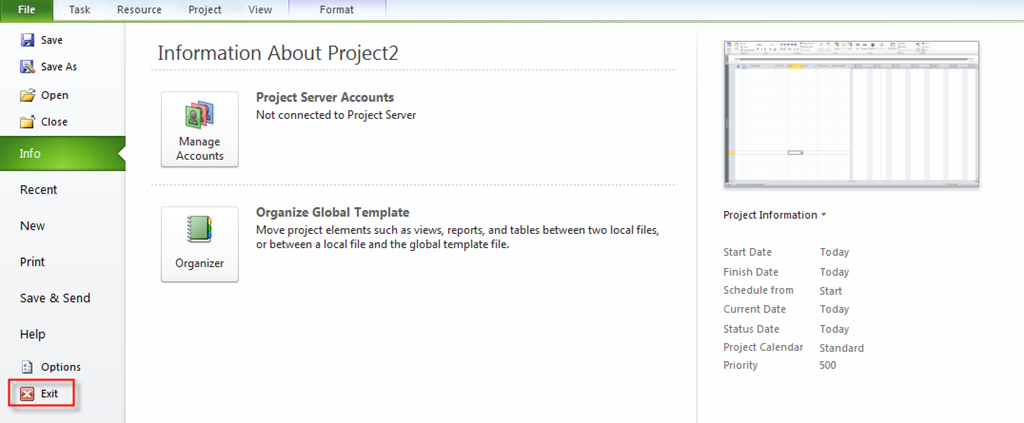
What is missing??? I will show you the MS PROJECT 2010:

image

Yes, the Exit button is GONE! In is gone from all OFFICE 2013 family, except Outlook!

But if you hit X letter when you are on the backstage window in MS PROJECT 2013, you will exit! Of course you can exit if you click here, as well:

image

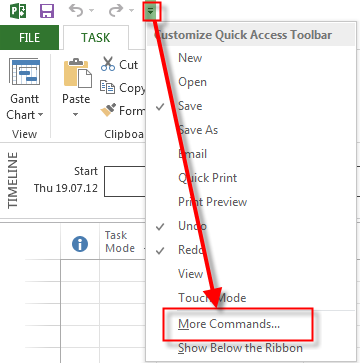
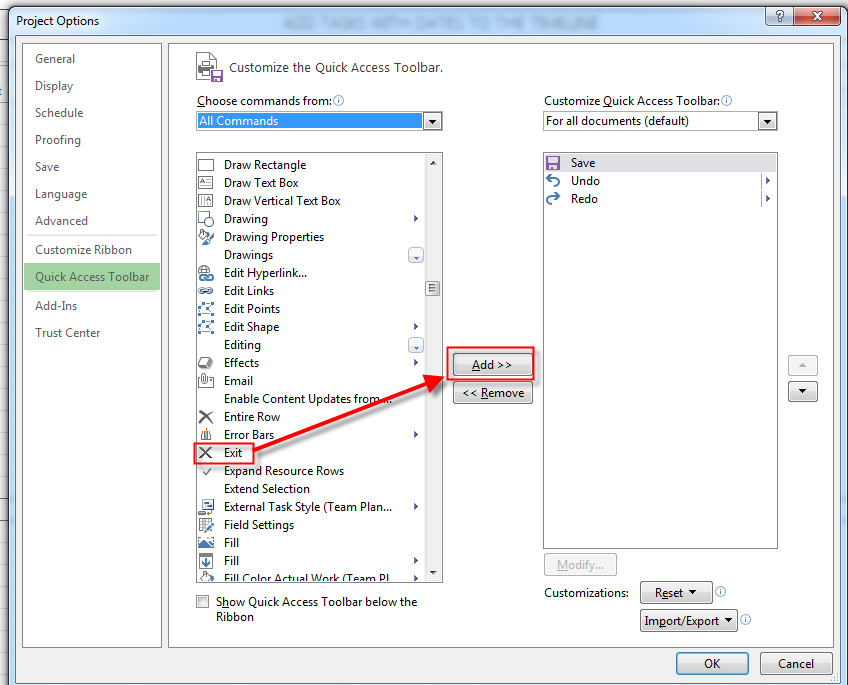
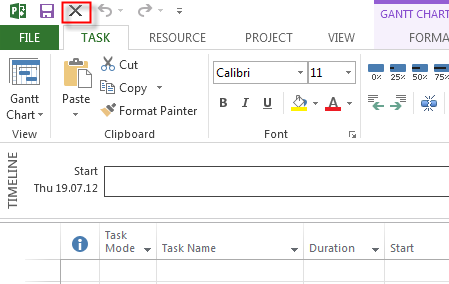
If you insist on Exit Button, there is a way to have it on Quick Access Toolbar:

image

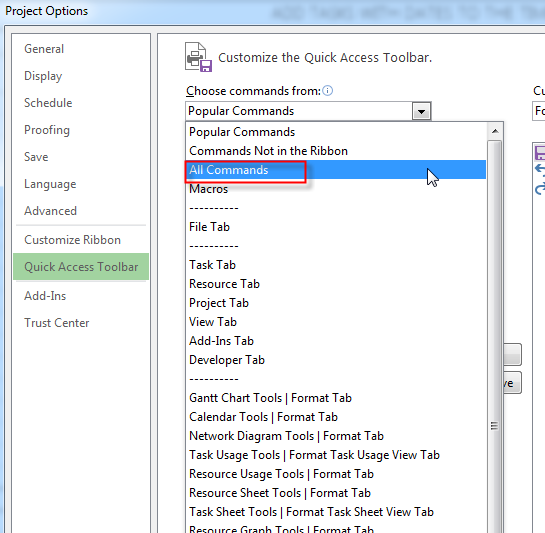
and:

image

and:

image

and I will get:

image

and Finally:

image

So I have now my beloved Exit Button.

Do you like it????

P.S. Guess what! I am going to Vacation! Why should you care? You should not! I am telling you that because from now till end of August I will post one Blog Post per week.

Please, please, DO NOT CRY Smile with tongue out


Regards!
Posted in MICROSOFT PROJECT, Microsoft Project 2013 - Preview, PMI, PRoject Management | Tagged , , , , | 7 Comments