OK! We have the PROJECT!! “The Wedding”!!!


Hi,

as I promised, I will start with a fictitious project. In fact, I will make two Projects. First Project will be “The Wedding”, and after I finish with this one I will continue with the second Project, and it will be “Home sweet home”. The Wedding Project is, as it says, to organize the wedding, and the second will be to build the brand-new house for the just married couple.

OK! What is the goal of The wedding Project? It is to organize wedding for the couple (John and Mary). John and Mary are dating for some time, they are in love, and they have decided that they want to live together in wedlock!

How will we start? With Planning, of course.

What do we have to plan? EVERYTHING, e.g.: Scope (what will be included in The Wedding), Time (when do we have to finish), Costs (how much money will we have to spend, or we intend to spend), Quality (will it be “Glamorous” wedding or not), Risks (where are the risks for the wedding, what can go wrong, which opportunities do we have), etc.

I have visited many countries and cities but I have never been in a wedding outside Croatia. So, I will make a plan for the Wedding like it usually is in Croatia.

I will not write The Project Charter. YES I KNOW that you will criticize me, because The Project Charter is basic document for the Project, and without it, I actually don’t have a Project, but I will suppose that I’ve got the Project Charter from my Sponsor, so it is actually done!

Who is Project Sponsor? In our Project it can be John and Mary (the wedding couple) or their parents (if they will make whole organization). In our Project John and Mary will be a Sponsor(s), and their parents will be also the Sponsor(s), because they will finance the whole project.

We also have to find out Project Constraints (or limitations). For example, the budget can be constraint (if you have $10.000, can you make a glamorous party for 350 people in “Burj Al Arab” hotel in Dubai?).

We have to find out and clear out Project assumptions. Those are things we consider to be true, but they might not be. For example, we assume that everyone from our guest list will come to the Wedding, because they are our good friends, and family, but on the other hand, maybe some of them will have some rapid obligation. So, we have to INVESTIGATE everything about our assumptions!

I will not make all the Planning today, nor I will  make a whole project Plan “on the paper” first, and then put it in the MS PROJECT 2010. I will do those things in parallel.

So, from my next post (Monday, 01.08.2011) I will start with using MS PROJECT 2010, and develop the scope!

Until then,

Best Regards!


P.S. In the next three weeks I will try to keep my posts regularly. I will be on the Adriatic sea cost, on my Vacation, so If I will be late for day or two please don’t be angry!

And, of course, give me your feedback!

Posted in MICROSOFT PROJECT, Microsoft PRoject 2010, MS PROJECT 2010, PMI, PRoject Management | Tagged , , | 3 Comments

HELP ME! I’M IN TROUBLE –MS PROJECT 2010 DOESN’T WORK

Hi,

as I promised, in this blog post I will explain Project Process Groups (according to PMI), and Knowledge Areas, and how suitable MS PROJECT 2010 is for those Process Groups and Knowledge Areas!

Project Process Groups are: Initiating, Planning, Executing, Monitor & Controlling and Closing.

In Initiating process group, you will make a decision which Project (or Projects) will you take. You should Develop Business Case, and after that, if you will decide to go on with the Project, you should Develop Project Charter. You have to reveal Assumptions, Stakeholders Expectations, Goals, Constraint, Global Risks etc. From my point of view, MS PROJECT 2010 is not suitable for this Process Group. Of course, you can use MS PROJECT 2010 as a central repository and you can put Project Charter and other documents in it.

Planning process group is crucial for successful Project. You need to plan EVERYTHING: Scope, Time, Costs, Quality, Human Resource, Communication, Risk and Procurement! MS PROJECT 2010 is VERY HELPFULL, and you should use it while you are planning your Project, but you CAN NOT DO EVERYTHING WITH IT! (For example: how will you plan the quality with MS PROJECT 2010?)

You can find in many books that MS PROJECT 2010 is very helpful in this Execution process group, and I think that is CORRECT. For example you can print To do lists, you can Mailing the task lists, etc.

In Monitor and Controlling process group you will: Monitor and control Project work, Perform Integrated Change Control, Verify Scope, Control Schedule, Control Costs, Control Quality, Report Performance, Monitor and Control Risks, etc. MS PROJECT 2010 is, again, very helpful here!

In Closing process group you can use MS PROJECT 2010 to Capture actual task duration Metrics, Capture Successful task Sequencing, and save a project as template, for further similar projects.

There are nine Knowledge Areas.

Integration Management

  • MS PROJECT 2010 is excellent for Develop Project Management Plan and Monitor and Control Project work
  • MS PROJECT 2010 is good for Change Management plan (you can track all changes, but for whole change request process MS PROJECT 2010 is not enough)
  • With MS PROJECT 2010 you can not  Develop Project Charter

Scope Management

  • MS PROJECT 2010 is excellent for Define Scope, Define WBS, and Control Scope
  • With MS PROJECT 2010 you can not Collect Requirements

Time Management

  • MS PROJECT 2010 is excellent for Sequence Activities, Develop Schedule , and Control Schedule
  • You can not Define Activities with  MS PROJECT 2010. It means  that MS PROJECT 2010 can not tell you which tasks you should have in your Project to meat the Project Objectives. However, if you have a template you can write the activities in a template and then simply import them to MS PROJECT 2010 . If you had a similar project and you have a template, then you can use it as a help when you are defining activities. The same thing is with Estimate Activity Resources, and Estimate Activity Durations.

Cost Management

  • MS PROJECT 2010 is excellent Excellent for Determine Budget, and Control Costs.
  • Cost estimation is complex job and MS PROJECT 2010 is good as a help.

Quality Management

  • Generally, MS PROJECT 2010 does not cover Quality management

Human Resource Management

  • MS PROJECT 2010 is good for Develop Human Resource Plan, Manage Project Team, but not for Acquire Project Team Process

Communication Management:

  • MS PROJECT 2010 is excellent for Distribute Information, and Report Performance
  • MS PROJECT 2010 is good for Plan Communication, and Manage Stakeholders expectation
  • You can not use MS PROJECT 2010 for Identify Stakeholders Process

Risk Management

  • MS PROJECT 2010 is Good for Plan Risk Management, Identify Risks (some of them, not all), and Monitor and Control Risks (not all of them)
  • Generally you can not Perform Qualitative and Quantitative Risk Analysis with MS PROJECT 2010

Procurement Management

  • MS PROJECT 2010 is, generally, excellent if you import the WBS from the Vendor

A lot of my colleagues told me that: „When I change something in MS PROJECT 2010, the whole schedule and resource and cost is ‘crashed’ and everything seems wrong”.

My answer is “DO YOU REALLY KNOW HOW TO USE MS PROJECT 2010??. TAKE YOUR TIME AND LEARN!!!”

MS PROJECT 2010 is strong and powerful tool, it can do a lot, but it can’t do everything, and it is is not a replacement for a proper project management.

If you don’t how to use it, do not use it, before you learn it!

Do not put data in MS PROJECT „for fun”. If you don’t have a reliable data, don’t put them in MS PROJECT 2010. If you do, you will have: „garbage in – garbage out”


Best Regards

Posted in MICROSOFT PROJECT, Microsoft PRoject 2010, MS PROJECT 2010, PMI, PRoject Management | Tagged , , | 7 Comments

Starting a new Project

OK, we will start our fictitious Project. But first we have to know some basic things about Project, Project Management, Project Manager, etc.

Do you know what the Project really is? According to PMI (www.pmi.org) “A project is a temporary endeavor undertaken to create a unique product, service, or result.”

What is Project Management? “Project management is the application of knowledge, skills, tools, and techniques to project activities to meet the project requirements”

Who is Project Manager? “Project managers are assigned by the performing organization to achieve project objectives. They are responsible for the project success or fail. 97% of successful projects were managed by experienced project managers”

Why should someone choose some Project? There are many reasons for choosing the Project, for example:

  • Business need (we need to build a new equipment, because we want to spread our market share)
  • Social need (we need a project, and it has one goal: TO REDUCE SMOKING IN OUR CITY)
  • For fun (I want to build the biggest house in my village)

Every Project must have a PROJECT OBJECTIVE, and it means “WHAT DO YOU WANT TO ACHIEVE”. Here is an example. You have a Project: “Building the new house for just married couple”. The Project Objective for that project is: Resolving so called “Housing need” e.g. to make a place for living for the just married couple.

What is MICROSOFT PROJECT 2010?  Again, and again, and again, you will find a definition that “Microsoft Project 2010 is PROJECT MANAGEMENT SOFTWARE!” I don’t share that opinion. In many relevant Project Management books you will find there is no such a thing like a “PROJECT MANAGEMENT SOFTWARE”.

Does it mean, that MICROFT PROJECT 2010 doesn’t take a significant place in Project Management? Of course, NOT!

According to Wikipedia “Microsoft Projects a project management software (IT IS NOT IT IS A TOOL) program developed and sold by Microsoft which is designed to assist project managers in developing plans, assigning resources to tasks, tracking progress, managing budgets and analyzing workloads. The application creates critical path schedules, and critical chain and event chain methodology third-party add-ons are also available. Schedules can be resource leveled, and chains are visualized in a Gantt chart. Additionally, Project can recognize different classes of users. These different classes of users can have differing access levels to projects, views, and other data. Custom objects such as calendars, views, tables, filters, and fields are stored in an enterprise global which is shared by all users.”

Although it is powerful tool it can not do everything. The most common, and the biggest mistake is that many people think: “If I have Microsoft Project 2010, and if I am a powerful user, I can skip a lot of project management activities, because MS PROJECT will do them for me!”. NO!!!!! You should always Manage a Project properly, and you should always apply your PM knowledge and skills no matter if you have a powerful tool like, for instance, MS PROJECT.

Here is an example. Is Microsoft Project suitable for Quality Management? From my point of view, it is not! Can you identify all risk in your Project with MS PROJECT? No, you can not. Can you communicate with your team only with MS PROJECT? No, you can not.

From no on, I will write this blog about using MS PROJECT 2010 PROFESSIONAL! After I finish (somewhere in the future), I will write about MS PROJECT SERVER, PROJECT WEB APP, and ENTERPRISE PROJECT MANAGEMENT!

In my next post I will write about Project Management Process Groups, Project Management Knowledge Areas, and how suitable MS PROJECT 2010 is for those Process Groups and Knowledge Areas!

And last, but VERY IMPORTANT, please give me a feedback! Tell me how do you like this blog, criticize me, tell me if you don’t agree, do whatever you want, but just give me a FEEDBACK, pleaseeeeeeeee Smile

Best Regards,

Posted in MICROSOFT PROJECT, Microsoft PRoject 2010, MS PROJECT 2010, PMI, PRoject Management | Tagged , , , | 3 Comments

The VOTING IS OVER

Hi,

You have made a decision! It is: To start with blog posts “from the beginning”, and manage one “fictitious” project from the beginning to the end with MS PROJECT 2010.
I got a flu. Sad smile

But anyway, from tomorrow on, I will start with the new fictitious project. I will explain what can you do with MS PROJECT 2010, I will explain the  fictitious project, but first I will explain what is the proper PROJECT MANAGEMENT, and how to use it while you are managing your project!

Regards,

Posted in Uncategorized | Leave a comment

WHAT DO YOU THINK AGAIN!!!!

Hi,

I am REPOSTING my last post. I got some answers, but I will like to have some more! Deadline for decision is tomorrow, 21.07.2011. So PLEASE, be proactive

“Instead of new blog post I have a question for you! I was thinking about this blog site. Until now I was writing some kind of “tips and tricks”! I pick up some subject (as it crossed my mind), and I wrote about it!

The question is: Do you want me to keep it that way? I have another idea. To start with blog posts “from the beginning”, and manage one “fictitious” project from the beginning to the end with MS PROJECT 2010.

Please give me an answer A.S.A.P. In the next 3 days I will make decision, upon your suggestions. Thanks’ a Lot!!!”

Regards,

Posted in Uncategorized | Leave a comment

WHAT DO YOU THINK?

Hi,

Instead of new blog post I have a question for you! I was thinking about this blog site. Until now I was writing some kind of “tips and tricks”! I pick up some subject (as it crossed my mind), and I wrote about it!

The question is: Do you want me to keep it that way? I have another idea. To start with blog posts “from the beginning”, and manage one “fictitious” project from the beginning to the end with MS PROJECT 2010.

Please give me an answer A.S.A.P. In the next 3 days I will make decision, upon your suggestions. Thanks’ a Lot!!!


Regards,

Posted in MICROSOFT PROJECT, Microsoft PRoject 2010, MS PROJECT 2010, PMI, PRoject Management | Tagged , , | 7 Comments

Material Resources in MS PROJECT 2010


Hi,

In this post I will explain how to set up, and assign material resources in MS PROJECT 2010.

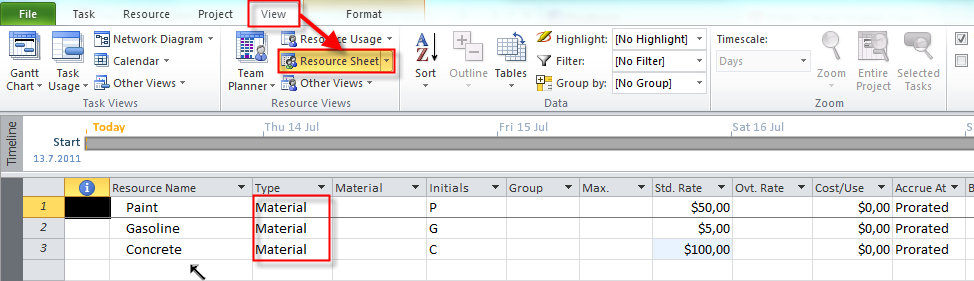
First I will add three material resources in Resource Sheet:

image

Now I will add two Tasks:

image

O.K. Now, I will assign Paint to the Painting the wall task, and Gasoline, and Concrete to the Pouring the concrete Task:

image

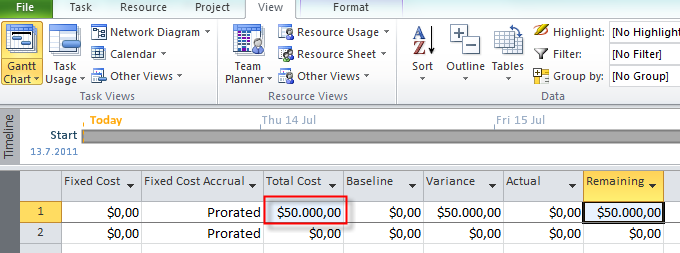
I put 1000 in the Unit field, because I assume that I will need 1000 liters of paint for painting the wall. MS PROJECT 2010 has calculated that the cost is $50.000 (1.000 units X $50 per Unit = $50.000). Remember that this cost remains the same, no matter how long will take you to pain the wall. I will show it to you. First I will choose the Cost table:

image

and I will get:

image

Now I will change duration for task Painting the wall from 3 to 10 days:

image

I will choose the Cost table again, and I will get:

image

The Total Cost remains the same.

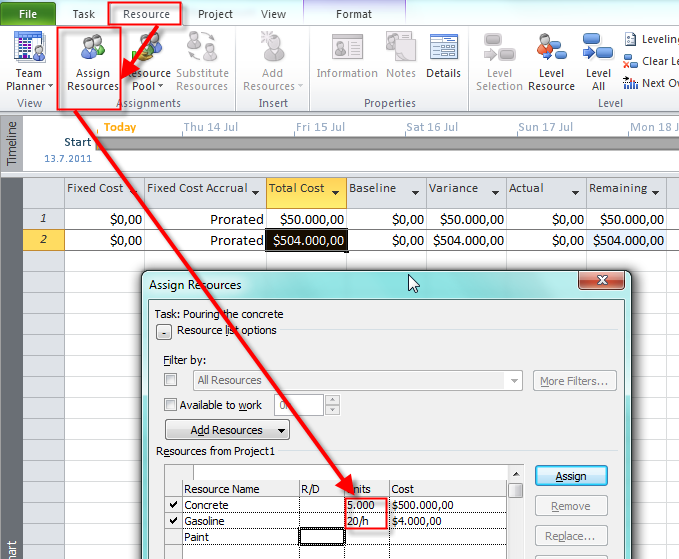
O.K. Now, I will assign Gasoline and Concrete to the Task Pouring the concrete:

image

I need 5.000 units (tons, liters or whatever) of Concrete and I need 20 liters (or gallons) of Gasoline per hour. MS PROJECT 2010 has calculated that the cost for the Concrete is $500.000 (5.000 units X $100 per Unit = $500.000). For the Gasoline I put in the Unit field 20/h and that means that I will spend 20 liters (or gallons) per hour. MS PROJECT 2010 has calculated that the cost for the Gasoline is $4.000 (20 liters per hour X $5  per Unit  X 5 days X 8 hour per day = 20 X $5 X 5 X 8 = $4.000).

What will happen if I change duration of the task Pouring the concrete from 5 to 10 days? Let’s see.

image

I will choose the Cost table again and I will get:

image

The Total cost is now $508.000. Why? MS PROJECT 2010 has calculated that the cost for the Concrete is $500.000 (5.000 units X $100 / Unit = $500.000), and it does not depend of the Task duration, since I put in the Unit field 5.000.  For the Gasoline I put in the Unit field 20/h and that means that I will spend 20 liters (or gallons) per hour. MS PROJECT 2010 has calculated that the cost for the Gasoline is now  $8.000 (20 lites per hour X $5 per Unit X 10 days X 8 hour per day = 20 X $5 X 10 X 8 = $8.000), and the Total cost for this task is $508.000.

So, if you have a Material resource which doesn’t depends of the Task duration you should put the number in the Unit field when you are assigning Material Resource to the Task.

If have a Material resource which does depends of the Task duration you should put the number in the Unit field and how much do you spend per time (hour, day, week, etc.). This is time depending Material resource.


Bye!

Posted in MICROSOFT PROJECT, Microsoft PRoject 2010, MS PROJECT 2010, PMI, PRoject Management | Tagged , , , , | 3 Comments

Scheduling Summary Tasks Manually in MS PROJECT 2010


Hi,

In one of my previous blogs I wrote about Manual VS Automatic Scheduled Tasks. In this post I will show how can you use Manually scheduled tasks for summary tasks in MS PROJECT 2010.

I will make a scenario. I am in a Project which has 2 phases, and each phase has 3 Tasks. I will put them in a MS PROJECT 2010 and initially they will be Manually scheduled:

image

I will enter Duration for each Task: Task 1 of Phase 1 = 1 day, Task 2 of Phase 1 = 2 days, Task 3 of Phase 1 = 3 days, Task 1 of Phase 2 = 4 days, Task 2 of Phase 2 = 5 days, and Task 3 of Phase 2 = 6 days:

image

Now, I will connect them:

image

Now, suppose that I know all the information for Task 1 and Task 2 of Phase 1, and Task 2 and Task 3 of Phase 2 so I will change their schedule mode from Manually to Automatic:

image

I will get:

image

O.K. I have a plan for Phase 1, and I want it to least 10 days. For Phase 2 I don’t have a clue about duration (for now). I will put 10 days for duration of Phase 1 .

image

Now, I will make Tasks for Each Phase as a Summary Task:

image

and I will get:

image

You can see that Phase 1 stays in Manually scheduled mode, and Phase 2 is switched in Automatic schedule mode. Why? Because I put 10 dayw for Phase 1 and MS PROJECT 2010 assumes that I have planed 10 days duration for that phase. Since I didn’t enter anything in duration field for Phase 2, MS PROJECT 2010 has switched from Manually to Automatic scheduled mode, and in duration field is now 15 days (sum of duration of Task 1 + Task 2 + Task 3 = 4 + 5 + 6 = 15 days for Phase 2).

Now I will put 11 days in duration field for Phase 2 and I will get:

image

You can see that MS PROJECT 2010 has changed Task mode for Phase 2 from Automatic to Manually since I have entered the duration manually.

Let us see the graphical part of the Gant chart.

image

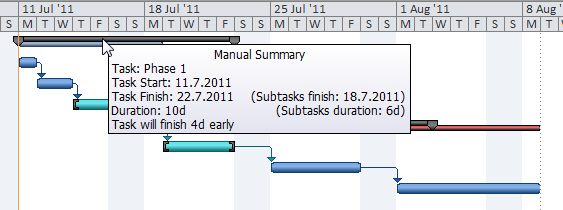
If you but mouse pointer on the gray bar for Phase 1 you will get the Summary information like it is shown in the picture above. I have planned 10 days duration for the Phase 1 and MS PROJECT 2010 has calculated that it will last 6 days, so the Phase 1 will be finished 4 days earlier!

image

For the Phase 2 I have planned 11 days duration, and MS PROJECT 2010 has calculated that I will last 15 days, so the Phase 2 will be finished 4 days latter, and that is why the time calculated by MS PROJECT 2010 is represented with RED COLORED BAR for Phase 2 (it means: “YOUR PHASE WILL LAST LONGER THAT YOU HAVE PLANNED”). For the Phase 1 time calculated by MS PROJECT 2010 is represented with BLUE COLORED BAR (it means: “YOUR PHASE WILL LAST SHORTER, OR AS YOU HAVE PLANNED”).

I will now include PROJECT SUMMARY TASK in Gantt chart:

image

and I will get:

image

Note that the PROJECT SUMMARY TASK is ALWAYS in AUTOMATIC SCHEDULE MODE, and it can not be changed!

O.K. Now you know how to Schedule Summary Tasks Manually! But, why should you do this? What I the purpose of this feature? Here is the answer: FOR THE PLANNIG!!! Suppose that your boss  want to allocate 15 days for the summary task. How will you and her/him know if it is, or is not realistic? You should enter this 15 days for the summary task, and than let the MS PROJECT calculate how long will it take for this summary task, and you will know what is more realistic. And you can show to your boss the GAP!!!

See you,

Posted in MICROSOFT PROJECT, Microsoft PRoject 2010, MS PROJECT 2010, PMI, PRoject Management | Tagged , , , , | 4 Comments

Critical path in MS PROJECT 2010–PART 2


Hi,

In this post I will explain how to find The CRITICAL PATH in MS PROJECT 2010

Here is an example from my previous blog:

image

I will put those tasks and durations in MS PROJECT 2010:

image


Now I will connect those tasks:

image

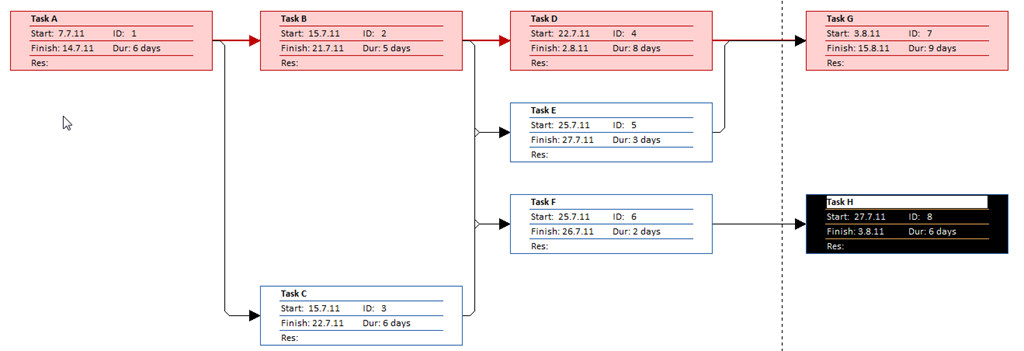
Task B and Task C have Task A as Predecessor, Task D has Task B as Predecessor, Task E and Task F have Task B and Task C as Predecessors, Task G has Task D and Task E as Predecessors, and Task H has Task G as Predecessor.

The project should have 28 days duration. I will check it:

image

and I will get:

image

OK!

Where is the Critical Path?

image

and then choose Detail Gantt:

image

I will get:

image

To get better look I will choose Entire Project in the Zoom group:

image

and I will get:

image

Red Tasks are on the Critical Path. Task E has 4 days SLACK (e.g. it can be late 4 days without delaying the whole Project). Task H has 8 days SLACK. Or, Task C + Task E can have totally 4 days SLACK, and Task C + Task F + Task H can have totally 8 days SLACK.

Now, I want to see on the left portion of the screen tasks on the CRITICAL PATH.

image

and I will get:

image¸

Tasks on the Critical Path are yellow now.

And finally, I will show you how can you get a picture in MS PROJECT 2010 similarly like in my example (first picture in this post).

image

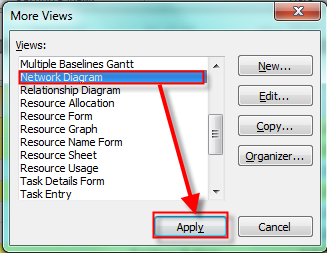
and then I will choose Network Diagram:

image

and I will get:

image

Red boxes represent task on the CRITICAL PATH!

DO NOT FORGET! CRITICAL PATH IS PATH WITH THE LONGEST DURATION, AND TASKS ON THE CRITICAL PATH SHOUD NOT BE LATE! iF THEY DO, THE WHOLE PROJECT WILL BE LATE!


Bye,

Posted in MICROSOFT PROJECT, Microsoft PRoject 2010, MS PROJECT 2010, PMI, PRoject Management | Tagged , , , | 10 Comments

Setting Up Overtime Pay Rates and Assigning Resource Overtime Hours


Hi,

I will explain how can you assign overtime hours and overtime Pay Rate to Resource in MS PROJECT 2010

First I will add TASK 1 with 5 days duration:

image

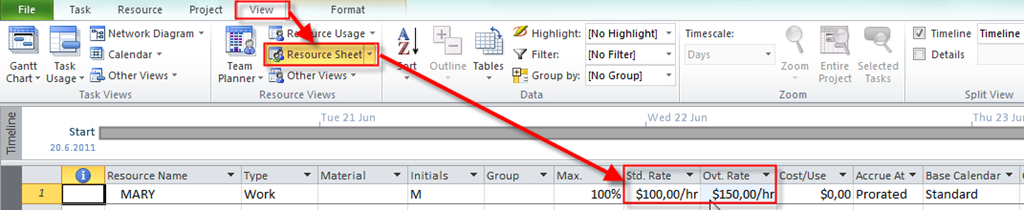
Now I will add Mary as a resource with $100/hour as standard pay rate, and $150 / hour as overtime pay rate:

image

Now I will assign Mary to the TASK 1:

image

You can see $400 in the Cost field (5 days X 8 hours/day X $100 / hour = $4.000)

Now, I will choose the Gant chart view open the Task form ad a detailed view:

image

I will click ANYWHERE in the Task Form and then I will click on the Format Tab, in the Details Group –> WORK:

image

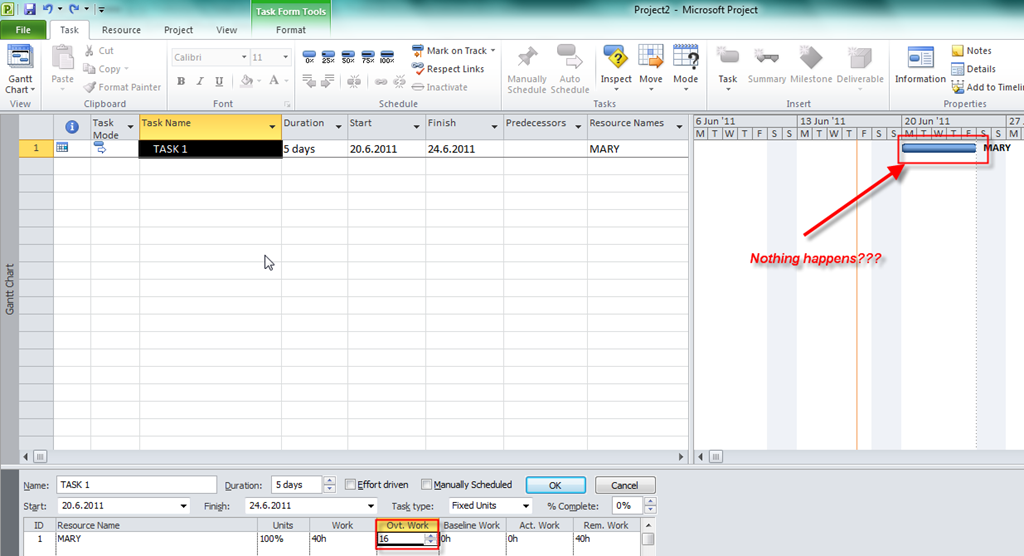
Now I will put 16 hours in the Overtime work field. It means that Mary will work 16 hours overtime:

image

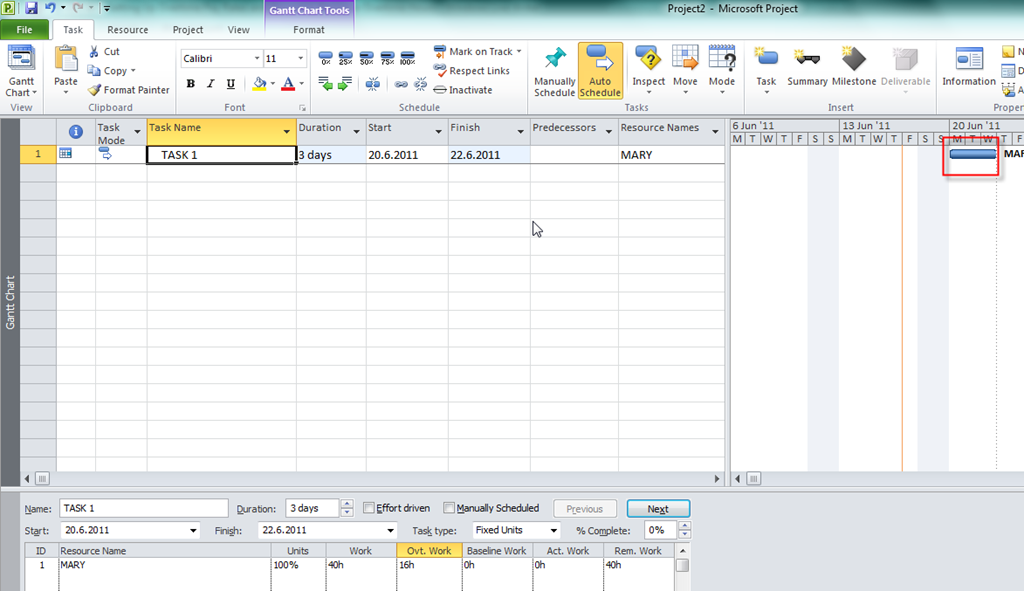
It seems like nothing happened in the Gant chart? I will now click anywhere in the Gantt chart portion of the screen and I will get:

image

You can see that TASK 1 will have only 3 days duration. Why? Well, if you add overtime work on the task the same amount of work will be done but in shorter period.

I will now close the Task form:

image

and I will open the Resource usage sheet:

image

You can see 40 hours that in the Work field. Why? Because initially TASK 1 had 5 days duration (e.g. 40 hours). By adding 16 hours as overtime, TASK 1 will not last 40+16 = 56 hours, but those 40 hours will be done in shorter period.

Why 13.33 hours/day? 40 hours of total work – 16 hours of overtime work is 24 hours. 24 hours divided by 8 hours regular work per day is 3 days. O.K. we have 3 days duration. And Mary will work 8 hours each day (regular work) and (16 hours of total overtime / 3 days) = 5.33 overtime hours per day. So, 8 + 5.33 = 13.33.

Now, I will open the Cost table:

image

And I will get

image

Why? Well, Mary will work 40 hours on the TASK 1. 24 hours is regular work, and 16 hours is overtime work. 24 X $100 (standard rate per hour) = $.2400, 16 X $150 (overtime rate per hour) = $2.400. So, the total cost fore the TASK 1 is $2.400 + $2.400 = $2.800.

Overtime work is complicated, so you should use it with caution!


See you!

Posted in MICROSOFT PROJECT, Microsoft PRoject 2010, MS PROJECT 2010, PMI, PRoject Management | Tagged , , , , | 9 Comments