Enterprise Resources in MS PROJECT PROFESSIONAL 2010

Hi,

in this Post I will show you how to create/edit  Enterprise Resource in MS PROJECT PROFESSIONAL 2010 for MS PROJECT SERVER 2010.

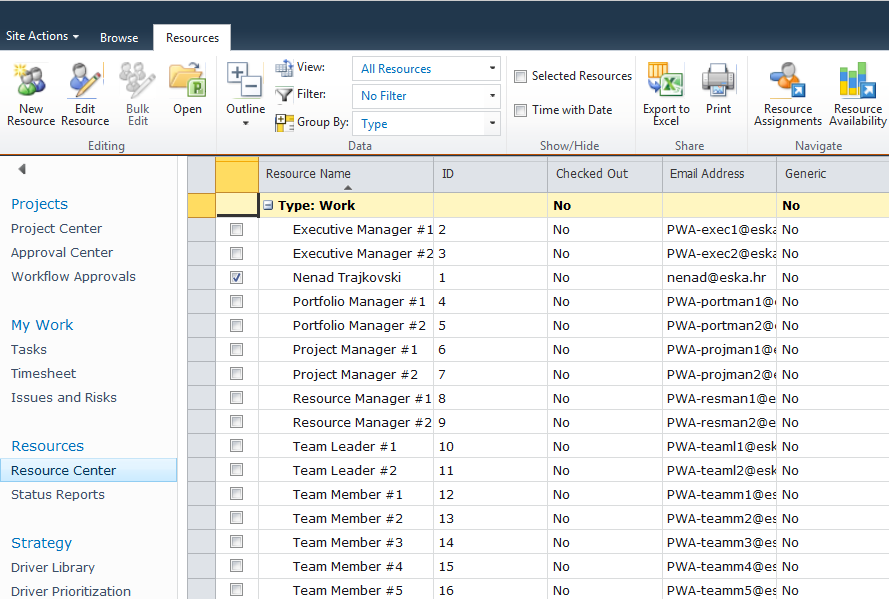
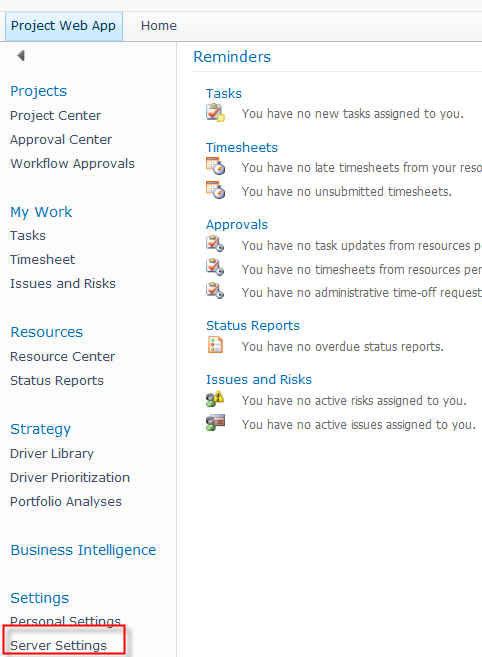
First I will open the Resource Center from PWA:

image

and I will get:

image

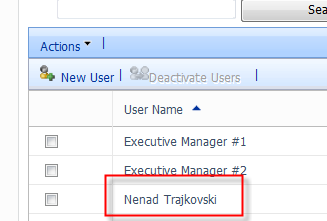
I will choose myself and open MS PROJECT PROFESSIONAL 2010 like this:

image

and I will get:

image

I will put Trainer in the Group field, $100 for Standard Rate, and $150 for overtime rate, and I will get:

image

I will double click on my Name and I will get:

image

Since I do not work on my Birthday (you can bet I do, this is an example Smile with tongue out), I will change working time and I will say that my birthday is not a working day for me:

image

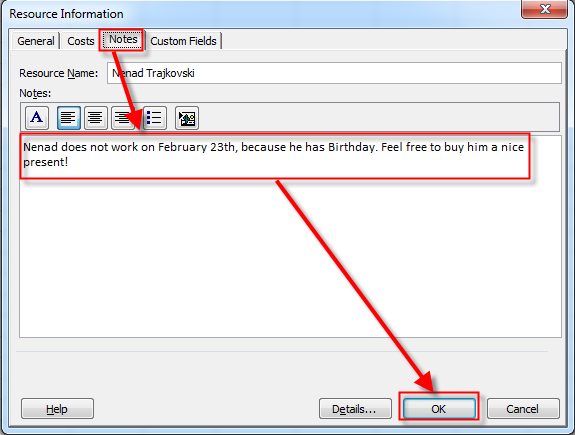
OK, I will now make some note on the Notes Tab:

image

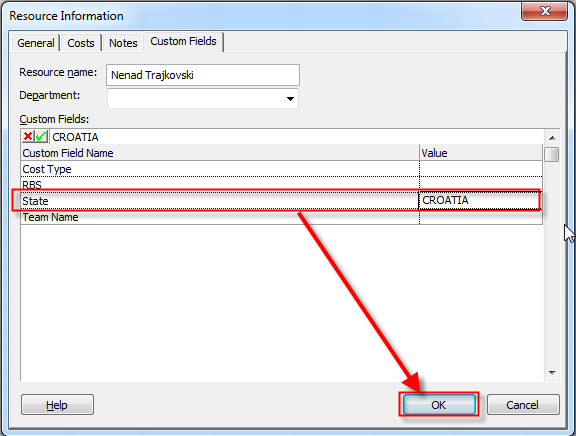
Now I will choose Custom fields Tab, and I will get:

image

Here I can see all custom fields which belongs to me, and I will put CROATIA in State Field

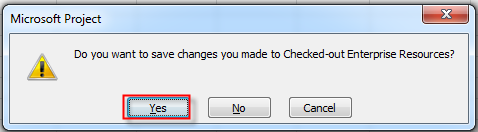
OK! That is it! Now I am going to exit from MS PROJECT PROFESSIONAL 2010!

image

and I will get:

image

ant that’s it! You can add Enterprise resource in a same way!

Regards!

Posted in MICROSOFT PROJECT, Microsoft PRoject 2010, Microsoft Project Server 2010, MS PROJECT 2010, PMI, PRoject Management | Tagged , , , , | 3 Comments

Critical path and elapsed days! How does it works?


Hi,

I will show you different behavior in MS PROJECT 2010 in Critical Path when you have, and when you do not have Elapsed days in duration fields!

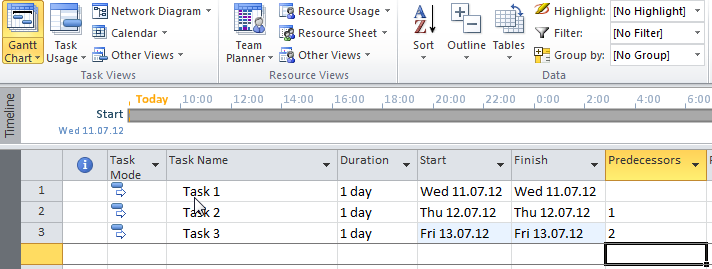
Suppose that you have three Tasks and each of them has one day duration and they are connected:

image

I will apply Tracking Gantt View to see Critical Path:

image

and then:

image

Finally, I will get:

image

You can see that all three Tasks are on Critical Path. Why? Because Critical Path is Path which can have no delays. That means if any task is behind the schedule (late), the whole project will be late. So Task1 one should start at 11.07.12 (from 08:00 till 17:00 with one hour for lunch), Task2 should start at 12.07.12 (from 08:00 till 17:00 with one hour for lunch), and should start at 13.07.12 (from 08:00 till 17:00 with one hour for lunch)!

Now suppose that Task 1 has duration 1ed (1 elapsed day, e.g. 24 hours):

image

Everything is the same! Task 1 will start at 11.07.12. at 08:00 and will finish at 12.07.12 at 08:00 (24 hours). That looks fine! But what if I have Task2 with duration 1ed instead of Task1?

image

Task 2 is no more on the Critical Path! How can it be? Is this an error? No, not at all!

I will put some more columns in my Tracking Gantt View: Early Start, Early Finish, Late Start, and Late Finish:

image

The Explanation:

  • Early Start: Task 2 has Early Start immediately after Task 1 is finished, and that means it can Start at 11.07.2012, at 17:00 (5:00 PM).
  •  Early Finish: Task 2 has Early Finish 24 hours (1 eday) after Early Start, and that means 12.07.2012 at 17:00 (5:00 PM)
  • Late Finish: Task 2 has Late Finish just before Task 3 must start, and that means it can Start at 13.07.2012, at 08:00 (08:00 AM).
  • Late Start: Task 2 has Late Start 24 hours (1 eday), before Late Start, and that means 12.07.2012 at 08:00 (8:00 AM)

The conclusion? Tasks 2 has Slack or Float!

Float is Late Start – Early Start = 12.07.2012 08:00 AM – 11.07.2012 05:00 PM = 15 hours or Late Finish – Early finish = 13.07.2012 08:00 AM – 12.07.2012 05:00 PM = 15 hours

And since Task 2 has a Slack or Float it is NOT ON THE CRITICAL PATH, because on Critical Path Tasks have Float or Slack = 0!

Regards,

Posted in MICROSOFT PROJECT, Microsoft PRoject 2010, MS PROJECT 2010, PMI, PRoject Management | Tagged , , , , | 6 Comments

Microsoft Project 2010 Scrum Solution starter


Hi,

this will be the my shortest Blog Post!

Since there are so many Articles in which you can read that MS PROJECT 2010 is not good as a Scrum tool, here is the link where you can find, that it is not a true!

The link is: Microsoft Project 2010 Scrum Solution starter


Regards!

Posted in MICROSOFT PROJECT, Microsoft PRoject 2010, Microsoft Project Server 2010, MS PROJECT 2010, PMI, PRoject Management | Tagged , | Leave a comment

Agile Project Management, Scrum, Kanban, XP, Waterfall and MS PROJECT–Part 2 of 2


Hi,

As I promised, I will write about using or not using MS PROJECT in agile Projects (Scrum, Kanban, etc.). First thing first. What does the expert says? Some quotes:

“The traditional way to build software, used by companies big and small, is commonly known as “The Waterfall”. The tasks necessary to execute the design are determined, and the work is planned using tools like Gantt charts and programs like Microsoft Project.“ Yes, and is that bad???? NO!

Again, from my previous post:

“Humans are not able to predict the future. You can not plan what will you do six weeks from now! Problems can arise, and you will have to change your planned work. It has been the downfall of many a carefully constructed Gantt chart.” Who says that you have to predict everything? You can not, of course! And, as far as I know in MS PROJECT you can change Tasks, Duration, Resources, Estimations, Baselines etc. in it! If you can not, maybe you are in the read only mode Smile

“There is no visibility on where the software is in the middle of the project. You have GANTT charts and reports that looks good on paper but never deliver the software on time. You will never see a promised delivery date met and worse, you will rarely discovered slippage until it is too late to reforecast company revenue.“ The answer is very simple: Why, Why, Why, Why, don’t you LEARN HOW TO USE MS PROJECT???? If you don’t know how to use it that you can conclude that it is bad, and that you cannot track project progress, and you will miss the deadline! But you should blame yourself, not MS PROJECT!

“In a meeting with the CEO, I noted that for years he had received project plans that were supported by Gantt charts. The CEO agreed that no plan had ever delivered the required functionality on time. Many delays had been extensive and hurt the company financially. “ Microsoft, Microsoft, what are you doing! Shame on you! Smile with tongue out Those Gantt charts are killing economy worldwide! Of course, blame the tool, not the person! That’s the easiest way to avoid personal responsibility

“Gantt charts are useful for planning purposes. However, they are poor for tracking software projects because dependencies change on a daily basis. A full time developer can be absorbed keeping Microsoft Project up to date for a single Scrum team and Scrum was designed to eliminate this wasteful activity.” If dependencies change on a daily basis, then any software is useless if you want to track your progress! Still, you don’t have to waste “SO MUCH TIM”E” if you use MS PROJECT! Why? Because it is easy to track the Task progress with it!

OK! I will stop here! My point is: Use any tool which will help you to get to the goal! And be aware that you know how to use it! Do not forget the old saying: “The fool with the tool is still a fool!”

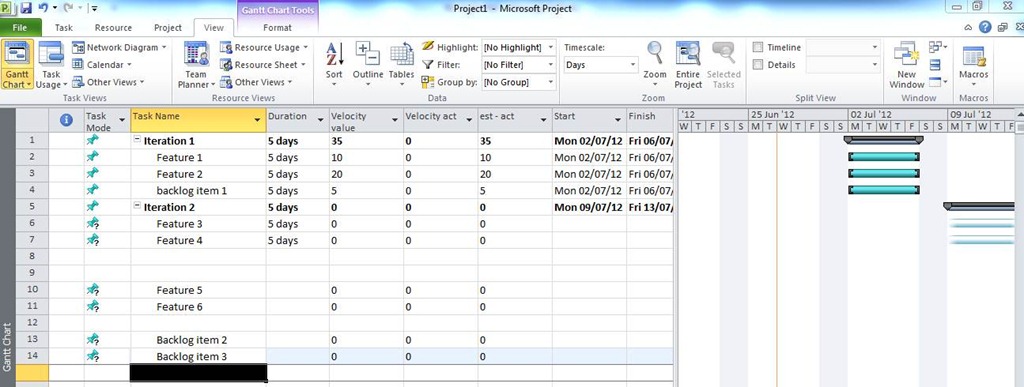
If you want to use MS PROJECT with agile methodology, you can (I say you can, I didn’t say you MUST!). You can modify it for yourself in a very, VERY, VERY (did I say very?) short time. My MVP buddy from UK, Ben Howard (www.applepark.co.uk) gave me permission to show you what he did! Why didn’t I do it? I have very reasonable explanation. I am lazy, and Ben is good colleague Smile (Thank you BEN!)

clip_image002 

I will not explain Scrum here, nor what is Sprint, Iteration, Backlog etc. I give you this example just to see that you can do it! Most of agile methodologies use whiteboards, walls, and post-it as a tool! Fine! I found it very difficult to manage “virtual” teams (international, or not co-located teams) with this approach. What am I using? Tadaaaaaa, you will never guess! MS PROJECT ! Ihaaaa, and it works! With Gants! And I am alive. And neither of my clients did not shot me! They didn’t even try! And, guess what. My team is happy with that!

So, the conclusion is: Use whatever tool you want, but do not tell me that you can not manage Agile Projects with MS PROJECT! If it does not suits you, that is fine! But, that doesn’t mean that it can not be done with it!

Regards!

Posted in MICROSOFT PROJECT, Microsoft PRoject 2010, Microsoft Project Server 2010, MS PROJECT 2010, PMI, PRoject Management | Tagged , , , , , | 2 Comments

Agile Project Management, Scrum, Kanban, XP, Waterfall and MS PROJECT–Part 1 of 2


Hi,

in my next two Posts I will skip writing about how MS PROJECT 2010, and MS PROJECT SERVER 2010 work, their features etc. I will write about PROJECT MANAGEMENT methodologies, frameworks, nutshells or however you name them, and MS PROJECT as a tool!

Why? Because I am studying Agile Project Management, and I find, well I will be polite, some things with I can not agree, or can not 100% agree!

Before I come up with these things, I have to clear some things up!

  1. Is the Agile Approach good? Yes it is excellent.
  2. Are Scrum, Kanban, Extreme Programming (XP) good? Yes they are excellent.
  3. Is the “traditional” or waterfall  model old, bad, and totally inappropriate for software development? NO!
  4. Which methodology or framework or approach to take in software development? Whichever is BEST FOR YOU AND YOUR PROJECT! There is no silver bullet! Silver bullet does not exist!
  5. Which tool to use? MS PROJECT? EXCEL? Pen and Paper? Post-it? Whichever is BEST FOR YOU AND YOUR PROJECT!

I am not going to argue which approach is the best, or the best for software development! Why? Because there is not the BEST WAY! According to PMI, Project is: “Temporary endeavor undertaken to create a UNIQUE product, service, or result”. UNIQUE means that every Project is different from any other in the world! So, if every Project is unique, you should consider which approach to take every time you get a new Project!

Now, to the Point.

One of the world most known Scrum author (I will NOT give you his/her name) in his/her book describe “What’s Wrong With Traditional Software Development?”, e.g. waterfall model! I will write what that author states (in my words) with italic letters, and my opinions will be in bold letters

  • “Waterfall model has strengths and weaknesses. Strength is that it is logical (from initiating to closing), and weakness is that in that projects HUMANS ARE INVOLVED!”  It means that waterfall model is excellent with Projects or Software Development Projects only when those Projects do not need human resources! Make sense Smile. I saw hundreds of Projects especially ERP Project without human Resources. Come on!
  •  

    • “Creativity is inhibited! In waterfall great idea in the middle of the project is not a gift, it is a threat!”I will comment this very shortly: IT IS NOT THE TRUE! I have managed hundreds ERP Projects, and I find great idea (or any good idea) as a gift. I always foster open communication and “idea sharing model”! Why? Because any good, or great idea has benefit for the team, stakeholders, and customers!

    “Written documentation is primary method of communication, no one will read project plan, or requirements document, and if someone will read it is cause of misunderstandings.” That is true only if your documentation is bad, if you do not comment that documentation with each stakeholder, and clear any misunderstanding up! And, PROJECT PLAN can and it does CHANGE during the Project! It is NOT FIXED! EVER! I will like, I will love, I will adore if I can skip plans, but think of this: THE CONTRACT! If you do not have a plan, then  what is the scope (at least preliminary scope) of your work? What will you put in the contract? Something like: “Because waterfall model is bad, we will not use it! Since we will not use it we do not need any plan, so the scope of our work is: DO WHATEVER YOU WANT, OR WHAT THE CUSTOMER WILL TELL YOU TO DO! Smile”. And it is not true that critical information has to be communicated with documents only!

    “Bad timing. You will deliver your project at the and, and there is no place for improvement in that particular Project!” If you deliver and show your product to the client when it is completely finished, than this is true! But in waterfall model you can and should deliver Parts of your product to get feedback from your client (customer, stakeholder), and to improve your work! Read PMBOK!

    • “Humans are not able to predict the future. You can not plan what will you do six weeks from now! Problems can arise, and you will have to change your planned work. It has been the downfall of many a carefully constructed Gantt chart.”  Who says that you have to predict everything? You can not, of course! And, as far as I know in MS PROJECT you can change Tasks, Duration, Resources, Estimations, Baselines etc. in it! If you can not,  maybe you are in the read only mode Smile

    “Too much work and no fun.  In waterfall model there is no fun, people are under the stress, and it is a cause of great misery for the team. And because of that, people will not expressing they skills, passions, creativity, bla, bla, bla! The waterfall approach ask the team to act like a robots!” WHAT? WHAT? GREAT MISSERY? NOT MUCH FUN? Come on! I must be an Idiot! I was working in many Projects with waterfall approach, ERP Project, and my team and myself (with stakeholders) have a great time, and we became friends! And if team members are working like a robots, than that is something wrong with Project Manager, or Manager (you know the DO WHAT I TELL YOU TO DO, DON’T THINK approach), and not with model! Again, read the PMBOK. There is one important thing there: Open foster communication

    • “A rigid, change-resistant process produces mediocre products. Customers will get what they wanted at the beginning, and that will be what they didn’t really want!” There is something know as change management, and change process in Project Management! And it works fine! I will not add any further comment!

    • “Many teams find: the harder we try, the worse we get!” YEAH RIGHT!


    Some final points from me:

    • I don’t want to conclude that waterfall model is better than any other, or the Best!
    • I do not agree, that waterfall model is bad for software development
    • It is all about the people! You can not blame methodology if you do not have skills for Project Management, if you are the bad Manager, and you do not know how to communicate with your team, stakeholders, sponsor, customer, wife, dog, moon etc.
    • Do not forget something: COSTS, TIME, CONTRACTS. If you do not have a scope predefined, how can you estimate costs? Time? Deadline? What will you put in the contracts
    • Use whatever approach you want as long as you are satisfied with the results! If you will not get those good results, blame yourself! Why? Because you have choose that methodology!

    In my next post I will write about how “inappropriate Smile with tongue out” (YEAH, RIGHT) is MS PROJECT for agile approach!

    And, I Will not get involved in any further discussion! Why? Because this and next Post is my point of view. I will write next post, and I will get back to work with MS PROJECT!


    Regards!

    Posted in MICROSOFT PROJECT, Microsoft Project Server 2010, MS PROJECT 2010, PMI, PRoject Management | Tagged , , , , , | 1 Comment

    Enterprise Resources in MS PROJECT SERVER 2010

    Hi,

    In this Post I will show you how to create Enterprise Resources in MS PROJECT SERVER 2010, using PWA!

    First I want to show you the difference between Enterprise and Local Resources.

    • Enterprise Resources are resources are in resource pool, and they can be use (depends on permissions) on any project, program, or portfolio
    • Local Resources are resources which can be “used” only in a local project, and there are not part of enterprise resource pool

    How to create enterprise resource in PWA?

    Depends of your permission (Administrator!) you can get Resource Center:

    image

    and then:

    image

    Finally I will get:

    image

    Here you can add new resource, or edit existing one, which I will do. I will click on myself, and I will get:

    image

    This is the firs part of the screen.

    • Type: You can choose between Work, Material, and Cost. See some of my previous posts if you do not know the difference
    • Budget: If this resource is Budget typeof resource select this check box. See some of my previous posts for explanation of budget type resource
    • Generic: If this resource is Generic type (like Developers, Engineers, or something like that), select this check box.  This type of resource is for planning purpose, and can be replaced with “real” resources latter in a Project
    • Resource can logon to Project Server: If you select this check box (default), this resource can logon to project server. You may ask: Why to disable this? Resource should always be able to logon on Project Server! NO WAY! You can have, for example, brick or truck as resource. Can you imagine how Truck can logon to Project Server?
    • Display name: This is Resource Name
    • E-mail address:This is Resource’s e-mail address, and it must be entered because it serves for synchronizing with Exchange Server
    • RBS:Here you can pick up from RBS Lookup Table resource’s position in it, or you can leave it blank (if this field is not mandatory)
    • Initials:This is obvious
    • Hyperlink Name: This is name of resource’s web site (if one exists), for example, I could put here MS PROJECT BLOG
    • Hyperlink URL: For example, https://ntrajkovski.wordpress.com

    image

    • Resource can be leveled:If you want that this resource can be leveled (e.g. move him around the project and tasks depending of his/her availability, then select this check box
    • Base Calendar: Default is Standard Calendar, but if you have special calendar for this resource (or  group of resources), than you can select this specific calendar here
    • Booking Type: It can Committed or Proposed. Committed means – I have this Resource on my project, Proposed means – I want this Resource on my project
    • Earliest available: If the resource is not available to work all of the time, then you put here which is Earliest available datewhen you can count on it
    • Latest available: If the resource is not available to work all of the time, then you put here which is Latest available datewhen you can count on it
    • Standard rate: Resource’s standard pay rate
    • Overtime rate: Resource’s overtime pay rate
    • Current Max. Units (%): If the resource is available for full time job, put 100%, and if it is available, for example only half-time, put 50% here
    • Cost/Use: This is also known as a setup fee. For example if you have a plumber, he will charge you $100/hour, but every time he will charge you for $30 for travel expenses (once per task)image
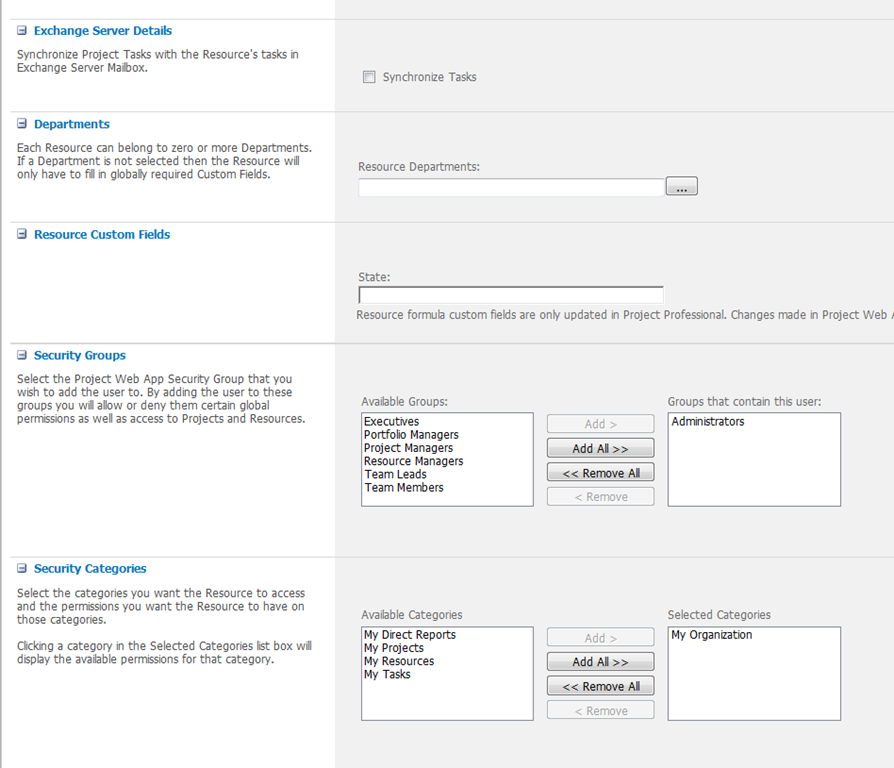
      • Synchronize Tasks: Choose this if you want to enable task synchronization wit Microsoft Exchange for resource (of course you should set up both Microsoft Exchange and Microsoft Project Server before that
      • Departments:Here you can choose if the Resource belong to any specific department. See my previous posts for Departments
      • Resource Custom Fields: Here you will see all Resource Custom Fields which are “connected” with this resource, depending on RBS, and you can choose value from lookup table (if exists) for that fields
      • Synchronize Tasks: Select this check box if you want to synchronize your tasks with Exchange server mailbox.  Of course, both Project Server and Exchange Server has to be set up for this synchronization
      • Security Groups and Security Categories: You are assign each resource to one or more Security groups and Categories. What are they? I had explained that in my pervious posts very briefly

      image

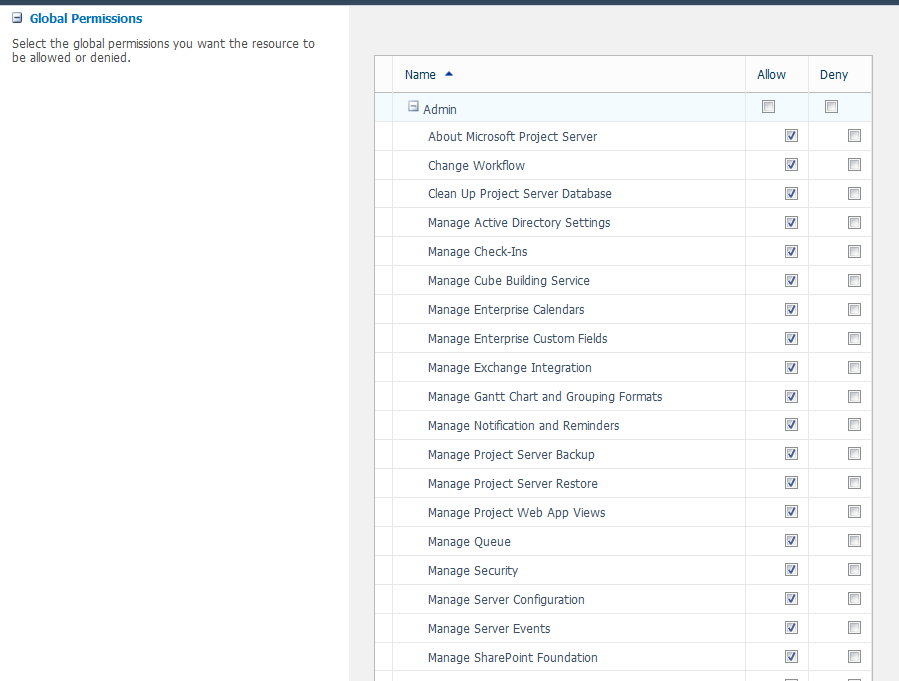
      • Global Permissions: As I said in my previous posts, DO NOT SET UP THOSE for each resource, but rather do that for groups and / or Categories, because you can be very confused later!

      image

      • Group fields: put here some further information if you want to sort, filter etc. resources by Group, Code, Cost Center or Cost type (custom field)
      • Team: You can choose team to which resource belong, so latter you can reassign task from one team member to another
      • Team Assignment Pool: For example, you could create a team resource named Painters to which you assign painting the wall tasks. By assigning this resource to the Painters team and selecting the Team Assignment Pool check box, you enable other resources on the Painters team to see any tasks assigned to the Painters resource and to accept the assignments in PWA.

      That is it!

      Regards!

    Posted in MICROSOFT PROJECT, Microsoft PRoject 2010, Microsoft Project Server 2010, MS PROJECT 2010, PMI, PRoject Management | Tagged , , , , , , | 6 Comments

    Enterprise Project Types in MS PROJECT SERVER 2010


    Hi,

    One of the greatest new feature in MS PROJECT SERVER 2010 is that you can create different project types. In previous versions that was impossible, so it was only one Template for all projects. As we all know, you can not use same template for ERP projects, Constructional Project, Pharmaceutical Projects, etc.

    OK! How can we create new Project Type?

    image

    and I will get:

    image

    As you can see there are two built Project Types.

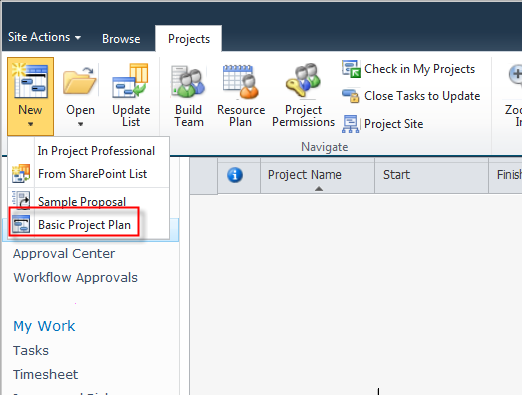
    Because I am a very lazy person, I will use a Basic Project Plan  to show you this functionality, instead of building my own Project type, which can be done if you click on New Enterprise Project Type, shown on the picture above!

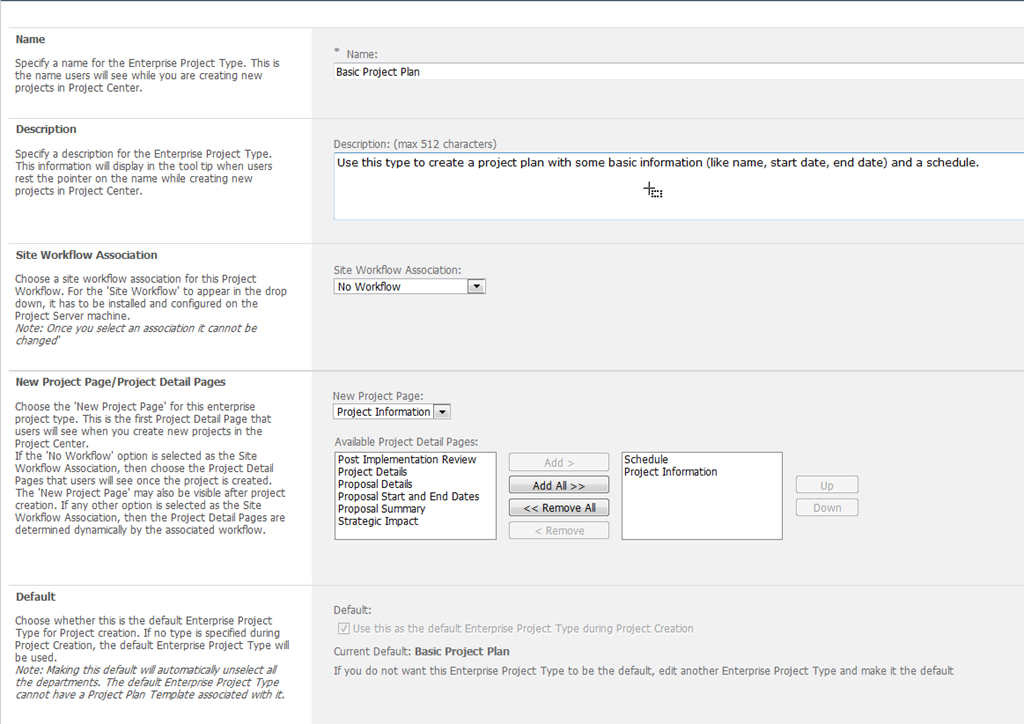
    When I open the Sample Proposal project type I get:

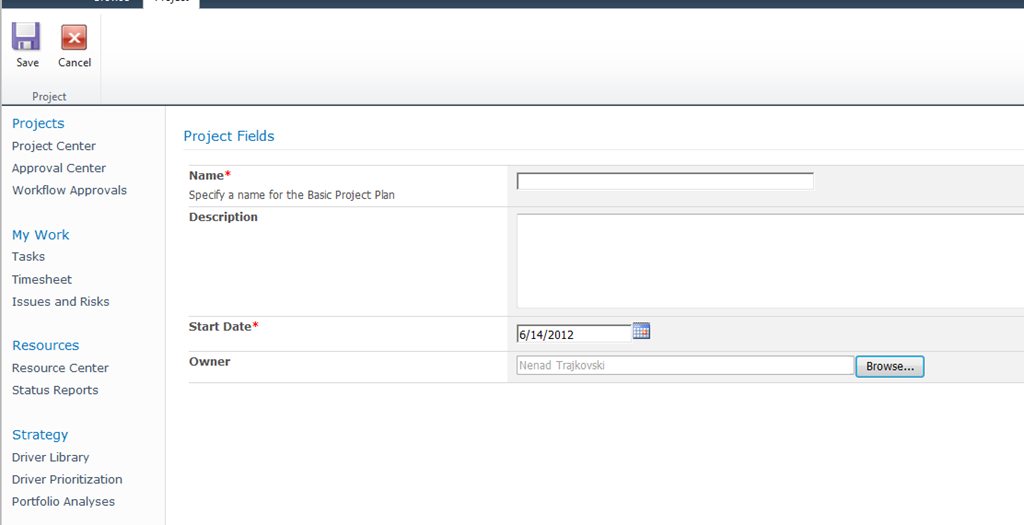
    image

    This is only the firs part of the screen:

    • Name: Put the name of Project Type, like Implementing MS PROJECT SERVER 2010
    • Description: Put Project Type description here, like: This is project type for implementing MS PROJECT SERVER 2010 in any company from the scratch
    • Site Workflow Association: you can choose if you want that this Project type is controlled by workflow or not. If you choose a workflow then you will not be able to choose only one New Project Page, and this will be the first page which you will see when you create new Project based on this Project Type
    • New Project Page: If you select No Workflow then here you choose which Project Page will be the first one when you create, or open you Project, and Available Project Detail Pages are pages that you want to include to your Project type! You must choose at least one Project Detail Page!
    • Default: If you want this Project Type to be default, choose this option.

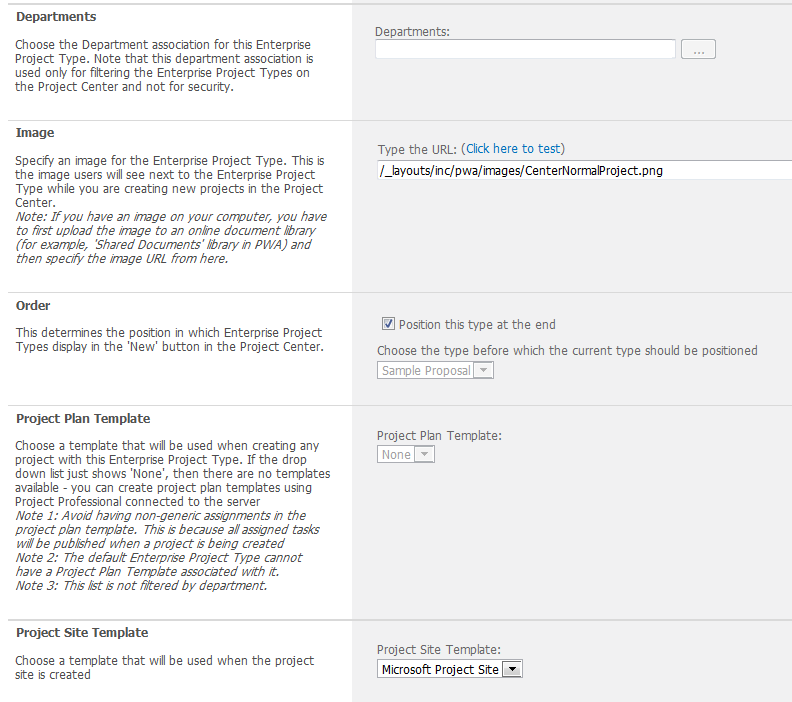
    Second part of the screen:

    image

  • Departments: If you choose Department then this project will be available to the users that belong to this department (or departments if you chose more than one)! Notice, that it is impossible to choose Department for Default Project Type, because default Project Type must be available to anyone, no matter which department that user belongs.Image: Put the specific image link for your Project type if you want!
  • Order: Here you can put where do you want that your Project type appears in PWA! I’ll show you the example.
  • Project Plan Template: If you create specific Project Plan template for one or more Project type (creating templates is subject of some of my next Posts) you can assign them to the Project Type here. Notice, that it is impossible to choose Project Plan Template for Default Project Type.
  • Project Site Template: Here you choose the Project Site template to use when creating the Project Site when you create new project using this Project Type


    OK! Where can you see this Basic Project Plan Project type?

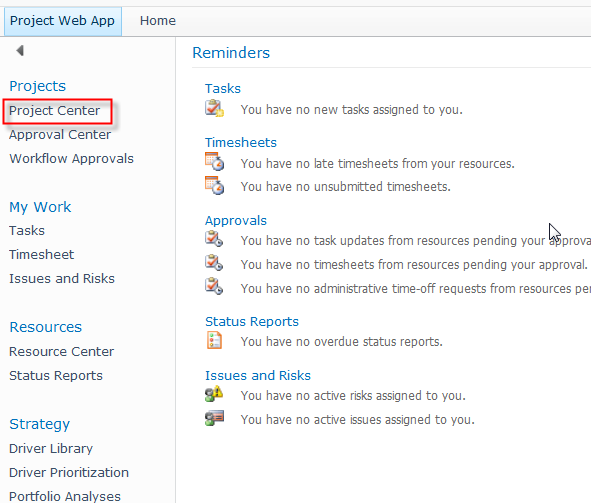
    I will click on the Project Center:

    image

    and I will get:

    image

    You can see that this Project Type is at the bottom (I have promised I will show you). When I choose it, I will get:

    image

    This is the first screen, and it was defined in New Project Page, and it was Project Information, exactly what you see on the picture above. I will put Test in the Name field, and blablabla in the Description field, and I will save this Project. I will get:

    image

    I have two detailed pages, as they were defined: Schedule and Project information! See the third picture from the top!

    That’s it!

    Regards!

  • Posted in MICROSOFT PROJECT, Microsoft PRoject 2010, Microsoft Project Server 2010, MS PROJECT 2010, PMI, PRoject Management | Tagged , , , | 6 Comments

    How to Create Enterprise Calendars in MS PROJECT SERVER 2010!


    Hi,

    In Enterprise environment, it is very important to create ENTERPRISE CALENDARS in MS PROJECT SERVER 2010! You should create working and non working hours, holidays, exceptions etc.

    To do that, I will open PWA, and I will get:

    image

    and I will get:

    image

    For my example I will use Standard calendar, but I can also create new calendar (or calendars). I will click on Standard Calendar and choose Edit Calendar options. After that MS PROJECT PROFESSIONAL 2010 is opened:

    image

    First I will set up working hours:

    image

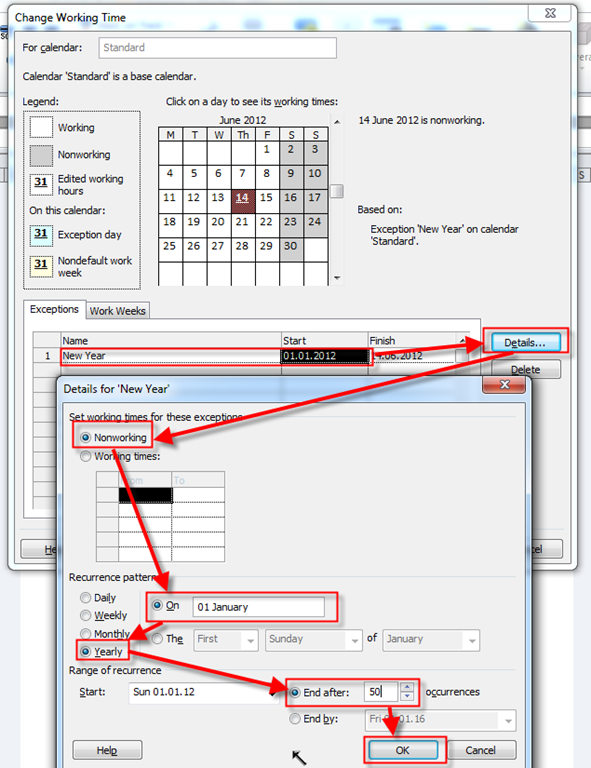
    Now, I am going to set up holidays:

    image

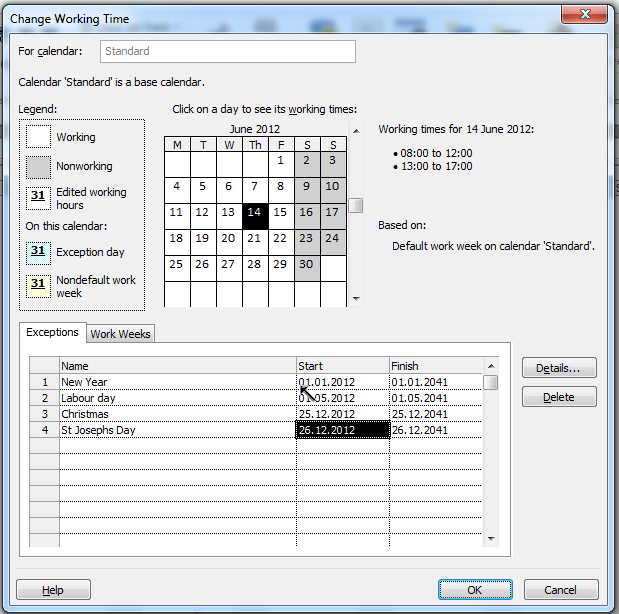
    I will repeat this procedure for each and every exception. Finally I will get:

    image

    If New year will be at Sunday (01.01.2017), and you have an extra day at Monday 02.01.2012, you must add these day in exceptions manually!

    After you finish with creating enterprise calendar, leave MS PROJECT PROFESSIONAL 2010.

    One important thing. I wrote many times that working days, and daily schedule must be aligned!

    For example, daily schedule is here:

    image

    If you change your working Calendars like, for example, this:

    image

    it means that working time will be only four hours per day. Now you should change the daily schedule like this:

    image

    Now what?! If you change working hours as I did, and you want to reflect your Enterprise project you should OPEN EVERY ENTERPRISE PROJECT with MS PROJECT PROFESSIONAL 2010, change daily schedule, as it it showed on the Picture above, and Save the Enterprise Project again. Hard work, isn’t it? Of course it is.

    ADVICE! Make your daily schedule and Enterprise calendars BEFORE you start with your Projects! From my point of view, this is Planning phase for implementing MS PROJECT SERVER 2010 in your organization!

    Regards!

    Posted in MICROSOFT PROJECT, Microsoft PRoject 2010, Microsoft Project Server 2010, MS PROJECT 2010, PRoject Management | Tagged , , , , , , | Leave a comment

    Importing Local Fields as a Custom Enterprise Fields in MS PROJECT SERVER 2010

    Hi,

    in this Post I will explain how to create custom fields in MS PROJECT 2010, and then import them to MS PROJEC SERVER 2010, as a Enterprise custom field!

    There are nine types of Custom Fields in MS PROJECT 2010:

    1. Cost. Use this type when you need a field in which you will put cost in currency. There is up to 10 Cost type fields.
    2. Date. Use this type when you need a field in which you will put date. There is up to 10 Date type fields.
    3. Duration. Use this type when you need a field in which you will put duration expressed in time. There is up to 10 Duration type fields.
    4. Start. Use this type when you need a field in which you will put start time expressed as a date. There is up to 10 Start type fields. Those fields are used for Interim Plans in MS PROJECT 2010, so my advice is that you should use Date type instead.
    5. Finish. Use this type when you need a field in which you will put finish time expressed as a date. There is up to 10 Finish type fields. Those fields are used for Interim Plans in MS PROJECT 2010, so my advice is that you should use Date type instead.
    6. Text. Use this type when you need a field in which you will put text up to 255 characters. There is up to 30 Text type fields.
    7. Flag. Use this type when you need a field in which you will put YES/NO flag. There is up to 20 Flag type fields.
    8. Number. Use this type when you need a field in which you will put numeric data. There is up to 20 Number type fields.
    9. Outline Code. There is up to 10 Outline Code type fields. I will explain them later in my next Post.

    Limits are only if you are working with MS PROJECT PROFESSIONAL alone. If you are working with MS PROJECT SERVER, there are unlimited custom fields!

    Custom fields can be applied to Resources or to Task, or to Projects (in MS PROJECT SERVER 2010) . For my first example, suppose that you need information about State from which your Resource is!

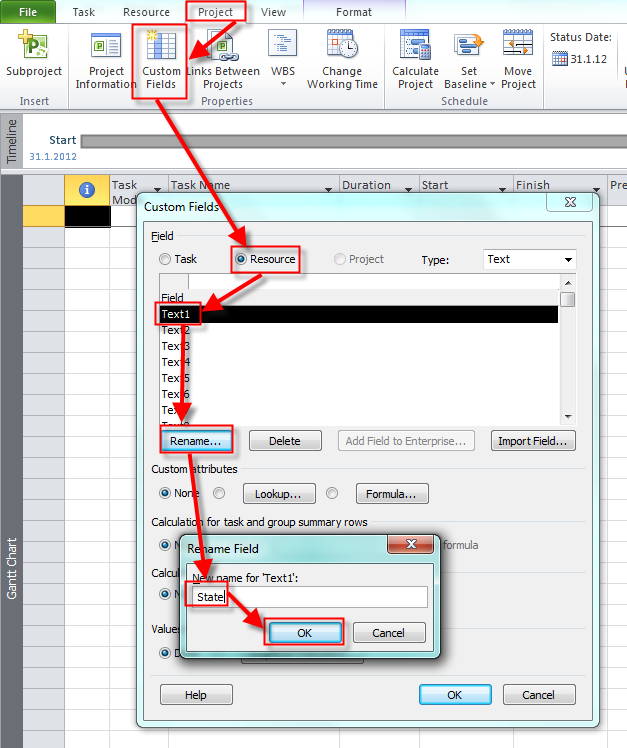
    I will create Custom Text field:

    image

    and I will get:

    image

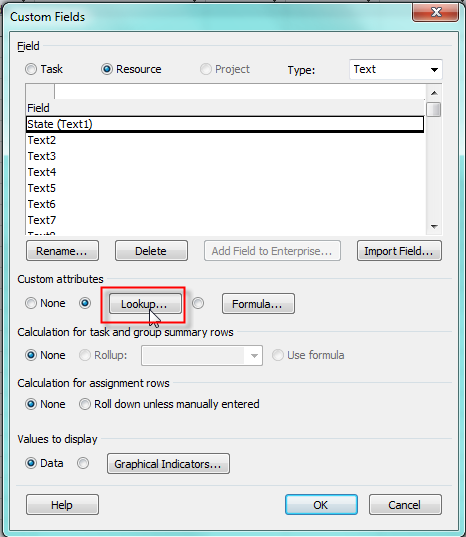
    Now, I will choose Lookup (see the Picture above), and I will get:

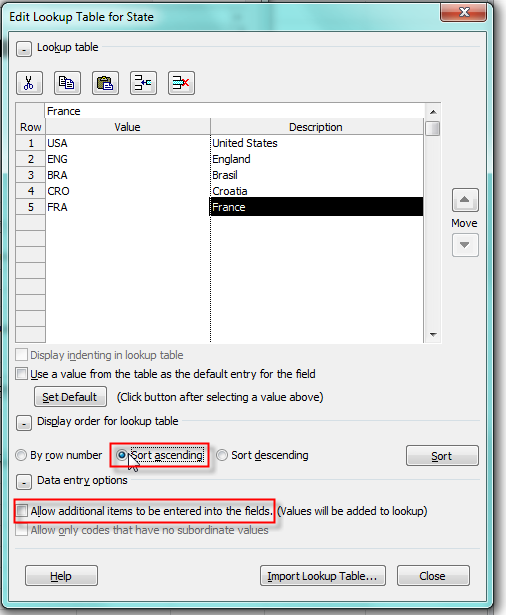
    image

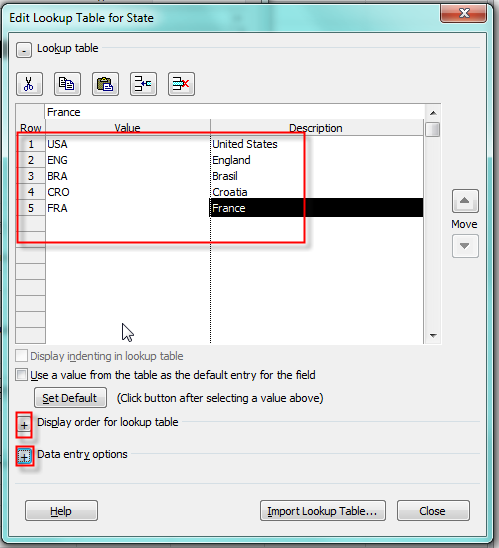
    I have entered some States (just for example), and now I will click at the + Sign as shown at the Picture above:

    image

    I choose that Display order will be Ascending, and I do not want to add any further States in this field. If I put check mark in Allow additional items to be entered into the fields, then user can simply add any value (text) in this field on the screen (which I will explain next), and in that case this value (text) will be added in lookup table.

    I am from Croatia, so most of my Resources are from it, and I will make Croatia as default Value:

    image

    OK! Now I am going to save this project file as a local project file, let say Project1.mpp!

    Now I will re-open my MS PROJECT 2010 with MS PROJECT SERVER account (it must be Administrator account for what I am going to do!):

    image

    and I will get:

    image

    I will reopen my previous file (Project1.mpp), and I will click on Project Tab, and the on Custom fields, and I will get:

    image

    You can see that there is one Task Enterprise custom field (Health), because it is in MS PROJECT SERVER 2010. I will choose Resource type, and I will get:

    image

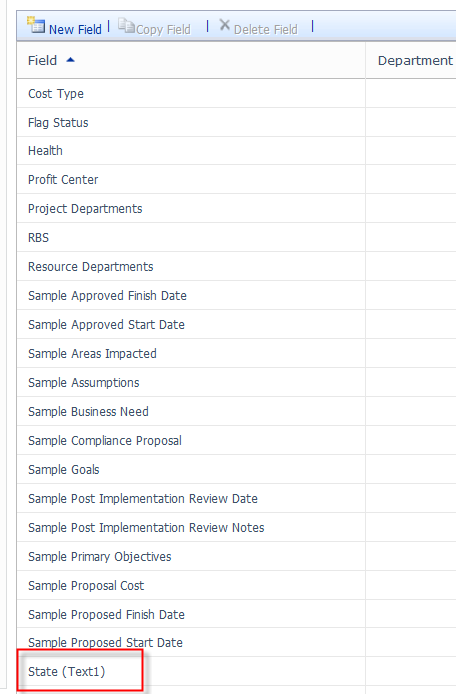
    As you can see, there are four Enterprise Resource custom fields: Cost type, Profit Center (I made this, and it was shown in my previous posts), Resource Departments, and Team Name), and one local (State)! I created this local field before few minutes, remember? Smile

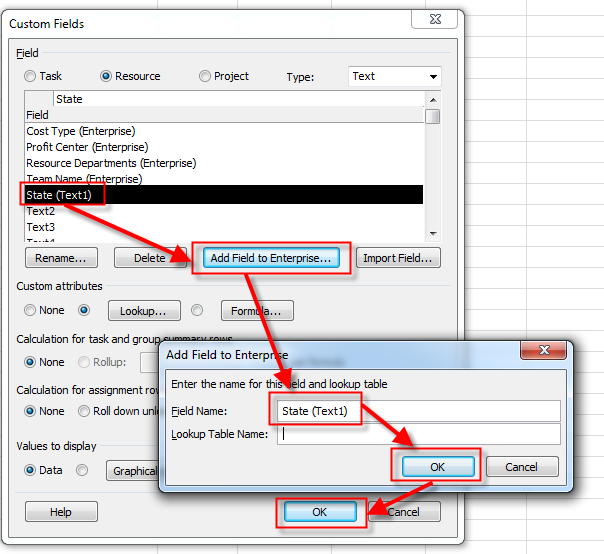
    I will click on this field, and then:

    image

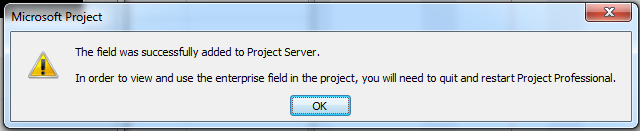
    and I will get:

    image

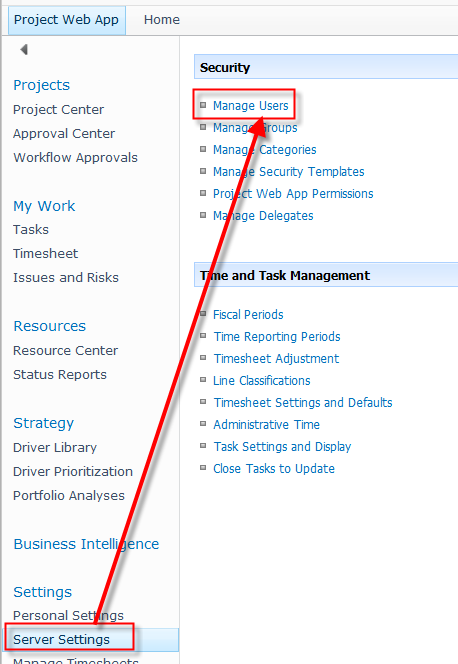
    Now, let me close MS PROJECT PROFESSIONAL 2010, and open MS PROJECT SERVER 2010:

    image

    and I will get:

    image

    Voila! It is here! I will rename it:

    image

    Finally, I will open My user account:

    image

    and then:

    image

    and finally:

    image

    Here it is.


    Regards!

    Posted in MICROSOFT PROJECT, Microsoft PRoject 2010, Microsoft Project Server 2010, MS PROJECT 2010, PMI, PRoject Management | Tagged , , , , | 1 Comment

    How to create Project Server Account in MS Project Professional 2010


    Hi,

    as you already know, when you use MS PROJECT SERVER 2010 to manage your Projects, Programs or Portfolios, you can’t do everything in PWA (Project Web Access). You should use MS PROJECT PROFESSIONAL 2010. You can not use PROJECT STANDARD 2010 version if you want to connect to MS PROJECT SERVER 2010.

    First, you should create account in MS PROJECT PROFESSIONAL 2010! OK, OK, yes, first you should have installed MS PROJECT SERVER 2010, but I assume that it is obvious Smile

    Hot to create account in MS PROJECT PROFESSIONAL 2010?

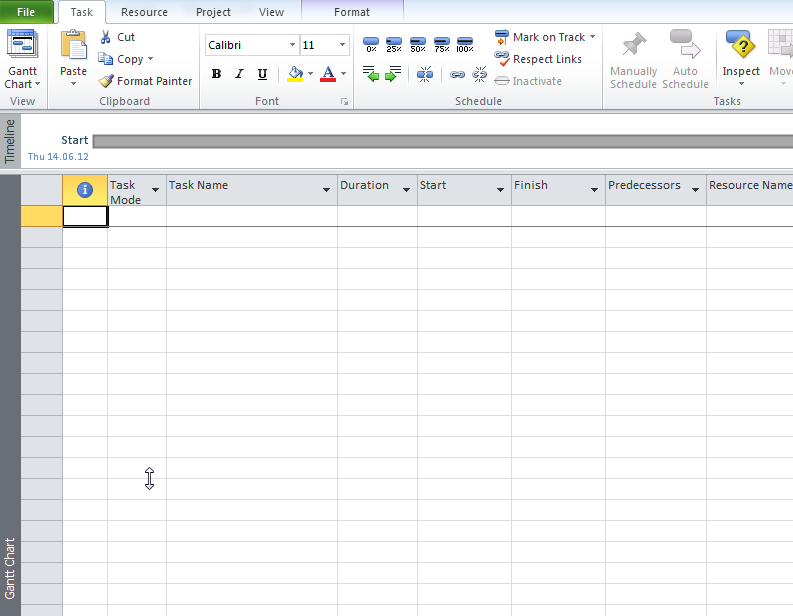
    Open your MS PROJECT PROFESSIONAL 2010, and you will get something like this:

    image

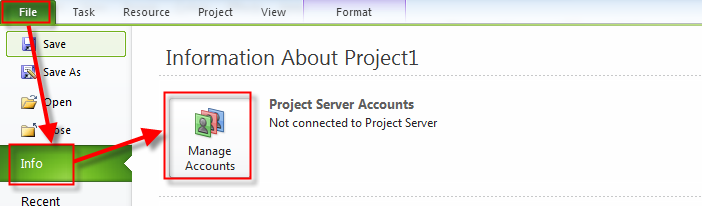
    Now, click on File Tab, and the on Info:

    image

    When I click on Manage Accounts, I will get:

    image

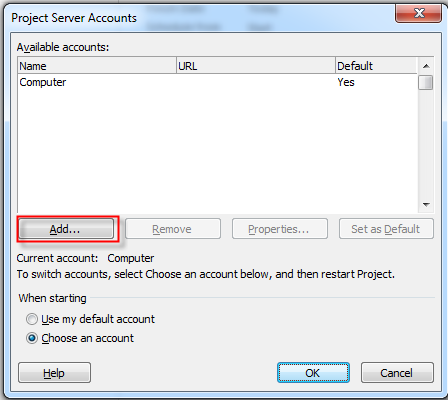
    I will click on Add button, and I will get:

    image

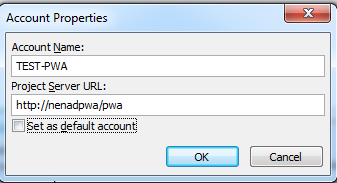
    In Account Name filed I put, well I will say Description of account, and in Project Server URL, I will put URL from my Project Server. Notice that I did not checked Set as default account, because I want to have local account (desktop) as default! I will click on OK button and I will get:

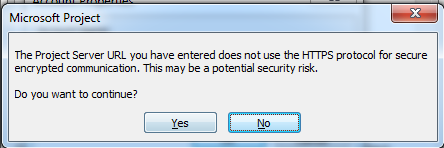
    image

    Since I didn’t choose https protocol,  I got this warning.

    I will add some other accounts (since I have several instances of MS PROJECT SERVER 2010 installed, for different purposes), and I will get:

    image

    Notice that the Computer (Local) account is Default, and I want to Choose an account when I start my MS PROJECT PROFESSIONAL 2010!

    When I am not connected to PROJECT SERVER 2010, File tab (for instance), and then Info it looks like this:

    image

    Now I will restart MS PROJECT PROFESSIONAL 2010! I will get:

    image

    I can choose which account do I want, and I will use (choose)  the TEST-PWA account, and I will get:

    image

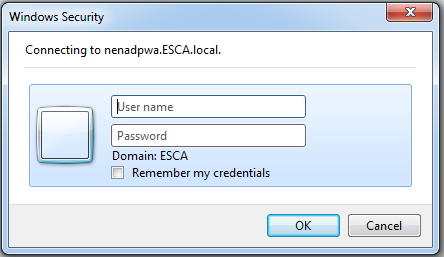
    I configured my MS PROJECT SERVER 2010 to ask me User name and Password whenever I try to log in! After I type those two fields (I will not tell you my User name and Password Smile with tongue out), I will get:

    image

    Same screen as if I am not connected to MS PROJECT SEREVER 2010! BUT! If I open File tab (for instance), and then Info it looks like this:

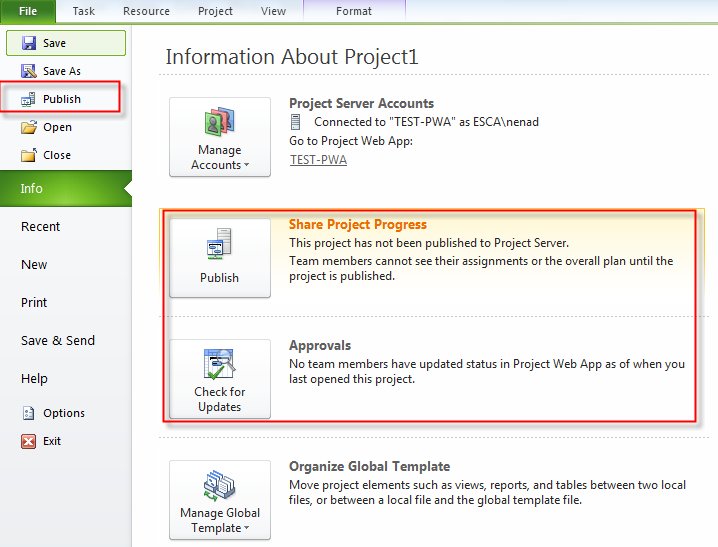
    image

    You can see that I have some further options, and there are for Project Server. I will explain those options in one of my next Posts. If I try, for instance, Save the Project, I will get:

    image

    It is very different, that when I save my project to my laptop (with local account)!


    Regards!

    Posted in MICROSOFT PROJECT, Microsoft PRoject 2010, Microsoft Project Server 2010, MS PROJECT 2010, PMI, PRoject Management | Tagged , , , | Leave a comment