Teams in MS PROJECT SERVER 2010


Hi,

In this Post, I will show you how to create teams in MS PROJECT SERVER 2010. If you red my previous Posts, you have noticed that, for example, RSB lookup field it is built in RBS lookup table in MS PROJECT 2010. But, for the built in Team Name custom field, there is no built in Team Name or any other lookup table!

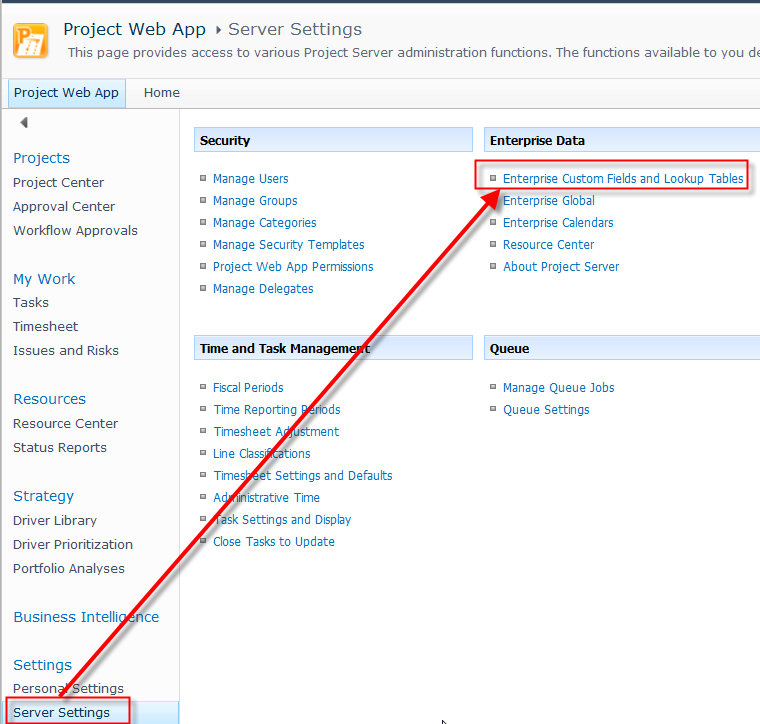
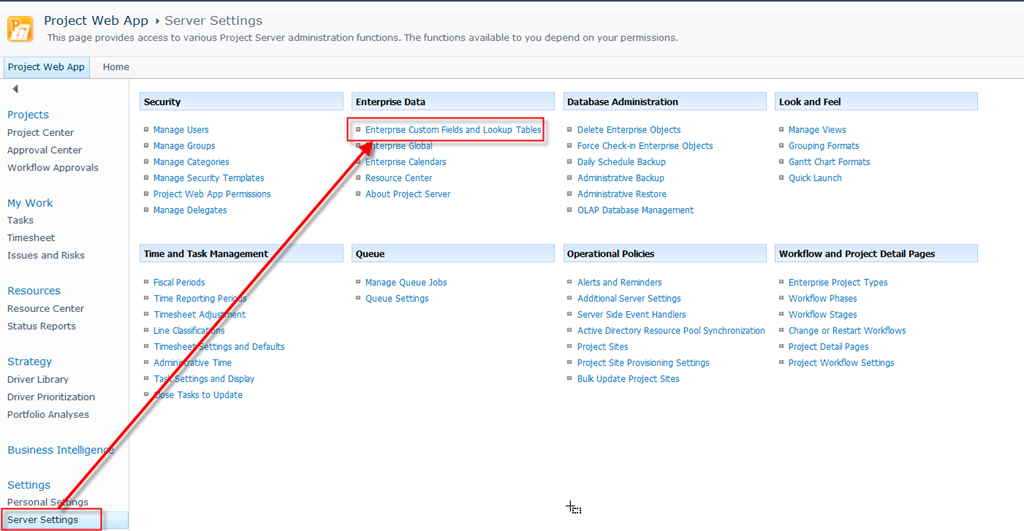
Where is the Team Name custom field?

Here:

image

and then:

image

Here it is:

image

Notice, there is no such a thing like a Team Name lookup table.

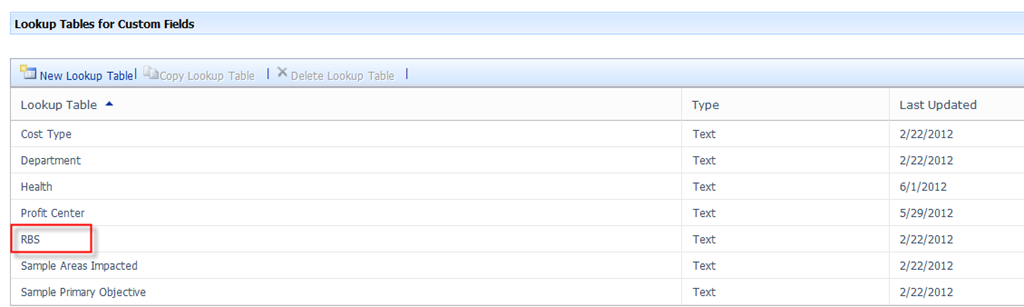
When I click on Team Name, lookup table:

image

There is no Lookup Table for this field.

I will now create Teams lookup table with simple values:

  • Sap Developers
  • Sap Consultants
  • NAV Developers
  • NAV Consultants
  • MS Project Developers
  • MS Project Consultants

image

and then:

image

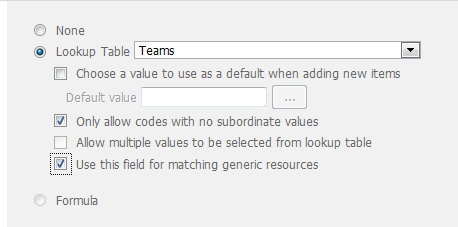
Now I have this custom lookup table, and I have to assign it to the Team Name lookup table:

image

I will get:

image

and:

image

I want to be able to use this field for generic resources, as well!

Finally, I am going to assign some Team values to my resources:

image

and:

image

and finally:

image

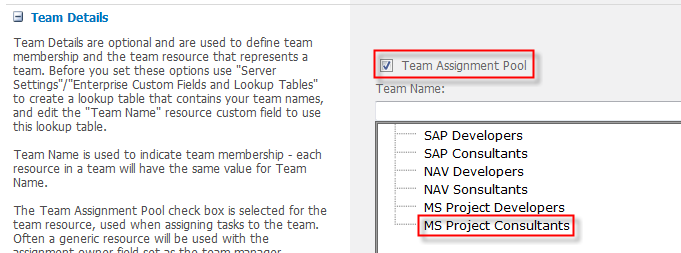
What is Team Assignment Pool? By selecting the Team Assignment Pool check box, you enable other users on the MS Project Consultants team to see any tasks assigned to the Development resource and to accept the assignments in PWA!


Regards,

Posted in MICROSOFT PROJECT, Microsoft PRoject 2010, Microsoft Project Server 2010, MS PROJECT 2010, PRoject Management | Tagged , , , , | 14 Comments

Departments in MS PROJECT SERVER 2010

Hi,

In this post I will show you Department Custom fields, and Department Lookup table in MS PROJECT SERVER 2010!

This is a brand new “feature” in MS PROJECT SERVER 2010. Main purpose of this fields is to be a filter for custom fields. In previous version every custom field was visible to every user. So, if they were set like “required” no matter if user needed it or not, he or she was required to put or choose value!

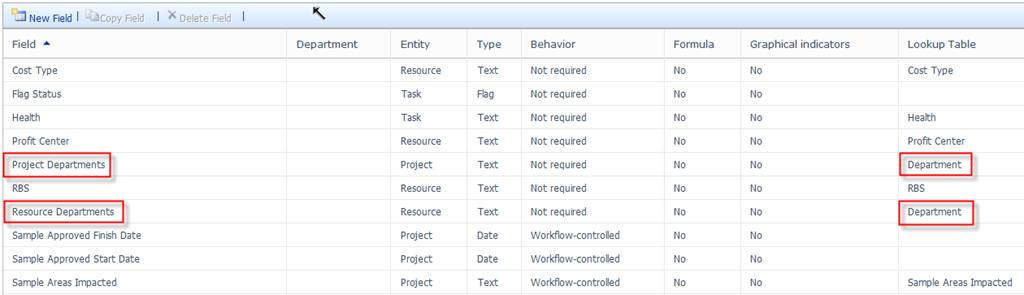
There are two types of Department custom fields: Project and Resources.

Project type is tightly connected to Project Type, the next new powerful feature in MS PROJECT SERVER 2010! I will explain that in one of my upcoming posts.

The Resource type is tightly connected with Resources (or Users).

So, let us suppose that we have three custom fields:

  • Profit Center – Required field
  • Shoe number (I am trying to be funny) – Not Required field
  • T-shirt number – Required field

Now suppose that Profit center is connected with Finance department, and other two fields are not connected with any department. We have John, Resource connected with Finance department, and Mary, Resource without any assigned department.

John will see all custom fields (Profit Center, Shoe number, and T-shirt number), and he will have to put value in Profit Center and T-shirt Number field!

Mary will see only Shoe number, and T-shirt number, and will have to put some value in T-shirt Number field!

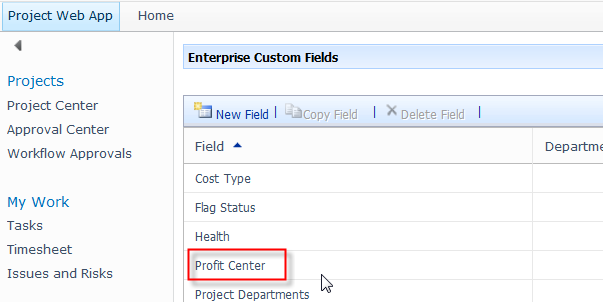
OK! Where are those custom fields?

Here:


image

and:

image

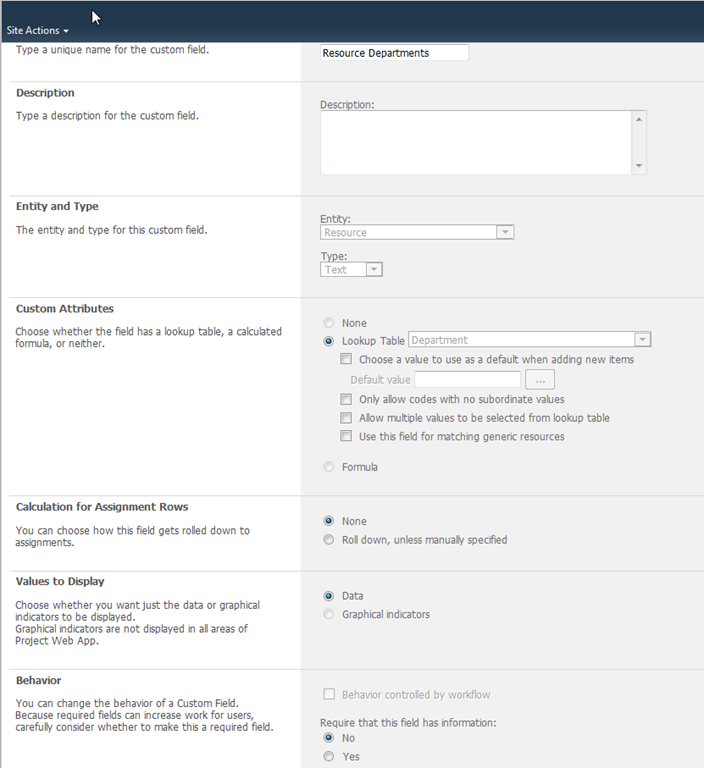
Let’s take a look at Resource Departments custom field:

image

As you can see this field is non required.

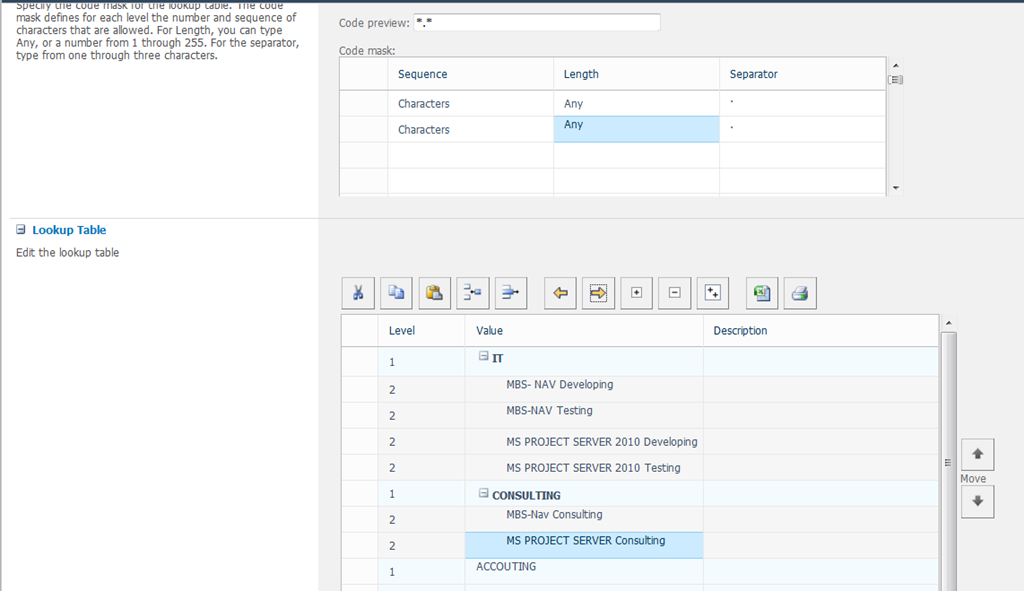
Now it is the time to put some values in Department lookup table!

image

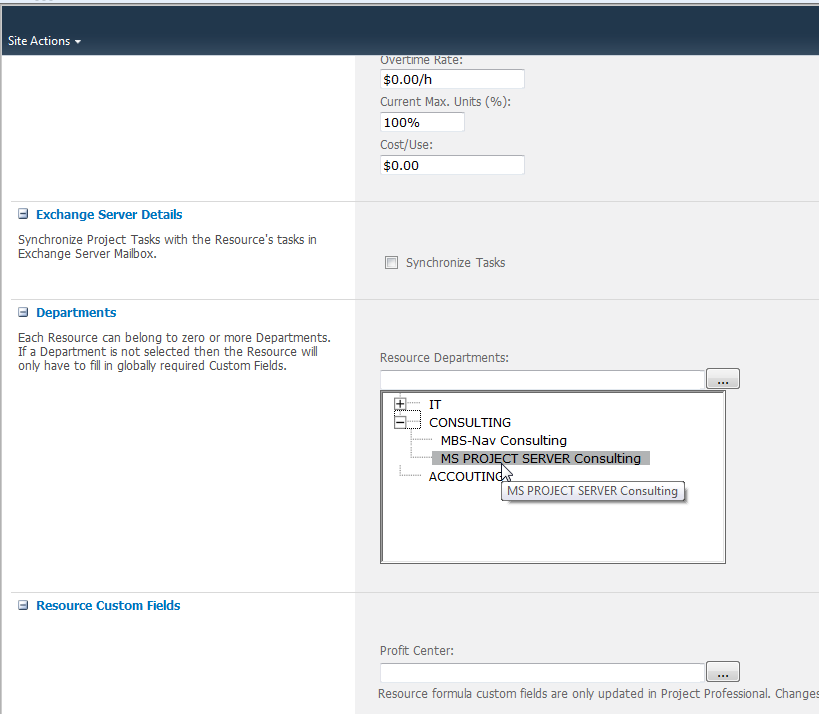
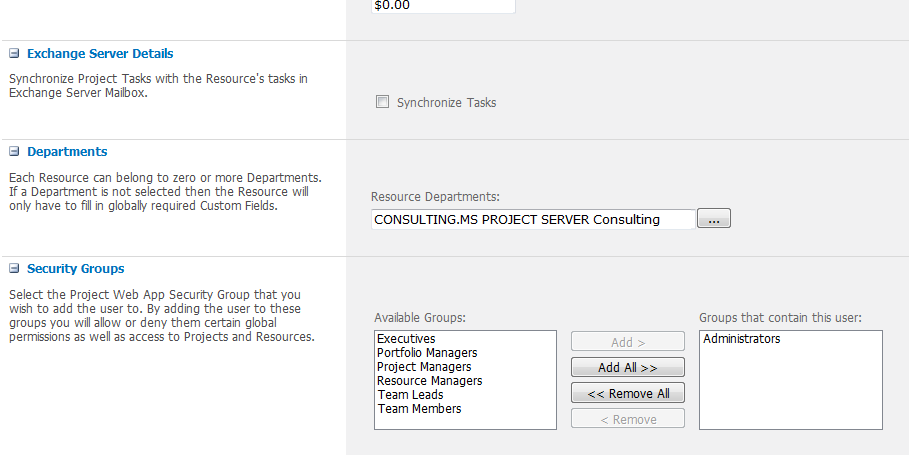
Now, I will assign MS PROJECT SERVER consulting to myself:

image

and:

image

and finally:

image

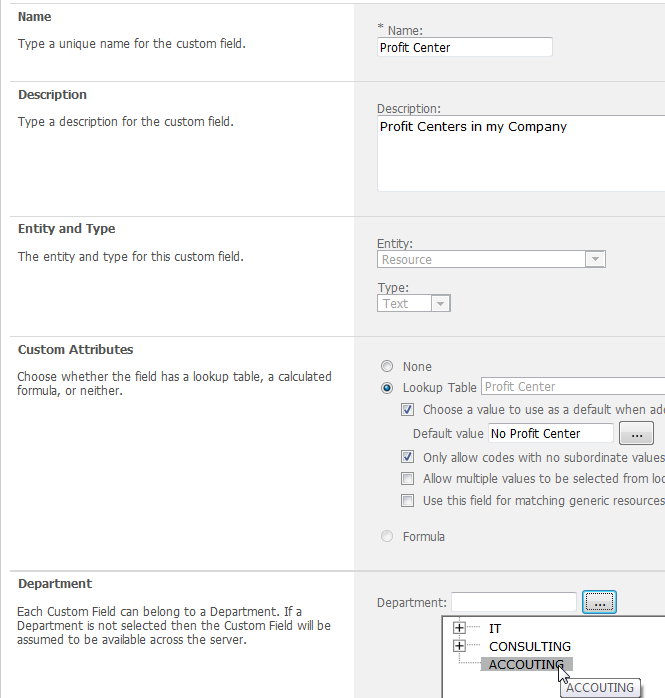
Notice that I have access to Profit Center Custom field! But not for a long! No I will change Department for this, Profit Center custom field, to Accounting!

image

and then:

image


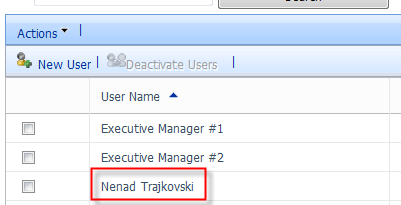
Now, back to user Nenad Trajkovski:

image

The Profit Center custom field is not longer visible to me!

Regards!

Posted in MICROSOFT PROJECT, Microsoft Project Server 2010, MS PROJECT 2010, PMI, PRoject Management | Tagged , , , , | Leave a comment

The RBS Lookup Table in MS PROJECT SERVER 2010


Hi,

I will explain the RBS Lookup Table in MS PROJECT SERVER 2010. Every user can belong to one department. This department I can choose from RBS lookup table.

For example my company RBS is:

Company

  • Projects
  • Consulting


  • I will open RBS lookup table:

image

and then:

image

I will get:

image

I will fill my RBS structure like this:

image

and:

image

OK! Where can I assign the user to the RBS?

image

and then:

image

Finally, I will get:

image

Here I can choose proper RBS value, and assign it to the user.

Be very careful! In Categories you are setting up who can see who! I will show you categories:

image

and then, for example:

image

I will get:

image

Suppose that I have this RBS:

  • John – Level 1 – Company
  • Mary and Tim – Level 2 – Projects
  • Peter and Paula – Level 3 – MS Project Server managers
  • Lily, Grey, Jack – Level 4 – MS PROJECT SERVER Team

and

  • Becky and Burton – Level 2 – Consulting
  • Tony and Gregory – Level 3 – MS Project Server Consultant managers
  • Jerry, and Hans – Level 4 – MS PROJECT SERVER Consultants Team

Now, if I select The Project owner is s descendant of the User via RBS, I will get:

  • John – Level 1 can see everyone
  • Mary and Tim – Level 2 can see Peter, Paula, Lily, Grey, and Jack
  • Peter and Paula – Level 3 can see Lily, Grey and Jack
  • Becky and Burton – Level 2 can see Tony, Gregory, Jerry, and Hans
  • Tony and Gregory – Level 3 can see Jerry, and Hans
  • Lily, Grey, Jack, Jerry, and Hans – Level 4 they cannot see anyone

When I say see, I mean they can or cannot see resource and assignment information!!!

If I select A resource on the project’s Project team is a descendant of the user via RBS, I will get:

  • John – Level 1 can see Mary, Tim, Becky and Burton
  • Mary and Tim – Level 2 can see Peter and Paula
  • Peter and Paula – Level 3 can see Lily, Grey and Jack
  • Becky and Burton – Level 2 can see Tony and Gregory
  • Tony and Gregory – Level 3 can see Jerry, and Hans
  • Lily, Grey, Jack, Jerry, and Hans – Level 4 they cannot see anyone

If I select The Project Owner has a same RBS value as the User, I will get:

  • John – Level 1 cannot see anyone
  • Mary and Tim – Level 2 can see one another
  • Peter and Paula – Level 3 can see one another
  • Lily, Grey and Jack  – Level 4 can one another
  • Becky and Burton – Level 2 can one another
  • Tony and Gregory – Level 3 can see one another
  • Jerry, and Hans – Level 4 can see one another


Regards,

Posted in MICROSOFT PROJECT, Microsoft PRoject 2010, Microsoft Project Server 2010, MS PROJECT 2010, PMI, PRoject Management | Tagged , , , | 3 Comments

The HEALTH Lookup Table in MS PROJECT SERVER 2010


Hi,

In next couple od posts, I will explain some default lookup tables in MS PROJECT SERVE 2010!

Today I will show you default Health custom field, and lookup table in MS PROJECT SERVER 2010.

The Health custom field can be found here:

image

and then here:

image

When I click on this field I will get:

image

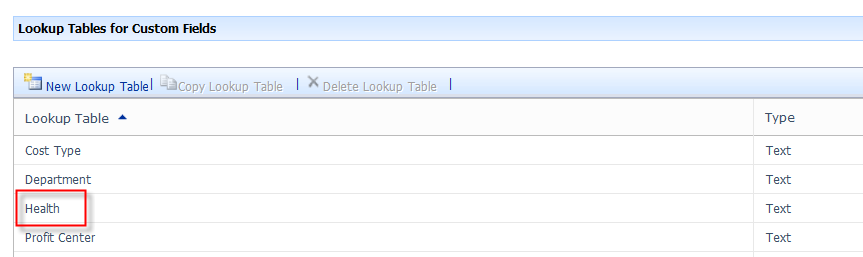
As you can see, this field is a text type, and it has a lookup table named: Health, so when the user will pick a health field, he or she would be able to choose value from a lookup table, and he or she will not be able to enter anything what is not in this table.

What is the purpose of this field? Well, let us look at lookup table.

image

When I choose this table I will get:

image

It has six default values:

  • Not Specified
  • On schedule
  • Late
  • Early
  • Blocked
  • Completed

Now you get an idea of this field purpose! It will be used to track Task health condition. Since I do not like those default values I will make my own:

image

What each of this values means is written in Description column.


Regards,

Posted in MICROSOFT PROJECT, Microsoft Project Server 2010, MS PROJECT 2010, PMI, PRoject Management | Tagged , , , , | Leave a comment

Custom Lookup Tables in MS PROJECT SERVER 2010


Hi,

as I promised, in this Post, I will explain how to “connect” Enterprise Custom field with Enterprise Custom Table in MS PROJECT SERVER 2010. In my last post, few days ago it was explained how uncomfortable can be, if user can put any value in a custom field. If you want limit that, you should use Custom Tables.

If you remember, I created a Profit Center text custom field in my last Post:

image

It is required field, and it should be connected with Resources.

I want, for example, to have Profit Centers like this:

Consultants:

  • Dynamics NAV Consultants
  • SAP Consultants

Trainers:

  • MS PROJECT Professional Trainers
  • MS PROJECT SERVER Trainers
  • MS DYNAMICS NAV Trainers
  • SAP Trainers

No profit Center

and I want that user belong to one of those profit centers

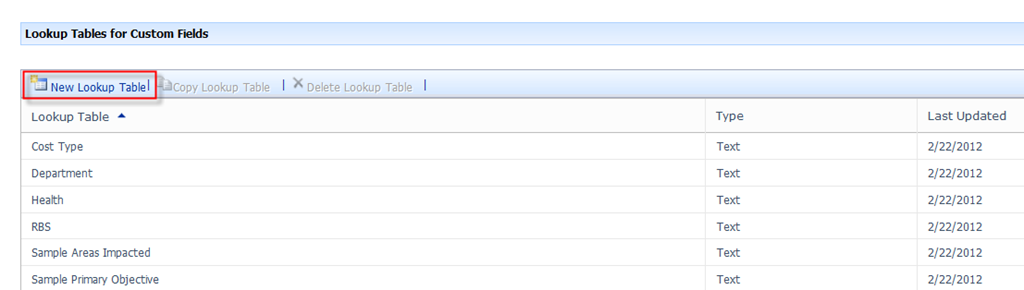
I will create brand new Lookup table:

image

and then:

image

Finally I get:

image

My new Lookup Table will have a name: Profit Centers, and it will be Text type, because my custom field Profit Center has also Text type.

Now I will put code mask (and I can put the code mask only for the Text type)

image

So, I will have two levels, what is exactly what I need, and the user will choose from text type (characters)

Now it is time to put values in this table:

image

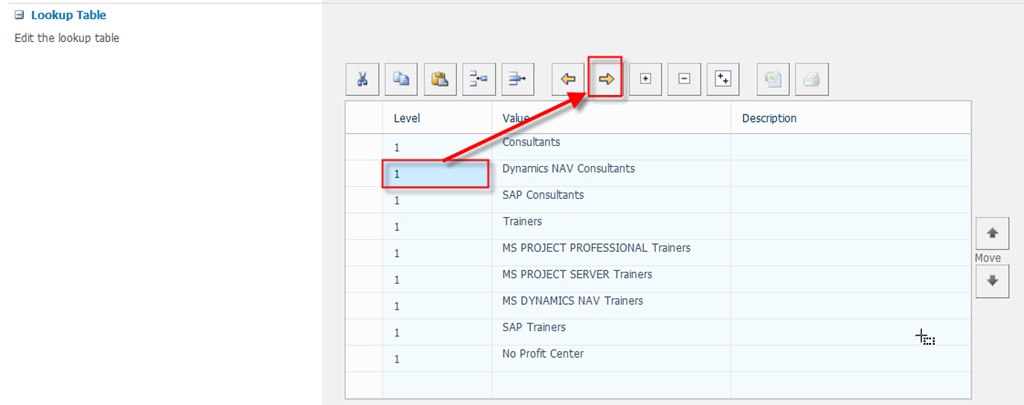
You can see that those values are on the same level. I will put

  • Dynamics NAV Consultants
  • SAP Consultants
  • MS PROJECT Professional Trainers
  • MS PROJECT SERVER Trainers
  • MS DYNAMICS NAV Trainers
  • SAP Trainers

to the level 2!

image

and I will get:

image

When I indent the rest of my fields, I will get:

image

I want those values to be sorter by row number, and I will save my Table!

OK! Now what? I have to “connect” my custom field Profit center with Lookup table.

image

and I will get:

image

I can NOT change Custom Attribute from None to Lookup Table. And I am in trouble, because I should first create custom table, then custom field. And I don’t need this field any more. So I will delete it:

image

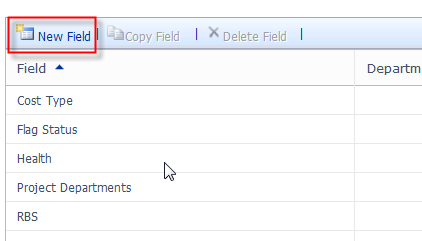
and I will create new one:

image

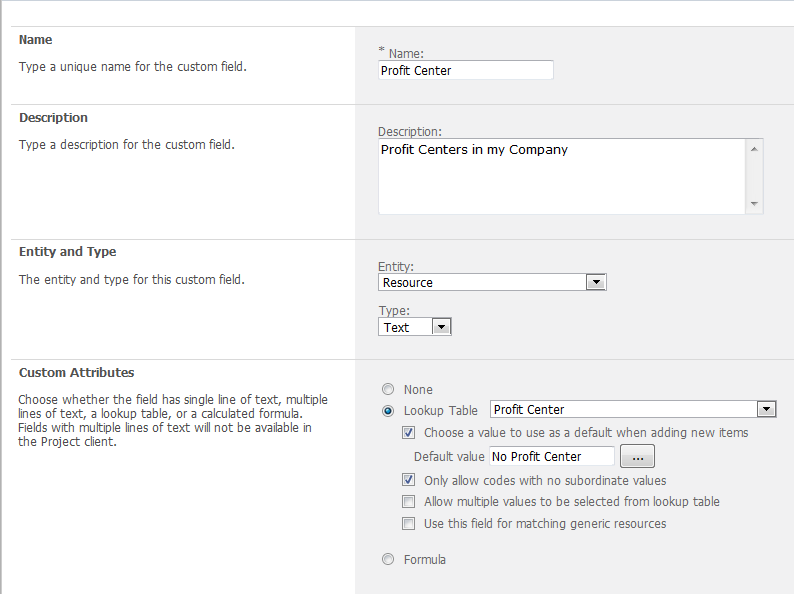
I will fill necessary information:

image

  • Name: the name of my Custom Field
  • Description: Closer Description of that field
  • Entity and Type: It will be a Resource entity with Text type (read my last Post for further explanation)
  • Custom Attributes: Lookup Table is Profit Center , and I want that default value is No Profit Center. So If a user does not specify any value this will be default. I also want user to choose low level value from my hierarchy.

And now, I will save this custom field!

WARNING!!!! WHEN YOU SAVE A CUSTOM FIELD WITH LOOKUP TABLE IT IS NOT POSSIBLE TO CHANGE THE LOOKUP TABLE LATTER! So, be vary careful when you assign lookup table with custom field!

OK! Now I will assign to the Nenad Trajkovski the MS PROJECT PROFESSIONAL Trainers custom field Value!

image

and then:

image

and finally:

image

I will now choose:

image

and I will get:

image

Now I have to save those changes by hitting the Save button.


Regards!

Posted in MICROSOFT PROJECT, Microsoft PRoject 2010, Microsoft Project Server 2010, MS PROJECT 2010, PMI, PRoject Management | Tagged , , , | 2 Comments

Enterprise Custom Fields in MS PROJECT SERVER 2010


Hi,

In this Post, I will show you how to create and manage Enterprise Custom Fields in MS PROJECT SERVER 2010.

First of all, why do you need those fields? The answer is simple: To suit your needs! Let’s suppose that you need to track information about cost center! Where can you enter this cost center? In the custom field!

There are four types of Custom Fields:

  1. Custom Fields in which you can enter any value (depends on type of field, which I will explain later)
  2. Custom Fields that have predefined values (via Lookup table)
  3. Custom Fields with formula
  4. Custom Fields that displays graphical indicator

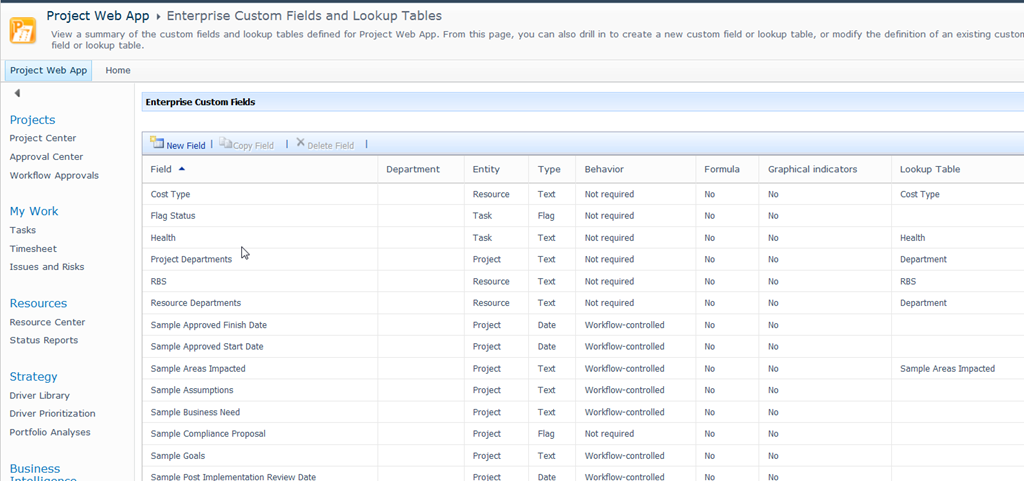
You can access Custom Fields here:

image

and then:

image

and you will get:

image


As you can see there are several default custom fields (twenty of them)!

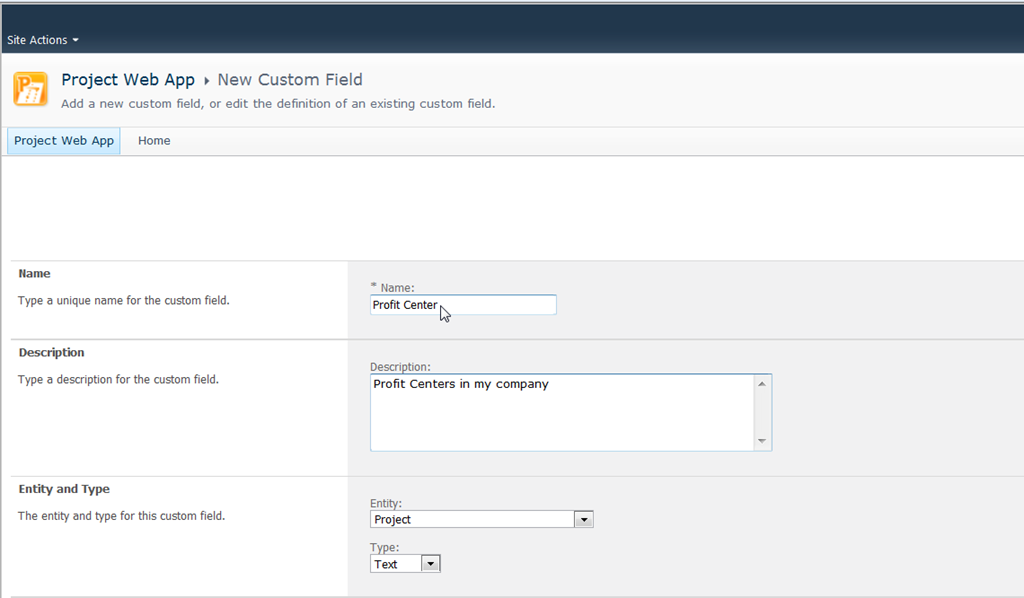
I will now create the brand new field, Profit Center. When I click on the New Field button, I will get:

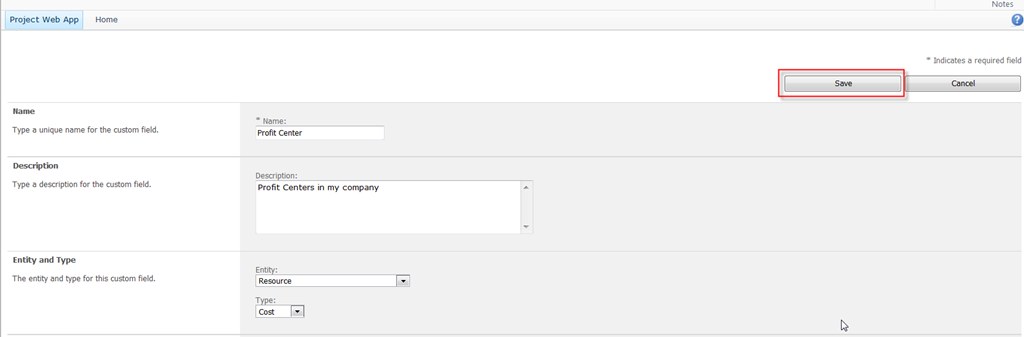
image

This is only the first part of the screen! In the Name field I will put the name of this custom field. In the description field I will enter description of thist field.

In Entity field I can choose: Project, Resource or Task.

  • If I choose Project, this custom field is applied to the PROJECT LEVEL.
  • If I choose Resource, this custom field is applied to the RESOURCE LEVEL
  • If I choose Task, this custom field is applied to the TASK LEVEL

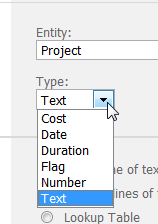
The next field is Type. Here I can define what kind of field do I want to create:

image

  • Cost – It is used for fields in which you will enter MONEY (e.g.. currency amount), for example if you want to have a Bonus field in which you will enter bonus for Resource, you should use this field type
  • Date – It is used for fields in which you want to enter date, for example, Date of Birth for your resources Smile
  • Duration – It is used for fields which contains durations, for example duration between planned and actuals (of course, you should use formula for that)
  • Flag – It is used when you have to decide between two values (yes or no), for example if you want to have field like disabled for your resources
  • Number – It is used for any number except Cost, for example, here you can put the shoe number of your resource if you have protective footwear for your resources
  • Text – You can enter whatever  you want here!

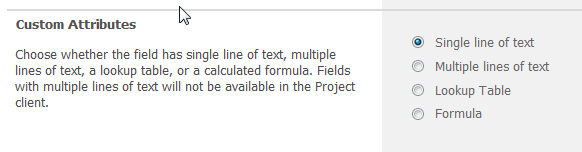
When you choose Type you have to choose Custom Attributes, too:

image

Those attributes are not the same for every Type of custom field. The picture above displays custom attributes for the Text type:

  • Single line of text – you will choose that if you want to enter only a single line of text in this field
  • Multiple lines of text – you will choose that if you want to enter multiple lines of text in this field. If you choose that, you will not see in Project information Tab in MS PROJECT PROFESSIONAL 2010!
  • Lookup Table – is available with Text type! I will explain usage of Lookup Table  in my next Post!
  • Formula – if you want to use a specific formula which you can define for this custom field. I will explain this in one of my next Posts.

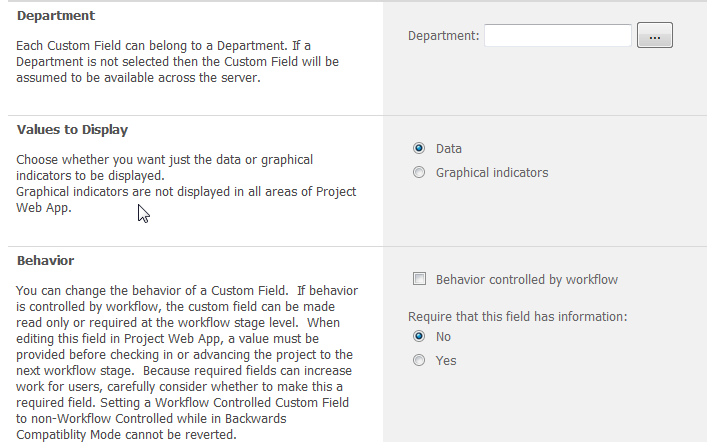
image

In Department field if you department, then only users which belongs to that particular Department will be able to see this custom field. If you leave this field empty, all users will see this custom field!

Behavior controlled by workflow – if you choose this option than the behavior of this field will be controlled by workflow

Require that this field has information – If you select Yes than this field can not be blank, and you will have to fill it! Be careful with that!

For my example, I will choose Resource entity and Text type, because I want that every Resource belong to Profit Center, no matter on which Projects or Tasks will they work on! I will also make this field as Required!

image

Now I will save this custom field:

image

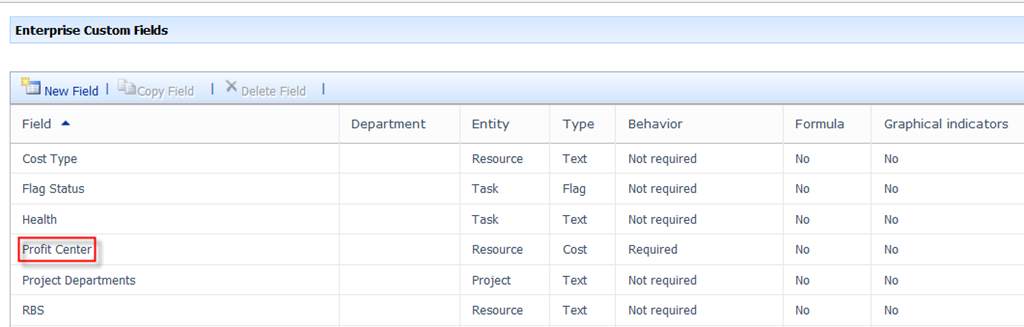
You can see it here:

image

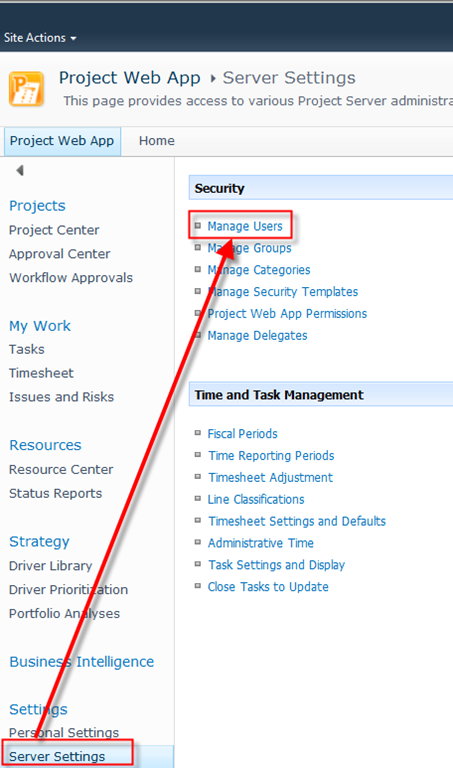
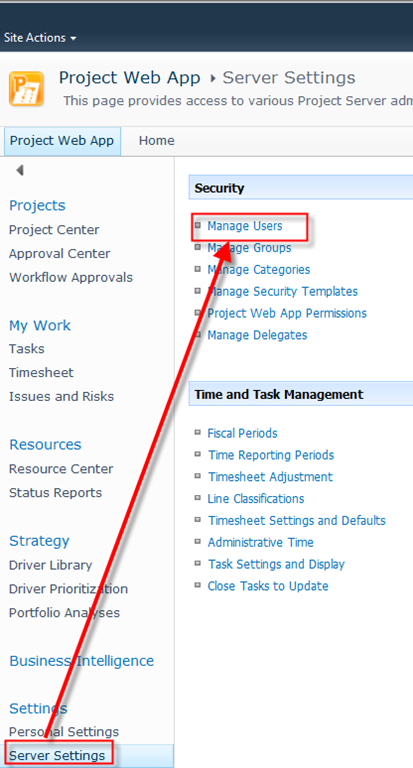
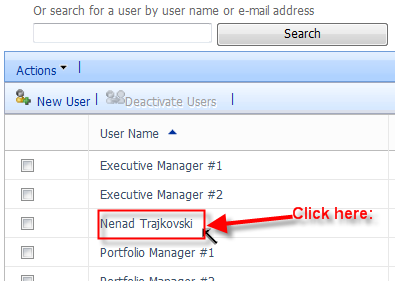
OK! Now what? Where is this field applied? Let us go to the Manage Users:

image

and I will get:

image

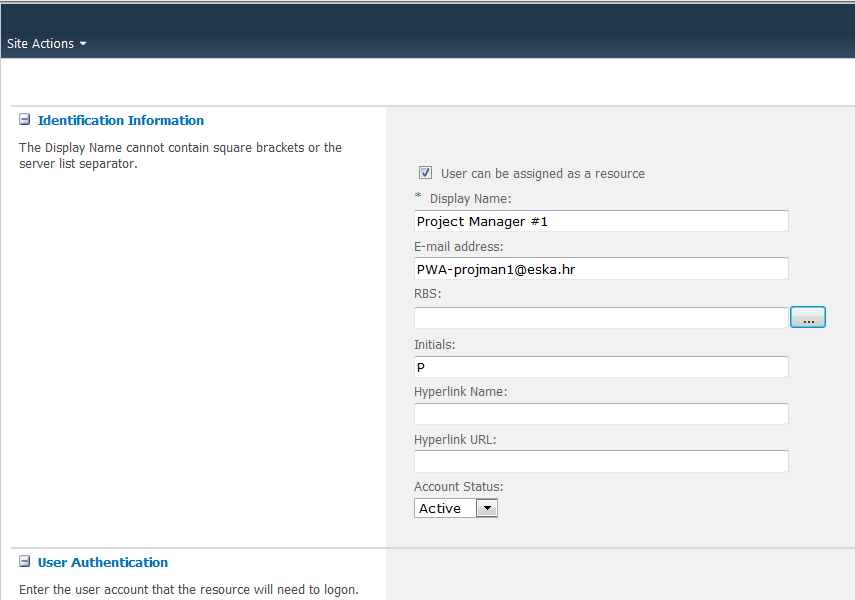
Now I will choose, for example, Project Manager #1 and I will get:

image

On the middle part of this screen, I am getting this new Enterprise custom field:

image

I will now, try to save this without putting anything to this field:

image

I can not do it, because this custom field is required! The conclusion? BEFORE you start to add your resources, tasks, or project, first define, and crate your custom fields. In my case, I should go from one resource to another, and fill this field, which can be very annoying!

So I will put, for example, abc123 in that field!

image

and I will save it!

It works! But you will say: “YOU ARE MORON! What does abc123 mean?”. It means nothing. I just show you that in this type of custom field I can put whatever I want!

Of course if you have predefined Profit Centers in your company, you should use a lookup table! How? Read my next Post!


Regards,

Posted in MICROSOFT PROJECT, Microsoft PRoject 2010, Microsoft Project Server 2010, MS PROJECT 2010, PMI, PRoject Management | Tagged , , , , | 2 Comments

Permissions Cumulative Behavior in MS PROJECT SERVER 2010


Hi,

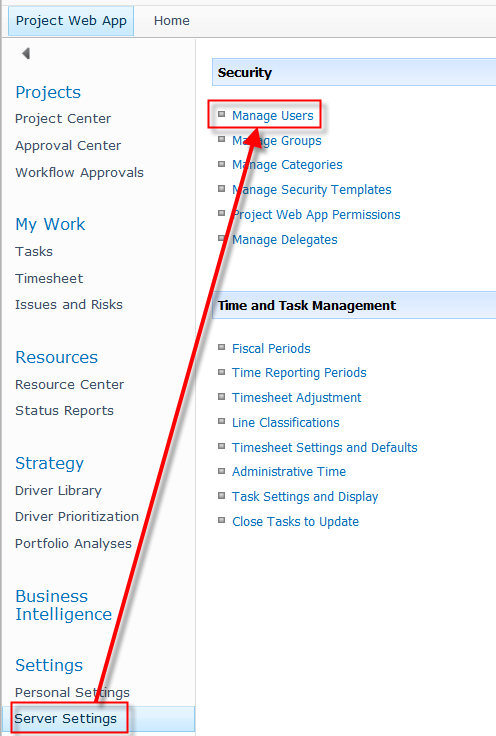
this post will be a short one! I will show you Permissions Cumulative Behavior in MS PROJECT SERVER 2010. First I will open, for example, Manage Categories view:

image

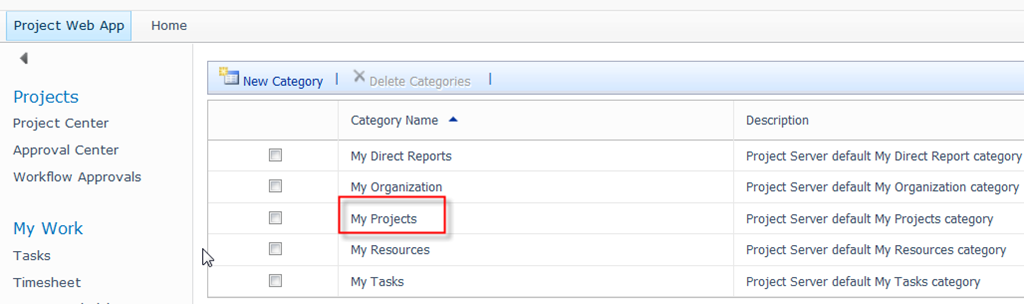
and I will get:

image

When I click on My Projects, I will get:

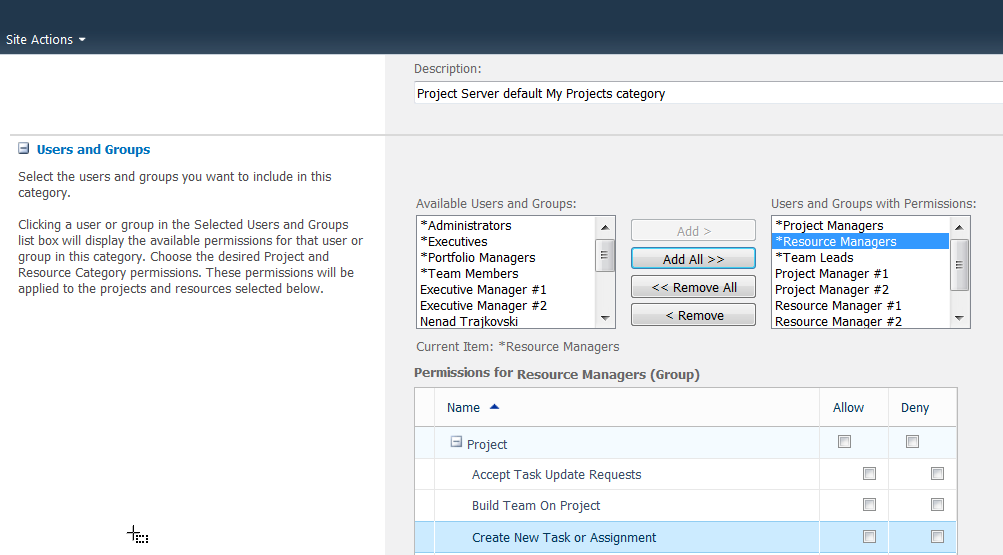
image

Now I I will choose Project Managers Group:

image

Let us look, for example, on the Create New Tasks or Assignment permission. It is set to Allow. What does it mean? It means that every user will be able to Create new Task or Assignment in CASE THAT THIS PERMISSION IS NOT DENIED in some other Group which this user belongs!

I will choose the Resource Managers group and I will set this permission to Denied:

image

Now, user has set that permission to Deny in Resource Managers group, and Allow in the Project Manager group, and that means that the user will NOT BE ABLE to Create New Task or Assignment!

But what if I choose to set this permission neither to Allow nor to Denied in Resource Managers group:

image

Because this permission is not set to Allow nor to Deny it means that it is set to Not Allowed! But! There is a huge difference between Deny and Not Allowed Permission set. If you choose Deny then user will not be able to Create New Task or Assignment even if this Permission is set to Allow in some other group. But if this permission is set to Not Allowed (e.g. neither Allow nor Deny), the user will be able to Create New Task or Assignment if this permission is set to Allow in some other group.

So cumulative behavior, for Create New Task or Assignment (for example) will be:

Project Managers Group Not Allowed Not Allowed Denied
Resource Managers Group Denied Allowed Allowed
Permission is: Denied Allowed Denied

For the end of this Post, be vary careful with Deny permission setting. Use in only if you are 100% sure that you want to prohibit user to use this functionality from anywhere. In any other case use the Allowed – Not allowed combination instead!


Regards,

Posted in MICROSOFT PROJECT, Microsoft PRoject 2010, Microsoft Project Server 2010, MS PROJECT 2010, PMI, PRoject Management | Tagged , , , , | Leave a comment

How to manage Group permissions for Categories in MS PROJECT 2010!

Hi,

I will show you how can you manage group permission for category, and vice versa in MS PROJECT SERVER 2010.

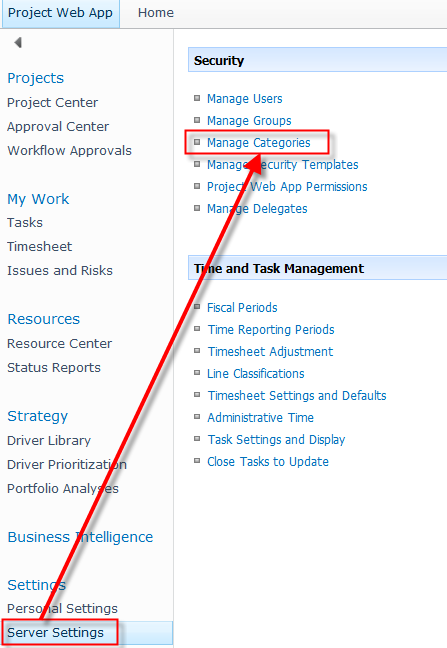
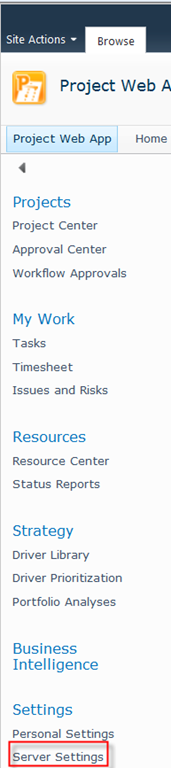
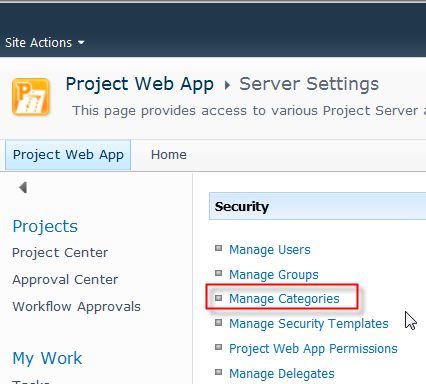
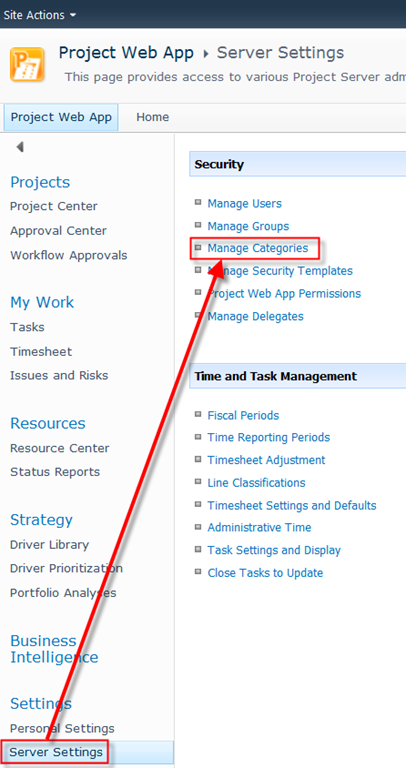
I will choose Manage Categories form Server Setting page:

image

and then:

image

Finally I will get:

image

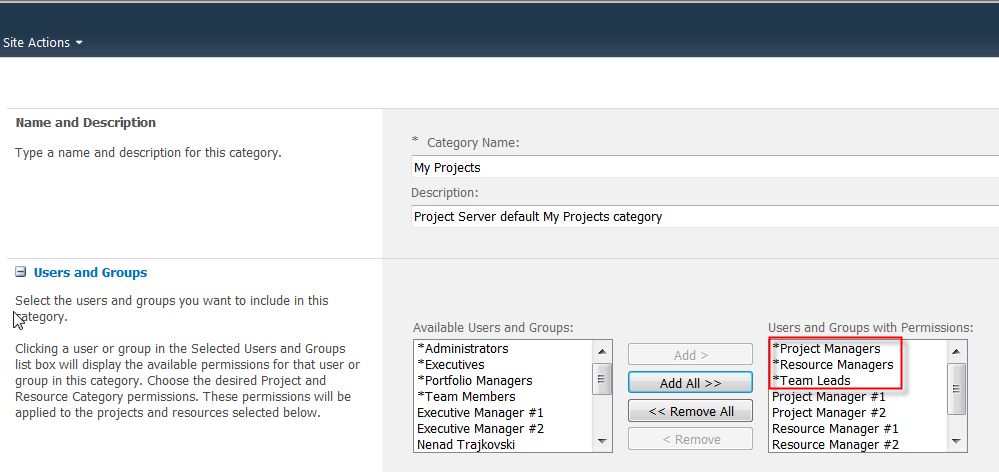
For example, I will choose My Projects category:

image

As you can see, in this Category are, by default: Project Managers, Resource Managers, and Team Leads groups. And there are also Users which belongs to this groups in this Category, also by default! I will now click on the Project Managers group and I will get:
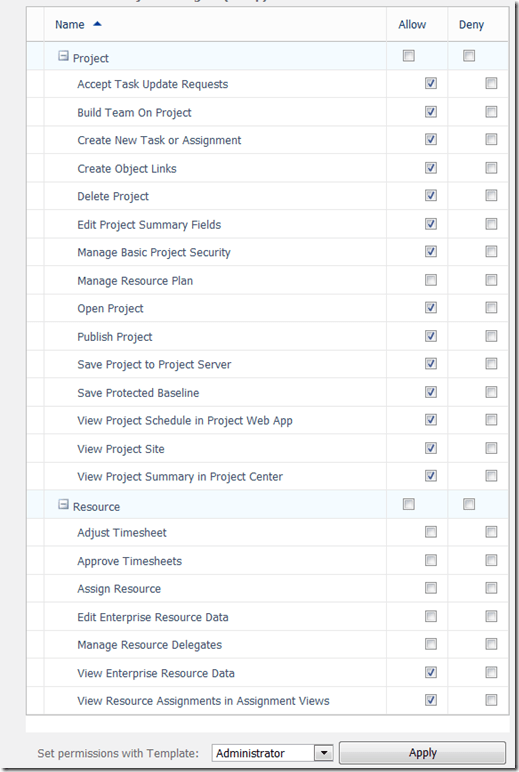
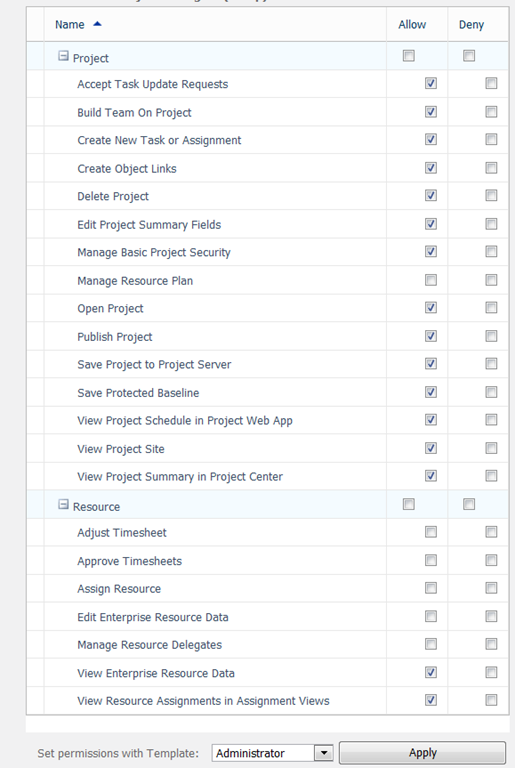
image

Here are default permissions for this Category! You can choose what you can do with permissions! As you can see My Projects category is about What you can access, and with Group permissions  you can choose what can you do with that!

As you can see Project Managers group with My Projects  category can Open Projects and Publish Project, as well. What Projects? Those who are defined here:
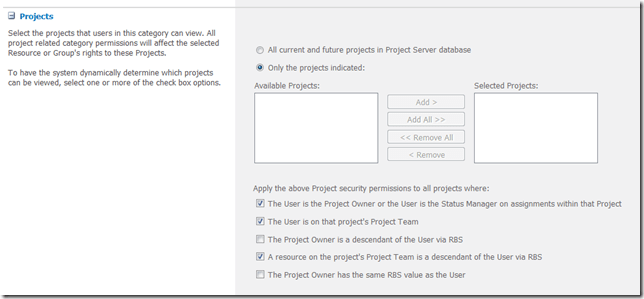
image

This was explained in my previous post!

Now, I will choose Resource Managers group within My Project category, and I will get:
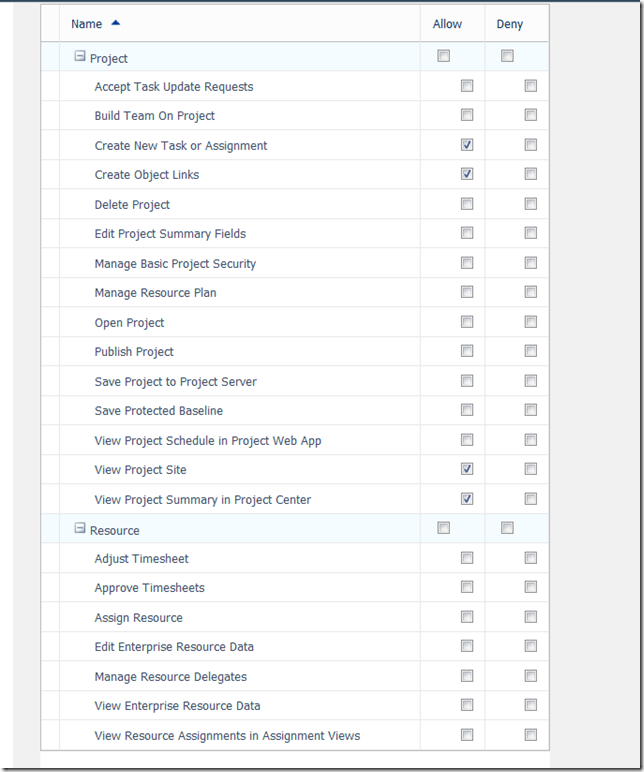
image

As you can see users in Resource Managers category can not Open Project, nor they can Publish Project. You can change those permissions if you want.

One advice! You can select any particular group in Users and Groups, and then change permissions for this group, and you can choose any User which belong to that Category, and then change permissions to this particular user for this category! DO NOT DO THAT! Do not change permission per user, because in Enterprise Project Management you will probably have hundreds of users, and if you manage permissions for each of them, you’ll get in trouble, because you will forgot which user has special permissions.

If you want to have some special permissions for a group of users, make your own group or category, or both, and then manage permissions there.

You can manage permissions per group if you choose Manage Groups:

image

and then:

image

When I choose Project Managers group, I will get:

image

When I choose My Projects category within Project Managers group I will get:

image

I have same set of permissions. So you can do the permission settings from both Groups and Category. Choose one method, and stick to it. I recommend that you manage those permissions through Categories!

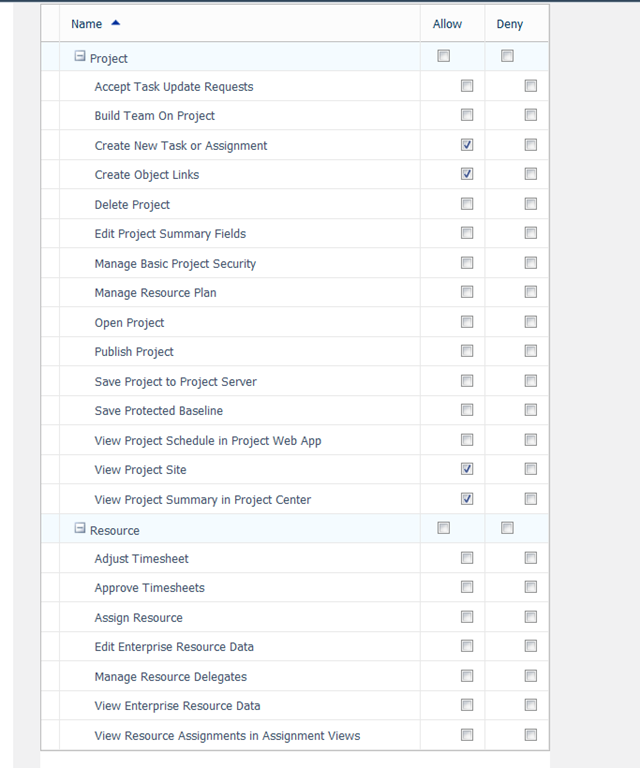
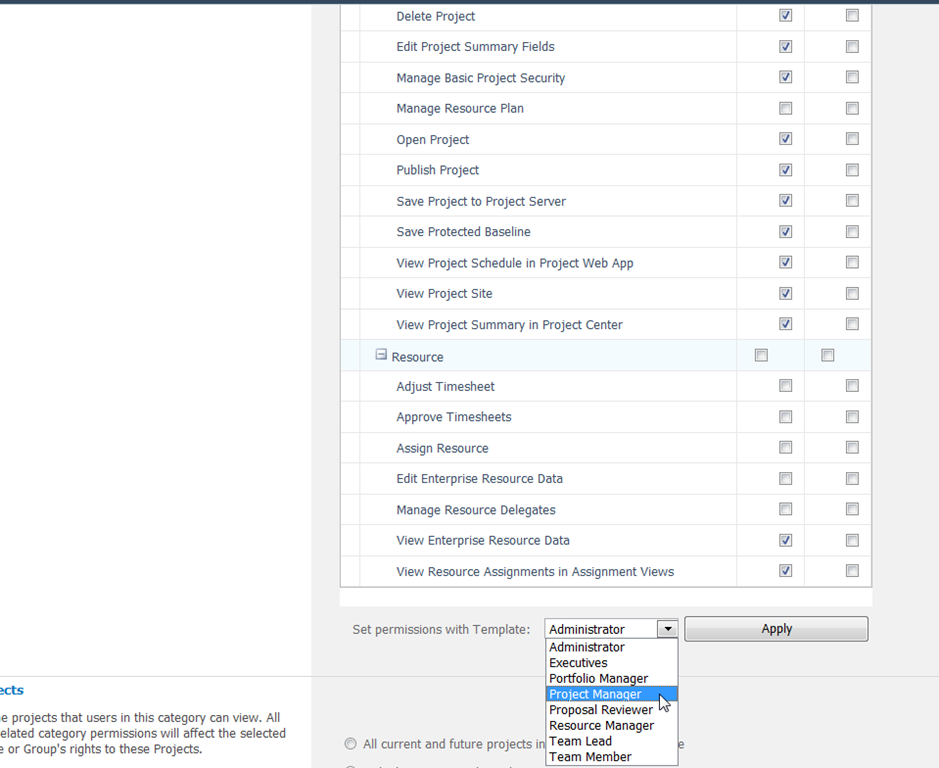
When you are, from example, in Manage Categories screen for My Project category, and I choose Project Managers group, you can manage security from templates. For example, I want that Project Managers group, for My Project Category has permissions from Project Manager Template:
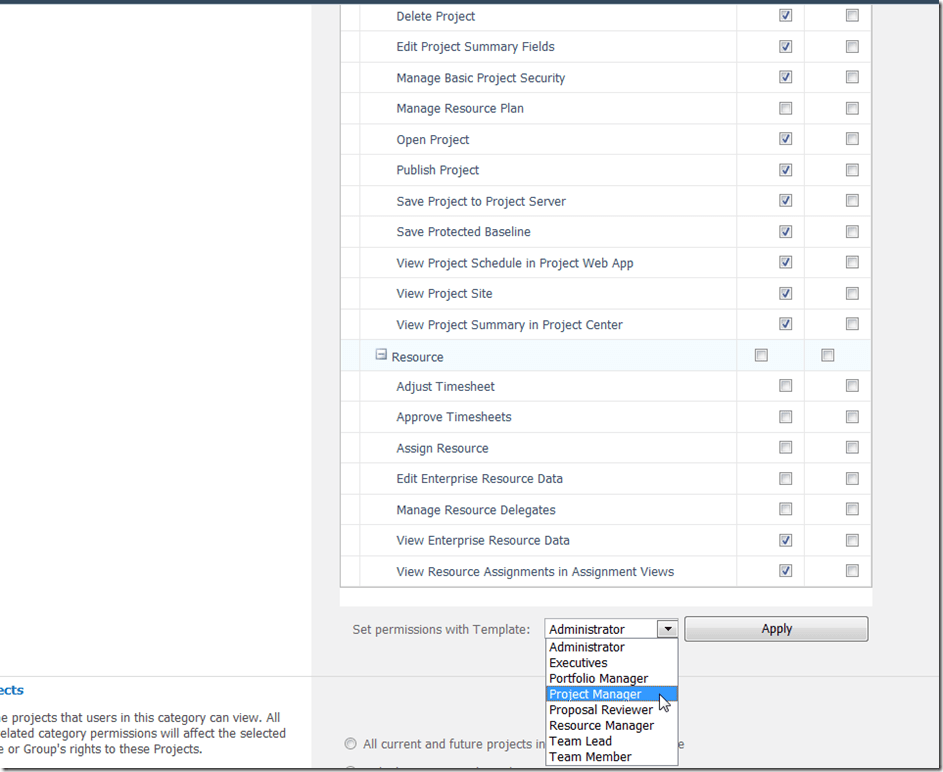
image

If I do that this Group will inherit permissions from that particular Template!

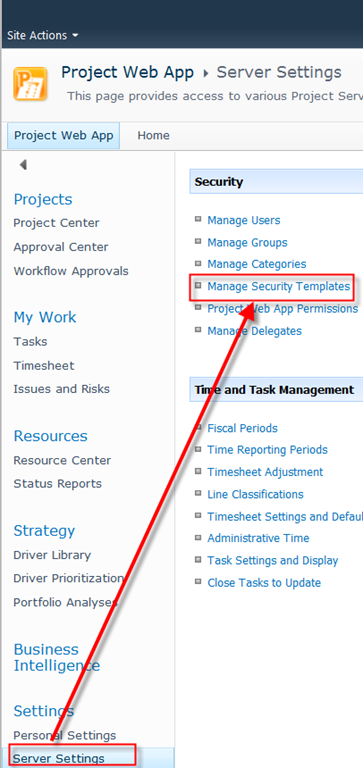
And templates with permissions are defined here:

image

You can see Security templates:

image

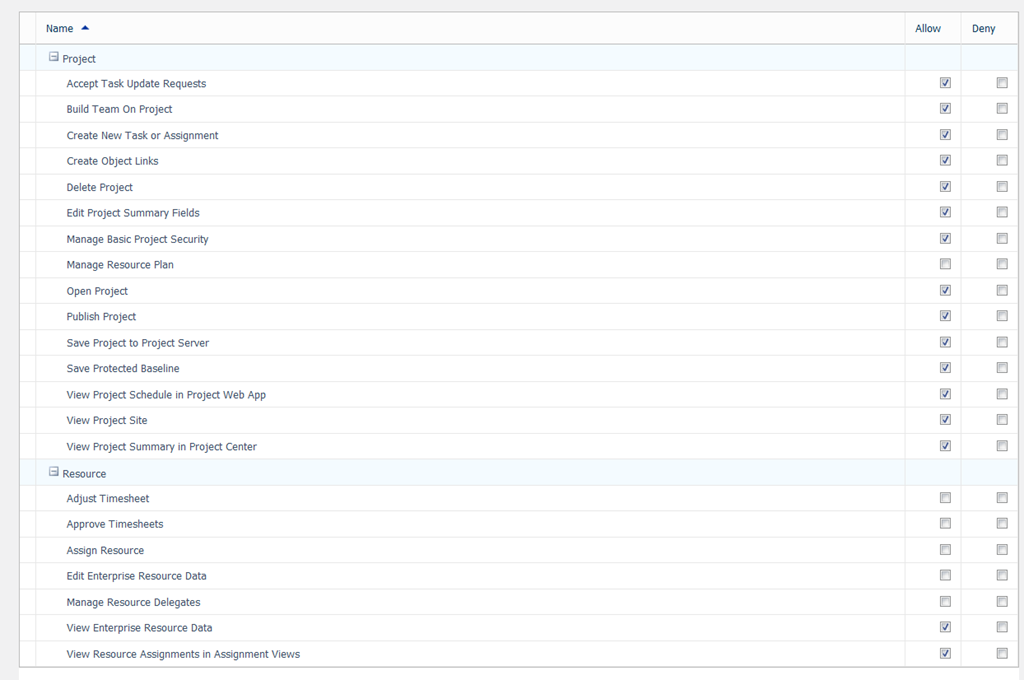
When I choose  Project Manager security template, I will get:

image

Here you can change permissions, and then apply them through Categories via Security template. It may seems complicated, but once you’ll try it, you will soon be familiarized with them.

Once again, NEVER SET PERMISSIONS PER USER, BECAUSE YOU WILL GET CONFUSED VERY SOON! Use groups, categories and security templates instead!

Regards,

Posted in MICROSOFT PROJECT, Microsoft Project Server 2010, MS PROJECT 2010, PMI, PRoject Management | Tagged , , , | Leave a comment

Groups and Categories in MS PROJECT SERVER 2010–Part 2


Hi,

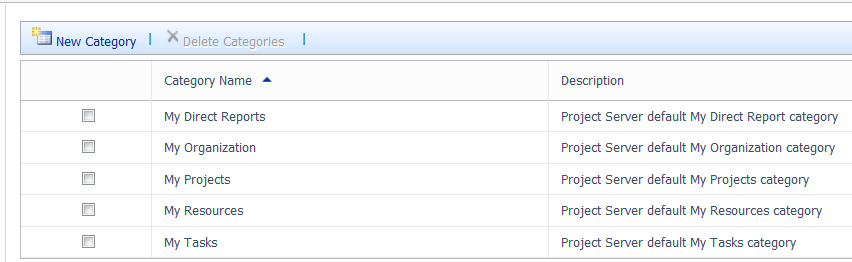
in this Post,I am going to explain Categories! Default categories (built-in) are:

  1. My Direct Reports  – They are intended for users who need to approve timesheets in Projects
  2. My Organization – This Category has almost all permissions to access all information
  3. My Projects – User can access to all projects that his owns
  4. My Resources – This is very useful for Resource Managers. It is linked with Resource Breakdown structure, which I will cover in the near future
  5. My Tasks –Intended for users who have tasks assigned to them

As you remember, Group is What you can do (open Project, for example). On the other hand, Category is what can you access! Strange? Let me show you that it is very simple!

I will open Manage Categories:

image

and I will get:

image

Now, I will click on My Projects category, and I will get:

image

On the upper side of the screen you can put Category name, and Description. You can also choose which groups are part of this Category. Now Advice. You can assign Groups to the Category here, in the Manage Categories screen, and you can assign Categories to the Group in the Manage Groups screen, choose one! I have a habit to assign Group to the Category, from the Manage Categories screen, and I stick to it!

Next part of Manage Categories screen is:

image

Here you are choosing which Project will be granted to access in this particular Category. If you choose All and future projects in Project Server Databases, than every user with this category will have access to EVERY PROJECT! If you choose Only the projects indicated, then you can choose which project can the user in this group access, by choosing from Available Projects (I do not have any, so far), and add them to the Selected Projects. There are five other options for Only the projects indicated:
  • The user is the Project Owner or the user is the Status Manager on assignments within this Project. This gives users to access to the Project that they owns, or to the Status Managers to access to the Projects that contain assignment they manage
  • The User is on that project’s Project Team. This gives permission to access any project to the users there are on that project Project Team
  • The Project Owner is a descendant of the User via RBS (Resource Breakdown Structure). Suppose that I am below you in the RBS, and I am the owner of the Project. By choosing this option, you can access this project which I own, too.
  • A Resource on the project’s Project Team is a descendant of the User via RBS. Suppose that I am below you in the RBS, and I am a member of the project team which you do not own. By choosing this option, you can access (see) this project which I own, too.
  • The Project Owner has the same RBS value as the User. Suppose that you and I are on the same RBS level, and that we are using resources from the same pool for our projects. By choosing this option, we can access (see) project from each other.


    Now next part of the screen:

    image

    Here you are choosing which Resources can User in this category View! If you choose All current and future resources in Project Server database, user can access any Resource in the resource pool. If you choose Only resource indicated, then you can choose which resources can the user in this group access, by choosing from Available Resources, and add them to the Selected Resources. There are five other options for Only the resources indicated:

    • The user is the resource. User can see his own resource and assignments
    • They are members of a Project Team on a project owned by the user. User can see all resources for the Projects that his owns.
    • They are descendants of the User via RBS. User can see all resources which are below him on the RBS
    • They are direct descendants of the User via RBS. User can see all resources which are below him on the RBS, but only ONE LEVEL BELOW
    • They have the same RBS value as the User. User can see all other users which has the same RBS value.

    The last part of the screen is:

    image


    Simple, here you can choose which views you want the user who belong to this category, can see!

    OK! you think that was complicated? Read my next Post. I will show how to manage Group Permissions for Category, and Vice Versa!


    Regards!

  • Posted in MICROSOFT PROJECT, Microsoft Project Server 2010, MS PROJECT 2010, PMI, PRoject Management | Tagged , , , , | Leave a comment

    Groups and Categories in MS PROJECT SERVER 2010–Part 1

    Hi,

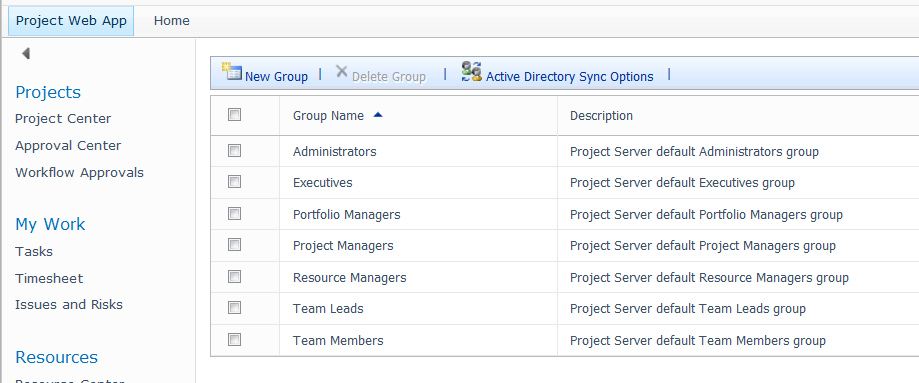
    as I promised I will start with Groups and Categories in MS PROJECT SERVER 2010. When you install MS PROJECT SERVER 2010 it comes with seven built-in groups, and five built in categories.

    Groups are:

    1. Administrators  – Users in this group have all permissions to do everything. BE VARY CAREFUL when you assign user to this group!
    2. Executives – They can view project data, but they can not do any changes. This is very useful for high-level users to see what is going on, but who are not a part of the project team
    3. Portfolio Managers – They can change and add data, but they do not have administrators privileges! They can see and edit all projects and resources as well
    4. Project Managers – They can manage Projects, but they have limited resource permissions
    5. Resource Managers – They are mainly responsible for maintaining resources, and they performance on the projects
    6. Team Leads – Those people are team leaders and usually they do not perform any task on the projects. They have also limited permissions about adding tasks to the projects, and status reports
    7. Team members – They can use Project Webb Access, but they have limited permission on the project-level permissions. When you add new user on the system this is the default group for him/her!

    Categories are:

    1. My Direct Reports
    2. My Organization
    3. My Projects
    4. My Resources
    5. My Tasks

    Before I explain the difference between them, you must know that each built-in category is in “relationship” with one ore more group. Defaults are:

    • Category: My Direct Reports is in Resource Managers group
    • Category: My Organization is in Administrators, Executives, Portfolio Managers, Project Managers, and Resource Managers group
    • Category: My Projects is in Project Managers, Resource Managers, and Team Leads group
    • Category: My Resources is in Resource Managers group
    • Category: My Tasks is in Team Members group

      So, where is the  difference between Group and Category? Let me show you. I will open Groups:

    image

    and I will get:

    image

    Now I will click on Project Managers group, and I will get:

    image

    On the first section of the screen you can enter Name and Description of the group. You can also add Users that belong to this group. You can see that users Project Manager #1, and Project Manager #2 are already in this group. Keep in mind that I did not add them to this group from this screen, but I added them when through Manage Users screen, which will be part of some of my next Posts! Also notice that this group is in “relationship” with My Organization, and My Project Categories, which I mentioned before.

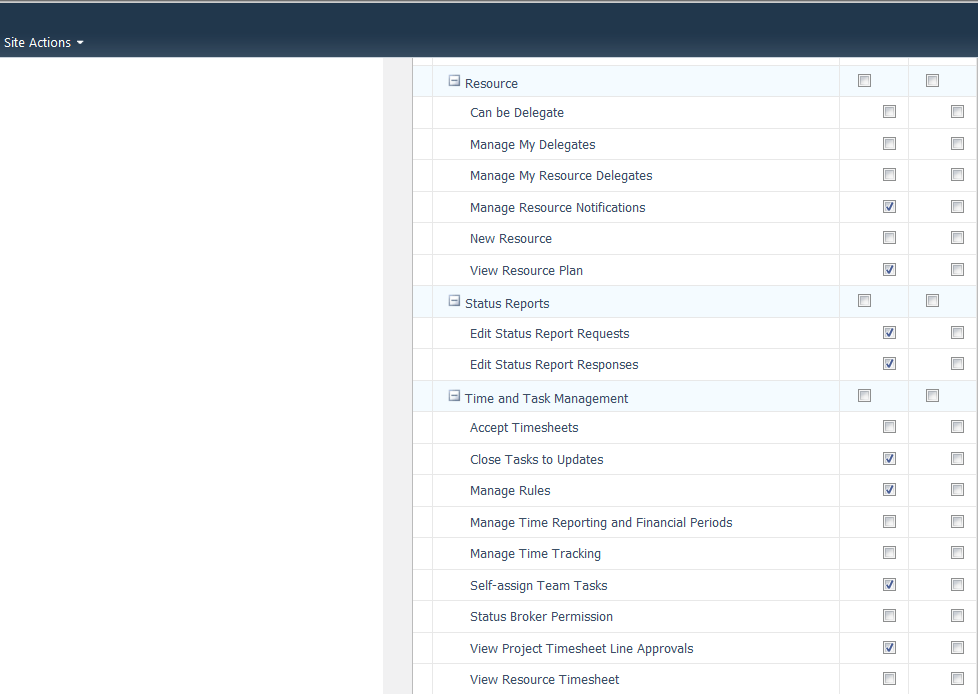
    I will now expand Global Permission section on this screen, and I will get (I can grab the whole picture at once, so I will show you in more than one picture):

    image

    image

    image

    image

    Now, the explanation!!! Group permissions are Project Web App Permissions (which I had explained in my previous post), and you can change them here for each group!!! And those permissions are what can you do as a, in this example, Project Manager. You can see at the bottom of the screen Set permissions with template where you can choose predefined Templates and apply permissions from this template to specific group! I will cover that also in some of my next posts!

    For example, Project Managers group has New Project, Open Project, and Publish Project permissions, but NOT Approve Timesheet permission. If you want him to have that permission click on Allow!

    OK! Now we know that particular group tell you what can you do! What are Categories?

    Categories are…. read my next Post!


    Regards!

    Posted in MICROSOFT PROJECT, Microsoft Project Server 2010, MS PROJECT 2010, PMI, PRoject Management | Tagged , , , , | Leave a comment