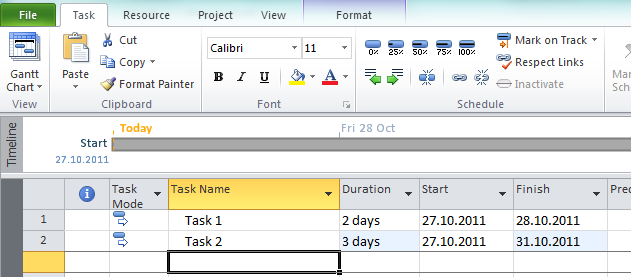
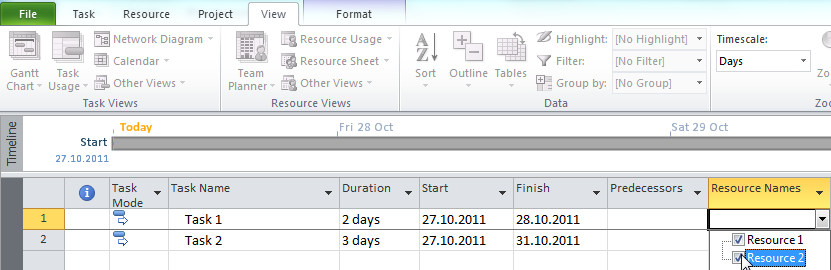
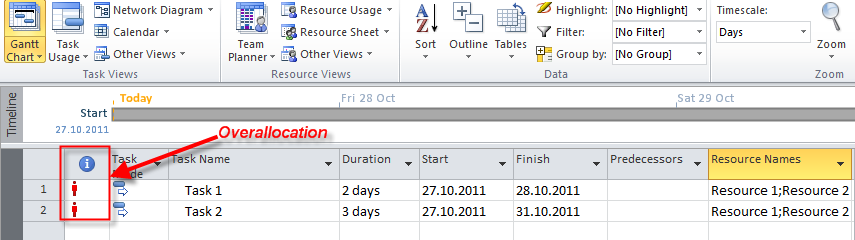
Assigning Resources to Tasks! What are we talking about!?


Hi,

this one will be about Resources, but without MS PROJECT 2010! I promise that I will continue with MS PROJECT 2010 and resources tomorrow!

Before I start I have to say:

  1. I have received more than 100 compliments during this weekend. You like my post, and I am glad to hear this. Thank you guys!
  2. I am writing this post alone. There is no team. Just me!
  3. I am writing this post for fun. I am do it for free of charge. There is no money here!
  4. Someone is following post with RSS, but for someone else it is mission impossible. Help is needed!
  5. I love you Smile


Now, about resources! As you can see, we are talking about scope (what do we have to do), time (when we have to do it), and resources (who will do it), and budget (how much money do we need)?

You can usually hear that “PROJECT is successful or unsuccessful”! And that is wrong!People are successful or unsuccessful, not a Project!

I will tell you a short fairy-tale!

Long, long time ago there was a Project with clear defined scope, unlimited budget and time, with wonderful people. Project Manager had a resource pool with hundreds of experts and he could choose whoever he wanted. He could take as much resources as he needed! Suddenly he woke up! And the fairy-tale was gone. He was back in real life with the same Project, lousy scope, extremely aggressive timeline, and low budget. And resources were bad, and he had only few of them. The organizational scheme in his company was:

ExplanationofManagementpyramid_thumb

Let be honest! Everything about Project and Project Management is about people.

In MS PROJECT 2010 you have to define the Scope! If you have a bad resource you will get a bad scope!

In MS PROJECT 2010 you have to estimate the Task duration! Who will do it? People, of course! Are they experienced? Are the overly optimistic or pessimistic?

In MS PROJECT 2010 you have to assign resources to the task! Do you have them? Are they available? Do they know what they have to do? Are they aware about Project Goals and Objectives?

In MS PROJECT 2010 you have to estimate the budget! Do you know cost of your resources? Is it a secret? How will you do the estimation?

You get the point! I will continue tomorrow with the story about MS PROJECT 2010! But, be aware of this: “MS PROJECT 2010 is powerful tool, but if you do not have a proper resources, data in MS PROJECT will be wrong, and the result will be wrong!” Do NOT BLAME MS PROJECT! In that case it will act like: “GARBAGE IN – GARBAGE OUT”

Remember this: “A FOOL WITH A TOOL IS STILL A FOOL!”

And for the end, the picture which says more than 1000 words:

management


Tomorrow I will start with painful part of task and resources!

Best wishes!

Posted in MICROSOFT PROJECT, Microsoft PRoject 2010, MS PROJECT 2010, PMI, PRoject Management | Tagged , , , , , | 1 Comment

How to split the Tasks in MS PROJECT 2010, and why!


Hi,

it is Friday, and this post will be a short one!

Suppose that you have a project with 5 tasks as is shown in the picture:

Primjer 1 26.04.2011

Task 3 has a 3-day duration, and will start on Monday, 25.04.2011 and finish on Wednesday, 27.04.2011. What if your task can be done in 3 days but it must (for any reason) be scheduled on Monday 25.04.2011 then Thursday 28.04.2011 and finally on Tuesday, 03.05.2011.? You can make three different tasks but this is not a good idea. A better approach is to split the task. Here is how con you do it:

Primjer 2 26.04.2011

After you click on Split button move the cursor on the Gantt chart and click on Tuesday, 26.04.2011 and drag the task on Thursday 28.04.2011:

Primjer 3 26.04.2011

and you will get:

Primjer 4 26.04.2011

You can see that duration of task 3 is unchanged but the start date and end date was changed for Task 4 and 5 because Task 3 is predecessor of Task 4 and Task 4 is predecessor of Task 5.

Now I will split the same task so the last day is Tuesday 03.05.2011 and I will get:

Primjer 5 26.04.2011

Again, duration of task 3 is unchanged but the start date and end date was changed for Task 4 and 5 because Task 3 is predecessor of Task 4 and Task 4 is predecessor of Task 5

What if you change your mind? You can “resplit” the task in the same way. Click on the split task back until it is connected again (drag from right to the left):

Primjer 6 26.04.2011

And the task is joined again.

Remember that a dotted line does not represent duration. Nothing is happening in the dotted line period. If you want to remove dotted line you can do it like this:

Primjer 7 26.04.2011

and you will get:

Primjer 8 26.04.2011


You can see that a dotted line is removed. This picture on the Gantt chart is little confusing because you have a task with a 3-day duration that will start on Monday 25.04.2011 and finish on Friday 29.04.2011. Without a dotted line you can think that this is an error, so I strongly suggest: Leave a dotted line in your Gantt chart.

I have got a question: “Is it possible, for example, Link Predecessor Task, as Finish to Start relationship, with second, or third part of Task has s Slip?”. The answer is NO! Why, because it is ONE TASK, not two or three of them. If you have to do that, you should create two of three different tasks!

From my next post I will start to examine what would happen if I add or remove additional resources to the same task, different Task types, and how to understand this.

You should expect the Headache!

Have a nice weekend!

Posted in MICROSOFT PROJECT, Microsoft PRoject 2010, MS PROJECT 2010, MS PROJECT 20101, PMI, PRoject Management | Tagged , , , , | 6 Comments

Assigning Material and Cost Resources in MS PROJECT 2010


Hi,

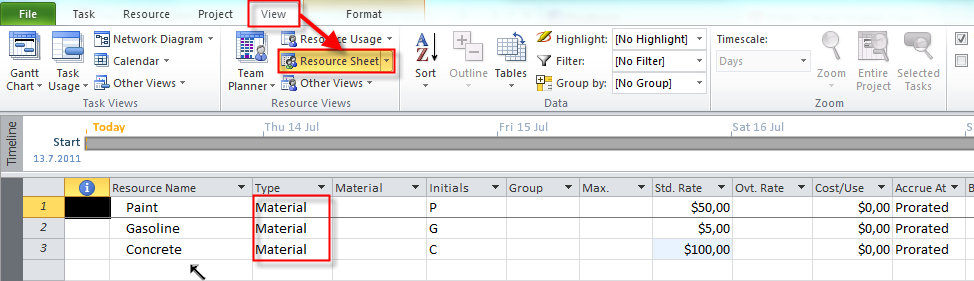
In this post I will explain how to set up, and assign material resources in MS PROJECT 2010.

First I will add three material resources in Resource Sheet:

image

Now I will add two Tasks:

image

O.K. Now, I will assign Paint to the Painting the wall task, and Gasoline, and Concrete to the Pouring the concrete Task:

image

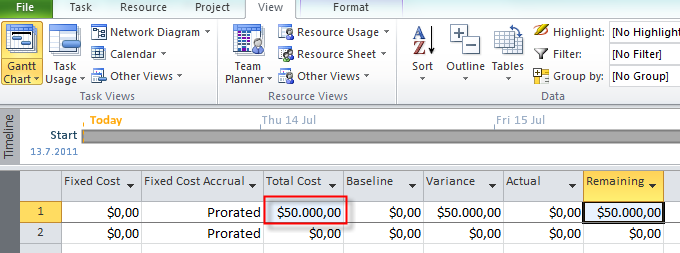
I put 1000 in the Unit field, because I assume that I will need 1000 liters of paint for painting the wall. MS PROJECT 2010 has calculated that the cost is $50.000 (1.000 units X $50 per Unit = $50.000). Remember that this cost remains the same, no matter how long will take you to pain the wall. I will show it to you. First I will choose the Cost table:

image

and I will get:

image

Now I will change duration for task Painting the wall from 3 to 10 days:

image

I will choose the Cost table again, and I will get:

image

The Total Cost remains the same.

O.K. Now, I will assign Gasoline and Concrete to the Task Pouring the concrete:

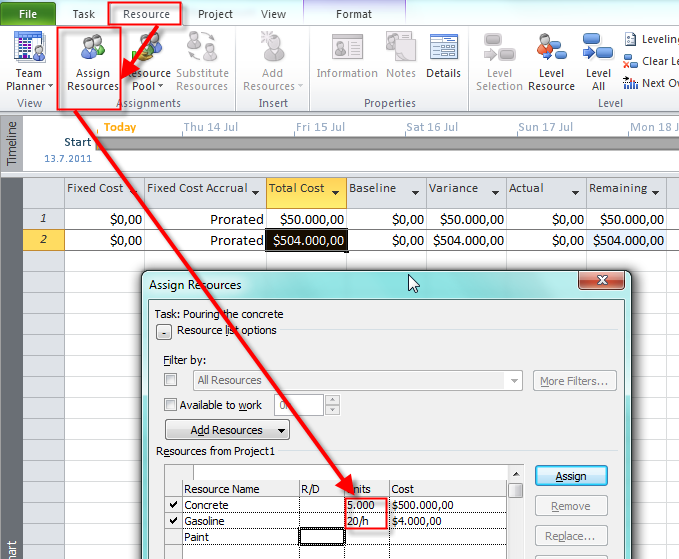
image

I need 5.000 units (tons, liters or whatever) of Concrete and I need 20 liters (or gallons) of Gasoline per hour. MS PROJECT 2010 has calculated that the cost for the Concrete is $500.000 (5.000 units X $100 per Unit = $500.000). For the Gasoline I put in the Unit field 20/h and that means that I will spend 20 liters (or gallons) per hour. MS PROJECT 2010 has calculated that the cost for the Gasoline is $4.000 (20 liters per hour X $5 per Unit X 5 days X 8 hour per day = 20 X $5 X 5 X 8 = $4.000).

What will happen if I change duration of the task Pouring the concrete from 5 to 10 days? Let’s see.

image

I will choose the Cost table again and I will get:

image

The Total cost is now $508.000. Why? MS PROJECT 2010 has calculated that the cost for the Concrete is $500.000 (5.000 units X $100 / Unit = $500.000), and it does not depend of the Task duration, since I put in the Unit field 5.000. For the Gasoline I put in the Unit field 20/h and that means that I will spend 20 liters (or gallons) per hour. MS PROJECT 2010 has calculated that the cost for the Gasoline is now $8.000 (20 lites per hour X $5 per Unit X 10 days X 8 hour per day = 20 X $5 X 10 X 8 = $8.000), and the Total cost for this task is $508.000.

So, if you have a Material resource which doesn’t depends of the Task duration you should put the number in the Unit field when you are assigning Material Resource to the Task.

If have a Material resource which does depends of the Task duration you should put the number in the Unit field and how much do you spend per time (hour, day, week, etc.). This is time depending Material resource.


Now I will show you how to work with Cost Resources

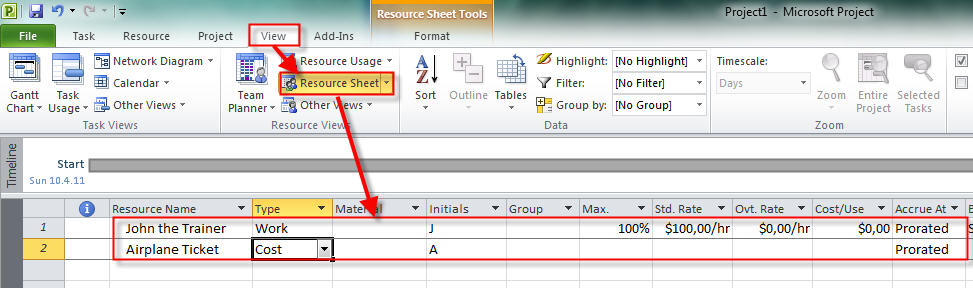
First I will define resources needed for my task.

John the Trainer is Work resource and his standard rate is $100 per hour.
Airplane ticket is Cost resource and it does not have the defined price yet.

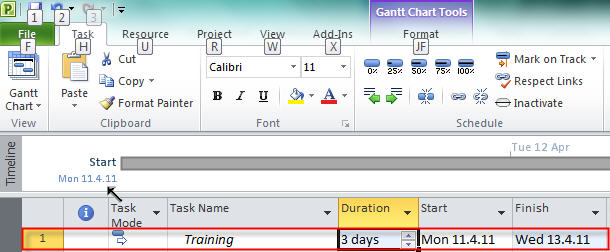
Now I will define task called Training

In the first example I will assign only cost resource to the task.

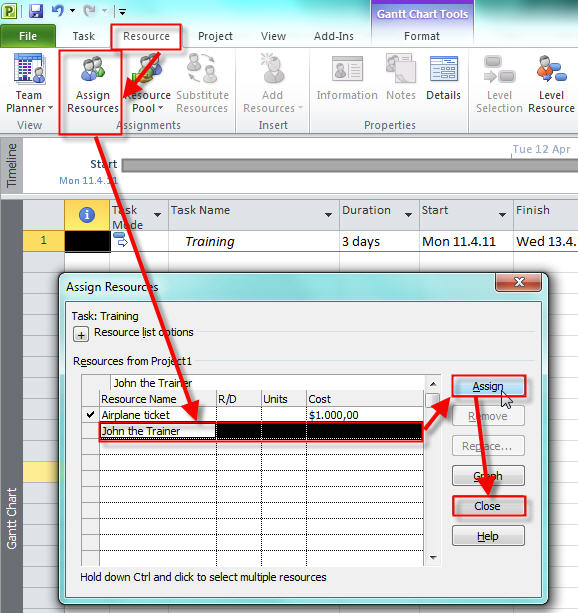
I assign Airplane ticket to the task and I told the MS project that it costs $1000.

I will now assign John the Trainer to the task.

And I got:

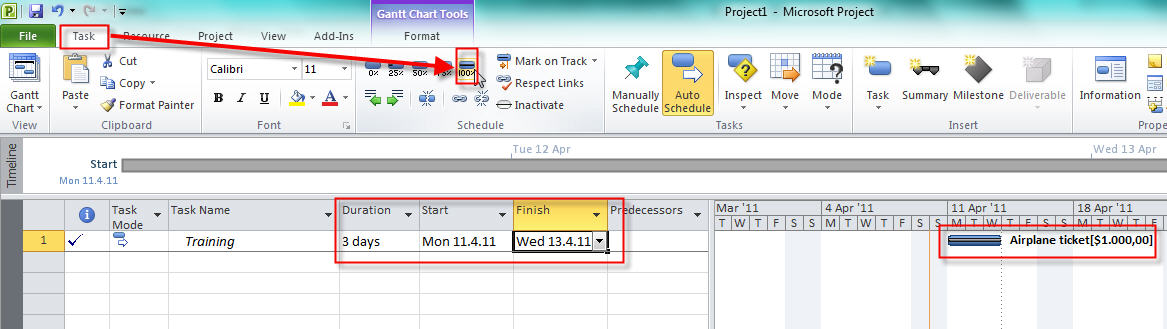
Duration, Start and Finish date are the same, so everything seems O.K

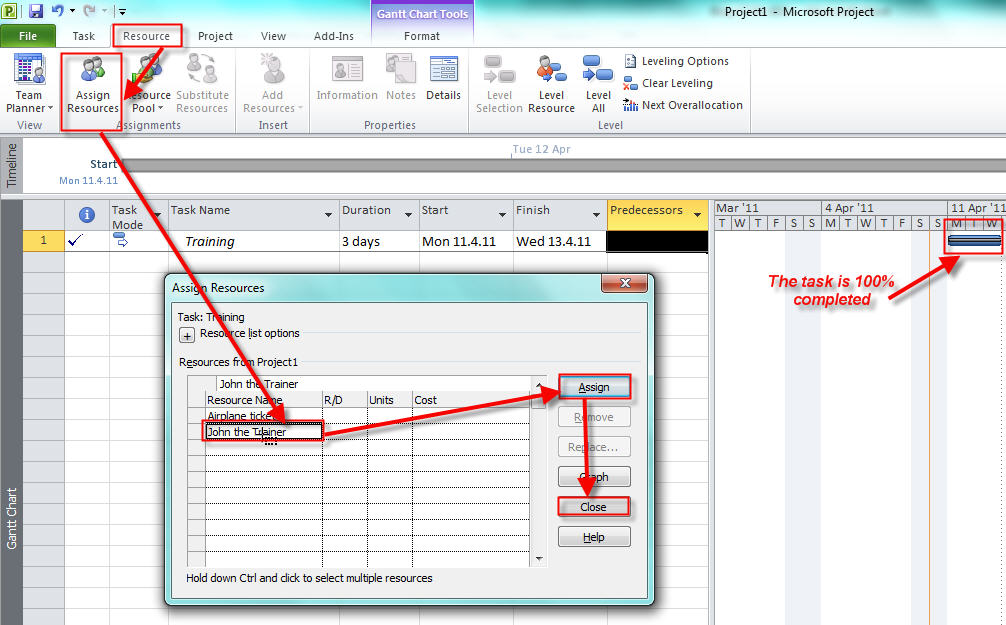
Here is another example. Suppose that I assigned only cost resource (Airplane ticket) to the Task (as it is shown in 3rd picture above). Now I will mark the task as 100% completed.

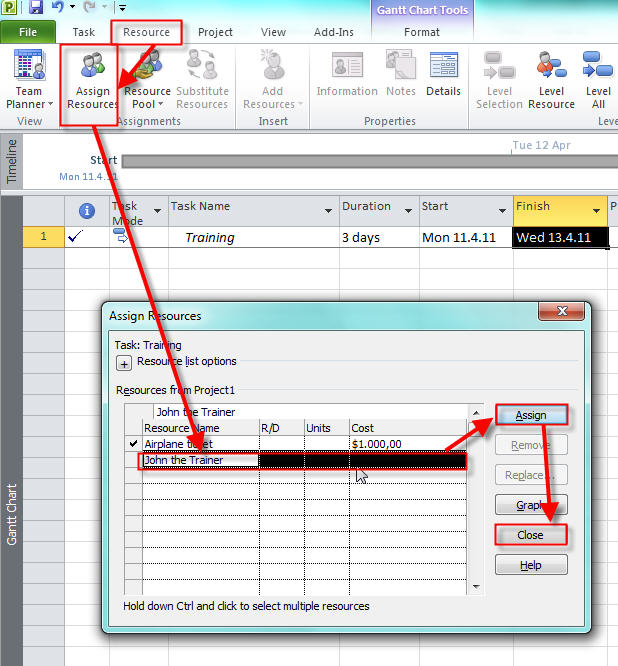
Everything looks fine! But, suppose that you forgot to assign John the Trainer to the task AFTER you marked the task 100% completed. I will assign John now:

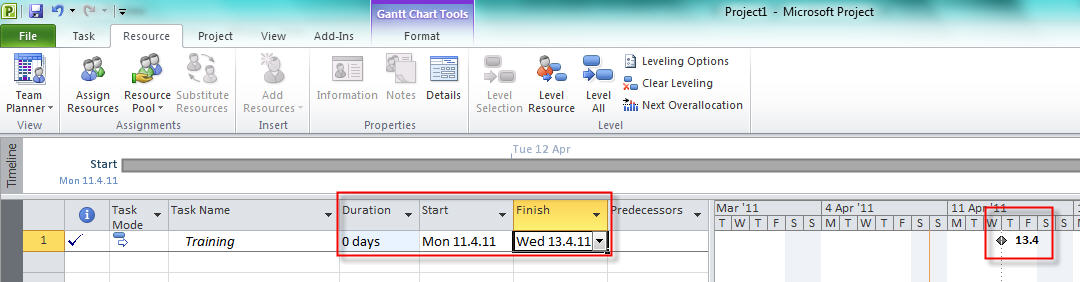
Now look what happens:

Duration is now 0 days (milestone???) with unchanged Start and End date?
It seems like a bug. And you will get the same thing if you assign both resources (Airplane
ticket and John the Trainer) to the task and then, after you mark the task as
100% completed, you remove John the Trainer.

What will happen if you do not have cost resource (airplane ticket) assigned with
the task, and you assign Work resource (John the Trainer) with the task AFTER you
mark the task 100% completed? I will assign John now:

and I will get:

So, obviously the problem is with the cost resource type (in our example the Airplane ticket).

What is the solution? If you have to add or remove work resource to the task after it is completed (25%, 50%, 75%, or 100%) first mark the task as 0% completed, then add or remove the resource to the task and after that mark task as completed again.

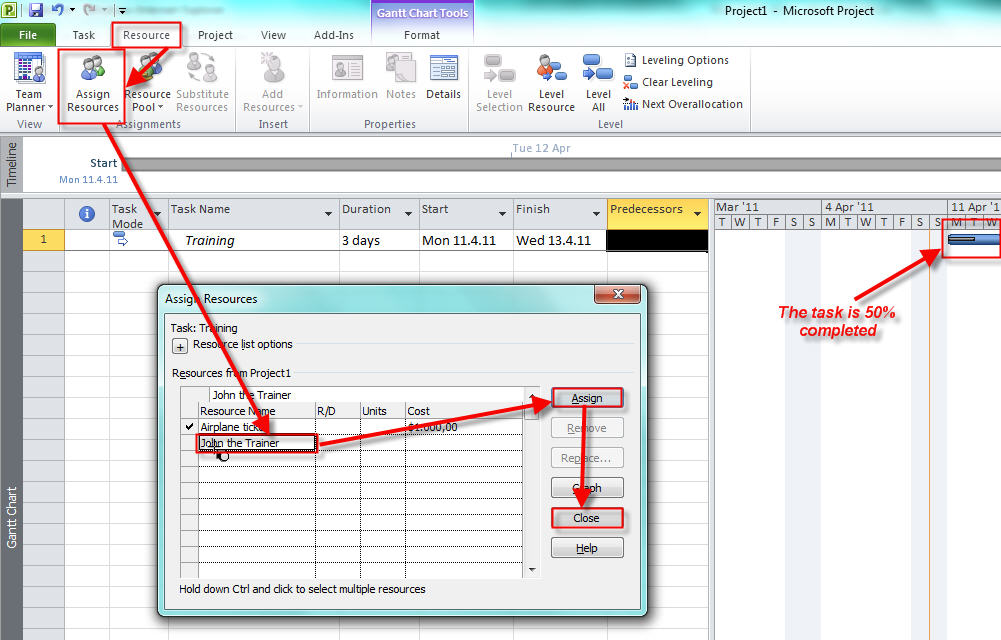
I will show to you what happens if I add Work resource (John the Trainer) with the task AFTER I marked it as 50% completed and I already have work resource assigned to the Task. I will assign John now:

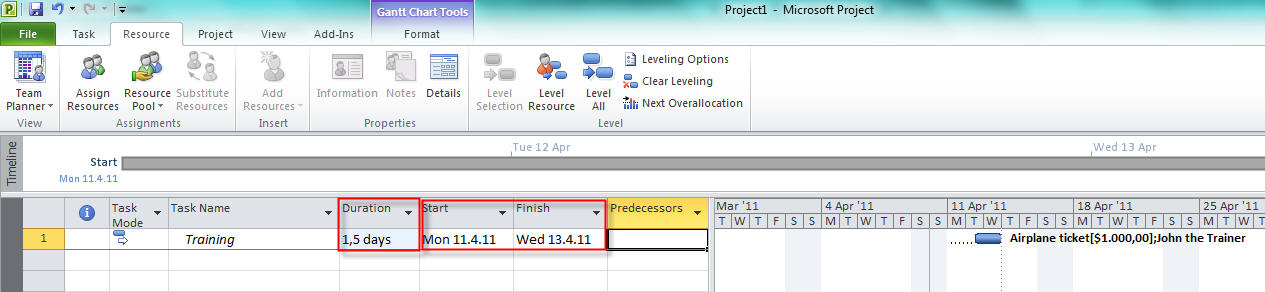
and I will get:

Duration is only 50% of expected (1,5 day instead of 3 days) and this is bug.

So, once again, first mark the task as 0% completed, and then add or remove the resource to the task and after that mark task as completed again.


Bye!

Posted in MICROSOFT PROJECT, Microsoft PRoject 2010, MS PROJECT 2010, PMI, PRoject Management | Tagged , , , , | 29 Comments

How to prevent Resource Overallocations by using the Team Planner–WATCH OUT!


Hi,

In MS PROJECT 2010 there is a feature which can automatically prevent Resource Overallocations.

I will add two tasks and two resources to the project:

image

and:

image

Now I will assign them to both, Task 1 and Task 2:

image

and I will get:

image

Now I will open the Team Planner:

image

and then:

image

and I will get:

image

You can see that both resources are overallocated!

Now I will arrange the Team Planner to prevent this situation:

image

and I will get:

image

As you can see, MS PROJECT 2010 has move Task 1 to start after Task 2, and Resources are not Overallocated any more!

But! I will go back to the Gant Chart  and I will add two new Tasks and I will assign Resource 1 and Resource 2 to them:

image

As you can see, both Resources are Overallocated again. But I will now go back to the Team Planner and I will do NOTHING, but I will get:

image

As you can see, all Task are Rescheduled automatically because the Prevent Overallocations button has remained in “turn on” mode:

image

So, DO NOT TURN THIS BUTTON! If you do, and you are 100% sure that you want from MS PROJECT 2010 to do the “leveling”, do not forget to turn this feature off before you are leaving Team Planner. Leveling is hard to “undone”, so use it if you really need it!


Best Regards,

Posted in MICROSOFT PROJECT, Microsoft PRoject 2010, MS PROJECT 2010, PMI, PRoject Management | Tagged , , , , | 4 Comments

How to Use the Team Planner to Assign Resources


Hi,

This is Repost of my two old Posts, and I am doing that because it has to be explained again, since I am in the “ASSIGNING RESOURCE” posts, and it should be mentioned again!

I will show you how you can easily adjust assignments and reschedule your tasks in the project.

First I will add four tasks to my project and they will be in manually scheduled mode, and I will not schedule them for the moment:

Primjer 1 11.05.2011

I will add 3 resources through the Resource sheet (John, Paul, and Mary):

Primjer 2 11.05.2011

I will now start the Team Planner View:

Primjer 3 11.05.2011

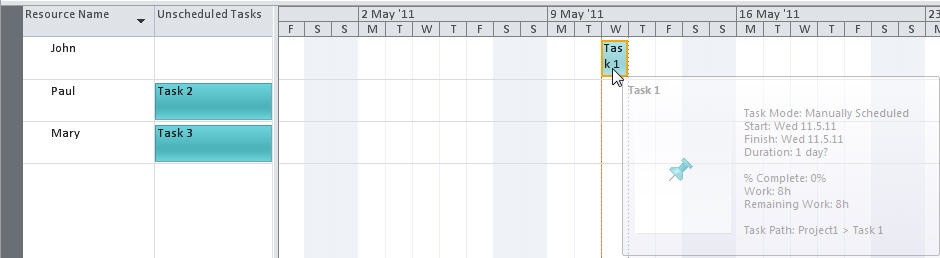
You can see that John Paul and Mary don’t have any tasks assigned, and that all tasks are unscheduled (because I left them in manually scheduled mode)

I will assign John to the Task 1 , Paul to the Task 2, and Mary to the Task 3. I will get:

Primjer 4 11.05.2011


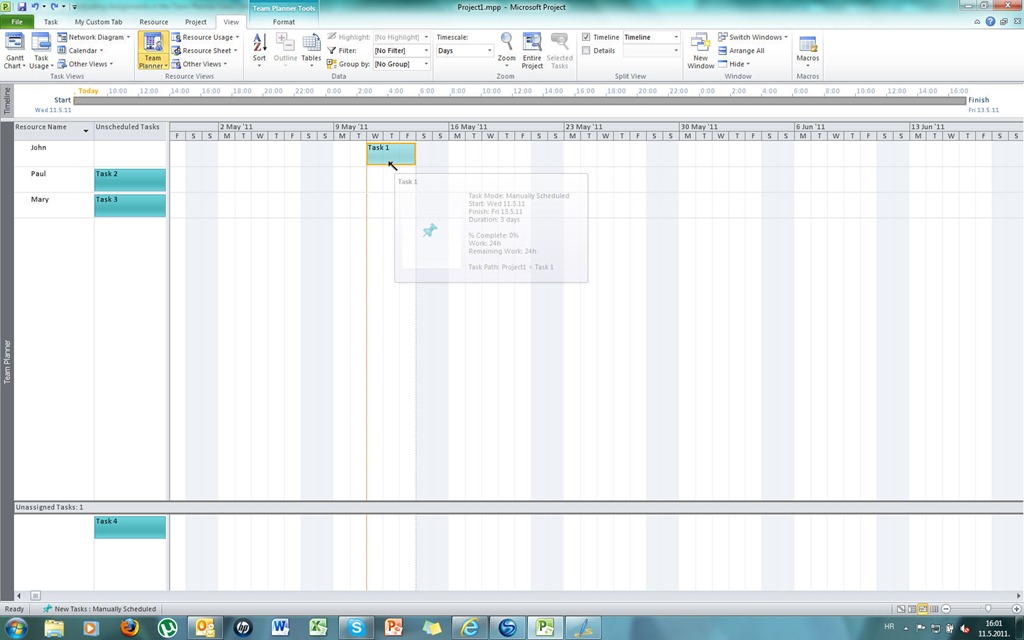
You can see that those Tasks are assigned but not scheduled. Now I will drag and drop Task 1 and put it to start on Wednesday 11.05.2011:

Primjer 5 11.05.2011

and I will get:

Primjer 6 11.05.2011

You can see that the task is still in manual schedule mode, but it has estimated duration of 1 day.

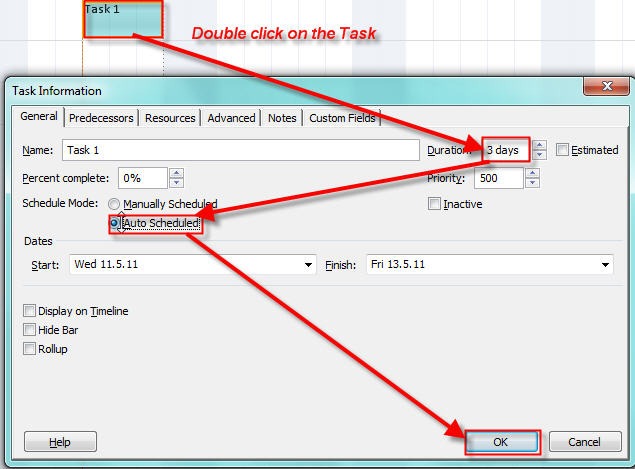
I will now double click on Task 1 and put 3 day duration in the duration field:

Primjer 7 11.05.2011

and I will get:

Primjer 8 11.05.2011

Now John is assigned to the Task 1 and it is scheduled

I will drag and drop Task 2 from Paul to John and put it to start on Wednesday 11.05.2011 as well, and I will change its duration to 3 days (automatic scheduled). After that I will get:

Primjer 9 11.05.2011

You can see that John appears in a red color, and it means he is “over allocated”. Now I will simply drag and drop Task 2 from John to Paul and I will get:

Primjer 10 11.05.2011

You can see that John is not “over allocated” anymore.

Now I will double click on Task 4 and I will set 3 duration days (automatic scheduled):

Primjer 11 11.05.2011

and I will get:

Primjer 12 11.05.2011

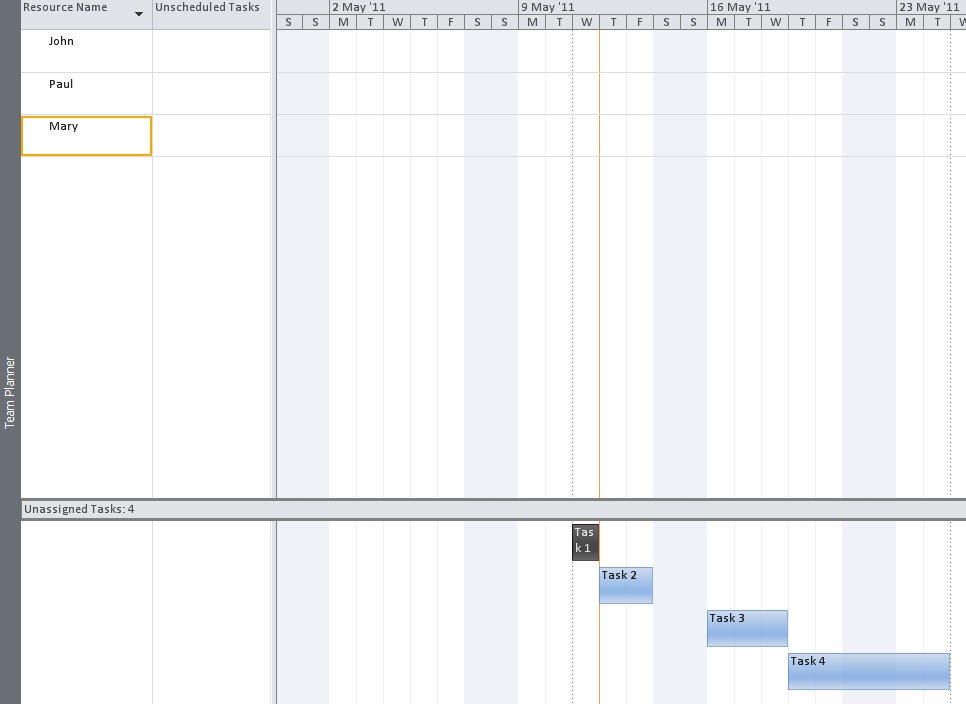
You can see that Task 4 is now scheduled but not assigned.

So, generally you can play with Team Planner View to assign and reassign the Task however you want. You must remember that there are 4 areas in Team Planner View:

Primjer 13 11.05.2011

Finally, if you move a scheduled task (assigned or unassigned) to unscheduled area (assigned e.g. to someone) or unassigned you will actually delete actual work on that task. I will move Task 2 from assigned (to Paul) and scheduled (from 11.05.2011 to 13.05.2011) to unassigned and unscheduled area and I will get a warning:

Primjer 14 11.05.2011

And last, but not least, Tem Planner View is available only in MS PROJECT 2010 PROFESSIONAL VERSION!

Now, I will show what you should pay attention to when you adjust assignments and reschedule your tasks in the project.

First I will add four tasks to my project and they will be in automatic scheduled mode, and I will schedule them:

Primjer 1 12.05.2010

I will add 3 resources through Resource sheet (John, Paul, and Mary):

Primjer 2 12.05.2011

I will now start the Team Planner View:

Primjer 3 12.05.2011

You can see that John Paul and Mary don’t have any tasks assigned, and that all tasks are scheduled.

I will assign John to the Task 1 and Task 4, Paul to the Task 2, and Mary to Task 3. I will do it using drag and drop function:

Primjer 4 12.05.2011

And I will get:

Primjer 5 12.05.2011

You can see that those Tasks are assigned and scheduled. Now I will drag and drop Task 1 and put it as John’s unscheduled task, and I will get a warning:

Primjer 6 12.05.2011

That means that I will actually delete the work of Task 1 since it is no more scheduled.

The same will happen if I move any scheduled task to the unassigned and unscheduled area (for example, Task 2):

Primjer 7 12.05.2011

Now I will reassign John to Task 1 and Task 4, Paul to Task 2, and Mary to Task 3. And again I will get:

image

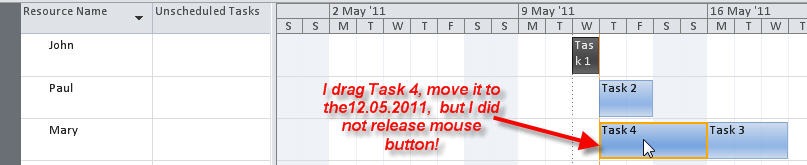
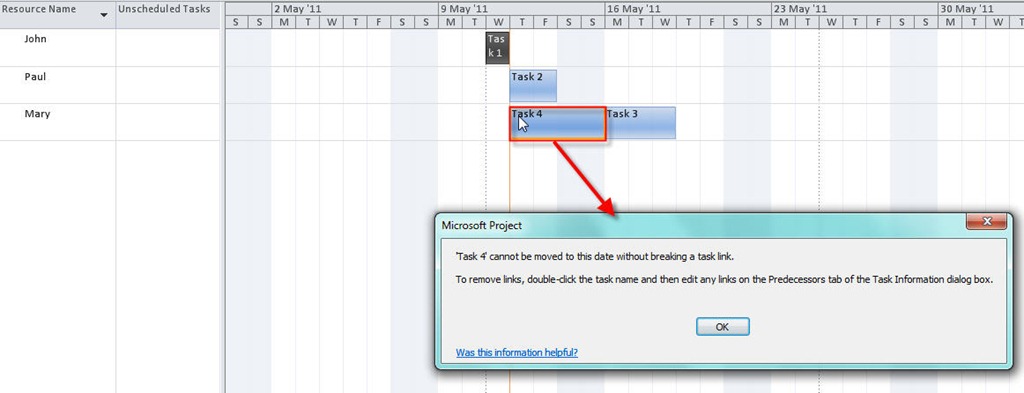
I want to reassign Task 4 to Mary, and I want the Task 4 to begin on 12.05.2011. First I will drag Task 4 and move it to Mary on 12.05.2011. I will get:

Primjer 8 12.05.2011

Now I will release the mouse button, and I will get:

Primjer 9 12.05.2011

You can see that MS PROJECT did not allow me to reschedule Task 4. It only allows me to move the Task from John to Mary, but not to reschedule it EARLIER. If I had tried to move Task 4 from 19.05.2011 to, for example, 20.05.2011, MS PROJECT would have allowed me to do that.

Now, the Task 4 is assigned to Mary, and the start date is 19.05.2011. Now I will try to move it to 12.05.2011, again. I will get:

Primjer 10 12.05.2011

As you can see, I cannot move (or reschedule) this task to an earlier date without breaking the link. After I click the OK button I will get:

Primjer 9 12.05.2011

Task 4 stays scheduled as it was.

So, the Team Planner View is very powerful, but you must use it with caution.

See you,

Posted in MICROSOFT PROJECT, Microsoft PRoject 2010, MS PROJECT 2010, PMI, PRoject Management | Tagged , , , , | 4 Comments

Assigning Resources to Tasks! Some Tips and Tricks!
 

Hi,

Today I will show how can you add and assign a Resource at the same time in MS PROJECT 2010, how can you find a right Resource from a very long list of resource, and finally, how can you pick a resource by their availability

If you are assigning Resource to the Task, and you don’t have that Resource in your Resource sheet, you can do it during assigning. Remember that Let’s say that we have two resources, Ann Smith and John Dow. We are assigning resources to the Read the article Task, and we found out that we need Ann Smith, and John Wayne, and the pair of Glasses, as Material Resources. Firs I will assign Ann Smith:

image

Now In the First blank row I will type John Wayne and press TAB key and I will get:

image

Since I can not fill in this form all necessary details I will double click on John Wayne (or any other field in this row), and I will get:

image

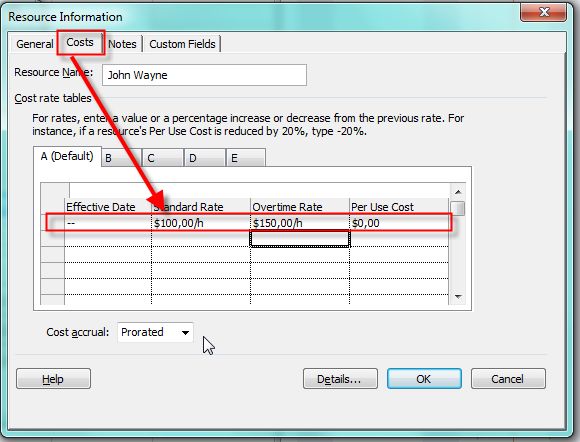
On the General Tab I can fill information shown on the picture above. In the Costs Tab I can fill Standard and Overtime Rate:

image

and finally, on the Notes Tab I can put some notes:

image

Now I will assign John Wayne to the Task, and I will get:

image

For the Glasses, the procedure is the same, and the only difference is that I have to mark it as a Material Resource:

image


Now suppose that you have a long list of Resources (hundreds of it). It will be very difficult and complicated to choose the right one, and it will be very easy to make a mistake. Suppose that this is list of your resources:

image

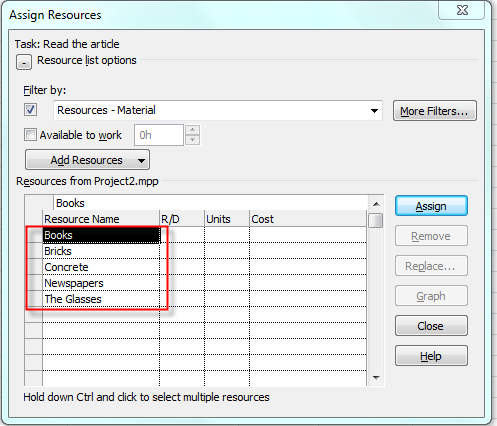
If I need, for example, only Material Resources for my Read the article Task, I will apply the filter:

image

and I will get:

image

As you can see, I get only the Material Resources. That was easy. But, what If I want to choose only Resources from Marketing department. And this is written in the Group field.

I will also apply a filter, but it is not on my list:

image

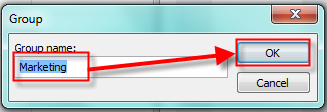
Whenever you see tree dots (like Group…), you will have to enter the selection criteria. So, after I applied the Group filter I will get:

image

and after that I will get:

image

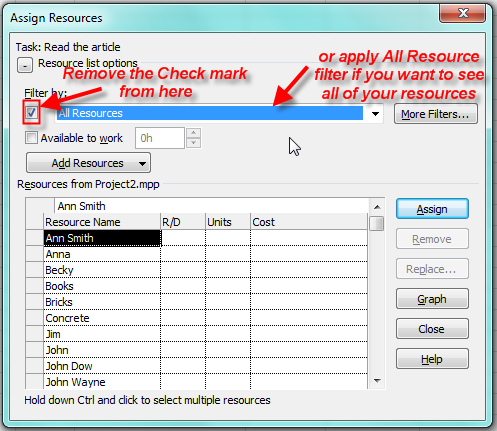
I’ve got all the Resources fro Marketing department. Do not forget to turn of the filter in your assignment if you want to see all resources, or apply All Resource filter:

image

Now suppose that I have those resource for the project:

image

I will assign Ann Smith with 25%, and John Dow with 75% to the Read the article Task:

image

If I assign them to the Paint the wall Task with their max units (Ann has 50%, and John 100%) they will become over allocated. Now suppose that for the Paint the wall I need a resource who is available 3 days. Of course, I can first apply filter (with, for example, PAINTERS code), and then find resource by their availability. But for this example, let’s say that I want to find out who is available for 3 days from all of my resources:

image

I will put 3d in that field, and I will get:

image

As you already know, only John Wayne is available for 3 days.


Until my next post,


Best Regards!

Posted in MICROSOFT PROJECT, Microsoft PRoject 2010, MS PROJECT 2010, PMI, PRoject Management | Tagged , , , , | 16 Comments

Assigning Resources to Tasks! Assigning Work Resources to the Tasks


From this post I will start with “How to assign different type of resources to the Tasks”.

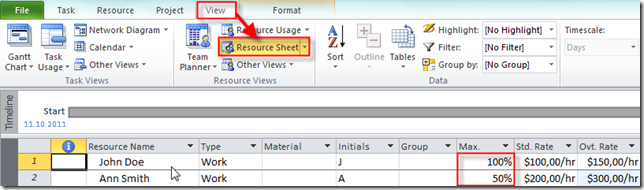
With assigning work resources to the Task, you are answering the question: “WHO WILL PERFORM THE WORK”. From my previous post you know that is Max units field in Resource sheet:

image_thumb1

What does this figure means?

100% means that John Doe is 100% available for the Project, and Ann Smith is available only 50% for the Project.

Now I will create two Tasks:

image_thumb7

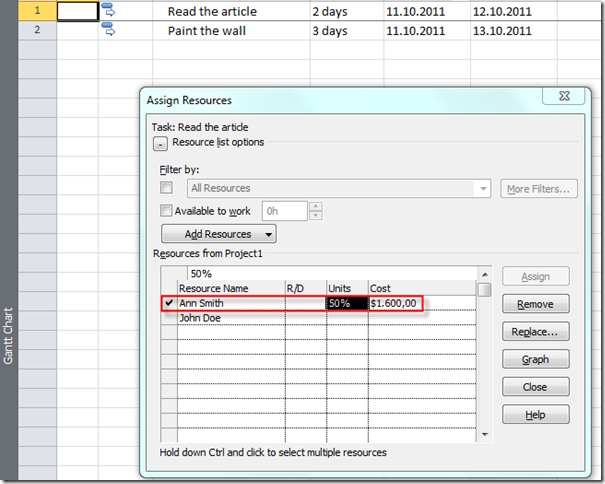
and I will assign Ann Smith to the Read the Article Task:

image_thumb10

and I will get:

image_thumb13

As you can see default units for this task is 50% (the Max units form resource sheet).

I will now assign John Dow to the same task. WATCH OUT! After you have assigned Ann Smith to the Read the Article task, DO NOT CLOSE THE ASSIGN RESOURCES WINDOW! Why? Because, that will mean that you have already finish assignment to the Read the Article Task, and that you want to ASSIGN ADDITIONAL RESOURCE, because you have forgot something. I will explain additional resource assigning in my next posts, but for now DO NOT CLOSE ASSIGN RESOURCES.

image_thumb19

I will now close the Assignment window and I will get:

image_thumb22

I will now open the Resource Usage window:

image_thumb24

As you can see Ann Smith will work 4 hours per day (50%), and John Dow 8 hours per day (100%).

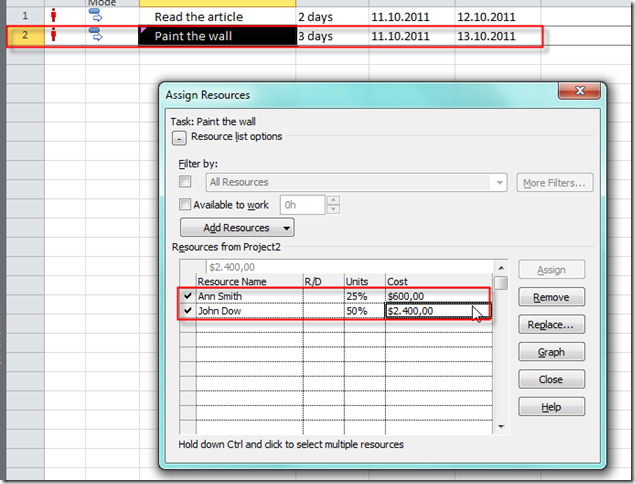
Now I will add same resources to the Task Pain the wall but in the Units field in Assignment window I will say that Ann Smith will work 25%, and John Dow 50%:

image_thumb27

I will open the Resource Usage View again an I will get:

image_thumb31

Ann and John are RED, because they are over allocated, but that is now the Subject of this post. For the Paint the wall Task Ann will work 2 hours per day (because I told that she will work only 25%, instead of 50%, and this half of her capacity), and John will work 4 hours per day (because I told that she will work only 50%, instead of 100%, and this half of his capacity).

Now I will change the Resource Calendar for Ann and John.

image_thumb33

When I do the same thing for the John I will get (in the Resource Usage view):

image_thumb3

Ann Smith will work 2 hours per day for the Read the article Task. Why? Because for that task she has 50% units assigned, and that will be 4 hours if I didn’t say in Resource Calendar that the working time is from 08:00 to 12:00. But, because working time is only 4 hours per day (from 08:00 to 12:00), 50% means 2 hours per day!

For the Paint the wall Task Ann Smith will work 1 hour per day! Why? Because for that task she has 25% units assigned, and that will be 2 hours if I didn’t say in Resource Calendar that the working time is from 08:00 to 12:00. But, because working time is only 4 hours per day (from 08:00 to 12:00), 25% means 1 hour per day!

John Dow will work 4 hours per day for the Read the article Task. Why? Because for that task he has 100% units assigned, and that will be 8 hours if I didn’t say in Resource Calendar that the working time is from 08:00 to 12:00. But, because working time is only 4 hours per day (from 08:00 to 12:00), 100% means 4 hours per day!

For the Paint the wall Task Ann Smith will work 2 hours per day! Why? Because for that task he has 50% units assigned, and that will be 4 hours if I didn’t say in Resource Calendar that the working time is from 08:00 to 12:00. But, because working time is only 4 hours per day (from 08:00 to 12:00), 50% means 1 hours per day!

Is it complicated? Of course it is! Can it be more complicated? Yes it can! Continue to read my next posts and you will have a headache! But you can also find some further interesting information.

Best Regards

Posted in MICROSOFT PROJECT, Microsoft PRoject 2010, MS PROJECT 2010, PMI, PRoject Management | Tagged , , , , | 6 Comments

Different Resources Types in MS PROJECT 2010 and what do you have to know about them!


What are RESOURCES in MS PROJECT 2010. Those are people (human resources), equipment (machines), material (bricks, oil, butter,..) and cost needed to perform the Task(s), and to reach the Project Goals and Objectives.

There are three types of Resources in MS PROJECT 2010: Work Resources, Material Resources i Cost Resources.

  • Work Resources are people and machines, and they need time (hours, days, weeks, etc.) to perform the Tasks
  • Material Resources are consumables like bricks, oil, concrete etc., and they are time independent.
  • Cost Resources are time independent resources, like Airplane tickets. If you are traveling from Zagreb, Croatia (my hometown) to Amsterdam it will cost you, approx. 300€, no matter how long will you travel (1 hour or 1,5 hours). If you are traveling from LA to Boston the price will be different. Those type of Resources is needed in your Project to analyze your costs (from my example, how much money did we spend for the travelling with airplanes).

As you already know you can add resources in MSPROJECT through Resource sheet:

slika1

There are several fields and Resource Type depended:

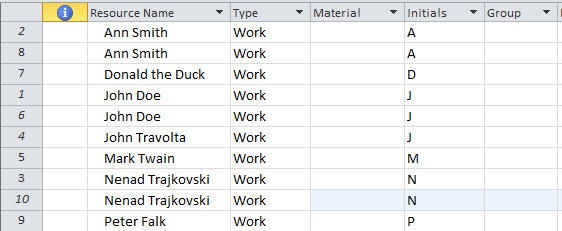
  • Resource Name: Name of the Resource. Be very careful. If you add two or more resources with the same name, MS PROJECT 2010 will consider them as different resources, even there is obvious mistake. Here is an advice. After you put all Resources in the Resource Sheet, sort them by the name and delete duplicated Resources:

slika2

and after that:

slika3

and you will get:

slika4

Select all duplicated Resources (hold CTRL key and Click on the row heading on the right side of the screen):

Slika5

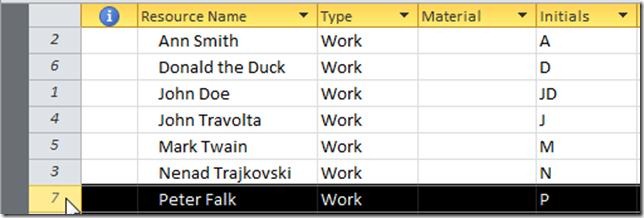
and press the Delete key. After that you will get:

Slika6


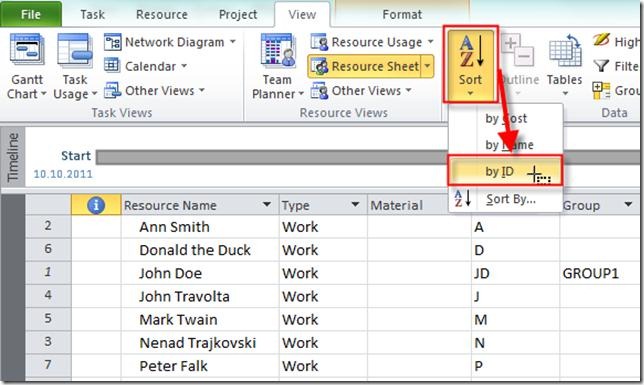
After that, DO NOT FORGET TO SORT Your resources by ID:

Slika7

and you will get:

Slika8


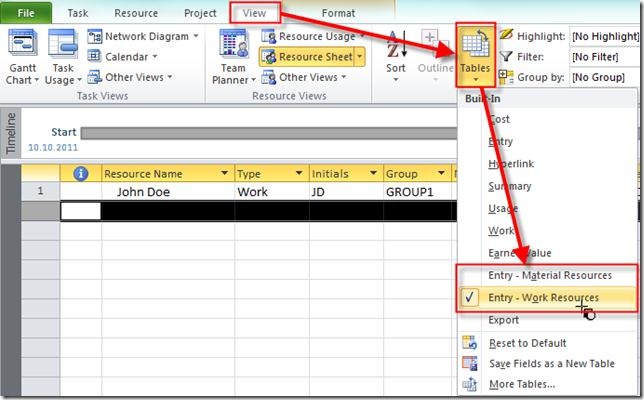
  • Type: Here you can choose one of the three resource types: Work (Default), Material and Cost. If you are entering only Work or Material resources you can choose the table which contains fields applicable to this particular type of resource: Entry-Work Resources or Entry – Material Resources table:

Slika9

  • Material: If resource type is Material Resources in this field you are putting measure unit (like tons, meters, pieces, etc.). This field is disabled for other resource types.
  • Initials: You can put initials for the Resource (like NT for Nenad Trajkovski), but you can use this field for other purposes. I will write about this in one of my next posts.
  • Group: If you are going to have a group of resources (like Purchase, Vendors, Painters etc.) here is the place to put the name of the group
  • Max: This field is only enabled for the Work Resources. You can put 10%, 50%, 100%, 300%, or any number you want (except 0%). This field is of big, I will tell GREAT importance, and it is used (with other parameters) to calculate the WORK FIELD. It will be explained very briefly in my post where I am going to write about assigning resources to the tasks. For now, just remember that if you are put, for example 100%, for the Max, it means that that Resource is 100% available for your Project.
  • Standard Rate: This is Standard fee (MONEY) for the resource. You can put that fee like, for example 100/hour, /day etc. This is true only for Work type. If, for example, resource has $50/hour, and it will work 5 days and 8hours per day, cost for this resource will be 40 hours X $50 = $2.000. This field is disabled for the Cost type, because for this type of resources you will put the exact cost when you will assign that cost to the Task.
  • Overtime Rate: Same as Standard Rate but here you are going to tell how will your resource be paid by the overtime work. This field is enabled only for Work type of resources (there is no overtime work for bricks, or air ticket, is it? Smile)
  • Cost/Use: That is also known as a Setup fee. For example, if you have Resource named: Nenad – the plumber, and it has $100/hour as a standard fee, and he is charging his travel to your home $50, no matter how long he is going to drive, than you will put $50 in that field. This field is disabled for the Cost type of resource, because it is seamless.
  • Accrue at: You have three choices: Prorated, Start i End. In this field you will decide how will costs be charged, e.g. when will you charge those costs!. Prorated means that if, for example, cost for the task is $1.000, and only 20% of the task is finished, it will be $200 charged! Start means that this $1.000 will be charged as soon as the task begins, and End means that this $1.000 will be charged not before the tasks ends.
  • Base Calendar: You are assigning any specific calendar for the resource if you have one. I wrote about that in one of my previous posts. Obviously, this field is enabled only for Work type.
  • Code: If you have any specific code for you resource put it here.

There are two types of resources: Committed and Proposed. Committed (Default) means that you are 100% sure that this resource is available to your Project. If the Resource is Proposed (TENTATIVE), it means that you NEED that resource, but you do not know if it will be available when you will need it. If you want to make the Resource as Proposed, double click on it and you will get:

Slika10

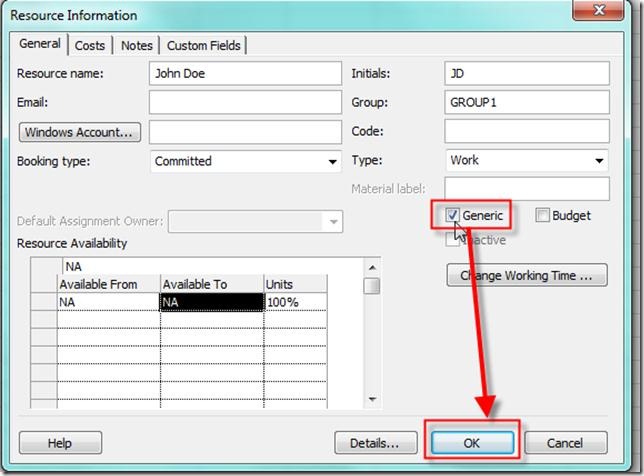
And, for the end of this post, if you know that your resources are Generic (for example, Developers, so you know their job, but you don’t know their names) you can make them as Generic if you double click on the Resource and after that you will get:

Slika11

Until my next post, best Regards!

Posted in MICROSOFT PROJECT, Microsoft PRoject 2010, MS PROJECT 2010, PMI, PRoject Management | Tagged , , , , | 40 Comments

Setting Up Resources in MS PROJECT 2010! Budget Resource, and Detailed Resource information!


Hi,

If you have a Budget for your project you can work with it in MS PROJECT 2010. Frankly, the solution with the Budget in MS PROJECT 2010 is not something what make me happy. I think that it could, and should be much better than it is now. But, until next version of MS PROJECT, I will explain how can you work with those resources.

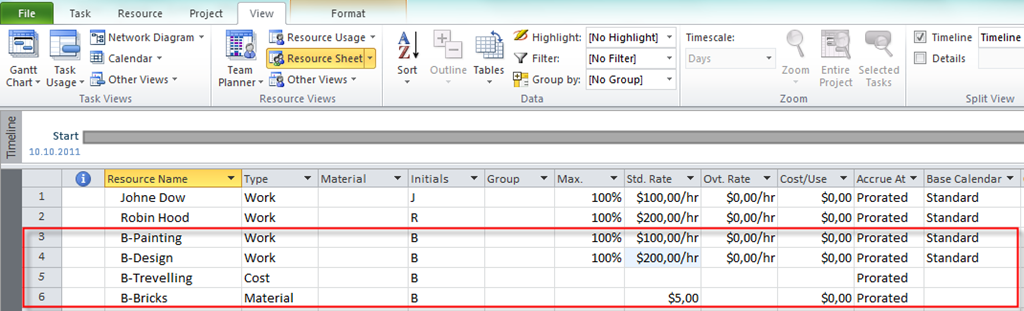
First of all, when you have a Budget Resource, make sure that you put the different name convention to that resource (use UPER CASE, or prefix like B-). Let say that we have four budgeted Resources for our Project:

image

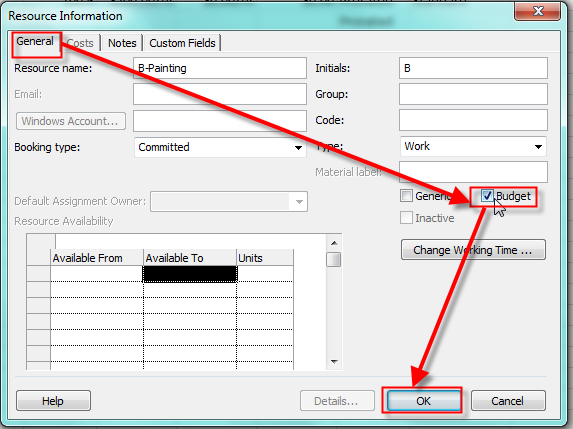
As you can see, two of them are Work type Resources, one is Material type, and one is Cost type. I also put for Work and Material resources Standard rate! But, I know what would you ask! How MS PROJECT 2010 knows that those Resources are Budget type? Obviously not by the B- prefix. Well IT DOES NOT KNOW until you tell it that those are Budget type. Double click on each of Resource for which you want to become a Budget and check:

image

After you check all your Budget Resources you will get:

image


As you can see, Max units, and Standard rate are empty now! Why? Because you do not need them. You will assign cost for those budgeted resources to the resources through Task and/or Resource usage Views. When we get to the point where I will Set up a Budget I will show you how can you do it! For now Remember that you can’t assign Budgeted Resources to anything else then PROJECT SUMMARY TASK. That means that if you have budget for one, particular, Task you can not assign that budget to that task, but rather to a project as a whole, and that is something I am not happy about. I will write about this when I come to the Assigning Resources to the Tasks!

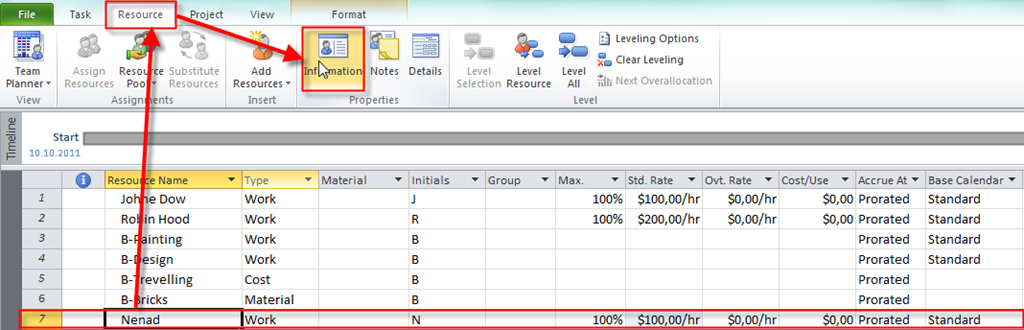
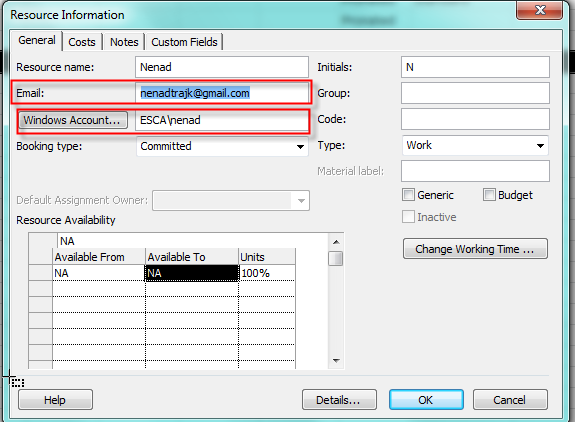
If you want to add some additional information for your Resource (like windows account, Email, note, or hyperlink, you can do it very easy.

You can double click on your Resource name, or you can go to the Resource information through Resource Tab:

image

and You will get:

image

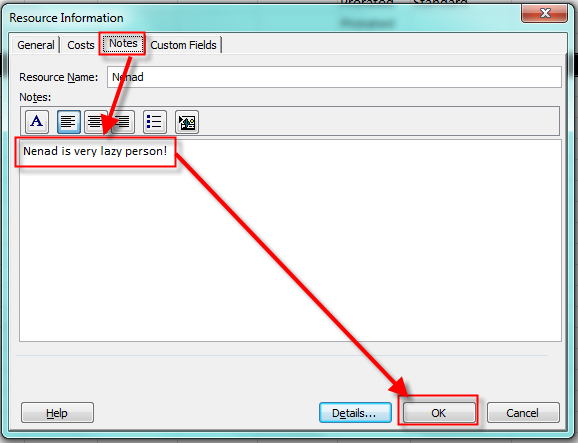
I put my email address, and Windows Account. That was in General TAB. If I want put some note about Resource I can do it through Notes Tab:

image

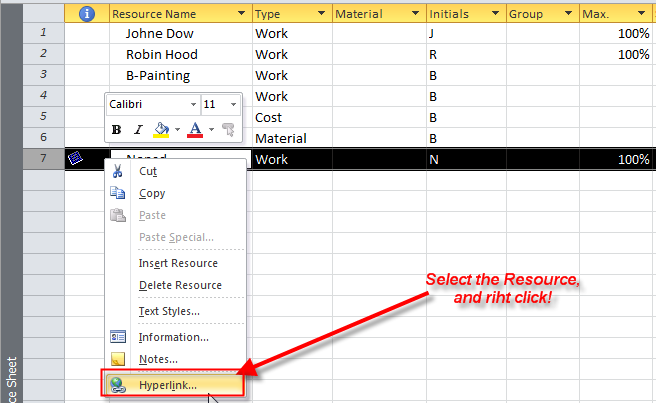
If you want to add a hyperlink to the Resource you can do it like this:

image

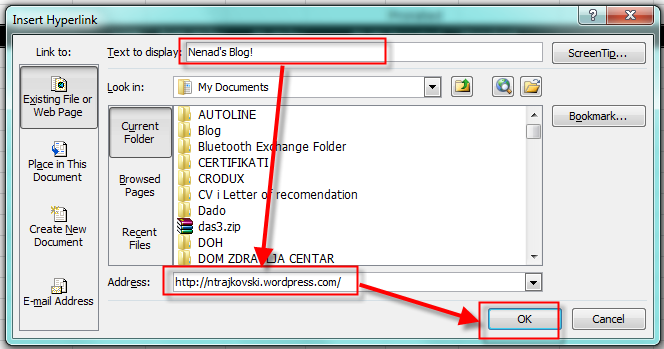
After that you can enter the Hyperlink:

image

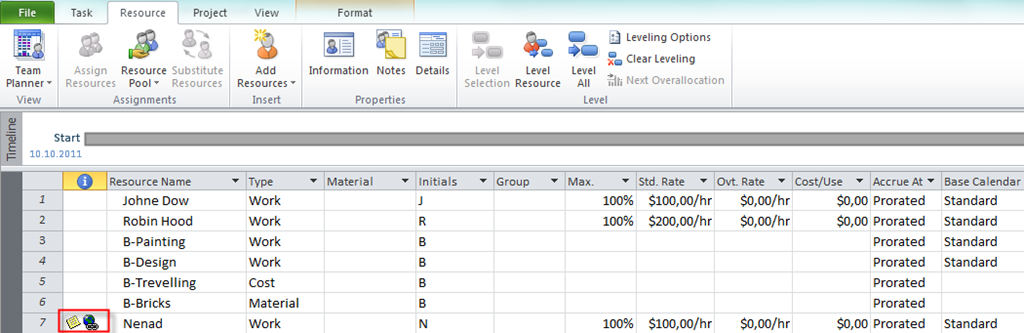
After that you will see Indicator right from the Resource:

image

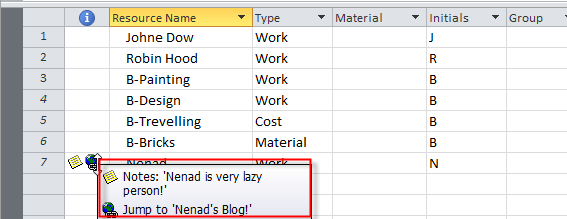
Rest your mouse pointer at the Indicator field and you will see:

image

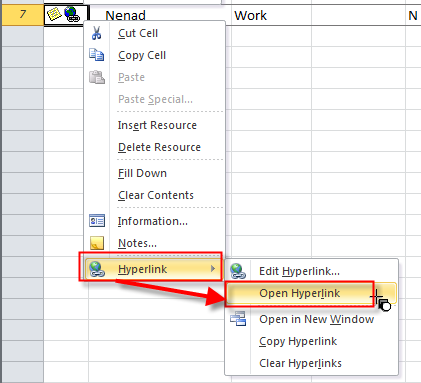
If you want to open the hyperlink, right click to the Indicator field and then follow this:

image


Dear fellows that was all of the easy part of Resource. From my next post I will start with Assigning Resources to the Tasks! It will take me some time and posts but those are almost the most significant things to remember If you want to understand the logic of MS PROJECT 2010.

Until then,

All the Best!

Posted in MICROSOFT PROJECT, Microsoft PRoject 2010, MS PROJECT 2010, PMI, PRoject Management | Tagged , , , | 11 Comments

Setting Up Resources in MS PROJECT 2010– the story begins! How to import Resources from the Address book, and from the Excel template


Hi,

in my last blog post I was finished the Scheduling! In my next posts, I will temporary forget my “Wedding Project”, and I will start to explain how to set up, and manage the Resources in MS PROJECT 2010. It is very important part of MS PROJECT in many ways. If you ever had a problems with resources in your MS PROJECT 2010, you should read those posts very carefully!

You can enter your resources in many ways. The best way is through Resource sheet!

image

Before I start with explanation what each row means, I will show you how can you export your resources from your E-mail address book, and from excel.

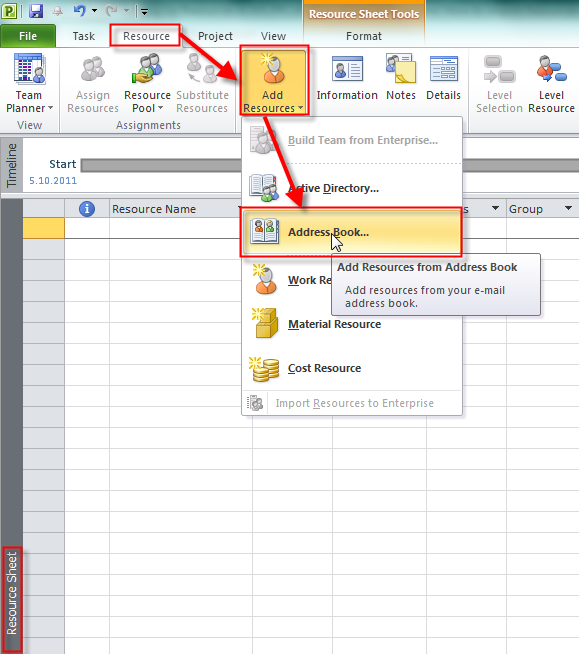
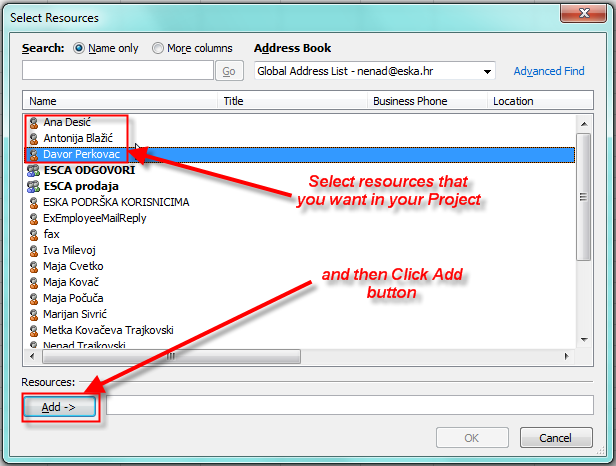
If you have your resources in your address book, you do not have to retype them in the Resource sheet. Instead of that, just open the Resource sheet, and click on the Resource Tab, then click on the Add Recourses, and then on the Address Book:

image

and you will get:

image

After you select and Add your resources, click on the OK button and you will get:

image

They are here! It is easy isn’t it? You should fill other fields like Max units, Std. Rate, etc., but it is easier that retype the whole story!

What are the other fields, and what do they mean? You will find out if you will continue to read my next posts!

If you import Resources from excel template, first you should give that template to someone who will fill it! It can be HR department, or someone who is responsible for managing Resources for your Project.

To get the Template you should follow this steps:

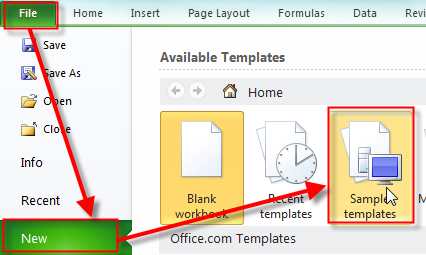
Start excel and then choose:

image

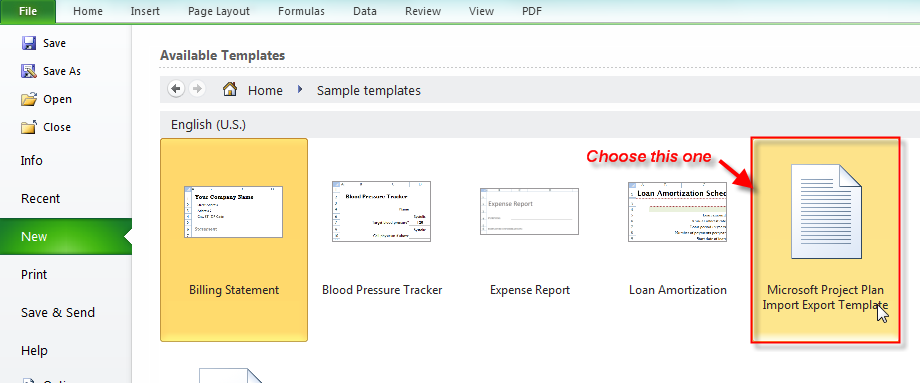
and then:

image

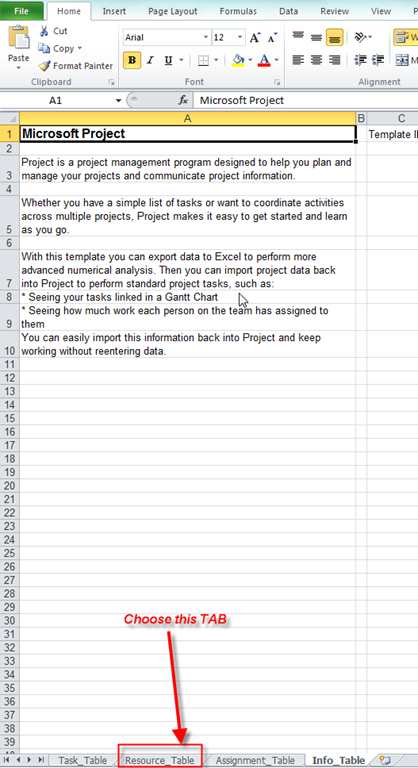
When you Double click on this template you will get:

image

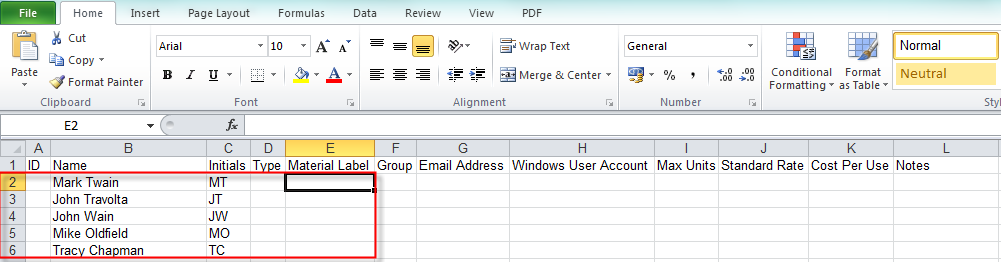
and you will get sheet in which you can enter your resources, like I will do in my example:

image

Of course, you can fill the other fields Smile

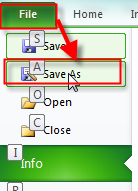
Now you should save this excel template:

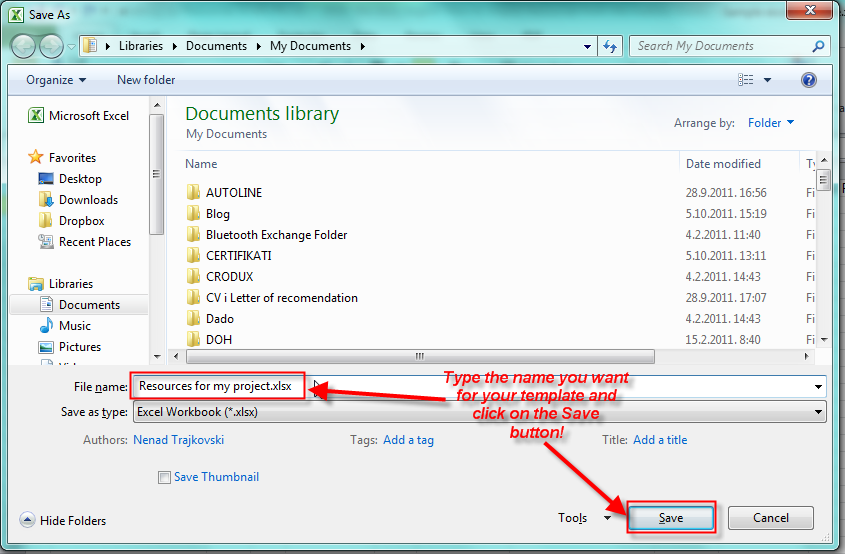
image

and You will get:

image

Now, you can close your excel file, and go back to your Project file.

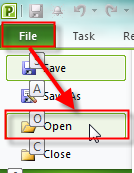
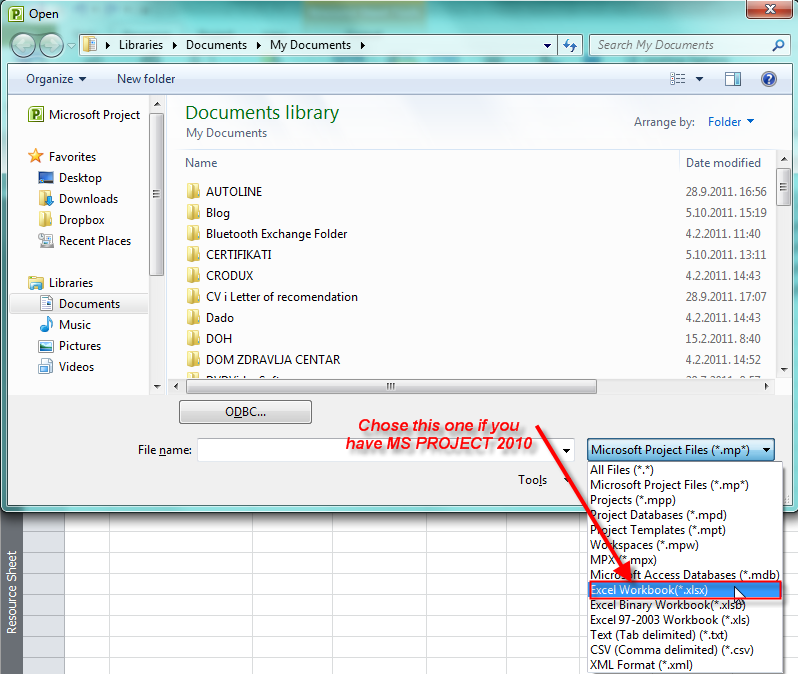
On the File Tab, click Open:

image

And you will get:

image

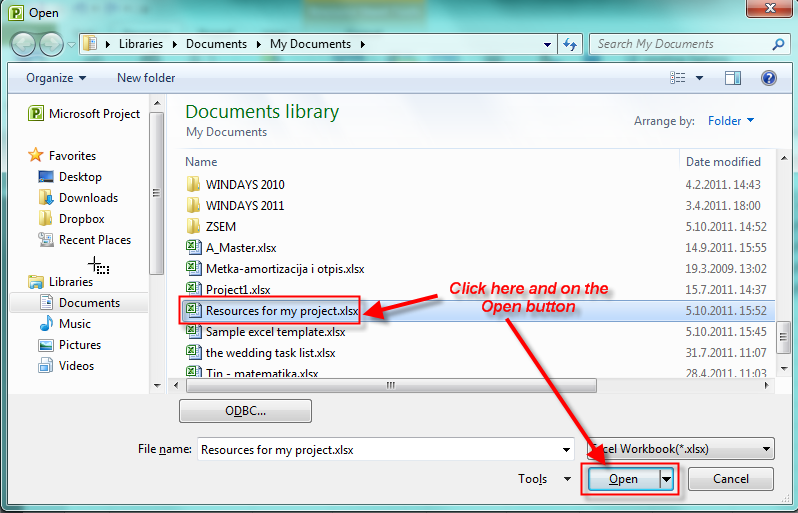
Now choose your file:

image

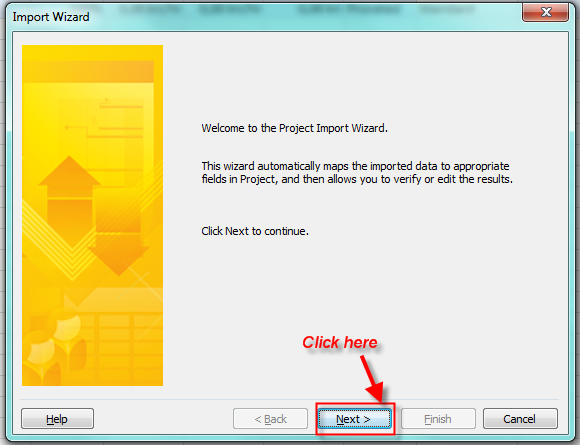
and you will get:

image

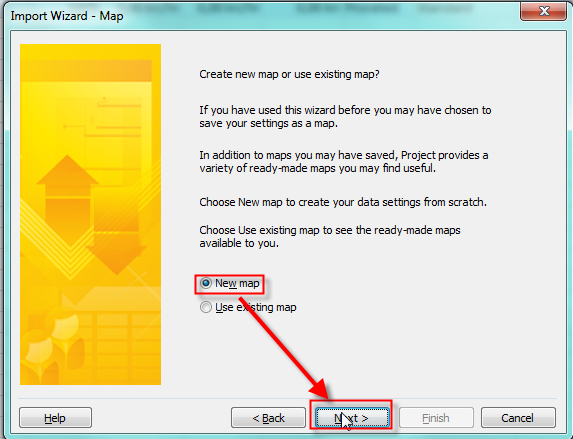
and then:

image


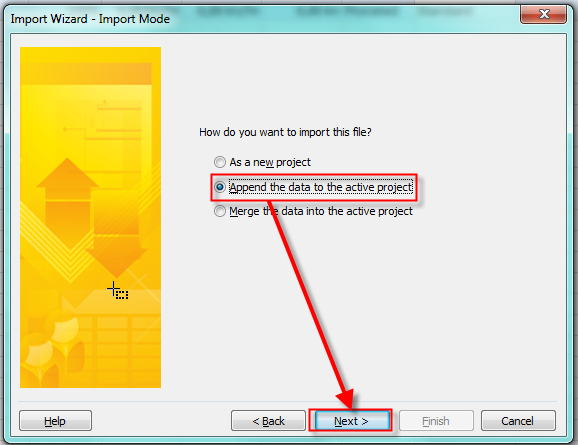
Because I have already imported some resources from my E-mail book, I will Append those Resources from my Excel file to the existing resources:

 image

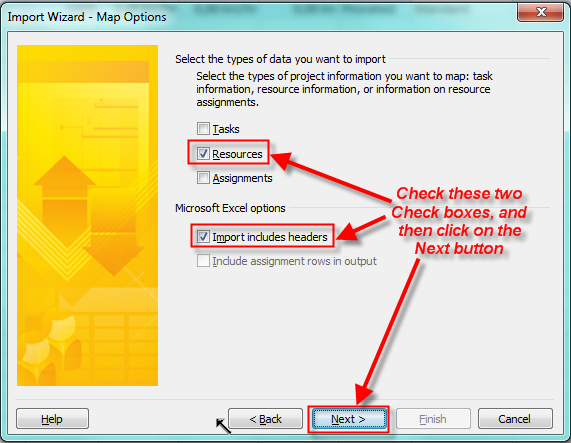
And I will get:

image

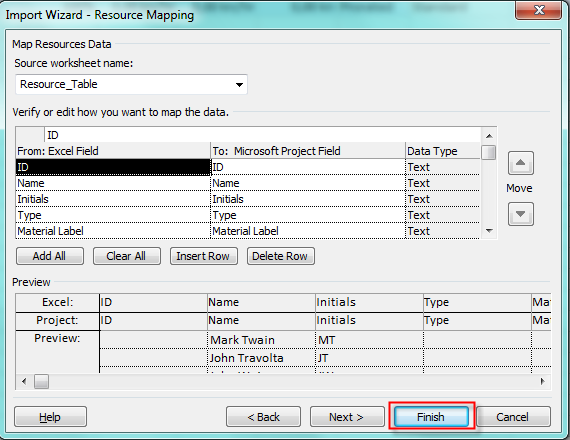
After that you will get “next” screen. If you did not change the layout of your excel template and layout of Resource sheet n MS PROJECT 2010, you should click on the Finish button:

image

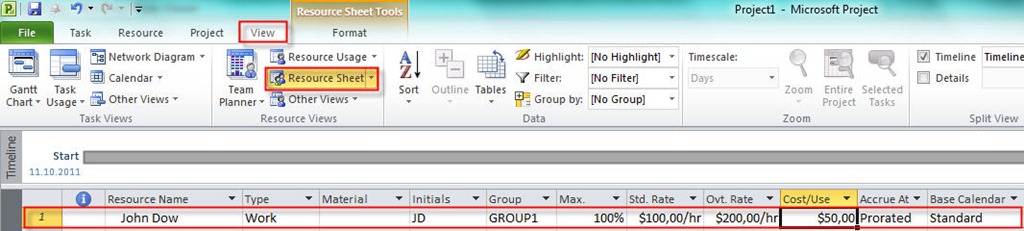
and, finally you will get:

image

That was the easier part of Managing Resources. Next time, we are going to some “serious” business.


Until then,


Best regards!

Posted in MICROSOFT PROJECT, MS PROJECT 2010, PMI, PRoject Management | Tagged , , , , | 5 Comments