The “Wedding” Project! Building the Schedule? – PART 6 (YEAH! The LAST ONE)


Hi,

I will continue my last post!

First, I will change the duration for the wedding night from 1hr to 12 hrs.:

image_thumb48

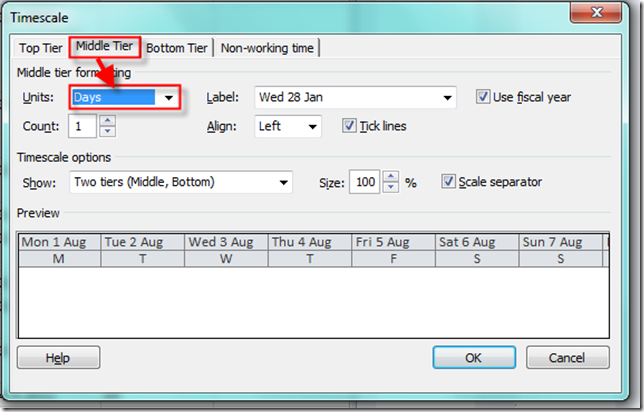
Now I will arrange my timescale:

image_thumb51

I want in middle Tier to have days:

image_thumb53

and in Bottom Tier to have hours:

image_thumb55

and I will get:

image_thumb63

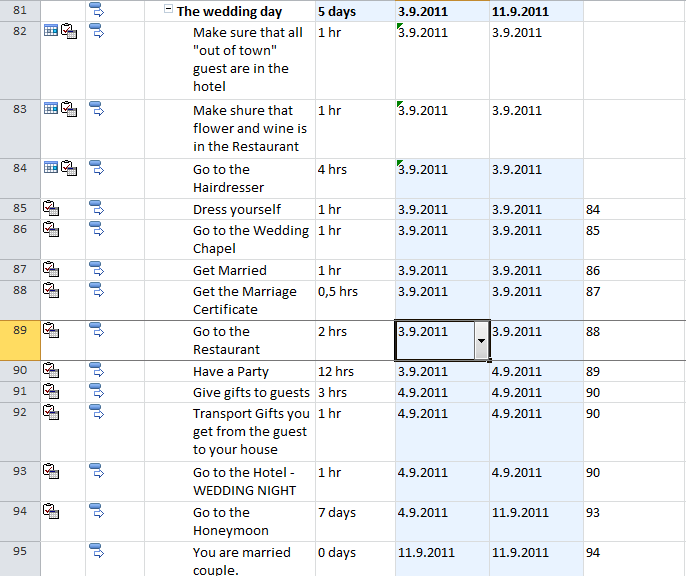
now I can se the tasks hour by hour in one day. Now suppose that I have a marriage (The Get Married Task) at 16:00. That means that task Go to the Wedding chapel must begin at 15:00. Do I will put in a Start date: 03.09.2011 15 in this task and I will get:

image_thumb67

The final result is that I have my wedding at 16:00, and that is what I want.

There are few things left. I will remove a Task calendar from the Go to the honeymoon task, because this task will be done AFTER wedding party and I will get:

image_thumb70

Now, I know that the married couple will go to the Honeymoon at 06.09.2011 so I will change that date:

image_thumb73

and I will get:

image_thumb76

The duration id 7 days and the start date is 06.09.2011 and the finish date is 14.09.2011. WHY? You know why. Because Saturday and Sunday are not working days. So, our wedding couple should go back to home during the weekend, and then go back to the honeymoon, and the honeymoon will be from 08:00 to 17:00? NO Smile with tongue out. Instead of that I will put 7ed in the duration field and that means that our wedding couple will spend 7 whole days in the honeymoon:

image_thumb79

And for the end we must set a schedule for next Tasks:

image_thumb2

image_thumb4

Let’s go:

image_thumb7

I put 1 eday (the whole day) from 02.09.2011 till 03.09.2011 (the wedding day) for the Task 25 Transport Guest from Airport to the Hotel CAB because I know that they will arrive those days but they will not come with the same plane

I put predecessor 86 with start to start relationship for the Task 26 Transport Guest from Hotel to the Wedding Chapel, because Task 86 is: Go to the Wedding Chapel, and guest must go to the wedding chapel at the same time when the wedding couple go, and I applied the same Wedding Calendar to this task as the Task 86 have

I put predecessor 89 with start to start relationship for the Task 27 Transport Guest from Hotel to the Wedding Chapel, because Task 89 is: Go to the Restaurant, and guest must go to the wedding chapel at the same time when the wedding couple go, and I applied the same Wedding Calendar to this task as the Task 89 have¸

I put predecessor 91 with finish to start relationship for the Task 28 Transport Guest from Restaurant to the Hotel with CAB, because Task 91 is: Give gifts to guests, and after that they can go to the Hotel, and I applied the same Wedding Calendar to this task as the Task 91 have

I put predecessor 28 with finish to start relationship for the Task 29 Transport Guest from Hotel to the Airport with CAB, because the will go back home the day after wedding.

image_thumb9

I put the Start date 03.09.2011 (the wedding date) with 10 am for the Task 40 Ship the Wine from wine-cellar to the Restaurant, because it has to be shipped at the wedding they but BEOFRE THE WEDDING

I did the same thing with tasks:

image_thumb11

image_thumb13

I put predecessor 91 with finish to start relationship for the Task 52 Pay the Band, because Task 91 is: Give gifts to guests, and after that I will pay the Band, because the wedding party is over, and I applied the same Wedding Calendar to this task as the Task 91 have

image_thumb15

Finally, I will set up 05.09.2011 as a start date for the Task: Pick up The Photos and Pay for them, because I can pick them first working date, after the wedding.

image_thumb17


That is it. We have a schedule! If you want to download this mpp file, you can do it here: http://dl.dropbox.com/u/35142216/The%20wedding.mpp

From now on, I will torture you with the Resources!

Best Regards,
Posted in MICROSOFT PROJECT, Microsoft PRoject 2010, MS PROJECT 2010, PMI, PRoject Management | Tagged , , , , | 3 Comments

The “Wedding” Project! Building the Schedule? – PART 5 (we are almost at the finish)


Hi,

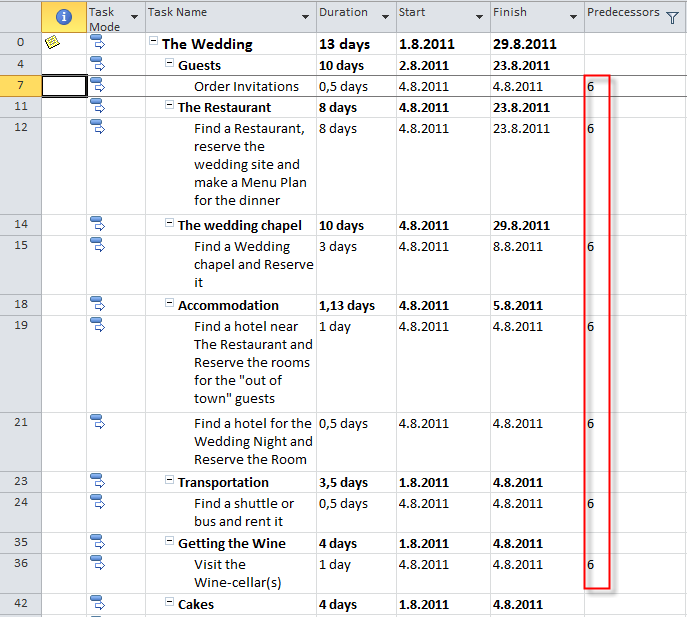
In my previous post I have explained that Task no 6: “Call the guests by phone to the wedding” is a Predecessor of lot of other Tasks. I will again apply a filter to see those task:

image

Because there are many of them, I decide to assign all those task to the “Wedding agency”, and it means that I have decided that the wedding couple will not perform or conduct all those tasks by themselves, because it will take a lot of time, and the wedding will be too late. Instead of that I will hire the “Wedding agency”, and that means that the agency has a capacity to conduct all those tasks (with predecessor no 6).

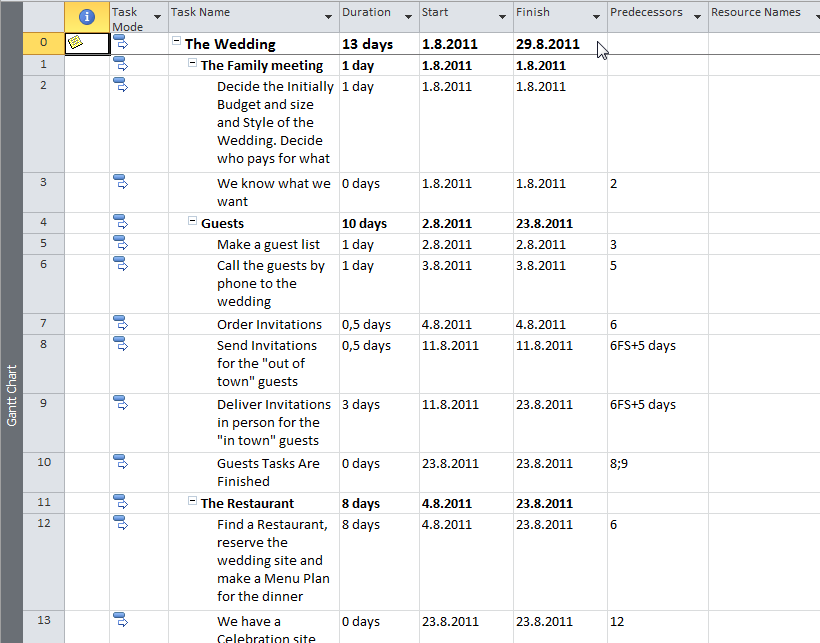
OK. If you remember my wedding should be at Saturday. So I have to examine in my Project plan the nearest Saturday. I have to find know ending date of my project according to my current Project Plan:

image

So, the end date id 29.08.2011. And I suppose that I will find the wedding chapel and the Restaurant which is available the nearest Saturday to that end date. And this is 03.09.2011.

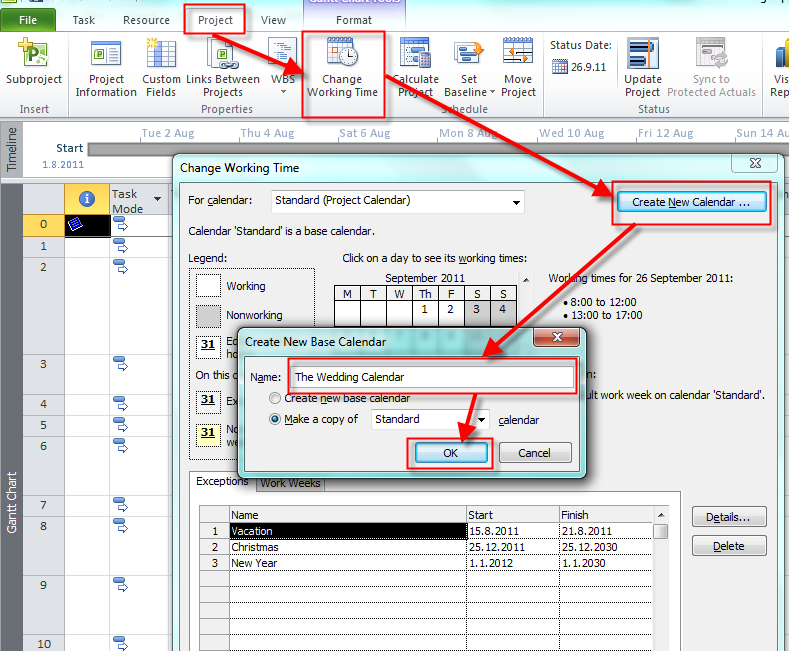
Now the fun begins. There are a couple ways to solve these problems. I will make NOW new calendar for “wedding” tasks:

image

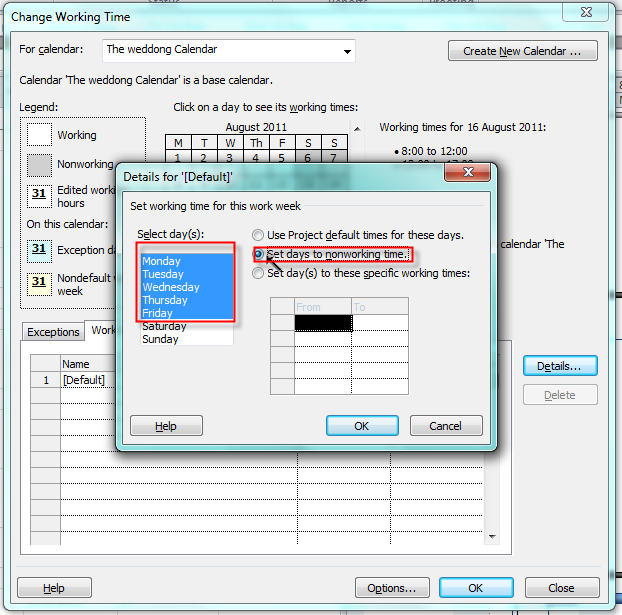
and then I will erase exceptions:

image

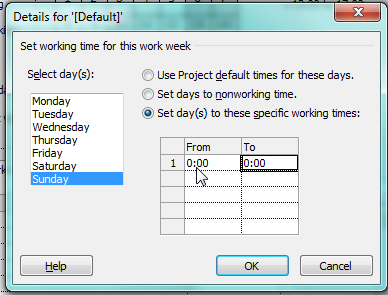
No I will set working time from Saturday 08:00 to 00:00 and Sunday from 00:00 to 00:00:

image

and:

image

and finally:

image

Now I will assign this new calendar to my “wedding” Tasks:

image

and I will get:

image

As you can see the start date is 06.08.2011. But this is not what I want.

First I will make a 03.09.2011 as a start date (because THIS IS RIGHT SATHURDAY FOR THE WEDDING):

image

But I still have to fix some things.

And I will fix them in my next blog post.

I promise the next blog will be the last one with the scheduling of my “Wedding” Project!

Until then,


Best Regards,
Posted in MICROSOFT PROJECT, Microsoft PRoject 2010, MS PROJECT 2010, PMI, PRoject Management | Tagged , , , , | 4 Comments

The “Wedding” Project! Building the Schedule? – PART 4


Hi,

If you remember I had (and I still have) a problem with my “wedding” project. I set up a Wedding Saturday , and Wedding Sunday Task Calendars in MS PROJECT 2010. As I said many times before I did it by the purpose, just to show how can you make a mistake in Project Planning. you can read about this in my blog https://ntrajkovski.wordpress.com/2011/09/12/the-wedding-project-how-to-set-up-calendars-in-ms-project-2010-and-why-part-4/

What was the Idea? As I said, we want to have wedding at Saturday. The party will begin after the wedding, and it will finish at Sunday. When? Who knows?! I was at the wedding party at 17.09.2011 and the party was started at 20:00 and finished next day (Sunday at 08:00). Using a Task Calendar in this situation is not the best approach.

So I will move them out from my tasks, and then I will erase them. Why am I doing that? Because I wanted, and I still want to show different (good, and bed) approaches when using MS PROJECT 2010.

image

I will select them all and remove those calendars:

image

Since I don’t need those two Calendars I will erase them from my Project file. Remember, you can do it only with Organizer.:

image

Now I have to calm down, and resolve my schedule problems. What are they?

1. I have a lot of task which can start immediately after task “Decide the Initially Budget and size and Style of the Wedding. Decide who pays for what” is finished, and after task: “Call the guests by phone to the wedding”. Why? Because at that moment I will know answer to the question: “HOW MUCH MONEY DO I HAVE?”, and the question: “HOW MANY GUEST WILL I HAVE?”. Those task are:

image

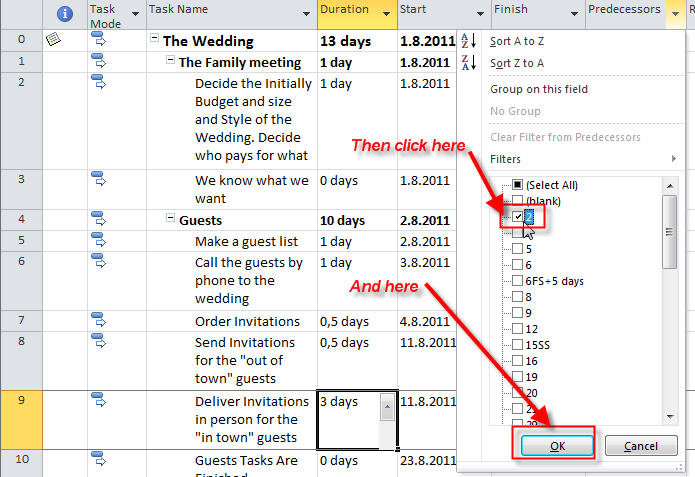
OK! Now the trick! I want to see all tasks with Predecessors NO 2, and only them. I can do it with filter:

image

and you will get:

image

Finally you will get:

image

Now I have to decide what to do! I can not Find a Hairdresser and Beautician, Find The Photographer, Find a Jewelry store, choose the Rings and Decide on engraving, and Decide where to go to honeymoon at the same. day! Those are tasks no: 32,69,73, and 77.

I will now turn the filter off:

image

and you will get all your task back on the screen:

image

I have decided to make those task sequential: Task 69 will have Task 32 as Predecessor, Task 73 will have Task 69 as Predecessor, and Task 77 will have Task 73 as Predecessor.

You can see those tasks now:

image

image

image

image

image

As you can see they are in sequential order now.

OK. This problem is solved. What with Task no 6: “Call the guests by phone to the wedding”? It is a Predecessor of lot of other Tasks. That will be explained in my next blog post. And after that we will know the wedding date and we will be ale to schedule unscheduled tasks.


Until then,


Best regards,

Posted in MICROSOFT PROJECT, Microsoft PRoject 2010, MS PROJECT 2010, PMI, PRoject Management | Tagged , , , , , | 1 Comment

The “Wedding” Project! Building the Schedule? – PART 3


Hi,

In this blog post I will start to Create the schedule, and I will show you how can get in trouble when you do it. If you want to track this Blog post, and next few one, you should download my sample mpp file. I will give you a link at the end of this post.

My first task is “Decide the Initially Budget and size and Style of the Wedding. Decide who pays for what. After you know your budget You can determine your guest list! After that you can do the rest.

Here are the Problems.

The first task in all Summary task can start when Task “Call the guests by phone to the wedding” is finished. Why? Well, simply because after that you know how many people will come to your wedding, and you have enough information about, for example, how big should Restaurant be, how many bottles of wine you have to order, how many rooms you must reserve for your “out of the town” guests, etc.

image

Where is the Problem? If you decide to put all those tasks (Find a Restaurant, Find a wedding chapel, Find a Hotel Near the Restaurant,….) immediately after the ““Call the guests by phone to the wedding” task, you should ask yourself: “There are so many tasks that will start at the same day (03.08.2011)! Who should do those task?” Suppose that the Bride and The Groom decide to do all those tasks by themselves. Is it possible to do all those task in few days? NO IT IS NOT! For now, I will leave this schedule as it is, and after I build the whole schedule, and when I put (assign) resources to all those Tasks, I will see the “Over allocation” and THEN I WILL FIX IT! So, once again, I made those tasks wrong, by PURPOSE, just to show you in the future how can you correct wrong plan in MS PROJECT 2010.

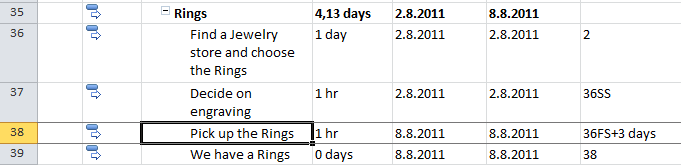
Another Problem is with the Rings. I forgot the Task: “Pick up the Rings”. After you find a jewelry, and you decide on engraving, the jeweler will need some time to make those rings (this is often situation in Croatia), and to engrave those Rings.

Please look at tis picture:

image 

Task no 36. “Find a Jewelry store and choose the Rings” have one day duration. Task 37. “Decide on engraving” should start in “parallel” with task 36. Why? Well, I can make them with the finish to start relationship (which means that I will first have to finish task 36, and after that start with task 37), but it will be silly, because it will means: “When you finish with finding a Jewelry store and choose the Rings, GO HOME, and COME BACK NEXT DAY TO SPEND 1 HOUR ON DECIDING ON ENGRAVING”. Instead of that I make those two tasks as Star to Star, which means, when you start with task 36, you can start with task 37. But, this is still not correct 100%. The best way is to make 1 task instead of two. So I will delete Decide on engraving task and I will marge it with task 36. “Find a Jewelry store and choose the Rings”

image

and then

image

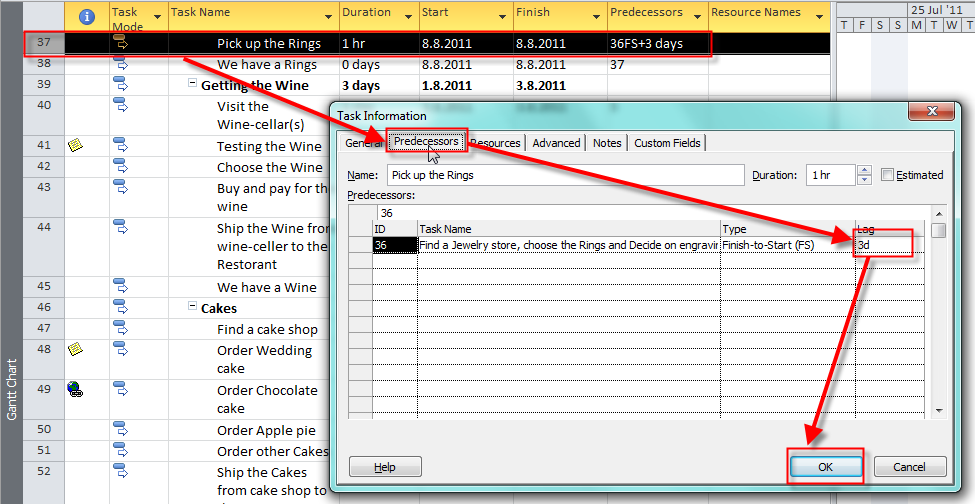
Everything is fine now. Now look at the task 37. Pick up the Rings. It has 1hour duration but in the Predecessors column you can see 36FS+ 3 days. 36 FS means that task 36 is a Predecessor and it has finish to start relationship. +3 days is LAG. Lag is also known as “waiting time”. In my example you can not pick up those Rings when you find the Jewelry store. you have to wait for some time before those rings will be ready. How do I know how much time do I have to wait!? By experience. Do not forget, that we are still in a Planning phase. When we will find a Jewelry store, and when we will decide on rings, then we will know how much time do we need. Until then that is only estimation (like everithing is Smile)

Where to put the Lag time? Double click on the task:

image

Now, the another problem!

image

Transportation! How long will take for the transportation tasks? It depends on the Location of the Hotel, wedding Chapel, and Airport? So I put 1 hour for now, but after I will know where those locations are, I will have to change those values. Another problem I With Predecessors! when do we have to make those transport? Well, to the hotel from the airport one day before the wedding. From the hotel to the wedding chapel, and then to the Restaurant at the day of the wedding. And then, after the wedding back to the hotel, and then they after the wedding, back to the airport.

If you can recall your memory, you already know that the wedding will be on Saturday. But which one? That is what I do not know yet. After I will find it out, I will make a correction to those tasks. The same problem is with those tasks:

image

and:

image

The “Wedding” Project isn’t so easy, after all, is it?

Here is the Link to the sample file: http://dl.dropbox.com/u/35142216/The%20wedding.mpp

I will continue with this subject in my next Post.


Until then,

Regards, and do not hesitate to give me any comment you want!

Posted in MICROSOFT PROJECT, Microsoft PRoject 2010, MS PROJECT 2010, PMI, PRoject Management | Tagged , , , , , | 3 Comments

The “Wedding” Project! Building the Schedule? – PART 2


Hi,

this post might be very boring! Because I am using the “Wedding” project I will put duration for each and every task! There are 100 task and I had to explain why I put those duration for each task. But, you know what? I won’t do it! I will show to you how can you put those duration to the tasks, and I will give you a link to my “Wedding” Project so, if you are interested in watching this example, just download it!

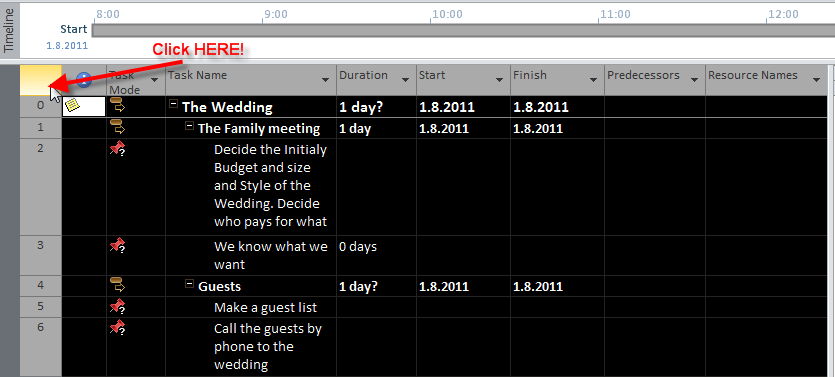
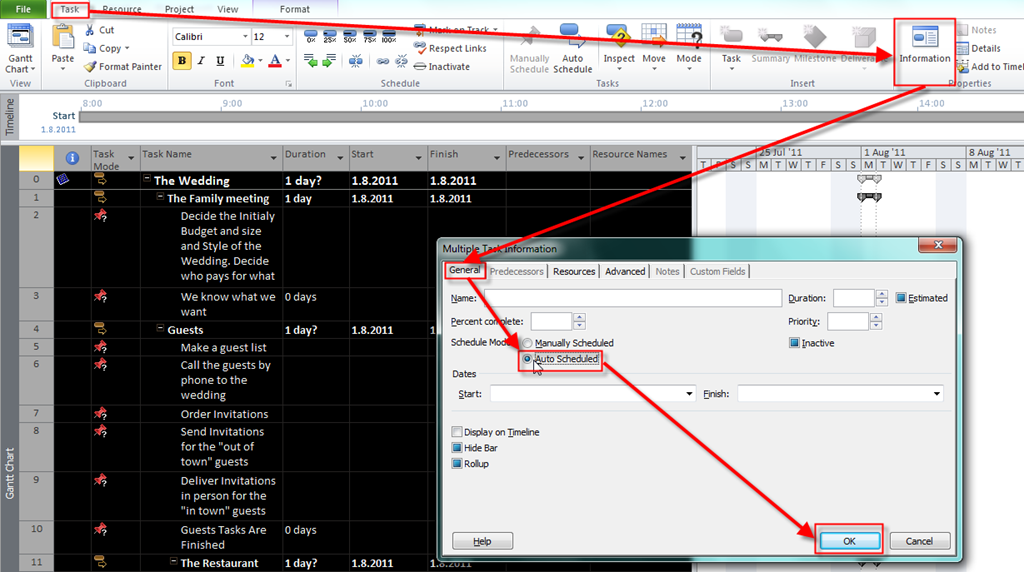
First I decided to change all task from manually schedule mode to auto schedule mode in MS PROJECT 2010. And I can do it with single step, instead of repeating 100 times the same thing for each task.

First I will select all my tasks:

image

and then:

image

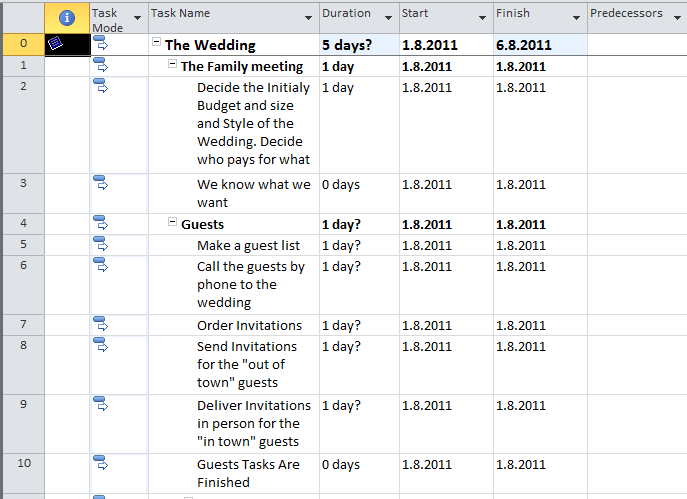
and I will get:

image

All tasks are in auto schedule mode! They have 1 day duration, by default. What does the question mark means? It means that duration is estimated. I know what is on your mind now. You think: “But every duration during the Planning phase is estimated. We will know the exact information AFTER the work is done (so called ACTUALS)!”. And that is true! This question mark you might consider as: “estimate of a duration estimate”.

If you do not want to turn this future off follow these steps:

image

and then:

image

I keep these feature always on.

When you are adding the new task in auto schedule mode, you will have a default 1 day duration with question mark. But if you put manually duration in a duration field these question mark will disappear. If you want, for example, to change the default duration from 1 day to 6 days, but you still not confident with this estimation, and you want to keep the question mark put 6?, and you will get:

image

If you want to see how did I estimate durations for my “”Wedding” Project, here is the link:

http://dl.dropbox.com/u/35142216/The%20wedding.mpp

In my next Post I will set up dependencies, and I will show you where are the mistakes in my task list.

Give me any comment you like.


Regards!

Posted in MICROSOFT PROJECT, MS PROJECT 2010, PMI, PRoject Management | Tagged , , , , , | 1 Comment

The “Wedding” Project! Building the Schedule? – PART 1

Hi,

I received very interest comment for my latest post: “Very refreshing. Having said that, I am sorry, but I do not give credence to your entire plan, all be it stimulating none the less. It seems to me that your comments are generally not completely validated and in fact you are generally your self not really thoroughly convinced of your argument. In any case I did appreciate examining it.”

I say: “THANK YOU A LOT!” for your comment.

The answer is: “Thanks for your comment. I am just starting to building the Plan for my “Wedding” Project. I want to show how difficult it is. In my next blog posts I will continue to build my plan, and I will show the mistakes. I did some mistakes in this stage of Planning phase by the purpose. Anyway, whenever you have any comment, please write it down. I appreciate it!”

Obviously I have to give some further explanation. With my blog posts I was started with Planning phase “from the scratch”. In real life, in every Project, in early phase of planning, there are mistakes. In my last posts I put some Task, Resource, and Project Calendars. I will now continue to make my plan for the Project. I will building the schedule, define and assign resources, and add the costs and budget. After that I will show you where the mistakes are made, and I will explain how to correct them. Then I will save the Project Plan as a Baseline, and the work will start. Of, course I will track “actuals” vs. “planned” values.

This Blog post will be short, and there will be no samples. Why? Because before making a schedule you have to know the theory! After that we will build the schedule in MS PROJECT 2010.

Building the schedule means:

  1. Enter task durations
  2. Identify the relationship, or dependencies, among task
  3. Schedule certain tasks to achieve specific dates when necessary

You can build your schedule before you know your resources (it means, EHO WILL DO THE WORK?) or, if you have known resources and their availability, after you put them in MS PROJECT 2010, and set up their calendar (if it is different from Standard Calendar in MS PROJECT 2010) you can build your schedule.

For our “Wedding” Project I will first estimate duration for all my Tasks. How can I do it?

In the Duration Field you can put these units of time:

  • 1d or just 1 (or any number you like)– unit is days (default value)
  • 1h (or any number you like)– unit is hours
  • 1m (or any number you like)– unit is minutes
  • 1w (or any number you like)– unit is weeks
  • 1mo or mo (or any number you like)– unit is months

That was easy. I will show you duration of my Tasks in the “wedding” project in my next blog post. But, the question is: “How do I know the duration of my task?”. It can be 1 day, or 1,5 day or 5 days?

There are many ways to establish Task duration:

  • Previous Projects. It means, that you have the same or almost the same task in your previous Projects so you already know the Duration
  • Team knowledge. If you already have your team (e.g. Resources) and you know who will do what, they can give you their estimated duration for their tasks on the Project
  • Expert judgment. If you do not have a team you can obtain durations for some other specialists in the field (for example consultants, accountants etc.)
  • Industry standards. For projects tasks typical to an industry or discipline (like Construction Projects), you can find how much time do you need for your Tasks

Be very careful. If you have the Resources assigned to your Project, and they give you estimated Task Duration you should know those person very well! Why? Because, they can be over optimistic, or over pessimistic, more or less experienced so they can do the wrong estimation.

What does it mean? It means that if you do not have proper resources for your project, or you do not know them well, estimations can differs a lot from real time needed for your tasks.

And last, but not least, you should always have a proper Resources for your Project.

Here is the funny picture about resources from internet. I hope that you will not be offended by this picture.

image

In my next post I will start to build the schedule for my “Wedding” Project!


Have a great weekend!

Posted in MICROSOFT PROJECT, Microsoft PRoject 2010, MS PROJECT 2010, PMI, PRoject Management | Tagged , , , | 2 Comments

MS PROJECT 2010–The “Wedding” Project. Sample!


Hi,

I forgot to mention. If you want to try to work on my “Wedding Project”, here is the link: http://dl.dropbox.com/u/35142216/The%20wedding.mpp, and you can download everything what was (and is) on the Blog.


Regards,

Posted in Microsoft PRoject 2010, MS PROJECT 2010, PMI, PRoject Management | Tagged , , | 6 Comments

The “Wedding” Project! How to set up Calendars in MS PROJECT 2010, and why? – PART 4


Hi,

The last Calendar type in MS PROJECT 2010 is the Task Calendar. Remember this: If you have the Project Calendar, and the Resource Calendar (or Calendars), and the Task Calendar, TASK CALENDAR HAS PRECEDANCE!

Why do you need a Task Calendar. I will give you an example on our “Wedding” Project. We do not know when will we have a wedding. We are still in a Planning phase. But what we DO KNOW that the wedding will start at Saturday, and it will finish on Sunday. We do not know WHICH Saturday and Sunday, but we know that the wedding will be on this two days.

When you need specific Task Calendar, DO NOT use and modify standard Calendars. Create your own, instead. Why? Because if you modify working time on the Standard Calendar, and you use it with different tasks and different resources, you can get unpredictable results. Here is an example. If I modify standard Calendar in MS PROJECT 2010 and if I put the work time only at Saturday and Sunday, all my tasks will be scheduled to be conducted at these days.

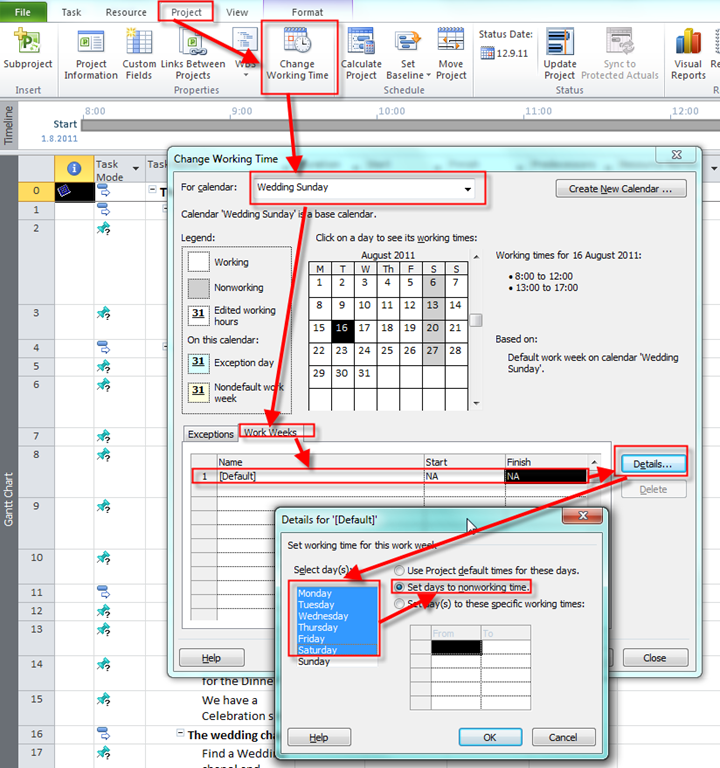
I will now create the two brand-new calendars, and I will name it: “Wedding Saturday” and “Wedding Sunday”:

image

No I will remove all exceptions from my Calendar:

I will select all Exceptions and I will click on the Delete Button:

image

Now, I will set up Work Weeks. First I will delete the Specific work from 16.08.2011 to 31.08.2011. This specific work came from my previous posts, about Calendars, remember?:

image

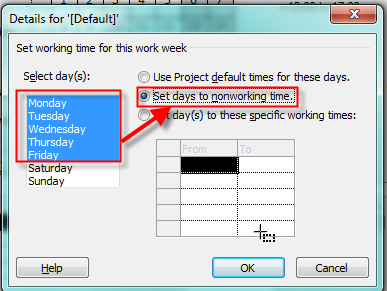
Finally I will set up working and nonworking days for my Calendar:

image

and then:

image

DO NOT CLICK ON THE OK BUTTON! If you try you will get:

image

Why? Because I set up nonworking days from Monday to Friday, and Saturday and Sunday are nonworking days by default, it will means that you have Calendar without single working day, and that is seamless.

You can see that there will be no activities from Monday to Friday. But, on Saturday I will set up working time for 08:00 to 24:00 (e.g. 00:00, you can not put 24:00):

image

O.K. When will the wedding finish? At Sunday. But if it will start on Saturday it will keep going on Sunday. So I will make Wedding Sunday Calendar, as a copy of Wedding Saturday Calendar:

image

I will set up working time as a whole day:

image

and then:

image

That is it!

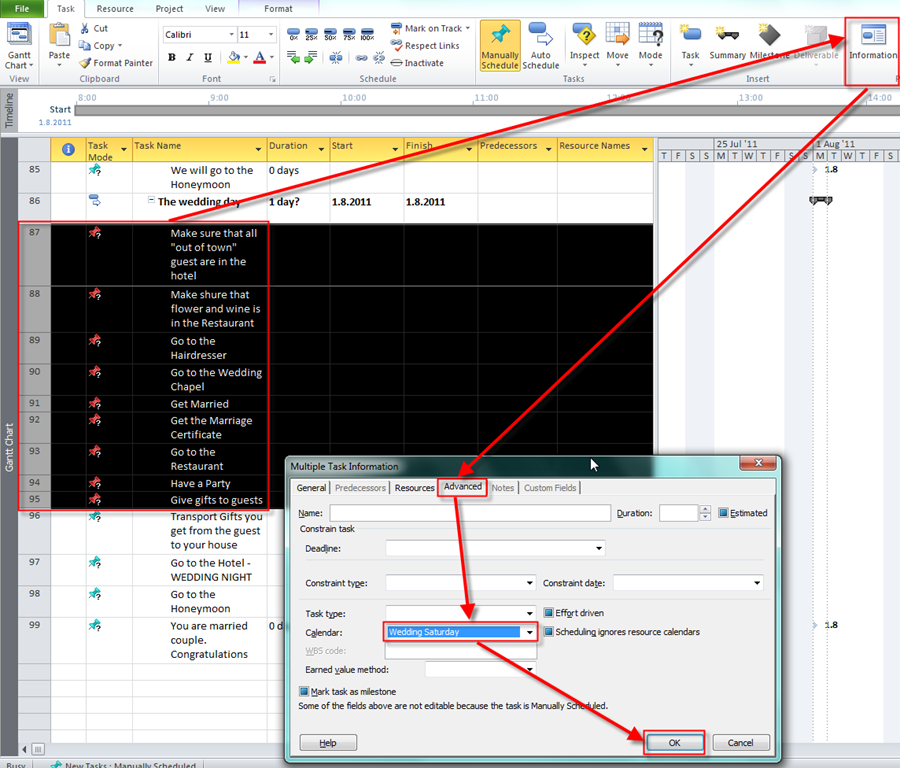
Now I will assign specific Calendar to the Specific Task(s).

image

and I will get:

image

You will notice that I made a mistake, but I did it purposely, and I will correct it when I will establish a schedule, later in my project (not in this post, of course). What is the Mistake? Well, look at a “Have a party” Task. The wedding ceremony will finish, for example, at 18:00 at Saturday, and then the party will start. But it will certainly not finish at Saturday. So this is the mistake. But, as I said, I will correct the mistake latter.

Now, suppose that I have a “Wedding couple” as a Resource with Standard Calendar:

image

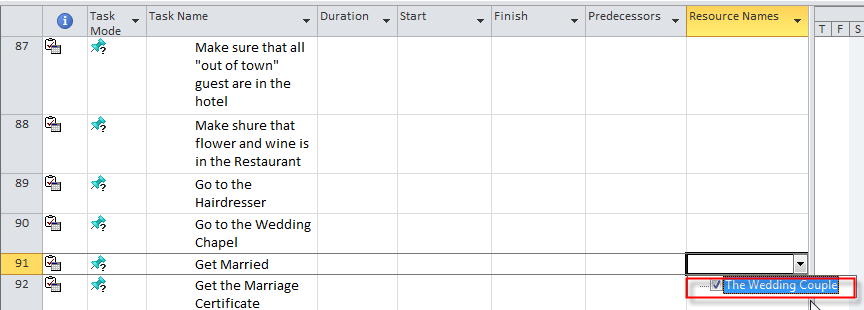
I will assign that resource to the “Get Married” Task:

image

If I want to move out of this field I will get a warning message:

image

WHY? Well our “Wedding Couple” Resource has a Standard Calendar assign to them, and it Means they are available only at working days (Monday to Friday). One the other hand, the “Get Married” task has a “Wedding Saturday” Calendar and it will be conducted at Saturday. So we have a conflict, because our “Wedding Couple” are not available at their own wedding!!! Smile . How to solve this conflict? Easy!

Double click on the Task and then choose:

image

With “Scheduling ignores Resource calendars” you are avoiding those types of conflicts in MS PROJECT 2010, because MS Project assume, that any resource will be available to my task if it has its own Calendar!


Best Regards!

Posted in MICROSOFT PROJECT, Microsoft PRoject 2010, MS PROJECT 2010, PMI, PRoject Management | Tagged , , , | 6 Comments

The “Wedding” Project! How to set up Calendars in MS PROJECT 2010, and why?–PART 3


Hi,

if you reed my last post you already know that we have set up our project calendar, and exceptions.

Here they are:

image

and:

Working time was set as:


Now I will show you how painful MS PROJECT 2010 can be if you do not understand how does it work! I will add two resources in the Resource sheet. Remember, this post is NOT about Resources and how to manage them. I will write about Resources after I will establish the Schedule for my “Wedding” party. This post is about Resource Calendars:

image

For the Resource I want to set up Calendar with:

  • Vacation (nonworking time) from 01.08.2011 to 10.08.2011

image

  • working time from 08:00 to 14:00 (working days) e.g. 6 hours per day

image

I will now, just for example, put a Auto Scheduled Task which will start (by default) at 01.08.2011 (Project start date), and will have 20 days Duration. I will get:

You know why the Start date is 01.08.2011 and the End date is 08.09.2011. If you don’t, read my previous Blog: “The “Wedding” Project! How to set up Calendars in MS PROJECT 2010, and why?–PART 2”

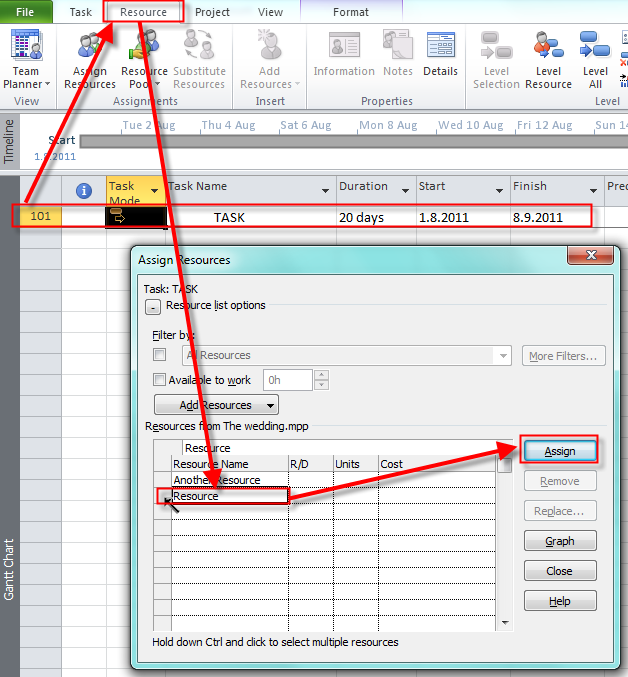
OK. I will assign The “Resource” to the Task:

image

and I will get:

image

Duration is still 20 days, Start date is the Project start date, and the end date is 23.09.2009. How is it possible?

We need 20 days X 8 hours per day = 160 hours to complete the Task, because I told that one working day have 8 hours. Now I will switch to the Resource Usage View:

image

As you can see: Our resource will work 6 hours per day, and will start at 11.08.2011. Why? Because he or she is on vacation from 01.08.2011 till 10.08.2011.

We have to work 160 hours to complete the Task. And or resource will work only 6 hours per day. It means:

  • From 11.08.2011 (Thursday) to 12.08.2011 (Friday) = 2 days X 6 hours / day = 12 hours
  • From 15.08.2011 (Monday) to 21.08.2011 (Sunday), there are no activities on the Task because of Project Calendar Exception (Vacation, remember???)
  • From 22.08.2011 (Thursday) to 16.09.2011 (Friday) = 4 weeks X 5 days X 6 hours / day = 120 hours
  • From 19.09.2011 (Monday) to 22.09.2011 (Thursday) = 4 days X 6 hours / day = 24 hours
  • 23.09.2011 (Friday) = 4 hours

And it makes: 12+120+24+4=160 hours!

OK. Now I will REMOVE (REASSIGN) the Resource from my task and after that I will add the Resource and the Another Resource. It is very IMPORTANT that you do not get the same result if you assign multiply resources to the task in one step, or if you assign the resource to the task, and few minutes later you assign another Resource to the same Task. I will explain how and why is this different in one of my future posts, but for now I will first remove the Resource from the Task!

image

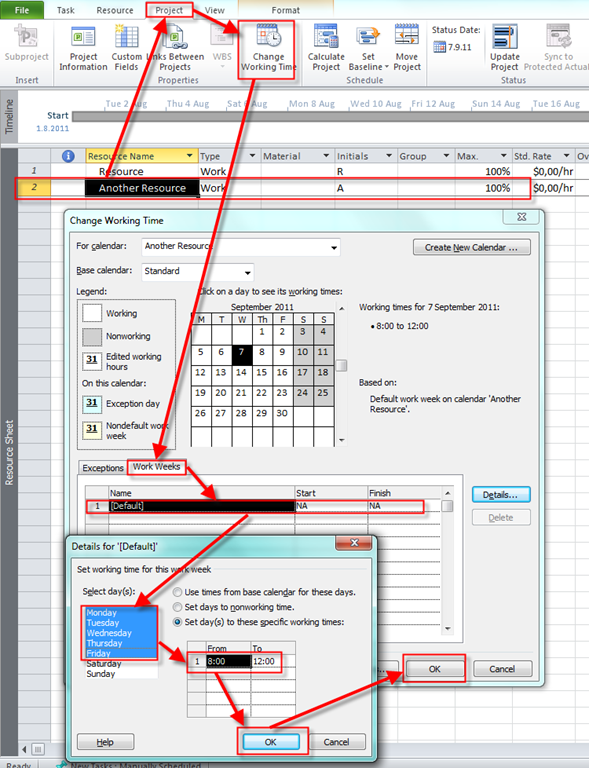
I will set up the Calendar for the Another Resource:

image

So the Another resource will have time from 08:00 to 12:00 (working days) e.g. 4 hours per day. Notice, that this Resource has NO EXCEPTIONS (no Vacations).

I will now assign both, the Resource, and the Another Resource to the Task, and I will do it directly from the Gantt chart:

image

and I will get:

image

Now the Task has 26.5 days duration, and the End  date is 30.09.2011. HOW?

Well, I assign both resources for the task at the same time. It means that both resources should work 160 hours! I know that is complicated but that’s how MS PROJECT 2010 works. Of course, if you change the task type, you can get different result, but we are taking one step at the time.

Because both Resources must work 160 hours on the task, they will work according to the Project Calendars, and exceptions, and Resource Calendars and Exceptions.

Remember this: If you have the Project Calendar and the Resource Calendar (or Calendars), RESOURCE CALENDAR HAS PRECEDANCE!!!!!!

So how will the resources work. The Resource will work the same as it was explained:

  • From 11.08.2011 (Thursday) to 12.08.2011 (Friday) = 2 days X 6 hours / day = 12 hours
  • From 15.08.2011 (Monday) to 21.08.2011 (Sunday), there are no activities on the Task because of Project Calendar Exception (Vacation, remember???)
  • From 22.08.2011 (Thursday) to 16.09.2011 (Friday) = 4 weeks X 5 days X 6 hours / day = 120 hours
  • From 19.09.2011 (Monday) to 22.09.2011 (Thursday) = 4 days X 6 hours / day = 24 hours
  • 23.09.2011 (Friday) = 4 hours

And it makes: 12+120+24+4=160 hours!


The Another Resource will work:

  • From 01.08.2011 (Monday) to 12.08.2011 (Friday) = 2 weeks X 5 days X 4 hours / day = 40 hours
  • From 15.08.2011 (Monday) to 21.08.2011 (Sunday), there are no activities on the Task because of Project Calendar Exception (Vacation, remember???)
  • From 22.08.2011 (Monday) to 30.08.2011 (Friday) = 6 weeks X 5 days X 4 hours / day = 120 hours

And it makes: 40+120=160 hours!

If you think you are suffering, wait until my next post.


Until then,


Best Regards!

Posted in MICROSOFT PROJECT, Microsoft PRoject 2010, MS PROJECT 2010, PMI, PRoject Management | Tagged , , | 3 Comments

The “Wedding” Project! How to set up Calendars in MS PROJECT 2010, and why?–PART 2


Hi,

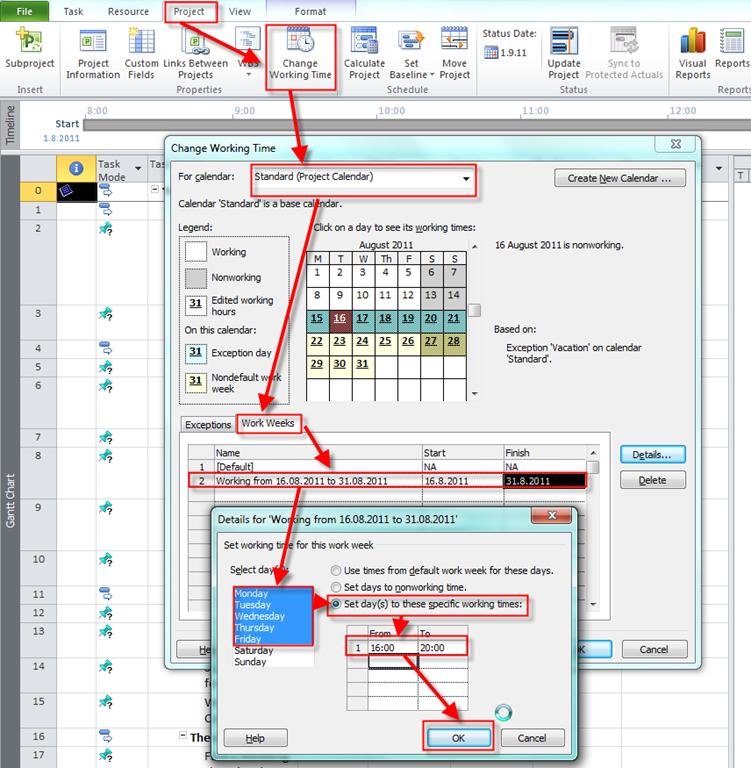
In my previous post I have explained how to use the Project Calendar, and how to make an exception (Vacation, New Year etc.). But what if you have different working times over the period. For example, our “Wedding” Project has working time from Monday to Friday from 08:00 to 12:00 and from 13:00 to 17:00. And it will start at 01.08.2011. Suppose that we want to keep that working time from 01.08.2011 to 15.08.2011, and then from 16.08.2011 to 31.08.2011 we want to work from 16:00 to 20:00, and then from 01.09.2011 go back to old working time.

I’ll show you how to do it in my “Wedding” Project, but this is the Example, so I will delete those working times later, because I will not need them in the future

Here it is:

image

Notice that you CAN NOT change the Default row.

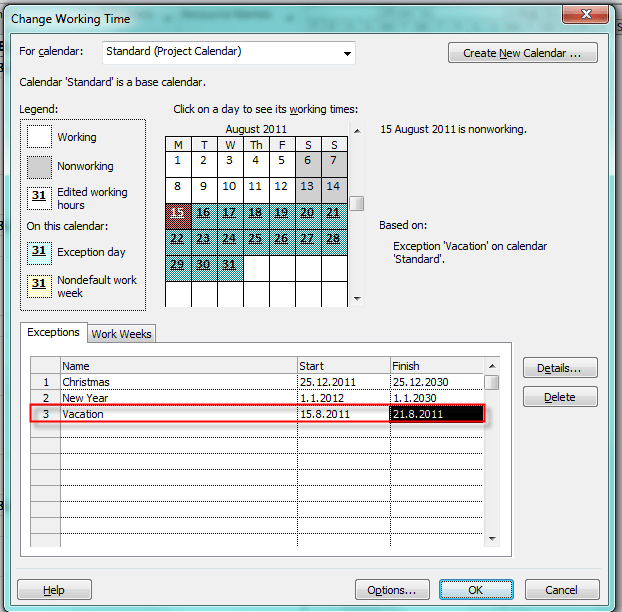
Now be very concentrate. If you read my previous post you know that I made an exception in the Project Calendar for my Vacation time:

image

I will now, just for example, put a Auto Scheduled Task which will start (by default) at 01.08.2011 (Project start date), and will have 20 days Duration. I will get:

image

WOW! I have task with 20 days Duration, it will start at 01.08.2011 and it will be finished at 08.09.2011????

Well, now you understand why is SO IMPOTRANT to understand MS PROJECT 2010 calendars. Here is the explanation.

First, when I told that my task will have a 20 days duration, MS PROJECT 2010 has converted 20 days into 20 days X 8 hours per day = 160 hours.

We know that one day has 8 hours from here: On the File Tab click Options, and then Schedule and you will see:

image

The Task will start at 01.08.2011 (The Project Start date). OK. We need 160 hours. And we will get them:

  • From 01.08.2011  (Monday) to 05.08.2011 (Friday) = 5 days X 8 hours / day  = 40 hours
  • From 08.08.2011 (Monday) to 12.08.2011 (Friday) = 5 days X 8 hours / day = 40 hours
  • From 15.08.2011 (Monday) to 21.08.2011 (Sunday), there are no activities on the Task because of Calendar Exception (Vacation, remember???)
  • From 22.08.2011 (Monday) to 26.08.2011 (Friday) = 5 days X 4 hours / day = 20 hours. WHY? Because working time from 16.08.2011 to 31.08.2011 is from 16:00 to 20:00 and it means only 4 hours per day
  • From 29.08.2011 (Monday) to 31.08.2011 (Wednesday) = 3 days X 4 hours / day = 12 hours. WHY? Read one sentence above Smile with tongue out
  • From 01.09.2011 (Thursday) to 02.09.2011 (Friday) = 2 days X 8 hours / day = 16 hours. WHY? We are on the old working time!
  • From 05.09.2011 (Monday) to 08.09.2011 (Thursday) = 4 days X 8 hours / day = 32 hours. WHY? You know very well why Smile with tongue out

And it makes 40+40+20+12+16+32= 160 hours!

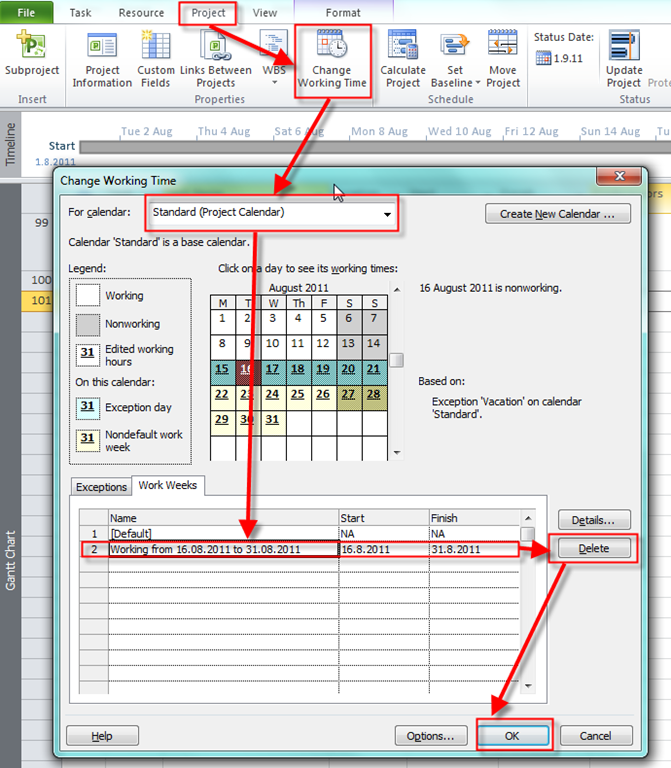
What will happens if I remove this working week from 16.08.2011 to 31.08.2011 from my Project Calendar?

image

I will get:

image

The Finish date is 02.09.2011.

  • From 01.08.2011 (Monday) to 05.08.2011 (Friday) = 5 days X 8 hours / day = 40 hours
  • From 08.08.2011 (Monday) to 12.08.2011 (Friday) = 5 days X 8 hours / day = 40 hours
  • From 15.08.2011 (Monday) to 21.08.2011 (Sunday), there are no activities on the Task because of Calendar Exception (Vacation, remember???)
  • From 22.08.2011 (Monday) to 26.08.2011 (Friday) = 5 days X 8 hours / day = 40 hours. WHY? Because I remove working time from 16.08.2011 to 31.08.2011 which was from 16:00 to 20:00 and only 4 hours per day
  • From 29.08.2011 (Monday) to 02.09.2011 (Friday) = 5 days X 8 hours / day = 40 hours. WHY? Read one sentence above Smile with tongue out

And it makes 40+40+40+40= 160 hours!

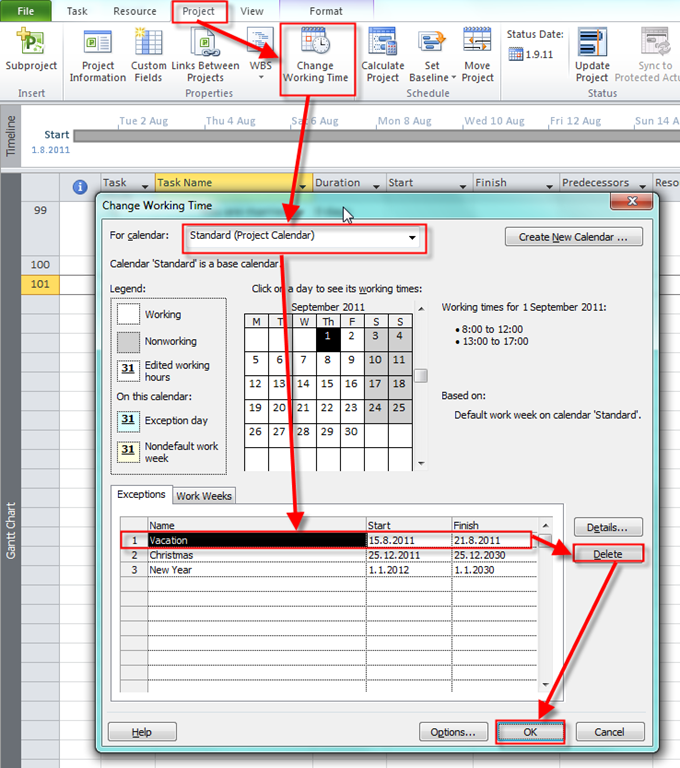
Now, I will remove my Vacation from exception from MS PROJECT 2010 Calendar:

image

and I will get:

image

The Finish date is 26.08.2011.

  • From 01.08.2011 (Monday) to 05.08.2011 (Friday) = 5 days X 8 hours / day = 40 hours
  • From 08.08.2011 (Monday) to 12.08.2011 (Friday) = 5 days X 8 hours / day = 40 hours
  • From 15.08.2011 (Monday) to 19.08.2011 (Friday) = 5 days X 8 hours / day = 40 hours
  • From 22.08.2011 (Monday) to 26.08.2011 (Friday) = 5 days X 8 hours / day = 40 hours

And it makes 40+40+40+40= 160 hours, again.

At the end of this post, do I have to emphasize that you should be EXTREMLY CAREFUL when you are changing calendars in MS PROJECT 2010, or working time???

If you think that this is complicated you are hitting the target. BUT, the real pain begins with Resource calendars, and the Task Calendars.

In my next post I will start with them! For the example I will leave Exception for the Vacation and 4 hours working days from 16.08.2011 to 31.08.2011, to make the whole thing more complicated.


Until my next post,

Best Regards!

Posted in MICROSOFT PROJECT, MS PROJECT 2010, PMI, PRoject Management | Tagged , , , | Leave a comment