The “Wedding” Project! How to set up Calendars in MS PROJECT 2010, and why?–PART 1


Hi,

As you know, from my previous posts, working time in MS PROJECT 2010 is set up in a Backstage view:

and it says: When you put task duration in the Duration field in DAYS it will multiple days with 8 hours per day. The task will start at 08:00 and will finish at 16:00. When you put task duration in the Duration field in WEEKS it will multiple weeks with 40 hours per week. Finally, when you put task duration in the Duration field in MONTHS it will multiple months with 20 days per month and with 8 hours per day.

Defaults for MS PROJECTS 2010 are:

  • Weeks starts on: Monday
  • Fiscal year starts in: January
  • Default start time: 08:00
  • Default end time: 17:00
  • Hours per day: 8
  • Hours per week: 40
  • Days per month: 20

It means that 1 day of duration is work from 08:00 till 17:00 with 1 hour of lunch break

You know that if you want from MS PROJECT 2010 to calculate start and end date you have to be in auto scheduled mode.

in MS PROJECT 2010 there are three types of Calendars: Project Calendar, Resource Calendar and Task Calendar.

I will explain when, how, and why to use those types of calendars. I will be very detailed. I do not know if will take me 2, 3 or 5 posts to explain everything about Calendars in MS PROJECT 2010, but I do not care. I will write, and write, and write until I will not cover EVERYTHING about the Calendars. WHY? Take me seriously in this: “IF YOU DO NOT UNDERSTAND HOW TO WORK WITH CALENDARS IN MS PROJECT, YOU WILL NOT BE ABLE TO GET THE EXPECTED RESULTS, AND YOU WILL HATE THE MS PROJECT 2010, BECAUSE YOU WILL THINK THAT IT DOES NOT WORK PROPERLY!”

The introduction of this subject can be found in my post: https://ntrajkovski.wordpress.com/2011/04/12/scheduling-problems-in-ms-project-2010-2/

There are three “built in” Calendars in MS PROJECT 2010: Standard, Night Shift and 24 hours. You can see them here:
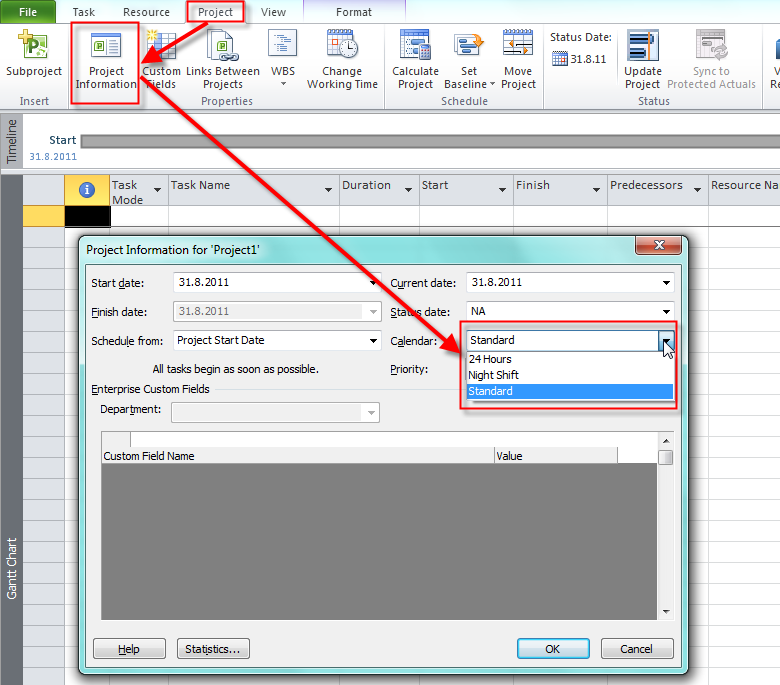
image

For the Project, Resources and all Tasks, Standard Calendar is Default.

Default working time for the Standard Calendar is from Monday to Friday, and from 08:00 to 12:00, and From 13:00 to 17:00. You can see it here:

image

Default working time for the Nigh Shift Calendar is from Monday to Friday, and from 23:00 to 03:00, and From 04:00 to 08:00.

Default working time for the 24 Hours Calendar is from Monday to Sunday (the whole week) , and from 00:00 to 00:00.

You can create your own Calendar or change one of the Default Calendars.

OK. Now back to our “Wedding Project”. We do not want to work on Christmas, and New Year. So we have to change our Calendar:

image

after you will click on the Details button you will get:
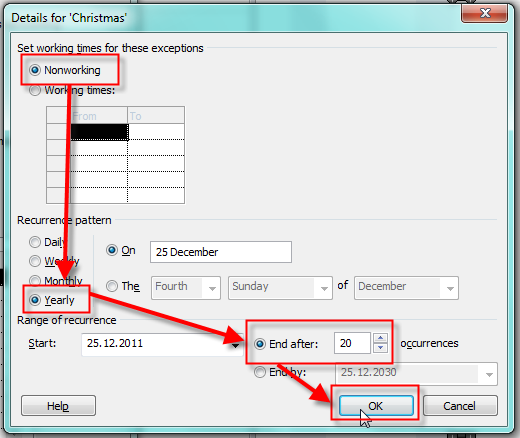
image

I told that Christmas is so called “Recurring” exception, and that it is Nonworking day and that it recur every Year. I put 20 in the number of occurrences, so I do not have to be worried for next 20 years about Christmas, and my “Wedding” Project will be finished much, much earlier than 20 years from now (I hope Smile with tongue out)

I will do the same thing for the New Year!

If you remember, my Project is about to start at 01.08.2011. Since I want to take a control over every task, I must be available for my Project all the time. No, suppose that I am going on vacation from 15.09.2011 to 21.08.2011. I will make this as a “one time” exception, because I do not want any activity while I’m on my vacation.

image

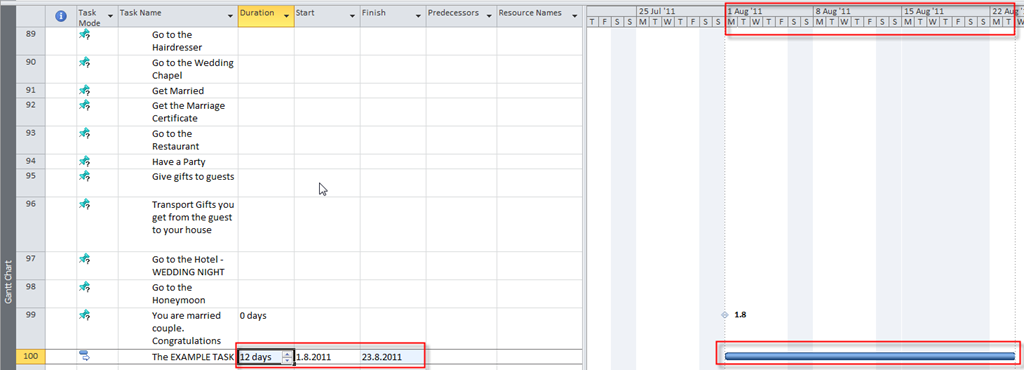
What do I get? Well, there will be no activity during this period! I will give you example. I will add a brand-new task in my “Wedding” Project in auto schedule mode, and I will tell that it will have 12 days duration and I will get:
image

As you can see, the Start date is 01.08.2011 (The Project Start date). The Finish date is 23.08.2011. Why? From 01.08.2011 (Monday) to 05.08.2011 (Friday) we have 5 working days. From 08.08.2011 (Monday) to 12.08.2011 (Friday) we have 5 working days, as well. From 15.08 (Monday) to 21.08.2011 we have no activity, because in my Project Calendar I made an exception (Vacation)! And I need another 2 day to complete my Task. So the activity on that task will continue at 22.08.2011 (Monday) and finish at 23.08.2011 (Tuesday), e.g. 2 days.

You can make this Vacation exception with using Work weeks:

image

Now if you add the same EXAMPLE TASK with 12 days duration you will get the same Result!

Because this is an EXAMPLE TASK I will delete it!

That’s all for now. I will continue in my next post.


Until then,

Best Regards!
Posted in MICROSOFT PROJECT, Microsoft PRoject 2010, MS PROJECT 2010, PMI, PRoject Management | Tagged , , , | Leave a comment

The scope is done! What should I do next? The “Wedding” Project!


Hi!

I have made the Scope for my “Wedding” Project in MS PROJECT 2010. I have task groups (called “summary task”), and each group have a milestone at the end. Those groups are not order logically, and it means that I put them as they cross my mind.

First group is The “Family meeting”:

image

Why? Because you must decide what kind of wedding do you want? Let me ask you a question. Can you have a wedding which will cost you only 50$? The answer is YES, YOU CAN! How? Well, simply you should go to the wedding chapel with the best man and/or best woman, and get married. You should only pay to the local authority some fee, and that is it. You will have no wedding reception, party and honeymoon. Another question is: “Can you have a wedding which will cost you, for example, $1.000.000? Again, the answer is YES, YOU CAN. You can have a glamorous wedding, with 350 people, and you can serve only the most expensive champagne, shrimps, lobster and after the wedding reception you can go to the very, very expensive honeymoon. So, in this group you should decide what kind of wedding you really want. Notice the milestone”: “We know what we want”

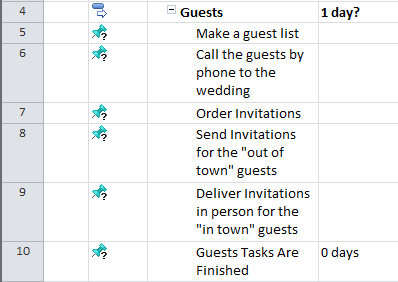
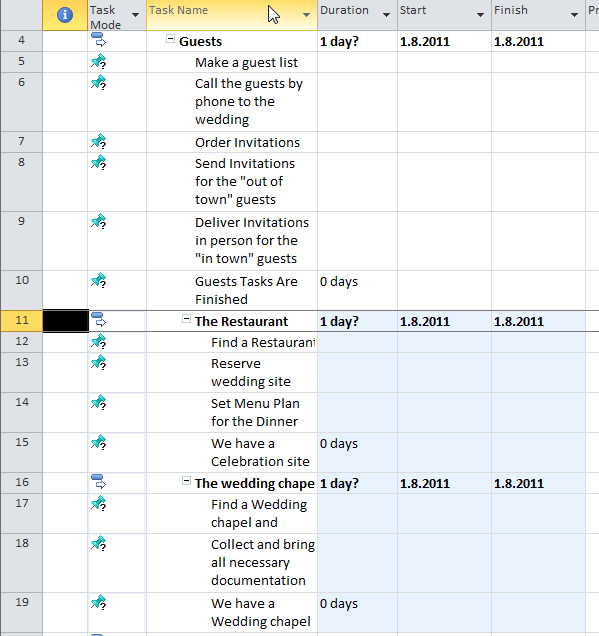
Here is the “Guests” group:

image

In this group I will make a list of my preferred guests. After that I will call them by the phone. Why? Because, I want to know how many of them will accept the invitation, and I have to tell them when the wedding will be. I can skip this “Call the guest by phone to the wedding” Task, and I can make assumption that all my preferred guest will accept the invitation. But, this is, from my point of view, the HUGE RISK? Why? Well, suppose that I have 150 people in my Guest list. If I assume that all of them will come to my wedding, I will reserve the Restaurant for 150 people. Now suppose that I have 50 people from “out of town”. I will have to reserve the hotel for them. And now, suppose that only 35 people come to my wedding? What a disaster will it be, can you imagine? To avoid that risk I will first call them, and I will know how many people will I actually have on my wedding. Then if someone quit just before wedding (because of some disease or something else) I will have less problem, because there is a small probability that many of them will be sick at that moment.

Here is the “Accommodation” group:

image

In this group I have tasks for the accommodation for my “out of town” guest, and for the Wedding night.

Here is the “Transportation” group:

image

In this group I have tasks for the transportation for my “out of town” guest.

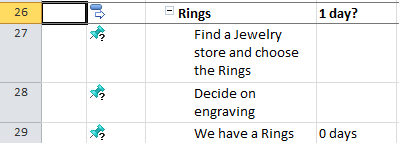
Here is the “Rings” group, and I think I do not have to explain this group:

image

Since we will bring our own wine, and cakes to the restaurant here are two groups:

image

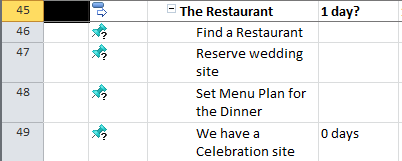
Now, we need to find the Restaurant for our wedding reception. In Zagreb,Croatia, you must reserve the Restaurant almost one year before the wedding day, believe it or not!

image

Now, I’ll show you the “wedding chapel” group, “the “music”, the “Flowers” and the “Gifts” group:

image

I think there is no need for any further explanation about this groups.

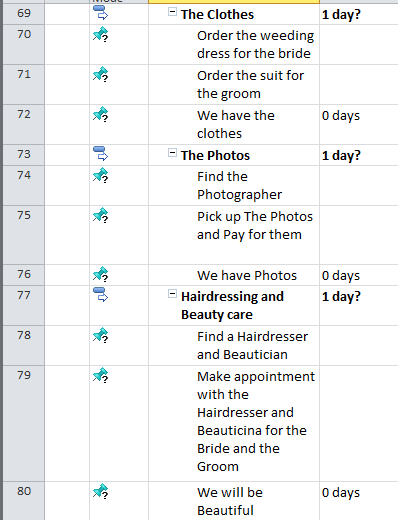
I also have the “Clothes” group, the “Photos” group, and the “Hairdressing and Beauty care” group:

image

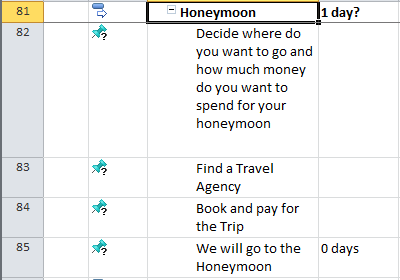
Last two groups are the “Honeymoon” group,

image

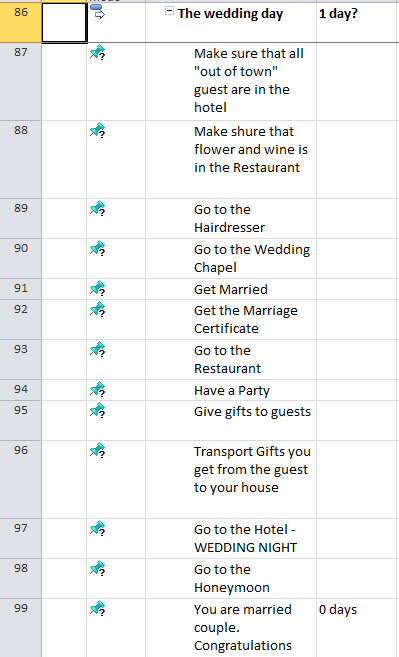
and the “Wedding day” group:

  image

You will see in some next post how will we set duration for this group. It has to be hour by hour planned.

From now on, you have two possibilities. You can download mpp file and follow me with that file, or you can try to add the tasks manually.

You can download my MS PROJECT 2010 “Wedding” project from here:

http://dl.dropbox.com/u/35142216/The%20wedding.mpp

Finally, I will Sequence my “Wedding” Project. I want move my “Restaurant” group, and “Wedding chapel” from the current Position to the new one, just below the “Guest” group. Firs I will select Tasks I want to move. I will select first task (or task group) with ID 45. I will click on the row heading (left part of the screen) and after that I will hold the SHIFT KEY and I will click on the “We have wedding chapel” with ID 53:

image

After that move your cursor to the row ABOVE you want to move that tasks:

image

and you will get:

image

Be careful. When you move tasks like it was just described, those moved tasks has a new ID number. And if you integrate MS PROJECT with some other application and if you are using that ID, you can get in the trouble!

I have finished my scope for the “Wedding” project. What is next? Resources or Scheduling? I will first develop a schedule. I will put duration on my tasks. But before that I will set up my Project Calendars. How to estimate duration, how to manage it, and how to set up calendars with MS PROJECT 2010 is the subject of my next post.

Until then,

Best regards.

Posted in MICROSOFT PROJECT, Microsoft PRoject 2010, MS PROJECT 2010, PMI, PRoject Management | Tagged , , , | 1 Comment

Develop a Scope for my Project! Should I choose Manually or Auto scheduled Tasks?


Hi,

After three posts about Risk we are back again with our “Wedding Project”.  I have started with adding Task (directly or with exporting from Excel). We are still in a Planning phase of my Project.

You should always start with entering task first. You should ask me: “But what if I know all, or almost all my resources or costs? Why not to put them in my Resource sheet first, and then put the Tasks?”.  Go on! Put them if you know them. But to determine how long will your Project take, and how much money do you have to spend you must know all of your tasks. So, even if you have you resources in your resource sheet in MS PROJECT 2010, you should enter your tasks “first” and then you can assign the Resources to them. You see, with “Enter your tasks first” I didn’t mean physically, but logically FIRST.

In every Project you should have an answer to the three questions: “WHAT? WHEN? WITH WHOM?”

First you have to know WHAT you have to do, it means Scope of your Project. After that you can have two different approaches: to develop the Schedule first (WHEN?), and then develop your human and material resource plan (WITH WHOM?), or vice versa. Which approach is better? It depends of your Project, and with that I mean what is the constraint of your Project! If you have limited resources, you should first develop the human and material resource plan, and then develop the Schedule. And you will see how much time do you need to finish your Project with that limited Resources. On the other hand, if you have limited time, you should first develop the Schedule, and after that develop the human and material resource plan. And you will see how many people (and how experience they should be, and how expensive), and material do you need on your Project to hit the deadline!

If you are limited with budget, than after you answer the magic three questions, you will see if your Project is over the Budget. And if it is, you should cut the scope, or cut the resources (and the Project will need additional time to finish), or you should cut the quality, or something else. Remember this: IF YOU HAVE TO CUT SOMETHING OUT FROM YOUR PROJECT AND YOU ARE THE PROJECT MANAGER, OR TEAM MEMBER, DO NOT MAKE THAT DECISION BY YOUR OWN! You should prepare the solutions (cutting the scope, cutting the resource, quality etc.), and then you should let your customer, or sponsor, or upper management to make a DECISION! GOT IT? If you will make decision by your own, that is called: BAD PROJECT MANAGEMENT! Why? Because you do not know what is allowed to cut, and what is not. For example, in our Wedding Project, if you are short with money, who can decide if you will buy less expensive drinks, or you will buy more expensive drinks but not 100 bottles, as was planned, but only 20 instead? Project Manager? NO WAY!

What if you do not have the answers for the three magic questions? What will it mean. IT means:

  • I do not have an answer on WHAT! It means: I can do ENYTHING I WANT and I have UNLIMITED BUDGET
  • I do not have an answer on WHEN! It means: I have UNLIMITED TIME, so it means my Project can last forever
  • I do not have an answer on WITH WHOM! It means: I can take any person in the world for my Project, and I can take as many People and Material as I need.

And this is fairy-tale!

Scope, Time and Resource in a Project are known as a “Triple Constraint”, and they make a Triangle:

image

You can change maximum two edges of a triangle, and the third one is out of your control. For example, if you change Scope and Resources your Time will increase or decrease!

O.K. When you are adding a new task in your project it is by default in Manually Scheduled mode. An this is brand-new feature in MS PROJECT 2010.

When you enter the task name, without any other information, on the Gantt chart you will see nothing.

image

Manually scheduled Tasks are marked with a pushpin icon. To determine duration, start and end date you should enter two of these three fields, and MS PROJECT 2010 will calculate the third one. Until manually scheduled Task does not have all those fields (duration, start and end date) filled, this Task is called as: “PLACEHOLEDR TASK”, and it has a question mark behind the pushpin icon. When you fill those fields (two of them) the question mark will disappear.

You can put in duration, start and end date whatever you want! For example, in Duration of Visit the Wine-cellar Task you can put: “I have to check with my Wife”

If you want a further information about manually scheduled task read my post: https://ntrajkovski.wordpress.com/2011/07/11/scheduling-summary-tasks-manually-in-ms-project-2010/

The main question here is when to use manually or auto scheduled Tasks, and why.

The answer is simple! When you do not have a reliable information about your task, then use Manually Scheduled Task. You can mix manually and auto scheduled task in a schedule (see my post: https://ntrajkovski.wordpress.com/2011/06/07/linking-manually-and-auto-scheduled-tasks/)

But, FROM MY POINT OF VIEW, as soon as you have a reliable information about duration, and you link these task with some other task, change the mode from Manually to Automatic! In my Projects, when I am done with planning (meaning I know all the tasks, Resource and Schedule), I have NO MANUALLY SCHEDULED TASKS! Why? Because I want MS PROJECT 2010 to make all the calculations for me. If you still want to keep some (or all) task in manually scheduled mode, you will have to keep your eye on each and every task, and if you are in a Project with hundreds or even thousands of task you will most probably forget something, and you will get in the trouble.

If you have a Project which will last 27 months for example, and you will do it in the phases, then of course, phases that will come later in your Project (in a few months, for example) can be in manually scheduled mode until, for example, 20 days before it will begin!

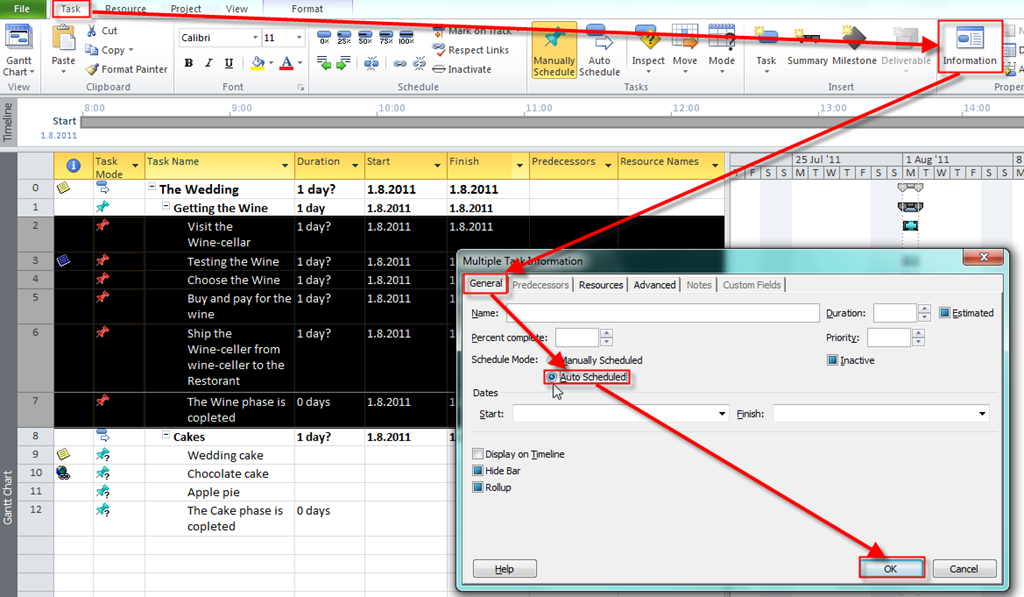
You can change the task mode for multiple task in this way:

Select the tasks:

image

then click on:

image

or:

image

Finally if you want this MS PROJECT file with the wedding project you can download it from: http://dl.dropbox.com/u/35142216/The%20wedding.mpp

Best Regards!

Posted in MICROSOFT PROJECT, MS PROJECT 2010, PMI, PRoject Management | Tagged , , | 1 Comment

Risks in Project! Importance of Risk Management!!–PART 3


Hi,

we have done Risk Identification, and after that, we have made Qualitative Risk Analysis. So we have Probability, Impact and Risk Exposure (or Risk Score) for our Risks. We have sorted our Risks in MS EXCEL by Risk Exposure.

Now we have to answer to the three questions:

  1. What will we do if a Risk occur (if it become a Fact)?
  2. Who will act if a Risk occur?
  3. How do we know that the Risk occur or is about to occur?

This is called RISK RESPONSE PLANNING

WHAT WILL WE DO IF A RISK OCCUR?

There are three levels of risk responses:

  • Do something before the risk happens
  • Do something if the risk happens (Contingency plan)
  • Do something if contingency plan didn’t work (Fallback plan)

When I am talking about “BAD” Risks (Threats), you can do:

AVOID THE RISK. That means that you will do something BEFORE RISK ACTUALLY OCCUR, so it Probability will become 0%! For example, in our “Wedding Project” we have a Risk that someone can get drunk and spoil the whole Party. We can choose that there will be NO ALCOHOL DRINKS at the wedding party. Now, the Probability is ZERO. Once again, even if Probability is zero DO NOT ERASE THIS RISK FROM RISK REGISTER. Instead of erasing, you should have two Probability and Impact in your Risk Register: Probability and Impact BEFORE RISK RESPONSE PLANNING, and Probability and Impact AFTER RISK RESPONSE PLANNING.

MITIGATE PROBABILITY OR/AND IMPACT. Mitigate means DECREASE. For example in our example you can invite people for who you know that they DO NOT drink SO MUCH ALCOHOL! So there is a less Probability for that Risk. Or you can have only Light beer (with low percentage of alcohol), so there is less Impact because it is hard to be VERY DRUNK with that kind of beverage.

TRANSFER THE RISK. Here is an example. You have bought very expensive wedding Rings (10.000$). You are afraid that someone can steal them from your house, and that is a Risk. You can hire a deposit box in you Bank and put your rings there. So, you have actually transfer that Risk to the Bank. Or, you can buy an insurance from Bank. The result is the same

ACCEPT THE RISK. It means If it happens, it happens. On the other words it means: DO NOTHING. You should choose that strategy if you do not have proper Risk response plan for that Risk (it means you do not have proper option to respond), and you can live with consequences. You should also use this strategy if your other response plan (for example, avoiding or mitigating) is much more costly than if you accept the Risk. Here is one example. It will be stupid one, but it will serve the purpose. Suppose that your wedding rings are very expensive ($10.000). You want to transfer the Risk of stealing the rings to the insurance company. But they will charge you for that insurance. How much? 15.000$. So, you have to pay for that insurance $5000 more than you will loose if someone will steal the Rings from your house. In that case you should accept the risk. Another example. You have very, and I mean VERY, good friend and you want him to be on your wedding. Sometimes he gets drunk! Because you love him too much, and you want to have alcohol at your party (for your other guests), you will accept this risk!


WHO WILL ACT IF A RISK OCCUR?

That means that you must have a person called “RISK OWNER”. This person is responsible for the risk. She or he has to track the risk, and when it occur he or she must act as it is planned in Risk response plan! After the Risk occur he or she must notify the Project Manager how successful was the Risk Response Plan, and what was a damage caused by that Risk.


HOW DO WE KNOW THAT THE RISK OCCUR OR IS ABOUT TO OCCUR?

This is called “RISK TRIGGER?” For example, Risk Trigger is, in our “GETTING DRUNK” Risk, if someone is take his fifth glass of Vodka in a less than an hour. That means that a person will be drunk very soon and Risk owner has to act! Remember, Risk trigger can be established by any team member, during the Risk Planning, but Risk Owner is responsible for tracking this Trigger!


Do you know what the word “WORKAROUND” means in a Project Management language?

  • Workaround is reactive process. It is something what you will do when you figure out a totally new risk for which you did not have a response plan
  • If you have a lot of workarounds in the project, YOUR PROJECT IS BADLY PLANNED
  • If you have a lot of workarounds in the project, project is in jeopardy and is often TERMINATED

As I told, you can NEVER, EVER found all the Risks in your Project. When a brand-new and unknown Risk occur, it is a FACT and you have to REACT RIGHT AWAY! This is workaround. Do you want an example? NO? I don’t care. Here it is! Suppose that your Project is “The Sailing”. You are in the middle of the ocean, on your boat.  And someone falls down in the ocean. And that person does not know how to swim. You have totally forgot about that Risk (that someone does not know how to swim). What will you do? Will you arrange a meeting with your project team to establish Risk Response strategy, Risk owner, and the Trigger? While someone is drowning?  NO! You will help that person right away! You will drop him a life-belt, and the best swimmer from the boat will jump in the ocean. YOU WILL SAVE THAT PERSON! After that, you should ask yourself and your team members: WHAT ELSE DID WE FORGET?, and you will try to identify more risks.

And last, but not the least important in the RISK MANAGEMENT is Risk Monitor and Control Process. Every team meeting starts with the subject: „RISKS”. Some of the questions on the meeting:

  • What additional risks have you uncovered since the last meeting?
  • Which of the triggers we have identified is no longer seem to be appropriate?
  • Are there any risks that no longer exist?
  • What’s new with the watch list?
  • Have you found out any new information of any risk?
  • And many other….

That’s all folks. Next time we are getting back to our MS PROJECT 2010 and the “Wedding” Project!


All the Best,

Posted in MICROSOFT PROJECT, Microsoft PRoject 2010, MS PROJECT 2010, PMI, PRoject Management | Tagged , , | 5 Comments

Risks in Project! Importance of Risk Management!!–PART 2


Hi!

After we have found the Risks in our Project, next step is to estimate the Risk Exposure for every risk. We must have “Probability and Impact Matrix”. Here is an example:

image

or:

Probability:

  • 1 = (5 – 10%)
  • 2 = (10 – 20%)
  • 3 = (20 – 40%)
  • 4 = (40 – 80%)
  • 5 = (>80%)

Impact Description:

  • 1 very low (insignificant time and cost overrun)
  • 2 low (up to 10% time and cost overrun)
  • 3 medium (10% – 20% time and cost overrun)
  • 4 high (over 20% time and cost overrun)
  • 5 the highest (PROJECT FAILURE)

Risk exposure or risk score = Probability x Impact

Very often different team members estimate different Probability and Impact for the same Risk. In such a case you should find out WHY someone thinks that probability is, for example 3, and some other person thinks that probability is, for example 1. Maybe one person is too optimistic, and the other is too pessimistic, or one person has more information then the other. However, after that procedure you should have only one estimation of probability and impact for each risk.

Another important thing is, that if you have risk with very high probability (for instance, more than 90%), you should consider that issue as a FACT, NOT AS A RISK. I will give you example. Suppose that you are working on a project which is: “BUILDING A HIGHWAY”. 15 kilometers (or miles, whichever you like) of that Highway will be built in the mountain which is at 3500 meters height above sea level. In the winter time there is a huge snow at that mountain. But, once in a century there is a winter without the snow. You have the risk that you will not be able to build this section of your highway in a winter, and a probability is 99%. What will you do? Will you start with your work in the mountain in October, and then, IF THE RISK OCCUR, you will stop with the work and start with saving your equipment, and spend a lot of money for that? NO, OF COURSE YOU WILL NOT. You will consider that risk as a fact, and you will make your project plan in a way that you will build this “Mountain section” only during Spring and Summer.

OK, we have probability,  Impact, and Risk Exposure for every Risk in our Project. No, we have to found the PROJECT RISK EXPOSURE. Here is an example:

  • RISK 1     Probability = 3, Impact = 2, Risk Exposure = 3X2 = 6
  • RISK 2     Probability = 4, Impact = 3, Risk Exposure = 4X3 = 12
  • RISK 1     Probability = 5, Impact = 4, Risk Exposure = 5X4 = 20
  • RISK 1     Probability = 1, Impact = 5, Risk Exposure = 1X5 = 5
  • RISK 1     Probability = 3, Impact = 4, Risk Exposure = 3X4 = 12

The Sum of risk exposures is: 6 + 12 + 20 + 5 + 12 = 55. We have 5 Risks. So, THE PROJECT RISK EXPOSURE IS 55 / 5 = 11.

In your company you should know THE TRESHOLD of the Project Risk Exposure. If it is, for example 15, than all Projects with Project Risk Exposure larger than 15 are not acceptable, and you will not work on them.  When you find PROJECT RISK EXPOSURE you are in the so called “GO / NO GO DECISION”

If you will continue to work on your Project you should put all the risks with a lower Risk exposure, to the “watch list”. For example, if Risk has a Risk exposure below 12 it will be on the watch list. DO NOT EVER DELETE RISK FROM RISK REGISTER OR WATCHLIST!!! Why? Because, during the Project lifecycle probability and/or impact can change! So, if you delete the risk, because it has got very small Risk Exposure (for example 1), and after one month the probability raises from 1 to 5, you will probably FORGET the deleted risk, and you will be very surprised if it happens!

Now, we have our Risk Register with Probabilities, Impacts, and Risk exposures, and they are sorted form biggest Risk Exposure to  the smallest. We, also have a Watch list. The best tool for the Risk register is the Microsoft Excel. (I hope that someone from Microsoft will read this post, and give me some money for this advertisement! Smile with tongue out I AM KIDDING, of course).

Next step in the Risk Management is RIKS RESPONSE PLANNING. What is that? That is something about you will read in my next Blog Post.

Until then,

Best Regards

Posted in MICROSOFT PROJECT, Microsoft PRoject 2010, MS PROJECT 2010, PMI, PRoject Management | Tagged , , | 1 Comment

Risks in Project! Importance of Risk Management!!–PART 1


Hi,

as I promised, in this post I will start to write about Project Risks.

PROJECT RISK IS ALWAYS IN A FUTURE. RISK IS AN UNCERTAIN EVENT OR CONDITION THAT, IF IT OCCURS, HAS AN EFFECT ON AT LEAST ONE PROJECT OBJECTIVE. PROBABILITY THAT RISK WILL OCCUR MUST BE GREATER THAN 0% AND LESS THAN 100%. If it is 100% then that is a FACT, not a RISK!

In my professional career, I have seen a lot of Projects, and I’ve met a lot of different Project Managers. Most of them have never did a RISK MANAGEMENT in their Projects. WHY? Because they thought that they knew EVERYTHING about their Projects, and that a Risk Management is a overhead! They also thought that with Risk Management they will need more money and resources! Money and Resources for the Risk Management is a PART OF PROJECT BUDGET, because with Risk Management you actually SAVE THE MONEY AND THE TIME with preventing or decreasing the damage!!!

I will write about “negative risks” or “threats”. They can hurt your project badly. First what you have to do is to find the Risks! Find them as many as you can! Do not stop when you find, for example 10,20 or 100 risks if you know that there are some more of them!!!

Risk factors are:

  • Probability -> the likelihood that risk (threat or opportunity) will occur
  • Impact -> the effect on the project if risk (threat or opportunity) occurs
  • Expected time -> when during the project the risk (threat or opportunity) might occur
  • Frequency -> how many times the risk (threat or opportunity) might occur during the project

Are the people related to your project the only ones able to identify risks in the project? The answer is NO!!!

Suppose that you have a Project for a “XXX company” and your goal is to deploy a brand-new ERP system. You have friend who had a Project for the same company. The goal of his Project was to paint the walls in the stockroom. He does not know ANYTHING about ERP systems, nor he does know anything about computers at all. Can he help you with your project, in Risk Management?  YES HE CAN. A LOT!!! How? He knows, for example, a lot of people which are stakeholders of your Project. He can give you a valuable information about them, for example, who is a liar (YES, WHO IS A LIAR), who is highly cooperative, and who is not, who often changes his or her mind, and wants always something more, etc.

Another very helpful tool for your Project is Internet. You can find a lot of articles about similar Projects there!

Risk source will tell you “WHERE FROM CAN RISK COME?”. It can be budget, resources, scope, quality, etc. For example, in our “Wedding Project” if you want a glamorous party, but you have only 15.000$ that is Risk, because maybe you will have to cut some scope (like serving the best wines), or you will have to invite only 50 instead of 100 people to your party. 

You also have to clear all assumptions. For example, you assume that you will invite 150 persons to your wedding, and that all of them will came. But what if half of them will not come? 

One of the greatest thing with Risk Management (and Identifying the risks) is so called “Pre Mortem” analysis. BEFORE you start your project ask all of your stakeholders (in a group meeting) the question: “OK. OUR PROJECT HAS FAILED! WHY?”. Then you will hear from your stakeholders what do they think, why should a Project fail, and those are the risks!

One of the common mistake in Process of Risk identification is making the Risk Assessment at the same moment when you find (or identify) the risk. When you identify the risk for your project you should wright it down now matter how “big”, or “small” is it. After you will collect “all” of your risks (ok, ok, I know! You can not collect them all. Collect as much as you can), you will take a next step and that is Qualitative Risk Analysis, and make a risk assessment. I will write about it in my next post. I am on the sea cost, remember? And I became very, VERY LAZY.

For the end of this post I will give you an advice. When you find the risk, describe it in a “cause-risk-effect” form.

Here are two examples:

“Because we have a small budget (The Cause), there is the risk that we will have to hire resources with less experience (The Risk), which can produce a less quality product (The Effect)”

“Because we will serve a spirituous beverages in our wedding (The Cause), there is the risk that someone will get drunk (The Risk), and those people can ruin our party (The Effect)” 


All the Best,

Posted in MICROSOFT PROJECT, Microsoft PRoject 2010, MS PROJECT 2010, PMI, PRoject Management | Tagged , , , , , | 1 Comment

Develop a Scope for my Project! Is it easy or not?–PART 3


Hi,

As I promised, I will write about naming conventions, milestones, scheduling, risks in our project, what do we have to know about our tasks, and I will (maybe Smile with tongue out in the next or some other post) explain calendars.

In your Project you can have a lot of similar tasks! Can you use the same name for all of them? Yes, you can. Is is the best approach? No, it is not! Why? There are various reasons. For example, when you will print “Who Does what” or “To-do” report different people (resource) will have the same task, and that can make a confusion. In our “Wedding Project” you can have two or more tasks with name: “Make the Cake”, since you will have a lot of different cakes in the party. So when you will assign those tasks to the Resource(s), they will ask you: “What kind of cake do I have to make?”. You will have to assign a different material resource to those tasks (chocolate, flour, honey, sugar, etc.) as well.

So it is much better to have a unique name for your tasks (For example, Apple pie, Chocolate cake, The big wedding cake, etc). I know what you are thinking right now. “How would I know exactly what I have to do!? The wedding cake does not mean anything. It can be big or small. It can be chocolate cake, vanilla cake or something else.” What should you do?

There are tree possible options. First one (the BAD one) is to have a task name like this:

image

It is bad, because your task name will be too long, and the task name should NOT have a brief description. And after all you are limited with number of character with the task name. How long can the task name be? 255 characters!

Second option is to write the whole task description to the Task information. Double click on the task and on the Notes Tab, write a description:

image

But what if description is too long? You can use some other tool (like MS WORD for instance), and attach the file to your Task!:

image

If you have your task information somewhere on the web you can “right click” with your mouse on the task and choose Hyperlink:

image

and after that:

image

Now you have Hyperlink icon in the Information column:

image

You can open this hyperlink if you “right click” on the task, and after that choose: Hperlink  and Open Hyperlink.

If you need more information about attaching project documentation with your tasks, read my blog post: https://ntrajkovski.wordpress.com/2011/05/25/attaching-project-documentation-to-ms-project/

Now, something about milestones (you will find another term for the milestone and it is “tollgate”).

Milestone is a task with no duration, and no assigned resources.  A milestone is the end of a stage that marks the completion of a work package or phase, typically marked by a high level event such as completion, endorsement or signing of a deliverable, document or a high level review meeting.

In MS PROJECT 2010 you can set the milestone duration greater than zero, but my advice is that you always keep zero days duration for it.

Are the milestones OBLIGATORY for your Project?  NO, they are not. But, my suggestion is: Do have at least one milestone for each phase!

Put the cursor on the task (in the task sheet) where you want to inset a milestone, and on the Task Tab, click on the Milestone button, and you will insert your milestone above selected task:

image

and you will get:

image

Now you should rename the Milestone like I did:

image

On the Gantt chart you can see a Diamond sign, and this is default sign for the Milestone.

Another way for add the Milestone is to make a new task, and then in the Duration field put zero!.

image

I get the same thing!

OK! Who am I? The LIAR! Why? Because I promised that in THIS POST I WILL WRITE ABOUT RISKS! But, I will not. Why? Because Risk Management is very important and it deserves separate post!  Which one. NEXT ONE, of course.

And I hope that you will give me some response about my Blog! What do you think, is it bad or good, do you need any further information, is it too complicated or too simple and so on!

All the Best!

Posted in Uncategorized | 2 Comments

Develop a Scope for my Project! Is it easy or not?–PART 2


Hi,

when you have tasks for your project, you have to arrange them. How? It’s up to you. The best approach, from my point of view is to make Phases.

I will explain how can you arrange the Wedding in Croatia.

First, you can make a deal with a Restaurant Management that you will bring your own wine, spirit, or any other beverages. You can also arrange to bring your own cakes. Of course, if you will have a music, you can arrange it to. Sometimes the Restaurant will charge you some extra fee if you will bring your own food and beverages.

When you are defining the scope of your Project you can have a “top down” or “bottom up” approach.

With the top down, you will first determine Phases. For example, you can have a “GETTING THE WINE” Phase. After that you will have tasks under that phase like: Visit the wine-cellars, Testing the wine, Choose the wine, Buy (and pay) the wine, arrange shipment for the wine (from the wine-cellar to the restaurant)

With the bottom up, you will do the same thing in the opposite way.  So, you will first determine the tasks, and then make a phase.

You can, and you SHOULD combine those approaches in your project. Why? Well, you will have enough information about the tasks for one phase (I mean for all, or almost all tasks), and for that phase you will take a bottom-up approach. For the other phase you will now that you need it (for example, Choose the cakes), but you will have only few information about the tasks for that phase (or none). You should take a top-down approach, and enter the tasks for that phase after you will have more and more information.

In my trainings, about MS PROJECT 2010, my students often asks me the same question: “What if we do not have ALL tasks for our Project? Should we wait, until we collect them all, and after that use the MS PROJECT?” The answer is “NO”! You should use MS PROJECT from the very beginning of your Project! Put everything you know as soon as you discover! With that approach, you and your team will have a better preview of your Project, and it will be much easier to find out if you forgot something.

Another question is: “When do we have to use Manually Scheduled tasks?”. The answer is: “When you are in early Planning stage, and when you do not have accurate data for the duration, start or finish date!”

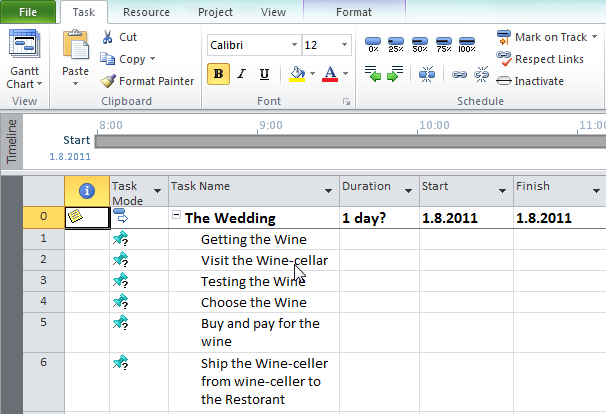
In MS PROJECT 2010, you can write the name of the phase (it is called SUMARRY TASK), and then tasks for that phase:

image

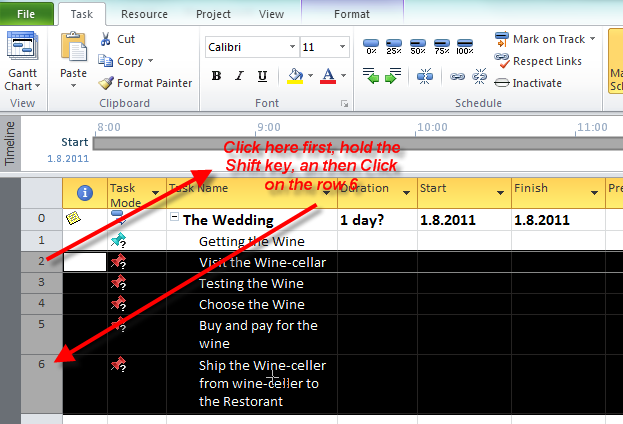
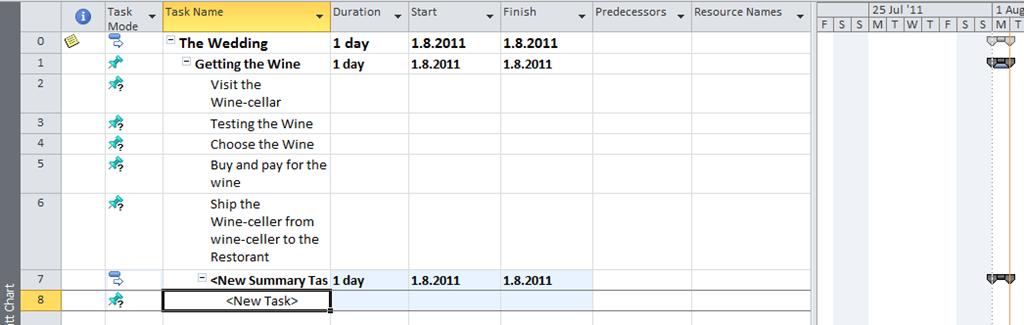
Now, I will make a phase from GETTING THE WINE task. First, I will mark (or highlight) all subtasks for that phase (to do that highlight the “Visit the Wine-cellar” hold the SHIFT KEY and click on the row six, in the row heading on the right side of the screen):

image

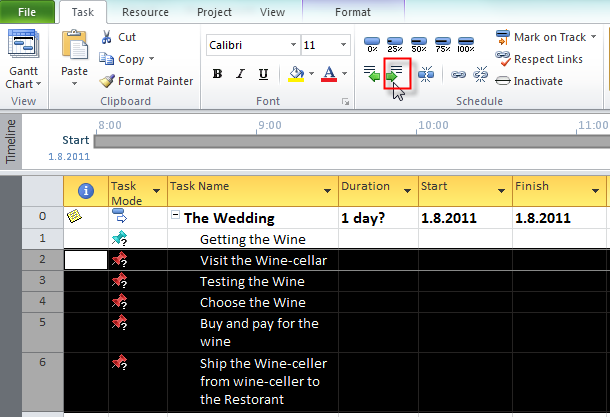
Then on the Task Tab, click on the “Indent Tasks” button:

image

and you will get:

image

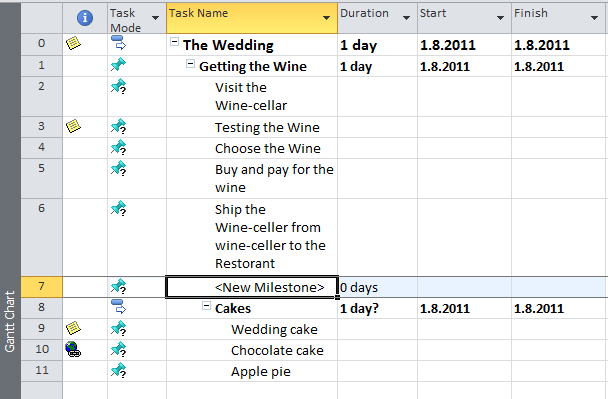
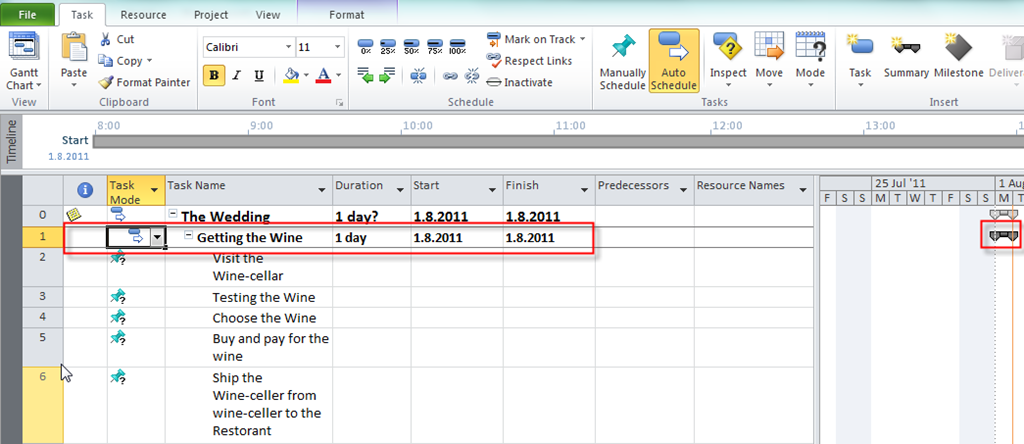
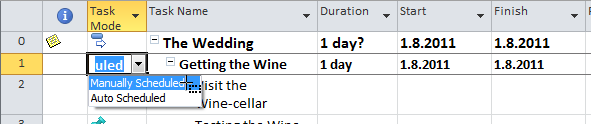
You can see that “Getting the Wine” is Phase (or Summary task) now, and it is converted from Manually to Auto scheduled! This is because MS PROJECT assume that it will do all the calculation for you. If you want to change it back from Auto scheduled mode to Manually scheduled mode you can do it:

image

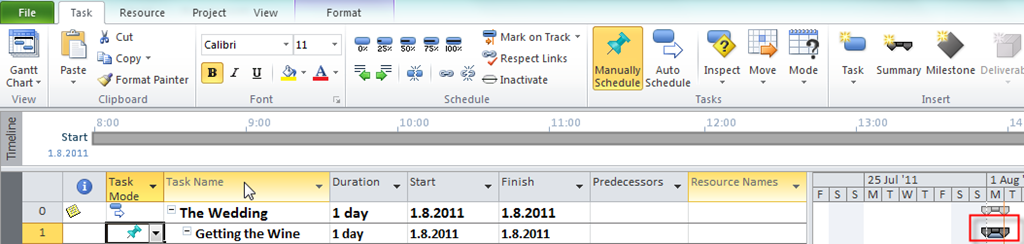
and you will get:

image

Now, you have a possibility to put Duration, Start and Finished date in your manually scheduled task. BUT, MS PROJECT 2010 will make calculation about duration, and other things for that phase, so you have a great possibility to compare planned vs. actual data for the Phase.

For the end of this post I will explain how can you insert a brand-new phase.

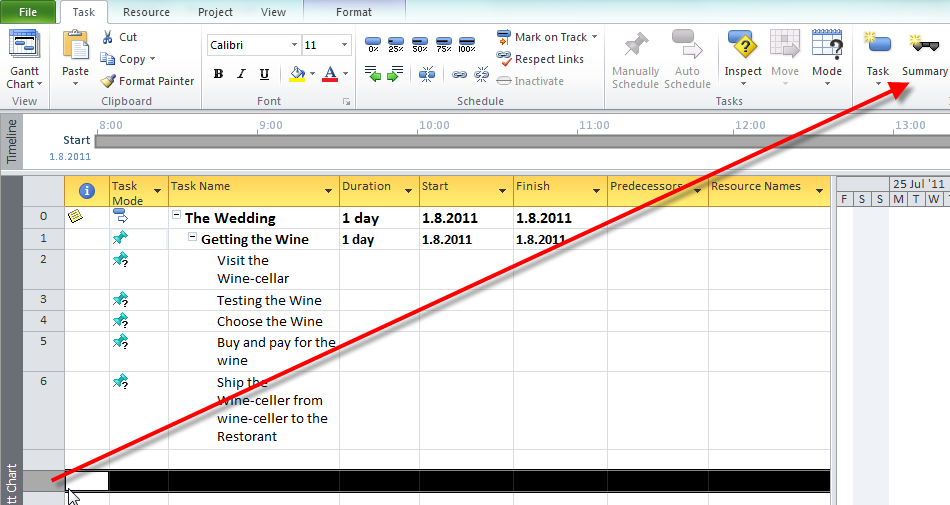
You should put the mouse cursor BELOW the row in which you want to make a new phase,and on the Task Tab click on the Summary button:

image

and you will get:

image

Now you should rename the summary task from “New summary task” to the right name for the phase.

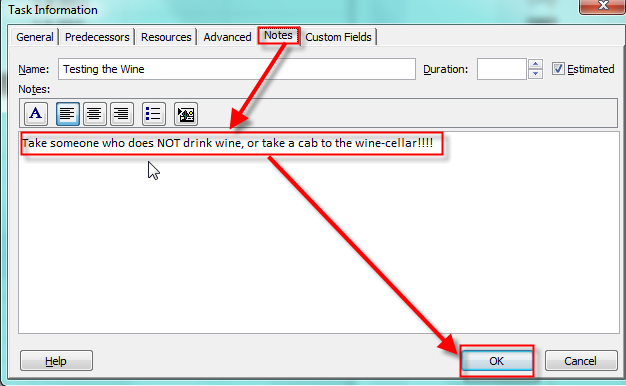
Do not forget: “DON’T DRINK AND DRIVE!” So, if you are going to taste a various wines in the wine-cellar, you should take a cab, or let someone who does not drink to drive. And you can put that information in the “Testing the Wine” task. The shortest way to do it is to double click on that task, and on the Task Information window, choose the Note Tab, write the note on then click on the OK button.

image

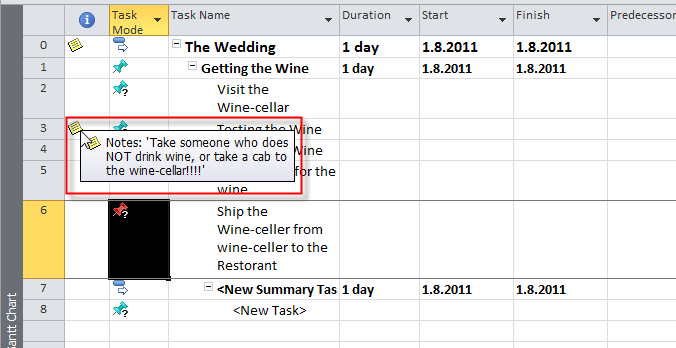
On the Information column, you will see the Information sign, and if you put the cursor on that sign you will see the information:

image

That’s all for this post. In my next post I will write about naming conventions, milestones, scheduling, risks in our project, what do we have to know about our tasks, and I will (maybe Smile with tongue out in the next or some other post) explain calendars.

Now, it is the time to swim in the Adriatic see Smile

So, BEST REGARDS FALKS!

Posted in MICROSOFT PROJECT, Microsoft PRoject 2010, MS PROJECT 2010, PMI, PRoject Management | Tagged , , , | Leave a comment

Develop a Scope for my Project! Is it easy or not?–PART 1


Hi,

In my last post I wrote about setting up the Project Environment. You can see that I did not set up any Calendar. Why? Well, there are different approaches to a Project Plan. My approach is to first make a task list (or Project Scope). Again WHY? From my point of view, the first thing in the Project is to find out “What is the project scope?” or “What do we have to do to achieve the Project Objectives and Goals?”, e.g, TASKS. 

After that we are going to discover who can do it, and what do we need for these tasks (e.g. RESOURCES), and after that we will discover the costs. Of course, we need the Calendar. In MS PROJECT 2010 you will find three types of calendars (Project, Resource, and Task). I will explain them in one of my following posts.

In this post I will start to write about a Project Scope! How to develop the Project scope? In the PMBOK 4th edition, there is a new process in the Scope Management Knowledge Area, and it is: Collect Requirements! Basically, in this process your are determining what do you have to do (TASKS!!!).

There are various techniques like:

  • Brainstorming: You will find out in group of different people what do they need
  • Focus group: Basically, the same technique like a brainstorming, but those people have the “same interest” (for example, first group is from the Marketing department, second from the Account department, and so on)
  • Interviews: “One to one” meeting to find out what each person mean about the project requirements.

Of course, there is a lot of other techniques. Regardless of technique, you should always have a magic “three  persons” when you collect requirements.

  • First person: He or She is asking questions
  • Second person: He or She is writing down the answers
  • Third person: Looking for reaction of others (“body language”)

This is especially important when you have a group, because when someone talks, the other person from the group can ruck, gape or just smile. That is very important because after the meeting you can call those persons in private and find out what do they think about that particular requirement (or requirements).

After that you must balance the requirements. Why? Well, suppose that you are the Project Manager of our Wedding Project. Now, suppose that the Bride and  the Groom want a 25 carat diamond rings. The Sponsors are their parents. They want to invest only 200$ for the rings. Can you buy two 25 carat diamond ring for just $200? NO WAY! The bad Project Manager will make a decision by his own. The great Project Manager will arrange the meeting between parents and wedding couple and they should solve the problem. They would buy the cheaper rings, or the Sponsors will give more money for the diamond rings.

Now, your stakeholders have those requirements. They should write it down. They can write it on the paper, MS PROJECT 2010, or in some other tool like MS EXCEL.

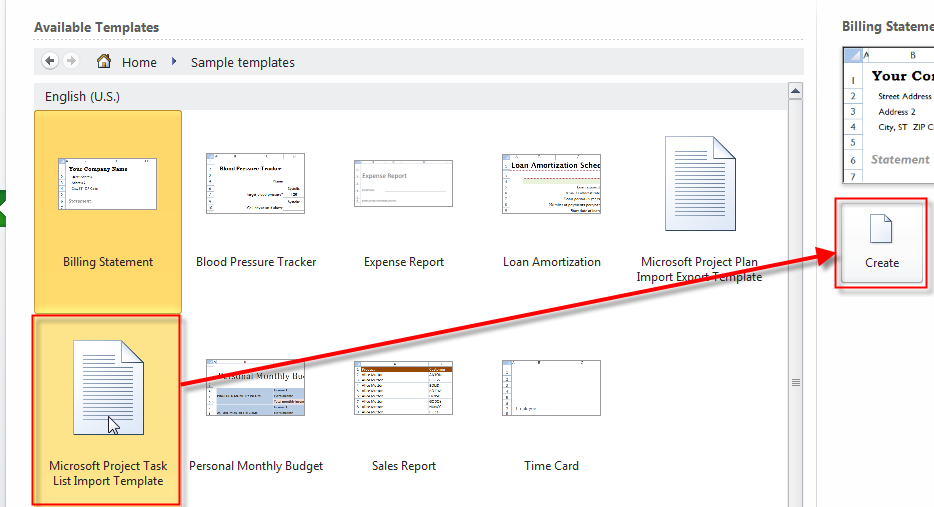
If they don’t have a MS PROJECT 2011, they can use a template from MS EXCEL. You can give them a template like this.

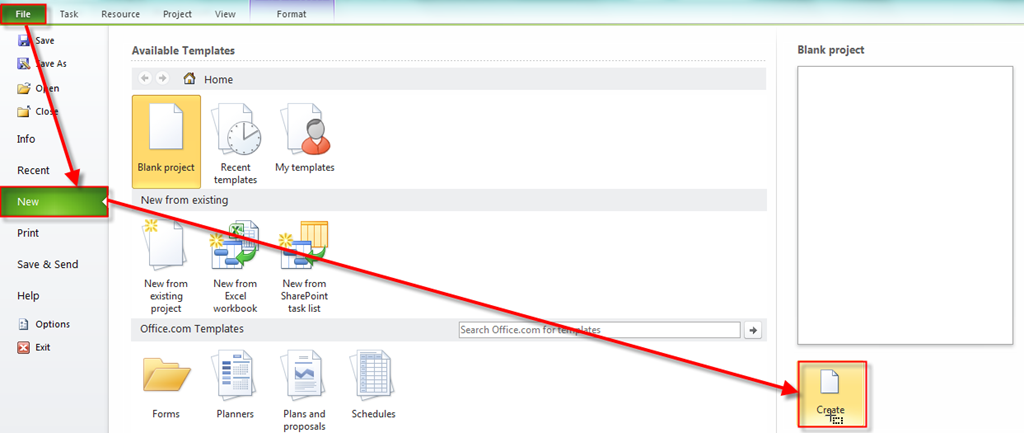
1. Open MS EXCEL 2010 and on the File Tab click New:

image

2. Click on the Sample Templates:

image

3. Click on Microsoft Project Task List Import Template and then click on the Create button:

image

and you will get:

image

Now you can save those template as Excel (xlsx) file and give it to your stakeholders. Of course, you will have to explain them how to use this worksheet.

You should encourage your stakeholders to feel the table and only Name and (if there is any) Notes field.

We are in early planning stage and we don’t know the duration, start or finish date, or Resource names.

Of course, if you know the duration, go ahead, fill it, but in most cases you don’t know it. You should NOT be considered about sequence (or order, whatever you like) of your task. Again you are at the early planning stage, and in this stage it is very important to find out what do you think you should do! Do not be concerned if you will forget something. When you will collect excel sheets from your stakeholders (all of them) you will arrange a meeting and discuss with them your complete task list and find out if something is missing.

But, you SHOULD BE CONCERNED about stakeholders. WHO ARE THEY? “Stakeholders are persons or organizations (e.g. customer, sponsors, the performing organizations, or the public), who are actively involved in the project or whose interests may be positively or negatively affected by the performance or competition of the project. Stakeholders may also exert influence over the project , its deliverables, and the project team members.” You should find them ALL As Soon As Possible. Why? Because if you find a new stakeholder latter, he or she will have some new requirements and you will have to re-plan your Project and that means that you will  have a new (usually LONGER) Schedule, you will need more Resources and more Money. So be very careful when you are discovering who are the stakeholders for your project.

Now I will show you how to import the task list from MS EXCEL.

1. Open your project plan in which you want to import your task list (our Wedding Project)

image

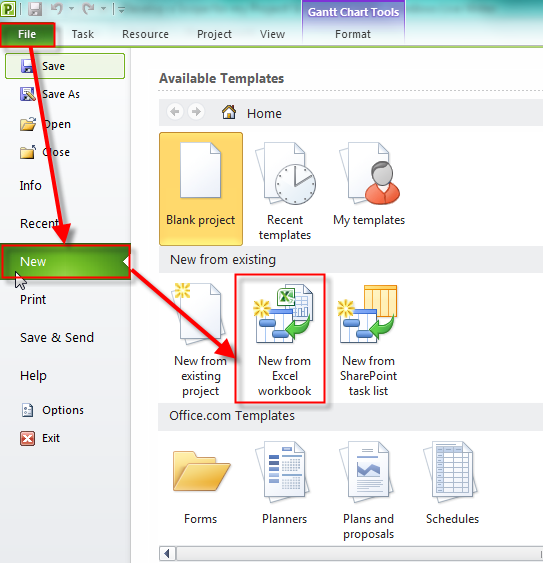
2. Now click on the File Tab, then New, and then New From Excel Workbook:

image

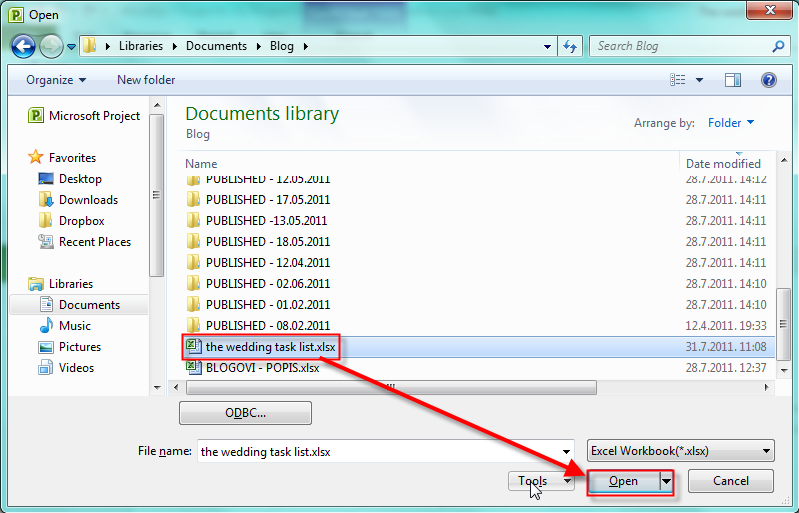
3. Find your xlsx file and click open:

image

4. You will get the Import wizard and click Next:

image

5. Choose New Map and click Next:

image

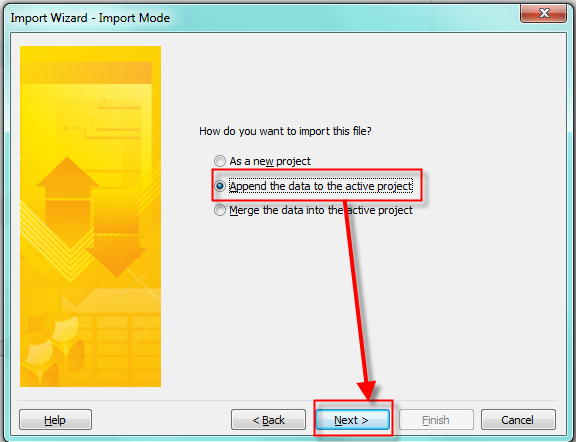
6.Choose Append the data to the active project and click Next:

image

7. Because I want only to import tasks from my excel choose Tasks and click Next:

image

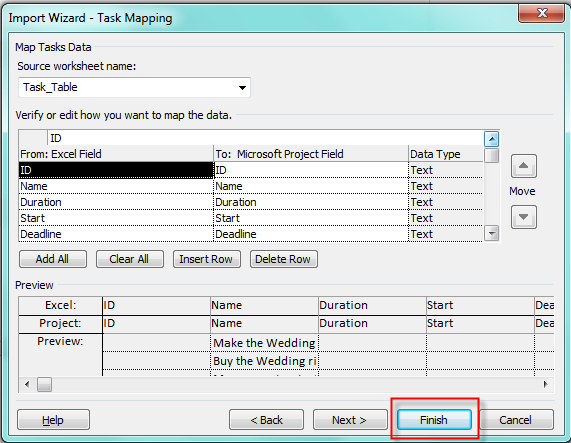
8. Finally I can choose which fields do I want to import. I will import all of them so I will    just click on the Finish:

image

When I look at the Gant chart I will have all my tasks from excel file:

image

As you can see those task are in Manually scheduled mode because I said so (in my set-up). If I had set up for New Tasks in Auto Scheduled mode I will get new tasks from excel with 1 day duration, and start and finish date same as a Project start date.

Is it all about Project Scope? Of course not! I will continue in my next post.


Best  regards from the Adriatic see!

Posted in Microsoft PRoject 2010, PMI, PRoject Management | Tagged , , , , | Leave a comment

Setting up MS PROJECT 2010 for my Project and Creating the Project Plan


Hi,

Before planning, I will set up MS PROJECT 2010 for my Project.

First I will open a brand-new Project.

image

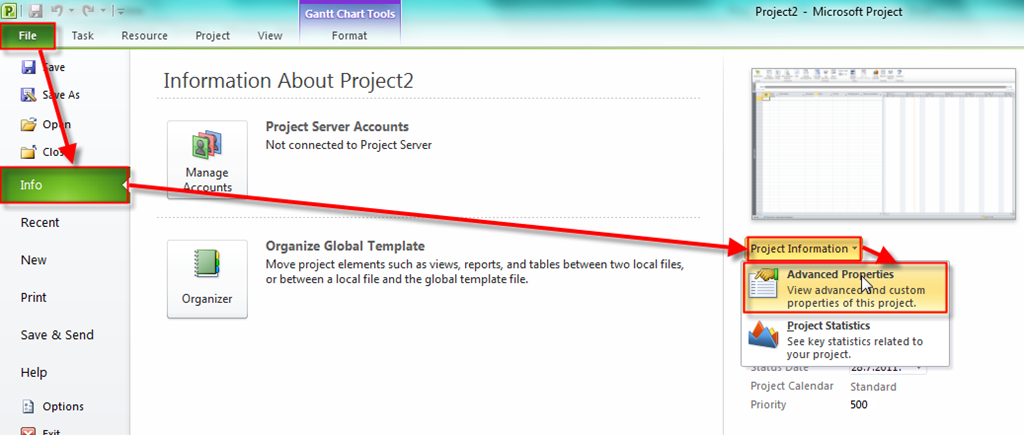
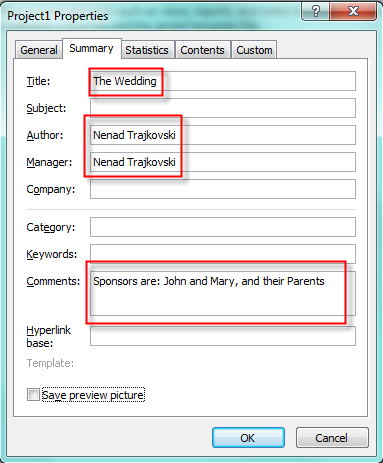
After that I will put some Basic information about my Project here:

image 

and then:

image


Now I will put some additional information for my Project here:

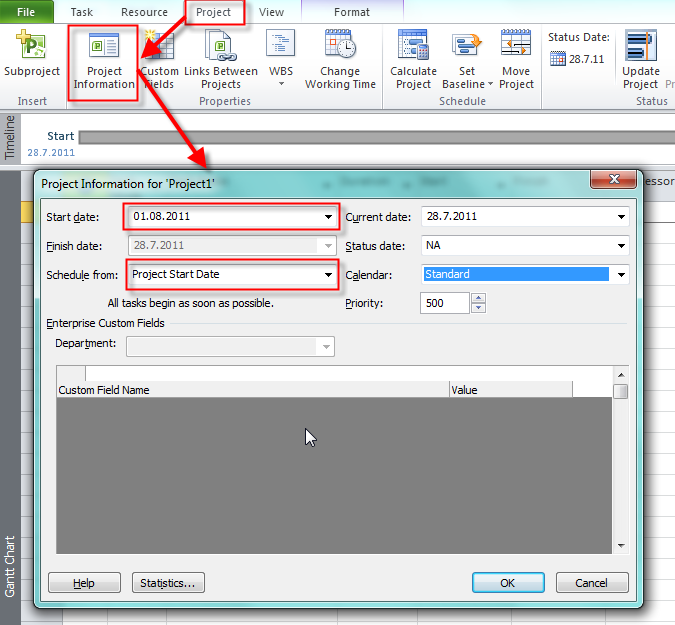
image

As you can see I choose to Schedule from: Project Start Date. Why? Well, because If I choose Schedule from: Project Finish Date, all of my task will be scheduled with Start As Late AS Possible constraint, and I don’t want that. And, John and Mary (my Sponsors) don’t have a specific date for their wedding.

Do you want an example of Project when you have to establish Schedule from: Project Finish Date? PREPARING THE OLIMPIC GAMES, or THE WORLD FOOTBALL CHAMPIONSHIP! Why? Because when you have such kind of event, you and the rest of the world know EXACTLY when this event will start. So this Start date of the event is your Finish Date of the Project!

Now I will setup default working time. If you want a know about scheduling problems in MS PROJECT 2010, and how to manage working time and calendars without getting in trouble read my post: https://ntrajkovski.wordpress.com/2011/04/12/scheduling-problems-in-ms-project-2010-2/

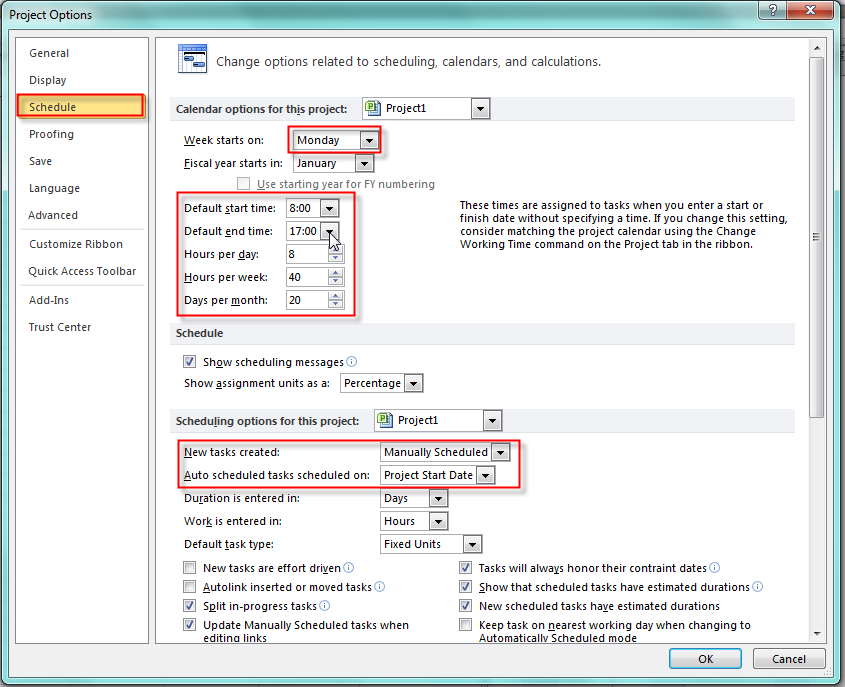
In the File Tab click on the Options  button and you will get:

image

I decide that regular working time will be from 08:00 to 17:00 with 8 hours per day, and that means that I will have 1 hour for lunch break. My week will have 40 working hours, and my month will have 20 working days.

I decided that every new task created will be in Manually Scheduled mode (an that is a brand-new feature in MS PROJECT 2010, and when I add new task in Auto scheduled mode it will have default Start Date same as the Project Start Date (which is 01.08.2011). The another option is Current Date.

You will se in my future posts how this working time is in correlation with Project, Task and Resource Calendars.

Why did I decide to have every new task in Manually Scheduled mode? Because I have no idea about task duration (for now!), when will it start or finish, and I do not want default duration of 1 day (which is in Auto scheduled mode). And, finally I want to write in Duration, Start Date and End Date field whatever I want (for now!)

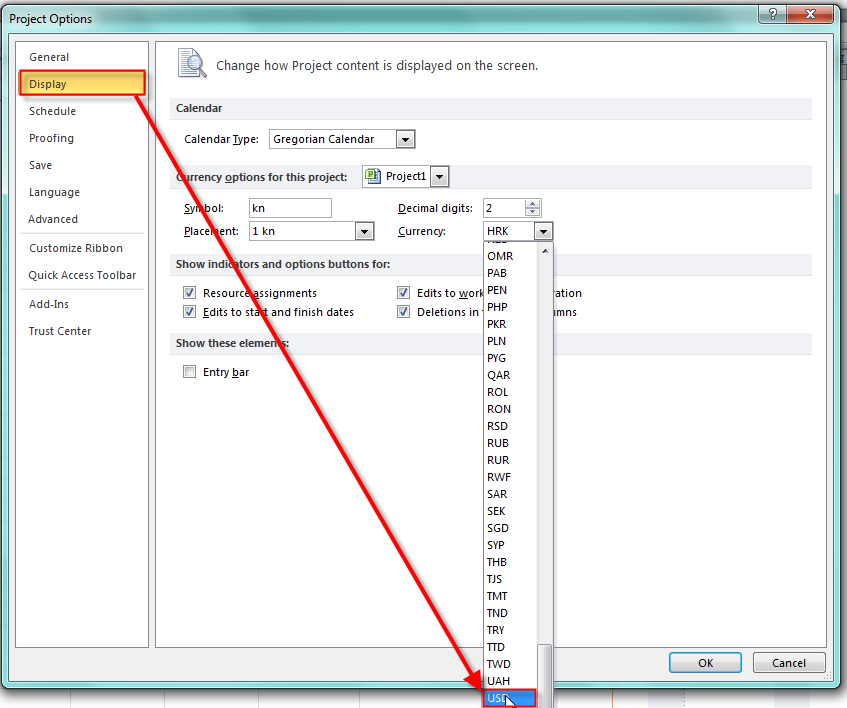
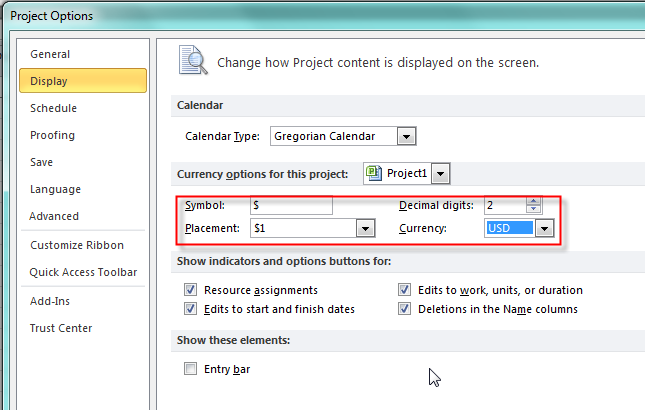
Now, I will set US dollar as currency. In the File Tab click on the Options button and you will get:

image

and I will get:

image

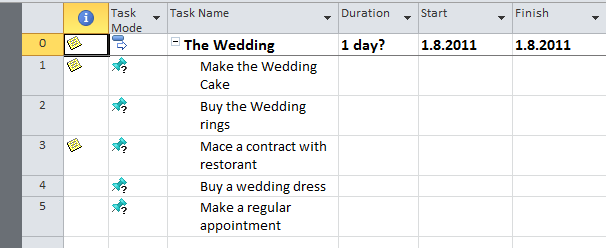
Before saving my Project I want to see Project Summary Task:

image

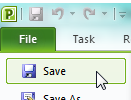
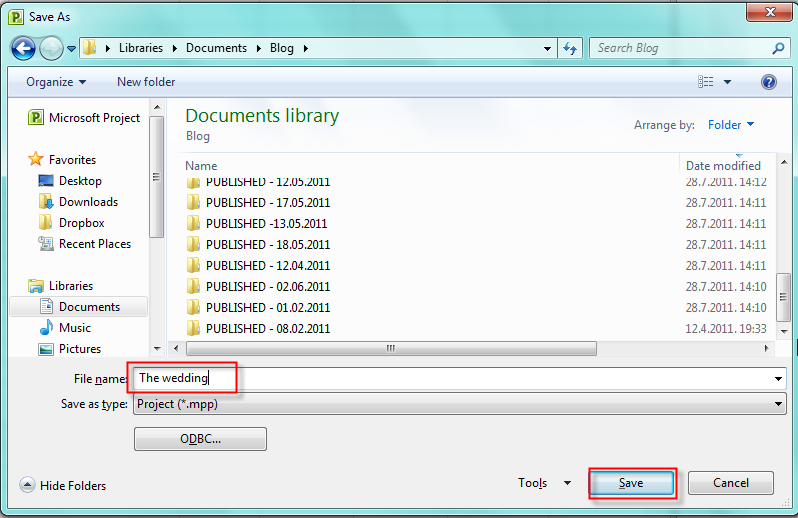
Finally, I will save my Project:

image

and then:

image

That’s all for initial set up!


Best Regards!

Posted in MICROSOFT PROJECT, Microsoft PRoject 2010, MS PROJECT 2010, PMI, PRoject Management | Tagged , , , | 7 Comments