How to use Boards group by Progress in Project for Web

Hi,

In my previous Posts I’ve created a simple Project for Web:

image

This is View in Grid. Now let’s see Board Tab:

image

All tasks are here! In the upper right corner I can choose between three type of Boards:

image

So Board can be grouped by Buckets (as you can see in the picture above), Progress or Finish Date. I will now switch to the Progress and I will get:

image

Here are three Buckets: Not Started, In Progress and Completed. And, basically, it is Kanban Board. And in this View there is no possibility to add/edit&remove any bucket.

Now I will drag and drop Task one to the In Progress bucket, and I will get:

image

Automatically it is 50% completed! But, let’s say that it is 75% completed. All I have to do is to click at that Task and I will get:

image

As you can see, when I put 75% in %Complete field, automatic calculation is made like this one:

  • Nenad and John were supposed to work on Task which have 1 day Duration, e.g. 8 hours Nenad + 8 hours John = 16 hours – Total
  • Task is 75% Completed, e.g. 16 hours * 75% = 12 hours – Completed
  • 16 hours – Total – 12 hours Completed = 4 hours Remaining

With this screen I can do many other things and that is going to be explained in separate post, but for now, you should know That moving to In progress Bucket means that some work has to be done. If I put 0% in the % Complete field, Task will automatically “jump” into Not Started bucket.

If I move Task to Completed bucket, I will get:

image

As you can see, Task is marked as Completed 100%. If I put in % Completed field value other than 100% then Task will “jump” into In Progress bucket (if % Completed is greater than 0%), or in Not Started bucket (if % Completed is equal 0%).

In my next Post I will when and how you how to use Group By Bucket View!

Stay tuned, and Best regards!

Posted in PMI, Project for Web | Tagged | Leave a comment

How to assign Resources to Tasks, and examine Task details using Grid Tab in Project for Web

Hi,

After I’ve created Schedule in my Project for web, it’s time to assign resources to Tasks. First of all, Project for Web is part of Office365 family. So to assign any resource to any Task this resource should be an Office 365 user, like in my tenant:

image

Notice, that the picture above doesn’t show all users.

Now, let’s go back to my Project:

image

Let’s say that I want to assign myself to the Task 1, and John as well, Mary to Task 2, and Peter and Ellen to Task 3.

image

and then:

image

and when I choose myself I will get:

image

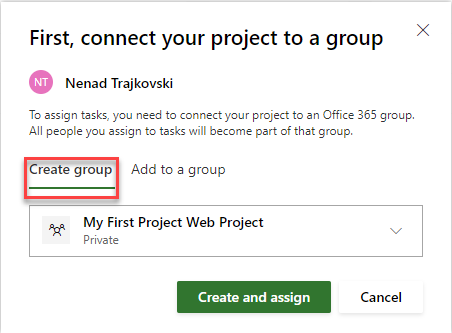
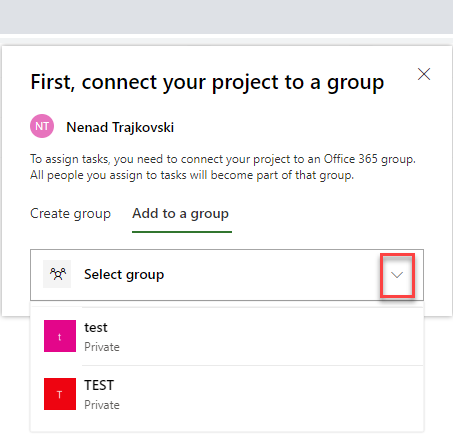
This is important. Unlike in Project for desktop version, in Project for Web, resources which are going to be assign to this specific Project should be all members of the Group. And here I have two possibilities: to create a new group, or use existing one.

If I want to use existing one (which I do not) I should choose it from here:

image

So, I am going to create new Group:

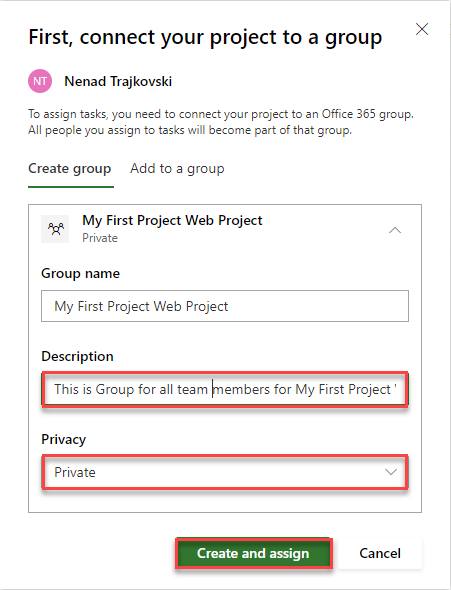
image

I added Description for this group, and it will be Private, so only team members in this group will be able participate in it.

After I click on Create and assign, the Resource (in my example – myself) will be assigned to the Task. Now I will assign John to the same Task:

image

and:

image

and John will be assigned to the Task. I will now assign Mary, Peter and Ellen to their Tasks, following the steps above, and I will get:

image

OK! Now I want to see details for Task 1:

image

and I will get:

image

Let me show you right part of the screen and explain it:

image

As you can see, for specific Task I can:

  • Add or remove Resource (the procedure is same as I described above)
  • Change Start and/or Finish date of the Task
  • Duration
  • %Complete
  • Bucket (I will explain this is one of my next Blog post)
  • Effort! You can see the Remaining work is 16 hour, because John and I are supposed to work at this specific Task. It has duration 1 day, and since there are 8 hours per day per person, the total of Remining hours is 16 (8 hours for me, and 8 hours for John). Completed work is blank (e.g. 0 hours), because now work has done at the Task. Total hours are sum of Completed and Remaining hours.
  • Add dependency. Here you can add dependency for this Task.

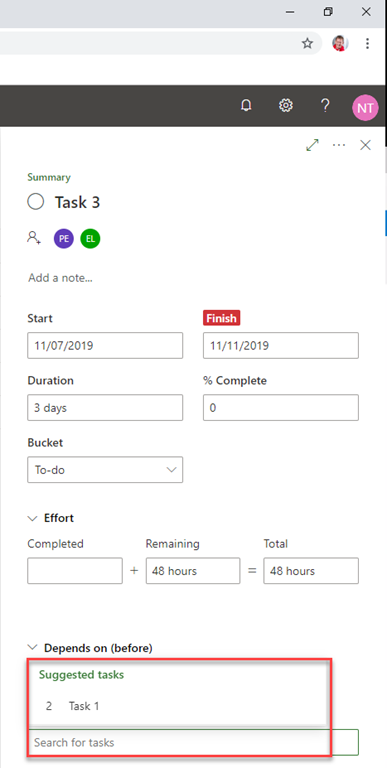
Let’s look at Task 3:

image

  • Duration is 3 days
  • Remaining work is 48 hours (Peter 3 days * 8 hours = 24 hours + Ellen 3 days * 8 hours = 24 hours –> 24 + 24 = 48 hours)!
  • As you can see Predecessor for Task 3 is Task 2. If I want, for example, make Task 1 as Predecessor, I should follow this steps:

I should click to Add dependency and I will get:

image

So, I have suggested Task, but I can type Task name or part of it (as I explained in my previous post) and I can choose whichever Task I want.

Did you notice that Finish is marked red? This is because this Task is late. It should be finished at 11/11/2019, but today is 11/20/19 (I’ was writing this post at that time).

And, that is it.

Hope you like it, like I do.

Regards!
Posted in Project for Web, PRoject Management | Tagged | Leave a comment

How to create Project for Web

Hi,

as I promised, from today I’m starting with Project for web, the brand new Microsoft Product.

Before my first screenshot you should be aware of two crucial things:

  1. Since this is Project for web, obviously you should have Office 365 subscription with license for it
  2. This Product is perfect, from my point of view. BUT! It doesn’t have everything (every single feature and possibility) like you have in desktop client, or Project Server!. Why? Because it is growing. Do not think about this product as final version. Not at all. It is just beginning of a great journey.

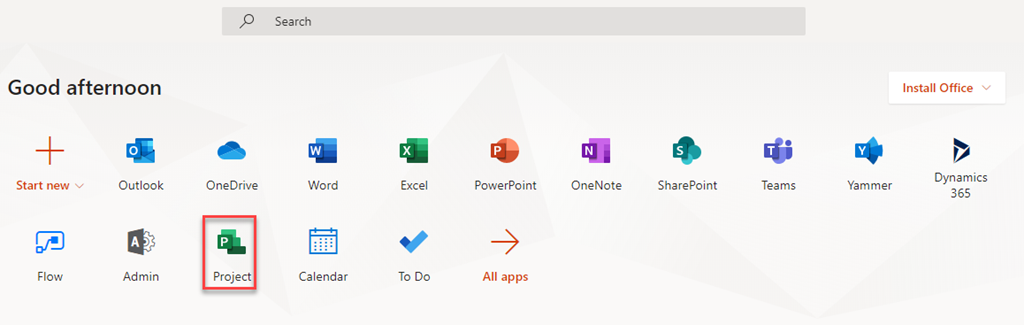
Now, let’s start. You can create new Project very easy. Login into your Office365 account and click here:

image

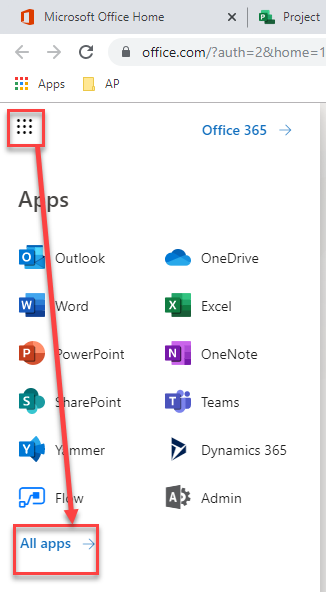
or, you can find it here:

image

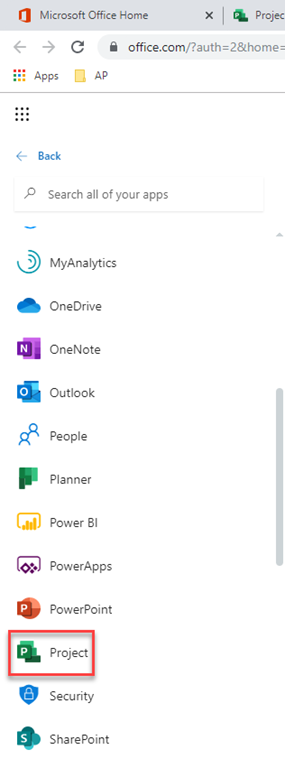
and then:

image

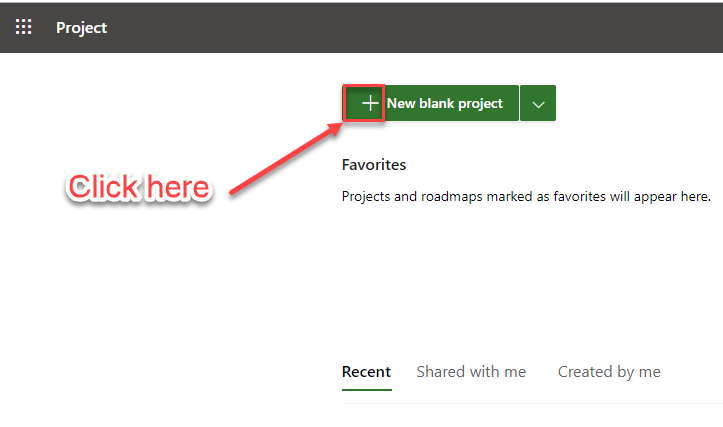
This will bring you to next page:

image

Finally you will get:

image

and you fill get:

image

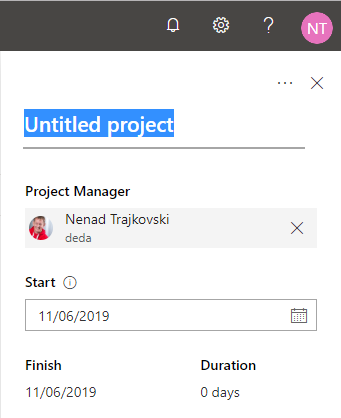
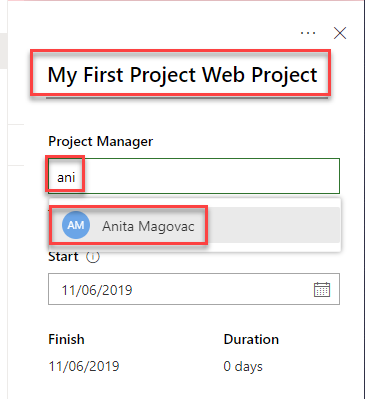
You can change Project name (instead of Untitled Project I will put “My First Project Web Project). As you can see, I am, by default Project Manager at this Project. Let’s say that I want Anita to be a PM for this Project:

image

For Project Manager you can choose a person who is active user on your O365 tenant, and it should have some license assign to it (it cannot be unlicensed user).

Last, but not least you can determine the Start date of your Project. For now, there is no possibility to put Finish date, and then calculate Start date, like you can do in MS PROJECT desktop, for example. I will put 11/04/2019 and I will get

image

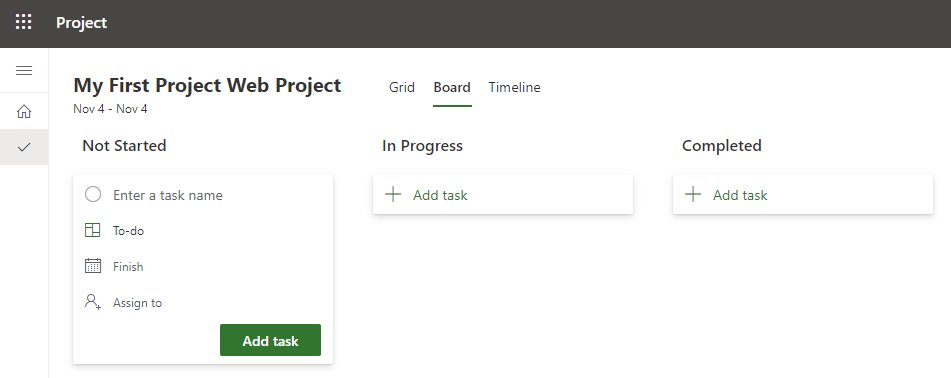
Now I can start. As you can see there are three Tabs:

  1. Grid tab which you can see on the picture above
  2. Board Tab:

image

It looks familiar? You bet it does! It is Planner!

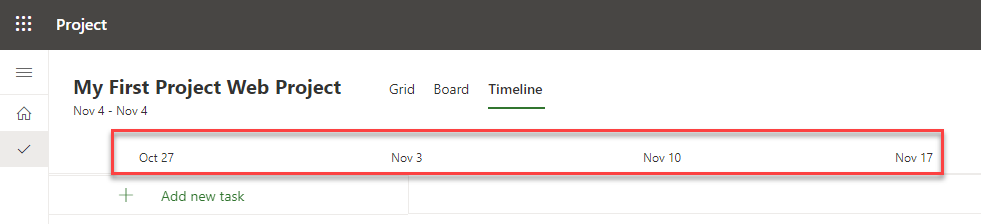
3. Timeline Tab:

image

If you click on home Icon:

image

you will get:

image

In Created by me you can see all your Projects, in Shared with me, you can se all Project which someone shared with you, and in Recent Tab, you can see the newest Projects.

If you click on specific Project you will land to the site of this particular Project!

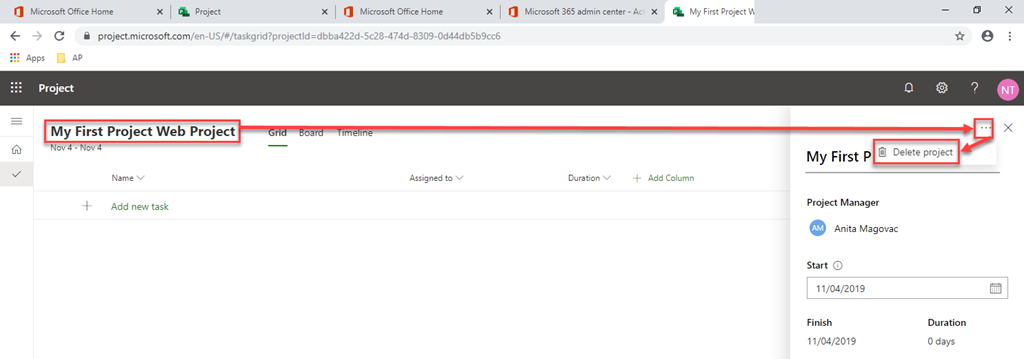
In the next Blog Post I will show you how you can create Tasks, but for the end of this Post I have to show you how can you delete Project:

image

and:

image

If you confirm that you want to delete a Project it will gone. No backup, no restore. Be aware of this!

Regards!
Posted in MICROSOFT PROJECT, Project for Web, PRoject Management | Tagged | Leave a comment

Scrum and Sheets with MS PROJECT Online

Hi,

in my previous post (https://ntrajkovski.com/2019/10/15/how-to-implement-scrum-with-ms-project-step-by-step/) I’ve created Task board, and I assign Tasks to two of five defined Sprints:

I’ve modified column for each and sprint:

image

OK! We have board. Let me explain different Views for Scrum.

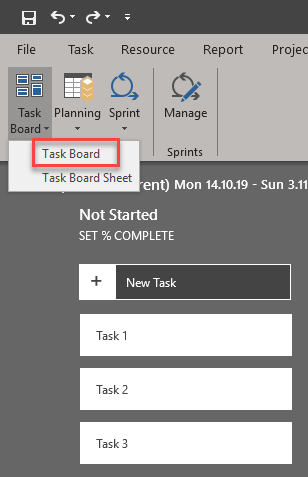
On the top of Sprint Tab we have different options:

image

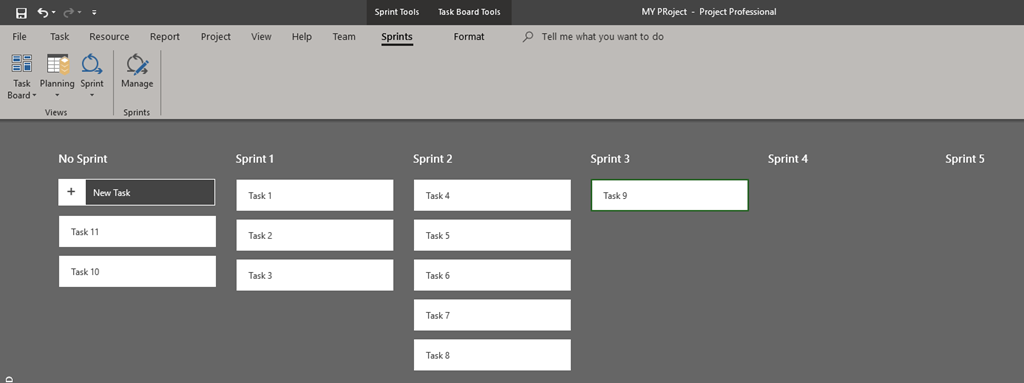
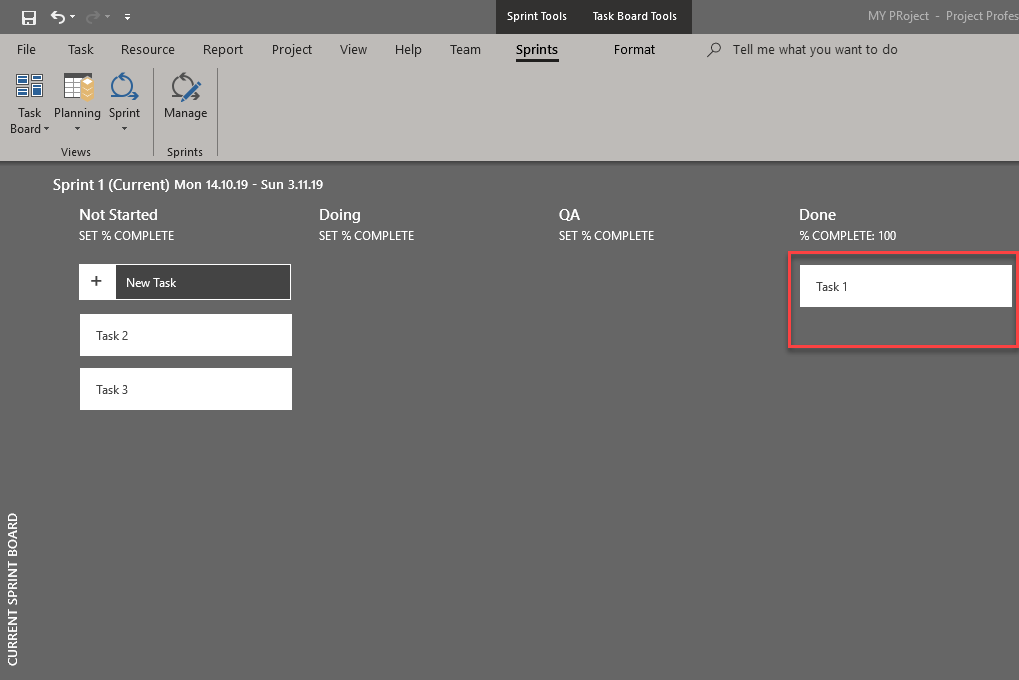
Let’s start with the Task Board:

image

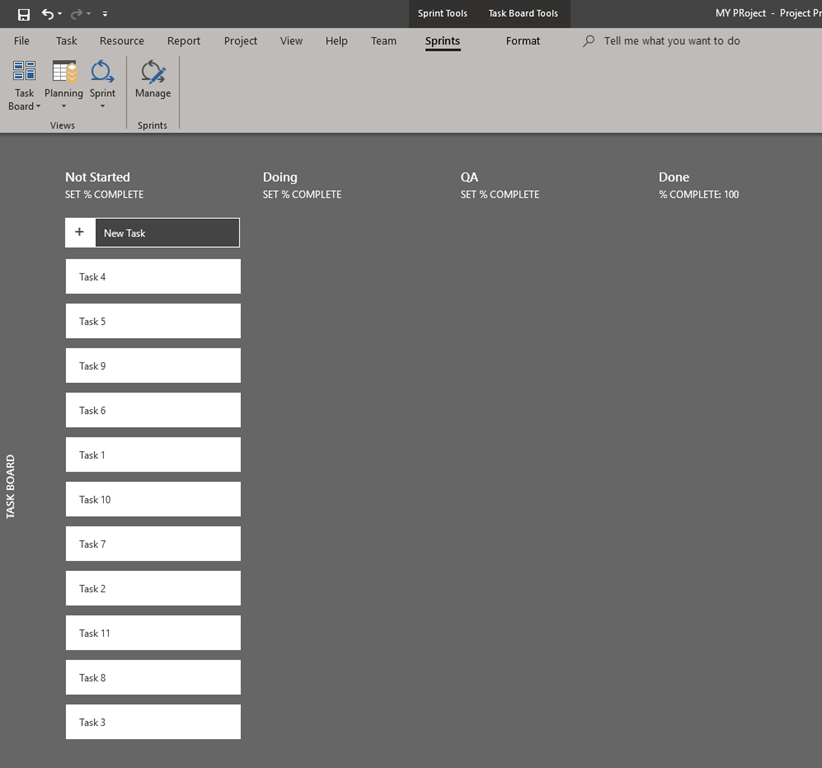
If I choose it I will get:

image

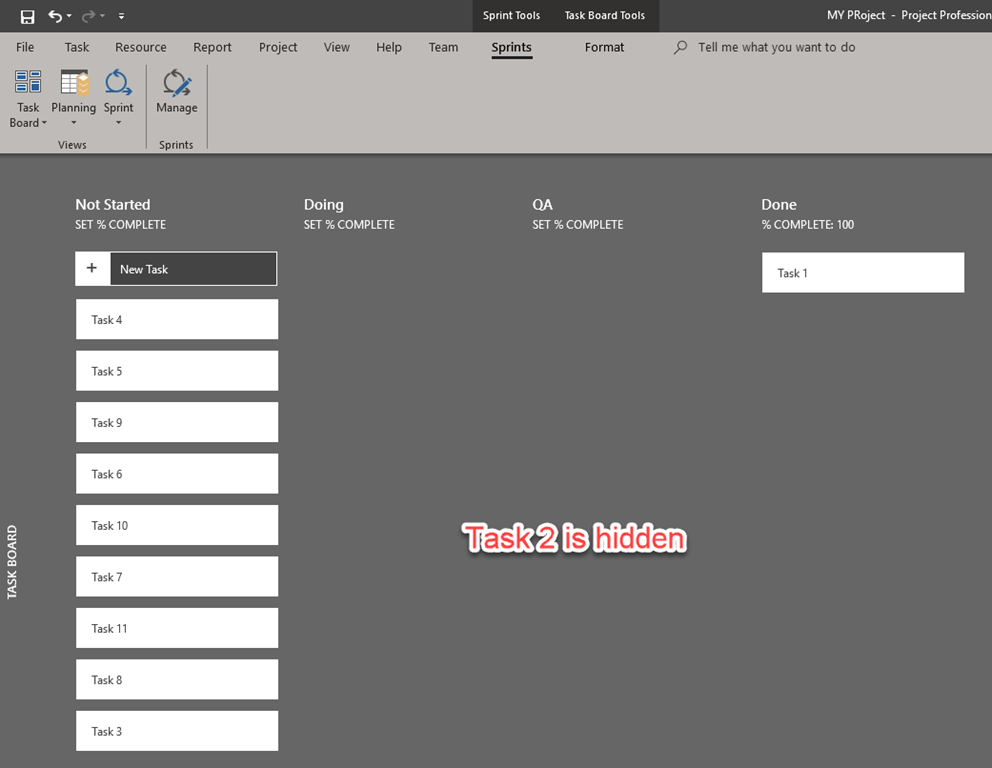
As you can see, all Task are here, no matter if they are in the sprints or not. You can see for each Task is it (in my example) in Not Stated, Doing, QA or Done status.

If I choose Task Boars sheet, I will get:

image

Here I can also see all Tasks, but I can see Sprint in which if particular Task (if any), Work in hours, what is it Board status, Resources, etc. Her I can also change those- For example, let’s say that Task 1 is Done, and Task 9 is in Sprint 3:

image

Now, back to the Sprint Board(s):

image

and:

image

So, with Task Board sheet you can very easy manage each and every Task, without jumping from board to board.

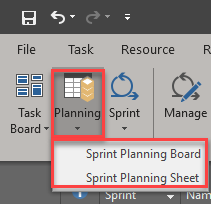
Now, let me show you planning Tab:

image

With Sprint Planning board I will get:

image

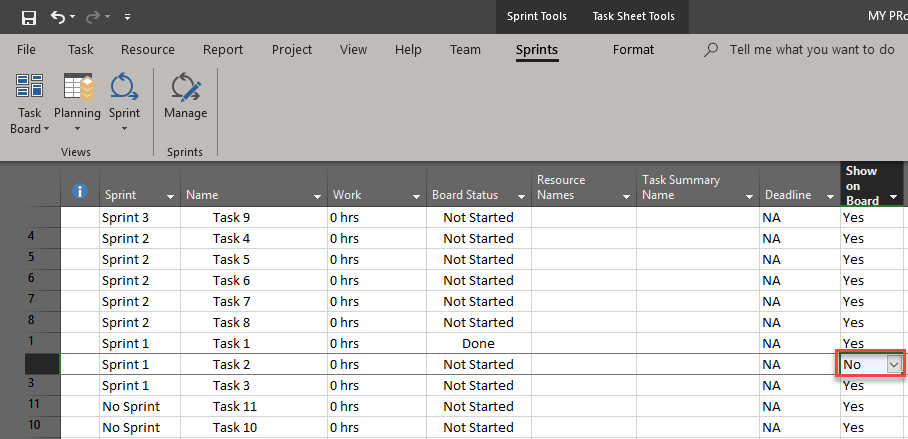
Here, I can see all defined Tasks, and their Sprints. With Sprint Planning sheet, I will get:

image

This is very similar to Task Board Sheet. It has one more column: Show on Board.If I choose: No for particular Task it will not be seen in any board like:

image

and:

image

or:

image

or:

image

If you ask me WHY someone will want to hide some Tasks, my answer will be: “We are in planning”. So, we are not sure that we will do this Task, so no one can put it in some sprint by accident. And therefore, it should not be used like I did, but it should be used (from my point of View), to tasks which are not in the particular sprint.

Finally, Sprint Tab:

image

In this post you have seen Boards for Sprint(s), so I am going to show you Current Sprint Sheet:

image

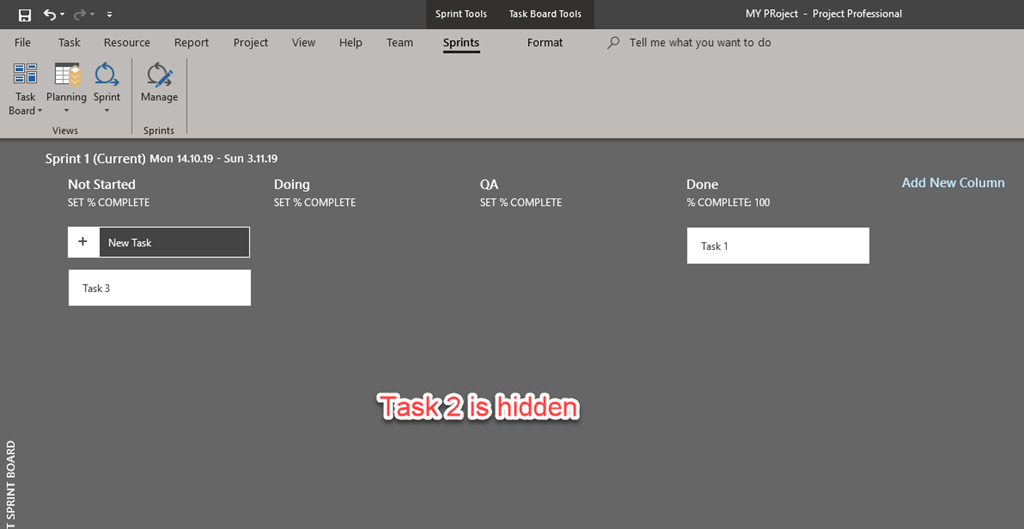
This sheet is exactly the same as Sprint planning sheet, but it shows only Tasks for current Sprint, and it does not show any hidden Tasks (Task 2, in my example).

To conclude you can manage Sprint projects in many different and efficient ways.

Regards!

Posted in Project Online | Tagged | Leave a comment

Water-Agile-Fall and MS PROJECT 2019!

Hi,

today I’m going to show you how to manage Water-Agile-Fall projects with MS PROJECT 2019! But first thing first. what is Water-Agile-Fall, anyway. It is mixed Waterfall with Agile in which you first prepare fixed project plan, and then conduct the work in sprints. And, therefore, MS PROJECT is the BEST tool for it? Why? Because there are various great tools in the market, but they cover Agile OR Waterfall projects, not both of those two types. For example, you can use Microsoft planner for Agile project, or Trello, but you can not manage waterfall projects (dependencies, and similar thins which characterize waterfall project with this tools)! Be aware that you can manage Water-Agile-Fall Projects only with Microsoft Project online version, NOT with regular desktop version.

OK! Now, first let’s create Waterfall Project:

image

As you can see, I have Tasks, dependencies, Resources, and assignments. Now, I want to  put Tasks to sprints. To do that I will open sprint planning board:

image

and:

image

and I will get:

image

I will right click on No Sprint label:

image

After I click on Manage Sprints I will get:

image

As you can see, I’m defining Finish date of the Sprint 1, and defining start date, and sprint duration for Sprint 2. Do not look ate the dates, because this is just an example, so I randomly picked dates and duration. Finally I will get:

image

Now I will put some Task to Sprint 1, and Sprint 2:

image

If you conduct those tasks according to Scrum, Task is done or not done (it cannot be partial done to finish the sprint.) If it is not done 100% till the end of the sprint, it should be moved to the next sprint. So, let’s say that Task 1 is done:

image

and I will get:

image

If I look at the Gantt Chart View, I will get:

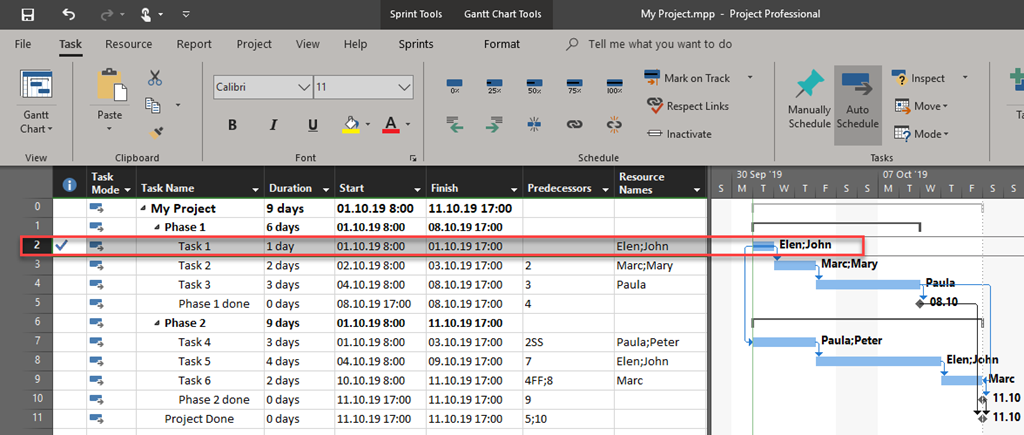
image

And – that is it! Of course you, and only you are responsible to choose will you manage Water-Agile-Fall project like in my example or you will use some other techniques. The purpose of this Blog Post is to make you aware that you can do it. How will you do it it’s up to you!

Regards.

Posted in MICROSOFT PROJECT 2019 | Tagged , | Leave a comment

How to manage external dependencies between Projects with MS PROJECT 2019

Hi,

lot of my Blog readers are asking how to link Tasks between two or more different Projects, and how to manage them.

I will show you how to do it with MS PROJECT 2019!

As usual, first I will create two simple Projects, and I will save them to my Desktop as Project1.mpp, and Project2.mpp:

image

and:

image

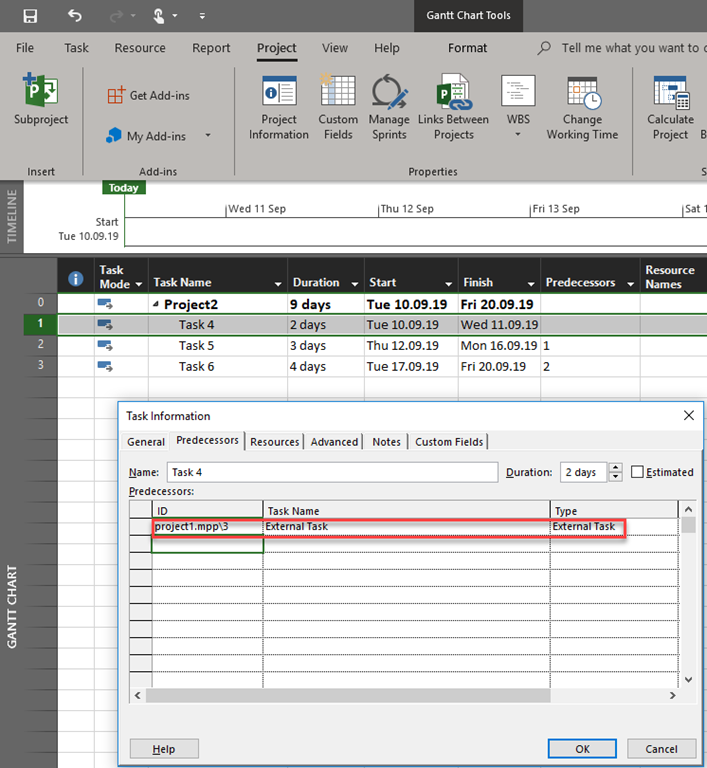
To make a connection between Tasks among different Project, you should save them first. Let’s say that Task 3 from Project 1 should be predecessor to Task 4 from Project 2, and Task 1 from Project 1 should be Predecessor to Task 6 from Project 2. To get that you should double click to Task 4 (and Task 6 accordingly) from Project 2 and:

image As you can see you should write in the ID column: Project name from which you wish a have predecessor, then backslash then Task ID form this Project (and in my example this is third Task from Project 1). When you click on OK button you will get:

image

To connect Task 1 from Project with  Task 6 from Project 2, you should do the same thing, and you will get:

image

The final result is:

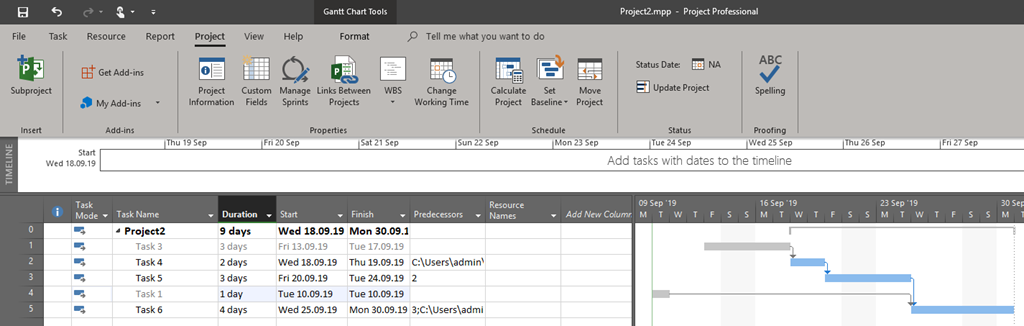
image

Light gray Task are external Tasks.

OK! That was a part about creating dependencies. Now, how to manage them in the easiest way?

image

You can see that you can, and should, use this option to see all external predecessors (and successors) on one screen only. Let’s say that you want to “break” connections between Task 6 from Project 2 and Task 1 from Project 1. You can do it easy, like this:

image

So, you should first select external predecessor, and then delete the link, and you will get:

image

External Task is gone!

Finally, if you look at the Project 1, Task 4 from Project 2 is successor  of Task 3 form Project 1:

image

To conclude, when you manage multiple Projects and they are “connected”, use this feature to handle your external successors and predecessors in a right way.

Regards!

Posted in MICROSOFT PROJECT, MICROSOFT PROJECT 2019 | Tagged , | Leave a comment

Leveling Gantt view and Leveling Delay field in MS PROJECT 2019

Hi,

today I will explain Leveling Gantt view and Leveling Delay field in MS PROJECT 2019, which are rarely used.

I will crate a simple Project with two resources and they both are going to be overallocated:

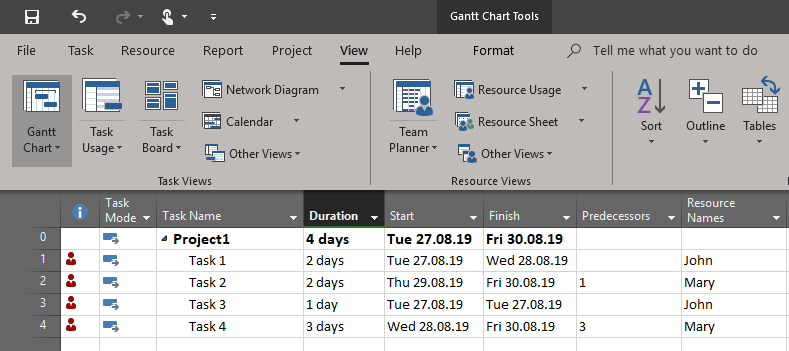
image

As you can see John and Mary are both overallocated. Notice this:

  • Task 1: Start date 27.08, Finish date 28.08
  • Task 2: Start date 29.08, Finish date 30.08
  • Task 3: Start date 27.08, Finish date 27.08
  • Task 4: Start date 28.08, Finish date 30.08

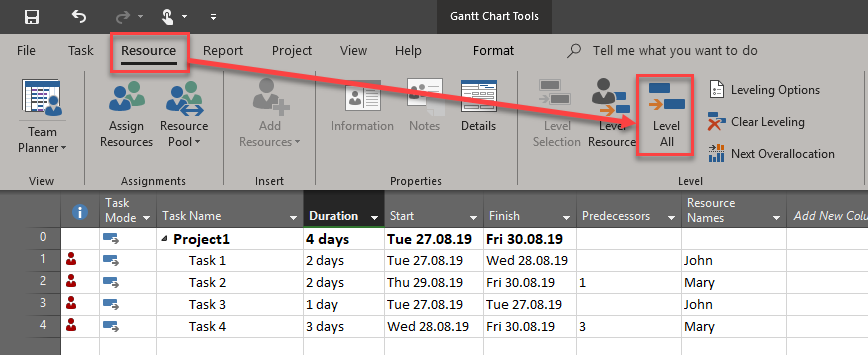
Now, I will Level all resources like this:

image

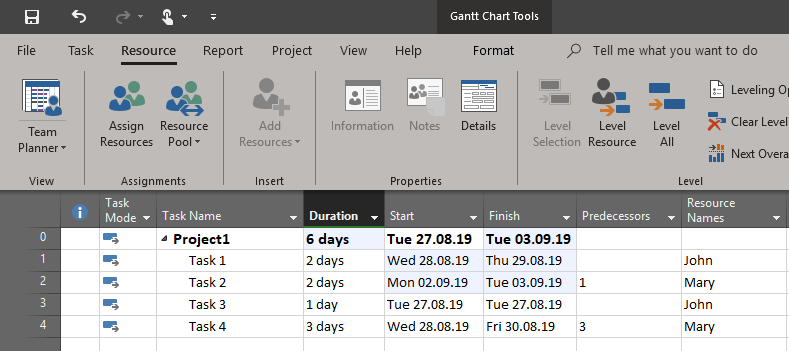
and I will get:

image

Notice that, after leveling, Start and finish dates are:

  • Task 1: Start date 28.08, Finish date 29.08 e.g. Task is moved 1 day
  • Task 2: Start date 02.09, Finish date 03.09 e.g. Task is moved 3 days
  • Task 3: Start date 27.08, Finish date 27.08 e.g. Task is not moved
  • Task 4: Start date 28.08, Finish date 30.08 e.g. Task is not moved

I will now use Leveling Gantt:

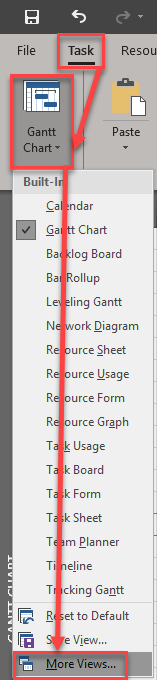
image

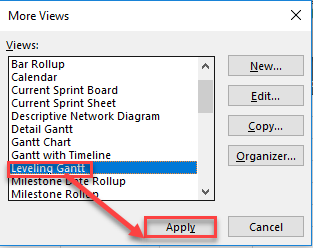
and:

image

Finally I will get:

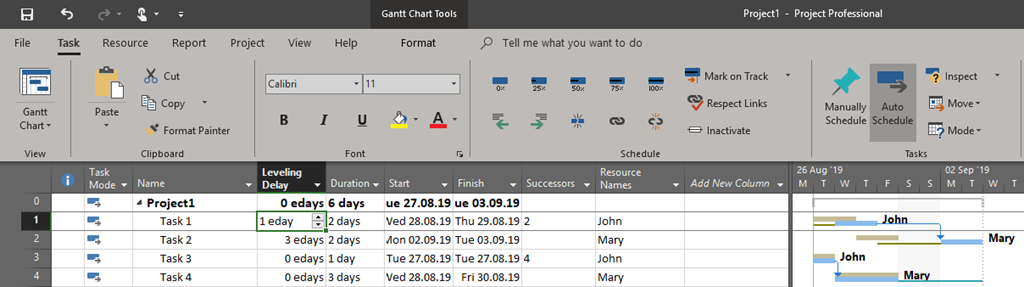
image

As you can see Leveling Delay field for Task 1 is 1 eday, and for Task 2 3 edays. Notice that delay is expressed in elapsed days!

On the right part of this view you can see original values – before leveling (marked yellow), and new values (blue lines ) – after levelling.

This view is very useful. Why? Because after leveling maybe the result will not be what you wanted or expected, and you can compare those two (old and new) values here.

Regards!
Posted in MS PROJECT 2019, PMI, PRoject Management | Tagged , | Leave a comment

Resources with dynamic workload in MS PROJECT 2019

Hi,

today I will show you how to deal with a problem which you will face, almost, in every Project. And that is: “Resources which are leaving Project, and coming back after some time to perform the same Task!”.

Let’s begin. First I will crate very simple Project with one and only Task:

image

and I will have three resources available:

image

I will Assign John and Mary to the Task:

image

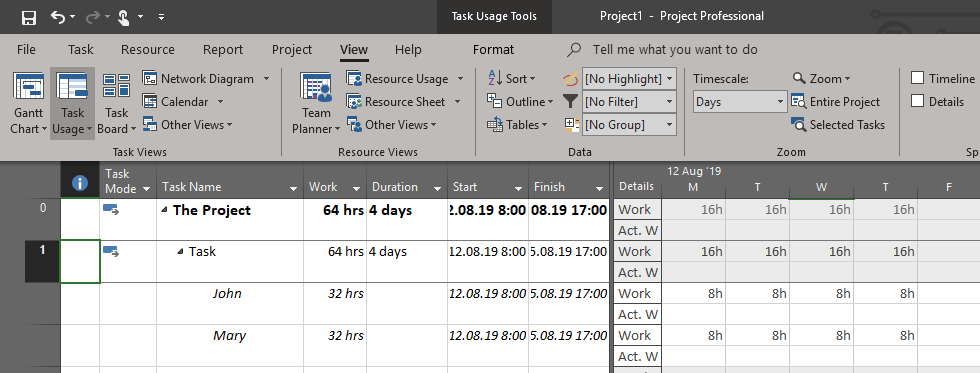
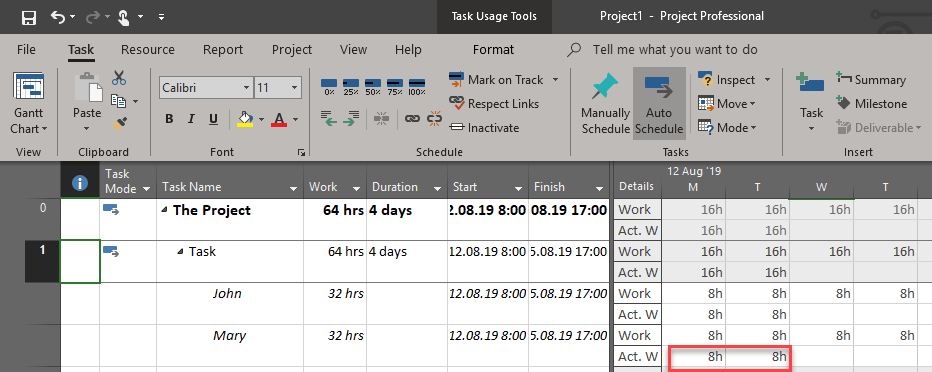
As you’ve noticed I am using Task Usage View. Now let’s say that both, John and Mary finished they work ant Monday and Tuesday, e.g. they are 50% done:

image

Now we get:

image

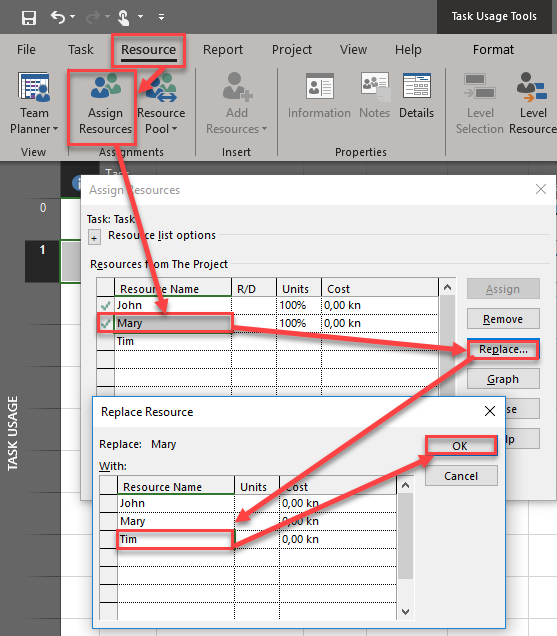
Now, let’s say that for some reason Mary isn’t available for the Task. And we do not know if she will be back or not. And we need another person to replace her (we cannot assign rest of the work to John). We will put Tim on the Task:

image

Now we get:

image

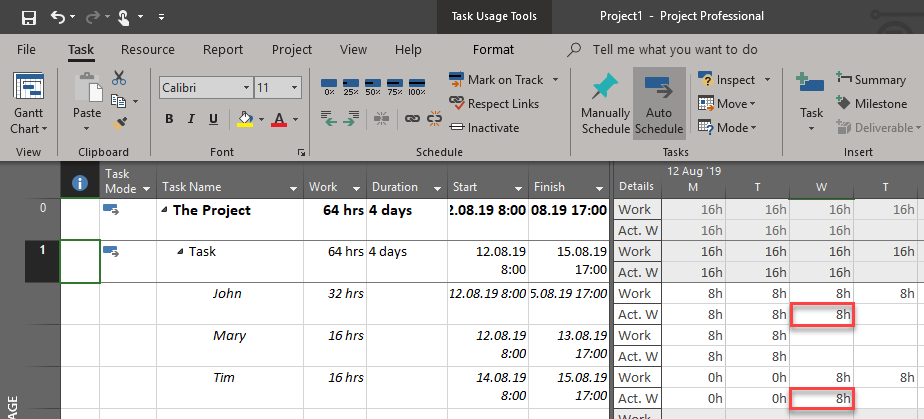
At Wednesday John and Tim were working 8 hours and the Task is now 75% finished. When I mark it as 75% completed, I will get:

image

TADAAAAAA! Mary is back. So, now we want to replace her with Tim. and we will get:

image

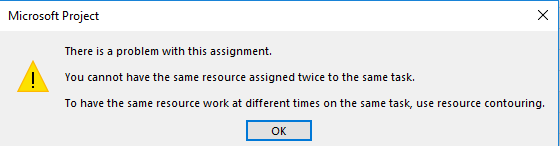
Now what? The real life situation is that Mary WILL finish the job at Thursday (instead of Tim), but we cannot replace Tim with her anymore, because she is almost assigned.

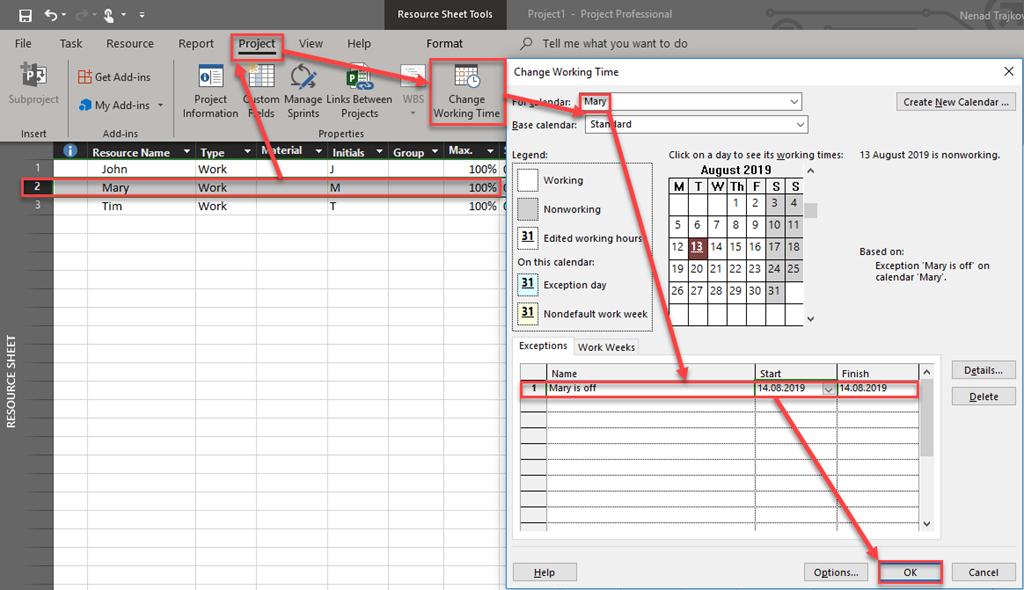
Well we can. First of all We are going to modify Mary’s calendar:

image

So, Tip #1: Put exceptions for resource for period in which he or she is not available.

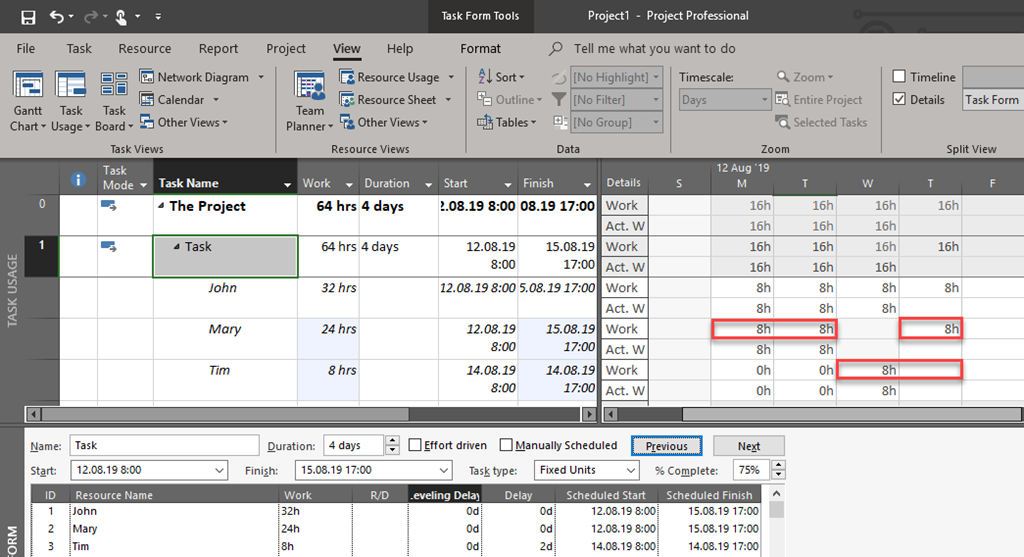
Now, let’s use Task Form, and edit workload for Mary and Tim.

Mary will finish her Task at Thursday, 15.08.2019, and Tim has already finished his work at Wednesday, 14.08.2019. In total Mary will work 24 hours (8 at Monday, 8 at Tuesday, and 8 at Thursday), and Tim will work 8 hours at Wednesday:

image

The result is:

image

This is what we wanted!

Tip #2: Use Task Form, and align the real life situation with finish date!

This is real life situation when you cannot predict if and when your resources will be unavailable, and then again available.

Regards!

Posted in MICROSOFT PROJECT, MICROSOFT PROJECT 2019, PMI, PRoject Management | Tagged , , | Leave a comment

Creating Fixed Duration Task using Task form in MS Project 2019

Hello,

today I’m going to show you how to use Task Form for creating Tasks from the scratch using MS PROJECT 2019!
First of all, let me crate two brand new Project:

image

OK. I need John and Mary as Resources, as well:

image

OK, now the Task Form:

image

Remember the magic formula, the heart of MS PROJECT which is: Work = Duration * Units

Now, I will create brand new Task for which I want to be Fixe duration, non Effort Driven with 5 days of Duration, but I want John to work 16 hours, and Mary 32 hours:

 image

When I hit OK button I will get:

image

Wow! This is now what I wanted. So, this must be a bug. But it is not!

Since I put Duration = 5 days, and Duration is fixed, and I did not put Units,MS PROJECT calculate work, no matter of values in Work field like this:

Work = Duration * Units, e.g. work = 5 days (8 house per day e.g 40 hours) * UNITS form Resource sheet (e.g. 100%), and the result is Work = 40 hours * 100% = 40 hours for John and Mary.

But, I want that in this 5 days John work 16 hours and Mary 32. I have two options to get that.

First one is to change hours like this:

image

and I will get:

image

Second one is to put right Units when creating a new Task, like this:

image

and I will get the same result:

image

MS PROJECT will calculate work according to magic formula, like this:

  • John: Work = Duration * Units, e.g. work = 5 days (8 house per day e.g 40 hours) * UNITS form  (e.g. 40%), and the result is Work = 40 hours * 40% = 16 hours
  • Mary: Work = Duration * Units, e.g. work = 5 days (8 house per day e.g 40 hours) * UNITS form  (e.g. 80%), and the result is Work = 40 hours * 80% = 32 hours

Hope this helps.

Regards!

Posted in MICROSOFT PROJECT 2019 | Tagged , , | Leave a comment

How to link Tasks with recurring Tasks in MS PROJECT 2019

Hi,

suppose that every Monday you have a meeting with your project team. And after that you are going back to your regular project Tasks. For that case you will have to create recurring in Project 2019 Task for meeting like this:

image

and:

image

You will get:

image

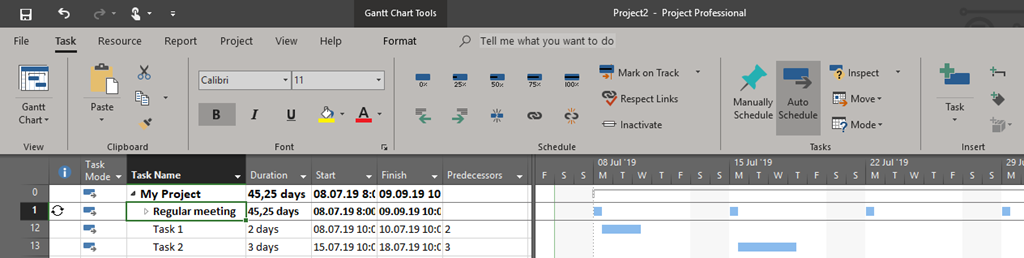
Let’s say that you have Task 1 with 2 days duration, and Task 2 with 3 days duration. And Task 1is about to start after first regular meeting is over, and Task 2 after second regular meeting is over. You will have to find out right predecessor like this:

image

When you link Task 1, and Task 2 with right meeting occurrence you will get:

image

If you collapse Regular meeting you will get:

image

As you can see, on the right part of the Gantt Chart View (graphic part), you cannot see those links.

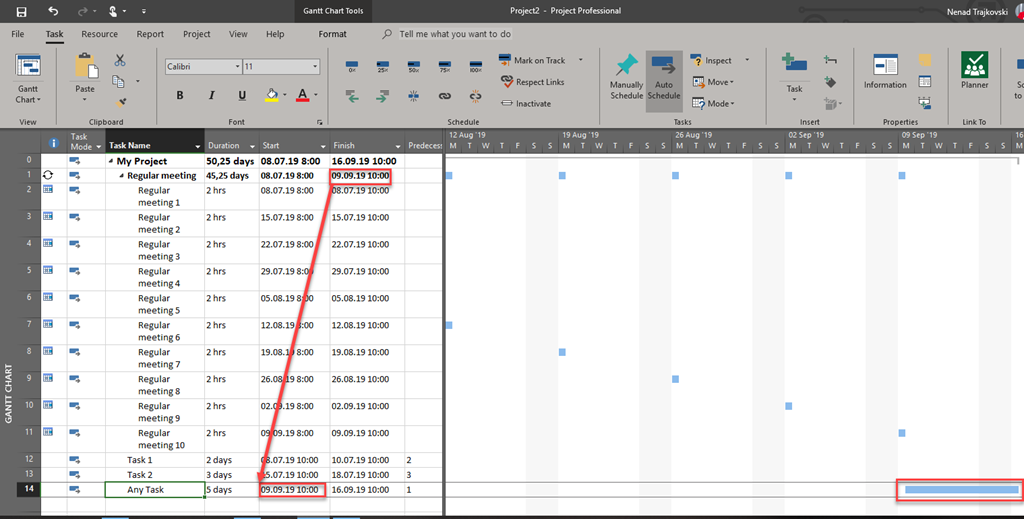
One more thing. If you make Regular meeting as a predecessor of any Task, like this:

image

this Task will start after the last meeting is finished and the link will not be shown on the right (graphic) part of the Gantt Chart View.

To conclude, be careful when you link recurring and regular tasks.

Regards.

Posted in MICROSOFT PROJECT, MICROSOFT PROJECT 2019 | Tagged | Leave a comment