Fixed Duration Tasks and Resource availability in MS PROJECT 2016

Hi,

today I will show you what happens wen you have Fixed Duration Tasks with Resources assigned to them, and those resource are unavailable at the specific time. I will use MS PROJECT 2016

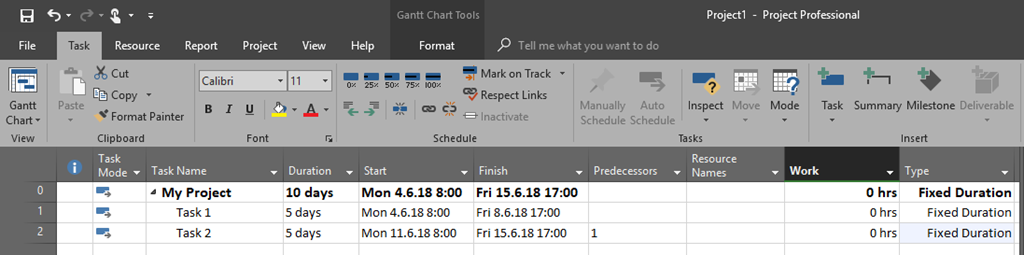
First I will create simple Project with two Tasks (both Fixed Duration Type):
image

As you can see, both Tasks has 3 days Duration. I added two more columns to the Gantt Chart View: Work, and Type!

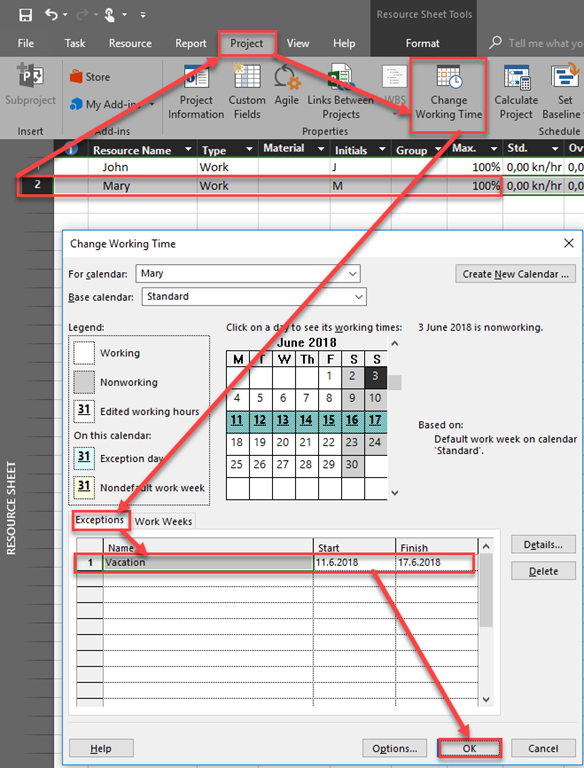
Now I will create two Resources, John and Mary, and I will put for Mary Vacation (e.g. non working time) from 11.06.2018 to 17.06.2017:
image

Finally, I will assign John to the Task 1, and Mary to the Task 2:

image

As you can see Work for the Task 1 is 40 hours (as expected), but for the Task 2 it is 0 hours. How is it possible? Even if this does not make a sense it is possible because Task has fixed duration, so it is supposed to be worked on from Monday 11.06.2018 to Friday 15.06.2018, and the Resource is unavailable at that specific time. So, when you assign Resource to the Task which is Fixed Duration type be aware and careful on that.

Now, let’s say that, for some reason Task 1 will have 7 days Duration instead of 5:

image

Now, as we know, Mary is on her Vacation from 11.06.2018 to 17.06.2017, and Task 2 has now Duration from 12.06.2018 to 19.06. So Mary is available at Monday 18.06.2018, and Tuesday 19.06.2018, but the work for her is still 0 hours.

Now I will put Duration for Task 1 at 1 day:

image

You can see that nothing has changed in work for Mary in this example either.

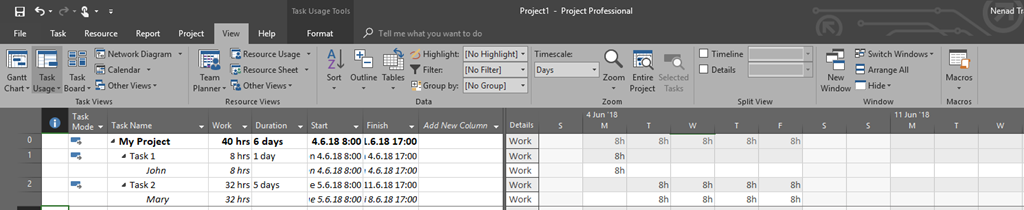
Maybe you have expected that work should be calculated for those days in which Mary is available, but it is not. Well, it is not calculated automatically.  But if he is unassigned from the Task and assigned again, then you will have what you have expected:
image

Now you can see that Mary will work from Tuesday 05.06.2018 to Friday 08.09.2018 (e.g. total 32 hours), and next Monday, 11.06.2018 she will not, because she is on Vacation and therefore not available.

Be aware of this:

  1. When you assign a Resource to the Fixed Duration Type, work will be calculated according to available time of that specific resource during specific Task period.
  2. If the Resource is unavailable to the Task for the whole Duration of the Task (e.g. Work is 0 hours), you will not get any warning from MS PROJECT
  3. If Start date of the Task is moved for any reason for the Task and Resource is became available for it (for specific or whole duration), MS PROJECT will NOT recalculate work for Resource! It will remain 0. So for this you should reassign same resource to the Task.

Regards!

Posted in Micsrosoft Project 2016, PMI, PRoject Management | Tagged , , | 1 Comment

How to avoid unnecessary Resources in MS PROJECT 2016

Hi,

as you may already know, you can put Resources in MS PROJECT in many different ways. Sometimes this is good, but sometimes it can be very annoying. I will show you one example with MS PROJECT 2016!

First I’m going to create new Project:

image

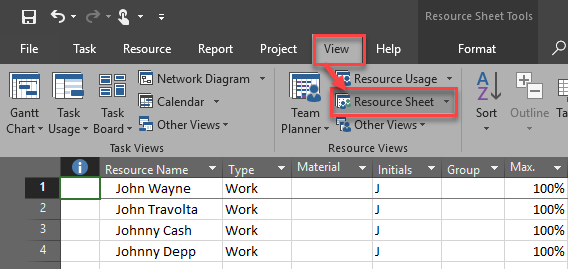
and some Resources:

image

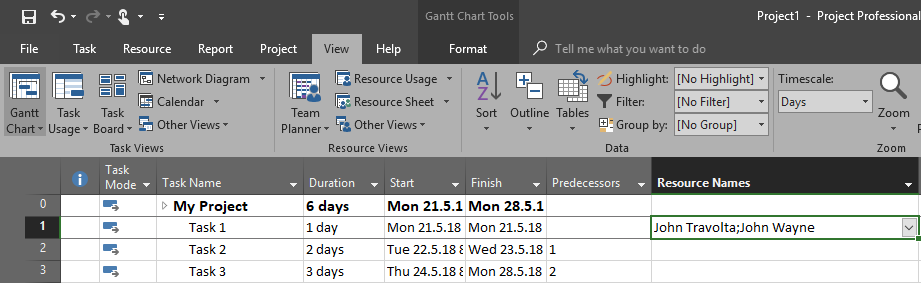
Now I will assign some of them to the Task 1 through Gantt chart View:

image

and I will get:

image

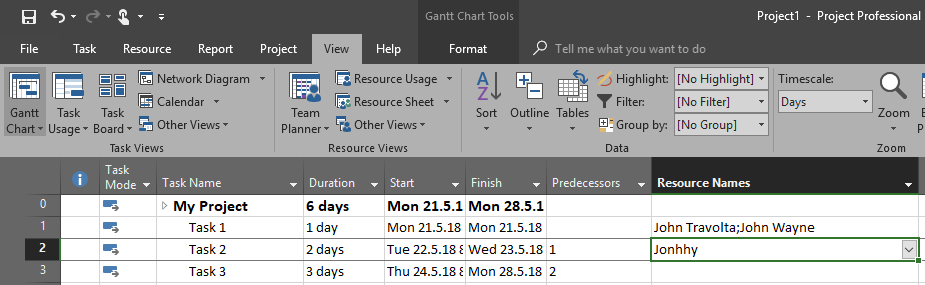
Now let’s say that I want to assign Johnny Cash to Task 2, but I accidentally type Jonhhy and hit the Enter key:

image

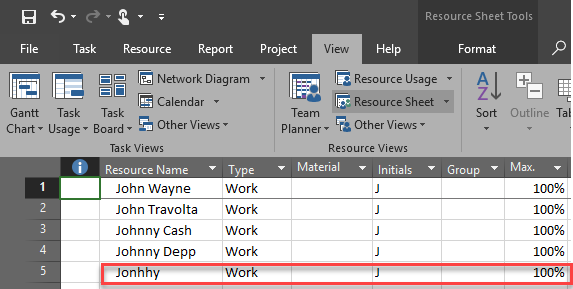
As you can see MS PROJECT let me do that, and if I now look at the Resource Usage View I will find new Resource in it, even if I didn’t want it because this was obviously a mistake:

SNAGHTML3e5eb39

So, to correct this error I should erase Jonhhy form this sheet. If I do  not want MS PROJECT let me to enter Resource which is not already in Resource sheet, like in example above, I should disable it like this:

image

and:

image

and then:

image

Now, for example if I want to add Mary to Task 3, I will get:

image

when I hit Enter key:

image

Now I can choose if I want or not add Mary to my Resources, because she doesn’t exist in Resource Pool.

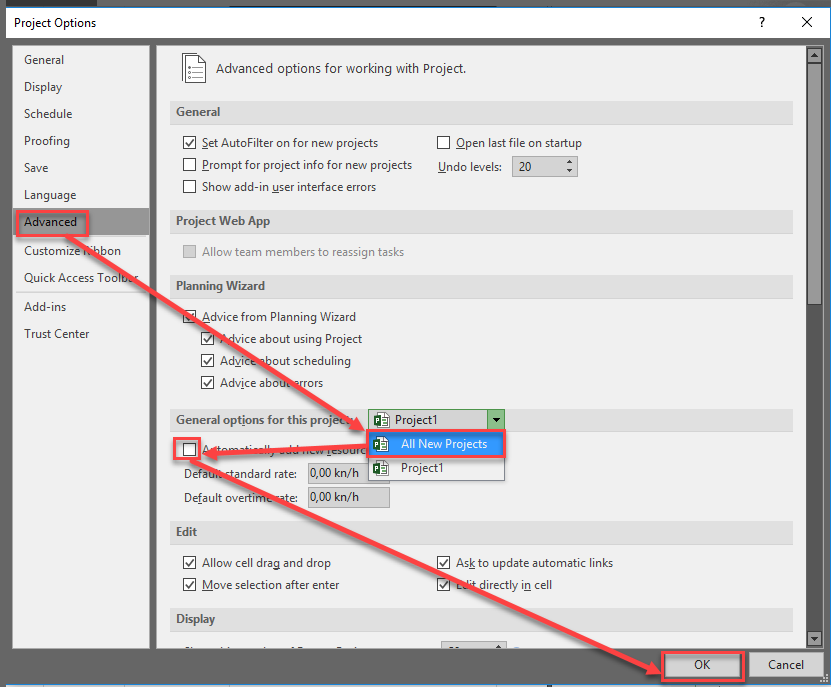
also be aware that this will apply only for the current Project on which I’m working at. If I want this option to be applied on al new Project I should choose:

image

Hope this helps.

Regards!

Posted in MS PROJECT 2016, PMI, PRoject Management | Tagged , , | Leave a comment

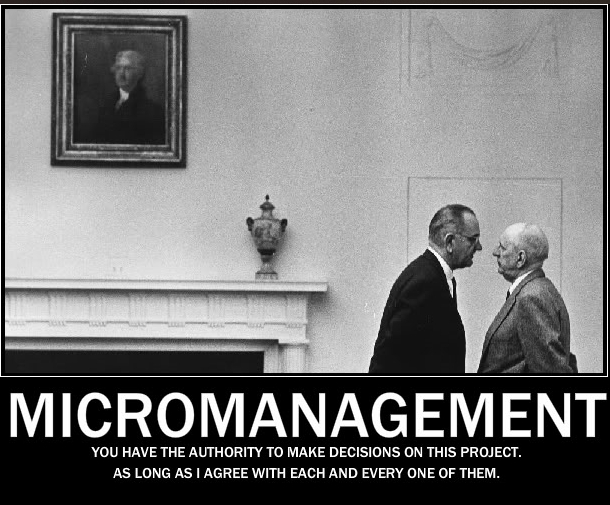
Project Manager, Manager, and Micromanagement

image

Hi,

today I want to discuss with you about Micromanagement. What is Micromanagement anyway? It is a Management style whereby a Manager closely observes and/or controls the work of his/her subordinates or employees, or project team. Is it bad? YES! YES! YES!

Who can do Micromanagement in Projects? Managers, and Project Managers. Whoever does it it is evidence of lack of trust. Why? If you need to control every single detail, every single line of code (in SW development), every decision, than you do not trust the person who make those decisions.

Now let’s first focus on Project Manager. It’s role is not to have every single detail under the control. NOT AT ALL. He/she is responsible for control Project as a whole! It means he/she should know is the Project on track (within time, budget, scope, quality), what are the Risks, what are the problems in the Project, and finally to manage Stakeholders. Are they getting what they asked for? Is everything OK with your team?, etc.

Remember, if you are Project Manager, than you are supposed to let your team to make decisions how to make their Tasks in the best way. So, if we are talking about software development, you must be aware that you team is developing it following standards which are set up upfront. Your job is NOT to check every single line of code. Let your team breath! And help them. You are not in the Army. Command and control doesn’t work. It never did, and it never will.

In my region we have a lot of SW companies which have a Micromanagement problems with company Managers. Why? Because those Managers has started their companies in “garage”. What does this mean? It means that they were developers at the very beginning. And there is nothing wrong about that. But, their company is big now. And they are dealing with Management. And Management is the administration of an organization, whether it is a business, a not-for-profit organization, or government body. Management includes the activities of setting the strategy of an organization and coordinating the efforts of its employees (or of volunteers) to accomplish its objectives through the application of available resources, such as financial, natural, technological, and human resources. To be a Manager you should be educated. PERIOD! E D U C A T E D! If you were excellent developer, and company owner, it does NOT mean that you are now (when your company is large) good Manager, just because you are in that position. And more important, you should STOP acting like developer! Because you WERE developer, and now you are suppose to be MANAGER!

So, prerequisites for good manager are:

  1. Take the education about Management
  2. Set your mind in a way that you are not Developer any more
  3. Do not interfere in your Developers everyday work

Not so long ago I was external PM in one famous company in the region. And I was told what to do, and what I’m not supposed to do! I have no freedom to do my work for what I am educated for. After three months I left! Why? Because I was supposed to be responsible for a Project but without authority of making decisions.

Believe me, I know what I am talking about.

Regards,

Nenad

Posted in PMI, PRoject Management | Tagged | 2 Comments

Predecessors, Successors and Task form in MS PROJECT 2016

Hi,

How often do you have a large Project with lot of Tasks? Hundreds of them. And your schedule is very complicated. And then, suddenly you have to change something. Maybe relations within Tasks, maybe your timeline is too long, or something like this. And, of course to change something you need to se every single Successor and Predecessor for every single Task. Let me show you how to see those in a best way.

Here is first solution (I am showing you example of complicated Project. Please do not look if this Schedule has or has not sense):

image

As you can see at the picture above, there are two columns: Predecessors and Successors where you can see them. But when you have a large Project Successors and Predecessors ID is more or less – worthless, and this is not going to be of much help.

Instead of that, much better is to use Task Form:

image

and you will get:

image

In the picture above you can see, for example, for Task 9, all Predecessors and Successors with ID and their name. And if you give to your Tasks meaningful names you will know exactly what do you have in relationship, how, why, and of course, what to change if you need to change something.

It is very powerful, and I strongly recommend it.

Regards!

Posted in Micsrosoft Project 2016, MS PROJECT 2016, PMI, PRoject Management | Tagged , , | Leave a comment

Junior Project Manager and expectations

m_img_565722592b817

Hi!

How many times did you hear about job role called: JUNIOR PROJECT MANAGER? Friend of mine (who is very, very experienced Project Manager) always gets angry when he hear this. He says: “There is no such a thing like Junior Project Manager. It is Project Assistant”. But, let’s not argue about naming convention. Junior Project Manager is a person who has a little (if any) experience about Managing Projects. This person should become Senior when he/she will get enough experience to Manage Projects alone.

BUT! Very often I see an ad, when someone is looking for Junior Project Manager, and the job description is something like: “We are looking for Junior Project Manager who will be responsible for managing complex Projects in complex environment. This person should have a very good knowledge about PM and: SQL server, C#, Database administration, Network security, .net, UNIX, Windows,…..”. Yes, I’m not kidding. That is what I usually find. I would fire the person who wrote that kind of ad. Why? Because, no matter if you are junior or senior, you cannot have all this knowledge. And, btw, why should PM has those knowledge? To write a code? To administer network? To administer database? This is insane. Project Manager should Manage Projects. He/she is responsible to fulfill requirements, to be on time, on budget, to solve many issues which will come on the way. Project Manager in complex projects has enough work on this issues whole day, every day and other members of the team are responsible for the rest of the work mentioned above.

Now, JUNIOR! If you are junior than you must have a mentor! On your first, second, third… Project your Mentor is to guide you, to teach you, to help you, to correct your actions. And only after you (as a Junior Project Manager) will pass few Projects with your Mentor you will be able to manage your first Project alone. BUT not large and complex one.

If you disagree with that, let me set a scenario for you. Let’s say that you have to go to surgery. And you have a young, junior surgeon. And you know that he/she is without experience (or with a little experience), and he/she will running very complex and complicated surgery on YOUR BODY. Will you agree with that? Will you let that unexperienced surgeon to tech himself/herself on your body? No, you will not! And did you ever hear that in a hospital junior surgeon is running complex surgery? No, you did not!

So were is the difference between surgery and a Project? In a surgery there is a great chance that a patient will die! And nobody what to accept that huge Risk!  In a Project, there is a great chance that a Project will fail and you will face angry client. But still we often see Junior Project manager running complex Project! Why? Because it is much cheaper to hire Junior than senior. Is it? At the end of the Project it is NOT! And second reason is because Manager has greater influence on Junior than on Senior. Senior will always fight back! And he/she should! That is the job of Project Manager. To protect the Project against anyone!

For the end, who is Senior Project Manager? Is it someone who run 100+ Projects, on which more than 90% failed? Or vice versa? Senior Project Manager is experienced person who know how to run Projects, who can proof that he/she has run a lot of those with success! Anything else is wannabe Project Manager.

Have a great day!

Posted in PMI, PRoject Management | Tagged | Leave a comment

Project Management Task in MS PROJECT 2016

Hi,

very often I hear a question like: “OK Nenad, you are explaining how to make a good schedule, and how to assign Resources properly to Tasks!. But what about Task which are impossible to plan upfront, like, for example, Project Management Tasks?”

To be honest, Project Management Task is impossible to plan upfront? Why? To answer this question, let’s find out what Project Manager usually do in Project. He/she is preparing Project plan with the team. He/she will be at regular status meeting. He/she will prepare status reports. And so on. All of those actions can and should be planned in MS PROJECT as Tasks. BUI! Most important thing which describe Project Manager job is: SOLVING UNEXPECTED SITUATIONS / PROBLEMS. I am not going to describe what kind of unexpected situations / problems can arise in Project because of:

  1. If you are Project Manager, you know exactly what am I talking about
  2. If you are going to be Project manager, you will find out what am I talking about very soon Smile

Because of things mentioned above it is impossible to make a proper Task like Project Management. Why? Because Project manager should work on this kind of Task when the problem will arise, and that can not be planned!

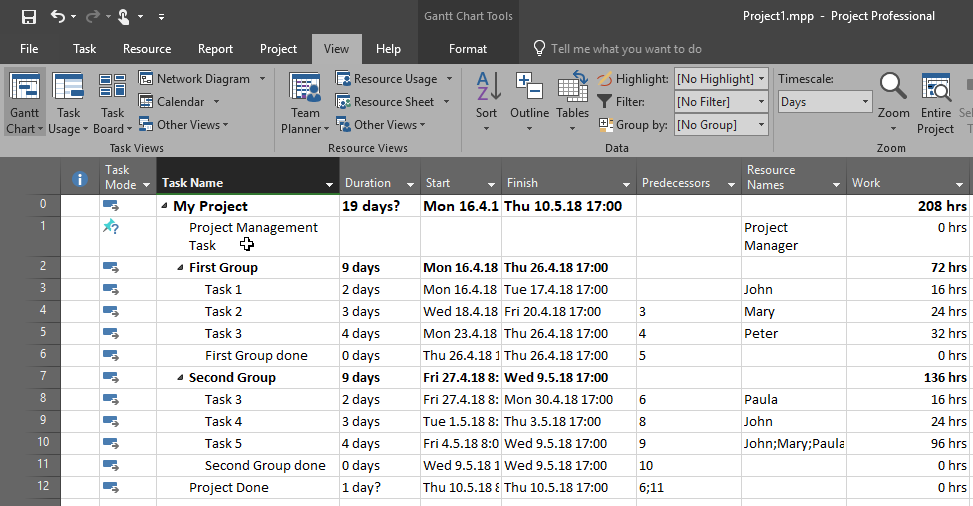
Let me show you a simple Project:

image

As you can see I put this Task in MS PROJECT 2016. This Task is Manually Scheduled, without Start Date, End Date and Duration, because I really do not know when it will be ended. Only thing I know that I know is that it should be done not latter than the whole Project is done, but since Project plan is never fixed this Project Finish Date will be changed in the future, so I didn’t put it in Project management Task.

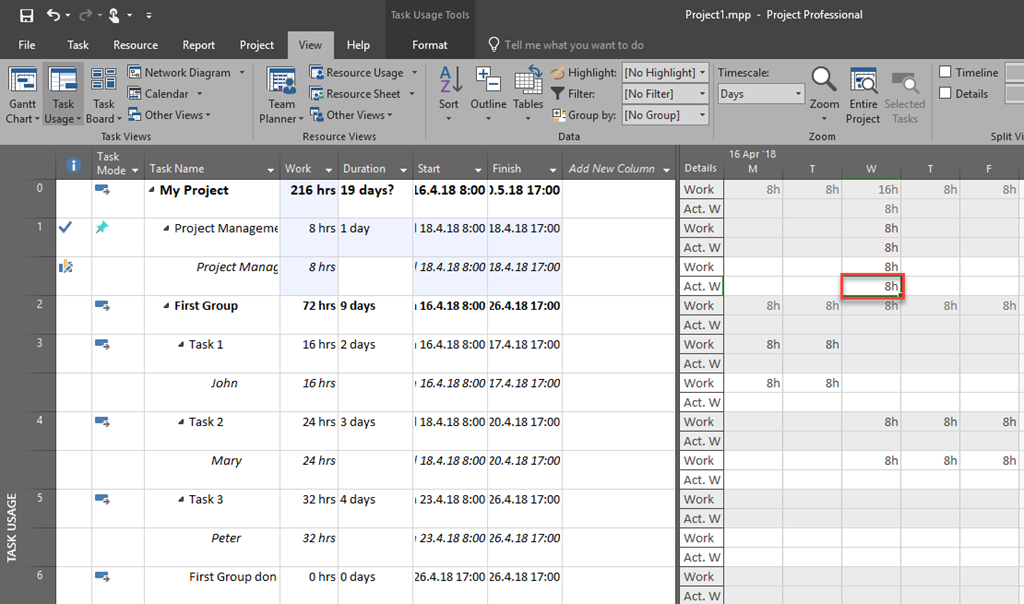
OK! Now Let’s say that I worked on this Task 4 hours at Wednesday, April 2018. I will use Task Usage view and I will put this 8 hours like this:

image

this is just an example of how do I handle Project Management Task. Once again, This Task can not be predicted or planned because Project manager will work on it in unexpected situations and unexpected time!

Best regards!

Posted in MS PROJECT 2016, PMI, PRoject Management | Tagged | Leave a comment

Salesman, Company Owner and Project Manager

737719f06f09eb999a0f7847bfa1a5fa9ded1506abf621f59bad0eecb64d6737

Hi,

I’ve got complaints that I didn’t have any pictures in my previous post. So I will put one from now on. But remember that this post is not about MS PROJECT, it is about Project Management, and there is be no pictures, or graphs. Only text about my experience.

Today I will tell you what problems are Project Managers facing with Salesman and Company Owner!

Salesman has one task, and one task only. To sell! They will have bonus from each sell or if they reach they target at the end of the year, or the end of the month. If they do not reach their target they will be fired. As simple as that.

Company Owner has one main concern! Company growing. It means that he is concerned about revenue, about costs, and about margins.

Project Manager has one task. To Manage Project in the way that it can be successful.  That mean that he should have enough time, and enough resources, and money to fulfill all Tasks. And those Tasks should be clarified upfront if we are talking about Fixed Price contract.

Now, Salesman does not care if something is real or not. In most cases he simple does not! He want to sell the Project as soon as possible for the highest price. And that means that he does not have enough time or patient to gather all the information from the Client, future Project Manager, and Project Team. And that is why is scope almost always unclear. And, I face it all the time, if Customer want something to be done at certain time period, Salesman will promise that. But this is not all! If he knows that he can sell, for example 2.000 hours, and for fulfilling the Project, Teams need, for example, 3.000 hours, he will still sell those 2.000 hours, no matter what Project Manager or Team thinks. Why? Because, after he finish the selling process, he is “good guy”, and when trouble surface because of lack of time, PM is always here to be blamed.

On the other hand, Company Owner want’s to have great margin, which means that he wants that Project finish as soon as possible with lowest costs. And yes, he wants that, for example, one developer work on multiple Projects at the same time, so the costs are low.

Project Manager very often get a Project to Manage, when the deal is done, e.g. Contract is signed. And then he or she is responsible to fulfill all demands which are in contract. BUT! First he/she and the team has to make a, so called, deep analysis. I found myself, almost always in a situation like this. Salesman or/and Company Owners say: “We do not have time to make deep analysis, because we have to sign the contract ASAP! After it will be signed we will have time to make deep analysis” BUT! Even if you, as a Project Manager, have opportunity to make this deep analysis, the question is: “What will you have as a result of this analysis?”. And the answer is: “You will find out that you need more things to do then it was in a contract, you need more time, more people, and more money!” And you will not get it! At least you will get some of this but not all of these. And you are responsible for Project success.

Let’s face it! There is no standard, or procedure, or tool, which can solve this situation!

That is what Project Managers are facing all the time. No matter how much experience do they have. And that is real life.


Posted in PRoject Management | Tagged , | Leave a comment

“Real” daily work on Tasks in MS PROJECT 2016!

Hello,

today I’m going to deal whit one significant question which basically has many answers, or none. How many hours to assign to Resource per day?

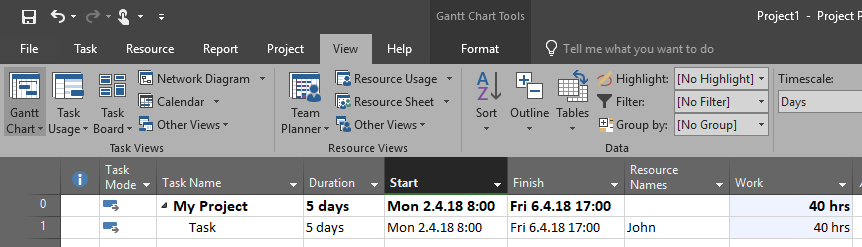
Let me show you one very, very simple example. Let’s say that we have a simple Project with one Task, 5 days duration in MS PROJECT 2016:

image

OK! Task has to have Resource (or Resources), to work on it, to finish it. If I assign John to this Task, and John is 100% available, and he is working 8 hours per day, I will get:

image

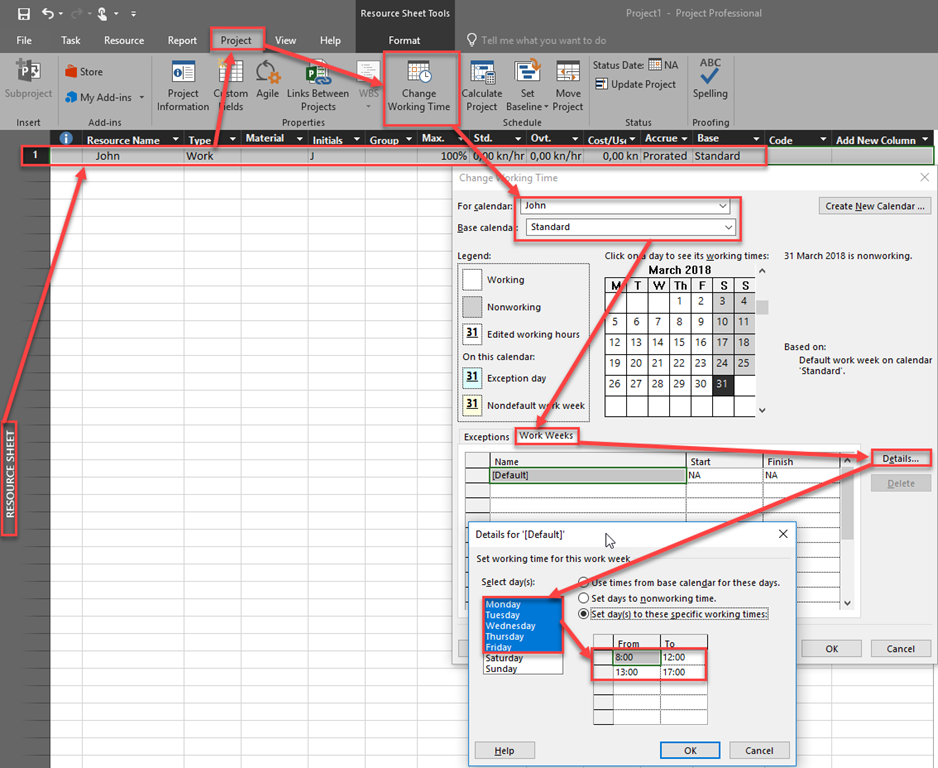
Let’s take a look at John’s working time:

image

As you can see, John is supposed to work from 08:00 AM to Noon, then he has a break (1 hour), and then he is supposed to work from 1:00 PM to 5:00 PM, e.g. he is supposed to work 8 hours per day.

Let’s face it! No one will work all the time. During your work each and every day, you have to go to the rest room, you will grab a cup of coffee or tea, you will make few phone calls, you will be interrupted from your coworker, boss, name it!

What is best thing to do? Well, there is no magic answer on that question. I will show you what I do, but this does not mean that you should do it! First of all my Project is set up like this:

image

and:

image

As you can see my working day is 7 hours per day!

I also set up Standard Calendar, which I use like this:

image

Now I will create Task again and I will assign John and I will get:

image

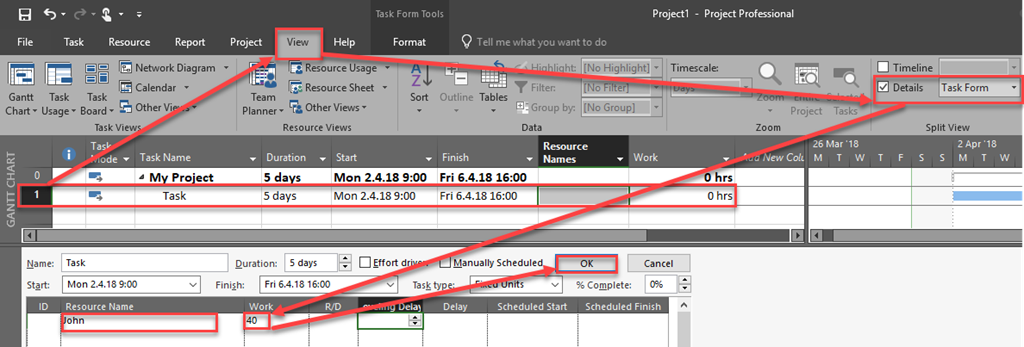
Is this what I wanted? Not at all. Now I’ve got that John will work 7 hours per day, and that it will be enough 35 hours in total for the Task. But! since I work with IT projects, I always estimate hours needed per Resource to accomplish the Task, and Duration is calculated. So, let’s say that for accomplishing the Task John has to work 40 hours in total. I will assign him like this:

SNAGHTML252d7f5e

and I will get:

image

As you can see, Duration is now 5,71 days, and john will work 7 hours per day from Monday to Friday, and the remaining work of 5 hours will be done next Monday. And Duration? It is 5 days (from Monday to Friday), and 5/7= 0,71 day!

Why I use this approach? Because it is most realistic. I know that john will work 7 hours max on a Project per day! I know how many hours do I need for the Task. And Duration is calculated!

But what if Task has fixed duration, for example 5 days, and still 40 hours are needed for this Task:

image

I will get:

image

I this case John is overallocated, which is perfectly logical.

So, you should choose your own approach to deal with this “problem”. Every one is good one if it suits you.

Regards!

Posted in MS PROJECT 2016, PMI, PRoject Management | Tagged , , | Leave a comment

Project management Task and Administrative work in MS PROJECT 2016

Hi,

my blog reader has a question about Project management Task, and administrative work, and how to handle it in MS PROJECT 2016?

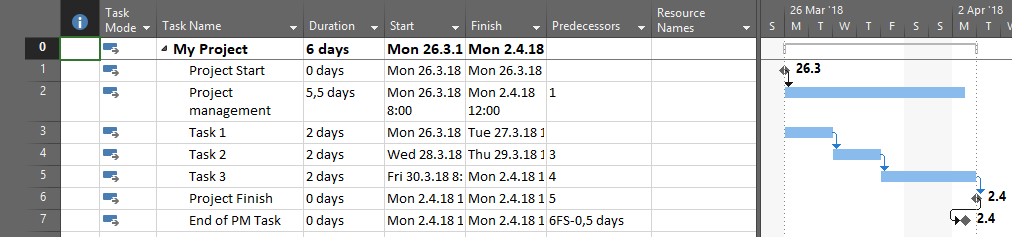
Here is Scenario. This is Project Schedule:

image

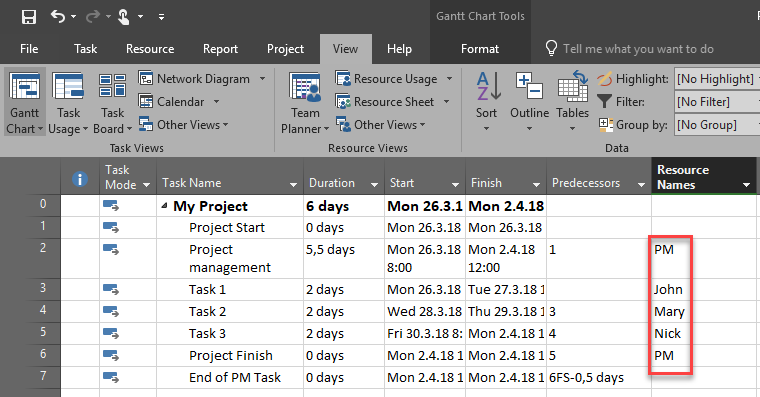
First of all, I will advice not to use Project Start as a Task (Milestone), because I Project management Task should start at Project Start it will at that date without this milestone. As you can see we have Project management Task which is 5,5 days, and End of PM Task which is connected to the last Task of the Project, and it has 0,5 days of led time, just to finish at the end of the Project.

I often hear complains about MS PROJECT in a way that you cannot create one single Task which will dynamically increase or decrease it’s Duration according to the Project start and end date. for example I want to have a Project management Task which duration will be same as it is Project duration. And yes, this is true.

In this example it was estimated that PM Task will be 5,5 days. Now, my blog reader has assigned resources to Tasks like this:

image

The questions are: “Now if John, Mary or Nick performs any administrative work that I want to record to Project Management task, how should I do that? If I assign John, for example to that task he becomes to be displayed as over allocated. After all the resources that can work on LOE task are properly assigned, how to record progress for all of them on that task?”

To answer to those question I will show no more screenshots, but I will explain this case briefly.

If John is assigned to Task 1 with 100%, as he is in my example, and if I want to assign him to Project management task as well for 10% (this is just an example), and his maximum capacity is 100% he will become over allocated. And this is correct. Why? Because, if you exceed maximum capacity for resource this resource should be marked as over allocated, because IT IS OVERALLOCATED! As simple as that. On the other hand you can put maximum capacity for John 110%, and in that case John will not be over allocated. But be aware of this: John will never, ever be over allocated if it has to work, for example 110% on any single or multiple Tasks, no matter if those Task are “regular” or “PM”!

Now the answer on the second question: “How to record progress for all of them on that Task?” the answer is simple and straightforward: “As you will handle progress on any other Task which has multiple resources assigned on it!”

To conclude, sometimes you r Resources will be and should be over allocated. Just another simple example. If you have meeting every single day, and this meeting should be 5 minutes per day, will you have a real, I mean REAL problem if this resource will be over allocated for 5 minutes? I don’t think so.

Regards!
Posted in MS PROJECT 2016, PMI, PRoject Management | Tagged , , , | 1 Comment

Fixed work Task Type with limited Resource availability in MS PROJECT 2016!

Hi,

my Blog reader run into problem with limited Resource availability. I will show the scenario and explain it with MS PROJECT 2016.

I will create simple Project with one Task, 4 day duration, and I will assign John to it:

image

Now I will make this Task as fixed Work, because I want to reduce Duration when I assign another Resource to it:

SNAGHTML5ea8b07b

Now I will make this Task as 25% completed, and it means that John has worked one day on it:

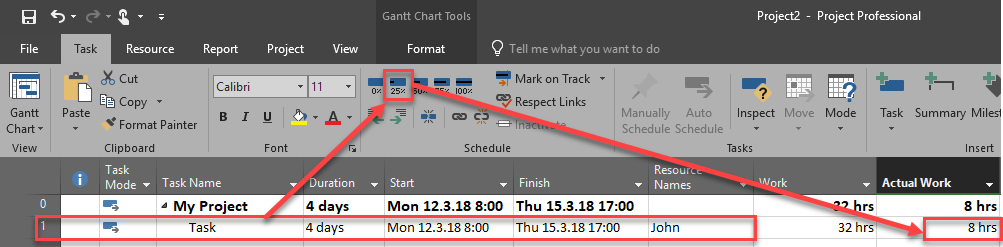
SNAGHTML5eab3495

No I will assign Mary to the Task, but she is supposed to work only at Tuesday and Wednesday. My Blog reader did this:

SNAGHTML5eae4715

The Result is:

image

Since he put Wednesday, 14.03.2018. as finished day, Mary became over allocated. Why? Because Mary is supposed to work at Tuesday (because John is finish his work at Monday, and after that he has assigned Mary to the Task), and Wednesday. Remaining work for John was 24 hours (total work was 4 days * 8 hours per day = 32 hours – 8 hours done at Monday = 24 hours), and Mary will work at Tuesday and Wednesday 12 hours per day. To avoid that, he should follow this step:

image

and he will get:

image

But this is also NOT what my Blog Reader expects. He expects:

  1. Task 1 actual duration is 1 day,  remaining duration is 3 days, actual work is 8hrs and remaining work is 32h- 8h = 24h – OK
  2. So the amount of total remaining work that falls on Tuesday and Wednesday is 24 h- 8h = 16 hrs to be shares between two resources. – NOT OK
    So John’s  work for Tue and Wed:  = 8hrsNOT OK
  3. Mary’s work for these two days is the same – 8hrs – NOT OK
    John also works alone on Thursday which is 1 day.  – NOT OK
  4. So the remaining duration should be a sum of two durations: Duration 1 – when John and Mary work together (Tue and Wed), and Duration 2- when John worked alone on Thursday: Total remaining duration = 1d +1 d = 2days – NOT OK
  5. So total remaining task duration is  2 days and the total task duration is  actual duration + total remaining duration = 1d + 2d = 3 days NOT OK

I will not explain why those things are not OK, but I will rather explain how MS PROJECT really works:

  1. First we had a Task with 4 days Duration – fixed work, and John assigned to it. It makes TOTAL WORK to be done 4 days * 8 hours per day = 32 hours
  2. Then we put 25% complete, which means that Actual work is 8 hours (1 day), and remaining work is 32 – 8 = 24 hours. So far, so good
  3. Then we assign Mary to the Task. Now we have John and Mary available to split those 24 hours among them
  4. John and Mary will work 8 hours each at Tuesday, e.g 16 hours together. Now, 24 hours – 16 hours = 8 hours left for Wednesday.
  5. John and Mary are going to split those 8 hours at Wednesday among them, so each of them will work 4 hours at Wednesday:

SNAGHTML5ec419a1

And now – Duration:

  1. John has worked alone at Monday (Mary wasn’t assigned to the Task). This is 1 day
  2. John and Mary are working full time at Tuesday. This is 1 day
  3. John and Mary will work half a day at Wednesday. This is 0,5 day
  4. Total is: 1+1+0,5=2,5 days

This is how MS PROJECT works.

Hope this helps!

Regards.

Posted in MS PROJECT 2016, PMI, PRoject Management | Tagged , | Leave a comment