Project Web App Permissions in MS PROJECT SERVER 2010

Hi,

I am starting with Permissions in MS PROJECT SERVER 2010. There are various types of Permissions in MS PROJECT SERVER 2010!

Project Web App Permissions – Those are high level permissions. If you exclude (disable) any permission from here, no one can do anything with that from anywhere. For example, if you uncheck Clean up Project Server Database, no one will be able to delete any Enterprise object from anywhere. If you include (enable) any permission the user will be granted to that permission if this permission belongs to the group where user belongs

To get Web App Permissions I will log on to PWA (Project Webb Access) with Administrators privileges and I will choose:

image

I will get:

image

This is only a part of all permissions! I suggest that you keep all Permissions ON here (which are default) and then disable any of them in Category Permission, which I will cover in my next posts! You should disable permission only if you are 100% sure that you will not need it anywhere! I will not cover what each of these permissions means, because it will take me a lot of space, and by the way, you can find it on the Microsoft TechNet sites, and in the book I have recommended to you in my previous post!

I will show you what happens if I, for example, disable the New Project permission.

First I will show you how can I access this feature (Open Project) through PWA, with Project Manager account. The very first screen, after I log on is:

image

I will click on the Project Center, and I will get:
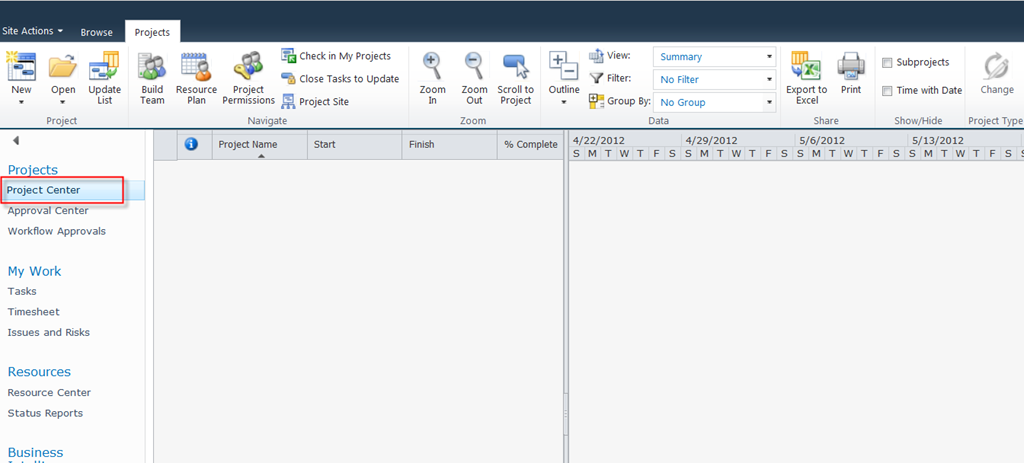
image

As you can see I can open a new Project:
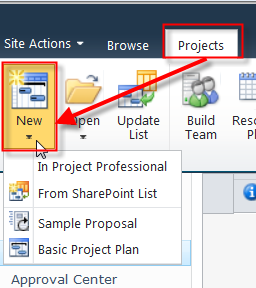
image

Now, I am going to use my Administrator’s account and I am going to disable the New Project permission:
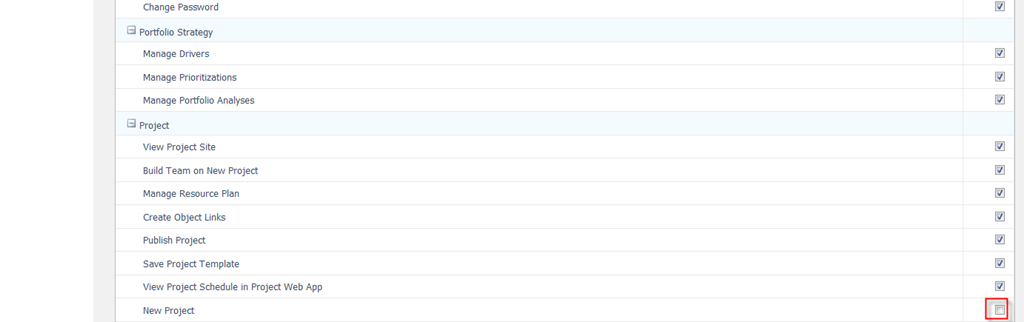
image

Now, I am going to try to make a New Project:
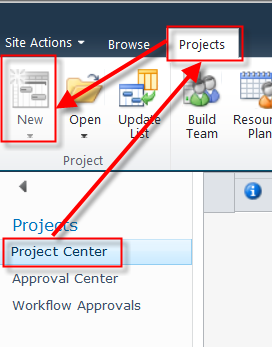
image

As you can see, it is DISABLED!

For the end of this Post I must say that managing permissions in MS PROJECT SERVER 2010 is very complicated, but if you have define the Plan you can save a lot of time and trouble. In my next post I will talk abut groups and categories!

Regards,

Posted in MICROSOFT PROJECT, Microsoft PRoject 2010, Microsoft Project Server 2010, MS PROJECT 2010, PMI, PRoject Management | Tagged , , , , | 3 Comments

How to successfully implement MS PROJECT SERVER 2010 in your Company

Hi,

from now on, I will write about MS PROJECT SERVER 2010! I will not write about Project Server Installation, but about “how to use it” with and without MS PROJECT 2010 Professional! Before you start to use it you must ask yourself three major questions:

  1. What can PROJECT SERVER 2010 do?
  2. What do I need from PROJECT SERVER 2010?
  3. Where are the differences between what it can do, and what do I need?

Answer on the third question will lead you to the FIT-GAP analysis, and that means that you will have document which can you use for customize PROJEC SERVER 2010, BEFORE YOU WILL USE IT!

Do not get me wrong, I strongly recommend MS PROJECT SERVER 2010, and I do not want to discourage you, but customizing and implementing MS PROJECT SERVER 2010 is complicated! Why?

First of all, it has a lot of possibilities! Second, you want to know what you want from it. Consider implementing MS PROJECT SERVER in your company as a huge Project. You should get a buy in for it. Users must see the benefit which they will get for the effort spent on that Project. As every Project, Implementing MS PROJECT 2010 must have:

  • Goals
  • Objectives
  • Scope
  • Risks
  • Budget
  • Project  Plan
  • Stakeholders expectations
  • and much more

You can use MS PROJECT SERVER 2010 for:

  • Managing simple or complex projects
  • Managing Programs (a set of Related Projects)
  • Managing Portfolio ( a set of Unrelated Projects or Programs)
  • Portfolio Analysis
  • and much more

After you have a CLEAR UNBIASED goals, you must SET UP your Project Server 2010!

Here is the picture of Project Server Settings page:

image

I will just mention some settings, because I will explain them in my next Posts:

  1. Security – Here you will set up Users, Groups, Categories and so on! Of course, you must know what you want before you star with these setting
  2. Enterprise Data – Here you will setup custom fields, Lookup tables, Calendars etc. which you can use for all of your projects, some of them, through all Departments or some of them
  3. Manage Views – Here you will manage your views, add new Views, etc.
  4. Time and Task Management – Here you are setting up how do you want to capture working and nonworking time needed for statutory time recording and progress updates to project managers, and much more

OK! you’ve get the point. From my next Post I am starting with “USING” MS PROJECT SERVER 2010!

Regards,
Posted in MICROSOFT PROJECT, Microsoft Project Server 2010, MS PROJECT 2010, PMI | Tagged , , , , , | 8 Comments

Microsoft Project Server 2010–what are we talking about?


Hi,

in this post I will try to explain how I see Microsoft Project Server 2010.

What is Microsoft Project Server 2010? It is huge, I mean HUGE application which can be used for:

  • Project Management
  • Program Management
  • Portfolio Management
  • Decision Making
  • Tracking
  • Reporting
  • BI
  • and many, many more

In many articles from Microsoft you can read that Microsoft Project Server is in marriage. Well, I do not agree with that. Why? Because when you are in marriage you can always divorce, but you can not split MS PROJECT SERVER 2010 and Microsoft SharePoint.

Microsoft Project Server is SharePoint Application, with a lot of possibilities.

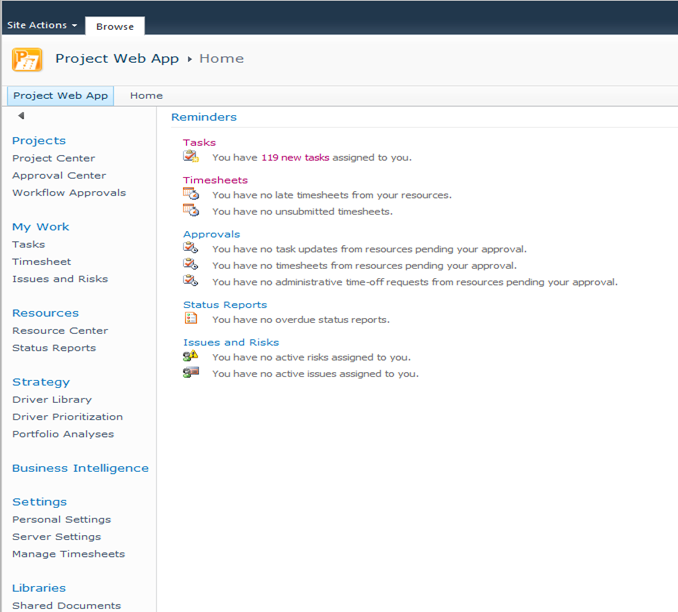
When you open MS PROJECT SERVER 2010 you will get:

image

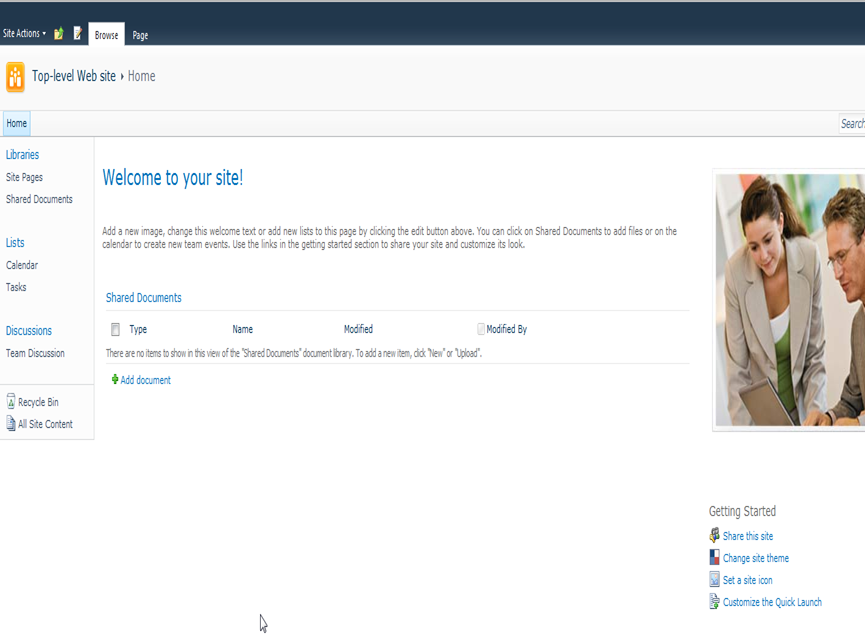
and when you open SharePoint you will get:

image

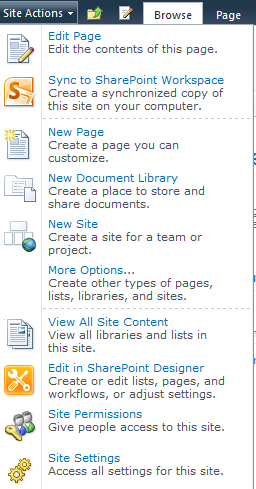
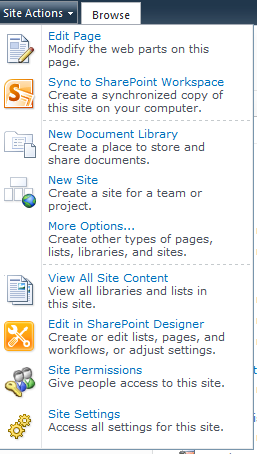
When you click on the Site Actions on the top left corner on the SharePoint and Project Server you will get:

imageimage


Left picture is from SharePoint, and right from Project Server.

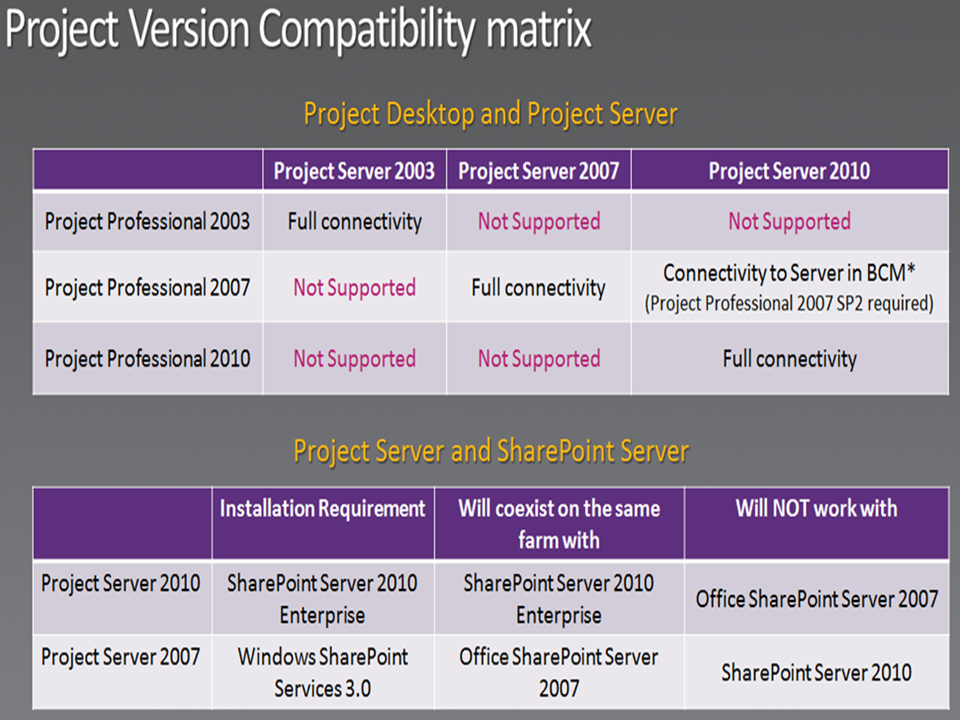
Because those two are so tight together, I will show you the “compatibility” Picture :

image


This is picture from my SharePoint MVP buddy, Adis Jugo. Thank you Adis!

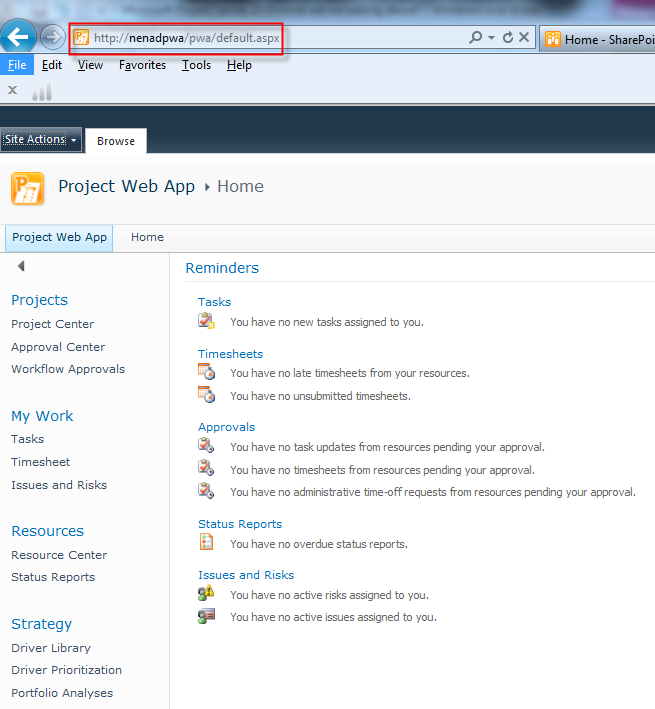
I have my own instance of Project Server. It looks like this:

image

You can notice web address http://nenadpwa/pwa/default.aspx

If I run http://nenadpwa/default.aspx I will get:

image

I think that you are aware now that Project Server 2010 is SharePoint.

When you have MS PROJECT SERVER 2010, do you need MS PROJECT 2010 Professional any more? YES! You will need it a LOT! Some functionalities are supported only through MS PROJECT Professional 2010, and not through MS PROJECT SERVER 2010!

Because MS PROJECT SERVER 2010 is so huge, the main question is how to implement it? I will try to explain that in ma next Post.

What I strongly suggest is: READ THE BOOKS! You can find a lot of very useful information on the Web, Forums, Blogs, etc, but if you want to get a big knowledge very quick you should have those two books (BIBLES):

9781934240243

and:

9781934240113

you can find them here:

http://projectserverbooks.com/books/index.aspx

I met Gary back in February in Redmond, and this guy know what is he writing about. Whit those two books you will save months, and you can quick deep dive into MS PROJECT SERVER 2010!

Regards,
Posted in MICROSOFT PROJECT, Microsoft PRoject 2010, Microsoft Project Server 2010, Microsoft SharePoint, MS PROJECT 2010, PRoject Management | Tagged , , | 1 Comment

Resource pool and Subprojects in MS PROJECT 2010


Hi,

I will show how can you use Resource Pool with Subprojects in MS PROJECT 2010.

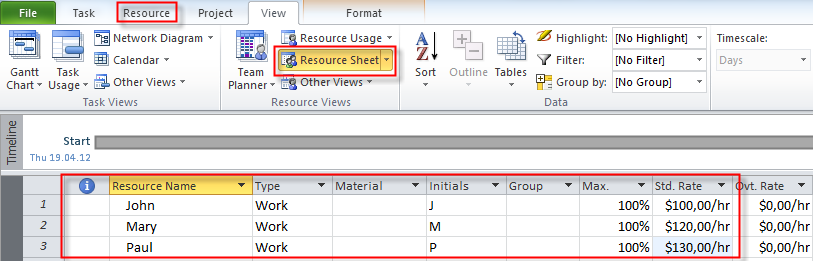
First I am going to make a resource pool:

image

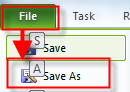
I will save this Resource pool:

image

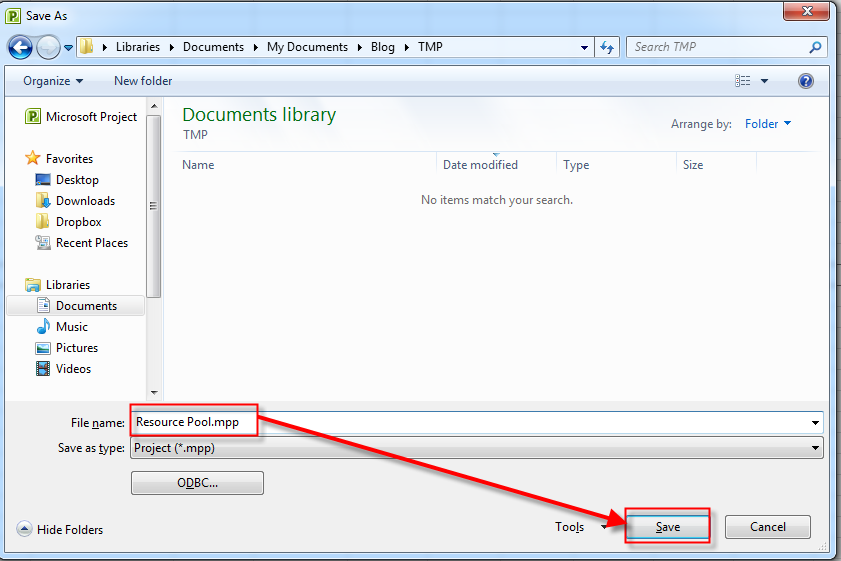
and:

image

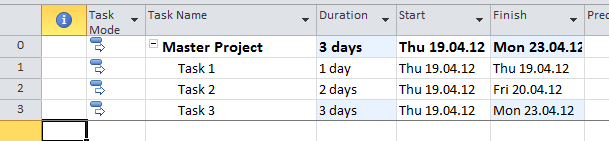
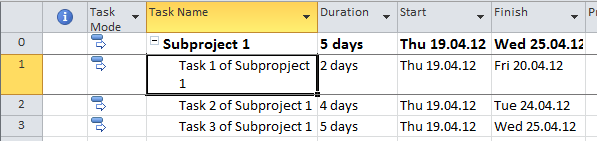
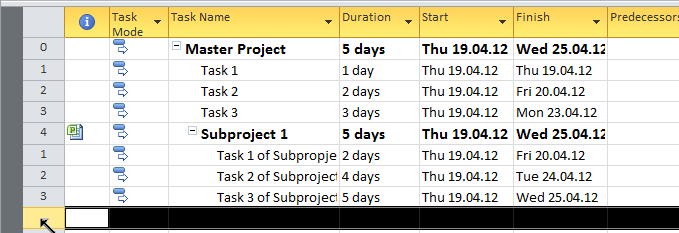
I am going to create one Master Project and two Subprojects.

Master Project looks like this:

image

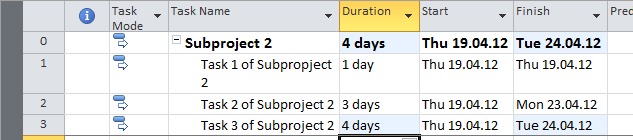
Subprojects are:

image

and:

image

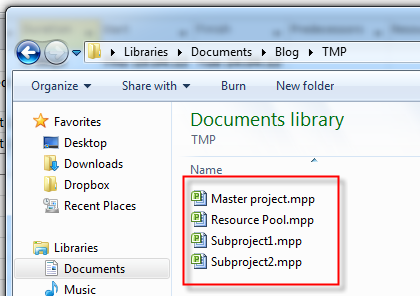
I will save all my Projects and I have:

image

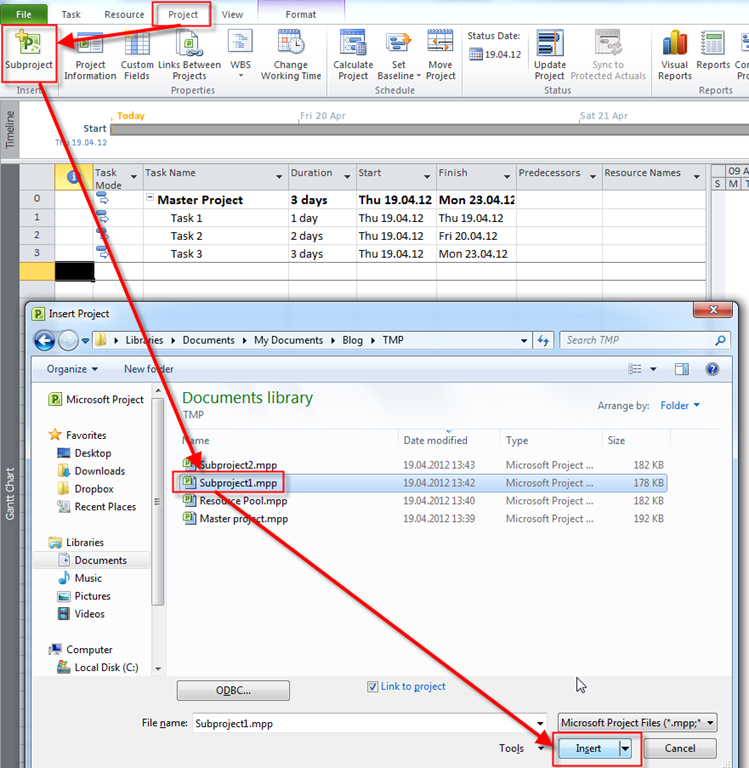
I will open them all and I will add subprojects to my Master Project:

image

and I will get:

image

After I add the Second Project as a Subproject I will have:

image

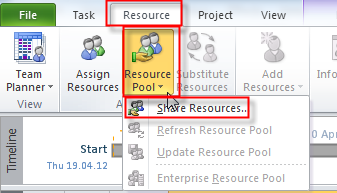
Now I will assign Resource Pool:

image

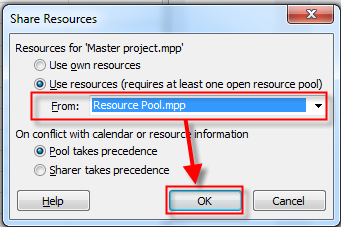
and then:

image

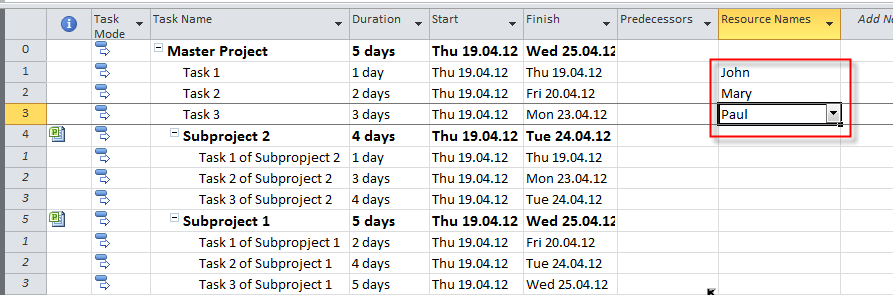
Now I will assign Resource to the Tasks of Master Project:

image

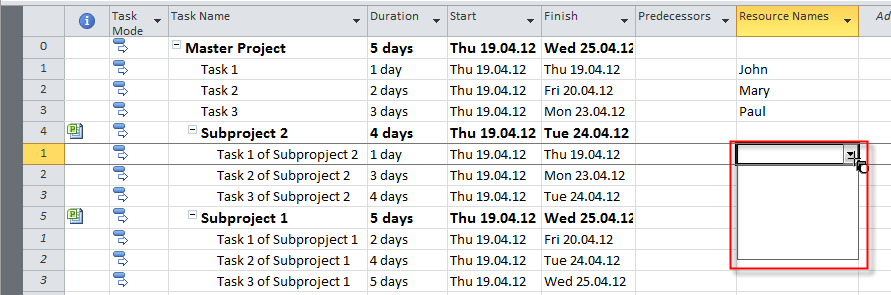
Now I will try to assign Resource to the Subproject Tasks:

image

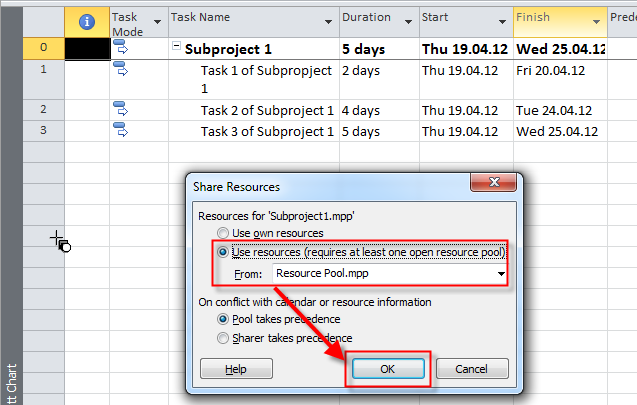
As you can see there are no Resources for that Tasks. If you want to share resource from the same Resource pool in the Subproject Tasks you should assign the Same Resource pool in the Project (subproject):

image

You should repeat that process for every Subproject.

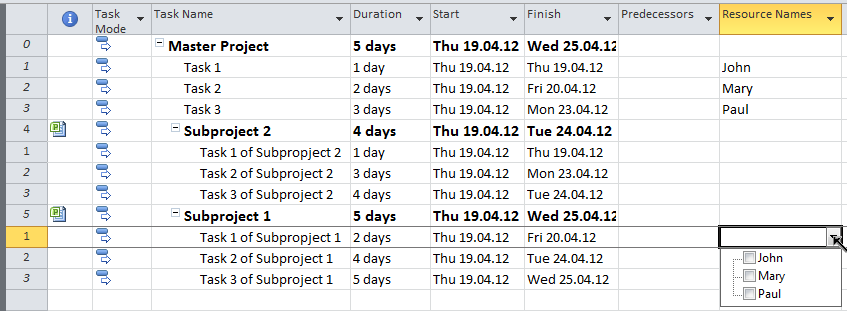
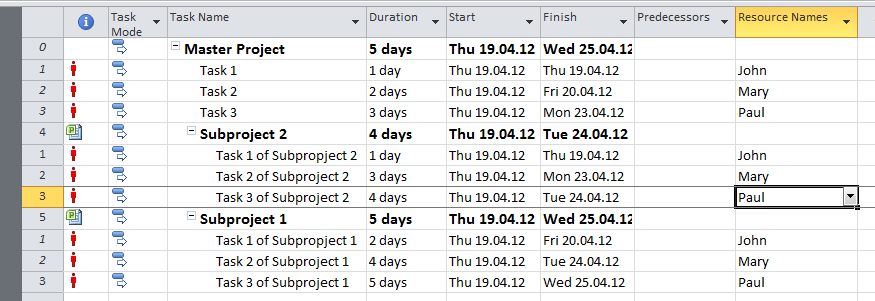
Now if I want to assign Resource to my Subproject Tasks, I can:

image

and I will get:

image

Notice that Resources are Over allocated!

It was easy, isn’t it?


Regards

Posted in MICROSOFT PROJECT, Microsoft PRoject 2010, MS PROJECT 2010, PMI, PRoject Management | Tagged , , , | 9 Comments

How to Adjust Reports in MS PROJECT 2010?


Hi,

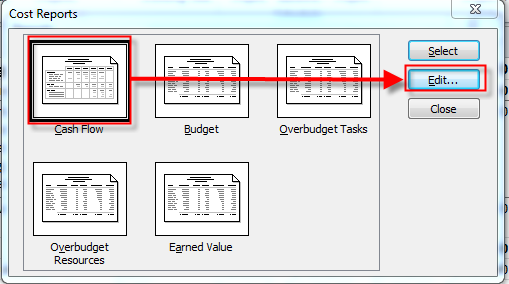
I will adjust one Report for my Wedding Project. I will adjust Cash Flow Report:

image

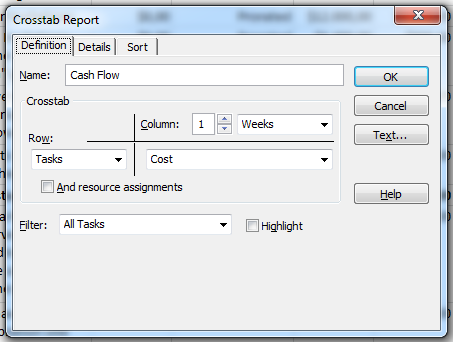
and then:

image

and I will get:

image

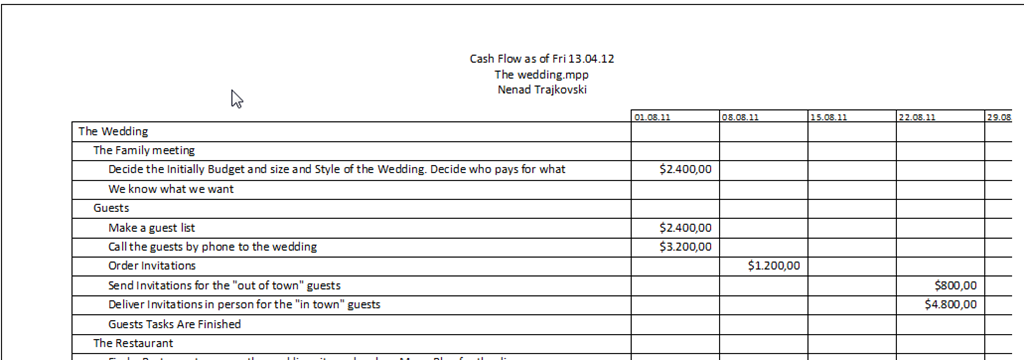
This is ORIGINAL Cash Flow Report.

I will change it:

image

and I will get:

image

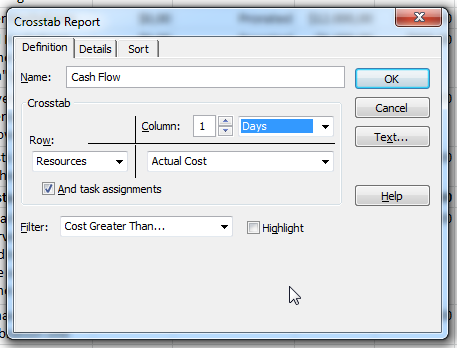
I will change that:

image

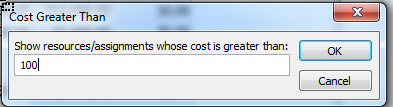
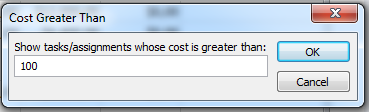
I want to have Cash Flow in Days instead of weeks, and I want to have Resources in my rows, instead of Tasks. In addition I want to see Actual Costs, and Task Assignments. Also, I want to have A Filter: Cost Greater Than, so I will choose when I run this report a Value!

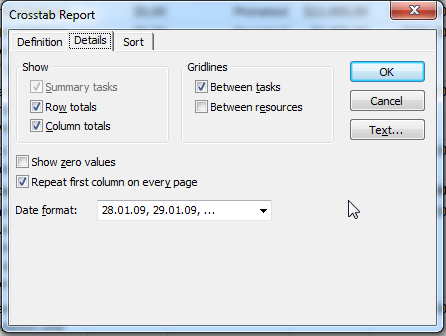
Let’s see Details Tab:

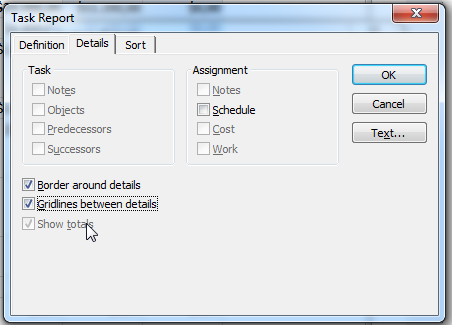
image

I will change that, too:

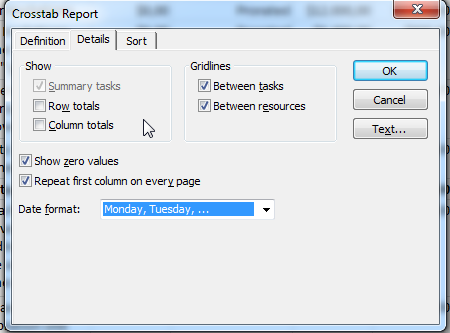
image

I don’t want to have Row and Column Totals, and I want Gridlines between Tasks and Resources. I also want to show zero values, and different Date Format.

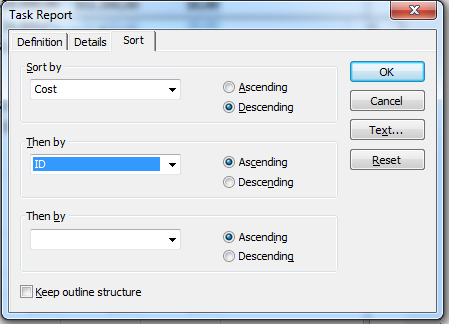
Let’s go to Sort Tab:

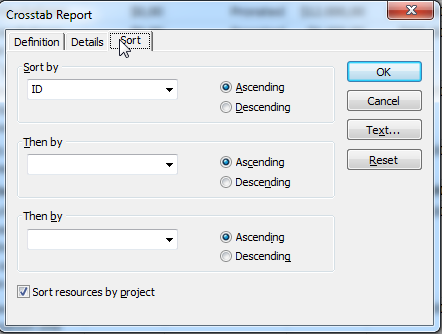
image

I will change the sort order:

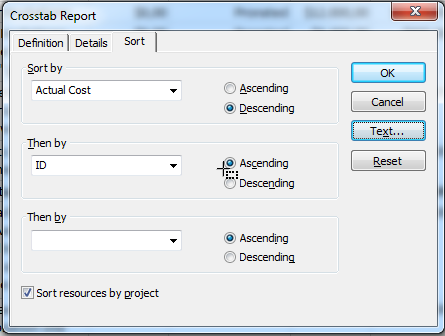
image

I want to sort my Report Ba Actual Cost Descending, and then by ID Ascending.

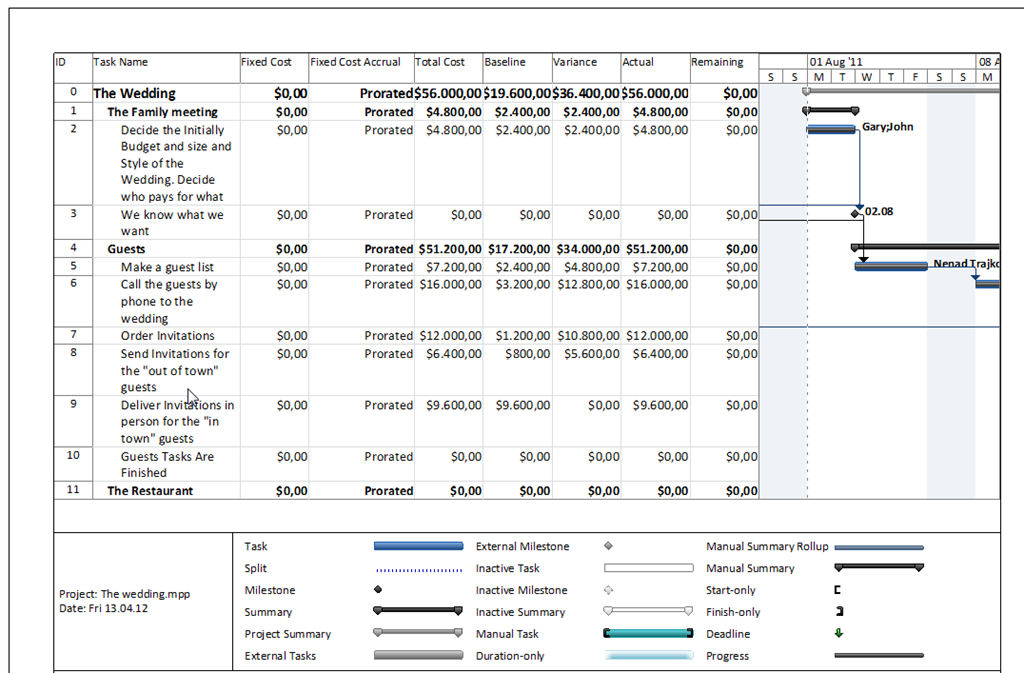
Finally, when I run this Report I get:

image

I choose to have only Actual costs greater than $100, and then I have:

image

It is easy, isn’t it.

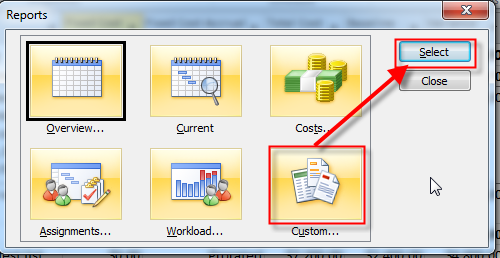
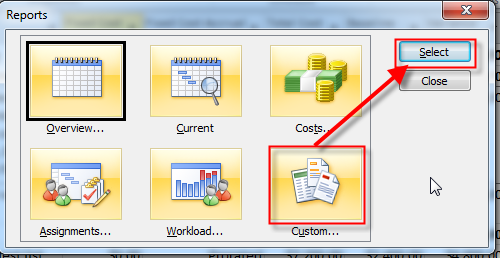
But what if I want to have my own Report? I will show The Budget Report from Custom group:

image

and then:

image

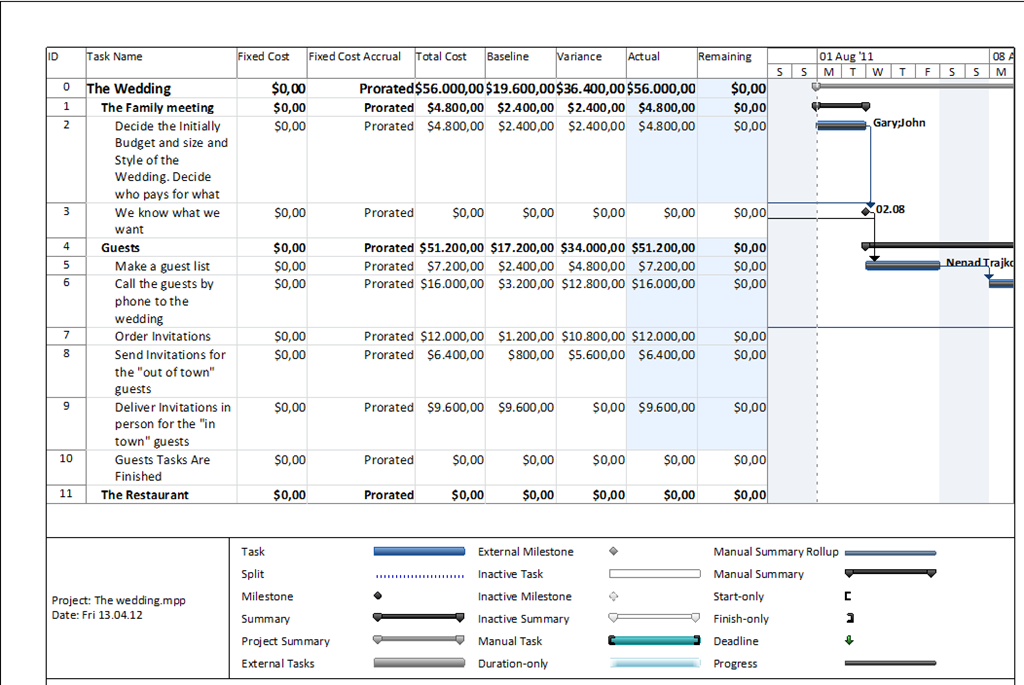
I will get:

image

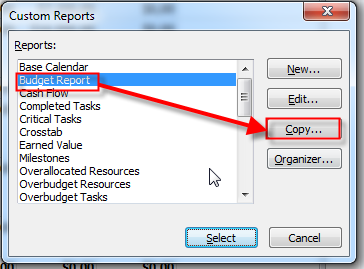
I will make a brand new Report from this one.

image

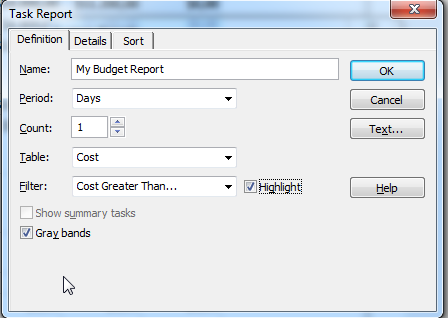
and then:

image

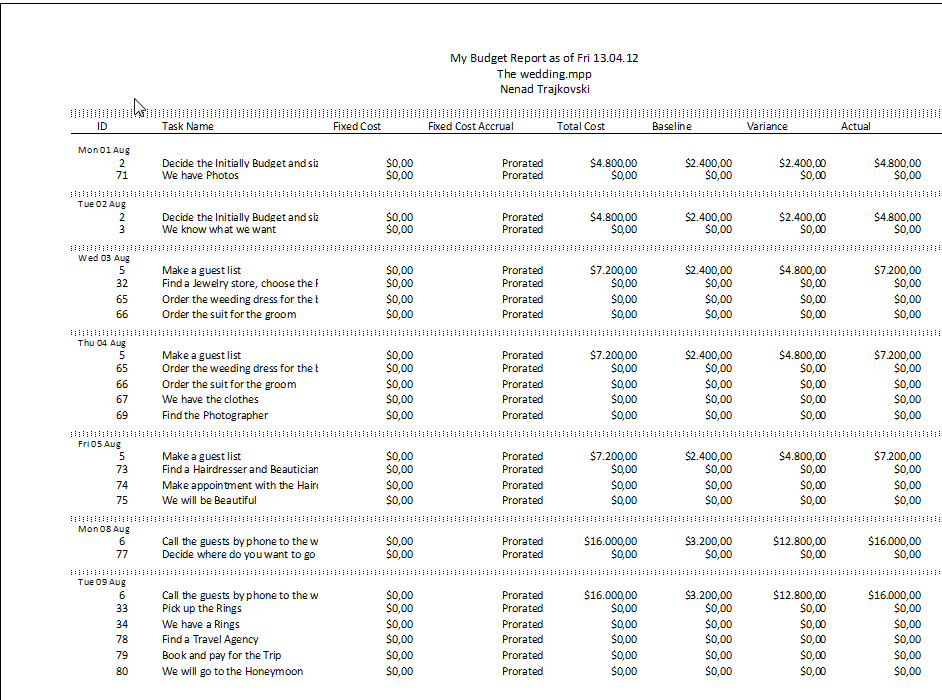
The name is My Budget Report, period is in days, and I want a Cost table!

Let’s see the Details Tab:

image

I will choose Borders around details, and Gridlines between details:

image

Finally, I am going to sort the data:

image

Let see how does this Report work:

image

Do you see the difference, between this and “original” report? You don’t??? Neither do I. This is a BUG! What can you do? Install Service Pack 1, and it will fix the Problem.

After that I will get:

image

and then:

image

It works!

Regards!

Posted in MICROSOFT PROJECT, Microsoft PRoject 2010, MS PROJECT 2010, PMI, PRoject Management | Tagged , , , , , | 4 Comments

Built in Reports in MS PROJECT 2010–Part 2


Hi,

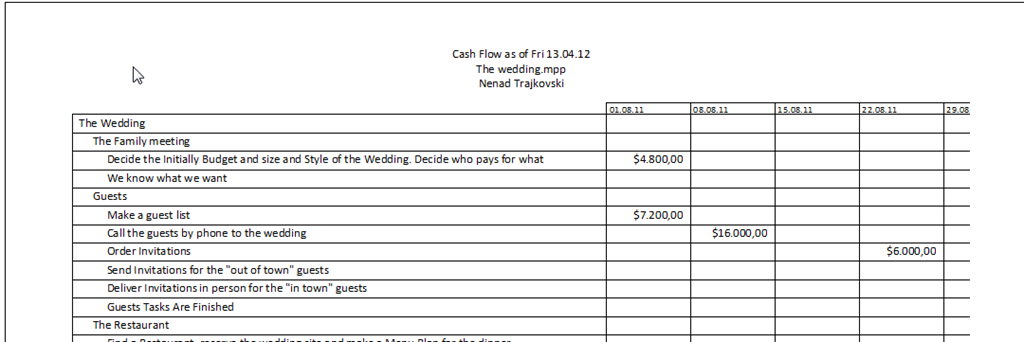
The third Reports Group is Costs. First report is Cash flow. It shows how much money do you need and when:

image

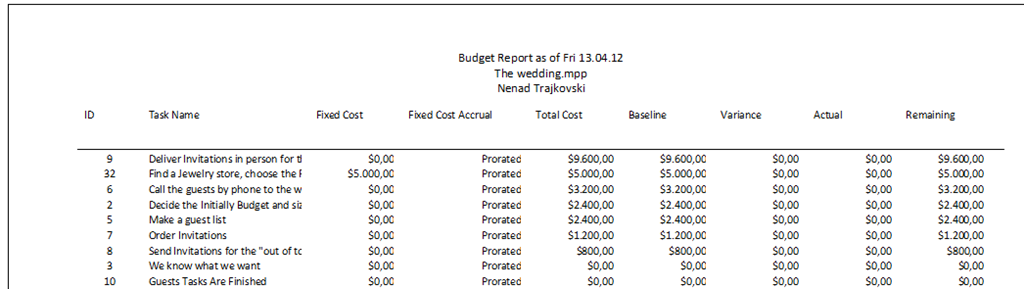
The second report is Budget. It shows all costs and Baselined costs with Variances:

image

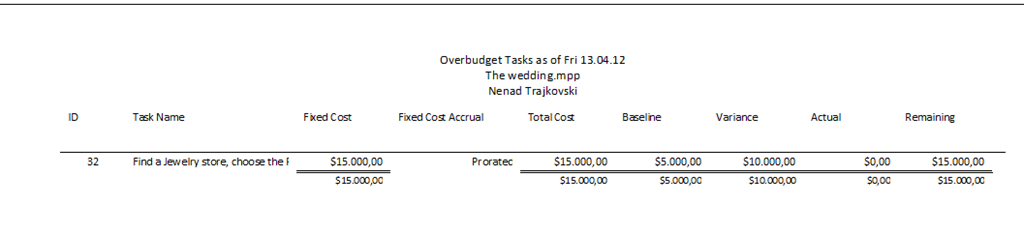
The third report is Over budgeted Tasks. It shows  tasks which have Budget (costs) greater than Baselined:


image

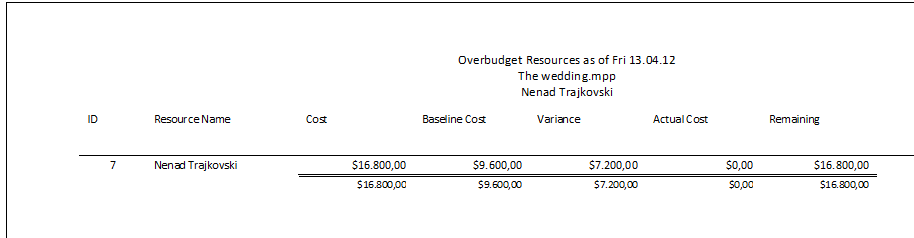
The fourth report is Over budgeted Resources. It shows Resourceswhich have Budget (costs) greater than Baselined:

image

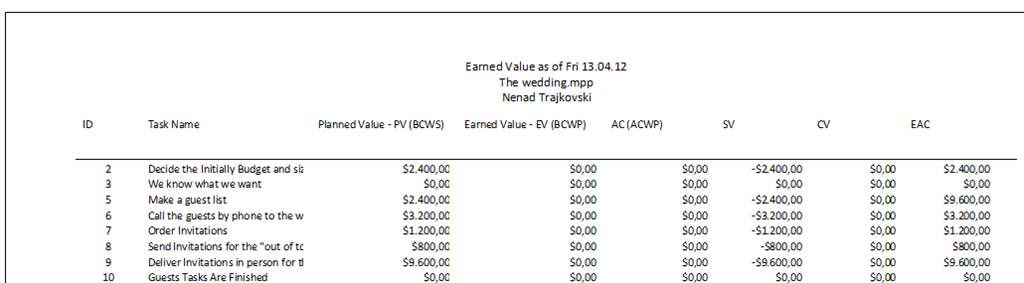
Last Report in this Section is Earn value (if you don’t know what is it, read my previous posts):

image

Next Report group in MS PROJECT 2010 is Assignments group.

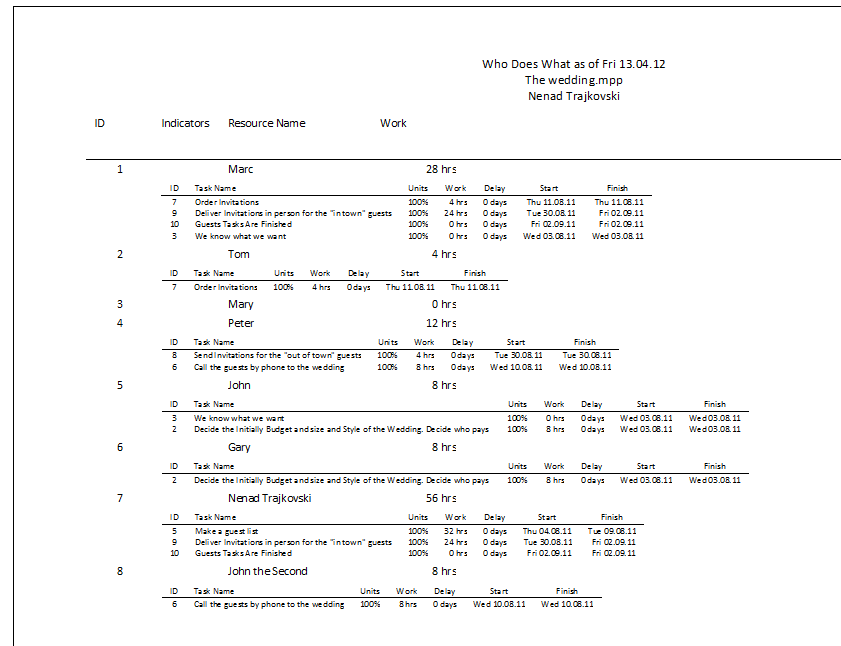
The first Report is Who does what:

image

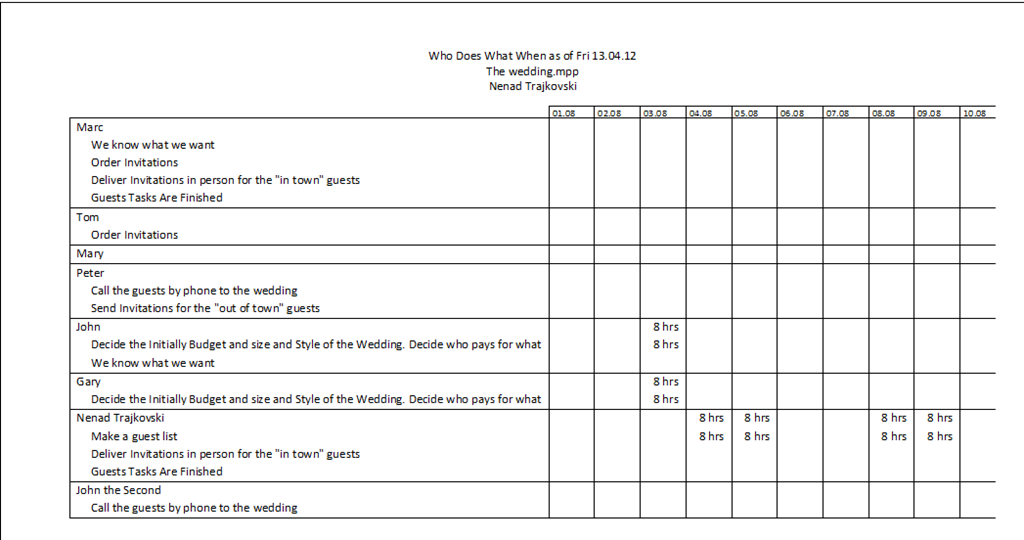
The second Report is Who does what when:

image

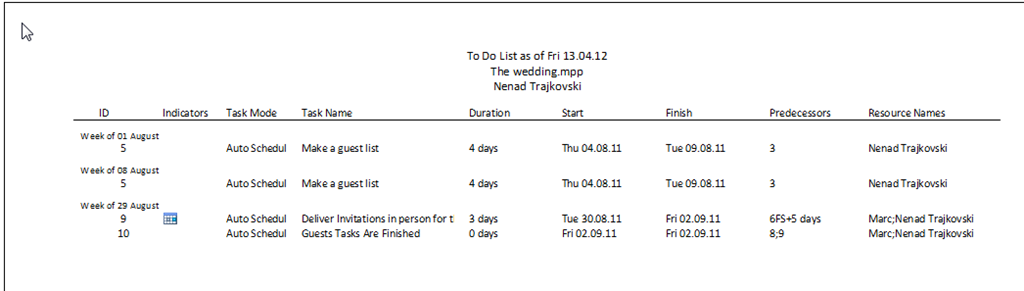
The third Report is To do list. You can choose particular Resource or have a report for all of your Resources:

image

and I will get:

image

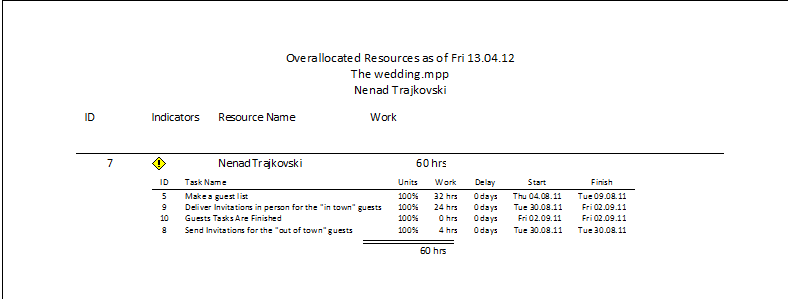
Last Report in this group is Overallocated Resources:

image

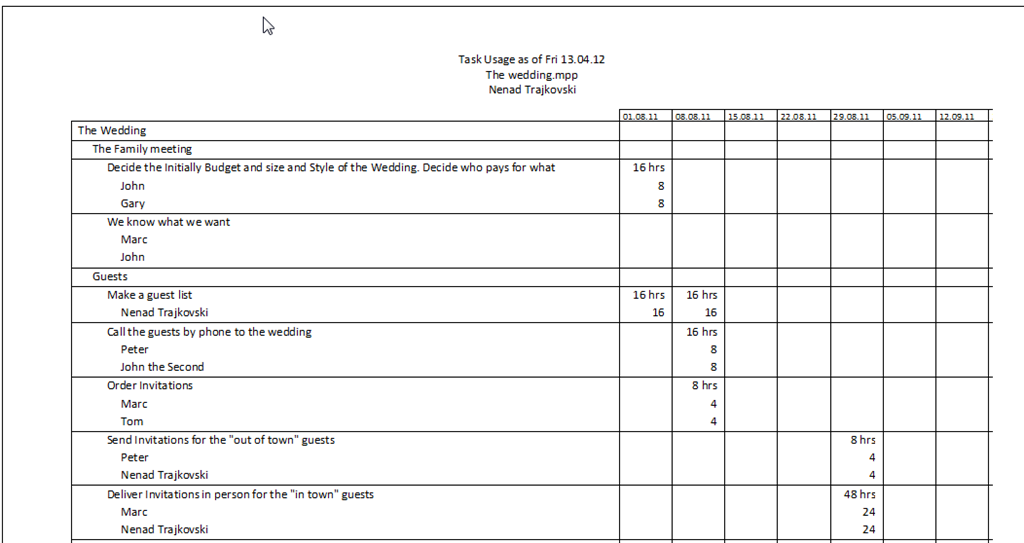
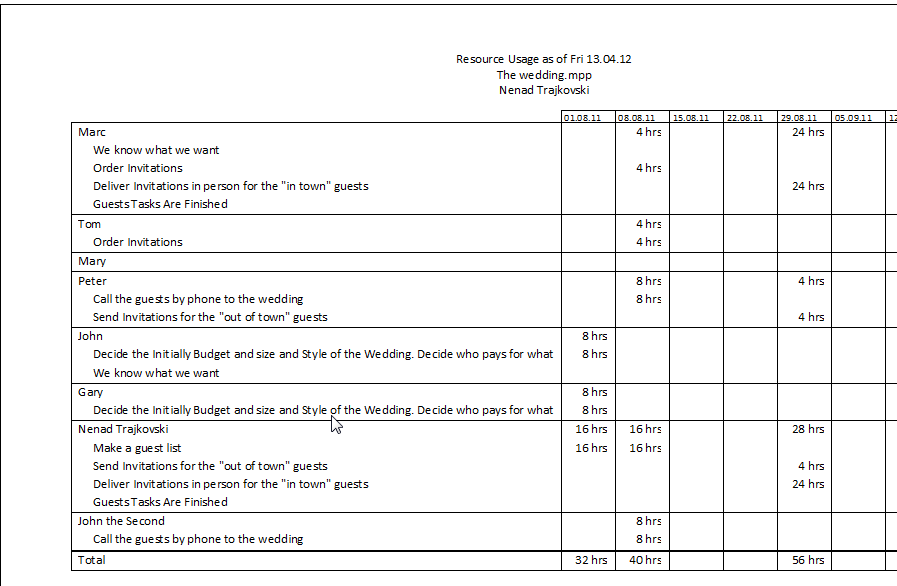
Another Report group in MS PROJECT 2010 is Workload. It has two Reports.

One is Task Usage Report:

image

and another is Resource Usage Report:

image

The Last Report group is Custom. It has a lot of reports, and I will not cover them in this Post:

image

In my next Post I will show how can you modify or Create a brand new Report!

Regards!

Posted in MICROSOFT PROJECT, Microsoft PRoject 2010, MS PROJECT 2010, PMI, PRoject Management | Tagged , , , , , | 8 Comments

Built in Reports in MS PROJECT 2010–Part 1


Hi,

I will show you what kind of reports you can use in MS PROJECT 2010.

I will use my Wedding Project:

image

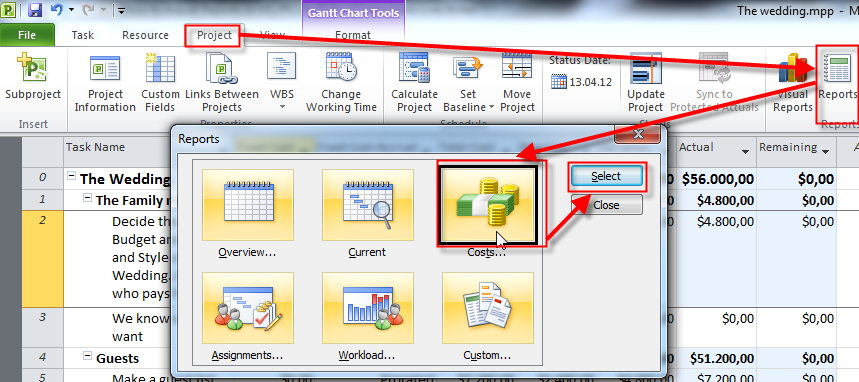
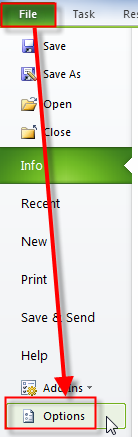
To get reports you must click here:

image

I will start with Overview group:

image

When I select Project Summary I get:

image

This report gives you Project Overview with some basic information about it.

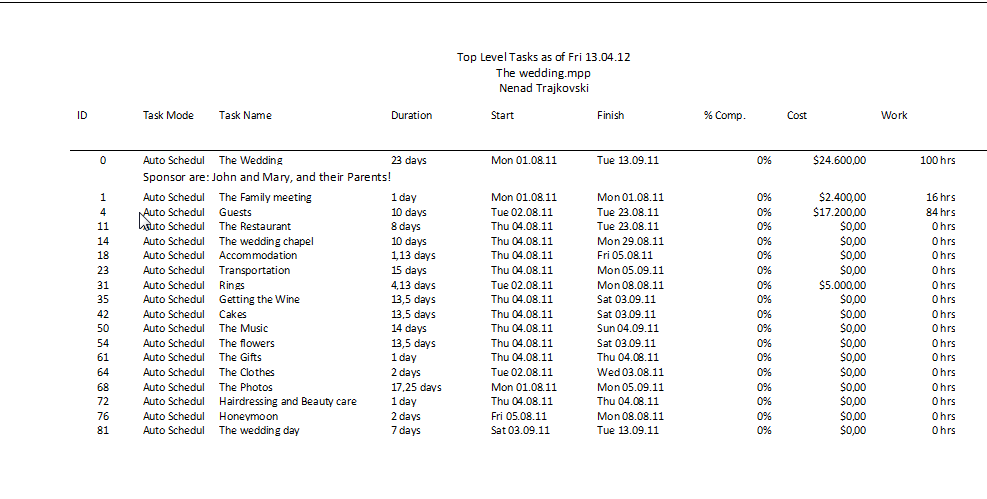
Next report is Top Level Tasks (I don’t have to explain what does that means):

image

Next Report in Overview group is Critical Task (again no further explanation is needed, I hopeSmile)

image

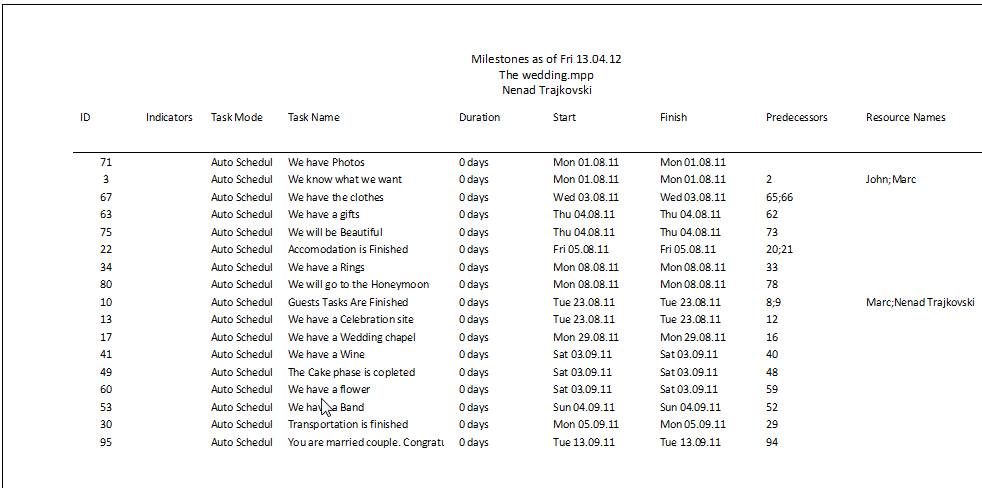
Now I will show you a Milestone Report which is excellent for your Sponsor and Managers:

image

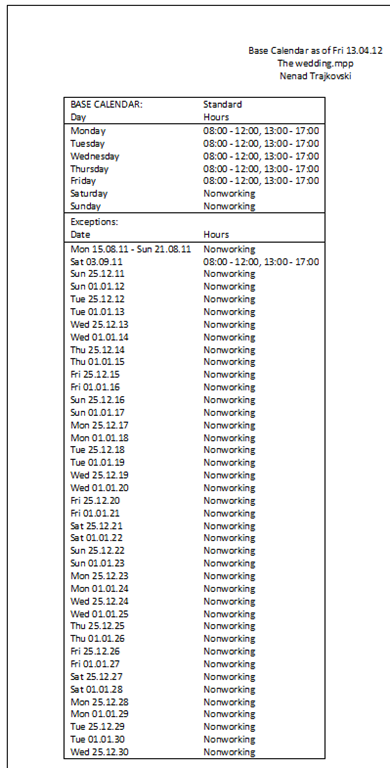
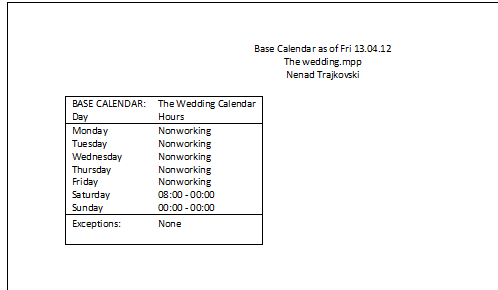
Last report in the Overview group is Working days:

image

image

OK.

I will move to the Current Group. It has six reports.

The first one is Unstarted Tasks:

image

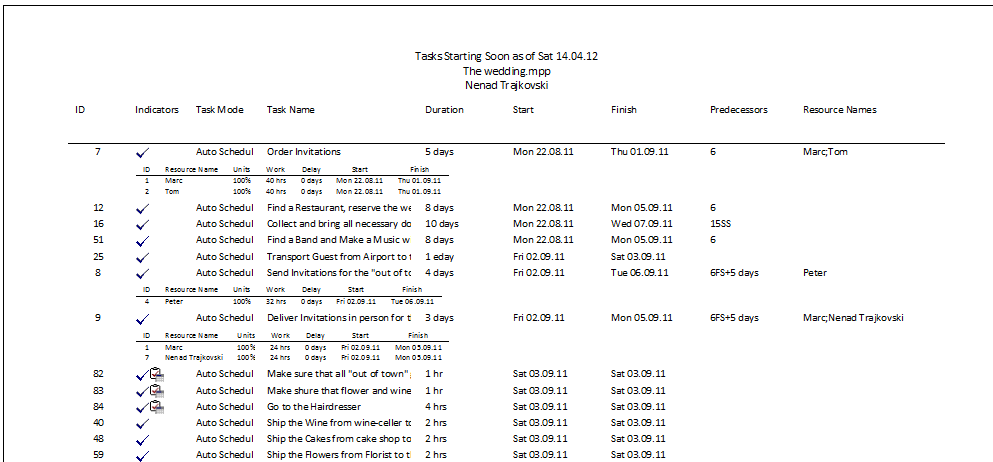
The second Report is Tasks Starting soon. After you choose the Date range you’ll get:

image

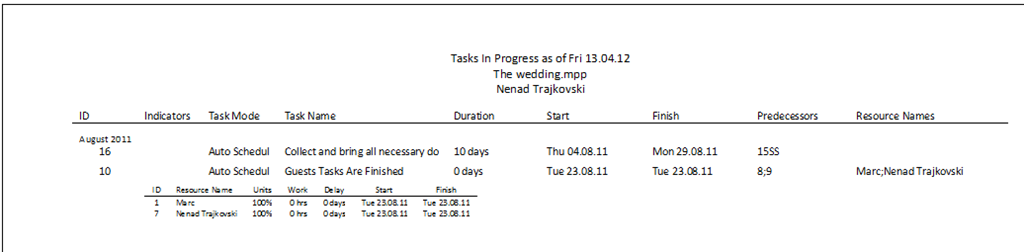
The third Report is Task in Progress:

image

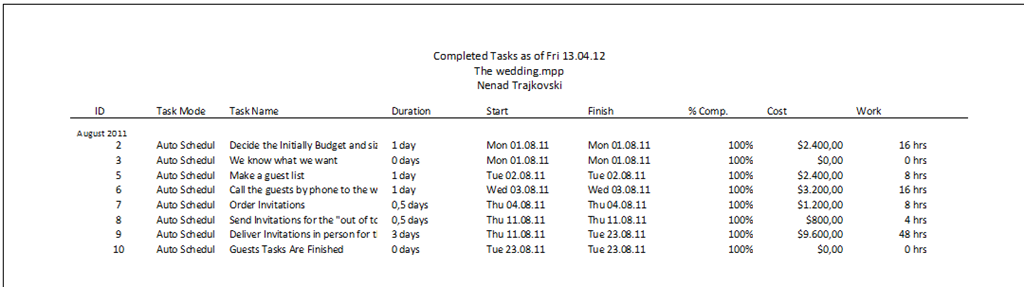
The fourth Report is Completed Tasks:

image

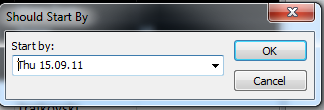
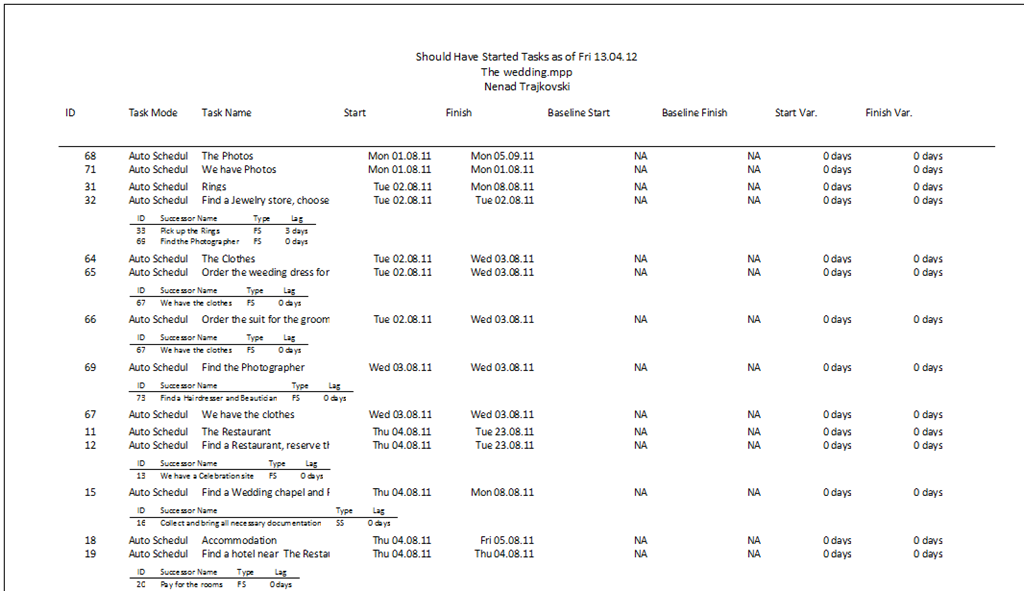
The fifth Report is Should Have Started Tasks. When you pick this one you must enter the date:

image

and you will get:

image

Last report in this section is Slipping Task Report. To get results you must have a Baseline.  Slipping tasks are those with Start date greater than Baseline Start date:

image

I will continue with Reports in my next posts.


Have a nice weekend!

Posted in MICROSOFT PROJECT, Microsoft PRoject 2010, MS PROJECT 2010, PMI, PRoject Management | Tagged , , , | Leave a comment

Network Diagram and descriptive Network Diagram ins MS PROJECT 2010


Hi,

this will be a short one!

I will show two Views in MS PROJECT 2010, network Diagram and descriptive Network Diagram!

Log time ago I was using The Wedding Project for my examples. It looks like this:

image

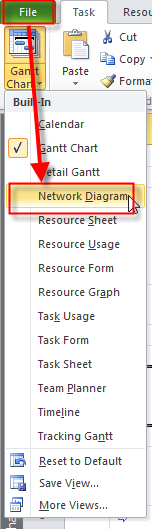
If you want to see Tasks in network diagram (with dependencies, and resources) you should use:

image

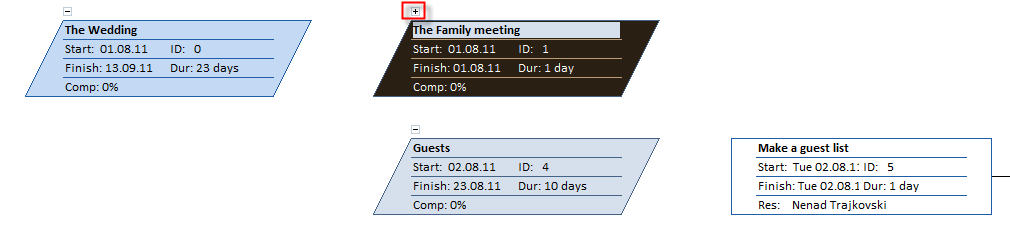
and I will get:

image

You can see different shapes for different Tasks types!

I have:

  • Task Name
  • Task Start date (estimated)
  • Rask Finish date (estimated)
  • Task ID
  • Task duration (estimated)
  • % complete

Notice the minus/plus sign above Summary Tasks. If I click on the minus sign all Tasks below summary Tasks will disappear from the Diagram, like this:

image

You can get your subtasks back by clicking on the plus sign on the summary Task.

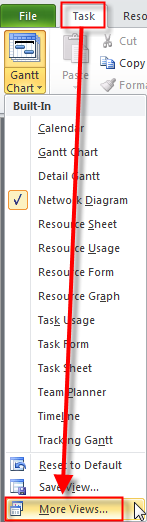
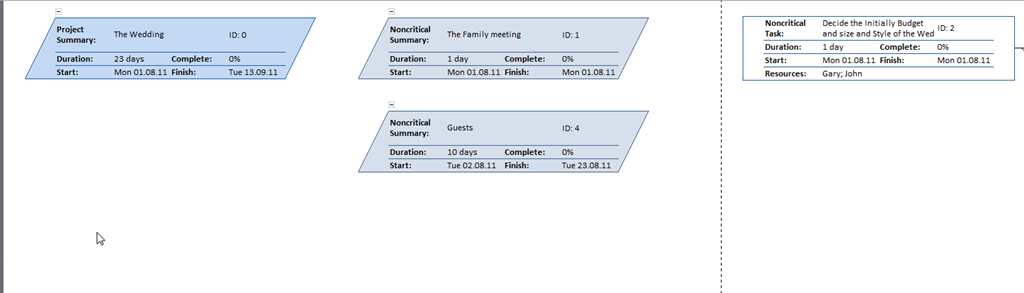
Another Network diagram is Descriptive Network Diagram:

image

and then:

image

and I will get:

image

It seems like it is same as previous Diagram. But it is not! It contains Description like: Project summary, Noncritical summary, Noncritical Task, etc. So you now what “kind” of Task are you dealing with!

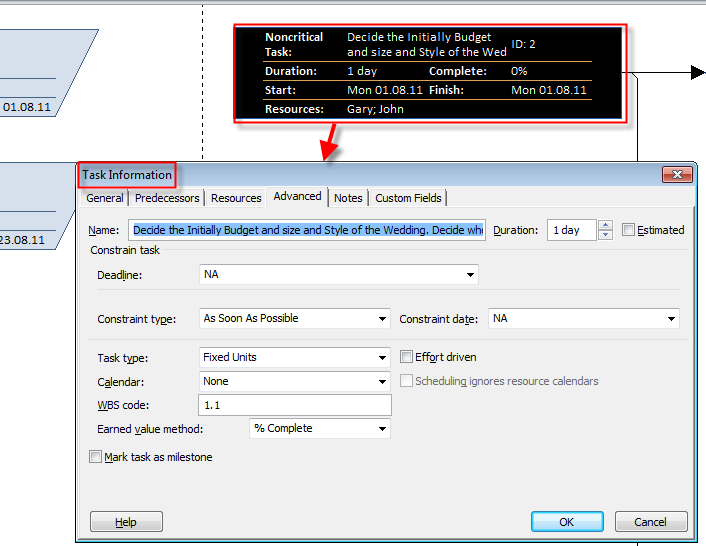
If you double click on the Task you will see:

image

so you can DIRECTLY update task information from that Diagram!


Nice thing, isn’t it?


Regards,
Posted in MICROSOFT PROJECT, Microsoft PRoject 2010, MS PROJECT 2010, PMI, PRoject Management | Tagged , , , , | 1 Comment

EVM (Earn Value Management) and MS PROJECT 2010


Hi,

in my last Post I have explained what is EVM! Now I will explain how to deal with it in MS PROJECT 2010!

First of all, here is the question: “What do we need for EVM?”. The answer is:

  1. Tasks
  2. Resources with pay rates
  3. All other costs (if any)
  4. Saved Baseline
  5. Actuals
  6. Status Date

For simplicity I will show how to make EVM on two Tasks, and one Resource:

image

Tasks are:

image

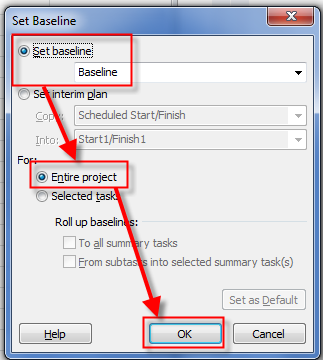
Now I will save the Baseline:

image

and then:

image

OK. Let’s look at the Cost table:

image

Each Task has planned 2 days Durations, which means 8 hours per day * 2 days * $100 per hour = $1.600

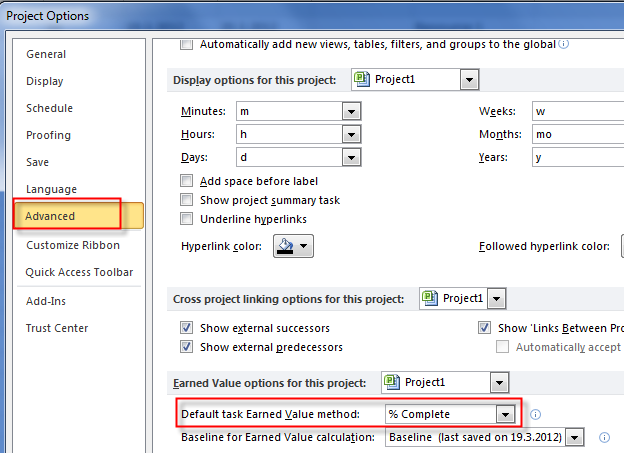
I have to tell MS PROJECT which Baseline to use for EVM:

image

and then:

image

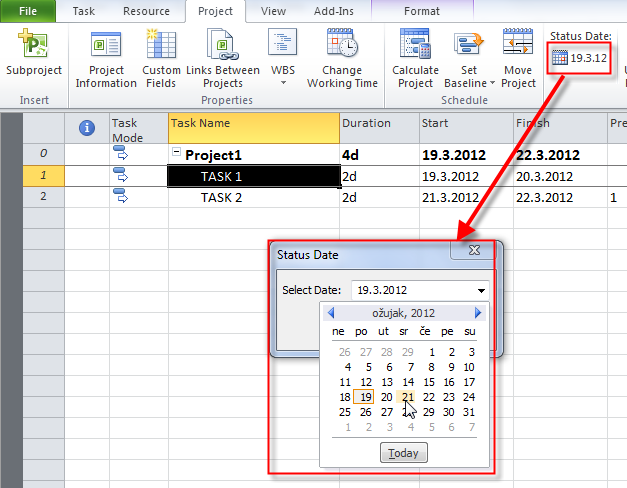
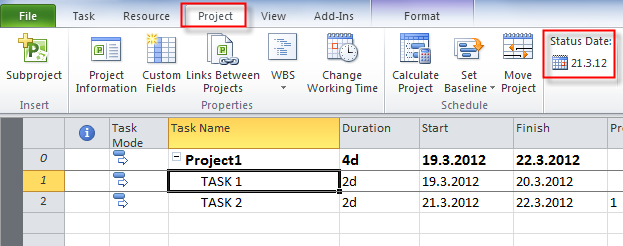
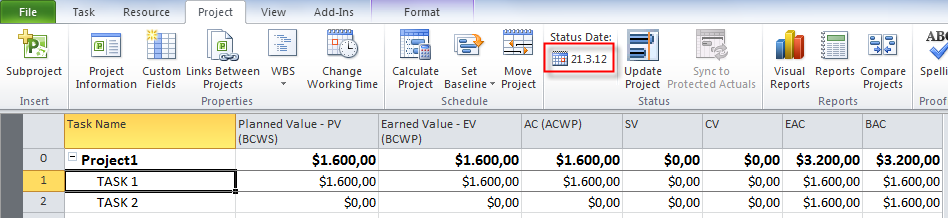
OK! Now suppose that I did not put any actuals and that there are two days passed since project start, so it is 21.03.2012. I will make this data as a Status date:

image

and I will get:

image

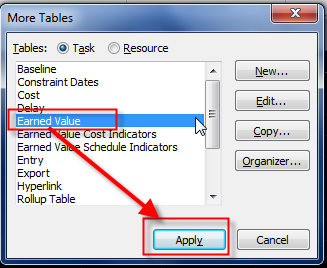
Now, I will apply Earned Value Table to my View:

image

and then:

image

and finally I‘ll get:

image

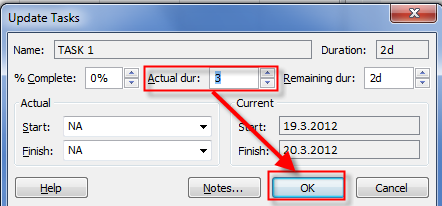
TASK 1 is not finished, it is not started, and the Status Date is 21.03.2012. So Schedule Variance (SV) is $1.600! It is simple! But now, suppose that Task 1 is finished, but it duration was 3 days instead of 2 days (planned):

image

and then:

image

I will get:

image

As you can see: NOTHING CHANGED! Why? Is it a bug? No, it is NOT A BUG! Notice that Status date is still 21.03.2012, and that means that Earn Value Table calculates what was done until 19.03.2012 and 20.03.2012. Because Task 1 has start date 19.03.2012, and NEW finish date 21.03.2012, I will now make 22.03.2012 as Status Date, and I will get:

image

I will explain the figures:

  • Planned Value (or Budgeted Cost of Work Scheduled) for Task 1 was $1.600
  • Earned Value (or Budgeted Cost of Work Performed) for Task 1 was $1.600
  • Actual Cost is $2.400 (3 days * 8 hours per day * $100 per hour = $2.400)
  • Schedule Variance (in $) is 0 because the Task 1 is finished
  • Cost Variance is Earned Value – Actual Cost = –$800 (we had spent too much)
  • EAC (Estimate at Completion) is $2.400 (it is same as Actual Cost, because Task is finished)
  • BAC (Budgeted at Completion is $1.600
  • Schedule Variance for Task 2 is –$800 because the Task 2 didn’t start as planned! It is late 1 day

Now I will put Duration 6 days for Task 2:

image

As you already know I have to set a new Status Date if I want to see changes. I will set Status date one day after Actual Finish (e.g. 30.03.2012), and I will get:

image

I will explain the figures again (now for the Task 2 only, because figures for the Task 1 are the same):

  • Planned Value (or Budgeted Cost of Work Scheduled) for Task 2 was $1.600
  • Earned Value (or Budgeted Cost of Work Performed) for Task 2 was $1.600
  • Actual Cost is $4.800 (6 days * 8 hours per day * $100 per hour = $4.800)
  • Schedule Variance (in $) is 0 because the Task 2 is finished
  • Cost Variance is Earned Value – Actual Cost = –$3.200 (we had spent too much)
  • EAC (Estimate at Completion) is $4.800 (it is same as Actual Cost, because Task is finished)
  • BAC (Budgeted at Completion is $1.600

I can spend hours and hours to write this Post, to explain more and more complicated examples of EVM, but I will not. I will give you advice! If you are novice with EVM, BEFORE you use it LEARN IT. Slow, step by step, from simple examples to more and more complicated examples. If you will not take this approach you will find yourself very uncomfortable with EMV.

Good Luck!

Posted in MICROSOFT PROJECT, Microsoft PRoject 2010, MS PROJECT 2010, PMI, PRoject Management | Tagged , , , , | 22 Comments

Earn Value Management (EVM)–What is it?


Hi,

before I explain hot to get and use data, and what is needed for EVM in MS PROJECT 2010 (which I will do in my next Post), I will explain what EVM is!

Wikipedia says: Earned value management (EVM), or Earned value project/performance management (EVPM) is a project management technique for measuring project performance and progress in an objective manner. Because EVM has the ability to combine measurements of :

  • scope
  • schedule
  • and cost,

in a single integrated system, Earned Value Management is able to provide accurate forecasts of project performance problems, which is an important contribution for project management.”

Here are some Terms:

  • Planned Value -> PV (BCWS, Budgeted Cost of Work Scheduled)
  • Earned Value -> EV (BCWP, Budgeted Cost of Work Performed)
  • Actual Cost -> AC (ACWP, Actual Cost of Work Performed)
  • Budgeted at Completion –> BAC
  • Estimate at Completion -> EAC = BAC / CPI or AC+(BAC-EV)
  • Estimate to Complete -> ETC = EAC – AC
  • Variance at Completion -> VAC = BAC – EAC

Here is the explanation of each Term:

image

image

image


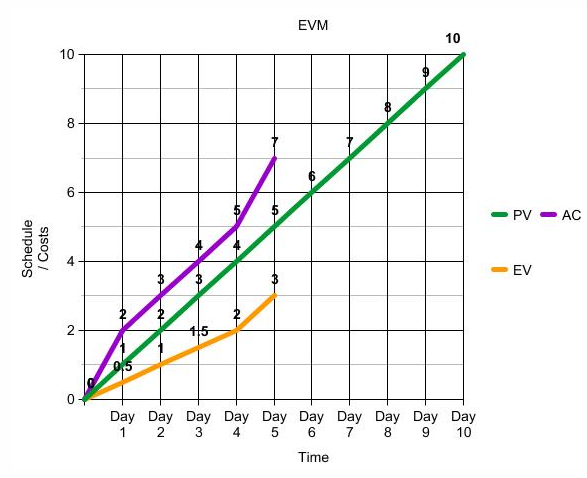
Here is the Graphical sample of EVM:

image

Let me give you a simple example! Suppose that you have a Project with only one Task: Digging the tunnel. You should dig 1 meter per day (or one inch, who care Smile). So, Planed Value is green line in the picture below. You are at the end of the 5th day. And you want to measure your progress!

Suppose now, that you dug only 3 meters (see orange line in the picture below). So SV (Schedule Variance) is EV – PV = 3-5 = –2. So you are behind the schedule. Now suppose that you should spend $1.000  per meter. At the end of the fifth day you have already spent $7.000 (see purple line in the picture below). So CV (Cost Variance) is EV – AC = $3.000 – $7.000 = –$4.000. You are spending too much! Because you have dug 3 meters instead of 5 (as was planned), you should spent only 3 meters * $1.000 per meter = $3.000. But you have spent $7.000, so you have spent $4.000 more.

But what if you have dug 7 meters at the and of the fifth day, and spent only $500? Is it good situation? What a stupid question, hah? Who wouldn’t want to be ahead of the planned schedule and behind the planned costs! Hmmmm, well….

It is excellent situation if we are speaking about time and money. BUT! Your plan was BAD! Why? You have estimate that for 10 meters you will spend 10 days, and $10.000, but you spent only, for example 3 days and $500! (This will NEVER HAPPEN to your Project, don’t worry Smile). When you will ask your chief next time for the same type of Project (digging 10 meters of tunnel), for 10 days and $10.000, he/she will tell you: “ARE YOU KIDDING? You know that last time it took only 3 days and the costs were $500. That is what you can get!”

How to make EVM Calculation in MS PROJECT 2010? Read my next Post.


Regards,
 

image

Posted in MICROSOFT PROJECT, Microsoft PRoject 2010, MS PROJECT 2010, PMI, PRoject Management | Tagged , , , , | 5 Comments