Backstage in MS PROJECT 2010! What do we have here?


Hi, in Backstage View in Microsoft Project 2010 you can setup many parameters for using MS PROJECT 2010. I will cover some of them, because if I want to cover them all, this Post will be very, very long.

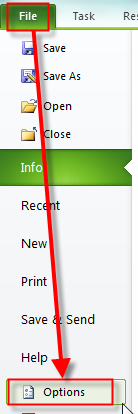
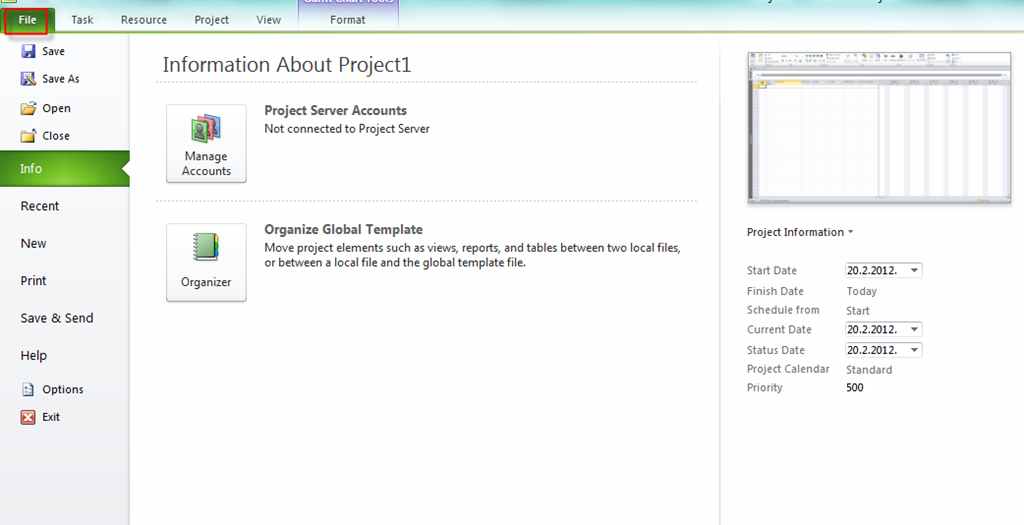
Firs, how to access Backstage? It is Simple, just click on File, and you will get:
image

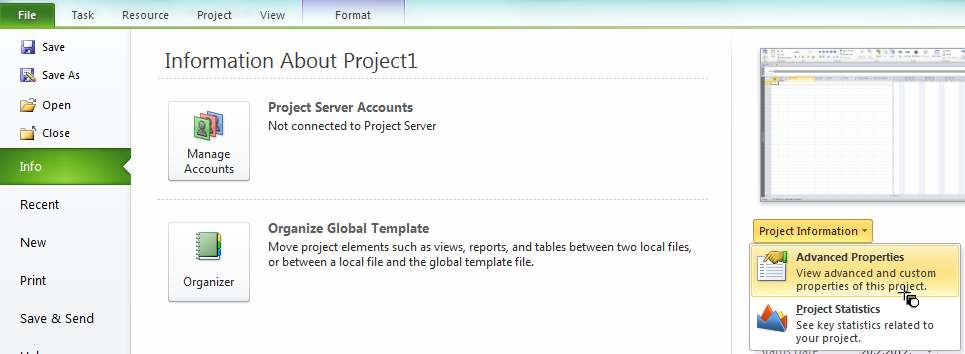
In Info Part you can setup Project Server Account, which I will cover when I will start to write Posts about Project Server 2010. In Organizer, you can organize Global Template, which was covered in my previous posts. On the right part of the screen, you can put the Start Date of your project, Current Date, and Status date. If you click on Project Information, you will get:
image

I will choose Advanced Properties, and I will get:
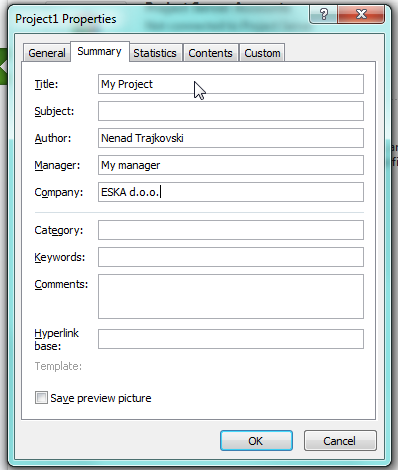
image

You can put some additional information about your Project.

If you click on the Recent Part of the backstage you will get your recent opened file, so you can choose which one do you want to reopen.

If you click on the New Part of the backstage, you can choose how do you want to create your new Project file (from existing templates, blank Project, etc.):
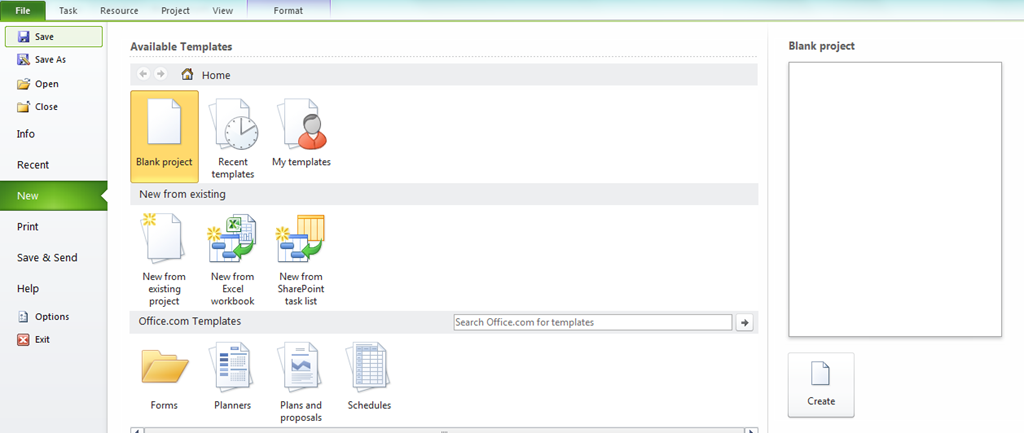
image

Print, Save and Send, and Help part are self explanatory so I will not cover them here.

If you click at the Option Part you will get:
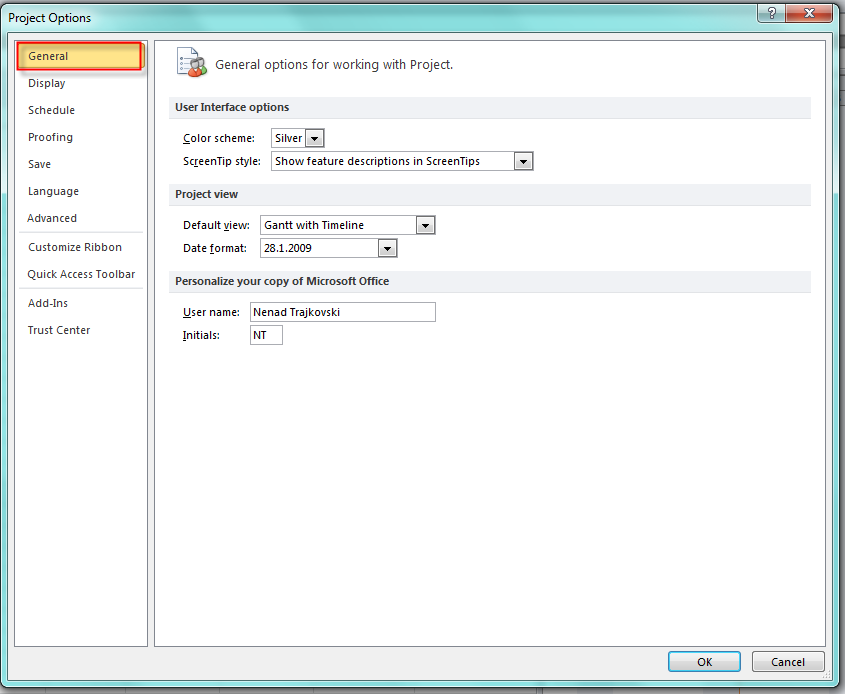
image

In General part you can choose Default Color Scheme, how do you want do display Screen tips, what is your Default View. when you open new Project, and default Date format. When you change something here, you should exit from your MS PROJECT 2010 and run it again before those changes are applied. Be aware, that if you change Default View, it will be default only for brand new Projects. What does it means? For example, in the Picture above you can see that default View is Gantt with Timeline. When you create brand new Project, this is the View you will get. But, if you change the View in your Project (for instance in the Task Usage View), and save the Project, next time, when you open this particular Project again, you will get the Task Usage, not the Gant with Timeline View!

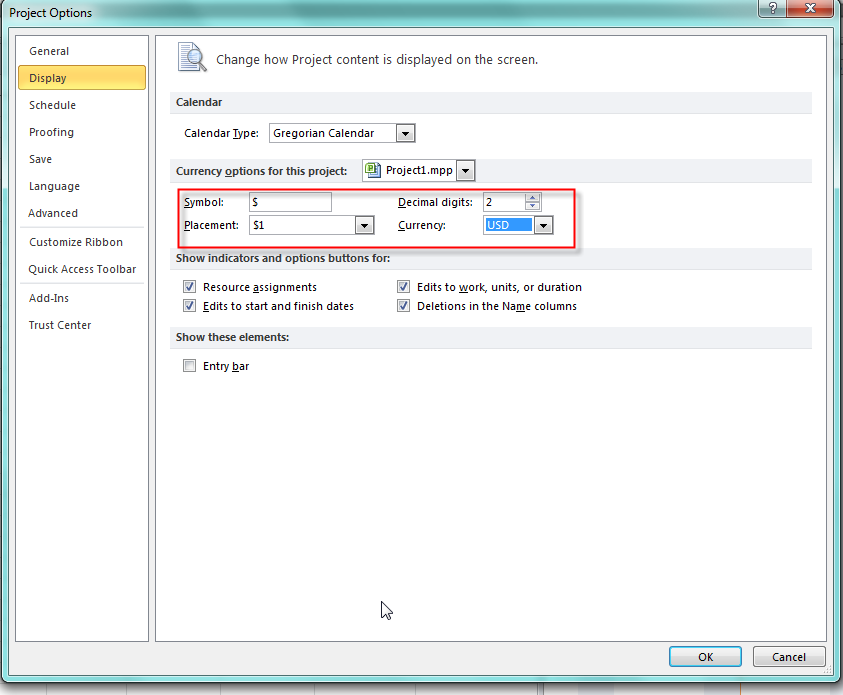
In Display part you will find this:
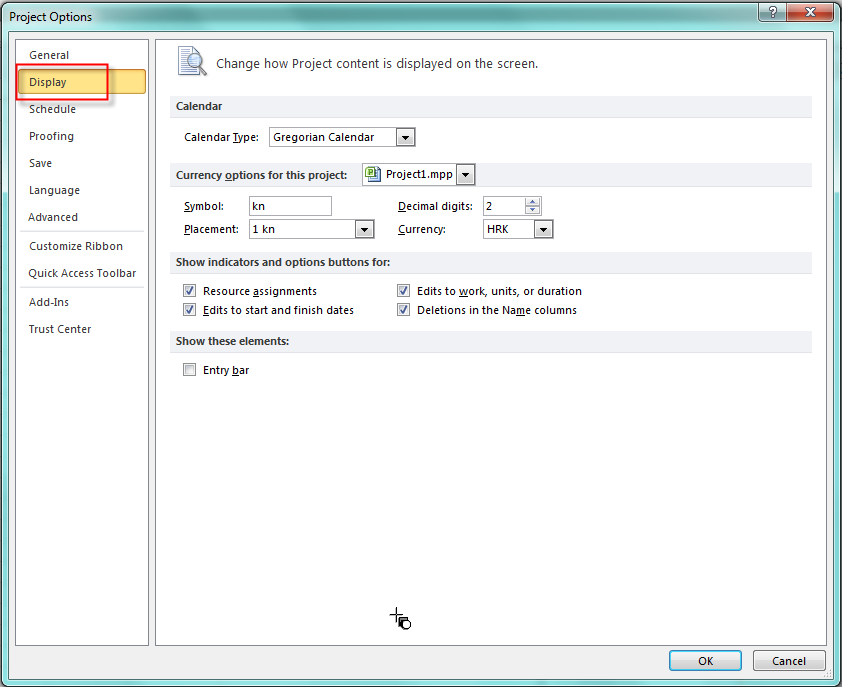
image

the most important thing here is to setup your Currency, Decimal digits and Symbol- As you can see, buy default, for me it is setup to Croatia (HRK). If I choose USD:

image

I will get:

image

I strongly suggest that you leave all options in Show Indicators and options buttons for checked, because those will help you to make a decision when you change some fields, and you will have to make decision upon that changes!

In Schedule part you will find this:

image

In Calendar for this project I can choose do I want to setup some stuff for Particular (e.g. Open Project), or for all Projects! You are already familiar with those Parameters because I wrote couple of Posts about them so I will not explain them again.

Show scheduling messages will show you Schedule Inconsistency so leave it checked. You can choose  if you want to show your assignment units as Percentage (e.g. 30%), or Decimal (0,30, for example)

In Scheduling options for this project I can choose do I want to setup some stuff for Particular (e.g. Open Project), or for all Projects! In New Task created you can choose between Manually or Auto scheduled task. If you want to make a schedule from Project Start date leave the field Auto Scheduled task scheduled on as is, or change it to current date if you want that new tasks starts fro current date!

Another 3 fields are self explanatory, so I will not cover them here.

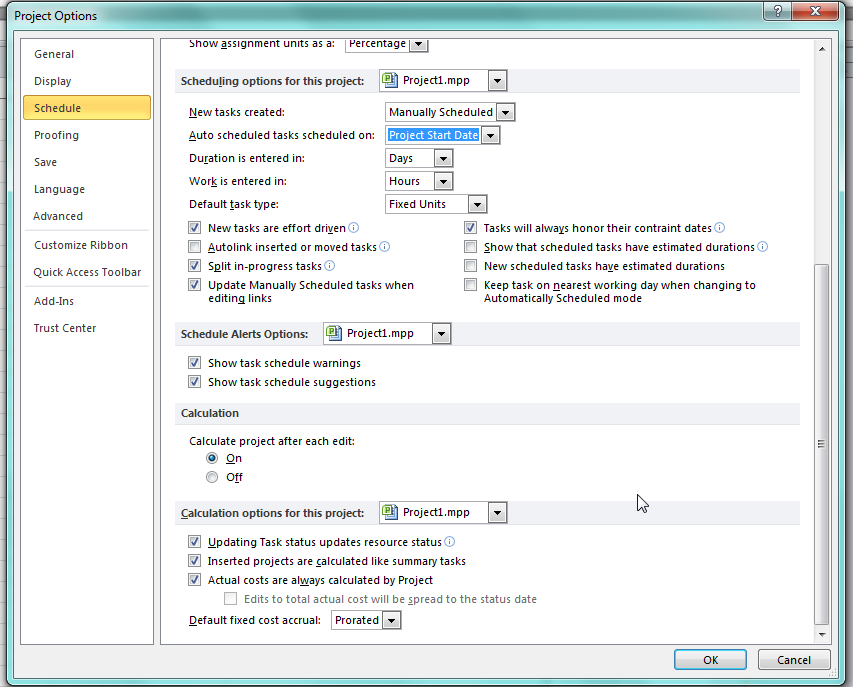
Here is the rest of the Schedule screen:
image

New Task are effort driven. What is this? Suppose that you have Task: Painting the wall, and you have assign John to that Task, and the Duration is 2 days! No suppose that you assign Peter on the same Task! If this Task is effort driven that means that John and Peter will finish the job sooner (More hand, light work rule). But now suppose that you have Read the book Task, and again you have John assigned to that Task, and the Duration is 2 days. Can John finish his reading sooner if you give a copy of book to Peter, and assign him to the same Task? No, it can not. In such case you should turn off this field!

Keep all other fields as is instead the Default fixed cost accrual. You can choose between: Prorated, Start or End, and that means “when will your Project be charged with Tasks which have Fixed Cost?”.

Those settings are just part of all available! If you want to learn more about them, you should examine them one by one and see what will going on when you change each of them.


Regards,

Posted in MICROSOFT PROJECT, Microsoft PRoject 2010, MS PROJECT 2010, PMI, PRoject Management | Tagged , , , | Leave a comment

How to track Actual overtime work in MS PROJECT 2010


Hi,

I received a question from one of my Blog reader:

“After calculating the costing for work and overtime work, I baselined the task and then did tried to do the actuals in the task usage sheet. I did this to check the actual cost and actual overtime cost. I was able to enter the actual work (hrs) for each day and was not able to do actual overtime work (hrs). Would you be able to assist as how to feed the actual overtime work in the task usage sheet.”

There is the way to put actual overtime work, but it is not an easy one.

First let me setup an example. I will add two Tasks in ma Project:

image

Now I will add two Resources to My Project:

image

and I will assign those Resources to my Tasks:

image

Now I am going to put some overtime hours:

image

I will click on the lower part of the screen and then I will get a new buttons in the Format Tag of the Ribbon:

image

and I will get:

image

For Task 1 I will put 16 hours in the Work Field, and 8 hours in the Overtime Work field. It means that it will have 1 day Duration, and 16 hours of total work:

image

For Task 2 I will put 32 hours in the Work Field, and 16 hours in the Overtime Work field. It means that it will have 2 days Duration, and 32 hours of total work:

image

I will apply the Cost Table and I will get:

image

Task 1 will have 8 hours regular work, and 8 hours overtime work. 8 hours * $100 (regular rate) + 8 hours * $150 (overtime rate) = $800 + $1.200 = $2.000.

Task 2 will have 16hours regular work, and 16 hours overtime work. 16 hours * $200 (regular rate) + 16 hours * $300 (overtime rate) = $3.200 + $4.800 = $8.000.

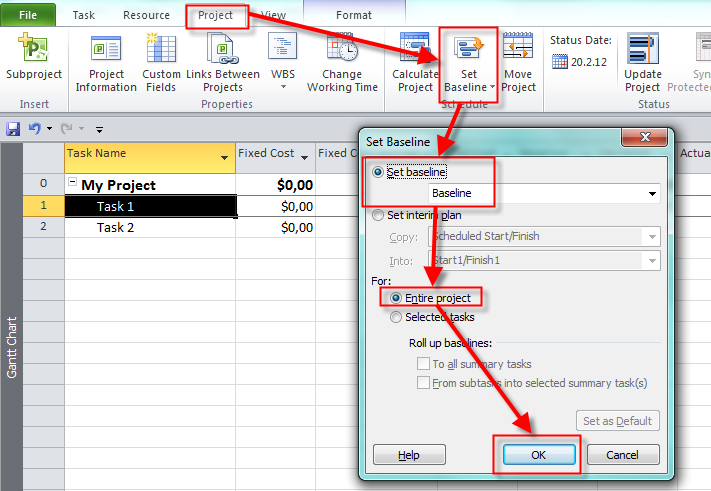
Now I will save the Baseline:

image

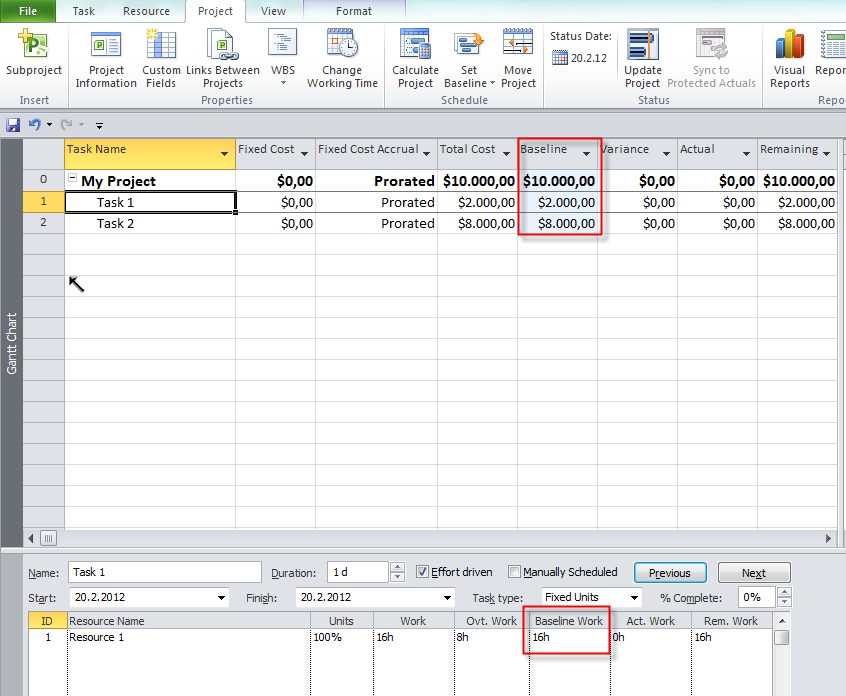
and I will get:

image

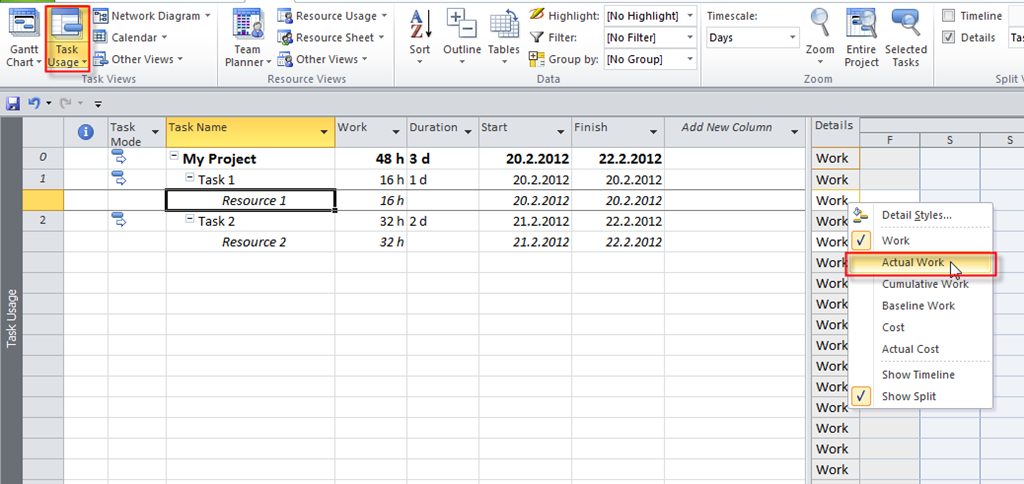
Now I will apply the Task usage View:

image

and I will get:

image

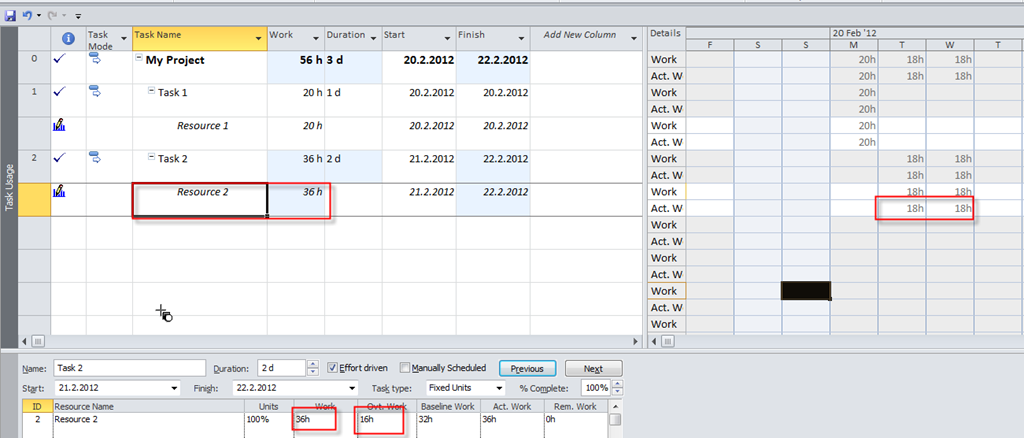
OK! Now, suppose that Actual work for Task 1 was 20 hours instead 16 hours, and for Task 2 was 18 hours per day instead 16 hours:

image

For Resource 1 (assigned to Task 1) you can see that Actual work is 20 hours instead of 16, but overtime work remains the same:

image

For Resource 2 (assigned to Task 2) you can see that Actual work is 36 hours instead of 32, but overtime work remains the same:

image

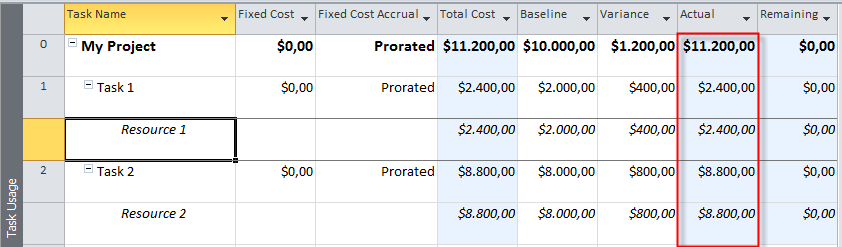
I will apply the Cost Table again:

image

Task 1  have 12 hours regular work, and 8 hours overtime work. 12 hours * $100 (regular rate) + 8 hours * $150 (overtime rate) = $1.200 + $1.200 = $2.400.

Task 2 will have 20 hours regular work, and 16 hours overtime work. 20 hours * $200 (regular rate) + 16 hours * $300 (overtime rate) = $4.000 + $4.800 = $8.800.

As you can see when you put Actual work it is considered as regular work.

But what if, for example, 20 hours spent at Task 1 was 8 hours of regular time, and overtime was not 8, but 12 hours?

image

Now, Task 1 have 8 hours regular work, and 12 hours overtime work. 8 hours * $100 (regular rate) + 12 hours * $150 (overtime rate) = $800 + $1.800 = $2.600.

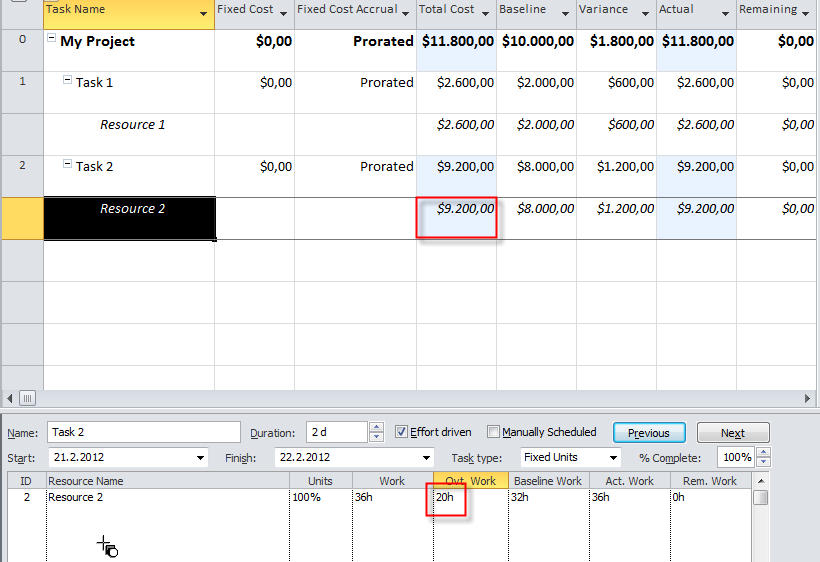
An what is, for example. 36 hours spent at Task 2 was 16 hours of regular time, and overtime was not 20, but 16 hours?

image

Now, Task 2 have 16 hours regular work, and 20 hours overtime work. 16 hours * $200 (regular rate) + 20 hours * $300 (overtime rate) = $3.200 + $6.000 = $9.200.

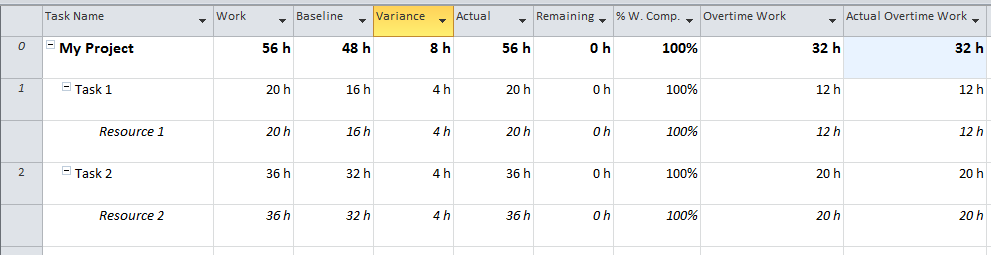
Finally, let’s look at Work Table:

image

You can see, that I have added two more fields Overtime Work, and Actual Overtime Work.

OK! The conclusion! In the Task Usage View, you can’t put actual overtime work. You can do it in Task Form, as I mentioned before.


Regards,

Posted in MICROSOFT PROJECT, Microsoft PRoject 2010, MS PROJECT 2010, PMI, PRoject Management | Tagged , , , , , | 1 Comment

How to create and use Templates in MS PROJECT 2010?


Hi,

You can use MS PROJECT 2010, for various Project types (software development, event organization, production, construction, etc.). For each new Project (of same type), you can build your task, schedule, resource pool, assignments, costs, reports, etc. fro the scratch. Yes, you can! But it will be overhead, time consuming and dangerous. Why dangerous, you may ask? Because if you are, for example, engaged in wedding organization project, you may forget some important things (Task) in your Project if you will build it from the scratch. There is much better way to do the “same” Project from Templates in MS PROJECT 2010. I know, I know, there is no such a thing like “same project”, because Project is (by PMI) “Temporary endeavor undertaken for creating unique product, result, or service”. So better word is similar project.

On the other hand, if you are novice in some area you can find template (or templates) on the internet created by someone else.

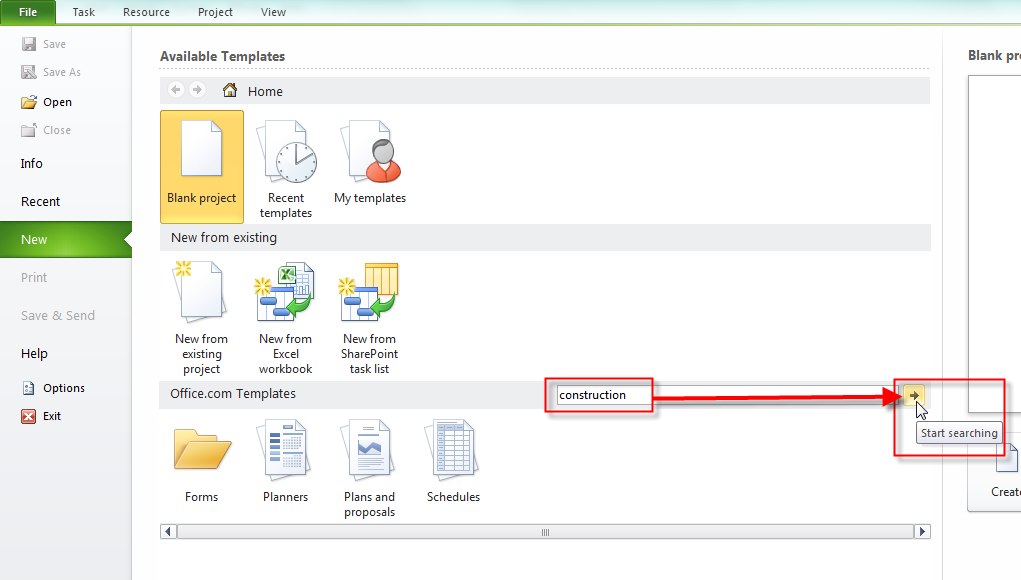
When you start your MS PROJECT 2010 you actually open global template (global.mpt) EVERY TIME! Suppose that you are new in Construction Project, and you want to find template on the internet for this particular project type. In previous versions of MS PROJECT various templates were “built in”. IN MS PROJECT 2010 there is no “built in” templates, but you can find them at office.com site:

image

I will type Construction:

image

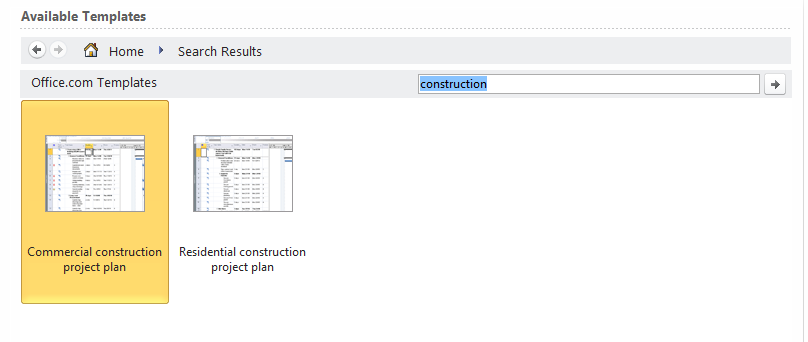
and I will get:

image

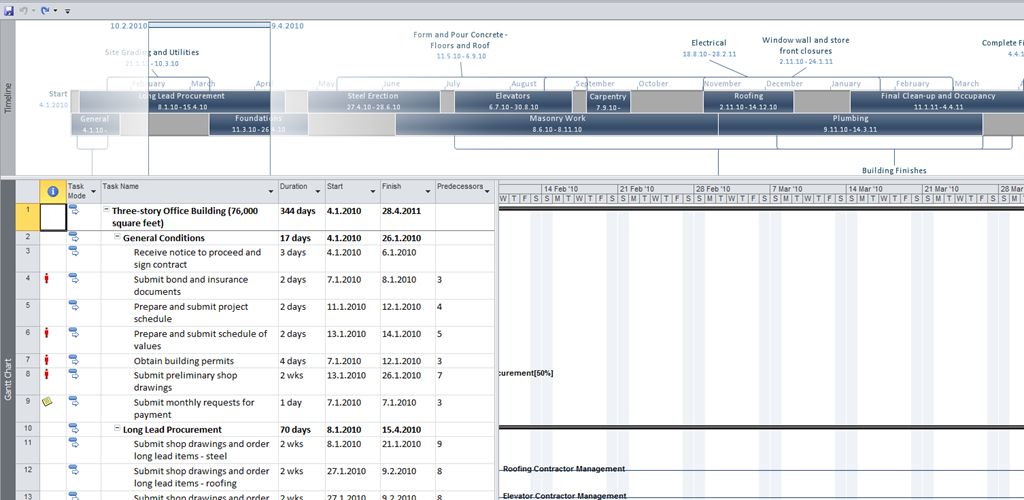
I will pick first one, and I will get:

image

I can rearrange that template and after that I can save it to my own template, or I can build my own template from my existing project.

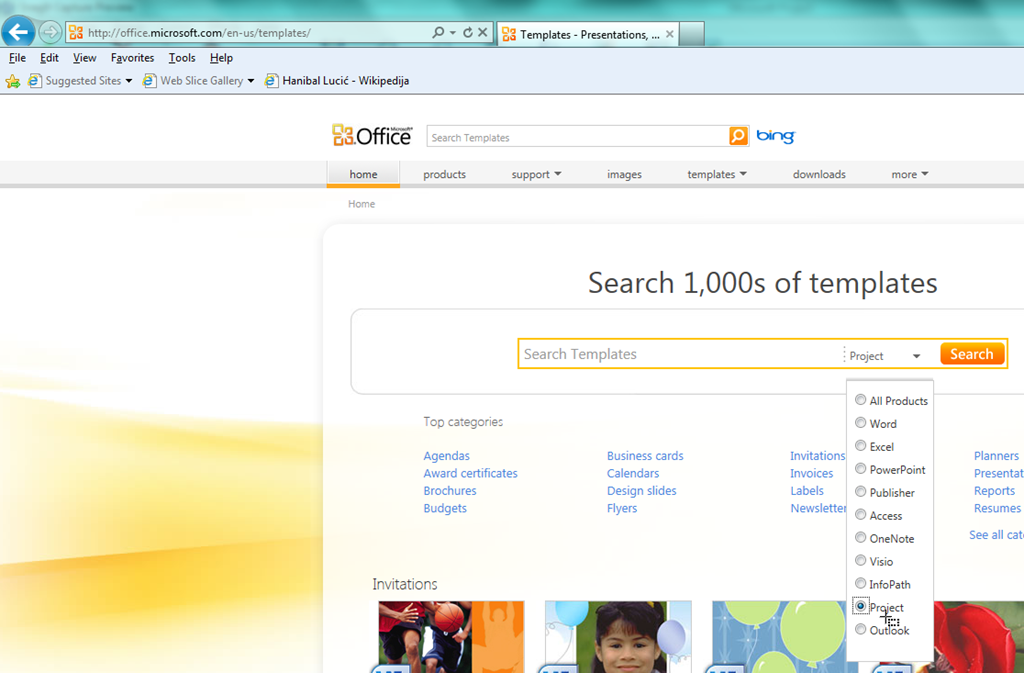
Another way (better one) is to find a template in http://office.microsoft.com/en-us/templates/. I will get:

image

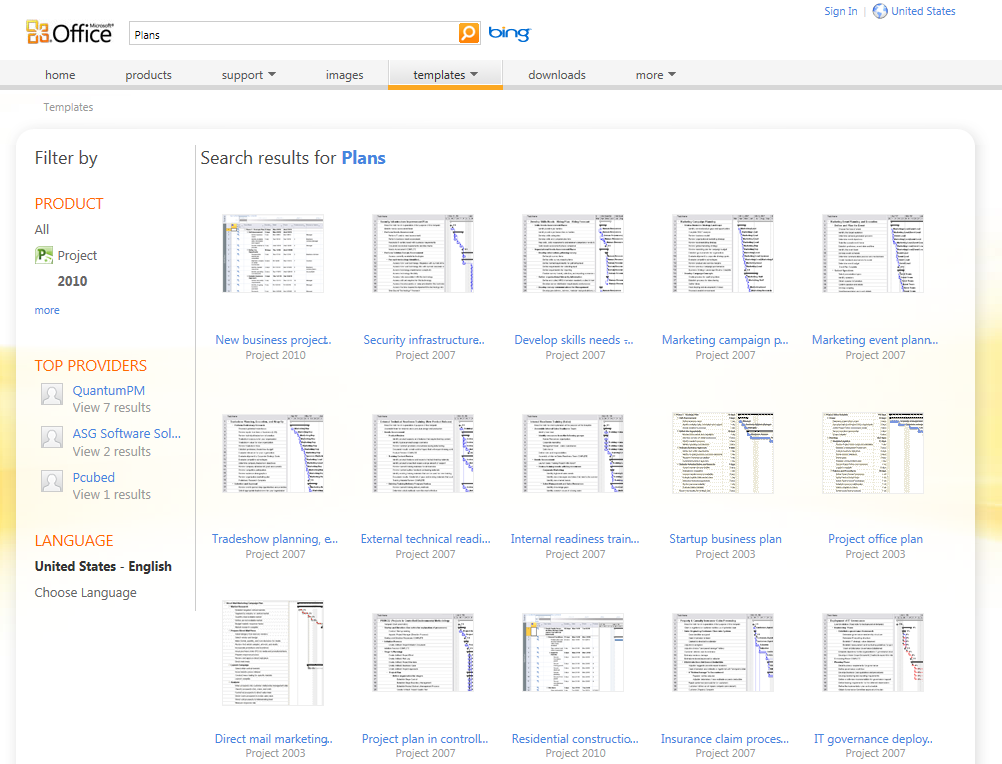
After I choose Project I will search Plans:

image

and I will get:

image

You can Pick any template you like, and adopt it for your convenience.

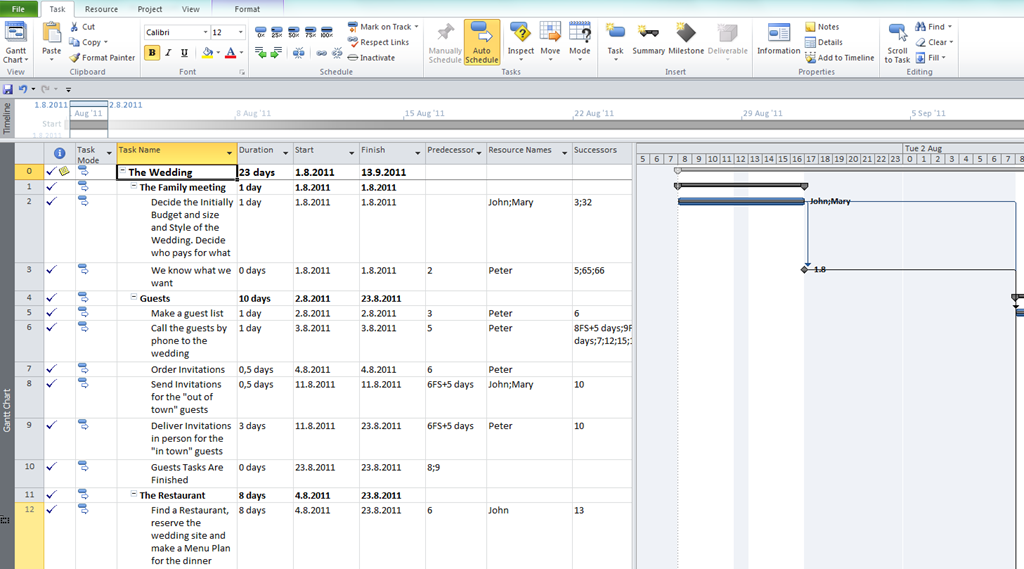
Now I will build brand new template from my existing Wedding project:

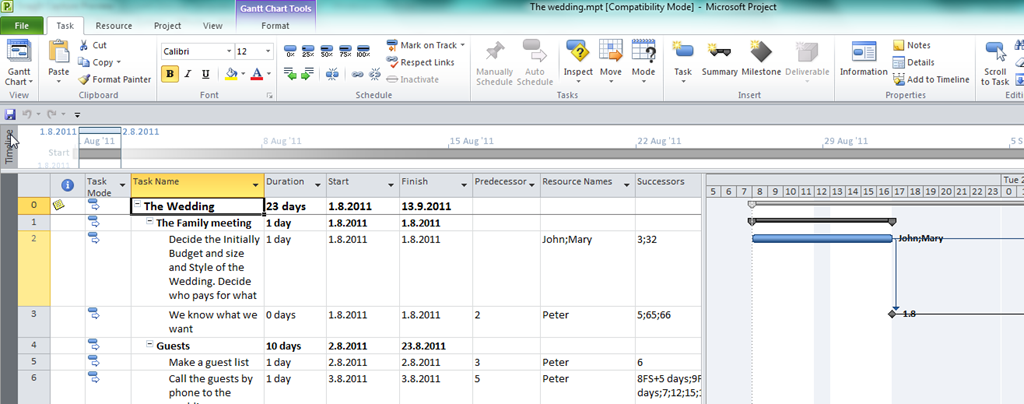
image

You can see that there are Resources assigned to the Tasks, and that Project is 100% finished. Do not evaluate this Project! I made it up just for example at it does not present the real world situation!

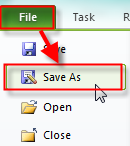
Now I want to save this Project as a Template:

image

and I will get:

image

After that I will get:

image

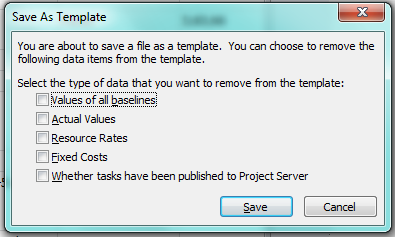
You can select what do you want to exclude in Template. I suggest that you exclude all of them. Why? Because the Project is unique, so those values will change from Project to Project.

After I save this template I will get:

image

You can see that Actual Values are gone!

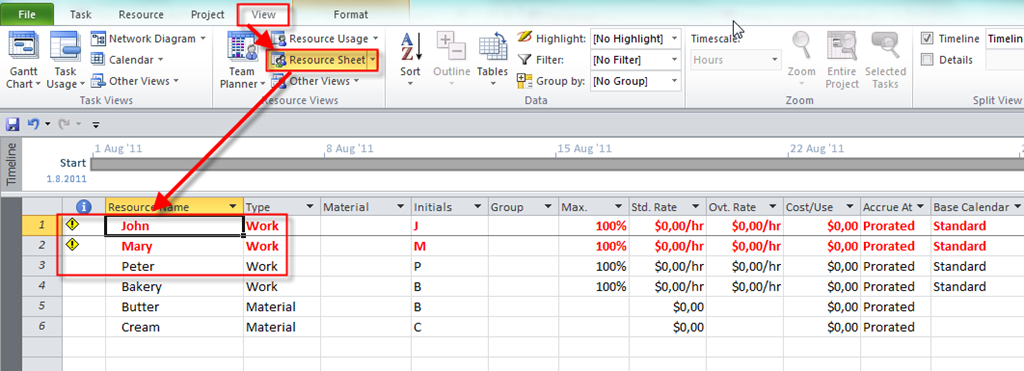
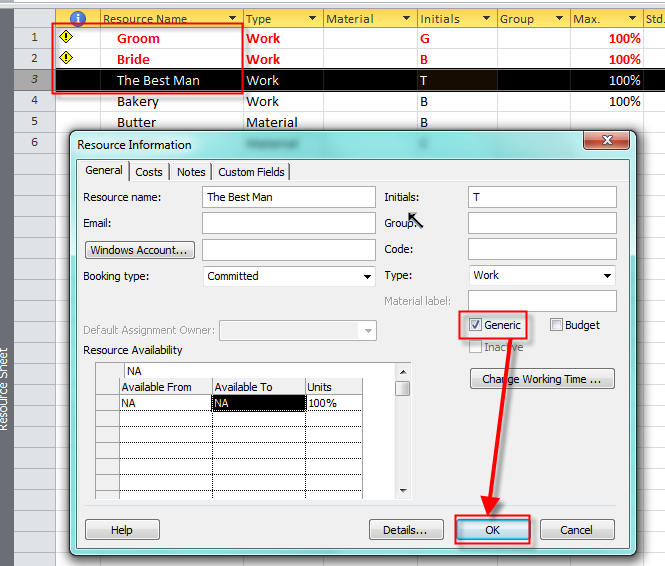
What is “wrong” with this template? Well….. maybe nothing! If you have resources in your company, and they are moving from one finished Project, to another started Project, than everything is fine. But usually you don’t know who will do what. You can not count on, for my example, Peter that he will always do the same work on same tasks. Much better approach is to build Generic Resources:

image

I will replace John as Groom, Mary as Bride, and Peter as Best Man!

image

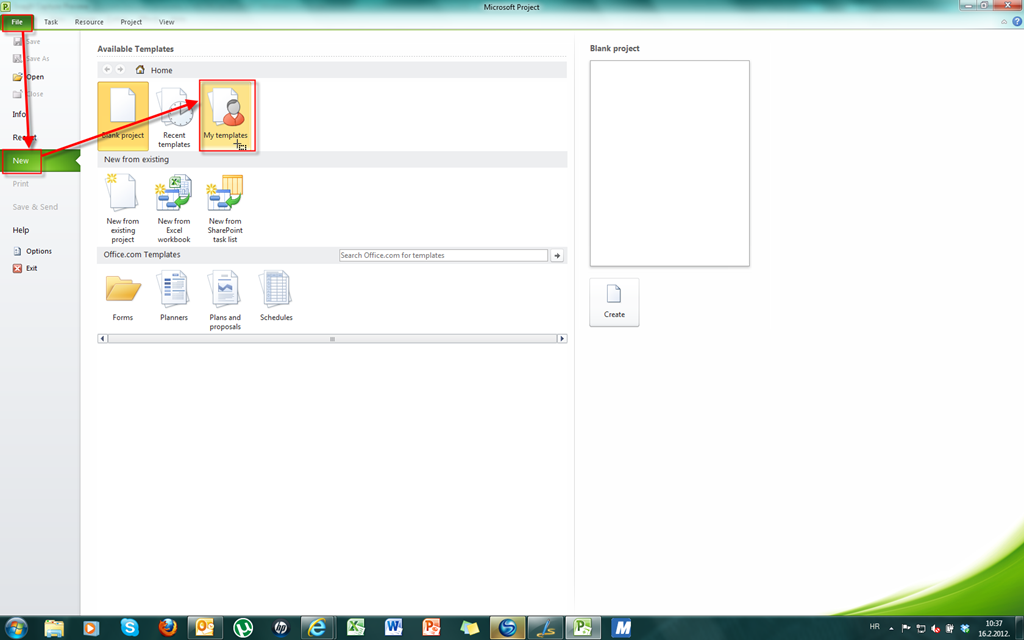
OK. I will save this template, and now I am ready to reuse it! I have new Project and I want to create it from Template:

image

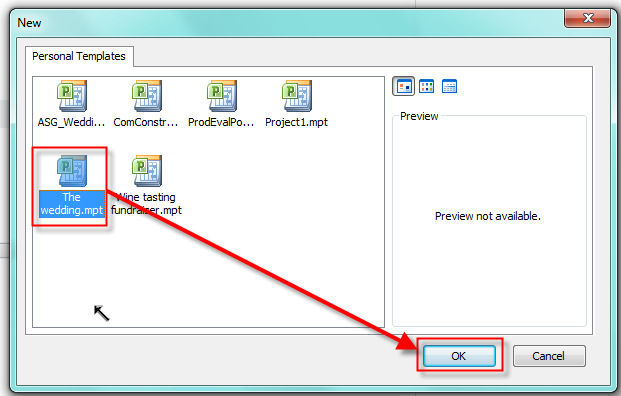
and then:

image

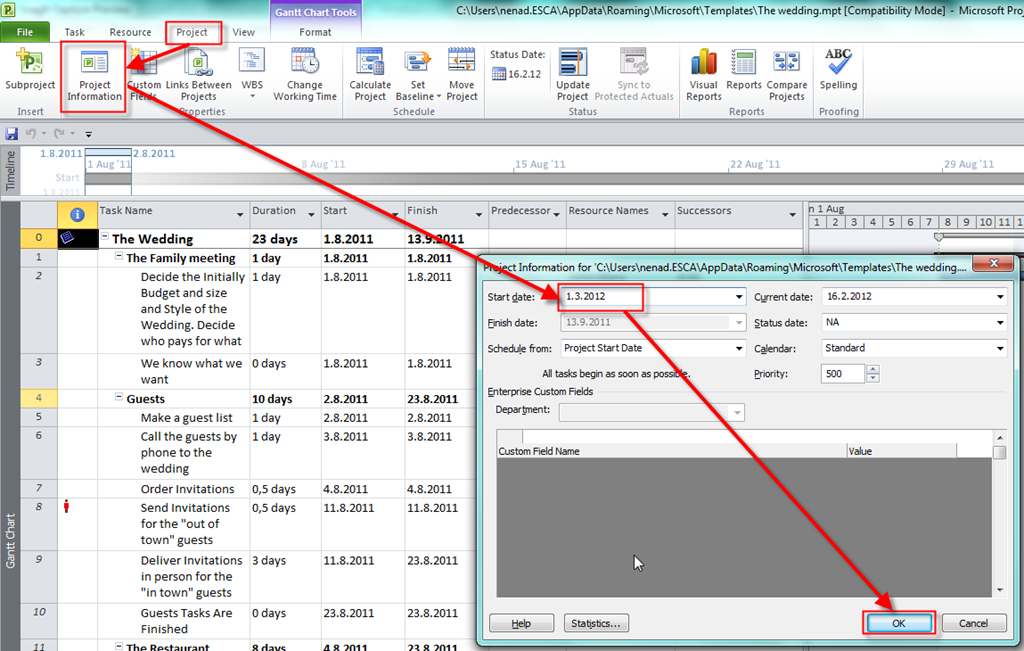
The first thing you must do for your new Project is to type Project Start or End date (depends on if you are managing your project from Start or End date).

image

Now you should save the Project, and start to work with it. If you know your resources, you can replace Generic with real one!


Regards,
Posted in MICROSOFT PROJECT, Microsoft PRoject 2010, MS PROJECT 2010, PMI, PRoject Management | Tagged , , , , , | 4 Comments

Working with Graphical Indicators in MS PROJECT 2010


Hi,

in this Post I’ll show you how to use graphical Indicators in MS PROJECT 2010. Here is The Scenario:

  • I have may Project Baseline (and this is my Project Plan)
  • I am tracking the Project Progress
  • If my Actual Task Costs are aligned with my Baseline Costs I want to see Green Light in My Gantt Chart View (Entry Table)
  • If my Actual Task Costs are exceeding my Baseline Costs up to $1.000, I want to see Yellow Light in My Gantt Chart View (Entry Table)
  • If my Actual Task Costs are exceeding my Baseline Costs more than to $1.000, I want to see Red Light in My Gantt Chart View (Entry Table)

Here is my Project:

image

and My Resources:

image

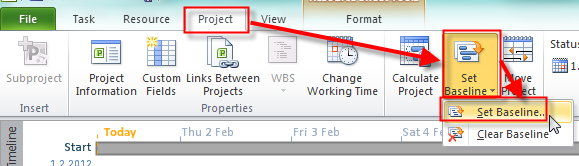
Now I will save a Baseline:

image

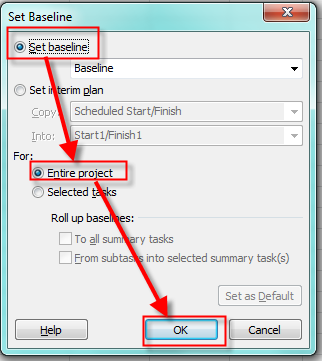
and:

image

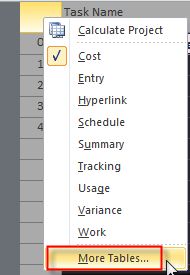
when I apply the Cost Table I will get:

image

Now, I am going to create Custom Field for Graphical indicator:

image

and then:

image

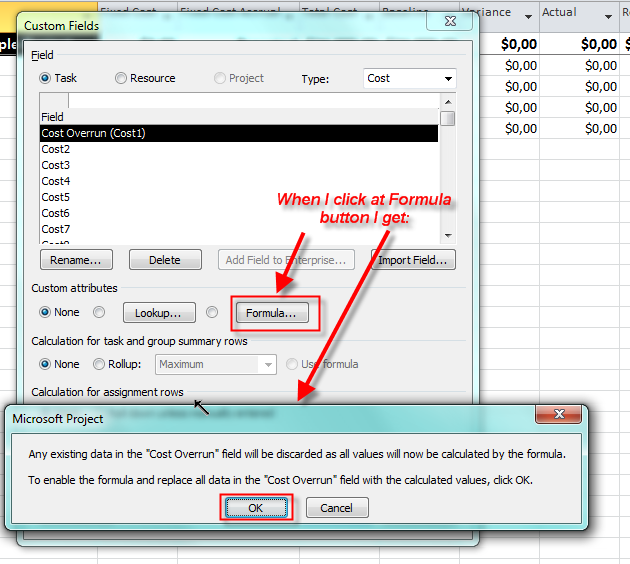
I will click at Formula button again, and I will get:

image

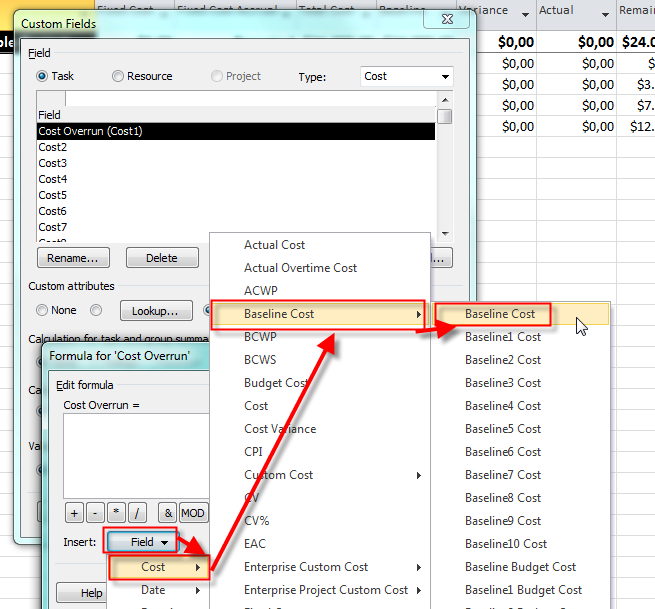
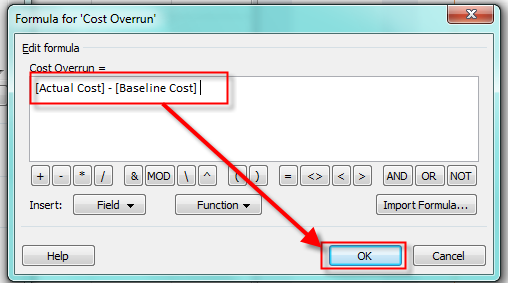
Now I will choose the minus sign, and Actual Cost, and then Baseline Cost:

image

and I will get:

image

image

I get a warning message, and I will click OK on that:

image

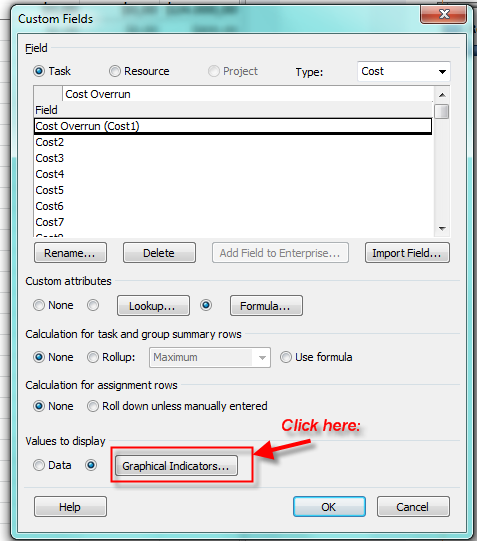
Now for this field I will arrange Graphical Indicator:

image

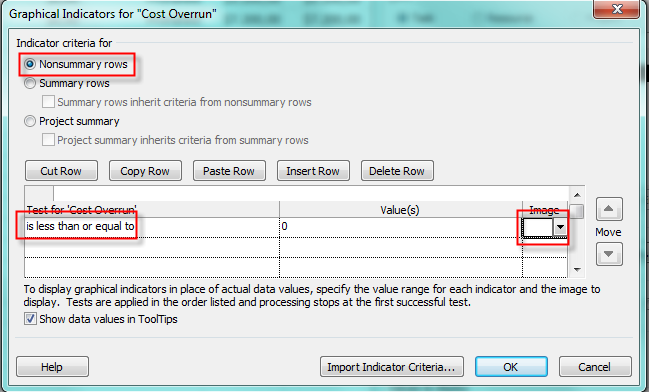
and then:

image

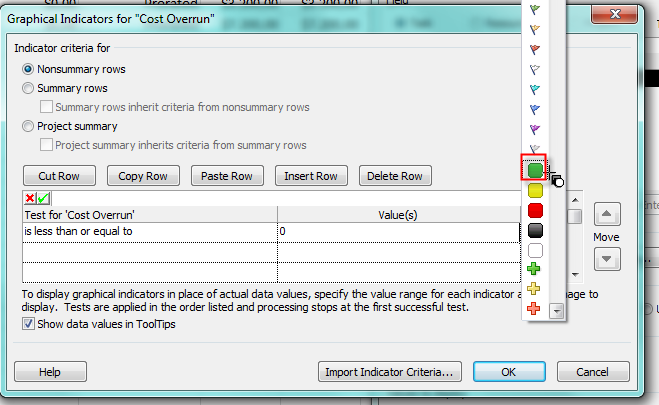
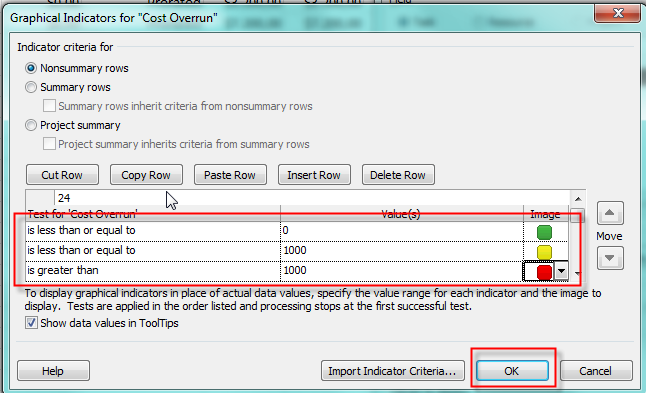
When I click on Image I will choose a Green Light:

image

no I will finish remaining two rows:

image

OK! Now I will put this Custom Field to the Entry table:

image

and then:

image

and:

image

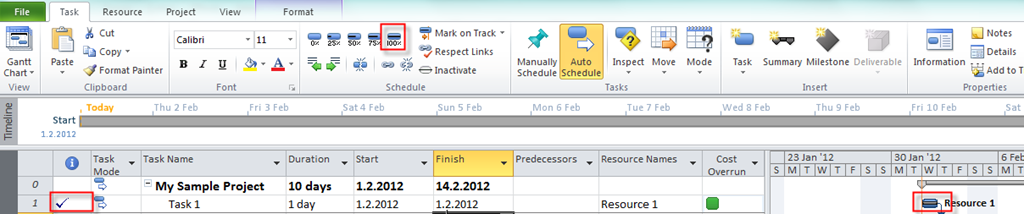
Let’s look at the Gantt Chart View:

image

Since I didn’t enter any “Actuals” All Task are Green!

Now I will make Task1 as 100% Complete:

image

Since everything went fine with Task1 Graphical Indicator remains Green!

I will say that it was spent 18 hours for the Task 2:

image

and:

image

and I will get:

image

Task 2 has a Baseline Cost: 2 days * 8 hours per day * $200 per hour = $3.200. Actual cost = 18 hours * $200 per hour = $3.600. Since Actual Cost – Baseline cost = $3.600 – $ 3.200 = $400, and it is less or equal to $1.000, the Yellow indicator appears!

On the same way, I will say that it was spent 5 days for the Task 3, and after that I will get:

image

Task 2 has a Baseline Cost: 3 days * 8 hours per day * $300 per hour = $7.200. Actual cost = 5 days * 8 hours per day * $300 per hour = $12.600. Since Actual Cost – Baseline cost = $12.000 – $ 7.200 = $4.800, and it is greater then $1.000, the Red indicator appears!

You can see costs (Baseline, Actual, and Variance) in Cost Table:

image

That’s it!

Regards!


P.S. If you have interest about Project Management Training in Zagreb Croatia here are some information:

We invite you to join us in training “Project Management and Risk Management Workshop” which will be held by Nenad Trajkovski, ESKA d.o.o., 26 – 30.03.2012. at hotel Antunović, Zagreb.

Training carries 40 PDUs/contact hours.

Date: 26 – 30.03.2012.
Location: Hotel Antunović, Zagreb
Price:
Regular Price: 6.900,00 kn + VAT
For 3 or more attendees from same company: 6.200,00 kn + VAT
Early Bird (valid until 26.02.2012.): 6.000,00 kn + VAT
For 3 or more attendees from same company: 5.800,00 kn + VAT
The price includes training fee, accompanying training materials, lunch and refreshment breaks during the training.
After applying for participation, the company ESKA d.o.o. will send to registered participants invoice for registration fee.

For further information and registration please contact us at ana@eska.hr.

Agenda:
Project Management
The training will introduce the world’s best-known project management methodology PMBOK – Project Management Body of Knowledge, and in a clear and accessible way explain what is process group (Initiation of the project, project planning, project execution, monitoring and control of the project and the closure of the project), and nine knowledge areas: Scope, Time, Cost, Quality, Human Resources, Communication, Risk, Procurement,  Integration Project.

Project Management Workshop
In this part of the training you will learn the following:
How, in practice, leading the project?
What should I watch?
What documents are required?
How do they look?
How to create?
What are you doing?

Through training we will conduct a small imaginary project. We will pass through all phases of the project:
Initiation of the project;
Project Planning;
The execution of the project;
Monitoring and control of the project;
Closing the project.

Risk Management
Risk management is one of the most important parts of project management. In this part of training we will in detail pass through all phases of managing the risks, with exercises in each area.
Through training we will conduct a small imaginary project. We will pass through the most important things such as:
Introduction to risk and their definitions, what will be included in risk management, risk management planning, risk identification, qualitative risk analysis, quantitative risk analysis, risk response plan, monitoring and risk control.
Please, find detailed information in attached document.

Sincerely,
Eska d.o.o.

Posted in MICROSOFT PROJECT, Microsoft PRoject 2010, MS PROJECT 2010, MS PROJECT 20101, PMI, PRoject Management | Tagged , , , , | 2 Comments

How to work with Outline Codes in MS Project 2010?


Hi,

in my last Post I have explained how to use custom fields in MS PROJECT 2010. One of custom field type is Outline Code. Suppose that you have resources group by skills like this:

  • Developers  (101 – C# Developer, 102 – SQL Developer, 103 – SharePoint Developer)
  • Consultants (201 – Finance Consultant, 202 – Fixed Assets Consultant, 203 – Production Consultant)
  • Testers (301 – Database Tester, 302 – Application Tester, 303 – Report Tester)
  • System Engineers (401 – MS SQL System Engineer, 402 – SharePoint System Engineer, 403 – BI System Engineer)

You want to assign one or more group of resources to each of your Resource.

I will create brand new Custom Field:

image

and I will get:

image

Now I have to define Code Mask:

image

and I will get:

image

Notice that I choose to have two different levels: First is for Skill type (for example: Developers), and second for the Skill (for example : C# Developer)

I do not want that User adds any new Values for my Skills and I do not want to choose Skill type, but only specific Skill!

image

and I will get:

image

I choose to order data in Ascending way, and to allow only codes that have no subordinate values (e.g, only Skills). Now is the time to put Values for the Custom Code:

image

and I will get:

image

I will Outdent all rows with Skills (101,102,103,….,401,402,403):

image

and, when I will finish I, will get:

image

OK. I will now change Entry Table for Resources:

image

and then:

image

and I will get:

image

Now I will put a Resource in this Table:

image

and that’s it!


Regards!

Posted in MICROSOFT PROJECT, Microsoft PRoject 2010, MS PROJECT 2010, PMI, PRoject Management | Tagged , , , , | 7 Comments

Customizing fields and specifying Lookup Values for a Custom Fields


Hi,

in this Post I will explain how to use custom fields in MS PROJECT 2010.

There are nine types of Custom Fields in MS PROJECT 2010:

  1. Cost. Use this type when you need a field in which you will put cost in currency. There is up to 10 Cost type fields.
  2. Date. Use this type when you need a field in which you will put date. There is up to 10 Date type fields.
  3. Duration. Use this type when you need a field in which you will put duration expressed in time. There is up to 10 Duration type fields.
  4. Start. Use this type when you need a field in which you will put start time expressed as a date. There is up to 10 Start type fields. Those fields are used for Interim Plans in MS PROJECT 2010, so my advice is that you should use Date type instead.
  5. Finish. Use this type when you need a field in which you will put finish time expressed as a date. There is up to 10 Finish type fields. Those fields are used for Interim Plans in MS PROJECT 2010, so my advice is that you should use Date type instead.
  6. Text. Use this type when you need a field in which you will put text up to 255 characters. There is up to 30 Text type fields.
  7. Flag. Use this type when you need a field in which you will put YES/NO flag. There is up to 20 Flag type fields.
  8. Number. Use this type when you need a field in which you will put numeric data. There is up to 20 Number type fields.
  9. Outline Code. There is up to 10 Outline Code type fields. I will explain them later in my next Post.

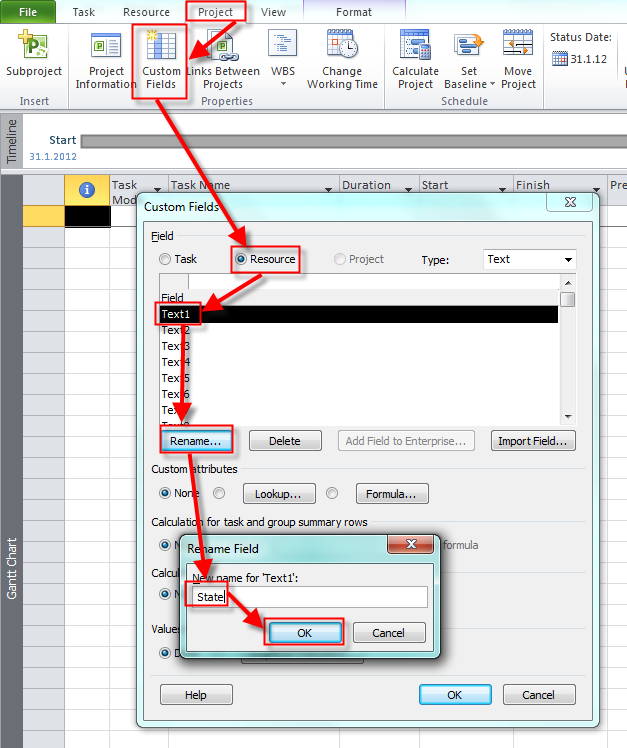
Custom fields can be applied to Resources or to Task. For my first example, suppose that you need information about State from which your Resource is!

I will create Custom Text field:

image

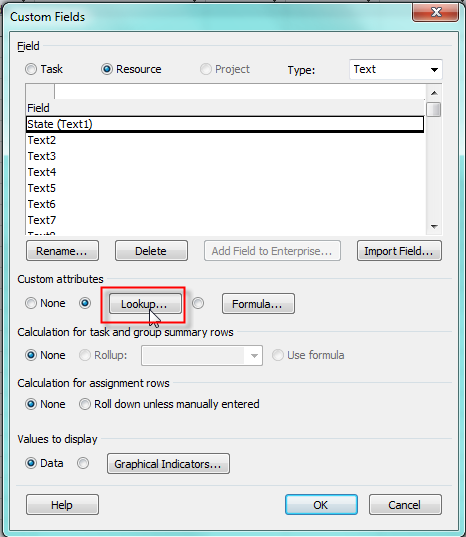
and I will get:

image

Now, I will choose Lookup (see the Picture above), and I will get:

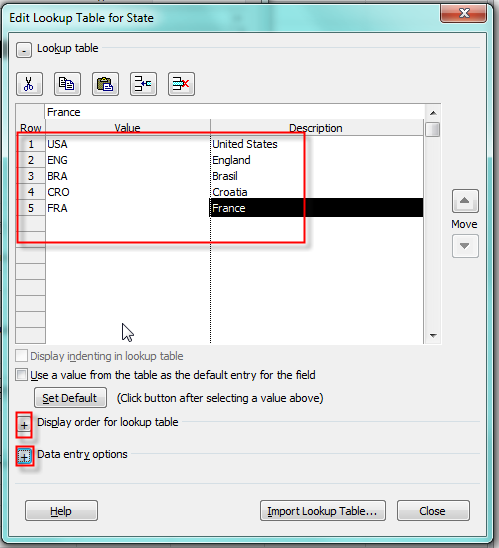
image

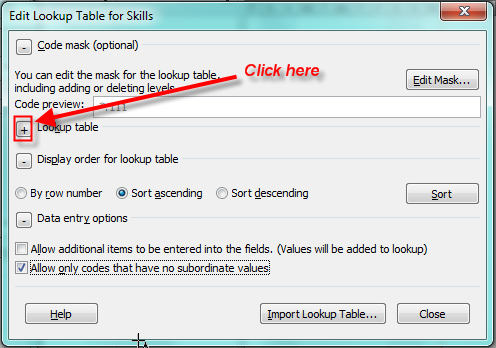
I have entered some States (just for example), and now I will click at the + Sign as shown at the Picture above:

image

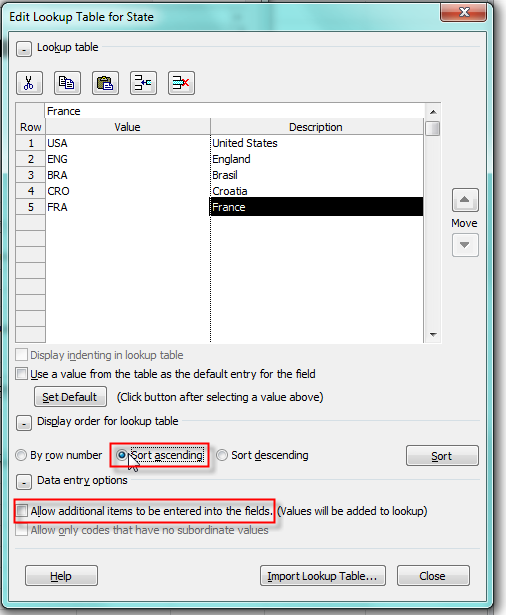
I choose that Display order will be Ascending, and I do not want to add any further States in this field. If I put check mark in Allow additional items to be entered into the fields, then user can simply add any value (text) in this field on the screen (which I will explain next), and in that case this value (text) will be added in lookup table.

I am from Croatia, so most of my Resources are from it, and I will make Croatia as default Value:

image

OK. Now, I am going to modify Entry Table, for Resources:

image

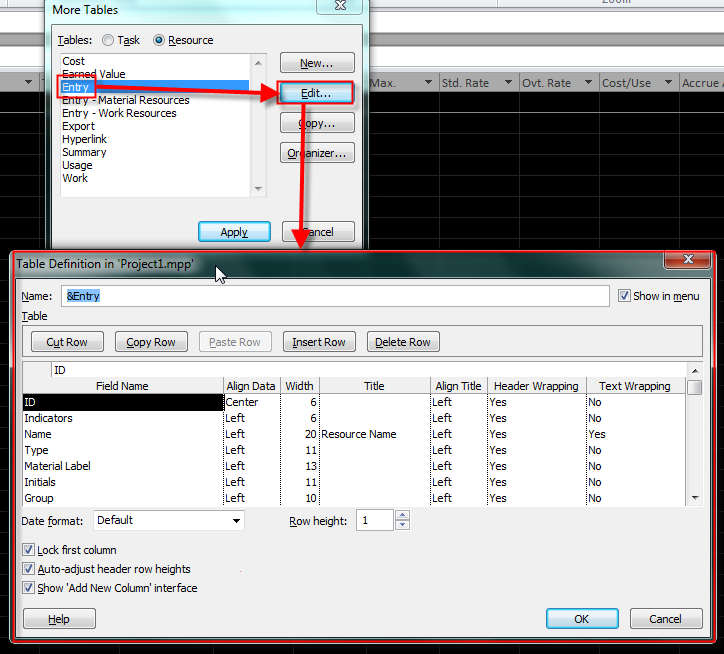
and then:

image

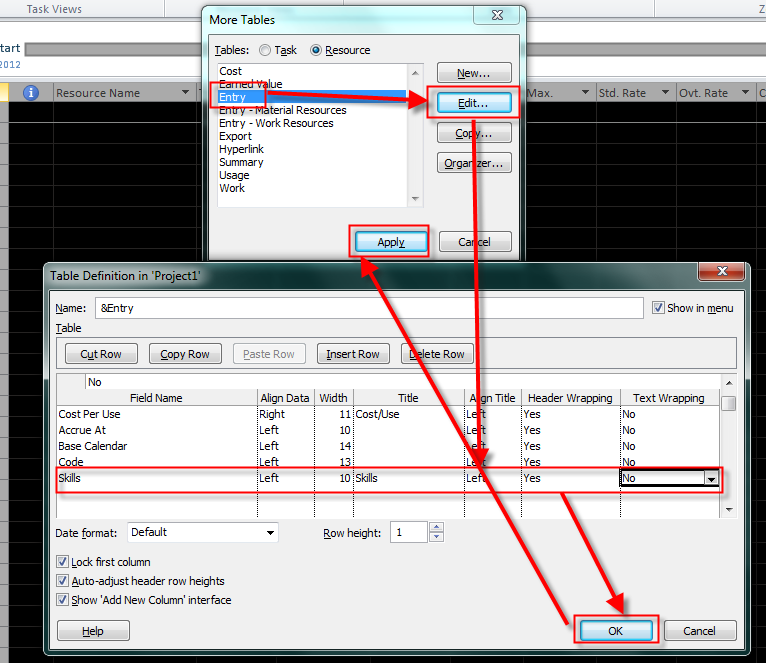
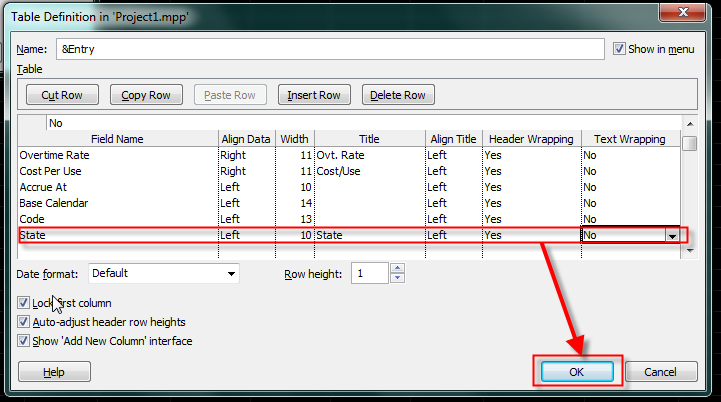
I will scroll down to the row below last one with data and I will add State field in the Entry table:

image

I will fill all other Columns:

image

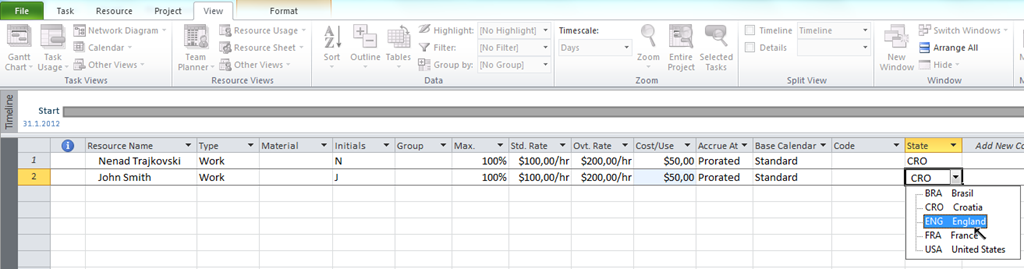
Now let’s see what we get:

image

It is simple, isn’t it. I have applied custom Text field. I could apply any other type of custom field in the same way, except Outline code.

My next Blog post will be about that!


Regards!

Posted in MICROSOFT PROJECT, Microsoft PRoject 2010, MS PROJECT 2010, PMI, PRoject Management | Tagged , , , , , | 9 Comments

Customizing Views in MS PROJECT 2010 – Part 2.


Hi,

in my previous Post I have explained how to copy one View to another, and make a customization. Notice that are two different types of View in MS PROJECT 2010: Single View, and Combination View. Example of Single View is Gantt Chart, and example od Combination View is Task Entry:

image

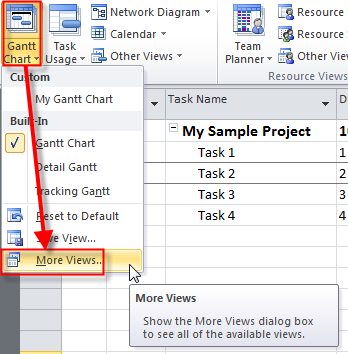
Now I will show how to create a Brand new View:

image

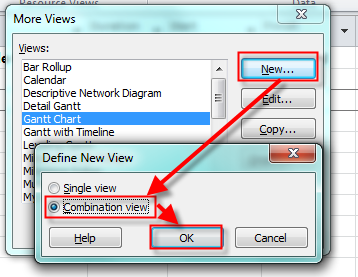
and then:

image

So, I will create the Combination View:

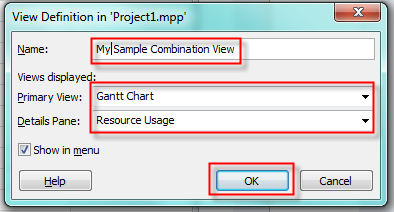
image

and I will get:

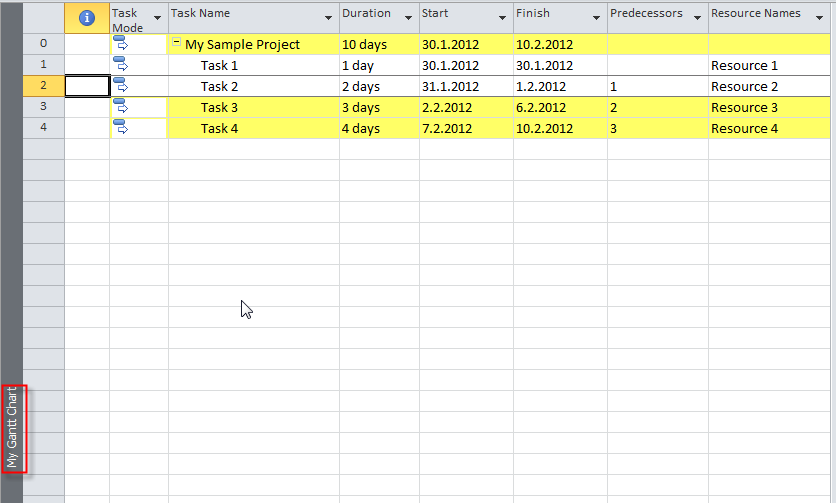
image

But what if I want that My Sample Combination View has customized portion.

If you red my previous Post you will recall that I made customized Gantt Chart View:

image

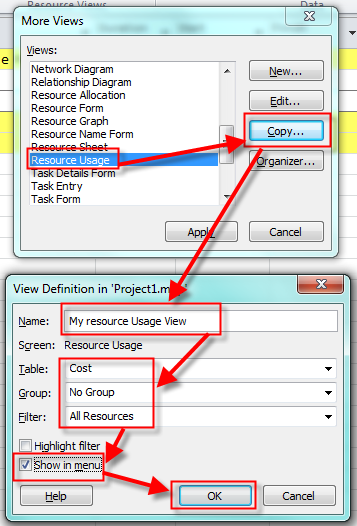
I will make a custom Resource Usage View:

image

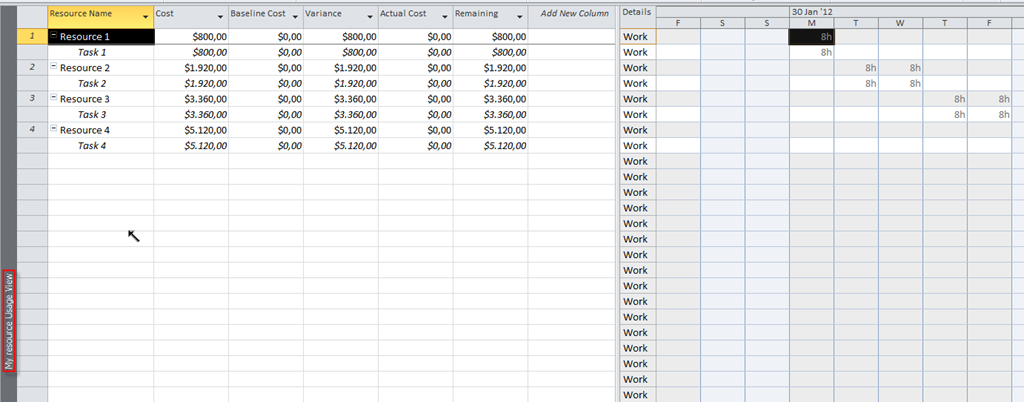
and I will get:

image

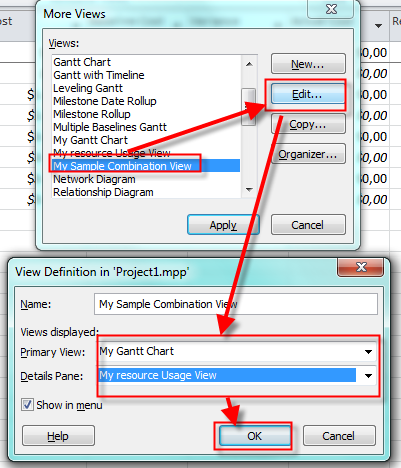
Now I will change My Sample Combination View:

image

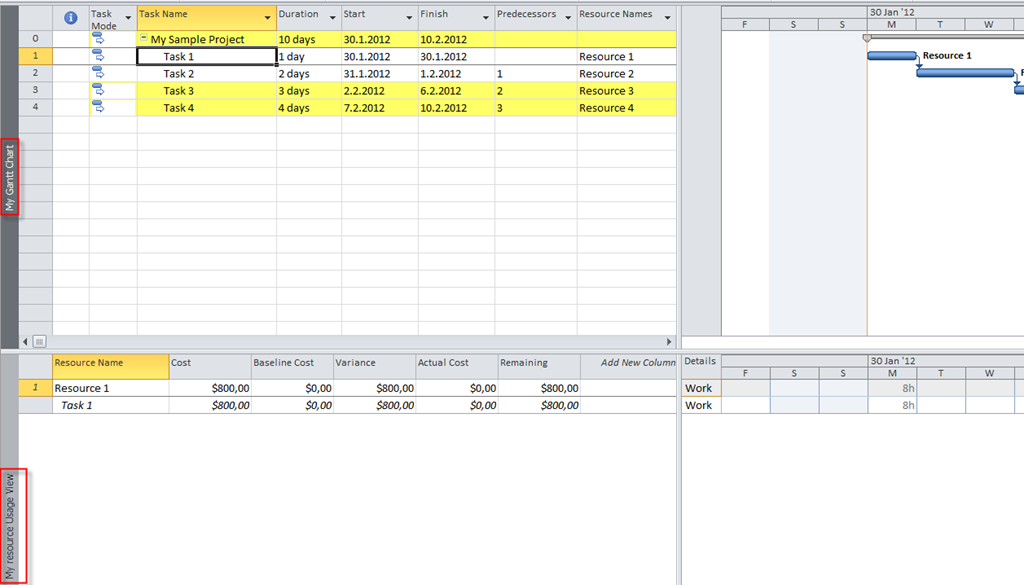
and I will get:

image

Notice that in my upper portion of the Screen I have My Gantt Chart with filter applied, and in the lower part of the Screen I have My Resource Usage View with Cost Table applied.

OK! Since I don’t need those examples any more I will delete them. First I will close all Custom Views in a way that I am going to choose any other View except one I want to delete (in my example I will choose regular Gantt Chart):

image

Now I am going to Organizer:

image

Here I choose to delete those Views from my current Project.

Since I will not need those Views in a future, I will erase them Global template:

image

Notice that when you erase something from Global template, it is gone forever.

Regards!

Posted in MICROSOFT PROJECT, Microsoft PRoject 2010, MS PROJECT 2010, PMI, PRoject Management | Tagged , , , , , | 3 Comments

Customizing Views in MS PROJECT 2010 – Part 1.


Hi,

I will explain Views in MS PROJECT 2010 PROFESSIONAL! First I will create an example. I have a Project with four Tasks:

image

and four Resources:

image

and those Resources are assigned to Tasks:

image

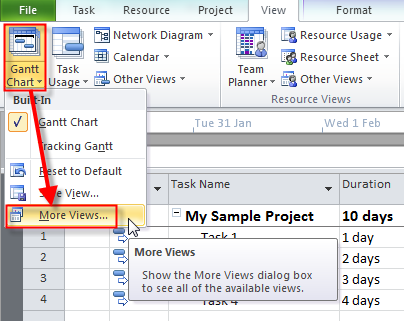
OK! This is Gantt Chart. In standard Gant Chart you can see data like in a picture above. But why? Where are those fields come from.

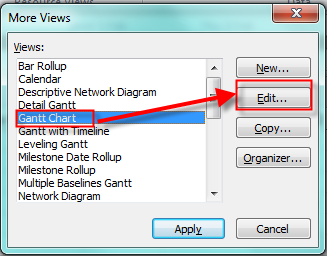
You can edit this View to get an answer to this question:

image

and then:

image

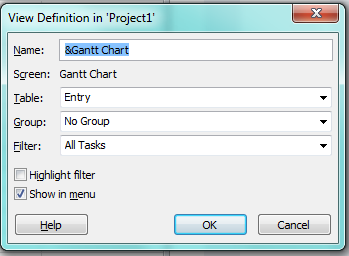
and I will get:

image

  • Name: The name of the View
  • Table: The Table showed in the View
  • Group: How the data is grouped
  • Filter: Which Filter is applied

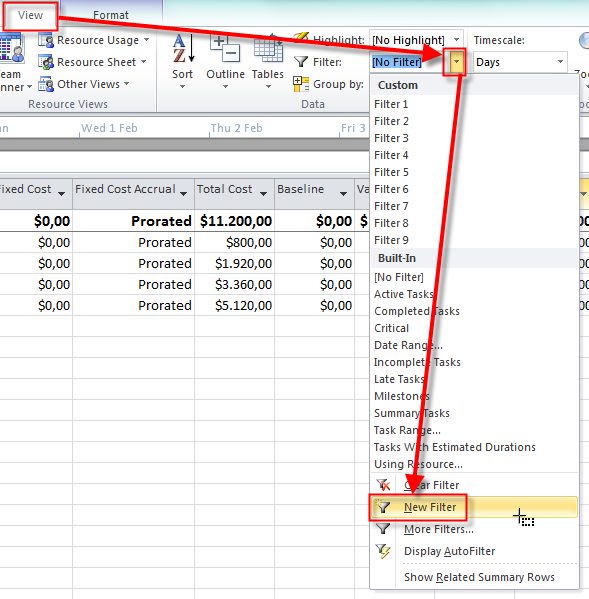
Now I will make brand new view from the Gant Chart. Firs I will create new Filter:

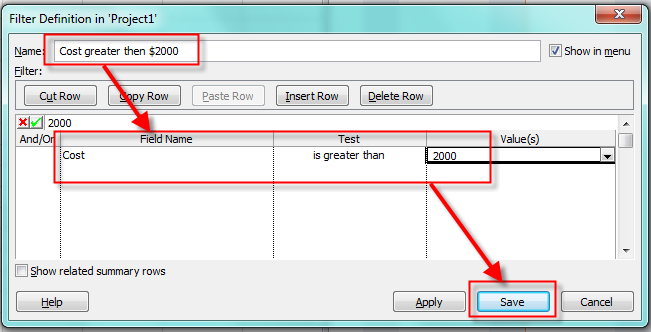
image

and then:

image

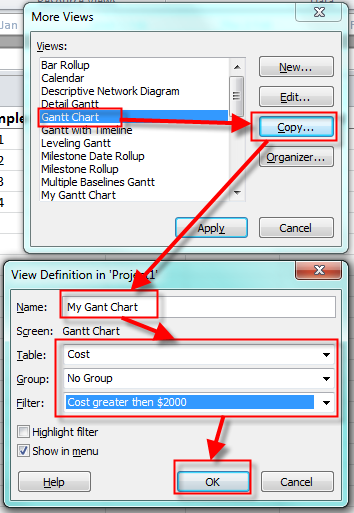
Now  I will make the new view:

image

And I will get:

image

Only Task 3, and Task 4 are displayed because they have Cost greater then $2.000.

If I apply “normal” Gant Chart with Cost Table I will get:

image

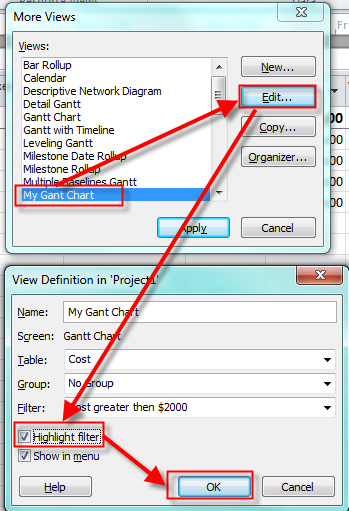
Now I will change My Gantt Chart in a way that I will check Highlight Filter:

image

and I will get:

image

You can see, that I get all task, but those with Cost greater then $2.000 are highlighted!

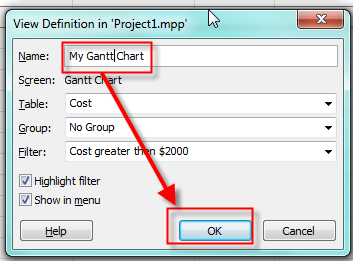
OOOPS! Guys I put My Gant Chart instead of My Gantt Chart. I will change the name very Simply:

image

And I’ll get:

image

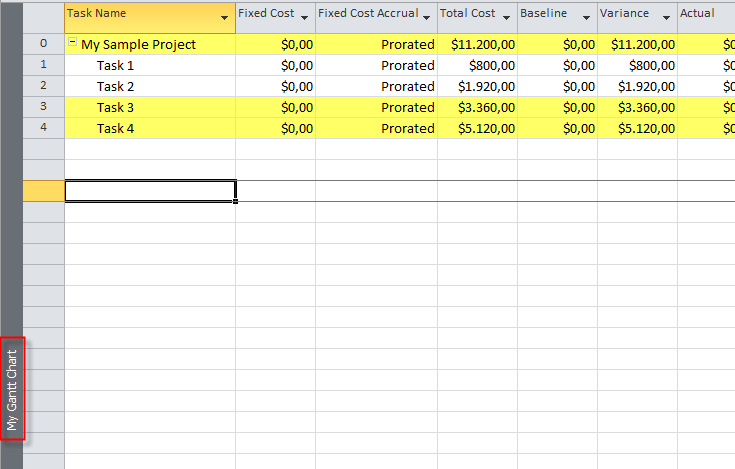
I will close MS PROJECT 2010, and reopen it again:

image

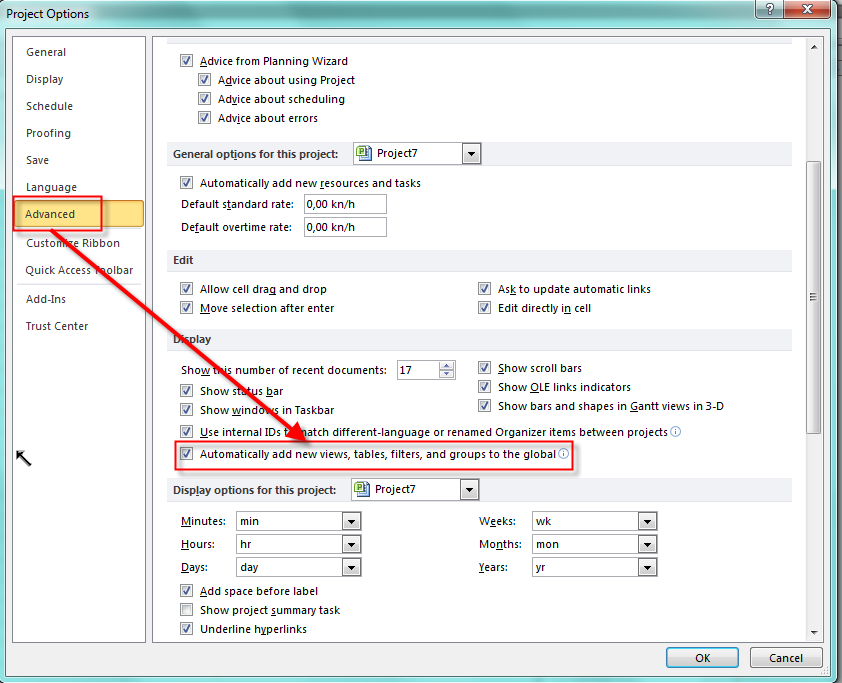
As you can see, My Gant Chart is here. Why? Because of this:

image

and:

image

Notice that when Automatically add new views, tables, filters, and groups to the global is checked, any new view, table, etc. added in one project will reflect to all Projects in the future. If you want to make a custom View, Table, etc. only for current Project, remove this check mark!

In my next Blog I’ll show you how to create and modify more complex Views!


Regards!

Posted in MICROSOFT PROJECT, Microsoft PRoject 2010, MS PROJECT 2010, PMI, PRoject Management | Tagged , , , , | Leave a comment

How to apply Overtime, and Double time rates in MS PROJECT 2010


Hi,

one of my Blog reader has a Problem. She has Project and she must apply three different Pay rates for Resource on the Task in MS PROJECT 2010.  Here is an example:

John is working on task, and it will have Duration = 14 days! John will work from Monday to Sunday 12 hours per day! Regular work is 8 hours per day, and 4 hour per day are overtime work. BUT! Every Sunday John will earn double time fee.

OK! Firs we have to SETUP our Regular work:

image

then:

image

Now I will setup working time in my Calendar:

image


I will add a brand new Task in my Project:

image


Now I will add John as Resource:

image


Notice the figures in Cost Rate Table:

  • From Project start 30.01.2012 John will be paid $100 per hour for Standard work (8 hours per day), and $150 for Overtime work (4 hours per day)
  • At Sunday, 05.02.2012 John will be paid $200 per hour for Standard work (8 hours per day), and Overtime work (4 hours per day). This is what we can call Double Time Rate
  • From Monday till Saturday (06.02.2012-11.02.2012) John will be paid $100 per hour for Standard work (8 hours per day), and $150 for Overtime work (4 hours per day)
  • At Sunday, 12.02.2012 John will be paid $200 per hour for Standard work (8 hours per day), and Overtime work (4 hours per day). This is what we can call Double Time Rate

OK! Now I Will assign John to the Task:

image

Now I will choose the Cost Table:

image

and I will get:

image

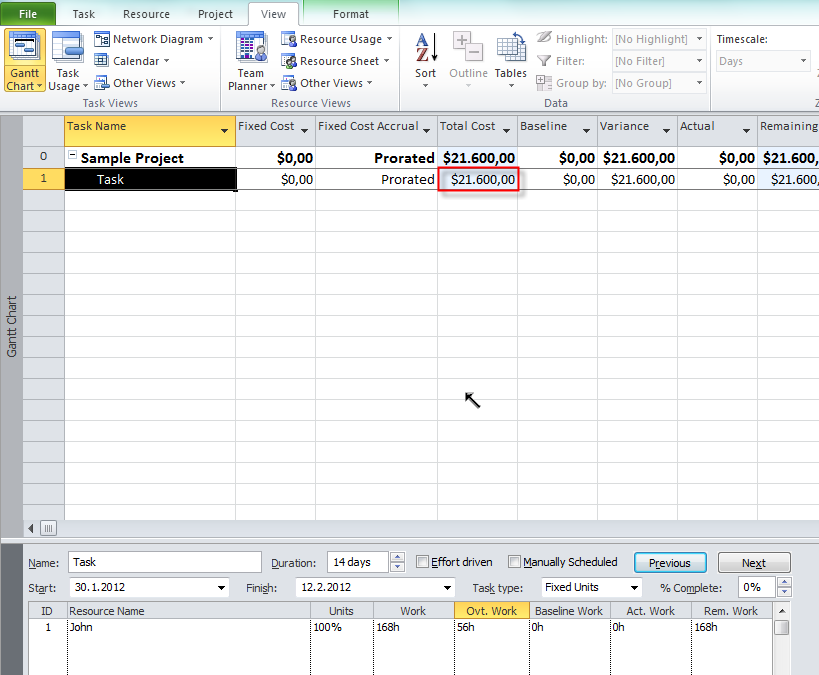
Total Cost is $12.800! Why?

  • From Monday, 30.01.2012 till Saturday, 04.02.212  (6 days * 8 hours per day  = 48 hours), pay rate is $100. 48 hours * $100 = $4.800
  • At Sunday, 05.02.2012, pay rate is $200. 8 hours * $200 = $1.600
  • From Monday, 06.02.2012 till Saturday, 11.02.212 (6 days * 8 hours per day = 48 hours), pay rate is $100. 48 hours * $100 = $4.800
  • At Sunday, 12.02.2012, pay rate is $200. 8 hours * $200 = $1.600
  • $4.800 + $ 1.600 + $4.800 + $1.600 = $12.800

Here is the Task Usage:

image

But, where is the Overtime rate applied? NOWHERE! Why? Remember that you should assign overtime work by your own. That means, if someone will work 12 hours on a task per day, it doesn’t mean that MS PROJECT 2010 will charge 4 extra hours with overtime rate.

Now, I will put overtime work in MS PROJECT 2010:

image


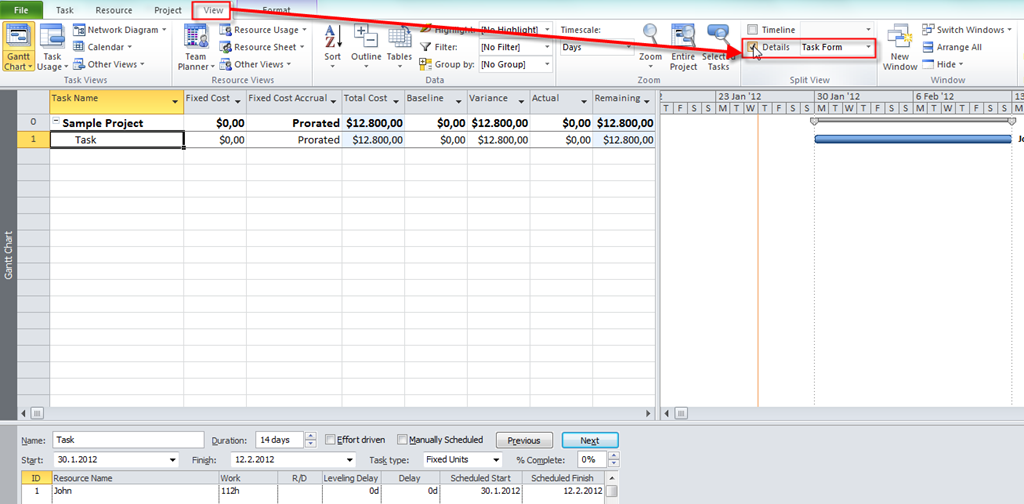
Now I will click anywhere in Task Form, and on the format Tab select Work:

image

and I will get:

image


Now what? John has to work 12 hours per day, and 4 hours will be overtime. 14 days * 12 hours per day = 168 hours. 14 days * 4 overtime hours per day = 56 hours. I will put those figures in Task Form:

image

and I will get:

image

Now, the Total Cost is $21.600! Why?

  • From Monday, 30.01.2012 till Saturday, 04.02.212 (6 days * 8 regular hours per day = 48 hours hours), regular pay rate is $100. 48 hours * $100 = $4.800
  • From Monday, 30.01.2012 till Saturday, 04.02.212 (6 days * 4 overtime hours per day = 24 hours), overtime pay rate is $150. 24 hours * $150 = $3.600
  • At Sunday, 05.02.2012, pay rate is $200 (regular and overtime) . 12 hours * $200 = $2.400
  • From Monday, 06.02.2012 till Saturday, 11.02.212 (6 days * 8 regular hours per day = 48 hours hours), regular pay rate is $100. 48 hours * $100 = $4.800
  • From Monday, 06.02.2012 till Saturday, 11.02.212 (6 days * 4 overtime hours per day = 24 hours), overtime pay rate is $150. 24 hours * $150 = $3.600
  • At Sunday, 12.02.2012, pay rate is $200 (regular and overtime) . 12 hours * $200 = $2.400
  • $4.800 + $3.600 + $2.400 + $4.800 + $3.600 +  $2.400 = $21.600

Let’s look at the Task Usage View:

image

You can see that Cost per day (except Sunday) is $1.400. (8 hours * $100) + (4 hours * $150) = $1.400. At Sunday Cost is 12 hours * $200 = $2.400.


That’s it.

Regards!

Posted in MICROSOFT PROJECT, Microsoft PRoject 2010, MS PROJECT 2010, MS PROJECT 20101, PMI, PRoject Management | Tagged , , , | 32 Comments

How to Collaborate between MS PROJECT 2010 Professional and MS SharePoint – Part 2


Hi,

I will show you how to synchronize Tasks between MS PROJECT 2010, and SharePoint.

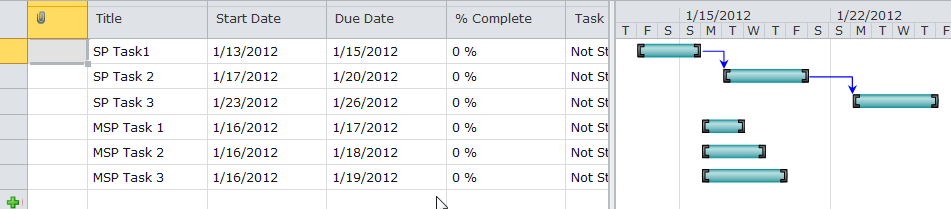
Here are the Tasks in MS PROJECT 2010:

image

and in SharePoint:

image

Notice that they are same!

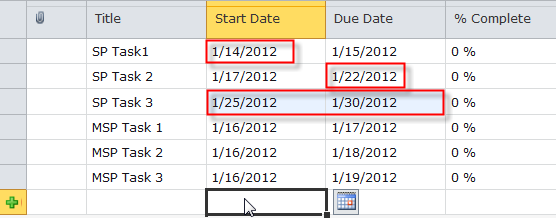
No I will change some fields in MS PROJECT 2010:

image

and in SharePoint:

image

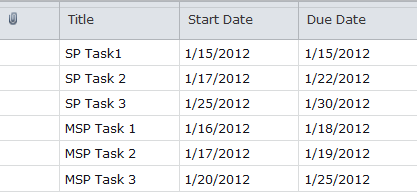
Now I am going to synchronize those Tasks:

image

and I will get in MS PROJECT 2010:

image

and in SharePoint:

image

Everything seems OK, except SP Task1. 15.01.2012 is non working day, and in synchronization Start  date and End Date are set to 15.01.2012, and because SP Task1 has Finish no earlier then 15.01.2012, this task is set as a Milestone! It does not seem wright!

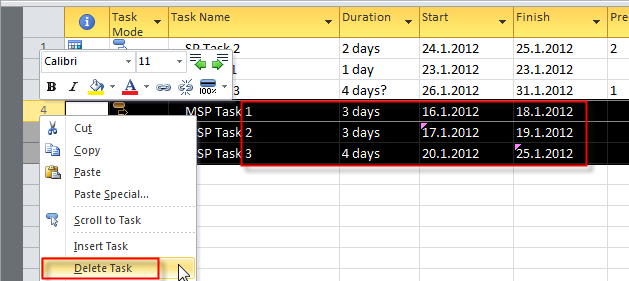
OK. Now I will erase three Tasks in MS PROJECT 2010:

image

and then I will sync them with SharePoint. I will get:

image

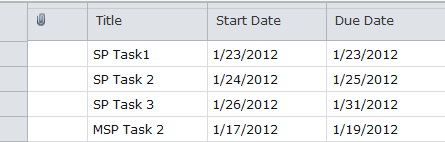
Since there is a conflict between MS PROJECT 2010, and SharePoint, I have to choose, which Version is OK. For MSP Task1, I will choose that I will Keep Project Version:

image

For the MSP Task 2 I will choose to keep SharePoint Version:

image

For the MSP Task 2 I will choose to keep Project Version:

image

Finally I get:

image

and:

image

Notice, that MSP Task1, and MSP Task3 are deleted, because for them I decided to keep Project Version (and I have deleted them in MS PROJECT 2010), but MSP Task2remains the same, because I choose to keep the SharePoint version (and I didn’t accept to delete it, even I said so in MS PROJECT 2010).

Suppose that I have Sample Task in both, MS PROJECT 2010, and SharePoint:

image

image

Now I will change data for this Task in both, MS PROJECT 2010, and SharePoint:

image

image

After Synchronization I will get:

image

Notice that in MS PROJECT 2010 I have accurate data from SharePoint.

With this Post I conclude writing about MS PROJECT 2010, and SharePoint. Very soon, as I promised, I will start to write about MS PROJECT SERVER 2010, because it has much more possibilities than SharePoint, even MS PROJECT SERVER 2010 basically is SHAREPOINT, but……


Regards,
Posted in MICROSOFT PROJECT, MS PROJECT 2010, PMI, PRoject Management | Tagged , , , , | 4 Comments