Task Duration and Resource additional day off in MS PROJECT 2016

Hi,

today I will show you what happens if you assign resource to the Task, and afterwards put, for example, day off for that Resource in MS PROJECT 2016

First, I’m going to create simple Project:
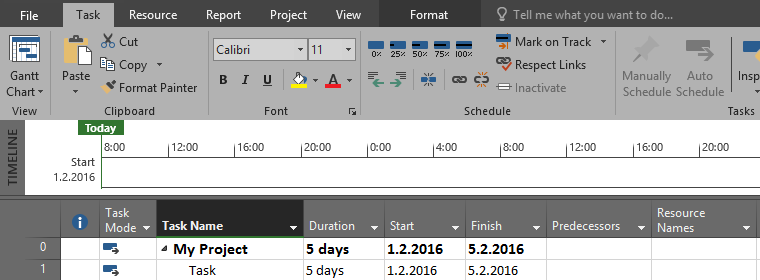
image

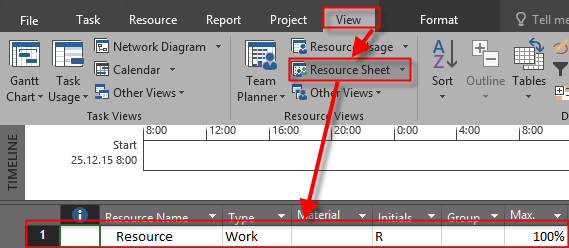
I will now create John, as Resource, with 100% Max.units:
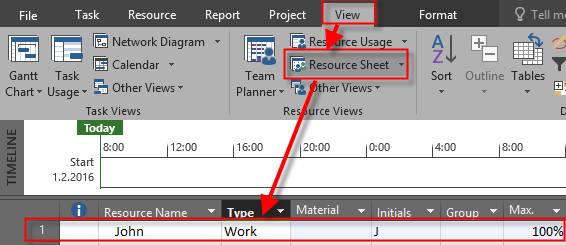
image

Finally I will assign John to the Task, and I will show Task Usage View:

image

Now I’m going to show additional Column, Type:

image

Now, everything is set. Suppose that at Thursday John can’t work at the Task. I will now put Day off:
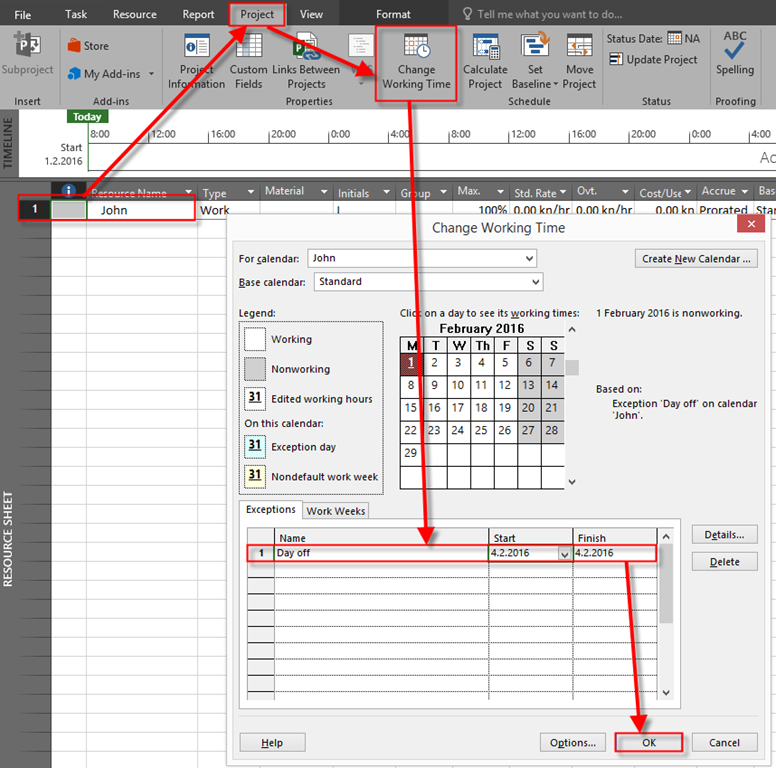
image

and I will get:

image

So, with Fixed Units, End date will be Monday, 8.02.2016, and Work will remain 40 hours. The same thing will happens if you use Fixe Work Task Type, so I’m not going to show you that. If you do not believe me, try it Smile

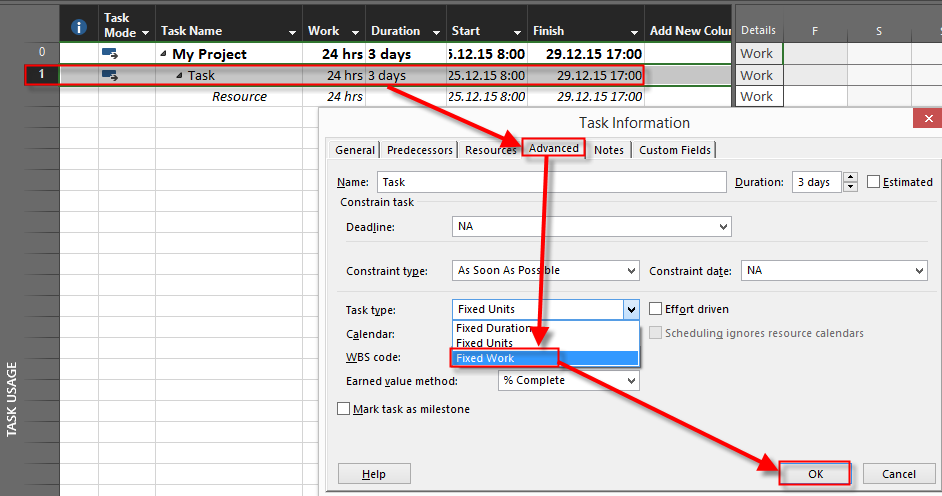
Now I am going to put it all back and set Task Type as Fixed Duration:

image

Now I’m going to set Thursday, 04.02.2016, as a Day off for John:
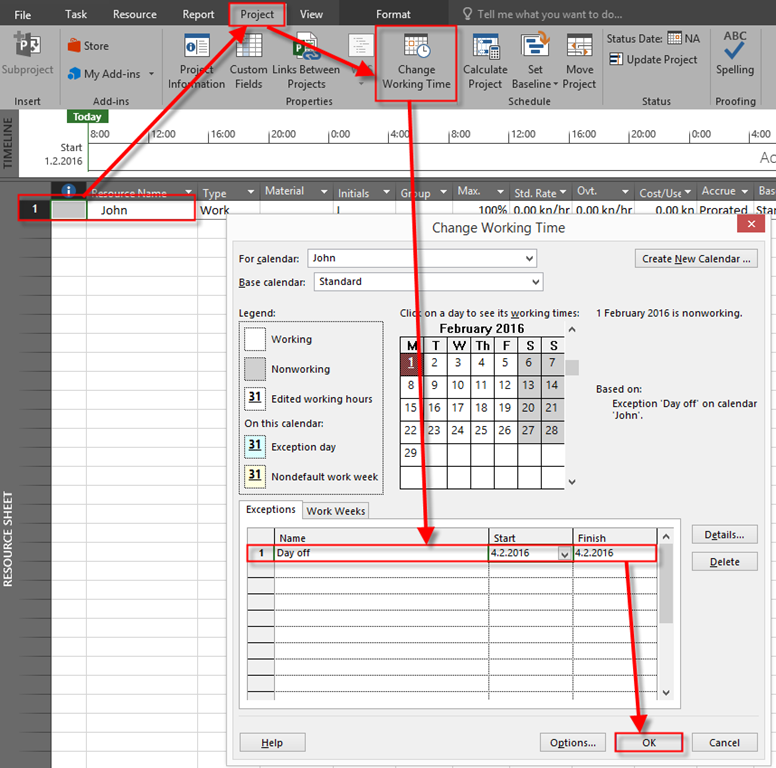
image

and, after I will click at OK button I will get:
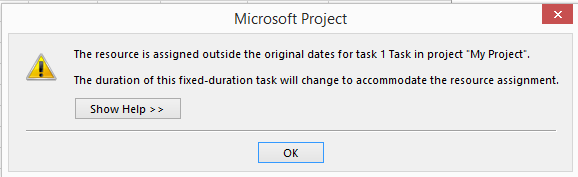
image

If I click on Show Help button, I will get:
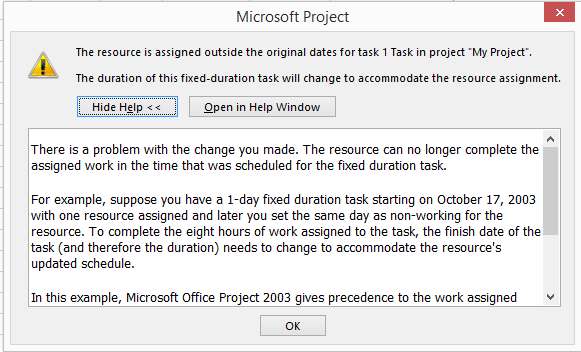
image

The final result is:

image

So, what it this post all about? About warning! As you can see with Fixed Duration, and Fixed work Task Type, there is no warning that Duration will change. If Task Type is Fixed Duration then, and only then, you will get warning that Duration is going to change.

But this is not all. Let’s say that I have five Tasks, all Fixed Duration and five different Resources assigned to those Tasks:
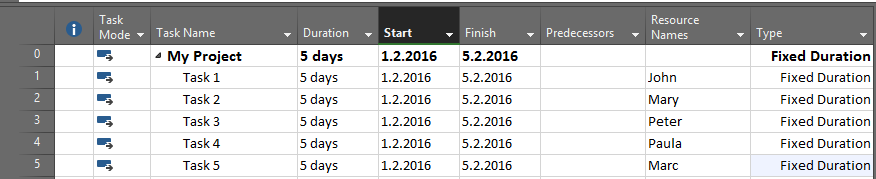
image

Now, suppose that, for some reason, Thursday is day off for all Resources, e.g. for whole company:
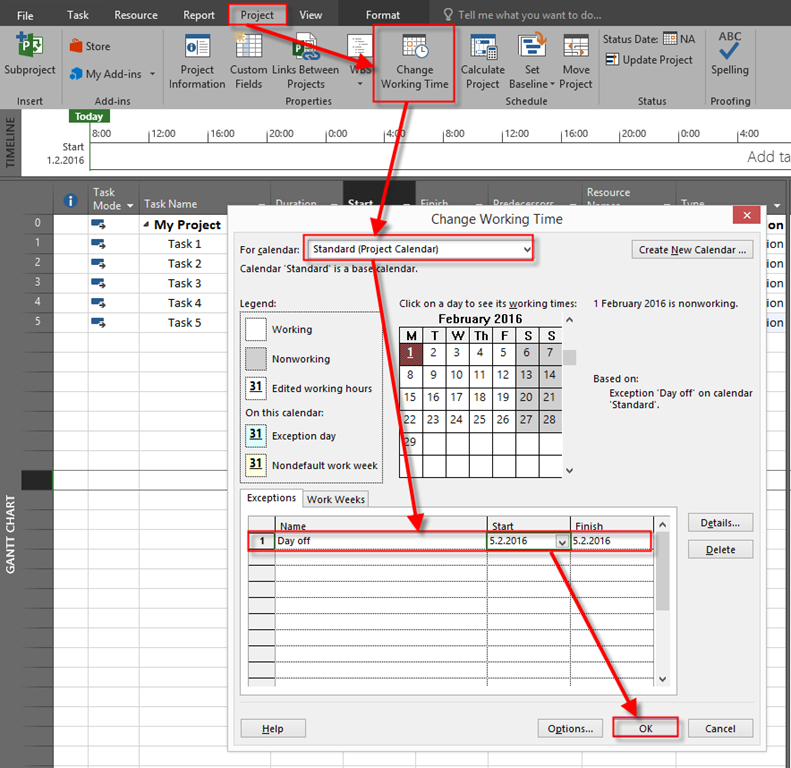
image

After I click at OK button I will get:

image

As you can see, in this scenario there is no warning at all. So, you have to be very, very careful when you are adding exceptions to your Calendars because the whole Schedule can “dance”, e.g. change, without warning. My suggestion is: Always have Test instance of your Project, and only after you are 100% sure that you get result which is acceptable, do changes at real Project file.

Regards!

Posted in MICROSOFT PROJECT, MS PROJECT 2016 | Tagged | Leave a comment

How to change Task Finish date when Task has fixed amount of Actual work in MS PROJECT 2016


Hi,

friend of mine got a problem. He has Task in which he wants to put Actual work and Actual Finish date for the Task, but he got odd result. Let me show you a problem with MS PROJECT 2016. firs I am going to create a simple Project with one Task:

image

I will create a Resource with 100% availability:

image 

and I will assign Resource to the Task:

image

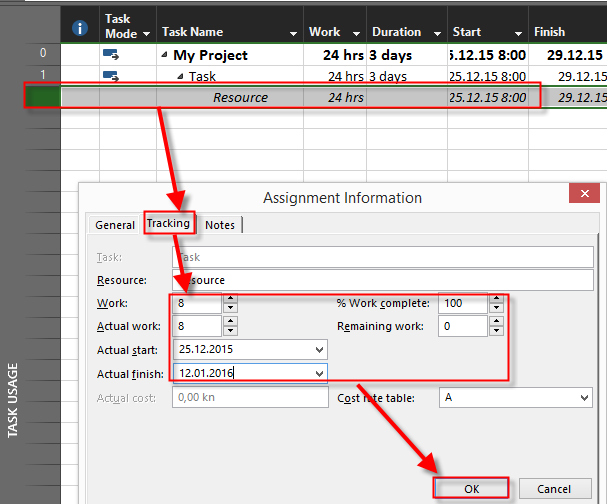
Now suppose that Task is finished at Tuesday, 12.01.2016, and Actual work is 8 hours. Simple, Resource worked only 8 hours to finish the Task during period from 25.12.2016 to 12.01.2016.

I will use Task Usage View:

image

and I will get:

image

As you can see work is 104 hours, not 8. Is it a bug? Not at all. Because from 25.12.2015 to 12.01.2016 is 13 working days and 13 * 8 hours per day is 104 hours. If you want to have fixed period (Start and Finish date), and fixed hours,  you should have Fixed work Task Type:

image

Now I will put same values here:

image

and I will get:

image

To conclude, if you want to have fixed hours, and Fixed Actual Start and End Date, use Fixed work Task Type!

Regards!

Posted in MICROSOFT PROJECT, Microsoft Project 2013, MS PROJECT 2016, PMI, PRoject Management | Tagged , | Leave a comment

Resource availability and Tasks in MS PROJECT 2016

Hi,

I’ve got a question from one of my Blog readers:

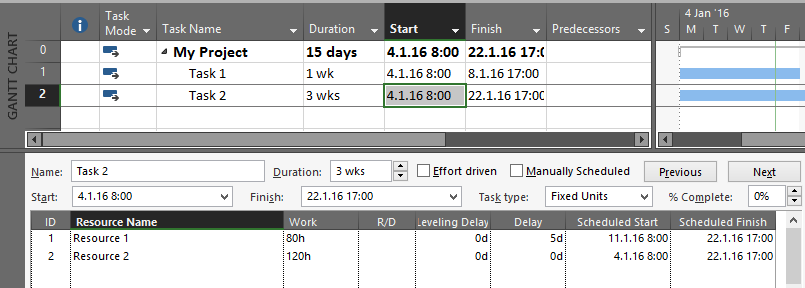
“How can I schedule a resource onto a task when it becomes available. For example, there are two tasks that start at the same time and the duration on the first is 1 week, and the second task is 3 weeks. I assign task 1 to Resource1 and task 2 to both resources.
What I would like to automatically occur is for Resource 1 to be assigned task 1 in the first week and task 2 in weeks 2 and 3; and Resource 2 be assigned task 2 for weeks 1 through to 3. This meets the task hours required and utilizes the resources efficiently. Thanks in advance for any assistance.”

I will explain that in MS PROJECT 2016.

First I am going to set up the brand new Project as my readers told me:

image

and two Resources:

image

Now I’m going to assign Resources to Tasks using Task Form:

image

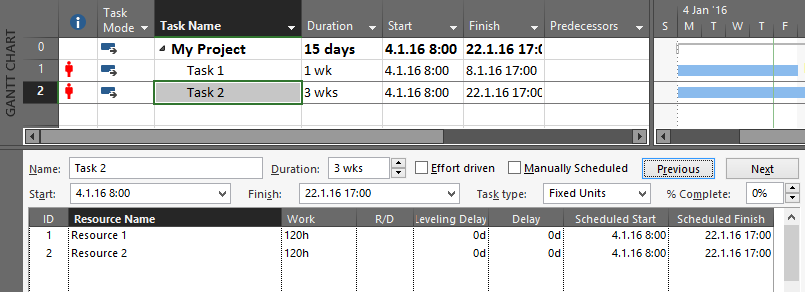
I will assign Resource 1 to Task 1 and Task 2, and Resource 2 to Task 2, and I will get:

image

As you can see in Info column, Resources are over allocated (e.g. Resource 1 is over allocated). Microsoft Project will not, and can not decide for you when do you need resource for specific Task. Since you told to Microsoft Project that Resource 1 should work on both Tasks, Microsoft Project can only help you with over allocation sign. Why? When you assign Resource 1 to Task 1 it means that Resource 1 should work 5 days (8 hours per day, because it will work with 100% capacity), and that is 40 hours! On the other hand, to complete Task 2, both Resources should work on it for 3 weeks, e.g. 15 days (8 hours per day), and that is 120 hours per Resource. And yes, Resource 1 is over allocated, and Microsoft Project will not move Resource from Week 1 on Task 2 to Week 2, and Week 3 just because it is over allocated. 

What can you do in this situation. You can manually set Scheduled Start date, and hours. That means, in this example, if you want that your Resource 1 to work only 2 weeks (and this is 80 hours (10 days * 8 hours per day), and you want it to work after Task 1 is finished, then you should make this change:

image 

and you will get:

image

Now, Resource 1 is not over allocated any more. BUT! Be aware of this:

  1. The total work for Task 2 is now 200 hours, not 240 hours! Ask yourself: Is it enough? Well yes, Resource 1 was over allocated, but does it mean that if he or she will work when he / she is available, and you do not extend Duration for the Task, the total amount of work will be enough to finish it in 3 weeks?
  2. If you extend duration of Task 1, or you add another Task in the same period when Task 2 should be done, Resource 1 will become over allocated, again. For example I will extend Task 1 from 1 to 2 weeks, and I will get:

image 

And what if you have many Tasks (for example 345), and Resource 1 will work on 100 of them. You will get hard time.

To conclude, if you want to have a Project with not over allocated Tasks then you should use Leveling, but Microsoft project will never decrease work by itself in example like this. Ever!

Regards

Posted in MS PROJECT 2016, PMI, PRoject Management | Tagged | Leave a comment

How to delete all dependencies for one Task in MS PROJECT 2016

Hi,

for the last post in this year I choose to show you a very simple Trick. What if you have one Task with multiple Tasks dependencies, and, for some reason you want to remove those dependencies in one step. How to remove those dependencies in Microsoft Project 2016?

First I will build a simple Project with 10 Tasks, and I will set dependencies between them:

image

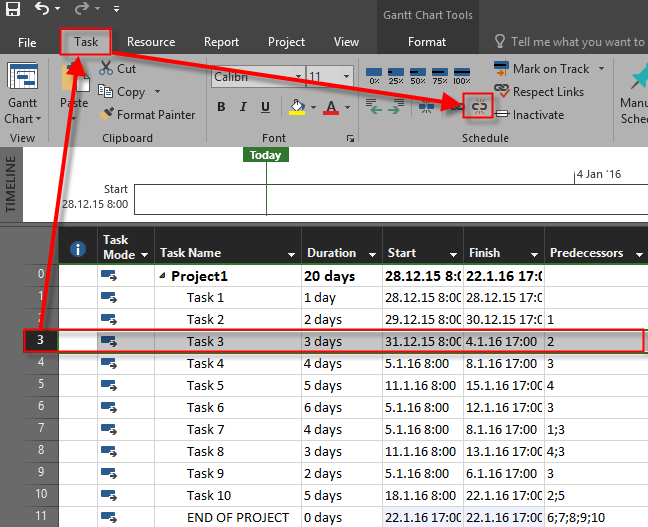
Now for some reason I want to keep all dependencies, except dependencies for Task 3, which I do not need any more, so I am going to remove them before I build new one. I have to remove all dependencies for it. Imagine that you have a Project with 1753 Tasks, and Task 3 has many dependencies. You can easily forget to remove dependencies. If you want to be sure that you have remove all dependencies, for example, on Task 3, follow this steps:

image

and you will get:

image

As you can see, Task 4,6,7,8 and 9 are not dependent on Task 3 any more.

Easy and effective, isn’t it.

Dear readers, thank you very much for you participation, questions and suggestions.

I wish you all the best in New Year! Smile

Nenad Trajkovski

Posted in MICROSOFT PROJECT, Microsoft PRoject 2010, Microsoft Project 2013, MS PROJECT 2010, MS PROJECT 2016, PMI, PRoject Management | Tagged , , | Leave a comment

Manually Scheduled Tasks and Resource Calendar in MS PROJECT 2016!

Hi,

today I’ll show you how Manually scheduled Tasks are affected by Resource Calendars in MS PROJECT 2016!

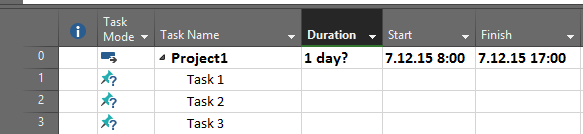
First I will create a simple project with only one Task in manually scheduled mode:

image

Now I’m going to create John as Resource:

image

Now, suppose that he has day off at Wednesday, 09.12.2015:

image

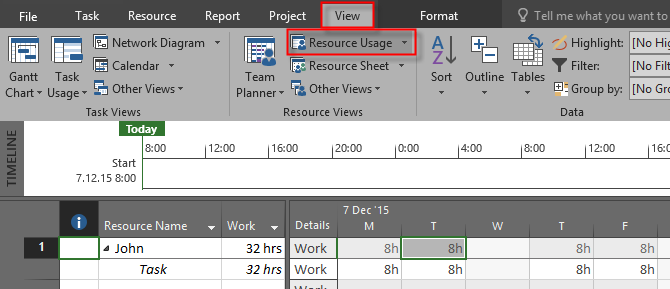
Finally I will assign John to the Task, and I will take a look at the Resource Usage View:

image

As you can see, End date  didn’t change, and John will work only 32 hours to Complete his work, because he is at his day off at Wednesday.

I will now create Same Task in Auto Schedule Mode;

image

and I will assign John to the Task:

image

As you can see, end date is now 14.12.205! Let’s look at the Resource Usage View, again:

image

As you can see, John will work only 40 hours to Complete his work, because he is at his day off at Wednesday, an because of that, he has to wok on Monday, 14.12.2015

So, when you use Auto Scheduled Tasks, End date will extend, and Work = Duration * Units e.g. Work =5 days (8 hours per day) * 100% = 40 hours, and the end date is not fixed!

But, when you use Auto Scheduled Task Work = Available days for resources (Duration) * Units, e.g Work = 4 days (because one day off) (8 hours per day) * 1’00% = 32 hours.

So, be careful when you use Manually scheduled Tasks and Resource Calendars!

Posted in Microsoft Project 2013, MS PROJECT 2016, PMI, PRoject Management | Tagged | Leave a comment

Manually scheduled Tasks and Dependencies when changing Duration in MS PROJECT 2016!

Hi,

today I’m going to show you what happens when you establish dependencies between manually scheduled Tasks in MS PROJECT 2016, and then change Duration.

First I’m going create simple Project:

image

Now I’m going to put Duration for each Task:

image

Now I will connect them:

image¸

Everything looks Perfect. But, suppose that for some reasons Task 1 now has 2 days Duration, and Task 2 has 4 days duration. I will get:

image

As you can see Task 2 did not move it’s Start Date, and Task 3 did not move it’s Start and Finish date. Why? Because Tasks are Manually Scheduled. Once you change anything, the rest is your concern (like dependencies). If you want MS PROJECT to handle this for you, use Auto Scheduled Tasks. If you still want to “fix” this “issue” you can do it like this:

image

and you will get:

image

and if you do the same for the Task 3, you will get what you want:

image

Remember this: If you use manually scheduled tasks, you are in charge for any change on them!

Posted in MICROSOFT PROJECT, Micsrosoft Project 2016, MS PROJECT 2016, PMI, PRoject Management | Tagged | Leave a comment

Replacing Generic Resources with Human Resources and overallocation!

Hi,

I’ve got a question from one of my Blog readers: “When I assign Generic Resource to a Task and then replace it with human resource how can I decrease availability of generic Resource?”

I will show you that in MS PROJECT 2016! Suppose that we have a simple project with two Tasks:

image

We have John and Mary as resources, but we do not know who will work on which Tasks, so we create a Generic Resource with 200% Units (Because John has 100%, and Mary has 100% as well):

image

Now, because we do not know who will work on which Task, we will assign Generic resource to both Tasks:

image

If we have third Task on this Project at the same time as previous two, and if we assign Generic Resource to the that Task, Resource will be over allocated:

image

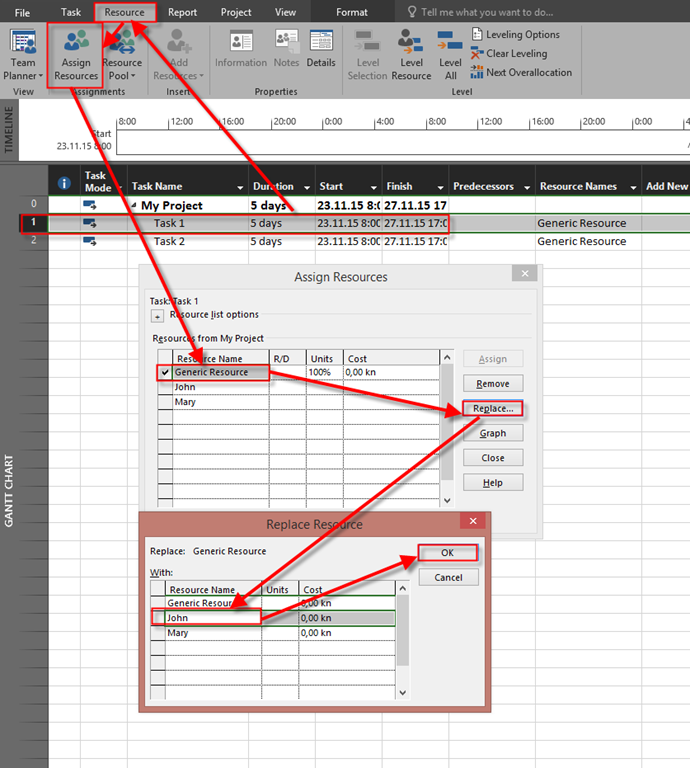
OK! Lets get back to our Project with Two Tasks. Now we are going to replace Generic Resource with John in Task 1, and with Mary in Task 2:

image

and we will get:

image

OK! Now suppose that we have on additional Task at the same time, and we assign Generic Resource to that Task:

image

As you can see, Generic Resource is NOT over allocated. Yes, you know that Generic Resource is Mary + John, and they are suppose to work from 23.11.2015 till 27.11.2015 on Task 1 and Task 2 respectively, but still Generic Resource in not over allocated because MS PROJECT does not know that Generic Resources is John + Mary.

What to do? Hard to tell. You can for example put Availability for Generic resource during the time like this:

image

and you will get:

image

or if only John works at that period on Task 1, and you did not assign Mary to the Task 2 you can decrease Availability for Generic Resource from 200% to 100% for that period, and after you assign Mary to the Task 2, decrease it to zero.

But it is a tricky and hard work, especially if you have project with many Tasks, and Many Generic Resources.

Regards!

Posted in Microsoft Project 2013, Micsrosoft Project 2016, MS PROJECT 2010, MS PROJECT 2016, PMI, PRoject Management | Tagged , | 2 Comments

“Keep task on nearest working day when changing to automatically scheduled mode” option in MS PROJECT 2016

Hi,

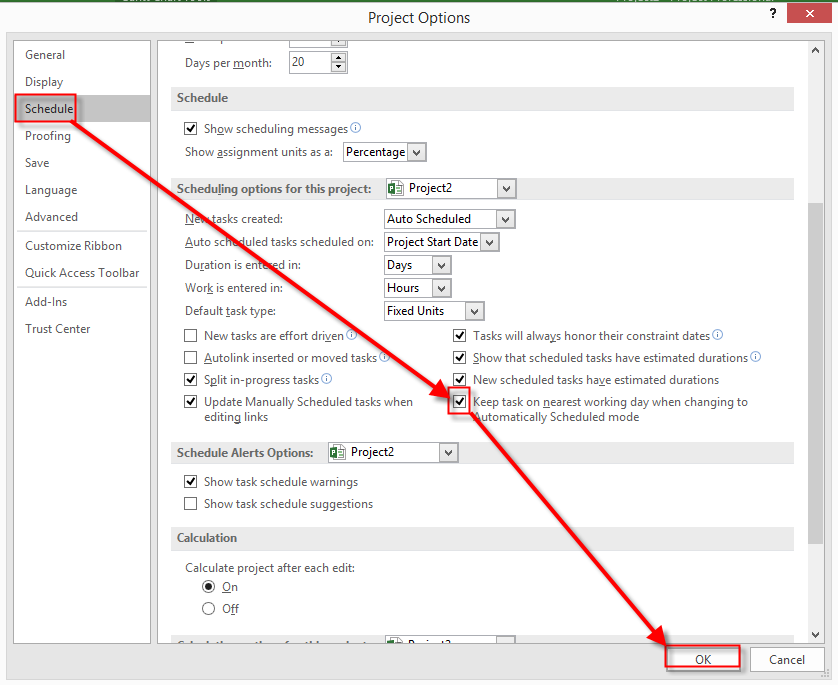
a lot of my Blog readers asked me about “keep task on nearest working day when changing to automatically scheduled mode” option in MS PROJECT! I will show you what is it, and how does it work in MS PROJECT 2016!

First I am going to crate simple Project with two Tasks, one Automatically Scheduled, and other Manually Scheduled:

 image

As you can see, I manually put Start Date for Manually Task to Saturday, 21.11.2015.

Now, where can I change “keep task on nearest working day when changing to automatically scheduled mode” option?

image

then:

image

and then:

image

Now, I will change Manually Task (second Task), to Auto Mode, with this option unchecked, and I will get:

image

You can see that Start Date for this Task is changed to Wednesday, 18.11.2015, immediately after Finish date of first Task. But, what if I check “Keep task on nearest working day when changing to automatically scheduled mode” option?

image

and then I change Manually Task (second Task), to Auto Mode? I will get:

image

As you can see, Start Date for Second Task is now Monday, 23.11.2015 (the nearest working day to previous date, which was 21.11.2015), and this Task has Start No Earlier Than constraint.

So, if you want that your Task remain with same (or nearest) Start Date when you change it from Manually to Automatically scheduled mode, this option should be checked. On the other hand, if you want that MS PROJECT recalculate Start Date according to its predecessors when you change it from Manually to Automatically scheduled mode, leave this option unchecked. It’s up to you. As simple as that.

Regards!

Posted in MICROSOFT PROJECT, Microsoft Project 2013, MS PROJECT 2010, MS PROJECT 2016, PMI, PRoject Management | Tagged | Leave a comment

Fixed duration Task and Resource Calendar

Hi,

today I will explain how is Work field Calculated when you have Fixed Duration Task Type, and Resource Calendar.

Of, course I will use MS PROJECT 2016!

First, as I always do, I will create new Project with a single Task:

image¸

I will create John as Work Resource:

image

Now suppose that John has day off at Wednesday 11.11.2015,  and Friday 13.11.2015. I will change his Standard Calendar:

image

Now I am going to make Task as a Fixed Duration:

image

Now I’m going ta Assign john to the Task:

image

and I will get:

image

As you can see, Work = 24 hours! and Duration is fixed, and it is 5 days (from Tuesday 10.11.2015 to Monday, 16.11.2015). Why is that so? Because when you have a Fixed Duration Task, and you assign Resource to that Task, Duration, and Start and Finish date will not change, no matter if Resource is available or not through that period. MS Project simply assign that Resource to working days, and then calculate work as a sum of available work during working days through Fixed Duration period, and that is 24 hours in my case.

That is how MS PROJECT works!

Regards!

Posted in MICROSOFT PROJECT, Microsoft PRoject 2010, Microsoft Project 2013, MS PROJECT 2016 | Tagged | Leave a comment

Extended duration when Successor has been started in MS PROJECT 2016

Hi,

my Blog reader has a problem:

“So what if we aren’t moving the project, just adding time to a task where a dependent task was able to start early. As an example
Task A 10 days
Task B 2 days
Task C 5 days

A is a predecessor of B. B is a predecessor of C.
Work is started on B, 50% complete
It is determined that A is going to take longer, 15 days

The Problem: Changing A to 15 days doesn’t cause the times to recalculate for B and C because of the work percentage for B being 50%. Is there an elegant way around this?

The only way I’ve been able to do this is to delete out the percentage, add the days to A, then re-enter the percentages. That isn’t hard on such a small example. But in real life, with larger projects, it just doesn’t work. Suggestions?”

Well, this need an brief explanation, and I will do it in MS PROJECT 2016!

First I’m create Project with schedule as was described by my blog Reader:

image

As you can see, this is Finish to Start relation. Now, let’s say that Task B is 50% completed, as planned:

image

and I will get:

image

Now, let’s suppose that Task A will have 15 days Duration instead of 10:

image

As you can see, Finish date of the Project is moved to Thursday 26.11.2015. BUT! 50% of previous finished Task 2 is not moved. And that make sense, because MS PROJECT is not supposed to move finished Tasks, or piece od partially Finished Tasks anywhere! If something is done, it is done! No matter of other Tasks! And as you can see the remaining part of Task B is rescheduled to the first working day after Task A is supposed to be finished. For example, if Task A has 12 days duration, the remaining part of Task B will start at Wednesday, 18.11.2015.
image

The question which really matters here is: “Do we have a right schedule for this Project?” Why is this question so important? As you can see, Task A is Predecessor of Task B, with Finish-to-Start Relationship. And, Task B has been started before Task A has been 100% finished. Something is wrong with that. So if this is case, and Task B should be started before Task A is 100% finished we should consider different relationship (Start-to-Start, for example).

Hope this helps!

Regards.

Posted in MICROSOFT PROJECT, Microsoft Project 2013, Micsrosoft Project 2016, PMI, PRoject Management | Tagged | Leave a comment