Must Finish On constraint and Actual values in MS PROJECT 2013

Hi,

I’ve got a lot of questions about Must Finish On constraint and Actual values. How MS PROJECT 2013 “reacts” on different actuals whet Task has MFO Constraint.

I will create very simple Project:
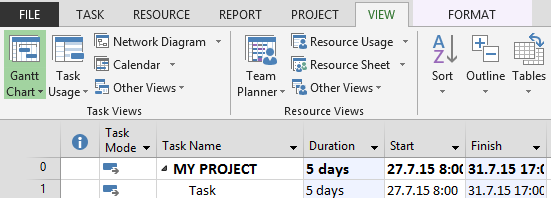
image

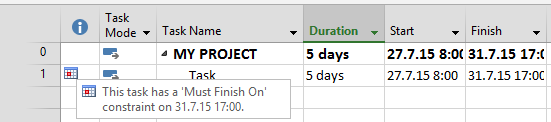
and for the Task I will put Must Finish On Constraint:

image

and I will get:

image

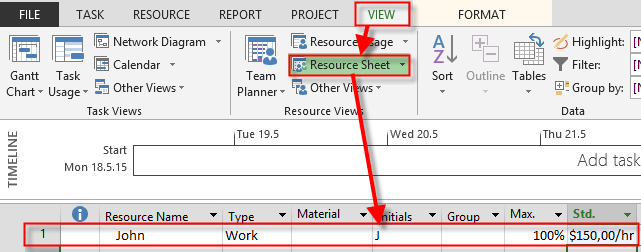
I will add John as a Resource to Resource Sheet:
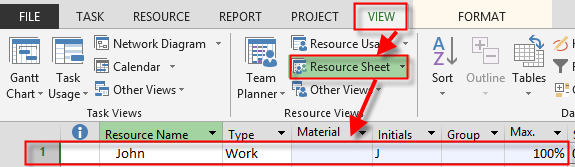
image

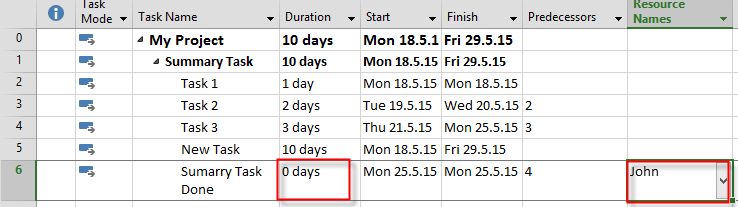
and I will assign John to the Task:

image 

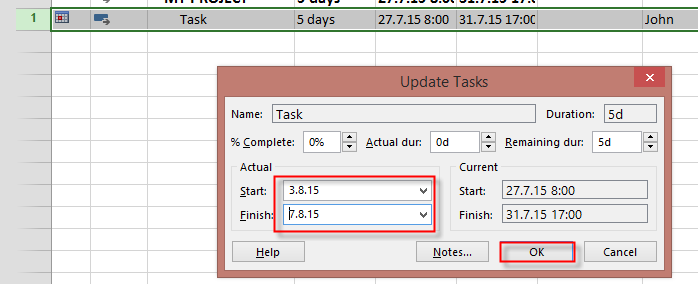
OK, I have my Setup. Now suppose that Task Actually started at August the 3th, and finished at August 7th. I can put those actuals in many ways into MS PROJECT, but I’ll show you two most common ways.

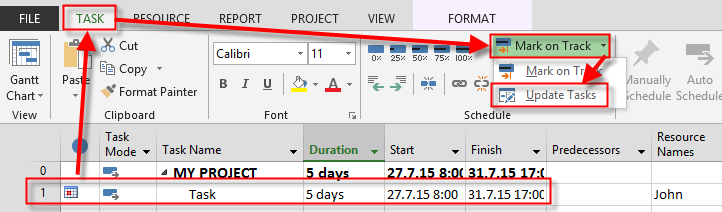
First, I will use Update Tasks feature:
image

and:

image

I will get:

image

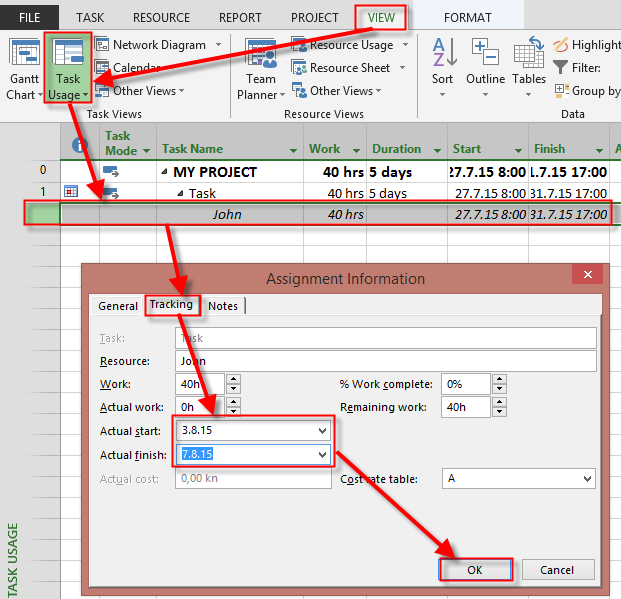
So, Task was moved to actual start and finish date. Now, I will use Task Usage View, and I will track John’s actual start and Finish dates.
image

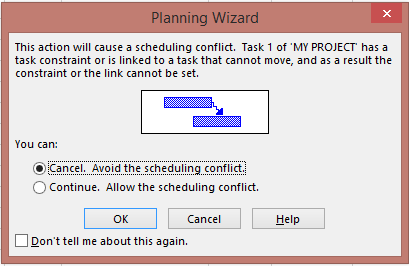
and I will get:

image

So I have got a warning message about Scheduling conflict. I can choose Cancel, and those actuals will not be set, or I can choose that I want to continue, and I will have the same result as I’ve got before.

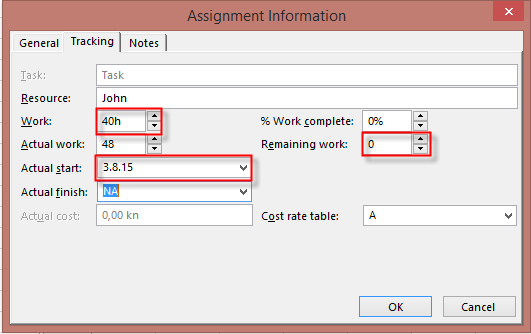
Be aware that if I put actual hours instead of Actual Finish date, I will not get this message. For example if I put:
image

I will not get warning message! I hope this helps!

Regards Smile

Posted in MICROSOFT PROJECT, Microsoft Project 2013, MS PROJECT 2010, PMI, PRoject Management | Tagged , , | Leave a comment

Milestone with Duration greater than zero days in MS PROJECT 2013!

Hi,

today I will write about Milestones in MS PROJECT 2013! Before I started I would like to thank my MVP friend Oleksiy Prosnitskyy from Ukraine (http://msprojectmvp.blogspot.com/), who ALWAYS read my Blog, and he is the first who notice me about any error in it. Thank you my friend, I appreciate it so much!

What is Milestone? According to Wikipedia: “Milestones are tools used in project management to mark specific points along a project timeline. These points may signal anchors such as a project start and end date, a need for external review or input and budget checks, among others. In many instances, milestones do not impact project duration. Instead, they focus on major progress points that must be reached to achieve success”

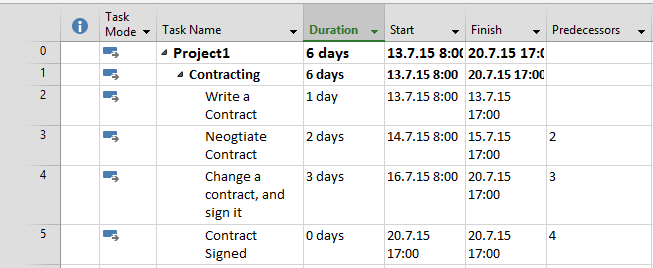
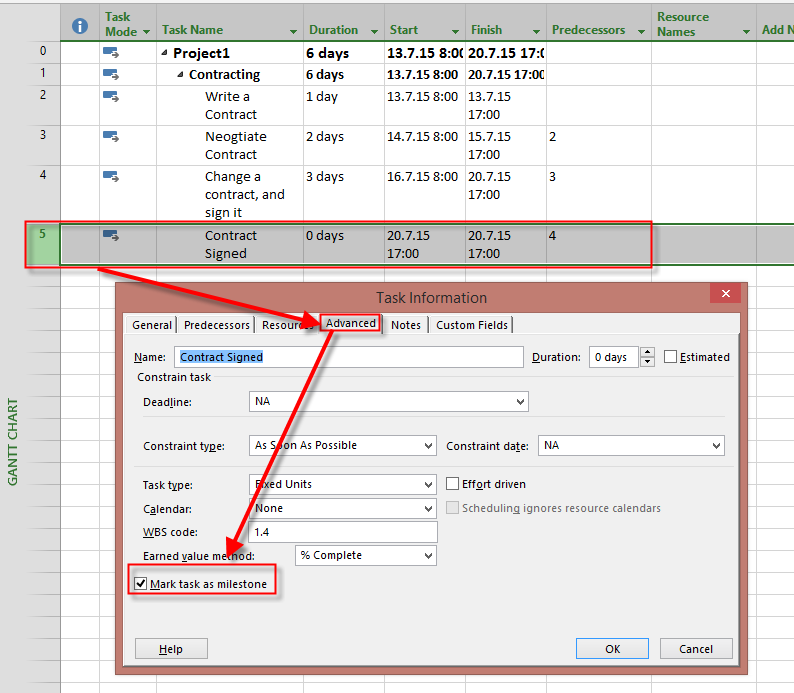
So it can be a end of Project phase, end of whole Project, Contract signed, etc.! According to that Milestone has 0 days duration! Milestone is achieved or not! Let me give you an example in MS PROJECT 2013. Here is the Project:

image

As you can see, I have activities, and Milestone, when Contract is signed, so after that we can continue with Executing phase of the Project (not shown here). When I put zero days duration, Task is automatically marked as a Milestone. To see that Double Click on this Task, and you can see it here:

image 

When Task has Duration greater than Zero days, I can Mark that Task as a Milestone as well. Just follow the step above.

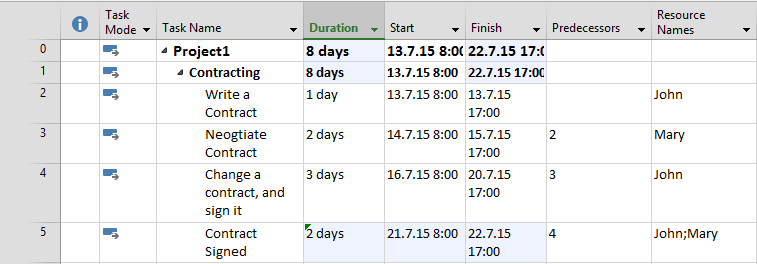
Now let me assign some Resources to Tasks:

image

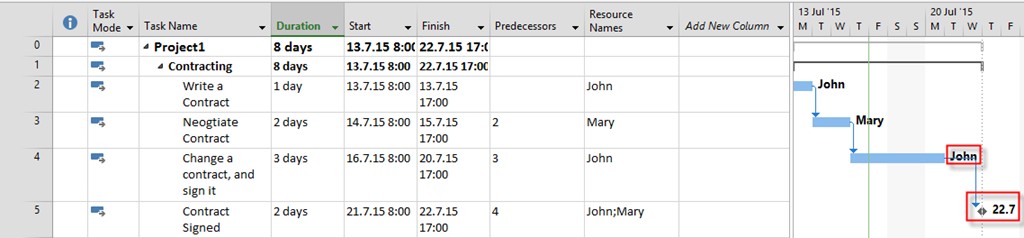
As you can see I put to Task 5 – Contract Signed 2 days duration. When I Mark it as a Milestone, and I will get:

image

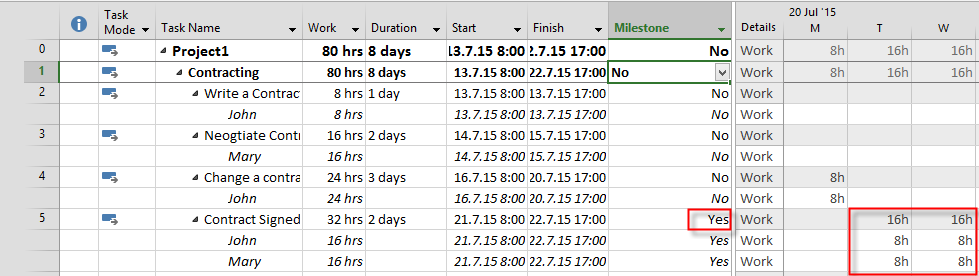
You can see that Contract Signed has Mark as a Milestone, and it Predecessor looks like it has LAG 2 days. Now I will look at Task Usage View:

image

As you can see, this “Milestone” is in fact, Activity, like any other. It behaves like Activity, but it is only Mark as Milestone!

If you ask me a question: “Why should I Mark Task with Duration greater than zero, as a Milestone?”, My answer will be: “DO NOT! Be consistent and always, ALWAYS put zero days for Milestone.” But that is my opinion, of course. According to Wikipedia, PMI, and other Project Management organization, Milestone is a check point, and it should have 0 days Duration.

Of, course you can disagree with that.

Regards!

Posted in MICROSOFT PROJECT, Microsoft Project 2013, MS PROJECT 2010, PMI, PRoject Management | Tagged , | 2 Comments

How to Protect your Project file with MS PROJECT 2013?

Hi,

I have a lot of questions about protecting MS PROJECT 2013 files, and I will explain it here! First, I’m going to create a simple Project:

image

and Resources:

image

and I will assign Resources to Task:

image

I will look ate the Cost Table now:

image

Now, lot of you want to hide Costs (for example) from other people View. And they ask me is there is a way to hide it!? You can hide any Column you want, but if any person is familiar with MS PROJECT he/she can show it again.
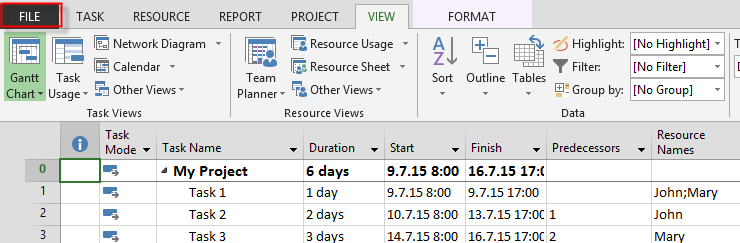
Now if you want protect somebody to see your Project (open it), or to make changes on it, you should follow this steps when save it:

image

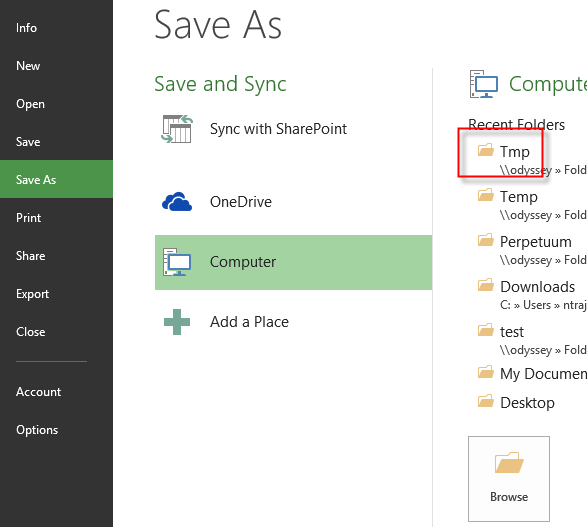
then:

image

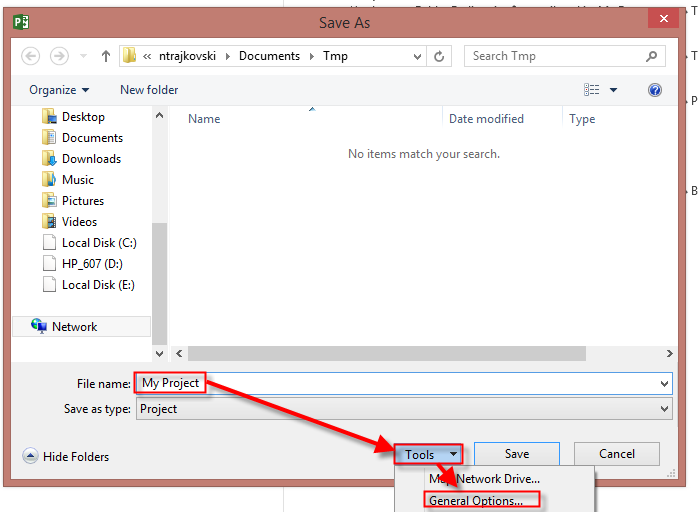
(If you are saving for the first time choose any of it). Then choose where are you going to save it, for example:

image

then:

image

and, finally, you will get:

image

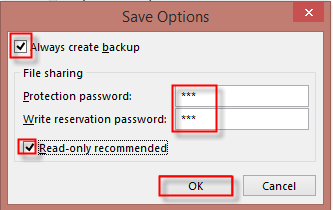
Let me explain this fields:

  • Protection password: with this field you protect anybody who doesn’t know this password to open Project file. If someone know this password he/she will see the whole Project and all data in it. If you do not set Write reservation password anyone who knows this password could be able to change anything
  • Write reservation password: with this field you are protecting any person who open Project file to change anything. But be aware of this behavior. If someone open this file and does not know this password, that person will be able to change everything, but if that person try to save that file, he or she will not be able to do it.
  • Always create backup: If you choose that option whenever you save your file a backup instance will be saved as well, with same name but with .BAK extension
  • Read only recommended: If you choose that option you will be asked every time when you open this file do you want to open it in read only or write mode (of course if you know password Smile)


    Ok, now I will choose everything:

    image

    and I will have to reenter both passwords:

    image

    and:

    image

    Now I have to click Save here:

    image

    Let’s look in the folder now:

    image

    You can see that Backup file is saved! After I close and try to reopen my Project I will get:

    image

  • I choose No, because I want to open it in Write Mode. Now I have to enter passwords:

    image

    and:

    image

    Now, let’s say that I do not know password, and I choose Read Only:

    imageI

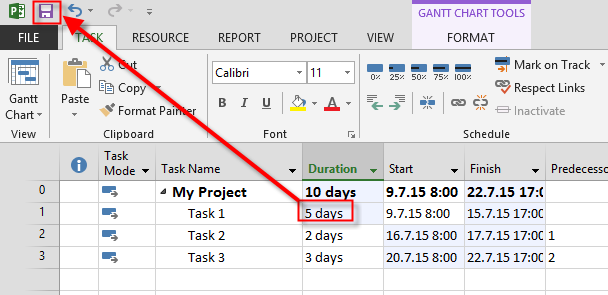
    I will now change duration of Task 1 to 5 days, and I will hit Save button:

    image

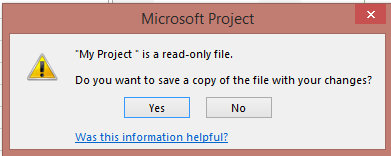
    and I will get:

    image

    As you can see I can’t save file in the same place with the same name, because it is in read only mode!

    Finally, three Q&A’s:

    1. Is this new file password protected as originally file was? – YES
    2. Is backup created for this new file? – YES
    3. If I want to use backup (BAK file), how can I do it? – Change extension to mpp

    Hope this helps!

    Regards!

    Posted in MICROSOFT PROJECT, Microsoft PRoject 2010, Microsoft Project 2013, MS PROJECT 2010, PMI, PRoject Management | Tagged , | 1 Comment

    Project start time in MS Project 2013

    Hi,

    I will show you what happens if you change default start time in MS PROJECT 2013, and how to get right Project Start date. First I will set Date format so I can see hours. Click on File Tab, then choose Options:

    image

    Now I am going to create new Project:

    image

    and I’m going to File Tab again, and I will choose Options, and then:

    image

    Ok, so I want that First Project Task starts at 07:30 in the morning. I am going to change working time:

    image

    Ok, now I will add two Tasks:

    image

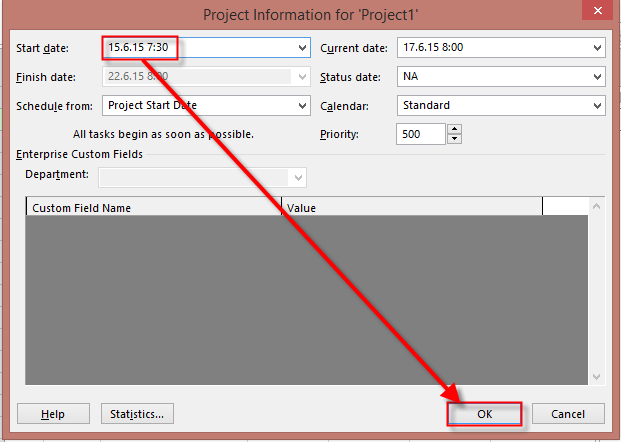
    As you can see, Task 1 is going to start at Monday 08:00, and finish at Thursday, 18.6.2015 at 08:00, and Task 2 is going to start at same Thursday as well, and it will be finished at Monday, 22.6.2015 at 08:00. Why? Why does not my Task 1 start at 07:30? Because I didn’t change the Project Start time, and you can see it here:

    image

    I will change it now:

    image

    and I will get:

    image

    Everything is Perfect now! What if I set up that my Default start time is at 09:00 instead of 7:30, and Default end Time is 17:00 instead of 16:00, and I set up working time in calendar according to this? When I add first Task to the Project, this new Task, and the Project start time will be at 09:00 instead of 07:30! If you do not believe me, try it.

    So, to conclude, if you change your Project start time earlier than it was set up before, change your Project start time as well. And, btw, check your Project Start time in any new Project, just to be sure that it will start when it is supposed to start.

    Regards!

    Posted in Microsoft Project 2013, MS PROJECT 2010 | Tagged , | 12 Comments

    99% completed of whole Project and/or Tasks in MS PROJECT 2013

    Hi,

    very often I receive question like: “My Task remains 99% completed, and I do not know why?”, or “All Tasks are 100% completed but the whole project is 99% completed. Why?”

    Hera are two most often reasons for that. Of, course I will show you that with MS PROJECT 2013!

    First I am going to create new Project (in Gantt Chart I added %Complete Column):

    image

    and two Resources (one Work, and one Material):

    image

    I will assign John to Task1 and Task2, and 100 Bricks to Task 2 (you know how to do that, don’t you?), and I will get:

    image

    Now I will switch to the Task Usage View, and I will get:

    image

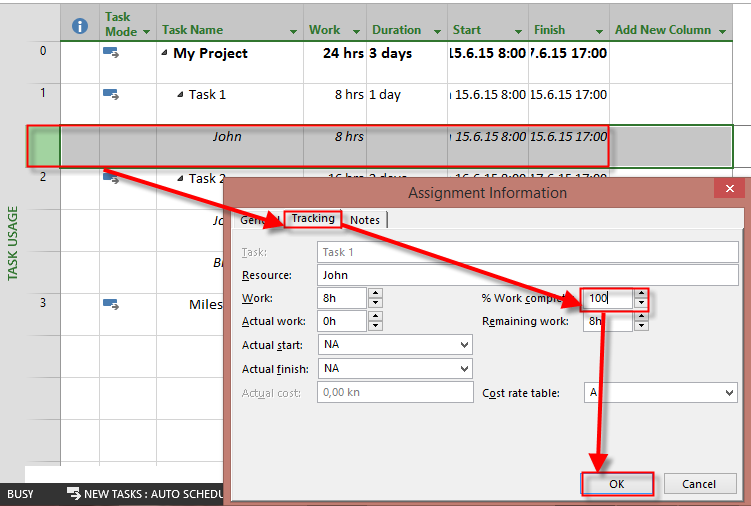
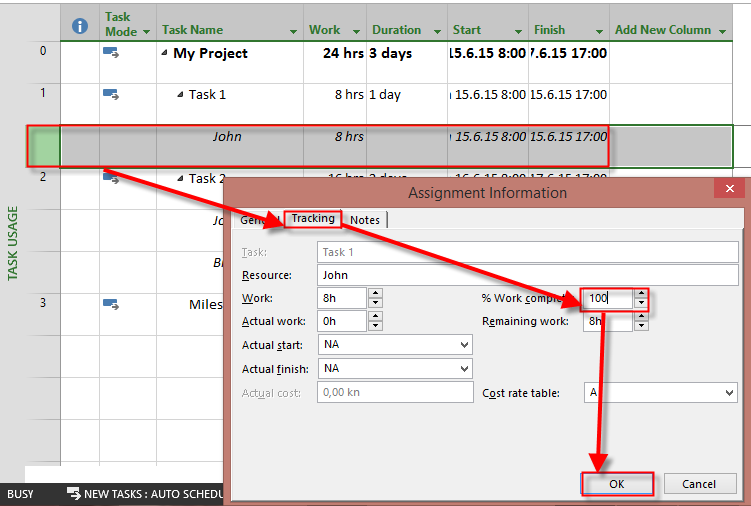
    Now I will mark John as 100% completed on both Tasks:

    image

    and:

    image

    I will switch to the Gantt Chart, and I will get:

    image

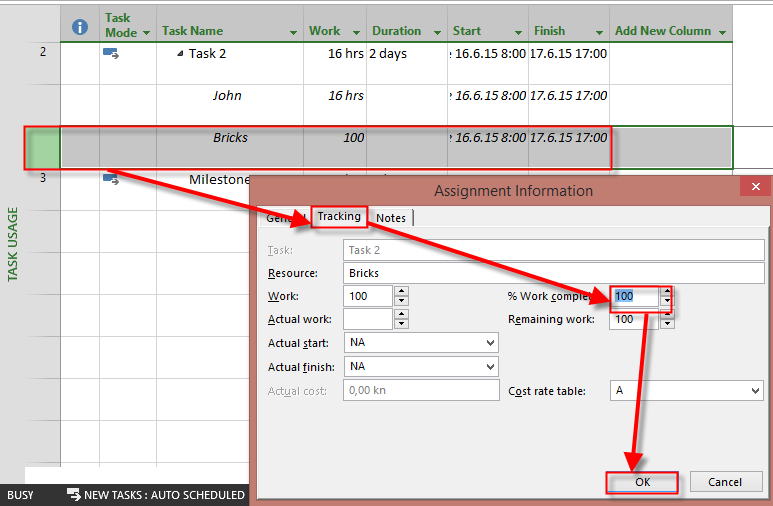
    As you can see, Task 2 is 99% completed, even John has finished his work. Why? Because, I didn’t mark Material Resource as completed, yet. So, now I will do it:

    image

    This means that I actually spent 100 Bricks on the Task2. Let’s see Gantt Chart again:

    image

    You can see that all Task are 100% Completed, but still the whole Project is on 99% completed. Why? Because I didn’t mark Milestone as completed (no matter that Milestone has 0 days duration). If I mark that as 100% completed I will get:

    image

    To conclude, If you want to have your Task 100% completed you should finish all your work and spend all Material so that Work, and Actual Work are the same, and Remaining work should be 0%.

    And for whole Project to be completed you should have all Tasks, and Milestones 100% completed.

    Respect that and everything would be perfect!

    Regards!

    Posted in Microsoft PRoject 2010, Microsoft Project 2013, MS PROJECT 2010 | Tagged , , | Leave a comment

    Actual start and finish date with material Resources in MS PROJECT 2013! When it does make a sense, and when it does not!

    Hi,

    in this Blog Post I will show you how to use Actual Start and Finish date with Material Resources in a proper way. Of course, using MS PROJECT 2013!

    First I’m going to create brand new Project:

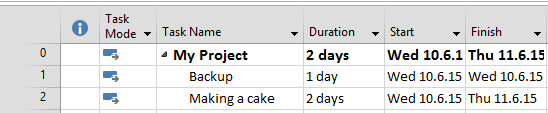
    image

    As you can see I will make a Backup, and a Cake in the same project Smile

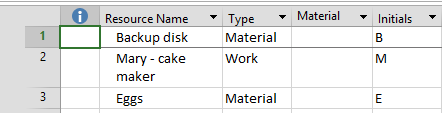
    Now I’m going to create some resources:

    image

    Now I’m going to assign Resources to Tasks:

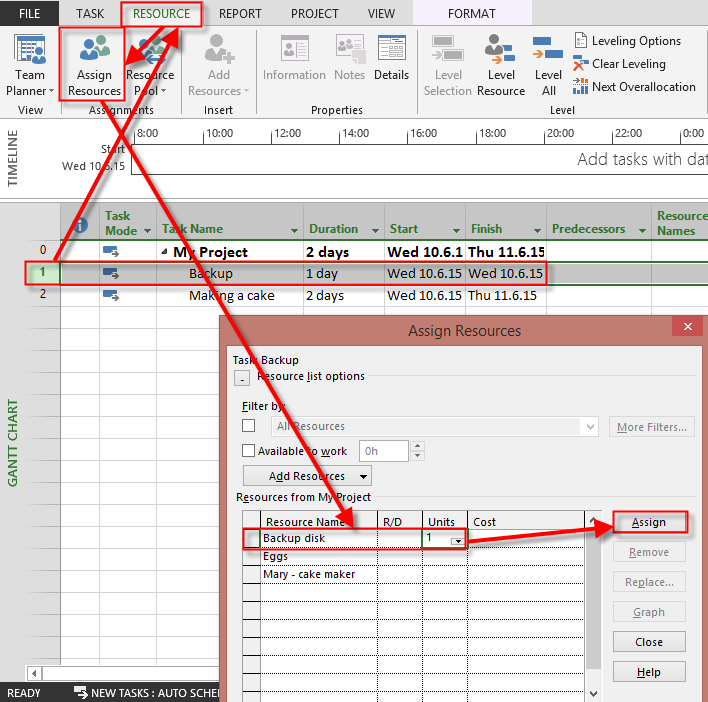
    image

    and then for a Cake:

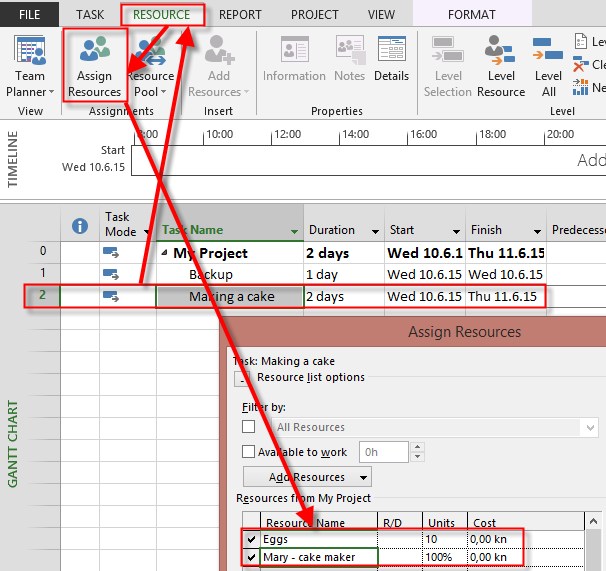
    image

    as you can see I need Mary, and 10 eggs for the cake!

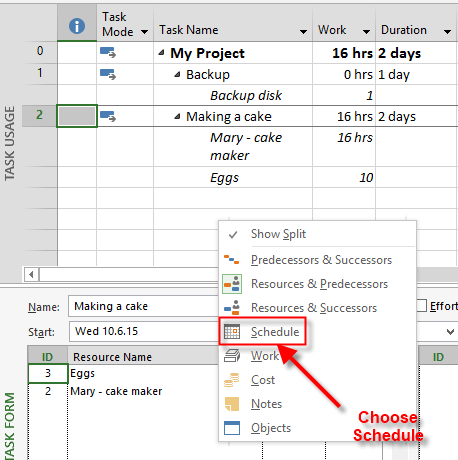
    Now I’m going to switch to Task Usage View:

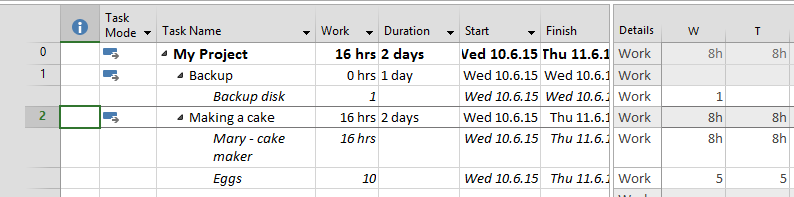
    image

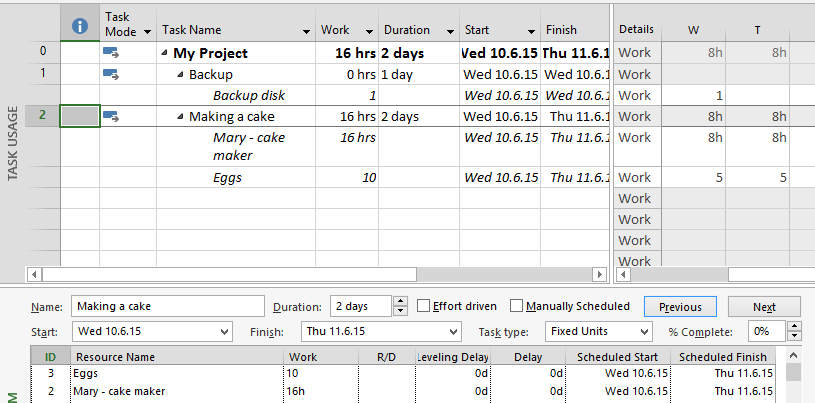
    As you can see, for the Cake Mary will use 5 eggs first day, and 5 eggs second day! Does it make a sense. NO! So I will change that, so Mary will use all eggs in day no. 1:

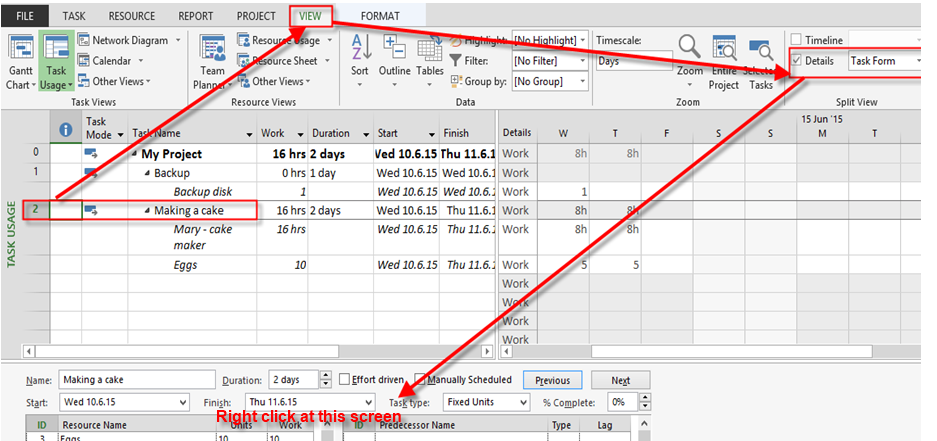
    image

    and:

    image

    and you will get:

    image

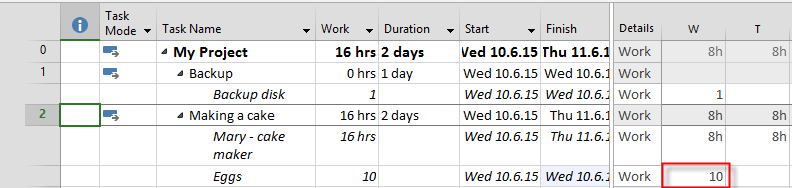
    Now I will “schedule” eggs in Wednesday 10.06.2015:

    image

    and I will get:

    image

    Now it make a sense, doesn’t it?

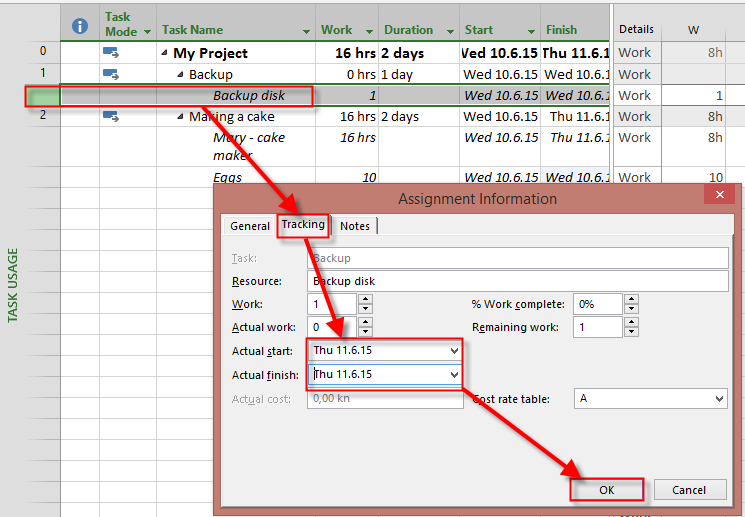
    Let’s say that our Backup was started and finished at Thursday, 11.6.2015:

    image

    and I will get:

    image

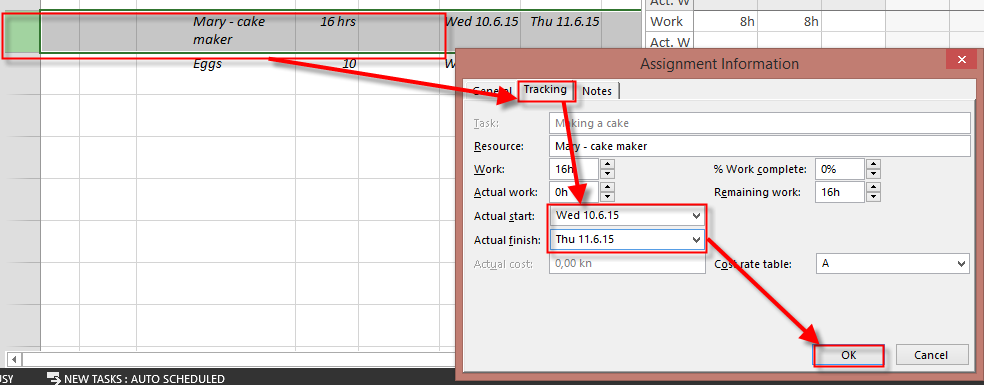
    Everything is just perfect. Now, let’s say that Mary started with making a cake at Wednesday, 10.06, and finished at Thursday, 11.06:

    image

    and I’ll get:

    image

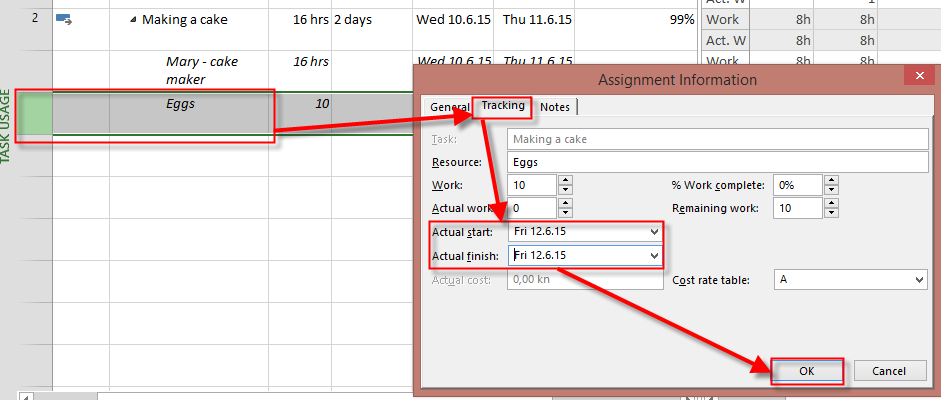
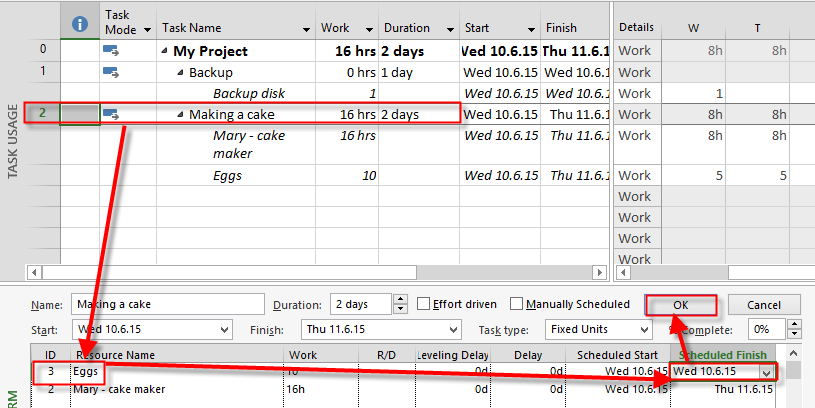
    So far, so good! BUT! Le’s say that I spent those famous eggs at Friday, 12.06:

    image

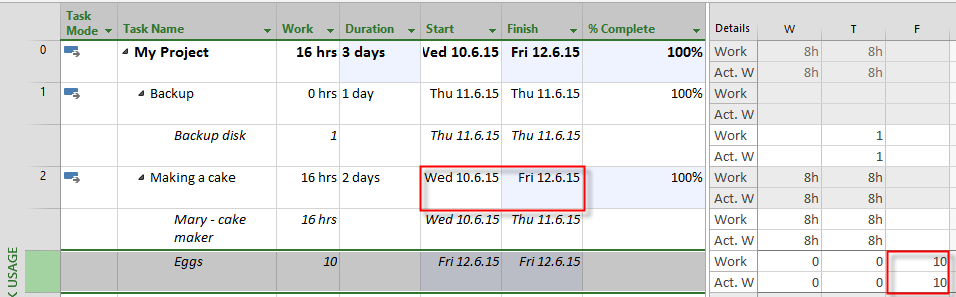
    and I will get:

    image

    WOW! Wonderful! Mary made a cake without eggs, at Wednesday and Thursday, and Eggs were jumped in the cake from the blue at Friday! Magic eggs!! Smile I’m kidding, of course. You can see that this Scenario doesn’t make a sense at all.

    You should be very careful when you put Actual Start and Finish dates for Material Resources, according to work (People) Resources.  That is my point!

    Best wishes!

    Posted in MICROSOFT PROJECT, Microsoft PRoject 2010, Microsoft Project 2013, MS PROJECT 2010, PMI, PRoject Management | Tagged , , , , , | Leave a comment

    Actuals on Summary Tasks in MS PROJECT 2013

    Hi,

    today I will answer on may questions I’ve got from my Blog Readers, regarding to entering  % Complete, and Actual work in Summary Task, instead in Sub Tasks. I will do it in MS PROJECT 2013!

    As always, I’m going to create simple Project:

    image 

    few Resources:

    image

    and I will assign Resources to Sub Tasks:

    image

    As you can see I added % Complete, Work, and Actual work in Gant Chart View.

    Now suppose that I finished all Tasks below Summary Task 50%, on time. I will put 50% in % Complete, and I will get:

    image

    WOW! Did you expect something else? I bet you did! I will explain the results:

    • Total work is 88 hours
    • I have two “branches”: Task1 – Task 3 (Branch 1), and Task 4 (Branch 2)
    • 50% Complete means I have 44 hours completed.
    • Since I have two branches, 44 / 2 = 22, e.g. 22 hours was spent on Branch1, and 22 hours on Branch 2
    • Task 1 has 8 work hours, so it is 100% completed. Task 2 has 16 work hours, and I have 14 hours remaining (22 – 8 spent on Task 1 = 14). So % complete is 14/16 = 0,87 (87%). There is no remaining available hours for Task 3 so it remains at 0%
    • Task 4 (from Branch 2) has Actual work 22 hours (as explained above), and it has 40 hours Work so it is 22/40= 55% completed.

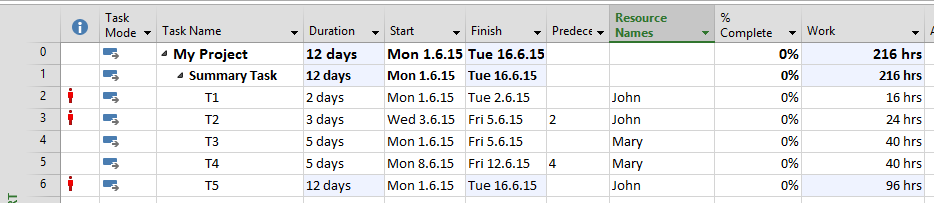
    Let me give you another example. I will create New Schedule like this:

    image

    • I have 3 Branches (Branch 1: Task 1 – Task 2, Branch 2: Task 3 – Task 4, and Branch 3: Task 5)
    • Forget about over allocation, it is not important for our case.
    • Total hours (work) is 216 hours: Branch1: 40 hours, Branch 2: 80 hours, and Branch 3: 96 hours).
    • Now I will make Summary Task 50% Completed:

    image

    • 50% complete from total Work is 216 / 2 = 108 hours
    • Since I have 3 Branches those hours will be distributed among those branches with 108 / 3 = 36 hours per Branch
    • Task 1 in Branch 1 has 16 hours work, so it is 100% completed. Remaining hours for distribution in this branch is 36-16=20 hours
    • Task 2 in Branch 1 has 24 hours work, actual work is 20 hours, so it is 20/24=83% completed. Remaining hours for distribution in 0 hours
    • Task 3 in Branch 2 has 40 hours work, actual work is 36 hours, so it is 36/40=90% completed. Remaining hours for distribution in 0 hours
    • Task 5 in Branch 3 has 96 hours work, actual work is 36 hours, so it is 36/96=38% completed. Remaining hours for distribution in 0 hours

    But what if I did not put anything in %Complete field, but I put 108 hours in Actual work field in Summary Task? What would happen? Same as I put 50% in %Complete in Summary Task field!

    You do not believe me? Try it!

    Regards!

    Posted in MICROSOFT PROJECT, Microsoft PRoject 2010, Microsoft Project 2013, MS PROJECT 2010 | Tagged , , , | Leave a comment

    When and why assign Resources to Summary Tasks and Milestones in MS PROJECT 2013!

    Hi,

    I got a question from one of my Blog Readers: “Hi, would you be so kind and explain when to assign Resource to Summary Task or Milestone!”

    I will explain how to do it (which is very easy), and when and why (which is my point of view). Of course, I will  use MS PROJECT PRO 2013!

    First I am going to create brand new PROJECT:

    image

    and one Resource:

    image

    Now suppose that John is Project Manager, and by default, he is responsible for whole Project. What will you get if you assign him to Summary Task, like that?:image

    Notice, that I added Cost and Work columns in Gantt Chart View. First of all you might think (wrong), that since John is assigned to the Summary Task, his work (in hours) will be spread among all Subtasks. No! MS PROJECT will calculate all work from subtasks, and it will assign those hours to the Summary Task, without assigning hours to the Subtasks. Now I will add one new Task but I will not put any Predecessor to it:

    image

    Notice that nothing changed, since New Task is shorter in Duration than whole Summary Task Duration. But now I’m going to put 10 days in New Task Duration, and I will get:

    image

    You can see that Total Cost for Summary Task is $12.000 (10 days * 8 hours per day * $ 150 per hours), and total Work is 80 hours (10 days * 8 hours). TIP TIME! Do not assign any Resource to Summary Task! If you want to get real work in hours and real Cost, assign john to all Tasks, instead of Summary Task like that:

    image

    Here you can see “real” work, “real” costs, and – John is overallocated! HURAAAA!

    If John is responsible person for Summary Task, but he will not spend any time during execution, you can assign him to the Milestone:

    image

    With that you do not have any Costs or work Hours, but you can still filter all Milestones and John as Resources and see when something should be finished, and for which milestones is he responsible!

    Regards!

    Posted in Microsoft PRoject 2010, Microsoft Project 2013, PMI, PRoject Management | Tagged , , , | 2 Comments

    Manually Scheduled Summary Tasks, and Subtasks in MS PROJECT 2013

    Hi,

    Today I will explain how to use Manually Scheduled Summary Tasks and its Subtasks in MS PROJECT 2013

    First I will create new Project, and then I will create one Manually Scheduled Summary Task, like in picture below:

    image

    Now I will create three Subtasks, and I will link them:

    image

    Finally I will make those Tasks as Subtasks:

    image

    and I will get:

    image

    Notice that there is a difference between Summary Tasks, and Subtasks, because Summary Task is supposed to have 5 days duration (manually entered), but auto schedule (Subtasks), are supposed to have 7 days duration. Finish date has red underline, and on the left side of the Screen there is a red bar, which warn me that something is wrong:

    If I hoover mouse under Finish date field I will get:

    image

    So I will Right-click at the Finish date field, and I will get:

    image

    I will choose: Fix in Task Inspector, and I will get:

    image

    As you can see I have two options:

    1. Move Finish date: It will move finish date to 19.05.2015, which is proper date, according to Schedule, but it will keep Summary Task in Manually Scheduled mode
    2. Auto Schedule: It will switch Task from Manually to Auto Scheduled mode, and move the date to the 19.05.2015, as well

    The real question is: Why should anyone has Summary Task in Manually scheduled mode? The answer is very Simple: In planning phase you can have top-down approach, so you will first plan your Summary Tasks, and then you will see the “real” situation, when you will now much more about tasks which should be done to accomplish Summary Tasks. After you see a difference, you should decide what are you going to do. Are you cut the Scope, or maybe crash or fast track your tasks, or you will extend the whole duration. Whatever you do remember this advice: When you are finished with planning phase, and before you save your plan as a Baseline, turn all Summary Task  to Auto Mode. It is best approach!

    Regards Smile


    1.

    Posted in MICROSOFT PROJECT, Microsoft Project 2013, MS PROJECT 2010, PMI | Tagged , , , | 1 Comment

    Maximal Units and Default Values in MS PROJECT 2013

    Hi,

    my Blog Reader is in trouble. He wrote:
    ”Hi Nenad,

    I am in need of a favor from you. I am currently working with the MS project to accomplish the team utilization and also to forecast the team’s availability. I am trying to assign a Generic team (3 developers) . In the resource sheet have set the max % to 300%. But when I assign this resource to a task and set the works hours , it calculates the duration based on 100% units only. Do I need to go and change the units in the resource tab for each task to 300%. When the percentage is below 100% , it does calculate automatically from the resource sheet mentioned.”

    First of all, what is Max Units in Resource Sheet? It is Maximal capacity that Resource can work per day on one or multiple tasks without over allocation. For example, if working hours in Calendar are from 0800 to 12:00, and from 13:00 to 17:00, with 8 hours working day, and it’s Capacity is 100% he or she can work 8 hours per day without over allocation. If it’s Maximal capacity is 50% he or she can work only 4 hours per day without over allocation, and if it’s capacity is 300% he or she can work 24 hours per day.

    Now let me show this in MS PROJECT 2013! First, I will create one Task:

    image

    I will create two Resources: John with 50% Max Units, and Team A with 300% Max Units:

    image

    Now I will assign both Resources to the Task via Gantt Chart:

    image

    and I will get:

    image

    As you can see John will work only 50% (his Max units), but Team A will work not 300% but 100% instead.

    Let’s take a look at the Task Usage View:

    image

    As you can see, John will work 4 hours per day (50%), and Team A 8 hours per day (100%).

    If I want to assign Team A with 300% (it’s May units) I must put that amount manually:

    image

    Finally, I will get (in Task Usage View):

    image

    As you can see, now Team A will work 24 hours per Day!

    To conclude, if You assign Resource to the Task, it’s maximal Capacity to this Task is:

    • If Max Units in Resource Sheet is 100% = 100% for Task
    • If Max Units in Resource Sheet is less than 100% = Max Units from Resource sheet for Task
    • If Max Units in Resource Sheet is greater than 100% = 100% for Task

    And, Max Units that is greater than 100% in Resource Sheet tells you how much Capacity that Resource has per Day, not how much will it work on single Task, unless you tell MS Project that you want that Resource to work more than 100% for that Task!


    Regards!

    Posted in MICROSOFT PROJECT, Microsoft PRoject 2010, Microsoft Project 2013, Microsoft Project Server 2010, MS PROJECT 2010, PMI, PRoject Management | Tagged , , | 7 Comments