How to Create and publish new Project from MS PROJECT 2010 to MS PROJECT SERVER 2010


Hi,

let me show you hot to create a brand new Project in MS PROJECT PROFESSIONAL 2010, and then hot to Publish it into MS PROJECT SERVER 2010!

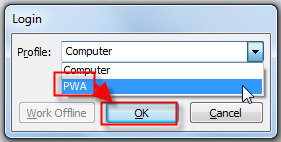
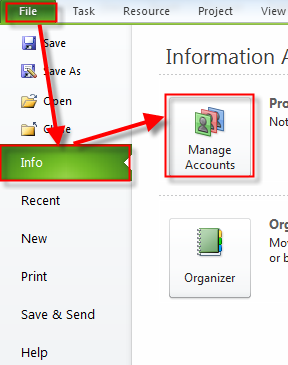
First I will open MS PROJECT PROFESSIONAL 2010 and I will connect it to MS PROJECT SERVER 2010:
image

and then:

image

Remember, that you DO NOT have to be Administrator for Publishing the Project, as long as you have rights to do it!

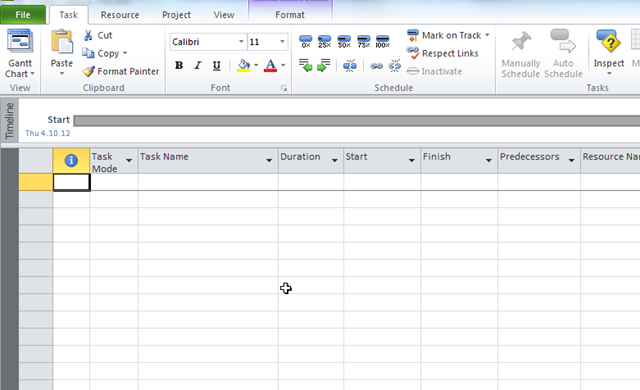
I will get:
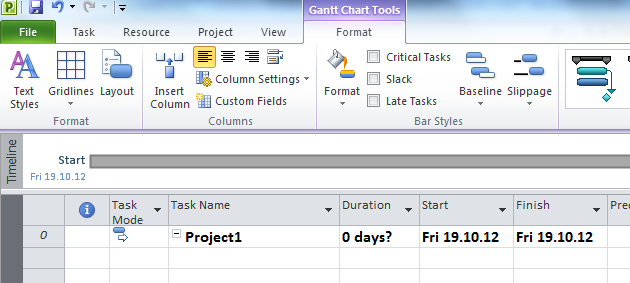
image

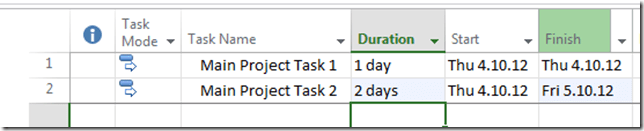
I will change the Project name and I will add some Tasks:

image

and some Resources:

image

and finally I will assign Resources to Tasks:

image

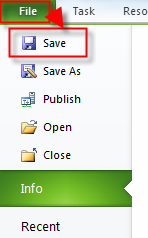
Now I am going to save this Project:

image

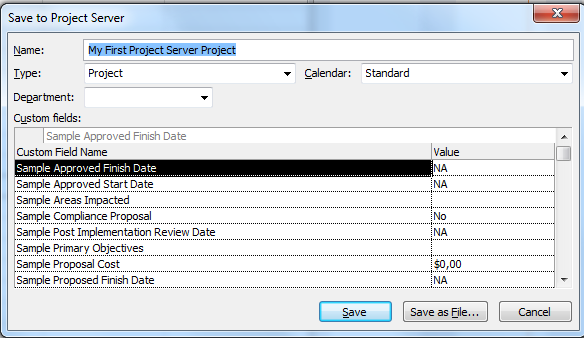
and I will get:

image

I typed the name! for now forget all other fields! I will cover them in my next posts! When I click on Save button the Project is Saved!

Let’s see! I am logged at my PWA!
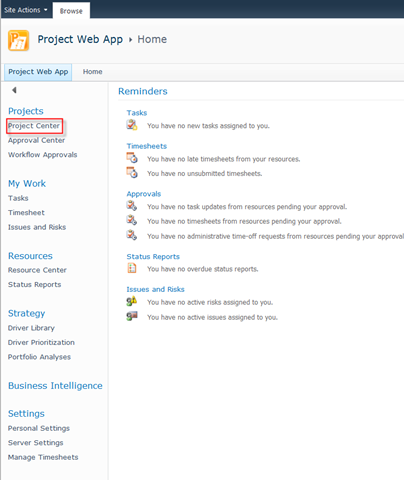
image

and I will get:

image

NOTHING! Is it a Bug? No it is not! My Project is not Published yet, so it is invisible here! how do you know that I am not an liar? I will try to exit MS PROJECT 2010 Professional and I will get:
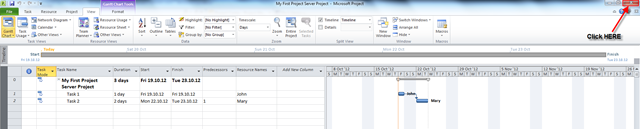
image

and I will get:

image

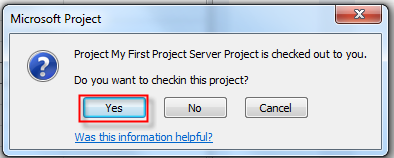
So it is a warning message that I did not check in Project to Project Server. I will show you another way!

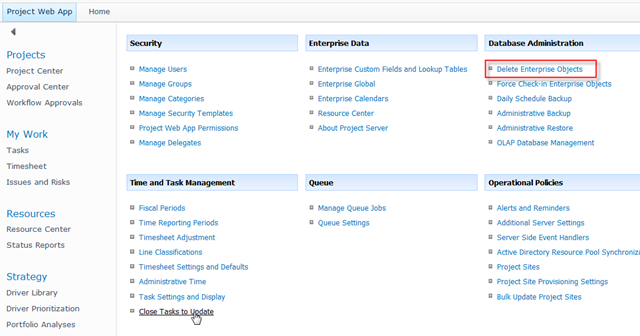
Since I am logged as an Administrator I will go here in my PWA:

image

and then:

image

and here it is:

image

But where exactly is this Project? In a Draft Database!

Now I will reopen my MS PROJECT 2010 Professional again and I will open my Project:
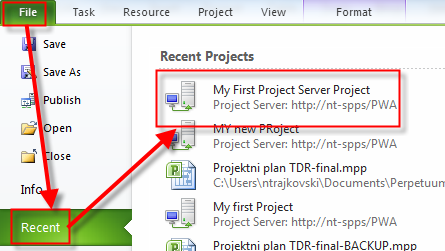
image

and I will get:

image

I’m going to publish this Project:

image

and I will get:

image

and then, when I look at the PWA Project Center I can see My Project:

image

The Project is now in Published database!

Regards!
Posted in MICROSOFT PROJECT, Microsoft PRoject 2010, Microsoft Project Server 2010 | Tagged , | 6 Comments

Could not retrieve server initialization data error when connecting to MS PROJECT SERVER 2010 via MS PROJECT PROFESSIONAL 2010


Hi,

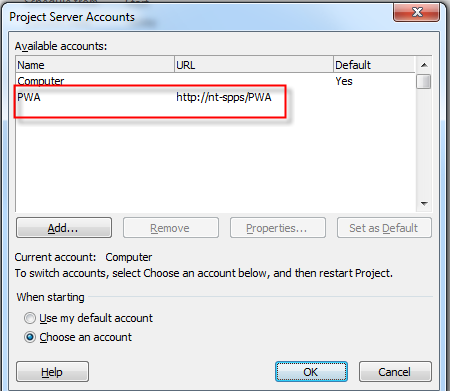
I will show how to handle this error. I am working in regular domain in my company (Perpetuum). But, for testing purpose we made a testing domain called nt. I have Project Server Account created in Project Professional 2010!

Here it is:

image

and then:

image

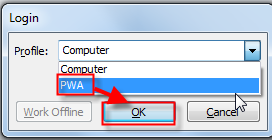
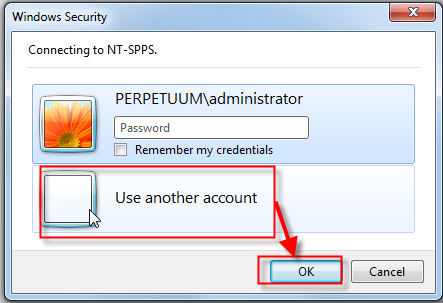
I will try to log in with this account to MS PROJECT SERVER 2010:

image

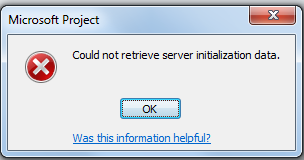
and then I will get:

image

This is very annoying!

But there is an easy solution!

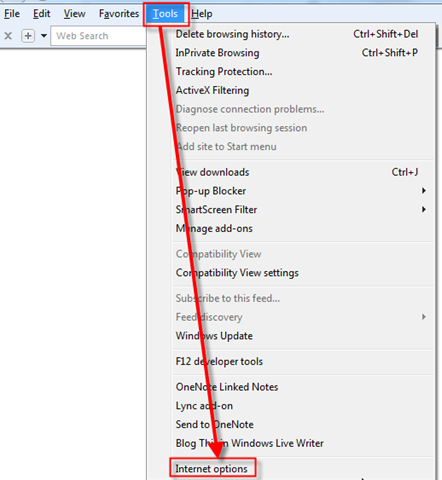
Open your IE Browser and go here:

image

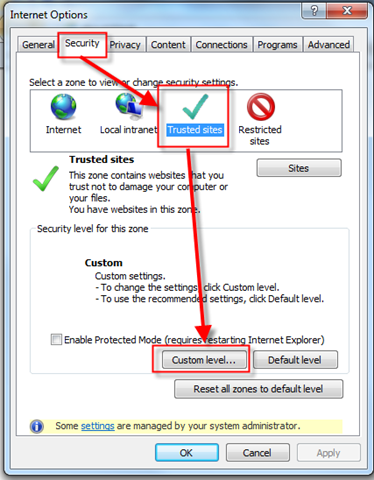
and then:

image

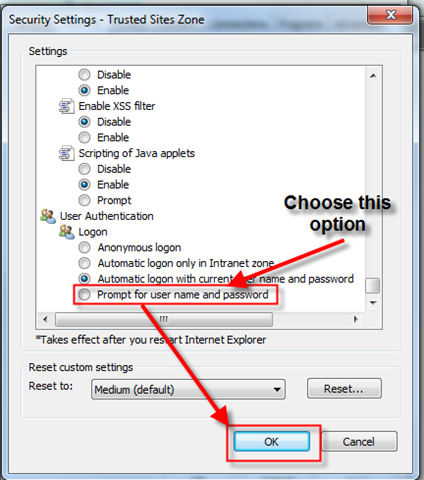
Then scroll down until you find this:

image

after that, try to connect to MS PROJECT SERVER 2010 via MS PROJECT PROFESSIONAL 2010 again:

image

and you will get:

image

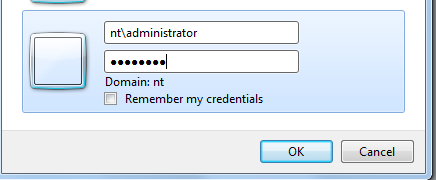
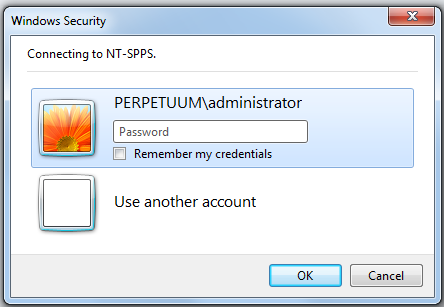
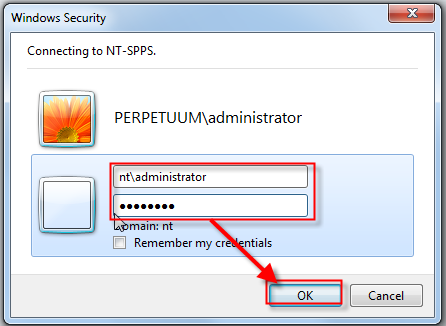
As you can see, with Automatic logon via current user name and password option MS PROJECT 2010 tried to use my default domain address, but when I checked Prompt for user name and password I can change my user name and password like this:

image

and then:

image

and finally I will get:

image

I am connected to Project Server!

And how to store, and publish sample Project From Project pro to Project Server?

Read my next Post.

Until then


Bye!

Posted in MICROSOFT PROJECT, Microsoft PRoject 2010, Microsoft Project Server 2010 | Tagged , , | 6 Comments

How to avoid duplicated Resources in Project with Subprojects in MS PROJECT 2013?

Hi,

one of my Blog readers had a problem! He made a Project with Resource, and Subprojects with same resources, and then those Resources were duplicated. I will use MS PROJECT 2013, but it works in MS PROJECT 2010 in the same way. Let me show an example.

Firs I will open Main Project:

image

and I will add two resources in it:

image

Now I will open new Subproject and I will do the same:

image

and:

image

I will save my Subproject:

image

Now I will add Subproject in my main Project:

image

and I will get:

image

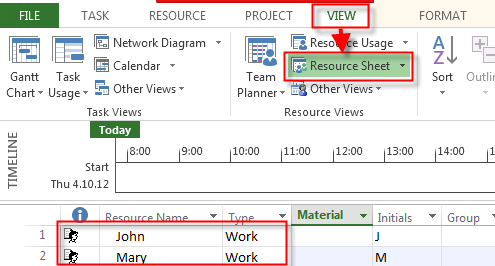
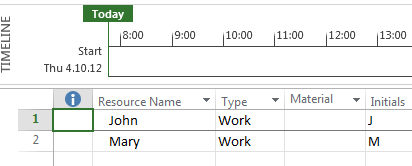
Now, I will show you a Resource Sheet:

image

John and Mary are duplicated, and that is not a Bug. Main Project and Subproject(s) are not sharing the same Resources if you will work with them as on example above.

But, if you want to share Resource among Main Project, and Subprojects you should create the Resource pool!

Here it is:

image

In this “Project” I will have no tasks, just resources, and I will save it like a ResPool file:

image

Now I will leave this Respool open, and I will crate main Project again:

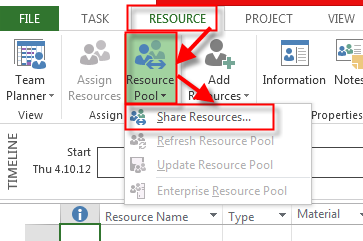
image

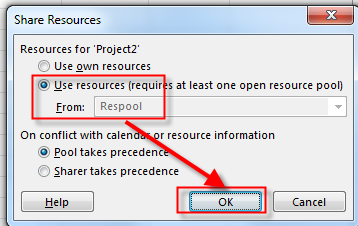
and I will use a ResPool for resources:

image

and I will get:

image

and after that:

image

Now I will do the same thing with Subproject! Steps are identical so I will not copy pictures again. I will save a Subproject and after that I will insert it to a Main Project:

image

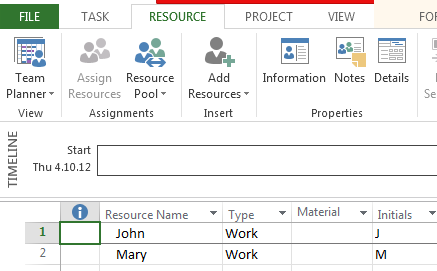
but when I open the Resource Sheet, I will get:

image

Why is it so important? Because if John and Mary in Main Project are the same Persons from the Subproject(s), and you will not use the Resource Pool, you will miss the over allocation feature in MS PROJECT! With Resource Pool there is only one John, and only one Mary, and if you assign them to multiple tasks which are going to run at the same time you will see the over allocation!


Regards,

Posted in MICROSOFT PROJECT, Microsoft PRoject 2010, Microsoft Project 2013 | Tagged , | 13 Comments

Microsoft Project 2013 – ONLINE in Office 365! Part 2


Hi!

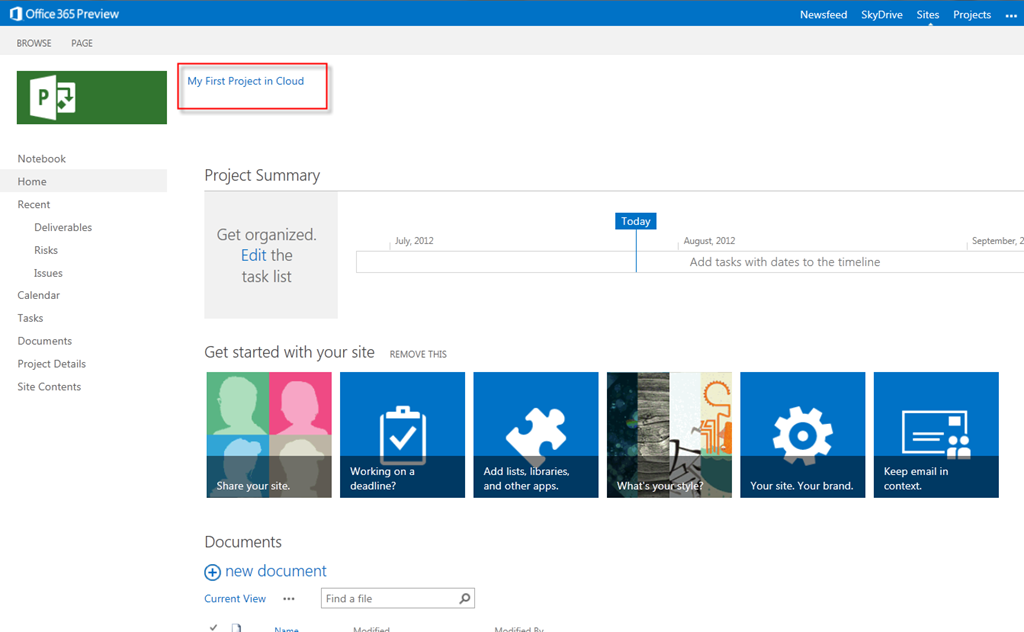
I will show you how to create new Project and save it to the Cloud via Office 365, and Microsoft Project 2013!

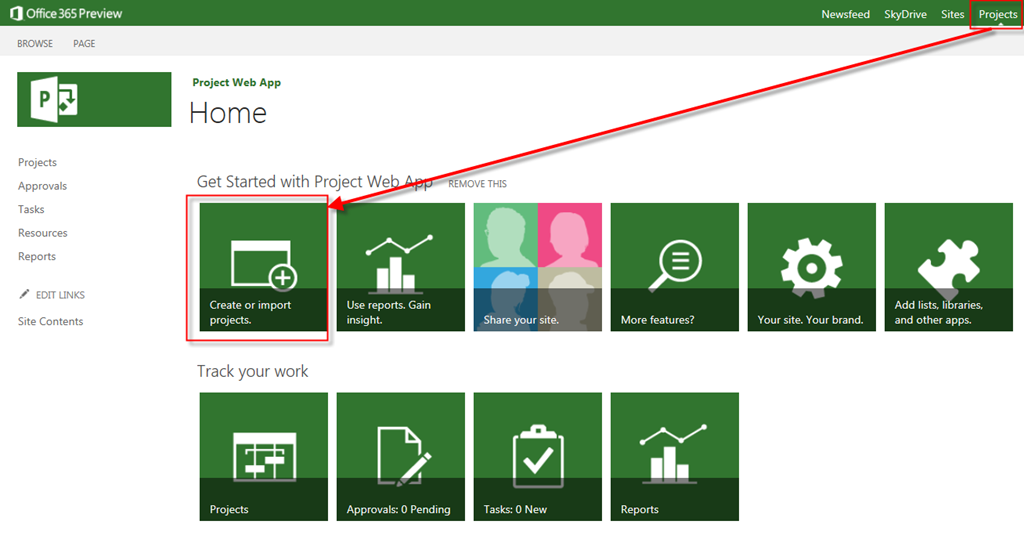
I will open my Office 365 Site:

image

and I will get:

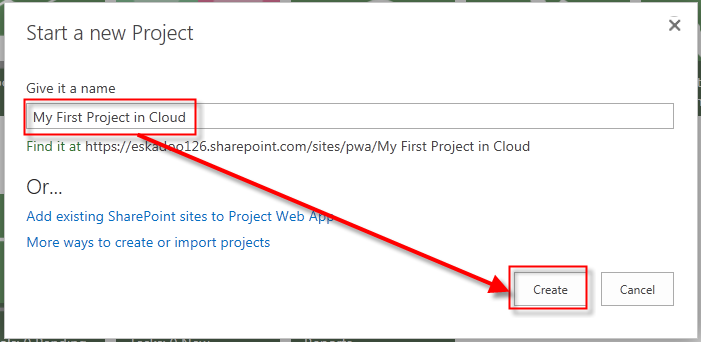
image

and then I have to wait few moments:

image


Here it is!

image

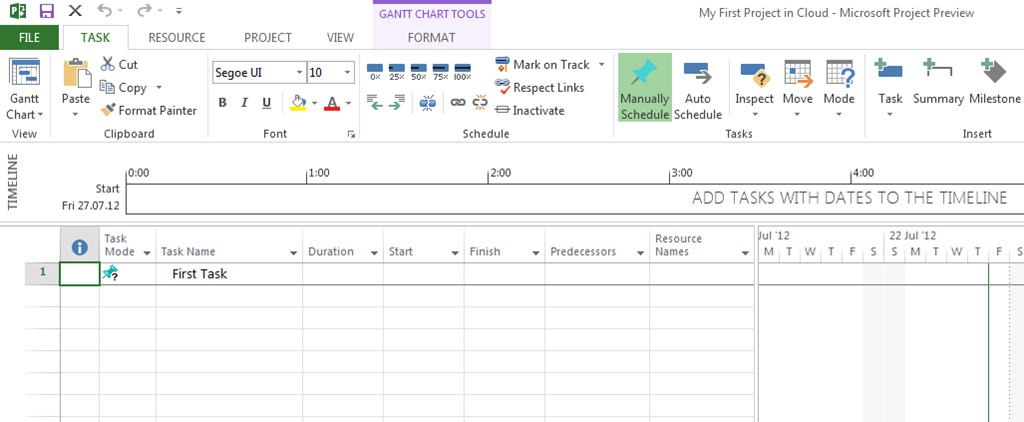
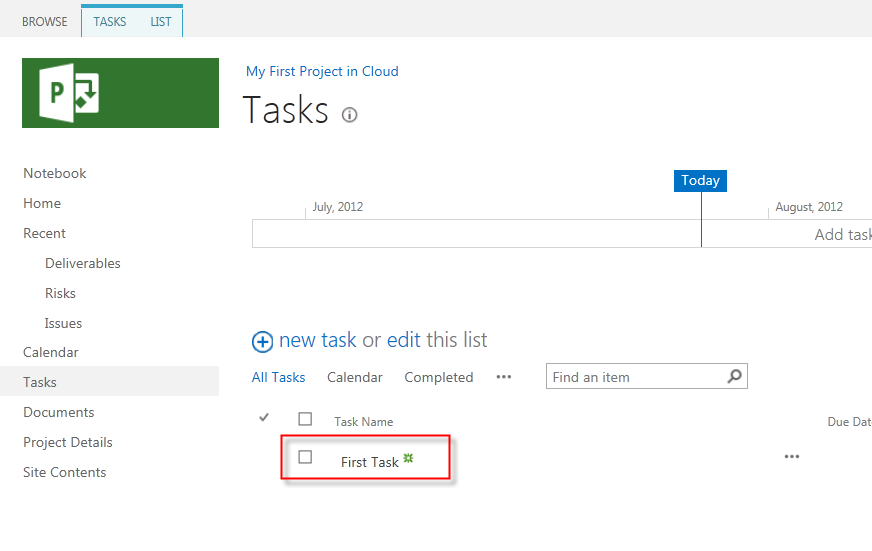
Now what? I will add some Tasks!

image

I will get:

image

I am not going to explain each and every Field. This is only to see how you can do it!

After Saving I will get:

image

OK! How to open this Project in Project Professional 2013?

image

and I will get (after Login):

image

Now, I am going to “rearrange” my Project:

image

and I am going to save this Project:

image

Since I have deleted Firs Task I will get:

image

and I will get:

image

Piece of cake!


Regards!

Posted in MICROSOFT PROJECT, Microsoft Project 2013 - Preview | Tagged , , | 12 Comments

Microsoft Project 2013 – ONLINE in Office 365! Part 1


Hi!

Finally we have Microsoft Project in Office 365. In this post I will show you how is it looks like. I will not cover the installation procedure. For that, read the Microsoft Blogs, and find what you need Smile with tongue out

When I log in I get:

image

First I will add a brand new user, so he will be able to use Project in office 365!

image

and I will get:

image

next step is:

image

John is living in Croatia, and no, I do not want him to act like an Administrator!

Next step:

image

John is my friend, and I will give him all licenses Smile

Next Step:

image

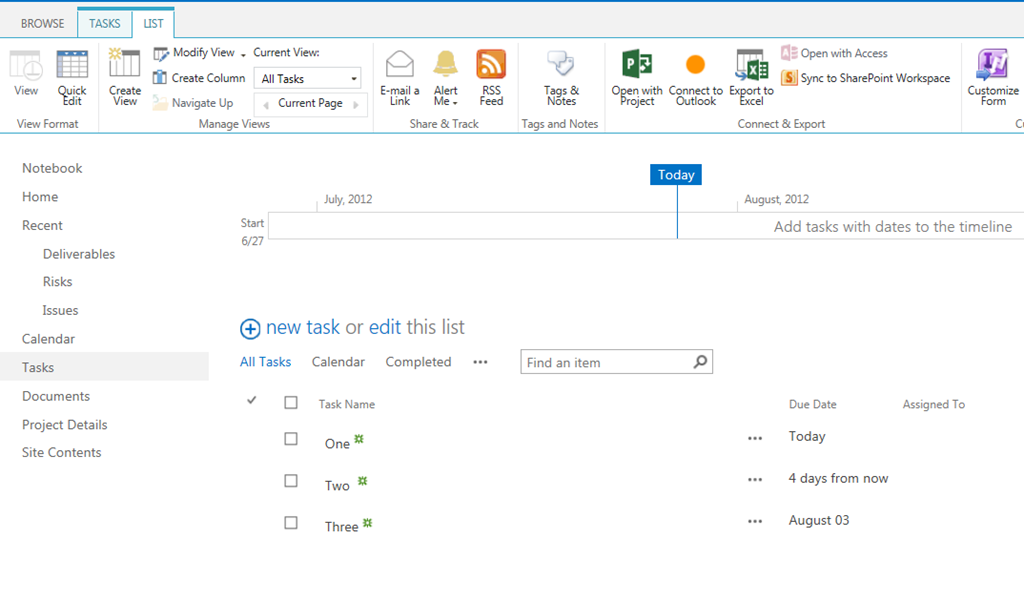
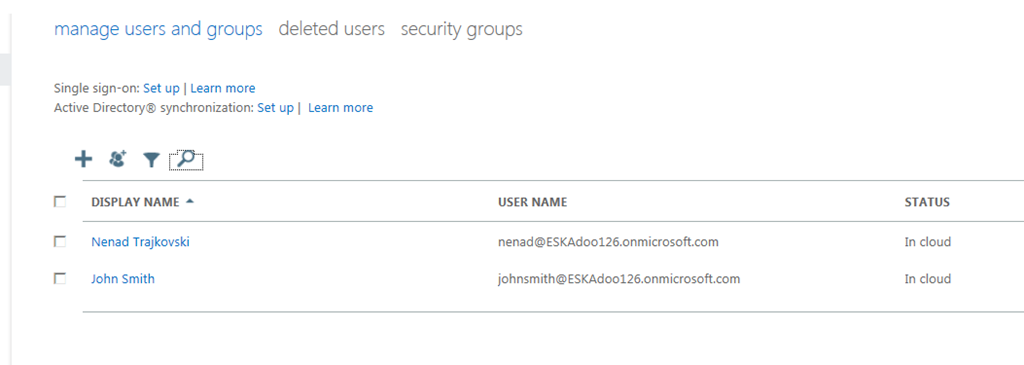
Finally, I will have my new User:

image

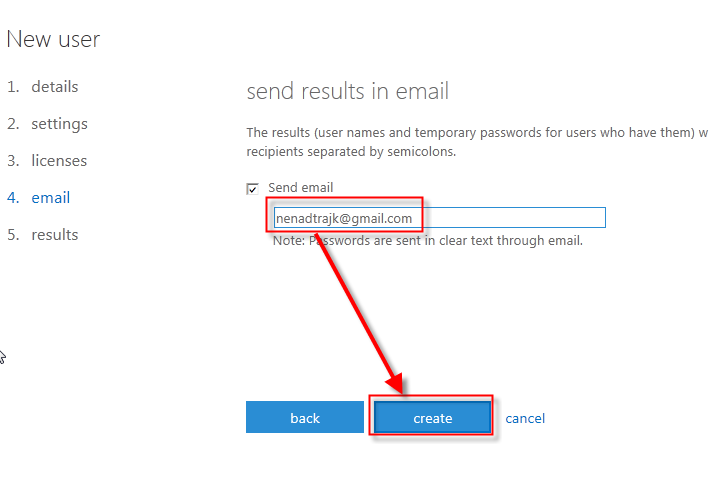
Now I am going to check my mail:

image

Johnsmith is created. You do not believe me, do you?

Let us see:

image


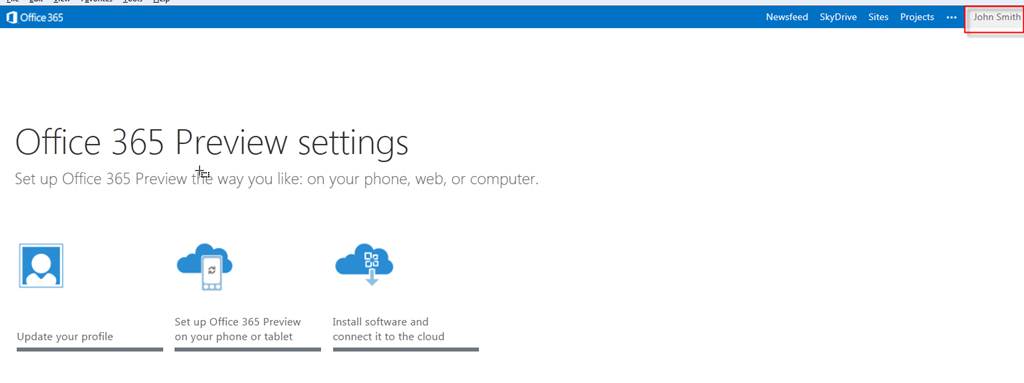
I will login as John Smith now:

image

Now you believe me!

I have log in, as myself again and I am going to show you Administrator page for Project:

image

I will get:

image

You can manage your sites from here.

But how to create new Project? Easy.

First you have to wait for my next Post, and then you have to read it!

Regards!
Posted in Microsoft Project 2013 - Preview, PMI, PRoject Management | Tagged , , | Leave a comment

Microsoft Project 2013–what is new? Part 4


Hi,

In Microsoft Project 2013 you can find a great set of new Reports. Because this is still Beta 1, we can expect more Reports in final version.

When I am talking about Reports, I mean that now, you create own own Reports, and you Modify existing Reports as well.

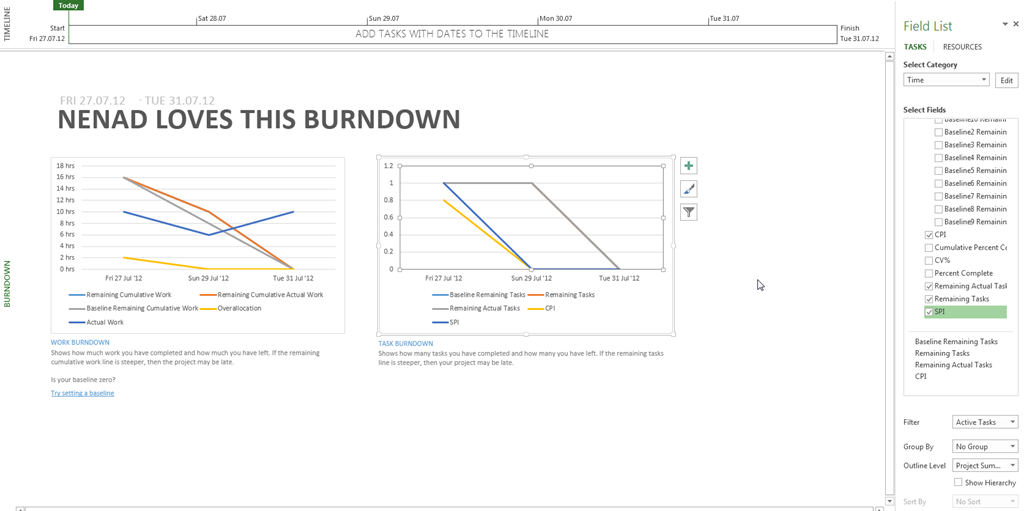
I will show you one new Report, called Burndown. It is very well known Report in agile (Scrum, for instance) methodology!

OK. I will create a simple Project first.

Step 1. – I will add two Tasks, and I will link them:

image

Step 2. – I am going to create Resource for my Project:

image

Step 3. – I am going to assign Resource to Tasks:

image

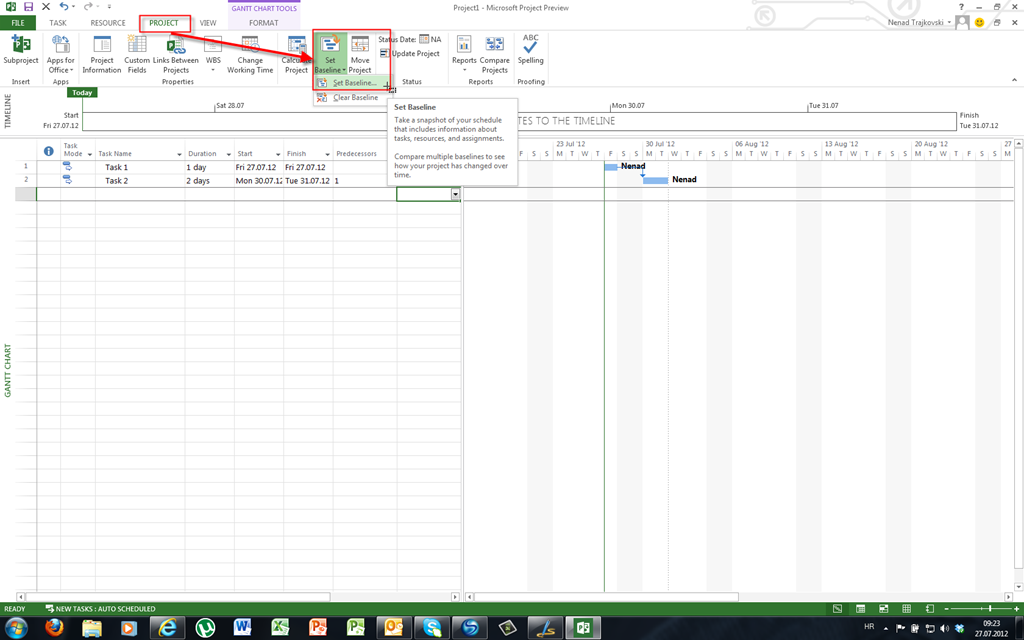
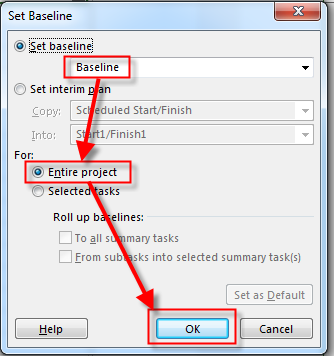
Step 4- I am going to save the Baseline:

image

and:

image

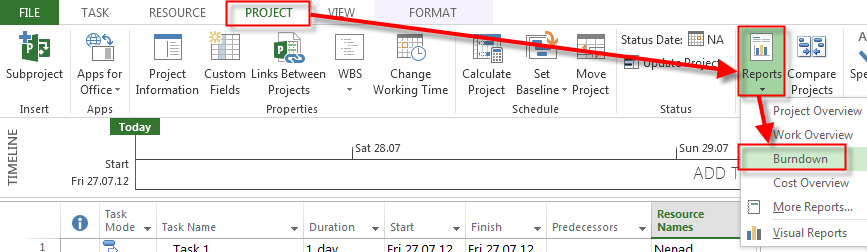
Now I will look at the Burndown Report:

image

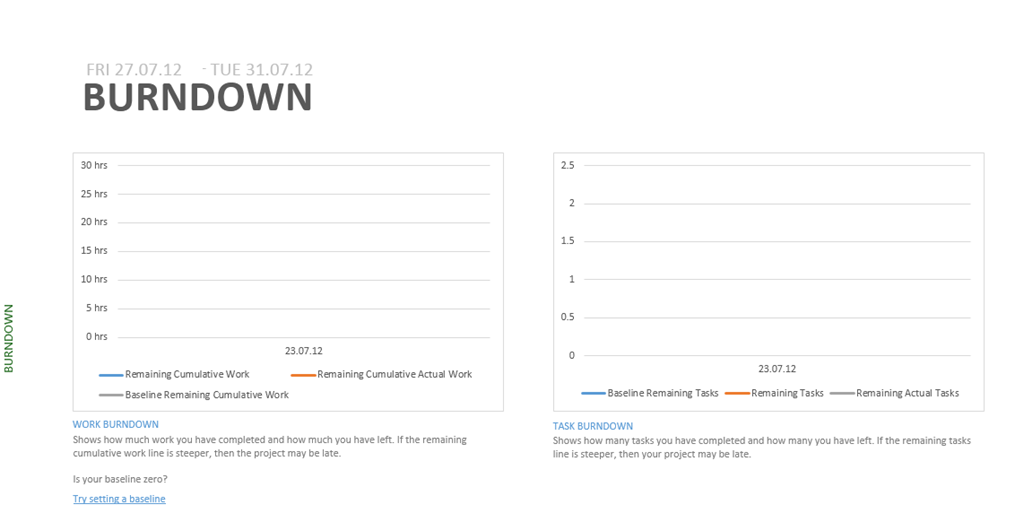
and I will get:

image

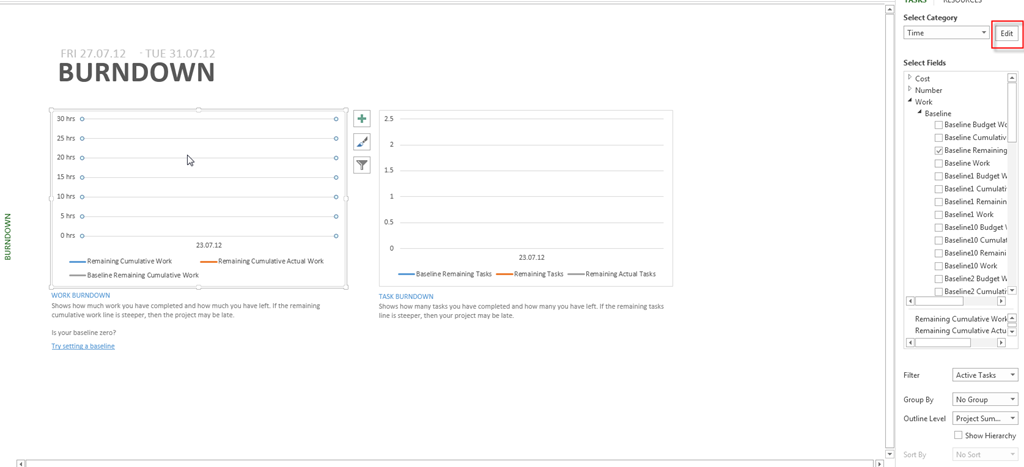
Nothing? This is a Bug? No it is not! I will click on left chart and I will get:

image

When I click on Edit button I will get:

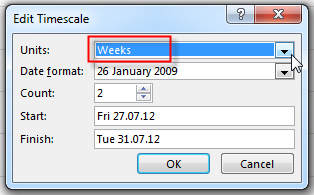
image

I will change Units from Weeks to Days and I will get:

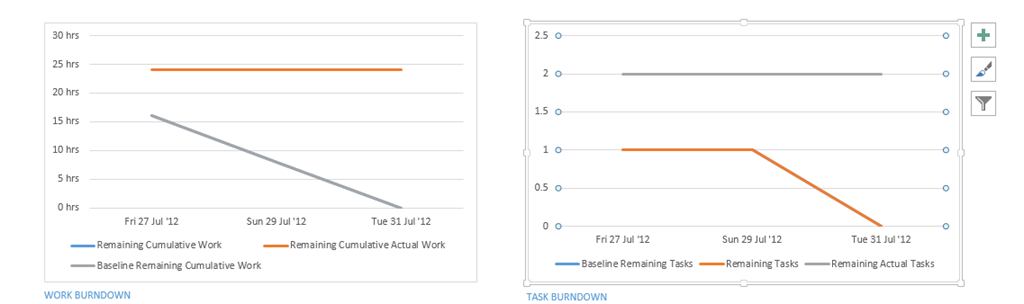
image

I did the same thing for the Right Chart. Notice that Left chart is about working hours, and right is about Number of Tasks!

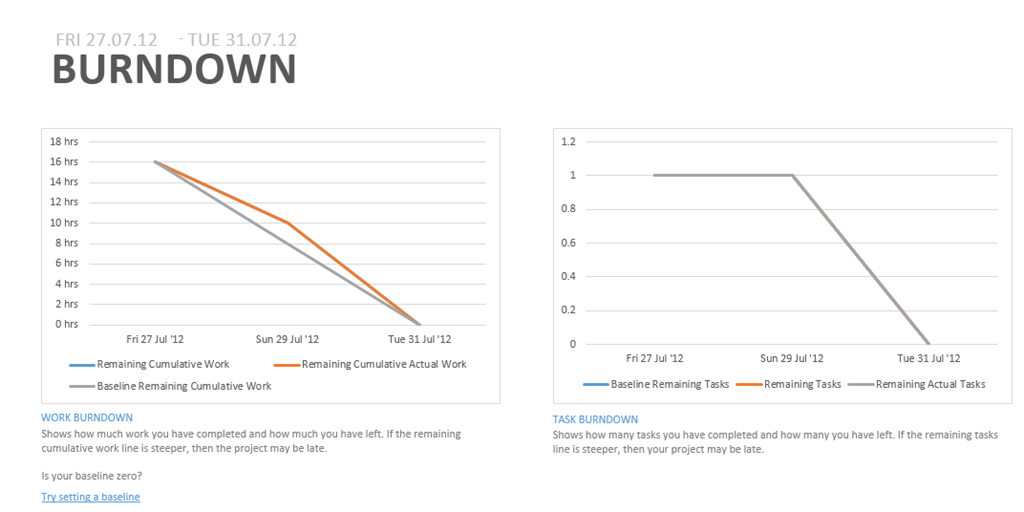
Now I will use Task Usage View, and I will put some Actuals:

image

Now the Burndown Report looks like this:

image

If I want to modify this Report I can select, for example, Right Chart and do some modifications:

image

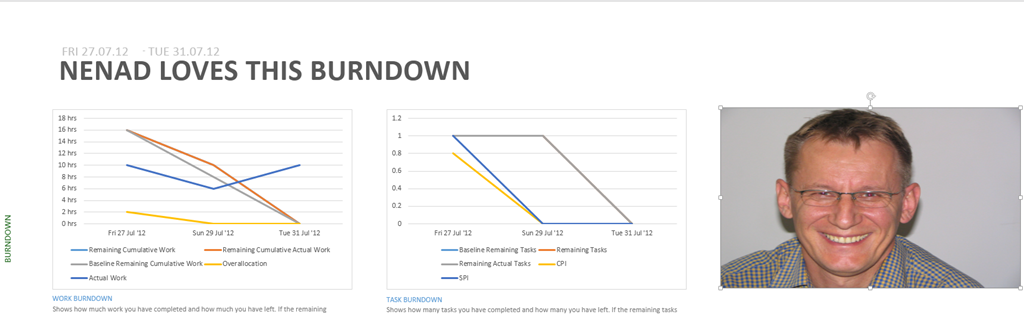
I have renamed the Report, and I have added some fields.

And because I know that you love me so much I will add my personal picture in that report, just for you:

image

Beautiful Report Engine in MS PROJECT 2013! And this is Beta 1. I am impressed! The old, poor Reports are gone forever!


Regards!

Posted in MICROSOFT PROJECT, Microsoft Project 2013 - Preview | Tagged , , , | 4 Comments

Microsoft Project 2013– what is new? Part 3


Hi,

I will show you a great new feature in MS PROJECT 2013 Task Path.

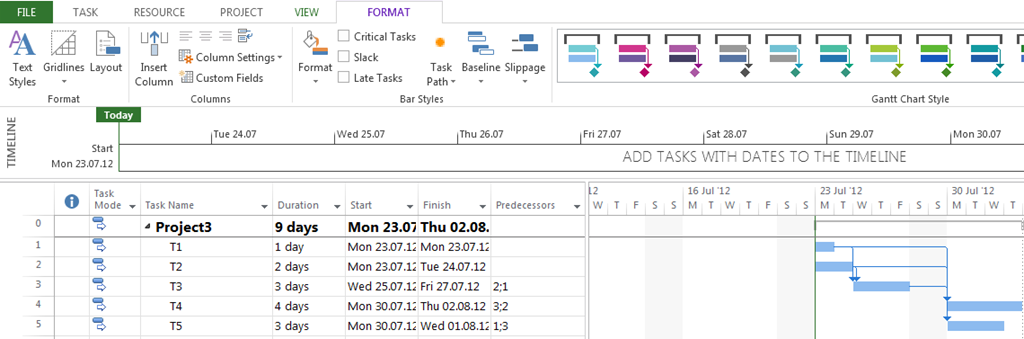
Suppose that I have a simple Project like this:

image

I want to know, for specific Tasks Predecessors, Successors, Driving Predecessors, and Driven Successors. Where is the difference between, for example Predecessors and Driving Predecessors? Simple, Predecessors are all Tasks that Precede to specific Task. Driving Predecessors are Tasks that Precede to the specific Task, and have direct connection with Start Date (e.g, if the Predecessor will be late, the Succesor will be late to – NO SLACK or FLOAT)!

Let me show you how can you see those features:

image

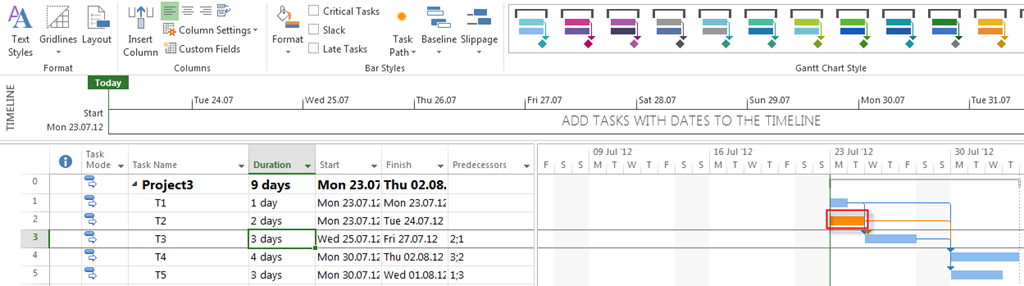
Firs, I will choose, Predecessors option for the T3 Task, and I will get:

image

As you can see Task T3 has Predecessors: T1, and T2!

Now I will turn off this feature, and Turn on Driving Predecessors, and I will get:

image

As you can see, only T2 is highlighted, because if T2 is late, T3 will be late to, but T1 has a lag (1 day)!

The same thing is with successors! Try it!

Regards,

Posted in MICROSOFT PROJECT, Microsoft Project 2013 - Preview | Tagged , , , | 1 Comment

Microsoft Project 2013–what is new? Part 2


Hi,

Summer time folks! Seacoast, swimming, enjoying, and those kind of stuff. So it will be a short one!

In new, MS PROJECT 2013, you can save your project on different locations!

Suppose that I have a Simple Project like this:

image

I am going to save this project:

image

First you can Sync with SharePoint! Great thing! you can choose Existing or New SharePoint site!

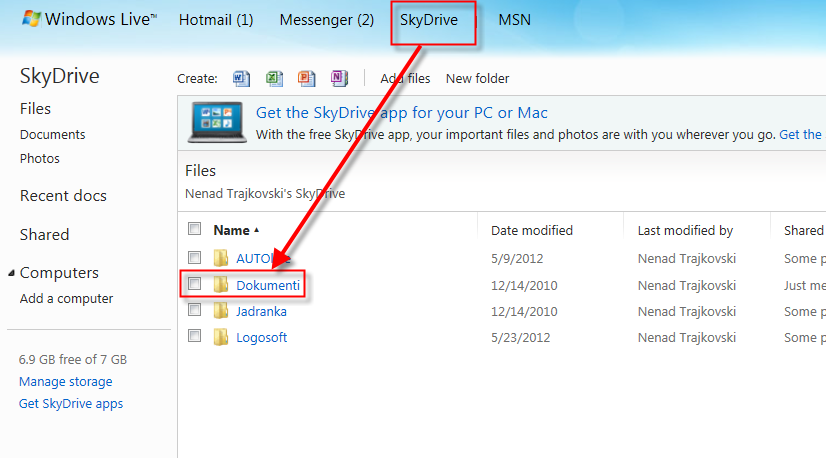
I can save the Project on my Sky Drive, like this:

image

Now I am going to www.live.com and I will sign in:

image

and here it is:

image

And, finally, I can save it on my Computer! And there is nothing new in this feature!

Posted in MICROSOFT PROJECT, Microsoft Project 2013 - Preview | Tagged , | Leave a comment

Microsoft Project 2013–what is new? Part 1

Hi,

as you already know Microsoft ha published new Office 2013 –Preview,  and here is the new Microsoft Project 2013 preview.

Let us look what is new! Remember that that is just a Preview, not the final version! I will write about what I see!

There are huge improvements in this new Version, and I love it already. Frankly I do not love everything, and I will write about that as well!

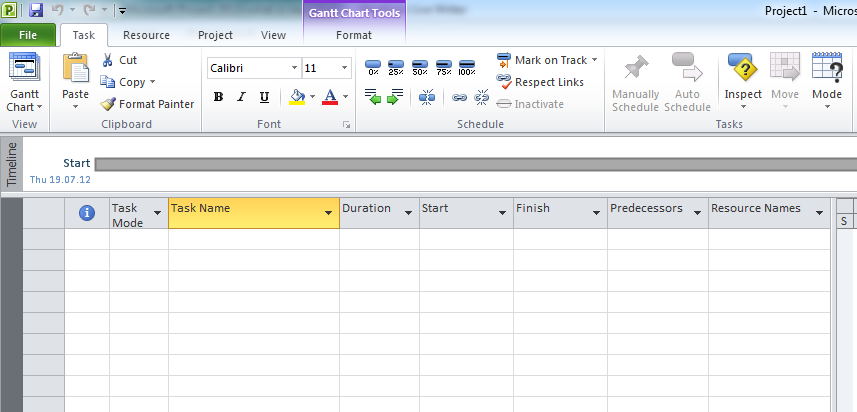
When you open MS PROJCET 2010 you get something like this:

image

As you can see, you have open brand new Project with default View – Gantt Chart.

Notice TABS! They are in Upper-Lower case!


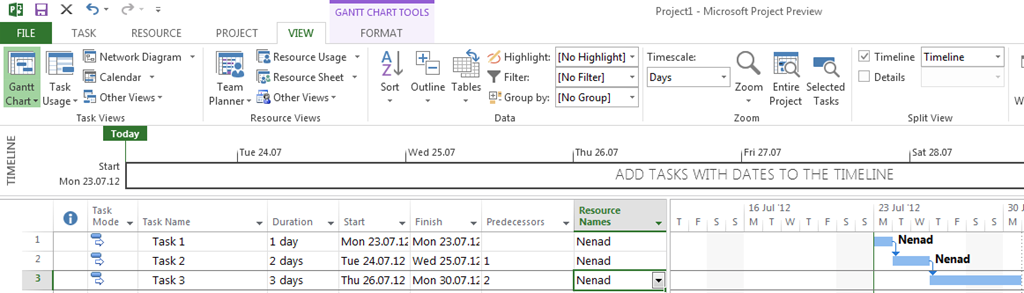
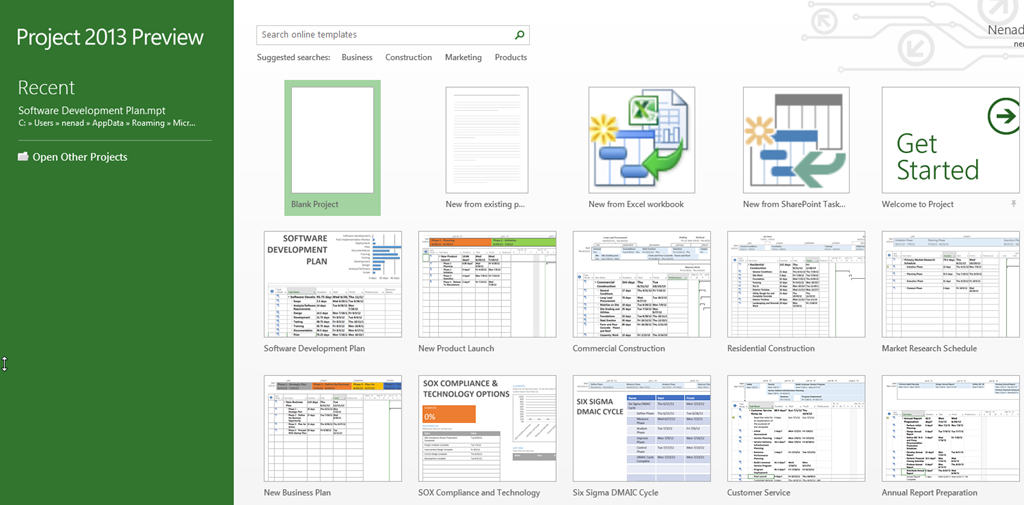
When you open MS PROJECT 2013 (I will not write MS PROJECT 2013-preview any more, because you know that this is only a Preview), you get this:

image

You can choose to open a brand new Blank Project, New from existing Project, and New From SharePoint Task…!

And you have a lot of Templates, so I will open Software Development Plan Template, and I will get:

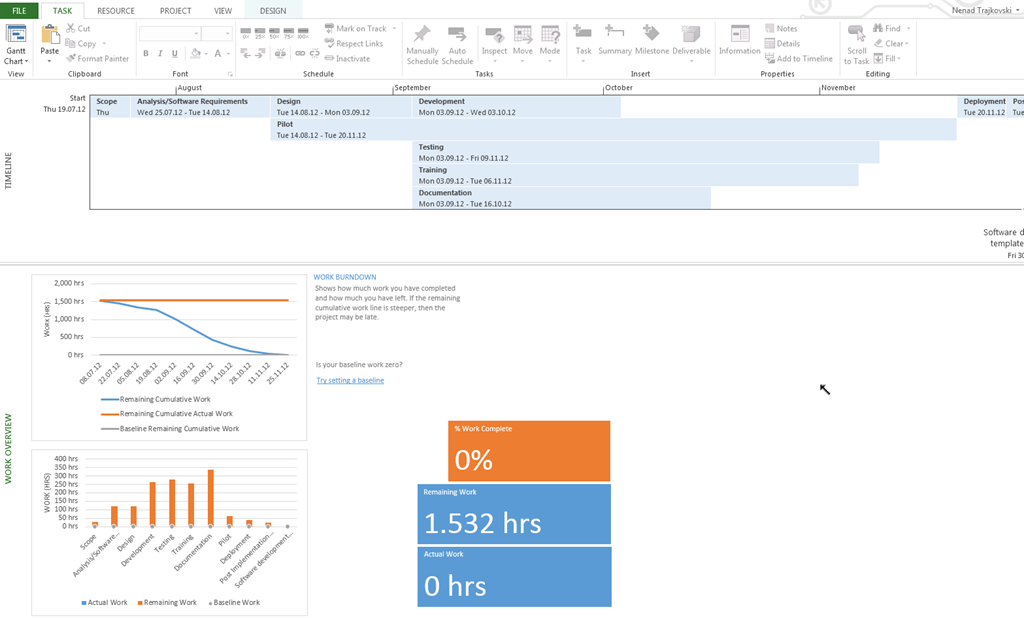
image

and I will get:

image

My first impression is WOW!

You can see that Timeline is much more Readable, and there are a lot of new stuff here (like Work Burndown – do you speak Agile??? Smile) 

I will cover these features in my next Posts!

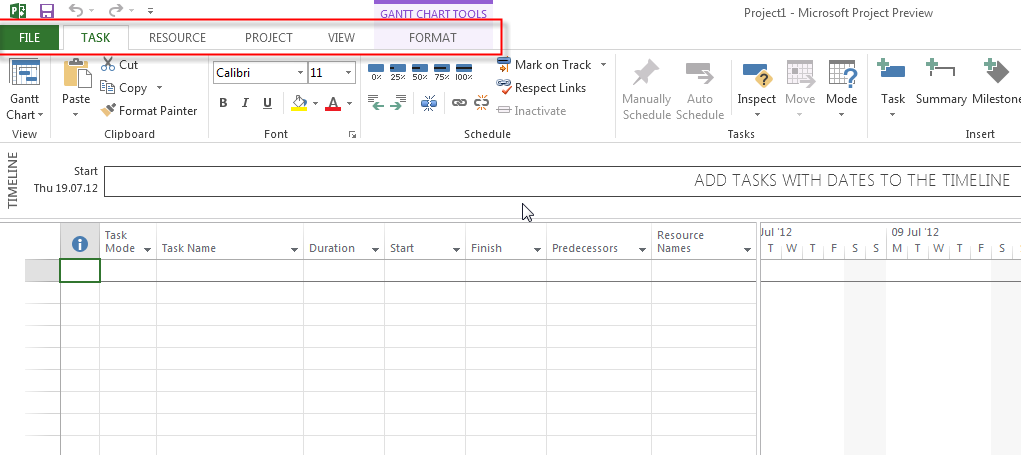
I will open a Blank Project now:

image

Tabs are in UPER CASE, I do not like it! Contrast is low, and I don’t like it either!

I want to exit my MS PROJECT 2013 now:

image

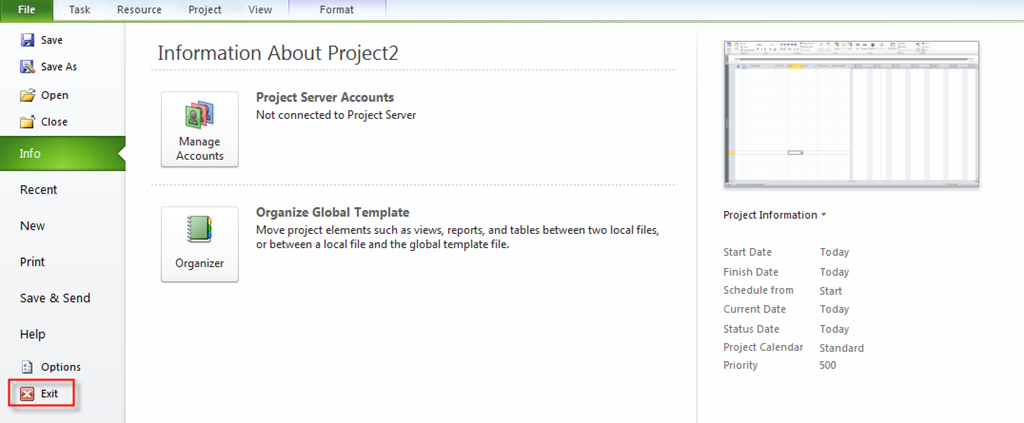
What is missing??? I will show you the MS PROJECT 2010:

image

Yes, the Exit button is GONE! In is gone from all OFFICE 2013 family, except Outlook!

But if you hit X letter when you are on the backstage window in MS PROJECT 2013, you will exit! Of course you can exit if you click here, as well:

image

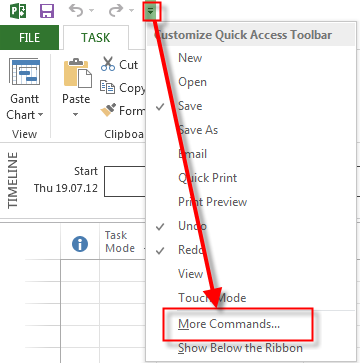
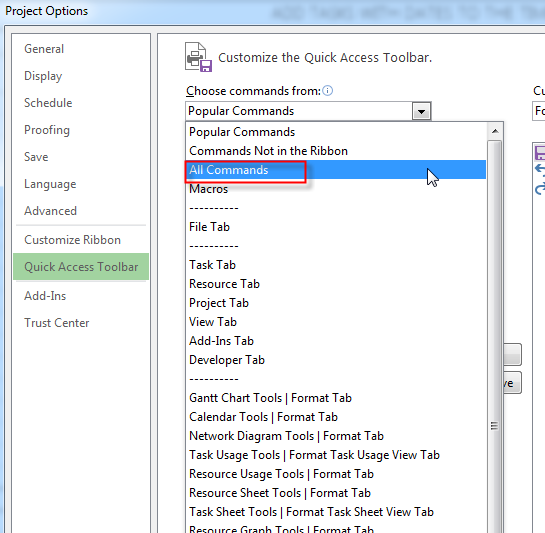
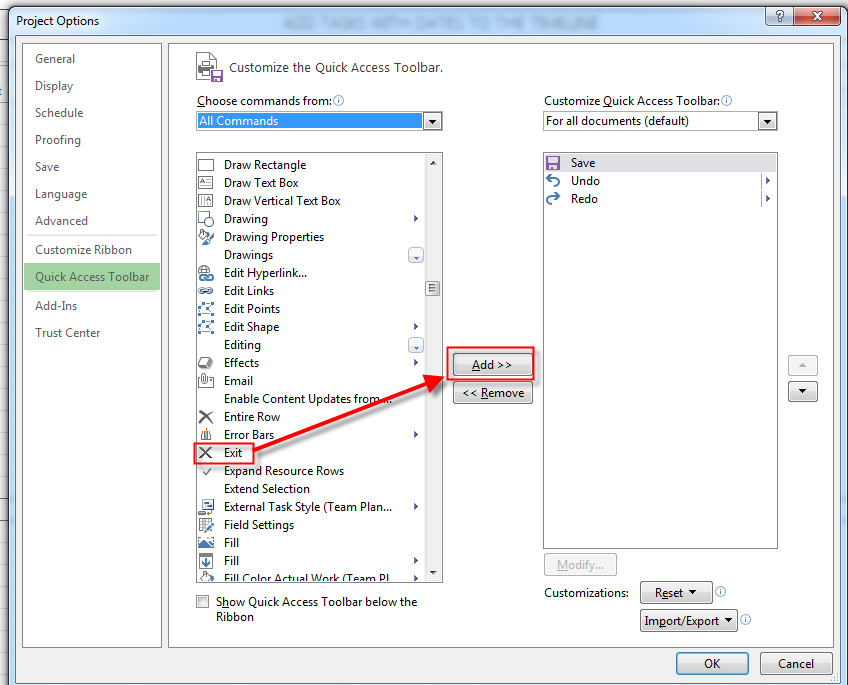
If you insist on Exit Button, there is a way to have it on Quick Access Toolbar:

image

and:

image

and:

image

and I will get:

image

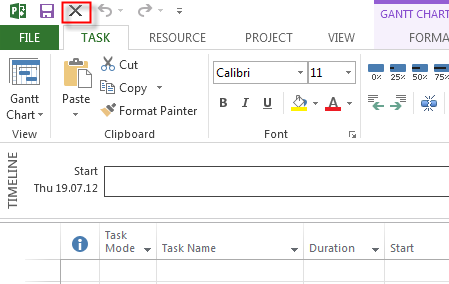
and Finally:

image

So I have now my beloved Exit Button.

Do you like it????

P.S. Guess what! I am going to Vacation! Why should you care? You should not! I am telling you that because from now till end of August I will post one Blog Post per week.

Please, please, DO NOT CRY Smile with tongue out


Regards!

Posted in MICROSOFT PROJECT, Microsoft Project 2013 - Preview, PMI, PRoject Management | Tagged , , , , | 7 Comments

Enterprise Resources in MS PROJECT PROFESSIONAL 2010

Hi,

in this Post I will show you how to create/edit  Enterprise Resource in MS PROJECT PROFESSIONAL 2010 for MS PROJECT SERVER 2010.

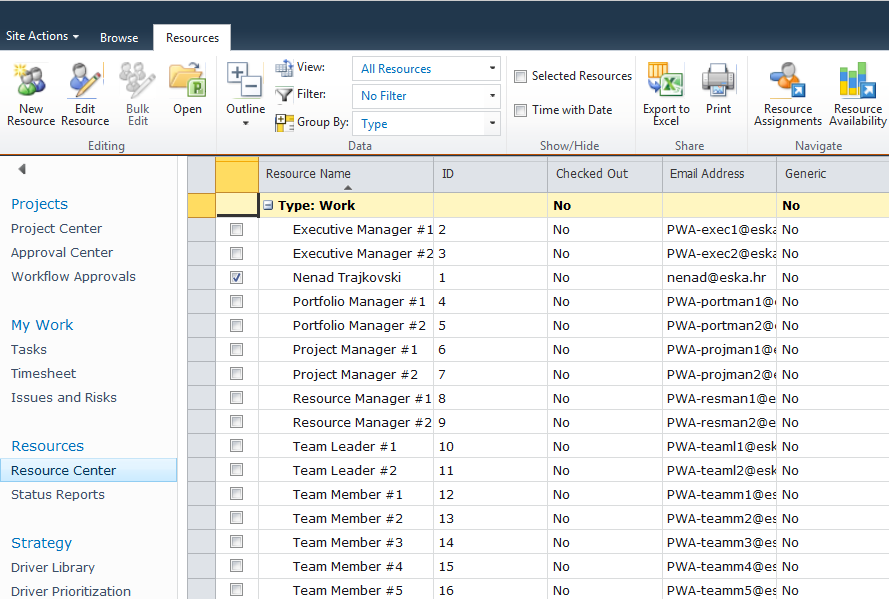
First I will open the Resource Center from PWA:

image

and I will get:

image

I will choose myself and open MS PROJECT PROFESSIONAL 2010 like this:

image

and I will get:

image

I will put Trainer in the Group field, $100 for Standard Rate, and $150 for overtime rate, and I will get:

image

I will double click on my Name and I will get:

image

Since I do not work on my Birthday (you can bet I do, this is an example Smile with tongue out), I will change working time and I will say that my birthday is not a working day for me:

image

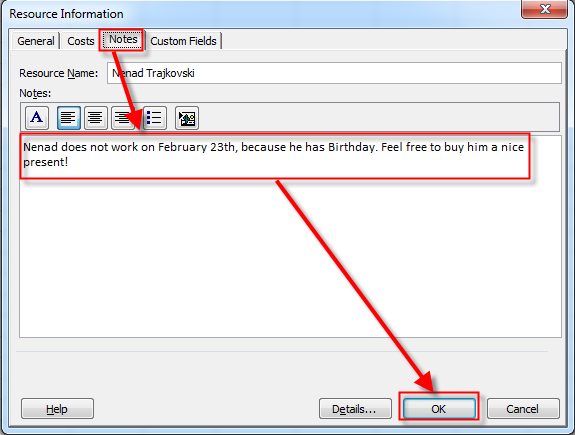
OK, I will now make some note on the Notes Tab:

image

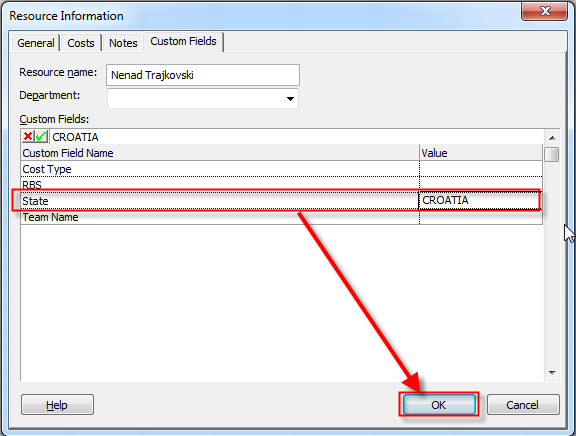
Now I will choose Custom fields Tab, and I will get:

image

Here I can see all custom fields which belongs to me, and I will put CROATIA in State Field

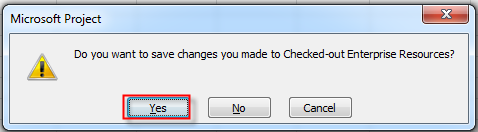
OK! That is it! Now I am going to exit from MS PROJECT PROFESSIONAL 2010!

image

and I will get:

image

ant that’s it! You can add Enterprise resource in a same way!

Regards!
Posted in MICROSOFT PROJECT, Microsoft PRoject 2010, Microsoft Project Server 2010, MS PROJECT 2010, PMI, PRoject Management | Tagged , , , , | 3 Comments