Departments and Projects in MS PROJECT 2010 – Part 1


Hi,

today I am gong to show how are Departments connected with Projects in MS PROJECT SERVER 2010!

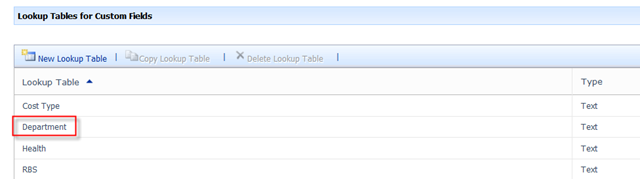
First let me show you Departments in my Company:
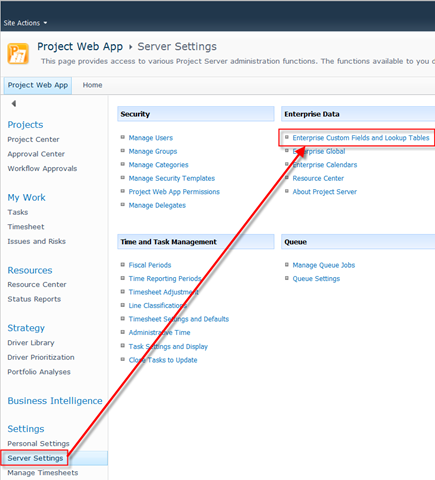
image

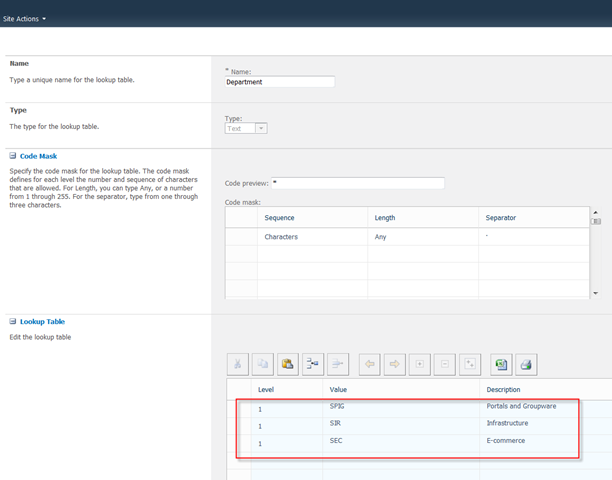
and than:

image

and I will get:

image

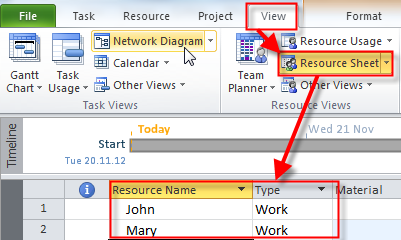
Now I am going to show my Resources:

image

and I will get:

image

I have:

  1. One Administrator
  2. Two Executive Managers
  3. Two Portfolio Managers
  4. Two Project Managers
  5. Two Resource Managers
  6. Two Team Leads
  7. Five Team Members

I gave them descriptive names for easier Tracking my future Posts!

I will now say that Project Manager 1 can access to all projects, and Project Manager 2 can access only to Projects which belongs to SIR (Infrastructure), and SEC (E-commerce) Departments:
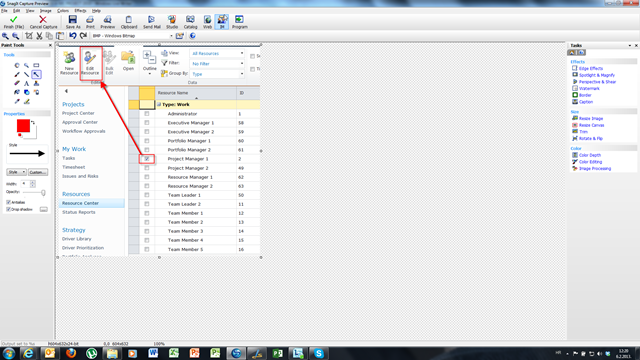
image

and:

image

As you can see, I didn’t choose any Department, so Project Manager 1 will see Projects from all Departments!

For Project Manager 2, I will fill Department field with:
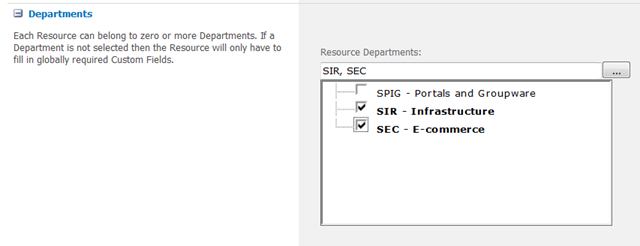
image

OK!

Now I will say (on the Same way), that:

  1. Team Member 1 is member of SPIG Department
  2. Team Member 2 is member of SPIG Department
  3. Team Member 3 is member of SIR Department
  4. Team Member 4 is member of SIR Department
  5. Team Member 5 is member of SEC Department

I am going to use MS PROJECT PROFESSIONAL 2010 for that!

image

and I will get (notice that I am adding Enterprise field in a View)added:
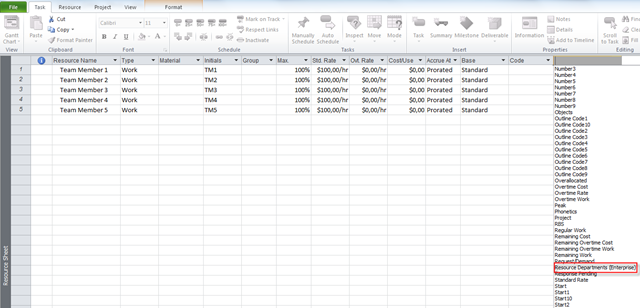
image

and I will now fill it:

image

After I fill them all, I will have:

image

I’m going to save this to the Enterprise (PROJECT SERVER 2010)!

OK!

What is next? I’ll show you that Project Manager 1 can Access all Projects, and all Resources, but Project Manager 2 can not, or he can?

For that, read my next Post 🙂

Regards
Posted in MICROSOFT PROJECT, Microsoft PRoject 2010, Microsoft Project Server 2010, PMI, PRoject Management | Tagged , , | Leave a comment

How to make modified Calendar default for future Projects in MS PROJECT 2013!
 

Hi,

here is the question from my Blog reader: “Is there a way to change the default calendar so that every new project is created with the predefined working time?”

Let me show you how can you accomplish that!

I will open a brand new Project ins MS PROJECT 2013, and I will say that Default Start Time is 08:00, and default End Time is 16:00. Click on the File Tab, and then:

image

and then:

image

OK!

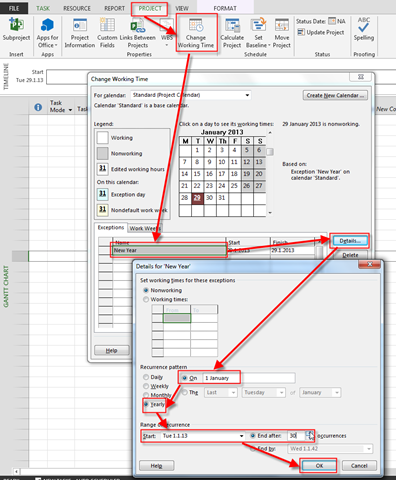
Now I am going to modify the Calendar! I will say that new year is recurring holiday at 01.01. every year. My Company give as day off at 02.01 every year, and at (for example) 01.02 every year. We will use same procedure for each of these holydays, so I will show you how to do it on New Year:

image

I will do the same thing for other Holidays, as I mentioned:

image

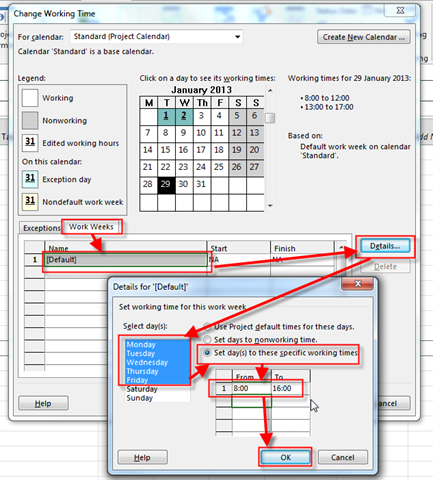
I will change working time from 08:00 to 16:00 with no break:

image

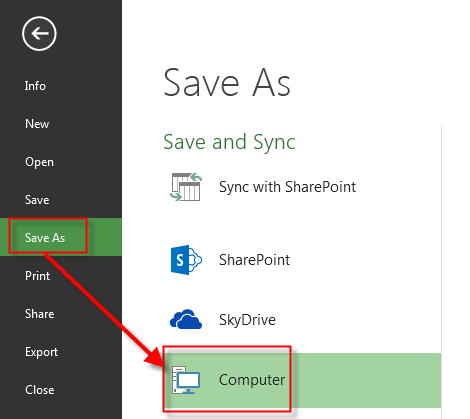
Now I am going to save this Project as a Template:

image

and then:

image

The name of this Template is My Project 2013 Template! I will get:

image

Here I can choose which Values is not going to be saved in my template! I will choose all of them, and I will click Save button!

Now I am going to Crate a brand new Project form my Template:

image

and I will get:

image

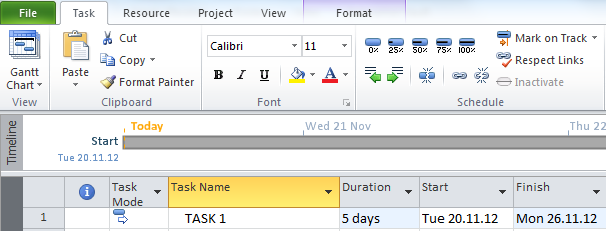
I will add the Task with 5 days Duration:

image

As you can see this task will start on Tuesday, 29.1.2013, and it will be Finished at Tuesday 5.2.2013. Why?

Because I set 01.02. (Friday) as non working day, so task will be performed at Tuesday, Wednesday, Thursday, Monday, and Tuesday!

And one important thing. When you save your Project created from Template, save it as a Project (.mpp file), not as a Template again!


Easy, isn’t it?


Regards!

Posted in MICROSOFT PROJECT, Microsoft Project 2013, PMI, PRoject Management | Tagged , , , | 8 Comments

Slack (or Float) types in Microsoft Project 2013, Part 2


Hi,

Let us continue with Slack story in MS PROJECT 2013.

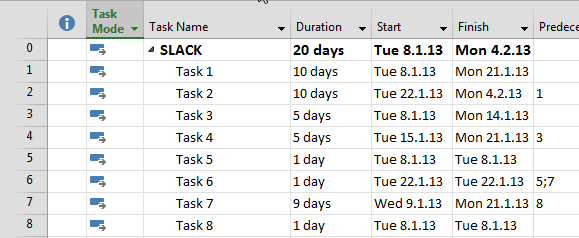
First I will create a new Project with Task List:

image

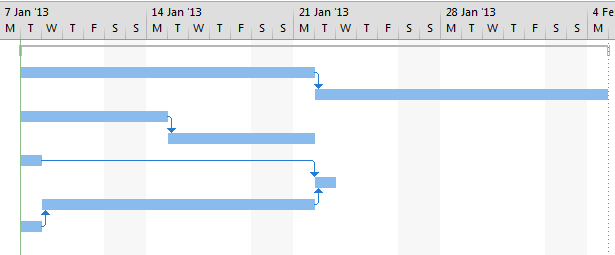
Because picture is too big I will show you the Gant Chart:

image

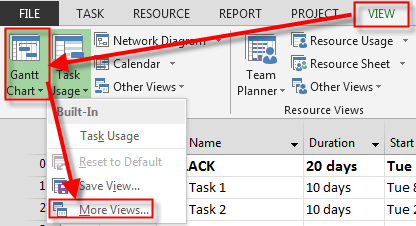
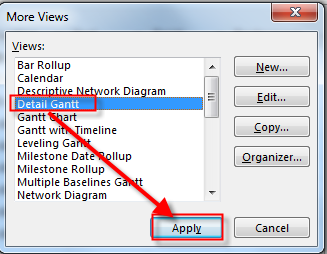
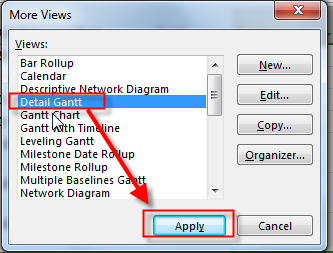
Now, again I will apply the Detail Gant View:

image

and:

image

and I will get:

image

OK. Let me explain!

Task 1, and Task 2¨are on the Critical Path. On the Critical path if any Activity (Task) is late, the whole Project is late, so in the Critical Path, slack is ZERO!

I will now show you the Free Slack, and the Total Slack fields!

image

  • Task 1, and Task 2 are on the Critical Path, so the Free Slack, and Total Slack are zero
  • Task 3 is predecessor of Task 4 and it has Free Slack zero days (because free slack is amount of time that Task can be late without making late his successor), but Total slack is 10 days, because if Task 3 is late 10 days, the Project will still finish on time!
  • Task 4 has 10 days of Total Slack, and free slack, because it has no Successor!
  • Task 5 has 9 days of Free slack (because Task 6 should start after Task 4, and Task 6 are finished). It has 18 days of Total Slack, and that is obvious, because if it is late up to 18 day, the Project will still be on time!
  • Task 6 has 9 days of Total Slack, and free slack, because it has no Successor!
  • Task 7 is predecessor of Task 6 and it has Free Slack zero days (because free slack is amount of time that Task can be late without making late his successor), but Total slack is 9 days, because if Task 7 is late 9 days, the Project will still finish on time!
  • Task 8 is the same as Task 7

OK. Can Float be negative? Yes it can!

Here is the example:

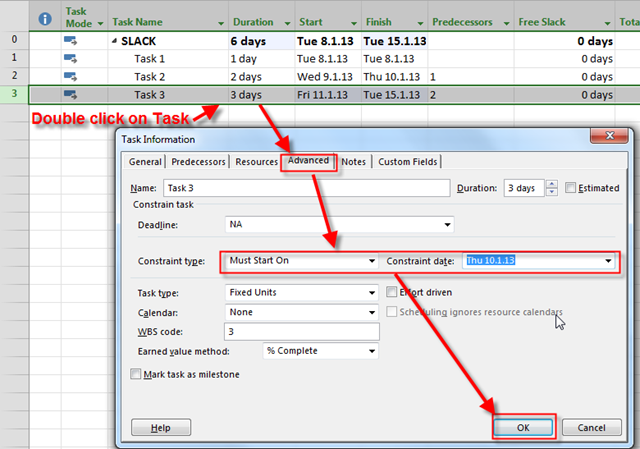
image

Now I will put a hard constraint to the Task 3, so it Must Start on January 10, 2013:

image

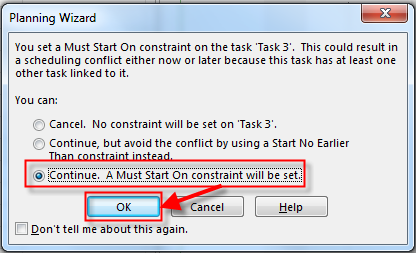
and I will get the Warning:

image

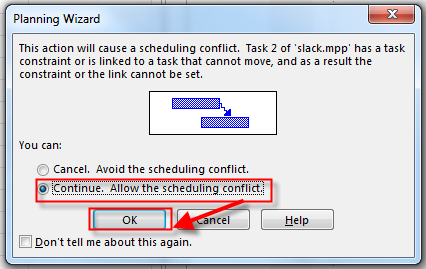
and then:

image

Finally I will get:

image

As you can see, because Task 2, and Task 3 has Finish to Start Relationship, and Task 3 must begin one day before Task 2 is finished it has –Slack 1day (negative slack).


Regards,

Posted in MICROSOFT PROJECT, Microsoft PRoject 2010, Microsoft Project 2013, PMI, PRoject Management | Tagged , , , , , , | 1 Comment

Slack (or Float) types in Microsoft Project 2013, Part 1


Hi,

Today I am going to explain slack, or float in MS PROJECT 2013.

There are two types of slack in MS PROJECT 2013:

  1. Free slack:
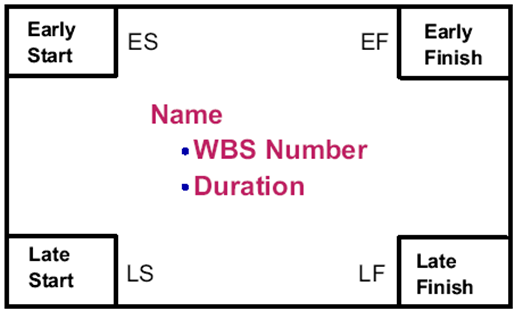
    The free slack of an activity is the time this activity can be delayed without impact on the following activity.
  2. Total slack:
    The total slack of an activity is the time this activity can be delayed without impact on the finish date of the project.

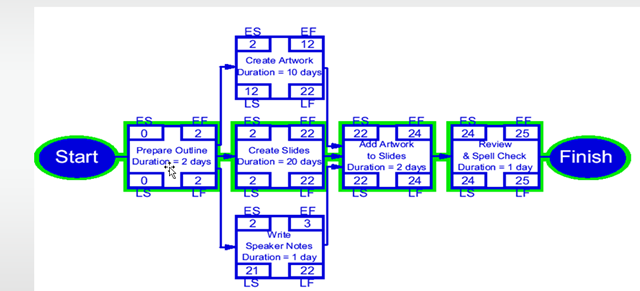
First, let me show you that on this pictures:

image

image

Here is the example:

image

As you can see, The Critical Path is: Prepare Outline –> Create Slides –> Add Artwork to Slides –> Review & Spell Check. Tasks Crate Artwork, and  Write Speakers Notes are not on the Critical path and they have a Slack!

  1. Task Crate Artwork has Free slack = 22 – 12 = 10 days
  2. Task Write Speakers Notes has Free slack = 22 – 3 = 19 days
  • If Create Artwork Task is late more than 10 days, Task Add Artwork will be late, as well.
  • If Write Speakers Notes Task is late more than 19 days, Task Add Artwork will be late, as well.

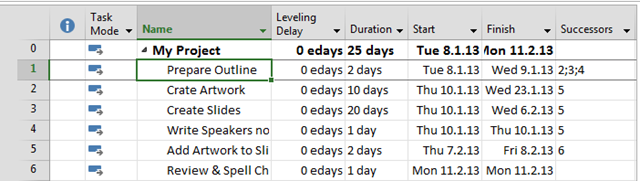
Now I am going to put those Tasks into MS PROJECT 2013.

image

As you can see, My Project will take 25 days!

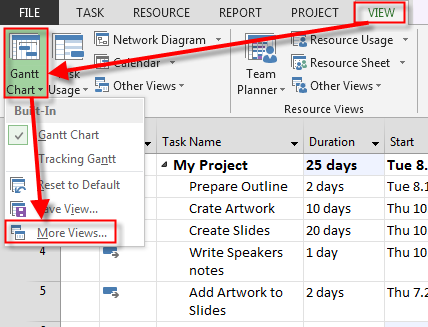
Now I will apply Detail Gant View:

image

and then:

image

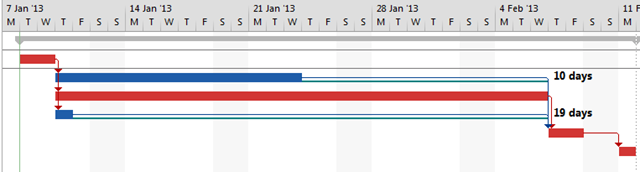
and I will get (I will show two pictures because it doesn’t fit on the screen):

image 

and:

image

You can see that Tasks  Create artwork, and Write Speakers Notes are not on the Critical path and you can see their Free Slack (10 an 19 days)!

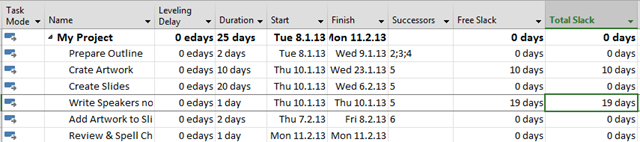
Now I will add two new field in my Detail Gant View: Free slack, and Total Slack:

image

As you can see my calculation is correct.

Slack can be positive, zero, or negative!

Total slack can be different from free slack, of course!

Do you want an example? Read my next post!

Regards,

Posted in MICROSOFT PROJECT, Microsoft PRoject 2010, Microsoft Project 2013, PMI, PRoject Management | Tagged , , , , , | 1 Comment

Overtime, Costs, and Fixed Duration in MS PROJECT 2013

Hi,

I got this issue from my Blog Reader:

“OK. I am entering in hours in overtime work field as the instructions note but when I view the cost table, only the regular hours are calculated in the cost. This task is fixed duration for the entire month. The reason is that as overtime is added more volume is processed and the schedule does not change. We are measuring/planning resource cost per task for each month.How do I get a total cost for regular and overtime hours spent on this task?”

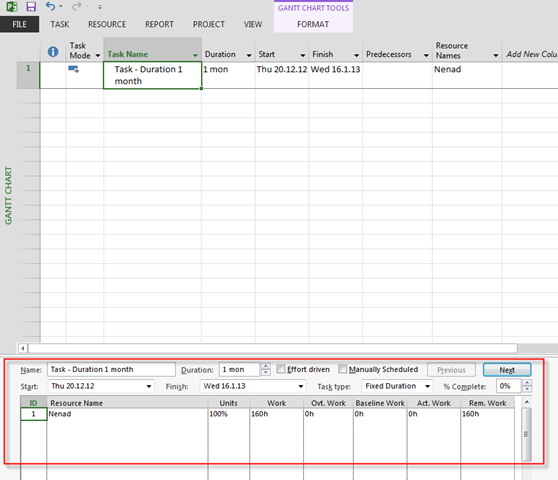
As far as I understand, overtime hours are added to Actual hours! Let me try! With MS PROJECT 2013.

image

Now I will add a new Resource:

image

I will assign Resource to the Task:

image

Now double click on the Task and:

image

Now let’ see the Cost Table:

image

Task has ! month duration = 20 days = 20 * 8 hours per day = 160 hours, and because it is all Standard time ($100/hour) = 160 * $100 = $1600!

Now the overtime!

image

Click anywhere at the bottom part of the screen, and then:

image 


and here it is:

image

Now, let suppose that I enter 40 hours as Ovt. work:

image ¸

and I will get:

image

The Task is now splinted, but will end sooner! Why, because the Resource will work 1 month (e.g. 160 hours, but 40 of them will be overtime! So this 40 hours does not mean that the Resource will work 40 hours more! NO! It will work 160 hours!)

Let us see a Cost Table:

image

160 hours = 120 hours (Standard time) * $100 (Standard rate) + 40 hours (Over time) * $200 (Overtime rate) = $12000 + $8000 = $20.000. Everything is fine!

Well let’s suppose that I want that my Resource work 200 hours (160 Regular + 40 Overtime):

image

There is no splitting! Now, let us see Cost Table:

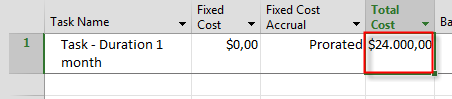
image

200 hours = 160 hours (Standard time) * $100 (Standard rate) + 40 hours (Over time) * $200 (Overtime rate) = $16000 + $8000 = $24.000. Everything is fine!

Now let’s put some Actual Via Resource Usage View:

image

The Cost Table:

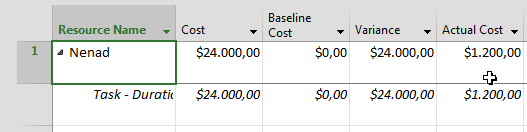
image

10 hours = 8 hours (Standard time) * $100 (Standard rate) + 2 hours (Over time) * $200 (Overtime rate) = $800 + $400 = $1.200. Everything is fine!

Now I will put 8 hours instead of 10:

image

8 hours = 8 hours (Standard time) * $100 (Standard rate)  = $800. Everything is fine!

And finally, I will put 16 hours instead of 10:

image

Now Be Careful!!! Initially work was 10 hours for this Task (8 hours regular and 2 hours overtime) When I put 16 instead of 10 MS PROJECT will calculate:

16 hours = 14 hours (Standard time) * $100 (Standard rate) + 2 hours (Over time) * $200 (Overtime rate) = $1400 + $400 = $1.800. Everything is fine!

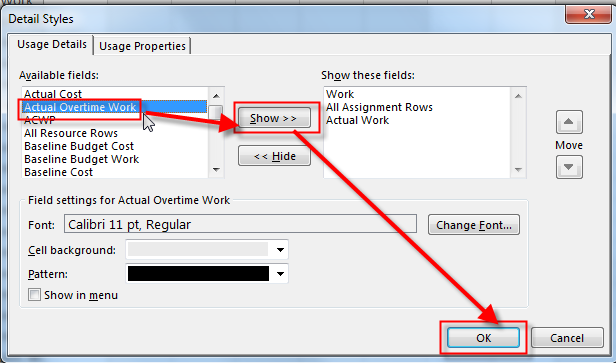
What if you want to put some actual overtime work instead (for example 8 hours of actual and 8 hours of overtime work)? Piece od cake:

image

and then I will put 16 hours of Actual Work and 8 hours of Actual Overtime work:

image

16 hours = 8 hours (Standard time) * $100 (Standard rate) + 8 hours (Over time) * $200 (Overtime rate) = $800 + $1.600 = $2.400. Everything is fine!


I wish you a Mary Christmas!


Regards!

Posted in MICROSOFT PROJECT, Microsoft Project 2013, PRoject Management | Tagged , , | Leave a comment

How to get percentage of costs in MS PROJECT 2010 or 2013!


Hi,

my Blog reader have a problem! He want to know how much money did he spend and, he wants that in percentage of Baseline in MS PROJECT 2010. He had sent me his mpp file!

Here it is:

image

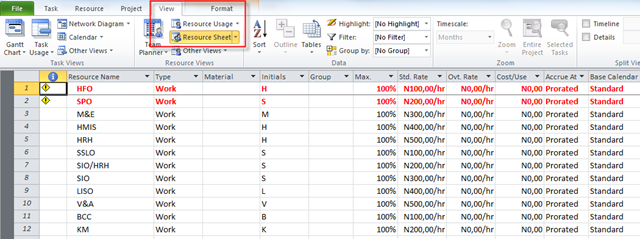
I will show Resources:

image

You can see that some of them are over allocated, but this is not relevant for our story!

I am going to save the plan as a Baseline:

image

and then:

image

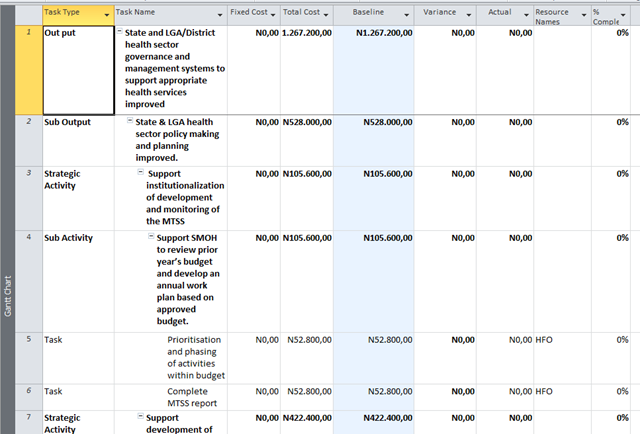
Let’s take a look at the Cost Table:

image

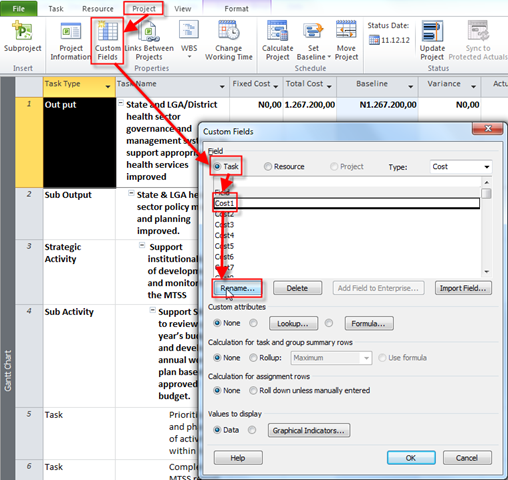
Now I am going to create Custom field:

image

and then:

image

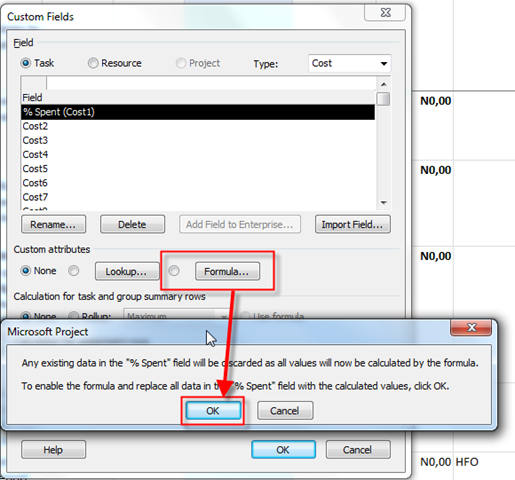
Now I will choose that I want Formula for this field:

image

and then:

image

and I will create this formula:

image

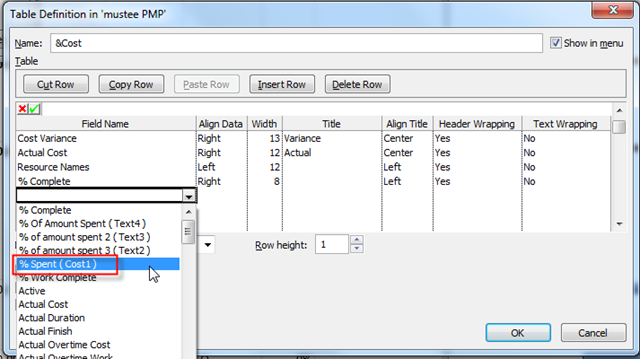
Now I will change the Cost Table:

image

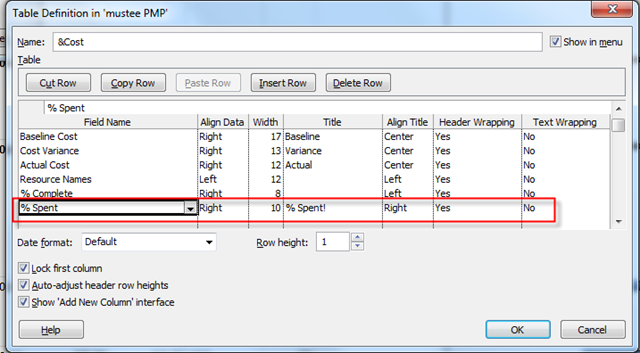
and then:

image

and finally:

image

Now I have this my custom field in the Cost Table:

image

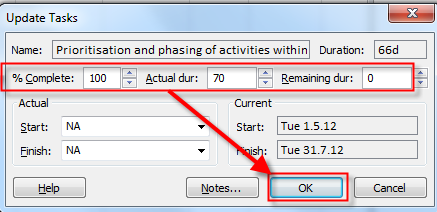
Now I will enter some actual data:

image

and:

image

and I will get:

image ¸

And for the end, few tips!

  1. The custom field and the cost Table should be make available for all projects! To get that you should use organizer!
  2. If the Baseline is not set, you will get an #ERROR in this Custom field
  3. If you are using Baseline1, Baseline2, etc, you should make another Custom field(s) or use IIF function!

I hope this is helpful to my friend!

Regards!

Posted in MICROSOFT PROJECT, Microsoft PRoject 2010, Microsoft Project 2013, PRoject Management | Tagged , , , | 4 Comments

Network diagram and diagonal lines in MS PROJECT 2010, and 2013!


I have one question from my Blog Post reader, about Network Diagram in MS PROJECT 2010:

“Hi! I´m from Argentina and I was reading your blog, It´s really interesting and was really helpful for me. Thanks very much! I have a question, in the network diagram What represent the diagonal crossing an activity? in some cases there are double diagonal crossed in the activity, what does it means?. Thanks very much!!”

Piece of cake! Firs I will make a brand new Project with 3 Tasks:

image

Now I am going to show the Network Diagram:

image

and I will get:

image

Everything looks just “fine”.

Now I am going to tell that my Task 1 is finished 100%, and Task 2 is finished 50%, and Task 3 is just as it is:

image

and I will get::

image

Now, back to the Network Diagram:

image

As you can see, Task 1 is finished and it has two diagonal lines, Task 2 is partially finished, and it has one diagonal line, and Task 3 is not started yet, so it has no diagonal line at all. Because the whole project is Started but not finished it ha only one diagonal line!

Now i will make all tree Tasks finished and I will get:

image

Back to the Network Diagram:

image

Since the Project is Finished, all Task, and The Project, has two diagonal lines.

Simple, isn’t it?


Regards!

Posted in MICROSOFT PROJECT, Microsoft PRoject 2010, Microsoft Project 2013, MS PROJECT 2010, PMI | Tagged , , | 1 Comment

How to get the right name for a PROJECT SUBPROJECT in MS PROJECT?


Hi,

again, one question from my Blog Reader: “Please assist. When I insert a subproject (Title: Primary Heat Exchanger) into my Master Schedule, it inserts the project but doesn’t give it the same saved name in the Master Schedule. Why does this happen?”

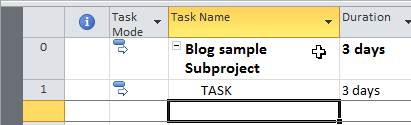
Where is the Problem in MS PROJECT 2010? Let us see. First I will Create a Project with one Task:

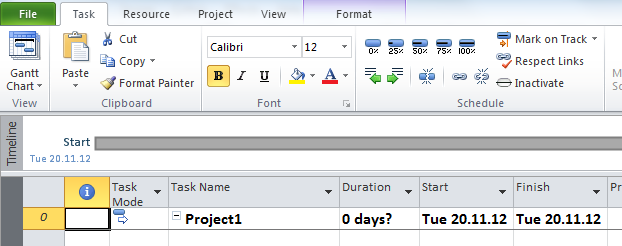
image

Now I am going to see the Project Summary Task:

image

and I will change the name to, for example: “Blog Sample Subproject”:

image

Now I am going to save My Project with:name  “My Subproject”:

image

and then:

image


OK!

Now I will create Master Project with one Task:

image

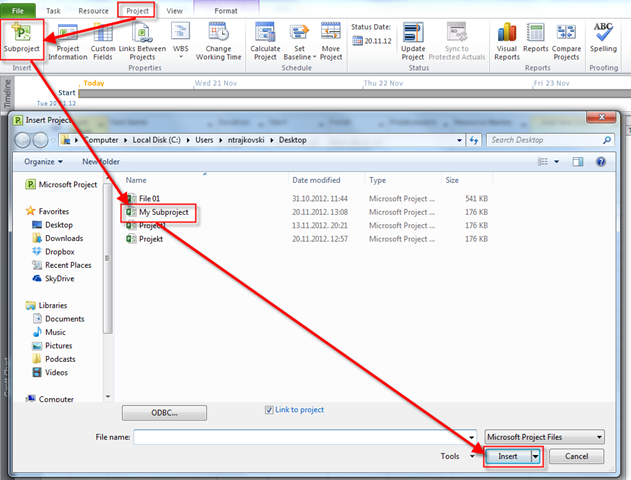
and I will add a Subproject:

image

and I will get:

image

Very simple!

I suggest that you always has your Project Summary Task visible. To do that you should:

image

and then:

image

Now, wheneve you open a new project you will have something like this:

image

Regards!

Posted in MICROSOFT PROJECT, Microsoft PRoject 2010, PMI, PRoject Management | Tagged , , | 4 Comments

Units and Peak Units in MS PROJECT 2010! What are they?

Hi,

I got this comment from one of my Blog readers: “I’ve seen there is a bug on calculation of USE!
there are 2 conditions of fault:

a) fixed work,,, you change duration… nothing happens to resource % use
b) fixed Duration … you change work … nothing happens to resource % use BUT is not deeply true!!!

if you goes to “resource diagram” the % is recalculated,
I think something is missing in the code.
It’s a pity because for me the automatic calculation of use% was very useful!!!!”

Is this a Bug in MS PROJECT 2010 or MS PROJECT 2013? No, it is not. But it is confusing thing. Let me explain it to you!

First I will add one simple Task in My Project:

image

and I will add two Resources , as well:

image

Now I will assign both Resources to the Task:

image

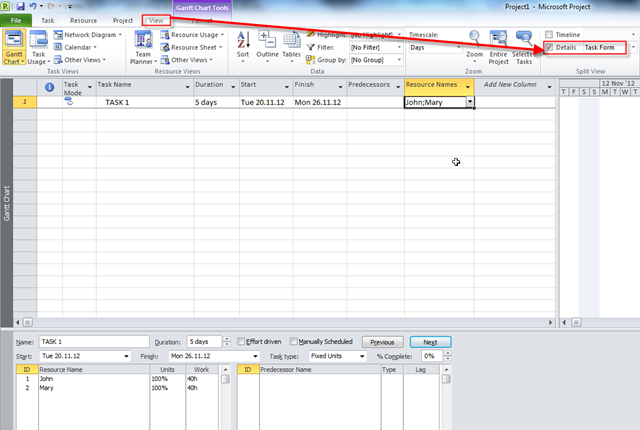
and I will set up Detailed View:

image

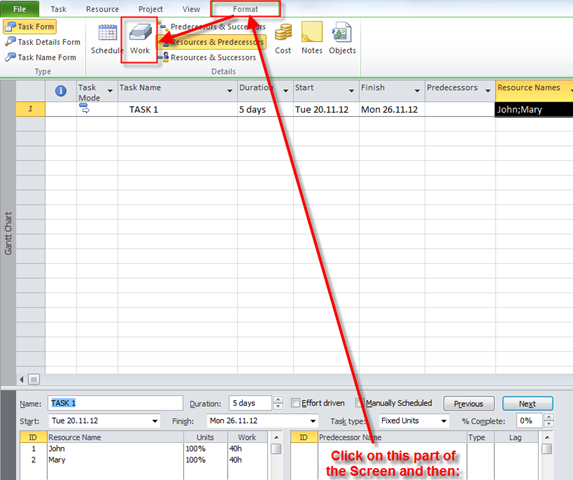
and then:

image

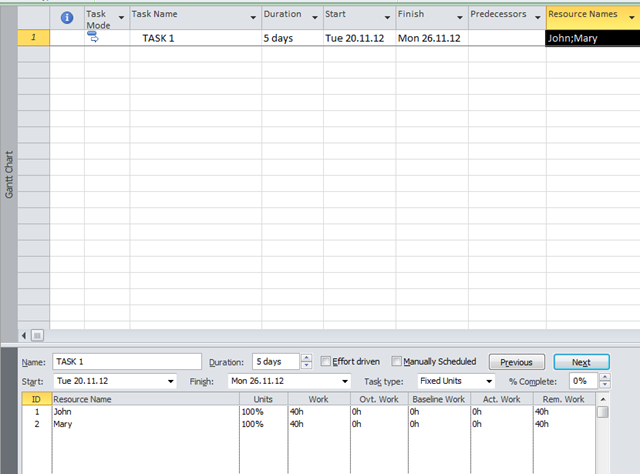
and I will get:

image

Now suppose that my Task is Fixed Duration:

image

As you remember from my Previous Post, the Relation between Units, Duration and Task is: DURATION * UNITS = WORK

Now suppose that I change hours for John from 40 to 60, and for Mary from 40 to 20:

image

and I will get:

image

So let us look at the Magic Formula: DURATION * UNITS = WORK.

  • For John: 5 days (5 days * 8 hours per day) is 40 hours * 100% = 40 hours
  • For Mary 5 days (5 days * 8 hours per day) is 40 hours * 100% = 40 hours

Where is the Catch? It seems like a bug. It should be:

  • For John: 5 days (5 days * 8 hours per day) is 40 hours * Units% = 60 hours, so Units% = 60/40 = 1,5 e.g.. 150%
  • For Mary 5 days (5 days * 8 hours per day) is 40 hours * Units% = 20 hours, so Units% = 20/40 = 0,5 e.g.. 50%

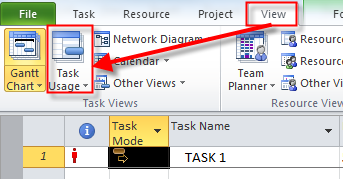
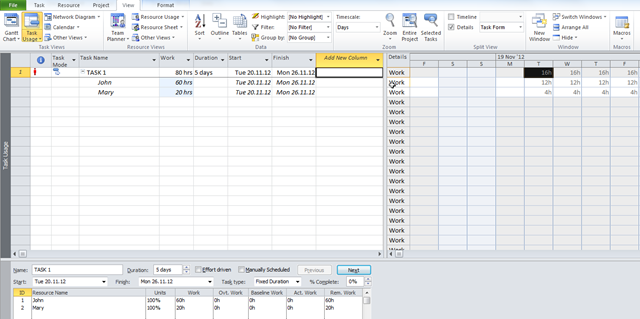
Now I will use a Task Usage View:

image

and I will get:

image

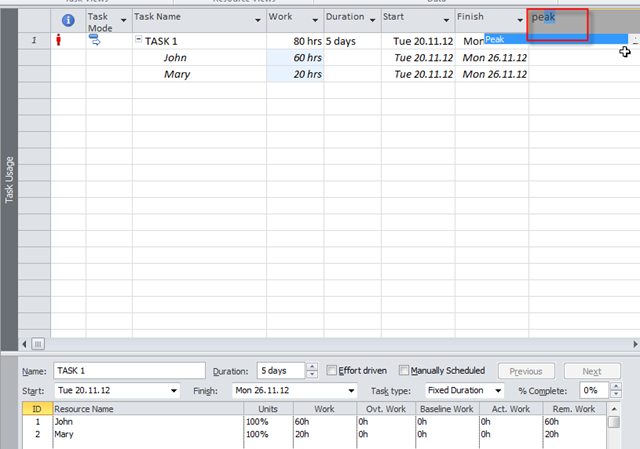
I will add new Column: Peak!

image

and I will get:

image

So the Magic formula is: DURATION * (Peak) UNITS = WORK.

The same thing is if you use Fixed Work Task Type!

If you want some further and Detailed description please read this article:

http://blogs.msdn.com/b/project/archive/2010/04/29/assignment-units-in-project-2010.aspx

Regards!

Posted in MICROSOFT PROJECT, Microsoft PRoject 2010, Microsoft Project 2013, MS PROJECT 2010, PMI | Tagged , , | Leave a comment

Finish date and the problem in MS PROJECT 2010! Or not?

Hi guys,

I have a question from one of my Blog readers: “Is it possible to see Finish Variance in working days instead of calendar days? e.g. If i completed my task on Monday, instead of Friday, i want to see variance of 1 working day”.

Piece of Cake in MS PROJECT 2010, and MS PROJECT 2013 as well!

First I will create a Project with one Task!

image

Resources for this Task are irrelevant, so I will skip that part.

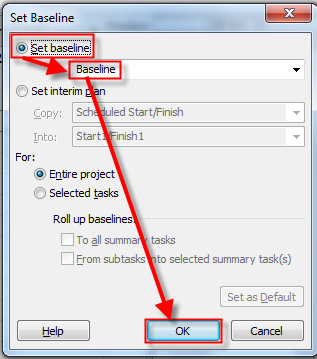
I am going to save The Baseline for this Project:

image

and then:

image

OK!

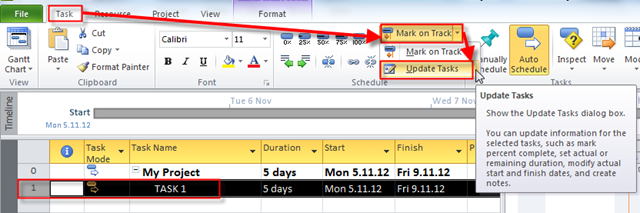
Now, suppose that this Task was started as Scheduled, but Finished on Monday instead on Friday! I will now put those Information in MS PROJECT 2010:

image

and then:

image

That’s it. Now I will check the Variance Table:

image

and I will get:

image 

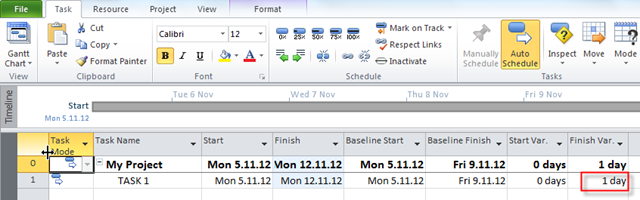
As you can see Baseline Start, and Start (Actual) are the same, but Baseline Finish, and Finish (Actual), are different.

Finish Variance is not just Finish – Baseline Finish, because in that case it will be 3 days, instead of one!

The formula is: Finish Var. = Finish – Baseline Finish – Non working days, and in my example it is (12.11.2011-09.11.2012) – 2 (Saturday and Sunday) = 3-2=1

It works!

In my next two Post I will answer to another two questions of my Blog Readers.

  1. Effort driven Tasks, because one of my Blog reader is confused about this and how Work (hours) are changed in effort driven Tasks
  2. What happens with %units when you have fixed work/fixed duration Task, and change duration/work! My blog reader thinks that there is a Bug, but there is not a bug.

Regards!

Posted in MICROSOFT PROJECT, Microsoft PRoject 2010, MS PROJECT 2010, PRoject Management | Tagged , , | 1 Comment