How to export Timeline in MS PROJECT 2010


Hi,

this will be a short one! After you have your Timeline ready, you should use it for reporting purposes in MS PROJECT 2010. You can Report to your Project Sponsor, Project Manager (if you are not one), Stakeholders, Managers, etc.

There is no such a thing like Export Button but there is another one called Copy Timeline. To reach this button, click anywhere in the Timeline View and then choose the Format Tab:

image

There are three possibilities:

  • For E-mail, which means that MS PROJECT 2010 will compress Timeline approx. to the 60% of the full size
  • For Presentation, which means that MS PROJECT 2010 will compress Timeline approx. to the 90% of the full size
  • Full size, which means that MS PROJECT 2010 will do no compression to the Timeline

I will choose it one by one and then I will post them to the Outlook (I am old fashioned boy so I will use CTRL+V as a Paste option):


image


image

You can paste timeline to Word, PowerPoint, or Visio! Here is example of PowerPoint:

image

For the end, use the TimeLine View to make quick and Visible Reports. This is a powerfull feature in the MS PROJECT 2010!


Regards,

Posted in MICROSOFT PROJECT, Microsoft PRoject 2010, MS PROJECT 2010, PMI, PRoject Management | Tagged , , , , | 1 Comment

Timeline View in MS PROJECT 2010


Hi,

one totally new feature in MS PROJECT 2010 is Timeline View!

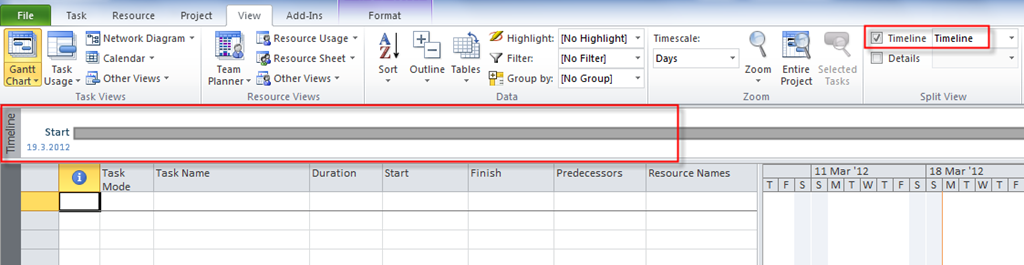
You can turn it on or off like this:

image

What is it? Primary it is excellent Reporting tool. I will explain how to use it!

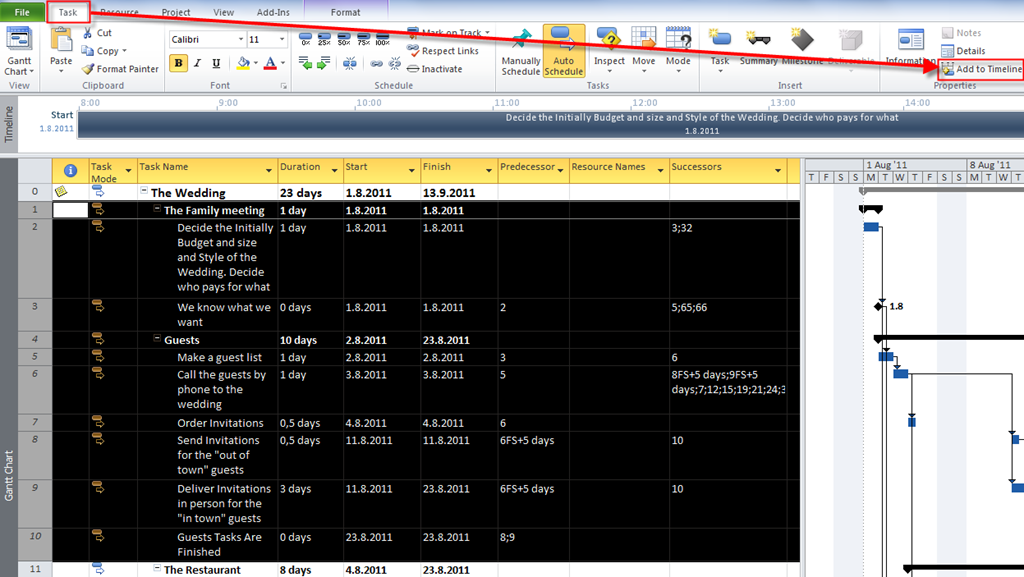
I have a project and I want to add a Task to a Timeline. I can do it like this:

image

and I will get:

image

Task is on the Timeline. Since the Timeline View make sense only if I have a group of Tasks on it I will put the whole Family meeting, and Guest task group on it like this:

image

and I will get:

image

OK! I have Tasks and Milestones in the Timeline View. I can now rearrange this view in many ways.

For example, I can drag the Task in the new row:

image

and I will get:

image

I can do that for more than one Task at the same time, of course. I can make a Task as Display as Callout:

image

and I will get:

image

Now I want to add all Tasks from The Restaurant group. I will click anywhere in the Timeline and then I will choose the Format Tab:

image

and I will get:

image

After I choose new Tasks from the existing Tasks, I will get:

image

You can see that parallel Tasks (overlapping Task are shown in separate rows). I can turn it off like this:

image

I am not satisfied with that so I will turn this thing on again!

There are many other possibilities with Timeline (like formatting, etc), and if you will use it (and I recommend it), you should spend some time to make it fit your requirements.

After you have your Timeline, what is next? You can export it, of course! How? Read my next Post!


Regards,

Posted in MICROSOFT PROJECT, Microsoft PRoject 2010, MS PROJECT 2010, PMI, PRoject Management | Tagged , , , | Leave a comment

Workload without Resources in MS PROJECT– BUG OR NOT?

Hi,

In this post I will show some “strange” behavior of MS PROJECT 2010 when I assign two resources to the effort driven, fixed duration Task!

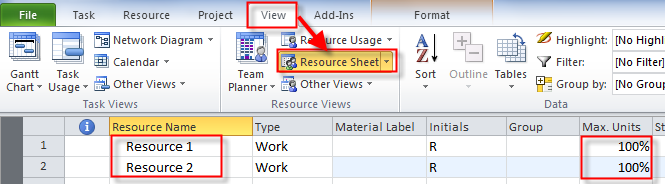
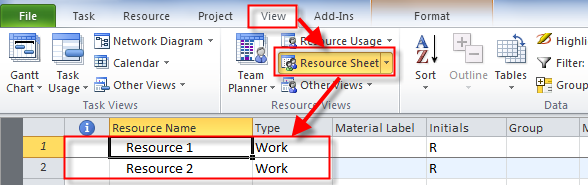
First, as always, set up! I will add two resources to the Project:

image

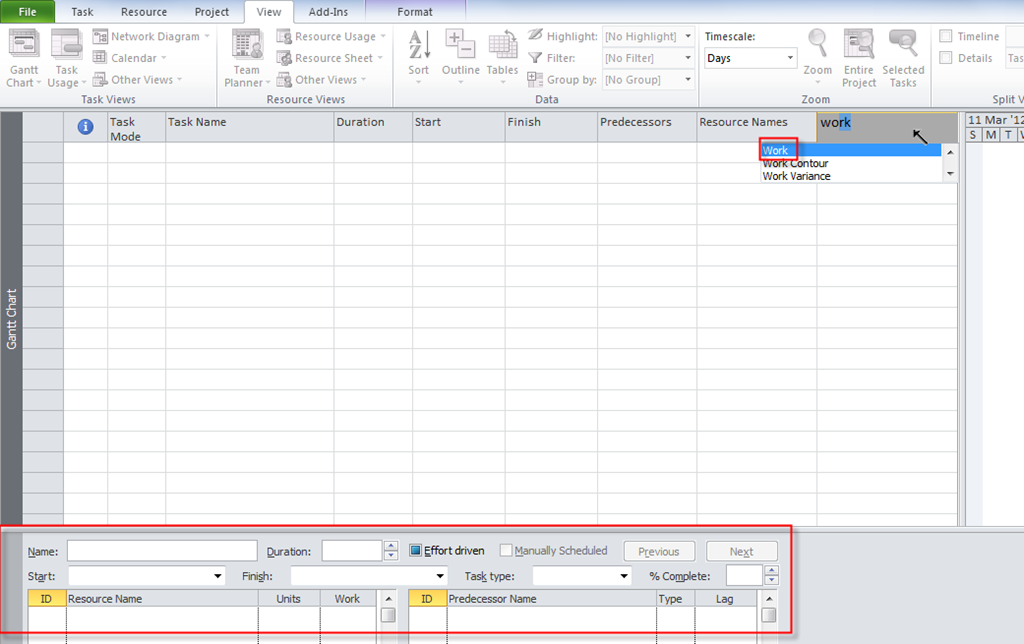
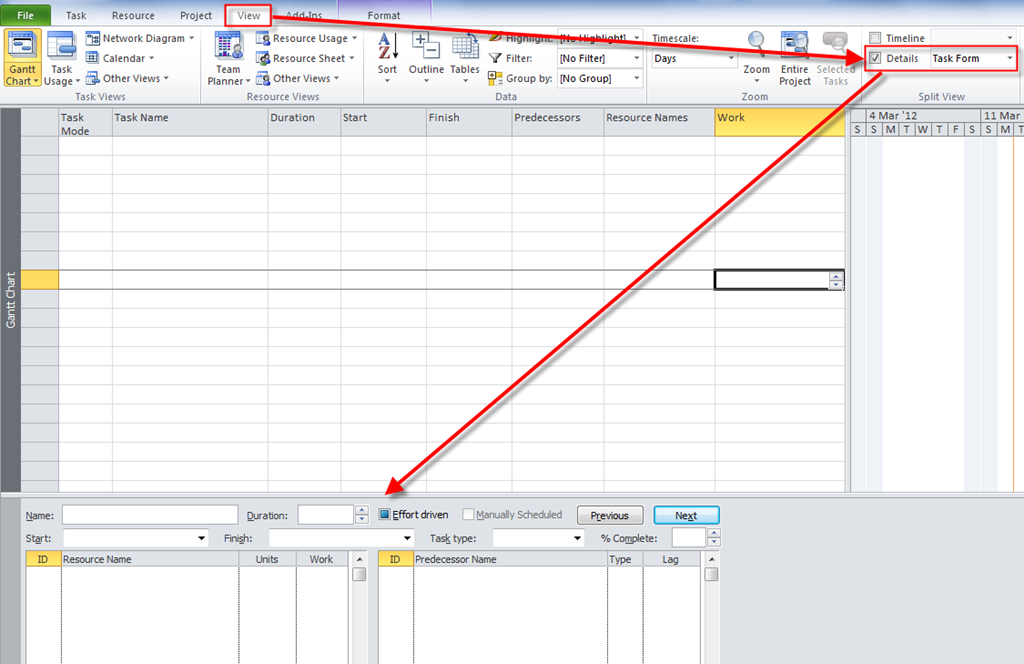
Now I will arrange my Gant Chart View in the way that I will add Work field, and I will apply Task Form as a detailed View:

image

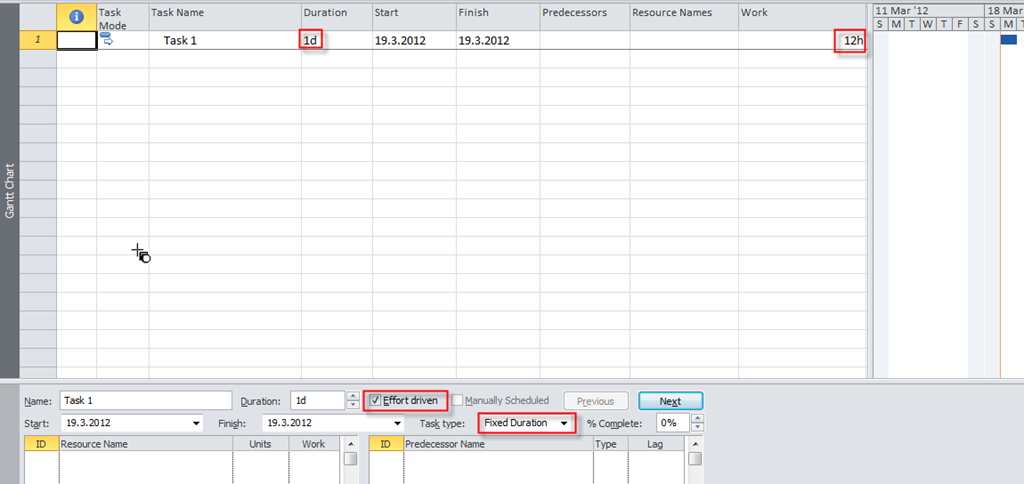
Now I will add a brand new Task:

image

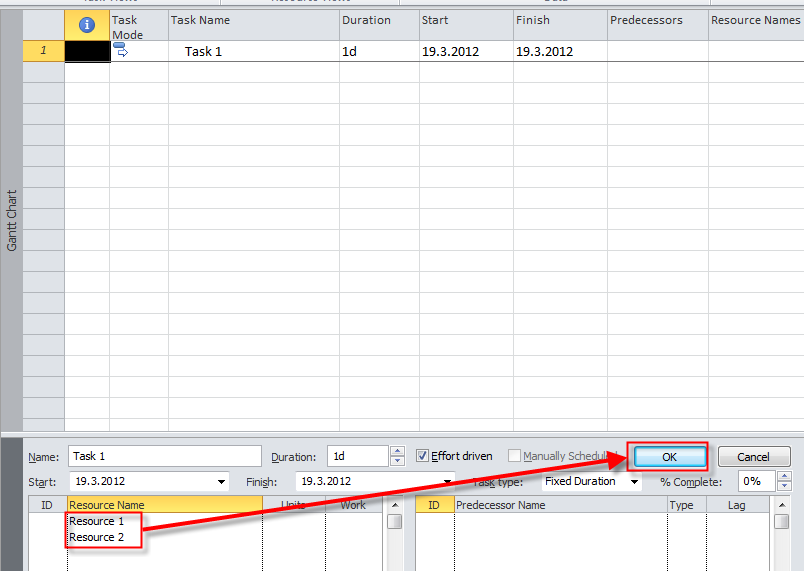
Now I will assign Resource 1, and Resource 2 to the Task, at the same time:

image

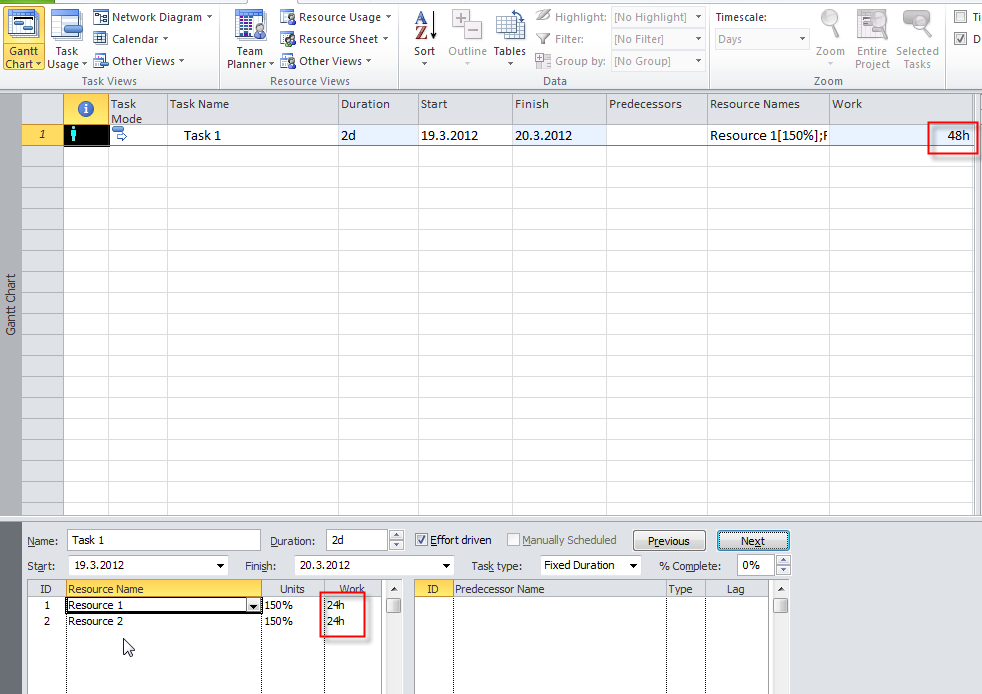
and I will get:

image

As you can see, Each Resource will work 6 hours per day with 150% units!? In MS PROJECT 2007 Units were 75% (6 hours are 75% of 8 hours, regular working time)! From my point of view, MS PROJECT 2010 consider that Each resource will work 12 hours and that will be 150% Units, because 150% of 8 hours = 12 hours!! Is it a BUG? Well, this is my opinion: YES, SURE IT IS!

Now, I will change Duration from 1 day to 2 days:

image

and I will get:

image

The explanation:

  • Old Duration = 1 day, new Duration = 2 days
  • Old Work (total) = 12 hours, new Work (total) = 48 hours
  • Old Work (per Resource) = 6 hours, new Work (per Resource) = 24 hours
  • Old Units = New Units = 150% per Resource
  • WORK = DURATION * UNITS. Since Duration is 2 days, and the Task is Fixed Duration, MS PROJECT 2010 now calculates: WORK = 2 days * 150%. = 2 days * 2 resources * 8 hours per day * 150% = 4 * 8 * 150% = 32 * 150% = 48 hours!

Hmmmmmm!


Regards,

Posted in MICROSOFT PROJECT, MS PROJECT 2010, MS PROJECT 20101, PMI, PRoject Management | Tagged , , , , | 2 Comments

Workload without Resources in MS PROJECT–what will happen?–PART 2 of 2


Hi,

in my previous Post I wrote about assigning resources to the Task when they already have workload. Now I will show what happens I f I add additional resource to the Tasks, regarding of Task Type in MS PRIJECT 2010!

Here are Tasks:

image

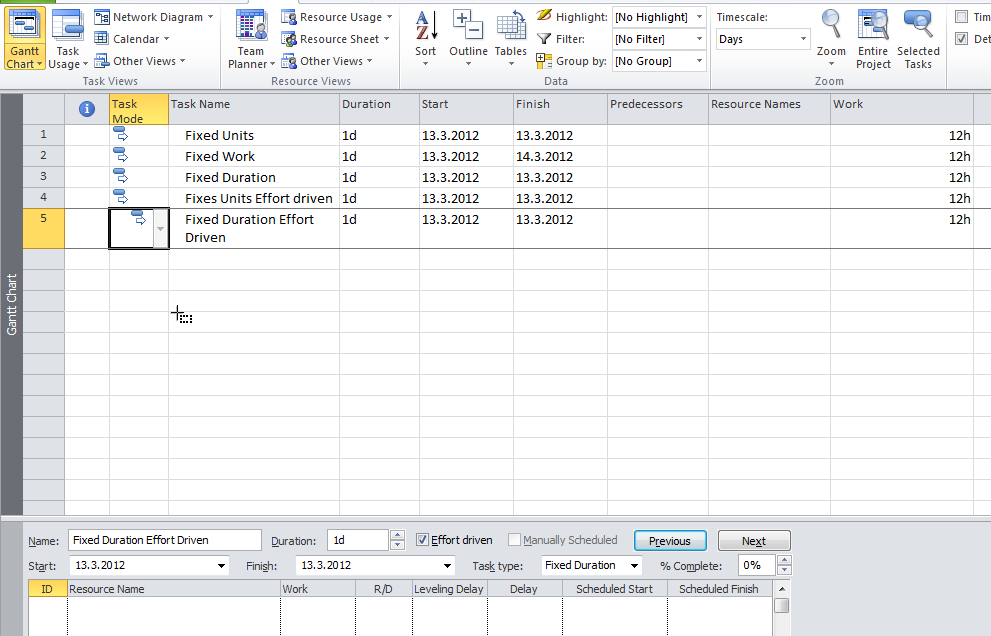
As you can see, First task Fixed Units, and third task Fixed Duration are non effort driven, and second task Fixed work is effort driven by default. Fourth task (Fixed units Effort driven), and fifth task (Fixed duration effort driven) are effort driven.

Now I will assign one resource to each Task, and I will get:

image

Here is explanation:

  • All task have 12 hours of work, because I said so BEFOR I have assigned any resource to them
  • Task Fixed units  has 1,5 days Duration because Resource has 100% fixed units, and that means that it will work 8 hours per day. Since 12 hours are needed for the task, 12/8 = 1,5 days
  • Task Fixed work has 1,5 days Duration because Resource has 12 hours fixed works, in fixed work type, in formula DURATION = UNITS * WORK, Duration is changed and that means DURATIN = 100% * 12 = 1,5 day
  • Task Fixed duration has 1 day Duration. Because Resource has 1to work 12 hours, and duration is fixed it has to work with 150% capacity (units).

Now I will assign additional resource to the Fixed units Task:

image

Since task is non effort driven, Resource 2 has to work 12 hours, and the total work is 24 hours. Duration and units are unchanged.

Now I will assign additional resource to the Fixed work Task (which is effort driven by default):

image

As you can see, work is fixed (12 hours of total work), and because the Task is effort driven, each Resource will work 6 hours per day. And duration is now 6 hours of work / 8 hours of working day = 0,75 days!

Now I will assign additional resource to the Fixed duration Task:

image

Now what? Task is non effort driven! Additional task will work 8 hours because fixed duration is 1 day, and 100% units means 8 hours per day. Assignment for Resource 1 remains the same. Total work is 20 hours. It may seem strange, weird or odd, but that is how MS PROJECT 2010 works!

Now I will assign additional resource to the Fixed units Effort driven Task:

image

Because the Task is effort driven, Resource 1 will now work 6 hours, Resource 2 also, so the total work is 12 hours. Duration is 0,75 days as I have explained before.

Finally, I will assign additional resource to the Fixed Duration Effort driven:

image

This is hard one! Total work is 12 hours. Because Resource 1 had 150% units (before I have assigned Resource 2) the formula is 150%  Units of Resource 1 + 100% Units of Resource 2 = 12 hours. Back to the school:

  • Work of Resource 1 + Work of Resource 2 = 12 hours => FORMULA 1
  • Work of Resource 1 = 1,5 * Work of Resource 2 => FORMULA 2
  • I will put Formula 2 in Formula 1 –> 1,5 * Work of Resource 2 + Work of Resource 2 = 12 hours. –> 2,5 * Work of Resource 2 = 12 hours –> Work of Resource 2 = 12/2,5 = 4,8 hours
  • Back to Formula 1 –> Work of Resource 1 + Work of Resource 2 = 12 hours –> Work of Resource 1 + 4,8 hours = 12 hours –> Work of Resource 1 = 12 hours – 4,8 hours –> Work of Resource 1 = 7,2 hours

Simple, isn’t it???? Smile.

In my next Post I will show you something that many of us are considering a a Bug, and many of us does not!


Regards!

Posted in MICROSOFT PROJECT, Microsoft PRoject 2010, MS PROJECT 2010, PMI, PRoject Management | Tagged , , , , , | 1 Comment

Workload without Resources in MS PROJECT–what will happen?–PART 1 of 2


Hi,

in this post I will explain what happens when you add resource (recourses) to the Tasks which already has Work assigned in MS PROJECT 2010.

As you know, the magic Formula is WORK = DURATION * UNITS. Let’s see what will happen when wee put the work and the duration for three different task types (fixed units, fixed work and fixed duration). First, as always, setup Smile. In the Gantt chart View I will add the Work Field:

image

in the Detail View I will pick Task Form:

image

when I click on the Task Form I will select:

image

and I will get:

image

No I will put Tasks in the Gantt Chart View:

image

As you can see, for each task I have choose proper Task Type, and all Tasks are Non effort driven (all but Fixed work which is Effort driven by default, and you can’t change it).

Also notice, that I put 12 hours for each Task.

Now I will put two Resources in my Project:

image

I will assign both Resources to Task 1 at once:

image

and I will get:

image

Here is the explanation:

  • Initially I put 12 hours to the Work field
  • I have assign two resources to the Task
  • Since Task is Fixed unit and each Resource has to work 12 hours, and the Formula is Duration = Units * Work => Duration = 100% * 12h = 1,5 day, because by default 100% units mean 8 hours per day.
  • Total work for the Task is 24 hours (12 per each resource)

I will assign both Resources to the Task 2 (fixed Work), and I will get:

image

Here is the explanation:

  • Initially I put 12 hours to the Work field
  • I have assign two resources to the Task
  • Since Task is Fixed work and each Resource has to work 6 hours (6+6 = 12 hours FIXED), Duration = 0,75 days (each resource will work 6 hours per day, and because 1 day = 8 hours, 6/8 = 0,75 days)
  • Total work for the Task is 12 hours (6 per each resource)

I will assign both Resources to the Task 2 (fixed Duration), and I will get:

image

Here is the explanation:

  • Initially I put 12 hours to the Work field
  • I have assign two resources to the Task
  • Since Task is Fixed duration and each Resource has to work 12 hours, and the Formula is Duration = Units * Work it means that each Resource will work 12 hours per day, and that is 150% units (12 / 8 = 150%)
  • Total work for the Task is 24 hours (12 per each resource)

Be careful when you put work BEFORE you assign any Resource to your Task.

But what if I assign only one resource, and then after a while another? What will change?

Read my next Post!

Regards!

Posted in MICROSOFT PROJECT, Microsoft PRoject 2010, MS PROJECT 2010, PMI, PRoject Management | Tagged , , | 4 Comments

How to get WBS (Work Breakdown Structure) from MS PROJECT 2010 to MS VISIO 2010


Hi,

I n my last post I had explained how to establish WBS in MS PROJECT 2010. But how to get WBS Diagram? You should MS VISIO 2010. Before that you must have Add In called: Visio Add-In for WBS Modeler (X86).msi or Visio Add-In for WBS Modeler (X64).msi.

I will open MS VISIO 2010 and I will get:

image

Now I will choose Add-Ins and I will get:

image

and I will get:

image

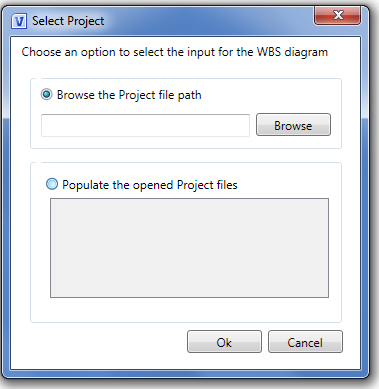
Now I have to choose the Project for which I want to get WBS:

image

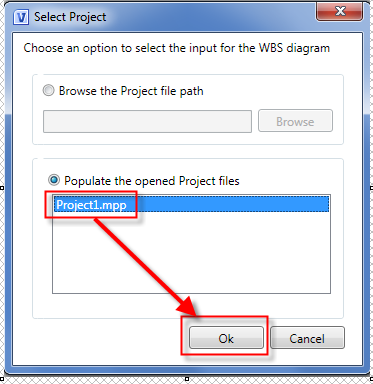
I can choose to make a WBS from my saved Project from hard disk, or network. To do that I should use: Browse the Project file path, and Choose the mpp. file. But I have already open my Project file, so I will choose the second option: Populate the opened Project files:

image

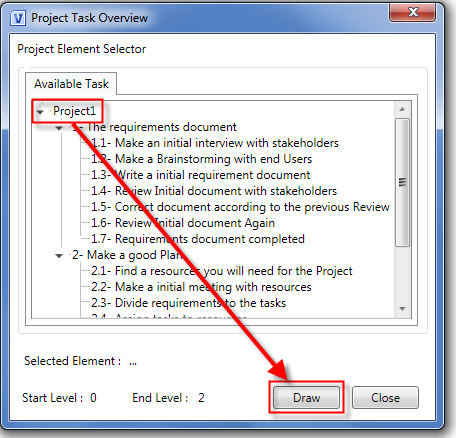
and I will get:

image

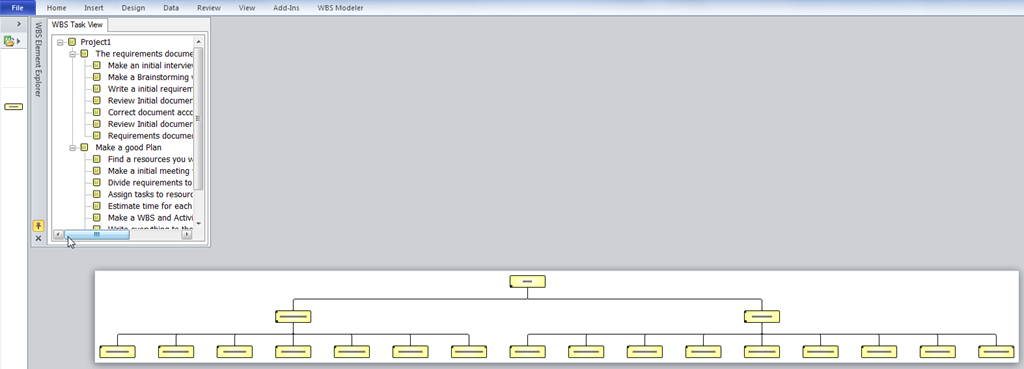
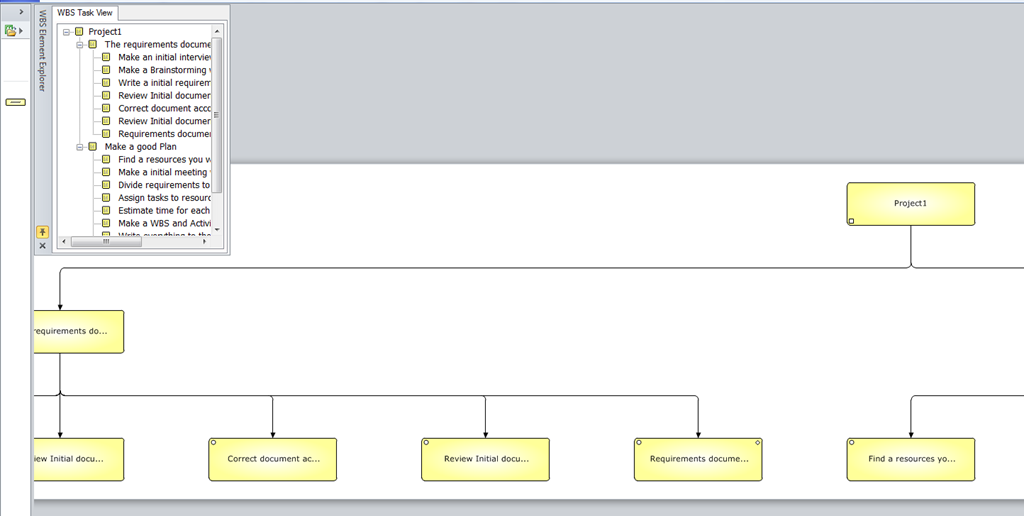
Now, finally I will get WBS like this:

image

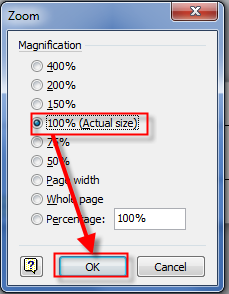
Because it is unreadable I will zoom it:

image

and then:

image

Finally I’ll get:

image

Now, you can examine, and print your WBS!

Nice thing, isn’t it?

Regards

Posted in MICROSOFT PROJECT, Microsoft PRoject 2010, MS PROJECT 2010, PMI, PRoject Management | Tagged , , , , | 20 Comments

WBS (Work Breakdown Structure) in MS PROJECT 2010


Hi,

According to PMI (PMBOK 4th edition), WBS or Work Breakdown Structure is: “deliverable oriented hierarchical decomposition of the work to be executed by the project team to accomplish the project objectives and create the required deliverables, which each descending level of the WBS representing an increasingly detailed definition of the project work”. In addition: “the WBS organizes and defines the total scope of the project, and represents the work specified in the current approved project scope statement!”

Here is an example of the WBS:

image

Be aware of this: WBS DOES NOT SHOW DEPENDENCIES. What does it mean? It means, that you can read from WBS what muse be done, but you can not read, how long will your Project lasts! For that you must have activity diagram. WBS I logical Hierarchy!

From example, in my previous picture the schedule is not like:

  1. Schedule Flights to Mpls
  2. Rent Van
  3. Arrange Motel
  4. Schedule Return flights
  5. Contract BW outfitter
  6. etc

How will you measure your schedule progress. With SCOPE BASELINE! SCOPE BASELINE =  Project Scope statement + WBS + WBS Dictionary.

What is WBS DICTIONARY? Let suppose that you have a Deliverable called: “Return flights Scheduled”. What do you have to do for this. For example, first you should go to the internet and find your flights, and see if they fits your expectations (departure date, etc). Next you should see if there is enough tickets to your trip (what if there is only one ticket available? This is WBS Dictionary, and it is brief explanation of what should be done to achieve deliverable.

Hierarchy of WBS can be simple or complex, and it depends of your Project. The last in each branch is WORK PACKAGE or Deliverable! Now, what is deliverable! It is something you deliver Smile. It has to be measurable. If it is not measurable, how can you achieve approve from your Customer, or Client! What is deliverable from Rent Van Work package. Well, the contract between you and Rent a Van company, and keys of the Van in your hand!

WBS is foundation of a good schedule! If you want learn how to build excellent schedule I strongly recommend book from Eric Uyttewaal: FORECAST SCHEDULING WITH MICROSOFT PROJECT 2010. You can find it here: http://www.projectprocorp.com/products.php. Buy it, you wouldn’t regret it!

How to make a good WBS in MICROSOFT PROJECT 2010? Here is an example! Please do not look is it make a sense to have those Tasks in this order. It is for example purpose! So it can be silly, but don’t bother with it.

image

You can see that I have two branches in my WBS: The Requirements document, and Make a good Plan. But the Task Divide requirements to the tasks has predecessor from task 8, and task 11 as well. And Find a resources you will need for the Project is started as soon as Write an initial requirement document is finished!

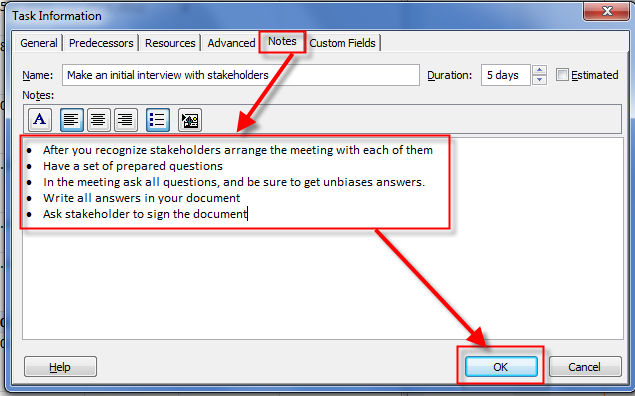
But where is WBS Dictionary? You can double-click on the task and put the WBS dictionary in Notes:

image

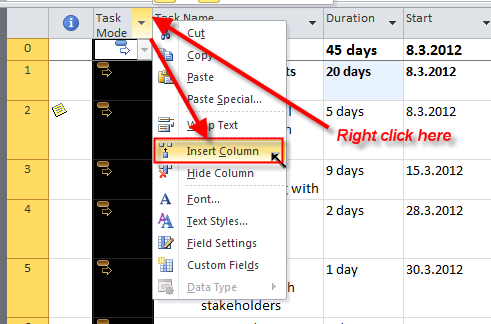
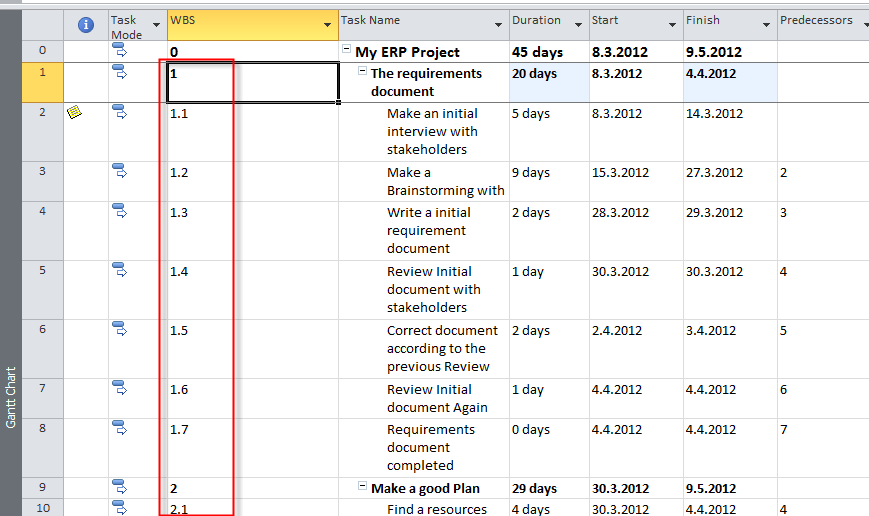
WBS has to be structured. So every Task and  Summary Task must have unique number, according to WBS. I will add WBS code to my Gantt Chart:

image

I will choose WBS:

image

and I will get:

image

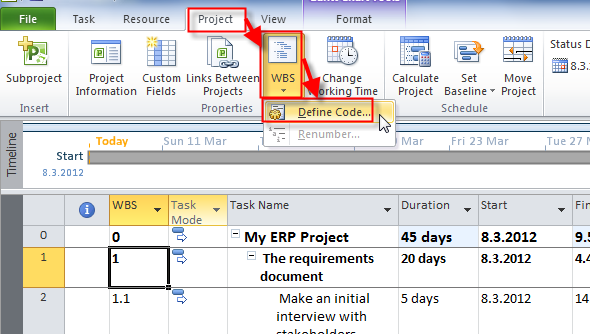
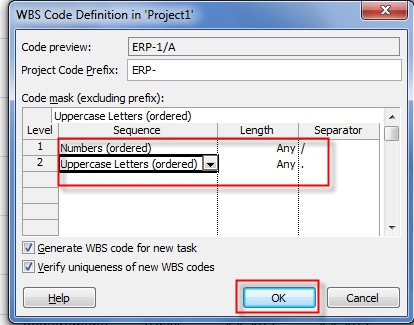
But what if you want to have a WBS (or WBS CODE) instead of 1.1 –> ERP-1/A

image

and I will get:

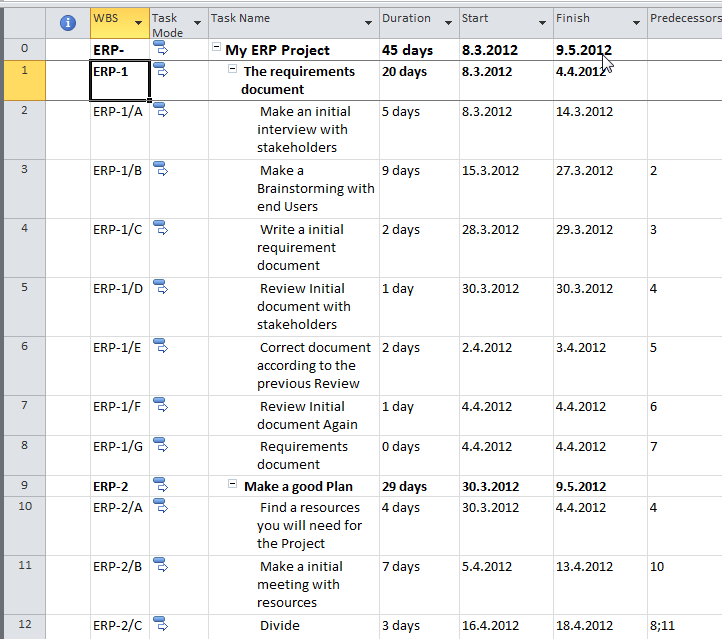
image

and finally:

image

You can get your WBS in Visio 2010 very easy.

Read my next Post!


Regards,

Posted in MICROSOFT PROJECT, Microsoft PRoject 2010, MS PROJECT 2010, PMI, PRoject Management | Tagged , , , , , | 14 Comments

Assigning Resources to fit right time!


Hi,

I received a message from one of my reader. It states:

“Hi Nenad,

I have been reading through your posts but could not really find back an answer on an problem I’m puzzled with.
Let’s say I have a project for performing a testdrive on a prototype car. The testdrive project itself is made up by a series of tasks. The tasks need to be performed by a testdriver (work resource) but he also needs the car to do it. So the testdriver is one resource, the car is the other. I both need them to perform the task, assigning the car resource to the same tasks as the testdriver should not reduce the time it takes to perform the task or should not reduce the workload of the testdriver.
Also another difficulty, the car is not available constantly (it is used by other divisions of the company) so I would like to auto schedule the tasks according to the availability of the car.
Lets say the project takes 10 days in total, but the car is only available 2 days in the first week, 3 days in the second week and 5 days one moth later.

Is there a way to do this ?
Thank you for your valuable response.”

OK! Let me fix this issue.

First let me do the setup.

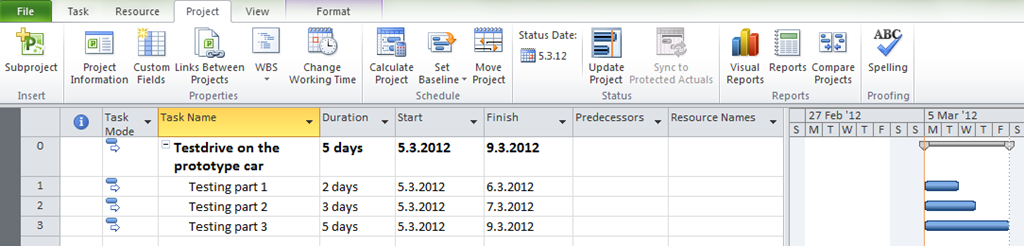
I will add three Tasks:

image

and then two Resources:

image

Be aware that your Tasks are NOT effort driven. Select all Tasks, and then remove effort driven check mark:
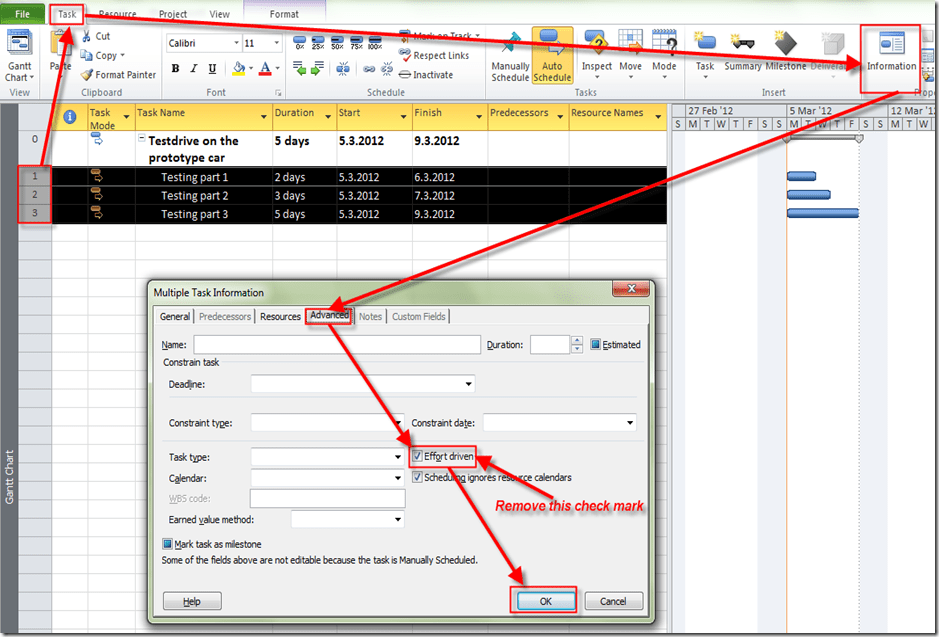
image

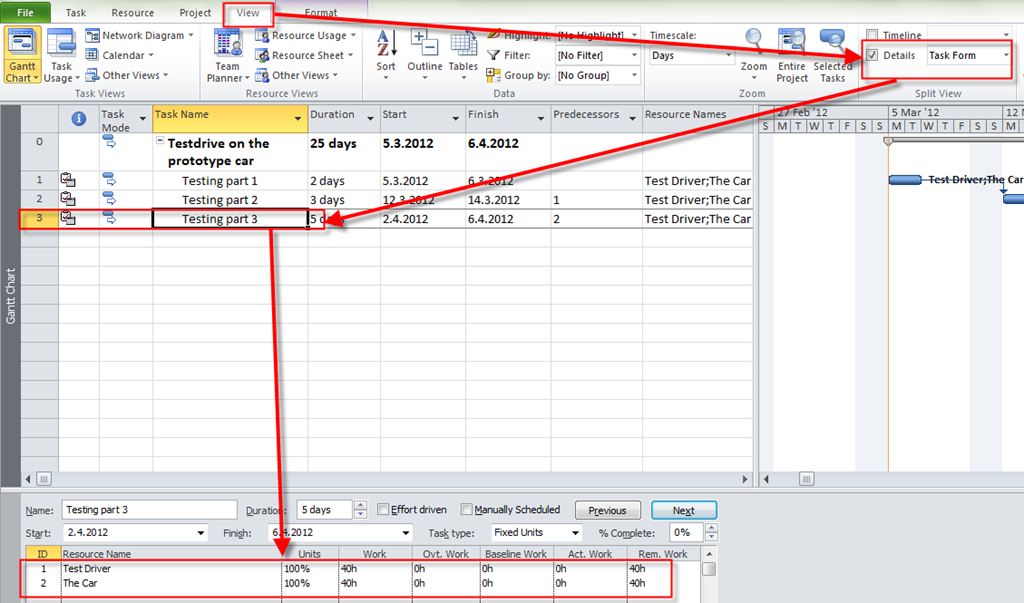
I will use Task Calendar! Suppose that you want to perform your testing from 05.03.2012 to 06.03.2012 (2 days), then from 12.03.2012 to 14.03.2012 (3 days), and then from 02.04.2012 to 06.04.2012 (5 days).

I will make a brand new Calendar and I will call it Car Testing:

image

Now I will fix working days in a way that I will make exceptions:
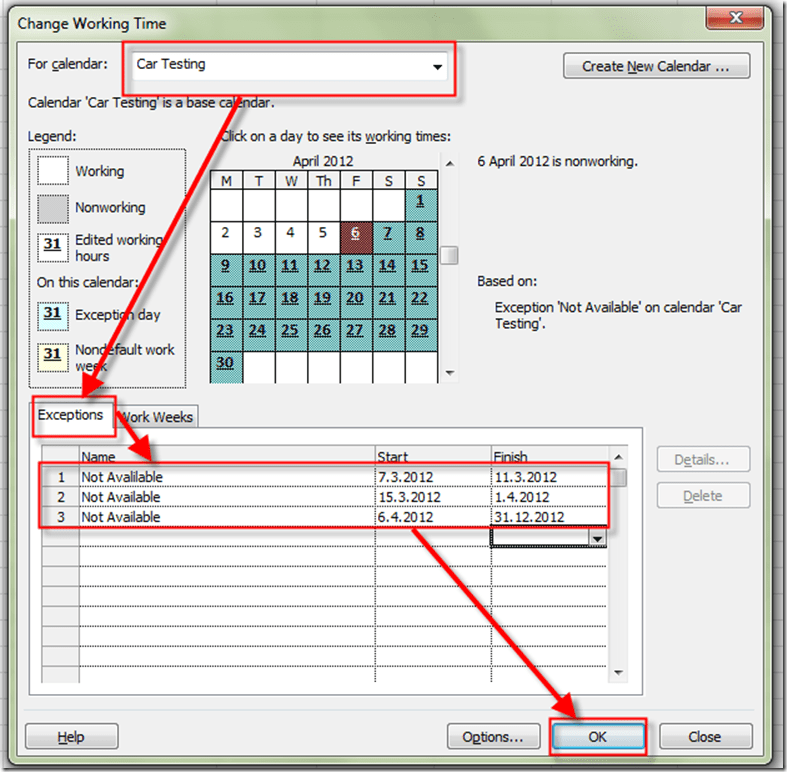
image

Now I will assign Resources to my Tasks:

image

and I will make a Schedule for my project:

image

Now I will assign my Car Testing Calendar to all of my Tasks:

image

and I will get:

image

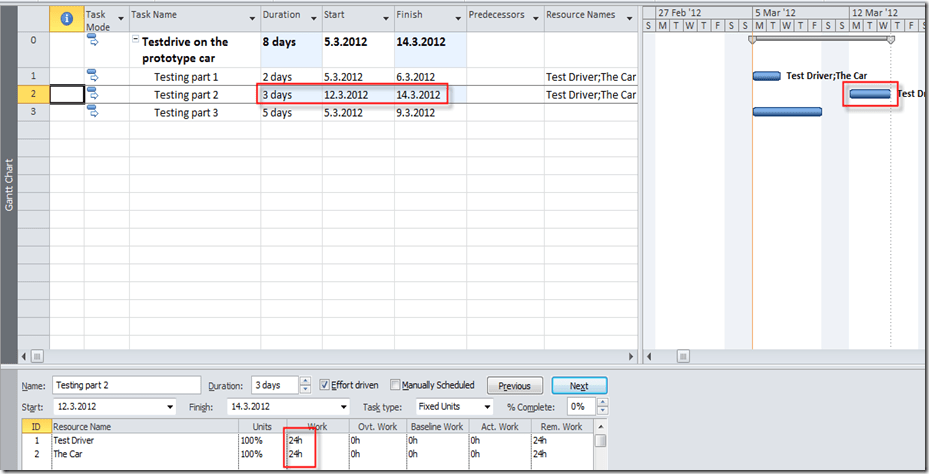
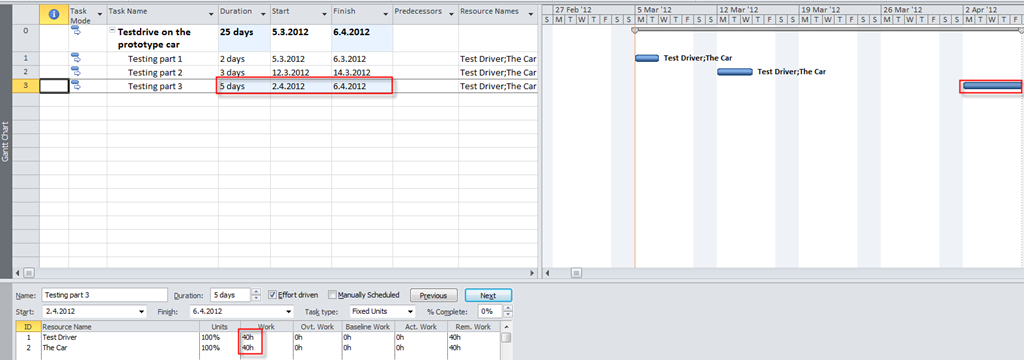
As you can see, I got what I wanted. Task 1 will be performed at first week, Task 2 in second week, and Task 3 in next month!

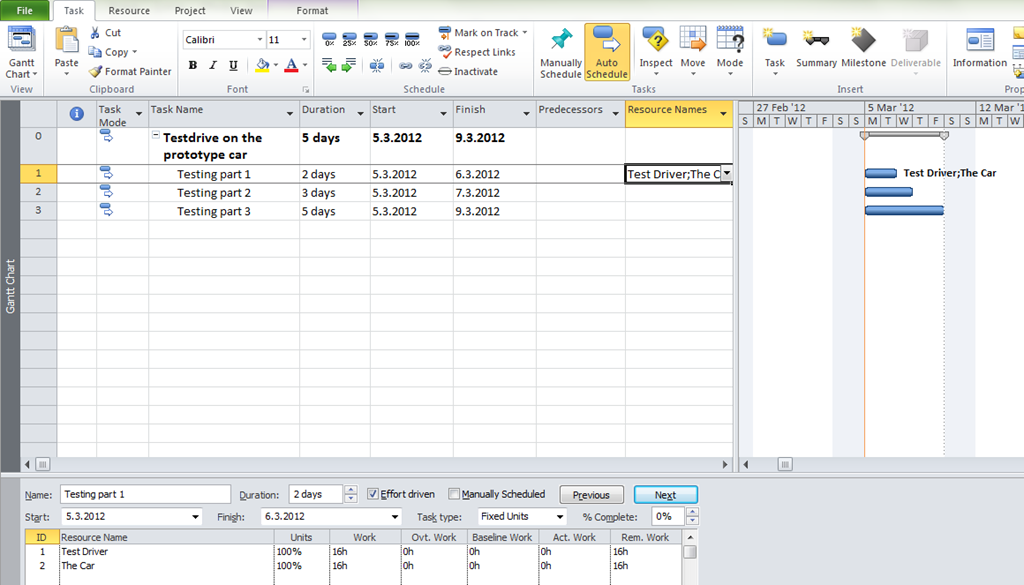
And since my Task are not effort driven, time and work are not reduced:

image

You should keep in mind that if a Task is effort driven but you assign both resources at once, duration and work remains the same. But if you first add one Resource to the Task, and after some time you add another resource then duration and/or work will be shortened, which depends of your task type (fixed units, fixed work or fixed duration), and you can read about this in my previous posts!


Second option is to use Resource Calendar! You want to perform your testing from 05.03.2012 to 06.03.2012 (2 days), then from 12.03.2012 to 14.03.2012 (3 days), and then from 02.04.2012 to 06.04.2012 (5 days).

I will make an exception for the Car Resource since it is available for the testing to the Test Driver Resource in these particular days!

image

Now I will add those Resources to the Task 1:

image

Now I will add the same Resources to the Task 2:
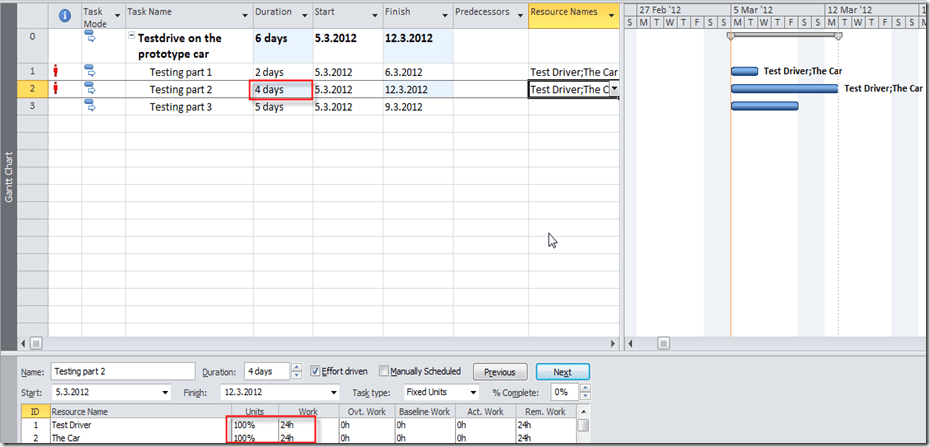
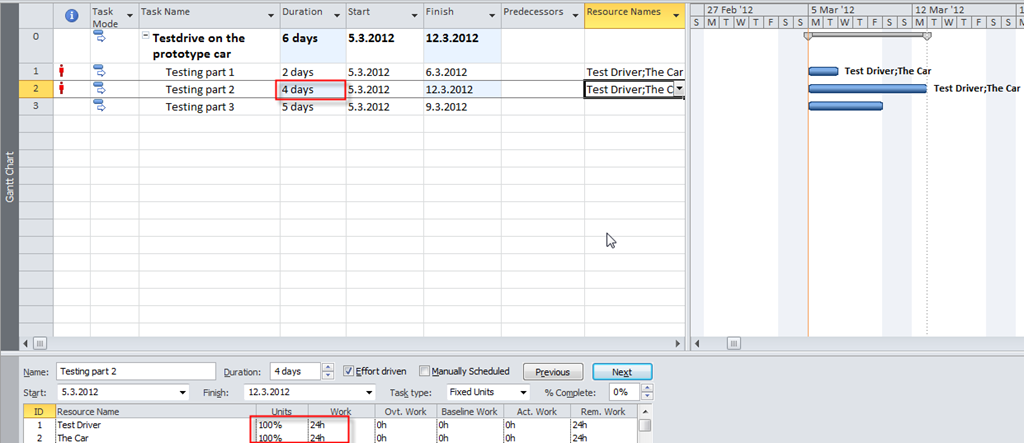
image

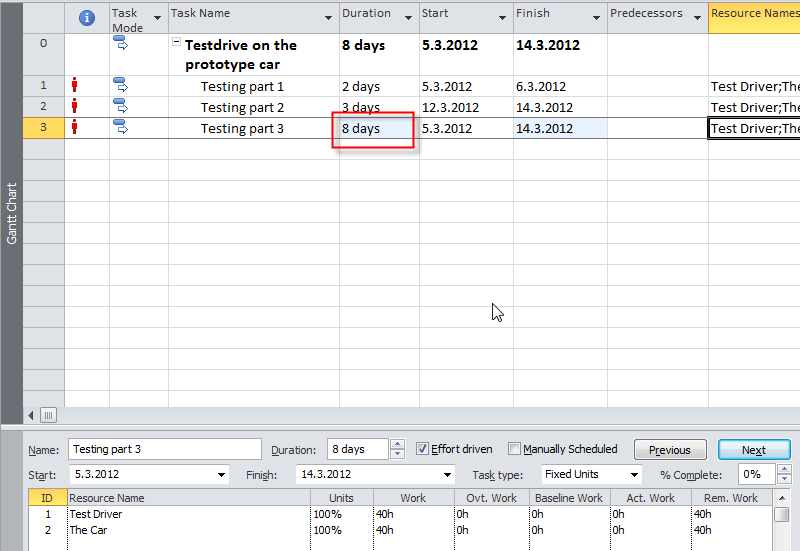
Notice that duration is now 4 days instead of 3, because my Car Resource is not available from 07.04.2012 till 11.03.2012, and it is over allocated from 05.03.2012 till 06.03.2012 (because this Car can not be used for Task1 and Task2 at the same time!)

Now I will immediately use Task Inspector. I will right-click on the Task2 and then:

image

and I will get:

image

Now the Task 2 has 3 days duration from 12.03.2012 to 14.03.2012 (3 days), and everything  is OK.

Finally, I will add Resources to the Task 3, and I will get:
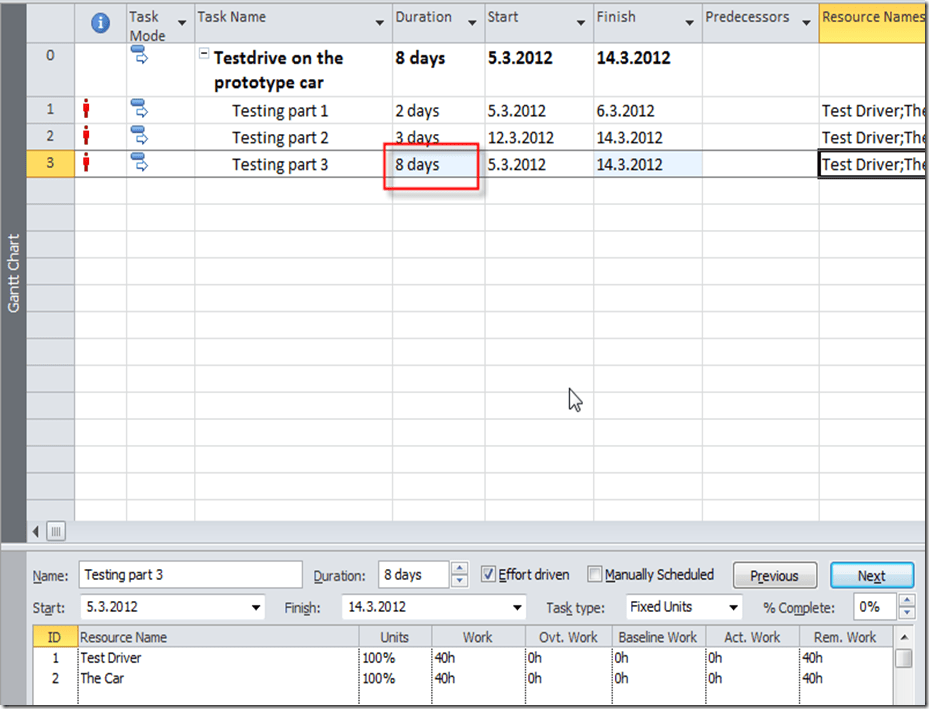
image

You can see that I have same problem as I had with second Task. I will apply the Task inspector as I did it before, and I will get:
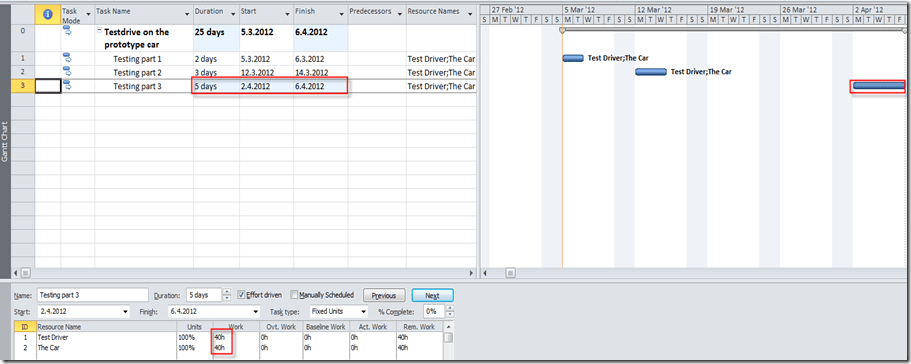
image

Hope this wad helpful!

Bye!

Posted in MICROSOFT PROJECT, Microsoft PRoject 2010, MS PROJECT 2010, PMI, PRoject Management | Tagged , , , , | 2 Comments

Assignment Units VS. Peak Units in MS PROJECT 2010

Hi,

as you know the Magic formula is DURATION * UNITS = WORK!

But there is a change in MS PROJECT in representing this field.

I made a setup for this Post! I have three Tasks, each of them has one Resource assigned. Task 1 is Fixed Unit, Task 2 is Fixed Work, and Task 3 is Fixed Duration.

I will change each of this Values (Units, Work, and Duration), for each Tasks type. Notice that I put additional field in Task Usage View, called Peak:

image

First I will make changes for Task 1.

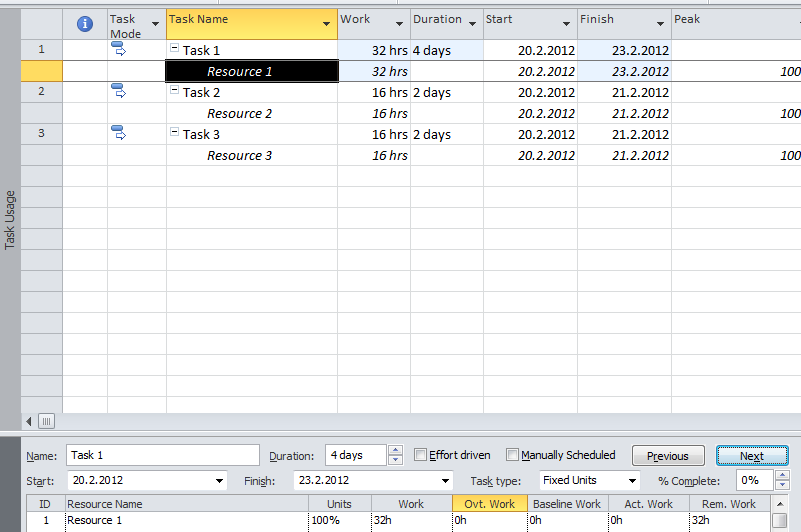
I will change Duration from 2 days to 4 days an I will get:

image

According to formula, Units are fixed so Duration * Units = Work, e.g. 4 days (4*8 hours per day = 100% * 32 hours). So Work is changed from 16 to 32 hours.

I will change Work from 16 to 24 hours now, and I will get:

image

According to formula, Units are fixed so Duration * Units = Work, e.g. Duration *100% = 24 hours = 24 hours / 8 hours per day = 3 days. So Duration is changed from 2 to 3 days.

I will change Units from 100% to 200%, and I will get:

image

According to formula, Duration * Units = Work, e.g. Duration * 200% = 16 hours = 16 hours / 200% = 8 hours = 1  day, because Resource will work with 200% capacity instead of 100% . So Duration is changed from 2 days to 1 day.


Now I will make changes for Task 2 (Fixed work).

I will change Duration from 2 days to 4 days an I will get:

image

You may notice something that looks like a bug, but it is not! Duration * Units = Work. Duration = 4 days (e.g. 4 days * 8 hour per days = 32 hours). Units = 100%, work = 16 hours. So 32 hours (duration) * 100% = 16 hours! Is this a bug? NO! Microsoft Project 2010 keep the unit field the same, but calculates with Peak Field! Because I have fixed work (16 hours), and I put 4 days in duration field, the formula is Duration * Peak Units = Work.  4 days (4 days * 8 hours per day = 32 hours) * 50% (Peak Units) = 16 hours of work!

Why is that? Because when you change duration you do not want to change Units from 100% to 50% for other Task, but just for this particular one! And that is why in MS PROJECT 2010 introduce the Peak field.

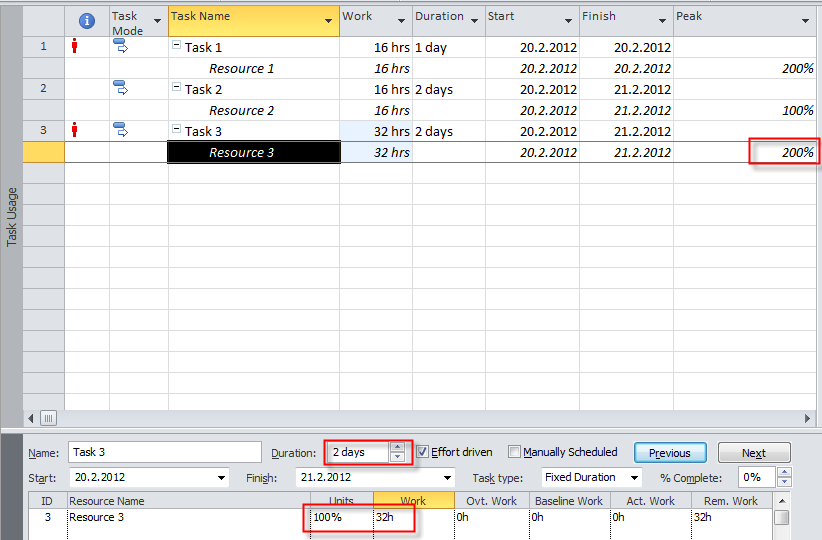
Same thing will happens if I change Work from 16 hours to 32 hours in Task 3 (fixed Duration type):

image

Duration * Units = Work. Duration = 2 days (e.g. 2 days * 8 hour per days = 16 hours, and it is fixed). Units = 100%, Work = 32 hours. So 16 hours (duration) * 100% = 32 hours! Peak field is 200%! Because I have fixed Duration (2 days * 8 hours per day = 16 hours), and I put 32 hours in the Work field, the formula is Duration * Peak Units = Work. 2 days (2 days * 8 hours per day = 16 hours) * 200% (Peak Units) = 32 hours of work!

So don’t be confused it the Unit field remains the same. Always look at the Peak field!

Regards,

Posted in MICROSOFT PROJECT, Microsoft PRoject 2010, MS PROJECT 2010, PMI, PRoject Management | Tagged , , , , , | 1 Comment

Manually Scheduled Summary Tasks, and how to deal with them!


Hi, I will show you how to deal with Manually Scheduled Summary Tasks in MS PROJECT 2010! As you already know Manually Scheduled Task are new feature in MS PROJECT 2010, and those tasks are fully controlled by you.

I will now add one new Task in my Project:

image

Notice that I put 15 days in duration field, and 21.2.2012 in Start Date.

I will now add two more Tasks:

image

Now I will link those two Tasks, and I will get:

image

Now I will select Task 1, and Task 2 and I will indent them, so I will make My Manually scheduled Summary Task  as real Summary Task:

image

and I will get:

image

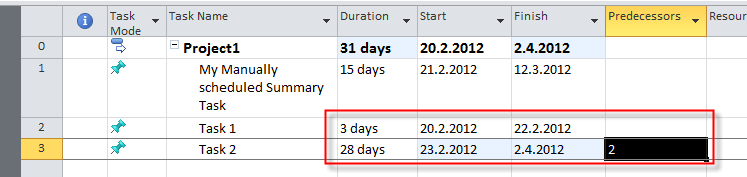
I will explain the Picture above. We have Summary Task with Duration = 15 days, Start Date = 21.2.2012, and End Date = 12.3.2012. But Task 1 has Start Date = 20.2.2012 (one day before Summary Task, because this is Project Start Date),  and Task 2 has Finish date = 2.4.2012 (because duration is 28 days). Notice red line in the Gantt Chart Part.

image

This line represent the “real schedule warning” e.g. it represent variance between Tasks and Summary Task. Notice two other things. First, dates underlined with green and white color represent schedule conflict. Second notice that in Gantt Chart Task 2 is surrounded by doted lines, which represent schedule conflict!

What can you do? You can examine by yourself where are the conflicts, and then enter proper Values in each field which is “wrong”. Or you can use the Task Inspector:

image

and you will get:

image

You have three options:

  1. Extend finish date od task. If you choose this one, Summary Task will have finish date 2.4.2012, but Start Date remains same.
  2. Change dates but keep task Manually Scheduled. If you choose this one, Summary Task will have start date 20.02.2012, finish date 2.4.2012, and mode for this task remains Manually.
  3. Switch task to Auto Scheduled. If you choose this one, Summary Task will have start date 20.02.2012, finish date 2.4.2012, and mode will change to Auto.

I will choose Option no. 2 and I will get:

image

Everything is O.K. now.

Now suppose that I have all my Tasks in auto scheduled mode, like this:

image

Now, suppose that I want to put in my Summary Task 5 instead of 10 days! I will get:

image

Notice, that Summary Task is now in Manually Scheduled mode! Some people consider it a BUG! but it is not! What really happens here is: YOU DICIDED TO TAKE CONTROL OVER THE SUMMARY TASK FROM MS PROJECT 2010, and only way to do that is to switch from Auto to Manually Scheduled mode.

That’s it.


Regards,

Posted in MICROSOFT PROJECT, Microsoft PRoject 2010, MS PROJECT 2010, PMI, PRoject Management | Tagged , , , , | 2 Comments