How to Collaborate between MS PROJECT 2010 Professional and MS SharePoint – Part 1


Hi,

In tis Post I will try to explain how to exchange Project Information between MS PROJECT 2010 PROFESSIONAL and SharePoint.

First, why should you use SharePoint while managing your Project? Well, there are three levels of using MS PROJECT 2010.

  1. When you have small (or big) Projects, not many of them, and you do not have Project Portfolio, and you do not want to share information with others you will use MS PROJECT 2010 as “stand alone” tool
  2. When you find a MS PROJECT SERVER 2010, and MS Project Web App (PWA) as overkill, and you do not have enough time to implement it to your performing organization, but you want to share some Project information with others, then you will use MS PROJECT 2010 and MS SharePoint.
  3. When you have large Projects, many of them, and you want much more than MS PROJECT 2010 Professional can give, and you are managing Programs, and Portfolio, then MS PROJECT SERVER 2010, and MS Project Web App (PWA)  is right solution for you

I will NOT explain how to install, and setup SharePoint. I will give just a few examples how to use it with MS PROJECT Professional 2010. And very soon I will start with posts about MS PROJECT SERVER 2010, and MS Project Web App (PWA) !

OK! Let’s go! You can create Project Task lists in SharePoint like this:

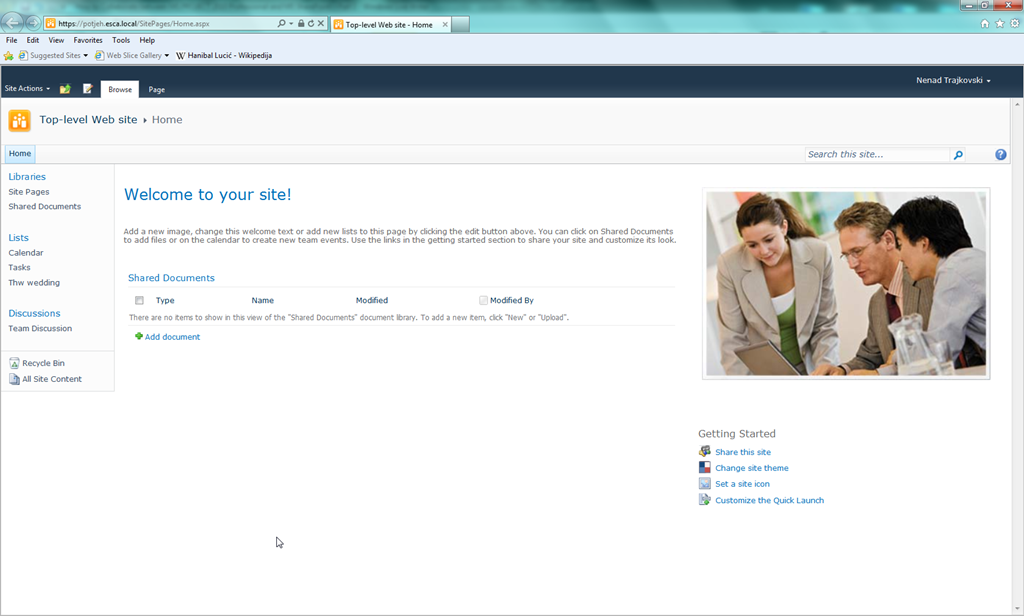
  • First, open SharePoint, and log in! You will get something like this (depend of your SharePoint settings):
image

  • Then click on the Site Actions, and choose View All Site Content:

image

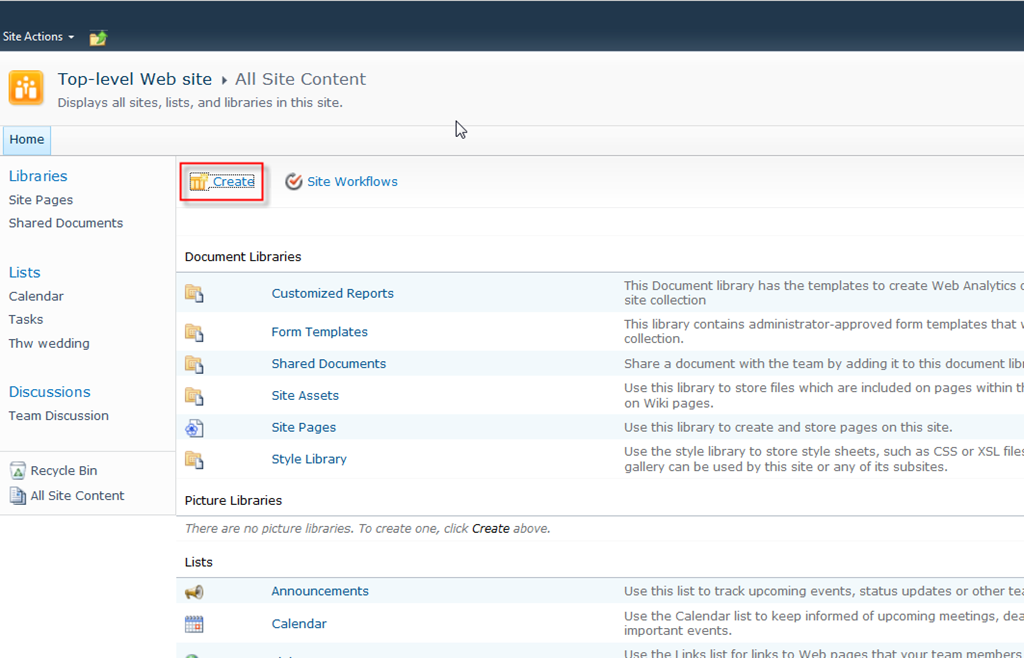
  • On the screen click on the Create button:
image

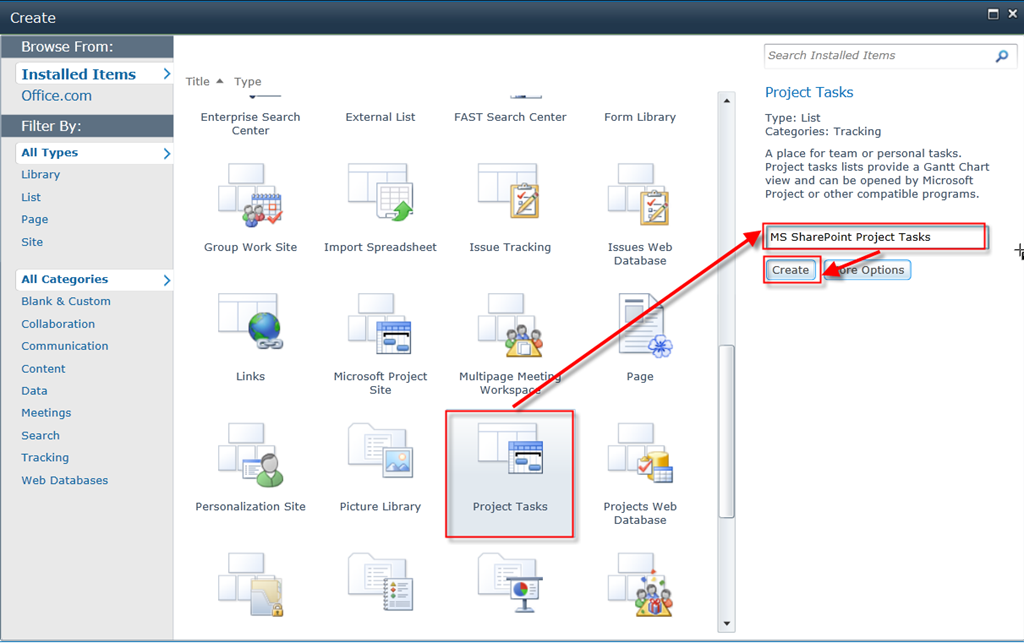
  • On the screen, scroll down, and click on the Project Tasks, and then type a description for the Project Task list:
image

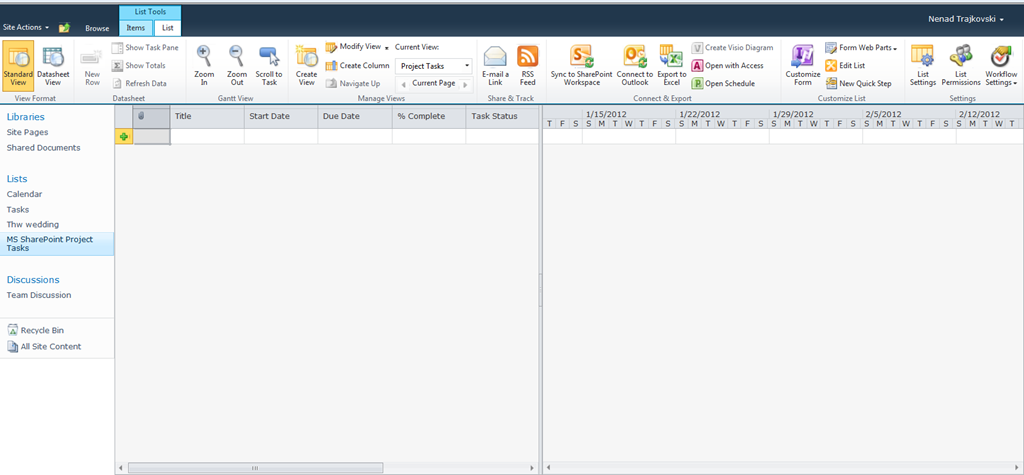
  • Finally, you will get:

image

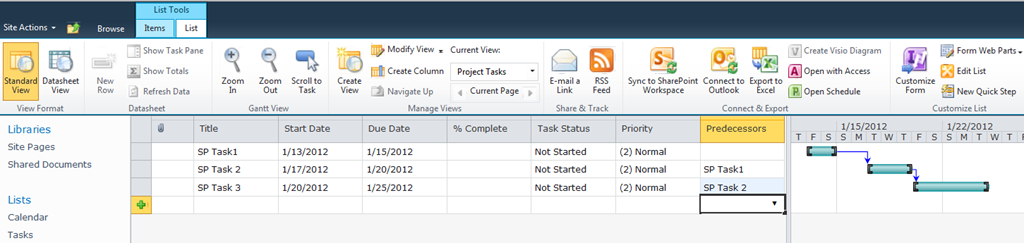
Here is the place to put your Tasks! Notice that you can not put task in Auto scheduled mode, but only in Manually scheduled mode! This is because SharePoint doesn’t have a schedule engine!

I will put three Tasks in Task list and I will link them:
image

Now I can sync those task list with MS PROJECT PROFESSIONAL:

image

Now I must to login (it depends of your SharePoint settings:

image

Finally I will choose SharePoint Task List which I want to synchronize:

image

and I will get:

image

Task are converted to auto scheduled (because I set up in MS PROJECT PROFESSIONAL 2010 that all new Task are in Auto Scheduled Mode). All Tasks has Start no Earlier constraint, because in SharePoint start Date field I was enter values! If you compare Gantt Chart above with Gant Chart in SharePoint:

image

you will notice that in MS PROJECT 2010, Task 2 is first, Task 1 is second, and Task 3 is third in Gantt Chart. This is odd!

Now I will add three new task in MS PROJECT 2010:

image

I will sync it with SharePoint on the same way I did it before:

image

and I will get, in the SharePoint:

image

As you can see, Task from MS PROJECT 2010 are now in SharePoint, and in Manual mode!

What If you change some Values (for example start date or duration) in SharePoint or MS Project 2010? There will be a conflict between those two Projects. Don’t worry, there is the easy way to solve this Problem. How? Read my next Post.


Regards,

Posted in MICROSOFT PROJECT, Microsoft PRoject 2010, Microsoft SharePoint, MS PROJECT 2010, PMI | Tagged , , , , | 3 Comments

Managing Multiple Projects with MS PROJECT 2010 – Part 2


Hi,

In my previous post I have described how to put subprojects in a Project, and how to make “Master-Slave” Relationship in MS PROJECT 2010. It looks like this:

image

I want to see Critical Path:

image

and I will get:

image

Notice, that you can see the Critical Path only for Master Project. If I want to see Critical Path for Master, and all other Project I should remove check box from: Projects Are Calculated Like Summary Tasks:

image

and then:

image

and I will get:

image

Notice that you can see critical path for Master, and Slave Projects on the Gantt Chart.

As you already know Projects are linked, and any change to the Sub Project in Master Project is recorded to the Slave Project, and vice versa. If you want to unlink the Sub Project you can do it like that:

image

and I will get:

image

Notice that Project2, and all its Subtasks are still in the Master Project, but there are no more linked to it, so if you open Project2.mpp and you change something there Master Project remains the same, and vice versa!

If I want to unlink and delete complete Sub Project from my Master Project I should select Summary Task for the Project I want to delete, and the hit the Delete key. I will get:

image

and after that:

image

The Project3 is gone!

A Master Slave relationship is one way of managing multiple Projects in MS PROJECT 2010. This is good way of managing RELATED PROJECTS!

But what if you want to manage UNRELATED PROJECTS in MS PROJECT 2010.

They are several ways to do it.

I will open a blank Project first, and then:

image

and I will get:

image

If you have already open all of your Projects, you can use a blank project and then:

image

and you will get:

image


For the end of this Post I will show you how to make a Project Workspace. Suppose that you always open set of Project files. You can put them in the workspace, and then when you open the workspace file all Projects will be opened, without creating Master Slave relationship or making Consolidated Project.

Firs I have to find the button for saving the workspace:

image

and then:

image

and I will get:

image

Now I will open all Projects I want to save in a Workspace, and I will click on Save Workspace button:

image

Whenever I will open the Workspace file all Project files will be opened:

image

and then:

image

and all my Project will be opened!


Regards,
Posted in MICROSOFT PROJECT, Microsoft PRoject 2010, MS PROJECT 2010, PMI, PRoject Management | Tagged , , , , | 15 Comments

Managing Multiple Projects with MS PROJECT 2010 – Part 1

Hi,

I will explain how to Manage Multiple Projects with MS PROJECT 2010. Before I start, I have to tell you something very important. If you are going to manage multiple Projects as a Program, or Portfolio, or both, and you want to do a serious job, then you should use MS PROJECT SERVER 2010. You can do a lot with MS PROJECT 2010 PROFESSIONAL, but MS PROJECT SERVER 2010 is much stronger tool, than it is MS PROJECT PROFESSIONAL.  For example, if you are using MS PROJECT SERVER 2010, then MS PROJECT PROFESSIONAL 2010 is serving as a client!

O.K. Let’s go! Do you know what is Program, and what is Portfolio? Simply, Program is set of Related Projects, and Portfolio is set of unrelated Project or Programs!

If you have a Master-Slave situation with your Projects, and you are keeping all those Projects in separate files, but you want to see them all on the one file, first you shoul open your Master Project, like I will:

image

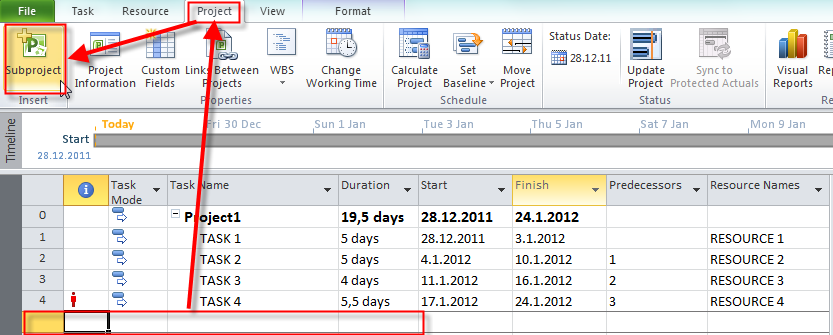
I have another two “sub” Projects, and I want to insert them in the Master file! I will click in the row number 5 (e.g. firs empty row in my Master Project) and I will choose a Sub Project:

image

and then:

image

and I will get:

image

I will click on the + sign, and I will get the Tasks from the Sub Project:

image

Now I will select the first blank row below Project2, and I will insert a new Sub Project, as I did it before, and I will get:

image

Notice, that Project3 is now Sub Project of Project2. Why? Because I did not collapse Project2 before I have inserted the Project3 as a Sub Project!

I will insert the Project3 with collapsed Project 2, and I will get:

image

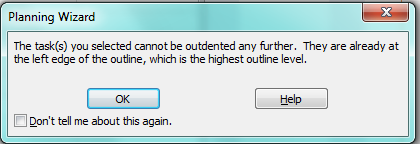
What if I want to outdent Project2 or Project3?

image

I will get:

image

Why? Well, this is Master-Slave situation, and Project3 has to be Sub Project (slave), of Project1, and it can not be on the same level as the Master Project (Project1)

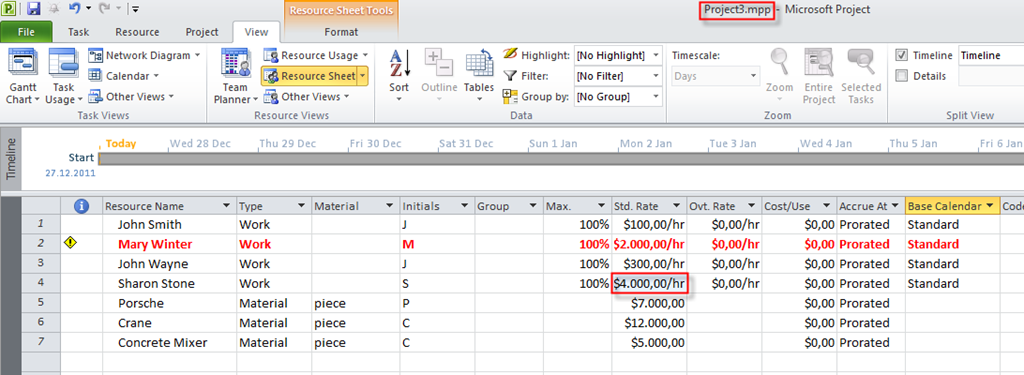
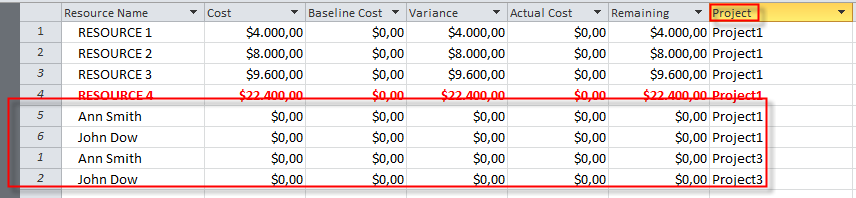
What if you have the Resources with the same name in the multiple Project like this?

image

Simply, add the new column in the Resource Sheet, named Project, and you will get:

image

Remember that any change you make in a Master or Sub Project file are instantly made in the other file (Sub Project or Master), because there are LINKED!

No suppose that my Sub Projects are managed by different Project Managers, and I do not want to allow any changes to those Sub Projects from the Master Project! I will double click on the Sub Project Project2, and then:

image

From now on, if I change anything in the Project 2 Sub Project from the Master Project, I will get this:

image

and it means that those changes can not be save in my Project2 Sub Project.

But be careful. If you have open only Master Project, everything is fine. But, if you open both, Master and Subproject file that might not be true. It depends of which file did you open first! If you open the Sub Project file first, and the a Master Project file, you will be able to change to the subproject in the Master Project. so, if you want to be sure that you can not make any changes to Sub Project through Master file, always have opened only Master file, or open it first, before any other Sub Project.

In my next Post, I will show how to view the Critical path in Master Project, how to unlink Sub Project from Master Project, and how to remove Sub Project from Master Project.

Best Regards,

Posted in MICROSOFT PROJECT, Microsoft PRoject 2010, MS PROJECT 2010, PMI, PRoject Management | Tagged , , , , , | 26 Comments

Sharing Resources among Projects with MS Project 2010 – Part 2


Hi,

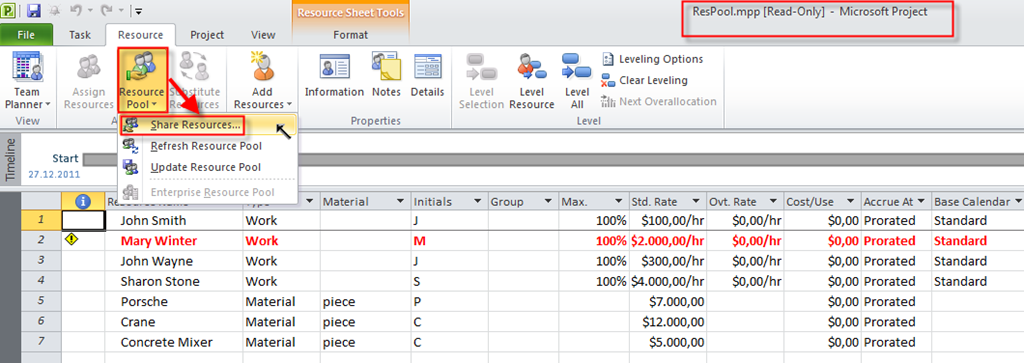
in my previous post I have explained hot to create and use the Resource pool.  Suppose that you want to open your project file which uses a Resource pool in MS PROJECT 2010. You will get:

image

My strong advice is: always open the Resource pool file!

Now, both files are opened. The “Project” file:

image

and the Resource pool:

image

Notice that Resource pool is opened in Read-Only mode, so you can not change anything in this file.

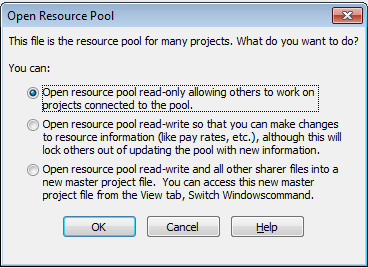
What will happened if I tried to open the Resource Pool before the “Project” (or Sharer) file? I would get:

image

I have three options:

  • In most cases you will use the first option. You will “lock” the Resource pool. You can update the assignment information when you work in read-only mode
  • Use this options when you have to change basic resource information (like pay rate, setup fee, etc.)
  • The third option should be used when you want open the Resource pool with (in read-only mode), and all other sharer files

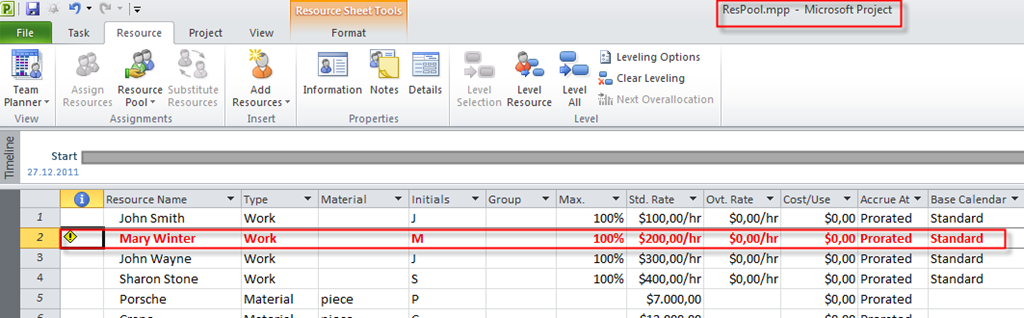
As you already know from my previous post, Mary winter is over allocated. I want to see where, and I want to see that in the Resource pool. So, I will open, the Resource pool in Read-only mode and I will choose the Resource usage view:

image

You can see that I have two tasks with the same name. It is confusing. But I will ad the new column with the Project Name field:

image

and I will get:

image

It is much better now, isn’t it?

Now, suppose that I want to change pay rate for one of my resources. And I want to make this change visible to my sharer Projects.

First way is to open Resource pool in read-write mode, and to change that pay rate:

image

Now I will save the Resource pool, and I will open my “”Project” or Sharer file:

image

Another way is to open Resource pool as read-only, and make change in the Sharer file:

image

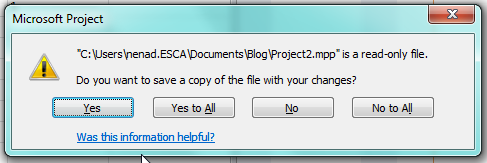
Now, I will try to save this “Project” file, and I will get:

image

If I choose OK, I will save those changes to the Sharer file, and it will save the Resource pool as well!

Or, I can use the Update Resource Pool option and I will get the same result:

image

Now the last thing. What if I want do disconnect sharer file from the pool? I will open the Resource pool and in Resource pool I will choose:

image

and I will get:

image

If I open the Project file now, I will see only local Resources, or assigned Resources from the pool, but as a Local resources:

image

As you can see, Mary is no longer over allocated!


Regards,
Posted in MICROSOFT PROJECT, Microsoft PRoject 2010, MS PROJECT 2010, PMI, PRoject Management | Tagged , , , , , | 5 Comments

Sharing Resources among Projects with MS Project 2010 – Part 1


Hi,

I will explain how to share Resources among different Projects in MS PROJECT 2010.

Suppose that you have many Projects in your company, and you want to know which Resources do you have, and are they available. If you define your resources as “local” (e.g. in each project from the scratch, you will se there over allocation only at single project, but not among them.

So, we have to create “RESOURCE POOL”. To do that I will open a blank new Project and open the Resource Sheet, and I will put the resources in it:

image

Now, I will save this “Project” ad Resource file:

image

and:

image

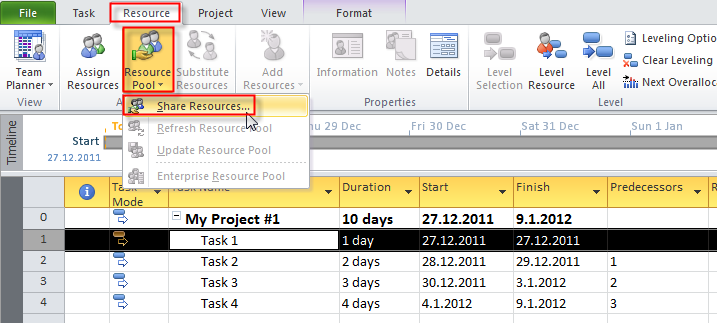
How to link a Project with the Resource pool?

First, you should open your resource pool! (file that you have saved in my previous example). Now you should open your Project file:

image

I will assign Resources from the Resource pool to my Tasks:

image

and I will get:

image

I will use my ResPool.mpp Project file as a Resource pool, and I want that the Pool takes the Precedence if there will be conflict between local and pool calendar!¸Now you can see that all resources are visible in my local Project:

image

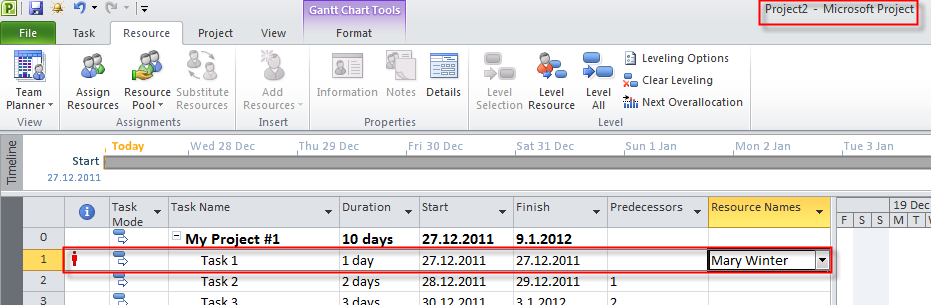
Now I will assign, for example, Mary to the Task1:

image

I will now open the brand new Project and I will do the same thing with Mary, using the Resource Pool:

image

You can see that Mary is over allocated in My Project #2, and if you look at the My Project #1, you will se that Mary is over allocated in that Project, as well:

image

You can see that Mary is over allocated in the Resource pool, as well:

image

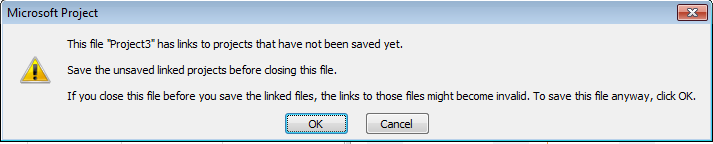
When you are saving your Project files, be sure to save your Resource Pool as well! I will try to save my Project3.mpp  and I will get:

image

To avoid any conflict I will click on the Cancel button, and I will save the Resource Pool first, and then my Project file! I will get the same message but I will click on OK button!

Be careful! When you will leave your Projects (exit), first close all your “regular” Projects (sharer), and then close the Resource pool (the last one!).

In my next Post I will explain how to reopen Resource pool and your Projects, how to check the Availability of Resources from the pool, and how to disconnect a Resource Pool from the Projects!


Until then,

Best regards!

Posted in MICROSOFT PROJECT, Microsoft PRoject 2010, MS PROJECT 2010, PMI, PRoject Management | Tagged , , , , , | 8 Comments

Rescheduling the Project!

Hi,

HAPPY NEW YEAR! I Proudly announce that from 01.01.2012 I am MVP (Microsoft Most Valuable Professional) for MS PROJECT 2010!

Lets go to work!

I will explain hot to reschedule Tasks or the whole Project with MS PROJECT 2010. Suppose that you have a Project, and you already started with some activities:

image

Now, suppose that you and all other resources have to stop with all activities on that Project, because you must work on another Project. After few weeks you are back on the old Project, but you should reschedule some tasks, or whole Project.

To do that you should first determine which tasks should you reschedule. I will reschedule them all:

image

and I will get:

image

Notice that start date of the Task2 is unchanged, because the activities on that task were started before moving the whole Project, and you have “strange” finish to start relationship. Also notice that for Task3, and Task4 the Start no earlier is set:

image

you will notice that Task2 is 75% completed, but before Task1 was finished. So I will make Task2 0% completed, and repeat the moving and I will get:

image

This is more “reasonable” situation.

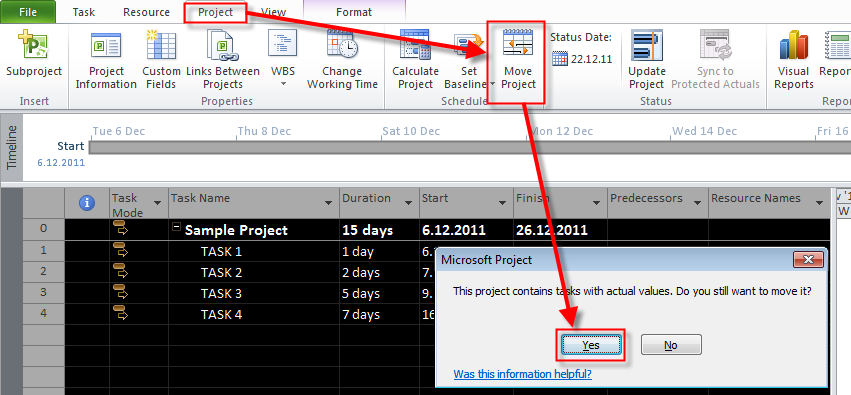
I I want to move all tasks, no matter it they were started or not I can do that like this:

image

and I will get:

image

and then:

image

Notice that all Task are moved, no matter if they were started or not.

Finally, suppose that I have a Project with over allocated Resources like this:

image

I want to move all my Tasks in a way that my Resource will be no longer over allocated. I con use this function:

image

and I will get:

image

If you are not happy with provided solution, you can still reschedule your Tasks as you want, as it was described earlier in this post!


Regards,

Posted in MICROSOFT PROJECT, MS PROJECT 2010, MS PROJECT 20101, PMI, PRoject Management | Tagged , , , , | 2 Comments

Tracking the Project Progress with using different Tables!

Hi,

I will show you how to get different information about your actual Project Status, using different Tables in MS PROJECT 2010.

First I will set up my example:

image

In my previous posts (last two) I put some actuals as follows:

  • For Task1: Actual duration 2 days, Remaining duration 3 days
  • For Task2: Actual duration 2 days, Remaining duration 0 days, Actual Start 15.12.2011
  • For Task3: Actual Start: 23.12.2012, Actual Finish 28.12.2011
  • For Task4: Actual work 36 hours

Is it good or bad? We will use different tables to examine this!

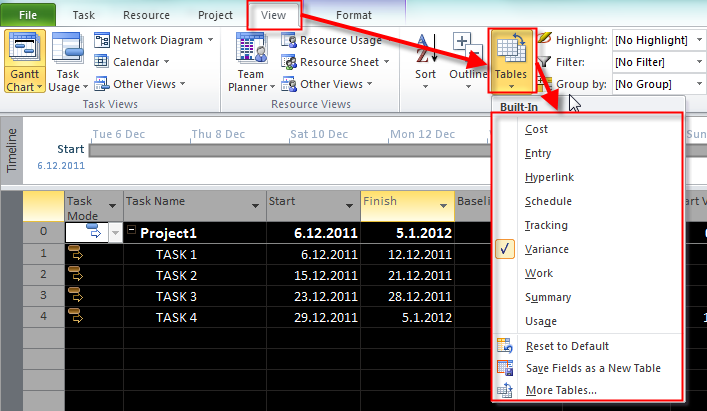
You can change table which you want to see in two different ways:

image

or:

image

First I will choose the Baseline Table:

image

Here I can find what is in my Baseline or Plan for each Task, and for the whole Project!

Now I will choose the Cost Table, and I will get:

image

Variance =  Total Cost – Baseline. The conclusion: We are spending too much, or more than we planned!

Now I will chose the Variance Table, and I will get:

image

Start Variance = Start – Baseline start. Task3, Task4, and Task5 has started later than planned!

Finish Variance = Finish – Baseline finish. Task1,Task2,Task3, Task4, and Task5 has finished later than planned!

The conclusion: We are late with our Project

Remember this! When you have a Positive Variance, you are behind the schedule, and you are spending more than you should. When you have a Negative Variance, you are ahead the schedule, and you are spending less than you should.


Dear fellows, that’s all for this year. I wish you all the best in a new year, a lot of fun, and everything you wish to yourself!

HAPPY NEW YEAR!

Posted in Microsoft PRoject 2010, MS PROJECT 2010, PMI, PRoject Management | Tagged , , , , | Leave a comment

Tracking Actual work, and Actual costs on the Project


Hi,

as I promised I will write about tracking actual work and cost on the Project in MS PROJECT 2010.

In my previous blog I recorder progress for my three Tasks:

image

First I will choose the Work Table:

image

and I will get:

image

As you can see, in this Table I have work in hours which is based on formula Duration in days X Hours per day. For the Task4, Duration is 7 days, e.g. 7 days X 8 hours per day = 56 hours!

I will put 40% in the % W. complete, and I will get:

image

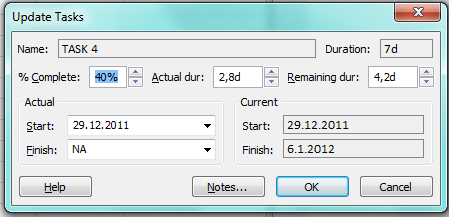
40% of 56 hours is 22,4 hours, and you can see this value in the Actual field, and the Remaining is 56-22,4  = 33,6 hours. I will open the Status window for the Task4:

image

and I will get:

image

Notice that Actual duration is 2,8 days, and Remaining duration is 4,2 days! Why? Because Actual work is 22.4 hours, Actual Duration is 22,4 hours / 8 hours per day = 2,8 days. And Remaining duration is Duration – Actual duration = 7 days – 2,8 days = 4,2 days.

Now suppose that you want to track Actual work in hours per Resource for each task! First you should open Task usage view:

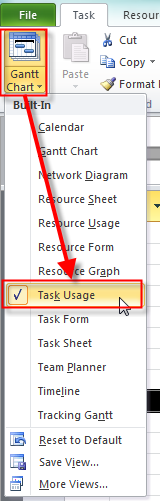
image

and you will get:

image

Now I can double click on the resource name under each Task and I will get:

image

Here I can put:

  • Work:  How many hours are needed for the Task and Resource
  • Actual work: How many hours are already spent on this Task by particular Resource
  • % Work complete: The percentage of work completed on the Task by particular Resource
  • Remaining work: How many hours are needed to finish the work, beside Actual work on the Task by particular Resource
  • Actual start: When the Resource has started to work on this Task
  • Actual finish: When the Resource has ended (completed) with work on this Task

I will not explain how MS PROJECT 2010 calculates fields because it does it on the same way as it was described in my previous Post.

The most detailed information is to put the exact number of hours spent on the Task by the particular Resource, on a day by day basis. You can do it like this:

image

and you will get:

image


I manually put 4, 12 and 20 hours in days, so the Actual work is 4+12+20 hours = 36 hours, Remaining work is 56 – 36 = 20 hours, and % Work completed is 36/56 = 64%

Which method to use? The answer is simple: The most accurate! And of course, consider the time you need to fulfill all those fields!

OK! How to track Costs, or better how to put the real costs in your Project?

For Fixed cost that is easy. For example, choose the cost table in Task Usage (or any other View, for which is applicable the Cost Table):

image

and you will get:

image

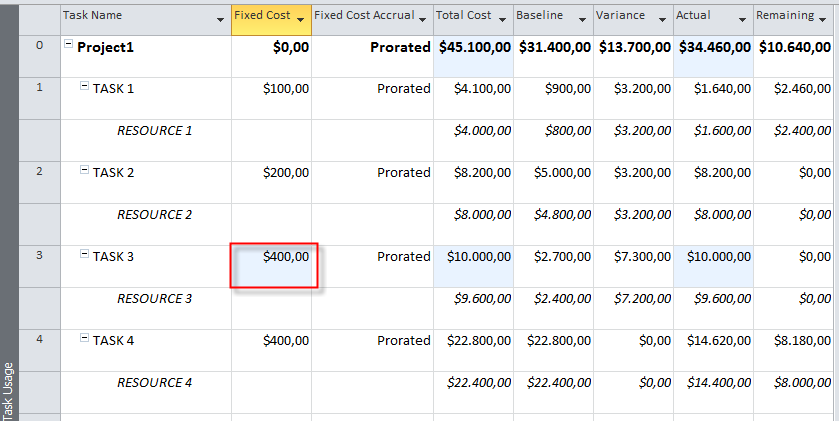
Now you can change Fixed Cost, for example, from $300 to $400 in Task4. Just retype it, and you will get:

image

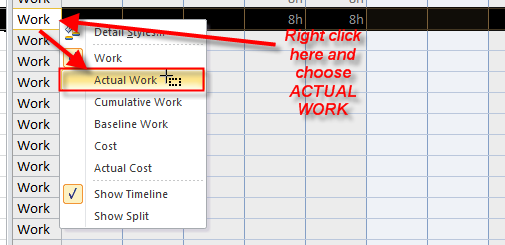
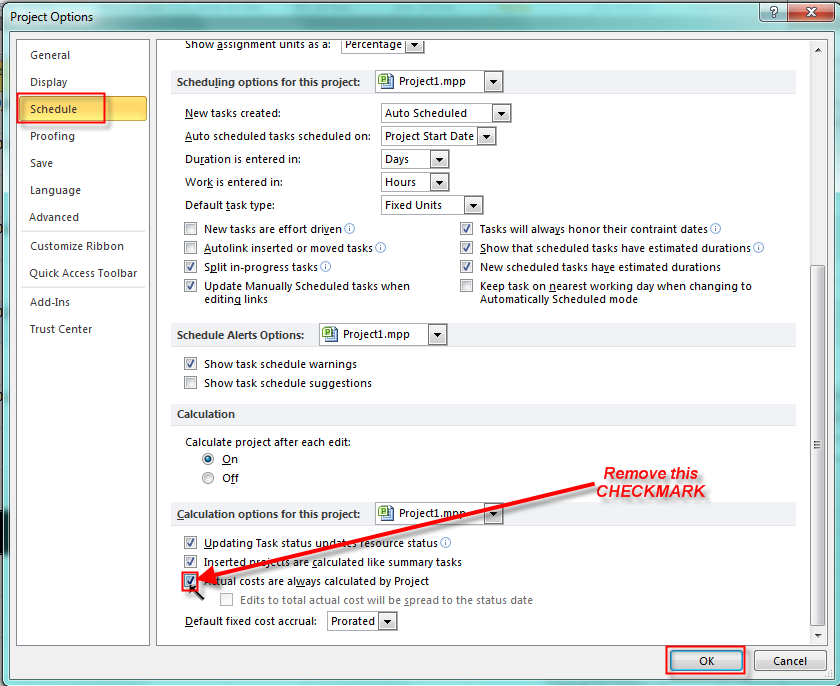
But what can you do with Costs for resources. They are calculate automatically. You can leave them “as is”, and let MS PROJECT 2010 to calculate those values based on price per hour, day etc. for the Resource and hours spent on the Tasks. Or  you can put all the costs manually. To do that you should set MS PROJECT 2010 up:

image

ant then:

image

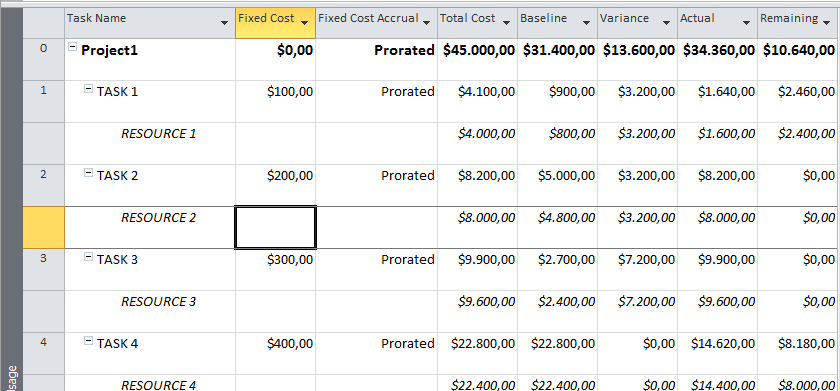
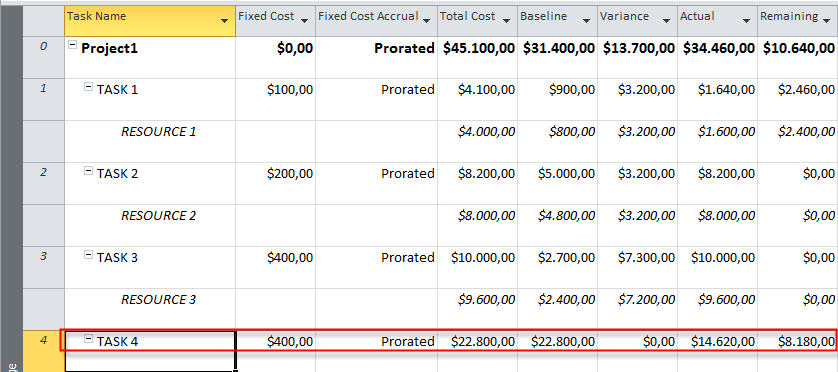
Now I can put manually Actual Costs. For example notice that Task4 I have:

  • Total Cost: $22.800
  • Actual: $14.620
  • Remaining: $8.180

image

I will now put $25.000 in the Actual Cost Field and I will get:

image

As you can see, Remaining cost is same, and Total Cost is$33.180 (e.g. Actual cost + Remaining).

WATCH OUT! DO NOT USE THIS METHOD IF YOU ARE NOT 10000000% SURE WHAT YOU ARE DOING, BECAUSE YOU CAN RUIN YOUR PROJECT. You can also change the Baseline field! DO NOT DO IT! LEAVE IS AS IT IS!

I will now change my setting again to the:

image

and I those changes for the Task4 are gone:

image

In my next post I will show you, how to track Variances against planned values using different tables.

Until then,

Best Regards!

Posted in MICROSOFT PROJECT, Microsoft PRoject 2010, MS PROJECT 2010, PMI, PRoject Management | Tagged , , , , | 19 Comments

How to follow the Execution process in MS PROJECT 2010? –PART 2


Hi,

In this post I will explain how can you track the Task progress using more sophisticated approach. If you remember I have a sample project:

image

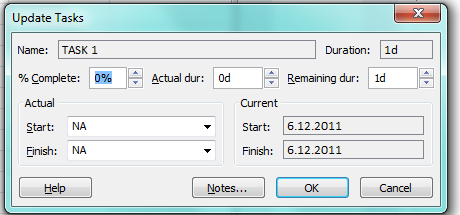
I will now select the Task1 and open the Status Dialog Box for it:

image

and I will get:

image

What can we do with this screen?

  • % Complete: We can put percentage of Task complete like 17%, 23%, or some other. Sometimes you can estimate this figure, but sometimes you can not. For example, if you are writing one software module (e.g. coding) how can you estimate the percentage?
  • Actual duration: We can put the exact number of days, hours, months etc. for our task duration.
  • Remaining duration: We can put the exact number of remaining days, hours, months etc. for our task duration.
  • Actual Start: We can put when did the work on the task actually begins
  • Actual Finish: We can put when did the work on the task actually ends

When you fill one ore more fields in this mask MS PROJECT 2010 will calculate other fields.

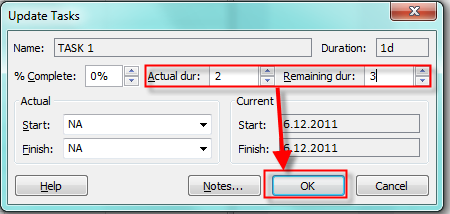
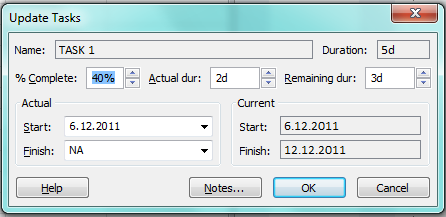
In my first example I will put (for the Task1) Actual duration 2 days, and Remaining duration 3 days like this:

image

and I will get:

image

As you can see, Task1 has now Duration = 5 days, because it has 2 days of actual duration + 3 days of remaining duration. I will open Update Task screen again and you can see:

image 

I will explain the figures.

  • Actual Start is unchanged, because I put only Actual duration, and Remaining duration.
  • Actual Finish is blank,because the Task is not completed (it has 3 more days in Remaining duration field)
  • %Complete is 40%. Why? Because the Duration (or Total duration) is 5 days, and we spent 2 days on this Task. 2/5 = 0,4 or 40%!


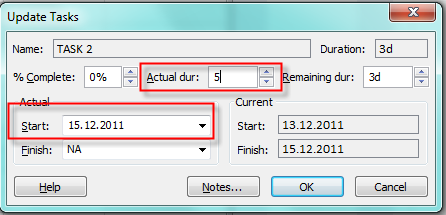
    For the Task2 I will put this values:

    image

    Notice that I did not change the Remaining duration field. I get:

    image

    As you can see, the Task is 100% finished (completed), because I put Actual duration and I did not touch the Remaining duration field. Task has started at 15.12.2011, because I put this value in the Actual Start field. Notice the Baseline bar, which is on the same place as the Task was planned, so you can see difference between planned and actual values.

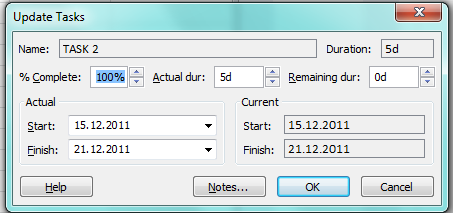
    I will open Update Task screen again and you can see:

    image

    The Task  is 100% finished, and the Actual Start and Finish are the same as Current Start and Finish. Notice one important thing: Current start and Finished field are not planned start and finish.

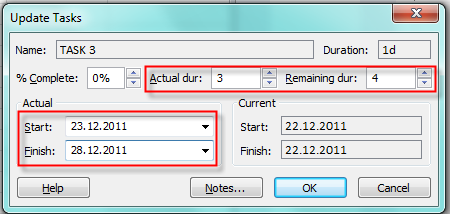
    For the Task3 I will put this values:

    image

    and I will get:

    image

    To explain what happens I will reopen Update Task screen:

    image

    I told that I want Actual duration to be 3 days, Remaining duration to be 4 days, Actual start to be 23.12.2011, and Actual finish to be 28.12.2011 and that was the data conflict there are only four working days because between 23.12.2011 and 28.12.2011. MS PROJECT 2010 solved that conflict that it takes Actual Start, and Actual Finish as precedence (or top priority) fields, and based on those two field it make calculation of all other fields, that is: 100% Complete, Actual duration 4 days (the number of working days between Actual Start, and Actual Finish date.
    You can also track Actual work for the Tasks which is very good method if your Resources are responsible for tracking their tasks, or if they report their actual work to you. How can you do it? Read my next post.

    Until then I wish you Merry Christmas, and best Regards!
  • Posted in MICROSOFT PROJECT, Microsoft PRoject 2010, MS PROJECT 2010, PMI, PRoject Management | Tagged , , , , , | 2 Comments

    How to follow the Execution process in MS PROJECT 2010? –PART 1


    Hi,

    if you red my last post, you’ve notice that we are finished with the Planning phase, and we have saved Project plan, called Baseline.

    Now, the Resources are working on their assignment and they should track (or you as a Project Manager should track) Task Progress.

    How to do it in MS PROJECT 2010? There are several ways, and it depends on how much information can you get about your project task, and HOW MUCH TIME DO YOU OR YOUR RESOURCES HAVE!

    First, and easiest way is to record a project “ON TRACK”.

    In my example I have four tasks in my project:

    image

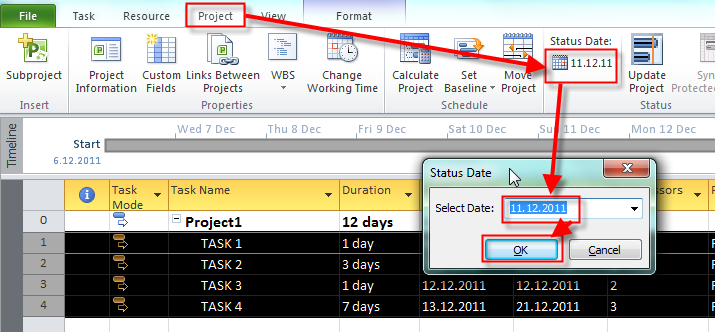
    Now suppose that you want to mark all your Tasks at 11.12.2011 “ON TRACK”. You can do it like this:

    • First I will set up my status date on 11.12.2011:

    image 

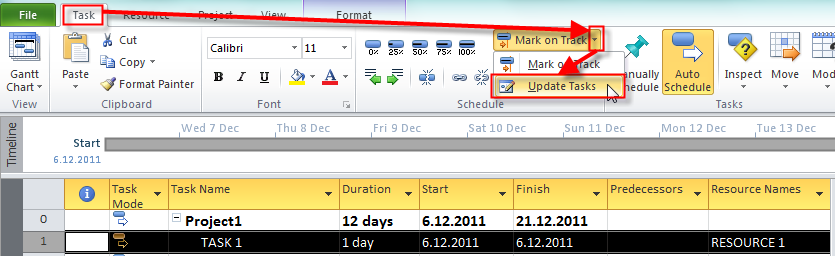
    • After that I will choose to make all Tasks ON TRACK:

    image

    and I will get:

    image

    As you can see, Task 1 and Task 2as market as Completed, because only this two task are scheduled to finish on (or before) status date which is 11.12.2011.

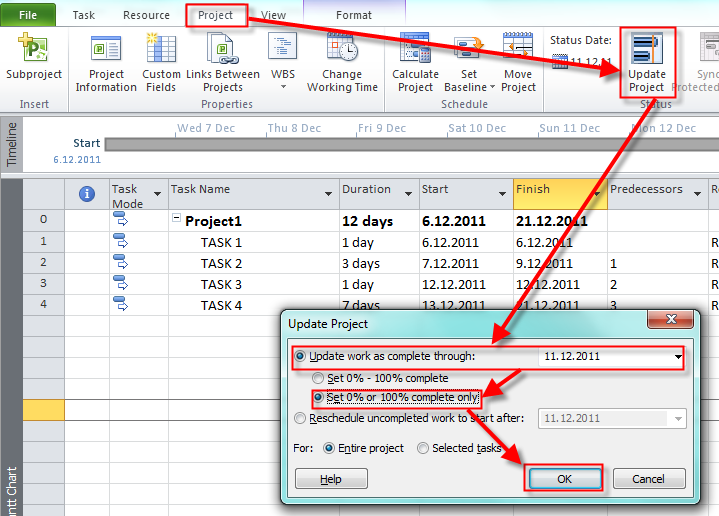
    Another way to do the same thing is:

    image

    and I will get the same thing, because I choose Set 0 or 100% complete only, and Entire Project options:

    image


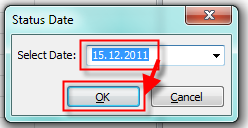
    Now suppose that I set Status date as 15.12.2011:

    image

    and after that I choose to update project on the same way but with Set 0 – 100% complete:

    image

    I will get:

    image

    You can see that Tasks 1,2, and 3 are completed, but Task 4 is partially completed, because I chose  Set 0 – 100% complete. If I choose Set 0 or 100% complete only, Task 4 will be intact, because these option marks “ON TRACK” only Tasks which are totally completed!

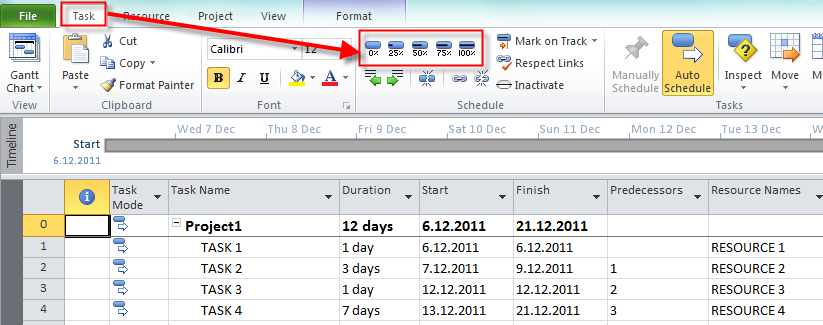
    Another easy way to mark Task “ON TRACK” is to choose Percentage of completeness here:

    image

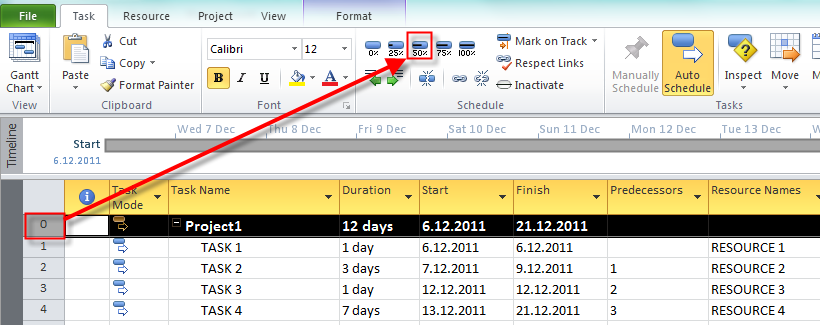
    I can choose between: 0%, 25%, 50%, 75%, and 100%. For my example let us suppose that the whole Project is finished 50%. I will select the Project Summary Task (Task 0) and click on the 50% Button:

    image

    and I will get:

    image

    As you can see Task1, Task2 and Task3 are completed 100%, and Task4 has marked as there is only 1 day of work accomplished on it.

    Why? Simple, the whole Project has 12 days duration. And because I marked the whole Project as 50% finished, it means that the resources spent 6 days (50% of 12 days) on the Project. And since Task 1 has 1 day duration, Task 2 has 3 days duration, and Task 3 has 1 day duration, they are finished (Task1 + Task2 + Task3 = 5 days). The remaining 1 day from 6 days spent on the project is on Task4, as you can see on the picture above.

    Those are the simplest ways of tracking Project progress. You should use it only when “everything is on time, and on schedule”, and you can estimate the progress in percentage.

    But what If your tasks are started or finished earlier or latter, or you have spent  more or less time on them? You can track this as well. How? Read my next post on Thursday.

    Until then,

    Best regards!

    Posted in MICROSOFT PROJECT, Microsoft PRoject 2010, MS PROJECT 2010, PMI, PRoject Management | Tagged , , , | Leave a comment