
Hi,
today I will show you how to use Option: Calculate multiple critical paths in MS PROJECT 2013!
What is Critical Path indeed? This is the longest path which show you how long will a Project Duration be. It is also a path in which if any task is late, the whole Project will be late. So, it has no Slack!
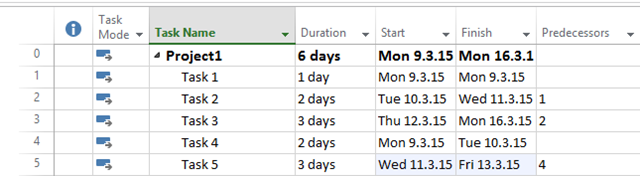
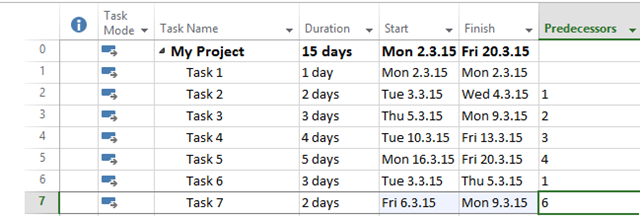
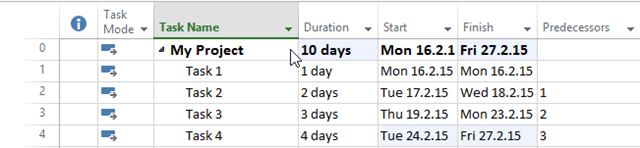
OK! Let me create brand new Project:
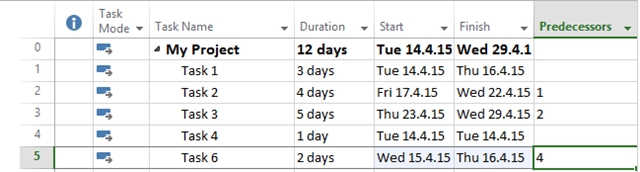
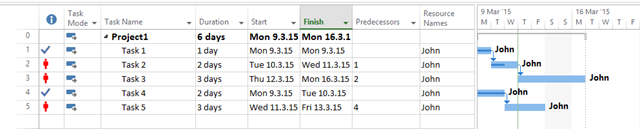
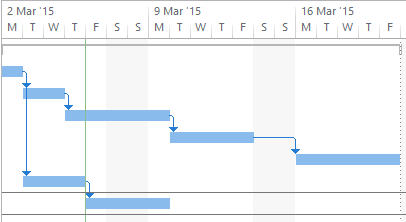
or, graphical View:
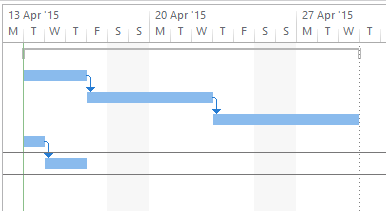
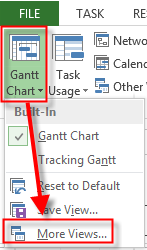
Now I’ll switch to Detail Gantt View:

As you can see Critical path is on upper branch of Tasks. Task 4, and Task 5 have Slack = 9 days. It means that they can slip for 9 days without affecting Project end date.
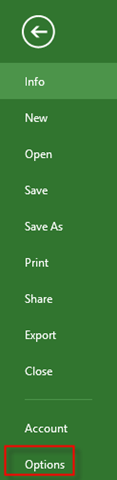
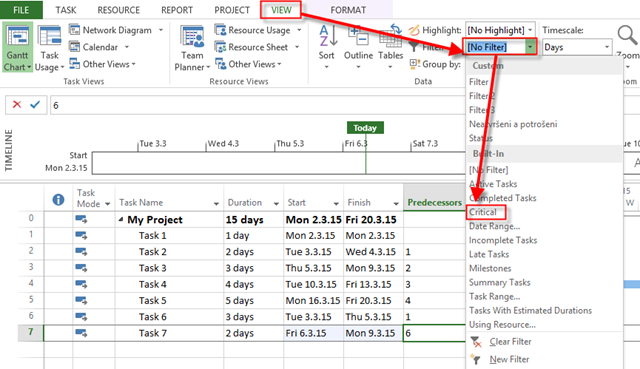
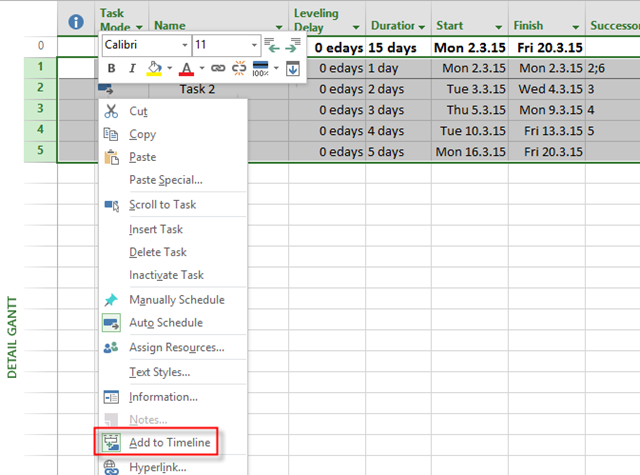
Because Task 4, and Task 5 are in independent branch you can consider this branch Critical as well. So, if you want to see those Tasks as critical you should follow this steps:
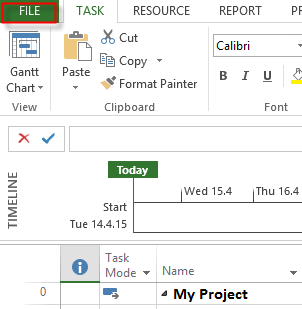
then:

and then:
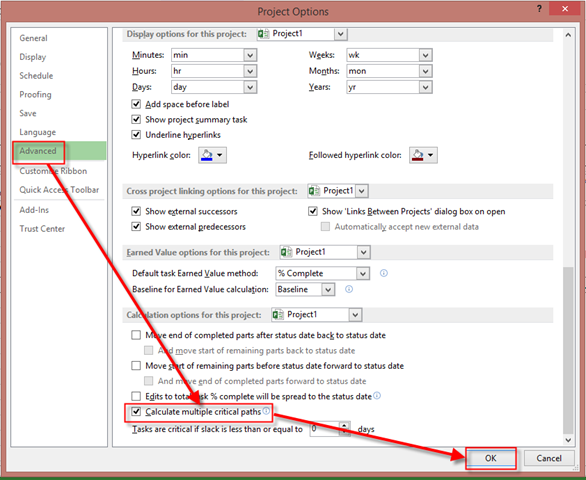
and you will get:

Now you see both branches (independent) as Critical.
Let me give you an advice. It doesn’t make a sense to have multiple independent branches in a Project. You should always have one common Task at the end of the Project, or at least, one milestone. I always have a milestone at the end of the Project.
I will create one and I will put Task 3, and Task 6 as Predecessors to that milestone:
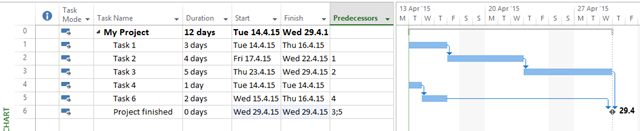
Let’s look at Detail Gantt again:

Now, I have only one Critical Path, and Option: Calculate multiple critical paths is still on.
And this is best practice how to make right Schedule for your Project. To conclude, avoid independent branches in you Project!
Regards!














































 Nenad Trajkovski