Baseline for Subprojects in MS PROJECT 2013

Hi,

Today I’m going to explain how to set and see Baseline for Subprojects in MS PROJECT 2013, and how to see those Baselines in Master Project!

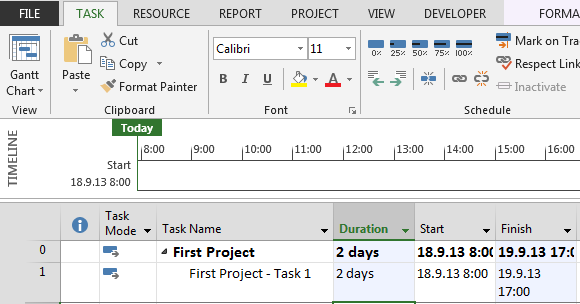
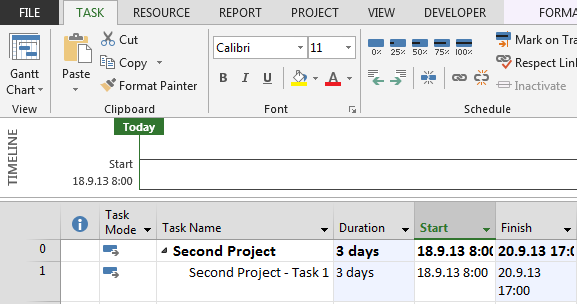
First I’m going to create two Brand new Projects with one Task:

image

and

image

After saving this two Projects I’m going to create Master Project:

image

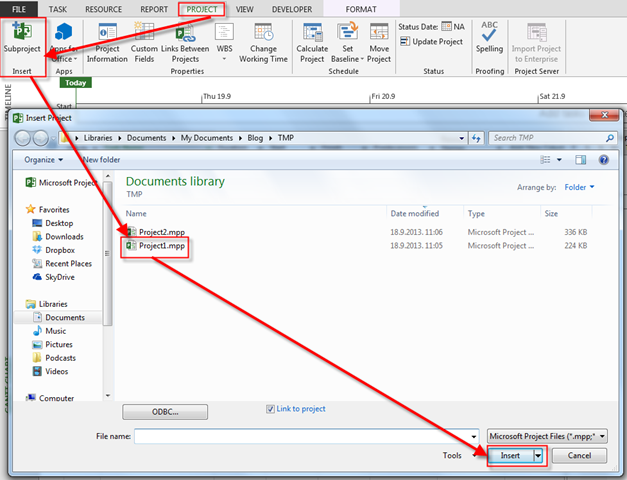
and I’m going to import Subprojects:

image

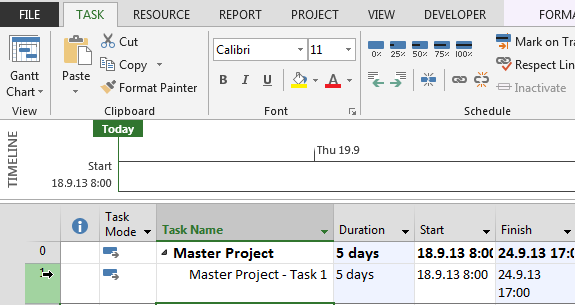
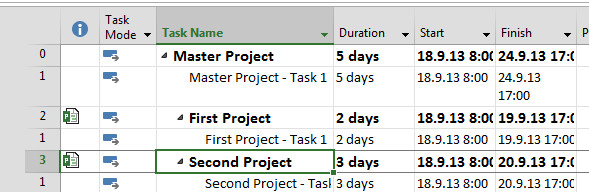
After importing the Second Project I’ll get:

image

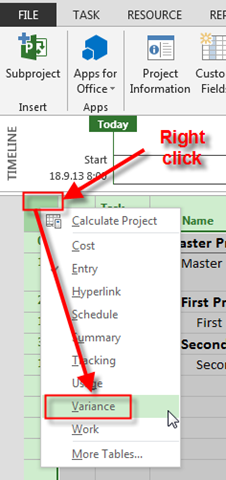
I’ll switch Table to Variance:

image

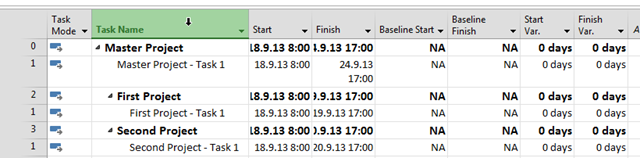
and I’’ get:

image

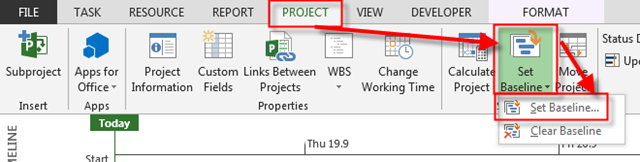
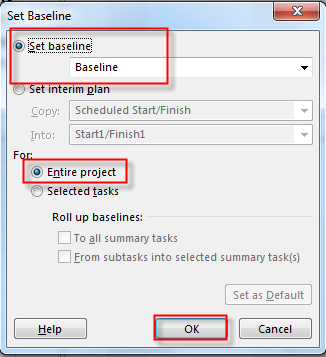
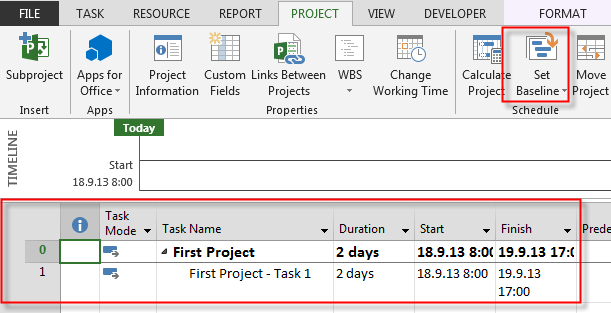
Now I will save the Baseline in Master Project:

image

and:

image

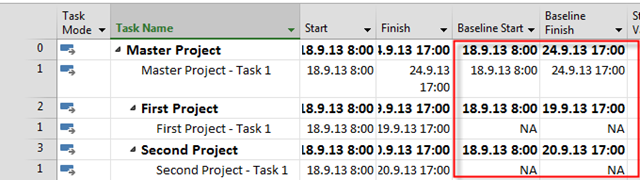
Finally I’ll get:

image

As you can see, there is a Baseline for Tasks in Master Project, and for summary Tasks in Subprojects, but there is no Baseline for Tasks in Subprojects. To get those I’ll save the baseline for each Subproject separately:

image

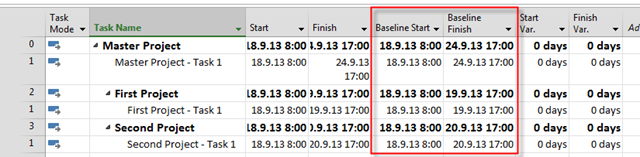
The Procedure of saving Baseline in Subprojects is same as ion Master Project so I’ll not waste time to show you a picture. After saving the Baseline in each Subprojects when I look at the Master Project I will see this:

image

Voila! I can see Baselines for Task in Subprojects!

Piece of cake!

Regards!

Posted in MICROSOFT PROJECT, Microsoft PRoject 2010, Microsoft Project 2013, PMI, PRoject Management | Tagged , , , , , | 3 Comments

How to Assign different Overtime Rate in MS PROJECT 2013


Hi,

in one of my Posts I have explained how to calculate and work with Overtime hours in MS Project 2013, so I am not going to do it again. This time I will explain how to apply different Overtime Rate (as well as Regular). Suppose that you have John who has to work on Task, and his regular rate is $100 per hour, and overtime rate is $200 per hour. But on this specific Task you what pay him $400 for overtime work, and $100 for regular work (per hour of course).

Let’s go. First I will create John as Resource and I will put those numbers in MS PROJECT 2013.

image

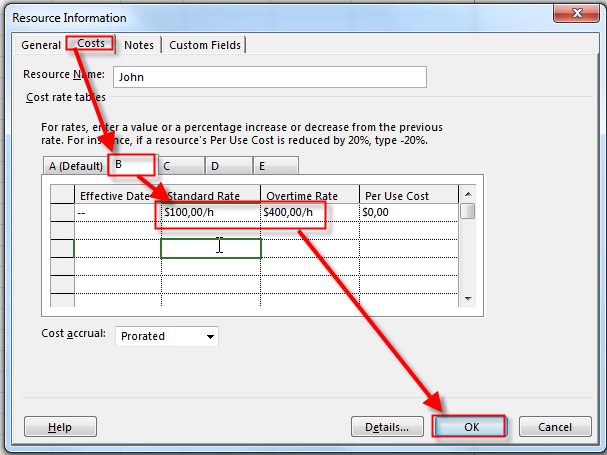
When I double click on John I will put $100 for regular work and 400 per Overtime work for John in Table B!

image

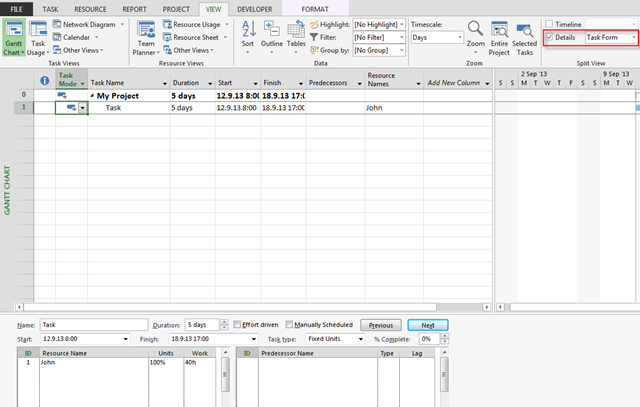
Now I will create Task, an assign John to that Task!

image

Now I will make 20 hours as overtime.

image

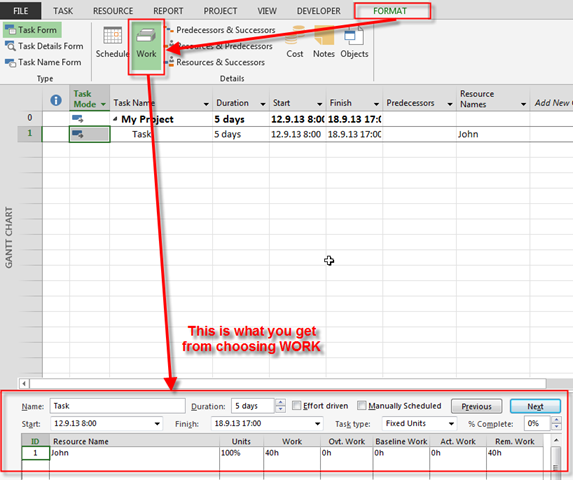
When you double click on the lower part of the screen go to Format Tab and then choose this:

image

I will put 20 hours as overtime:

image

Let’s take a look at the Cost Table:

image

20 hours regular work * $100 = $2000, and 20 hours overtime work * $200 = $4000. $2000+$4000=$6000!

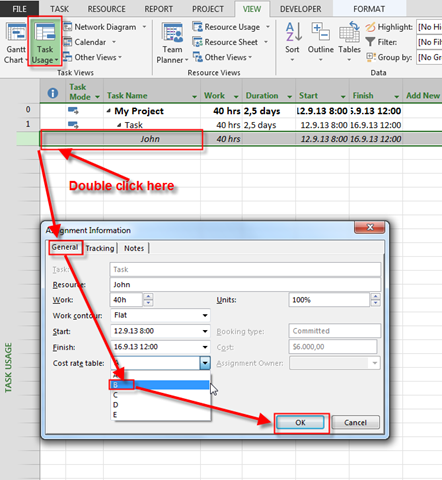
But we want another overtime rate! Use Task Usage View:

image

Back to the Cost Table:

image

20 hours regular work * $100 = $2000, and 20 hours overtime work * $400 = $8000. $2000+$8000=$10000!

It is a little bit tricky, but now you know how!

Regards!

Posted in MICROSOFT PROJECT, Microsoft PRoject 2010, Microsoft Project 2013, PMI, PRoject Management | Tagged , , , , | Leave a comment

How to replace Generic resources with those with specific skills in MS PROJECT 2013

Hi,

again my Blog Reade has a Problem. Here it is:

“I have a challenging task to transition unorganized planning in my company to using ms project professional 2010 with share point site. We have generic resources like developers, testers – but they have very specific skills (as in they work on specific products only). Also, this is a multinational corporation, so some resources are in different countries. Due to this, i have a nightmare organizing resource pool because i can’t just put them under generic and also when assigning resources how can i best use the filter. How can I add specific skills to people, so when i replace generic resource with a person, it will be specific. How would you replace generic resource with a person with specific skill-set? So for example, we have product testers and that is generic name for resource, but each tester knows specific products so they cannot all test all the products.”

Well, frankly, the best thing to do is to use Project Server. But we can do this with a little effort in MS PROJECT 2013

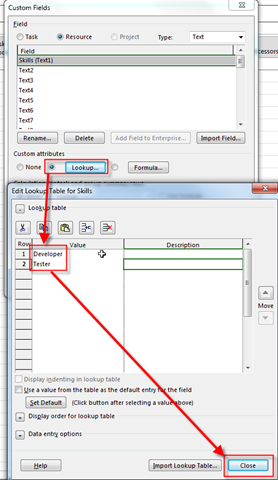
First I will add two new custom fields in My Projects: Skills, and Products:

image

and then:

image

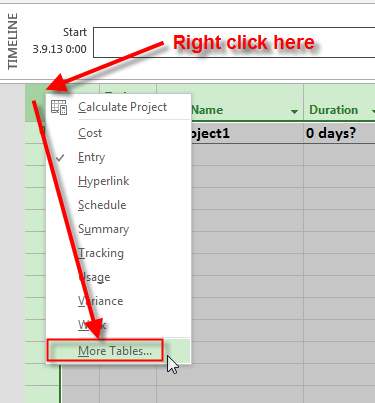
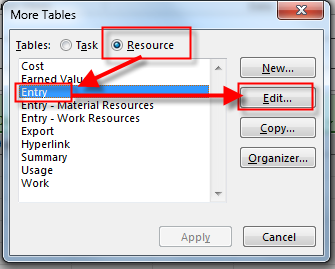
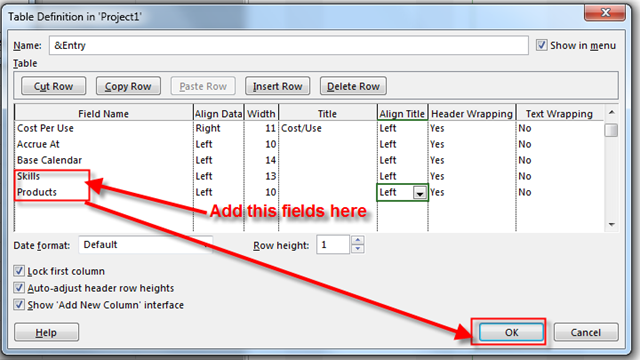
On the same way I’ll create the Products custom field with lookup values: SharePoint, and Project. When I’m done with that I will ad those field in the Entry Resource Table:

image

and then:

image

and finally:

image

Now I’m ready to add some Resources:

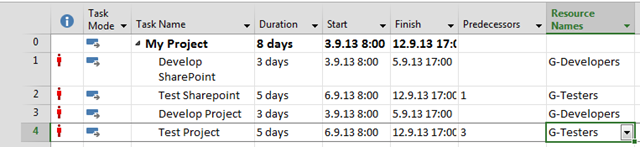
image

Notice this:

  • G-Developers: Generic Resource for Developers, and it doesn’t have specific Product assigned
  • G-Testers: Generic Resource for Testers, and it doesn’t have specific Product assigned
  • John: Specific Resource for Developers, and he knows how to test SharePoint
  • Mary: Specific Resource for Developers, and she knows how to test Project
  • Peter: Specific Resource for Testers, and he knows how to test SharePoint
  • Paula: Specific Resource for Testers, and he knows how to test Project

I’m going to save my Resource Pool:

image

Now I’m going to create brand New Project:

image

Firs step is to Assign Generic Resources to Tasks, and I’m going to do that:

image

and:

image

and finally:

image

Those Generic Resources are over allocated, but it is not important to this story!

Now I want to replace Generic Resources with Specific one!

image

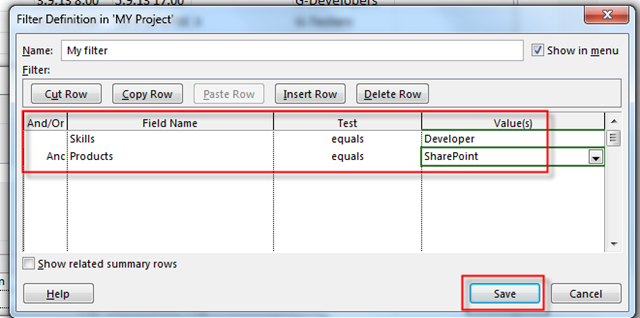
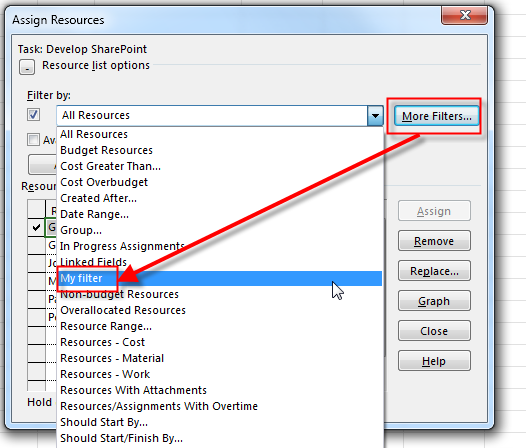
As you can see, I’m going to create new Filer, because I have to filter only those Resources who are Developers for SharePoint:

image

I will now continue with My filter (I’m not going to bother you with pictures), and I’ll get:

image

I want to filter only those Resources who are Developers and they are experts in SharePoint.

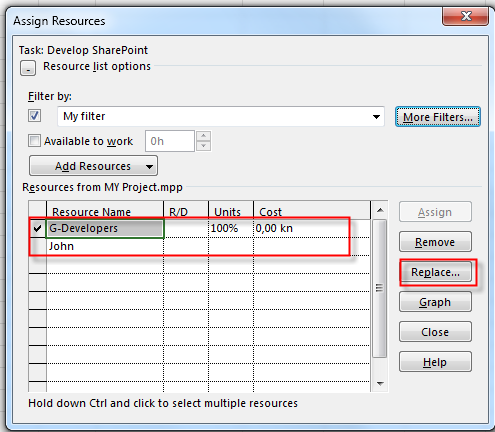
I will apply this filet for my Task:

image

and:

image

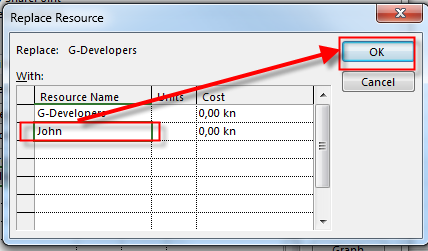
You can see only G-Developers (Generic Resource already assigned to the Task), and John, who is only Developer with SharePoint knowledge. When I click at Replace I’ll get:

image

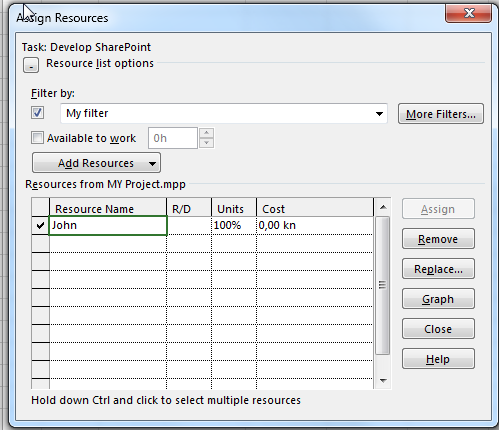
and finally:

image

Now you see only John, because hi is only one Filtered.

Some notice:

  • After you are done, do not forget to Close the Filter (remove the checkmark on the left size on screen above or use All Resources filter)
  • On another Task when you will need another filter (for example, developer for Project), you can create another filter (be careful, if you have a lot of Skills and Product, you will have many filters, and that can be annoying), or modify existing filter (edit it, it is less annoying)
  • Resource Pool is not unlimited. You can have up to 50 Resources
  • If you don’t like that, than Project Server is right Product for you!

Hope this helps at least a little bit!


Regards!

Posted in MICROSOFT PROJECT, Microsoft PRoject 2010, Microsoft Project 2013, Microsoft SharePoint, PMI, PRoject Management | Tagged , , , | Leave a comment

Work without Resources in MS PROJECT 2013! Is it possible?

Hi,

again I have a question from my Blog Reader:

“Can you advise me how to handle a closed task that has a resource assigned, but the resource will eventually spend 0 hours. So it is in fact a 100 % complete task and actual hours are 0. Can this be displayed, keeping the (planned-) ‘work’ hours as planned on, let’s say 4 hours ???”

I’ll show you that in MS PROJECT 2013!

First of all, to repeat the Magic Formula: DURATION * UNITS = WORK

I will create single Task in my Project:

image

Now I will use Work Table:

image

and I will get:

image

As you can see Work = 0 hours! Why? I put 5 days to the Duration field!

Duration * Units = Work –> 5 days (5*8 hours per day) = 40 hours duration. 40 hours duration * 0% Units (because Units are from Resources) = 0 hours of work!

Now I am going to assign John to Task 1:

image

and:

image

Now look at the Work Table:

image

Duration * Units = Work –> 5 days (5*8 hours per day) = 40 hours duration. 40 hours duration * 1000% Units (because Units are from Resources) = 40 hours of work!

I will now save the Baseline, because I want to save my Plan:

image

and I’ll get:

image

Now I will mark Task 1as 100 % finished:

image

and I will get:

image

But, as my Reader asked, what if the Task is finished, but actual work was 0 hours! If I put 0 hours in Actual field it will put the Task 1 back to 0% completed what I do not want:

image

What can I do! Bask to picture:

image

The only thing I can do is to Remove Resource from the Task:

image

Now If I mark Task 1 as 100% finished, and take a look at the Work Table I’ll get:

image

As you can see, Baseline (the Plan) is 40 hours. %Work completed is 100%. Actual hours is 0, because the Task is finished without any Resource! And the Variance is –40 hours because it is calculated as Actual – Baseline = 0 – 40 = –40 hours!

This is the only way to solve this “issue”. Save the Baseline with Resources on the Task, and then Remove Resources from the Task and mark it as completed!

Regards.

Posted in MICROSOFT PROJECT, Microsoft PRoject 2010, Microsoft Project 2013, PMI, PRoject Management | Tagged , , | Leave a comment

The answer my friend is blowing in the wind!!!

Dear Blog Readers,

I have lot of questions, but I am on my Vacation with very restricted mail access! So,  I’ll will start answering next week!

Love you!

Posted in Uncategorized | Leave a comment

How to manage Projects with SharePoint 2013 and MS PROJECT Professional 2013 – Part 2

Hi!

Here is Scenario!

I want to Manage my Project in MS PROJECT PRO 2013! I want to upload an mpp file in SharePoint 2013, and there I want to have all my Project Documents, and I want to track Project Issues!

I have my Site in SharePoint Server 2013:

image

I’ will create one simple Project with three Tasks and Three Resources in MS PROJECT PRO 2013:

image

and:

image

After assigning this Resources to Tasks I will have:

image

I’ll save this file in My Desktop and I will upload it on the SharePoint:

image

and:

image

and Finally:

image

Now I have:

image

If I click on My Project link it will be opened in MS PROJECT!

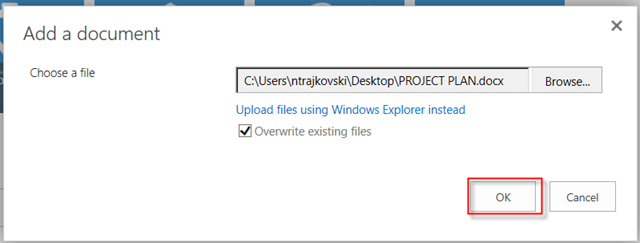
I will add Project plan as well:

image

and I have it here:

image

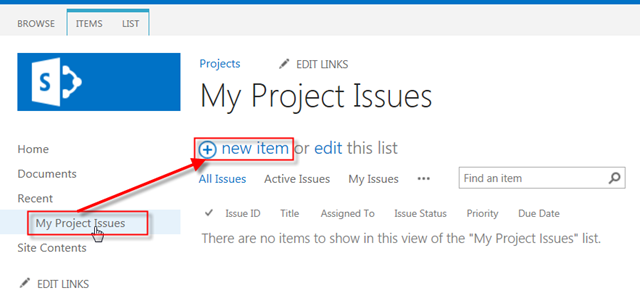
Finally I want to add some Issues for My Project. Remember that issue is not the same thing as a Risk! Risk is something that has probability greater that 0%, and less than 100%! Issue is, on the other hand, something that is 100% fact!

image

and:

image

As you can see, because I’, using Local Resources for My Project, I can’t assign this issue to them!

This is the simplest way of using SharePoint as Repository for your Project files, documents and issues!

Regards!

Posted in MICROSOFT PROJECT, Microsoft PRoject 2010, Microsoft Project 2013, Microsoft SharePoint, MS PROJECT 2010, PMI, PRoject Management | Tagged , , | Leave a comment

How to manage Projects with SharePoint 2013 and MS PROJECT Professional 2013 – Part 1

Hi,

when you will read this post I’ll be at Adriatic coast, enjoying my holidays.

In this post I’ will explain how to manage Projects thru SharePoint 2013, and how to connect them with MS PROJECT 2013! Be aware of this:

  • I will not explain in details how to use SharePoint 2013, because you can find that in many other posts. I have two SharePoint MVP’s gurus, Adis Jugo, and Toni Frankola, so you can ask them
  • Everything what I’ll write is my personal opinion!
  • Whatever I do, I’m doing it with full Administrators permission!
  • I’m not going to talk about any Permission and how to set them up!

The Case! You do not have MS PROJECT SERVER, nor you are going to have it, but you have SharePoint 2013, and you have MS PROJECT Professional 2013!

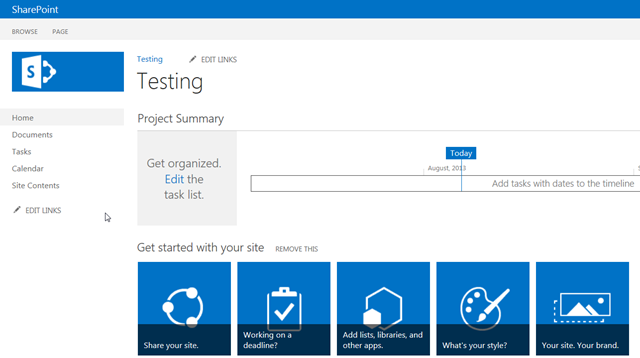
I have my Test site in SharePoint:

image

I already have created Resources, so now I’m going to add some Tasks my Project (by click on Edit the task List on the upper left part of the screen), but first I want to see my Project in Gantt Chart View:

image

and I’ll get:

image

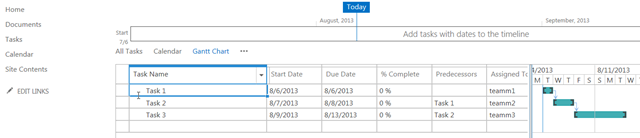
Finally, Tasks, Resources, and Predecessors:

image

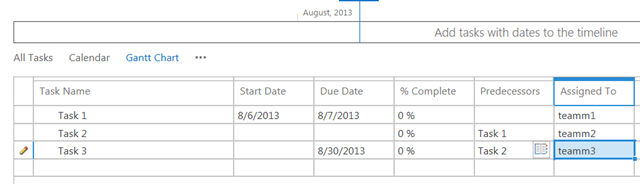
As you can see I have three Tasks:

  • Task 1 has Start and Finish Date
  • Task 2 has no Start and Finish Date
  • Task 3 has only finish Date

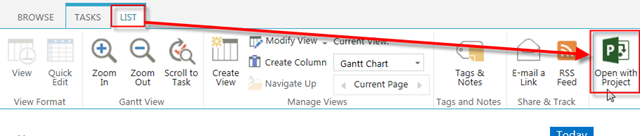
I’m going to open this Project with MS PROJECT 2013:

image

and I’ll get:

image

and:

image

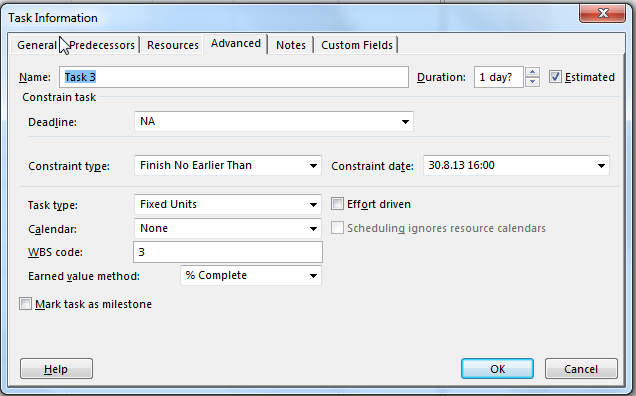
Task 1, and Task 3 have Finish no Earlier Than Constraint:

image

I’m going to rearrange this Project a little bit:

image

All Task has As Soon as Possible Constraint, and I’ve changed durations.

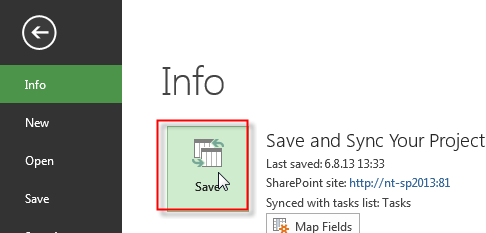
Now I’m going to save this Project back to SharePoint 2013:

image

and I’ll go back to SharePoint:

image

But! What if you do not want to use SharePoint in this way? What if you want to use Sharepoint just to Store your Project Documents, Issues, and mpp file? Read my next Post!


Regards!

Posted in MICROSOFT PROJECT, Microsoft PRoject 2010, Microsoft Project 2013, MS PROJECT 2010, PMI, PRoject Management | Tagged , , | 1 Comment

How to compare Projects in MS PROJECT 2013

Hi,

in may cases you will have more than one Microsoft Project file for the same Project. Usually this is called versioning! And, after some time you will want to know where are the differences between two versions of your Project! I’ll show you how can you do it in MS PROJECT 2013!

First I will create two Versions of one Project.

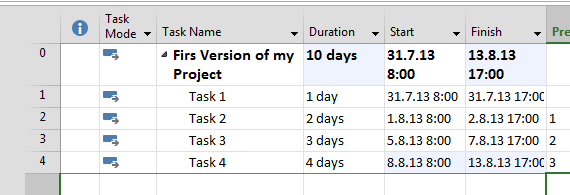
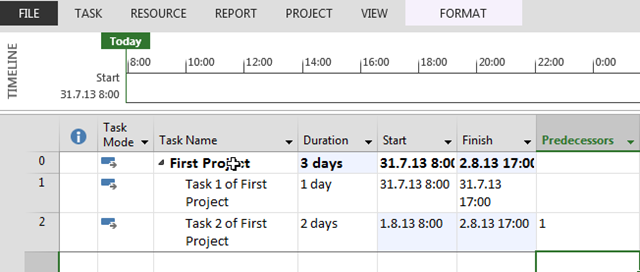
First Version will look like this:

image

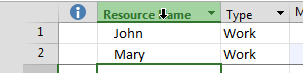
I will also create Resources for this Project:

image

and I will assign them to Tasks:

image

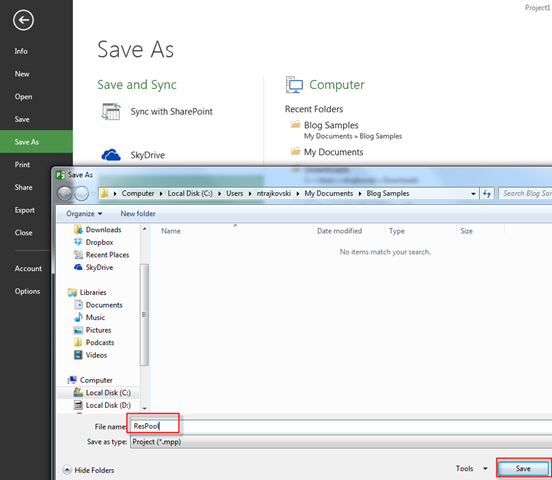
I’ll save this Project as Version 1:

image

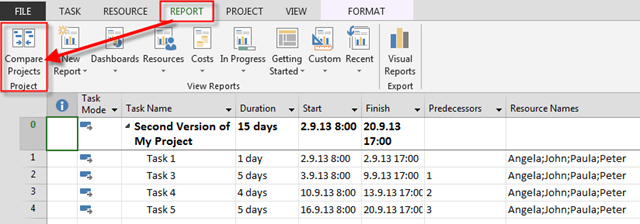
Now suppose that after some time, you find that your Project does not need Task 2 any more, but it needs Task 5! And suppose that Task 3 will have 5 days Duration. And suppose that Mary Left the Company, but Angela join the Team! And, suppose that all your Resources should work on all Tasks! Finally, suppose that your Project will Start at Monday 02.09.2013!

This will look like:

image

I’ll save this Project as Version 2 (don’t expect picture for that :-P)

Now I am going to close and reopen MS PROJECT 2013! And I will open Second Version, and I’ll get the data shown in Picture above! What I want is to compare those Versions:

image

and then:

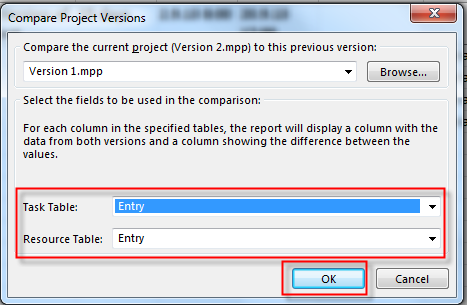
image

and finally, I’ll choose Entry Table (default) for comparison:

image

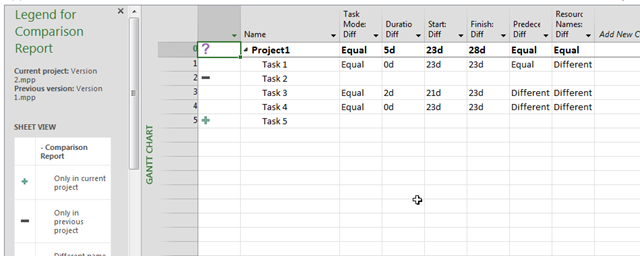
after creating the Report I’ll get:

image

You can see legend on the Left side of the screen:

  • ? Different name in previous version
  • + Only in current project
  • Only in previous project
  • blank Common to both Versions!

You can see on the upper part of the Screen next Columns:

  • Task Mode Current
  • Task Mode Previous
  • Task Mode Differences
  • Duration Current
  • Duration Previous
  • Duration Differences
  • Start Current
  • Start Previous
  • Start Differences
  • Finish Current
  • Finish Previous
  • Finish Differences
  • Predecessor Current
  • Predecessor Previous

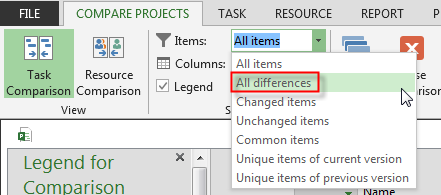
You can choose to see only Items with differences, and Column with differences, as well:

image

and:

image

and you will get:

image

Finally, you can save this Report, as common file! Why should you do that? Well, the Reason is very simple. Each time when you change anything in project file, and you want to compare that file with another, you will get new Report, based on actual data. But if you want to examine differences before you change your project file (differences in the past!), you can save your report, for example like Comparison Report 01082013, then next time like Comparison Report 01092013, etc.

Nice thing isn’t it!?

Posted in MICROSOFT PROJECT, Microsoft PRoject 2010, Microsoft Project 2013, Microsoft Project Server 2010, MS PROJECT 2010, PMI, PRoject Management | Tagged , , | 4 Comments

Resource pool and subprojects in MS PROJECT 2013!

Hi,

again one of my Blog readers has a problem:

“I followed your instructions but I am running into a small issue. While my master project shows all the sub-projects and the attached resource pool in the resources sheet, when I attempt to assign the resource to the task using the pull down menu, none of the resources are showing. Do you know what is causing this and how do I fix it?”

Of course I’ll do it in MS PROJECT PRO 2013!

First I’ll create the Resource Pool and I’ll save it:

image

and:

image

I’m going to crate two Projects, and I’ll connect them with Resource Pool, but I’m not going to assign them to Tasks:

image

and:

image

and finally:

image

I’ll will save that Project as First Project.mpp (I’m not going to show you a picture of that, you know how to do the saving, don’t you?)

I will now create Second Project with Resource pool, like I did for the first Project, and I’m going to save it as Second Project.mpp:

image

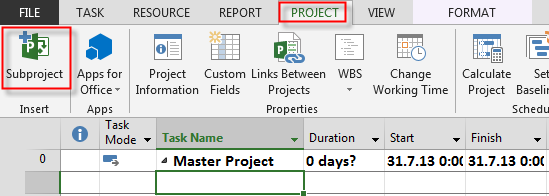
After closing MS PROJECT, and reopen it, I’m going to create Master Project with two Subprojects:

image

and:

image

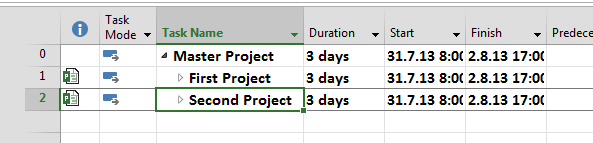
I’ll do the same for my Second Project and I’ll get:

image

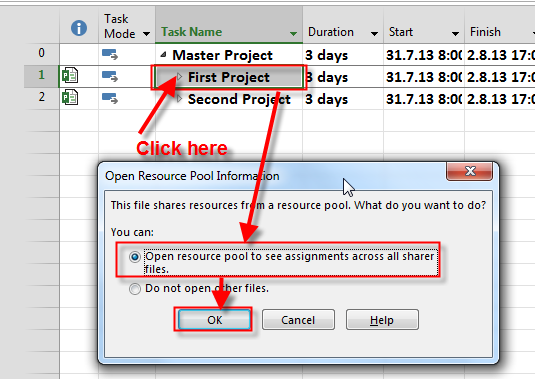
Now suppose that I want to assign Resources to Tasks in some of my Subproject:

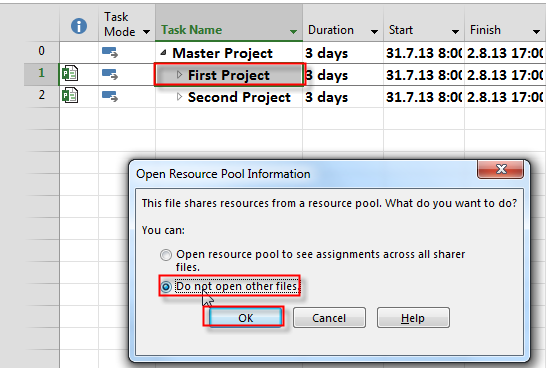
image

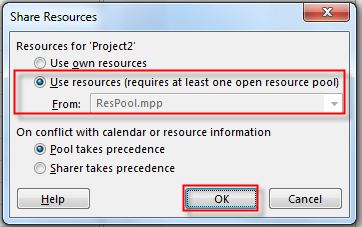
I choose to open resource pool! Now when I try to assign Resources to Tasks in Gantt View, I can do it:

image

What will happen if I don’t want to open the Resource Pool?

image

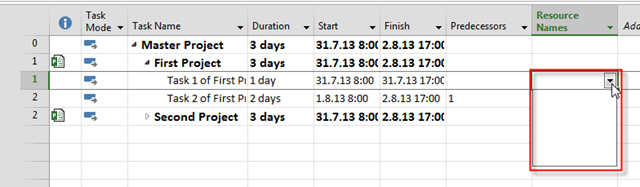
Now if I try to assign Resources to Tasks I’ll get:

image

As you can see, if I don’t open the Resource pool I can not assign them to Tasks. And that perfectly normal behavior of MS PROJECT 2013

Regards,

Posted in MICROSOFT PROJECT, Microsoft PRoject 2010, Microsoft Project 2013, MS PROJECT 2010, PMI, PRoject Management | Tagged , , , , | 12 Comments

Fixed Duration and effort driven Task in MS PROJECT 2013


Hi,

My Blog Reader has a problem: “Just a question. When I assigned a task to Fixed Duration, WITH EFFORT DRIVEN I see that Project has calculated some of the resources to work 50% or 33%. How does that work then? I had a 5 days work, with 4 resources. So after calculating, they still work for 5 days, still with four resources but of course less work. Thing is, I get two of these resources working 100% and one with 50% and the other with 33%! I cannot, for the life of me, work out WHY WOULD PROJECT calculate that when ALL RESOURCES are 100%.”

I’ll show how to manage that in MS PROJECT 2013.

First of all the formula:

DURATION * UNITS = WORK

You should remember this formula for the rest of your life.

Now suppose that you have an effort driven Task with Fixed Duration! What does it mean? It means that no matter how many Resources will work on the Task, it should have fixed, and unchanged duration. On the other hand, effort driven means that if you add another resource to the Task, all Resources should work less hours.

First I’ll crate a brand new Task:

image

and I’ll make that Task Fixed Duration – Effort Driven:
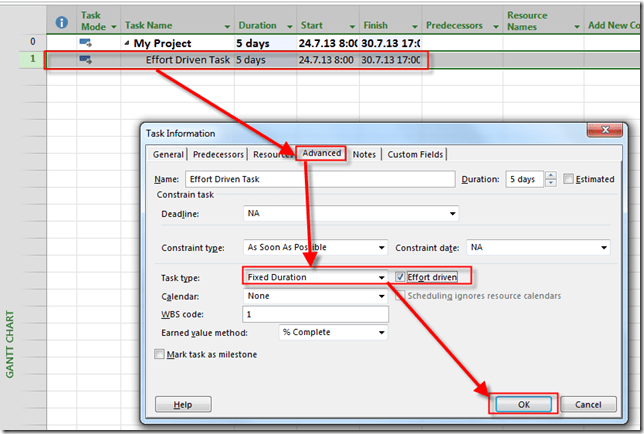
image

Now, let’s say that on that Project I have four Resources:
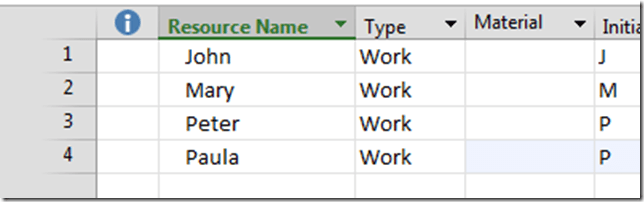
image

For explanation I will use Task Usage View, and I’ll add Peak Field in this View:

image

I’ll also use Detail View:

image

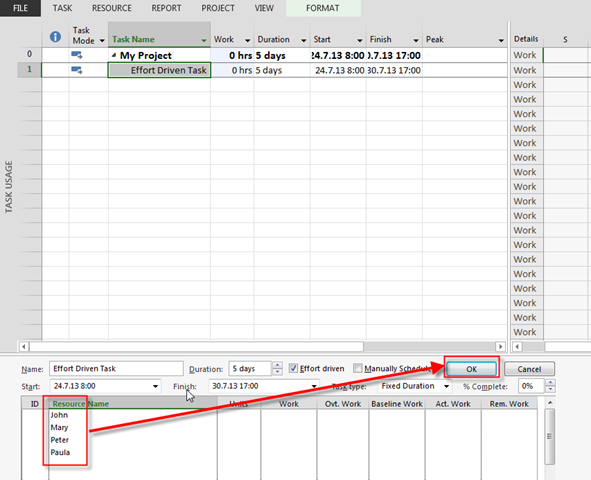
Finally I’ll click on the lower part on the Screen, and I’ll go to the Format Tab:

image

OK! Setup is done!

For my First Example I’ll add all Resources (four of them) AT ONCE)!

image

after I click at OK button I’ll get:

image

Let’s go back to the formula. Because I’d added all resources at once, MS PROJECT interprets that like: All four resources must work full time!.

So Duration = 5 days, Units = 100%, and Work = 5 days (5 days * 8 hours) * 100% = 40 hours per Resource!

As you can see, peak Units and Unit are 100%!

Now I am going to delete those resources and then I’ll do next:

  1. Add John and Click OK button
  2. Add Mary and Click OK button
  3. Add Peter and Click OK button
  4. Add Paula and Click OK button

I’ll get:
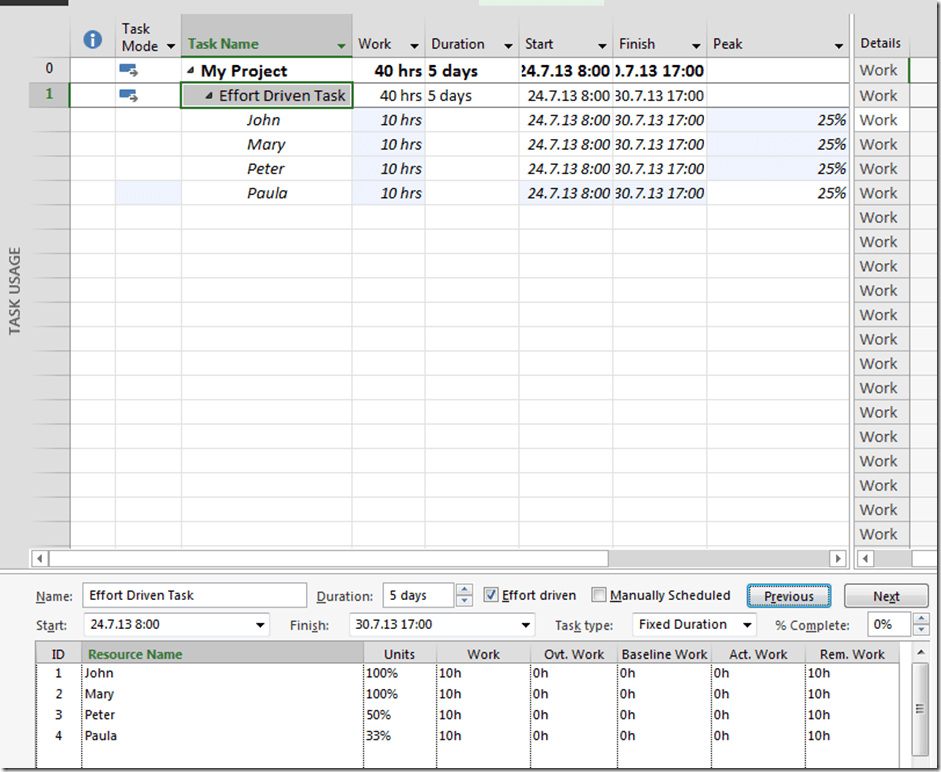
image

When I add Resources (Mary, after John, Peter after Mary, and Paula after Peter), MS PROJECT works like: You need another resource to finish that Tasks, so because the Task is effort driven, other resource will work less hours per day.

First I added John. Formula was:

Duration = 5 days, Units = 100%, and Work = 5 days (5 days * 8 hours) * 100% = 40 hours for John! And for the Task to complete, 40 hours are enough!

After that I added other Resources, and MS PROJECT says: OK, John will split his work with others. So this 40 hours will be split between John, Mary; Peter, and Paula!

Now look, at the Peak field, not at Units field. Every Resource will work 25% of available time per day:

Duration = 5 days, Peak Units = 25%, and Work = 5 days (5 days * 8 hours) * 25% = 10 hours for John, Mary, Peter and Paula!

You can see this in the Task Usage View:

image

To conclude, always look at the Peak field.

Hope this helps!


Regards!

Posted in MICROSOFT PROJECT, Microsoft PRoject 2010, Microsoft Project 2013, PMI, PRoject Management | Tagged , , , | 14 Comments