Effort without specific Tasks in Projects using Microsoft Project 2016!

Hi,

often I have a question like this: “How to assign Work to someone when that work is not to be linked with any specific Task?”. I will show you how with MS PROJECT 2016!

But first I have to explain the scenario. Is it possible to have work for someone, and that work IS NOT linked to specific Task? The answer is – YES! For example, let’s say that you are Project manager. And, for this scenario I WILL NOT consider regular meeting, which are covered with recurring Tasks.

As a project manager you can have little work. For example, when you are finished with planning, you monitor and control the execution of the Project, and since everything goes perfect, at the end of the Project, you will close it. So, you as a Project manager has a regular work, and you can assign that work to tasks like Planning, Reporting Closing. And this is scenario is fairy tale! Project, always ha a problems. And guess what! you can not plan when will it occur. You cam mitigate Risks o avoid them using proper Risk manager, but problems will almost always occur. So you must plan some hours for solving them. for example you will have to go to meeting with the Customer to find out where are the problems, you will how to figure out with your team, how to solve it, you will have some reports to write and so on. On the other hand, beside the problem, you will have to do some administrative work, which are not regular, ant there is no easy way to determine when will you have to do that work.

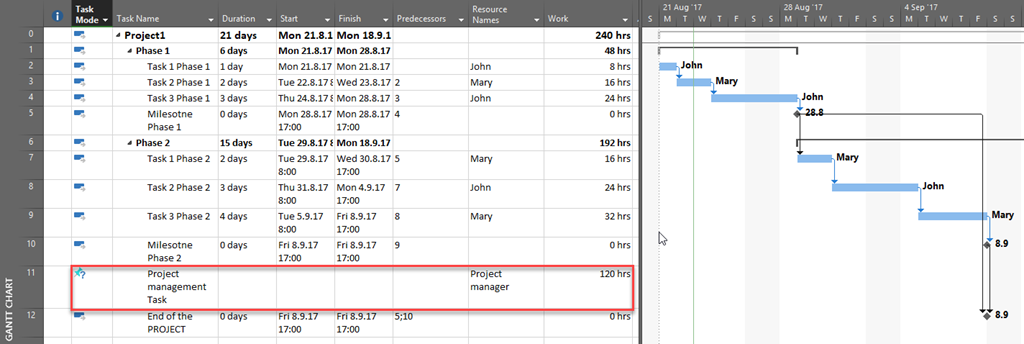
So, for those situations you will have to plan some hours. And since you do not know when will you do the work, you will use Manually scheduled tasks: Your Project might looks like this:
image

As you can see, I put 120 hours to Project Management Task, and I assigned Project manager to it, but I left Duration, and Start Date and End Date empty, because I do not know when this work will be performed.

this Task is in relation to End of the Project Task, because due to best practice not a single task in a Project should be an orphan.

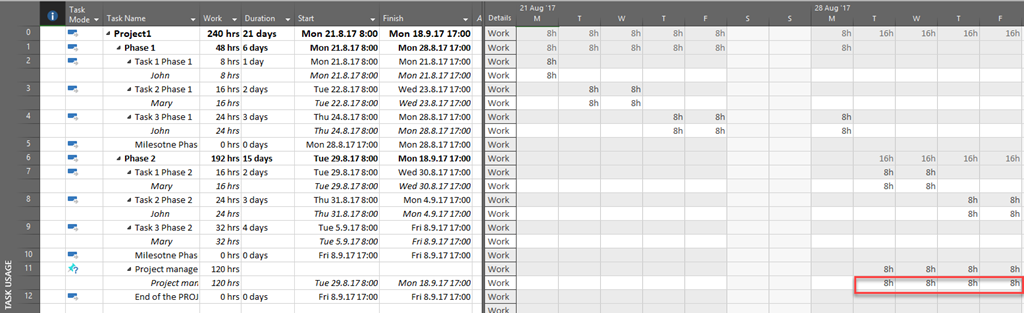
Let’s see Task Usage View:
image

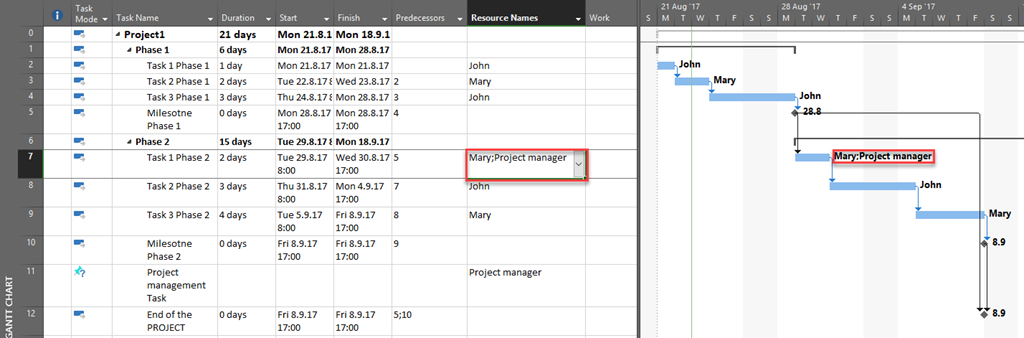
As you can see work is spread along some dates, but this  not important, since those hours are Planned! And one important thing. If I assign, for example, Project manager to Task 1 Phase 2 I will get:
image

Let’ s see Resource Usage View:

image

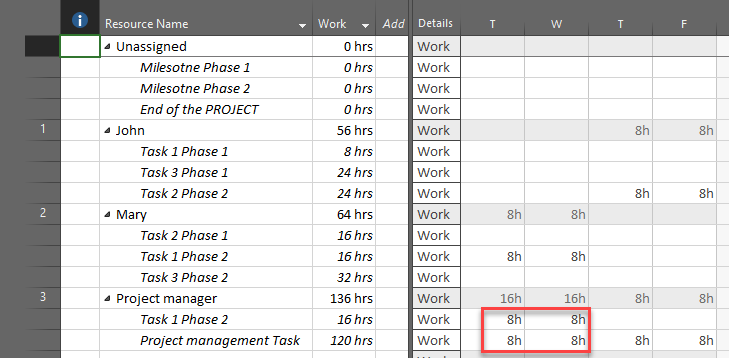
At Monday and Tuesday Project manger is supposed to work 16 hour per day, but he is not shown as over allocated, because Project management Task is Manually Scheduled. And this is correct. We do not have exact Start date and End date, so this resource should not be over allocated.

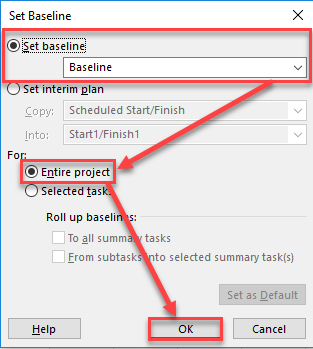
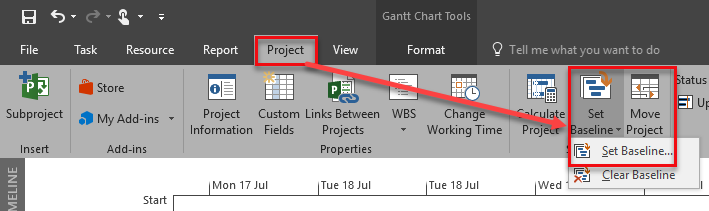
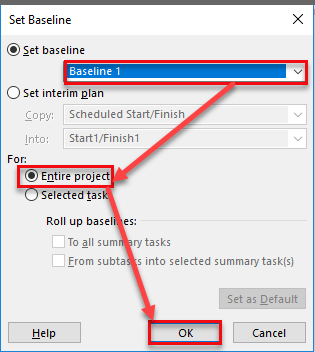
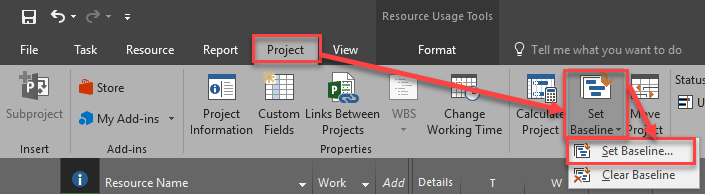
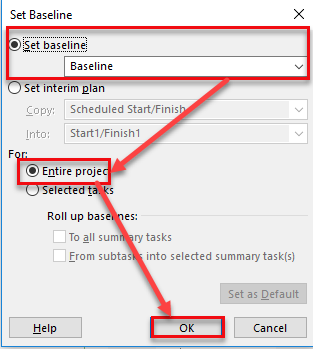
Now we can save the Baseline:
image

and:

image

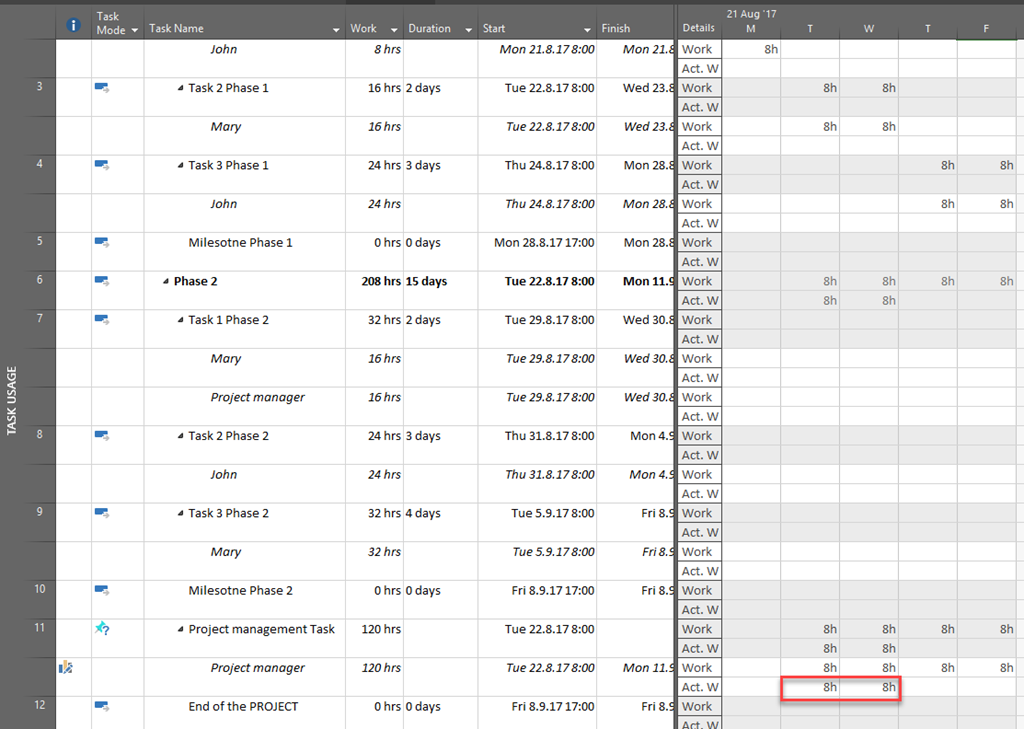
Now, let’s say that Project manager has worked 4 hours on the Project management Task at 22.08.2017 and 23.08.2017. you can put those hours on actual work in Task Usage View:
image

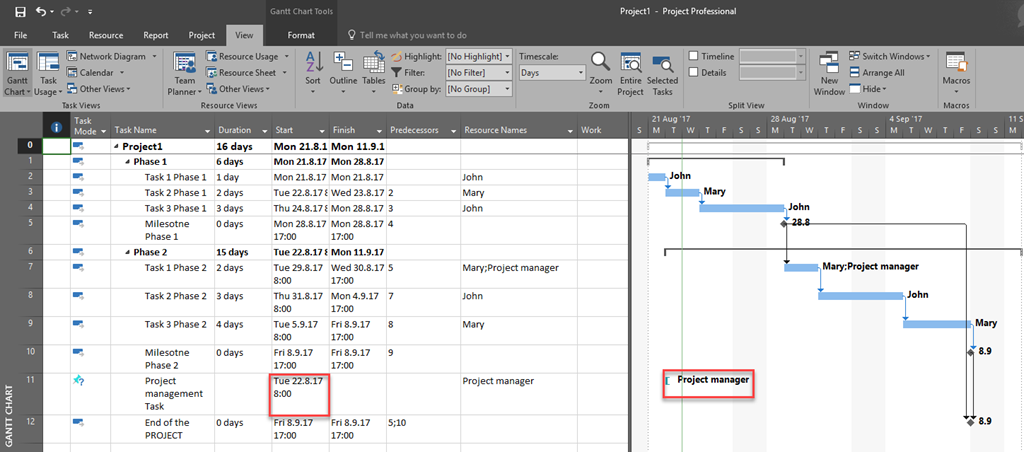
Now in Gant Chart View, you will get:
image

and It does make a sense.

So, this is on way of using resources and their efforts on non specific Task assigned.

Regards!
Posted in Microsoft Project 2013, Micsrosoft Project 2016, MS PROJECT 2010, MS PROJECT 2016, PMI, PRoject Management | Tagged , , , , | Leave a comment

Over allocation not shown in MS PROJECT 2016 with Windows 10–Bug or not?

Hi,

My blog reader has a problem. He explained it step by step, and I will answer at it in the same way.

Project in certain instances doesn’t flag  over allocated resources.
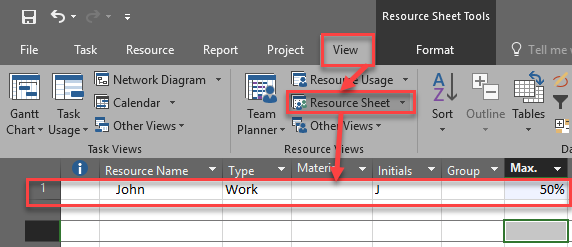
For example, I created a resource John and assigned him to the project at 50% (Max Units):

image

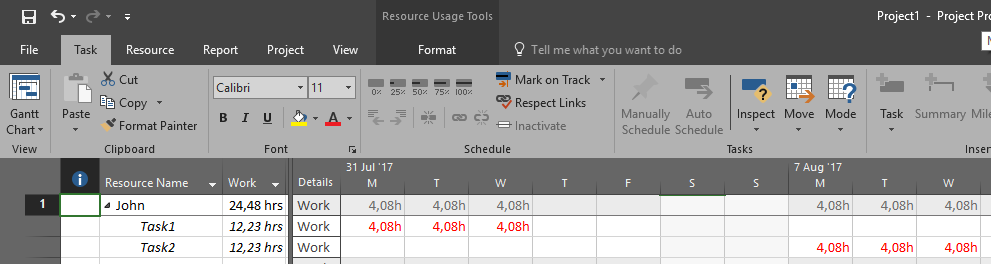
Then I assigned this resource to a task at 51% that exceeds its max units of 50%. In this case Project was supposed to flag John as over allocated resource, but it did not do that. The only place where Project show over allocation is in in the time phased portion of the  Resource Usage view:

image

image

image

Is it a BUG? No! Is it an over allocation? It depends.

In this particular case, this is not over allocation because of setup:

image

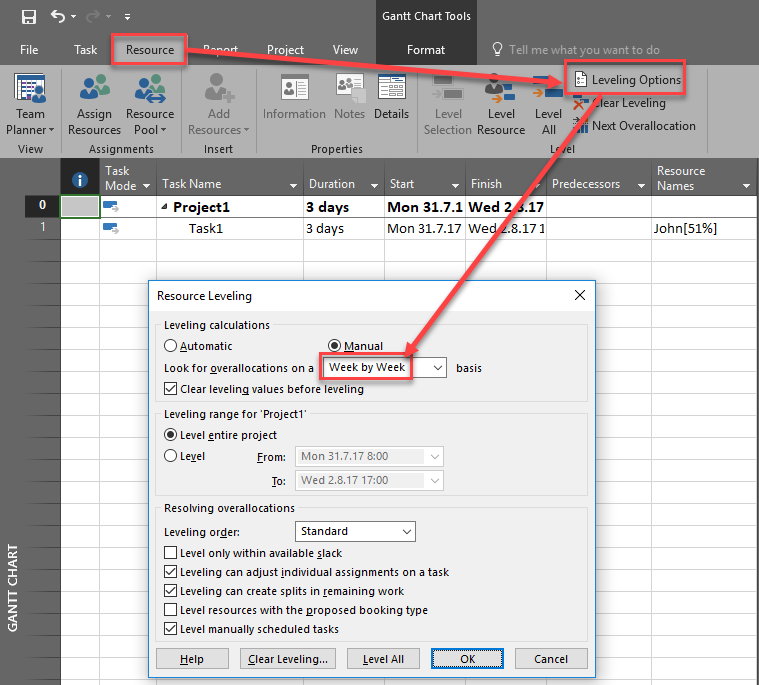
John is assigned to the Task with 51%. It means that he will work 51% of 8 hours = 4,08 hour per day, and he is supposed to work 4 hours per day MAX, because of his 50% availability. So yes, John is over allocated per day (as you can see in Resource Usage View), but since Levelling Options is setup to Week by Week (or maybe Month by Month) generally John is not over allocated. WHY? Because John should work max. 20 hours per week (5 days * 8 hours per day * 50% = 20 hours). Task1 has 3 days duration, and John is assigned with 51% which means that he will work 3 * 4,08 = 12,24 hours in particular week, which is less than 20 hours, so he is NOT over allocated. If I put Day by Day in field mentioned above I will get:

image

Now John IS over allocated because he is supposed to work no more than 4 hours per day (no matter how many hours he will spend in one week).

When I assign John at his Max. Units  (50%) or less to both tasks Task 1 and Tasks 2  that have  FS relationship, Project behaves as expected as no over allocation for John is detected.

image

But when I assign John to both tasks as above, but at any capacity  higher than his Max. Units, e.g. at 51%, Project marks John as over allocated although he is not as the tasks don’t run concurrently.

image

image

Again, since overallociation is set up to Week by Week, now John IS over allocated. Why? He is supposed to work 4,08 the whole week, which means he is supposed to work 5 * 4,08 = 20,4 hours in this particular week, but his maximum capacity is 20 hours per week.

On the other hand when I add a lag to Task 1,  Project behaves as expected and doesn’t show over allocation with the strange exception  in the time phased portion of the Resource Usage View where the work is displayed in red as being over allocated:

image

image

Again, everything works perfect. Since overallociation is set up to Week by Week, now John IS NOT over allocated. Why? He is supposed to work 4,08 for 3 days in a week (because of Lag) , which means he is supposed to work 3 * 4,08 = 12,24 hours in this particular week, but his maximum capacity is 20 hours, and 12,24 is less than 20 hours, so John is NOT over allocated. But he is over allocated in a single day, which is shown in Resource Usage View.

To conclude, before you want to deal with over allocation, be aware that you set it up in a right way (Day by day, Month by Month and so on).

Regards

Posted in MICROSOFT PROJECT, MS PROJECT 2016, PMI, PRoject Management | Tagged , , | 1 Comment

Multiple relationships between Tasks – using dummy Task in MS PROJECT 2016

Hi, my last post Multiple relationships between Tasks–is this possible?, caused a lot of reactions. all of them are about using dummy Task. Here is one of them:

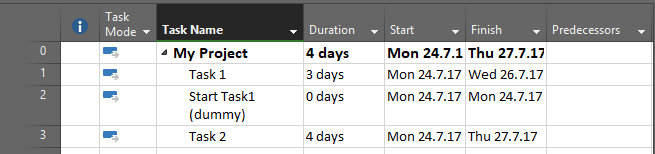
“Insert a dummy milestone to carry part of the logic between the two tasks. I.e. “Task1” > SS > “Start Task1” (the dummy milestone) > SS+1 > Task2. And “Task1” > FF > “Task2.”

OK! Let’s do it with Microsoft Project 2016:

image

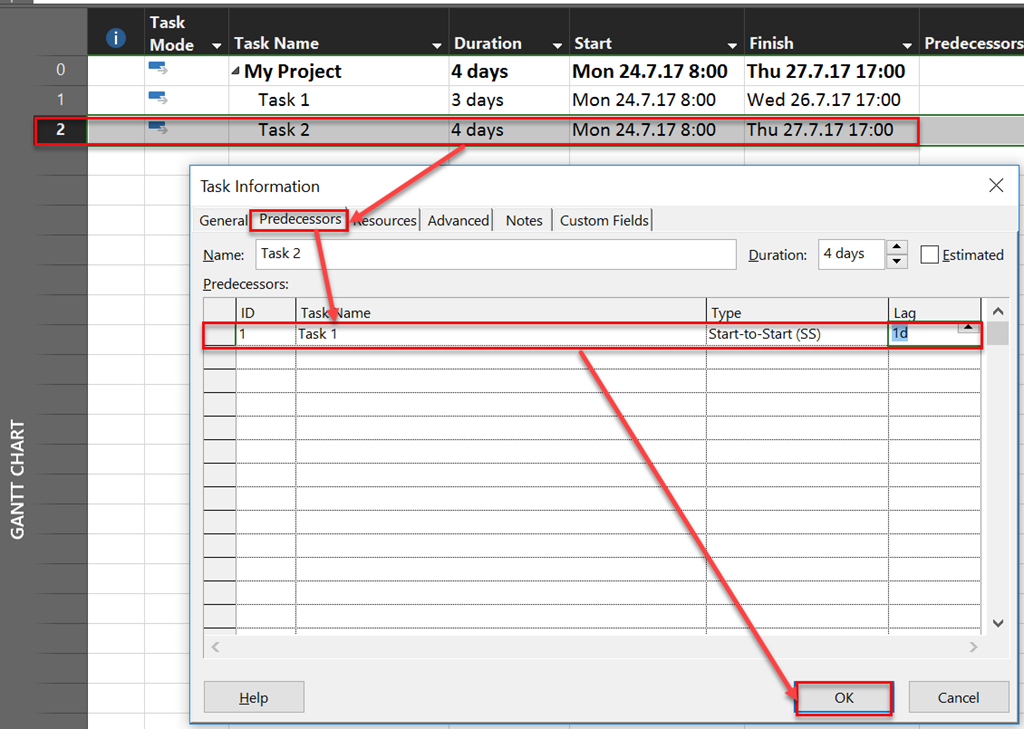
First, I will create Start to Start relationship between Task 1 and Dummy Task:

image

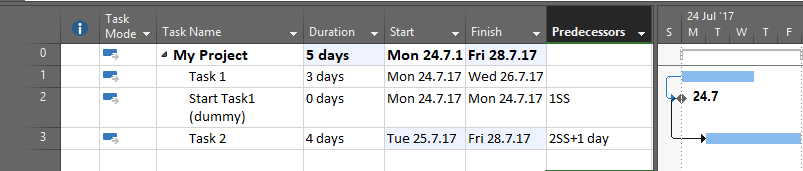
Now, I will create Start to Start relationship between Task 2 and Dummy Task, with 1 day lag:

image

as you can see, Task 2 will start 1 day after Task 1 will start.

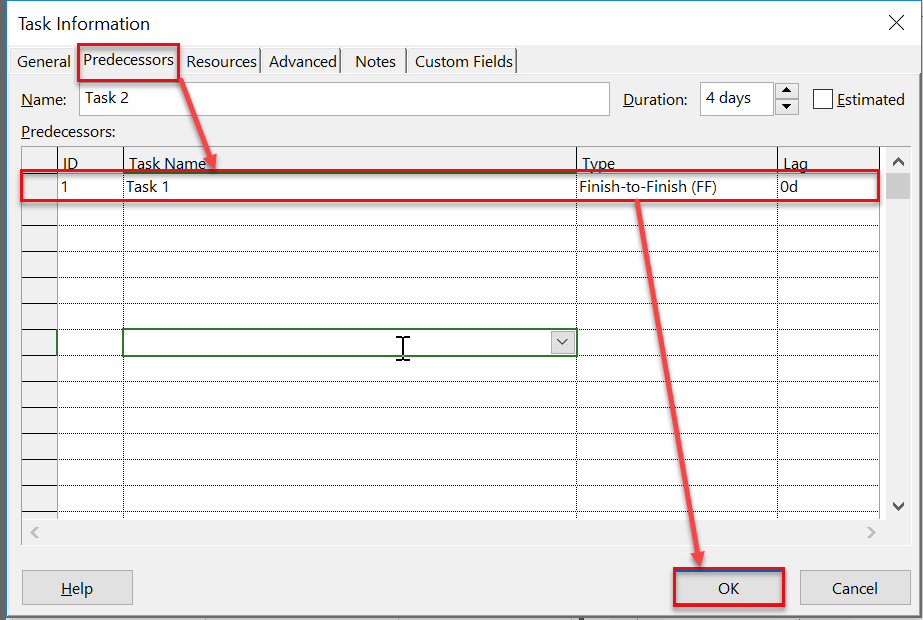
Finally, I will create Finish to Finish relationship between Task 2 and Task 1:

image

Yeah! I’ve got what I wanted! Wait! Do I?.

Let’s say that for some reason Task 1 Should start at 31.07.2017. I will put it in Start Date field, and I will create Start no Earlier than constraint:

image

Everything looks perfect. Task 2 is still going to start one day after Task 1 will start. Now suppose that Task 1 for some reason will have 10 days duration.

image

as you can see, Task 2 will finish when Task 1 is to be finished, but it will not start one day after Task 1 is supposed to start.

So, once again, you CAN NOT have more than one relationship between two Tasks! Smile

Regards!

Posted in MICROSOFT PROJECT, MS PROJECT 2016, PMI, PRoject Management | Tagged , | 2 Comments

Multiple relationships between Tasks–is this possible?

Hi,

I have a great question form one of my Blog readers:
“Hi Nenad,
thanks for your time and experience. I have a question:
I have to tasks 1 and 2.
Task 2 starts with 1 day of delay of the start of task 2 (Start Start +1 day).
But task 2 cant finish until task 1 is finished.
How can I do that?”

I will show you that you can not do that in this way with MS PROJECT 2016!

First I will create a brand new Project with two Tasks:
image
Now I have to decide, because there is only one dependencies type that can be establish between two Tasks. In this example it has to be Start to Start with delay of 1 day, like this:

image

an I will get:

image

In this case, no matter when the Task 1 will be started, MS PROJECT will automatically move Task 2 to start 1 day after Start Date of Task 1.

But no matter when Task 1 will be finished Task 2 will not depend of that Finish date. To do that (make that Task 1, and Task 2 finish at the same date), I have to establish Finish to Finish dependencies:

image

and I will get:

image

In this case, no matter when the Task 2 will be finished, MS PROJECT will automatically move Task 2 to finish at the same date as Task 1.

But now I do not have Start Date set for Task 2 one day after Task 1 will be started. Of course I can manually adjust Start Date for Task 2 (and then make Start no Earlier Than constraint for Task 2), like this:

image

It looks perfect, but it is not. If I, for example, for same case move Task 1 to start at Wednesday, 26.7.2017:

image

and:

image

I will get:

image

Now, I have Start no Earlier Than constraint for Task 1, and the Start Date is Wednesday, 28.07.2017, so Task 2 will start 1 day before Task 1, and not after.

To conclude, you can choose only one dependencies type between Tasks, and then take care manually for the rest , but be aware that in large projects with many Tasks, and multiple dependencies (when one task has multiple predecessors or/and successors) it can be very complicated and you can easily make a mistake which is lately hard to find.

Regards!
Posted in MICROSOFT PROJECT, Microsoft Project 2013, Micsrosoft Project 2016, MS PROJECT 2016 | Tagged , | 4 Comments

How to show different Baseline in Gantt Chart–MS PROJECT 2016

Hi,

I’ve got a question about MS PROJECT 2016:
“Dear Nenad,
How we can have a new baseline (adding task or resource and delete task or resource) and how viewing that new baseline on the Gantt Chart.”

I will show you how to da this Step-by-Step.

1. First I will create a brand new Project:

image

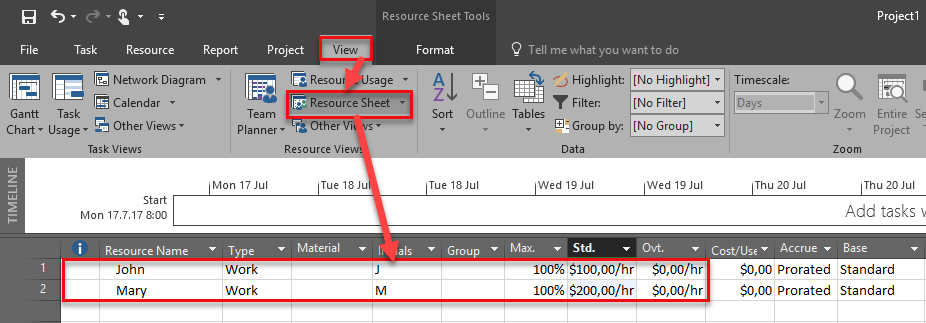
2. I will have Two Resources on the Project – John and Mary:

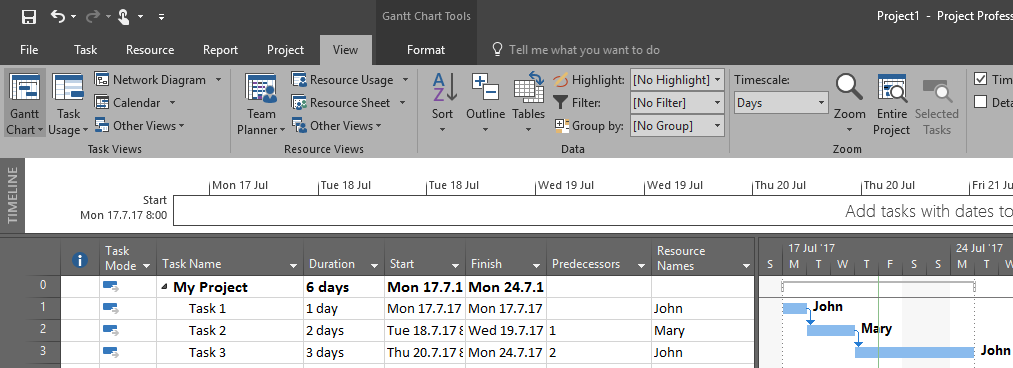
image

3. I will assign Resources to those Tasks:

image

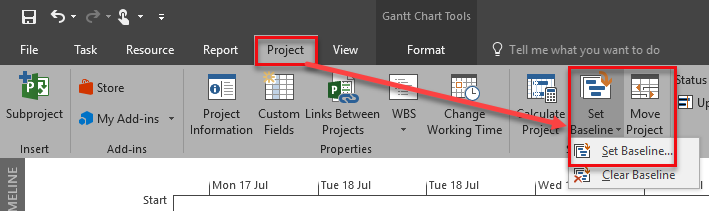
4. I will save the Baseline:

image

and:

image

5.  To see Actual Schedule and Baseline Schedule I will use Tracking Gantt View (and you should as well, because this View is justofor that):

image

Red Bar shows Actual Schedule and Grey Bar shows Baseline Schedule (it is static or frozen)

6. Suppose that Project Plan has changed and I do not need Task 2 no more, but I need Task 4 = 4 days Duration with Task 3 as Predecessor, and Mary will work on that Task (I will show that on regular Gant Chart):

image

On the Tracking Gantt it looks like:

image

7. As you can see it looks like a mess. Since this is our new Project Plan we will save it as a separate baseline:

image

and:

image

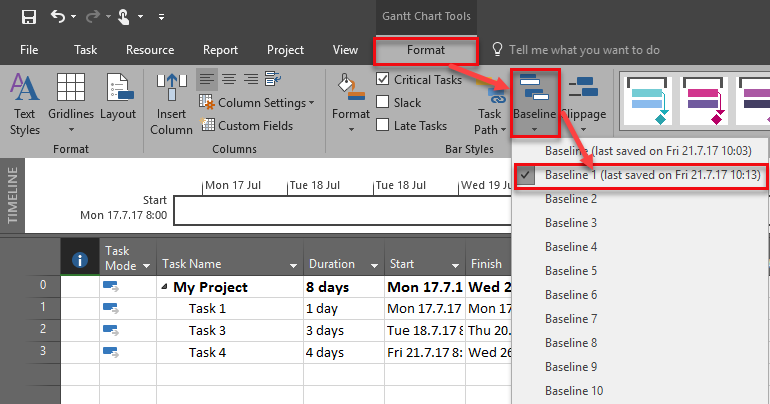
8. Finally I will show this new Baseline (Baseline1) in Tracking Gantt View):

image

Finally I will get:

image

I hope this helps.

Regards!
Posted in MICROSOFT PROJECT, Micsrosoft Project 2016, MS PROJECT 2016, PMI, PRoject Management | Tagged , , | 3 Comments

Task Calendar and Resources – how they fit together in MS PRIJECT 2016?

Hi,

I had a lot of question about the Topic I will write about today. Basically it is about relations between Resource (with no Calendar, or, to be more precise, which has Standard Calendar assigned), and specific Task with Specific Calendar working time.

I will explain this with MS PROJECT 2016 with Very simple Project, which has only one Task, and only one Resource.

image

Task has 1 day Duration. Suppose, that for some reason work on Task can be done only from 08:30 to 13:30, and from 14:30 to 17:30 (let’s say for security reasons), and this will apply only for this Task.

First, I will create separate Calendar:

image

and:

image

OK! Now I will assign Task Calendar to the Task:

image

and I will get:

image

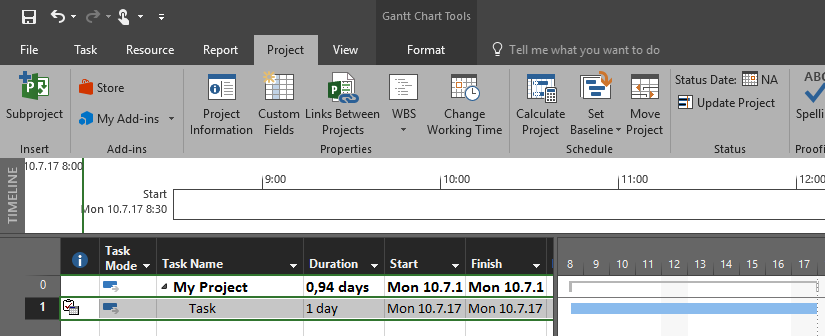
As you can see, duration for the Task is 1 day, but for the Project is 0,94 days (and the Project has only one Task).

As you can see on the right side of the screen Task will be worked on from 08:30 to 17:00.

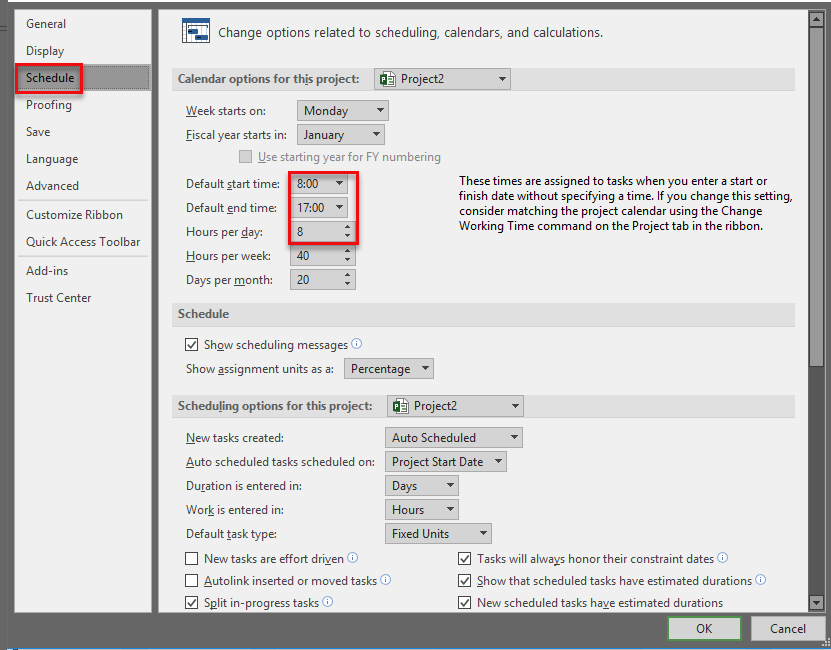
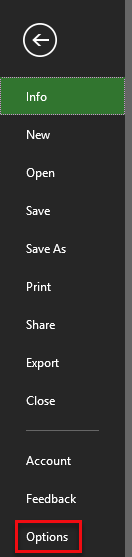
How to explain this? first, if you choose File->Options->Schedule you will notice this:

image

In  Task Calendar work can start at 08:30, so it will start at that time. On the Task Calendar, work can end at 17:30, but because the Schedule (see screenshot above) says that end time is at 17:00, the work will end at that time. So, the Task will be worked on from 08:30 to 17:00 with on hour break  from 13:30 to 14:30 (according to the Task Calendar9, and that is 7,5 hours of total work. But, because on Schedule Option it says that it is 8 hours per day, duration for the Project is calculated as 7,5 / 8 = 0,94.

Now I will assign Resource – John to the Task. he has no specific calendar, so he is supposed to work from 08:00 to 12:00 and from 13:00 to 17:00. When I assign him, I will get this (I will show you on the Task Usage View):

  • Monday, 10.07.2017:

image

  • Tuesday, 11.07.2017:

image

I will explain this result, step by step:

  1. Task Duration is 1 day, and this is 8 hours of work to be done on it (see 3 pictures above)
  2. John can work from 08:00 to 12:00 and from 13:00 to 17:00
  3. Task Calendar says that on Task work can be done from 08:30 to 13:30 and from 14:30 to 17:30
  4. According to that, John will start to work at 08:30 (because of Task Calendar) and he will work to 12:00 (because of his Calendar), and this is 3,5 hours. He will continue at 13:00 (because of his Calendar) and he will work to 13:30 (because of Task Calendar) and this is 0,5 hours. Then he will continue at 14:30 (because of Task Calendar), and he will work to 17:00 (because of his Calendar) and this is 2,5 hours. So he will work 3,5+0,5+2,5= 6,5 hours at Monday. At Tuesday John has to work remaining 1,5 hours and he will start to work at 08:30 (because of Task Calendar) and he will work to 10:00.
  5. Duration for the Project says that it is 1,19 days. It is confused. Why? Because you will think that the calculation should be 6,5 hours on Monday /8 hours per day (in Schedule options) + 1,5 hours on Monday /8 hours per day (in Schedule options) = 1. But MS PROJECT calculates it like: Monday = 1 day because it was worked on it the whole day (whenever it was possible to work!). On Tuesday it was worked 1,5 hours of 8 available, so it is 1,5/8 = 0,19. Do the Total duration is 1 (Monday) + 0,19 (Tuesday) = 1,19 days

To conclude, it can be confusing, but you should get use to it.

Regards!
Posted in MICROSOFT PROJECT, Microsoft Project 2013, MS PROJECT 2016, PMI, PRoject Management | Tagged , , | Leave a comment

Scheduled Start and Scheduled Finish fields in MS PROJECT 2016

Hi,

today I will explain two fields, not so often used in MS PROJECT 2016: Scheduled Start and Scheduled Finish. First I will create one simple Project with three Tasks, connected like this:

image

As you can see Scheduled Start is equal to Start field, and Scheduled Finish is equal to Finish field. and this is always true as long as Task is in auto scheduled mode. BUT! I wil schange, for example Task 2 from Auto to Manual scheduled mode:

image

As you can see, nothing has changed. But, let’s say that I do not know, Start and Finish date for this Task, And I will put TBD in those fields:

image

So, even I do not actually know when my task is about to begin  (maybe because I do not know who will work on it, when those Resources will be available), I still have Scheduled values based on the known data  8which is Duration in my Example).

Good to know that, and very useful fields.

Regards

Posted in MICROSOFT PROJECT, MS PROJECT 2016, PMI, PRoject Management | Tagged , , | Leave a comment

How to show duration in different units for the same Task in MS PROJECT 2016

Hi,

today I’m going to show you ProjDurConv function which is very useful in MS PROJECT 2016.

Here is the Scenario. Suppose that I have a simple Project with one Task, and it’s Duration is 5 days:

image

I want to see Duration in hours as well. So, in my example I should see 40 hours because my Project is set up like:

image

and:

image

and:

image

So 5 days are 5 * 8 = 40 hours.

To show this 40 hours I will use custom field with ProjDurConv function (follow this example step by step):

image

then:

image

then:

image

then:

image

So, MS Project will convert duration from Days  (which is in Duration field), to hours (mention in pjHours).

Now I will show this column in My Gantt Chart:

SNAGHTMLf58948d

Now you can see for one Task, Durations in two different Units of Measures.

I will now Define two resources, John and Mary:

SNAGHTMLf5a4114

Now I will assign John and Mary to the Task (notice That john will be assigned with 50% Units):

SNAGHTMLf5bcf46

As you can see in Work column (which I put in the Gant Chart View), it is 60 Hours (5 days * 8 hours per day for Mary = 40 hours + 5 days * 4 hours per day for John = 20 hours in Total = 60 hours).

OK! Finally I want to see Duration in days but according to work (I want to see how many man days will I spend to this Task). In this case I will use third Custom filed called Man Days:

image

So, MS Project will convert Work from Hours  (which is in Work field), to Days (mention in pjDays).

Finally I will but this custom field on the Gantt Chart:

image

As you can see, in Man Days I’ve got 7,5 days (60 hours of total work / 8 hours per day shown in Hours per Day = 7,5 days).

As you can see ProjDurConv is powerful Function and I use it a lot.

Regards!
Posted in Micsrosoft Project 2016, MS PROJECT 2016, PMI, PRoject Management | Tagged , | Leave a comment

Multiple Costs types for Resource in a same Task

Hi,

I have very interesting question from on of my Blog readers:

“I have a problem with MS Project: I don’t know how to manage 2 type of cost for 1 person, I mean, I have 1 employee with 100USD cost per hour but I need to give him 200USD more each day of work for food. I can manage 100 USD/hour, but I don’t know how to manage 200USD/day in a new column or something?”

I will explain this problem in MS PROJECT 2016. First, as I always do, I will create a new Project with only one Task:

image

and I will create one Resource, John:

image

As you can see, I can put $100 per hour for John, and it means that each and every hour he will spend on a Task, it will be multiplied with $100. But, I can not add another cost for same Resource, for example $200/day, and to apply both of them to the same Tasks.

To make this possible, you can write a Macro, but if you are not familiar with that you can have another Resource with, for example John-food with $200/day. But, then you can’t see all costs for John.

With the custom field you will have no help. Because Custom field is for Task, or for Resource. And, if you create Custom field for Resources (for example: Food Cost), you will not be able to have total cost for the Task, because you have to create Task custom field which have to multiply duration of the Tasks with all Resources custom fields for all resource assigned, and this is not possible.

Where is the solution? There is no easy one. you should do manual calculation for each resource for each Task and assign it to the Fixed Cost. For example, if you know that Task will have 3 days duration, and John and Mary will work on it, and you wish to give them $200 /day, than in a Fixed Cost field you should put: $200 * 3 days * 2 (John + Mary) = $1200:

image

And, yes, this is not a very good solution, because you should track if Duration is changed (for example, from 3 to 5 days), and/or if you add or remove additional resource to the Task.

Final solution is to Calculate cost for food for resource per hour. For example it can be $25 /hour instead $200 per day. But, in that case, for example, John+s food cost is $200 if he will work 8 hours, but if he will work 10 hours it will be $250.

I know this wasn’t so much helpful, but it has to be clarified.

Regards

Posted in MICROSOFT PROJECT, MS PROJECT 2016, PMI, PRoject Management | Tagged , | Leave a comment

New way of choosing Predecessors and Successors in MS PROJECT 2016

Hi,

If you work with the latest version of MS PROJECT 2016, and you have update it regular you will notice one great improvement in Predecessor field.

Let me show you that. First I will create brand new Project with two Phases:

image

Before improvement, in the Predecessors field we we able to put the Task number. If you have a lot of Tasks you will not see them all in one screen, and that is what usually is the fact. And, as you can see in my example above, there are times when you have more than one Task in your Project with the same name. So, it was easy to put wrong Predecessor for the Task, which made a lot of trouble. Now, there is a new way to put Predecessor.

 image

Now, you can actually choose which Task (or Tasks) are predecessors of the current Task. So, Task for which you are going to choose Predecessors is bold, and all to all other Task you can put checkmark to choose them. So it is now much harder to make a mistake. 

And what about Successors? Same thing! Let’s suppose that I have Project like this:

image

Now I will add the Predecessors Column and you will see that I can choose it in the same way like I can choose Predecessors:

image

Do you see this little minus sign beside each Summary Task (in my case Phase 1 and Phase 2)? If you click on this sign you can hide all subtasks for this Summary Task (of course, if you don’t need them for predecessors or successor), and you will see only Tasks which you want to see, below Summary Tasks that you didn’t hide:

image

To conclude, great, GREAT improvement.

Regards!

Posted in MICROSOFT PROJECT, MS PROJECT 2016, PMI, PRoject Management | Tagged , , | 1 Comment