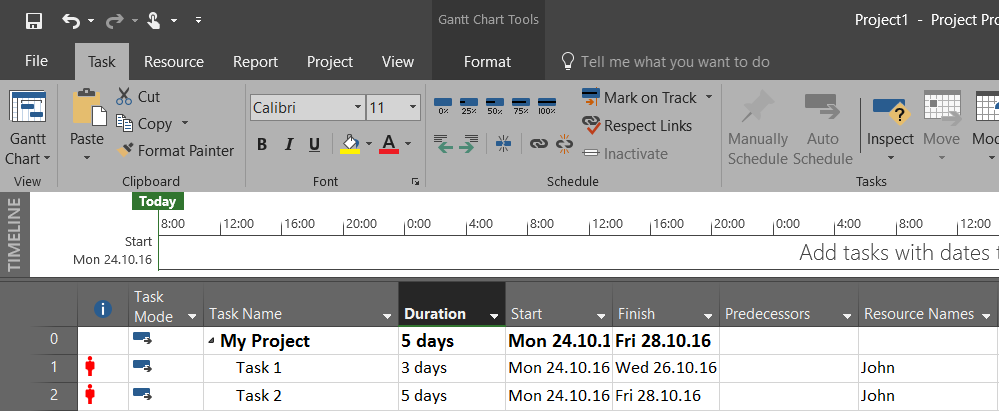
Milestone with “Finish not later than” constraint and Float Ii n MS PROJECT 2016!

Hi guys,

I have another great question from one of my Blog readers:

“Hi Nenad,

I have another question for you.Suppose you have a task with start date, for example, 7 Nov and 5d duration. Its successor is a finish milestone with constraint ” finish not later than” 18 Nov.

Now I expect to have a float of 5 days, but it isn’t so. Project gives 0d float. Is it a bug?”

No, it is not a bug, and I will show you why in MS PROJECT 2016!

First I will create brand new Project with one Task and one Milestone, and I will make this milestone as Successor of the Task:

image

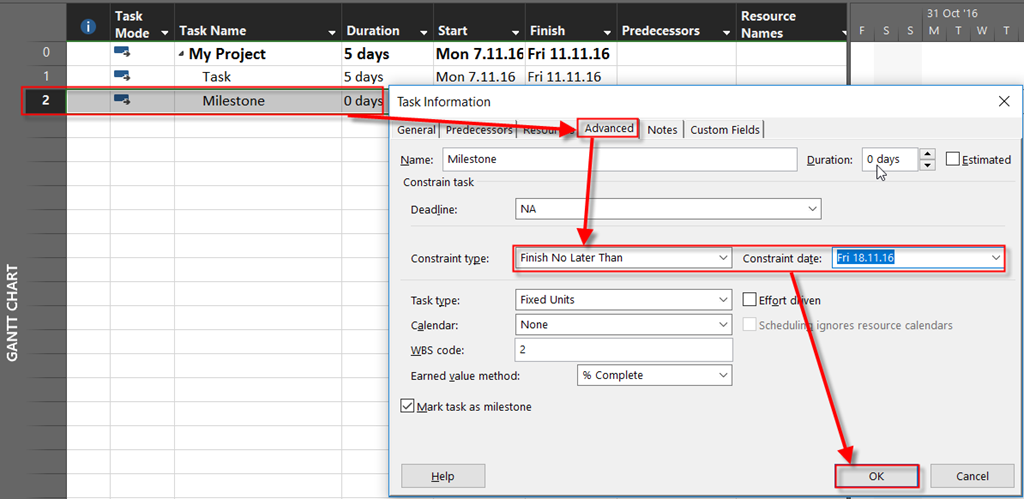
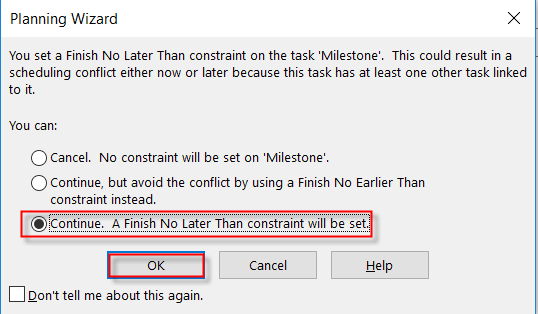
Now, I will put the constraint “Finish no later than” for this Milestone, and the date will be 18.11.2016:

image

and:

image

Now I will show Detail Gantt View:

image

I will apply Schedule table:

image

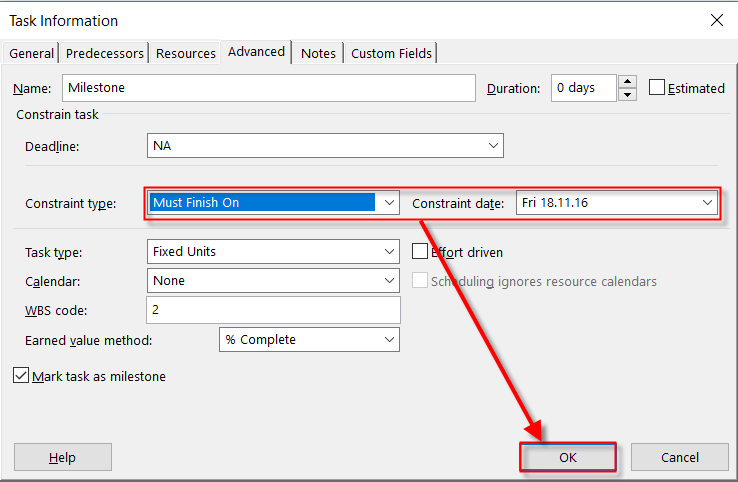
As you can see, Slack (or Float) is zero. Why? Because with constraint: Finish no later than”, Ms Project knows that Task or Milestone should not finish later than specific date, but it can be finished earlier. So, there is no slack here. but, if I put Must finish on on the Milestone, I will get:

image

image

Now, Milestone has fixed date for finish, and it is 18.11.2016, and it should be not finished earlier, so Task has Slack (float) 5 days, e.g it can last 5 days longer!

Hope this clear this issue up!

Regards!

Posted in MICROSOFT PROJECT, MS PROJECT 2016, PMI, PRoject Management | Tagged , , , | Leave a comment

Fixed duration Tasks and over allocation resolution in MS PROJECT 2016

Hi,

I have interesting question form one of my Blog Readers:

“I have below query in Fixed Duration Task.
Step1: created a task “paint the wall” with duration as 10 days (work starts by a Monday). Task is fixed duration
Step2: created a resource “A” (100%) – (8hrs/day)
Step3: assigned this resource in this task.
Step4: In task usage, changed the timelines middle tier->months, bottom tier->weeks
Step5: in task usage, entered actual work = 20hr in that task. It gave an warning message. Skipped.
Now it shows 1st week, Resource works 20hrs, and over allocated in next week with 60hrs.
Now, my query is, if i add another resource “B”, i expect that this extra 20hrs in 2nd week should be assigned to this resource “B”.`
I would like the MS project to calculate by itself and assign 40hrs for resource A and 20hrs to resource B.
Please guide on how to achieve this?”

I will show you how to do that in MS PROJECT 2016! I will follow steps from the question.

Step1: created a task “paint the wall” with duration as 10 days (work starts by a Monday). Task is fixed duration

image

As you can see, I make this Task Effort Driven, because I will have to split work between Resources.

Step2: created a resource “A” (100%) – (8hrs/day)

image

As you can see, I have another resource, Resource B, because I will need it for latter steps.

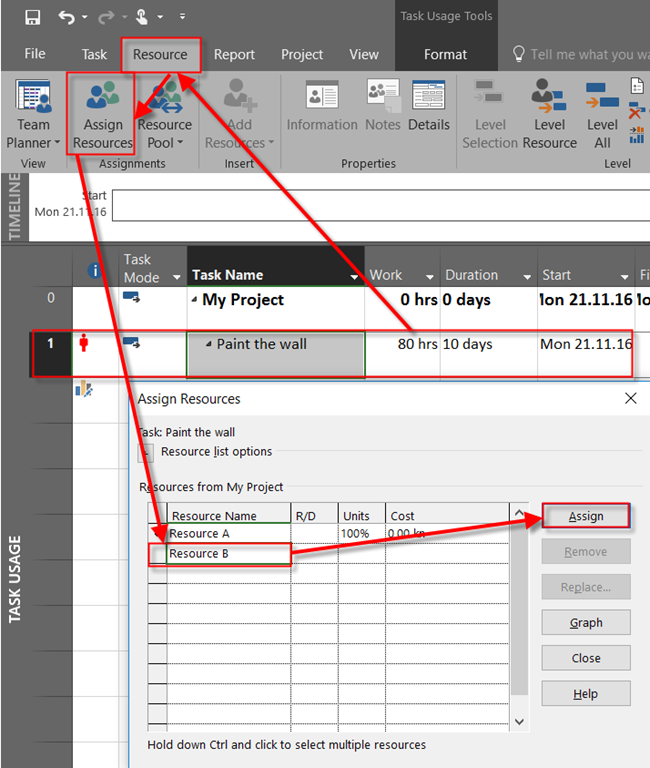
Step3: assigned this resource in this task.

image

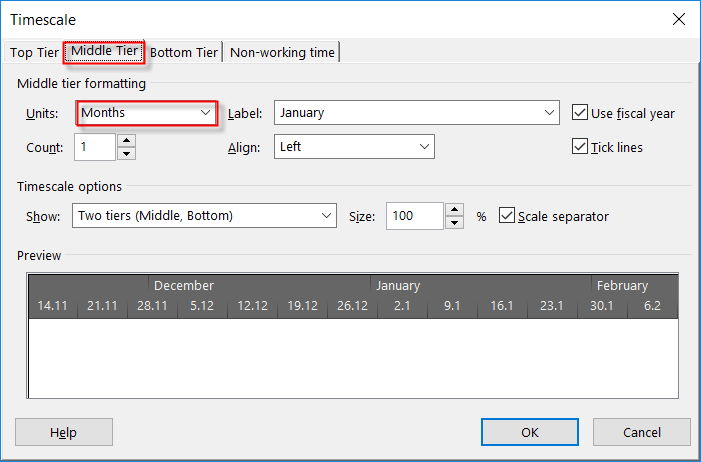
Step4: In task usage, changed the timelines middle tier->months, bottom tier->weeks

image

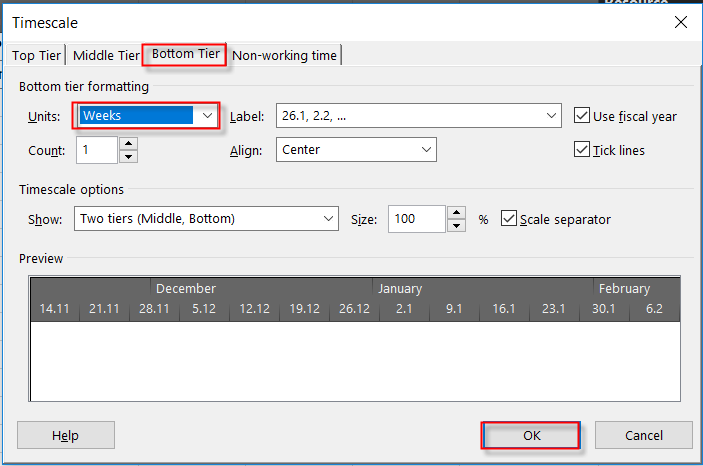
and:

image

Step5: in task usage, entered actual work = 20hr in that task. It gave an warning message. Skipped

image

Now it shows 1st week, Resource works 20hrs, and over allocated in next week with 60hrs.
Now, my query is, if i add another resource “B”, i expect that this extra 20hrs in 2nd week should be assigned to this resource “B”.`
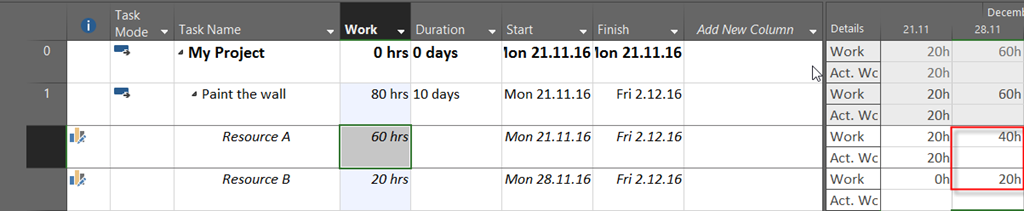
I would like the MS project to calculate by itself and assign 40hrs for resource A and 20hrs to resource B

I will assign Resource B on the Task:

image

I will get:

image

As you can see, remaining work among those Resources is divided in 60/40 (36 hours for Resource A, and 24 hours for Resource B). So, Resource A is not over allocated any more, but it is not what we want. We want that Resource A should work 40 hour, and Resource B 20 hours for Task. So I will have to put those hours manually:

image

and I’ve got what I wanted.

So, no, this is not going to happens automatically,  you should do it manually.

Hope this helps.

Regards!

Posted in MICROSOFT PROJECT, Micsrosoft Project 2016, MS PROJECT 2016, PMI, PRoject Management | Tagged , , , | 2 Comments

How to disconnect relation between %Complete and %Work complete in MS PROJECT 2016?


Hi,

I have a question from one of my blog readers:

“Hi,
I just came across your resource tool and am hoping to find some help. I am having trouble disconnecting % Work Complete (Actual work done) from % Complete (what work progress should be, based on duration). I need this tracking tool for comparison. But they keep copying each other.”

I will show you a simple example with MS PROJECT 2016!

First I will going to create a simple Project with only two Tasks (and I will add some columns in Gantt Chart View). One Task will be Auto, and another Manually scheduling:

image

I will create to Resources, John and Mary:

image

And I will assign them to Tasks, accordingly:

image

Now I will put 50% at %complete for the first Task, and 25% for the second, and I will get:

image

As you can see, %work completed is updated automatically, and that is what we want to avoid here.

To avoid that you should set up this option:

image

and then:

image

and finally:

image

If I now put same values at %Complete, I will get.

imageAs

As you can see, now %work complete is0%. Notice that in this case you can not update %Complete for Manually scheduled Task, but only for Auto Scheduled. I will put now 40% in %work complete field for both Tasks, and I will get:

image

As you can see, %Complete remains the same.

So, yes, you can do it. But be aware that in this case you have killed formula: WORK = DURATION * UNITS , and you should care about everything by yourself.

Regards!

Posted in Microsoft Project 2013, MS PROJECT 2010, MS PROJECT 2016, PMI, PRoject Management | Tagged , | 3 Comments

Task Usage view, and spreading work over weeks with MS PROJECT 2016

Hi,

a lot of MS PROJECT users are confused with using Task Usage View in MS PROJECT 2016, when tracking actual work not day per day, but week per week!

I will show you how MS PROJECT 2016 works in a simple example.

First I will create a simple Project:

image

and I will create two Resources: John with 100% Max. Units, and Mary with 50% Max. Units:

image

finally I will assign both of them to Task 1, and Task 2:

image

Now I’m going to switch to Task usage View:

image

As you can see:

  • Task 1 has 2 days Duration, and 24 hours of Work John 2*8hrs= 16 hrs., Mary 2*4hrs = 8 hrs. (because she will work only 50%), e.g. 16 +8  = 24 hrs.
  • Task 2 has 3 days Duration, and 36 hours of Work John 3*8hrs= 24 hrs., Mary 3*4hrs = 12 hrs. (because she will work only 50%), e.g. 16 +8  = 24 hrs.

Now suppose that you, a s a Project Manager get information that it was spent 12 hours at Task 1, and 12 hours at Task 2, in a week.

firs I will change Task Usage View:

image

and then:

image

and finally:

image

So now, I’m ready to put actual work on week basis scenario:

image

and I will get:

image

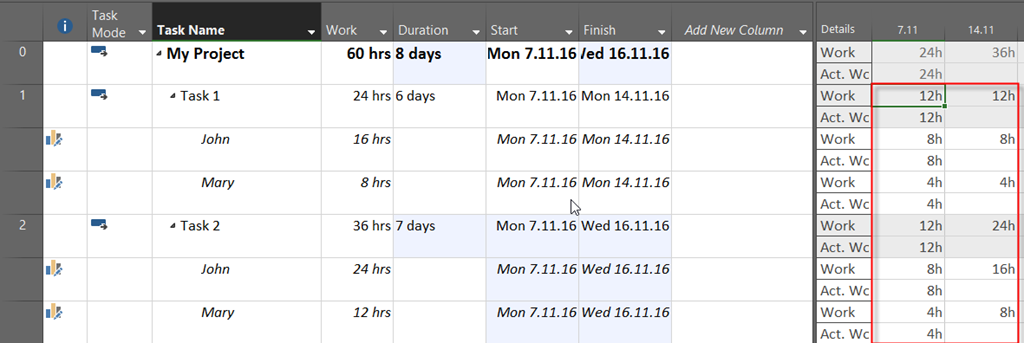
As you can see Actual Work is divided between John and Mary in a way that John spent twice time on both task than Mary, and this is because John is supposed to work 100%, and Mary only 50%. Remaining Work I pushed on next week for both Tasks, which is obvious, because Tasks were not finished as they were supposed to be – at first week.

But, let’s see how work is spread per day:

image

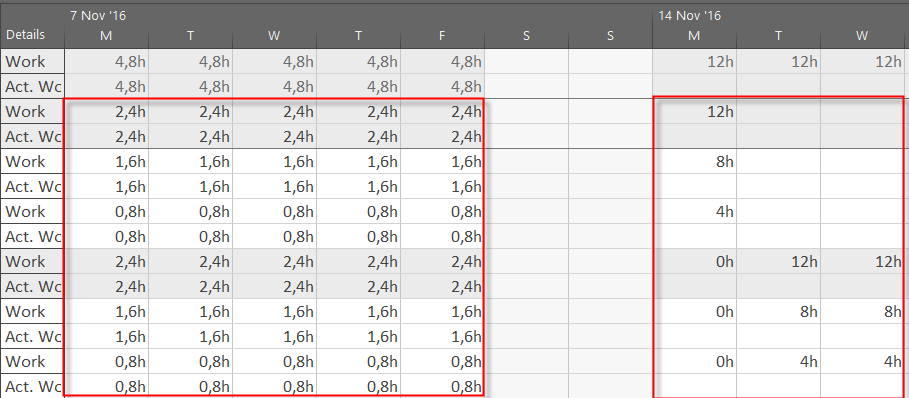
  • Task 1 and Task2: Actual work was 12 hours, e.g. 12 / 5 = 2,4 hours per day. this is per Task. John worked twice more than Mary, so it worked 2/3 per day per Task, and Mary 1/3 per day per Task, e.g., John worked 2,4 * 2/3 = 1,6 hours per day, and Mary 2,4 * 1/3 = 0,8 hours per day
  • Remaining work for Task 1 is 24 – 12  = 12 hours. It means that it can be finished at next Monday. John has to work 2/3 per day per Task, and Mary 1/3 per day per Task, e.g., John will work 12 * 2/3 = 8 hours, and Mary 12 * 1/3 = 4 hours.
  • Remaining work for Task 2 is 36 – 12  = 24 hours. It means that it can be finished at next Tuesday. John has to work 2/3 per day per Task, and Mary 1/3 per day per Task, e.g., John will work 12 * 2/3 = 8 hours per day, and Mary 12 * 1/3 = 4 hours per day. So they both will work  12 hours per day, and since Task 2 has Remaining work = 24 hours they should work two days.

Is it complicated? YES! Why am I explaining this. To warn you that this approach is not the right one.

If you use Task Usage View, and you have assigned Resources, put Actuals per Resources, not per Task. But for that, you must have information about how much hours each of your Resources has spent at each Task per week. Then MS PROJECT will spread those hours among days equally (of course if there is no calendar or other exceptions).

So, be very careful with putting Actuals per week.

Regards!

Posted in MICROSOFT PROJECT, MS PROJECT 2016, PMI, PRoject Management | Tagged , , , | Leave a comment

Replacing Resources on partial done Tasks–Microsoft Project 2016

Hi,

I have a question from my Blog reader:

“Hi Nenad and thank you very much for your blog. I have a question for you. Suppose you have a 10d task with a generic resource assigned to it ( total work 80h ). After 5 days you have to track the progress and enter these actuals: work done 48h, remaining again 48h and 2 resources to use in the second week.

What is the best way to manage this situation ?

Thank you”

OK, I will explain this, step by step with MS PROJECT 2016.

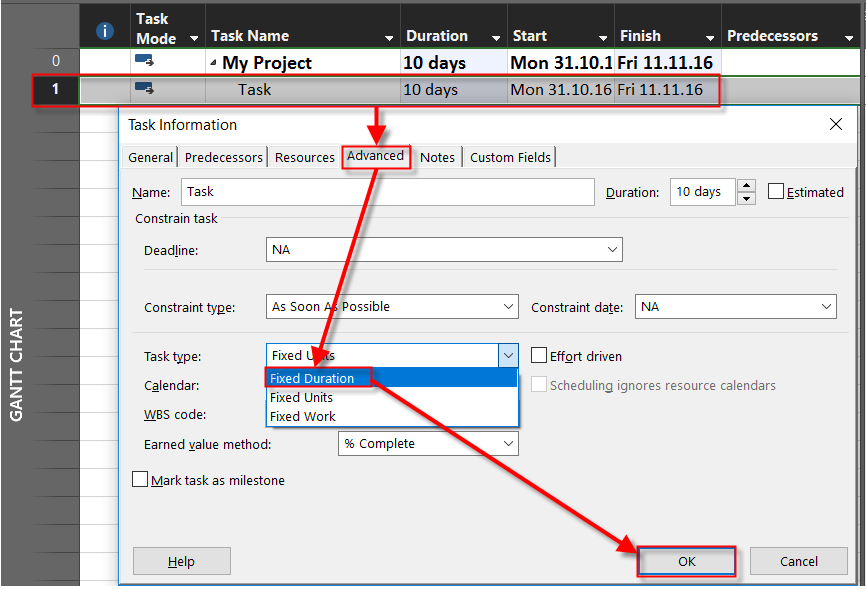
first I will create new Project with one single Task, duration = 10 days. As you can see from the question, this Task should last 10 days (2 weeks), so I have to make it Fixed Duration:

image

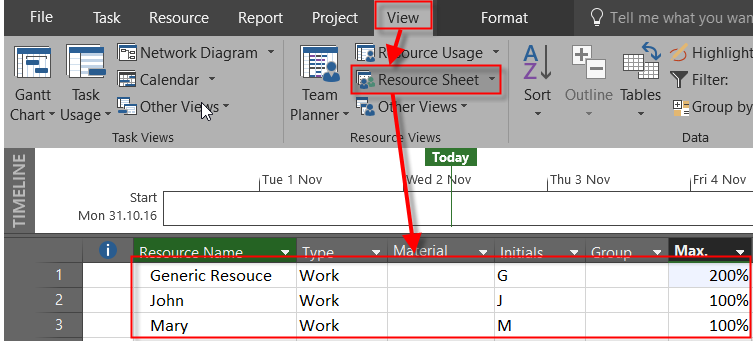
I will create three Resources: Generic Resource, John, and Mary. Notice that Generic Resource will have 200% Max Units (just for example):

image

Now, I will assign Generic Resource to the Task:

image

Now I will switch to Task Usage View:

image

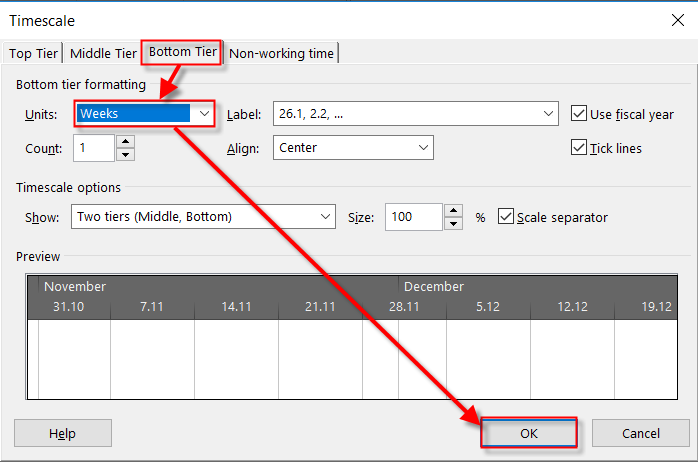
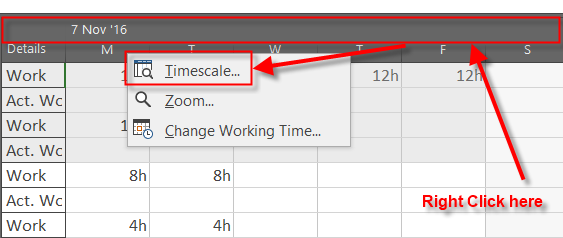
I will adjust Timescale to weeks, so I can see work per week in the right part of the screen:

image

and:

image

and then:

image

and I will get (notice that I added Actual work to be displayed):

image

Now, due to example, my Generic Resource was working 48 hours at first week:

image

As you can see, when I put 48 hours in Actual Work field, and Work field is changed to 32 (80h of Total work – 48h Actual work = 32h). I will put 48 h in that field so I will get:

image

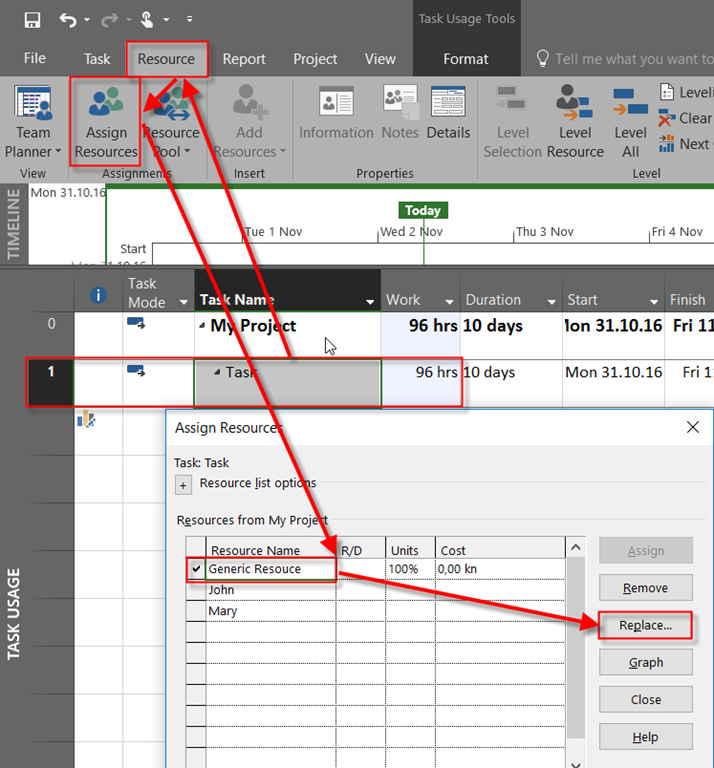
Now I am going to replace Generic Resource with John, and Mary:

image

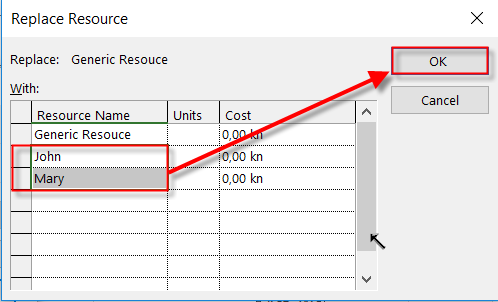
and:

image

I will get:

image

As you can see, because I have two resources now, MS PROJECT calculates 48 hours for John (as a replacement for Generic Resource), and 40 hours for Mary (as a new added resource).

Now, since you know that you need 48 hours to finish that Task, you should assign proper work to each Resource. So, for this example, let’s say that both, John and Mary will 24 hours in the second week to finish that Task:

image

And now I get what I wanted.

It is a little bit complicated, but in a such a specific case, there is no other or “auto” way, to do that.

Hope this helps!

Regards!

Posted in MICROSOFT PROJECT, Microsoft Project 2013, MS PROJECT 2016, PMI, PRoject Management | Tagged , , , , , | 1 Comment

Some leveling options in Microsoft Project 2016

Hi,

my Blog reader has a question:

“Would you please give an example with “Leveling Can Adjust Individual Assignments on a Task” and an other example with “Level Resources with the Proposed Booking Type” in MS Project 2016 resource leveling option dialog box”

To answer, I will create Very simple Project with two Tasks:

image

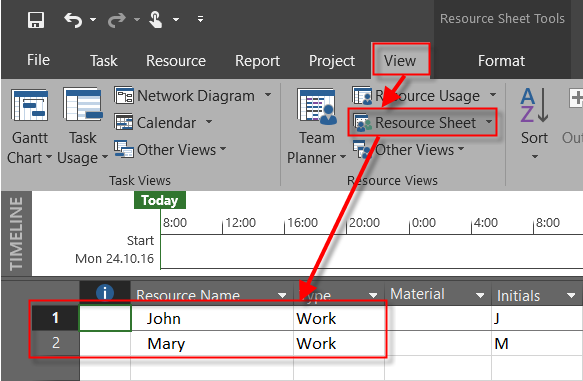
I will also Create two Resources:

image

and I will assign them to Tasks like this:

image

As you can see, because John is assigned to the Task 1, and the Task 2, he is over allocated.

Now I will show you what option: “Leveling Can Adjust Individual Assignments on a Task” mean.

image

I will get:

image

As you can see, Task 1, is moved to Start at Monday, 31.10.2016, because at that time John is available to work without any over allocation.

If I level those two  Resources but with checked option: “Leveling Can Adjust Individual Assignments on a Task”, I will get:

image

Now Task 1 is not moved to start at Monday, 31.10.2016, but it has longer duration instead. To explain that, I will show you Task Usage View, after this leveling:

image

As you can see, John will work on Task 1 from Monday to Wednesday. He can not work at the same time on Task 2. But what about Mary? She is not occupied on other Tasks from Monday to Wednesday, so she can work on Task 2. So, she will work from Monday to Friday, and she will complete her part of work on that Task, and John will start when he can, and that is at Thursday, and he will finish his part of work next Wednesday.

So, when you check that option, Tasks are leveled on Individual Assignments. On the other hand, if you deselect this option, the whole Task will be moved until all Resources are free to work. For example if you have 5 resources on one Task, and only one resource is over allocated, with this option deselected all resources will be moved along with the Task on the new dates.

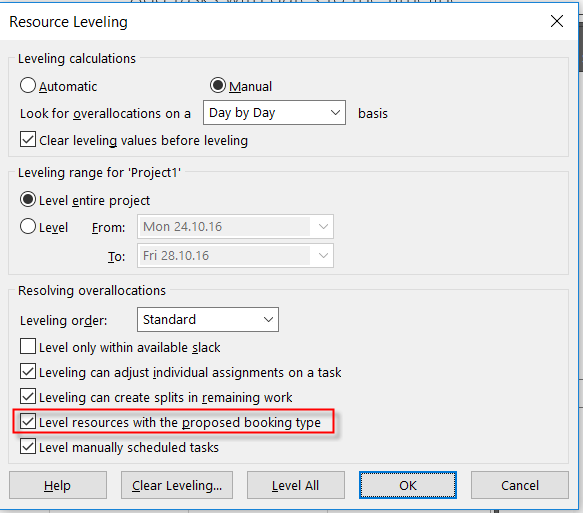
What about option “Level Resources with the Proposed Booking Type“.

Now let me start for the Beginning with My Project. Again I have simple Project:

image

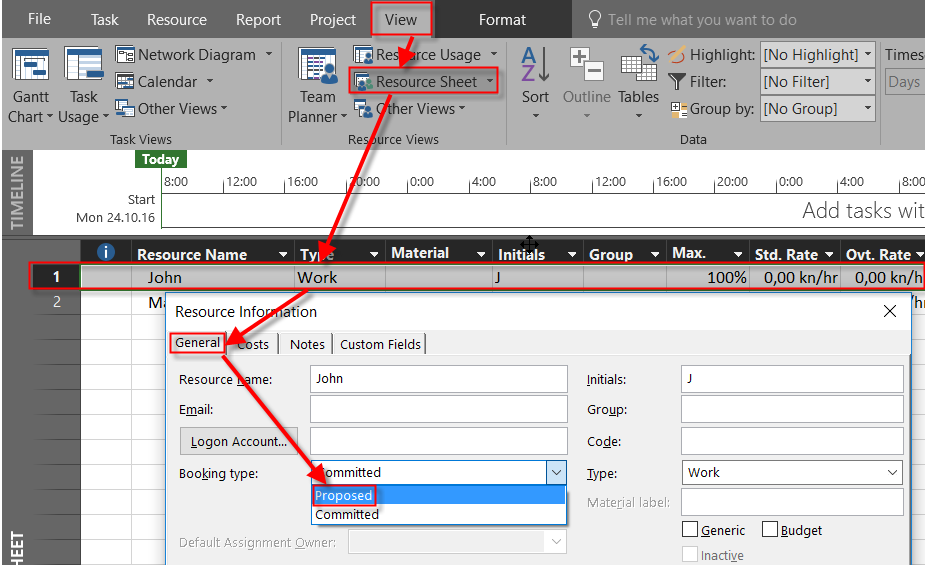
I will make John as Proposed (it mean that you are not 100% sure that he will work on this Project:

image

Now I will Assign John to all Tasks:

image

To make this story shorter, you have two possibilities:

image

If this option is selected tasks with Resources with Proposed booking type will be leveled. If this option is not selected they won’t. As simple as that.

Regards!

Posted in MICROSOFT PROJECT, MS PROJECT 2016, PMI, PRoject Management | Tagged , , , | 1 Comment

Resource rates and Billing rates in MS PROJECT 2016

Hi!

I always get a question like this:

I need to charge an hourly rate per project.  My hourly rate is $100.00 per hour. I have an employee work for me.  Their rate is $20.00 per hour. I need to track both.
How do I do this in Project 2016? “

You can do it, in a limited way. I will show you how, using MS PROJECT 2016, and I will explain why you can not get what you obviously want!

First I will create Single Project with one Task:

image

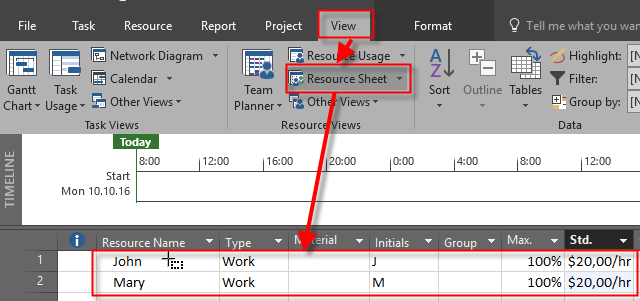
And I will create Two Resources, John and Mary, with $20 as a standard rate:

image

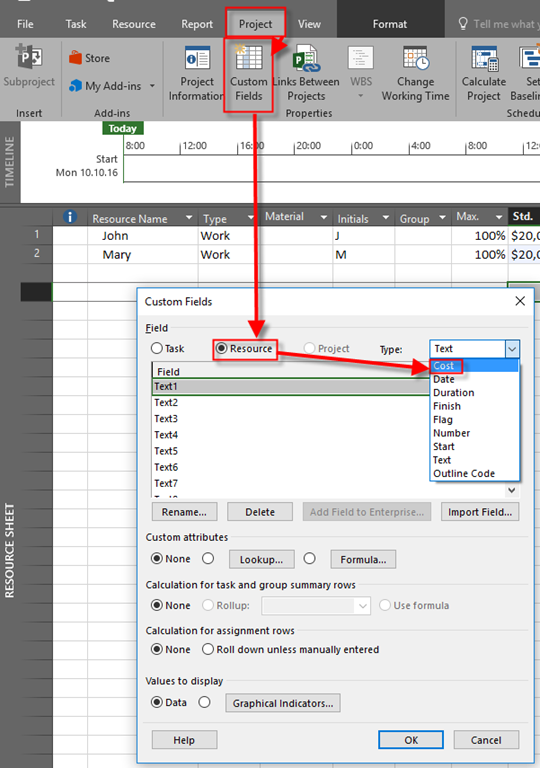
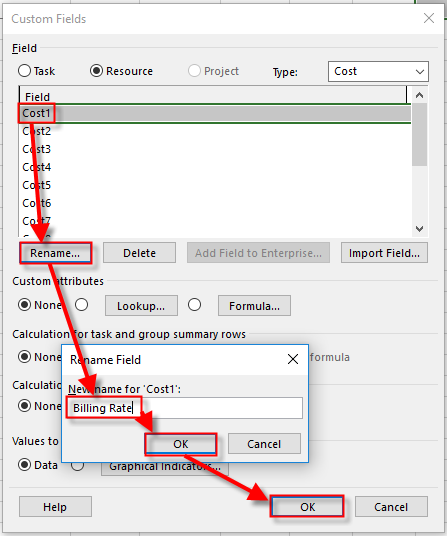
Now I will make two Resource Custom fields:

image

and then:

image

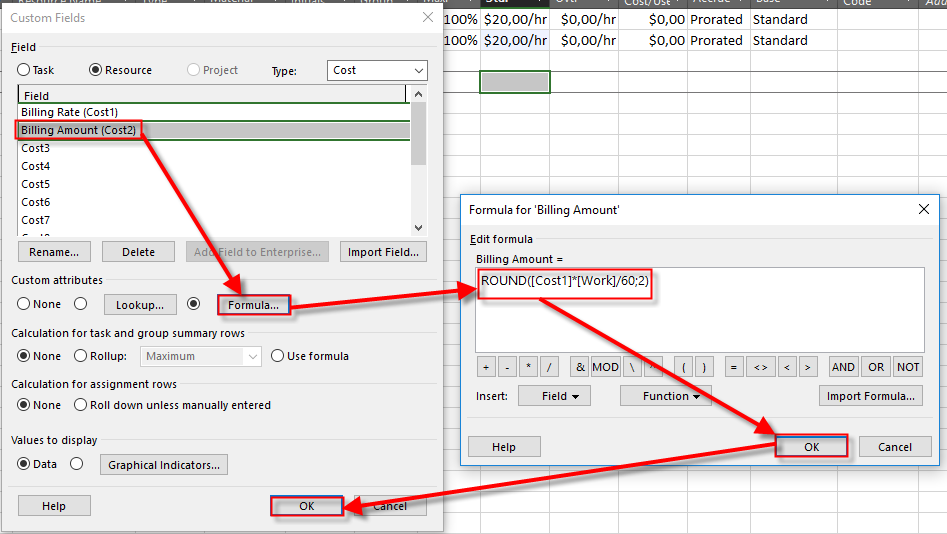
Now I will create second Custom field, on the same way:

image

Notice, that I am using formula, where Billing amount is Billing Rate (Cost1) multiplied by work and divided by 60, and then rounded at two decimal places. The reason why am I dividing work with 60 is because work is expressed in minutes in formula, so if I want to get it in Hours I should divide it!

No I am going to show Billing rate in Resource sheet, and I will put $100 per John and Mary:

image

I will now assign John and Mary to both Tasks:

image

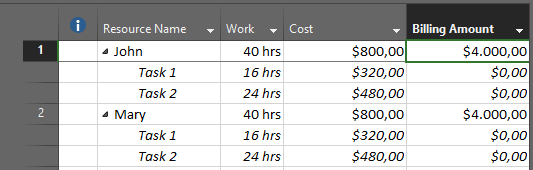
and I will now switch to Resource Usage View, and I will show the Billing Amount field:

image

As you can see for both John and Mary, Cost is $800 (40 hours * $20), and Billing Amount is $4000 (40 hours * $100).

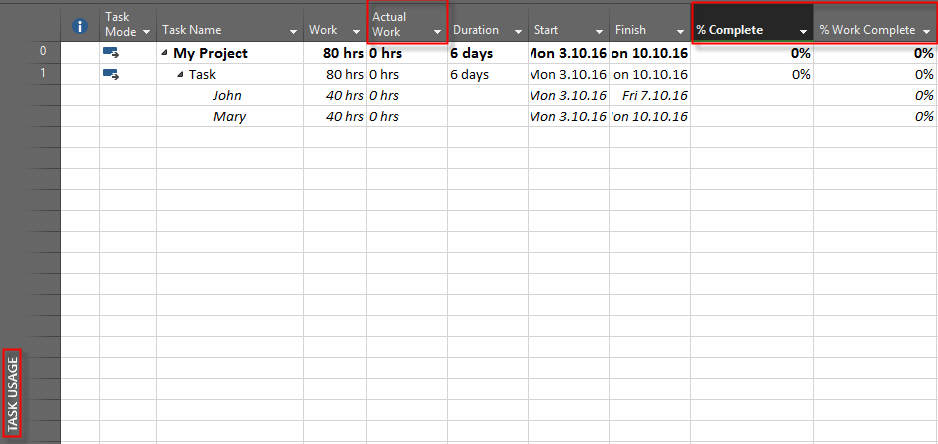
BUT! If you look at the Task Usage View you can not get this new field (Billing amount), Because it is Resource based. That means that you can not compare two rates (regular and billing), for the Tasks. And that is no such a thing like default Billing rate for each resource.

It can be annoying, but before you think in that way remember that Microsoft Project is tool with which you manage your Project, and that means that you are tracing your Costs (Planned, Actual, etc.), not your revenue. Microsoft Project is not for billing purposes. You should use ERP (MBS NAV, SAP or other).

Hope I helped with a little bit more understanding of that!

Regards!

Posted in MICROSOFT PROJECT, Microsoft Project 2013, MS PROJECT 2016, PMI | Tagged , | Leave a comment

%Complete vs. %Work Complete in MS PROJECT 2016!–when to use what?


Hi,

very often I have questions like this one:

Dear Nenad,

I am going to develop a scheduled for a petrochemical plant shutdown project. My question is: “What percent complete should i use (% Complete or Work % Complete) and why?”

I wrote a blog Post about this issue, but I will now clarify exactly where is the difference between this two % of completeness, and when to use which one of them.

I will create a very simple Project with one single Task in MS PROJECT 2016:

image

I am going to create two Resources, John and Mary:
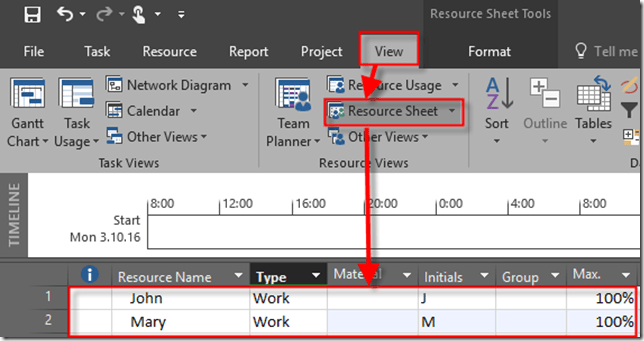
image

Now. Let’s say that Mary has day off at Wednesday, 05.10.2016:

image

I will assign them to the Task:

image

As you can see Duration is now 6 days. Now I will switch to the Task Usage View, an I will add some columns in it:
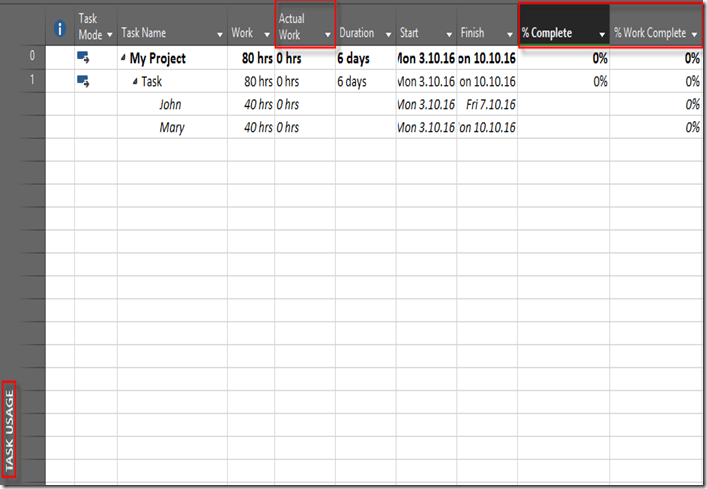
image

As you can see, Duration is 6 days. Why? Initial Duration was 5 days, (from Monday to Friday), but since Mary has day off at Wednesday, she should work on next Monday to finish her part of the Task, and it makes 6 days.

John will work 100% which means 8 hours per day and that make Total of 5 (not 6, but 5!!!) days * 8 hours per day * 100% = 40 hours. Mary will also work 100% and that also make Total of 5 days * 8 hours per day * 100% = 40 hours. . So to finish this Task 80 hours of work is needed.

Now, let’s say that we put 50% in %Complete field. We will get:

image

50% in %complete field means that we spent 50% of Duration! So the work was done according to plan at Monday, Tuesday and Wednesday! You can see that in right part of Task Usage View in Actual Work field per day.

So John spent 24 hours (8 hours at Monday, Tuesday and Wednesday), but Mary spent only 16 hours (8 hours at Monday and Tuesday, and she did not work at Wednesday, because she had day off!).

Now let’s calculate %Work complete for this example.

  • John has to work 40 hours, and he spent 24 hours, so that means 24/40=0,6 or 60%
  • Mary has to work 40 hours, and she spent 16 hours, so that means 16/40=0,4 or 40%
  • From the Task point of view, John and Mary have to work 80 hours and they spent 40 hours, so that means 40/80=0,5 or 50%

Now let’s say that we did not put 50% in %Complete field, for the Task but instead of thet we put 50% in %Work Completed field. We will get the same result, so I will not show you the same picture again. But I will show you how MS PROJECT calculate %Complete in this example:

  • From the Task point of view, John and Mary have to work 80 hours and they spent 50%, so that means 80 * 50% = 40 hours spent on the Task
  • John and Mary worked on Monday, which is 16 hours together, and Tuesday which is another 16 hours (so for now, Total is 32 hours), and John worked 8 hours at Wednesday (and Mary was at her day off), so Total is 40 hours spent of the Task
  • John has to work 40 hours, and he spent 24 hours, so that means 24/40=0,6 or 60%
  • Mary has to work 40 hours, and she spent 16 hours, so that means 16/40=0,4 or 40%

BUT! Suppose that John spent 50% of his Work on the Task, and Mary only 20%. It means that John has worked 40 hours*50% = 20 hours, and Mary has worked 40 hours * 20% = 8 hours. If I put this values on %Work Completed I will get:

image

From the Task point of view, John and Mary have to work 80 hours and they spent 28 hours, so that means 28 / 80 = 0,35 or 35% of %Work Completed

To calculate %Complete I need Actual Duration which is 1,57 days. It is calculated in this way:

  • For both John and Mary, if they work full time they have to work 16 hours at Monday. And they did. So this make 1 day
  • For both John and Mary, if they work full time they have to work 16 hours at Tuesday. And John worked 8 hours, and Mary didn’t work at all . So this make 0,5 days (8/16=0,5)
  • For both John and Mary, if they work full time they have to work 16 hours at Wednesday. And John worked 4 hours, and Mary didn’t work at all . So this make 0,25 days (4/16=0,25)
  • So, in total it is 1 + 0,5 + 0,25 = 1,75 days. And this means that %Completed is Actual Duration / Duration = 1,75 / 6 = 0,29 or 29%

Now, final conclusion.

  • When you know how much time has passed (e.g Duration) in percentage, use %Complete field.
  • When you know how much work is done (e.g Hours)  in percentage, use %Work Complete field.
  • When you know how much work is done (e.g Hours) in percentage for specific resource, of course you will use %Work Complete field. And this is the most common situation if we are talking of percentage.
  • But, if you know exact number of hours that particular Resource spent on the particular Task, never use %Work Complete, but always Actual work field!

Regards!

Posted in MICROSOFT PROJECT, MS PROJECT 2016, PMI, PRoject Management | Tagged , , , | 2 Comments

How to put different Overtime Work to Task in MS PROJECT 2016!

Hi,

I have a very interesting question from one of my Blog Readers:

“Hi Nenad,

I want to put different overtime Work for a Task and Resources. Let’s say that I have Task1, and John an Mary are assigned to it. Task has 2 days Duration, which means that John and Mary will work 16 hours (8 hours each day). but I want John to work 12 hours first day (8 hours Regular work, and 4 hours overtime work) at FIRST DAY, and Mary has to work the same way on the Second day. How to accomplish that?”

OK! I will show you how, and IF by using MS PROJECT 2016!

First I’m going to create brand New Project with one Task – 2 days duration:

image

Now, I’m going to create two Resources, john and Mary:

image

and I will assign them to the Task:

image

Now, I’m going to switch to the Task Usage View:

image

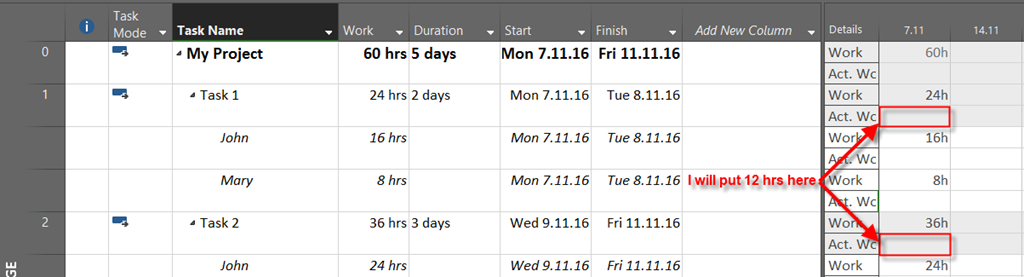
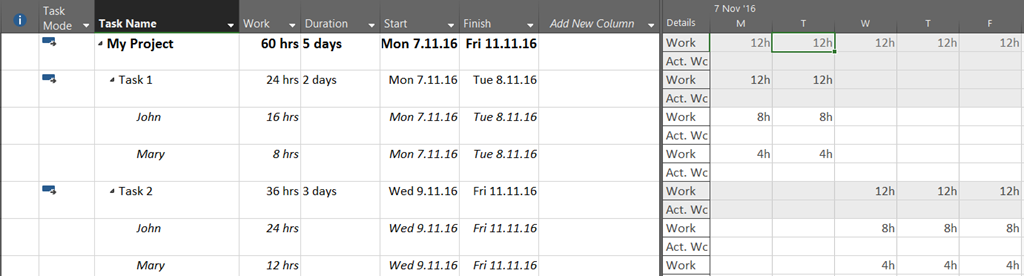
As you know, John is supposed to work 12 hours on Monday (8 hours Regular work, and 4 hours Overtime work), and Mary has to work the same way on Tuesday. what I have to do I to assign John 12 hours in Work field, and 4 hours in Overtime work field on Monday, and the same for Mary but at Tuesday. firs I am going to show Overtime work field  on the right side of Task Usage view:

image

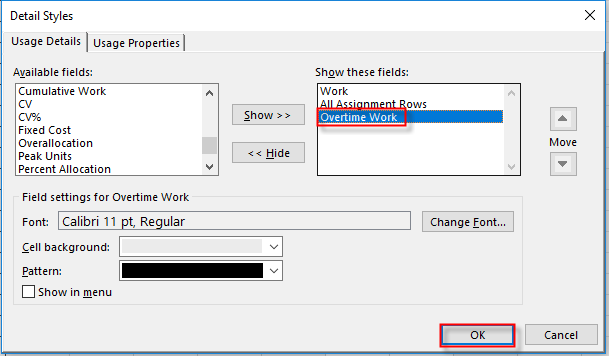
and:

image

and then:

image

Now I’m ready!

image

Do you see those, Ovt. Work fields? They are not editable! So, you can not! put 4 hours for John as Overtime work at Monday, and for Mary at Tuesday.

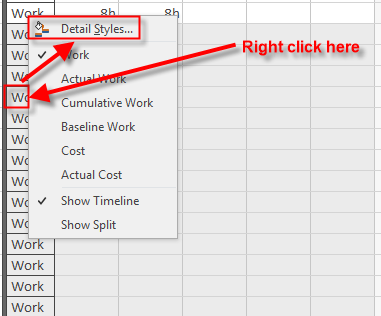
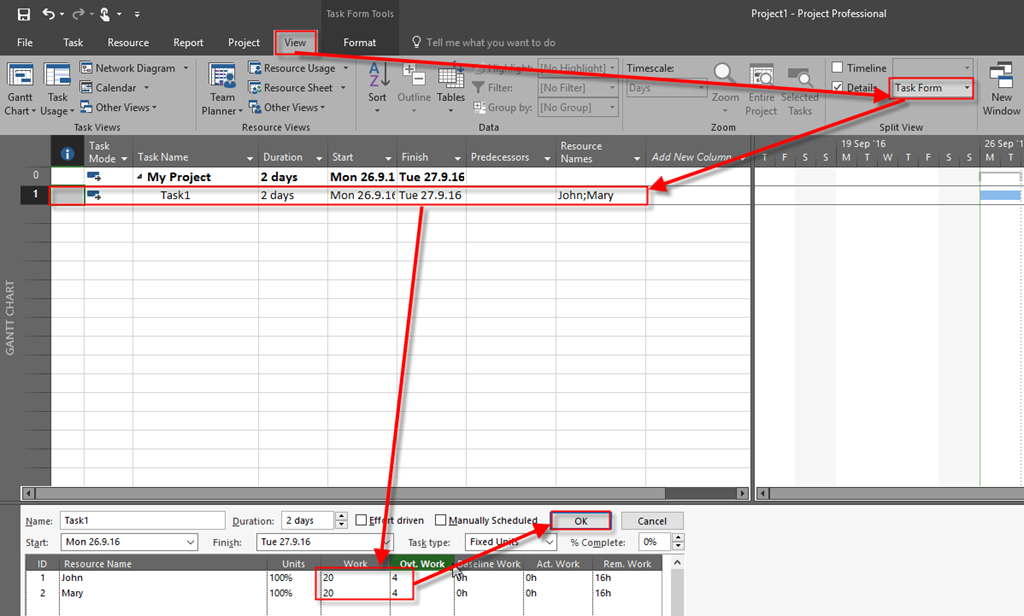
However, you can follow this steps:

image

and you will se on Task usage View.

image

So, Overtime work is set to 4 hours per John and Mary, but it is evenly distributed, and you can NOT change that per day!

Regards!
Posted in MICROSOFT PROJECT, Micsrosoft Project 2016, MS PROJECT 2016, PMI, PRoject Management | Tagged , , | 1 Comment

%Complete, %Work Complete, and Project without Resources with MS PROJECT 2016!

Hi,

I’ve got a question from one of my Blog Readers:

“Please clarify the following: I have created a Sample project in MS Project 2013, with tasks and assigned duration  with required predecessors.
I have base lined the plan and started tracking the progress.
I see both the % Complete field & % Work Complete as 100% for all the completed tasks.
My question is why the % Work complete is being shown as 100% even though the work /baseline work being zero and the actual work also being zero.
The % Work Complete is calculated using the formula (Actual work/Work) *100 . Is this a bug?”

This is a basic thing in any version of MS PROJECT. I will show you a simple example an I will explain why this is not a bug at all. I’ll use MS PROJECT 2016!

I will follow steps, as my Blog Reader did. So, first I will crate very simple Project, and I will put predecessors:

image

Now, I’m gong to save the Baseline:

image

and:

image

I will show now Gantt Chart View with some additional columns:

image

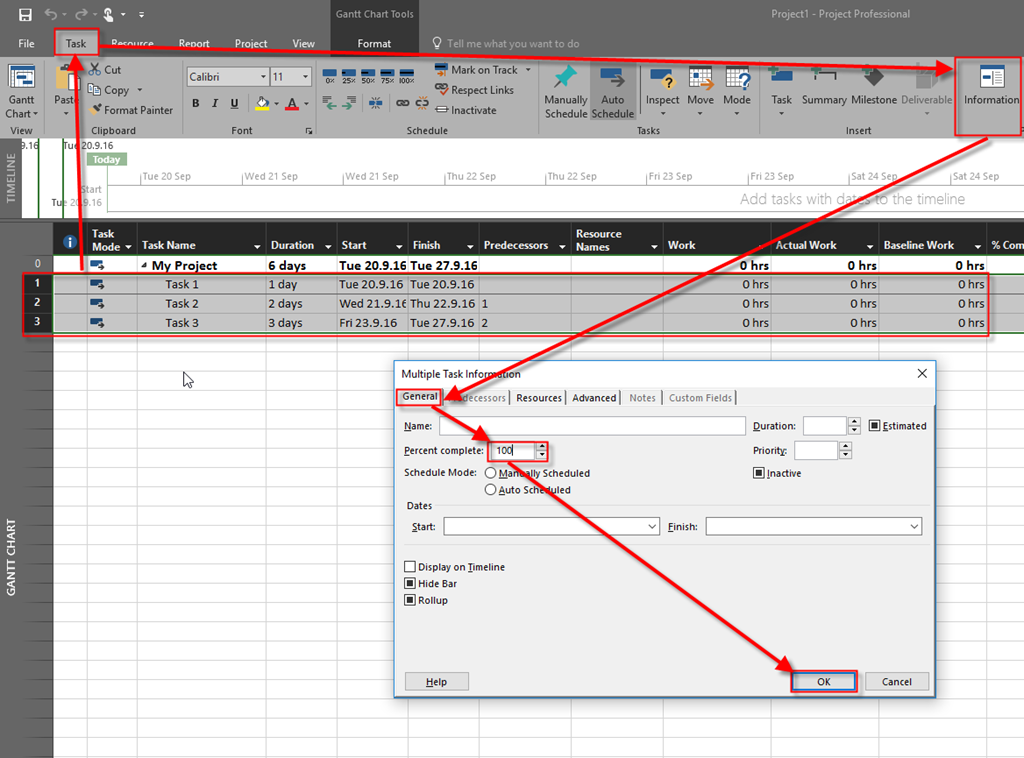
Now I will mark all Tasks as 100% completed:

image

and I’ll get:

image

Now, I’m going to explain what happened:

  1. When Task is marked as 100% completed, than %Work completed is also 100%. Why? Because Task cannot be completed if work is not completely done. It is logical. Can you imagine that Task is 100% completed (%Completed field), but you have to work on it, for example, 4 additional hours? It simply doesn’t make any sense
  2. Work, Actual Work, and baseline work is 0 (ZERO)? Why? Because work will be more than 0 if you:
    1. Assign Resources to  Tasks
    2. Manually enter work in a work field without assigning any Resource to Tasks
  3. Anyway in both cases (with work greater than zero, or with work equal zero), %Work Completed is 100% when %Completed is also 100%!

Hope this helps.

Regards!
Posted in Microsoft Project 2013, MS PROJECT 2010, MS PROJECT 2016, PMI, PRoject Management | Tagged , , , , | Leave a comment