Material Resources with new Resource assigned to the Tasks in MS PROJECT 2016

Hi,

today I’m going to show you what is going to happen with Material resources when you assign additional Work resources to the Task which has already started and have some actuals. I will use Microsoft Project 2016!

First I’m going to create a single Task in my Project:

image

and two Work, and one Material Resources:

image

Now I am going to use Task Form, an I will assign John to the Task, and 100 Bricks as well. I will use in upper part of the screen Task Usage View, and I will show Actuals on the right part of the Screen:
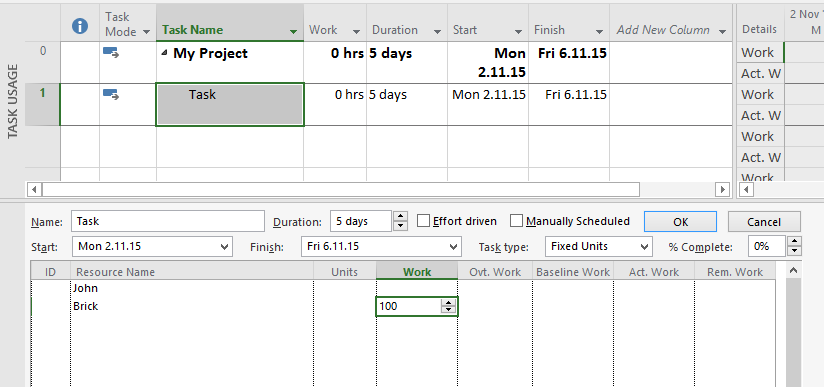
image

and, after I click on the OK button, I will get:
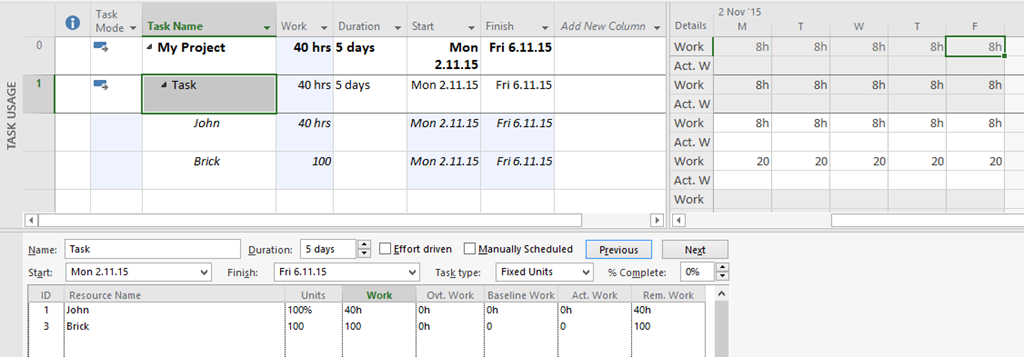
image

Now, let’s say, that we are at the end of Day 2 and everything went well, so John has spent 16 hours, and 40 bricks. I will put that in Actuals:
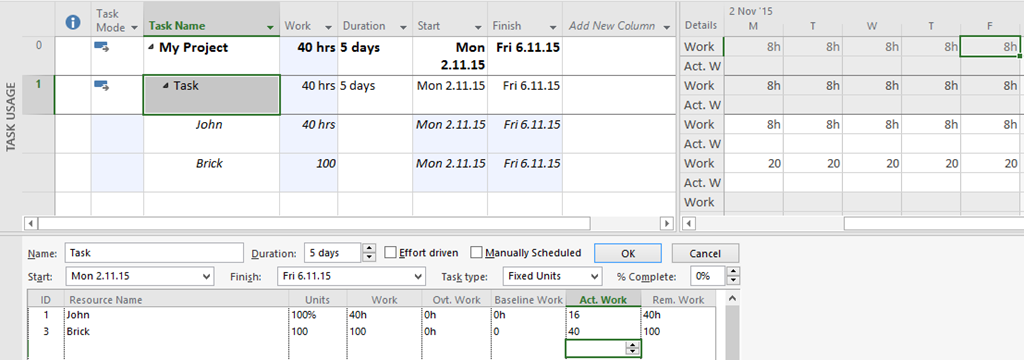
image

Again, after I click on the OK button I will get:
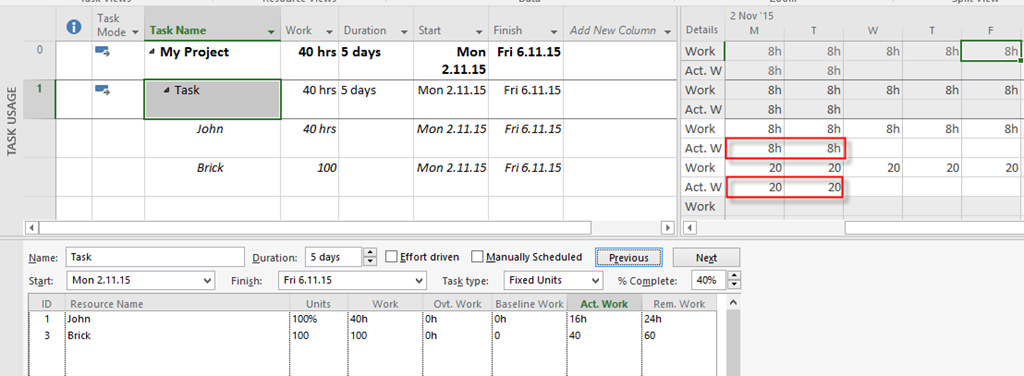
image

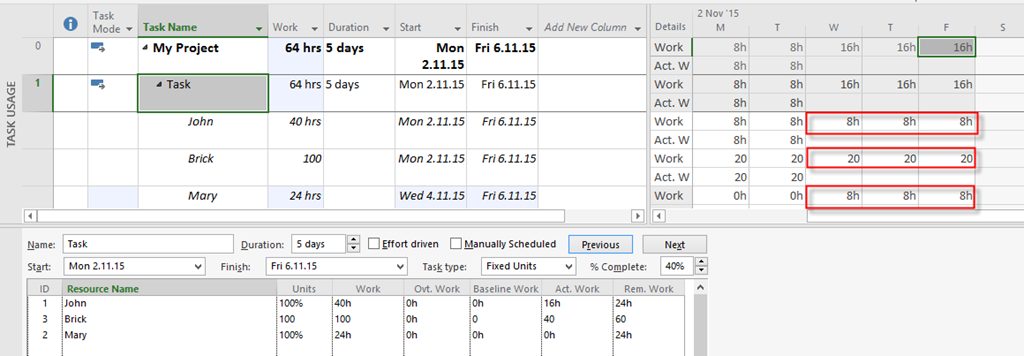
Now suppose that for some reason I need Mary to finish that Task, and the Task is not effort driven:
image

As you can see, Mary has to spend the same amount of hours as John has, e.g. 24 hours (three days), and they will have to spend 20 bricks per day. So everything looks fine. But, what if Mary has Day off, for example, at Wednesday, 4.11.2015?:

image

If I assign Mary to the Task now, I will get:
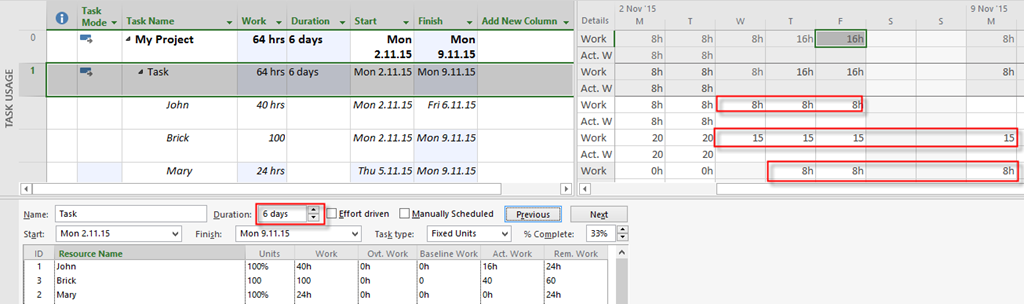
image

Because Mary has a day off, Duration is now 6 days, and that mean that the Rest of work will be done in 4 not 3 days! That means that the Rest of Material resource should be split among these  4 days, and it will be 60/4 days = 15 bricks per day!

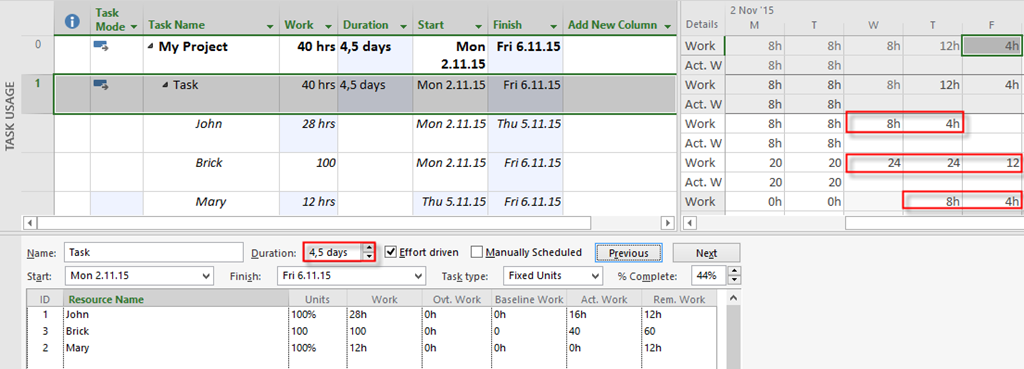
What If I assign Mary but the Task is effort driven?
image

As you can see, remaining hours (40 Total work – 16 Actual work for John) is 24 hours. Task is effort driven so those hours will be split among John, and Mary (12 hours each of them). John will work 8 hours at Wednesday, and remaining 4 hours at Thursday. Mary has a day off at Wednesday, and she will work 8 hours at Thursday, and remaining 4 hours at Friday.

What about Material Resource, e.g. Brick? Since the new duration is 4,5 days, and actual duration is 2 days, it means that remaining duration is 2,5 days. Remaining Material Resource to spend is 60 Bricks, so it is 60 /2,5 = 24 bricks per day no matter who will work and how much per day. That means that at Wednesday and Thursday 24 bricks are going to be spend, and at Friday (half day), only 12 bricks are going to be spend.

So be careful when you assigning additional Work resources to Task which already has been started and have some actuals.

Regards!

Posted in MICROSOFT PROJECT, Microsoft Project 2013, Micsrosoft Project 2016, MS PROJECT 2010, PMI, PRoject Management | Tagged | Leave a comment

Fixed Work and Manually scheduled Tasks in Microsoft Project 2016

Hi,

I’ve got a question from one of my Blog Readers: “Dear Nenad, I have a problem with Fixed Work Task Type in MS PROJECT. When I add resource to a Fixed Work Task Type, and Task is Manually Scheduled, I get a wrong result! Is this a Bug, or what?”

No, this is not a Bug. I will show you how does it work in MS PROJECT 2016!

First I am going to create two Tasks, and both of them will be Fixed Work.

 image

and then:

image

and I will get:

image

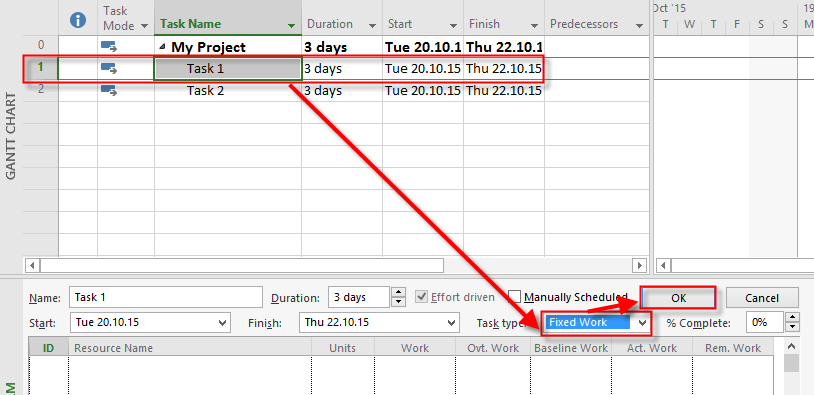
Now I am going to make them as a Fixed Work Type (I will show you how to do it in Task 1):

image

I will create two Resources:

image

Now I am going to assign John to Task 1, and Task 2, as well:

image

John is overallocated, but this is not important for this scenario. Now I am going to change Task 2 to Manually Scheduled mode:

image

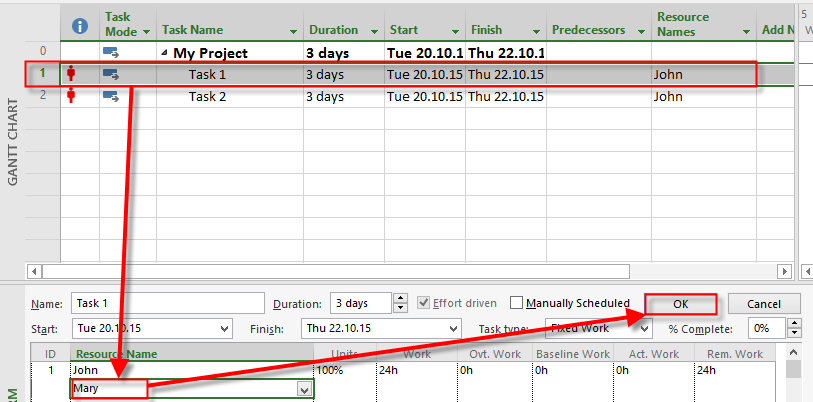
I will now assign Mary to Task 1:

image

and I will get:

image

As you can see, 24 hours work from John is split among John and Mary equally, because they are both 100% assigned for the Task. Since John and Mary are going to work 12 hours each, Duration is now shorter, and it is 1,5 days instead of previous 3 days.

I will do the same thing (assign Mary) to Task 2, which is manually scheduled Task, and I will get:

image

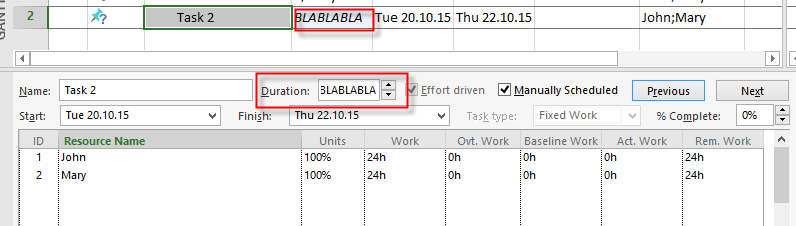
It seems like a bug because work is not split among Mary and John, and it acts like this Task is not effort driven. But this is not a bug. When you are using Manually Scheduled Tasks, you can not choose (it is dimmed) Task Type. Why? Because formula DURATION * UNITS = WORK doesn’t work, because Duration field in Manually Scheduled mode is not numeric, but it is text type in this case. I will show you that. I am going to change Duration field from 3 Days to BLABLABLA:

image

To conclude, Task Type make sense with Auto Scheduled Tasks, because in that case Duration field is numeric, and magic formula (DURATION * UNITS = WORK) can work. And, logically, choosing Task Type is only valuable when you let Project to make calculation for you, and that is only possible with Auto Scheduled Tasks.

Regards!
Posted in MICROSOFT PROJECT, Microsoft Project 2013, Micsrosoft Project 2016 | Tagged , | Leave a comment

Baseline and deleted Tasks in MS PROJECT 2013, what if I do not have Inactive button?

Hi,

my last Blog post is here: https://ntrajkovski.com/2015/09/22/baseline-and-deleted-tasks-in-ms-project-2013/

But, I have a question about that. That question is: “Hi Nenad, do all versions of project have the deactivate function? If not, is there a workaround? “

The answer is, older versions do not have this feature, and Yes, I know the workaround. Let me show that workaround in MS PROJECT 2013!

First, I will create very Simple Project:

image

and some Resources:

clip_image001

which I will assign to Tasks:

clip_image002

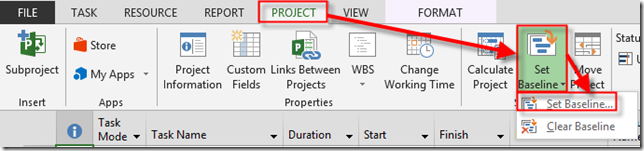
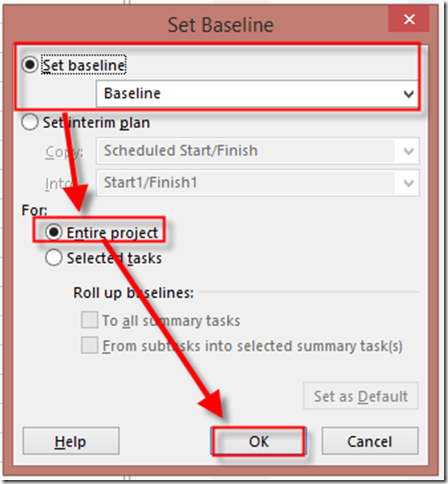
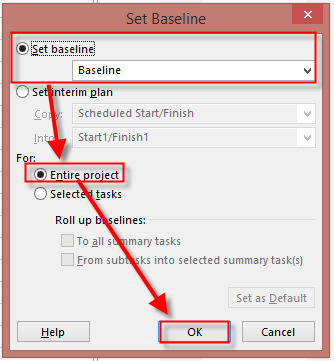
OK! I will save the Baseline now:

clip_image003

and:

clip_image004

Now I will choose the Cost Table:

clip_image005

As you can see Total Cost is equal to Baseline Cost, because there is no difference between Planned (Baseline), and Actual Costs!

Let’s say that I do not need Task 2, any more, and I have to create new Schedule like this:

clip_image006

As you can see I have deleted Task 2! Let’s look at the Cost Table:

clip_image007

As you can see, Total Cost is $3.200 (Task 1 = 1 day e.g. 8 hours * $100 = $ 800, and Task 3 = 3 days e.g. 24 hours * $100 = $2.400! 800 + 2.400 = $3.200). But Baseline cost is $4.800 (Task 1 = 1 day e.g. 8 hours * $100 = $ 800, Task 2 was = 2 days e.g. 16 hours * $100 = $1.600, and Task 3 = 3 days e.g. 24 hours * $100 = $2.400! 800 + 1.600 + 2.400 = $4.800). Variance is, logically, –$1.600.

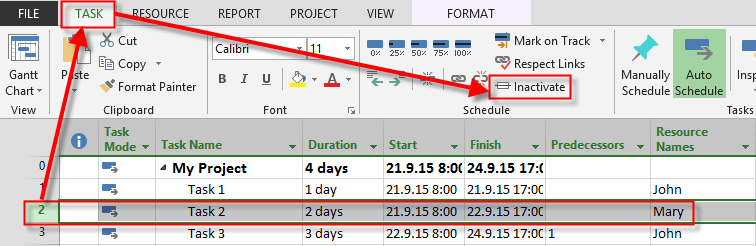
That is easy to explain whit such a simple example when only one Task was deleted, and only one Resource was suppose to work on that Task. But, what if you delete, for example, 34 Tasks, with a lot of Resources assigned to them with different pay rate? Yes, you can save the new Baseline, but what if you want to keep track of those deleted Tasks? In that case you will find yourself lost! But, there is much better solution. Inactive Tasks button.

Let’s see my previous example:

clip_image008

I will create new Schedule like this:

clip_image009

and I will not deactivate Task 2, but I will put 0 in a duration field, and mark it as a 100% completed:

image

Let’s look at the Cost Table, again:

image

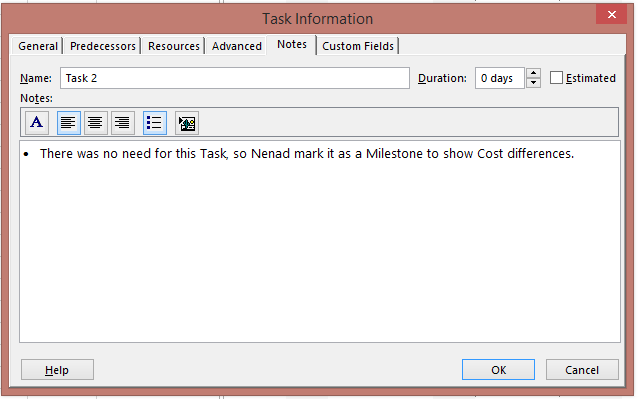
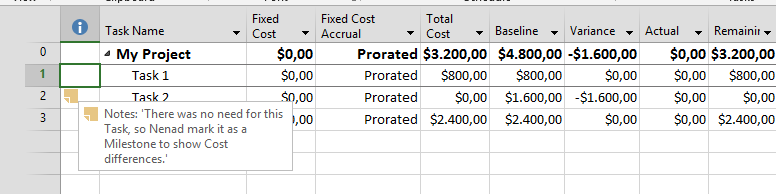
Now, everyone can see where the differences are coming from. I will suggest to put the note in the Task 2:

image

and you will get:

image

To conclude again, when you create Baseline, do not delete Tasks after that. Make them Inactive instead, or if you are working on older Versions of MS PROJECT, put zero in Duration field, and mark it as Completed!

Regards!

Posted in MICROSOFT PROJECT, Microsoft Project 2013, MS PROJECT 2010, PMI, PRoject Management | Tagged | Leave a comment

Baseline and deleted Tasks in MS PROJECT 2013

Hi,

I got a lot of questions about differences, for example, in Task Table when Project has Baseline, and The Task is deleted. I will show you what do in MS PROJECT 2013!

First, I will crate very Simple Project:

image

and some Resources:

image

which I will assign to Tasks:

image

OK! I will save the Baseline now:

image

and:

image

Now I will choose the Cost Table:

image

As you can see Total Cost is equal to Baseline Cost, because there is no difference between Planned (Baseline), and Actual Costs!

Let’s say that I do not need Task 2, any more, and I have to create new Schedule like this:

image

As you can see I have deleted Task 2! Let’s look at the Cost Table:

image

As you can see, Total Cost is $3.200 (Task 1 = 1 day e.g. 8 hours * $100 = $ 800, and Task 3 = 3 days e.g. 24 hours * $100 = $2.400! 800 + 2.400 = $3.200). But Baseline cost is $4.800 (Task 1 = 1 day e.g. 8 hours * $100 = $ 800, Task 2 was = 2 days e.g. 16 hours * $100 = $1.600, and Task 3 = 3 days e.g. 24 hours * $100 = $2.400! 800 + 1.600 + 2.400 = $4.800). Variance is, logically, –$1.600.

That is easy to explain whit such a simple example when only one Task was deleted, and only one Resource was suppose to work on that Task. But, what if you delete, for example, 34 Tasks, with a lot of Resources assigned to them with different pay rate? Yes, you can save the new Baseline, but what if you want to keep track of those deleted Tasks? In that case you will find yourself lost! But, there is much better solution. Inactive Tasks button.

Let’s see my previous example:

image

I will create new Schedule like this:

image

and I will deactivate Task 2:

image

and I will get:

image

Let’s look at the Cost Table, again:

image

Now, everyone can see where the differences are coming from.

To conclude, when you create Baseline, do not delete Tasks after that. Make them Inactive instead!

Regards!

Posted in MICROSOFT PROJECT, Microsoft PRoject 2010, Microsoft Project 2013, MS PROJECT 2010, PMI, PRoject Management | Tagged , | 3 Comments

Baseline and Calendars in MS PROJECT 2013

Hi,

I got a question from my Blog Reader: “Dear Nenad, I have a problem. I set up Base Calendar with exceptions. I create a Schedule, assign Resources, and I save the Baseline. But after some time I notice that we have to work on this “exception” days! But I can’t find anywhere how to save this “old” Calendar to Baseline! Please Help!”

I will show you how to do this in MS PROJECT 2013!

OK. First I’m going to set up Base Calendar in My Project:

image

As you can see, Week from 07.09.2015 to 11.09.2015 is Non Working week. Now I’m going to create the Schedule:

image

I will add some resources to the Project:

image

and I will assign them to the Tasks:

image

Now, let’s say that this is my Project Plan. I will save it, as a Baseline:

image

and:

image

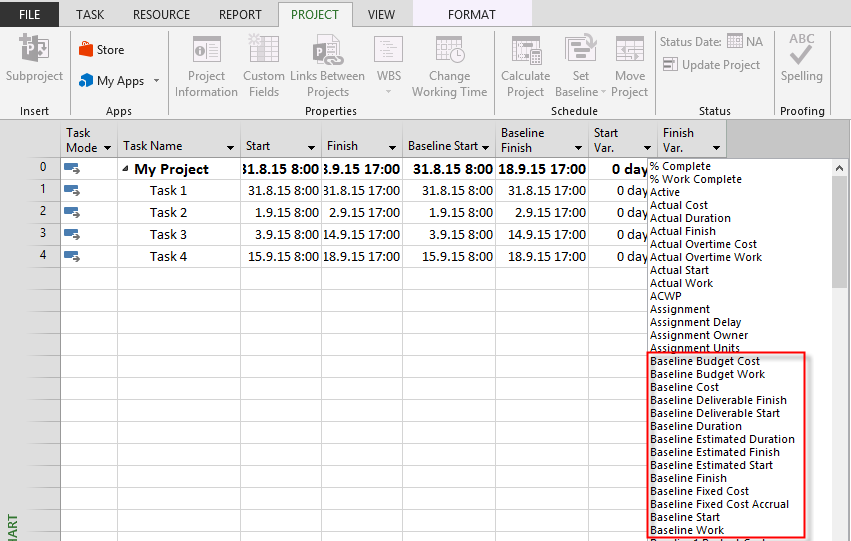
Now back to the Problem. When you save a Baseline, MY PROJECT doesn’t save the Calendar, but it saves data to the, so called, Baseline fields. I will show Variance Calendar, and just, some of those fields:

image

and:

image

In Variance Table, you can see by Default, Baseline Start, and Baseline Finish fields, but you can add other, as well.

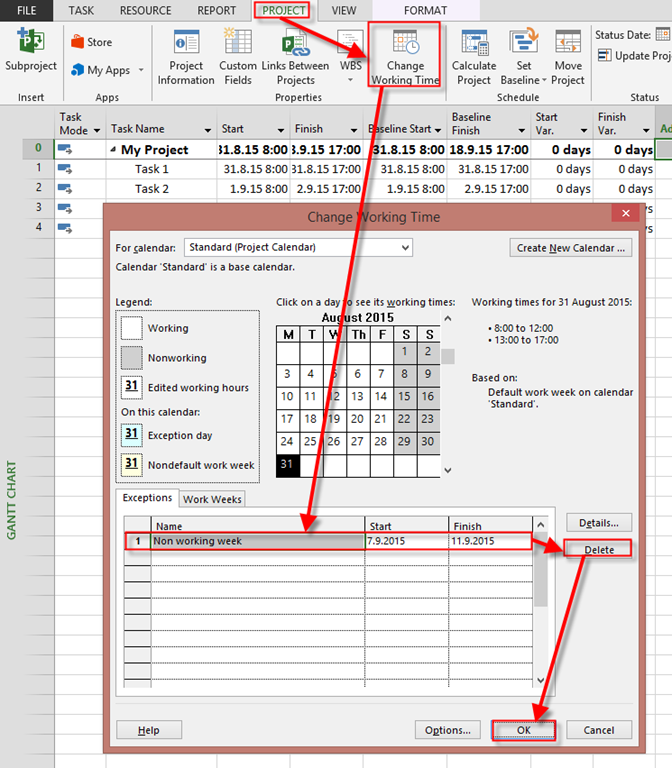
So, let’s say that we are going to work on the Non working week. I will erase this exception:

image

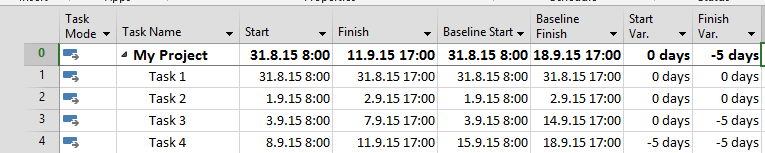
and I will get:

image

As you can see, Task 3 is supposed to be done at 07.09.2017 (instead of 14.09.2015), and Task 4 is supposed to be done at 11.09.2015 (instead of 15.09)

So there is no such a thing like Baseline Calendars in MS PROJECT. All Variances are calculated according to Baseline fields.

Hope this helps.

Regards!
Posted in MICROSOFT PROJECT, Microsoft Project 2013, MS PROJECT 2010, PMI, PRoject Management | Tagged , | Leave a comment

Overallocated fields in MS PROJECT 2013

Hi,

today I will explain Overallocated fields in MS PROJECT 2013, because they are confusing a lot of my Blog readers.

First I will create Project with three Tasks, and I will add Overallocated field in Gantt Chart View:

image

I will create two Resources for my Project, and I will add Overallocated field in Resource Sheet, as well:

image

Now I am going to assign John to Task 1 and Task 2:

image

As you can see, John is Overallocated in Task 1, and Task 2, but Overallocated field in Gantt Chart View says No! Why? Let’s look at Resource Sheet:

image

As you can see, Overallocated field here is Yes for John? Why? Because in Resource Sheet Overallocated field is Resource field, and it says that this particular Resource (John, in my example) is Overallocated among Tasks.

On the other hand, in Gantt Chart View, Overallocated field is Task field, and it says that there in no Over allocation for any Resource in that particular Task (Task 1, and Task 2 in my example). Confused? OK. Let me assign Mary to the Task 3:

image

Overallocated field is No, as expected. Since Mary has 100% as max Units Capacity, I will assign Mary on the Task 3 with, for example,  120%:

image

and I will get:

imageYou can see that Overallocated field for Task 3 is Yes!

To conclude, if Resource works with more than max Capacity at some Tasks, it will be Overallocated in Task Overallocated field (in my example in Gant Chart View), for this Tasks, and it will be Overallocated in Resource Overallocated field (in my example in Resource Sheet), as well. On the other hand, if Resource work at the same time for multiple Tasks, but within max Capacity, then it will not be Overallocated in Task Overallocated field, but it will be Overallocated in Resource Overallocated field.

Hope this helps.

Regards!

Posted in Microsoft Project 2013, MS PROJECT 2010, PMI, PRoject Management | Tagged , , | Leave a comment

Effort estimate in hours with MS PROJECT 2013

Hi,

I’ve got a lot of questions like this one: “Hi, you have a lot of examples with estimating Durations! But we are estimate in hours. We don’t know Duration, but how many hours are needed to complete our Tasks! How to do it with MS PROJECT?”

OK! Let’s do it in MS PROJECT 2013!

First, remember the Magic Formula: Work = Duration * Units! If you want to learn more about it, I wrote Blog Post about it, and I’m not going to repeat it here. When you are estimating in hours, that means that Task Type is Fixed work! It doesn’t have to, but it’s logical!

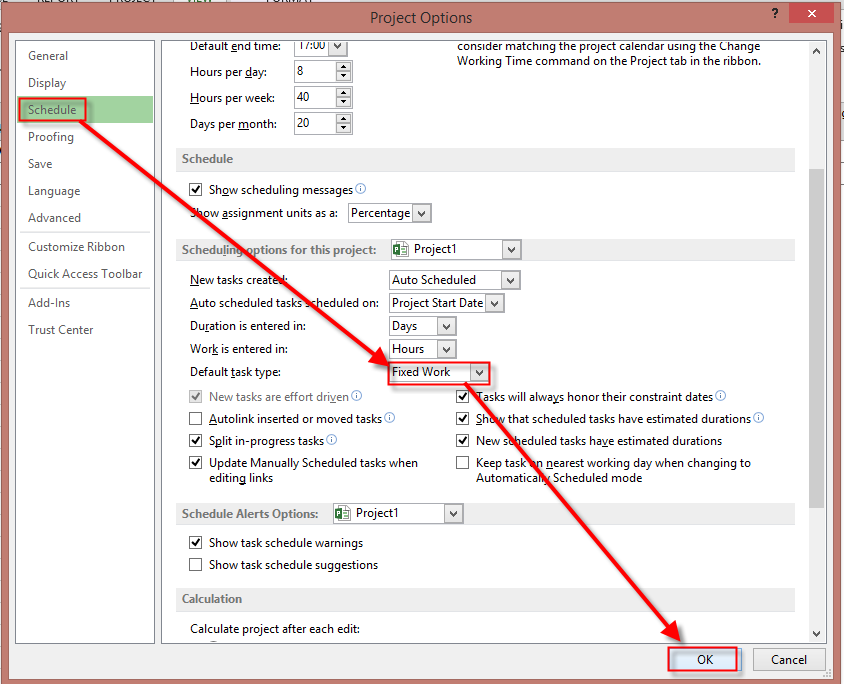
First I will create new Project, and I will set it up, so all new Tasks will be Fixed Work:

image

and then:

image

then:

image

So, new Tasks are going to be Fixed Work.

Now I am going to add new Column – Work, and some Tasks to my Project:

image

Let’s say that for Task 1 I will need 8 hours, for Task 2 I will need 12 hours, for Task 3 I will need 16 hours, and for Task 4 I will need 32 hours. When I put those values in my Project I’ll get:

image

As you can see, Duration is Estimated for 1 day, no matter how many hours do I need for specific Task. That is because I do not have Units (I didn’t assign Resources).

Be careful! For example, for Task4 I put 32 hours, no matter who will do it! But what if you can choose between Senior and Junior? If Senior will need 32 hours, maybe Junior will need 80 hours! So, once again this is not about specific Resource!

Now I will add some Resources to my Project:

image

As you can see they are all 100% available (for simplicity purposed only). Now I will assign Resources to Tasks:

image

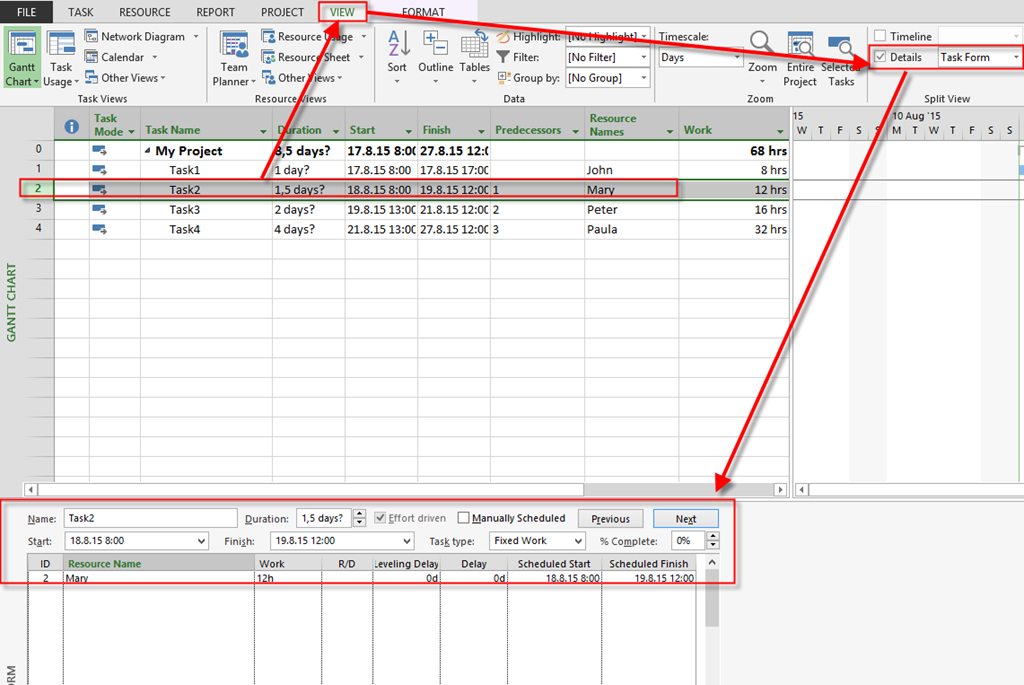
I also put predecessors for Tasks. Notice that Duration is Calculated, and that is why It has question mark. Now let’s look at the Task Form for Task2:

image

As you can see, according to Formula, Work = Duration * Units, e.g. Duration = Work / Units –> Duration = 12 hours (8 hours per day) / 100% = 1,5 day!

But what if, for example, Mary is only 50% available? I will change this in the Task Form, and I will get:

image

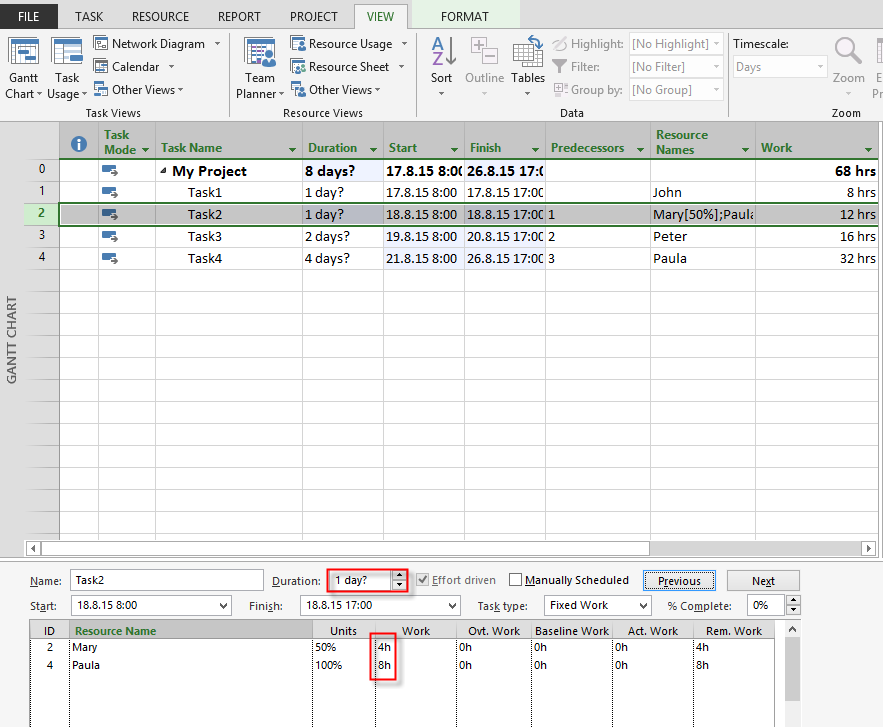
Duration is now 3 days! Now what if I add Paula to the same Task with Units = 100%? See below:

image

Duration is now 1 day! Why? Paula will Work 100% (Units), and Mary 50%. So Paula will work 2/3 of 12 hours which is 8 hours, and Mary will work 1/3 hours which is 4 hours. And since the longest work is 8 hours, Duration will be (according to formula), 1 day!

To conclude, if you don’t know (or don’t want) estimate your Tasks in Duration, but rather in work, use Fixed work Task Type, but always keep in mind that it can be tricky, because different persons will need different effort according to their knowledge, maturity etc.

One Trick for you! I never put work in a work field in Gantt Chart. I always do it in Task Form for Particular Resource.

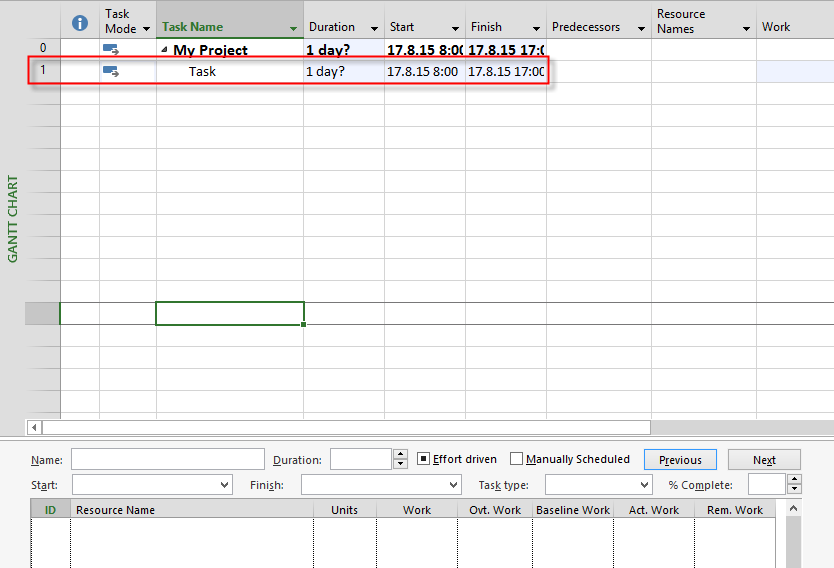
Suppose that I have one Task like this:

image

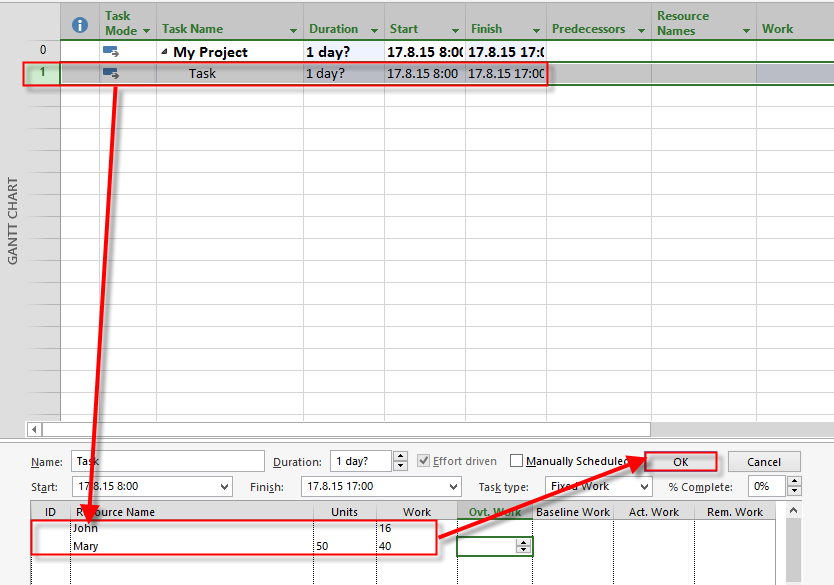
Now suppose that John, and Mary will work on that Task! I will ask them: How many hours do you need? And if I get answer like: Well, we estimate that John will need 16 hours and Mary 40 hours, but she will work only 50% per day on This Task, I will put those values into the Task form:

image

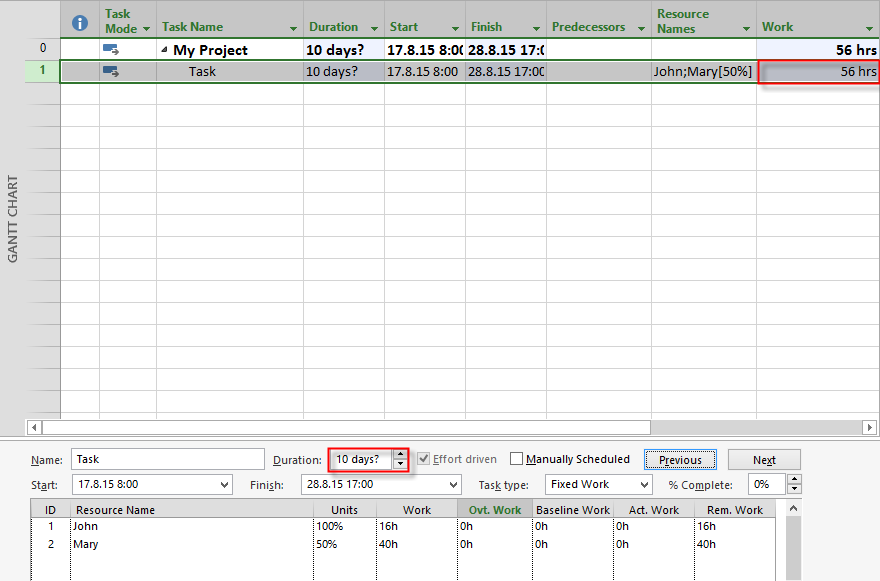
and after I click on OK button, I will get:

image

As you can see, Total work is 56 hours (John 16 + Mary 40), and Duration is 10 days, because Mary will work only 4 hours per day (50%), and that means she will need 10 working days to accomplish this Task.

With this approach you will get much more precise estimating!

Regards!

Posted in MICROSOFT PROJECT, Microsoft PRoject 2010, Microsoft Project 2013, MS PROJECT 2010, PMI, PRoject Management | Tagged | Leave a comment

how to edit Multiple Tasks at once in MS PROJECT 2013

Hi,

often you will need to edit information not only for single, but for multiple Tasks in MS PROJECT 2013, and you will not want to edit Task by Task because it is time consuming. What can you do?

First IU will create simple Project:

image

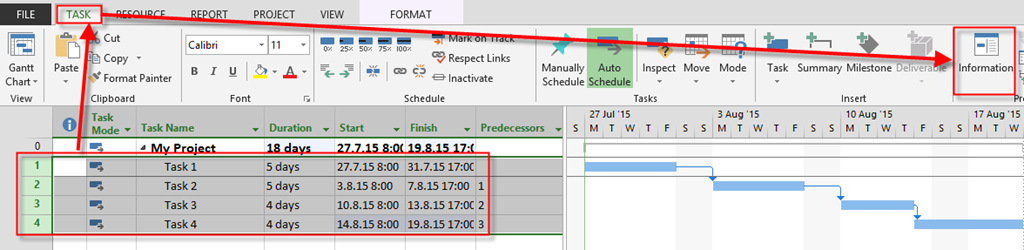
Now suppose that I want to edit all of them (or some), so I have to select those Tasks and then:

image

and I will get:

image

I will cover all Tabs, but not all field, just most important:

General Tab

  1. Name – if you put something in this field  (for example: Development), all selected Tasks will have this (same) name
  2. Duration – if you put number in this field, all selected Tasks will have same Duration
  3. Percent complete – if you put number here, all Tasks will have same % Complete
  4. Schedule Mode – you will select for all Selected Tasks Manually or Auto Schedule Mode

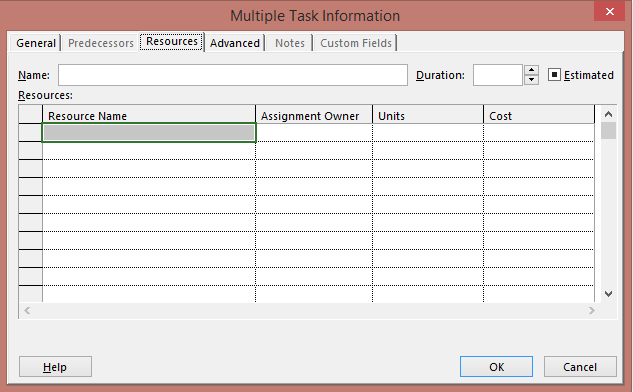
Resources Tab

image

You can assign same Resources for all Selected Tasks

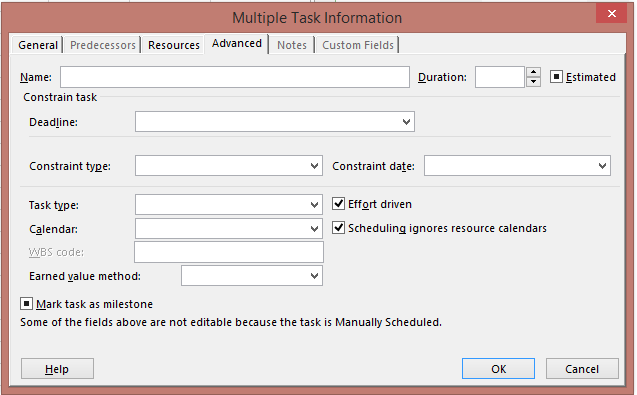
Advanced Tab

image

  1. Deadline – you can put same Deadline date for all Selected Tasks
  2. Constraint Type – you can choose Constraint type for all Selected Tasks (for example, ASAP, ALAP,SNET,FNET,….), and put appropriate date
  3. Task type – you can choose between Fixed Units, Fixed Work or Fixed Duration, and if Tasks are Effort or non Effort driven (Fixed Work type is always effort driven)

As you can see you can not put predecessors for Multiple Tasks, and that make sense!

To conclude, this feature is very powerful, and use it whenever you can, so you will save a lot, and I mean A LOT of time!

Regards!

  1. Calendar – you can choose default Calendar for all Selected Tasks
Posted in MICROSOFT PROJECT, Microsoft PRoject 2010, Microsoft Project 2013, MS PROJECT 2010 | Tagged | 2 Comments

Finish to Finish / Start to Start Dependencies with LAG in MS PROJECT 2013!

Hi,

my Blog reader has a question: “Dear Nenad, can you explain Lag with Dependencies other than Finish to Start, like Finish to Finish and Start to Start?”

I will show you how to do that in MS PROJECT 2013!

First I will create simple Project:

image

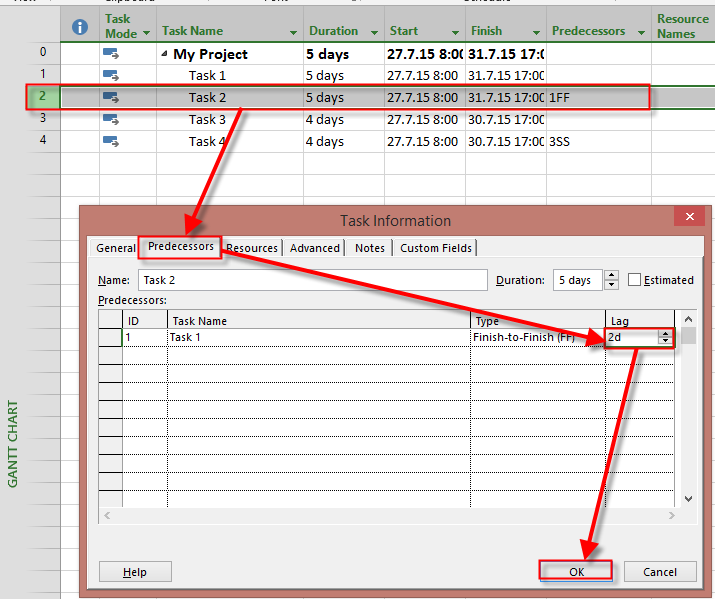
As you can see Task 1 and Task 2 have Finish To Finish relationship, and Task 3 and Task 4 have Start To Start Dependencies. Now, suppose that Task 2, and Task 4 have 2 days Lag:

image

and I will get:

image

As you can see Task 2 will have Finish date 4.8.2105, and will start two days later, so it’s Start date is postponed!

I will repeat this for Task 4 and I will get:

image

Same result! So, yes you can have Lag (and Lead) with Tasks with Dependencies other than Finish to Start, but be aware of consequences!

Regards!

Posted in MICROSOFT PROJECT, Microsoft Project 2013, MS PROJECT 2010, PMI, PRoject Management | Tagged | 2 Comments

How to enable adding Columns in MS PROJECT 2013 Tables?

Hi,

this will be a short one, but I need to help to one of my Blog Readers. The question is:

“Dear Nenad, in MS PROJECT 2013, I can add additional Columns to some Tables, but not to all of them. Is it a Bug?”

The answer is – No, it is not! Let me show you an example. Here is the simple Project:

image

As you can see I can Add New Column in this Table. What Table do I’m looking at?

image

As you can see currently I’m using Entry Table. I will now choose Cost Table, and I will get:

image

As you can see there is no Add New Column here. To enable adding a new column I should follow this steps:

image

then:

image

and I will get:

image

To conclude, if you want to Disable / Enable (default) adding new Column for some tables you should edit this checkmark for each Table.

Regards!

Posted in MICROSOFT PROJECT, Microsoft Project 2013, MS PROJECT 2010, PMI, PRoject Management | Tagged | Leave a comment