

Dear Blog readers,
next week I’ll be in Anaheim, at the PROJECT 2104 Conference. So, there will be no Blog Post.
Stay tuned, I’ll write about Conference when I come back!
Regards
Dear Blog readers,
next week I’ll be in Anaheim, at the PROJECT 2104 Conference. So, there will be no Blog Post.
Stay tuned, I’ll write about Conference when I come back!
Regards
Hi,
again, a question from one of my Blog readers:
“Hello Nenad,
How does one remove a resource pool from a master project completely from MS Project 2013. I can’t keep other sub projects that formerly were connected to the resource pool from looking for it when I open those files. I have already gone to Assign Resources and have selected “Use Own”. When I do this the correction does not take place and the files are still linked to a resource pool that has been deleted??
I have used your blog for information frequently. You have much better information than anyother “Official” site that I have looked at.”
Of course, I’m going to explain that with MS PROJECT 2013!
First I’m going to create Resource Pool:

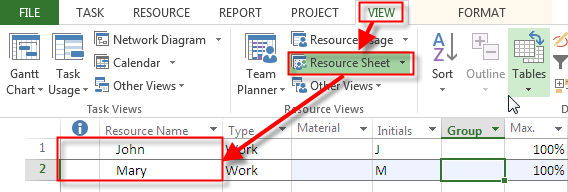
Now I’m going to add John, and Mary:
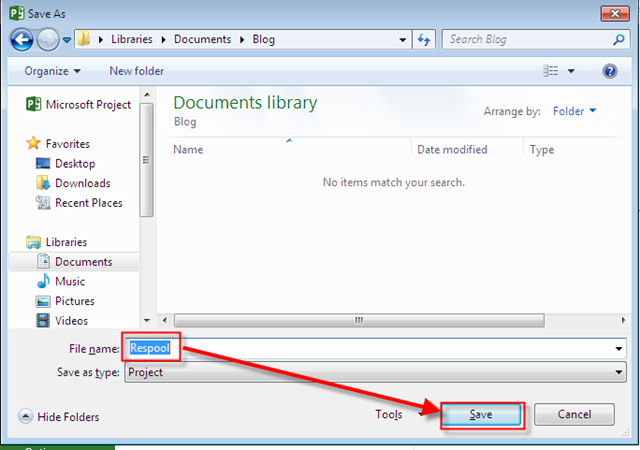
Now I’m going to save The Resource Pool (you know the steps – File, Save As, and then):
I’m going to Create two Projects, with two Tasks, and I’ll assign Resource to them:

and:
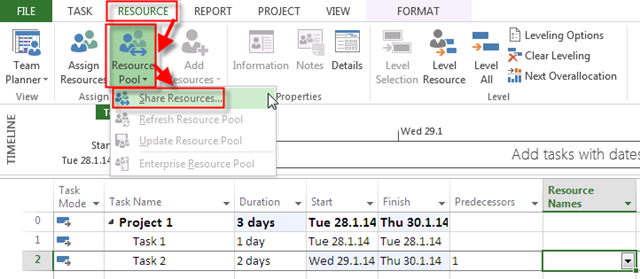
and then:
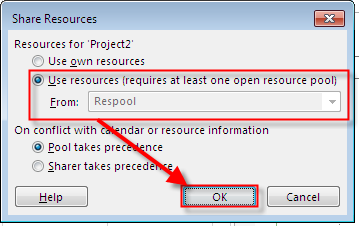
Finally, I’m going to assign Resources to Tasks:

I will follow the same Steps for the Second Project and I’ll get:

Now I’m going to Crete the Master Project With Two Subprojects:
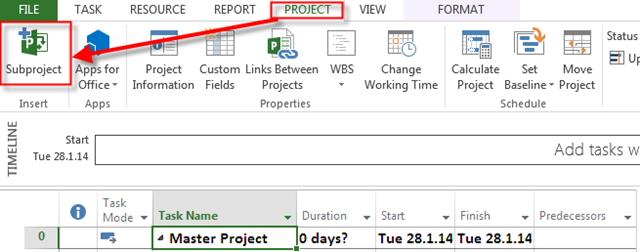
and then:
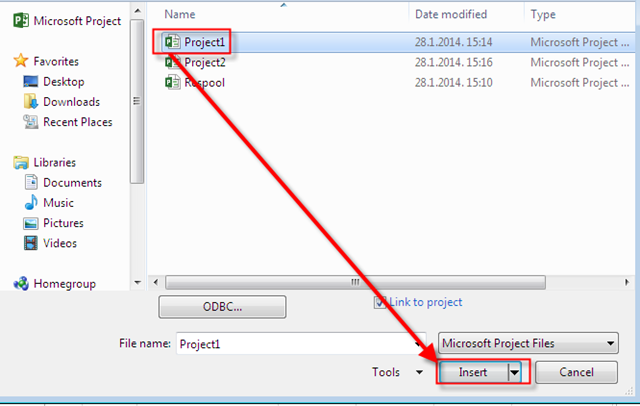
I’ll do the same thing for the Second Project, and finally I’ll get:
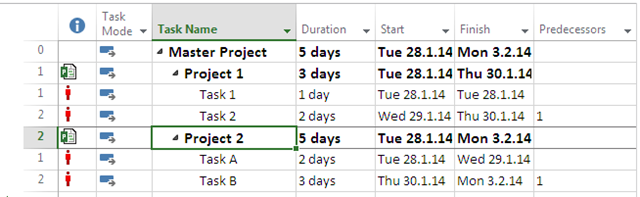
Now suppose, that after some time, I don’t need Resource Pool any more. I’ll open the Master Project file:
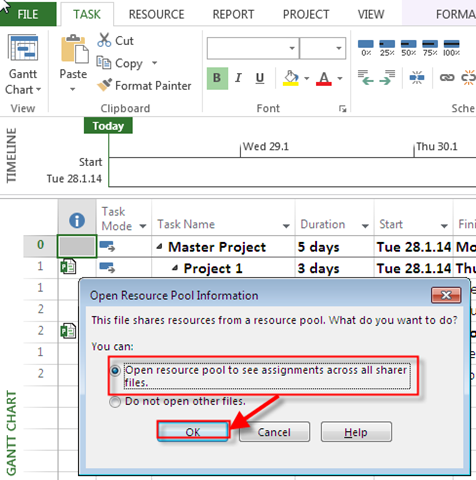
Now I’m going to disconnect the Resource Pool:
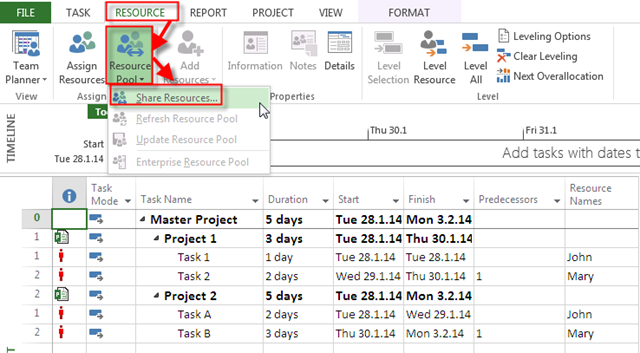
and then:
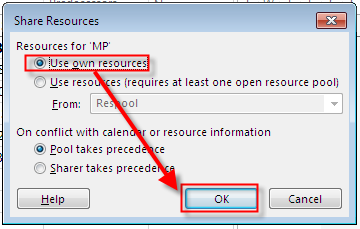
and I’ll get:
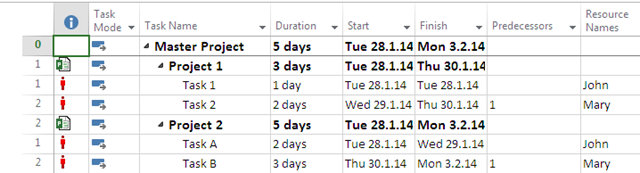
It seems that there is no change! But it is! When I close the Resource Pool I’ll get:
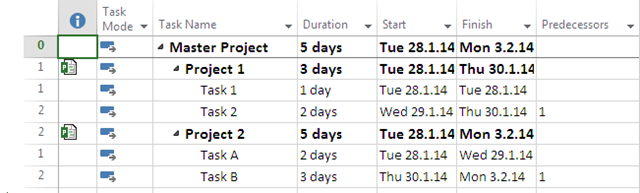
As you can see, there is no Over allocation any more. Resources remains, but as Local Resources. If you want to remove them from all Projects, just delete them from Master Project, and you will get:
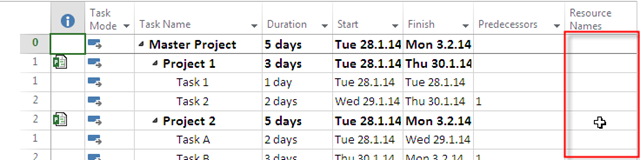
Now, take a look at your Project 1, or Project two, at the Resource sheet. You will see:

NOTHING. There are gone!
Hope this helps.
Regards!
Hi,
again, one of by Blog readers has a question:
“How do you update actuals? Let’s say the task is supposed to have finished 21 Feb 2014 according to the original plan. However, this task can now be finished earlier. Do you enter the new finish date as a constraint? Or do you enter a new duration and let the finish date be calculated. And how do you not let it affect your Work value?”
I’ll show you how to do that in MS PROJECT 2013!
First I’ll create a brand new Project with one Task:

As you can see, Task will start at February, 17th, it has 5 days duration, and it will finish at February 21th.
I will now add John as Resource for my Project:
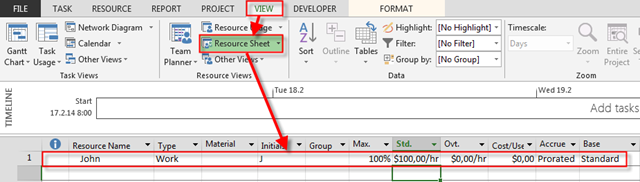
and I’m going to assign John to the Task:

Finally, because I don’t want to change my Work, which is 40 hours (e.g. WORK = DURATION * UNITS, and that means WORK = 5 days * 8 hours per day * 100% = 40 hours), I’ll make My Task ad Fixed Work:

Now, because this is my Plan, I’m going to save it through Baseline:

I’ll switch to Task Usage View!
Now Let’s say that Task, actually begin at February 17th, but it finished at February 20th.

and then:

and I’ll get:

As you can see, Work is 40 hours but Duration has changed to 3,88 days! If it is not what you wanted (and, for my case it is not) I can put actual hours manually, like this:

With this method, I can tell how much work John spent on this Task each day.
It is tricky, a little bit complicated, but it works!
Regards
Hi,
we all know what Critical Path means. It is path in which, if any Activity is late, the whole Project is late.
Let me show you Critical Path in MS PROJECT 2013.
First I’ll create new Project with some Tasks and dependencies between them:

I want to see Critical Path, so I will do next:

and I’ll get:

and I’ll get:
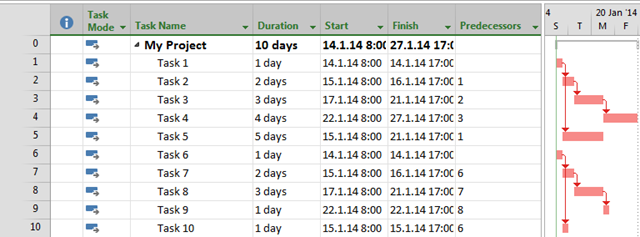
As you can see, Critical Tasks (or Activities, to be more precise) are: Task 1, Task 2, Task 3, and Task 4.
Now Imagine next situation:

As you can see, Task 6 – Task 10, they are not at the Critical Path. But what if I want to see Tasks which are at the, so called, “Critical Path” in this particular Branch? I will do next:

then:

and then:
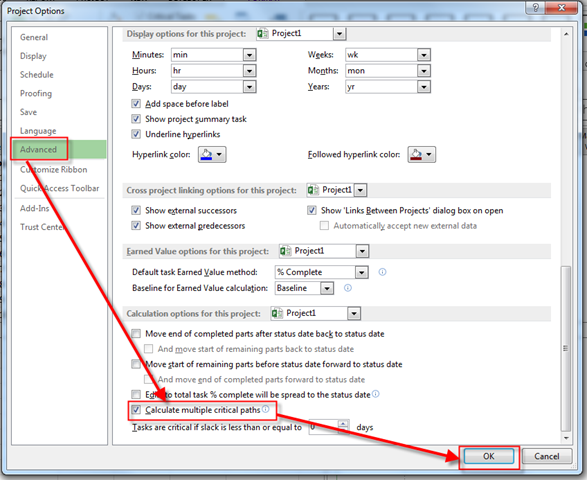
Finally I’ll get:

Now I have two Critical paths!
I seem a confuse a little bit because with this option, if it is turned on, the late finished date for tasks with no constraints or no successors are set to their early finished date, so they are Critical!
My suggestion is: Do not use this option! I’m tracking only one Critical Path, the real one!
Regards.
Hi,
first Blog Post in new 2014 year. I’ve been asked about some recommendations about additional setup in MS PROJECT 2013
There is a lot of setup which you can do in MS PROJECT 2013. You can set up Calendars, working time, exception time, etc. I’ll show you some additional setups available in MS Project, and I am going to explain them.
First one is to put Project information when you open a ¸new Project. To set up that you show follow this steps:

then:
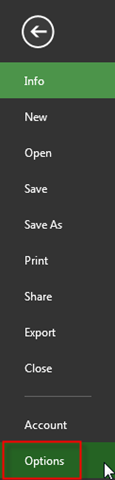
and then:

Now, when you create a brand new Project you will get this:
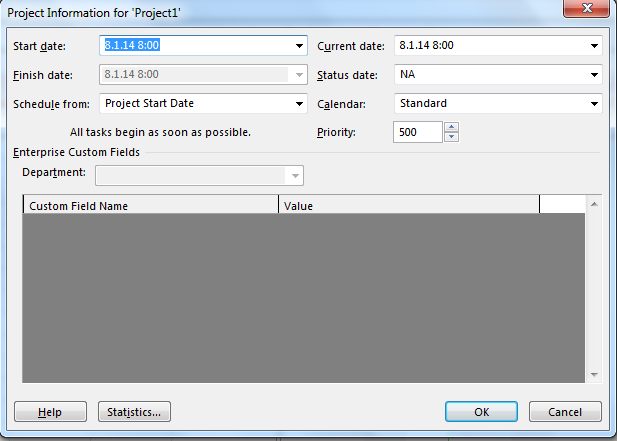
so you can put Project Information as Start or Finish date, Default Calendar here! It is good practice to turn this option on.
It is good practice to have these two options turned on, as well:
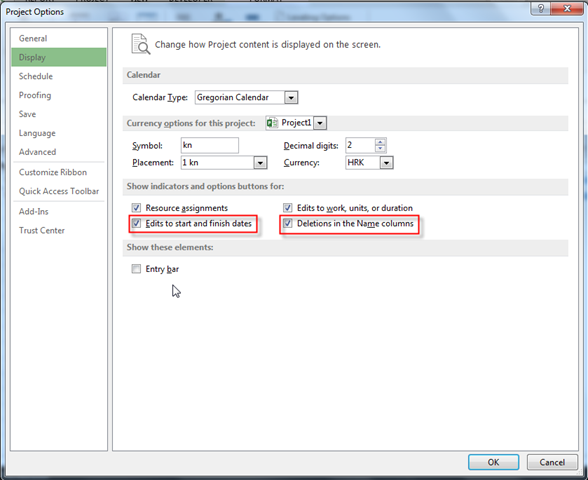
Edits to start and finish dates will show you follow if you change, for example, Start date:

and you’ll get:
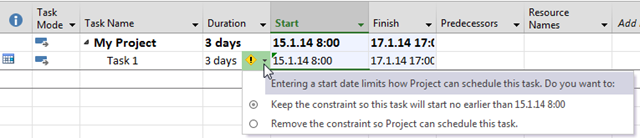
so you can choose will you make a semi flexible constraint to the Task or not.
From my Point of view, Deletion in Name columns is very useful. If it is turned of, when you are in the name Column, and you hit delete key you will get:

this:

As you can see, the name is gone! Very often I mean to delete the Task, but I am not at the right place with my cursor (on the Task number on the far left side of the screen). Whit this option turned on, when I hit Delete key on the Task Name, I’ll get:

and when I click on this sign I’ll get:
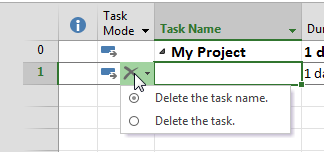
So I can choose between Task Name or whole Task deletion.
By default you can add new Resource directly through assignment field like this:
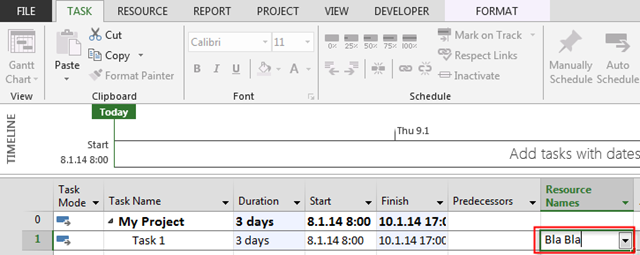
and when you hit Enter, it will be in Resource sheet:

With that you can easily forget to put Standard Rate, Overtime Rate, etc.
But, if you turn this option off:

when you add new Resource through assignment field:

and when you hit the Enter key you will get:
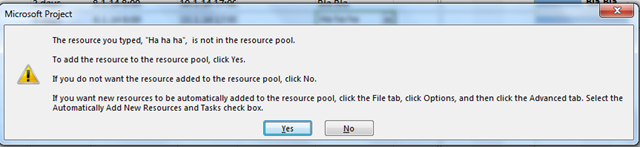
So, you’ll get warning Message this Resource is not defined, and that you will have to make some adjustments (Calendars, Pay Rates) in Resource sheet.
And remember. Those recommendations are mine! You should choose your own setup options for your Projects.
Regards!
Hi,
this will be an easy one, because tomorrow is a New Year (2014), so I’ll finish this year with an answer to my Blog Reader. The Problem is very Simple:
“Dear Sir, I’m using the Ribbon all the time, but Each and every time I have to click on exact Tab to see it! After I do something it disappears. Is it a Bug? Thank you very much!”.
First of all, it is not a bug. Someone likes to have Ribbon on the screen all of the time, someone not.
Lets see what we can do here. The screen for a new Project is:

I will add a brand new Task to it:

What if I want to make it 100% completed? I have to click on the Task Tab, and then:

and I’ll get:
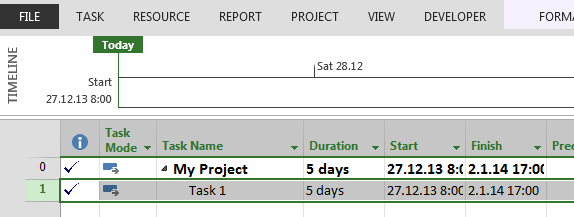
As you can see, the Ribbon is gone! If you want to have a Ribbon on the screen all of the time you should do this:

and you will get:

The Ribbon is here, and It will stay here!
Please allow me to wish you a Happy New Year, and I hope that you will stay my Readers in 2014 year as well! All the Best!
Regards
Hi,
another question from one of my Blog Readers:
“Hello;
I have a question about “work package”. Is work package the same as “activity” or “activity” is more detailed than a work package?
Thank you”
Theory first. Suppose that you are going to build a wall. Than the Work Package will be Wall. Work Package is the Lowest branch in WBS (Work Breakdown Structure) for which you can estimate Costs, Resources, and Activities. Remember this: Work Package is always noun. So, in my example it will be The wall. Here is the Picture of WBS, and Work Package in it:

Inside of red rectangles you can see Work Packages. One important thing! You can not see dependencies in WBS, and that means that you san not say how long will take for Project to finish. For that, you should use Activity diagram. Activity is always verb. Activities are explanation of what do you have to do to finish Work Package. In PMBOK, WBS is made in Scope Management, and Activities are created in Time Management. Here is the Picture of Activity Diagram:
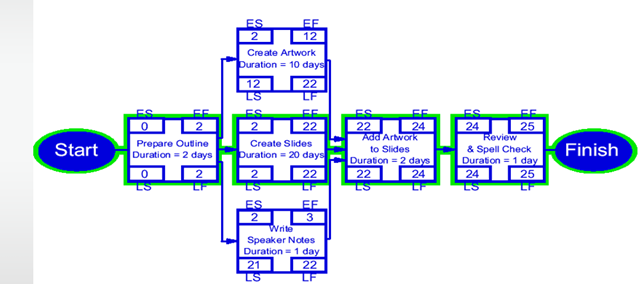
So for my example, Work Package is The wall. Activities can be: Find the cheapest Bricks, Build the wall, and Paint the Wall.
I’ll show that in MS PROJECT 2013:

I will put Activities:

I will select all Activities for Work Package The Wall, and I’ll Indent them:

and I’ll get:

As you can see Work Package: The wall will have 5 days of Duration, because in network Diagram the longest duration for Activities will take 5 days (together).
Hope that helps1
Regards!
Hi,
I had a lot of questions from my Blog Readers during past few weeks! I didn’t get you the answer because I was very busy, and I was out of Country: I’ll make it up to you, believe me!
For all of you who celebrate Christmas I wish you Mary Christmas and all the Best. Thanks from reading my Blog Posts, this make me happy!
Hi,
again one interest question from my Blog reader:
“Dear Nenad,
Thank you VERY much for your very informative blog! I enjoy reading your posts and visit the site often. I would appreciate if you could answer my question regarding managing exceptions for resources with over 100% availability (I’m a Project 2010 user).
MS Project allows creating resources with over 100% maximum availability. For example, a resource Tester with max availability of 300% means that this is a group of 3 people.
Let’s say that I have assigned this resource to a task. At a later time I found out that one of the people in this group will be unable to work on a 2 specific dates due to medical appointments.
Under normal circumstances, I would edit a resource calendar and specify these dates as an exception (non-working time). However, doing this for the Tester resource takes makes all 3 people unavailable for the dates of exception. One way of preventing this problem (rather than resolving it) is to specify 3 individual resources with 100% max availability each. However, it sort of defeats the convenience of using group resource (with over 100%). I was unable to find the answer to this problem so far anywhere and would appreciate it if you could provide some suggestions.”
I’ll show you how to do it in MS PROJECT 2013, but you can do the same in MS PROJECT 2010!
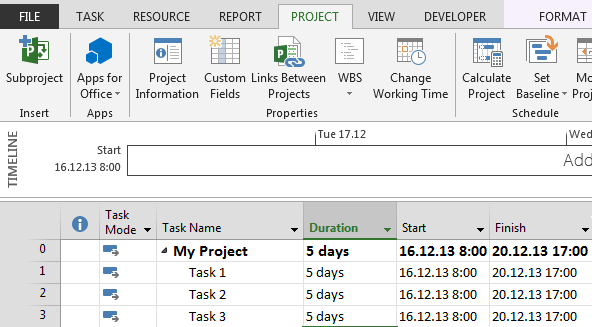
First I’ll create three Tasks with same duration:
 ž
ž
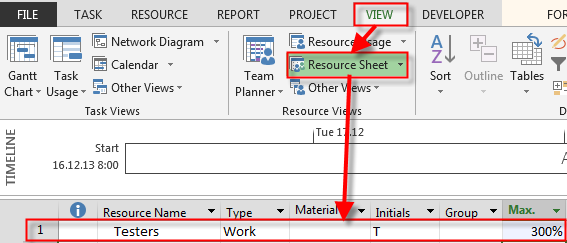
Now I will crate Generic Resource, called Testers with 300% capacity:
Now suppose that one of Testers is on Vacation from Wednesday, 12/18/2013 to Thursday, 13/18/2013. What does it mean? It means that I’ll have only 200% max Units during this period. How to do that? Follow examples below:

As you can see before, and after Vacation period Capacity is 300%, and during the Vacation Period it is 200%. Now I’ll assign Testers to all Tasks, and I’ll get:

They are over allocated. Where, and when? Let’s look at the Resource Usage View:
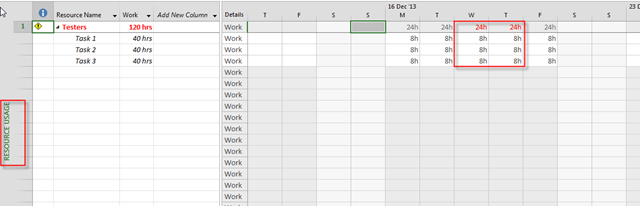
As you can see all Resource are over allocated during the Vacation time!
Hope this helps!
Regards!
Hi,
again a question from one of My Blog Readers:
“What if you work 9 hrs per day mon to thurs and 8 hrs per day friday for week 1, and for week 2 you work 9 hrs per day mon to thursday, no work on fri. So week 1 is 44 hrs and week 2 is 36 hrs. I can specify all this in the working calendar, but in the scheduling options, you can only choose a certain no of hrs per day, and a certain no of hrs per week, and this would differ from the working calendar, which would lead to errors. What’s you advice on such a situation?”
Ufffff! Let’s start with MS PROJECT 2013! First of all:
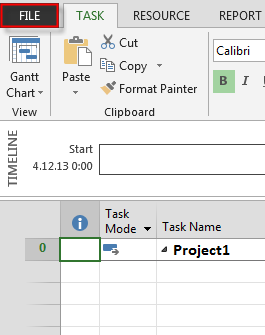
then:
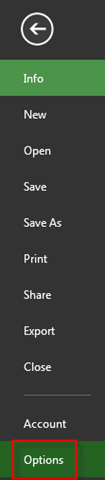
and:
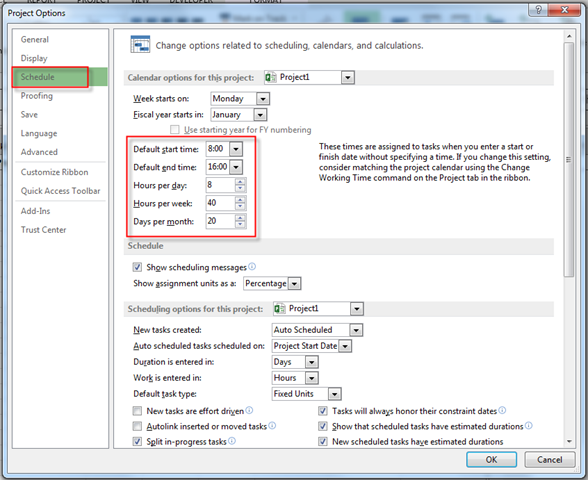
Notice that it is 8 Hours Per Day!
Now I am going to rearrange Standard Calendar:

and:
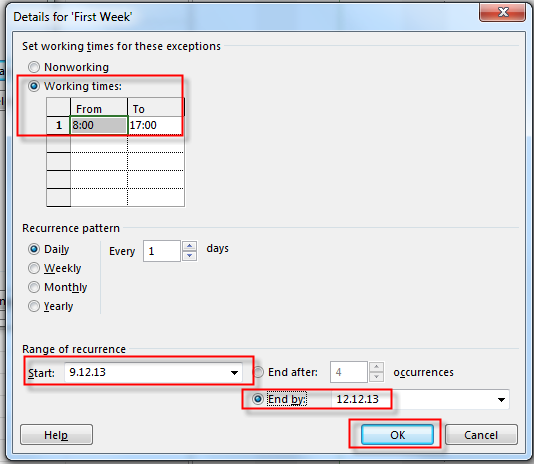
I do not have to do anything for Friday/12/13/2013, because it is already scheduled as 8 hour working day.
I’m going to set up second week:
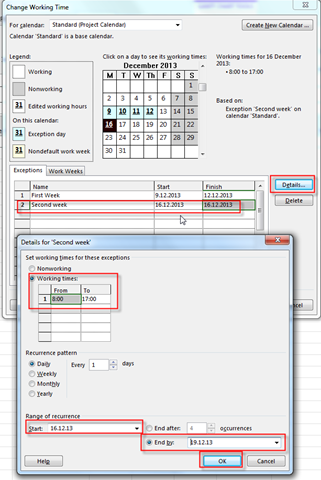
Finally I’ll set Friday/12/20/2013 as a non working day:
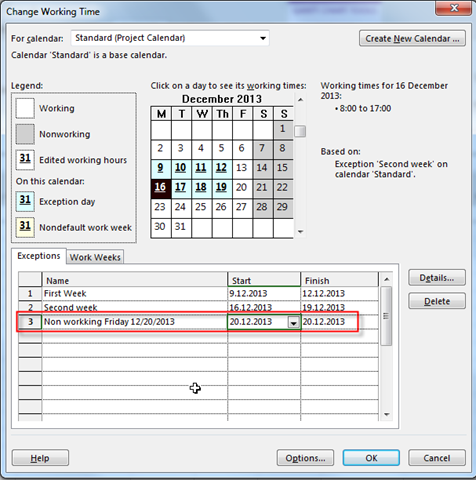
Now, I’ll add Task with 10 days Duration:

and I’ll assign John (who works on Standard Calendar) to the Task:
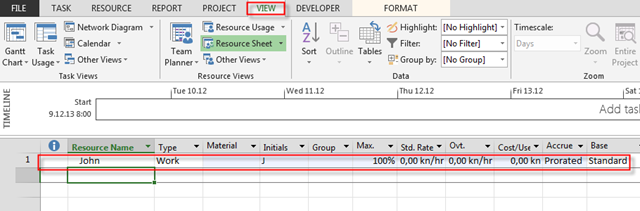
After Assigning John To Task 1I’ll get:

Now, let’s take a look at the Task Usage View:

Let me explain:
Because I said that one day will have 8 hours for working (look at the top of this Post) the Calculation is: This Task 1 needs 10 days of duration * 8 hours per day = 80 hours. So, for completing this Task we will need to work 80 hours on it! Because John will work on Standard Calendar he will work first week from Monday to Thursday 9 hours per day (4*9=36 hours), 8 hours on Friday, which is 36+8=44 hours at First week, and Second week he will work 9 hours per day (from Monday to Thursday, 4*9=36 hours), and he will not work on Friday. Total is: 44 hours at first week + 36 hours at second week = 80 hours.
This is how MS PROJECT works! What will be if I change in Scheduling options that it is 9 hours per day:

Back to the Task Usage View:

Because I said that one day will have 9 hours for working (look at the top of this Post) the Calculation is: This Task 1 needs 10 days of duration * 9 hours per day = 90 hours. So, for completing this Task we will need to work 90 hours on it! Because John will work on Standard Calendar he will work first week from Monday to Thursday 9 hours per day (4*9=36 hours), 8 hours on Friday, which is 36+8=44 hours at First week, and Second week he will work 9 hours per day (from Monday to Thursday, 4*9=36 hours), and he will not work on Friday. Total is: 44 hours at first week + 36 hours at second week = 80 hours. We need 10 hours more to complete this Task, So John will work 8 hours at Monday and 2 hours at Tuesday at third week.
Be very careful! When you change working hours from 8 to 9, for example, all Tasks will be affected by that.
So that’s it! I hope that this explains MS PROJECT behavior
Regards!
 Nenad Trajkovski