Resource rates and Billing rates in MS PROJECT 2016

Hi!

I always get a question like this:

I need to charge an hourly rate per project.  My hourly rate is $100.00 per hour. I have an employee work for me.  Their rate is $20.00 per hour. I need to track both.
How do I do this in Project 2016? “

You can do it, in a limited way. I will show you how, using MS PROJECT 2016, and I will explain why you can not get what you obviously want!

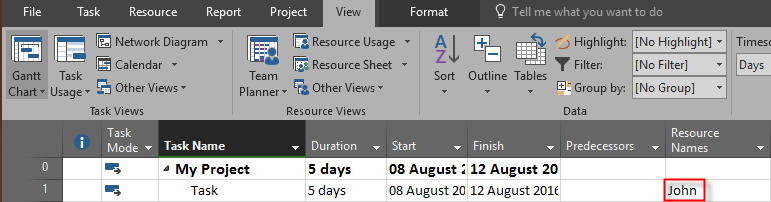
First I will create Single Project with one Task:

image

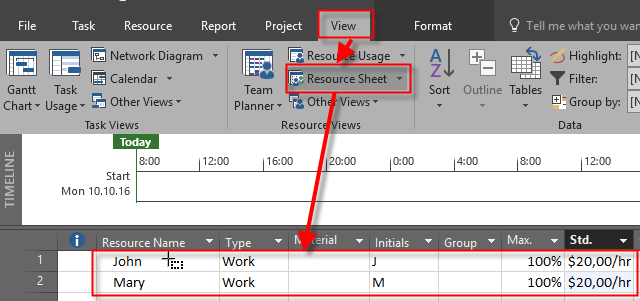
And I will create Two Resources, John and Mary, with $20 as a standard rate:

image

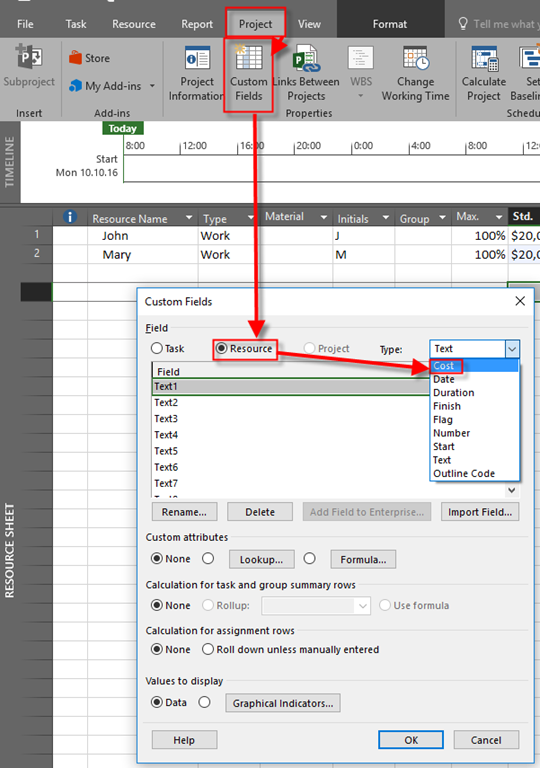
Now I will make two Resource Custom fields:

image

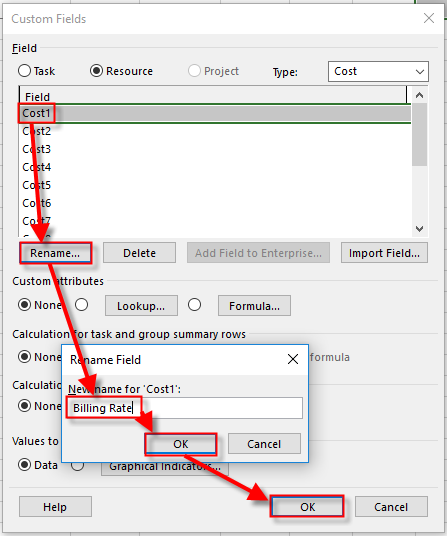
and then:

image

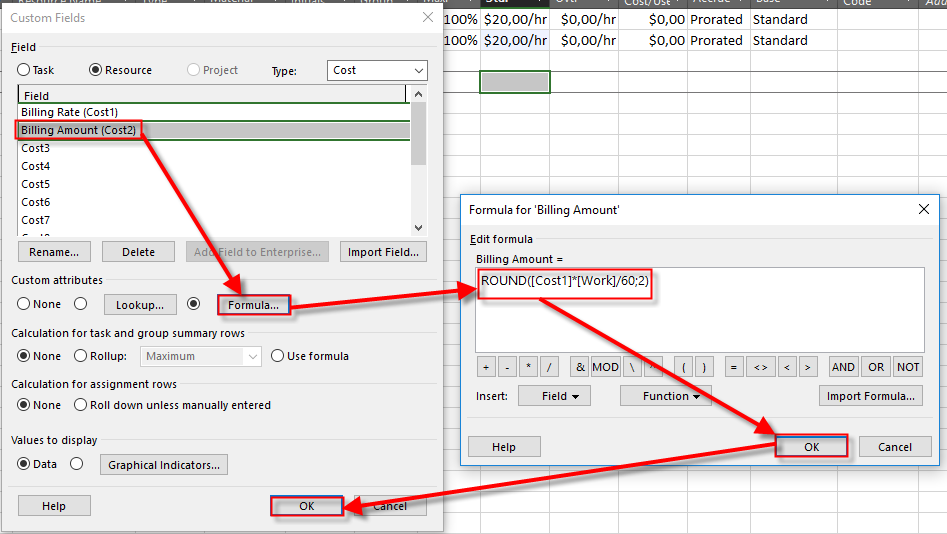
Now I will create second Custom field, on the same way:

image

Notice, that I am using formula, where Billing amount is Billing Rate (Cost1) multiplied by work and divided by 60, and then rounded at two decimal places. The reason why am I dividing work with 60 is because work is expressed in minutes in formula, so if I want to get it in Hours I should divide it!

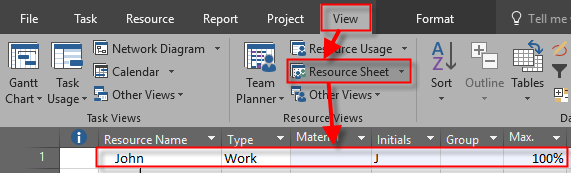
No I am going to show Billing rate in Resource sheet, and I will put $100 per John and Mary:

image

I will now assign John and Mary to both Tasks:

image

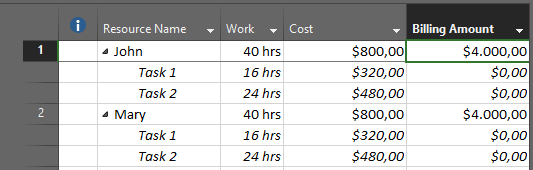
and I will now switch to Resource Usage View, and I will show the Billing Amount field:

image

As you can see for both John and Mary, Cost is $800 (40 hours * $20), and Billing Amount is $4000 (40 hours * $100).

BUT! If you look at the Task Usage View you can not get this new field (Billing amount), Because it is Resource based. That means that you can not compare two rates (regular and billing), for the Tasks. And that is no such a thing like default Billing rate for each resource.

It can be annoying, but before you think in that way remember that Microsoft Project is tool with which you manage your Project, and that means that you are tracing your Costs (Planned, Actual, etc.), not your revenue. Microsoft Project is not for billing purposes. You should use ERP (MBS NAV, SAP or other).

Hope I helped with a little bit more understanding of that!

Regards!

Posted in MICROSOFT PROJECT, Microsoft Project 2013, MS PROJECT 2016, PMI | Tagged , | Leave a comment

%Complete vs. %Work Complete in MS PROJECT 2016!–when to use what?


Hi,

very often I have questions like this one:

Dear Nenad,

I am going to develop a scheduled for a petrochemical plant shutdown project. My question is: “What percent complete should i use (% Complete or Work % Complete) and why?”

I wrote a blog Post about this issue, but I will now clarify exactly where is the difference between this two % of completeness, and when to use which one of them.

I will create a very simple Project with one single Task in MS PROJECT 2016:

image

I am going to create two Resources, John and Mary:
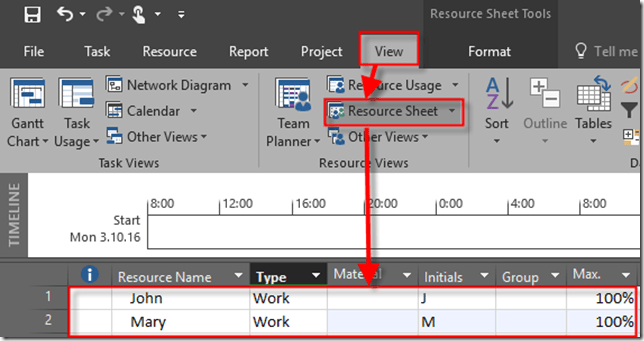
image

Now. Let’s say that Mary has day off at Wednesday, 05.10.2016:

image

I will assign them to the Task:

image

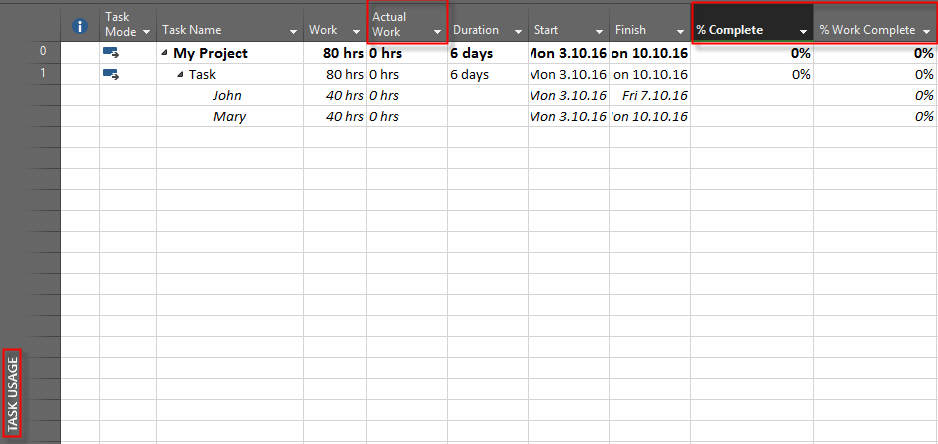
As you can see Duration is now 6 days. Now I will switch to the Task Usage View, an I will add some columns in it:
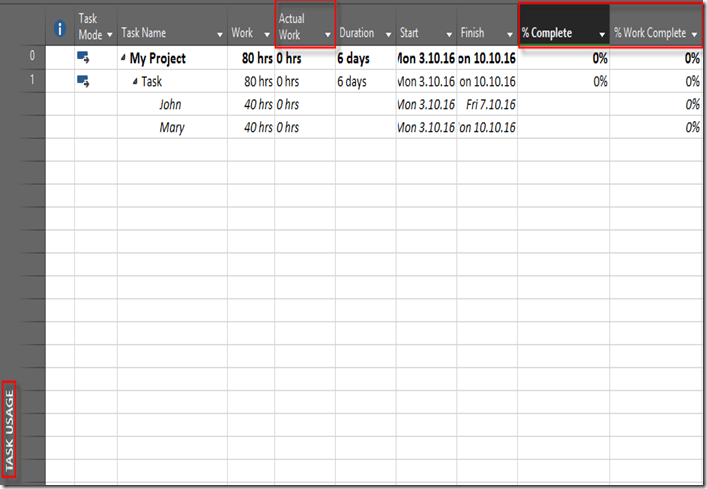
image

As you can see, Duration is 6 days. Why? Initial Duration was 5 days, (from Monday to Friday), but since Mary has day off at Wednesday, she should work on next Monday to finish her part of the Task, and it makes 6 days.

John will work 100% which means 8 hours per day and that make Total of 5 (not 6, but 5!!!) days * 8 hours per day * 100% = 40 hours. Mary will also work 100% and that also make Total of 5 days * 8 hours per day * 100% = 40 hours. . So to finish this Task 80 hours of work is needed.

Now, let’s say that we put 50% in %Complete field. We will get:

image

50% in %complete field means that we spent 50% of Duration! So the work was done according to plan at Monday, Tuesday and Wednesday! You can see that in right part of Task Usage View in Actual Work field per day.

So John spent 24 hours (8 hours at Monday, Tuesday and Wednesday), but Mary spent only 16 hours (8 hours at Monday and Tuesday, and she did not work at Wednesday, because she had day off!).

Now let’s calculate %Work complete for this example.

  • John has to work 40 hours, and he spent 24 hours, so that means 24/40=0,6 or 60%
  • Mary has to work 40 hours, and she spent 16 hours, so that means 16/40=0,4 or 40%
  • From the Task point of view, John and Mary have to work 80 hours and they spent 40 hours, so that means 40/80=0,5 or 50%

Now let’s say that we did not put 50% in %Complete field, for the Task but instead of thet we put 50% in %Work Completed field. We will get the same result, so I will not show you the same picture again. But I will show you how MS PROJECT calculate %Complete in this example:

  • From the Task point of view, John and Mary have to work 80 hours and they spent 50%, so that means 80 * 50% = 40 hours spent on the Task
  • John and Mary worked on Monday, which is 16 hours together, and Tuesday which is another 16 hours (so for now, Total is 32 hours), and John worked 8 hours at Wednesday (and Mary was at her day off), so Total is 40 hours spent of the Task
  • John has to work 40 hours, and he spent 24 hours, so that means 24/40=0,6 or 60%
  • Mary has to work 40 hours, and she spent 16 hours, so that means 16/40=0,4 or 40%

BUT! Suppose that John spent 50% of his Work on the Task, and Mary only 20%. It means that John has worked 40 hours*50% = 20 hours, and Mary has worked 40 hours * 20% = 8 hours. If I put this values on %Work Completed I will get:

image

From the Task point of view, John and Mary have to work 80 hours and they spent 28 hours, so that means 28 / 80 = 0,35 or 35% of %Work Completed

To calculate %Complete I need Actual Duration which is 1,57 days. It is calculated in this way:

  • For both John and Mary, if they work full time they have to work 16 hours at Monday. And they did. So this make 1 day
  • For both John and Mary, if they work full time they have to work 16 hours at Tuesday. And John worked 8 hours, and Mary didn’t work at all . So this make 0,5 days (8/16=0,5)
  • For both John and Mary, if they work full time they have to work 16 hours at Wednesday. And John worked 4 hours, and Mary didn’t work at all . So this make 0,25 days (4/16=0,25)
  • So, in total it is 1 + 0,5 + 0,25 = 1,75 days. And this means that %Completed is Actual Duration / Duration = 1,75 / 6 = 0,29 or 29%

Now, final conclusion.

  • When you know how much time has passed (e.g Duration) in percentage, use %Complete field.
  • When you know how much work is done (e.g Hours)  in percentage, use %Work Complete field.
  • When you know how much work is done (e.g Hours) in percentage for specific resource, of course you will use %Work Complete field. And this is the most common situation if we are talking of percentage.
  • But, if you know exact number of hours that particular Resource spent on the particular Task, never use %Work Complete, but always Actual work field!

Regards!

Posted in MICROSOFT PROJECT, MS PROJECT 2016, PMI, PRoject Management | Tagged , , , | 2 Comments

How to put different Overtime Work to Task in MS PROJECT 2016!

Hi,

I have a very interesting question from one of my Blog Readers:

“Hi Nenad,

I want to put different overtime Work for a Task and Resources. Let’s say that I have Task1, and John an Mary are assigned to it. Task has 2 days Duration, which means that John and Mary will work 16 hours (8 hours each day). but I want John to work 12 hours first day (8 hours Regular work, and 4 hours overtime work) at FIRST DAY, and Mary has to work the same way on the Second day. How to accomplish that?”

OK! I will show you how, and IF by using MS PROJECT 2016!

First I’m going to create brand New Project with one Task – 2 days duration:

image

Now, I’m going to create two Resources, john and Mary:

image

and I will assign them to the Task:

image

Now, I’m going to switch to the Task Usage View:

image

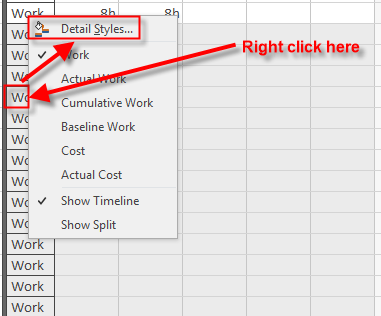
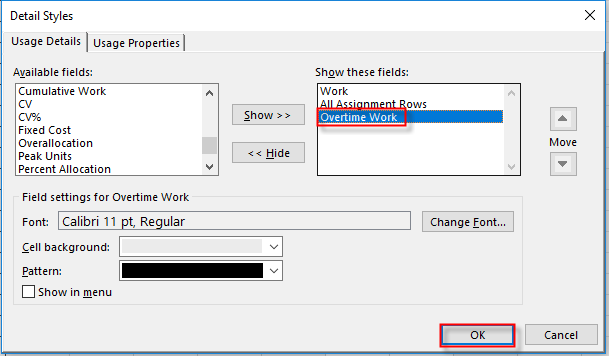
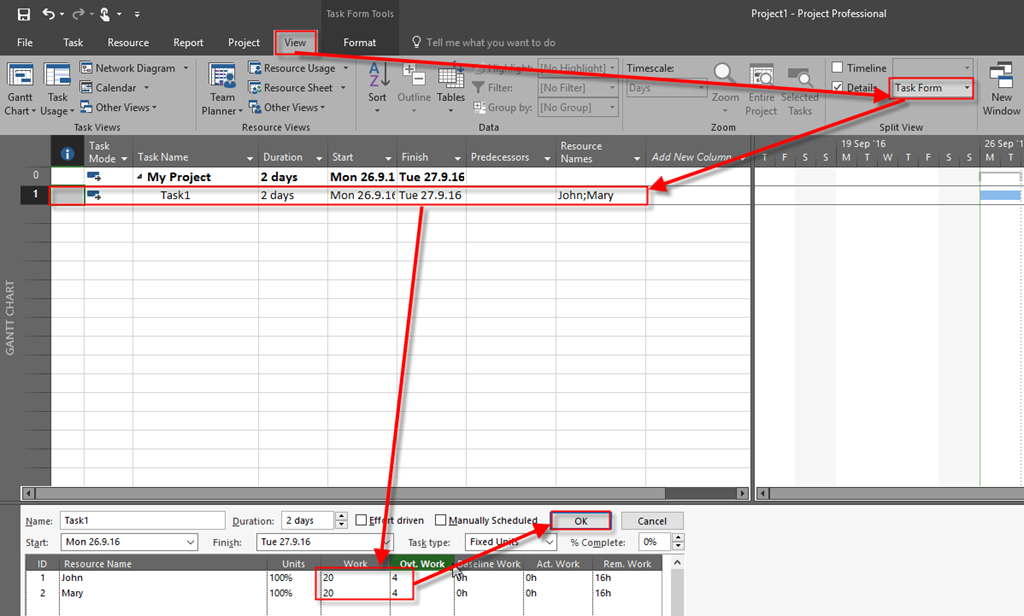
As you know, John is supposed to work 12 hours on Monday (8 hours Regular work, and 4 hours Overtime work), and Mary has to work the same way on Tuesday. what I have to do I to assign John 12 hours in Work field, and 4 hours in Overtime work field on Monday, and the same for Mary but at Tuesday. firs I am going to show Overtime work field  on the right side of Task Usage view:

image

and:

image

and then:

image

Now I’m ready!

image

Do you see those, Ovt. Work fields? They are not editable! So, you can not! put 4 hours for John as Overtime work at Monday, and for Mary at Tuesday.

However, you can follow this steps:

image

and you will se on Task usage View.

image

So, Overtime work is set to 4 hours per John and Mary, but it is evenly distributed, and you can NOT change that per day!

Regards!

Posted in MICROSOFT PROJECT, Micsrosoft Project 2016, MS PROJECT 2016, PMI, PRoject Management | Tagged , , | 1 Comment

%Complete, %Work Complete, and Project without Resources with MS PROJECT 2016!

Hi,

I’ve got a question from one of my Blog Readers:

“Please clarify the following: I have created a Sample project in MS Project 2013, with tasks and assigned duration  with required predecessors.
I have base lined the plan and started tracking the progress.
I see both the % Complete field & % Work Complete as 100% for all the completed tasks.
My question is why the % Work complete is being shown as 100% even though the work /baseline work being zero and the actual work also being zero.
The % Work Complete is calculated using the formula (Actual work/Work) *100 . Is this a bug?”

This is a basic thing in any version of MS PROJECT. I will show you a simple example an I will explain why this is not a bug at all. I’ll use MS PROJECT 2016!

I will follow steps, as my Blog Reader did. So, first I will crate very simple Project, and I will put predecessors:

image

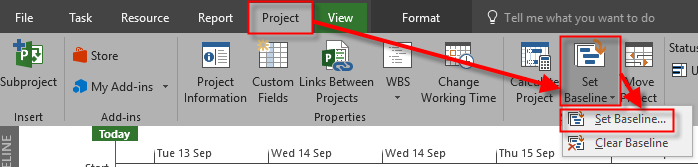
Now, I’m gong to save the Baseline:

image

and:

image

I will show now Gantt Chart View with some additional columns:

image

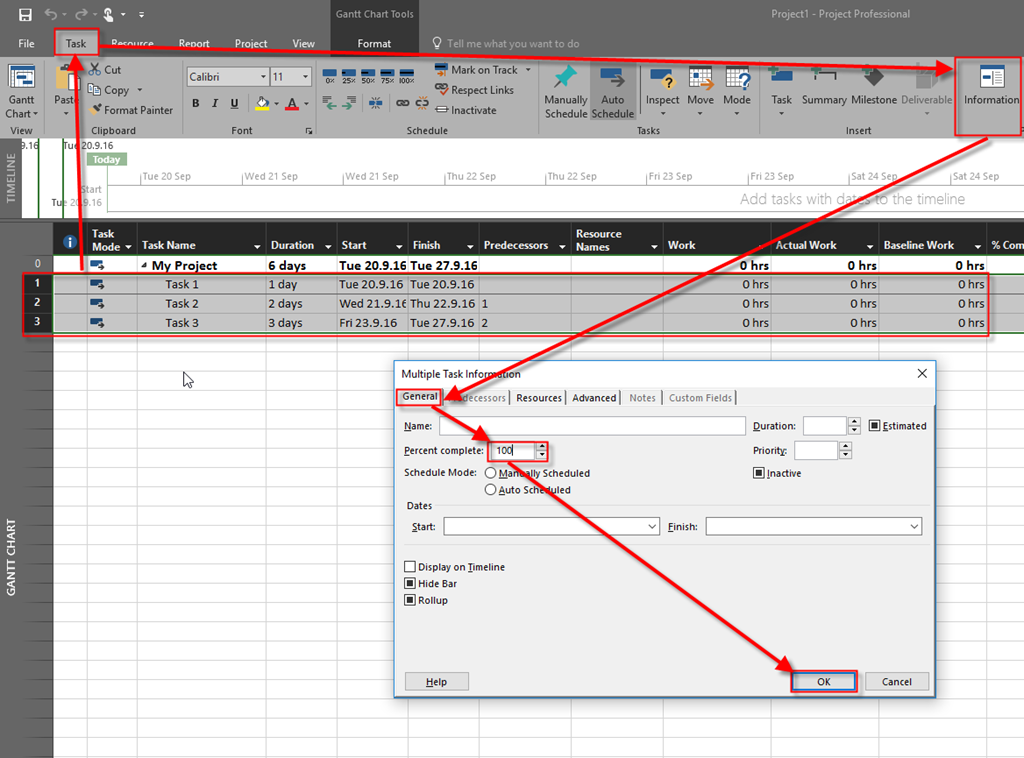
Now I will mark all Tasks as 100% completed:

image

and I’ll get:

image

Now, I’m going to explain what happened:

  1. When Task is marked as 100% completed, than %Work completed is also 100%. Why? Because Task cannot be completed if work is not completely done. It is logical. Can you imagine that Task is 100% completed (%Completed field), but you have to work on it, for example, 4 additional hours? It simply doesn’t make any sense
  2. Work, Actual Work, and baseline work is 0 (ZERO)? Why? Because work will be more than 0 if you:
    1. Assign Resources to  Tasks
    2. Manually enter work in a work field without assigning any Resource to Tasks
  3. Anyway in both cases (with work greater than zero, or with work equal zero), %Work Completed is 100% when %Completed is also 100%!

Hope this helps.

Regards!
Posted in Microsoft Project 2013, MS PROJECT 2010, MS PROJECT 2016, PMI, PRoject Management | Tagged , , , , | Leave a comment

New Tasks and saved Baseline in MS PRIOJECT 2016


Hi,

I have a reader who is novice in MS PROJECT 2016, and he has a problem;

“Hi,

I hope you are in good health.

I have some quires about cost tracking in MS Project. I had previously saved a baseline and updated the progress for tasks in it…. then I had to make some changes and added another task. Now I had to save a new baseline for it. but this time cost table show actual cost of completed tasks for new baseline cost.How can we explain this? It is going to affect the planned cost for sure! is this the right method for cost control.?

I shall be waiting for your response. “

OK! I will show you that with simple Example in MS PROJECT 2016!

First, I’m going to create brand new Project:

image

and three Resources.

image

Finally, I’m going to assign Resources to Tasks:

image

Now I’m going to save the Baseline:

image

and:

image

Now I will show you Gantt Chart with some additional Columns:

image

OK! Let’s say that Task1 took 2 days instead of 1 day, and it is finished:

image

I will get:

image

As you can see, Cost, and Actual cost is larger that Baseline cost, because Duration is extended for 1 day.

Now let’s say, that we need additional Task for my Project:

image

As you can see, this Task is not in a Baseline. If I now save the Baseline again I will get:

image

I will get:

image

and then:

image

As you can see, now the Baseline Cost is the same and Actual Cost for Task 1, and it is $1600, which is not what I wanted.

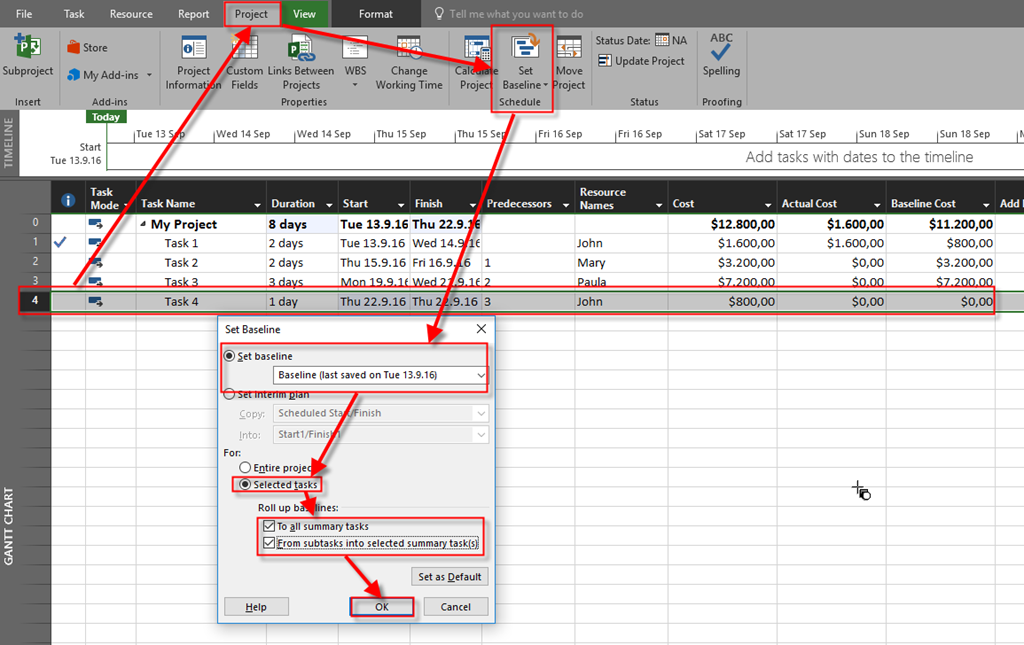
So, to avoid that I will save the Baseline (of, course I have to make undo for previous saving before!), like this:

image

  and I will get:

image

And that is exact what I wanted. So, when you have some Actuals, and you want to save some changes, especially for new Tasks, in the Baseline, use firs Select those new Tasks, and then choose, Select tasks option.

Regards!

Posted in Microsoft Project 2013, Micsrosoft Project 2016, MS PROJECT 2016, PMI, PRoject Management | Tagged , , , | 1 Comment

Resource capacity in Hours with MS PROJECT 2016 – is it possible?

Hi,

my Blog Reader has a question:

“I have a project plan with certain milestones which are to be completed on specific dates and I have resources assigned. But as per plan, the resource allocation hours are reduced whereas in my estimation they are way higher. Is there a way where I can fix hours to the resources and then they get allocated accordingly for the tasks I assign those resources to. Let me know if there’s any other turnaround for the same”

Where is problem here? If you have, for example, John as Resource in your Project, can you have his capacity in hours? And, on the other hand, how to put exact number of hours per Task which are needed to fulfill the Task?

Let me answer to the first question. Simply – NO! You can not have capacity in MS  PROJECT 2016 (or other versions) in hours. You can have them only in Units%.

Let me create very Simple Project:

image

Now, let me create two resources for this Project:

image

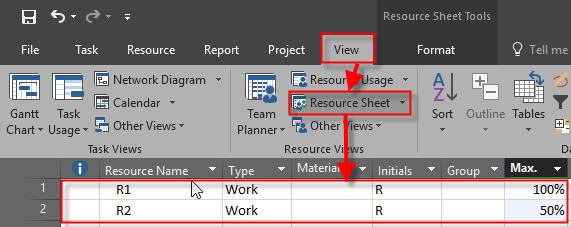
As you can see John has 100% Max units. That mean that if he assigned 100% for Task he is able to work, for example, 8 hours per day (according to working calendar). On the other hand, Mary has only 50% Max units for this Project, so she can work only half of his working hours (again, according to her Calendar). If I assign John to the Task with more than 100%, and Mary with more than 50%, then they will became over allocated. Of course if I assign John with 100% to the Task, and again to another Task with, for example, 20%, and those Tasks are supposed to be executed on the same time, he will also became over allocated.

But there is no field in which I can put capacity in hours. That lead me to another question: “How to put exact number of hours per Task which are needed to fulfill the Task?

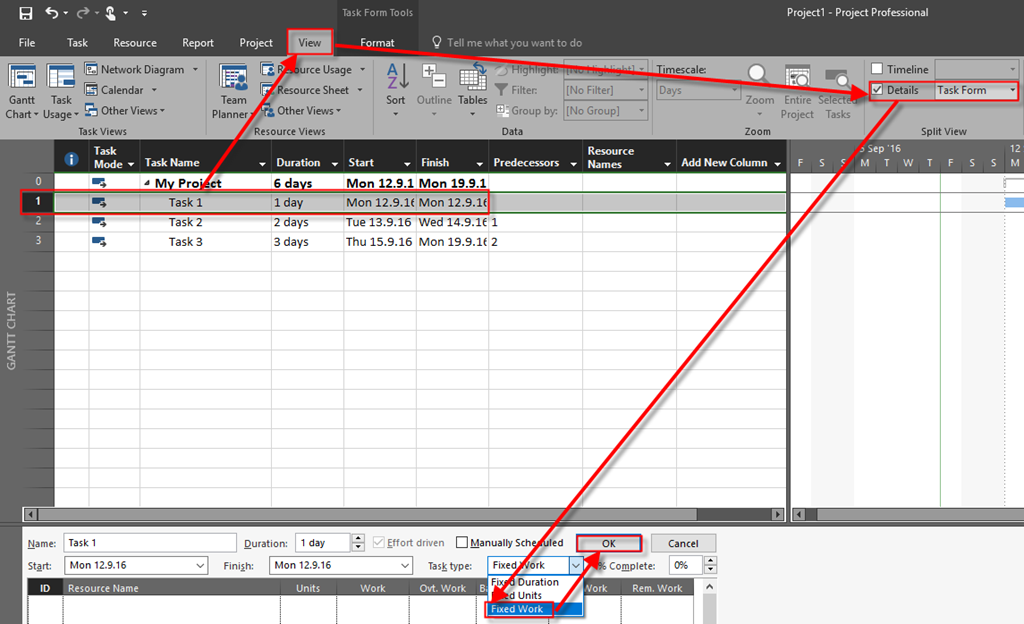
Here I have an easy answer. If you know exact number of hours for the Task must be spent by John and Mary to complete it, simple make this Tasks as Fixed work type, and assign number of hours to John and Mary. Let’s say that John need 40 hours to complete Task 1, and Mary 32.

image

and then:

image

and I will get (I will use Task usage View):

image

As you can see, Duration is now 8 days, because Mary has to work 32 hours, and she will work only 4 hours per day (because 50% of her Units), so the Task will have 4 hours per day * 8 days = 32 hours

To conclude, if you know exact number of hours that Resources must spend to complete the Task, always use FIXED WORK, and assign those hours for each resources.

Regards!

Posted in MICROSOFT PROJECT, Microsoft PRoject 2010, Microsoft Project 2013, MS PROJECT 2016, PMI, PRoject Management | Tagged , , | Leave a comment

Actual Duration, Actual work and Fixed work Tasks in MS PROJECT 2016

Hi,

here is one problem that my Blog Reader has (I will go step by step, and I will use MS PROJECT 2016)

“When multiple resources are assigned to the task, for a given Total Work we can  calculates the   Duration either as Work divided by  Total Assignment Units   OR  by calculating the Duration for each individual resource  as Duration (Ri) = Work (Ri) / Units (Ri))  and then selecting the longest duration of the driver resource to be a task Duration. For example, let’s say we have a 3d, 36 hr task for 2 resources R1(100%)  and R2(50%)”

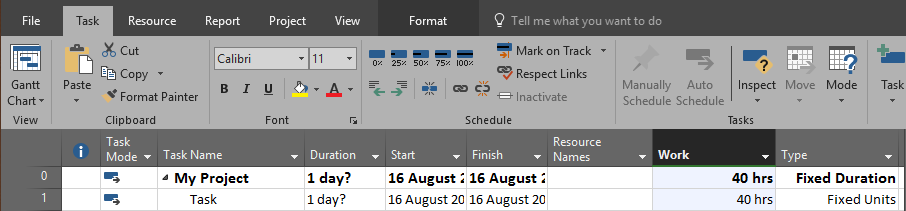
image

As you can see task is Fixed work type, and I put 3 days in the Duration.

Now I am going to create two Resources, one with 100% units, and other with 50%:

image

and I’m going to assign both Resource to Task:

image

What is wrong with this Scenario. Technically nothing, but logically, if you have Fixed Work Task, it means that work is fixed, and that you know how much work you need for the Task. An, in this scenario, you should not put Duration, but Work. But, let’’ me continue with scenario from my Blog reader, and I’m going to show you Task Usage View:

image

As you can see R1 should work 3 days and 8 hours per day which is 100%, and it equals 24 hours. On the other hand, R2 should work 3 days and 4 hours per day which is 50%, and it equals 12 hours.

My Blog reader continues with: “Now I enter Actual Work of 10h into resource R1  and we get:”

image

The question from my Blog reader is:

“So we can’t anymore use the same approach to calculate Actual Duration using the Actual Work and Units of individual assigned resources. That is, if we calculate the Actual  Duration using the only Actual Work R1 we will get:
Actual Duration = Actual Work (R1) / Units (R1) = 10h / 100% = 1.25d which is not what shown on the screenshot above (0.83d).
So the only way to get Actual Duration right is to calculate it as:
Actual Duration =  Sum of Actual Work of each resource /  Total Units =( 10h + 0h) / (100% + 50%) = 10h/150% = 0.83d

So why is  the method of calculating the task  Duration based on the individual resource Work and Units  with subsequent selection of the longest duration doesn’t work for an Actual Duration calculations?“

Well, Microsoft Project does not calculate Actual Duration in that way. Let’s take a look on the right side of the Task Usage View:

image

As you can see:

  • At Monday Work was 12 hours, and Actual Work is 8 hours (Because R1 works only 8 hours per day). Actual Duration is: Actual work / Work = 8 /12 = 0,66666
  • At Tuesday Work was 12 hours, and Actual Work is 2 hours (Because R1 works remaining 2 hours of 10 hours assigned as Actual work). Actual Duration is: Actual work / Work = 2 /12 = 0,16666
  • So Actual Duration is 0,6666 + 0,16666 = 0,83 Days!

So that is Actual Duration for the Task. And it is always calculated with work and Actual work of all Resources, not one by one!

Regards!

Posted in MICROSOFT PROJECT, Microsoft Project 2013, MS PROJECT 2010, MS PROJECT 2016, PMI, PRoject Management | Tagged , | 1 Comment

Effect of initial resource assignment on calculation of Individual resource’s work in MS PROJECT 2016

Hi,

I’ve got very good question form one of my Blog readers:

“The effect  of initial resource assignment on  calculation  of  Individual resource’s work. Suppose we want have two resources R1 (100%) and R2(50%) to work on a 20h fixed unit task.  When we enter 40h of Work first,  BEFORE simultaneously assigning the resources. After we assign, for example, two resources (one with 100%, an another with 50%), total work for the Task has been changed.

Why does Project disregard each resource’s assignment units and assigns  total work of 40h to each resource so that the total work increases twofold?

So what is the best way to initially assign several resources to a Fixed Unit task for a given Work : that is, if I want 2 resources R1 and R2 to be assigned together to as task of 40h? Only make the task fixed work type?”

OK! I will follow the question step by step!

First I’m going to create brand new Project with one Task, and I am going to put 40 hours in the Work field

image

Now I’m going to create two Resources, and I will say that R1 has 100% Max Units, and R2 has 50% Max Units:

image

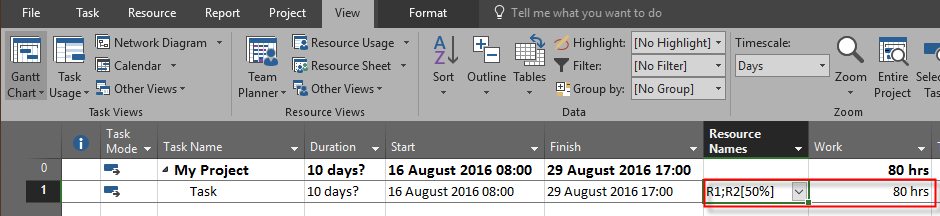
Now, I will assign them to the Task:

image

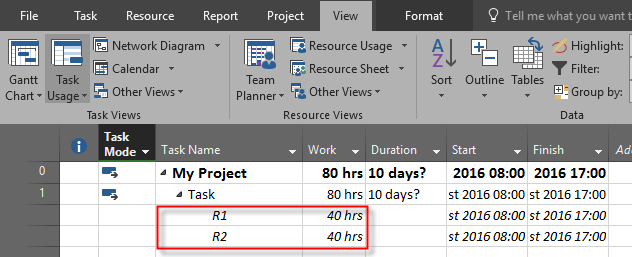
As you can see, work is now 80 hrs. Let’s see Task Usage View:

image

Q: Why does Project disregard each resource’s assignment units and assigns  total work of 40h to each resource so that the total work increases twofold?
A: Because, in MS PROJECT, if you put Work for Task, for example 40 hours, it means that every Resource should spend 40 hours for completing that Task. That’s how it works!

Q: So what is the best way to initially assign several resources to a Fixed Unit task for a given Work : that is, if I want 2 resources R1 and R2 to be assigned together to as task of 40h? Only make the task fixed work type?”
A: You should do it manually. See the example below:

Let’s say that you want for your Task that Each Resource should work 20 hours for that Task.

image

Here I will put 20 hours for each Resource,. and II ‘will click on OK button:

image

In Fixed Units Task Type, if you want to assign different work for the Task, you must specify exact work for each resource. Otherwise, if you put work amount for the Task, and then assign Resources, each Resource will have same amount of work!

Hope this helps,

Regards!

Posted in Microsoft Project 2013, MS PROJECT 2010, MS PROJECT 2016, PMI, PRoject Management | Tagged , , , | 4 Comments

A question for my Blog readers!

Hi,

I got a suggestion, and I want to hear what do you think about it: “Have you considered doing videos instead of screenshots, it would be easier for us to understand and I guess you would save time.”

I can do that as well, but I want to know what do you prefer?

Thanks for your answer!!! Smile
Posted in MS PROJECT 2016 | Tagged | 15 Comments

Relation between Overtime and Duration in MS PROJECT 2016

Hi,

I have a question from oen of my Blog readers:

“Every time I allocate the whole work hours to overtime hours the Duration column turns into 0 and the start and finish dates and time are the same. Why?”

OK! I have to explain how MS PROJECT 2016

image

and I will create John, as Resource, and I will assign him to the Task:

image

and:

image

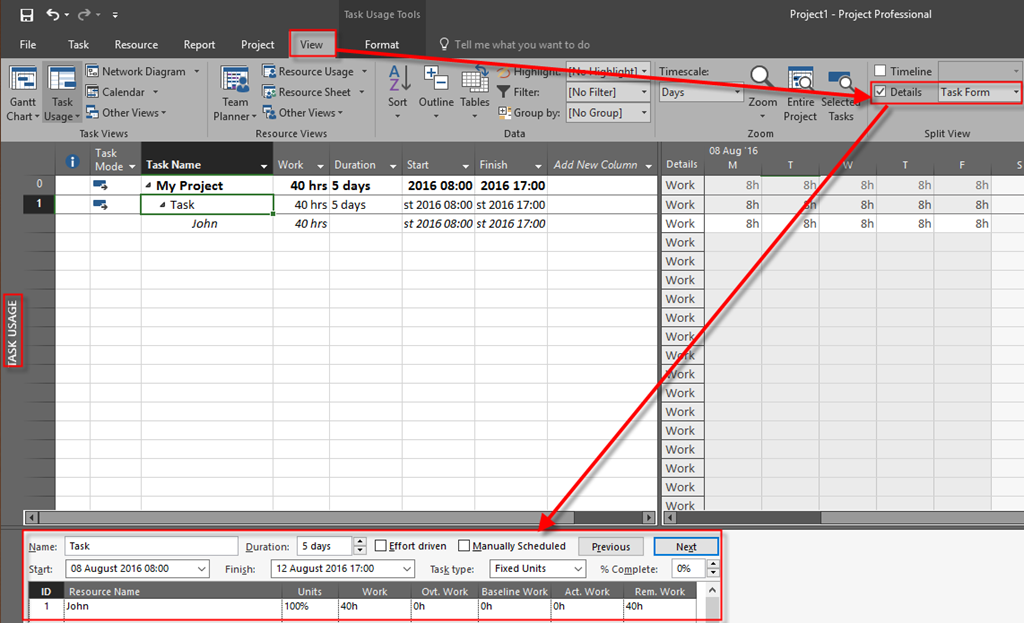
Now I will switch to the Task Usage View, and I will show Task Form, as well.

image

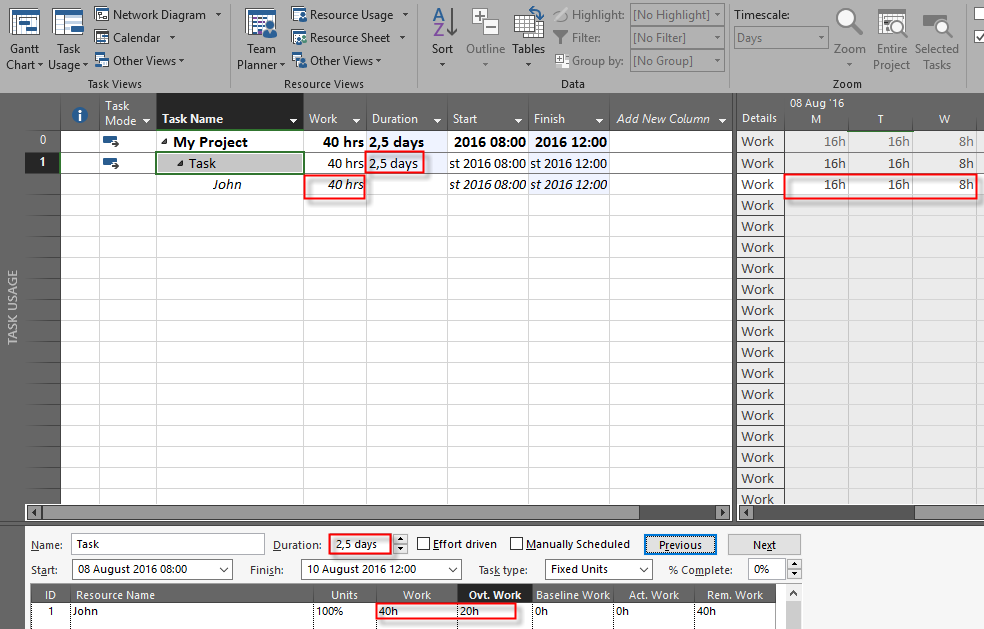
As you can see, John is supposed to work 40 hours, 8 hours per day, during 5 days of Duration. Now, suppose, that John will work more than 8 hours per day, and you want to put those hours as Overtime work. Suppose that 20 hours will be overtime work:

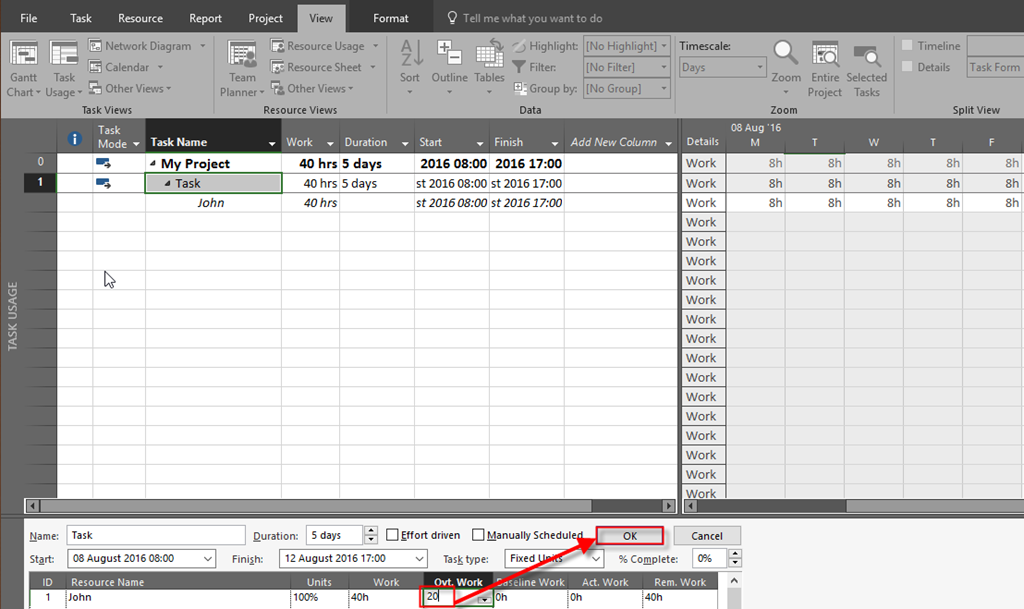
image

After I click on OK button I will get:

image

As you can see, Duration is 2,5 days now. Why? MS Project calculates Duration according to next formula:

DURATION = (Work – Overtime Work) / Hours per day. In this case it is: DUARTION = (40-20)/8 = 20/ 8 = 2,5 days.

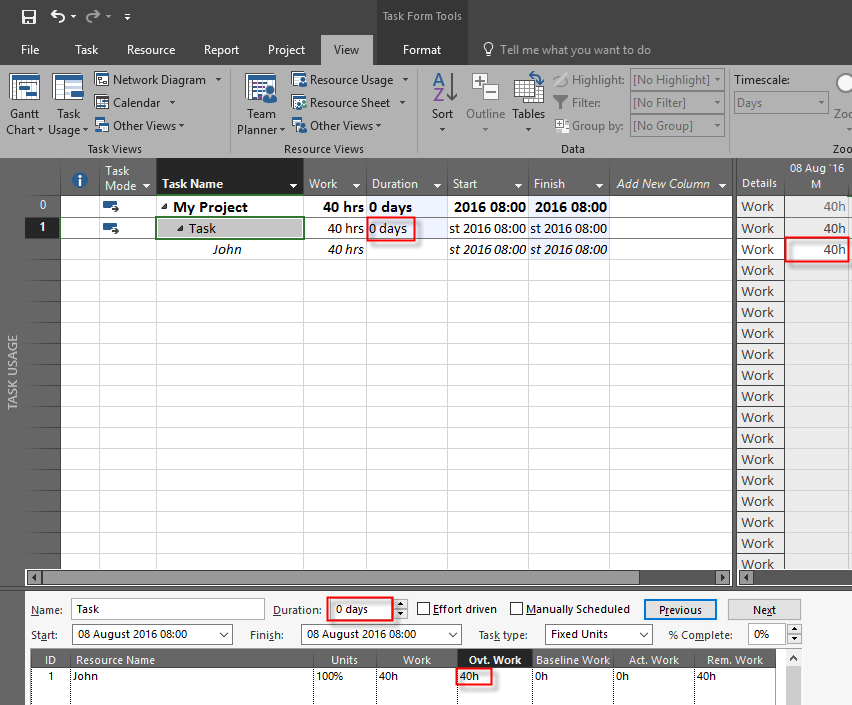
Now suppose that all 40 hours are overtime work:

image

As you can see, Duration is 0 days, according to formula Duration = (40-40) / 8 = 0 Days. This make no sense but you should consider that Overtime work is something like “off the Calendar). If you consider this option you should ask yourself: “Do I understand overtime work?” Overtime work has to be smaller than total work (Work field). Overtime work is something like: “How many hours of regular work, will be over it?”. If overtime work is same as regular work, than it is regular work, not overtime!

Hope this helps!

Posted in Microsoft Project 2013, MS PROJECT 2010, MS PROJECT 2016, PMI, PRoject Management | Tagged , , | Leave a comment