Actual Duration vs. Actual work in MS PROJECT 2016


Hi,

I got a Business Case from my Blog Reader wit, of course, a problem. I will go step by step through it with MS PROJECT 2016!

In Italic font is my blog reader Text

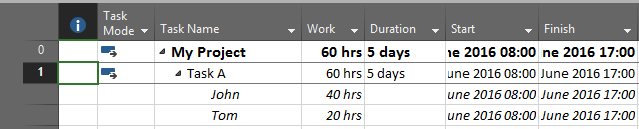
1. I created a Task A – non-effort-driven, fixed units with Duration= 5d, Work = 60h (this will be calculated)

image

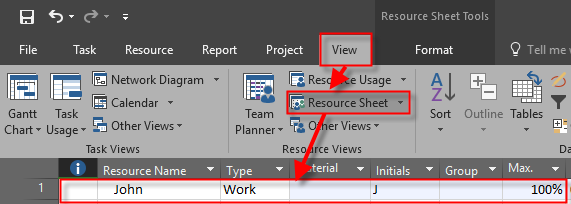
2. Task A has two resources assigned at their max capacity: John at 100% and Tom at 50%. , John’s standard hourly cost  is $100/h, Tom’s $200/h

image

and:

image

I will switch to the Task Usage View now:

image

3. Planned Works for individual resource over the planned task duration are:  for John = 40h and for Tom 20h (See Picture above)

4. I enter actual 40h of actual work for one of the resources (John) (for this I will add two Columns in Task Usage View):

image

Project calculates Actual task Duration as 3.33d (Actual Work / Total Units = 40h/150%) which equals to 67% Complete for that task.

Here is my question:

While understanding that 40h/8h per day = 5d of the duration,  there is a little confusion with the Actual Duration of 3.33d.
Shouldn’t the Actual Work of 40h for John same as the Actual Work for the task as a whole be distributed over these 3.33 days and NOT over the original planned duration of 5 days as it’s shown in the Task Usage view?    That is, if  John’s Actual Work is spanned over Actual Duration of 3.33d,  then John’s Actual Work should be 26.4d because 24h over the first 3 days (8h/day * 3days)  plus another 2.64 h for the part of the day 4 (8hrs/day * 0.33 day) of a total of 24+2.64 = 26.4h instead of 40h.

The answer is – NO. This is misunderstanding! How MS PROJECT calculates Actual Duration:

  1. How many hours are scheduled per day? 12 (8 for John, and 8 for Tom)
  2. How many hours was John working during 5 days. 40! (8 hours per day)?
  3. Actual Duration is 40 hours (actual) / 12 hours (planned per day) = 3.33 (actual Duration). Or you can calculate like this: 40 hours (Actual) / 60 hours (Planned) * 5 days (Planned) = 3.33 (Actual days)

The problem is that you should understand that if you put 40 hours actual for John that means that John has worked as planned, e.g. 8 hours per day 5 days.

But, since Tom didn’t work at all, the actual duration is calculated as I explained above!

Hope this helps.

Regards!

Posted in Microsoft Project 2013, MS PROJECT 2016, PMI, PRoject Management | Tagged , | 1 Comment

How to show Resource overallocation within one day in MS PROJECT 2016?


Hi,

I have a question from one of my Blog Readers:

“Hi,
I have the following issue … I have a resource with an 8-hour working day. I assign him a task starting 9:00 am with a duration of 3 hours. I also assign him a task starting 10:00 am with duration 1 hour. Project does not flag it as an overallocation, I guess it’s because it does not go beyond the 8 hour restriction for a working day. But there is a conflict with the tasks since both have to be performed by the same resource at the same time. Is there a way to have Project indicate this conflict?
Thank you”

Well, here we are talking about showing overallocation within one day. I’ll show you that with MS PROJECT 2016!

First I will create a simple Project with two Tasks:

  • First Task with Duration 3 hours – starting at 09:00
  • Second Task with Duration 1 hour – starting at 10:00

image

Now I‘m going to create John, as Resource with 100% availability for this Project:

 image

Now, let’s say that John will work on both Tasks:

image

John is available supposed to work 8 hours per day, and since he will work 3 hours for First Task, and 1 hour for Second Task, he is not overallocated. Or is he? He is not overallocated in one day (he will not work more than eight hours per day), but what about during the day?

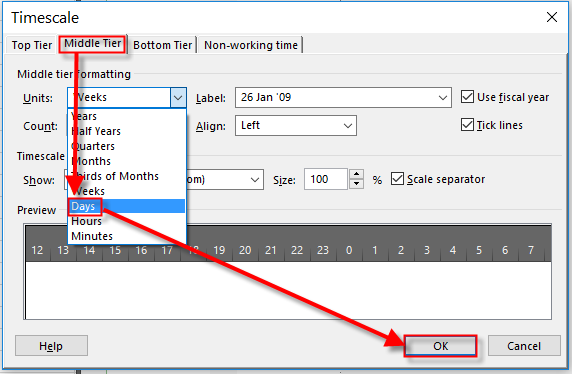
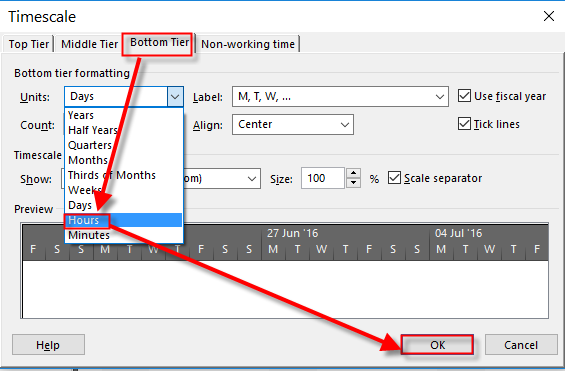
I will change Timescale on the Gantt Chart:

image

and:

image

image

and I will get:

image

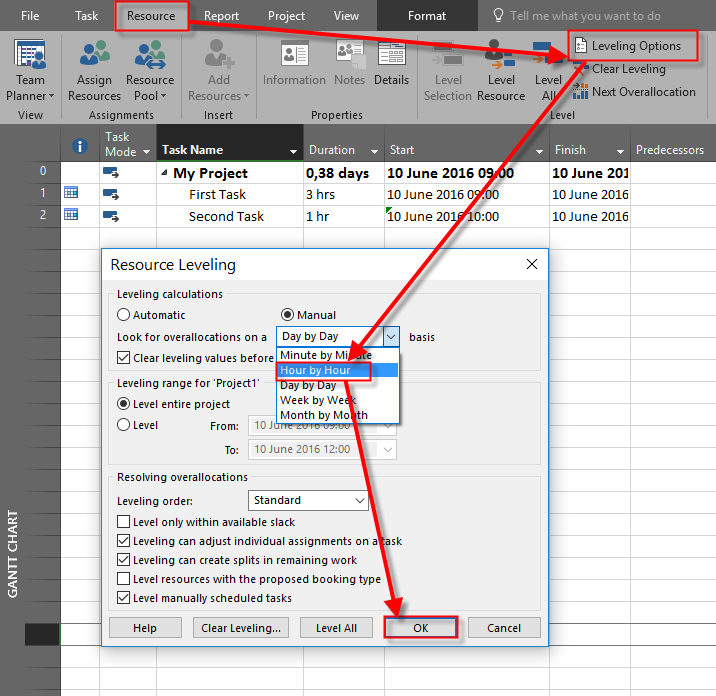
As you can see, John IS overallocated between 10:00 and 11:00 but, it is not show on the screen. How to get that. Follow this step:

image

and you will get:

image

John is now marked as overallocated.

If Leveling option is set Day by Day then John will be marked as overallocated only if he is supposed to work more than 8 hours (in my example) per day, no matter if he is supposed to work on two or more Tasks at the same time during the day. But if this is set to Hour by Hour it means that John will be overallocated when he has to work during the day at the same time to two ore more Tasks.

Hope this helps.

Regards!

Posted in MICROSOFT PROJECT, Micsrosoft Project 2016, MS PROJECT 2016, PMI, PRoject Management | Tagged , | Leave a comment

Resource Calendar vs. Units in Microsoft Project 2016

Hi,

I’ve got a very good question from one of my blog Readers:

“Dear Nenad,

Could you please help me with a question on resource calendar?
If a resource is part time only work 3 days a week. I need to assign this resource 1 day for Task 1, and 2 days for Task 2. What is the best way to set in MSP? Shall I set maximum unit 100% and then use resource calendar to adjust the part time 3 days or Shall I set the maximum unit 60% and then use Task calendar to adjust the allocation?”

Well, when we are talking about Units and Resource Calendar, we are talking about two totally different things.

Let me show you a difference in MS PROJECT 2016!

First,  I will create very simple Project with two Tasks:

image

Then, I will create two Resources:

image

As you can see, I told Microsoft Project that John will have 60% maximal units on this Project.

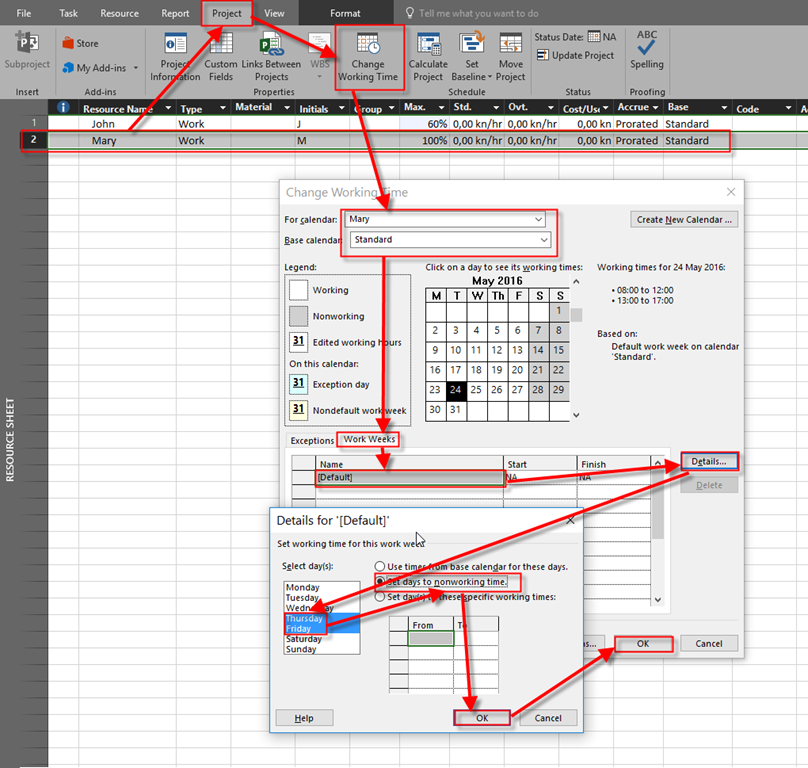
Now, I am going to modify Mary’s Calendar, and I will say that she will work only 3 days per week, but still with 100% units:

image

As you can see, Mary is not going to work on Thursday and Friday.

Now I will assign John to Task 1, and Mary to Task 2:

image

Now, I’m going to explain the difference.

Since John is going to work 60%, and we all know magic formula: Work = Duration * Units, and default Task Type for Task 1 is Fixed Units, we will have:

Work = 5 days (8 hours per day) Duration * 60% Units = 5 * 8 * 60% = 24 hours. And John will work 60% per day e.g. 8 hours * 60% = 4,8 hours per day!

Mary, on the other hand will work 100% per day (e.g. 8 hours per day), but she will not work at Thursdays and Fridays, so to finish Task 2, which is 5 days long, she has to work 40 hours (Work = Duration * Units, e.g. Work = 5 days (8 hours per day) * 100% Units = 5*8* 100% = 40 hours!). She will work 5 days and 8 hours per day on her working days, and that means that she has to work From Monday to Wednesday (3 working days) and then Monday and Tuesday next week, to accomplish her Task.

To conclude. % Units is how many hours can Resource work maximum per day (without over allocation), and resource Calendar determine which day will someone work (and when), and which not.

So there is a huge difference.

Final example. Let’s say that John will not work at Thursdays and Fridays (same as Mary). I will modify his calendar (I’m not going to show you screenshots because I showed you already how to do that in Mary’s case), and I will get:

image

You can see that John and Mary will work same Days (From Monday to Wednesday, and then Monday and Tuesday next week) but since John is only 60% allocated to this Task, he will work 4,8 hours per day which is 24 hours in Total.

Hope this helps!

Regards Smile

Posted in MICROSOFT PROJECT, Microsoft Project 2013, MS PROJECT 2016, PMI, PRoject Management | Tagged , | Leave a comment

How to change rates and costs without affecting past Tasks in MS PROJECT 2016?

Hi,

I’ve got a question from one of my Blog Readers:

“Hi!
I am wondering how you would manage a rate increase in MS Project halfway through the project that is not retroactive. If I change the $/hr for a resource, it re-calculates the total cost for the project with the new rates. Which is not reality. I wonder if you already tackled this type of problem in one of your projects and how you went about solving it.

Thank you.”

I will show you this in MS PROJECT 2016

First I will setup a Brand new Project for my example:

image

and I will crate Three different resources:

image

Finally, I’m going to assign Resources to Tasks:

image

As you can see, in the Cost Field, which I put in the Gant Chart View:

  • Task 1 has Cost = $800 (John will work 1 day * 8 hours per day * $100 per hour = $800)
  • Task 2 has Cost = $3200 (Mary will work 2 days * 8 hours per day * $200 per hour = $3200)
  • Task 3 has Cost = $7200 (Peter will work 3 days * 8 hours per day * $300 per hour = $7200)

Now suppose that I want to change rate for someone. If I do it via Resource sheet like this (I will double it for each Resource):

image

I will get:

image

So, that is not what my Reader wants. To avoid retroactive change of Costs when you change rates, you can do only one thing.

image

and:

image

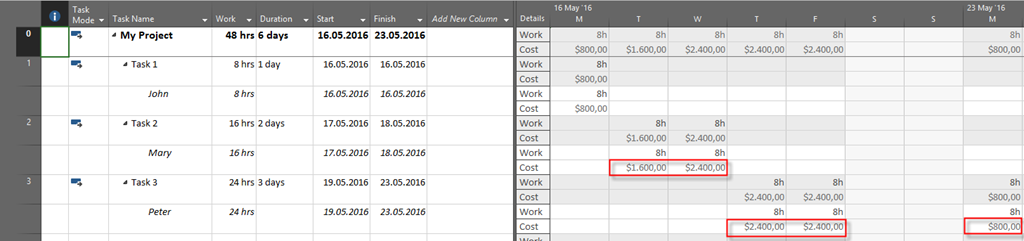
Let’s look at Tsk Usage View now:

image

Let me explain what happens now:

  1. Mary will work at Task 2, which has two days Duration at two different rates: $200 to 17.05.2016, and $300 from 18.05.2016, and cost for this Task is 8 hours * $200 + 8 hours * $300 = 1600 (at 17.05.2016) + $2400 (at 18.05.2016) = $4000
  2. Peter will work at Task 3, which has three days Duration at two different rates: $300 to 20.05.2016, and $100 from 21.05.2016, and cost for this Task is 16 hours * $300 + 8 hours * $100 = 4800 ($2400 at 19.05.2016, and $2400 at 20.05.206) + $800 (at 23.05.2016) = $5600

So if you want to change cost rates with no affect to the past dates, you should follow my example.

BUT! If you want to change cost rate for some date, and avoid changing cost for tasks in this period (for example, you have cost rate $100 for 21.05.2016, and you change this to $200)- forget it. This is now possible!

Whenever you change cost rate for resource global, or for some period all tasks in which this resource is involved in that period will change their costs! That is how MS PROJECT works, and that is not a bug but reasonable behavior!

Regards!

Posted in MICROSOFT PROJECT, Microsoft Project 2013, Micsrosoft Project 2016, MS PROJECT 2010, MS PROJECT 2016, PMI, PRoject Management | Tagged , , | Leave a comment

% Complete and Actual hours for particular Resource in MS PROJECT 2016

Hi,

I got interesting question from one of my Blog Readers:

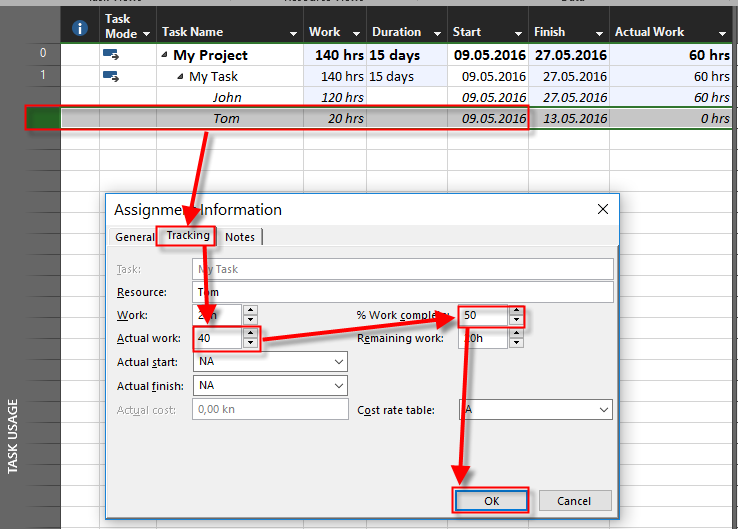
“Nenad this is very helpful, however, how would you adjust the scenario where the Actual work by John (100%) and Tom (50%) who are two resources assigned to this 5 days of task i.e. planned work will be John (5*8 = 40hrs) and Tom (5*4=20hrs) total work will be 60hrs.
And if John has worked for 60 hrs alone and Tom has worked for 40 hrs but still the work is only 50% done i.e. at 100hrs spent already the % complete is still 50%, but MS Project will default it to 100% complete, so how can I control this in MS Project?”

OK! Let’s go. First I will create a Project with one Task and 5 days duration in MS PROJECT 2016:

image

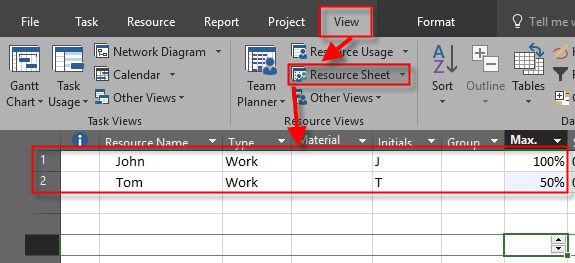
Now I’m going to create Resources: John with 100% max capacity, and Tom with 50% max capacity:

image

Finally, I’m going to assign John and Tom to the Task:

image

OK! Now I will show Task Usage View, and I will add Actual work fields in it:

imageIf

I now put 60 hours in Actual Work field for John, and 40 hours for Tom I will get:

image

As you can see, this Task is considered Completed. But that is not what my Reader wants. So instead of that I will do next:

image

and:

image

Now I will add the Remaining work in Task Usage view: and I will get:

image

As you can see:

  • John has to work 120 hours to complete the Task, and he worked 60 hours already, but it is only 50% of what he has to do, so Remaining work is 60 hours
  • Tom has to work 80 hours to complete the Task, and he worked 40 hours already, but it is only 50% of what he has to do, so Remaining work is 40 hours
  • In total, John and Tom have to work 200 hours to complete the Task, and they already worked 100 hours, but it is only 50% of what they have to do, so Remaining work is 100 hours in total

So yes, you can do it, but it has few more steps!

Regards!

Posted in MICROSOFT PROJECT, Microsoft Project 2013, Micsrosoft Project 2016, PMI, PRoject Management | Tagged , , | 2 Comments

Milestone and Finish to Finish relationship in MS PROJECT 2016

Hi,

I’ve got an interesting question form one of my blog reader. He’s got a problem. I will show you what kind of Problem does he has with MS PROJECT 2016!

Firs I will create new Project:

image

Everything looks perfect. Now, suppose that after the milestone has been finished, I have plan to do Next Task, for example, with 1 day Duration (1 Day Duration is from example of my blog Reader):

image

My Blog Reader did this:

image

He ask me: “Why is Start Date of Next Task, same as Milestone completed date (End Date)?”.  And he asks: “If I put that Next Task to be driven of Task 2, I get what I want!”

The problem lies here: If you want Next Task to start after Milestone is finished DO NOT PUT finish to finish relationship, like this:

image

As you can see Start date of Next Task is 05.05.2016, which is expected. With Finish to Finish Relationship you are telling to MS PROJECT: “I do not care when my Task will be started, but it has to be finished at the same task as my Predecessor!”. To show you that I will make finish to Finish relationship with Next Task, and Milestone, but I will change Duration of Next Task to 3 days, and I will get:

image

Now, you can see that Next Task will start earlier, at 02.05.2016, and that is exactly what I told to MS PROJECT: “Next Task should have 3 days duration, and it should be finished at the same time as Milestone, which is 04.05.2016”, and MS PROJECT has calculated Start date = Finish date – 3 days = 02.05.2016

So, be careful with task relations other than Finish to Start

Hope this helps!

Regards Smile

Posted in MICROSOFT PROJECT, Microsoft Project 2013, Micsrosoft Project 2016, MS PROJECT 2010, MS PROJECT 2016, PMI, PRoject Management | Tagged , , | Leave a comment

Is it possible to make a Project plan without Project Start Date in MS Project 2016!


Hi,

I’ve got very interesting question from one of my blog readers: “Is it possible to create project plan without Start date, and the let MS PROJECT 2016 to calculate finish like t0 + ndays?”

I will show you an example in MS PROJECT 2016, but first I have to give an answer. NO! you can not do it.

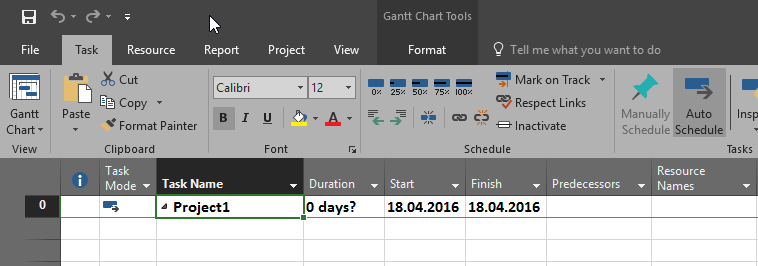
When you open a brand new Project you will get something like this:

image

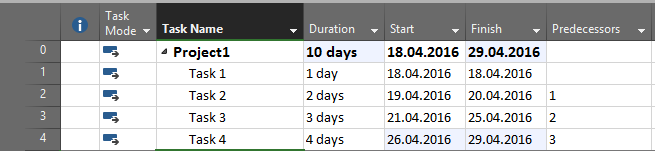
I will add some Tasks to it:

image

As you can see I’ve got end date = 29.04.2016, Friday, because all days are working days, there is no Resources with their Calendars, or any other exceptions other than Weekend (Saturday and Sunday). Microsoft Project will always calculate End date (if your Project is scheduled from Project Start Date), or Start date (if your Project is scheduled from Project End Date).

It must be that way because when you have (and you always will), a lot of exceptions like, for example:

  1. Specific Exceptions for all Tasks (National holidays for example)
  2. Specific Exceptions for Resources (Vacation period for them)
  3. Various Task Types (e.g. Fixed Units, fixed Work, and Fixed Duration)

all of this must be taken into consideration when calculations. So, without dates (e.g. Start Date) it will be impossible for Project for making right Schedule.

So, what can you do if you do not know specific or right Start Date. Pick one, and make your schedule. After you will find out right Start date, do this:

image

and move whole Project to new Start Date (like, in my example, to 25.04.2016). But be aware that you enter all exceptions before that (for example if you have Holiday at 26.04.2016, put it in exceptions)! then you will get your right Schedule!

More about exceptions and Task Types you can se in my previous Blog Posts.


Regards!

Posted in MICROSOFT PROJECT, Micsrosoft Project 2016, MS PROJECT 2016, PMI, PRoject Management | Tagged , , | 1 Comment

Task type and Resource Calendars in MS PROJECT 2016

Hi,

I’ve got very specific question from one of my blog Reader, and I’m going to answer this step by step using MS PROJECT 2016

Here is Scenario from my Blog Reader (Italic font represent his questions, and Normal font represent my answer)

First, I created three tasks – Fixed Units, Fixed Work and Fixed Duration, Task1, Task2 and Task3 accordingly. Then I gave 5-day duration to each task and added a resource Bob to the project. I gave him a 100% of Assignments Units for each tasks (disregarding overallocation). Also Bob doesn’t work on Mondays (his calendar is modified accordingly).

OK, I will create tasks:

image

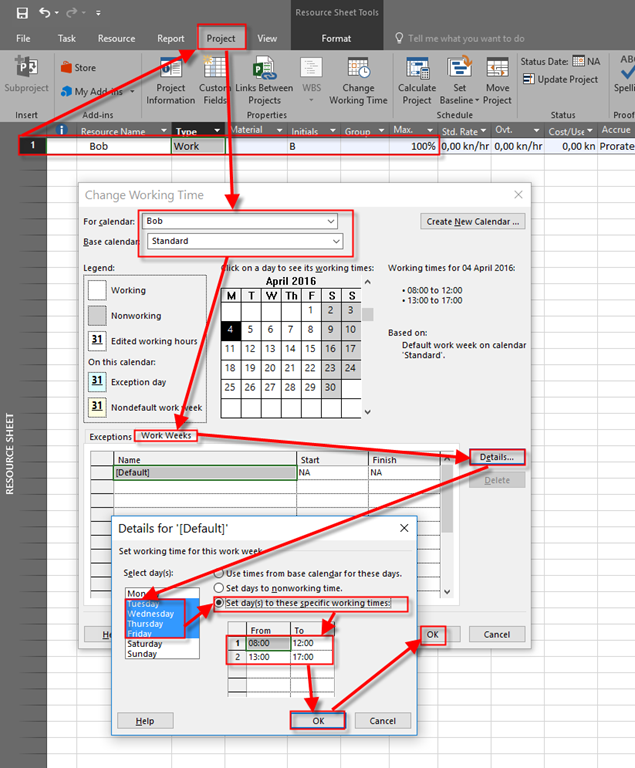
Now I’m going to create Bob as Resource, and his working time (without Mondays):

image

and:

image

“Next, I assigned Bob at his maximum capacity to each task. Project did the calculations:
The Work For Task 1 (Fixed Units) and Task 2 (Fixed Work) was calculated as 40 hrs (W = D x U = 5d x 100%), but Task3 (Fixed Duration) got Work of 32 Hours while its Duration was fixed at 5 days and didn’t change. So on one hand Project when it calculated the Work for Task3 reduced its Duration by one day to account for Monday off (03/28/16) , that is, W = D x U= (5d-1d)*100%= 32 hrd of Work, but on the other hand it showed that Monday as a working day on Gantt chart while not showing in on Task Usage View.
This is very confusing.

OK, I will do that:

image¸

and Task usage View:

image

Well it might be confusing but this is LOGICAL! Since we put 5 days duration in a FIXED DURATION TASK TYPE, it will have 5 days no matter of Resource availability. So, because Start date for the Task is 04.04.2016 (Monday), and Bob will not work at that Monday,  MS PROJECT will not move this task to end at Tuesday 12.04.2016. This is an easy example. But what if we have Mary as resource and she doesn’t work at Wednesday? Does it mean that Mary will works at Monday, Tuesday, Thursday, Friday and next Monday, and Bob will work at Tuesday, Wednesday, Thursday, Friday, and next Tuesday? So the Task will start at Monday, 04.04.2016, and end at Tuesday, 12.04.2016? NO! Because in that case duration will be 7 instead of 5 days! So, no matter of Resource availability, duration remains the same!

Now, my Blog reader has another problem:

“Now I change Task2 type from Fixed Work to Fixed Duration. Project recalculated Task2 components as follows:
Task2 Work was not changed (40 hours), but the Duration increased to 7 days which included both non-working Mondays, even though logically speaking the Duration of 5 day should have been changed for a Fixed Duration task. It’s also very confusing.”

So, when I will do it, I will get:

image

and in Task usage View:

image

First, this task was fixed work, and it was calculated that for 5 days duration it will be 40 hours of work for Bob! And Start date was Tuesday, 05.04.2016, and End date was Tuesday, 12.04.2016. That was logical, because Bob doesn’t work at Mondays. But, after changing Task Type from fixed Work to Fixed Duration, calculation was made like this:

  • I have 40 hours to work
  • The earliest possible start date (no matter of Bob’s availability, since this is Fixed Duration Task now)  is Monday 04.04.2016
  • To fulfill this 40 hours Bob will work on from Tuesday 05.04.2016 till Tuesday 12.04.2016.
  • No matter that Monday is not working day for Bob, those two Mondays are calculated in Duration, no matter that work will be 0 hours! So, Duration is 7 days!

I hope that I helped with clarifying this odd situation.

Regards!

Posted in MICROSOFT PROJECT, MS PROJECT 2010, MS PROJECT 2016, PMI, PRoject Management | Tagged , , | Leave a comment

Importing Resources from Excel into MS PROJECT 2013 and PROJECT 2016–VIDEO IS HERE!

I’m proudly announce that Webucator (www.webucator.com) recorder the Video https://www.youtube.com/watch?v=mniDdkKxgpM&feature=youtu.be of my Blog Post which you  can Find here: https://ntrajkovski.com/2015/02/27/importing-resources-from-excel-into-ms-project-2013/.

If you want learn a lot about MS PROJECT, I strongly recommend that you visit their site https://www.webucator.com/microsoft-training/project.cfm, and you will find a lot of valuable trainings there.

Thank you Lee, and Webucator.

Regards!

Posted in MICROSOFT PROJECT, Microsoft Project 2013, MS PROJECT 2016 | Tagged , | Leave a comment

Resource calendar vs. Task Calendar, and weekends in MDS PROJECT 2016

Hi,

Again, I have a question from one of my Blog readers, which is related to my previous post:

“Hi Nenad,¸

Thank you very mush. But can you please explain the following inconsistency in MSP behavior:

If in the example you just presented you change a task default calendar’s option None to Standard (Task Information>Advanced<Calendar), the resource John will no longer be scheduled to work on the weekend days 12/03/16 and 13/03/16, and the task will be scheduled as if no exception in John’s calendar for these 2 days making them working for John was made at all, and the task will be finished on 17/03/16 instead 15/03/16.

Why? In my understanding the default task’s calendar option None is referenced to a default Standard Project calendar, so why MSP behaves differently when you leave a default None for the task’s calendar and when you select a Standard calendar instead, even though the two are exactly the same calendar- Standard Project Calendar?

Thank you,
Alex”

First I’m going to create Scenario for this Case in MS PROJECT 2016, and then I will explain it. I will repeat whole previous post, and I will add the explanation for this particular question!

I will create brand new Project with one Task:

image

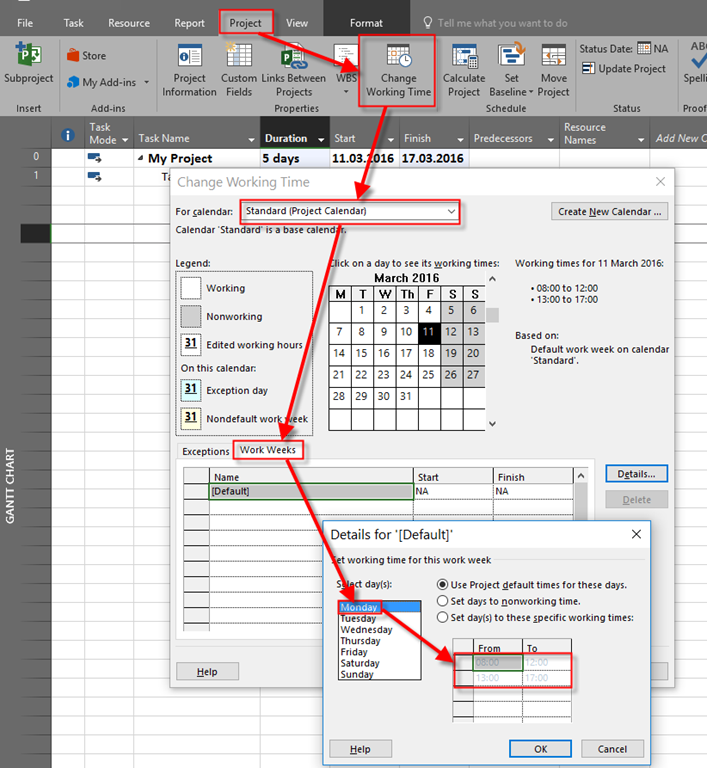
As you can see Task will start at Friday 11.03.2016, and since duration is 5 days it will end at Thursday 17.03.2016, because Standard Calendar is used, and weekend is non working time. You can see that here:
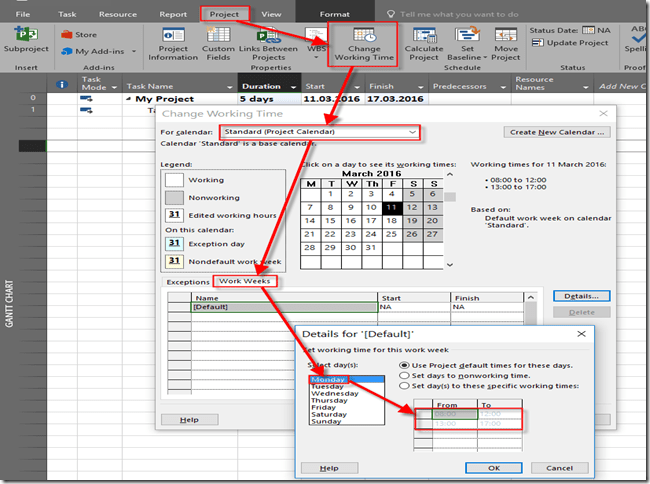
image

If you click on Saturday or Sunday, you will find that From and To field are empty, because those are non working days.

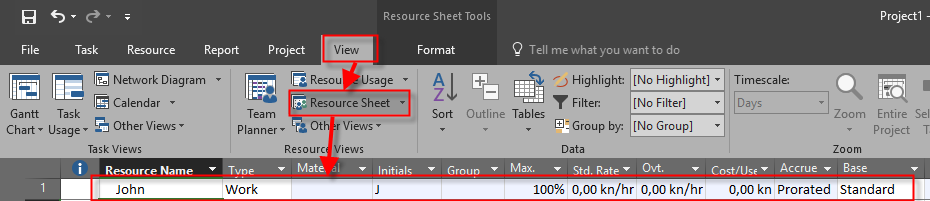
Now I will create John as Resource, and I will assign him to the Task:

image

and:

image

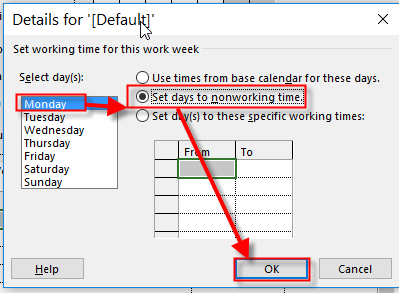
As you can see nothing has changed in Start and finish date. Now suppose that John is hard worker and he is supposed to work at Saturday, 12.03.2016, and Sunday 13.03.2016:

image

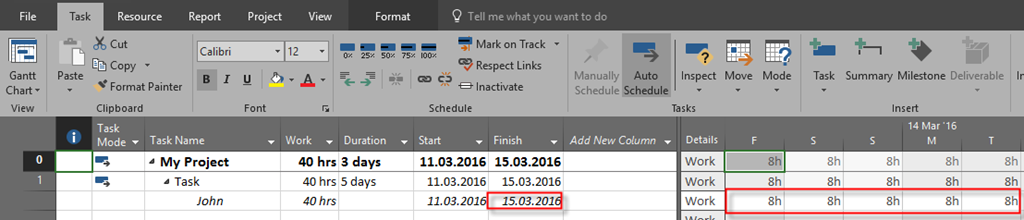
Now let’s see Task Usage View:

image

as you can see Finish date is now Tuesday, 15.03.2016, and John will work during the weekend.

Now, the question from my blog Reader is: WHY? Yes, Standard Calendar is set in a way that each and every Saturday and Sunday are non working days. BUT! If you create Resource in MS PROJECT, and you set a calendar for it (like I did, or in any other possible way), then RESOURCE CALENDAR has higher priority that Project Calendar. And it does make a sense. So, in my example, Project calendar says: “During weekend, work on Tasks will not be performed!”, but since John will work on the Task with exception (he can work on this particular weekend), MS PROJECT Says: “No matter on Project Calendar which says that during weekend  work will not be performed on Tasks, for this particular Task John will work at weekend, because that is written in his instance of Project Calendar, and Task will end sooner!”

Remember: Resource calendar setup has higher Priority than Project calendar setup.

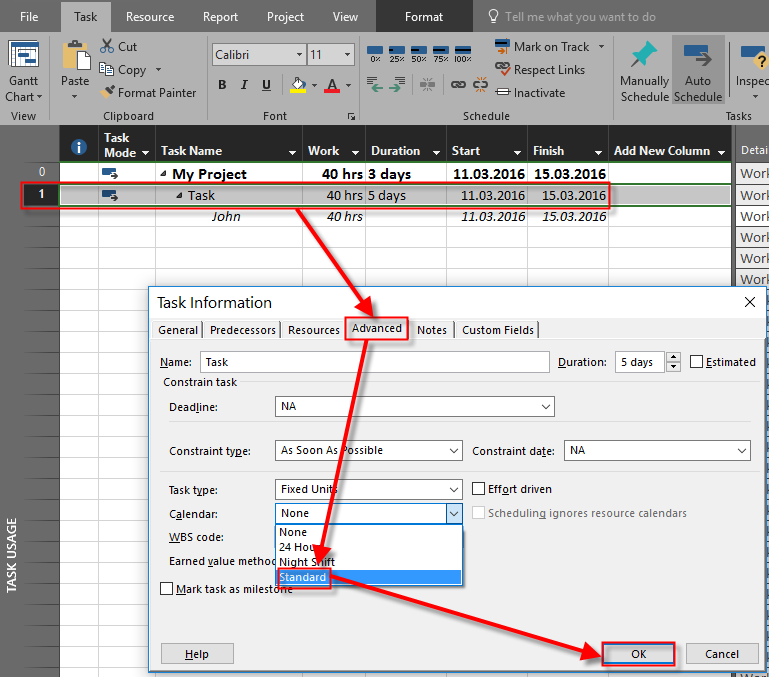
BUT! Now I will assign Standard Calendar to the Task:

image

and I will get:

image

as you can see, John will not work during this weekend. The question was: “Why? In my understanding the default task’s calendar option None is referenced to a default Standard Project calendar, so why MSP behaves differently when you leave a default None for the task’s calendar and when you select a Standard calendar instead, even though the two are exactly the same calendar- Standard Project Calendar?

First of all those Calendars are not same. When I put exception for John, this exception is valid only for John. So, for example if I put Mary on this Task, instead of John, and Mary doesn’t have this exception she is not supposed to work during this particular weekend.

On the other hand when I put Standard calendar (or any other calendar) to the Task it has the highest priority. And, all other exceptions for any particular resources are ignored. you can see that Task has Calendar assigned to it here:
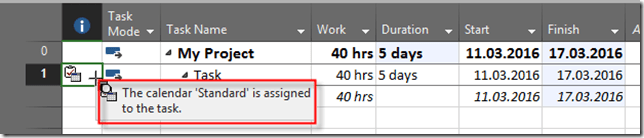
image

If I want to force that this particular Task should be done during this weekend I must put this exception for the whole calendar, and not only for John’s instance of it:

image

and I will get the same result as I have got when I changed this for John’s instance of Standard Calendar:

image

So, where is difference? For example if I have a Task and John will work during the weekend, and Mary will not, and if assign only John to this Task it will take shorter (because he will work during the weekend), than if I assign Mary to it. But if I declare to the whole Standard Calendar that this weekend is working weekend it will apply to all resources (John and Mary, as well) because Task Calendar has the top priority.

I hope that everything is clear now.

Regards.

Posted in MICROSOFT PROJECT, Microsoft PRoject 2010, Micsrosoft Project 2016, MS PROJECT 2016, PMI, PRoject Management | Tagged , | 4 Comments