Baseline and Overtime work in MS PROJECT 2013

Hi,

as usual I have a question from one of my Blog Readers: “Dear Sir, Can you help me to solve one issue in MS Project? After finishing base line work hours, values entered to actual over time not adding with actual work hours. only regular work hours is adding to actual work hours.”

I have to admit that I can’t repro this issue? How it works in MS PROJECT 2013?

First I am going to create a brand new Project with one Task:

image

and I will have one Resource:

image

Of course I will assign john to the Task, and I’ll get:

image

John is suppose to work on that Task 2 day, e.g 16 hours (8 hours per day). But I want for John to work overtime, so I will assign 8 hours as overtime work for that Task:

image

When I click on the lower part of the screen I will choose:

image

and I’ll get:

image

Now, I will put 8 hours as overtime work, an click OK button, and I will get:

image

You can see that Duration is only 1 day now!

OK. I’ll save the Baseline:

image

and then:

image

Now suppose that John had a problem with the Task, and instead of 16 hours work (with 8 hours overtime), had to work 32 hours (with 16 hours of overtime).

I’m going to put actual work, and actual overtime work via Task Usage View:

image

As you can see, I added Overtime Work, Actual Work, and Actual Overtime Work columns it this view. When I put those values in Actual fields I’ll get:

image

Where is the Problem? Nowhere! MS PROJECT is calculating Overtime work, not as additional work! What does it mean?
I will make it clear! If you have a Task with 16 hours work, and 8 hours as overtime work, this overtime work is not additional time. So you can not calculate that it will be 24 hours spent to the Task! No, no, no! Those 8 hours are overtime in 16 hours!

To conclude, in my example, Actual work of 32 hours, is the whole amount of work, and 16 hours of overtime is working hours which are included in those actual work hours!

It may seems tricky, but it is not!

Regards!

Posted in MICROSOFT PROJECT, Microsoft PRoject 2010, Microsoft Project 2013, MS PROJECT 2010, PMI, PRoject Management | Tagged , , , , | Leave a comment

How to add exception into Resource Calendar in MS PROJECT 2013?

Hi,

here is question form one of my Blog Readers: “I want assign a task to a particular resource on a Holiday. How can I do that. For eg: I have specified December 25 th as exception in my project calendar. And I have two resources Resource A and Resource B. I want to assign a task to Resource B on December 25. Is it possible ?”

I will show that with MS PROJECT 2013!

First I will create one Project:

image

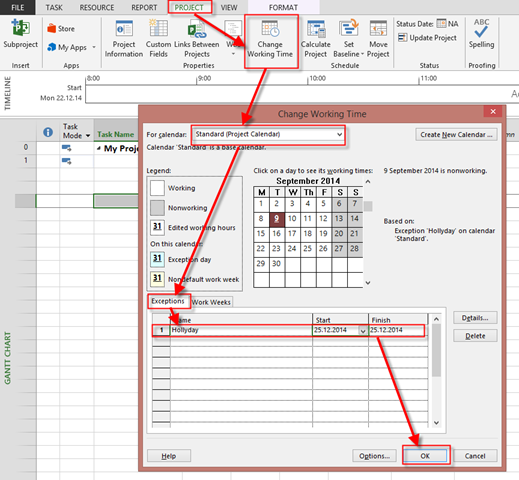
Now I’m going to modify Standard Calendar, which I use for this Project! I will make an Exception for 25.12.

image

I’m going to add two Resources to my Project:

image

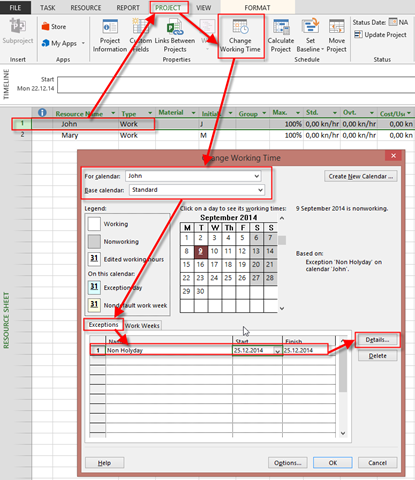
Now suppose that John will have to work during Holyday (e.g. 25.12.). How to do that. Well, piece of cake:

image

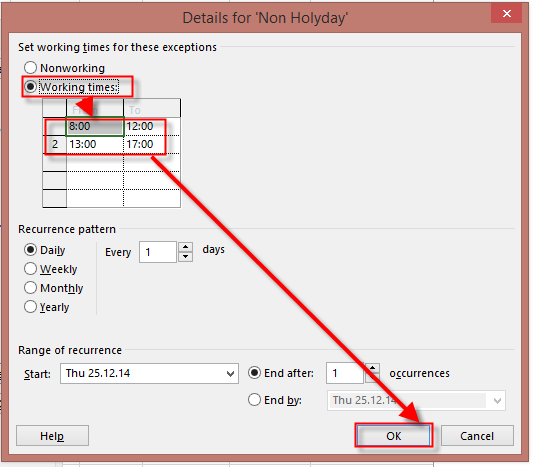
and then:

image

OK! Now I’m going to Assign John and Mary to One Task with 5 Days duration:

image

and:

image

Now I’m going to check Task Usage View:

image

As you can see, John will work on the Task from Monday ‘till Friday (also at 25.12. –  Thursday), and Mary Will work From Monday ‘till Monday next week, without 25.12.


Hope this helps.

Regards!

Posted in MICROSOFT PROJECT, Microsoft PRoject 2010, Microsoft Project 2013, PMI, PRoject Management | Tagged , , , | 1 Comment

Actuals and Variances with Material Resources in MS PROJECT 2013! – Part 2

Hi,

In my previous Post I wrote:

“Dear Nenad,

I have a doubt in MS Project updation and tracking of material resources. For example, i have budgeted quantity of cement as 100bags but in actual site construction the quantity consumed is 150bags. Where should i update the material resources and how can i find the variances of material resources.”

Well, it is easy. I’ll show you how to do that in MS PROJECT 2013!

First I’m going to create a simple Task:

image

and two Resources:

image

Notice, that Cement is Material Resource with $10 per Bag. Now I’m going to assign John to Task, and 100 bags as well:

image

and I’ll get:

image

This is my Project Plan, and I’m going to save Baseline:

image

No, suppose that John has finished his work on time, but he spent 150 bags of Cement instead of 100, as planned:

image

I will now look at Task Usage View, and put 150 bags for the Cement:

image

No let’s look at the Cost Table:

image

Baseline Cost is $5000 (5 days * 8hous per John * $100 per hour + 100 bags * $10 per bag = $4000+$1000 = $5000)

Actual Cost is $5500 (5 days * 8hous per John * $100 per hour + 150 bags * $10 per bag = $4000+$1500 = $55000)

Variance is $5500-$5000 = $500

But I want to see difference in Bags! I should apply Tracking Table in Task Usage View:

image

I still don’t see Variance so I will add two more Columns:

image

So now I can see Baseline work (e.g. 100 Bags), Actual work (e.g.150 Bags), and work Variance (150 – 50 bags) = 50 bags

BUT! Let’s look at the Resource Usage View:

image

Project now has 7,5 days Duration. an that doesn’t make a sense! Why? Because John John has done his Task in 5 days, so he could not spent the Cement in next 2,5 days, nor the Cement could be use by itself. To avoid this kind of behavior, we need to spend Cement equally from Monday thru Friday, 30 bags per day. TO get that I will:

image

and then I will put the real Finish date here:

image

and I will get:

image

Everything is in order now!


Regards!
Posted in MICROSOFT PROJECT, Microsoft PRoject 2010, Microsoft Project 2013, Microsoft Project 2013 - Preview, MS PROJECT 2010, PMI, PRoject Management | Tagged , , , , | 4 Comments

Start date and percentage complete in MS PROJECT 2013 – how are they connected!

I’ve noticed that some Project users do not understand how % Complete and Start date are connected, and because of that they think that MS PROJECT 2013 has a bug.

Let me give you an example. First I will create a simple Project:

image

Now I will mark Task 2 as 50% completed, and I’ll get:

image

Now suppose that Task 1 has 5 days duration. If I enter 5 days in duration field I will get:

image

As you can see, Start date in Task 2 is not changed. And this is not a Bug. Why? Because Task 2  has started with work.What can you do? You can say that Task 2 is 0% completed, and you will get:

image

Now you can mark Task 2 as 50% completed again.

But I will ask you a question as a Project Manager, and not as a Microsoft Project User. If you establish Finish-To-Start link between Tasks, that means that Predecessor must be finished, before Successor can Start. So, why will you mark Successor as Partial finished? If you can Start Successor before Predecessor ends, you can put a Lead time on Successor, or you can establish another type of Dependencies like Start-To-Start.


Regards!

Posted in Uncategorized | 3 Comments

Task are not Scheduled as expected in MS PROJECT 2013

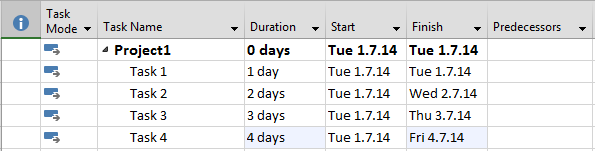
My Blog reader has a problem: “Hi Nenad. I am creating a simple Project with four Tasks. Task 1 is predecessor for Task 2, etc. I do not have a right Schedule, and they all start at the same date. When I hit F9 button everything works fine. How to avoid hitting F9”.

The answer is very simple. I am going to use Microsoft Project 2013!

First I’m going to create four Tasks:

image

and I’m going to link them:

image

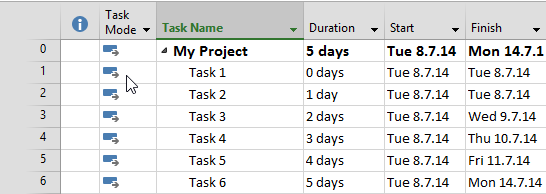
As you can see, all Tasks have a same Start date. When I hit F9, my Project will look like this:

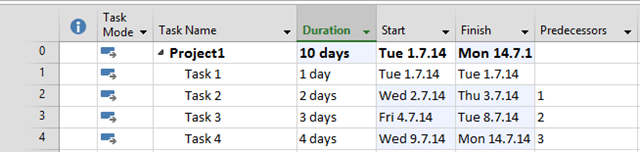
image

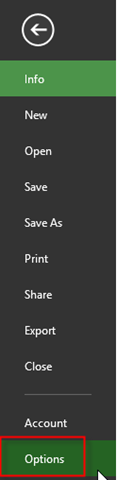
Everything is fine now. If you don’t want to use F9, and you want that Tasks are rescheduled when you edit them you should turn this option on:

image

and then:

image

and you will get what you wanted without F9 button!


Regards!
Posted in MICROSOFT PROJECT, Microsoft PRoject 2010, Microsoft Project 2013, MS PROJECT 2010, PMI, PRoject Management | Tagged , , | Leave a comment

Custom duration and date fields in MS PROJECT 2013

Here is a question form one of my Blog Readers:

I have another possible bug in MSP 2013. Try this one
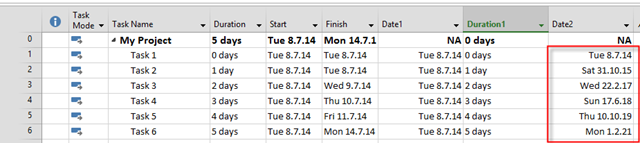
Insert Date1, Insert Duration1, Insert Date2. Now go to custom fields and make date2 a formula [(date1)+(duration1). The obvious answer would be a new date, but this is what I get.

Date1 Durat Date2
Tue 7/8/14 0d Tue 7/8/14
Tue 7/8/14 1d Sat 10/31/15
Tue 7/8/14 2d Wed 2/22/17
Tue 7/8/14 3d Sun 6/17/18
Tue 7/8/14 4d Thu 10/10/19
Tue 7/8/14 5d Mon 2/1/21

it seems to move almost 14 months.

Got any ideas on how to make this work?”

It is not a bug, but might confuse you. I’ll show you how it works in MS PROJECT 2013!

I will repeat steps like above:

image

I will add custom fields:

image  

and I will put same dates in Date1 field, and same durations in Duration1 fields:

image

I will create formula for Date2 field:

image

and I will get:

image

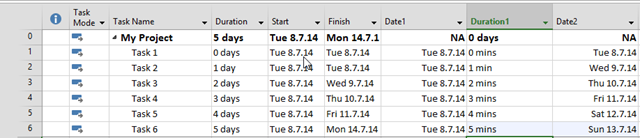
Strange, isn’t it? BUT! I will change Duration1 field with minutes:

image

It looks fine now. Why? Because Duration1 field is filled with 480 minutes per day. So when you put 1 day it is interpreted as 480 days! So to get right value in Date2, I should rearrange formula like this:

image

and I will get:

image 

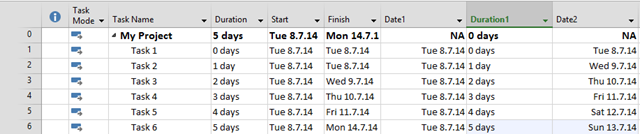
But if I want to consider my Project Calendar I can use this function:

image

and then:

image

and I will get:

image

Notice that Date 2 is same as Finish date. Of course, you can rename Duration field and call it, for example, pessimistic duration, and put different values than in Duration field.

Hope this helps.

Regards!

Posted in MICROSOFT PROJECT, Microsoft PRoject 2010, Microsoft Project 2013, MS PROJECT 2010, PMI, PRoject Management | Tagged , , , | 4 Comments

Cancelling Project when using Resource Pool in MS PROJECT 2013! – The easiest way

Hi,

I will repeat a lot of Pictures from my previous Post, and I’ll show you how to break the Link between a Project, and Resource Pool.. I will show you a case in MS PROJECT 2013!

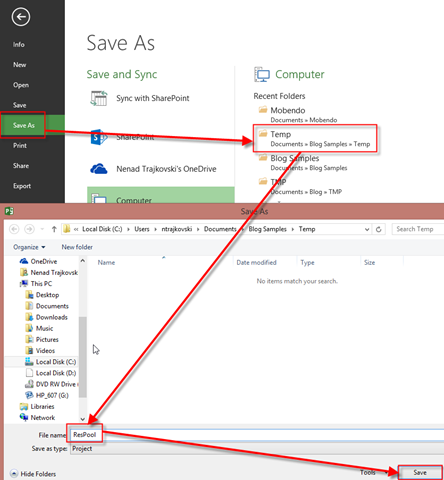
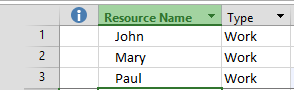
First, as usual I will make a Resource Pool and I will save it:

image

and then:

image

I will save the Resource Pool:

image

No I will create my first Project with two Tasks and I will assign Resources from the Resource Pool:

image

and then:

image

Finally:

image

I will repeat those steps above for my Second Project, and I’ll get:

image

John and Mary are Over-allocated, as expected. Now suppose, that you find out, that you will not work on Second Project, because it is Canceled (for any reason). What Will you do? Firs you should break the link between Second Project and Resource Pool

To do that, I will first open Resource Pool, and I will get:

 image

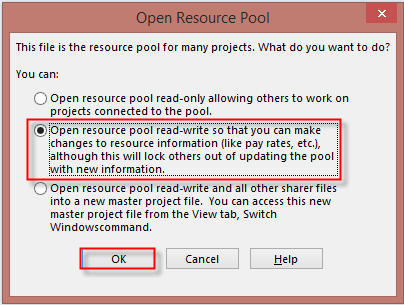
The Resource Pool is open in read-write mode. After that I’m going to choose:

image

and I will get:

image

After I break the Link between Second Project and Resource Pool, in my example John, and Mary are not over allocated any more.

image

BUT! If I open Second Project Again I will get this Project linked with Resource pool, again!

So, to avoid this, better way to disconnect Project with Resource Pool is:

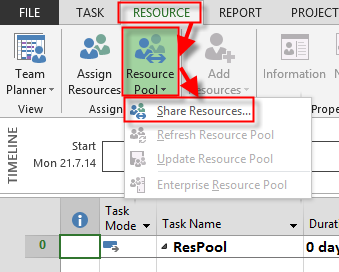
1. Open Second Project

2. GO to Resource TAB

3. Click on Resource Pool button

4. Select Share Resources

5. Disconnect Second Project form Resource Pool:

image

Save Second Project and Resource Pool as well, and you are done!


Regards.

Posted in MICROSOFT PROJECT, Microsoft PRoject 2010, Microsoft Project 2013 | Tagged , , , , | 4 Comments

Scheduled Duration, Start and Finished Date in MS PROJECT 2013

Hi,

A question from my Blog reader is: “Please clarify the purpose  of fields Schedule Duration, Schedule Start & Schedule Finish. In which context they are used and how they differ from Duration, Start & Finish Fields ?

I will show that in MS PROJECT 2013. First of all, the best use for this field is for Manually Scheduled Task. Suppose that you have one Manually Scheduled Task in MS PROJECT 2013:

image

and three Resources in Resource Sheet:

image

I will assign all three Resources to the Task:

image

Now, suppose that John Will work only at Wednesday, Mary at Thursday and Friday, and Paul at next Monday and Tuesday. I will use Task Usage View for that:

image

Of course I added this hours Manually to specific days.

Let’s look at Gantt Chart View:

image

Duration, and Finish Date is empty. Now I will add three new columns in Gantt Chart View:

image

As you can see Duration is still empty, but Schedule Duration is now % days, so you can enter this Value in Duration Field.

If I do the Same thing with Auto Schedule Task I’ll get:

image

Duration is same sad Schedule Duration, so best use for this fields are for Manually Scheduled Task!


Regards.

Posted in MICROSOFT PROJECT, Microsoft PRoject 2010, Microsoft Project 2013, PMI, PRoject Management | Tagged , , , , , | Leave a comment

Reordering Tasks in Master Project with MICROSOFT PROJECT 2013!

Hi,

again one of my Blog Readers has a question: “What if I want to make changes to the master project but don’t want it to change the sub projects? I want to be able to re-order the tasks in the master project but want them to stay in the same order for the sub projects. I thought you could save “one way”. I say yes to saving the master and no to the subs and I lose the master changes. Am I asking for the impossible?”

First I will create two Projects in MS PROJECT 2013:

image

and:

image

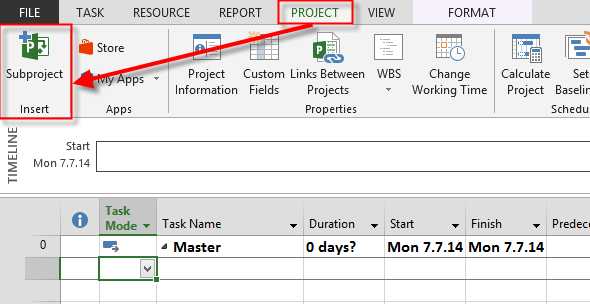
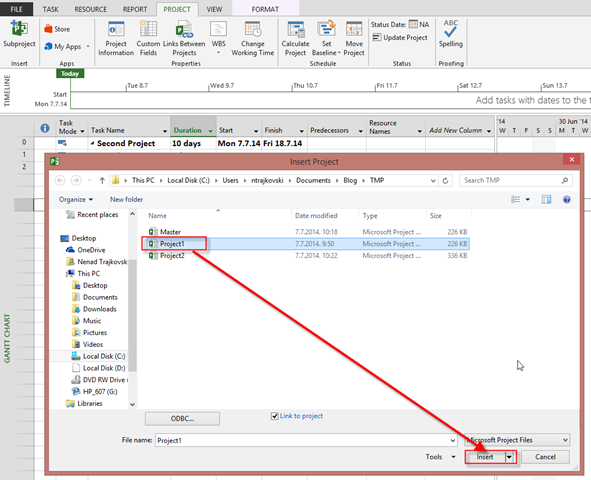
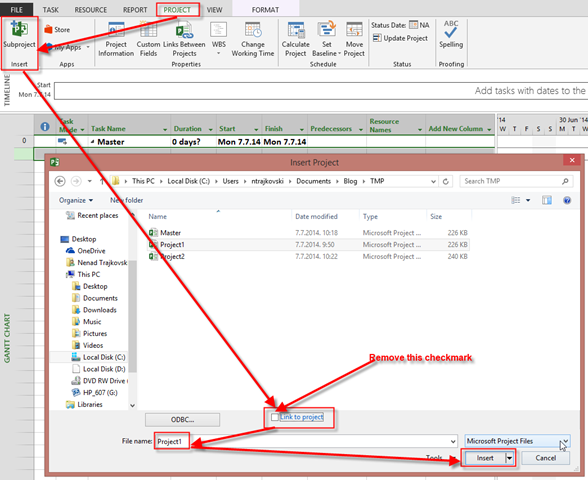
After saving those two Projects (and you know how to save it), I’ll create Master Project, and I’ll Insert those two Project in Master:

image

and:

image

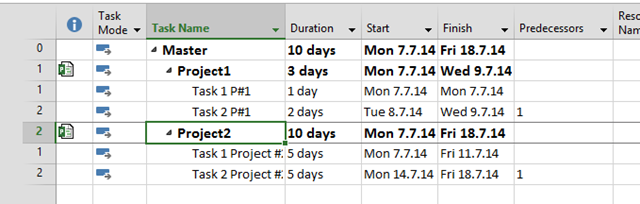
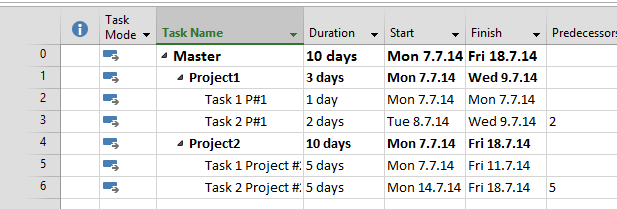
After adding those two Project I’ll get:

image

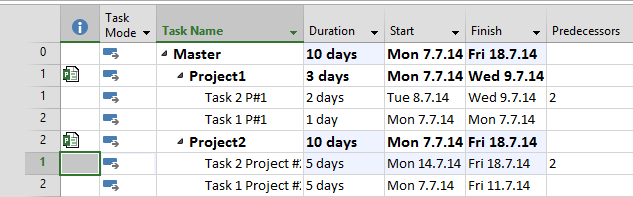
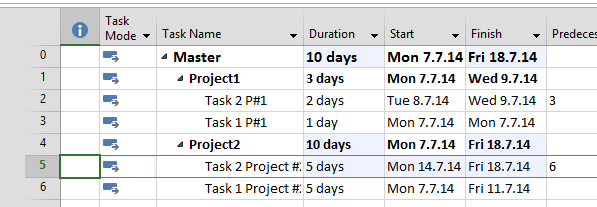
Now I will move Second Tasks form second to the First Place in Master Project:

image

OK! Let’s see what is with Original Projects:

image

and:

image

As you can see those Task has been moved in original Projects, as well!

If you want to avoid that you can make this:

image

When I do this for both Project I’ll get the same thing:

image

I will move Tasks, as I did in my previous example:

image

Let’s see the original Projects again:

image

and:

image

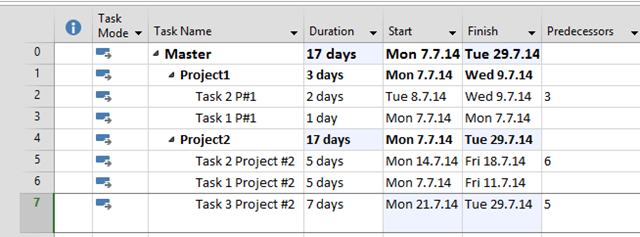
Now I will add a brand new Task in Master Project, below Second Task of Second Project:

image

Now, again, let’s look at the Project #2:

image

New Task is not in it.

Be aware of this. If you add a Project in Master Project with Link to Project checkmark selected, whatever you do in Mater Project will be reflected in original Projects. On the other hand, if you add a Project in Master Project with Link to Project checkmark deselected, Master Project acts like a stand alone Project, ant that means that whatever you do in Master Project will not be reflected in original Projects. In that case Master Project and Subprojects are acting like a separate stand alone Project (as you type them manually).


Regards

Posted in MICROSOFT PROJECT, Microsoft PRoject 2010, Microsoft Project 2013, MS PROJECT 2010, PMI | Tagged , , , | 2 Comments

Is it Possible to prevent assigning Resource to Task in MS PROJECT 2013?

Hi,

again a question form my Blog reader: “Is it possible to disable assigning Resource to the Task, and still keep same resource in Resource sheet?”

Let me show you in MS PROJECT 2013

First I’ll create Brand new Project with two Tasks:

image

and two Resources:

image

Now I will assign both resources to Task 1:

image

Now suppose that I don’t want John to be available to any Task any more. What can I do?

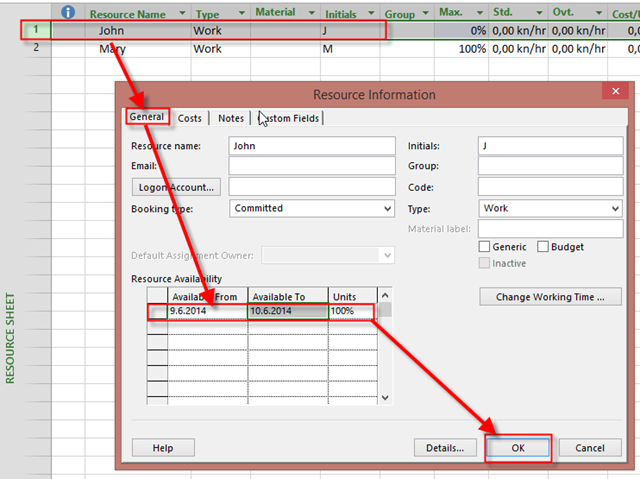
I can make him available only form Monday, 09.6.14 to Tuesday 10.06.2014:

image   

Now, I’ll try to assign John and Mary to the Task 2:

image

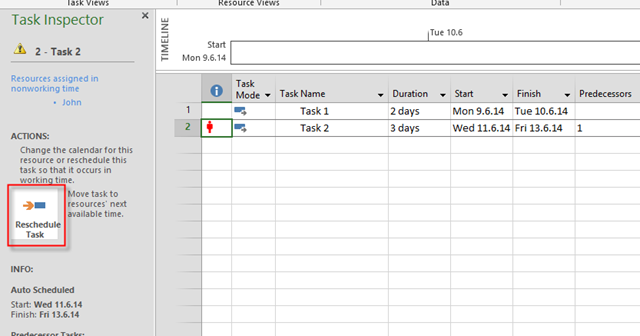
As you can see, nothing prevents me to assign John. He is marked as Overalocated and that is it!

I will try to fix that with Task Inspector:

image

and then:

image

and I will get:

image

Notice that Mary will finish the Task at Friday, but whole Task will be finishe ar Wednesday 31.12.2049 (limitation from MS PROJECT date) even he is assigned with 0%.

If you make an Calendar exception for example, you will still be able to assign him to the Task!

So, the answer is NO! You can’t prevent assigning John to any Task. You should be careful, that’s all!

Regards!

Posted in MICROSOFT PROJECT, Microsoft PRoject 2010, Microsoft Project 2013, MS PROJECT 2010, PMI, PRoject Management | Tagged , , , | Leave a comment