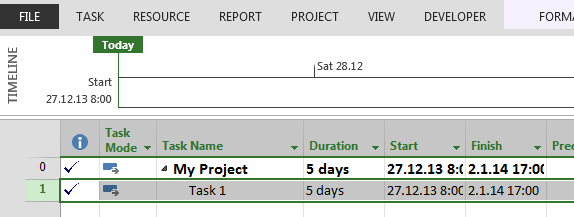
Status field in MS PROJECT 2013

Hi,

today I’ll show you how Status field works in MS PROJECT 2013.

As usual I am going to Create some Tasks:
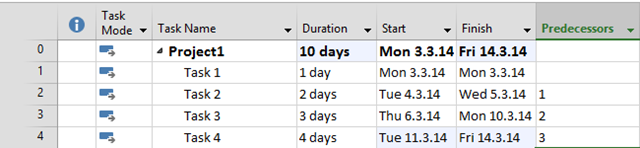
image

I will add the Status field in the View:

image  ¸

As you can see Task 1 is On Schedule, because today is Mon 03.03.2014. Other Tasks are in Future Tasks Status. I’m going to change Status date from NA to Sunday, 09.03.2014:
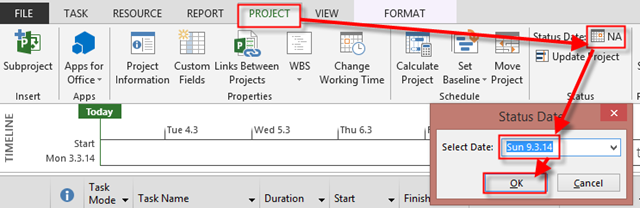
image

and I’ll get:

image


As you can see Task 1, Task 2, and Task 3 are late according to Status date. No I’ll make Task 1, and Task 2 completed:
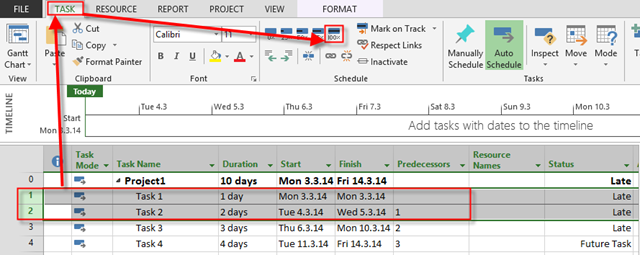
image

and I’ll get:

image

Now, Task 1, and Task 2 are Completed, Task 3 is Late, and Task 4 is Future Task.

This is powerful field. Use it whenever you want. You can sort on it, filter on it etc.

But, be aware that in some situations it will not be change according to changing status Date. It is minor Bug. If it does NOT refresh repeat this steps:

1. Hide the Status field Column

2. Show it again

It will work!

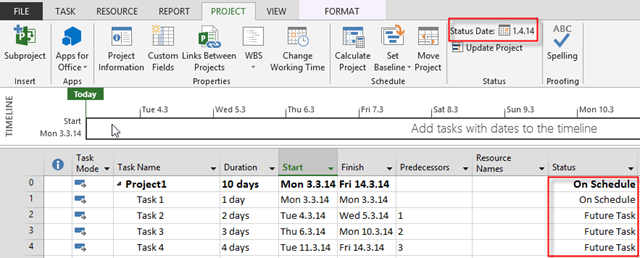
Here is the example. I changed the Status field from NA to 01.04.2014, and I get:
image

It’s wrong. After Hide / Show the same Column I’ll get:
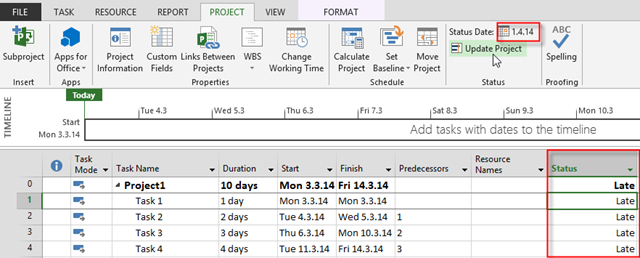
image

Now, everything is OK!

Regards

Posted in MICROSOFT PROJECT, Microsoft PRoject 2010, Microsoft Project 2013, PMI, PRoject Management | Tagged , , , , | 11 Comments

Inactive Tasks in MS PROJECT 2013

Hi,

this Post will be a really short one!

I’m going to explain how Inactive Task is different in MS PROJECT 2013. First, notice that this functionality is available only with MS PROJECT 2013 PROFESSIONAL version.

I’ll create new Project,first:

image

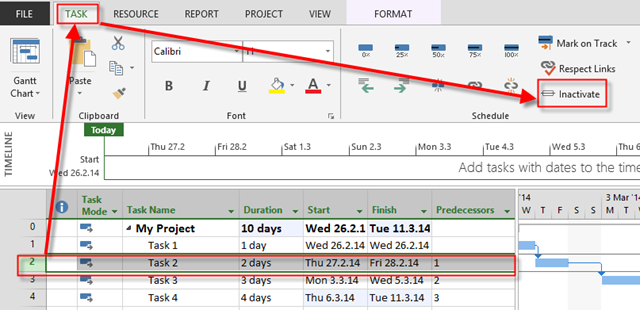
Suppose, that I don’t need Task 2 any more. I’ll make it Inactive:

image

and I’ll get:

image

As you can see, Task 3, as Successor of Task 2 now has Star date same as Task 2.

Where is the difference between MS PROJECT 2010 and 2013? In 2010 version, Task 3 will have start date set as a Project Start date (e.g. it’s Start date will be the same as Start date of Task 1).  In 2013 version it has same Start date as Inactive Task.

You can like it or not, but it is what it is!

Regards.

Posted in MICROSOFT PROJECT, Microsoft PRoject 2010, Microsoft Project 2013, Microsoft Project Server 2010 | Tagged , , | Leave a comment

How to avoid adding column to Tables in MS PROJECT 2013

Hi,

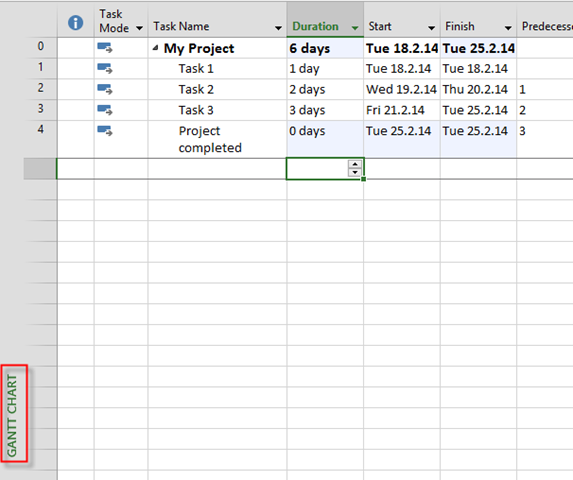
my Blog reader wants to disable Add New Column functionality in MS PROJECT 2013. It is very easy. First, I’ll create new Project:

image

As you can see I’m viewing the Gantt Chart. In this chart I’m looking at the Entry Table. You can see that here:

image

If I want I can add any field from this Table into my View:

image

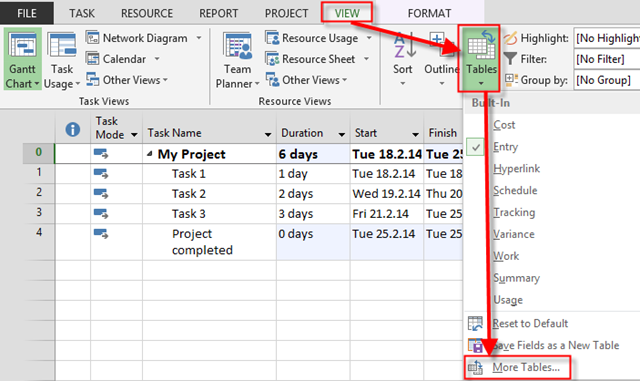
But sometimes I want to prevent that. To do that I must follow these steps:

image

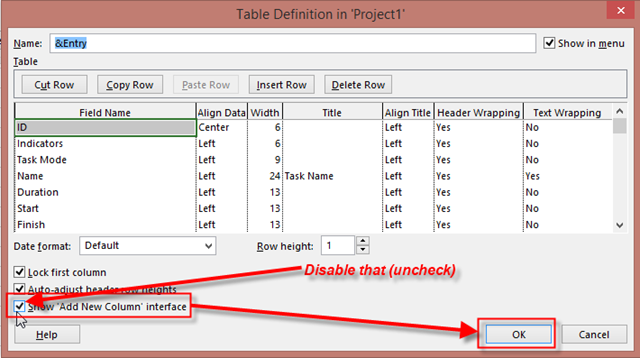
then:

image

and finally:

image

Now look at the same View:

image

As you can see there is no Add New Column  any more.

Now few hints:

  • If you disable this feature, you will not have this feature in any view.
  • If you want to disable this feature for some other Tables, you should repeat those steps for each Table
  • If someone else can open your Project File, she or he can put this feature back.


Easy, isn’t it?


Regards

Posted in MICROSOFT PROJECT, Microsoft PRoject 2010, Microsoft Project 2013 | Tagged , , , | 2 Comments

How to make a right Schedule for your Project, after it begin in MS PROJECT 2013

Hi,

in this post I will explain what to do with your Project when you are late, and how to make your schedule Accurate!

First, I will create some Tasks in MS PROJECT 2013:

image

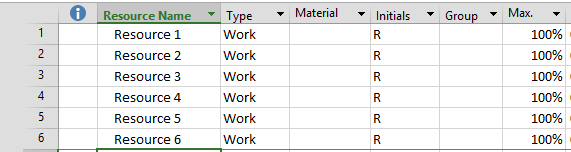
Then some Resources:

image

Finally I will assign Resources to Tasks:

image

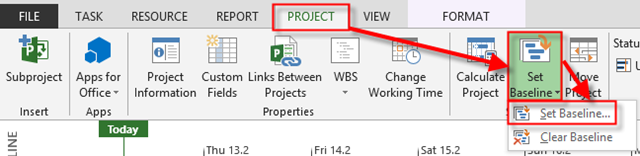
This is my Project Plan, and I’m going to save it as a Baseline:

image

and:

image

Now I’m going to use Tracking Gantt View:

image


Let’s say that Task 1 is 50% completed, and Task 4 is 75% completed, and both Tasks had started on time:

image


I’ll get:

image

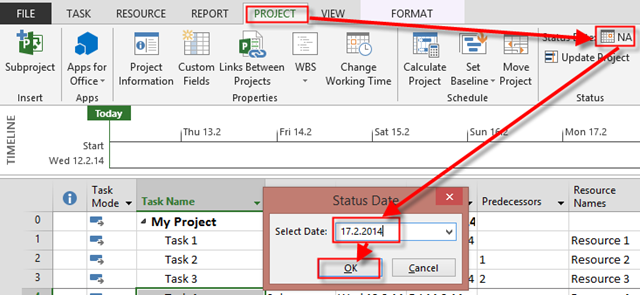
Now suppose that current date is Tuesday, 18.02.2014, and I have a meeting with my Team. I find that nothing changed, so, basically the Project will be late. There is no way that anyone can work on Task in a past. So my Schedule is no accurate any more. Now, I have to Reschedule all Tasks (unfinished) to , so called, Status Date, which is Monday, 17.02.2014! TO do that, firs I’ll enter the Status date:

image

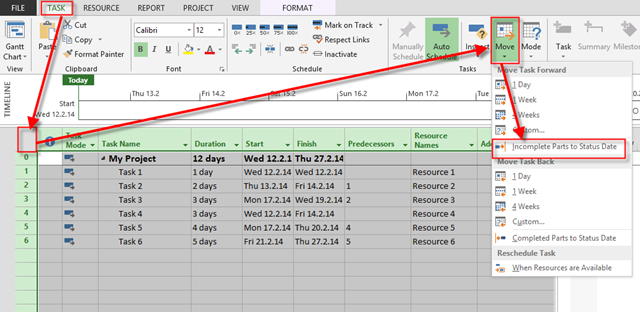
Now I’m going to Reschedule all Task:

image


and I’ll get:


image

As you can see, Task1, and Task 4, are split, an all other Tasks are moved with Respect on their Predecessors. Remaining parts of Task1 and Task 4are supposed to star the day after Status date, in my example at Tuesday, 18.02.2014.


Regards

Posted in MICROSOFT PROJECT, Microsoft PRoject 2010, Microsoft Project 2013, PMI, PRoject Management | Tagged , , , , , | Leave a comment

No Blog Post for one week

image


Dear Blog readers,

next week I’ll be in Anaheim, at the PROJECT 2104 Conference. So, there will be no Blog Post.

Stay tuned, I’ll write about Conference when I come back!

Regards
Posted in MICROSOFT PROJECT, Microsoft PRoject 2010, Microsoft Project 2013 | Tagged , | 3 Comments

Remove Resource Pool from MS PROJECT 2013

Hi,

again, a question from one of my Blog readers:

“Hello Nenad,

How does one remove a resource pool from a master project completely from MS Project 2013. I can’t keep other sub projects that formerly were connected to the resource pool from looking for it when I open those files. I have already gone to Assign Resources and have selected “Use Own”. When I do this the correction does not take place and the files are still linked to a resource pool that has been deleted??

I have used your blog for information frequently. You have much better information than anyother “Official” site that I have looked at.”

Of course, I’m going to explain that with MS PROJECT 2013!

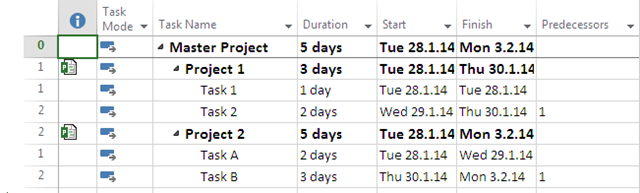
First I’m going to create Resource Pool:

image

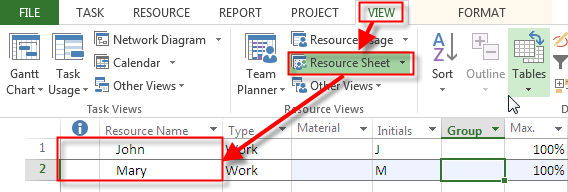
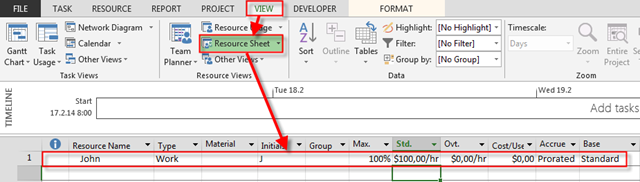
Now I’m going to add John, and Mary:

image

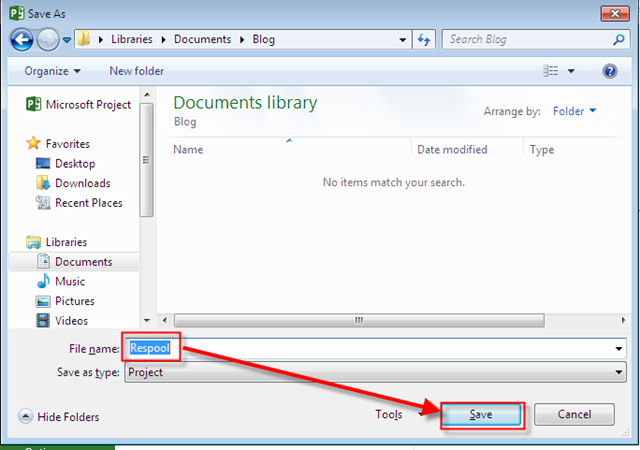
Now I’m going to save The Resource Pool (you know the steps – File, Save As, and then):

image

I’m going to Create two Projects, with two Tasks, and I’ll assign Resource to them:

image

and:

image

and then:

image

Finally, I’m going to assign Resources to Tasks:

image

I will follow the same Steps for the Second Project and I’ll get:

image

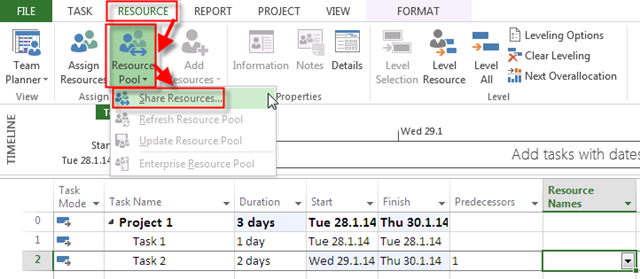
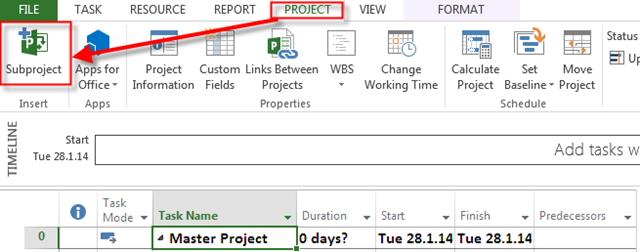
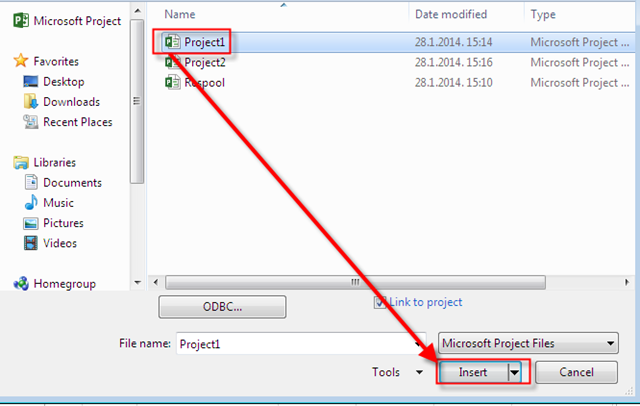
Now I’m going to Crete the Master Project With Two Subprojects:

image

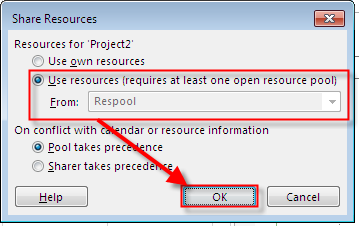
and then:

image

I’ll do the same thing for the Second Project, and finally I’ll get:

image

Now suppose, that after some time, I don’t need Resource Pool any more.  I’ll open the Master Project file:

image

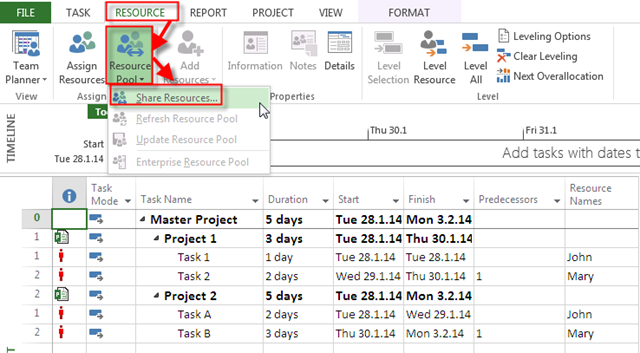
Now I’m going to disconnect the Resource Pool:

image

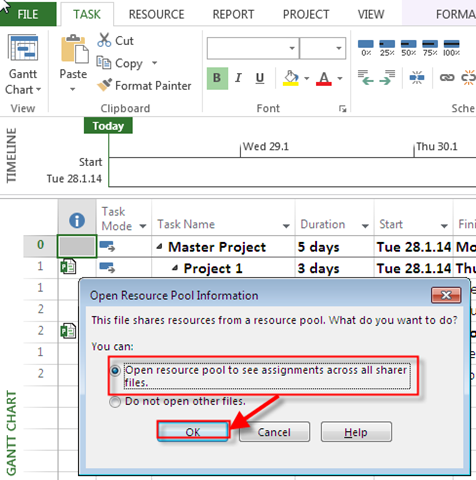
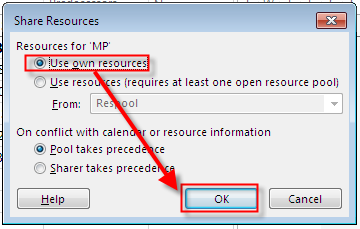
and then:

image

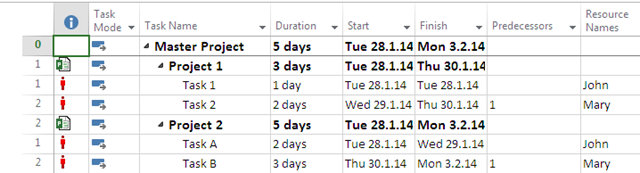
and I’ll get:

image

It seems that there is no change! But it is! When I close the Resource Pool I’ll get:

image

As you can see, there is no Over allocation any more. Resources remains, but as Local Resources. If you want to remove them from all Projects, just delete them from Master Project, and you will get:

image

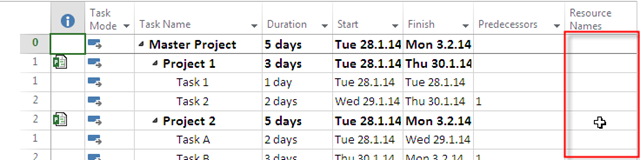
Now, take a look at your Project 1, or Project two, at the Resource sheet. You will see:

image

NOTHING. There are gone!

Hope this helps.

Regards!

Posted in MICROSOFT PROJECT, Microsoft PRoject 2010, Microsoft Project 2013, MS PROJECT 2010, PMI, PRoject Management | Tagged , , , | 7 Comments

Actual finish date in MS PROJECT 2013


Hi,

again, one of by Blog readers has a question:

“How do you update actuals? Let’s say the task is supposed to have finished 21 Feb 2014 according to the original plan. However, this task can now be finished earlier. Do you enter the new finish date as a constraint? Or do you enter a new duration and let the finish date be calculated. And how do you not let it affect your Work value?”

I’ll show you how to do that in MS PROJECT 2013!

First I’ll create a brand new Project with one Task:

image

As you can see, Task will start at February, 17th, it has 5 days duration, and it will finish at February 21th.

I will now add John as Resource for my Project:

image

and I’m going to assign John to the Task:

image

Finally, because I don’t want to change my Work, which is 40 hours (e.g. WORK = DURATION * UNITS, and that means WORK = 5 days * 8 hours per day * 100% = 40 hours), I’ll make My Task ad Fixed Work:

image

Now, because this is my Plan, I’m going to save it through Baseline:

image

I’ll switch to Task Usage View!

Now Let’s say that Task, actually begin at February 17th, but it finished at February 20th.

image

and then:

image

and I’ll get:

image

As you can see, Work is 40 hours but Duration has changed to 3,88 days! If it is not what you wanted (and, for my case it is not) I can put actual hours manually, like this:

image

With this method, I can tell how much work John spent on this Task each day.

It is tricky, a little bit complicated, but it works!

Regards
Posted in MICROSOFT PROJECT, Microsoft PRoject 2010, Microsoft Project 2013, MS PROJECT 2010, PMI, PRoject Management | Tagged , , , , , | 4 Comments

Multiple Critical Paths in MS PROJECT 2013

Hi,

we all know what Critical Path means. It is path in which, if any Activity is late, the whole Project is late.

Let me show you Critical Path in MS PROJECT 2013.

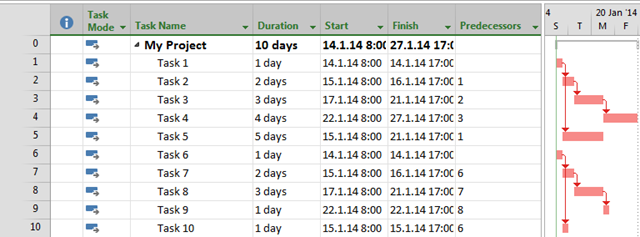
First I’ll create new Project with some Tasks and dependencies between them:

image

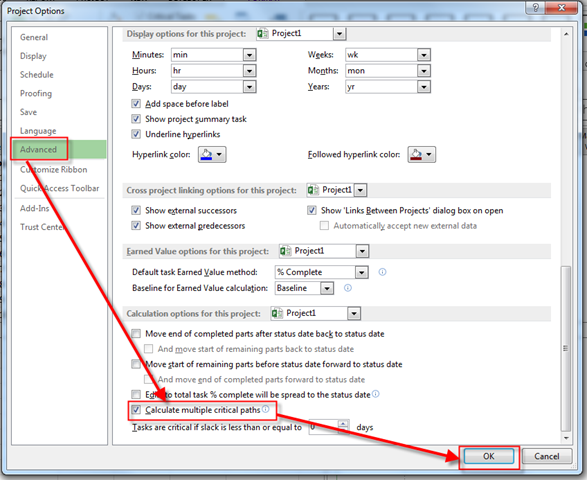
I want to see Critical Path, so I will do next:

image

and I’ll get:

image

and I’ll get:

image

As you can see, Critical Tasks (or Activities, to be more precise) are: Task 1, Task 2, Task 3, and Task 4.

Now Imagine next situation:

image

As you can see, Task 6 – Task 10, they are not at the Critical Path. But what if I want to see Tasks which are at the, so called, “Critical Path” in this particular Branch? I will do next:

image

then:

image

and then:

image

Finally I’ll get:

image

Now I have two Critical paths!

I seem a confuse a little bit because with this option, if it is turned on, the late finished date for tasks with no constraints or no successors are set to their early finished date, so they are Critical!

My suggestion is: Do not use this option! I’m tracking only one Critical Path, the real one!

Regards.

Posted in MICROSOFT PROJECT, Microsoft PRoject 2010, Microsoft Project 2013, MS PROJECT 2010, PMI, PRoject Management | Tagged , , , , | 1 Comment

Some additional setup in MS PROJECT 2013


Hi,

first Blog Post in new 2014 year. I’ve been asked about some recommendations about additional setup in MS PROJECT 2013

There is a lot of setup which you can do in MS PROJECT 2013. You can set up Calendars, working time, exception time, etc. I’ll show you some additional setups available in MS Project, and I am going to explain them.

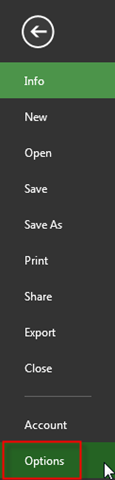
First one is to put Project information when you open a ¸new Project. To set up that you show follow this steps:

image

then:

image

and then:

image

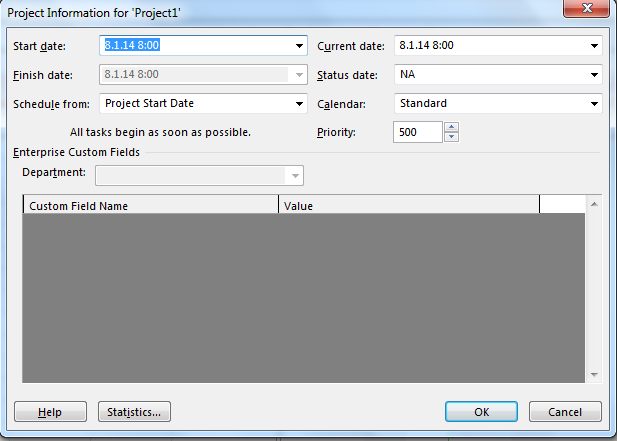
Now, when you create a brand new Project you will get this:

image

so you can put Project Information as Start or Finish date, Default Calendar here! It is good practice to turn this option on.

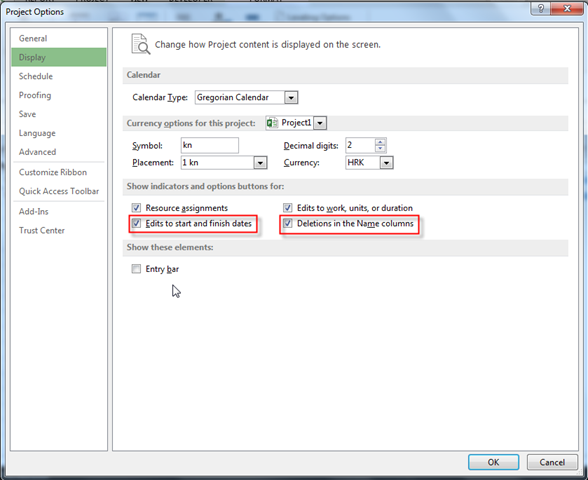
It is good practice to have these two options turned on, as well:

image

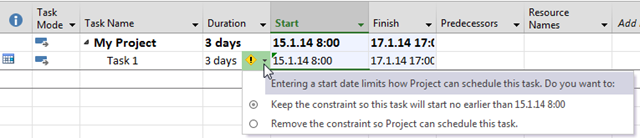
Edits to start and finish dates will show you follow if you change, for example, Start date:

image

and you’ll get:

image 

so you can choose will you make a semi flexible constraint to the Task or not.

From my Point of view, Deletion in Name columns is very useful.  If it is turned of, when you are in the name Column, and you hit delete key you will get:

 image

this:

image

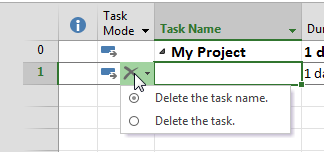
As you can see, the name is gone! Very often I mean to delete the Task, but I am not at the right place with my cursor (on the Task number on the far left side of the screen). Whit this option turned on, when I hit Delete key on the Task Name, I’ll get:

image

and when I click on this sign I’ll get:

image

So I can choose between Task Name or whole Task deletion.

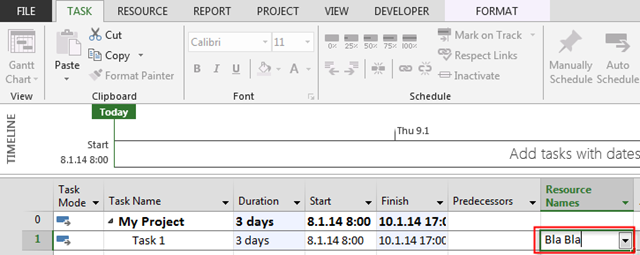
By default you can add new Resource directly through assignment field like this:

image

and when you hit Enter, it will be in Resource sheet:

image

With that you can easily forget to put Standard Rate, Overtime Rate, etc. 

But, if you turn this option off:

image

when you add new Resource through assignment field:

image

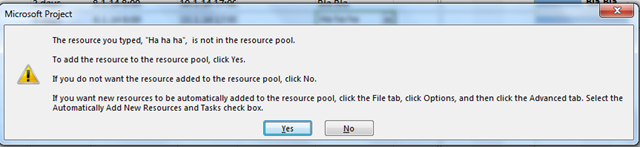
and when you hit the Enter key you will get:

image

So, you’ll get warning Message this Resource is not defined, and that you will have to make some adjustments (Calendars, Pay Rates) in Resource sheet.

And remember. Those recommendations are mine! You should choose your own setup options for your Projects.

Regards!

Posted in MICROSOFT PROJECT, Microsoft PRoject 2010, Microsoft Project 2013, MS PROJECT 2010, PMI | Tagged , , , , | 9 Comments

Collapsing the Ribbon in MS PROJECT 2013

Hi,

this will be an easy one, because tomorrow is a New Year (2014), so I’ll finish this year with an answer to my Blog Reader. The Problem is very Simple:

Dear Sir, I’m using the Ribbon all the time, but Each and every time I have to click on exact Tab to see it! After I do something it disappears. Is it a Bug? Thank you very much!”.

First of all, it is not a bug. Someone likes to have Ribbon on the screen all of the time, someone not.

Lets see what we can do here. The screen for a new Project is:

image

I will add a brand new Task to it:

image

What if I want to make it 100% completed? I have to click on the Task Tab, and then:

image

and I’ll get:

image

As you can see, the Ribbon is gone! If you want to have a Ribbon on the screen all of the time you should do this:

image

and you will get:

image

The Ribbon is here, and It will stay here!

Please allow me to wish you a Happy New Year, and I hope that you will stay my Readers in 2014 year as well! All the Best!

Regards
Posted in MICROSOFT PROJECT, Microsoft PRoject 2010, Microsoft Project 2013, MS PROJECT 2010, PMI, PRoject Management | Tagged , , , , | 2 Comments