How to set Resources to work at different time with different amount of work at the same Task in MS PROJECT 2013

Hi,

I have a question from one of my Blog Readers: “”

Nenad, I have two Resources on the same Task. I want to assign them at different time and different work. Let’s say that John will work 40 hours for 5 days Duration Task (from Monday till Friday, but Mary should work only 8 hours at Friday. How can I accomplish that?”

I will explain how to di it in MS PROJECT 2013!

First I’m going (as always) to create new Project:

image

and Two Resources:

image

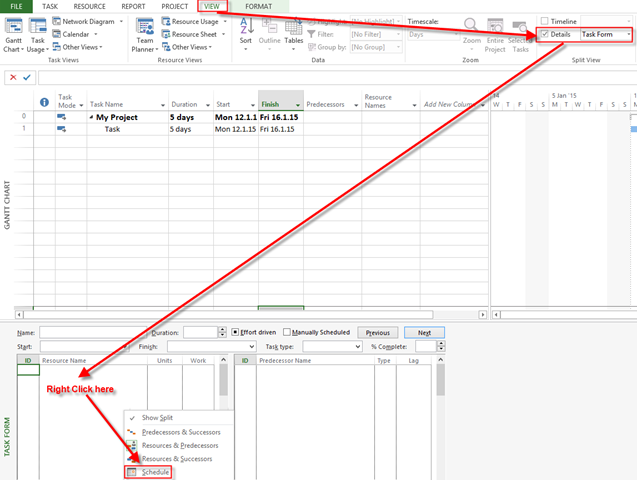
Now I will split Gantt Chart View to see Schedule in a Task Form:

image

and I will get:

image

Now I’ am going to assign John and Mary, as requested by my Blog Reader:

image

and I will get:

image

As  you can see, John will work from Monday till Friday (40 hours) and Mary will work only at Friday (8 hours). I could put 8 hours in Work field for Mary, and then in Scheduled Start Fri, 16.1.2015, and I will get the same result.

Let’s see in Task Usage View:

image

Easy, isn’t it?


Best Regards

Nenad

Posted in MICROSOFT PROJECT, Microsoft PRoject 2010, Microsoft Project 2013, MS PROJECT 2010, PMI, PRoject Management | Tagged , , , | 1 Comment

Multinational Calendars and how to use them in MS PROJECT 2013?

Hi,

again, I have a question from one of my Blog readers:
Okay I have a question not certain if it belongs in this thread. I’m managing a project for resources in multiple locations using MS Project 2007: US and 3 countries in Europe. I have multiple resource calendars to reflect the different countries. One (1) of my German resources started a task on Nov 28 which is a holiday for the US. When I attempt to change it to Nov 28th MS Project states that Nov. 28th is a non-working day; this is correct for US resources. However since Nov 28th is a working day for the German resource why is MS Project giving me this error. I understand that the standard calendar is used for the Project tasks, how can I use the resource calendar assigned to the task versus the standard calendar. Hope this question is clear thank you in advance.

I will show you how to do it in MS PROJECT 2013!

First, I’m going to create a brand new Project:

image

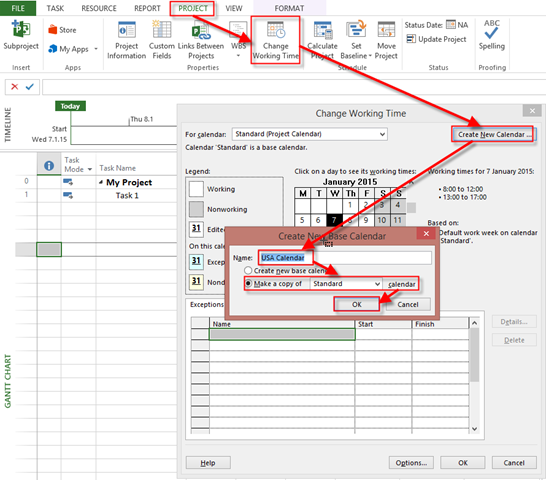
Now suppose that in my project I have a guy from USA, and a guy from Germany. And suppose that in USA we have two holidays: one at Thursday, Jan 8th, and second at Monday, Jan 12th. I will create Calendar with name “USA Calendar”:

image

and then:

image

Forget about reoccurrence for a moment, it doesn’t matter in this Scenario.

Now suppose that in Germany we have two holidays: one at Tuesday, Jan 13th, and second at Friday, Jan 16th. I will create another Calendar with name “Germany Calendar”, at the same way I did with USA Calendar. I will get:

image

And now, I am going to create two Resources, John from USA, and Hans from Germany:

image

As you can see, John has USA Calendar as Base Calendar, and Hans has Germany Calendar as Base Calendar.

Finally I will assign both of them to my Task:

image

As you can see, Duration is now 12 days. Let’s see at the Task Usage View:

image

As you can see, John will not work at USA Holiday, and Hans at German’s Holidays. Both of them will work 80 hours per Task (because initial Duration was 10 days, and that means 10 days * 8 hours per day = 80 hours).

But they will work according to they own Calendar.

Hope this helps.

Regards

Posted in MICROSOFT PROJECT, Microsoft PRoject 2010, Microsoft Project 2013, Microsoft Project Server 2010, MS PROJECT 2010, PMI, PRoject Management | Tagged , , , | Leave a comment

Duration, Units, Work and Schedule in MS PROJECT 2013. How are they linked, and some tips and tricks!

Hi,

this is my first Post in this year and it will be a quite long. Again, one of my Blog readers ha a problem, and this problem is about scheduling. Here it is:

“Dear Nenad,
Glad to find your site and I thought of requesting your assistance ! It would be great, if you clarify my queries on below!
I have a question on below issue ! Hope I will get assistance on how to get the desired result!
In Below Scenario, i am trying to face a situation which i could not solve!
Case Study:
Need to create a task “Paint the wall”.
I would expect this task to be completed by 24 hours.
I would expect the Start Date to be Jan 7, 2015 (Wednesday)
I have 3 resources with below constraints.
A (with max unit = 50%). i.e., A can work only 4 hours daily
B (with max unit = 50%). i.e., B can work only 4 hours daily
C (with max unit = 25%). i.e., C can work only 2 hours daily
Also, C cannot work on Jan 8 and Jan 9. (in general, C is not available on Thursday and Fridays always)
I would like to implement the above in Project 2013, such that, resources are effectively utilized such that, we can complete this task (“paint the wall”) with less number of days !

Expectation1:
If I assign Resource A alone, I would expect the work (24hours) to be completed in 6 working days (Jan 14th) (note: Resource A works 4 hours daily. Hence 24 hours work will be completed in 6 working days)

If I assign Resource A, B and C, I would expect the work (24 hours) to be completed by Jan 9th.
(note:
On Jan 7th, 2015 – i expected all 3 resources work. Hence total hours is 4+4+2 = 10 hrs
On Jan 8th, 2015 – Since resource3 can’t work, Resource1 and Resoure2 will work 4+4 = 8 hrs
On Jan 9th, 2015 – Since resource3 can’t work, Resource1 and Resoure2 will work 3+3 = 6 hrs
Requesting your assistance on how the above can be done in ms project 2013. As I could not get the expected result of above case !!

In general, I am expecting ms project to calculate smartly, when I add/remove resources on this task. (like, if I have 6 resources (100%) assigned, I would expect 24 hrs work to be completed on same day itself – Jan 7th itself. Similarly, if have 6 resources (50%) assigned, I would expect 24 hours to be completed in 2 days ie., work to be completed by Jan 8th itself).”

OK! Let’s go with MS PROJECT PRO 2013!

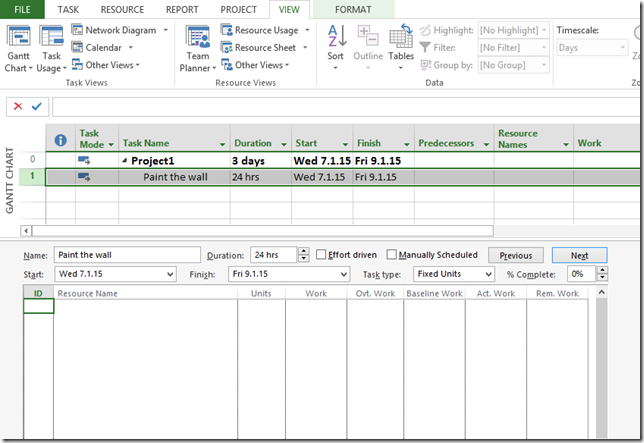
First I will create Task with duration = 24 hours:

image

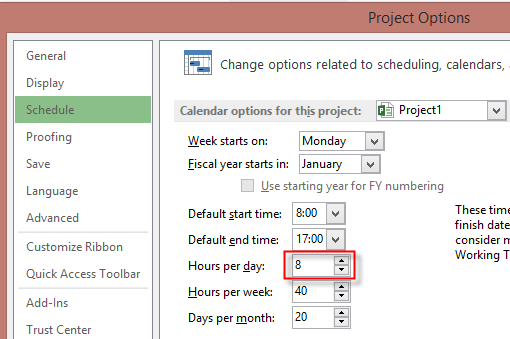
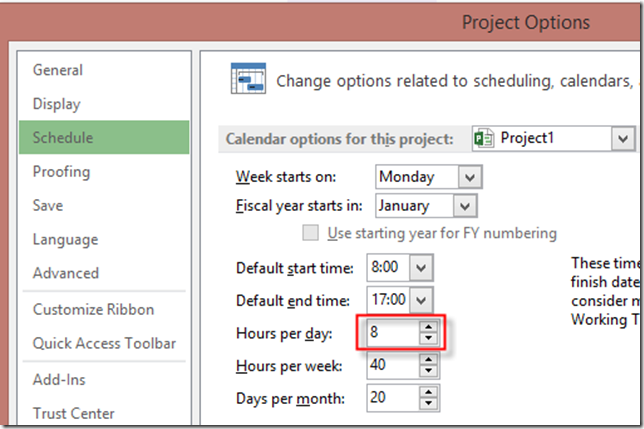
Now, let me explain what is going on! When I put 24 hours in Duration field, MS PROJECT calculate Duration in days = 3 days! Why? Because I have in Schedule options this:
image

And it means that 24 hours will be finished in 3 days (24/8 = 3)

Notice that in first picture Work field is 0 hours! Is that a Bug? Not at all! Work field will have value greater than 0 ONLY when I assign resources on it. Without Resources it will always be 0! And you should keep that in mind!

Now it is time to Create Resources as in example from my Blog reader:

image

I will open Task Form as Detail Page in Gant Chart View:
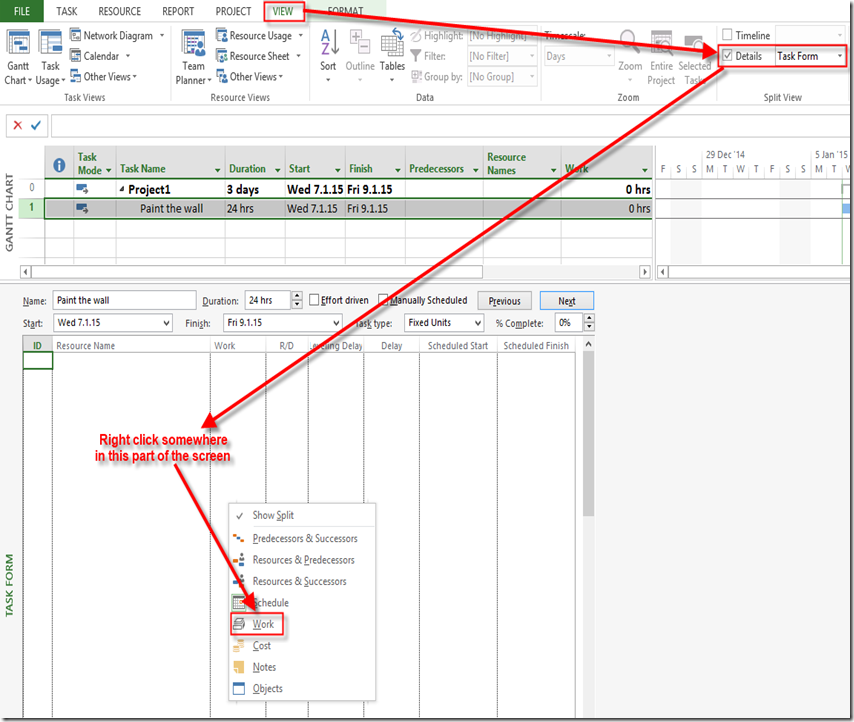
image

and I will get:

image

Now I am going to assign Resource A to the Task:
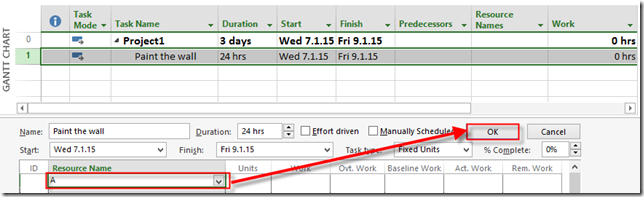
image

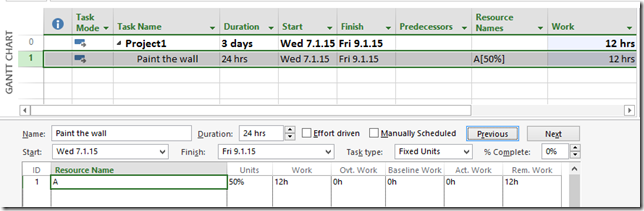
and I’ll get:

image

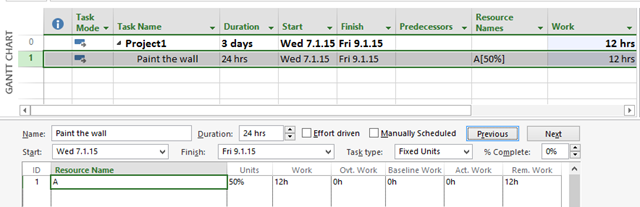
As you can see duration is still 24 hours (3 days), but work is only 12 hours! Is this a Bug? NOT AT ALL!

The Magic formula (and I wrote about it a lot) is WORK = DURATION * UNITS And that explain this result.

So Work = 24 hours * 50% = 12 hours. And That means that Resource A will work 3 days, 4 hours per day. In other words, Resource A will finish this 3 day work in 12 hours!

But, my Blog reader wants, I quote: “I would expect the work (24hours) to be completed in 6 working days (Jan 14th) (note: Resource A works 4 hours daily. Hence 24 hours work will be completed in 6 working days

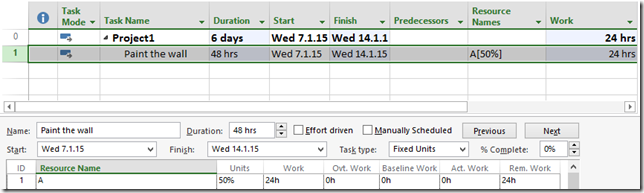
To get that, I should assign Resource A, with 24 hours work and Fixed Units Task type:
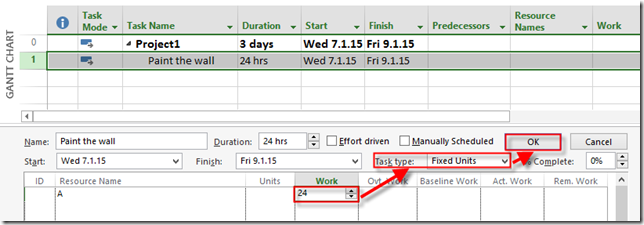
image

and I’ll get:

image

As you can see duration is now 6 days, because Resource A will work 24 hours, 4 hours per day, e.g. 24/4 = 6 days duration!

Now I will explain this: “If I assign Resource A, B and C, I would expect the work (24 hours) to be completed by Jan 9th. (Note:
On Jan 7th, 2015 – i expected all 3 resources work. Hence total hours is 4+4+2 = 10 hrs
On Jan 8th, 2015 – Since resource3 can’t work, Resource1 and Resoure2 will work 4+4 = 8 hrs
On Jan 9th, 2015 – Since resource3 can’t work, Resource1 and Resoure2 will work 3+3 = 6 hrs)”

First, if you remember, request is that Resource C newer works at Thursday and Friday. I make it possible by this:

 image

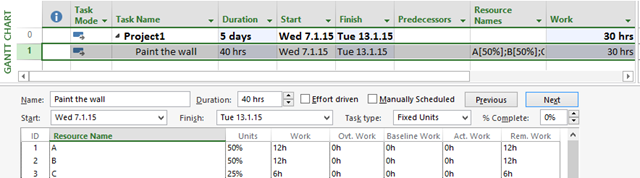
Now I will assign all Resources (A,B, and C) to the Task (Fixed Units type), and I’ll explain results:
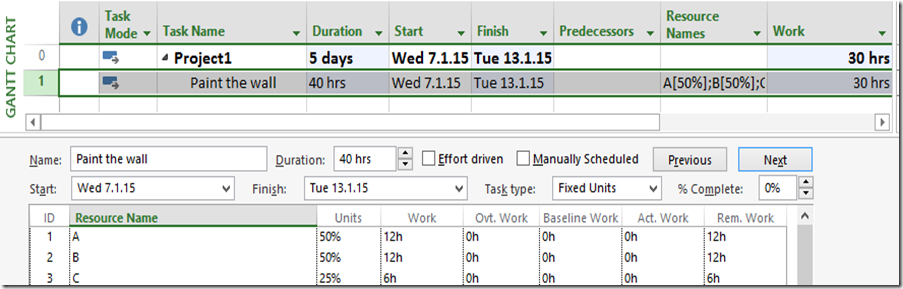
image 

As you remember, duration (initial) was 24 hours (or 3 days). Formula is WORK = Duration * Units

  1. Resource A, and Resource B – Work = 24 hours * 50% = 12 hours
  2. Resource C – Work = 24 hours * 25% = 6 hours

OK! But why is Duration 5 days (or 40 hours) now? Let’s look at Task Usage View:

image

Resource A, and B will work 4 hours per day. Since they are available from Monday to Friday, and they have to work 12 total hours , they will work from Wednesday to Friday (3 days), 4 hours per day, and that will be 12 hours per person. Resource C is available only from Monday to Wednesday, and he or she has to work 6 total hours it will work: Wednesday 2 hours, and next Monday and Tuesday 2 hours per day, and that will be 6 hours. Again, my blog reader expect this:
On Jan 7th, 2015 – i expected all 3 resources work. Hence total hours is 4+4+2 = 10 hrs – OK. It works that way
On Jan 8th, 2015 – Since resource3 can’t work, Resource1 and Resoure2 will work 4+4 = 8 hrs OK. It works that way
On Jan 9th, 2015 – Since resource3 can’t work, Resource1 and Resoure2 will work 3+3 = 6 hrs – I will explain this expectation. Since expected duration is 24 hours, my Blog Reader expect that remaining work at Jan 9th is 24 (total) – 10 (Jan 7th) – 8 (Jan 8th) = 6 hours. And since at Friday, Jan 9th Resource C is unavailable, and other two resources are, they should split work among them. But MS PROJECT does not work that way. Instead, it will wait to Resource C to finish his/her work when he/she is available. And that is reasonable, because Microsoft Project can not “remove” work for Resource C, just because it is unavailable at some dates.

But, what if you want that Duration is 24 hours, and it must be fixed. In that case I can use Fixed Duration Task type! If I choose that, and assign all three Resources to the Task I’ll get:
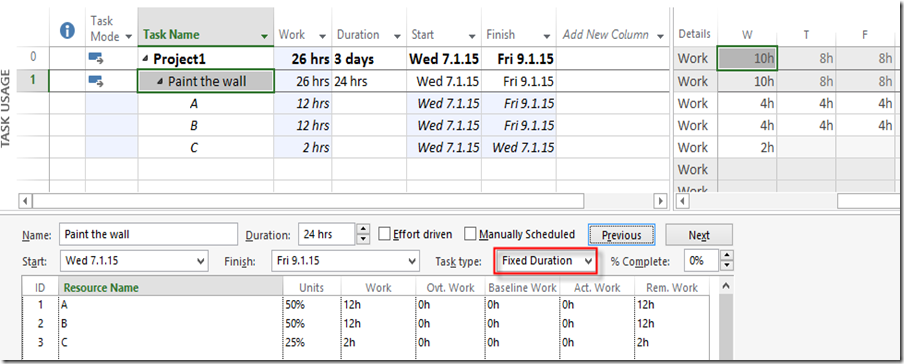
image

Final explanation:

Resource A, and B will work 4 hours per day. Since they are available from Monday to Friday, and they have to work 12 total hours , they will work from Wednesday to Friday (3 days), 4 hours per day, and that will be 12 hours per person. Resource C is available only from Monday to Wednesday, but since Duration is Fixed he/she will work only when he/she is available in those three days (Wednesday to Friday). And he/she is available only at Wednesday, so Resource C will work only at Wednesday 2 hours. So total work will be 26 hours:

On Jan 7th, 2015 – i expected all 3 resources work. Hence total hours is 4+4+2 = 10 hrs
On Jan 8th, 2015 – Since resource3 can’t work, Resource1 and Resoure2 will work 4+4 = 8 hrs
On Jan 9th, 2015 – Since resource3 can’t work, Resource1 and Resoure2 will work 4+4 = 8 hrs

Ufff, hope this helps 🙂


Regards!

Posted in MICROSOFT PROJECT, Microsoft PRoject 2010, Microsoft Project 2013, MS PROJECT 2010, PMI | Tagged , , , , , | 5 Comments

Changing max units field in Assign Resources window in MS PROJECT 2013

Hi,

this is my last post for this year. I will show you what is happening when you change Units in Assign Resource field in MS PROJECT 2013!

First, I’m going to create new Project with only one Task:

image

and I will create one Resource:

image

This mean that John can work only 100% of his capacity per day (8 hours per day in my example) or otherwise he will be over allocated.

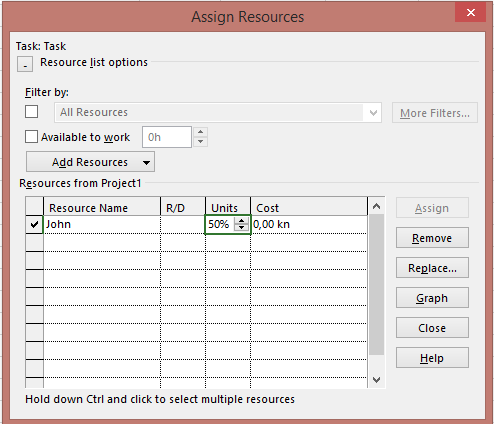
Now I’m going to assign John to the Task:

image


Let’s see Resource Usage View:

image

As you can see John will work 40 hours (8 hours per day from Monday to Friday)

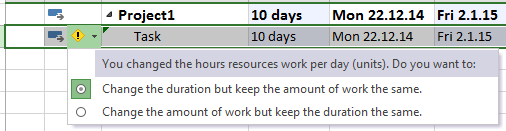
Now suppose that I change my mind in a way that I do not want John to work 100% but only 50% for this Task.


image

I will get this:

image

If I use firs option: “Change the duration but keep the amount of work the same” I’ll get:

image

Let’s see Resource Usage View again:

image

As you can see for the Task John need 40 hours to complete it. But he will work only 50% per day (4 hours), and it will take 10 days instead of 5 days.

If I choose another option: “Change the amount of work but keep the duration the same” I’ll get:

image

You can see that Duration remains the same. But, let’s look at the Resource Usage View again:

image

As you can see Duration is 5 days, but because John has to work 50%  (4 hours per day) he need only 20 hours (5 days * 4 hours per day) for entire work to be done.

To conclude if you increase or decrease Units field in Assign Resource window you must now why are you doing it. and there are only two reasons. You want to change duration for the Task, or hours.


Dear Blog readers,

I wish you a wonderful New Year 2015. I will keep write a Post per week, and answer all your questions as soon as I can.


Best Regards,

Nenad

Posted in MICROSOFT PROJECT, Microsoft PRoject 2010, Microsoft Project 2013, Microsoft SharePoint, PMI, PRoject Management | Tagged , , , , , | 5 Comments

Crashing and Fast Tracking in MS PROJECT 2013

Hi,

in this Post I will introduce two Terms: Crashing and Fat Tracking. When your Schedule is too long, and you want to short it, you will can add additional Resources to Tasks (and this is called Crashing), or you can do some work in parallel (if it is possible, and this is called Fast Tracking)

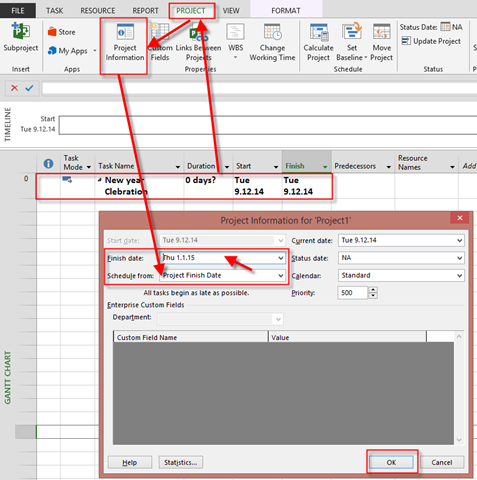
Now Let’s look how to do it in MS PROJECT 2013! Consider that we have a Project Call – New year celebration. You can not celebrate New year latter than 31.12-01.01. So I will create Project with Schedule form: Project End Date, e.g End date must be 01.01.

image

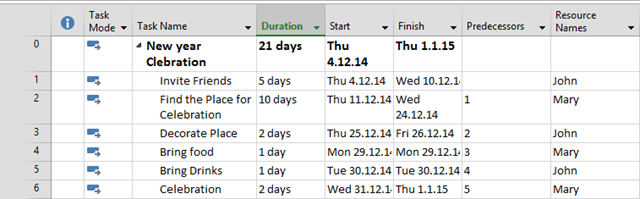
Now I will create Schedule:

image

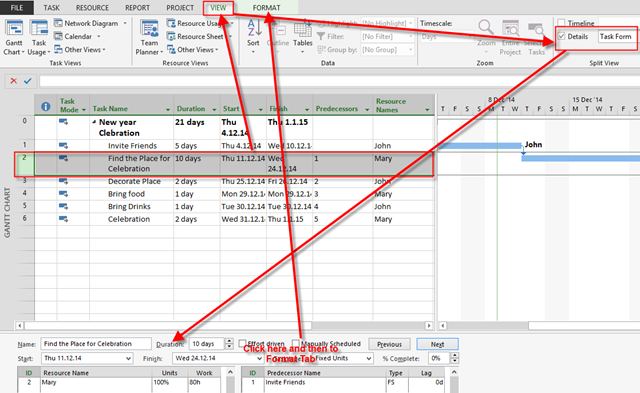
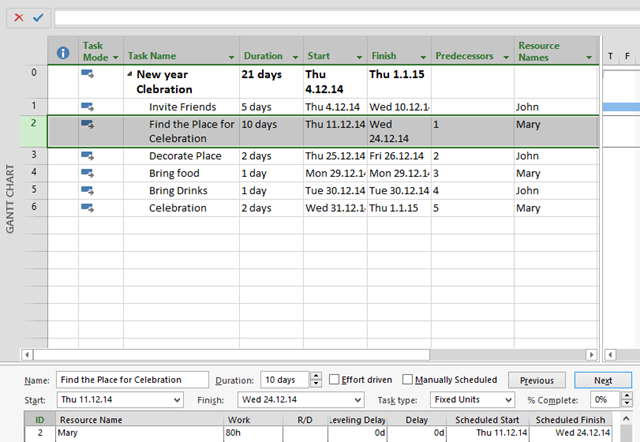
Since Today is December 9, 2014, notice that my first Task should be Started at December 4, 2014, and this is back to the Past and it is impossible. So, for example, I can add Mary to help John to find a Place for Celebration. This Task should be effort driven if I want to short duration:

image

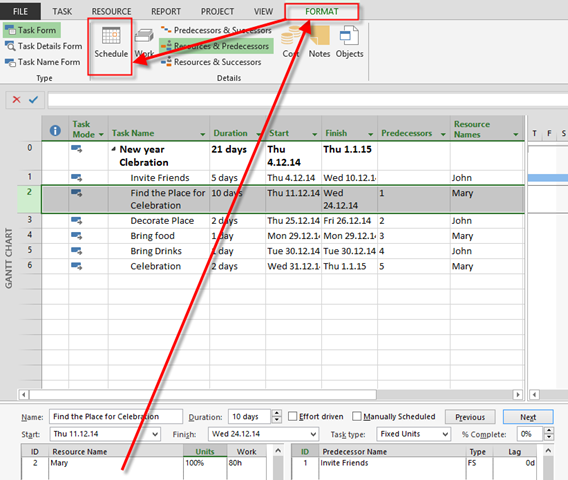
and:

image

and I will get:

image

Now I will make this Task as Effort Driven, and I will assign John to it:

image

and finally I’ll get:

image

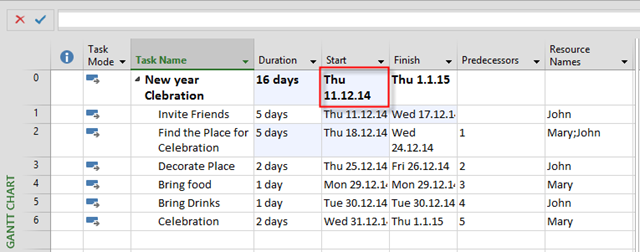
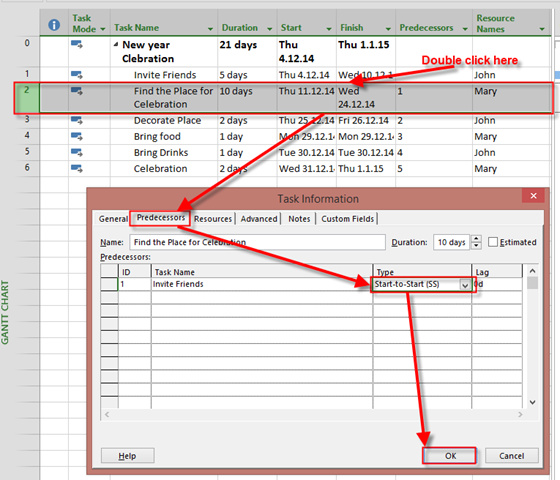
So I’m back in track! But if this is impossible for some reasons (for example, Mary is on the another Project). What can I do? I can perform Tasks: Invite Friends, and Find the Place for Celebration in Parallel:

image

and I’ll get:

image

But what if this is not possible, either! Then, you are in trouble! What can you do? You can cut off some Tasks (for example, celebrate at your home, and cut Find the Place for Celebration), or you can cancel The Project (in rare cases).

Be aware of this. Both Fast Tracking, and Crashing increase Risks in Project


Best Regards,

Nenad

Posted in MICROSOFT PROJECT, Microsoft PRoject 2010, Microsoft Project 2013, PMI | Tagged , , , , | 1 Comment

Slack and Microsoft Project 2013

Hi,

again my Blog reader has a problem:

Hi,
I have a question about Slack, I am preparing a construction schedule for my small project and using M.S.P. the problem I have is, when I active the slack on the schedule, I realize that on the total slack column, I can not see the total slack for whole project and shows ZERO but on the individual items shows we have slack. How come I can not see total slack on my whole project??? even if I add some more tasks on the critical items again on the top of my schedule ( usually it is name of a project and you can see duration of project, total slack for whole project) show total slack for whole project is again ZERO. Could you please explain me, who can I show on my schedule how many days we have + or – slack for whole project?”

First of all, what is Slack? Slack is available time that Task can be delayed (or extended in Duration) without changing Project Finish date!

Now let me show you in MS PROJECT 2013.First I will create a brand new Project, and I will show it in Detailed Gantt View:

image

As  you can see Project Start date is Tuesday, 25.11.2014, and Project Finish date is Wednesday, 10.12.2014. The total Duration is 12 Days. Why? Because Task1, Task 2, and Task 3 are on Critical Path! And Critical Path is path on which if any Task will be delayed, the whole Project will be delayed. I will now extend Duration for Task 3 to 8 days:

image

Now, you can see that Finish date is Wednesday, 17.12.2014, and Total duration is 17 days!

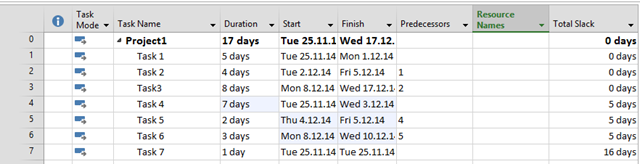
Notice that Task 4, Task 5, and Task 6 have 11 days Slack! So if I extend, for example duration for Task 4 from 1 day to 7 days, I will get:

image

You can see that Finish date is the same, but Slack time for Task 4 – Task 6 is now 5 days, what make sense.

Task 7 still has 16 days Slack.

Now, why is Total Slack in Project Summary Task (Task #0) = 0. Because Total Slack is not sum of all slacks, but it must be zero because on every Project there is a Critical Path, and on Critical Path, there in no slack! And because there is no slack the Total slack is 0. Btw, what would be, on my example, Total Slack? 16 days (because it is the longest slack on Task 7), or 5 (because it is on Task 4 – Task 6), or 21 (sum of two slacks), or 31 (sum of all slacks). Doesn’t make sense at all to have Total slack for Entire project different then zero.

Hope this helps!

Posted in MICROSOFT PROJECT, Microsoft PRoject 2010, Microsoft Project 2013, MS PROJECT 2010, PMI, PRoject Management | Tagged , , , | Leave a comment

Rescheduling Project or Tasks, and Constraints in MS PROJECT 2013

Hi,

my Blog reader ha a question:

Dear Nenad,

After  we update the  progress (% Complete) on various tasks on a baselined project, I understand we need to re-schedule  the uncompleted work to start after the status date.

This is required to  prevent the ambiguity of certain tasks with 0%  progress to start earlier than the status date.

The   Re-schedule   uncompleted work  button  under Update project  in MS Project has two options Entire Project  or  Selected Tasks.

Please  clarify when to use which of the options.

Also  when we   hit the re-schedule button , the Schedule Start  date for the tasks with 0%  progress  moves to a date later to Status Date and a SNET date constraint is imposed.

Moving  forward,   do  we need to retain the SNET constraints?

My understanding is, we need to remove the SNET constraints   by  adding lags to the predecessors and match with the SNET dates.

I feel this is essential  to obtain an accurate critical path as any   date constraints  imposed on the tasks  may hamper an accurate critical path.

Please  clarify.

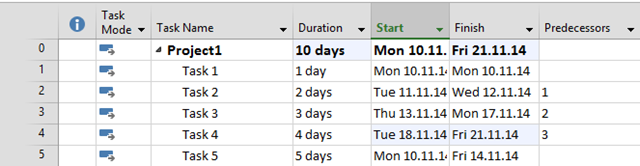
First I will create brand new Project in MS PROJECT 2013:

image

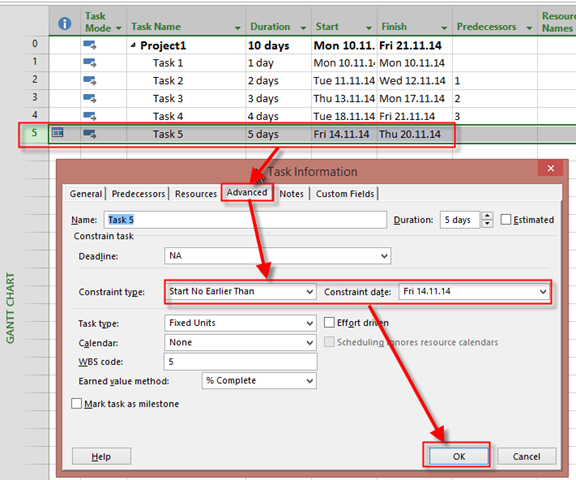
For Task 5 I will put  Constraint Start No earlier than 14.11.2014:

image

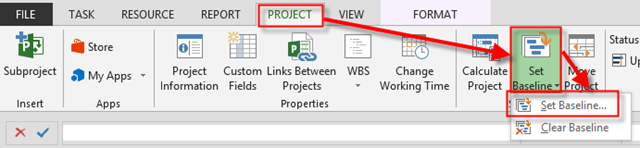
Now, I’m going to save my Project Plan as a Baseline:

image

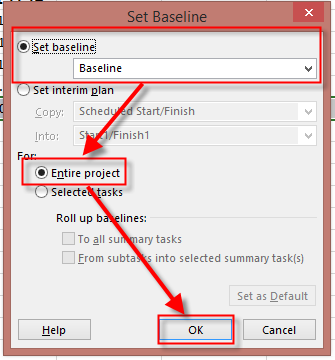
and then:

image

and I will show Tracking Gantt View:

image

Now suppose that Task 1 and Task 2 are 100% finished, Task 3 is 50% finished, and Task 4 and Task 5 are 0% Finished:

image

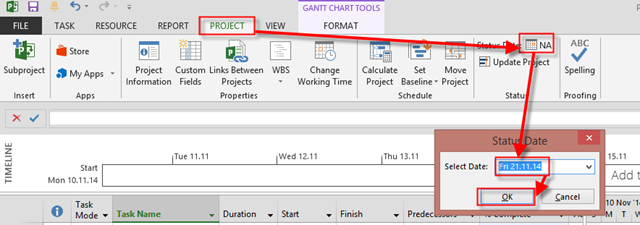
OK. Now suppose that Status date is Friday, 21.11.2014:

image

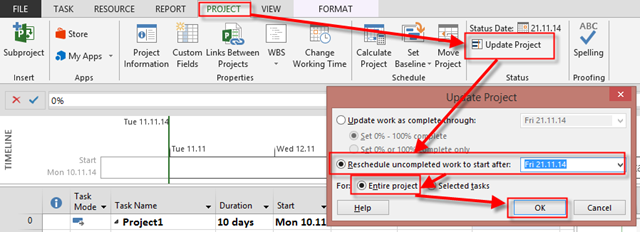
What is done is done! I mean, time has passed, and I have to move my Project to the Status date to have real Plan. I will use Update Project:

image

and I will get:

image

Notice this:

  1. Task 1, and Task 2 are as they were
  2. Task 3 has split.  50% (finished) remains as it is, and another 50% (unfinished) has been moved to Monday, 24.11.2014 (After Status date)
  3. Task 4, and Task 5 are moved as well. Task 4, and Task 5 have new Start no earlier than Constraint which is now Friday, 21.11.2014 (Status Date). You can remove them if you don’t need them.

And it works as it should be.

Now about last question. When to Reschedule entire project and when just Selected Tasks? It is easy. Let’s look again our Project before rescheduling:

image

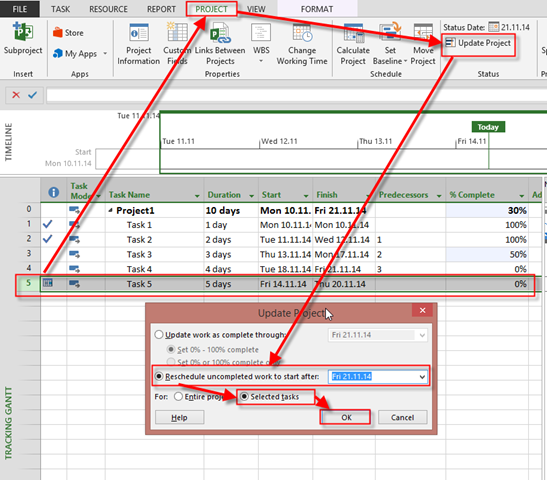
Now suppose that we do not have information about Task 3, and Task 4. Maybe there are finished on time, but we do not know this yet. We set the status date. And we do know that Task 5 has 0% Complete at the status date. So I will reschedule only Task 5:

image

and I will get:

image

As you can see only Task 5 is rescheduled.

So use Selected Tasks only when you know that those Tasks should be rescheduled. If your Project is up to  date with Actual % Complete, and you want to have Realistic Schedule, Reschedule the whole Project!


Hope this helps!


Regards!

Posted in MICROSOFT PROJECT, Microsoft PRoject 2010, Microsoft Project 2013, MS PROJECT 2010, PRoject Management | Tagged , , | 2 Comments

How to Move Project when Project has Manually Scheduled Tasks and/or Constraints in MS PROJECT 2013

Hi,

I’ll how you how to move Project when it has Manually Scheduled Tasks or Constraints in MS PROJECT 2013

First I will make a simple Project with no manually Scheduled Tasks or Constraints.

image

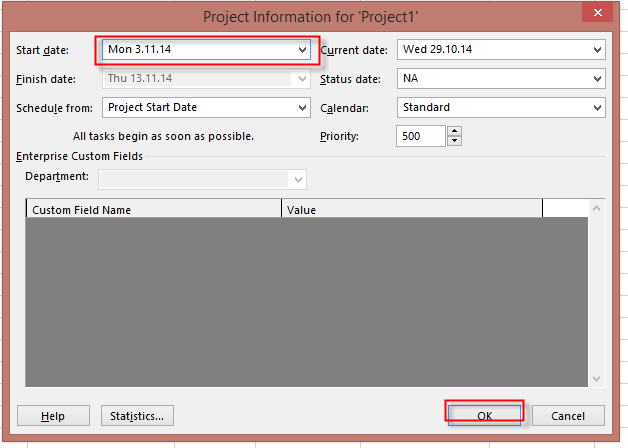
Now suppose that your plan is not valid any more, and you have to start with your Project one week later. You can do this with changing Project Start Date:

image

and you will get:

image

Everything is Perfect. BUT! Suppose that you have Project Like this:

image

As you can see Task 3 is Manually Scheduled, and Task 4 has Start no Later Than 7.11.2014.  Now I will try to move Project on the same way I did it with my previous:

image

and I will get:

image

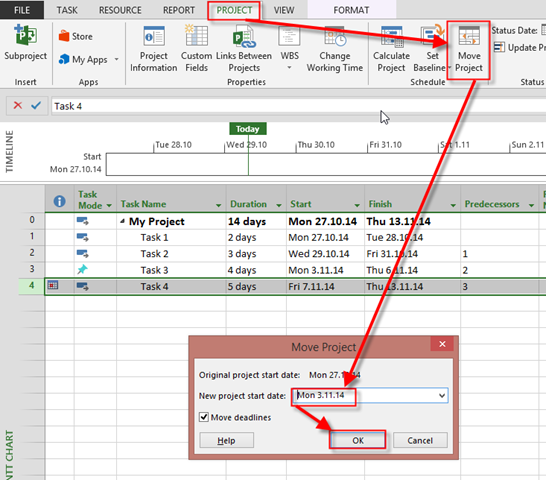
As you can see, Task 3 and Task 4are same as they were before setting new Project Start date. Is this a Bug? No it is not! To get expected result you should use Move Project Button:

image

and I will get:

image

As you can see, everything is fine now. So, use Move Project instead of changing Project Start Date in Project Information dialog window!


Regards!

Posted in MICROSOFT PROJECT, Microsoft PRoject 2010, Microsoft Project 2013, MS PROJECT 2010, PMI, PRoject Management | Tagged , , , , | Leave a comment

Status date in “what if” scenario, or how to make our Projects actual data up to date in MS PROJECT 2013

Hi,

my Blog reader has a “problem”:

Nenad, thank you for replay! Ok, my be I wasn’t clear with my question… Let me explain my self one more time. Perhaps I’m working on some project, it has 28 task with dependences. After planning everything, leveling resources etc. I see my project start 01.01.2015 and will finish 19.07.2016 instead of 30 06.2016 as planed. I’m OK with new finish date. Now I have to check “what if” scenarios. One of them says that I have to check what happen if after 50 work days from the beginning of the project from task 1 till task 12 everything went ok and those task are completed 100% and task 13 which is also should be completed 100% until end of the day 50, but is completed only for 40%. I.e. it will be delayed. Task 13 planned duration is 15 days, so for now it should take a while until it will 100% finish. Task 14 depend on this task (finish to start) so it also will be delayed and so on… Now, the question is: in light of this change whole project end date (19.07.2016) also will be delayed? And how much % of task 13 can be done within his desired time (15 days) so it will not affect original finish date (19.07.2016). My question is: how I can check this scenario in MS Project 2013? Like I said I’ve added “complete” column, inserted % completion according to this scenario, but finish date remain the same (all project task configured auto schedule, so any changes in project should be recalculated immediately). Thank you in advance, Igor.

I’ll show how to solve this in MS PROJECT 2013.

First I will explain the Problem! Let us say that we have Project Like this one:


image

Now suppose that Task 1, and Task 2, are 100% finished (on time), and Task 3 is only 40% finished on time:

image

As you can see, Task 3 is supposed to be finished (100%) at Monday, 8.9.2014, but it is not. And suppose that you know that your Project status date is 12.09.2014:

image

So what do we know so far. We know that today is 12.09.2014, and that we are late. So we have to move our incomplete Tasks to Monday, 15.09.2014:


image


and I will get:

image

As you can see, Task 3 has split, so the remaining part of this task is rescheduled to Monday, 15.09.2014, and al successors are delayed!

If this is “what if” situation, and you are not happy with Results, just hit undo or CTRL-Z.


Hope this helps,


Regards!
Posted in MICROSOFT PROJECT, Microsoft PRoject 2010, Microsoft Project 2013, MS PROJECT 2010, PMI, PRoject Management | Tagged , , | 5 Comments

How to update Baseline and Save actual data in MS PROJECT 2013?

Hi,

I have a question from my Blog reader: “Hi, How can I update Baseline with new Tasks if Project has Tasks with Actual data, e.g I don’t want to loose those actual data, nor I want to change Baseline for those Tasks

It is very simple. I will show how to do that in MS PROJECT 2013.

First I am going to Create new Project with three Tasks, and I will link them:

image

Now I am going to save the Baseline:

image

and then:

image

OK, let’s look at the Tracking Gantt View:

image

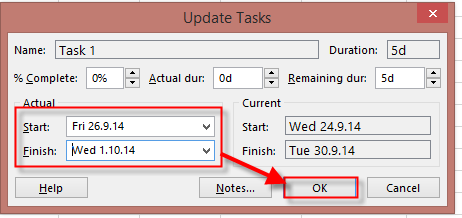
Now suppose that Task 1 was started at 26.02.2014, and finished at 01.10.2014:

image

and then:

image

and I’ll get:

image

Now suppose that I have another two Tasks:

image

Those Task are not “Baselined” as you can se at the Picture above. Now, if I save the Baseline as I did for the whole Project I will get:

image

As you can see, Baseline is aligned  with Actual data for Task1 to Task 3, and I do not want that.

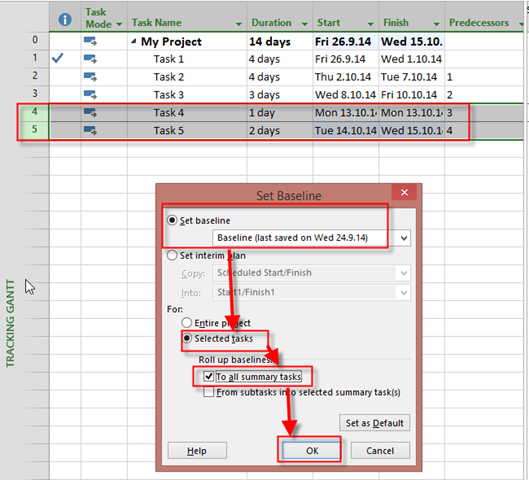
So I will Select only new Task and I will create Baseline like this:

image

and I will get:

image

As you can see, Task 4, and Task 5, are now “Baselined”, and Task 1, Task 2, and Task 3, are as they was!

Hope this helps!


Regards!
Posted in MICROSOFT PROJECT, Microsoft PRoject 2010, Microsoft Project 2013, MS PROJECT 2010, PMI, PRoject Management | Tagged , , , , , | 9 Comments