Slack and Microsoft Project 2013

Hi,

again my Blog reader has a problem:

Hi,
I have a question about Slack, I am preparing a construction schedule for my small project and using M.S.P. the problem I have is, when I active the slack on the schedule, I realize that on the total slack column, I can not see the total slack for whole project and shows ZERO but on the individual items shows we have slack. How come I can not see total slack on my whole project??? even if I add some more tasks on the critical items again on the top of my schedule ( usually it is name of a project and you can see duration of project, total slack for whole project) show total slack for whole project is again ZERO. Could you please explain me, who can I show on my schedule how many days we have + or – slack for whole project?”

First of all, what is Slack? Slack is available time that Task can be delayed (or extended in Duration) without changing Project Finish date!

Now let me show you in MS PROJECT 2013.First I will create a brand new Project, and I will show it in Detailed Gantt View:

image

As  you can see Project Start date is Tuesday, 25.11.2014, and Project Finish date is Wednesday, 10.12.2014. The total Duration is 12 Days. Why? Because Task1, Task 2, and Task 3 are on Critical Path! And Critical Path is path on which if any Task will be delayed, the whole Project will be delayed. I will now extend Duration for Task 3 to 8 days:

image

Now, you can see that Finish date is Wednesday, 17.12.2014, and Total duration is 17 days!

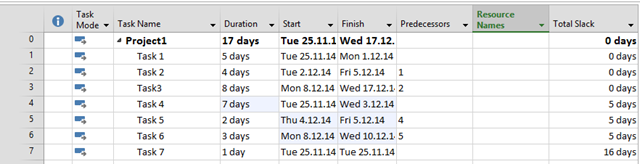
Notice that Task 4, Task 5, and Task 6 have 11 days Slack! So if I extend, for example duration for Task 4 from 1 day to 7 days, I will get:
image

You can see that Finish date is the same, but Slack time for Task 4 – Task 6 is now 5 days, what make sense.

Task 7 still has 16 days Slack.

Now, why is Total Slack in Project Summary Task (Task #0) = 0. Because Total Slack is not sum of all slacks, but it must be zero because on every Project there is a Critical Path, and on Critical Path, there in no slack! And because there is no slack the Total slack is 0. Btw, what would be, on my example, Total Slack? 16 days (because it is the longest slack on Task 7), or 5 (because it is on Task 4 – Task 6), or 21 (sum of two slacks), or 31 (sum of all slacks). Doesn’t make sense at all to have Total slack for Entire project different then zero.

Hope this helps!
Posted in MICROSOFT PROJECT, Microsoft PRoject 2010, Microsoft Project 2013, MS PROJECT 2010, PMI, PRoject Management | Tagged , , , | Leave a comment

Rescheduling Project or Tasks, and Constraints in MS PROJECT 2013

Hi,

my Blog reader ha a question:

Dear Nenad,

After  we update the  progress (% Complete) on various tasks on a baselined project, I understand we need to re-schedule  the uncompleted work to start after the status date.

This is required to  prevent the ambiguity of certain tasks with 0%  progress to start earlier than the status date.

The   Re-schedule   uncompleted work  button  under Update project  in MS Project has two options Entire Project  or  Selected Tasks.

Please  clarify when to use which of the options.

Also  when we   hit the re-schedule button , the Schedule Start  date for the tasks with 0%  progress  moves to a date later to Status Date and a SNET date constraint is imposed.

Moving  forward,   do  we need to retain the SNET constraints?

My understanding is, we need to remove the SNET constraints   by  adding lags to the predecessors and match with the SNET dates.

I feel this is essential  to obtain an accurate critical path as any   date constraints  imposed on the tasks  may hamper an accurate critical path.

Please  clarify.

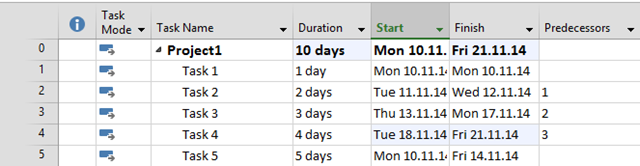
First I will create brand new Project in MS PROJECT 2013:

image

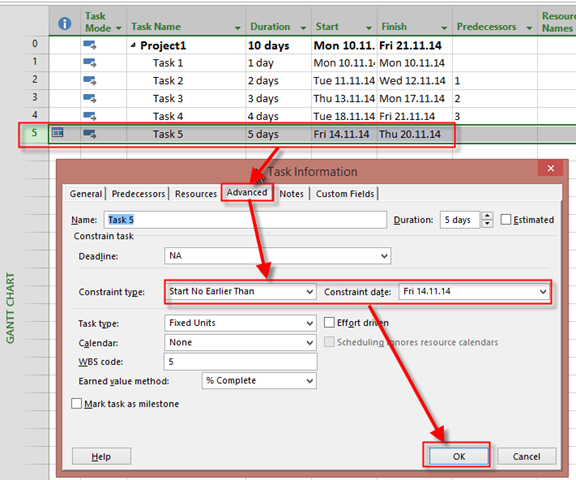
For Task 5 I will put  Constraint Start No earlier than 14.11.2014:

image

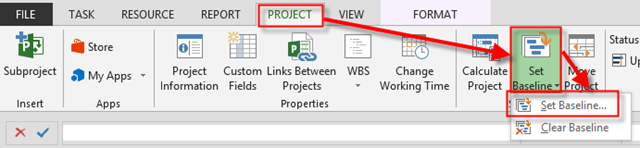
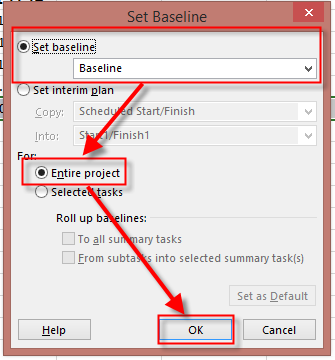
Now, I’m going to save my Project Plan as a Baseline:

image

and then:

image

and I will show Tracking Gantt View:

image

Now suppose that Task 1 and Task 2 are 100% finished, Task 3 is 50% finished, and Task 4 and Task 5 are 0% Finished:

image

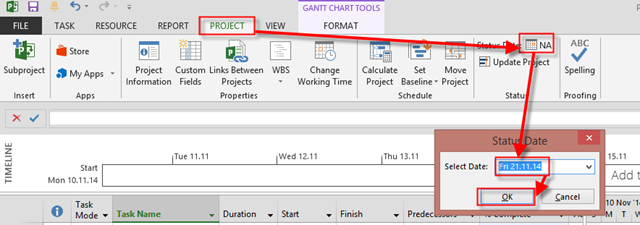
OK. Now suppose that Status date is Friday, 21.11.2014:

image

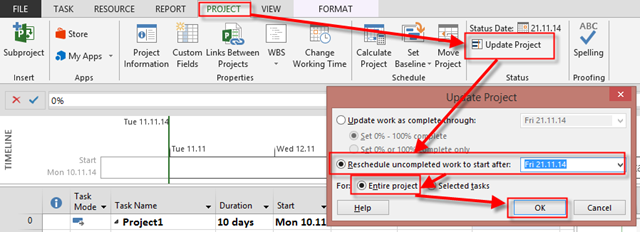
What is done is done! I mean, time has passed, and I have to move my Project to the Status date to have real Plan. I will use Update Project:

image

and I will get:

image

Notice this:

  1. Task 1, and Task 2 are as they were
  2. Task 3 has split.  50% (finished) remains as it is, and another 50% (unfinished) has been moved to Monday, 24.11.2014 (After Status date)
  3. Task 4, and Task 5 are moved as well. Task 4, and Task 5 have new Start no earlier than Constraint which is now Friday, 21.11.2014 (Status Date). You can remove them if you don’t need them.

And it works as it should be.

Now about last question. When to Reschedule entire project and when just Selected Tasks? It is easy. Let’s look again our Project before rescheduling:

image

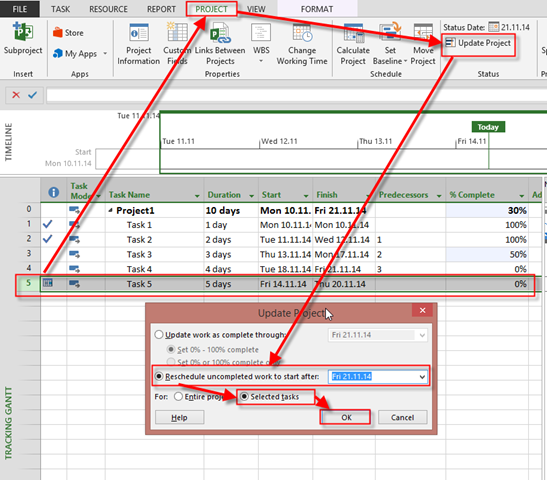
Now suppose that we do not have information about Task 3, and Task 4. Maybe there are finished on time, but we do not know this yet. We set the status date. And we do know that Task 5 has 0% Complete at the status date. So I will reschedule only Task 5:

image

and I will get:

image

As you can see only Task 5 is rescheduled.

So use Selected Tasks only when you know that those Tasks should be rescheduled. If your Project is up to  date with Actual % Complete, and you want to have Realistic Schedule, Reschedule the whole Project!


Hope this helps!


Regards!

Posted in MICROSOFT PROJECT, Microsoft PRoject 2010, Microsoft Project 2013, MS PROJECT 2010, PRoject Management | Tagged , , | 2 Comments

How to Move Project when Project has Manually Scheduled Tasks and/or Constraints in MS PROJECT 2013

Hi,

I’ll how you how to move Project when it has Manually Scheduled Tasks or Constraints in MS PROJECT 2013

First I will make a simple Project with no manually Scheduled Tasks or Constraints.

image

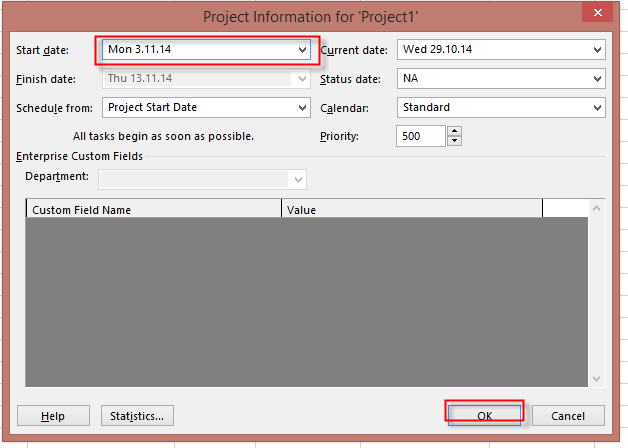
Now suppose that your plan is not valid any more, and you have to start with your Project one week later. You can do this with changing Project Start Date:

image

and you will get:

image

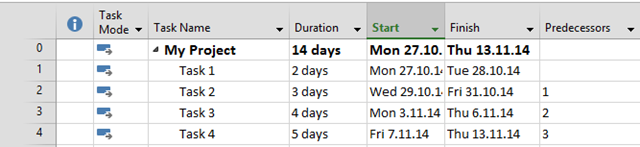
Everything is Perfect. BUT! Suppose that you have Project Like this:

image

As you can see Task 3 is Manually Scheduled, and Task 4 has Start no Later Than 7.11.2014.  Now I will try to move Project on the same way I did it with my previous:

image

and I will get:

image

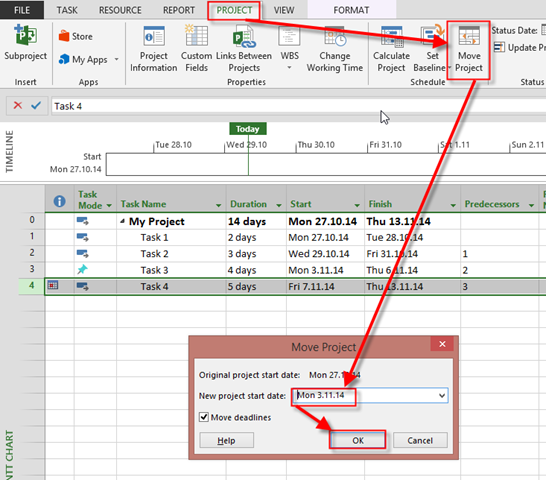
As you can see, Task 3 and Task 4are same as they were before setting new Project Start date. Is this a Bug? No it is not! To get expected result you should use Move Project Button:

image

and I will get:

image

As you can see, everything is fine now. So, use Move Project instead of changing Project Start Date in Project Information dialog window!


Regards!

Posted in MICROSOFT PROJECT, Microsoft PRoject 2010, Microsoft Project 2013, MS PROJECT 2010, PMI, PRoject Management | Tagged , , , , | Leave a comment

Status date in “what if” scenario, or how to make our Projects actual data up to date in MS PROJECT 2013

Hi,

my Blog reader has a “problem”:

Nenad, thank you for replay! Ok, my be I wasn’t clear with my question… Let me explain my self one more time. Perhaps I’m working on some project, it has 28 task with dependences. After planning everything, leveling resources etc. I see my project start 01.01.2015 and will finish 19.07.2016 instead of 30 06.2016 as planed. I’m OK with new finish date. Now I have to check “what if” scenarios. One of them says that I have to check what happen if after 50 work days from the beginning of the project from task 1 till task 12 everything went ok and those task are completed 100% and task 13 which is also should be completed 100% until end of the day 50, but is completed only for 40%. I.e. it will be delayed. Task 13 planned duration is 15 days, so for now it should take a while until it will 100% finish. Task 14 depend on this task (finish to start) so it also will be delayed and so on… Now, the question is: in light of this change whole project end date (19.07.2016) also will be delayed? And how much % of task 13 can be done within his desired time (15 days) so it will not affect original finish date (19.07.2016). My question is: how I can check this scenario in MS Project 2013? Like I said I’ve added “complete” column, inserted % completion according to this scenario, but finish date remain the same (all project task configured auto schedule, so any changes in project should be recalculated immediately). Thank you in advance, Igor.

I’ll show how to solve this in MS PROJECT 2013.

First I will explain the Problem! Let us say that we have Project Like this one:


image

Now suppose that Task 1, and Task 2, are 100% finished (on time), and Task 3 is only 40% finished on time:

image

As you can see, Task 3 is supposed to be finished (100%) at Monday, 8.9.2014, but it is not. And suppose that you know that your Project status date is 12.09.2014:

image

So what do we know so far. We know that today is 12.09.2014, and that we are late. So we have to move our incomplete Tasks to Monday, 15.09.2014:


image


and I will get:

image

As you can see, Task 3 has split, so the remaining part of this task is rescheduled to Monday, 15.09.2014, and al successors are delayed!

If this is “what if” situation, and you are not happy with Results, just hit undo or CTRL-Z.


Hope this helps,


Regards!

Posted in MICROSOFT PROJECT, Microsoft PRoject 2010, Microsoft Project 2013, MS PROJECT 2010, PMI, PRoject Management | Tagged , , | 5 Comments

How to update Baseline and Save actual data in MS PROJECT 2013?

Hi,

I have a question from my Blog reader: “Hi, How can I update Baseline with new Tasks if Project has Tasks with Actual data, e.g I don’t want to loose those actual data, nor I want to change Baseline for those Tasks

It is very simple. I will show how to do that in MS PROJECT 2013.

First I am going to Create new Project with three Tasks, and I will link them:

image

Now I am going to save the Baseline:

image

and then:

image

OK, let’s look at the Tracking Gantt View:

image

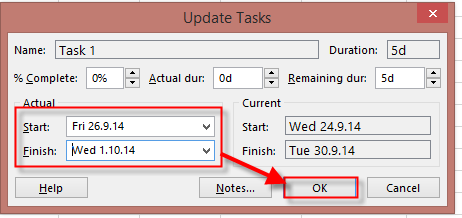
Now suppose that Task 1 was started at 26.02.2014, and finished at 01.10.2014:

image

and then:

image

and I’ll get:

image

Now suppose that I have another two Tasks:

image

Those Task are not “Baselined” as you can se at the Picture above. Now, if I save the Baseline as I did for the whole Project I will get:

image

As you can see, Baseline is aligned  with Actual data for Task1 to Task 3, and I do not want that.

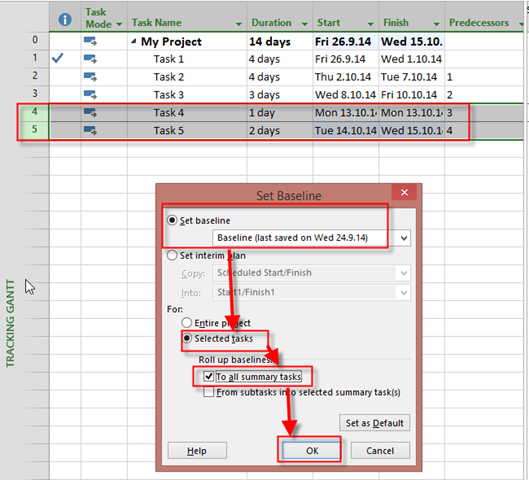
So I will Select only new Task and I will create Baseline like this:

image

and I will get:

image

As you can see, Task 4, and Task 5, are now “Baselined”, and Task 1, Task 2, and Task 3, are as they was!

Hope this helps!


Regards!

Posted in MICROSOFT PROJECT, Microsoft PRoject 2010, Microsoft Project 2013, MS PROJECT 2010, PMI, PRoject Management | Tagged , , , , , | 9 Comments

Baseline and Overtime work in MS PROJECT 2013

Hi,

as usual I have a question from one of my Blog Readers: “Dear Sir, Can you help me to solve one issue in MS Project? After finishing base line work hours, values entered to actual over time not adding with actual work hours. only regular work hours is adding to actual work hours.”

I have to admit that I can’t repro this issue? How it works in MS PROJECT 2013?

First I am going to create a brand new Project with one Task:

image

and I will have one Resource:

image

Of course I will assign john to the Task, and I’ll get:

image

John is suppose to work on that Task 2 day, e.g 16 hours (8 hours per day). But I want for John to work overtime, so I will assign 8 hours as overtime work for that Task:

image

When I click on the lower part of the screen I will choose:

image

and I’ll get:

image

Now, I will put 8 hours as overtime work, an click OK button, and I will get:

image

You can see that Duration is only 1 day now!

OK. I’ll save the Baseline:

image

and then:

image

Now suppose that John had a problem with the Task, and instead of 16 hours work (with 8 hours overtime), had to work 32 hours (with 16 hours of overtime).

I’m going to put actual work, and actual overtime work via Task Usage View:

image

As you can see, I added Overtime Work, Actual Work, and Actual Overtime Work columns it this view. When I put those values in Actual fields I’ll get:

image

Where is the Problem? Nowhere! MS PROJECT is calculating Overtime work, not as additional work! What does it mean?
I will make it clear! If you have a Task with 16 hours work, and 8 hours as overtime work, this overtime work is not additional time. So you can not calculate that it will be 24 hours spent to the Task! No, no, no! Those 8 hours are overtime in 16 hours!

To conclude, in my example, Actual work of 32 hours, is the whole amount of work, and 16 hours of overtime is working hours which are included in those actual work hours!

It may seems tricky, but it is not!

Regards!

Posted in MICROSOFT PROJECT, Microsoft PRoject 2010, Microsoft Project 2013, MS PROJECT 2010, PMI, PRoject Management | Tagged , , , , | Leave a comment

How to add exception into Resource Calendar in MS PROJECT 2013?

Hi,

here is question form one of my Blog Readers: “I want assign a task to a particular resource on a Holiday. How can I do that. For eg: I have specified December 25 th as exception in my project calendar. And I have two resources Resource A and Resource B. I want to assign a task to Resource B on December 25. Is it possible ?”

I will show that with MS PROJECT 2013!

First I will create one Project:

image

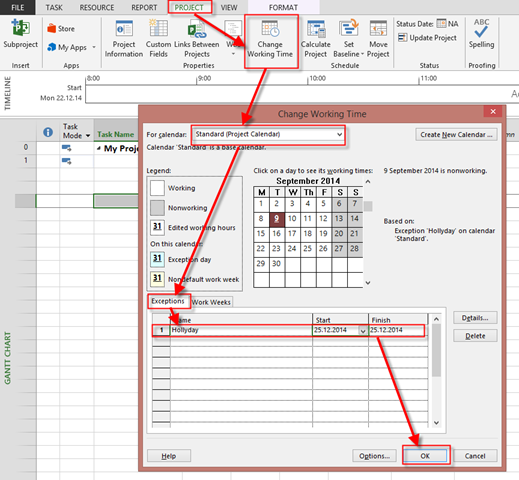
Now I’m going to modify Standard Calendar, which I use for this Project! I will make an Exception for 25.12.

image

I’m going to add two Resources to my Project:

image

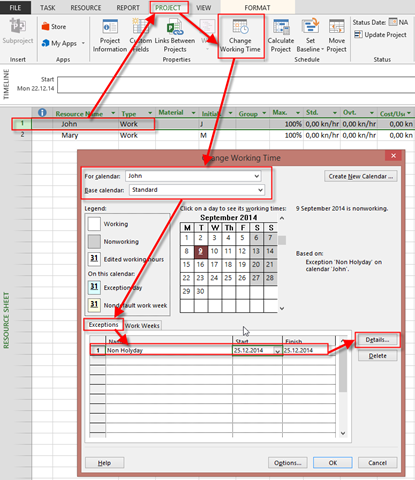
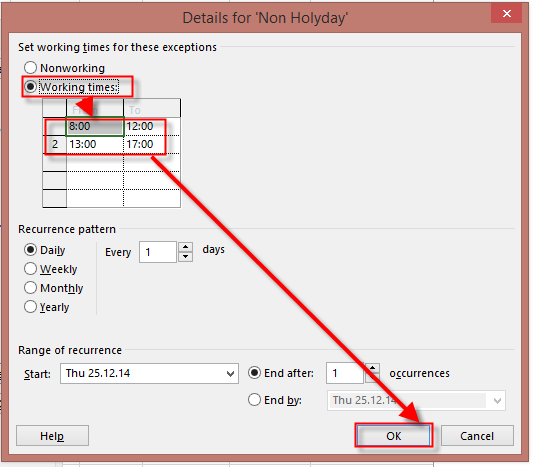
Now suppose that John will have to work during Holyday (e.g. 25.12.). How to do that. Well, piece of cake:

image

and then:

image

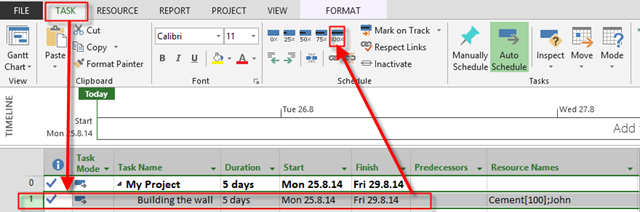
OK! Now I’m going to Assign John and Mary to One Task with 5 Days duration:

image

and:

image

Now I’m going to check Task Usage View:

image

As you can see, John will work on the Task from Monday ‘till Friday (also at 25.12. –  Thursday), and Mary Will work From Monday ‘till Monday next week, without 25.12.


Hope this helps.

Regards!

Posted in MICROSOFT PROJECT, Microsoft PRoject 2010, Microsoft Project 2013, PMI, PRoject Management | Tagged , , , | 1 Comment

Actuals and Variances with Material Resources in MS PROJECT 2013! – Part 2

Hi,

In my previous Post I wrote:

“Dear Nenad,

I have a doubt in MS Project updation and tracking of material resources. For example, i have budgeted quantity of cement as 100bags but in actual site construction the quantity consumed is 150bags. Where should i update the material resources and how can i find the variances of material resources.”

Well, it is easy. I’ll show you how to do that in MS PROJECT 2013!

First I’m going to create a simple Task:

image

and two Resources:

image

Notice, that Cement is Material Resource with $10 per Bag. Now I’m going to assign John to Task, and 100 bags as well:

image

and I’ll get:

image

This is my Project Plan, and I’m going to save Baseline:

image

No, suppose that John has finished his work on time, but he spent 150 bags of Cement instead of 100, as planned:

image

I will now look at Task Usage View, and put 150 bags for the Cement:

image

No let’s look at the Cost Table:

image

Baseline Cost is $5000 (5 days * 8hous per John * $100 per hour + 100 bags * $10 per bag = $4000+$1000 = $5000)

Actual Cost is $5500 (5 days * 8hous per John * $100 per hour + 150 bags * $10 per bag = $4000+$1500 = $55000)

Variance is $5500-$5000 = $500

But I want to see difference in Bags! I should apply Tracking Table in Task Usage View:

image

I still don’t see Variance so I will add two more Columns:

image

So now I can see Baseline work (e.g. 100 Bags), Actual work (e.g.150 Bags), and work Variance (150 – 50 bags) = 50 bags

BUT! Let’s look at the Resource Usage View:

image

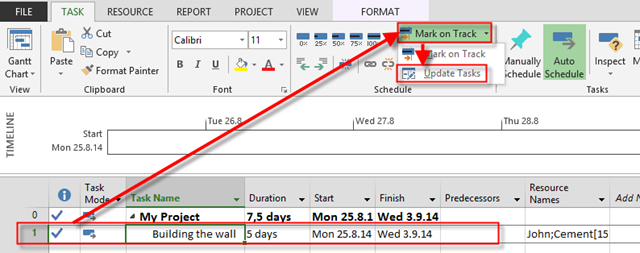
Project now has 7,5 days Duration. an that doesn’t make a sense! Why? Because John John has done his Task in 5 days, so he could not spent the Cement in next 2,5 days, nor the Cement could be use by itself. To avoid this kind of behavior, we need to spend Cement equally from Monday thru Friday, 30 bags per day. TO get that I will:

image

and then I will put the real Finish date here:

image

and I will get:

image

Everything is in order now!


Regards!

Posted in MICROSOFT PROJECT, Microsoft PRoject 2010, Microsoft Project 2013, Microsoft Project 2013 - Preview, MS PROJECT 2010, PMI, PRoject Management | Tagged , , , , | 4 Comments

Task are not Scheduled as expected in MS PROJECT 2013

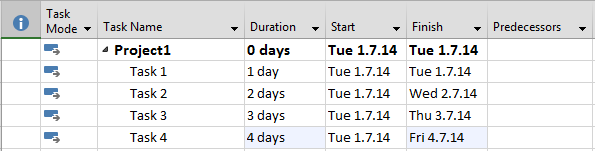
My Blog reader has a problem: “Hi Nenad. I am creating a simple Project with four Tasks. Task 1 is predecessor for Task 2, etc. I do not have a right Schedule, and they all start at the same date. When I hit F9 button everything works fine. How to avoid hitting F9”.

The answer is very simple. I am going to use Microsoft Project 2013!

First I’m going to create four Tasks:

image

and I’m going to link them:

image

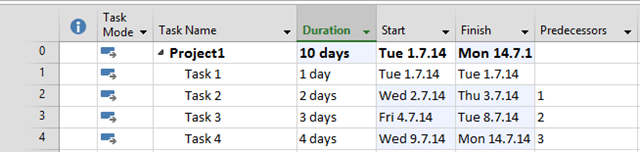
As you can see, all Tasks have a same Start date. When I hit F9, my Project will look like this:

image

Everything is fine now. If you don’t want to use F9, and you want that Tasks are rescheduled when you edit them you should turn this option on:

image

and then:

image

and you will get what you wanted without F9 button!


Regards!

Posted in MICROSOFT PROJECT, Microsoft PRoject 2010, Microsoft Project 2013, MS PROJECT 2010, PMI, PRoject Management | Tagged , , | Leave a comment

Custom duration and date fields in MS PROJECT 2013

Here is a question form one of my Blog Readers:

I have another possible bug in MSP 2013. Try this one
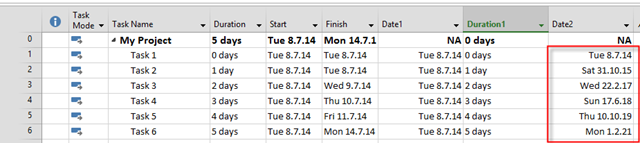
Insert Date1, Insert Duration1, Insert Date2. Now go to custom fields and make date2 a formula [(date1)+(duration1). The obvious answer would be a new date, but this is what I get.

Date1 Durat Date2
Tue 7/8/14 0d Tue 7/8/14
Tue 7/8/14 1d Sat 10/31/15
Tue 7/8/14 2d Wed 2/22/17
Tue 7/8/14 3d Sun 6/17/18
Tue 7/8/14 4d Thu 10/10/19
Tue 7/8/14 5d Mon 2/1/21

it seems to move almost 14 months.

Got any ideas on how to make this work?”

It is not a bug, but might confuse you. I’ll show you how it works in MS PROJECT 2013!

I will repeat steps like above:

image

I will add custom fields:

image  

and I will put same dates in Date1 field, and same durations in Duration1 fields:

image

I will create formula for Date2 field:

image

and I will get:

image

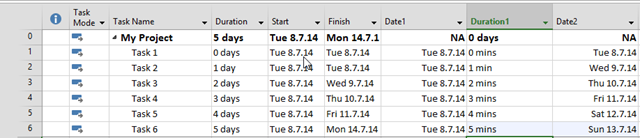
Strange, isn’t it? BUT! I will change Duration1 field with minutes:

image

It looks fine now. Why? Because Duration1 field is filled with 480 minutes per day. So when you put 1 day it is interpreted as 480 days! So to get right value in Date2, I should rearrange formula like this:

image

and I will get:

image 

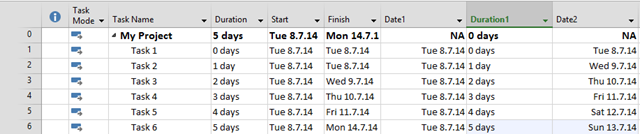
But if I want to consider my Project Calendar I can use this function:

image

and then:

image

and I will get:

image

Notice that Date 2 is same as Finish date. Of course, you can rename Duration field and call it, for example, pessimistic duration, and put different values than in Duration field.

Hope this helps.

Regards!

Posted in MICROSOFT PROJECT, Microsoft PRoject 2010, Microsoft Project 2013, MS PROJECT 2010, PMI, PRoject Management | Tagged , , , | 4 Comments