Cancelling Project when using Resource Pool in MS PROJECT 2013! – The easiest way

Hi,

I will repeat a lot of Pictures from my previous Post, and I’ll show you how to break the Link between a Project, and Resource Pool.. I will show you a case in MS PROJECT 2013!

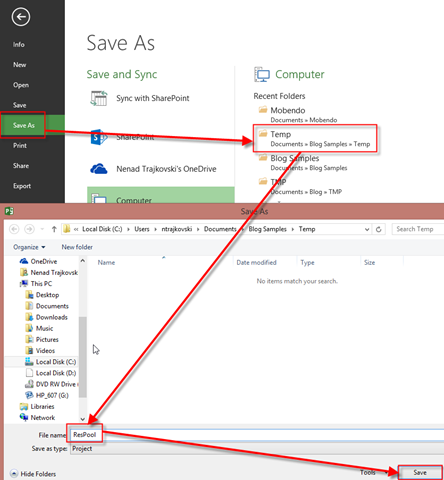
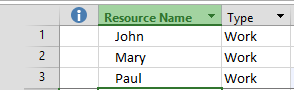
First, as usual I will make a Resource Pool and I will save it:

image

and then:

image

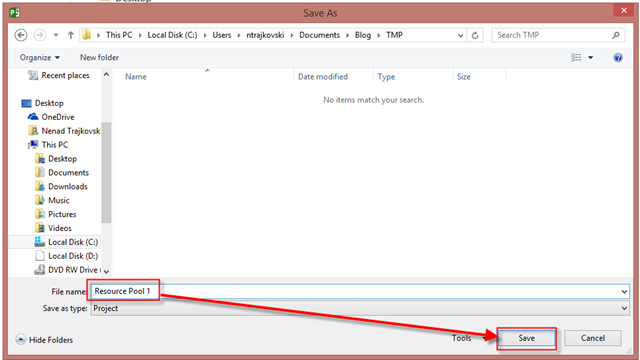
I will save the Resource Pool:

image

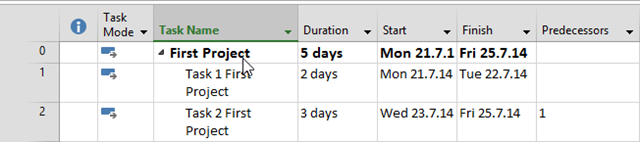
No I will create my first Project with two Tasks and I will assign Resources from the Resource Pool:
image

and then:

image

Finally:

image

I will repeat those steps above for my Second Project, and I’ll get:

image

John and Mary are Over-allocated, as expected. Now suppose, that you find out, that you will not work on Second Project, because it is Canceled (for any reason). What Will you do? Firs you should break the link between Second Project and Resource Pool

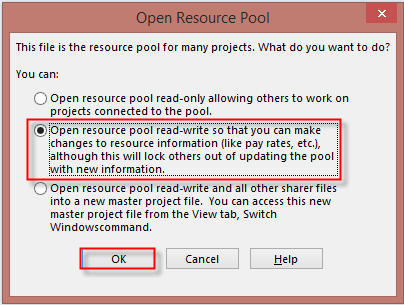
To do that, I will first open Resource Pool, and I will get:
 image

The Resource Pool is open in read-write mode. After that I’m going to choose:
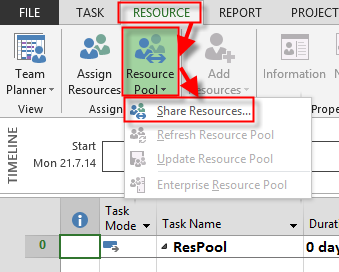
image

and I will get:

image

After I break the Link between Second Project and Resource Pool, in my example John, and Mary are not over allocated any more.

image

BUT! If I open Second Project Again I will get this Project linked with Resource pool, again!

So, to avoid this, better way to disconnect Project with Resource Pool is:

1. Open Second Project

2. GO to Resource TAB

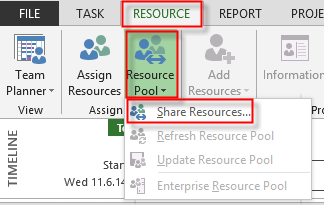
3. Click on Resource Pool button

4. Select Share Resources

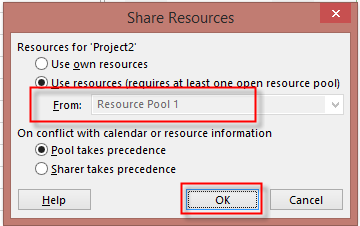
5. Disconnect Second Project form Resource Pool:

image

Save Second Project and Resource Pool as well, and you are done!


Regards.

Posted in MICROSOFT PROJECT, Microsoft PRoject 2010, Microsoft Project 2013 | Tagged , , , , | 4 Comments

Scheduled Duration, Start and Finished Date in MS PROJECT 2013

Hi,

A question from my Blog reader is: “Please clarify the purpose  of fields Schedule Duration, Schedule Start & Schedule Finish. In which context they are used and how they differ from Duration, Start & Finish Fields ?

I will show that in MS PROJECT 2013. First of all, the best use for this field is for Manually Scheduled Task. Suppose that you have one Manually Scheduled Task in MS PROJECT 2013:

image

and three Resources in Resource Sheet:

image

I will assign all three Resources to the Task:

image

Now, suppose that John Will work only at Wednesday, Mary at Thursday and Friday, and Paul at next Monday and Tuesday. I will use Task Usage View for that:

image

Of course I added this hours Manually to specific days.

Let’s look at Gantt Chart View:

image

Duration, and Finish Date is empty. Now I will add three new columns in Gantt Chart View:

image

As you can see Duration is still empty, but Schedule Duration is now % days, so you can enter this Value in Duration Field.

If I do the Same thing with Auto Schedule Task I’ll get:

image

Duration is same sad Schedule Duration, so best use for this fields are for Manually Scheduled Task!


Regards.

Posted in MICROSOFT PROJECT, Microsoft PRoject 2010, Microsoft Project 2013, PMI, PRoject Management | Tagged , , , , , | Leave a comment

Reordering Tasks in Master Project with MICROSOFT PROJECT 2013!

Hi,

again one of my Blog Readers has a question: “What if I want to make changes to the master project but don’t want it to change the sub projects? I want to be able to re-order the tasks in the master project but want them to stay in the same order for the sub projects. I thought you could save “one way”. I say yes to saving the master and no to the subs and I lose the master changes. Am I asking for the impossible?”

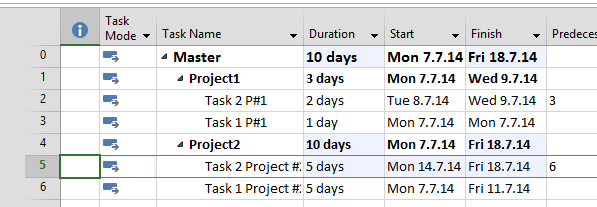
First I will create two Projects in MS PROJECT 2013:

image

and:

image

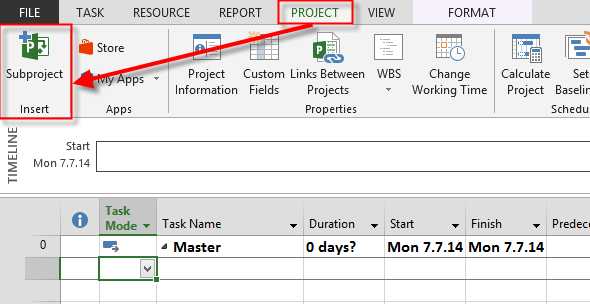
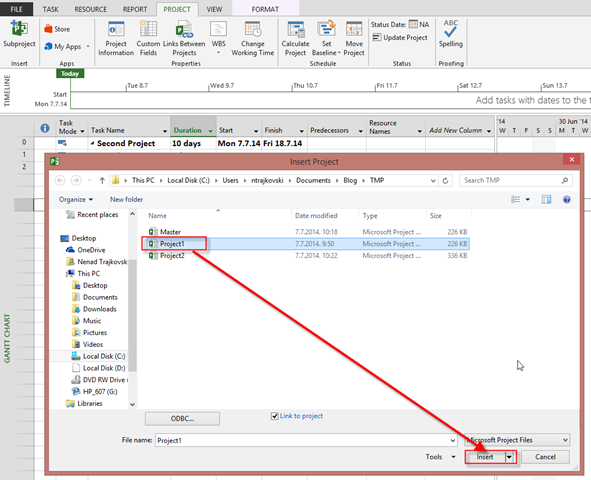
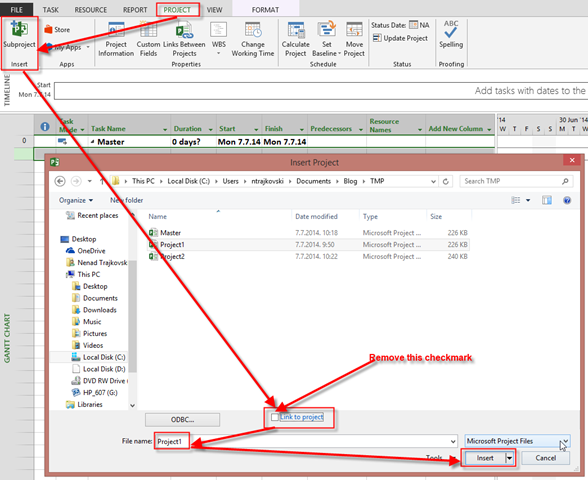
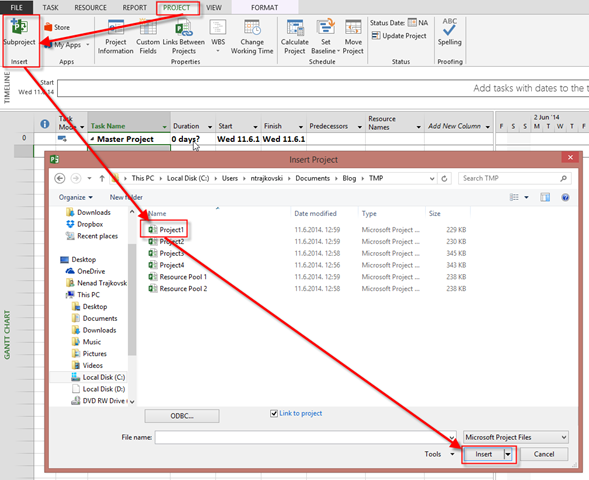
After saving those two Projects (and you know how to save it), I’ll create Master Project, and I’ll Insert those two Project in Master:

image

and:

image

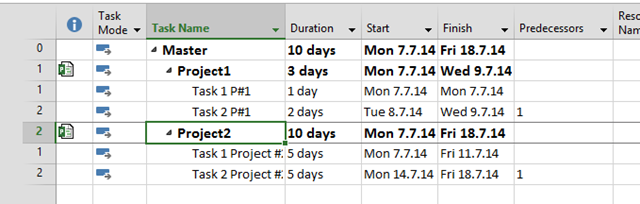
After adding those two Project I’ll get:

image

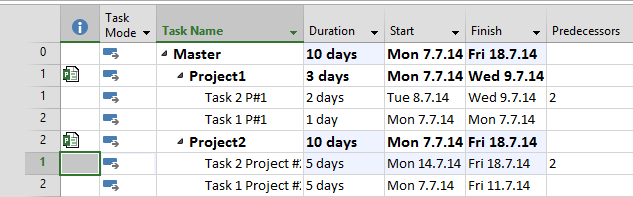
Now I will move Second Tasks form second to the First Place in Master Project:

image

OK! Let’s see what is with Original Projects:

image

and:

image

As you can see those Task has been moved in original Projects, as well!

If you want to avoid that you can make this:

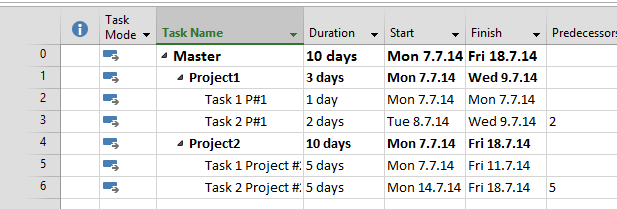
image

When I do this for both Project I’ll get the same thing:

image

I will move Tasks, as I did in my previous example:

image

Let’s see the original Projects again:

image

and:

image

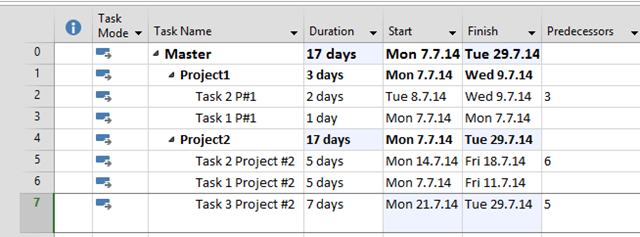
Now I will add a brand new Task in Master Project, below Second Task of Second Project:

image

Now, again, let’s look at the Project #2:

image

New Task is not in it.

Be aware of this. If you add a Project in Master Project with Link to Project checkmark selected, whatever you do in Mater Project will be reflected in original Projects. On the other hand, if you add a Project in Master Project with Link to Project checkmark deselected, Master Project acts like a stand alone Project, ant that means that whatever you do in Master Project will not be reflected in original Projects. In that case Master Project and Subprojects are acting like a separate stand alone Project (as you type them manually).


Regards

Posted in MICROSOFT PROJECT, Microsoft PRoject 2010, Microsoft Project 2013, MS PROJECT 2010, PMI | Tagged , , , | 2 Comments

Is it Possible to prevent assigning Resource to Task in MS PROJECT 2013?

Hi,

again a question form my Blog reader: “Is it possible to disable assigning Resource to the Task, and still keep same resource in Resource sheet?”

Let me show you in MS PROJECT 2013

First I’ll create Brand new Project with two Tasks:

image

and two Resources:

image

Now I will assign both resources to Task 1:

image

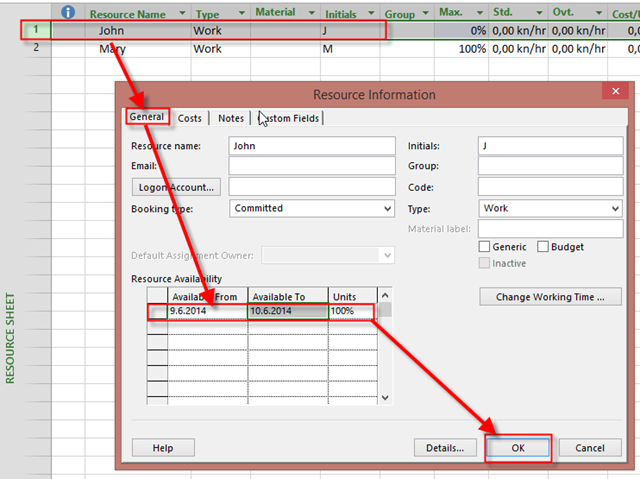
Now suppose that I don’t want John to be available to any Task any more. What can I do?

I can make him available only form Monday, 09.6.14 to Tuesday 10.06.2014:

image   

Now, I’ll try to assign John and Mary to the Task 2:

image

As you can see, nothing prevents me to assign John. He is marked as Overalocated and that is it!

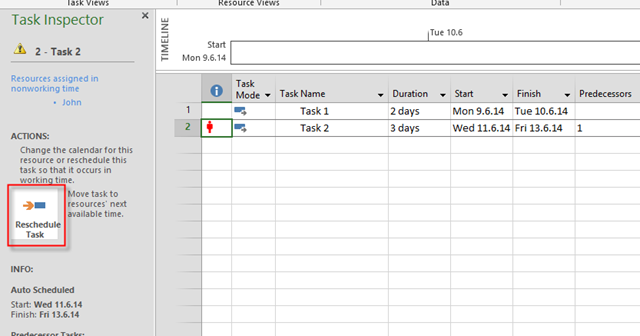
I will try to fix that with Task Inspector:

image

and then:

image

and I will get:

image

Notice that Mary will finish the Task at Friday, but whole Task will be finishe ar Wednesday 31.12.2049 (limitation from MS PROJECT date) even he is assigned with 0%.

If you make an Calendar exception for example, you will still be able to assign him to the Task!

So, the answer is NO! You can’t prevent assigning John to any Task. You should be careful, that’s all!

Regards!

Posted in MICROSOFT PROJECT, Microsoft PRoject 2010, Microsoft Project 2013, MS PROJECT 2010, PMI, PRoject Management | Tagged , , , | Leave a comment

A Small issue with Team Planner and Resource Leveling in MS PROJECT 2013

This will be a short one. Again, my fellow MPV Eric Uyttewaal found a Bug in MS PROJECT 2013.

I will Crete two Tasks in MS PROJECT 2013:

image

and one Resource:

image

Finally I’ll assign this Resources to both Tasks:

image

As you can see, John is over allocated. Now I’m switching to the Team Planner View:

image

Everything is fine (see Over allocation with red lines). Now I’m going to Level Resources:

image

and I’ll get:

image

Still, everything is perfect. No I’m going to Undone last Action:

image

and I’m getting:

image

There are no red lines here.

Funny!

Regards,

Posted in MICROSOFT PROJECT, Microsoft PRoject 2010, Microsoft Project 2013, MS PROJECT 2010, PMI | Tagged , , | 2 Comments

Multiple Resource Pools in Subprojects in MS PROJECT 2013!

Hi,

I have a question from on of my Blog Readers: “Is it possible to use separate Resource to Projects, and then to see all Resources in one Master Project?”

The answer is: “YES” How? I’ll show you in MS PROJECT 2013!

First I’ll create Resource pool (the first one):

image

and I’ll save it:

image

and then:

image

Now I will create two Projects with two Tasks and I will use same Resource Pool:

image

and then:

image

and:

image

Now I will Assign Resources to Tasks:

image

Now, the Second Project:

image

Now I’ll create Second Resource Pool:

image

And another two Projects with two Tasks, and with Usage of this Second Resource Pool:

image

and:

image


Now I’m going to cerate Master Project with Subprojects:

image

and I’m going to import four Projects like that:

image

and I’ll get:

image

after I import all Projects I’ll have:

image

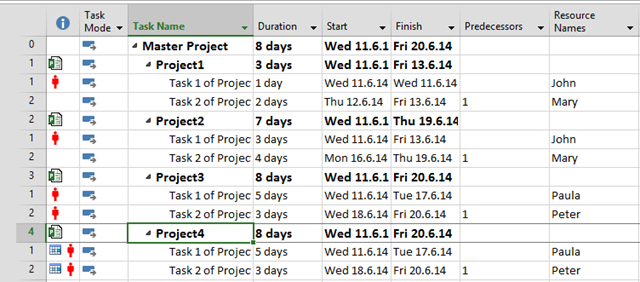
As you can see, all Resources are there. And both Resource Pools are open!

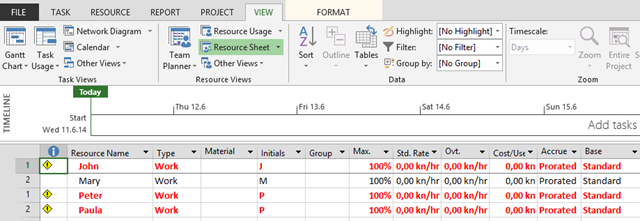
Lets see Resource sheet in Master Project:

image

OK! Now two Tips!

If you want to add Task to a Project4, for example, you can not use Resource from Resource Pool 1.

image

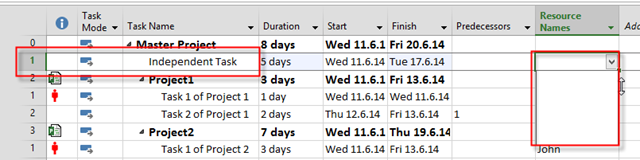
If you want to use independent Task like this:

image

You can not use any Resource from any Resource pool, either. And you can not assign independent Resource to that Task too! It is impossible!


Regards!

Posted in MICROSOFT PROJECT, Microsoft PRoject 2010, Microsoft Project 2013, MS PROJECT 2010, PMI, PRoject Management | Tagged , , , | 2 Comments

Bug with Inactive Tasks in MS PROJECT 2013!

Hi,

My MVP Fellow, Dale Howard found this Bug in MS PROJECT 2013!

I will Create brand new Project with some Tasks:

image

Now, suppose that I want to make First four Tasks inactive:

image

I will get:

image

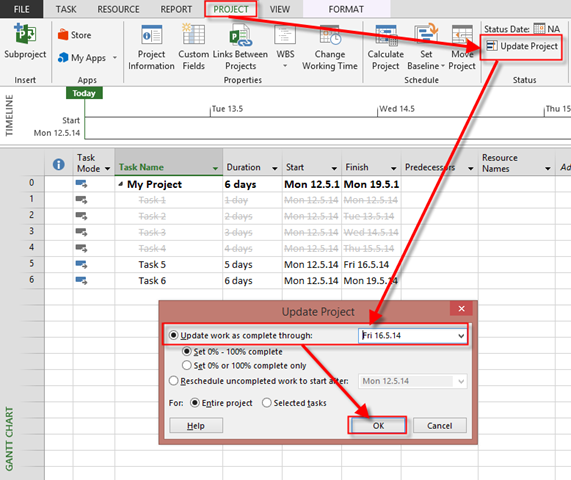
So far so good. Now, let’s say that all Task (active Tasks) which are supposed to be Finished at Friday, 16.5.2014 are finished. Notice that 16.5.2014 is date which is AFTER all inactive Tasks. I’ll do this like this:

image

and I’ll get:

image

As you can see, Inactive Tasks are marked as Completed. The funniest thing is if you try to Select one or many of those Inactive Task and then try to make them 0% Complete, it is impossible!

This is a Bug!

Regards

Posted in MICROSOFT PROJECT, Microsoft PRoject 2010, Microsoft Project 2013, MS PROJECT 2010, PMI, PRoject Management | Tagged , , | Leave a comment

Bug in Tracking Gantt View in MS PROJECT 2013

Hi,

here is another small bug in MS PROJECT 2013.

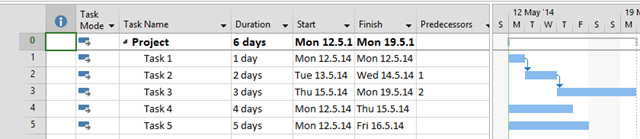
I will Create few Tasks in MS PROJECT 2013:

image

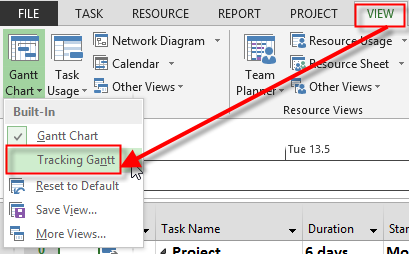
I want to see Critical Path, so I’m going to Use Tracking Gantt View:

image

and I’ll get:

image

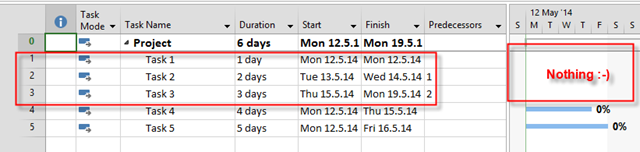
On the Right side of the screen There is Critical Path (Red color). No I’m going to switch off Critical field from Bar Styles:

image 

and I’ll get:

image

Funny, isn’t it?

Posted in MICROSOFT PROJECT, Microsoft PRoject 2010, Microsoft Project 2013, Microsoft Project Server 2010, MS PROJECT 2010, PMI, PRoject Management | Tagged , , | 4 Comments

BUG Resource-related Cost field not recalculated in MS PROJECT 2013

Hi,

here is minor bug in MS PROJECT 2013, found by Eric Uyttewaal, my MVP friend.

First I am going to create New Project with Single Task (1 day duration):

image

I will now Create two Resources: Ted and Fred:

image

Yu can see that Standard Rate for Ted is $200, and for Fred is $200. In this View (Resource sheet) I will add two more columns: Cost, and Work:

image

Now I’m going to assign Ted to the Task:

image

and I’m going to look at the Resource sheet:

image

Everything is perfect: Ted will work 8 hours, and Cost will be 8 * $200 = $1600. Now I’m going to Replace Ted with Fred on that Task:

image

and I will get:

image

As you can see, Ted has Cost = $0, but Fred’s Cost field is not refreshed (it should be 8 hours * $300 = $2400)

and This is a Bug!

Regards

Posted in MICROSOFT PROJECT, Microsoft PRoject 2010, Microsoft Project 2013, Microsoft Project Server 2010, MS PROJECT 2010, PMI, PRoject Management | Tagged , , | 2 Comments

How to replace Resource for the partial completed Tasks in MS PROJECT 2013?

Hi,

I’ve got a question from one of my Blog Readers: “Dear Nenad, I have the following scenario: I have A Task assigned with one Resource. He did 50% work, and then he left the Company. I must assign another Resource to the Task, but the Duration must remain the same. What should I do?

This is easy. I’ll show you how to do that in MS PROJECT 2013. First, I’m going to create one Task with 10 days Duration:

image

and two Resources:

image

I’m going to assign John to the Task:

image

Now, let’s say that John has started with this Task on time, and he is 50% finished:

image

Now, suppose that John has Left the Company at Friday, 05/16/2014. Mary has to jump in. I will Replace John with Mary:

image

and I will get:

image

Let’s look at the Cost Table:

image

John has $100 standard Rate , and he has worked 5 days * 8 hours per day, which is 40 hour. 40 hours * $100 = $4000. This is Actual Cost. Mary has $200 standard  and she has to work another 5 days * 8 hours per day, which is 40 hour. 40 hours * $200 = $8000. This is Remaining Cost. Total Cost is $4000 + $8000 = $12.000

Let’s see Task Usage View:

image

Everything is perfect. John has work assigned only at first week, and has actual work, and Mary has assigned work for Second week.

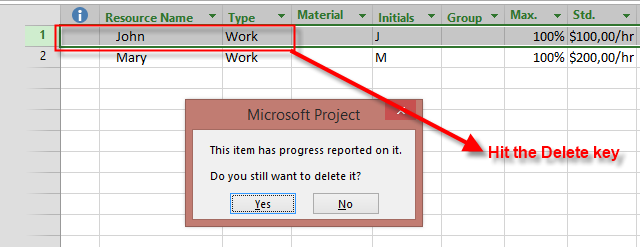
The question is: “If John left the Company, can I simple delete him from my Resource Sheet!?”. The answer is: “Yes, you can, but DON’T DO IT!”

Here is what is going to happen if you do:

image

IF you choose YES, you will get:

image

And this is WRONG! It seems like John has ever work on any Task! So, do not delete John! But, I know what are you going to ask: “If John is still in Resource sheet, I’ll be able to assign him on another Task, even he has left the Company!?”

The answer is:” Yes, be careful with John!” Or Use custom field with status, whatever, but do not erase him!

Regards!

Posted in MICROSOFT PROJECT, Microsoft PRoject 2010, Microsoft Project 2013, MS PROJECT 2010, PMI, PRoject Management | Tagged , , , , , | 2 Comments