How to save the Project plan in Microsoft Project 2010?


Hi,

In your project, you should establish a good Project Plan. How to do it with MS PROJECT 2010?

  1. Make a good task list (what to do?)
  2. Make a good duration estimation (how long will it take for the task to be completed?)
  3. Link those tasks (how much time do we need to finish the project?)
  4. Make a good resource plan and assign appropriate resources to the Tasks (who will do it?)
  5. Make a good cost estimation for Resources and Tasks (how much money do we need?)

When we have all of these, and we are certain that those are well planned we should save this Plan.

I will give you example with one very simple project. I have four Task:

image

in Gantt chart:

image

I have four Resources:

image

and the costs are:

image

You can see the Baseline column which is empty!

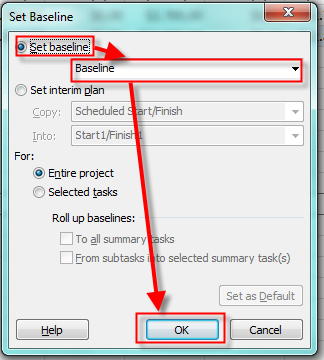
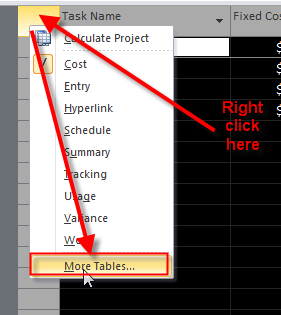
Now I am ready to save my plan. In MS PROJECT 2010 when you save a plan you are actually saving the Baseline. You can do it here:

image

and you will get:

image

You can save up to 11 Baselines (Baseline, Baseline1, Baseline2, …, Baseline10). You can not rename the Baseline (for example in First Plan accomplished at 15.12.2011), and that is bad, but there is no help, so you must remember  what is saved in each baseline. But why do we have more than 1 baseline, you may ask? Well, if a huge change comes in your project plan and you want to compare later what was planned at the beginning and compare your initial plan with other plans then you should use more than one plan (Baseline).

When you save your baseline you will get:

  • When you apply the Cost Table:

image

you will get:

image

you can see that Baseline is the same with the Total cost field, because we did NOT start track the progress of our tasks.

  • When you apply the Variance Table you will get:

image

you can see that Baseline Start and Baseline Finish are the same with the Start and Finish field, because we did NOT start track the progress of our tasks.

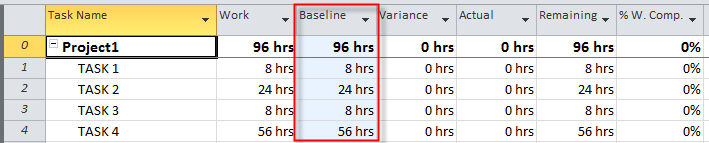
When you apply the Work Table you will get:
image

you can see that Baseline is the same with the Work field, because we did NOT start track the progress of our tasks.

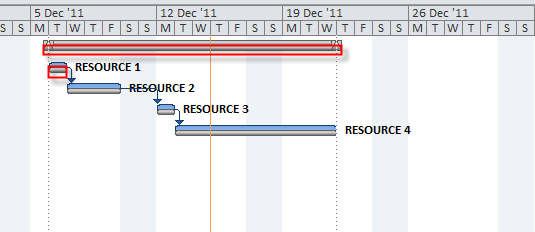
Now it is a time to switch on the Baseline bar in your Gantt chart:
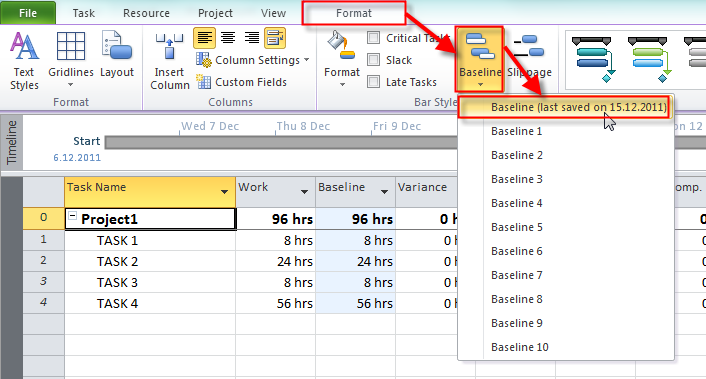
image

and you will get:

image

at the bottom part (Grey part) of each task you will see the Baseline. For now it is the same as actual is, because we did not report any task progress yet.

Finally, what is saved in a Baseline?

  1. Budget work is saved in a Baseline Budget work field
  2. Budget cost is saved in a Baseline Budget work field
  3. Fixed cost saved in a Baseline Fixed cost field
  4. Fixed cost accrual saved in a Baseline Fixed cost accrual field
  5. Estimated duration (for manually scheduled task e.g. 1 day) saved in a Baseline Estimated duration field
  6. Estimated start (for manually scheduled task e.g. 1 project start date) saved in a Baseline Estimated start field
  7. Estimated finish (for manually scheduled task e.g. 1 project start date) saved in a Baseline Estimated finish field

And that is it! The PLANNING PHASE is finished. Now we can start to track actual progress. How? Read my next post.


Until then, best regards!
Posted in MICROSOFT PROJECT, Microsoft PRoject 2010, MS PROJECT 2010, PMI, PRoject Management | Tagged , , , , | 3 Comments

CREATING OWN BUDGET IN MS PROJECT 2010–PART 2

Hi,


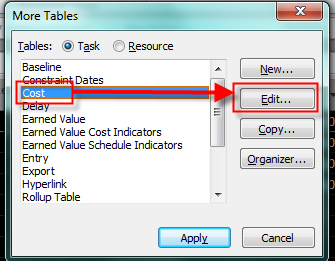
as you remember in my last post created two new custom fields: Budget for Task, and Variance from Actual.  To use this two fields I have to put them in some table. The best approach for my example is to put them into the Cost table:

image

and then:

image

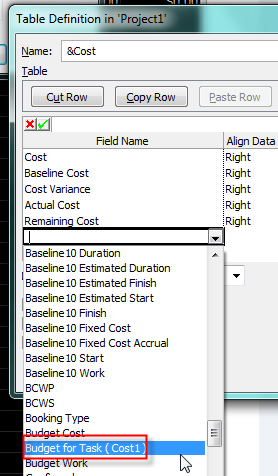
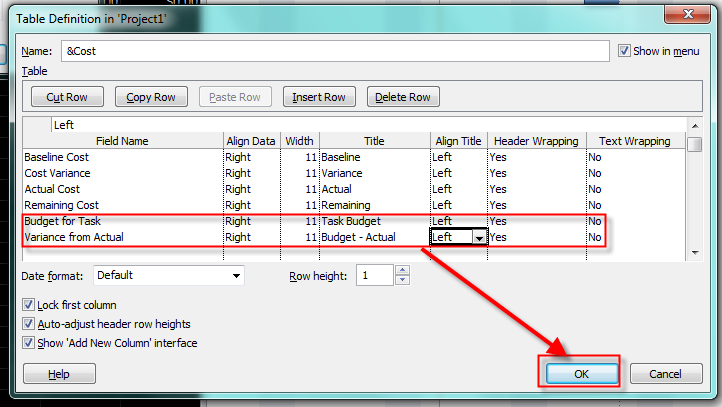
and I will get the screen with all fields in the Cost Table. I will put the cursor in the first blank row and I will pick up those two new custom fields:

image

and I will fill the other field attributes, as shown in the picture below:

image

and I will get:

image

Now I will fill the Task budget field for each Task:

image

OK. I will assign Resource 1 to the Task 1, Resource 2 to the Task 2, etc! After that I will get:

image

  • Task 1 has 1 day duration, e.g. 8 hours, and Resource 1 has $100/hour and it means    8 * 100 = $800
  • Task 2 has 2 days duration, e.g. 16hours, and Resource 2 has $200/hour and it means 16 * 200 = $3.200
  • Task 3 has 3 days duration, e.g. 24 hours, and Resource 3 has $300/hour and it means 24 * 300 = $7.200
  • Task 4 has 2 days duration, e.g. 16 hours, and Resource 4 has $400/hour and it means 16 * 400 = $6.400
  • Total cost for the project is = $800 + $3.200 + $7.200 + $6.400 = $17.600

Now, suppose that work is done for all tasks. Task 1 is 100% completed, and it is on time:

image

Because budget for the Task 1 is $1000, and Actual cost is $800,  Budget – Actual = $1.000 – $800 = $200

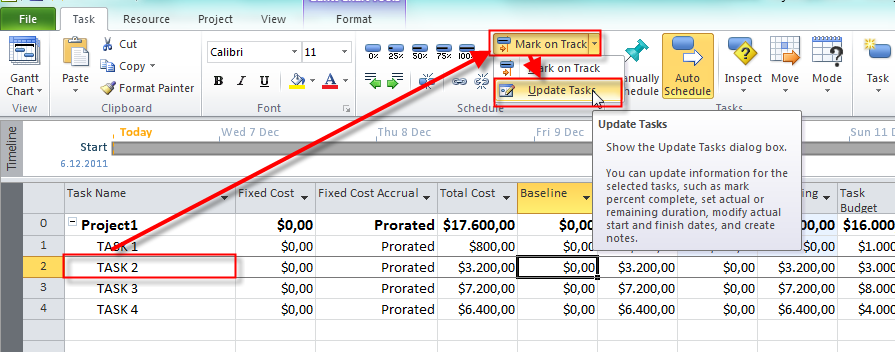
Now I will full the Actuals for the Task 2:

image

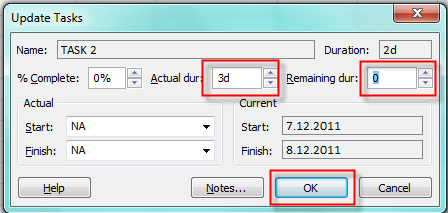
and then:

image

Task 2 has 3 days duration instead of 2. I will get:

image

Actual cost for the Task 2 is: 3 days (3*8=24) hours * $200/hour for Resource 2= $4.800. Budget is $3.000, and the Budget – Actual is $3.000 – $4.800 = –$4.800.

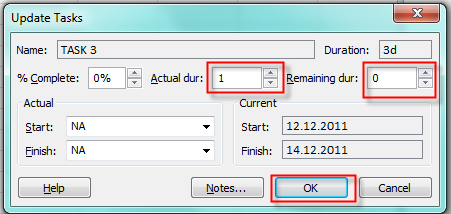
Now I will say that Task 3 was finished 2 days earlier:

image

and I will get:

image

Actual cost for the Task 3 is: 1 day1 (1*8=8) hours * $300/hour for Resource 3= $2.400. Budget is $8.000, and the Budget – Actual is $8.000 – $2.400 = $5.600.

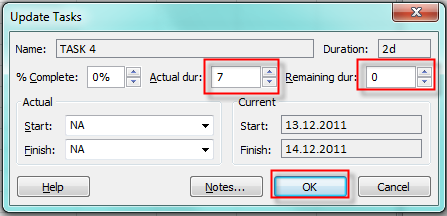
Finally, I will say that Task 4 was finished 5 days latter than planned:

image

and I will get:

image

Actual cost for the Task 4 is: 7 days (7*8=56) hours * $400/hour for Resource 4= $22.400. Budget is $4.000, and the Budget – Actual is $4.000 – $22.400 = –$18.400.

And in the Summary Task you can see the total value for the Project budget, and Project Actual cost, and the Budget – Actual = –$14.400

It wasn’t so complicated, was it?

Regards!

Posted in MICROSOFT PROJECT, Microsoft PRoject 2010, MS PROJECT 2010, PMI, PRoject Management | Tagged , , , , , | 4 Comments

CREATING OWN BUDGET IN MS PROJECT 2010–PART 1


Hi,

I will explain how to make and track your own Budget in MS PROJECT 2010!

Suppose that you want to have a budget (in money) for each task, and that you want to track variance from the actual cost! You can do it easy in MS PROJECT 2010 if you you use some custom fields.

But first let me do the setup!

I will add four Tasks on my Project:

image

and I will add four Resource on my Project:

image

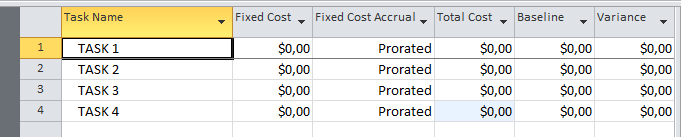
Now I will apply a Cost Table:


image

and I will get:

image

As you can see there are no costs for my Tasks, because I did not assign Resources to the Tasks.

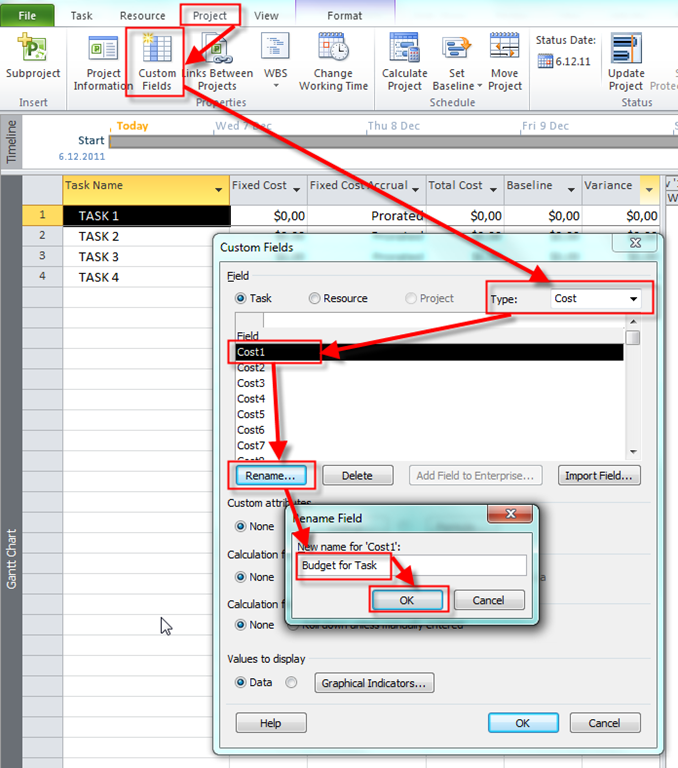
Now I will add the brand new field to MS PROJECT 2010, called Budget for Task:

image

and then:

image

I just added a new field, and that field will be summed in a summary tasks, and project summary task!

Now I need the second custom field, called Variance from Actual:

image

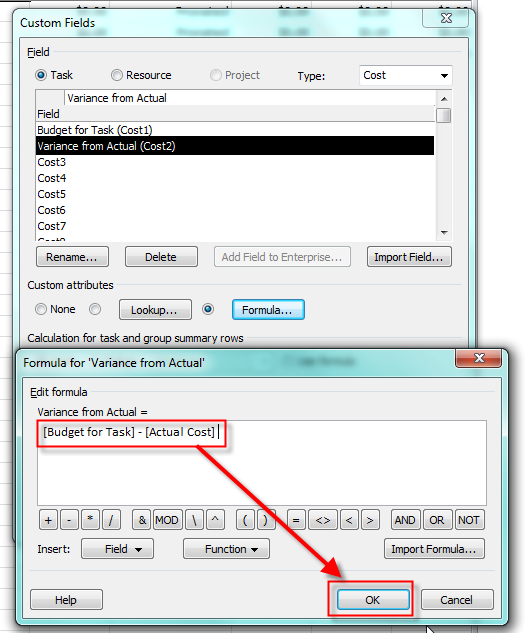
Now I have this new field. In this field I want to place difference between Budget for Task and Actual cost field. To get that I have to use formula:

image

This warning message tells that all previous values in this field will be erased. Ater I click on OK button I will get:

image

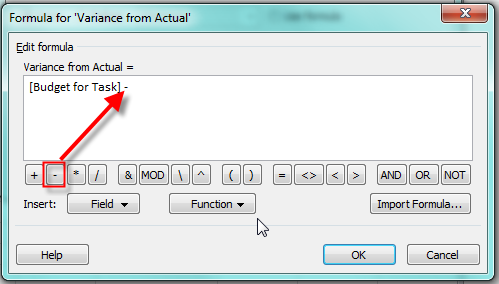
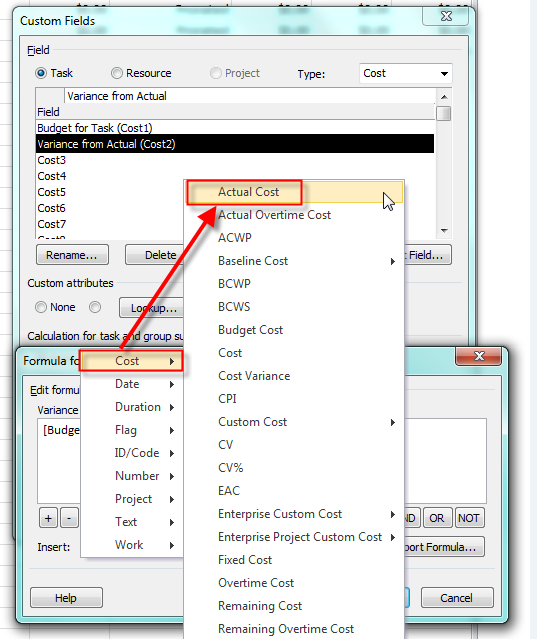
and after that I will build the formula! I want to have my Budget for Task (custom field) in my formula:

image

and I want to substract Actual Cost from Budget for Task:

image

and then:

image

and I will get:

image

When I click on the OK button I will get:

image

Finally when I click on OK button I have two new custom fields!

Now, the question is: “How to use those fields?”.  And the answer is: Read my next post!

Until then, bye!

Posted in MICROSOFT PROJECT, Microsoft PRoject 2010, MS PROJECT 2010, PMI, PRoject Management | Tagged , , , , , | 4 Comments

Setting Up the Project Budget

Hi,

I will try to explain how to put the Budget in your Project with MS PROJECT 2010. I will repeat part of my Post from 13.10.2011!

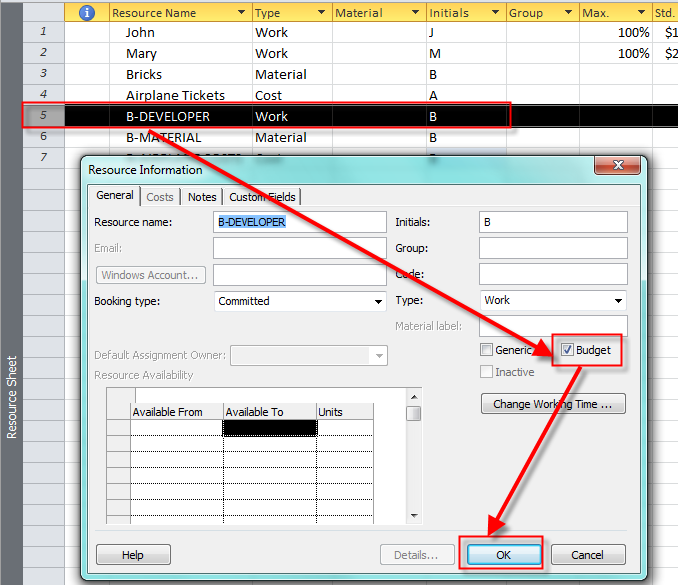
First of all, when you have a Budget Resource, make sure that you put the different name convention to that resource (use UPER CASE, or prefix like B-). Let say that we have three budgeted Resources for our Project:

image

Do not forget that if you want to make a Resource as a Budgeted Resource you must double click on the Resource and fill the check mark:

image

Now I will ad few Tasks on my Project:

image

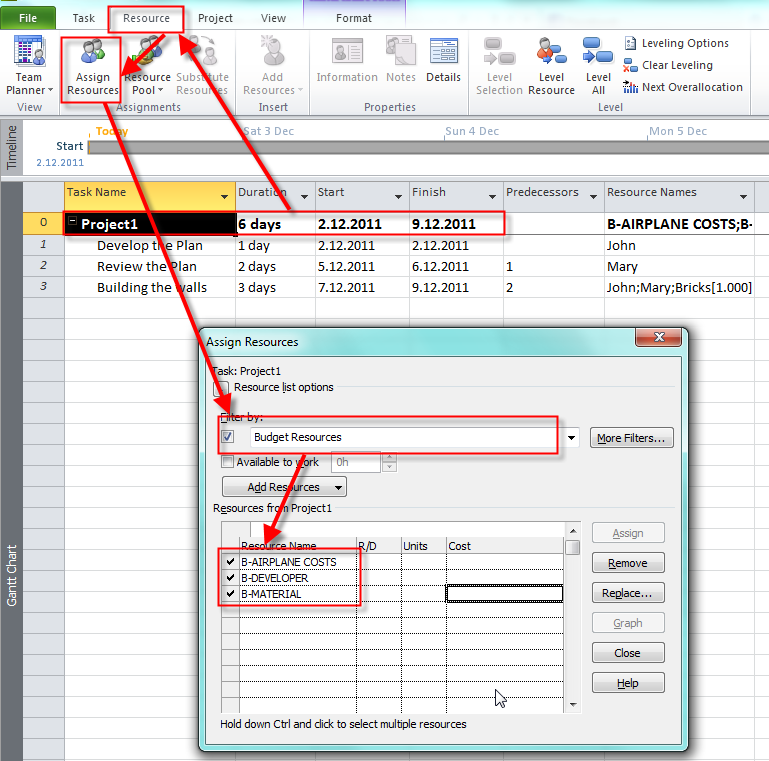
Now I want to assign Budgeted Resource to the Project. Those resources can be assigned only to the Project Summary Task, so I have to turn it on:

image

Now, I will assign all Budgeted Resources to this Task:

image

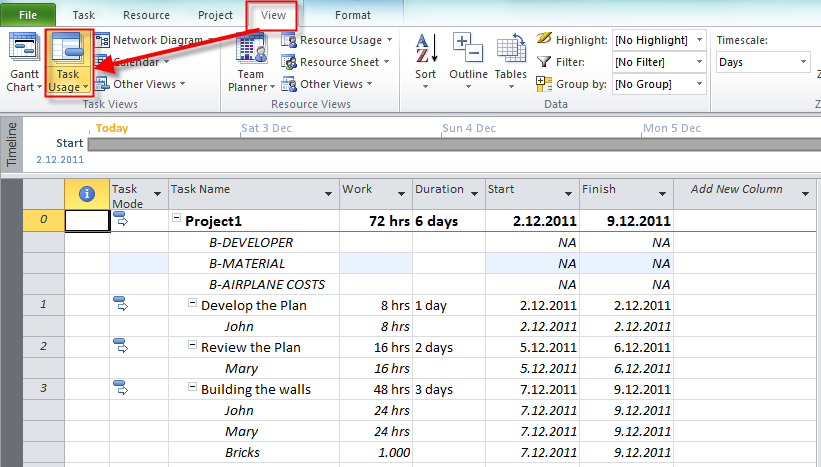
Now what??? Firs I will apply the Task Usage View!

image

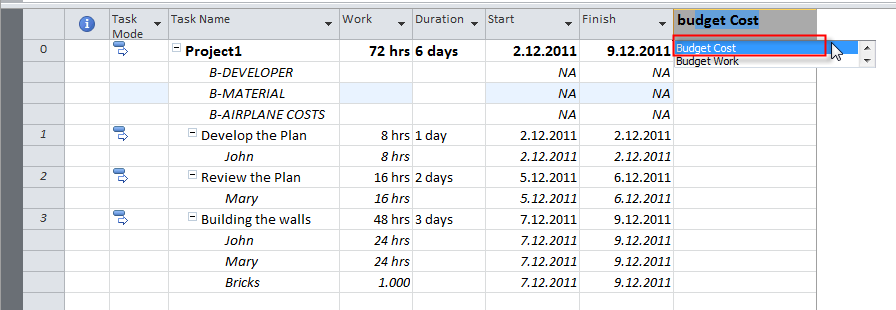
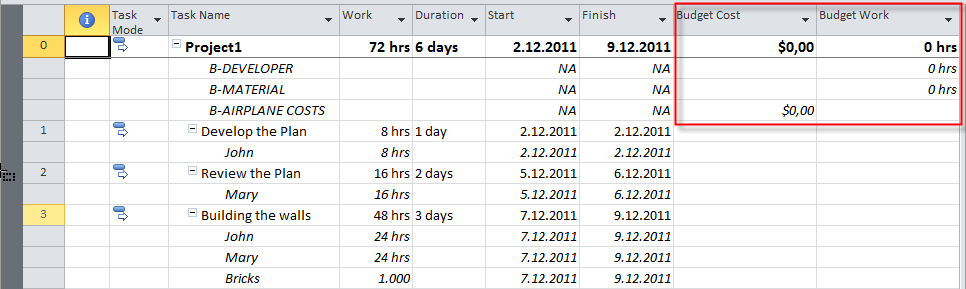
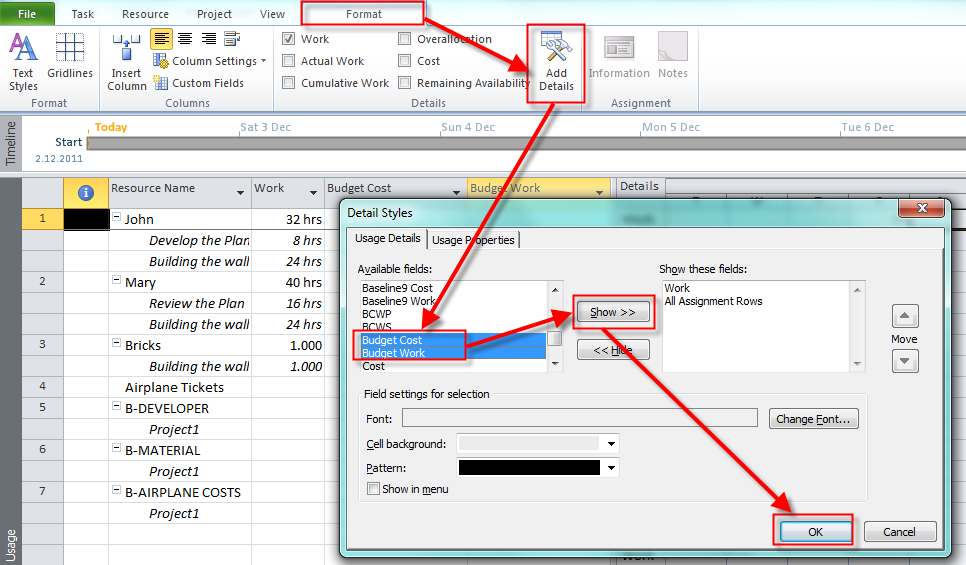
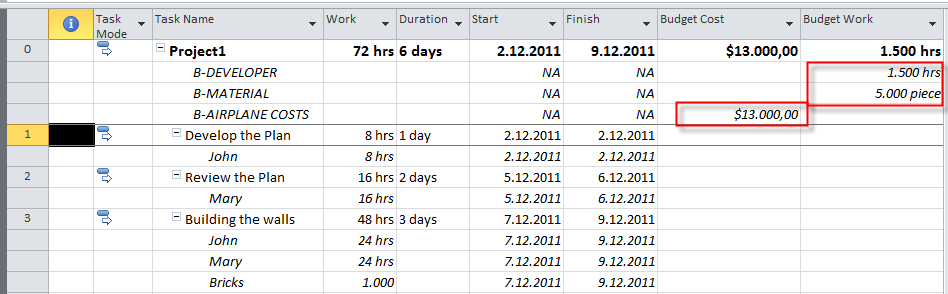
Now, I will add two new fields: Budgeted Cost, and Budgeted Work:

image

and I will get:

image

For Work Resources, I can put the Budgeted value for Budgeted Resources in hours/days/weeks etc. For Material Resources, I can put Budgeted value in Pieces, Gallons etc. and for the Cost Resources in money!

image

But what if you want to designate Budget within a specific period of time? You should use Resource Usage view:

image

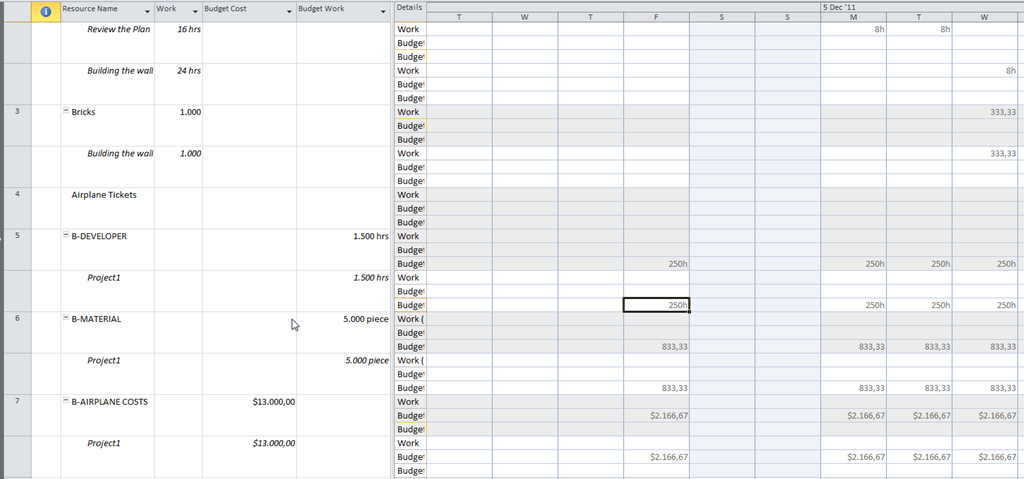
I will add two new rows on the right side of this View:

image

and I will get:

image

Now I can put those Budgeted Values on a day by day (or week by week, etc.) basis:

image

In my next post, I will explain how to make your own budget for each Task, and how to control it, because this kind of budgeting is not good enough (from my point of view).


Regards,

Posted in MICROSOFT PROJECT, Microsoft PRoject 2010, MS PROJECT 2010, PMI, PRoject Management | Tagged , , , , , | 4 Comments

Task Types and how they affect the Schedule–Part 4


Hi,

If you red my last posts, you have noticed that one part is missing. That is: “What does it has to do with effort, and non-effort driven tasks”.

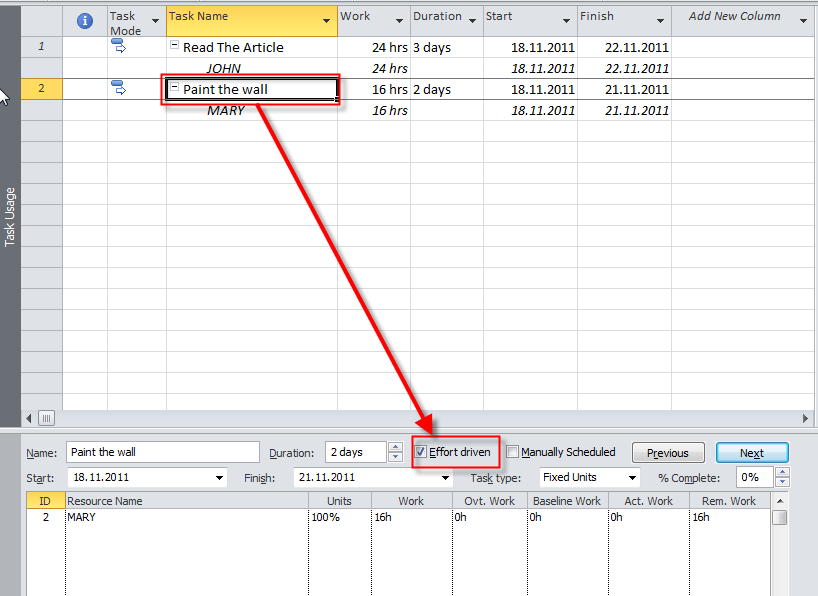
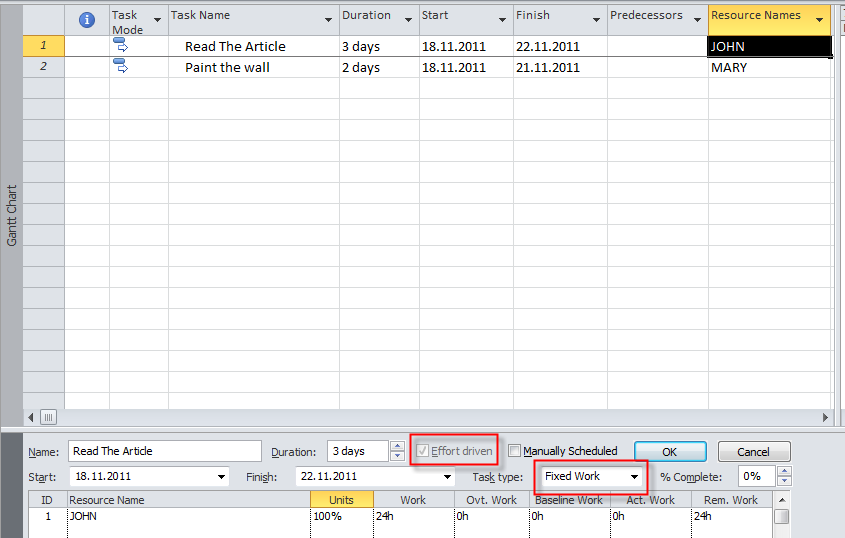
Well it does, when you add additional resources to those tasks. I have two Tasks in my example: Read The Article, which is non-effort driven task, and Paint the wall, which is effort driven task.

image

and

image

Notice that both task are Fixed Units.

Now I will add Mary to the Read The Article Task, and I will get:

image

Because this is Non effort driven task, John and Mary must work 3 days, and that means 8 hour per day, which is 24 hours. So the total work for this task will take 48 hours (24 from Mary, and 24 from John). So, when you have a Fixed units, non effort driven Task, and you assign new resource to the task, Work is changed, and Duration and Units are unchanged.

Now I will add John to the Paint the wall Task, and I will get:

image

Because this task is effort driven, and the Task type is Fixed units, both Duration and work are changed, and Units are unchanged. That means, that when I assign additional resource (John) to the Task, both John and Mary will have to work less hours in total, and Duration will be shorter.


Now I will undo those changes to get the initial setup, with one resource per task, but I will change both tasks to the Fixed Work type. And, because Fixed work is always effort driven I will give you just one example:

image

I will assign Mary to the Read The Article Task, and I will get:

image

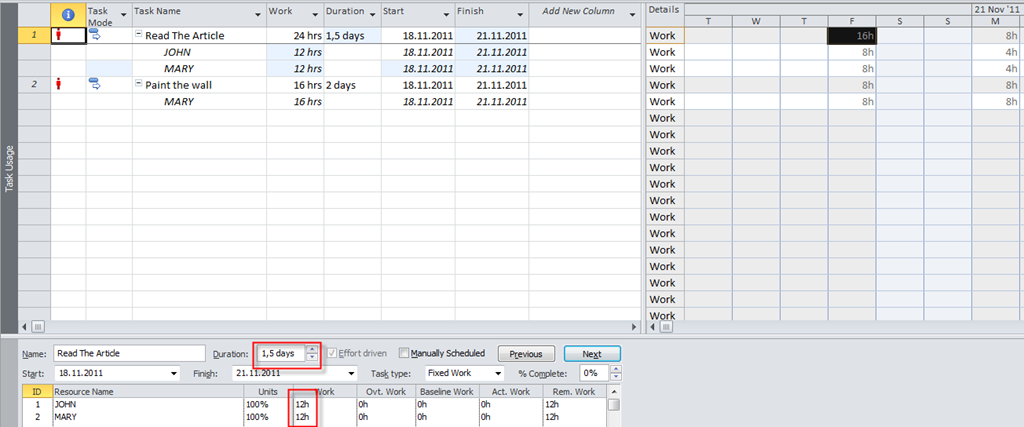
Because this task is effort driven, and the Task type is Fixed work, Duration is changed, and Units are unchanged. Why? Work is fixed, and it means that we have to spend 24 hours for it. When I assign Mary to the Task, it means that Both, Mary and John have to work 12 hours in total, to fulfill those 24 hours. And because Units are unchanged, it means that they can work max 8 hours per day. So, they will work 8 hours at first day, and 4 hours at second day to achieve 12 hours. The Magic Formula is: Work = Duration * Units, so it means, 12 = Duration (8 hours per day) * 100 = 12/8 = 1,5 day per each person (John and Mary).

That means, that when I assign additional resource (Mary) to the Task, both John and Mary will have to work less hours in total, and Duration will be shorter.


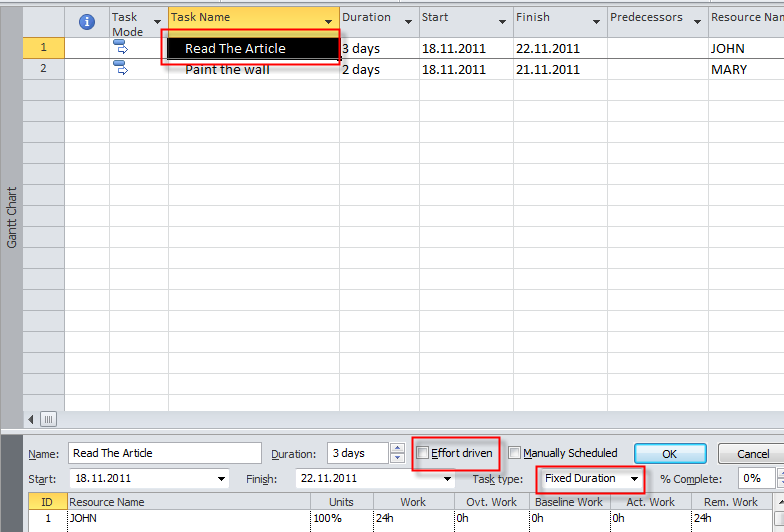
Now I will undo those changes to get the initial setup, with one resource per task, but I will change both tasks to the Fixed Duration type.

image

I will assign Mary to the Read The Article task, which is non effort driven, and I will get:

image

Because this is Non effort driven task, John and Mary must work 3 days, and that means 8 hour per day, which is 24 hours. So the total work for this task will take 48 hours (24 from Mary, and 24 from John). So, when you have a Fixed duration, non effort driven Task, and you assign new resource to the task, Work is changed, and Duration and Units are unchanged.

Now I will add John to the Paint the wall Task, and I will get:

image

Because this task is effort driven, and the Task type is Fixed duration, Work is changed, and Units, and Duration are unchanged. That means, that when I assign additional resource (John) to the Task, both John and Mary will have to work less hours per day , and Duration will be the same.

That is it.

In my next post I will explain the costs!

Regards,

Posted in MICROSOFT PROJECT, Microsoft PRoject 2010, MS PROJECT 2010, PMI, PRoject Management | Tagged , , , , | Leave a comment

Task Types and how they affect the Schedule–Part 3


Hi,

I am going on with Task Types. I will make both Task: Read the Article as Fixed work:

image

As you can see, this task type is always Effort driven. I will assign John to this Task, and I will get:

image

First I will change the Units field from 100% to 150%, and I will get:

image

Work is same = 16 hours! Because John can work with 150% capacity, he will work 8 * 150% = 12 hours at first day, and remaining 4 hours at second day, to fulfill 16 hours! But why is Duration=1,33 days? It seem it should be 1,5 day (because John will work only 4 hours at second day, instead of 8)! Well here is the explanation! Because I put 150% in Unit, MS PROJECT assumes that John has to work 12 hours / day (150% * 8 hours= 12 hours). And the Duration is calculated: 12 hours on first day = 1 day! 4 hours on second day (4/12)= 0,33, and total is = 1 + 0,33 = 1,33

OK. Now I will go back to initially Setup:

image

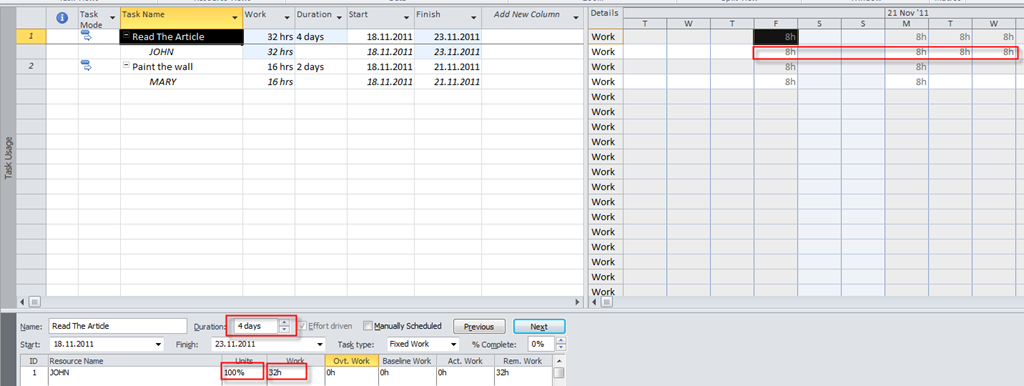
and I will change Work to 32 hours, click on OK button, and I will get:

image

Work is 32 hours!  The Magic Formula is Work = Duration * Units, and that means 32 = Duration * 100%. Because 1 day has 8 working hours It will be 32/8 = 4 days in the Duration field.

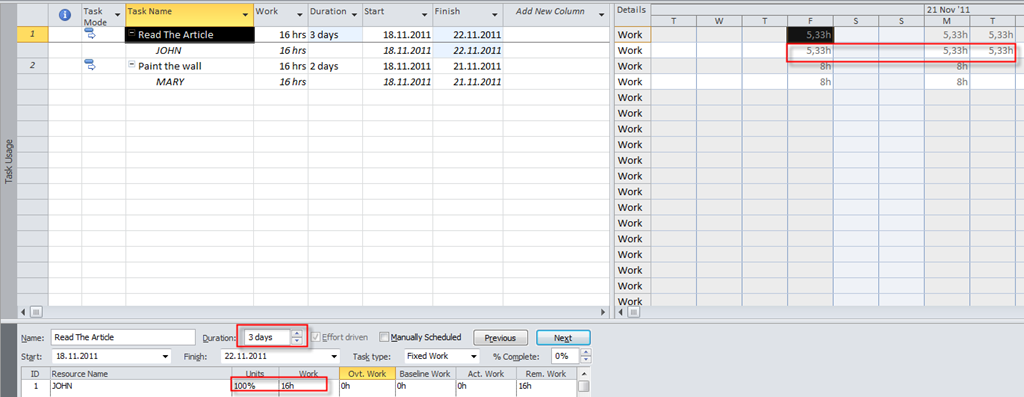
Finally I will (from initial setup) change the Duration from 2 to 3 days, click on the OK button, and I will get:

image

Because we have Fixed work, and the Duration is 3 days instead of 2, MS PROJECT 2010 will divide 16 hours (Fixed work) with 3 days and, 16/3 = 5,33 hours per day.

Now I will make a Task as a Fixed Duration type:

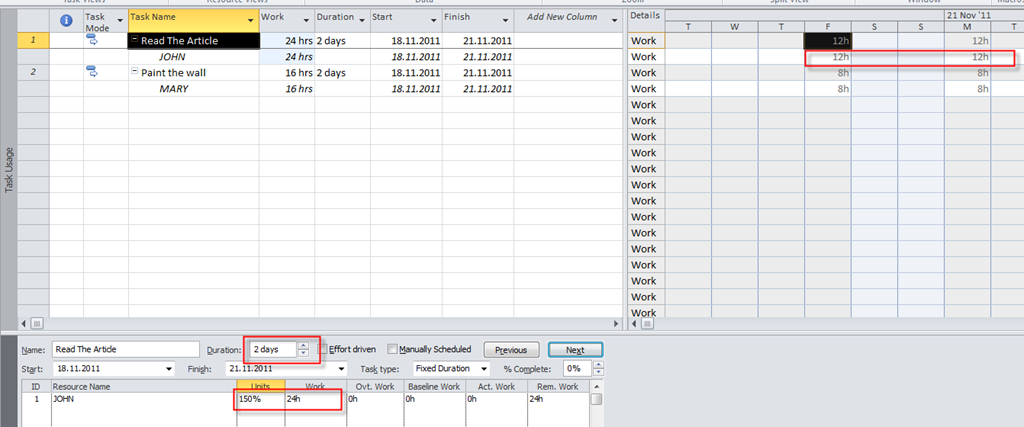
image

I will now change Units from 100% to 150% and I will get:

image

Because the Magic Formula is: Work = Duration * Units, and Duration is Fixed, it means: Work = 2 days * 150%= 16 hours * 1,5 = 24 hours in two days!

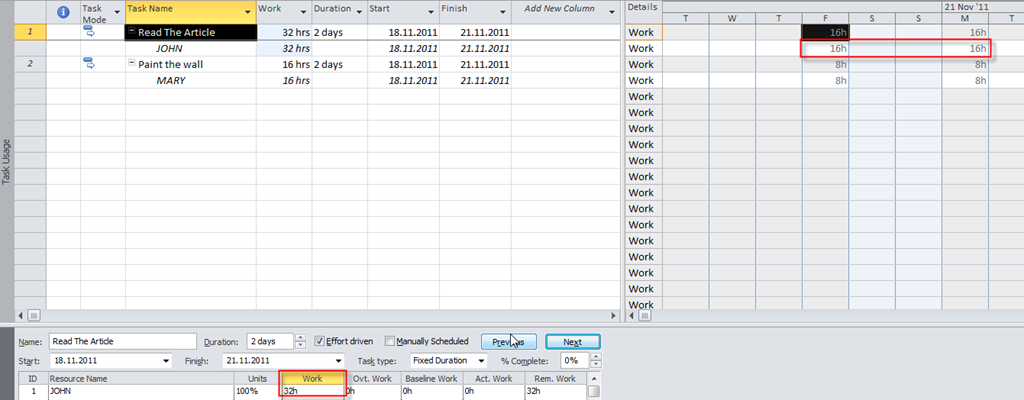
Now I will change Work from to 32 hours, and I will get:

image

As you can see, because Duration is fixed, John will have to work 32 hours in 2 days, and it means 16 hours per day! Finally I will change the Duration field from 2 to 3 days, and I will get:

image

The Work is now 24 hours, because 3 days duration mean 3 * 8 hours = 24 hours.

In my next post I will explain what happens when I assign additional resource with different type of resource on effort and non effort driven Tasks.


Regards,

Posted in MICROSOFT PROJECT, Microsoft PRoject 2010, MS PROJECT 2010, PMI, PRoject Management | Tagged , , , , | Leave a comment

Task Types and how they affect the Schedule–Part 2


Hi,

let’s go. First we will do a Setup!

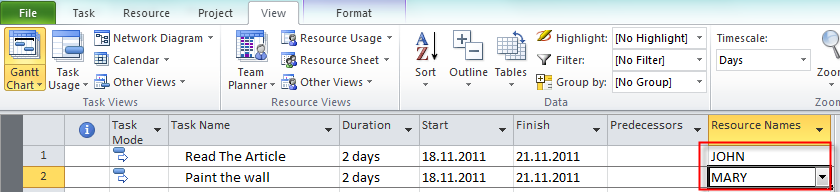
I will add two Tasks to my Project:

image

I will make Paint the wall effort driven:

image

Now I will add two Resource to the Project: John and Mary!

image

I will assign John to the Read the article Task and Mary to the Paint the wall Task.

image

Finally I will set the Views. First Task Usage:

image

and now:

image

When you click on the lower part of the screen (in the Task Form) you should go to the Format Tab and do:

image

Everything is ready!

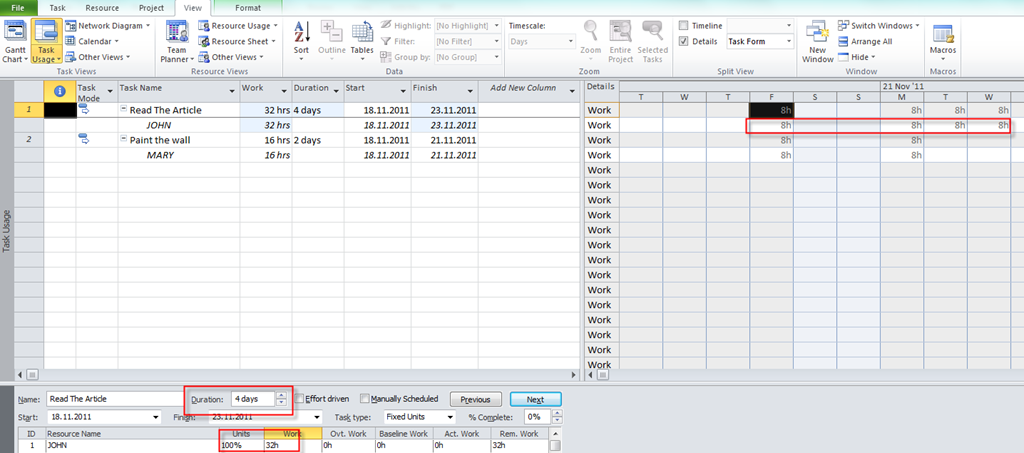
I will click on the Read the Article Task and I will get:

image

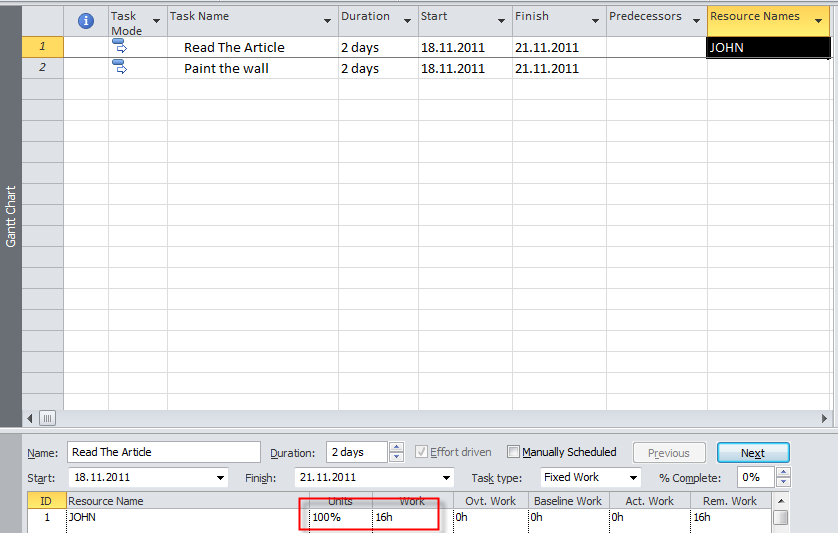
As you can this Task has: Duration = 2 days, it is non effort driven, fixed units it has 100% units, and Work = 16 hours. Work = Duration * Units –> Work = 2 days (8 hours per day) * 100% = 16 hours * 100% = 16 hours.

I will change Units from 100% to 150%:

image

and I will get:

image

Work is same = 16 hours! Because John can work with 150% capacity, he will work 8 * 150% = 12 hours at first day, and remaining 4 hours at second day, to fulfill 16 hours! But why is Duration=1,33 days? It seem it should be 1,5 day (because John will work only 4 hours at second day, instead of 8)! Well here is the explanation! Because I put 150% in Unit, MS PROJECT assumes that John has to work 12 hours / day (150% * 8 hours= 12 hours). And the Duration is calculated: 12 hours on first day = 1 day! 4 hours on second day (4/12)= 0,33, and total is = 1 + 0,33 = 1,33

OK. Now I will go back to initially Setup:

image

and I will change Work to 32 hours, click on OK button, and I will get:

image

Work is 32 hours! Because Task is Fixed Units, John will work with 100% capacity. The Magic Formula is Work = Duration * Units, and that means 32 = Duration * 100%. Because 1 day has 8 working hours It will be 32/8 = 4 days in the Duration field.


Finally I will (from initial setup) change the Duration from 2 to 3 days, click on the OK button, and I will get:

image

Duration is 3 days! Because Task is Fixed Units, John will work with 100% capacity. The Magic Formula is Work = Duration * Units, and that means Work = 3 days (8 hours per day) * 100%. = 24 hours.

In my next post I will continue with Fixed work and Fixed duration Task types.

Until then,

Best Regards!
Posted in Uncategorized | Leave a comment

Task Types and how they affect the Schedule–Part 1


Hi,

In next few posts I will explain task types and how do they reflect on Schedule in MS PROJECT 2010.

Basically, there art three Task Types:

  1. Fixed Units (Default)
  2. Fixed Work
  3. Fixed Units

What are those?

  1. Units or Assignment units. It reflects Resource availability on the Task. 100% means full time, 50% means half time etc.
  2. Work.  This is amount of time (hours, days, weeks…) that resource will work on the Task
  3. Duration. This is the time span from the start to the finish date of the Task.

Above this three Task type, all of them can be Effort or Non effort driven! Where is the difference? Suppose that you have two Tasks on your Project.

  • Task 1 = Reading the book. If one person is assigned on that Task and it needs 2 days (for example), and you assign another resource to that Task, it will still take 2 days for each person to read that book. You can not reduce the Task duration on that Task with adding more resources on it. This is Non effort driven Task.
  • Task 2 = Painting the wall. If one person is assigned on that Task and it needs 2 days(for example), and you assign another resource to that Task, it will take shorter duration for completing that task . You reduce the Task duration on that Task with adding more resources on it. This is Effort driven Task.

Now, you MUST REMEMBER THE MAGIC FORMULA

DURATION * UNITS = WORK

In MS PROJECT 2010 when you add new Task to the Project, and/or assign new Resource to it, the default type is: Non effort driven, fixed Units Task!

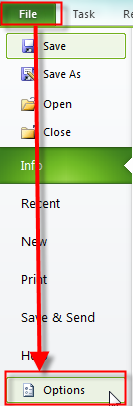
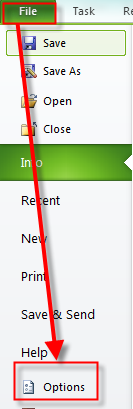
You can change this default settings for your Project:

image

and then:

image

I will leave everything “AS IS”!

Now I will describe what will happens if I change something in the Magic Formula:

TASK TYPE If you change: ASSIGNMENT UNITS If you change: WORK If you change: DURATION
FIXED UNITS Changed: DURATION
Unchanged: WORK
Changed: DURATION
Unchanged: UNITS
Changed: WORK
Unchanged: UNITS
FIXED WORK Changed: DURATION
Unchanged: WORK
Changed: DURATION
Unchanged: UNITS
Changed: DURATION
FIXED DURATION Changed: WORK
Unchanged:
DURATION
Changed: WORK
Unchanged:
DURATION
Changed: WORK

FIXED WORK is always EFFORT DRIVEN!

Where does Effort or Non effort driven task comes “in action”? When you assign or remove  additional resource to the Task:

TASK TYPE ADD OR REMOVE RESOURCES (UNITS)
FIXED UNITS – non effort driven Changed: WORK
Unchanged:
DURATION, and UNITS
FIXED UNITS – effort driven Changed: WORK and DURATION
Unchanged:
UNITS
FIXED WORK – effort driven Changed: DURATION
Unchanged:
WORK, and UNITS
FIXED DURATION – non effort driven Unchanged:
DURATION, WORK, and UNITS
FIXED DURATION – effort driven Changed: WORK
Unchanged:
DURATION, and UNITS

When Should a Task  HAVE Fixed Units? This is default type and protect your resource to work more than he or she should. If resource is assigned to the Task 50%, whatever you change this resource will work only 50% of his capacity on that Task!

When Should a Task HAVE Fixed Work? When you assign a resource to the Task, , the task’s duration is translated to the work. If you want (know) to remain those hours constant when you change duration or work for the Task, choose this Task type!

When Should a Task HAVE Fixed Duration? Very simple! If you want that work on the task should be conducted with fixed duration, you will choose this task type, and it will be no change on that duration when you change units or work on it.

From my next post on, I will show you those tasks types in the real examples!


Regards,

Posted in MICROSOFT PROJECT, Microsoft PRoject 2010, MS PROJECT 2010, PMI, PRoject Management | Tagged , , , , , , | 15 Comments

Assigning Resources to the Tasks, Step by Step!!! – Part 2


Hi,

I will continue with my last Post.

I will add John to the Task1.

image

As you can see, in the Work field there is 16 hours (2 days X 8 hours per day).

I will now assign Mary with 50% units, and that means that she is only 50% available for the Task 1.

image

and I will get:

image

As you can see I have two possibilities. If I choose “Increase total work because the task requires more person-hours. Keep duration constant”!  I will get 24 hours in the Work field, and I in the Task Usage View I will get:

image

As you can see John will work 8 hours per day, and Mary 4 hours per day. So it makes 24 hours in total.

If I choose another option: “Reduce duration so the task end sooner, but requires same amount of work (person-hours)”! I will get:

image

As you can see, Task Duration is now 1,33 days, and in the Work field I got 16 hours. Now let’s see Task Usage View:

image

Since I add Mary with 50% on the task and I want to keep same amount of work (that is 16 hours) those hours has to be split between John and Mary. On the first day, John and Mary will work their full time (e.g. John 100% and it mean 8 hours, and Mary 4 hours per day). That is 12 hours. And now MS PROJECT 2010 has to split remaining work and that is 16-12 hours = 4 hours! John will work 2/3 (e.g. 66,67%), and Mary 1/3 (e.g. 33,33%), and that is 2,67 hours for John, and 1,33 hours for Mary!

Now suppose that I assign both John and Mary to the Task 2.

image

Duration is three days, both John and Mary will work 8 hours per day and that make 8 hours per day X 3 days X 2 persons = 48 hours!

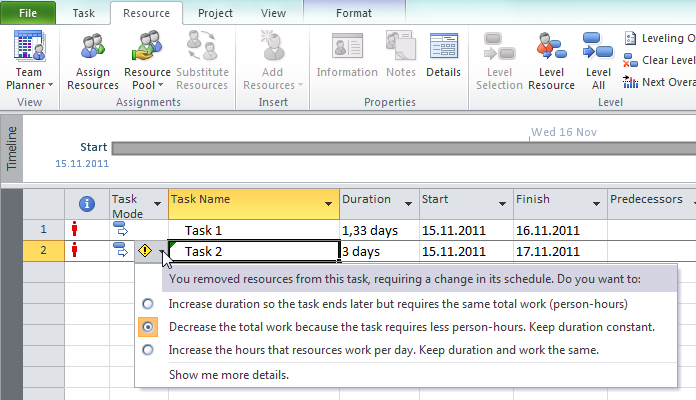
OK! Now I will remove John from the Task!

image

and I will get:

image

First, I will choose: “Decrease the total work because the task requires less person-hours. Keep duration constant”, and I will get:

image

As you can see, task have same duration (3 days), but it will take only 24 hours, instead of 48!

Now, I will choose the second option: “Increase duration so the task ends later but requires the same total work (person hours)”, and I will get:

image

As you can see, Mary will work 8 hours per day, and to fulfill 48 hours she has to work 48/8 = 6 days.

Finally, I will choose: “Increase the hours that resources work per day. Keep duration the same”, and I will get:

image

As you can see, Duration is the same (3 days), Work is the same (48 hours), but Mary has to work with 200% of her capacity per day. Let’s look at the Task Usage View:

image


That is all for today!

Best Regards!
Posted in MICROSOFT PROJECT, Microsoft PRoject 2010, MS PROJECT 2010, PMI, PRoject Management | Tagged , , , , , | 3 Comments

Assigning Resources to the Tasks, Step by Step!!! – Part 1


Hi,

As I promised I am going to explain how to assign resources to the Task, and what happens when I add or remove additional resources to those tasks in MS PROJECT 2010. After that I will explain the MAGIC FORMULA. So, if you are interested, continue to reading!

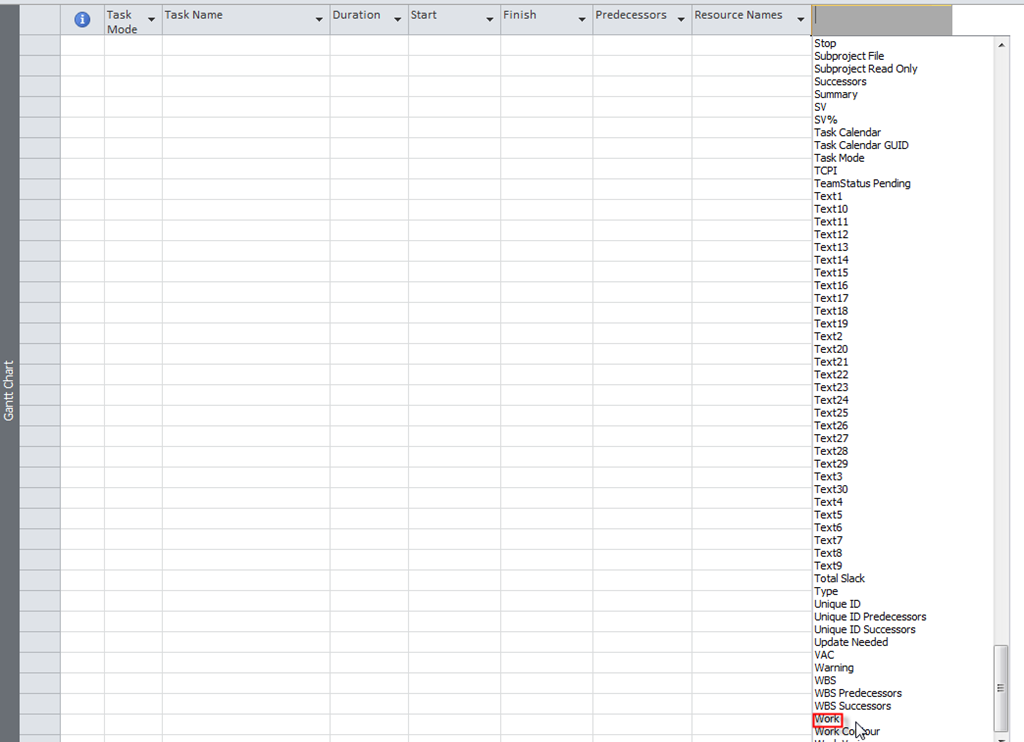
OK! First I will make a Set up! I will add new column Work

image

Now I will add Two Tasks to the Project:

image

As you can see Work is 0 hours? Why? Because Work field is directly connected with Resources!
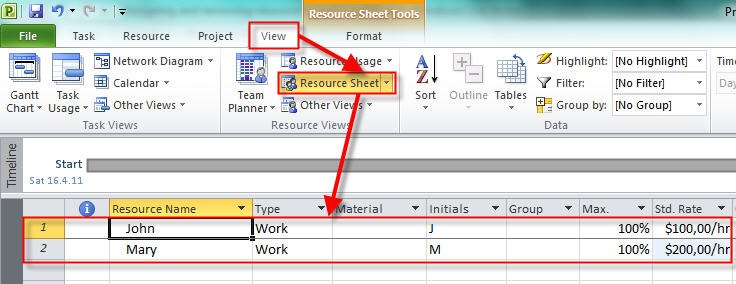
I will put two Resources two resources to the Project:

Primjer 1 18.04.2011

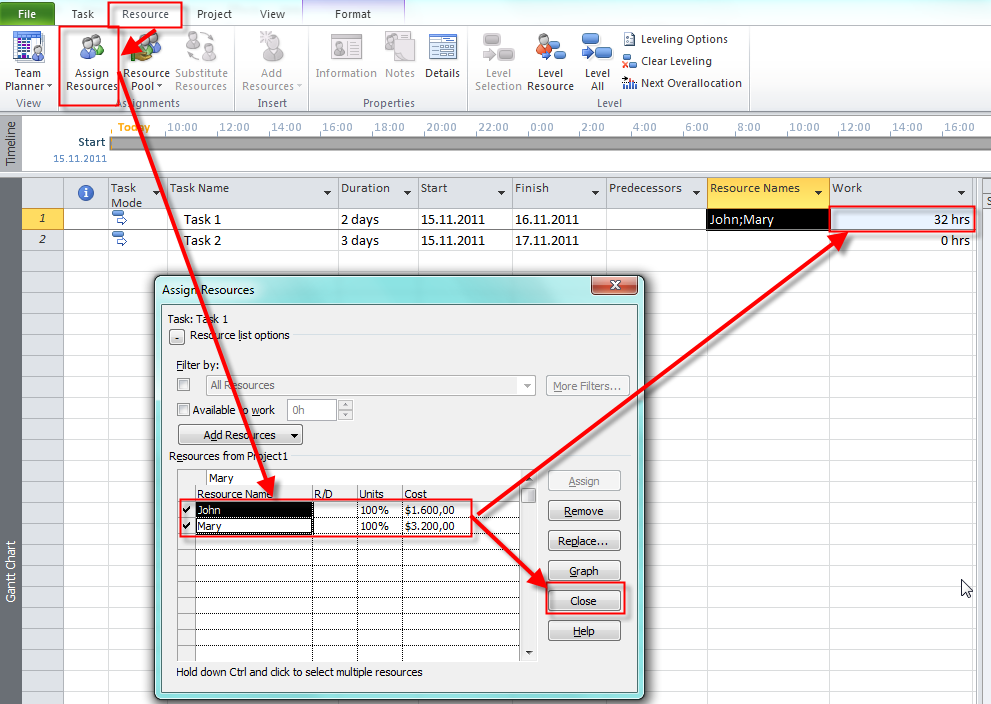
I will assign both, John and Mary to the Task 1:

image

As you can see I get 32 hours in the Work field! It is a Simple calculation: 2 days X 8 hours per day X 2 persons = 32 Hours! You may ask: “Where did this 8 hours per day comes from?”. From here:

image

and then:

image

O.K.! I will assign John and Mary to the Task 2, but in this case I will assign only 50% of Mary To the Task!

image

and I will get:

image

As you can see I get 36 hours in the Work field! It is a Simple calculation: For John: 3 days X 8 hours per day (100%) X 1 person = 24 Hours! For Mary: 3 days X 4 hours per day (50%) X 1 person = 12 Hours. So John + Mary =  24 + 12 = 36 hours.

I will do the Same thing for both Tasks, but I will assign John first, and then Mary!

image

John is here, now I will assign Mary, and I will get:

image

It seems that everything is same as in my first example. But, did you notice the little green triangle in the upper left corner of the Task 1? If you put mouse pointer near it you will get so called: Action Button!

image

You have three choices! And I will explain them! Basically you have to give MS PROJECT 2010 the answer on the question: “OK. First you have assign John. Now, you want Mary on the same Task! WHY? WHAT DO YOU WANT TO ACHIEVE? WHY DO YOU NEED MARY?” And, there are three answers:

“Increase total work because the task requires more person-hours. Keep duration constant”! That means that you need more WORKING HOURS, and you can see in a picture above that in the Work field is 32 hours instead of 16.

 “Reduce duration so the task end sooner, but requires same amount of work (person-hours)”! If I choose that one, I will get:

image

In this case I said to the MS PROJECT 2010: Well, John had to work 16 hours. I added Mary to The Task because I want this 16 hours to be split between John and Mary. John will work 8 hours per day, and Mary too. Since I need 16 hours to finish the Task the Task will have only one day, instead of two!

Last answer is:

“Reduce the hours that resource work per day. Keep duration and work the same”! If I choose that one, I will get:

image

In this case I said to the MS PROJECT 2010: Well, John had to work 16 hours. I added Mary to The Task because I want this 16 hours to be split between John and Mary. John will work 4 hours per day, and Mary too. The duration will be the same!

You can see that in Task Usage View:

image

Is it complicated? Yes it is. But, once when you get the point it will be much easier to work with MS PROJECT 2010!

I will continue in my next post with adding and removing Resources to and from Tasks!

Regards,

Posted in MICROSOFT PROJECT, Microsoft PRoject 2010, MS PROJECT 2010, PMI, PRoject Management, Uncategorized | Tagged , , , | 13 Comments