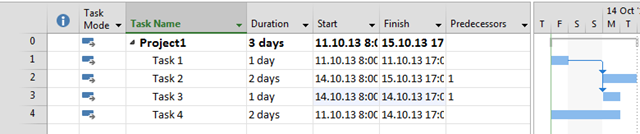
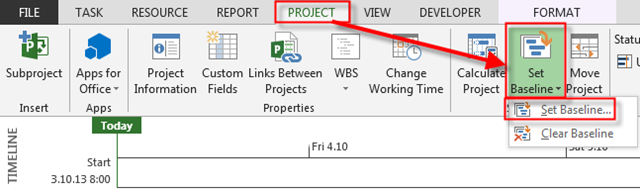
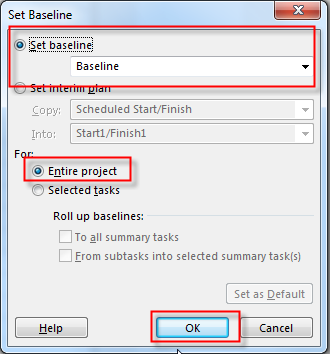
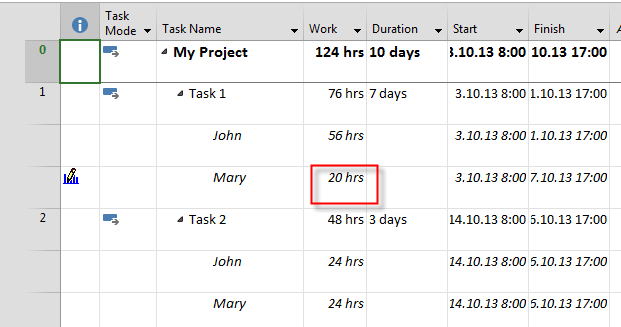
Start and Finish Date with Auto Scheduled Task

Hi,

first of all, apologies for delaying with my regular Post, but I was very busy with organizing SPCAdriatics (SharePoint and Project) conference last weeks (www.spcadriatics.com)

Again, a question from one of my Blog readers:

“Greetings Sir,

Thanks kindly for your detailed example. I have been having a screaming mad time toggling between manually vs. auto scheduled task mode.

I fully recognize that AUTO schedule allows one to get the maximum .mpp functionality, but my main issue is accounting for variances in task durations. I find myself “guessing” how many days I should enter in the DURATION field so that the FINISH date(s) are updated accurately, but the temptation is to just update the START/FINISH dates directly, which I know converts the task to MANUALLY scheduled.

Any guidance or recommendation you can provide is helpful.”

Well, let’s start with MS PROJECT 2013. First I will add one Task to MS PROJECT with 1 day (auto setting) Duration in Auto Scheduled Mode:

image

Now, Suppose that I do not want to make any guessing about Task Duration, but I  want to enter Start and End date by Myself. For example, Start date will be at December/09/2013, and End Date will be at December/12/2013. When I enter this data in MS PROJECT 2013 I’ll get:

image

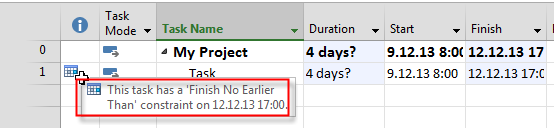
As you can see Task did not turn in Manually scheduled mode! BUT! If you look information (Hover your muse over the Icon) on the first Column you will see:
image

Because I entered Finish Date manually, MS PROJECT set Finish No Earlier Constraint to the Task. And what does it mean? It means that should not be finished before that date! This is called Semi Flexible Constraint, and if you want to know a little bit more about Constraints in MS PROJECT read my previous post: https://ntrajkovski.wordpress.com/2011/04/12/constraints-and-deadline-in-ms-project/

My advice is: Avoid Semi Flexible or Hard Constraint whenever you can. It can give you a headache


Regards!

Posted in MICROSOFT PROJECT, Microsoft PRoject 2010, Microsoft Project 2013, MS PROJECT 2010, PMI, PRoject Management | Tagged , , , , , | 3 Comments

The Project Conference 2014

image

Hi my Blog readers!

If you want to get knowledge about Project, Project Server, and Project in Cloud you should attend this Conference. You can meet the most significant guys from Project world, and find out answer on any, ANY question that you have. Project MVP’s, and Microsoft Project team will be there! Do not miss it!

I’ll be there, as well!

Link is http://www.msprojectconference.com/!


See you there!

Posted in Uncategorized | Leave a comment

Lag in MS PROJECT 2013

Hi,

these days I’m busy with organizing Conference (www.spcadriatics.com), btu I have a question form on of my Blog Readers, so I do not want to disappoint him. Here is the question:

“This is very good information thank you. I do have a question on a type of task that I have not found an answer to. Let me give you two scenarios:
1. You have a charter that needs executive sign off. You cannot proceed with the project until that sign-off occurs. You also know it will take at least a week to get the exec to sign off. But the actual “effort” is maybe 15 min. I need to keep the week because it is a critical path item. but then you have resource over allocation issues unless you set the % for the resource
2. You have a task – “form Xfunctional team. This task, again on the critical path, will take you 18 days by the time you get all the sign-offs agreements etc. You actually only work on it for 15 min a day but need the duration of 3weeks to remain. If you put in 18 days for a resource you will get over allocation unless you set the % for the resource.

Here is the basic question: If you have a task that is that is of a great duration but only will take a small amount of work is there a way to figure out:
the % of work a person should be allocated automatically
Or is there a better way to approach this rather than set the % of work?”

The answer is very simple – Use LAG! What is LAG? It is a waiting time between Taks!.

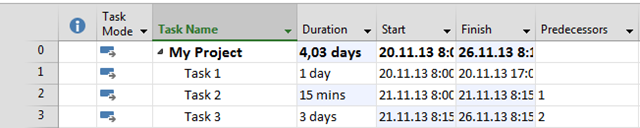
Let me show you how to use it in MS PROJECT 2013. First I will create three Tasks:

image

Let’s suppose that Task 1 is Writing The Charter, Task 2 is Signing The Charter, and Task 3 is something like Developing the Software. You can see that Task 2 has only 15 minutes duration. But between Task 1, and Task 2 you should wait one week.

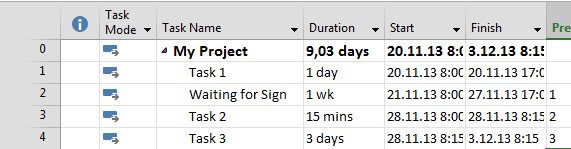
Usually people put another Task between Task 1 , and Task 2 like this:

image

This is bad Practice, even if you do not (and you should not) assign Resource to that Waiting for Sign Task!

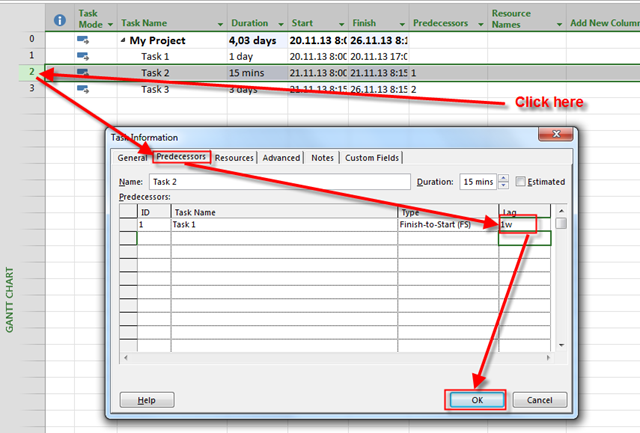
Best Practice is this:

image

and I’ll get:

image

You can see that the Task 2 has 15 minutes Duration, but it will wait one week for starting, after Task 2 will finish!

What 1FS+1 wk mean? It means: “Task 2 has Task 1 as Predecessor, it has Finish To Start relation with Task 1, and will start 1 week (LAG), after Task 1 finishes”

That’s it. hope it helps.

Regards!

Posted in MICROSOFT PROJECT, Microsoft Project 2013, PMI | Tagged , , , , , | Leave a comment

Recurring week exceptions in MS PROJECT 2013

Hi,

Suppose that you are working on the Project! And suppose that you have one week Vacation for whole company resources, each and every Year. How to make it in MS PROJECT 2013.

First I’ll create a Project With one Task and Two Resources:

image

and:

image

and finally:

image

As you can see, Project will start at Monday, 11.11.2013, and will finish at Friday 15.11.2013

Now suppose, that The whole Company is going to Vacation, at that week, every year. You do not want to create exception each and every year. So I’m going to try to make this week as recurring exception:

image

and:

image

Finally I’ll get:

image

OOOOPS! That was not what I wanted. Why? The reason is simple! You can set recurring exception, only for one day at the time. So, what I have to do is this:

image

and I have to repeat for each and every day, for example for Second Day of Vacation:

image

When I enter five days I’ll have:

image

Lt’s look at the Gantt Chart:

image

Everything is perfect now.

So, to conclude, you cannot enter, for example, recurring week, as an exception in Calendar. Is it annoying? Yes it is! But you cannot avoid that!


Regards!

Posted in MICROSOFT PROJECT, Microsoft PRoject 2010, Microsoft Project 2013, Microsoft Project 2013 - Preview, Microsoft Project Server 2010, PMI | Tagged , , , , , | 3 Comments

% Complete VS Physical % Complete in MS PROJECT 2013

Hi,

I will explain hot to track Physical % Complete in MS PROJECT 2013.

In MS PROJECT you can Track %Complete, % Work Complete, and Physical % Complete. Where are the differences?

  • % Complete is about Duration
  • % Work Complete is about how much work (in hours, for example) is done
  • Physical % Complete is how much Physical work is done

Let’s go! First I will make a brand new Project with one Task:

image

I’ll now add John as Resource and I’ll assign him to the Task:

image

and:

image

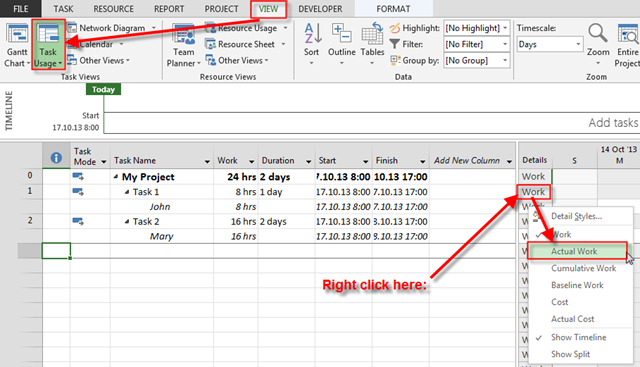
I’ll switch to the Task Usage View, and I’ll add Actual work field:

image

and I’ll get:

image

I’ll now change Work field, so John will have to work only 4 hours at Monday, and Tuesday:

image

Now, I’ll add %Complete, %Work Complete, and Physical % Complete fields on the right part of the screen:

image

Let say that it was 50% spent on the Task 1:

image

As you can see, %Complete is 50%, but % Work Complete is 38%. Where is the difference?

%Complete is 50%, and that means that John has worked 50% of duration, e.g. 5 Days * 50% = 2,5 days! So, if he worked only 2,5 days Actual work (in hours) is 4 hours at Monday, 4 hours at Tuesday, and 4 hours at Wednesday (half day, because John has to work 8 hours at Wednesday). This is what %Complete means = %Duration

On the other hand, John is supposed to work 32 hours to complete his Task. Hi already worked 12 hours (4 hours at Monday, 4 hours at Tuesday, and 4 hours at Wednesday). Simple math:  %Work = 12 hours (Sum of Actual hours)/ 32 (Sum of work) = 0,375 = 38%

OK! I know that, you idiot, you will say. You had the same example few days ago! I know! But what about Physical % Complete?

John spent 2,5 days (50% of Duration) and 12 hours (38% of %Work Completed), but, just for example, he completed 90% of Task! So next 2,5 days, he will spend 20 hours for finishing 10% of his physical work. If the Task is, for example, Publishing the Book, he might wrote in 2,5 days, but next 2,5 days (and 2’0 hours), he need for reviewing it with editor, fix misspelling etc.

For that purpose I will put 90% in Physical % Complete!

image

OK! What can you do with that? You can calculate EVM on that way! I’m not going to show you here EVM report, because I have to leave something for my further Posts.

But, as you can see there is 0% of Physical Complete in Project Summary Task. To have it roll up, you should follow this steps:

  1. Make sure that you have put value greater than 0 in Standard Rate in Resource Sheet.
  2. Change Earned Value Method to Physical % Complete:

image

3. Save the Baseline:

image

and:

image

And, here it is:

image

Regards!

Posted in MICROSOFT PROJECT, Microsoft PRoject 2010, Microsoft Project 2013, MS PROJECT 2010, PMI, PRoject Management | Tagged , , , | 10 Comments

% Complete vs % Work Complete in MS PROJECT 2013

Hi,

some people asked me about difference between %Complete, and %Work Complete. I’ll show you the difference with a very simple example in MS PROJECT 2013.

First, I will create a Simple Project with a single Task:

image

I will have a single Resource, John, of course:

image

and I will assign John to the Task:

image

I’ll switch to the Task Usage View, and I’ll add two columns %Complete, and %Work Complete:

image

On the right site of the View I’ll add Actual work row:

image

and I’ll get:

image

As you can see John has to work 40 hours (5 Days * 8 hours per day)

But, I need only 32 hours for that Task, and I want John to work 4 hours at Monday, and Tuesday, and 8 hours at Wednesday, Thursday, and Friday. So I’ll manually update work field:

image

Now I will enter 50% at %Complete field, and I’ll get:

image

As you can see, %Complete is 50%, but % Work Complete is 38%. Where is the difference?

%Complete is 50%, and that means that John has worked 50% of duration, e.g. 5 Days * 50% = 2,5 days! So, if he worked only 2,5 days Actual work (in hours) is 4 hours at Monday, 4 hours at Tuesday, and 4 hours at Wednesday (half day, because John has to work 8 hours at Wednesday). This is what %Complete means = %Duration

On the other hand, John is supposed to work 32 hours to complete his Task. Hi already worked 12 hours (4 hours at Monday, 4 hours at Tuesday, and 4 hours at Wednesday). Simple math:  %Work = 12 hours (Sum of Actual hours)/ 32 (Sum of work) = 0,375 = 38%

As simple as that!

Regards!

Posted in MICROSOFT PROJECT, Microsoft PRoject 2010, Microsoft Project 2013, MS PROJECT 2010, PMI, PRoject Management | Tagged , , , | 13 Comments

Percentage completed vs. Actual Work in MS PROJECT 2013!

Hi,

again, my Blog reader has a problem:

“Dear Nenad,

your blog is a real treasure and I am so happy I came across it a year ago when we started with the implementation of the MS Project Server 2010 and I was looking for quality blogs all around the world.

I have learned a lot from your practical tips of how to tweak the MS Project to optimize fine details, which may seem like hair-splitting at first sight, but are really important for users who use the system daily and appreciate every minute saved.

Now I came across a problem for which I am unable to find a solution and I would be immensely grateful if you could help me, at worst, at least finally establish that there is no solution.

The problem is that I would not like the change in »task completed« to affect actual numbers reported in the timesheet. Currently, when I progress task completion for a task (say, from 0% to 50%), planned hours get automatically recorded as actual in timesheets of users assigned to this task. Is there a way to disconnect setting task completion from automatically recording actual hours into the timesheet?”

After this beautiful words, I have to answer! I’m going to do that in MS PROJECT 2013

First I’ll create two Tasks in MS PROJECT 2013:

image

and two resources, as well:

image

I’ll assign John to the Task 2, and Mary to the Task 2:

image

Now I’m going to switch to the Task Usage View:

image

and I’ll get:

image

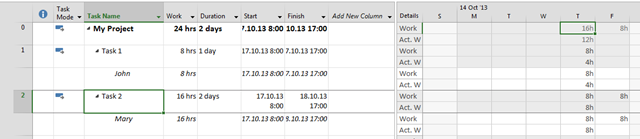
I’ll will now mark Task 1, and Task 2 as 50% Completed, and I’ll get:

image

After I do it for both Tasks I’ll get:

image

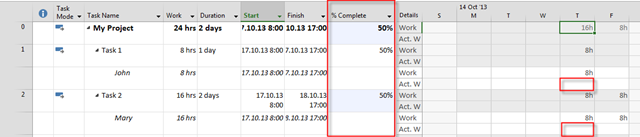
OK! I’ve got automatically Actual Work! But, that’s not what I wanted. I want that Actual Work remains 0 hours!

For That I must setup my Project:

image

then:

image

then:

image

and I’ll get:

image

Nothing happens?? Of course not! I’ll now mark both Tasks as 0% Completed, and again 50% completed. Then I’ll get:

image

You can see that I’ve added & Complete column! It says that Tasks are 50% Completed, but Actual hours are 0!

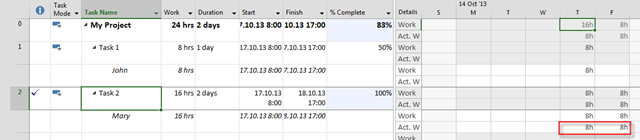
BUT! I’ll now mark Task 2 (for example), as 100% completed, and I’ll get:

image

As you can see, Actual hours are here!!!!

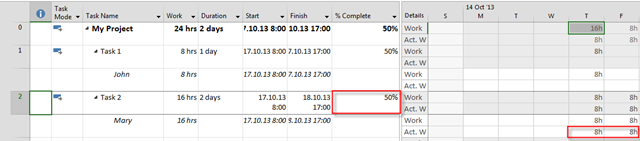
Now,  I will now mark Task 2 as 50% completed, and I’ll get:

image

So, Task 2 is 50% completed, but Work (hours) is 100% completed! And it does make sense! If you want to have Acutal hours = 0 , mark it again as 0% completed, than again 50% completed!

Hope this helps!

Regards!

Posted in MICROSOFT PROJECT, Microsoft PRoject 2010, Microsoft Project 2013, MS PROJECT 2010, PMI, PRoject Management | Tagged , , , | 9 Comments

ASAP and ALAP constraint combination in MS PROJECT 2013

Hi,

my Blog Reader has a problem:

“Please can you help me. I would like to know how I can ask MS project to set one task ALAP without causing successors to move ALAP as well. In other words, I like to keep all tasks as MS default setting (ASAP) except one task to be set as ALAP.
Your response will greatly be appreciated.”

That will be a short and easy one in MS PROJECT 2013.

First, I’ll create Tasks in my Project, and default Constraint Type is ASAP (As Soon As Possible):

image

Now I’m going to create Dependencies:

image

I’ll say that Task 3 has ALAP (As Late As  Possible) constraint:

image

and I’ll get:

image

As you can see Start Date of Task 3 is now 15.10.2013, and not 14.10.2013.

Now I’ll tell that Task 4 has Task 3 as Predecessor:

image

Because Task 4 has Task 3 as Predecessor, Task 3 will start at 14.10.2013!

Finally, If I say that Task 4 has Task 3 and Task 2 as Predecessors, I’ll get:

image

Now, Task 3 will start at 15.10.2013 and Task 4 will start at 16.10.2013, because Task 2 will be finished at 15.10.2013!

It’s a little bit tricky, but you should try on your own!

Regards!

Posted in MICROSOFT PROJECT, Microsoft PRoject 2010, Microsoft Project 2013, Microsoft Project Server 2010, MS PROJECT 2010, PRoject Management | Tagged , , | Leave a comment

Tracking resources exact hours on a standard calendar in MS PROJECT 2013


Hi,

Again a question from one of my Blog readers:

“Dear Nenad,
I really appreciate your blog…helps me immensely.
I would really be grateful if you could help me on tracking resources exact hours on a standard calendar. I am interested in know resources estimated hours and actual hours worked whilst tracking these both against the standard calendar.
I look forward to your reply.
Thanks again!”

First I’m going to create New Project in MS PROJECT 2013:

image

and Resources:

image

I’ll assign both of them to Task , and Task 2:

image

I’ll save this as a Baseline:

image

and:

image

I’ll switch to the Task Usage View:

image

OK! I am using Standard Calendar! Now suppose, for example that John has worked on Task 1 24 hours, but he needs extended 32 hours for the Task 1 (e.g. John will work 56 hours on that Task):

image

As you can see I put 24 hours in Actual, and extended 32 hours in Remaining.

Let’s see Tracking Gantt View:

image

and Work Table:

image

If I want to Track Progress day by day I can do this:

image

and I’ll get:

image

Now suppose, for example that Mary has worked 8 hours at Task 1 at Thursday and Friday, but has to work 4 hours at Monday as well. I can do it like this:

image

You can see that Mary must work 20 hours for that Task in Task Usage View:

image

Hope this helps!

Regards!

Posted in MICROSOFT PROJECT, Microsoft PRoject 2010, Microsoft Project 2013, PMI | Tagged , , , , | Leave a comment

How to apply multiple Resource Calendars to the Same Resource in MS PROJECT 2013?


Hi,

my Blog reader has a problem:

My problem is that some of resources have 2 work schedules. When they work on-shore (5 days week 8 hours day) and off-shore (7 days week and 11 hours day), For each work day off-shore they wave a rest day.
But because off-shore conditions are very unpredictable and dates change often I wondered if there were another way.”

I’ll show you how to do it in MS PROJECT PRO 2013! And I’m going to disappoint you! You can NOT do it! There is no way to assign different Calendar to same Resource in different Task!

Let me show you why! I’ll use built in Calendars: Standard Calendar, and 24 Hours Calendar.

But first I’ll create brand new Project with two Tasks:

image

I’ll now create John as Resource with Standard Calendar as default:

image

Finally, I will assign John to all Tasks:

image

I’m going to see Resource Usage View:

image

If I want John to work 24 Hours for Task 2, the only place where I can Change Calendar is at Resource Sheet:

image

But when I look at the Resource Usage View I’ll see:

image

As you can see there is a change in both Tasks!

What can you do? Well, you should create two Resources, for example, John – Standard, and John – 24 Hours, with two separate default Calendars, and then assign this “different” resources to different Tasks. I know, I know, you will now ask: “If John represent two Resources instead of one, what Can we do with over allocation if those two resources work at the same time?”

Sorry, but the answer is – nothing!!! It ia how MS Project 2013 works!

Regards!

Posted in MICROSOFT PROJECT, Microsoft PRoject 2010, Microsoft Project 2013, PMI, PRoject Management | Tagged , , , | 7 Comments